
Before you start
A manager, master or administrator with access must reopen the letter. It must not be archived; an author can then amend it at approval.
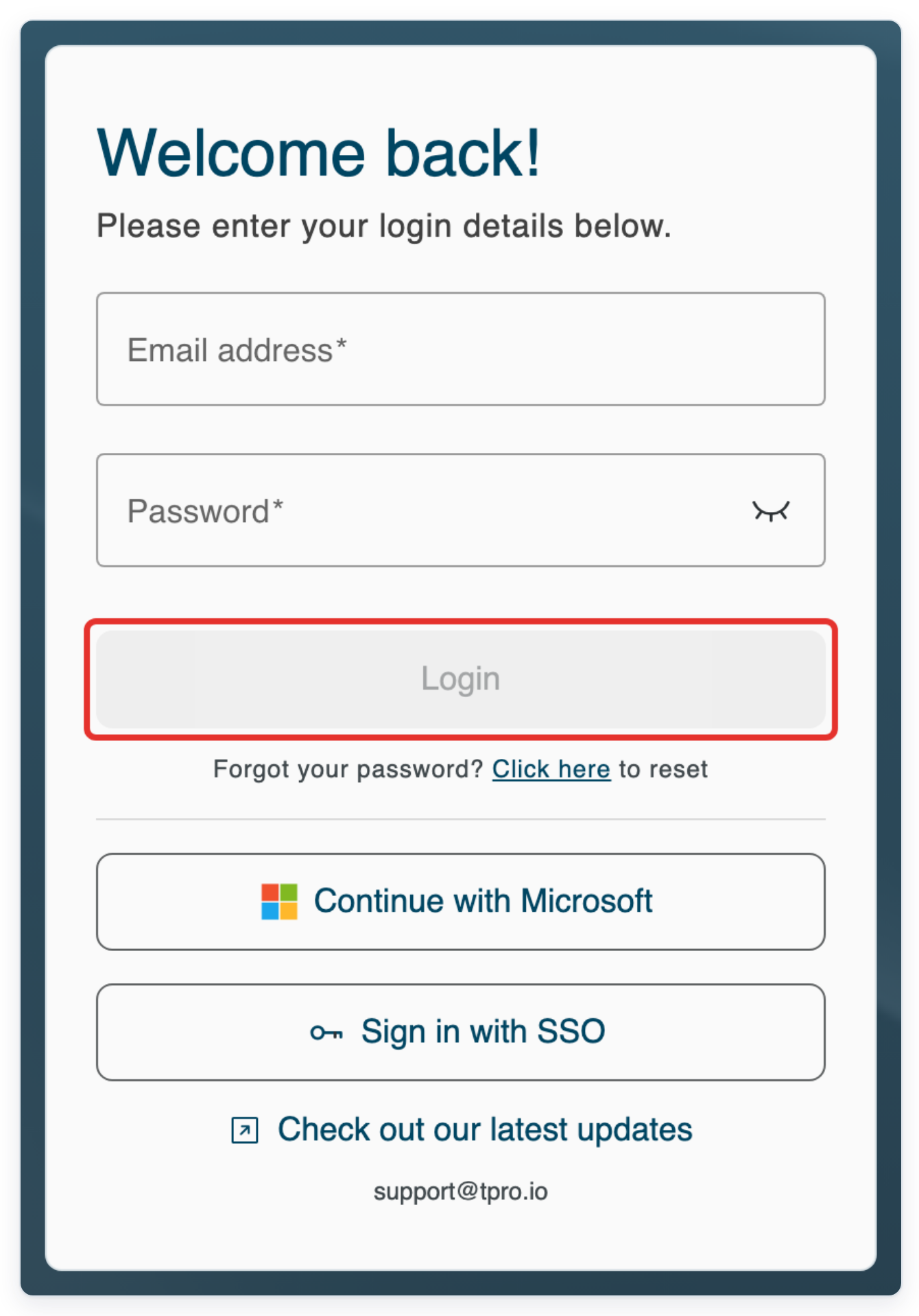
Log in to T-Pro with your manager, master, administrator or author credentials.
As a manager or master
Go to All Tasks and find the Completed task. Click the three dots at the right of its row to open Task options.
This example uses task 7001 for Siobhán Keane. Check Task ID and Patient Name to make sure you have the right letter.
To find a letter, enter the patient's name in Search above the table and press Enter.

Click Send to previous stage to reopen the letter.
In this example, the letter returns to Waiting for Approval for its designated approver.

As an administrator
Go to All Tasks and open Task options on the completed letter's row.
This example uses the same letter, task 7001.

Click Return to Pending to return the letter to the transcription queue.
This clears its transcription route and assignment. Use this route when the correction needs to go back for transcription.

The letter now shows Pending. Open Task options again to assign the correction.

Click Assign Task.
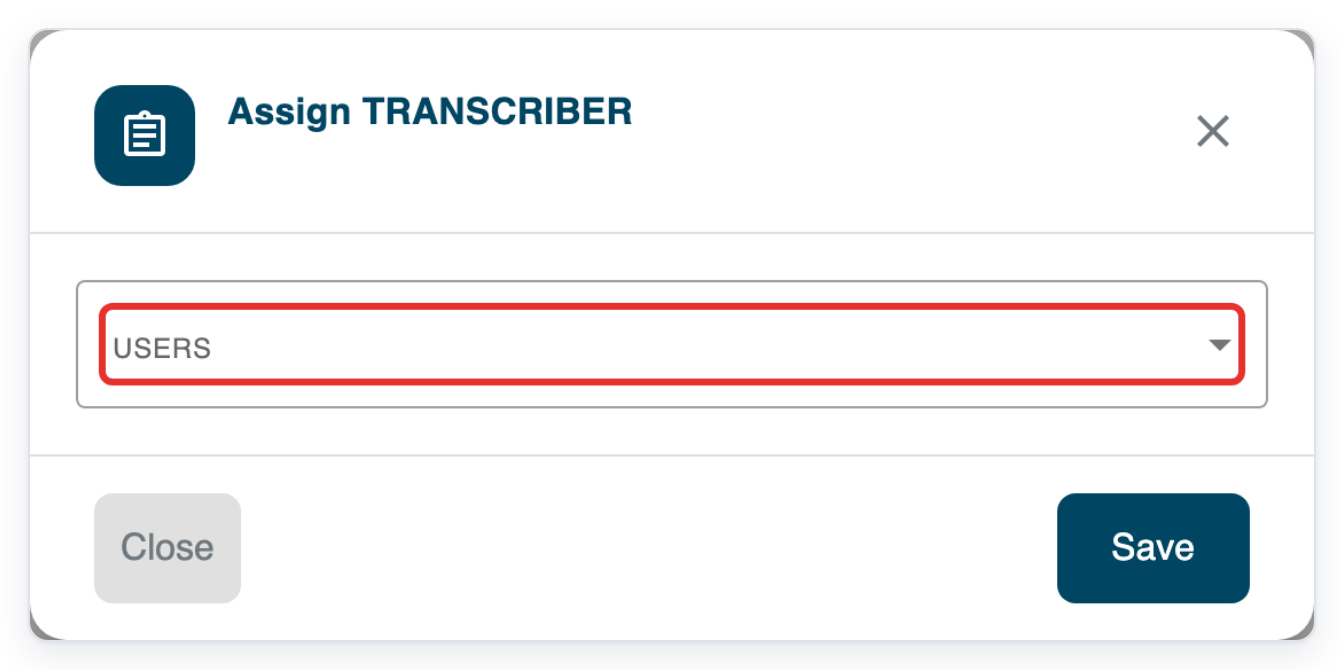
This opens the transcriber assignment dialog.

Open USERS to see the available transcribers.
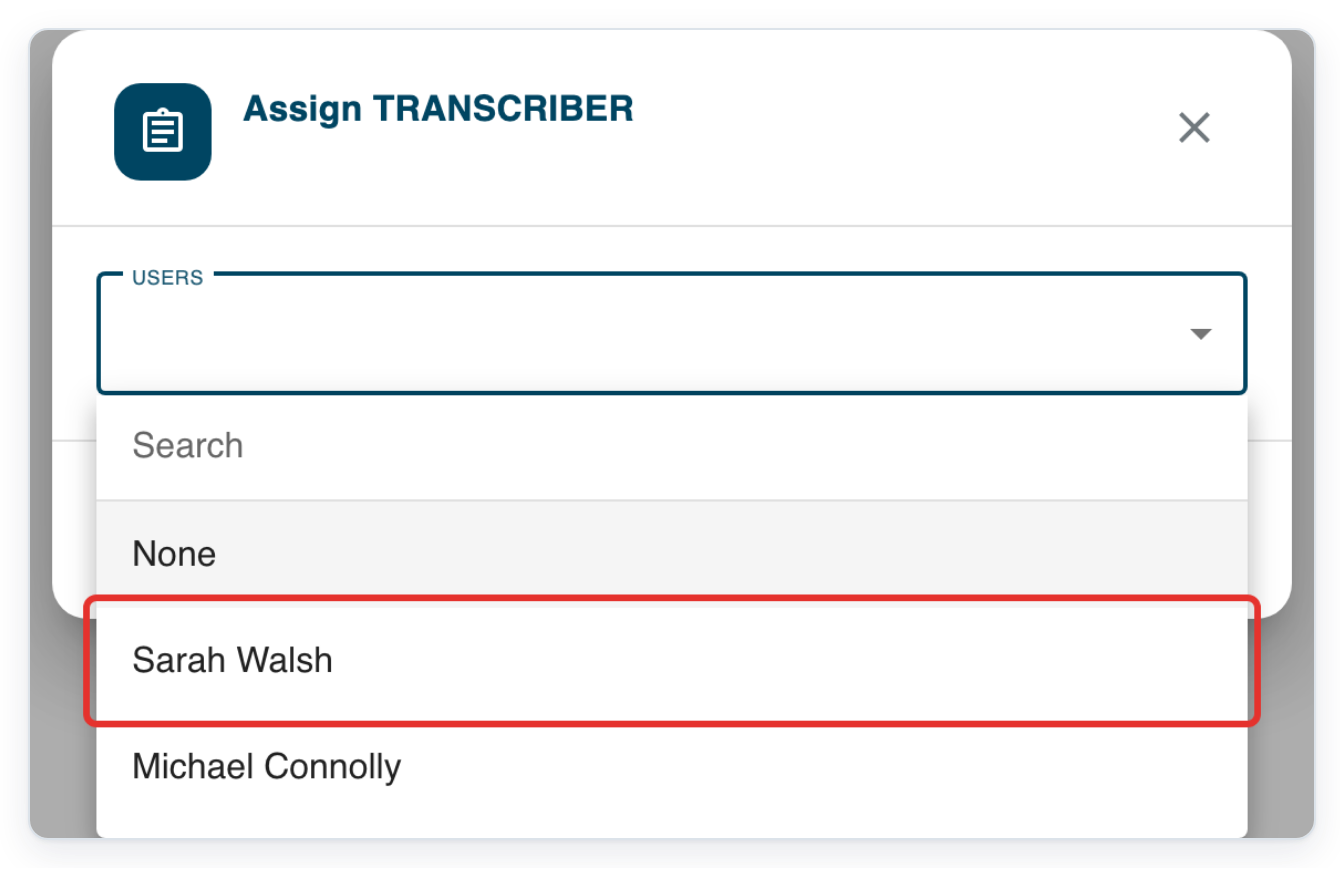
Choose the transcriber who will amend the letter. This example uses Sarah Walsh.
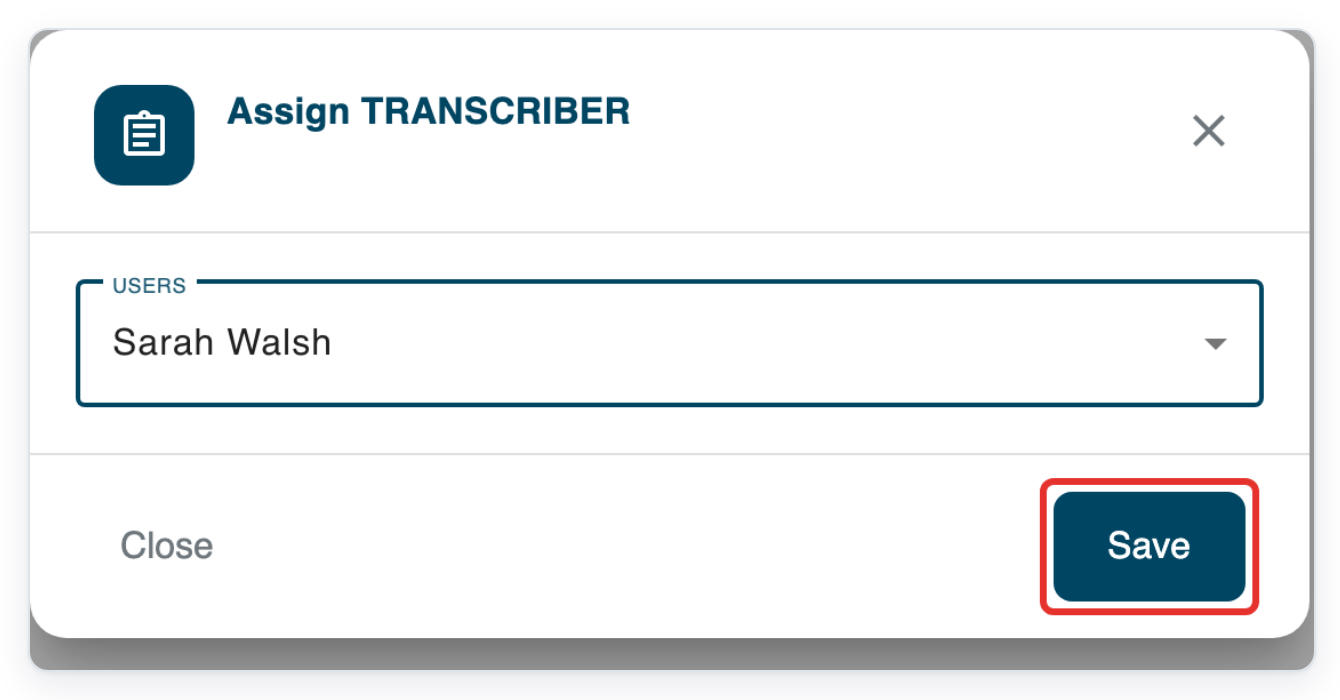
Click Save to assign the letter.
Its status changes to Work in Progress.
Click task 7001 in the Task ID column to open the letter for editing.
The letter opens in a new tab. Check the patient details at the top before you change the letter.
As an administrator, make your amendments and click Save to return to the list at the same stage.

As the designated author approver
For the letter reopened to approval in step 3, sign in as its designated approver.
This example uses Dr Aoife Brennan. Go to Live Tasks and click Waiting for Approval.

Click task 7001 in the Task ID column to open the letter.
The approval editor offers Save for later and Approve.

Click the letter body in Text Editor and make your changes.
Here, correct the medication advice and change the review interval to four weeks in Siobhán Keane's letter.
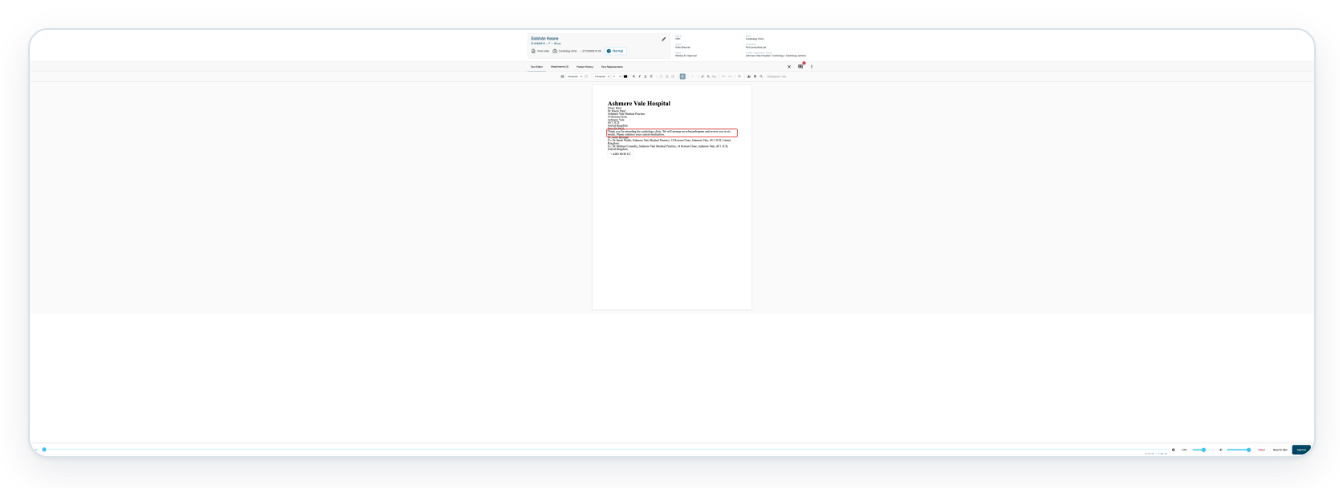
Click Approve at the bottom right to save your changes and move the letter to the next stage.
To save your changes and leave the letter at approval, click Save for later instead.
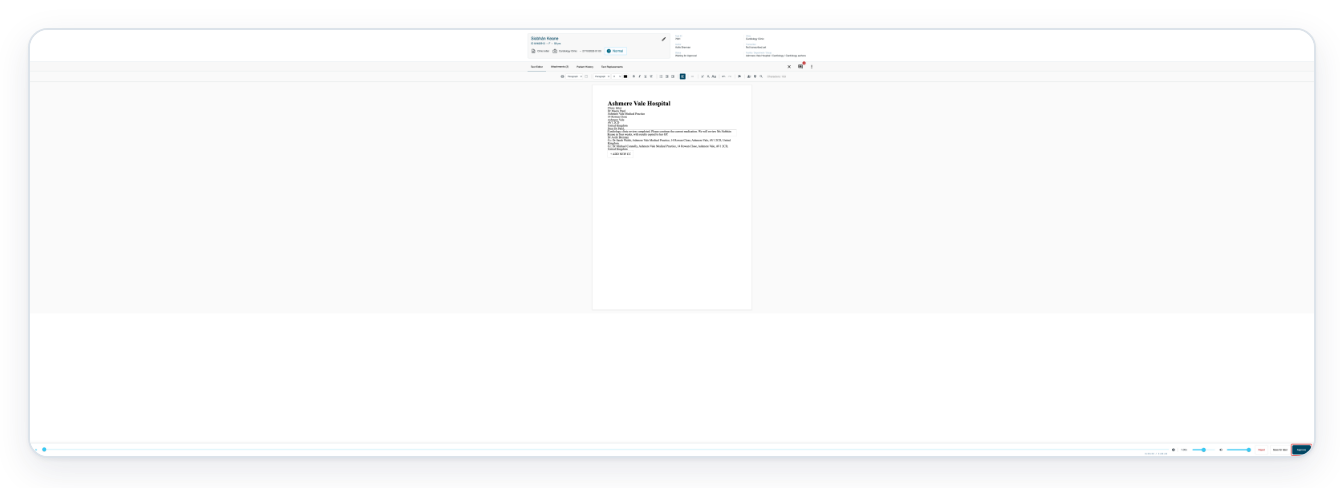
=> You return to All tasks, where task 7001 shows Completed again.

NOTE:
- Reopening returns the task to its previous stage on the route. This may be Waiting for Approval or another stage.
- Your changes save automatically, and the task stays at the same stage. Save returns you to the task list.
- The task's author or assigned approver can also edit the letter while it waits for approval.
- Complete any remaining approval or storage stages before the task is Completed again.
- An administrator can use Return to Pending to clear the route and assignment. Send to previous stage moves the letter back along its existing route.
- After returning the letter to Pending, an administrator can use Assign Task to choose a transcriber. Clicking Save moves it to Work in Progress.
- To ask the author to make the correction through their approval queue, check that they are the designated approver. They can use Save for later to keep the stage or Approve to save and advance.
- To reprint the corrected letter, select it in All tasks, open Bulk actions, then click Print All. Letters with recipients or CCs open the Print dialog. Choose Print a Single Copy for one copy.
- For recipient copies, select Physical beside each recipient or CC who needs a paper copy, then click Print For Recipients. Clear Electronic selections if you only want paper copies.
Can't edit a completed task?
Need a paper copy of the correction? In All tasks, tick the checkbox beside the completed letter.



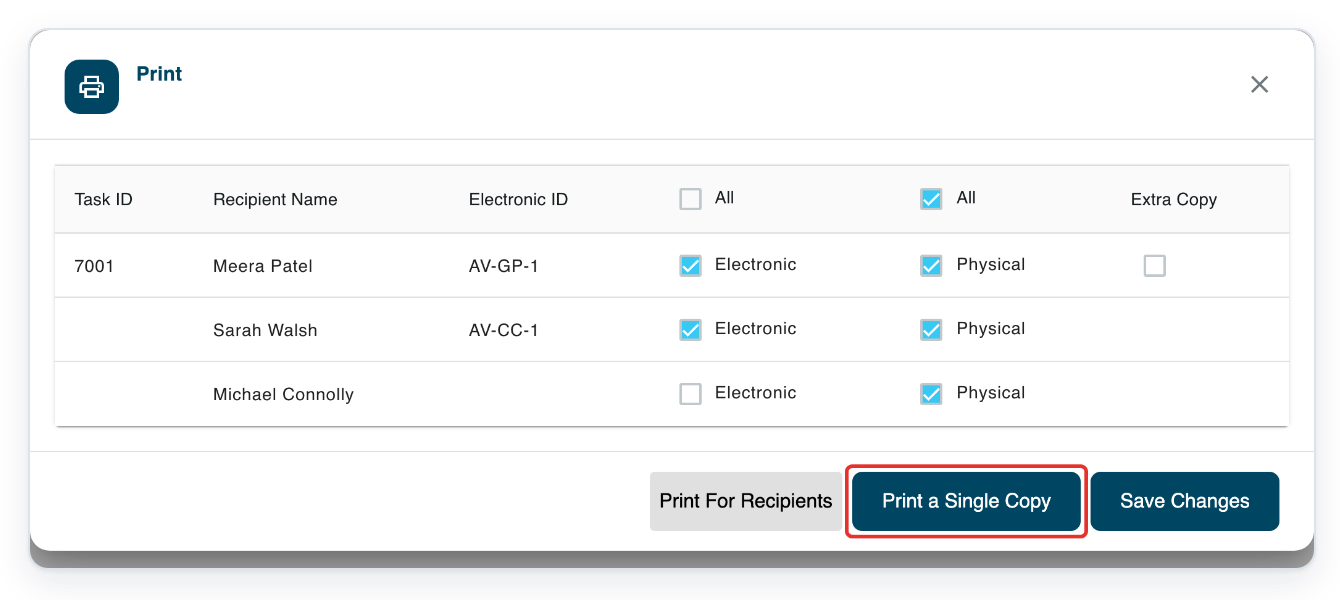
Open Bulk actions, then click Print All. In the Print dialog, click Print a Single Copy for one copy. For copies for recipients and CCs, check their Physical selections and click Print For Recipients. Clear Electronic selections first if you only want paper copies.
The completed letter opens in view-only mode. Return to All Tasks and use Send to previous stage in Task options to reopen it.
You can't find the completed task. Clear any old text in Search and check that the status filters include Completed. For older tasks, choose a wider date range in Period.
Send to previous stage is missing. Check that you're using a manager or master account. If the letter is archived, contact our Helpdesk. Administrators can also reopen letters.
Return to Pending doesn't work. Use Send to previous stage to reopen the letter instead.
The approver is no longer in the author group. Ask whoever manages group membership to add them back, then try again.
The author can't find the letter in their approval queue. Check that it is awaiting approval and that they are the designated approver for its current approval stage.
Related articles
If you have any more queries, please do not hesitate to contact our Helpdesk or support@tpro.io.
© 2020 - 2026