
Before you start
You need a manager, master or administrator account with access to the task. Choose a move available for its current stage. The tasks below are examples.
Log in to T-Pro with your manager, master or administrator credentials.
Enter your Email address and Password, then click Login.
As a manager or master
Go to All Tasks. Find task 7003 in Work in Progress, assigned to Sarah Walsh. Click Task options (the three dots) at the right of its row.
For your own task, check Status and Assignee before choosing a move.

Click Send to previous stage to return task 7003 to Pending.
Use this when the assigned typist is unavailable and the task needs to return to the typing queue.

=> Task 7003 now shows Pending and its Assignee cell is empty.

To move a task forward, find task 7001 in Work in Progress. Open Task options at the right of its row.

Click Send to next stage. The list refreshes and task 7001 shows Waiting for Approval.

To reopen completed task 7002, open Task options on its row.
Check that its Status is Completed.

Click Send to previous stage. The task reopens at the previous stage in its route.

Find task 7005 in Work in Progress and open Task options.
This task's route includes speech recognition (SR).

Click Return to SR. The list refreshes and task 7005 shows SR.

=> Task 7001 shows Waiting for Approval, task 7002 has reopened, and task 7005 shows SR.

To check task 7001's route, open its Task options.

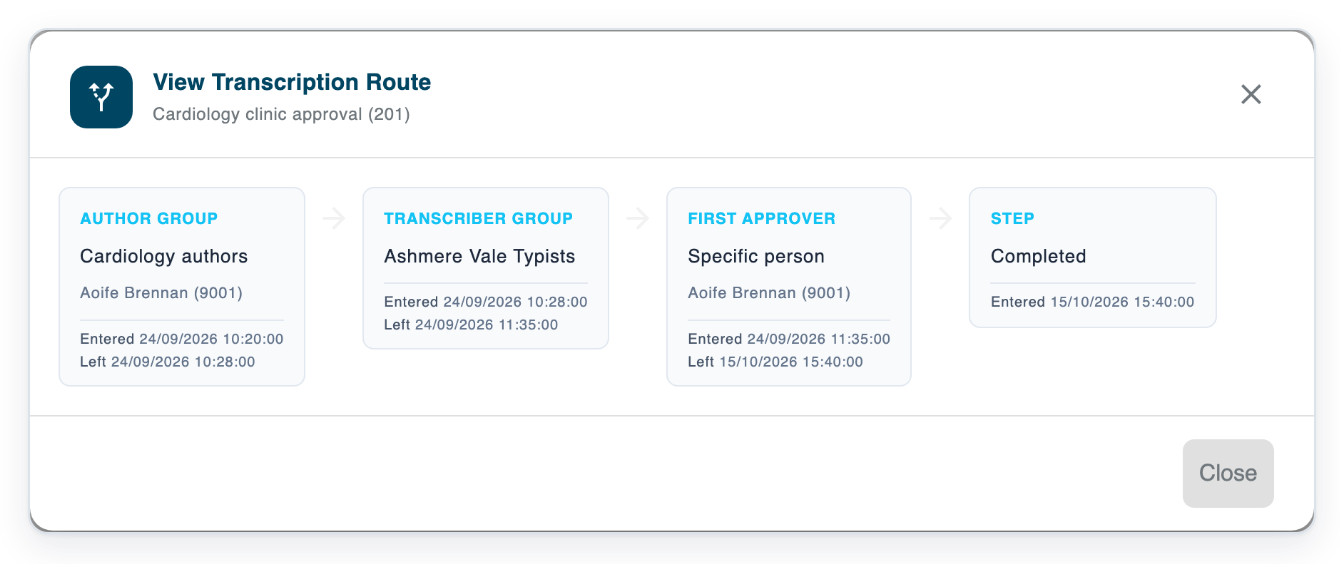
Click View Route to see the task's transcription stages.
Use the route to check where a task can go before choosing a move.

=> View Transcription Route shows Cardiology authors, Ashmere Vale Typists, the First Approver and Completed.
As an administrator
In this separate example, task 7001 is in Work in Progress. Find it in All Tasks and open Task options at the right of its row.

Click Return to Pending to send task 7001 directly back to the typing queue.

=> The list refreshes and task 7001 now shows Pending.

NOTE:
- A task's stages depend on its transcription route. Your task may move to a different stage from these examples.
- Returning a task to Pending removes its assignee so another typist can pick it up.
Which move should you choose?
| Action | What it does | Who can use it |
|---|---|---|
| Send to previous stage | Returns a Work in Progress task to Pending. Reopens a completed task at the previous stage in its route. | Managers, masters and administrators. |
| Send to next stage | Moves a task to the next stage in its route, when that move is available. | Managers, masters and administrators. |
| Return to SR | Sends a task back to speech recognition, if its route and settings allow this. | Managers, masters and administrators. |
| Return to Pending | Returns a task directly to the typing queue. Its route must include a group of typists. | Administrators. |
Other places you can move a task
- If you're an administrator, open an unfinished task. Choose Return to Pending from the task menu, if available, then confirm.
Tip: For tasks that allow these moves, tick their checkboxes in All Tasks. Open the bulk actions menu above the list. Choose Send to previous stage or Send to next stage.
Can't move a task?
- You cannot use Return to Pending as a manager or master. For a Work in Progress task, use Send to previous stage. For a direct return to Pending from another stage, ask an administrator.
- A move is missing from the menu. Check the task's Status and your access. If you cannot use the move, ask the task's manager or an administrator.
- Return to SR is unavailable or fails. Ask an administrator to check the task's route. They should also check speech recognition settings for its author and organisation.
- T-Pro shows “Cannot return to Pending because this route has no transcriber group.” Ask an administrator to check the typing stage in the task's route.
Related articles
- Search for tasks in All Tasks
- Task statuses
- Assign tasks to a typist
- Edit a completed task
- Create a transcription route
If you have any more queries, please do not hesitate to contact our Helpdesk or support@tpro.io.
© 2020 - 2026