
Before you start
You can print a letter from a task you’re allowed to view. The task must already have a document.
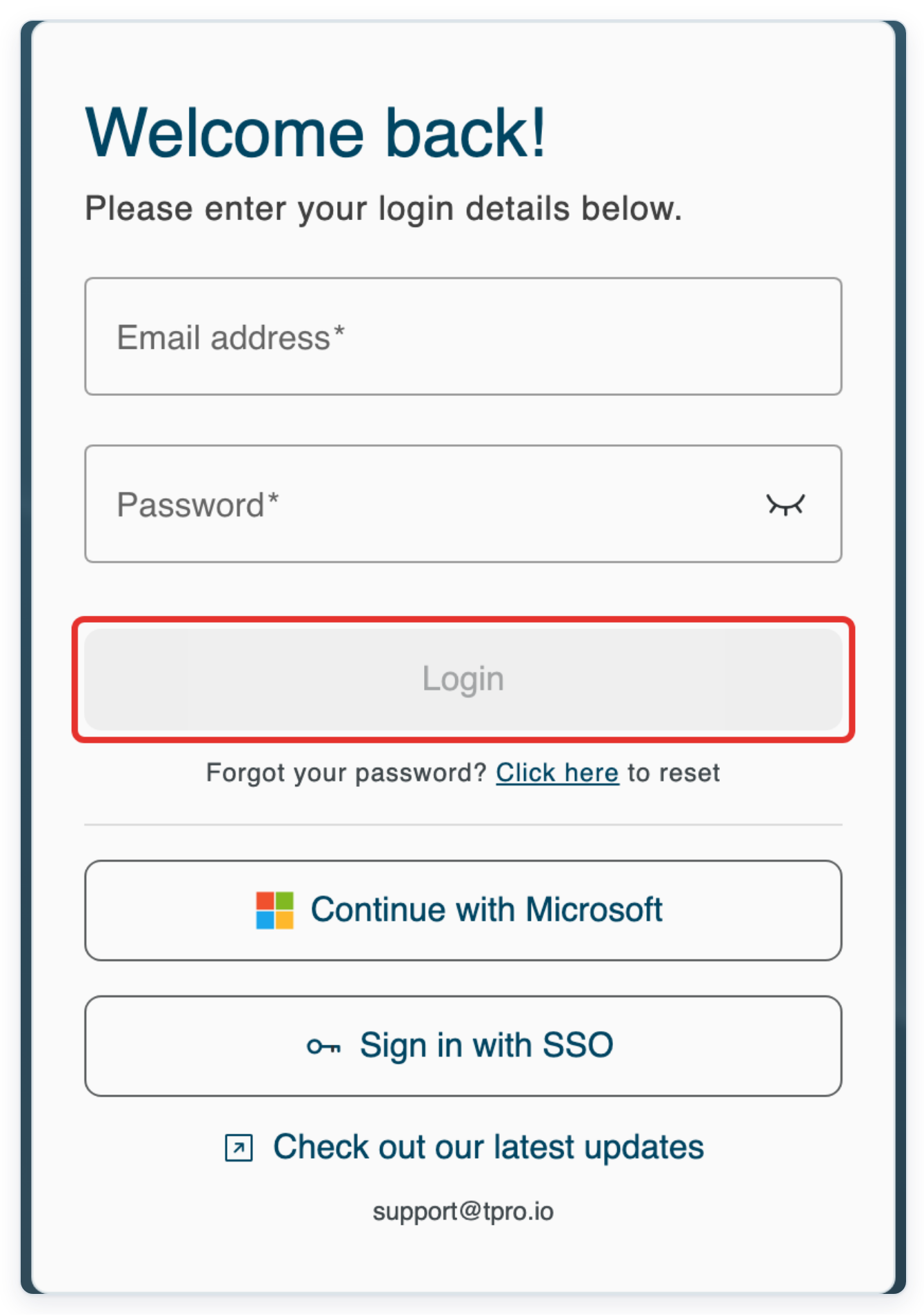
Log in to T-Pro with your user credentials.
Print copies for recipients
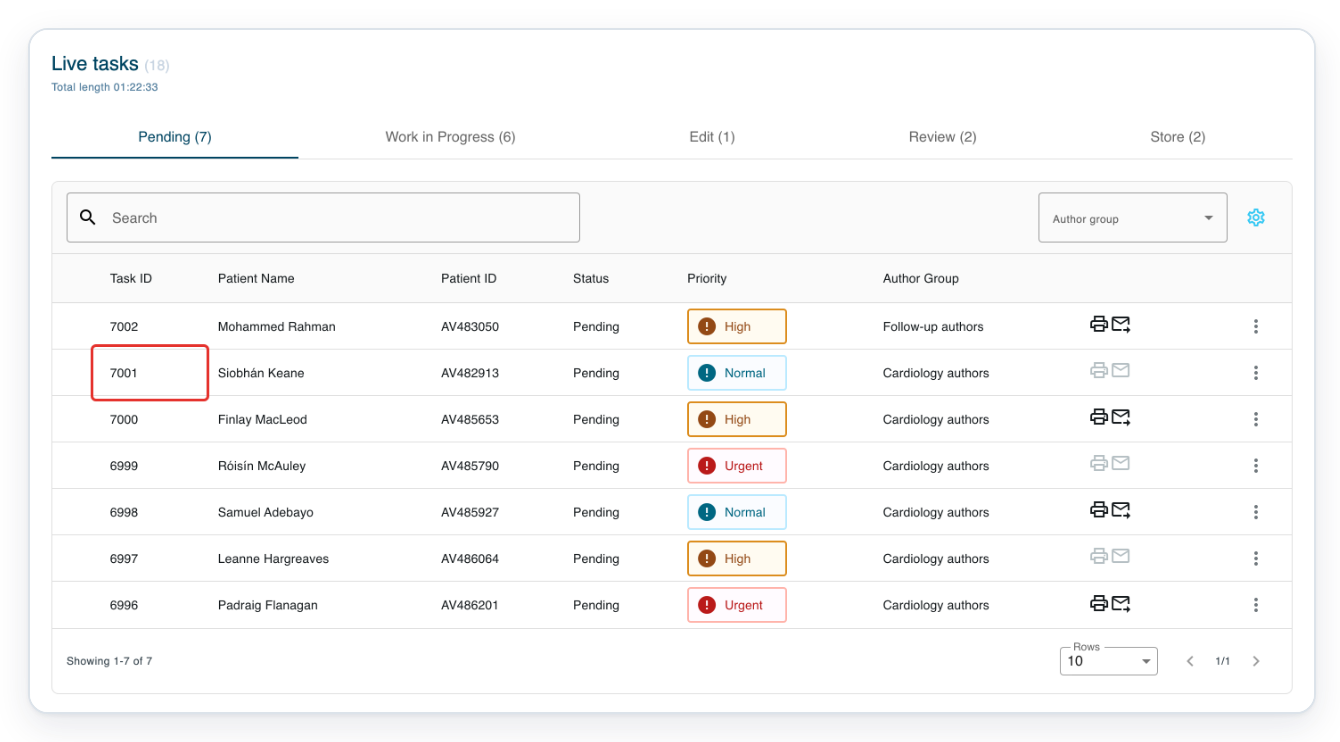
Click Live Tasks to find the letter you want to print.
If you use a manager, master or administrator account, follow the All Tasks route under “Print a single copy”.

Click the task you want to print. In this example, click 7001 to open its letter.
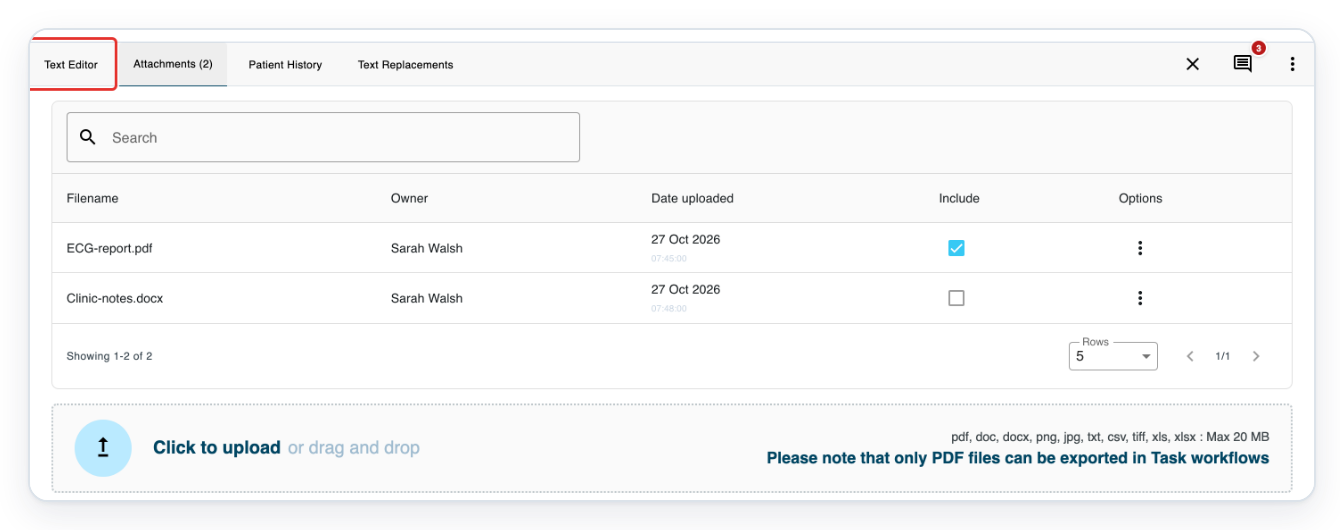
Open the letter, then click Attachments (2) to check which files will print.
The number in brackets shows how many files are attached to the task.

Click Text Editor to return to the letter.
In the Include column, ECG-report.pdf is ticked. Clinic-notes.docx is unticked.
Click the printer button at the start of the letter toolbar to open Print.

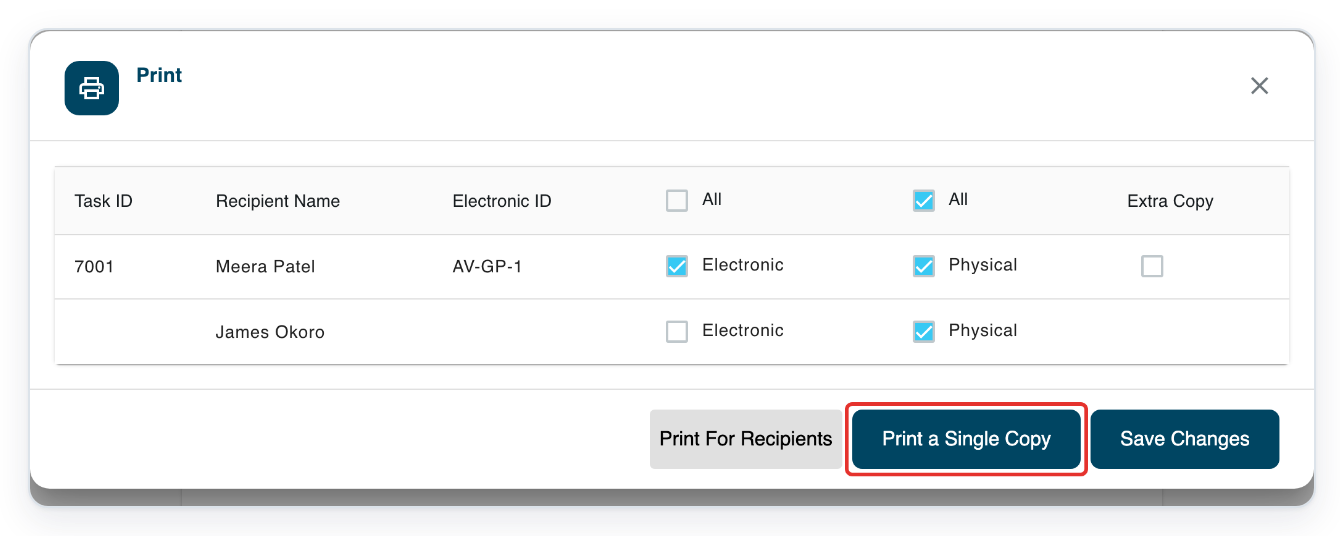
In this example, clear Electronic for Meera Patel. Leave Physical ticked for both recipients.
Electronic ID shows AV-GP-1 for Meera Patel. James Okoro’s entry is blank.
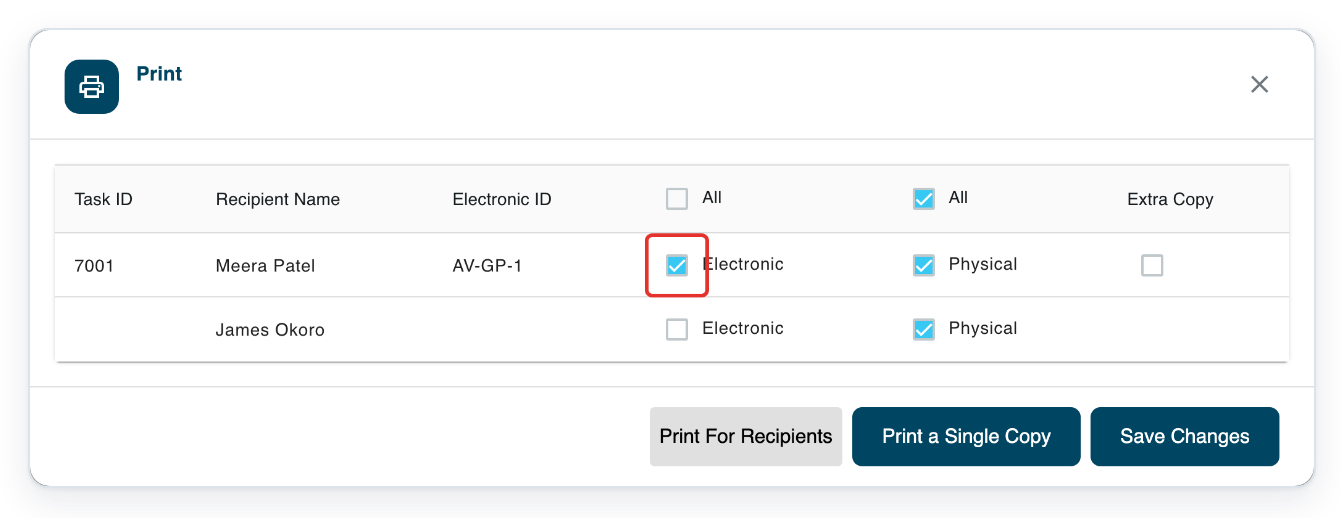
Tick Extra Copy to add one extra paper copy of the letter.
You’ll find this checkbox on the first recipient’s row.
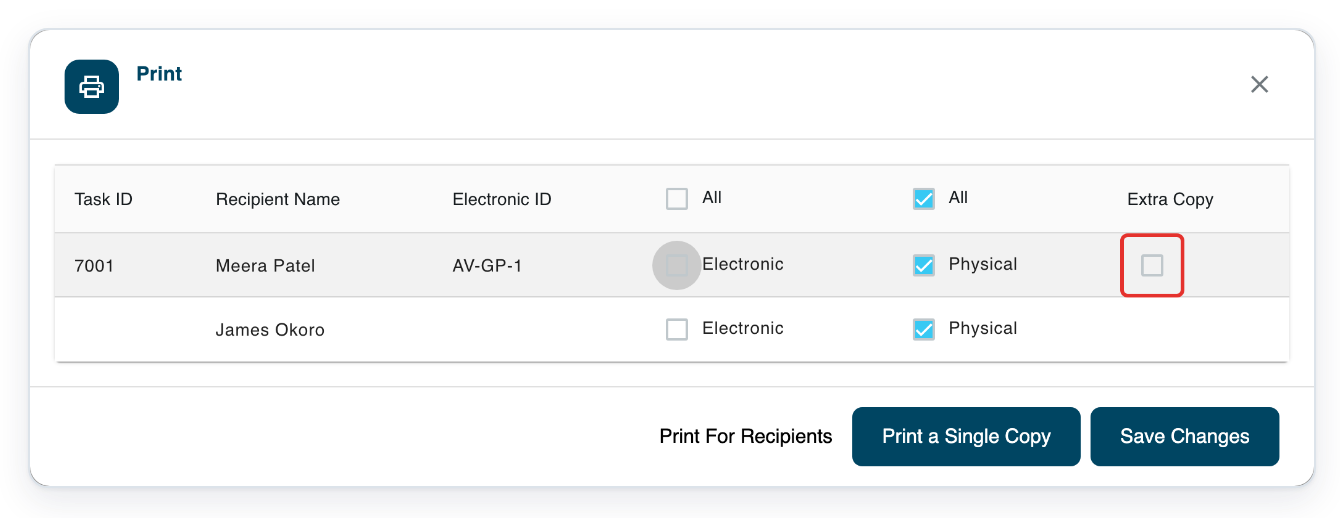
Click Print For Recipients to request the selected paper copies.
Address cover pages depend on the recipient and your organisation’s settings.
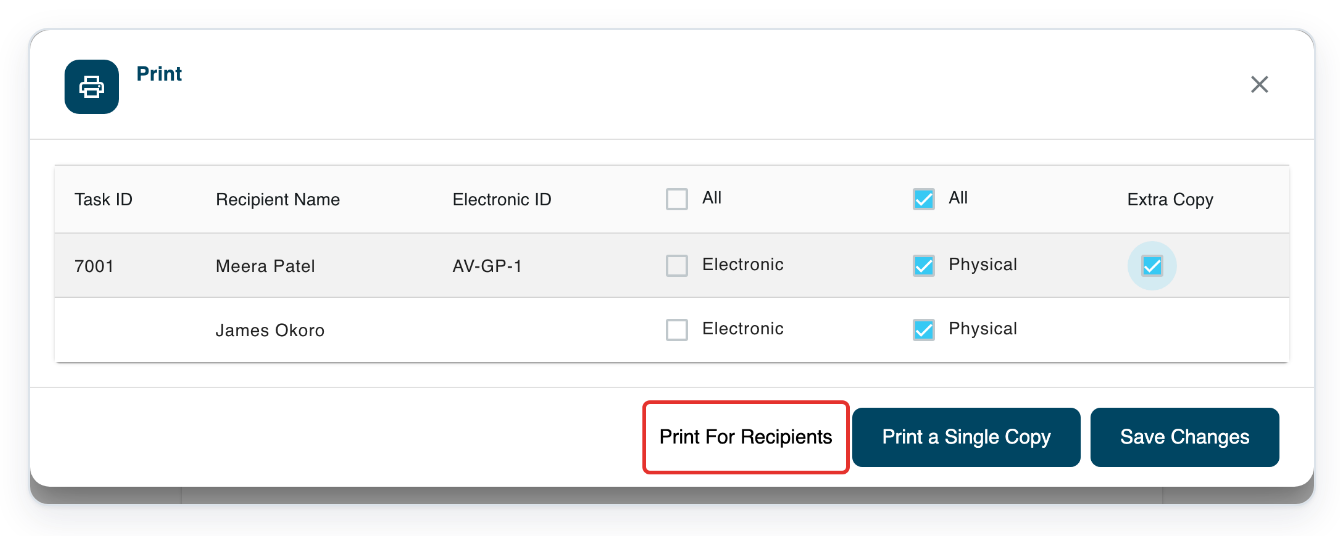
=> You’ll see Preparing Document... while T-Pro prepares the recipient copies.
The browser’s print window follows. Check the preview, choose your printer, pages and copies, then click Print.
Print a single copy
With a manager account, click All Tasks to find the letter.
Administrators and masters also use All Tasks.

Click the task you want to print. In this example, click 7001 to open its letter in a new window.

In an open letter, click the printer button to open Print.

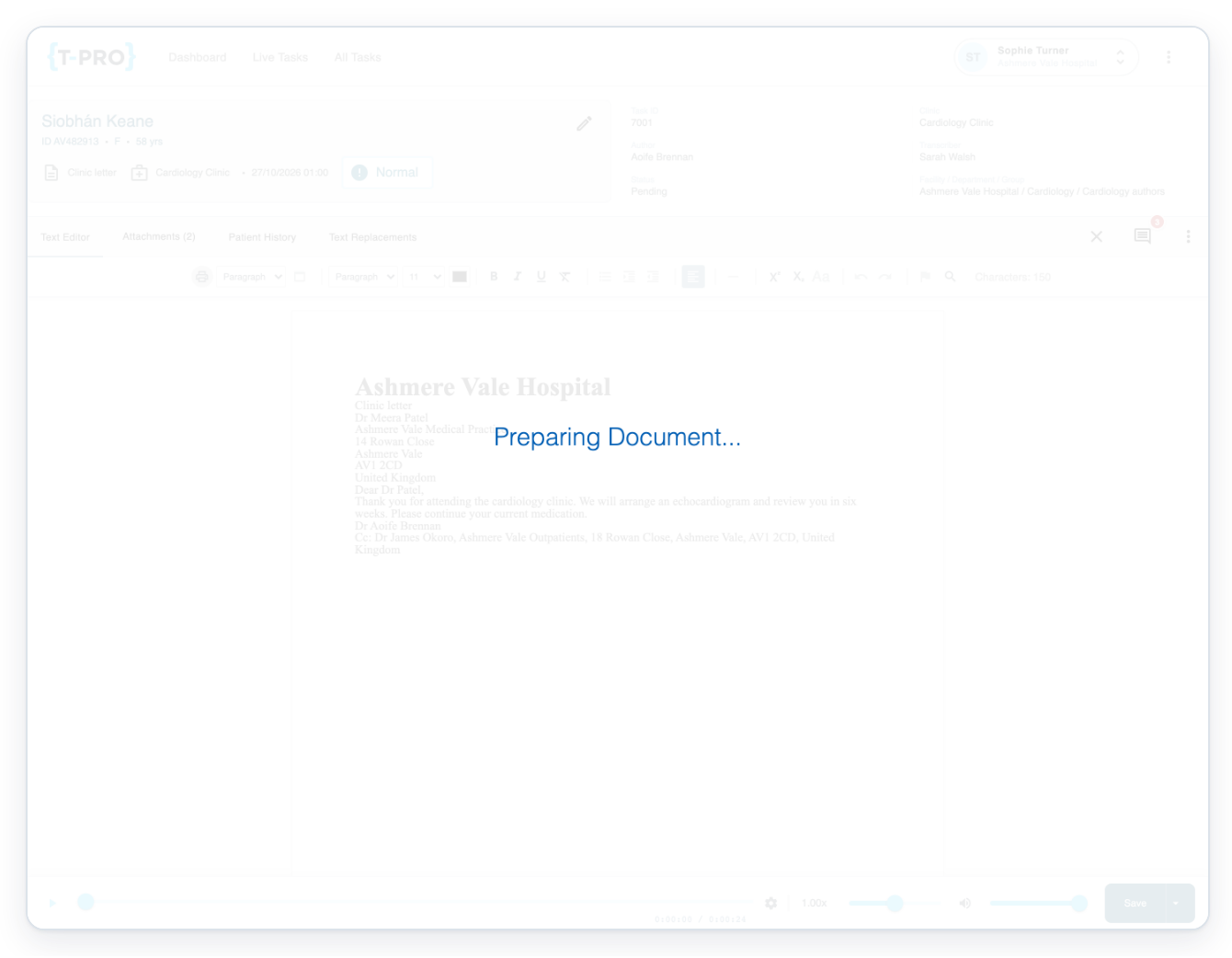
=> The Print window lists the main recipient and CCs. Review Electronic ID, Electronic, Physical and Extra Copy.
To save changed electronic delivery choices separately, click Save Changes.
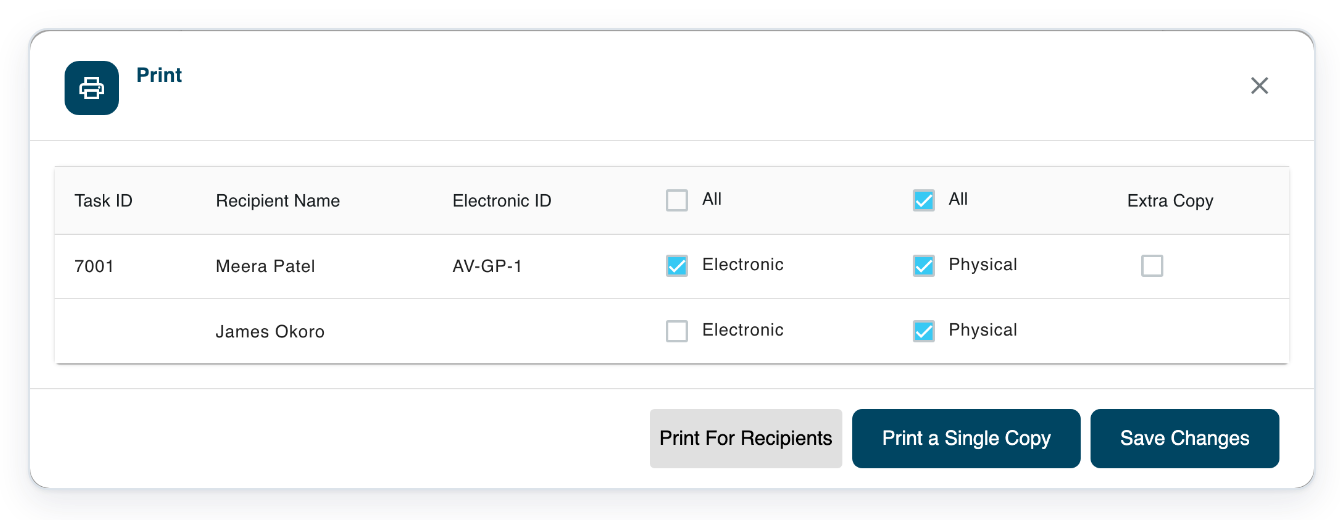
Click Print a Single Copy to request the main recipient’s copy.
This prepares one copy without the main recipient’s automatic address cover page. It does not save changed Electronic choices.
=> You’ll see Preparing Document... while T-Pro prepares the single copy.
In the browser’s print window, check the preview, choose your printer, pages and copies, then click Print.
Print a letter without recipients
In a letter with no main recipient or CCs, click the printer button, labelled Print Document.

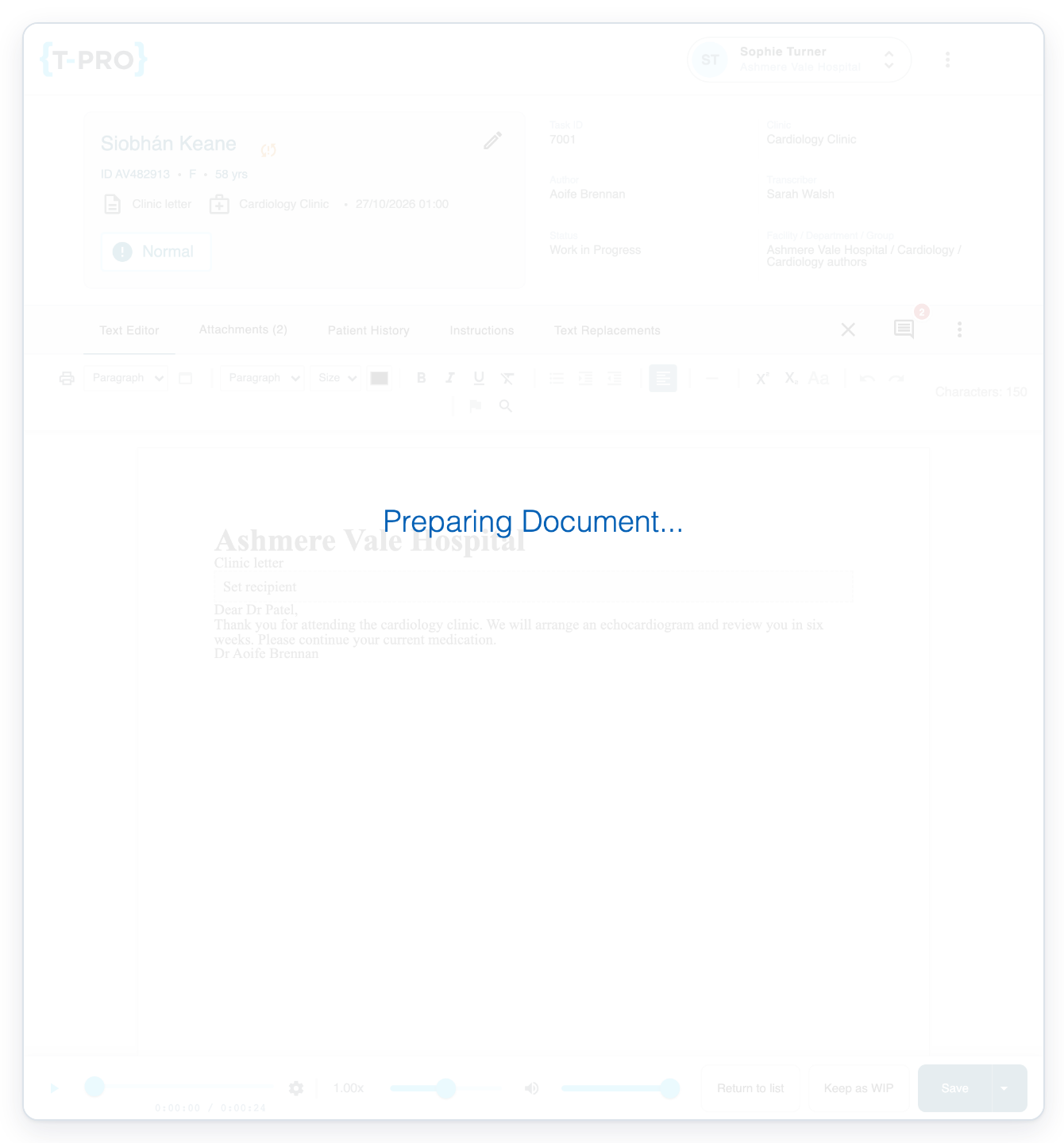
=> Preparing Document... appears directly, without the T-Pro recipient choices.
In the browser’s print window, check the preview, choose your printer, pages and copies, then click Print.
NOTE:
- Included PDF attachments follow the letter in each printed copy.
- When you print for recipients, T-Pro adds CC cover pages if the template requires them. Your organisation’s settings determine whether hidden addresses get cover pages.
- When you click Print For Recipients, T-Pro saves your Electronic choices. These are used for delivery when the task is completed.
- After Preparing Document..., finish printing in the browser’s print window. Check the preview, choose your printer, pages and copies, then click Print.
- For double-sided printing, use your browser or printer’s options.
- A letter without a main recipient or CCs goes straight to Preparing Document..., then opens the browser’s print window.
What the print options mean
Check each recipient’s delivery choices before printing. You can choose both paper and electronic delivery.
| Option | What it means |
|---|---|
| Electronic ID | The recipient’s ID for electronic delivery. This is blank if they have no ID. |
| Electronic | Choose electronic delivery for this recipient. The template must allow it, and the recipient must have an electronic ID. The boxes already ticked reflect saved delivery choices and template settings. |
| Physical | Prepare a paper copy for this recipient. Select it for each person who needs a printed letter. |
| Extra Copy | Add one extra paper copy of the letter, with its included PDFs. |
Other places you can print letters
- From a task list, select the tasks you want to print. Open the bulk actions menu above the list and choose Print All.
- If you are an administrator, master or manager, go to All Tasks. Click the letter’s task to open it in a new window, then click Print Document in its toolbar.
Tip: Use the All checkbox above Physical to select or clear all paper copies for a letter.
Can't print your letter?
- No paper copies are prepared: tick Physical for each recipient who needs one, then click Print For Recipients.
- Print skips the recipient choices: add a recipient or CC to the letter, then open Print again.
- An attachment is missing: check that it is a PDF and Include is ticked. You can change this only if you can edit the task.
- Electronic is unavailable: use Physical for paper copies. For electronic delivery, ask your manager to check the template’s delivery setting and the recipient’s electronic ID.
Related articles
- Add, download and delete attachments
- Download a letter as PDF or Word
- Send letters electronically
- Check when a letter was printed or sent
- Add recipients and CCs to a letter
If you have any more queries, please do not hesitate to contact our Helpdesk or support@tpro.io.
© 2020 - 2026