
Before you start
You need a T-Pro account with access to All Tasks and the task you want to check.
Log in to T-Pro with your author credentials.
Use your own T-Pro account. If you are a processor, go to Live Tasks and hover over the task's print or delivery icon. Other roles can follow the All Tasks steps below.
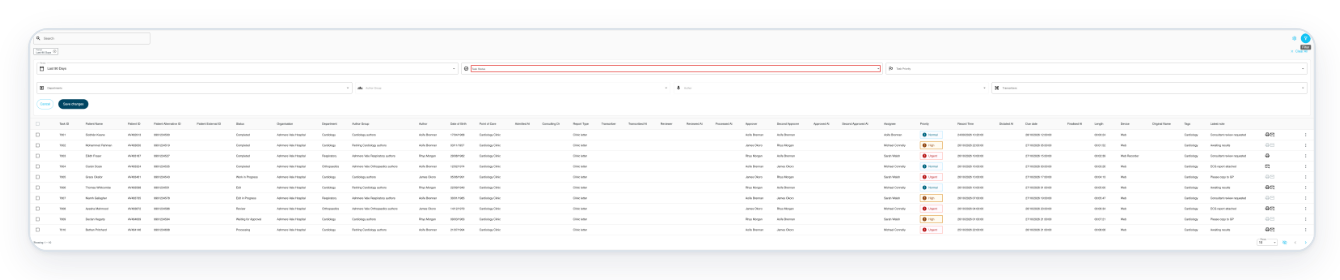
Go to All Tasks, then click Filter above the task list.
Choose a Period that includes the task's creation date. Older tasks may need a wider range, even if the letter was printed recently. The example uses Last 90 Days.

Click Task Status to open the status choices.
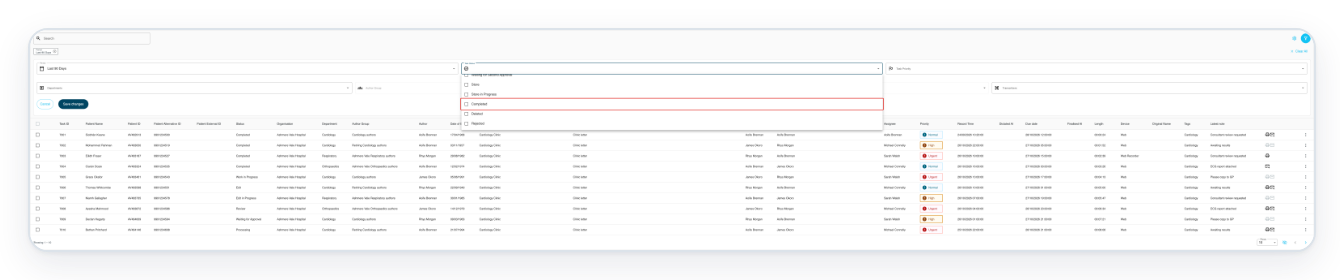
You can select more than one status. The results will include tasks with any of your selected statuses.
Select Completed to find finished tasks.
To follow this example, select only Completed.
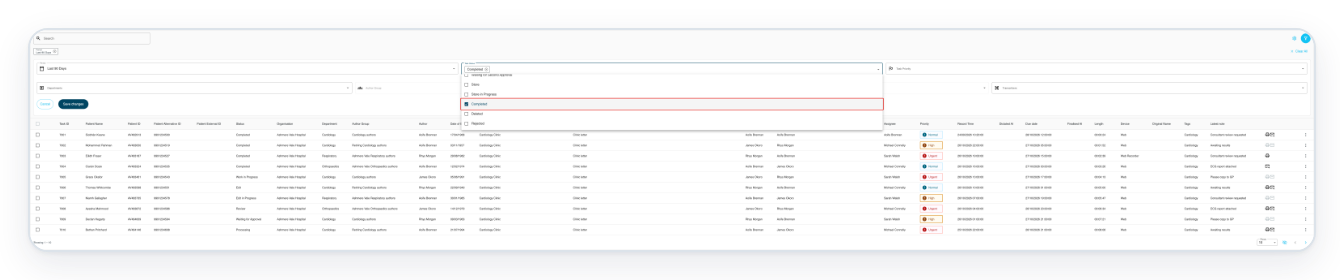
Press Escape to close the Task Status choices.
Your selected status stays visible in the field.
Click Save changes to show the Completed tasks.
Find your letter by checking the patient details or Task ID in the results. The icons are at the far right of each row, after Latest note.
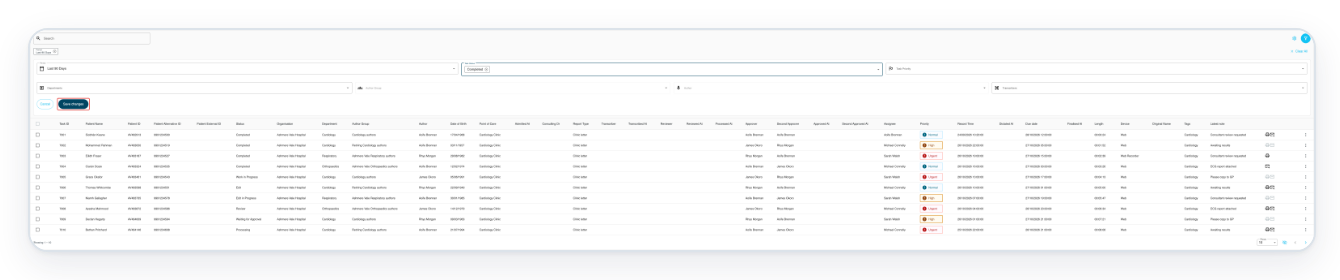
Hover over the printer icon on your letter's row. The example uses task 7001.
Keep your pointer over the icon in the list. The date appears in a small pop-up called a tooltip.

=> The tooltip says Printed 26/10/2026. This is the recorded print date.

Hover over the envelope icon beside the printer for the same task.
Check both icons when your letter's row has a printer and an envelope.

=> The tooltip says Sent electronically 26/10/2026.

Hover over the printer icon for task 7002, the example with no recorded print date.

=> The tooltip says Not printed.

Hover over the envelope icon beside the printer for task 7002.

=> The tooltip says Not sent electronically.

NOTE:
- The tooltips show dates as day/month/year, without a time.
- Printing a letter again updates its recorded print date. If you print it twice on the same day, the tooltip still shows that day's date.
- You can also check these icons in live task lists, including Live Tasks.
- Sign in with your own T-Pro account. Processors should use Live Tasks to check the task's print or delivery icon. For other roles, use the All Tasks route shown above.
- Printed records when T-Pro prepares the letter for printing. Its date does not confirm that paper was actually printed. Cancelling browser printing can still leave a recorded print date.
What the print and delivery indicators mean
Each tooltip shows the letter's recorded status. The print and electronic sending dates are separate when both icons appear.
| Indicator | What it tells you |
|---|---|
| Printed with a date | The latest print date recorded for the letter. |
| Not printed | No print date is recorded for the letter. |
| Sent electronically with a date | The electronic sending date recorded for the letter. |
| Not sent electronically | No electronic sending date is recorded for the letter. |
Can't find the print or delivery date?
- If the task is missing from the results, open Filter. Check that Period includes the task's creation date and Task Status includes its current status. Click Save changes to update the list.
- If an expected printer or envelope icon is missing, ask your manager to check the template's delivery method. They should also check your organisation's indicator settings. These settings control which icons appear. A missing icon alone does not tell you whether the letter was sent. If your organisation uses one combined icon, Printed can also mean the letter was sent electronically.
- If a recipient has not received a letter marked Sent electronically, contact our Helpdesk with the Task ID. T-Pro records this date when the task is completed with electronic delivery selected for a recipient. The indicator does not confirm that the recipient received the letter.
Related articles
If you have any more queries, please do not hesitate to contact our Helpdesk or support@tpro.io.
© 2020 - 2026