
Before you start
Administrators and masters can set up delivery. Storers need access to the approved task. Your organisation needs an electronic delivery connection set up.
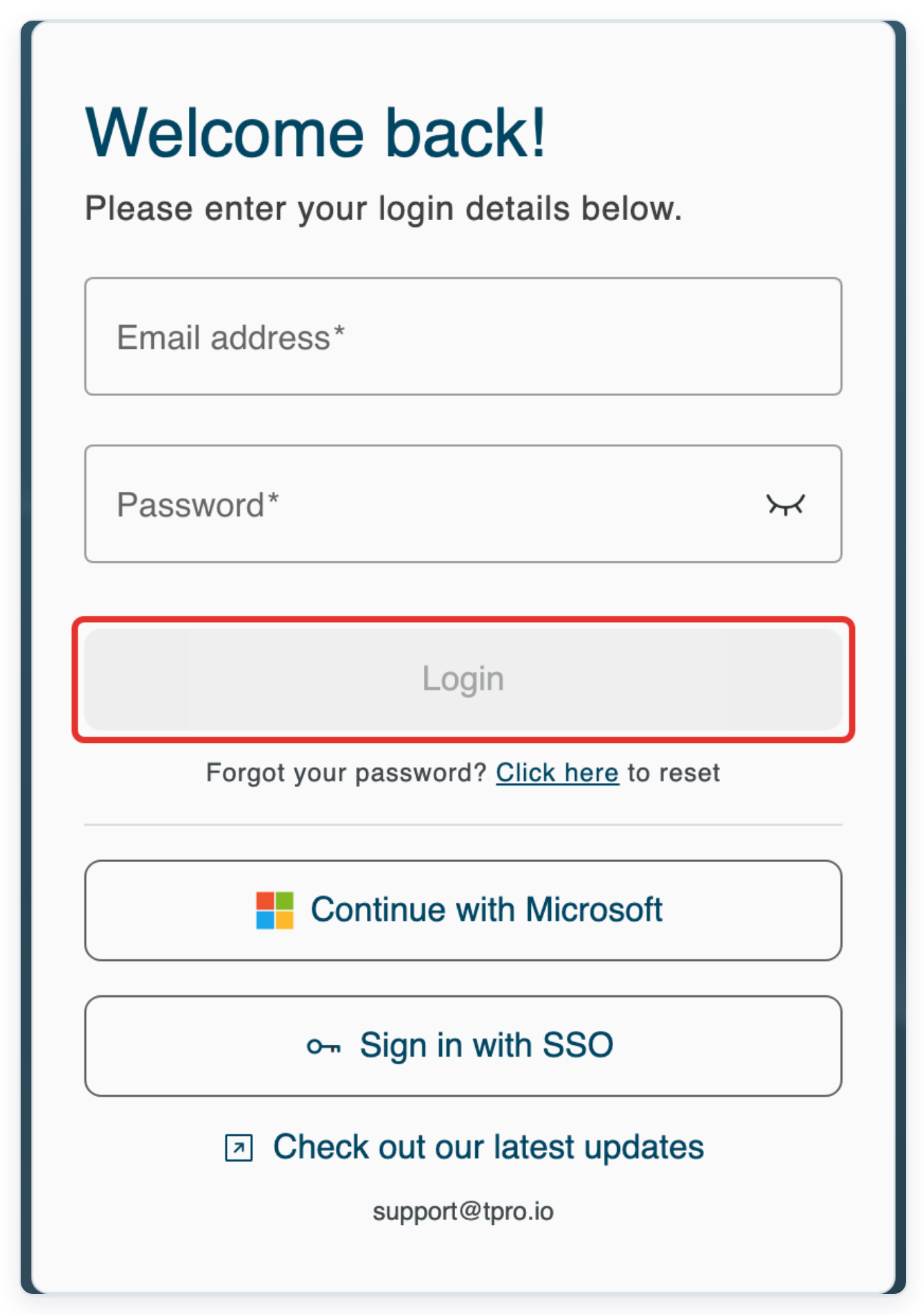
Log in to T-Pro with your administrator, master or storer credentials.
Set up delivery as an administrator or master
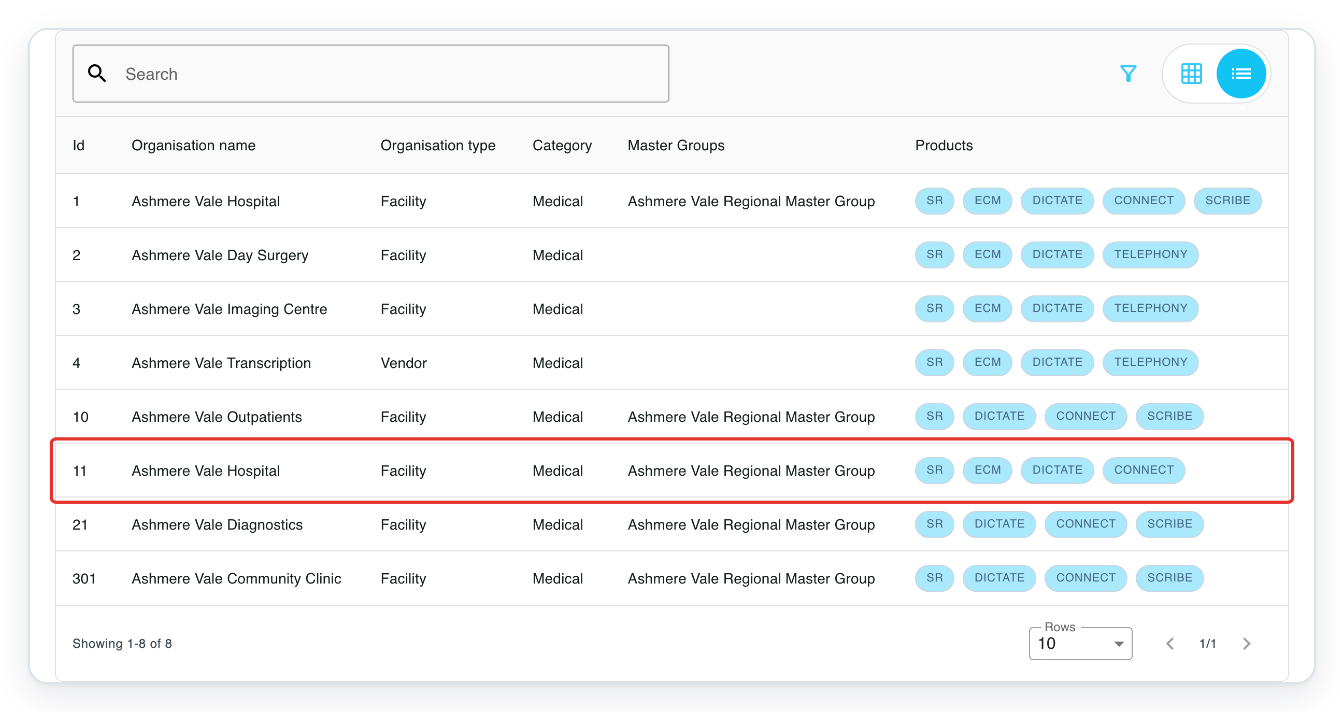
Click Organisations to open the organisations list. Masters can open the facilities they manage.

Click your facility in the organisations list. This example uses Ashmere Vale Hospital, ID 11.
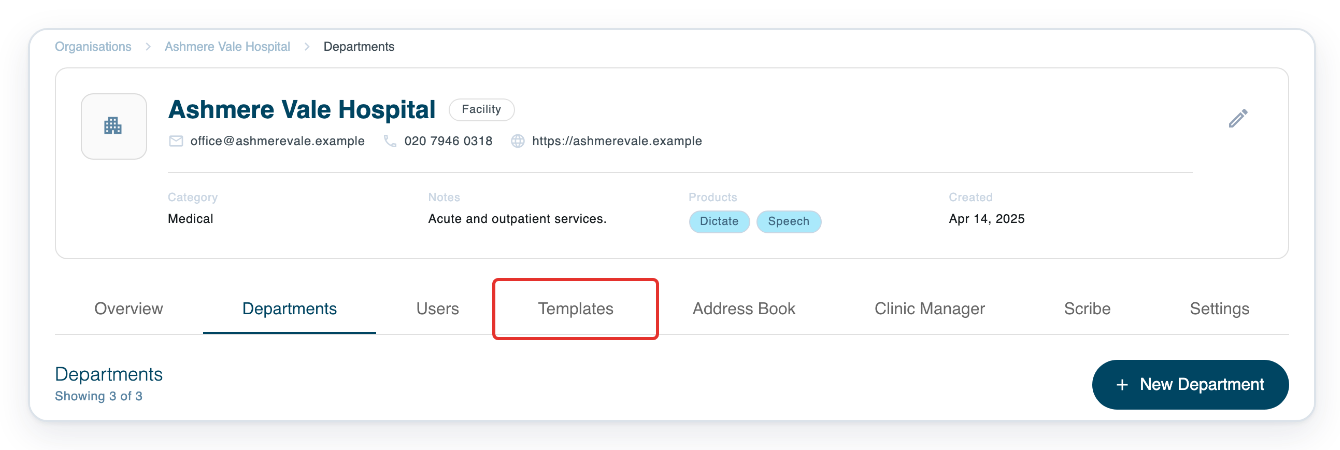
Click the facility’s Templates tab to open its letter templates.
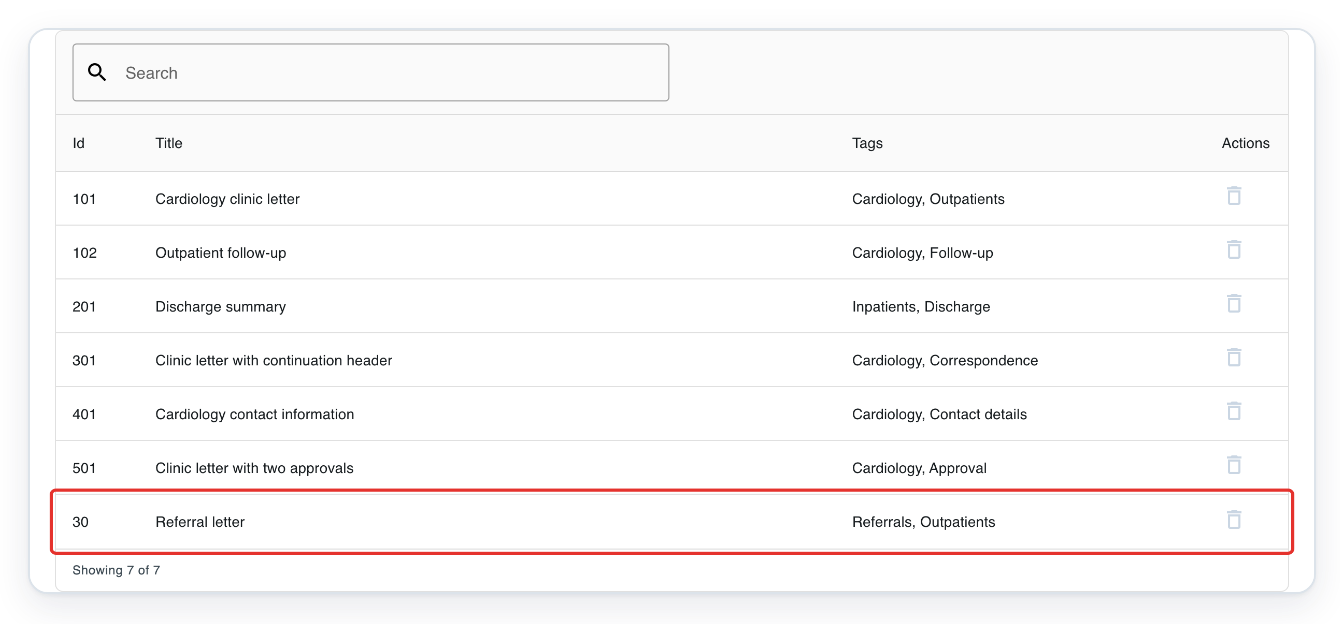
Click the letter template you want to set up, such as Referral letter.
In the template, open Distribution Type to see the delivery choices.
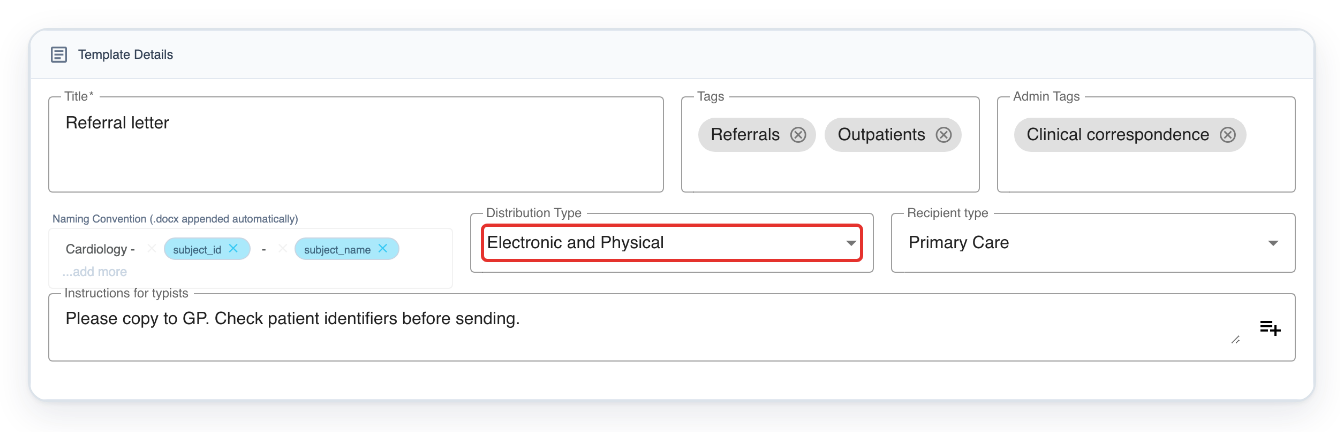
Choose Electronic and Physical.
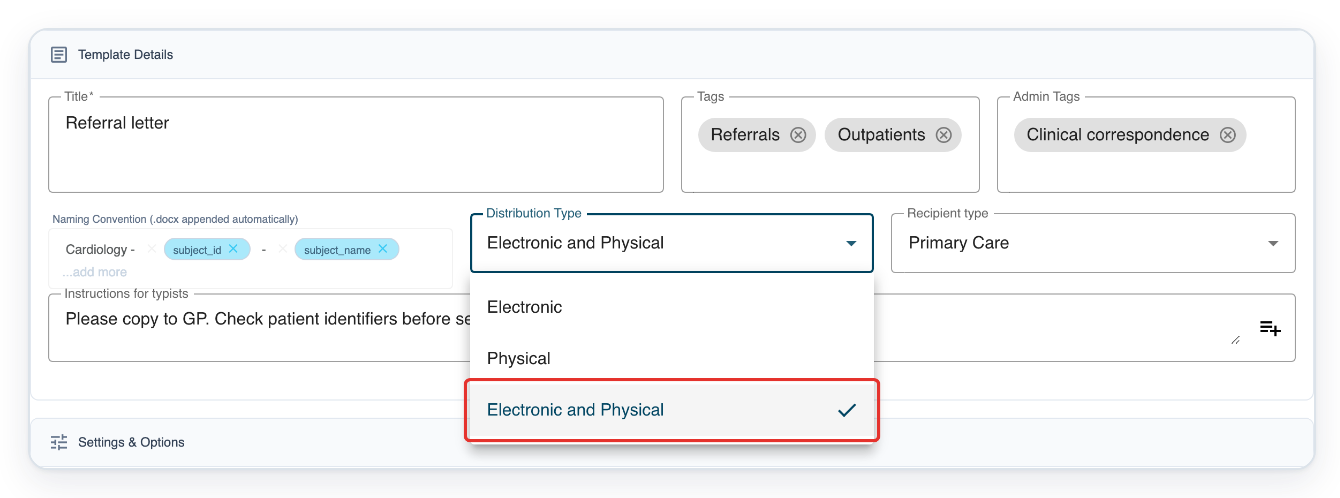
Click Save to save the delivery setting and return to the facility’s template list.

Send an approved letter as a storer
Click Live Tasks to open your task queues.

Click Store to find tasks ready to store after any required approvals.

Click the approved task to open its letter, such as task 7001 for Siobhán Keane.
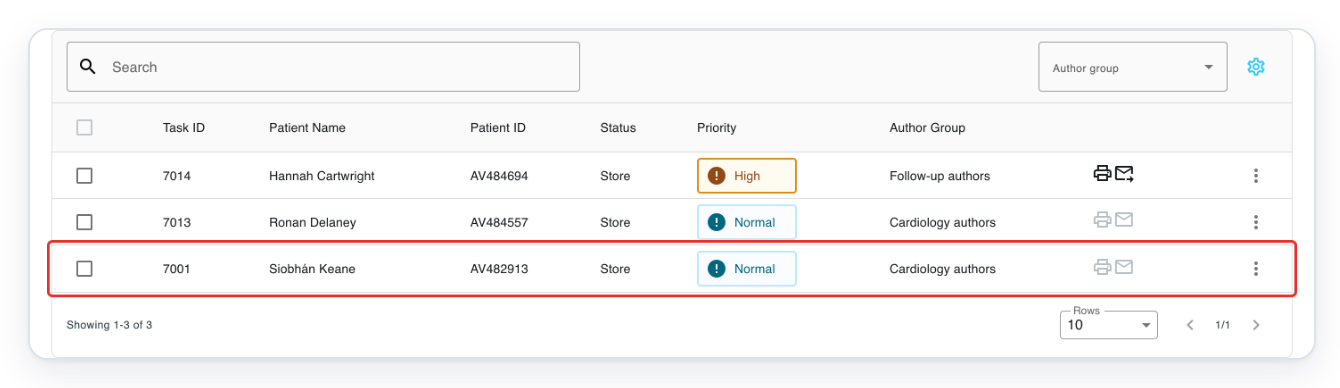
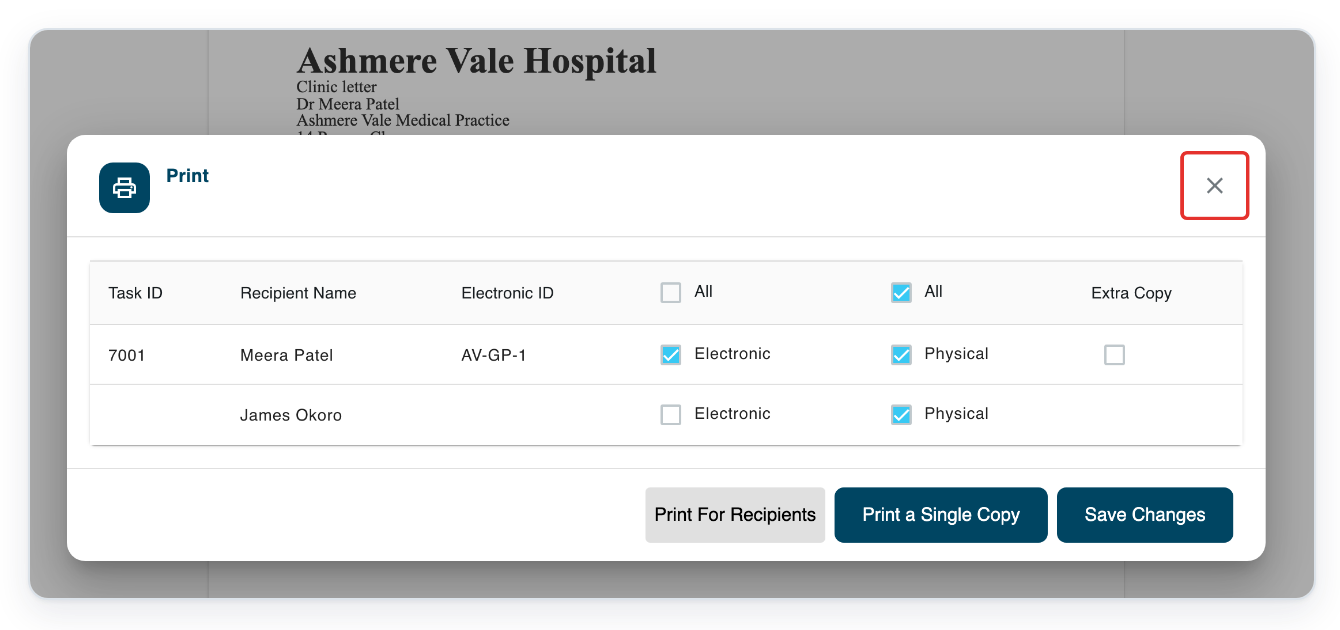
Click the printer button in the letter’s toolbar to open Print.

=> Meera Patel has electronic ID AV-GP-1, with Electronic and Physical ticked. James Okoro has no electronic ID and only Physical ticked.
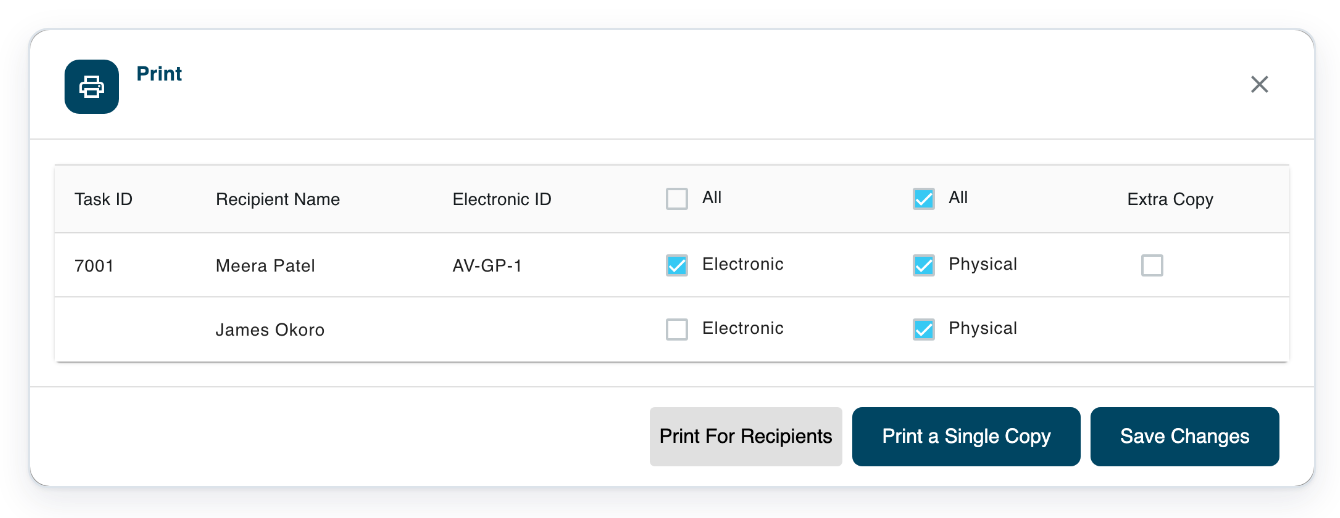
Check the delivery choices. Then click the cross at the top right of Print to return to the letter.
Click Finalise to finish storing the letter and return to All tasks.

NOTE:
- Completing the task queues the letter for sending through your organisation’s electronic delivery connection. You still need to complete the task after printing or saving delivery choices.
- This letter already has electronic delivery choices saved. Closing Print keeps them. If you change them, click Save Changes to save your choices. To save and prepare the selected paper copies, click Print For Recipients.
- Your template may start with Extra Copy ticked. This can prepare a paper copy even when you click Save Changes. Untick it to save your electronic delivery choices without printing.
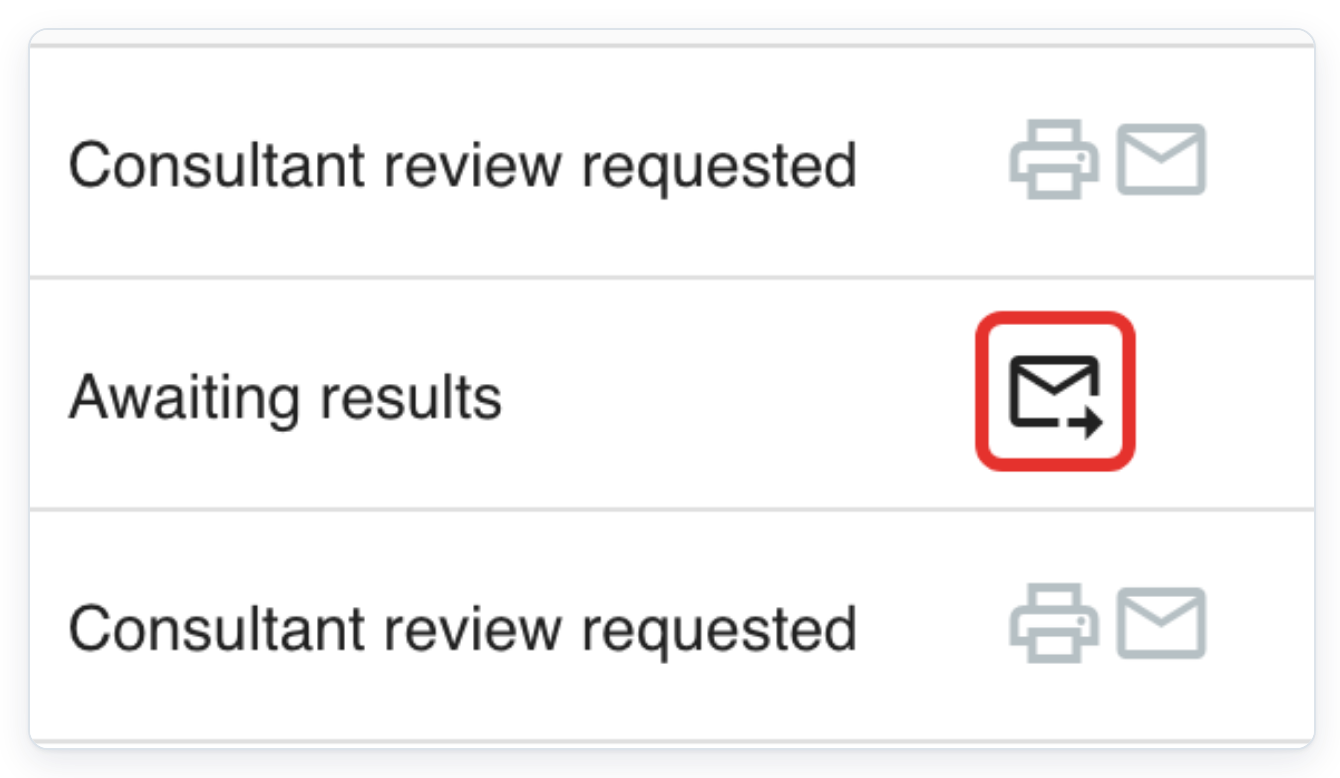
- Delivery icons show progress, rather than confirmation that the recipient received the letter. Sent electronically records the date when you complete the task, before sending starts. If printing and electronic delivery share an icon, Printed may appear before you complete the task.
What each distribution type means
These are the starting choices when you open Print. An electronic ID lets you select a recipient for electronic delivery. You still need to tick Electronic if that choice is not already saved.
| Distribution type | Electronic selections | Physical copies |
|---|---|---|
| Electronic and Physical | Keeps your saved electronic delivery choices. You can tick Electronic for recipients with an electronic ID. | Physical starts ticked for every recipient. |
| Electronic | Keeps your saved electronic delivery choices. You can tick Electronic for recipients with an electronic ID. | Physical starts unticked for recipients selected for electronic delivery. It starts ticked for everyone else. You can tick it yourself. |
| Physical | You cannot tick Electronic, even for recipients with an electronic ID. | Physical starts ticked for every recipient. |
Can't send a letter electronically?
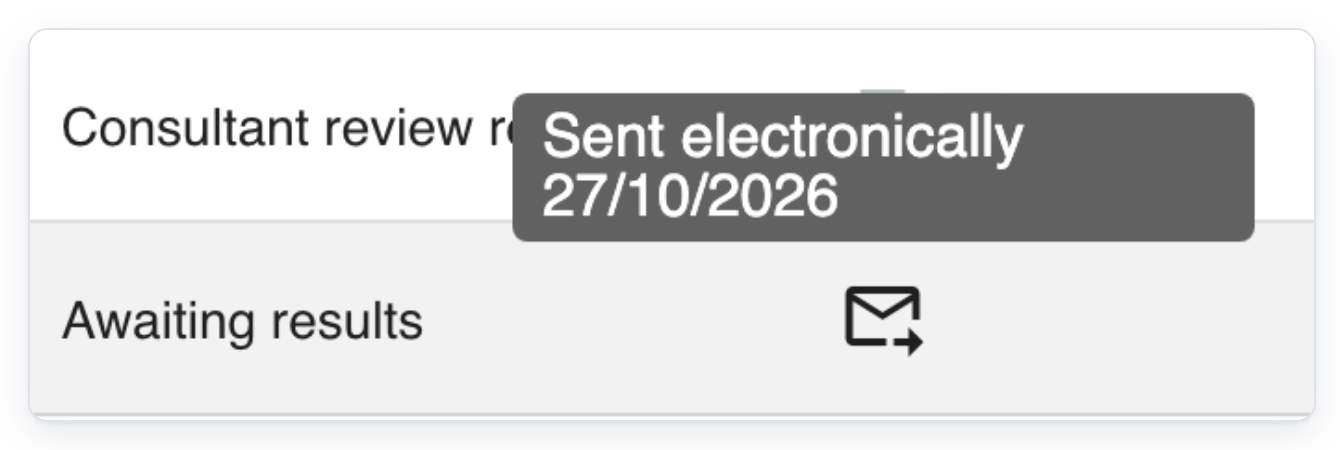
To check the delivery date, open All Tasks and hover over the envelope with an arrow.
=> This previously sent task shows Sent electronically 27/10/2026.
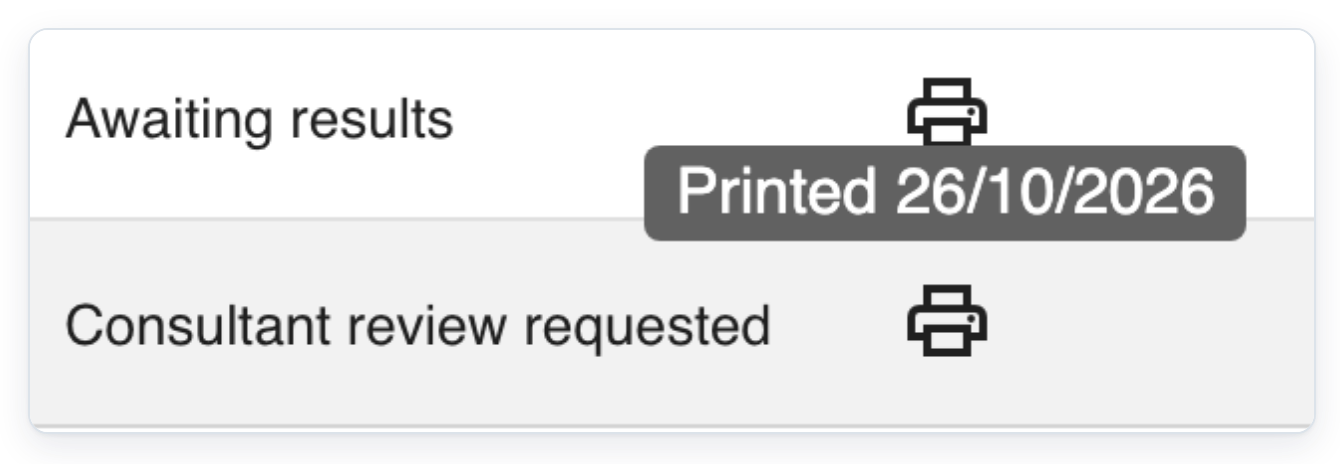
Some organisations use one icon for printing and electronic delivery. Open All Tasks and hover over the printer icon.

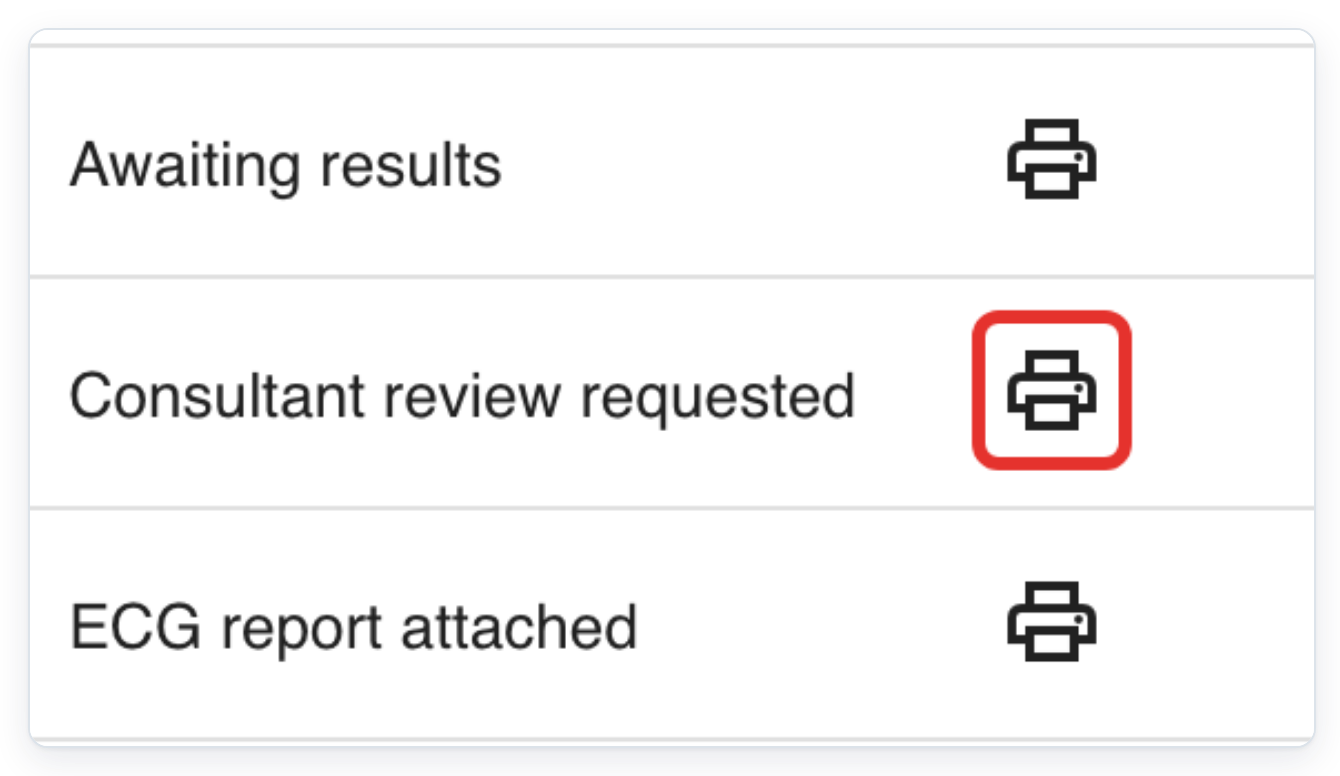
=> Here, a letter sent only electronically shows Printed 26/10/2026.
If a recipient reports a missing letter, contact our Helpdesk to check the delivery.
If you cannot tick Electronic, ask your administrator or master to check the template’s Distribution Type. Also check the recipient’s Electronic ID and ask for any missing details to be added.
The envelope says “Not sent electronically”. This means no electronic delivery date has been recorded. Check that the letter’s Electronic choices are saved and the task is Completed. If both are correct, contact our Helpdesk.
Related articles
- Print letters
- Store finished documents
- Check when a letter was printed or sent
- Add recipients and CCs to a letter
- Template settings in V2
If you have any more queries, please do not hesitate to contact our Helpdesk or support@tpro.io.
© 2020 - 2026