
Before you start
You need access to the task's storing group and a document waiting in Store.
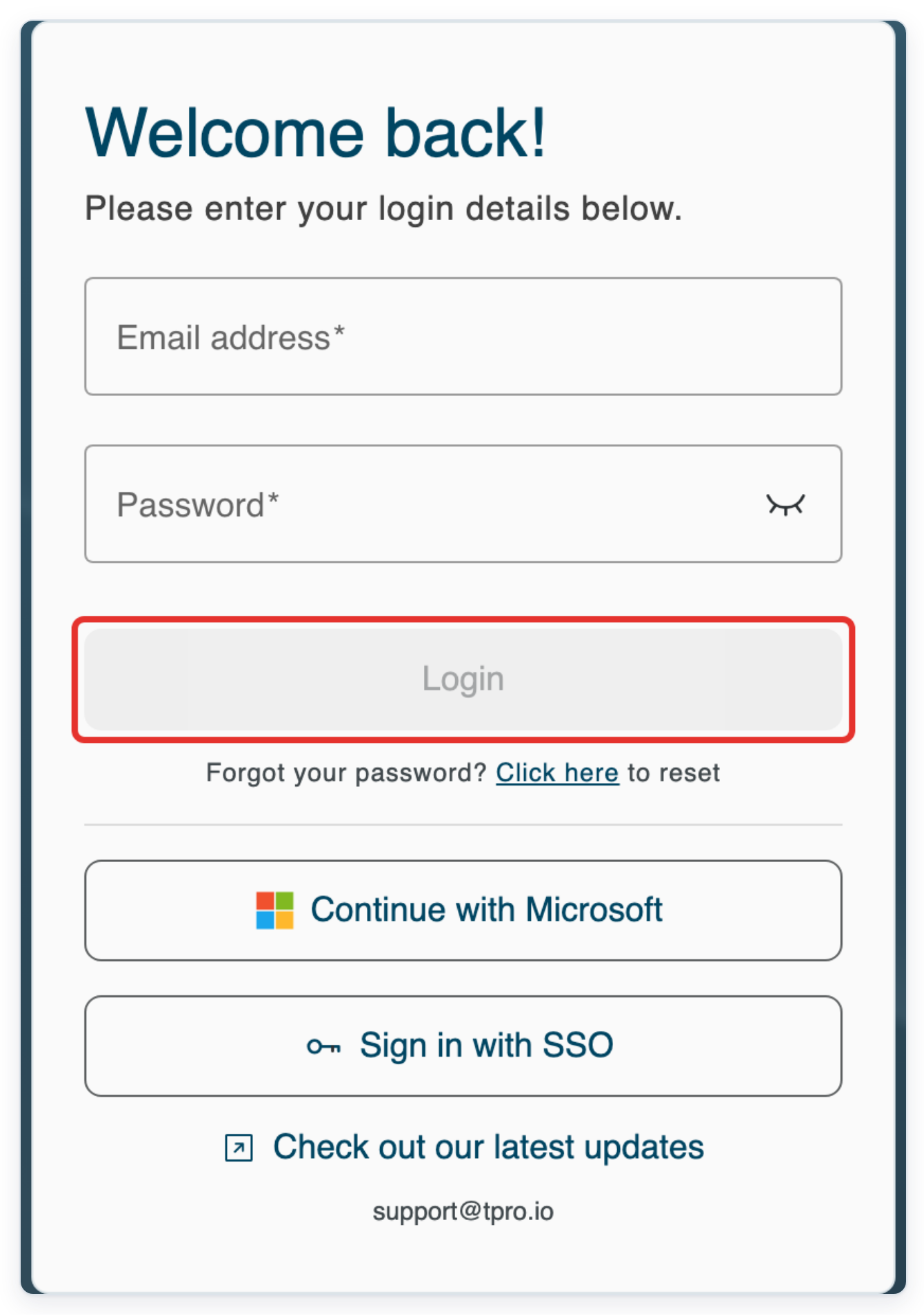
Log in to T-Pro with your storer credentials.
Store an individual document
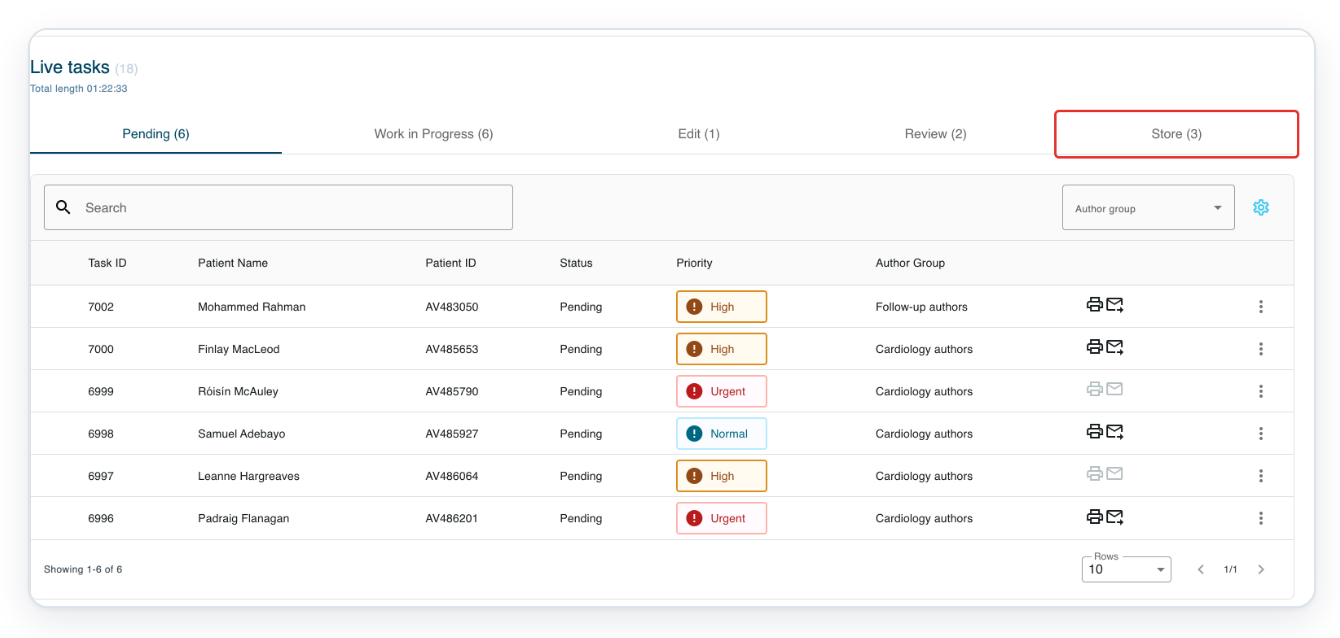
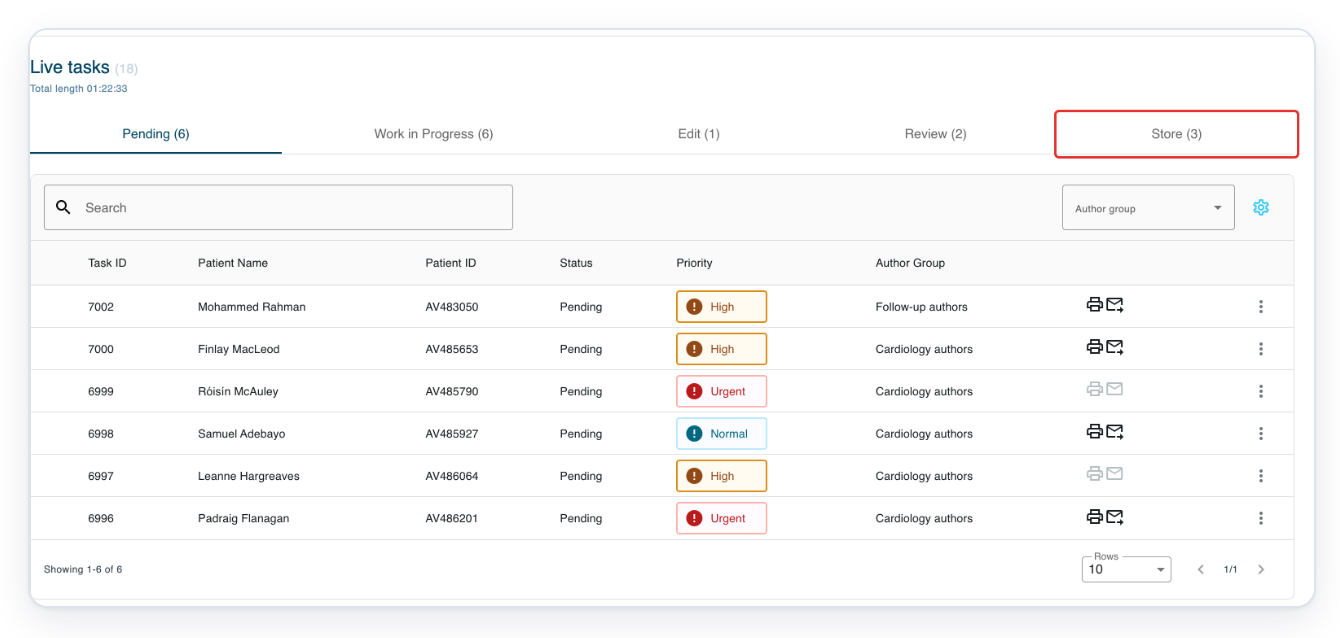
Go to Live Tasks, then click Store to see documents waiting for storage.
The number beside the tab shows how many tasks are waiting for someone in the storing group.
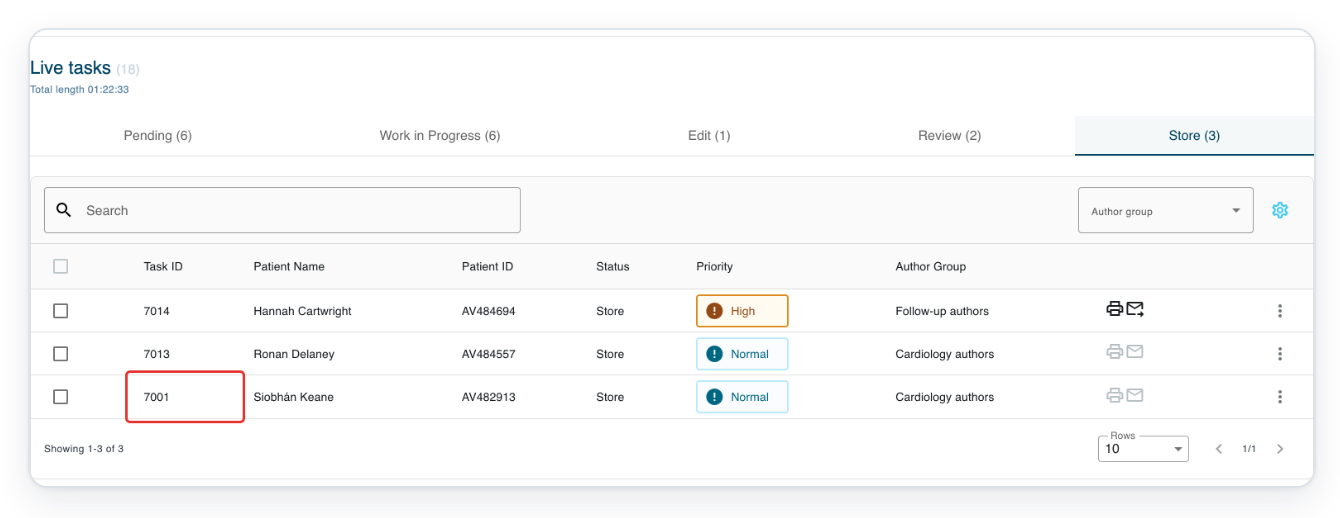
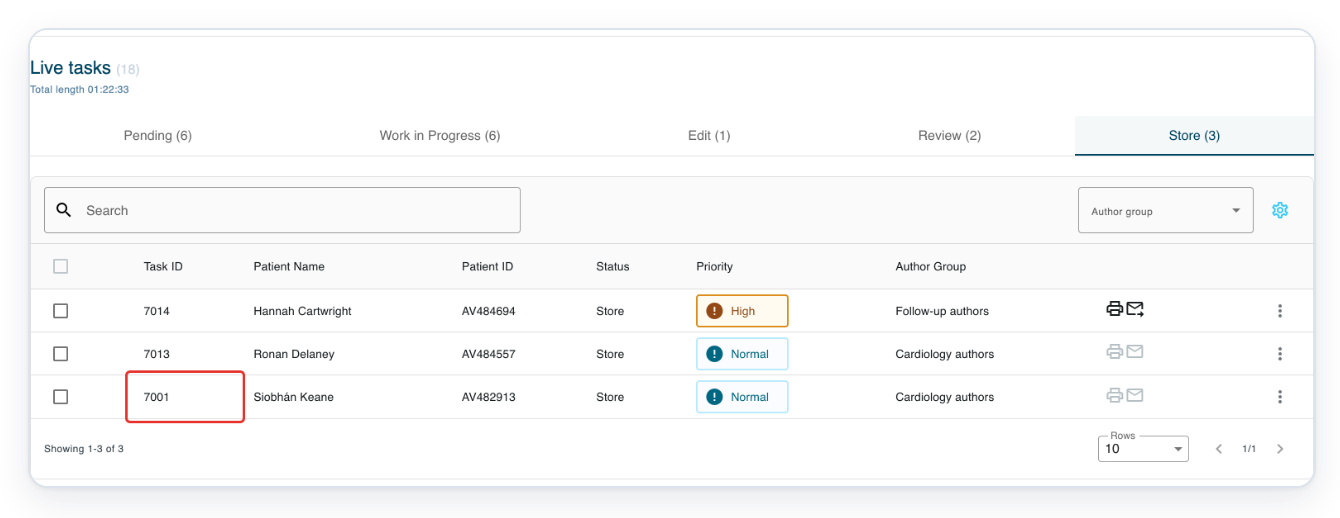
Click the document's Task ID to open it for storage.
Before opening it, check Patient Name and Patient ID to make sure you have the right document.
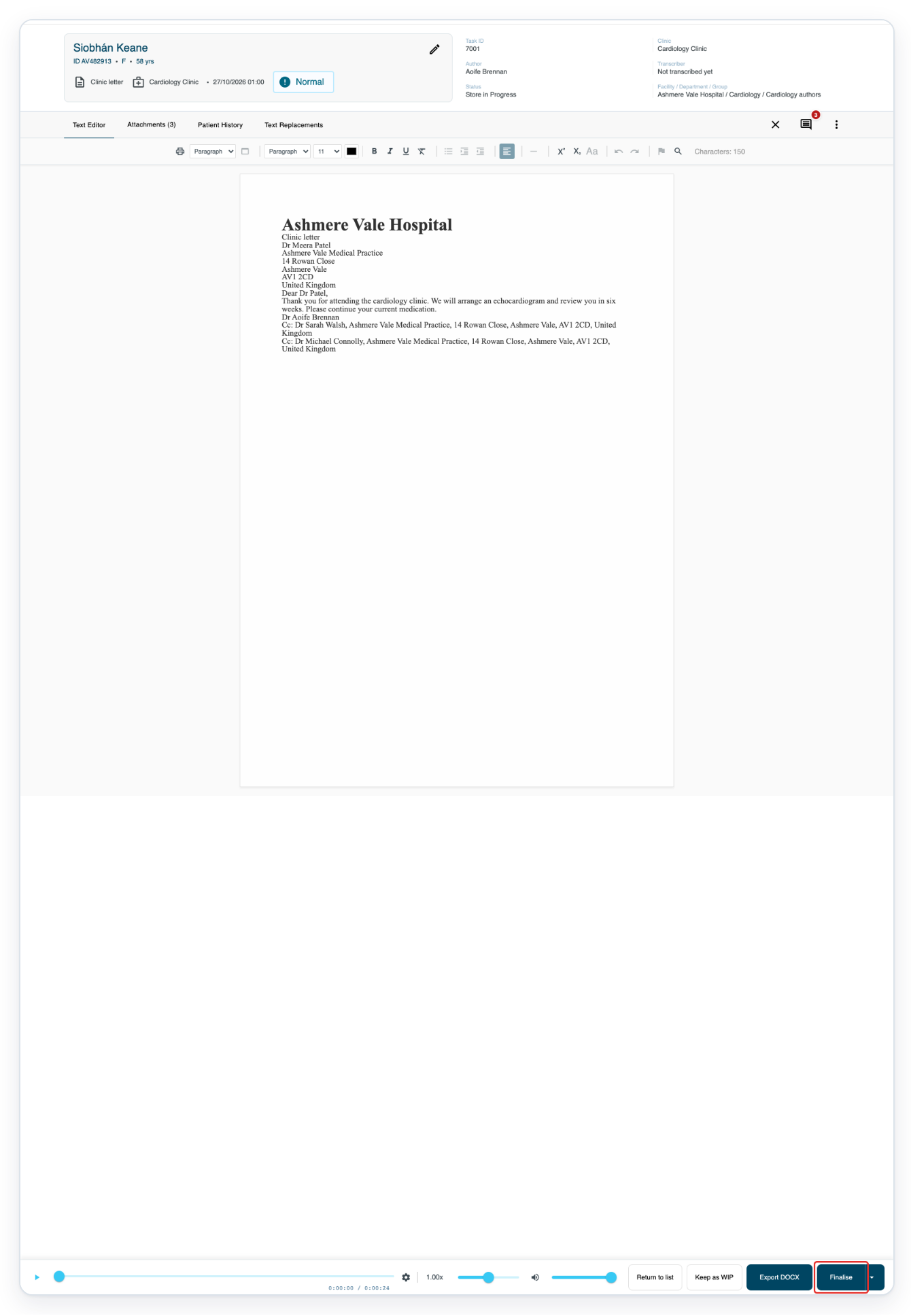
The document opens with the status Store in Progress.
When the document is ready, click Finalise. All tasks opens.
Review the approved letter before finalising. If it has a Word template, Export DOCX is available.
Edit and save storage work
Go to Live Tasks, then click Store to see documents waiting for storage.
Click the document's Task ID to open it for storage.
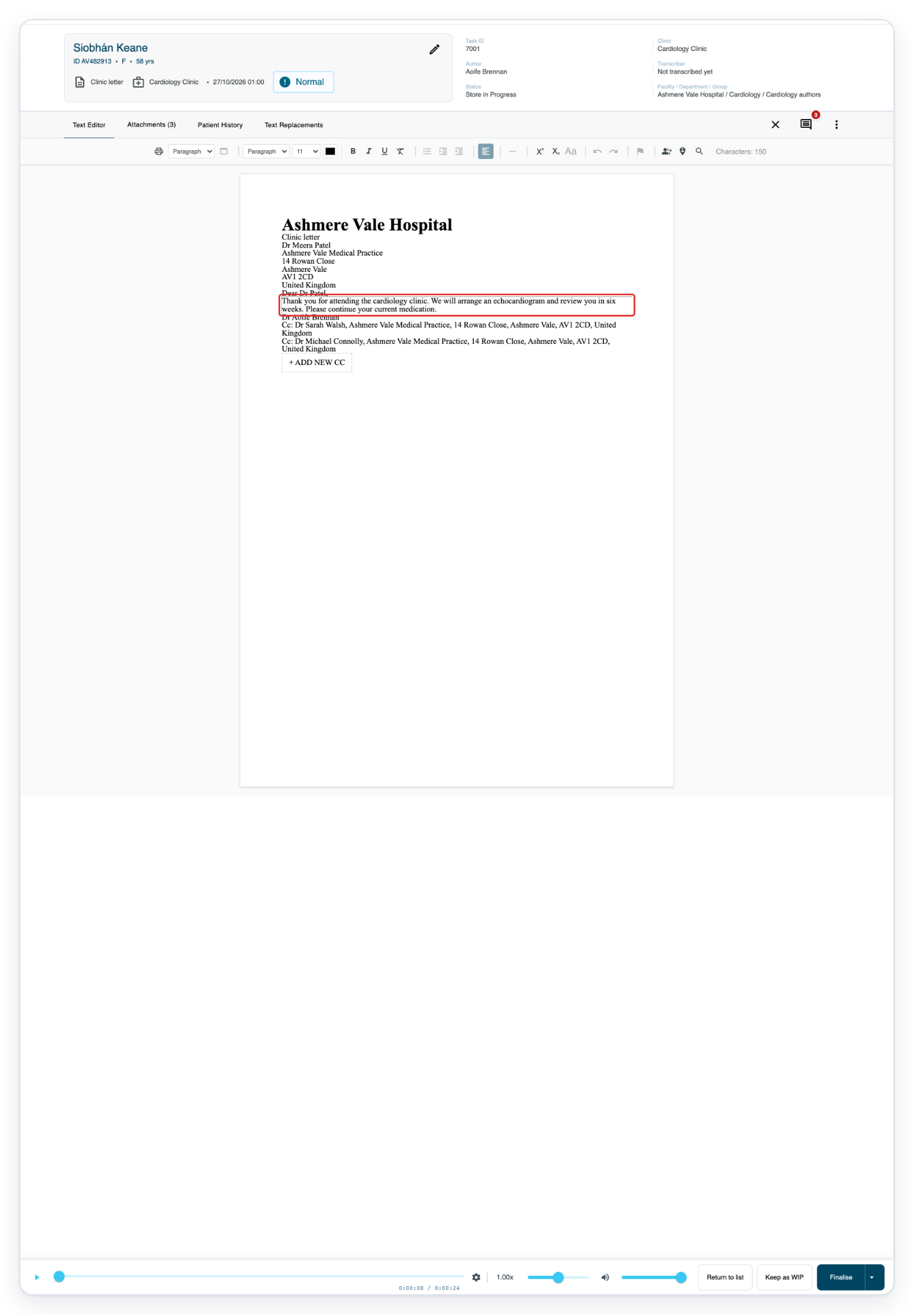
Click in the document body and make your changes.
If the route has no approval stage, you can correct the text while the task is Store in Progress.
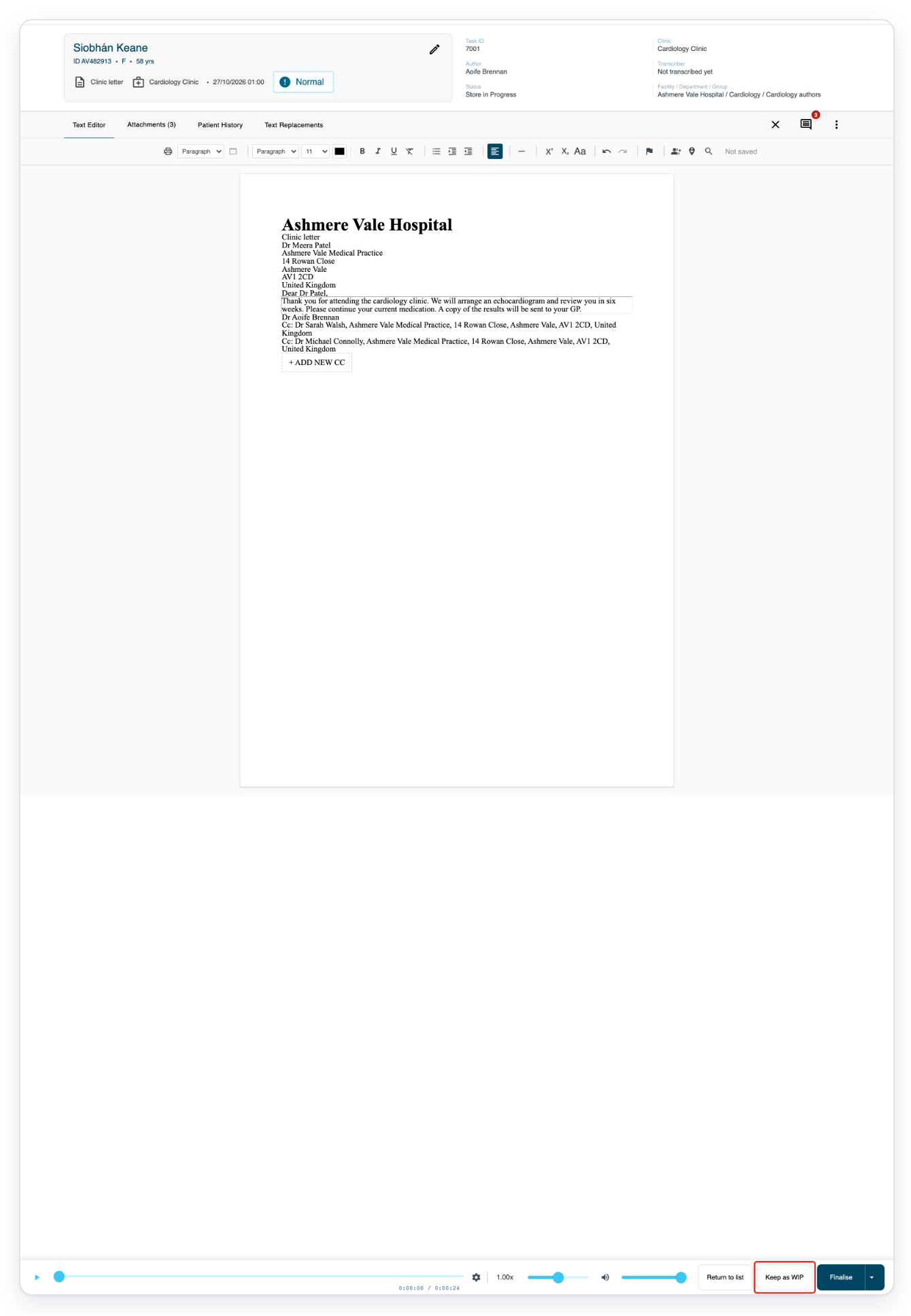
To pause and come back later, click Keep as WIP. All tasks opens.
The task stays assigned to you with the status Store in Progress.
Click Live Tasks in the main navigation to return to your work queues.
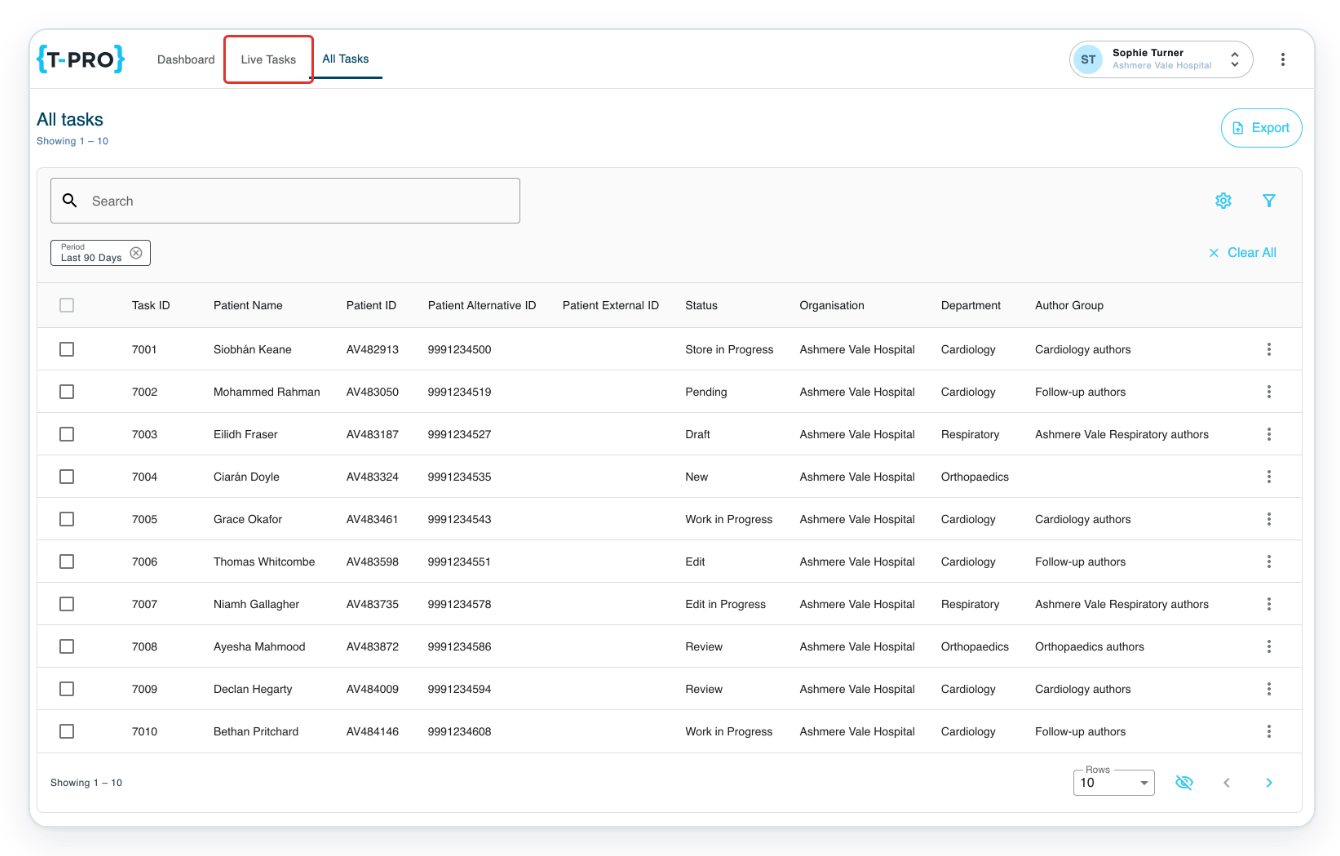
Click Work in Progress to find the document you kept for later.
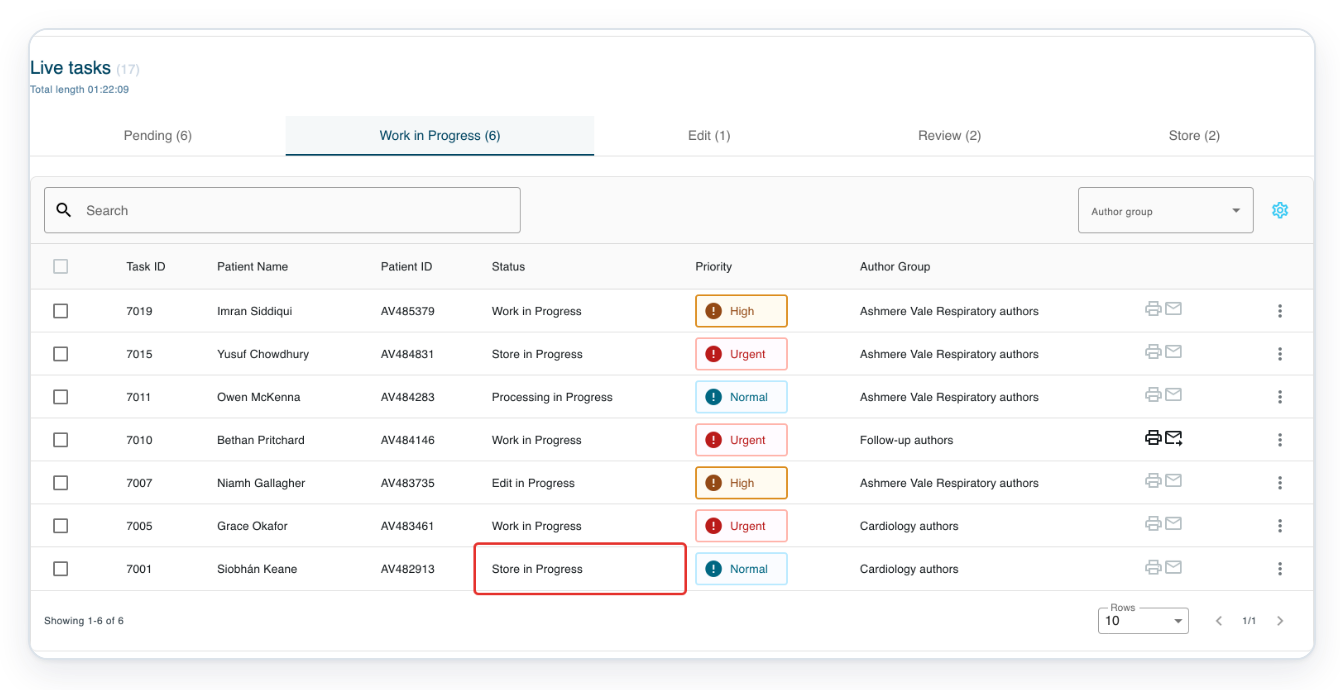
Look for the Store in Progress status. This tab also shows other work assigned to you.
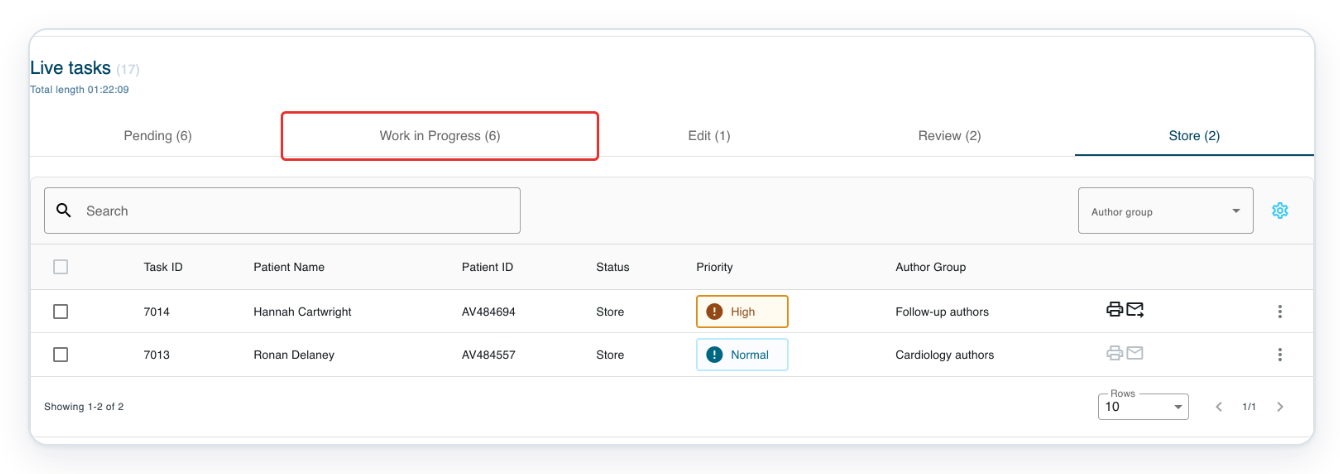
=> The saved document appears in Work in Progress with the status Store in Progress.
Store several documents at once
Go to Live Tasks, then click Store to see documents waiting for storage.

Tick the checkbox beside the first document you want to store.
Check its Task ID, Patient Name and Patient ID before selecting it.

Tick the checkbox beside the next document so both tasks are selected.

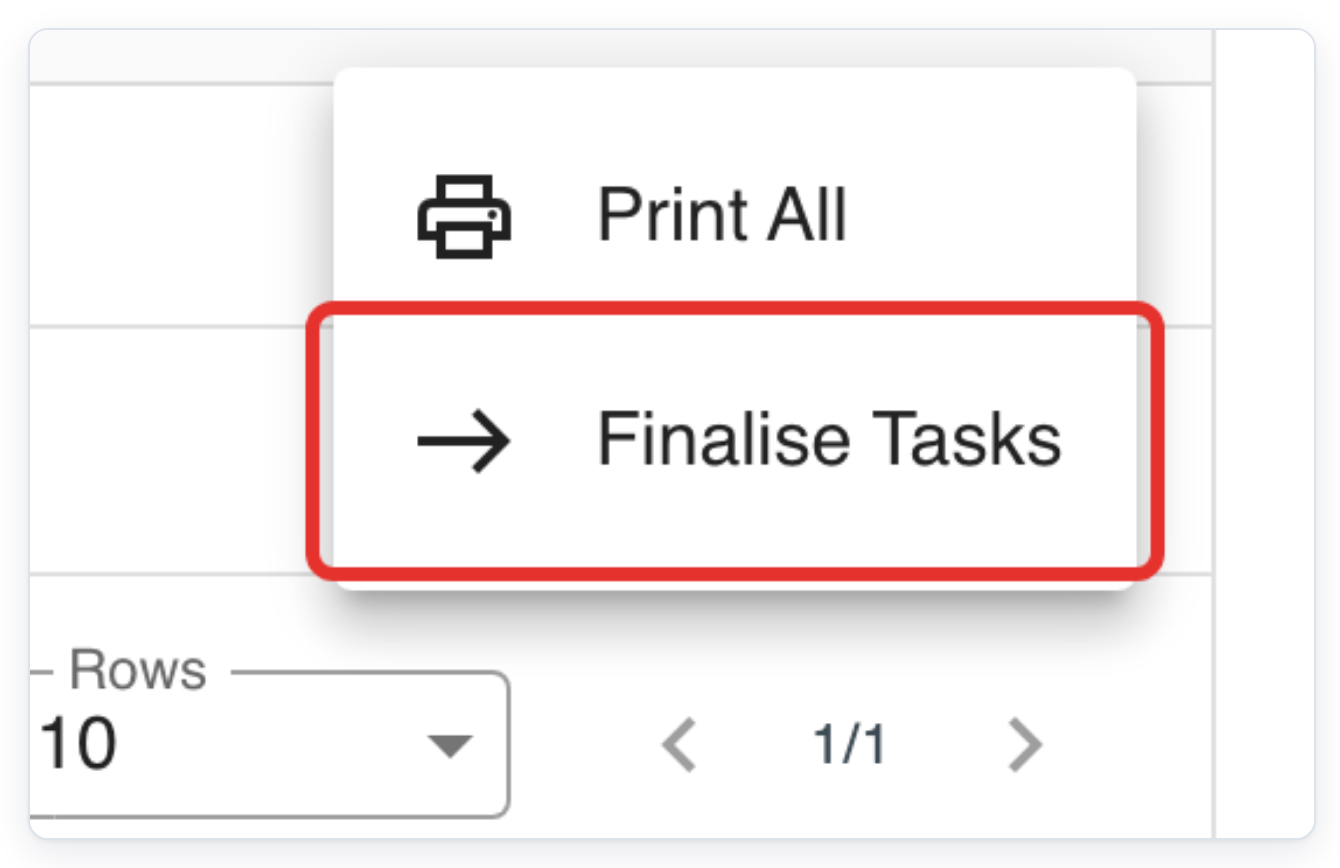
Click Bulk actions on the right above the selected tasks.
The menu becomes available when you select a task.

Click Finalise Tasks to finish storage for both selected documents.
The selected tasks leave the Store queue.
Click All Tasks in the main navigation to find the documents you just finalised.

Click the right arrow below the list to see the next page of results.

=> Both finalised documents show Completed in All tasks.

NOTE:
- The same person can transcribe and store a document, or different people can handle each stage.
- You can edit the text during storage if the document does not need an approval stage. Otherwise, it is read only.
- You can change the patient details and play any available audio before finalising.
- You need a Word template to export the document to Word. You can also copy the document content to the clipboard.
What each storage status means
| Status | What it means | Where to find it |
|---|---|---|
| Store | The document is waiting for someone in its storing group to pick it up. | Store in Live Tasks. |
| Store in Progress | The document is assigned for storage. It stays with the same person if they keep it for later. | Your Work in Progress tab when it is assigned to you. |
| Completed | The storage stage is finished. | All Tasks. |
Other places you can store documents
- In Store, tick the boxes beside the tasks you want to finalise. To select all tasks on the current page, tick the box at the top. Open the bulk actions menu on the right and choose Finalise Tasks. The selected tasks move to Completed.
Tip: To finish this document and look for the next waiting storage task, click the arrow beside Finalise. Choose Finalise and open next.
Can't store a document?
- If Store is missing, the queue may be hidden because it is empty. Check that you are using the right account. Ask your manager to check that you belong to the right storing group.
- If a document is missing from Store, check Work in Progress if you clicked Keep as WIP. If you clicked Finalise, look in All Tasks.
- If another person is working on the task, ask them to open it and click Return to list. Then try opening it again.
Related articles
- Work from Live Tasks
- Search for tasks in All Tasks
- Task statuses in V2
- Change the patient on a task
- Download a letter as PDF or Word
If you have any more queries, please do not hesitate to contact our Helpdesk or support@tpro.io.
© 2020 - 2026