
Before you start
You need a task with a letter you can edit. The example below uses a transcriber account.
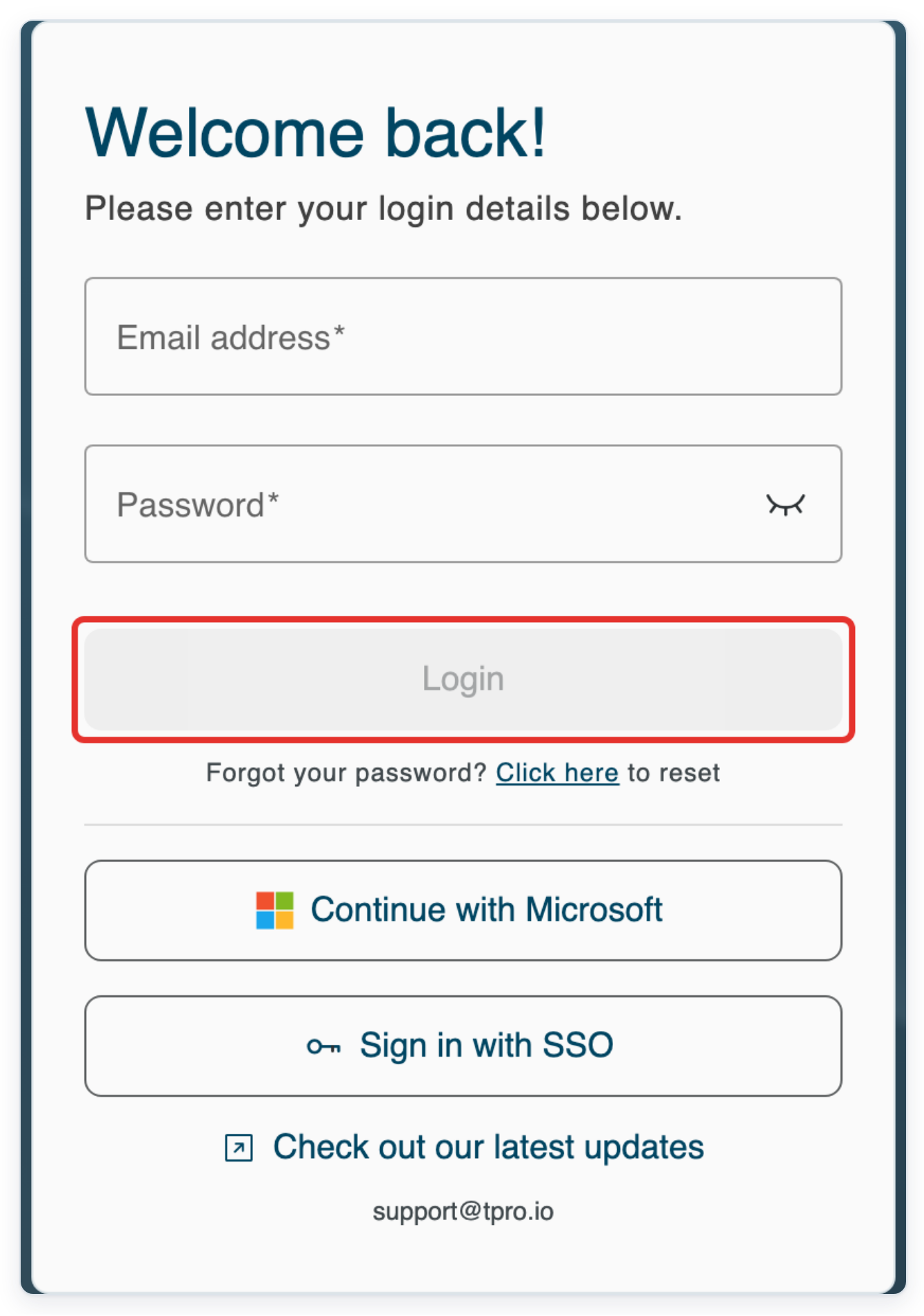
Log in to T-Pro with your author, transcriber, editor, reviewer, processor or storer credentials.
As an author
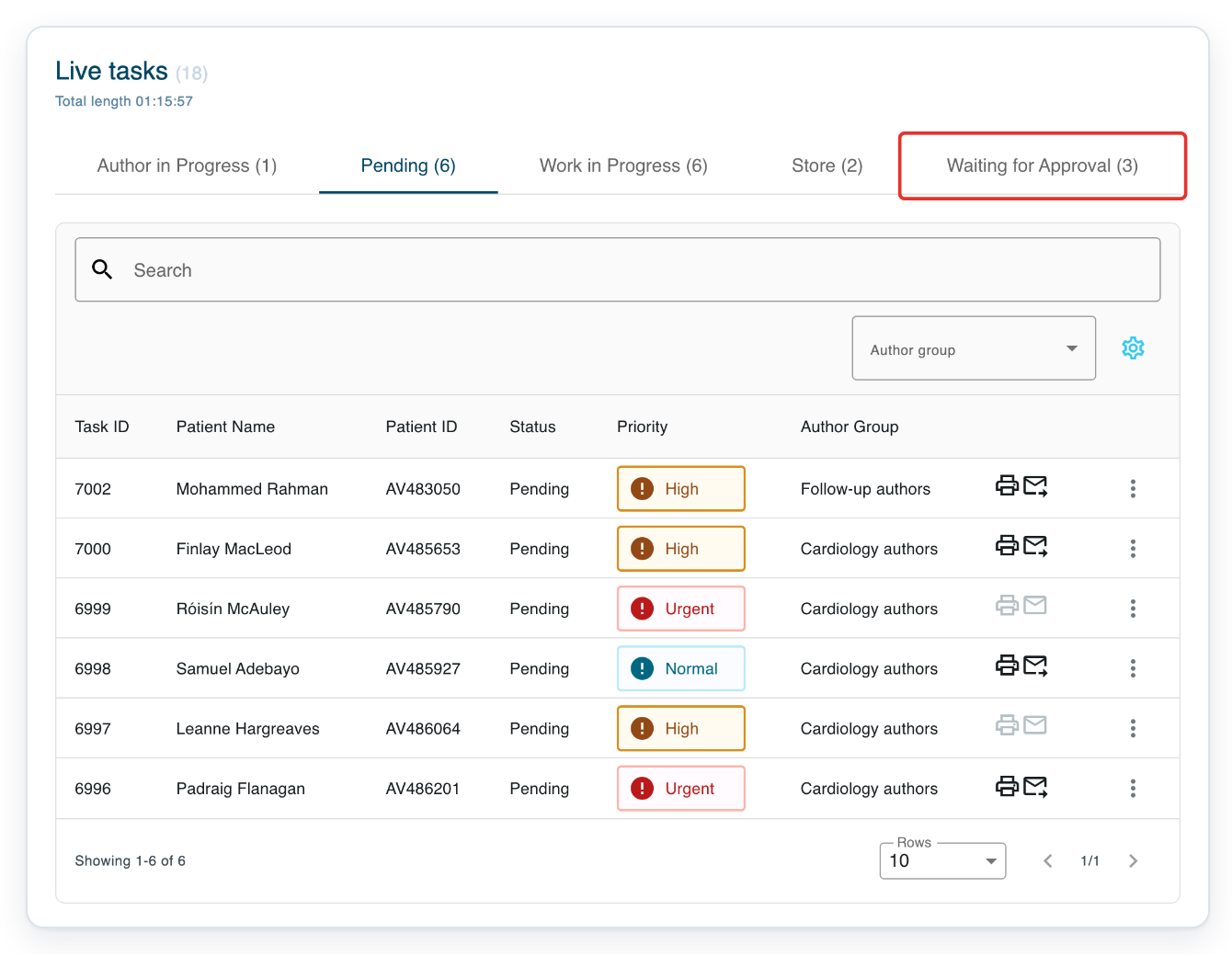
Go to Live tasks, then click Waiting for Approval to find a letter awaiting your approval.
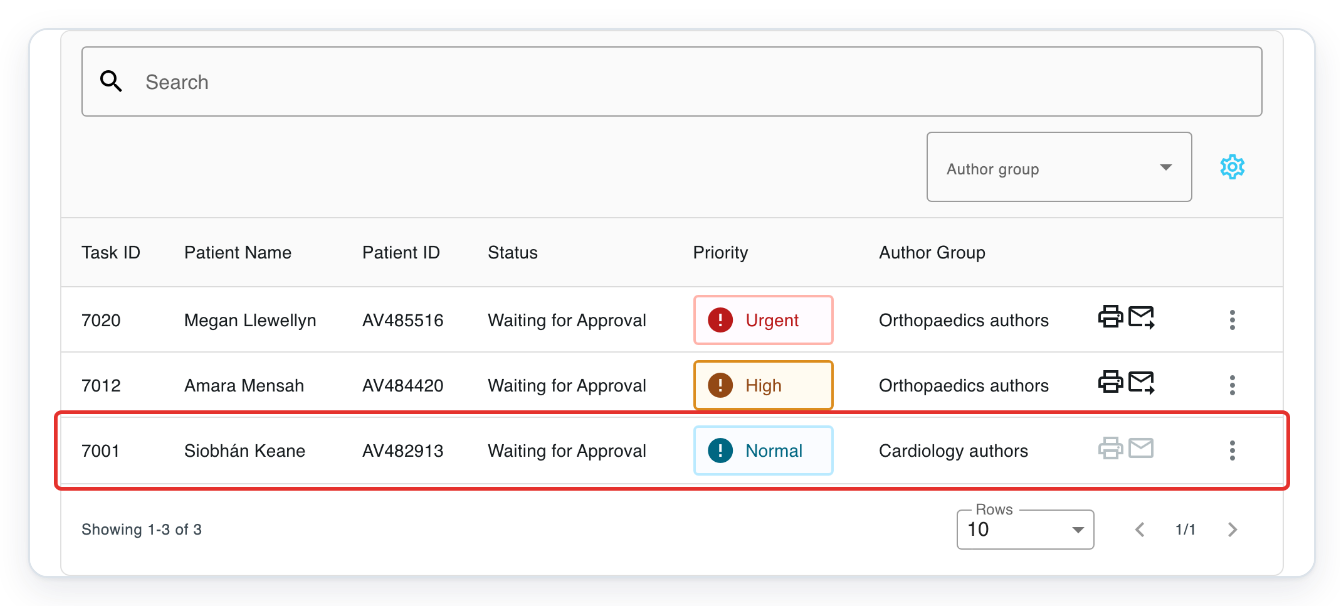
Click the letter you want to open. This example uses task 7001 for Siobhán Keane.
The letter opens in Text Editor.
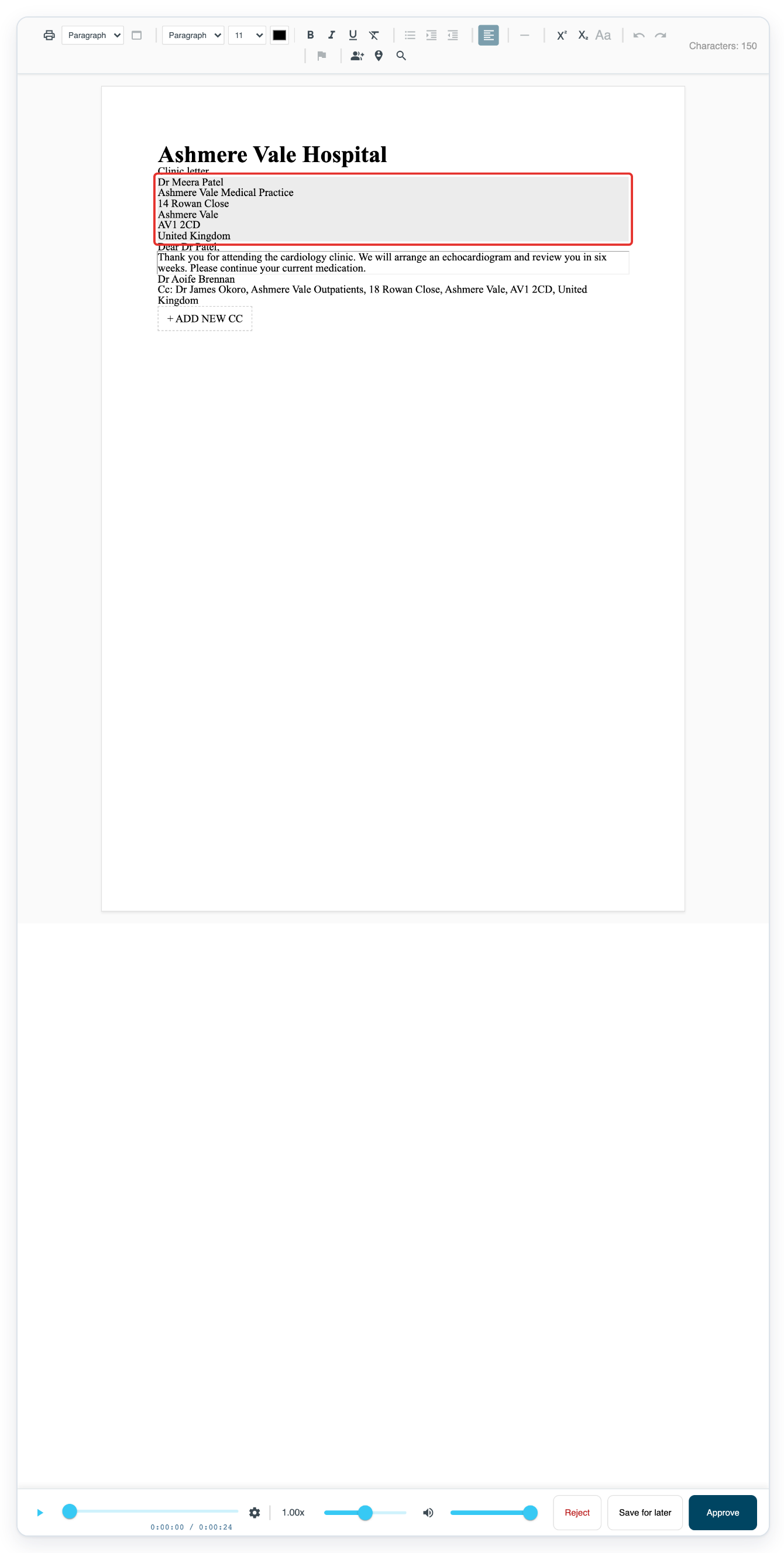
Open your task in Text Editor. Click the recipient address in the letter to open its details.
This example uses the address above the letter text. You can replace the recipient by selecting another address.
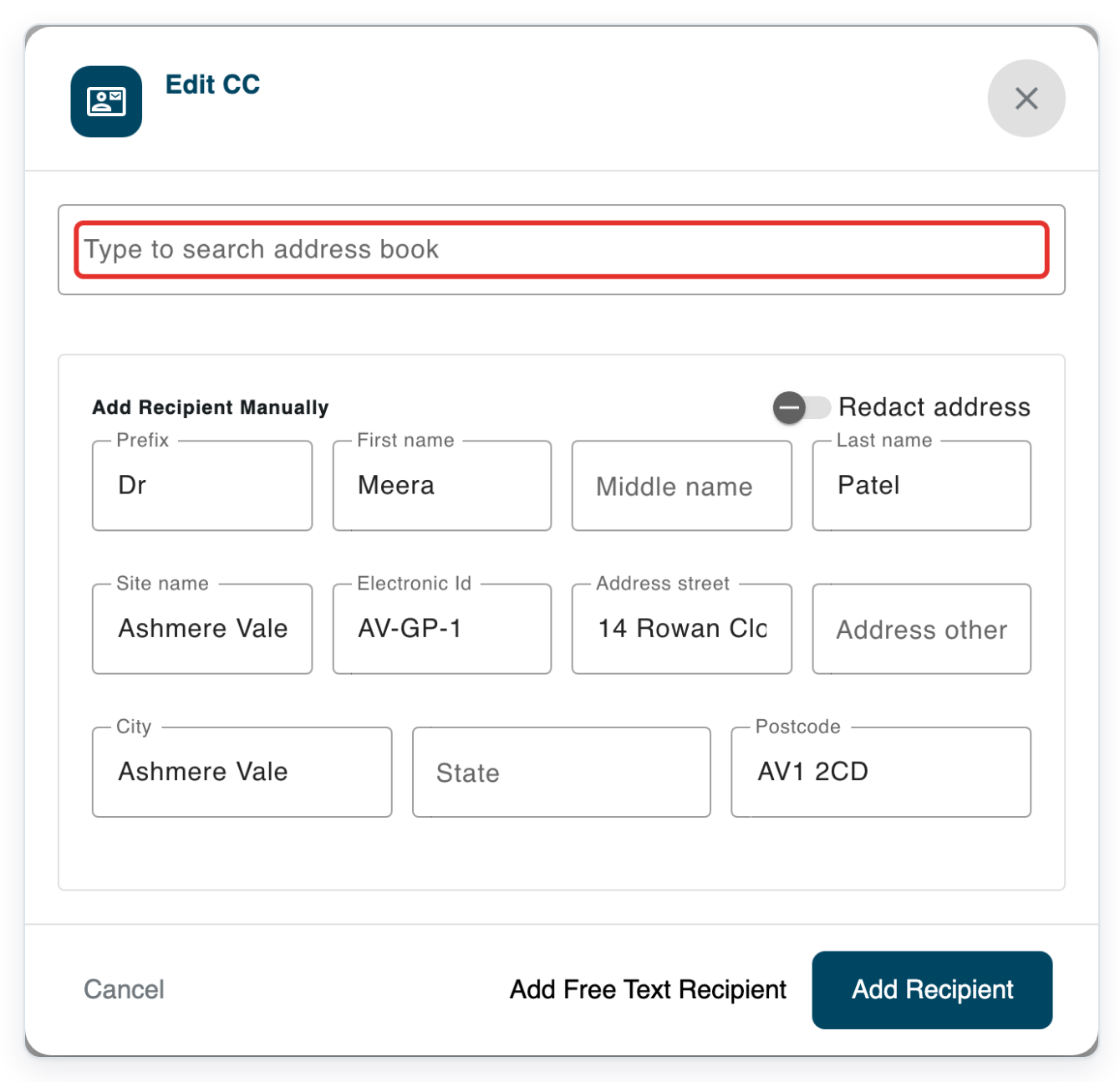
Click Type to search address book to see the related addresses available for this patient.
Leave the search box empty to see contacts linked to the task's patient and visit details.
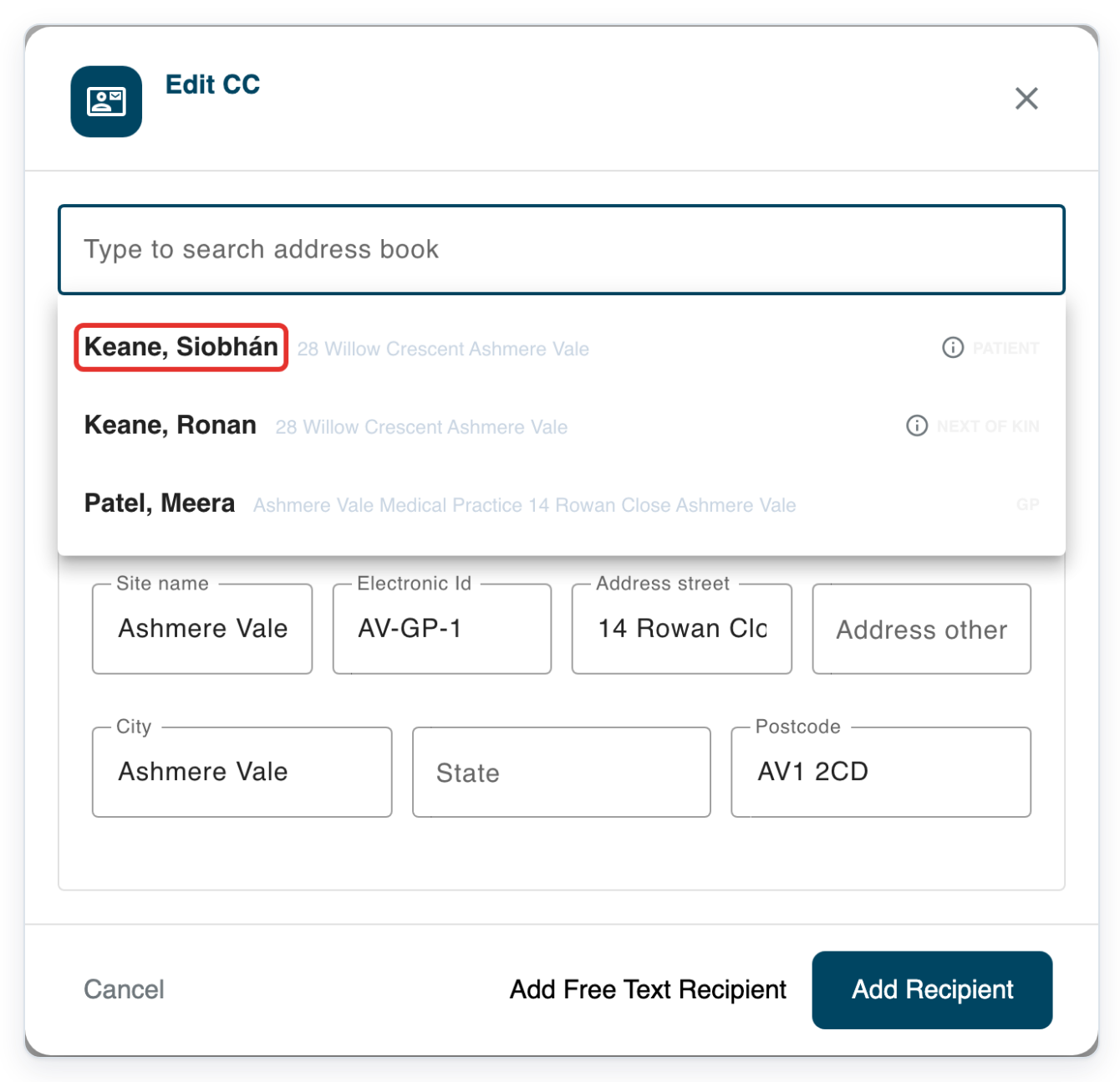
Select Keane, Siobhán to use the patient as the main recipient.
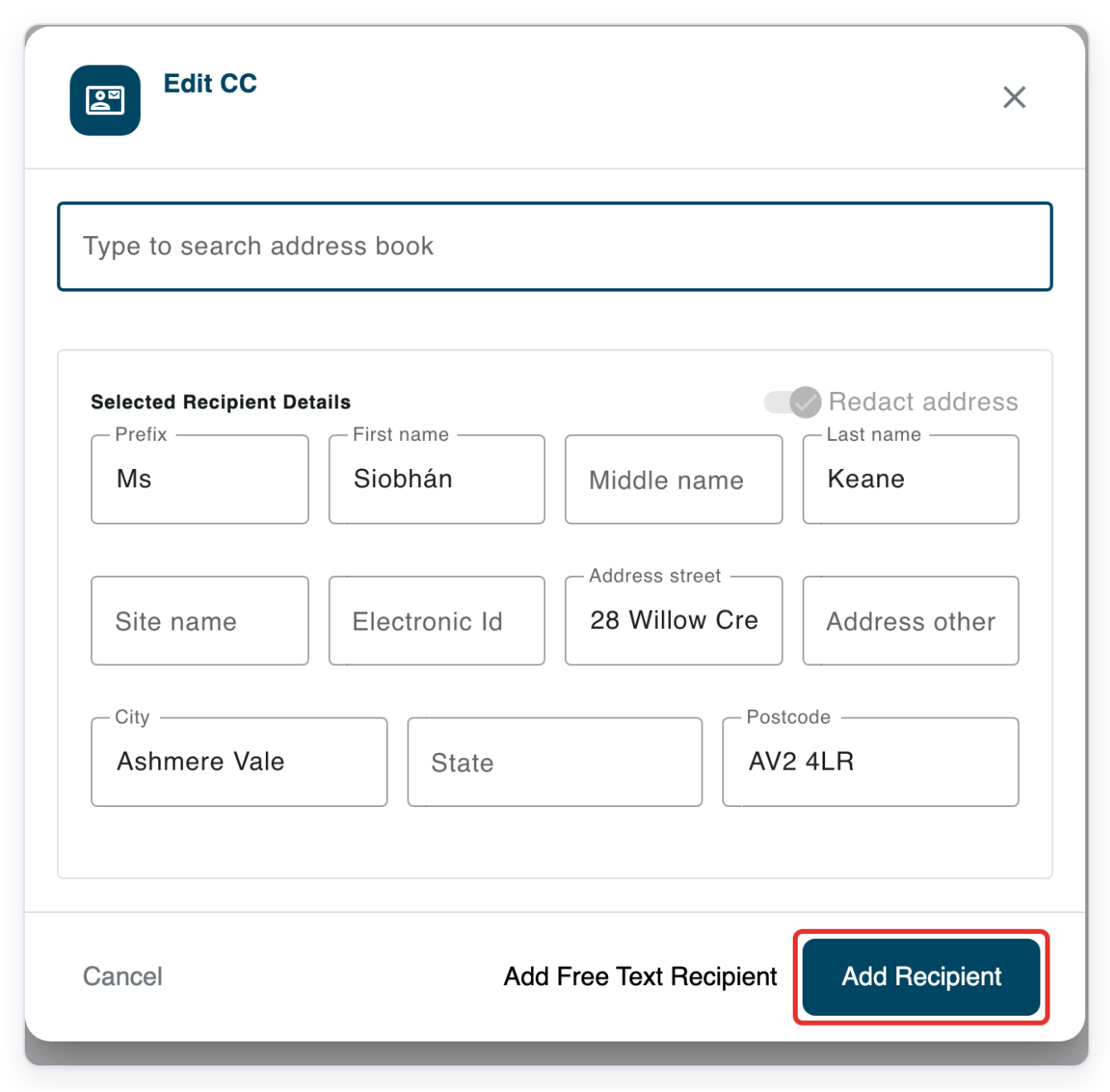
Her name and postal address appear under Selected Recipient Details.
Check the selected name and address, then click Add Recipient.
If you chose the wrong person, search again and select the correct address before adding it.
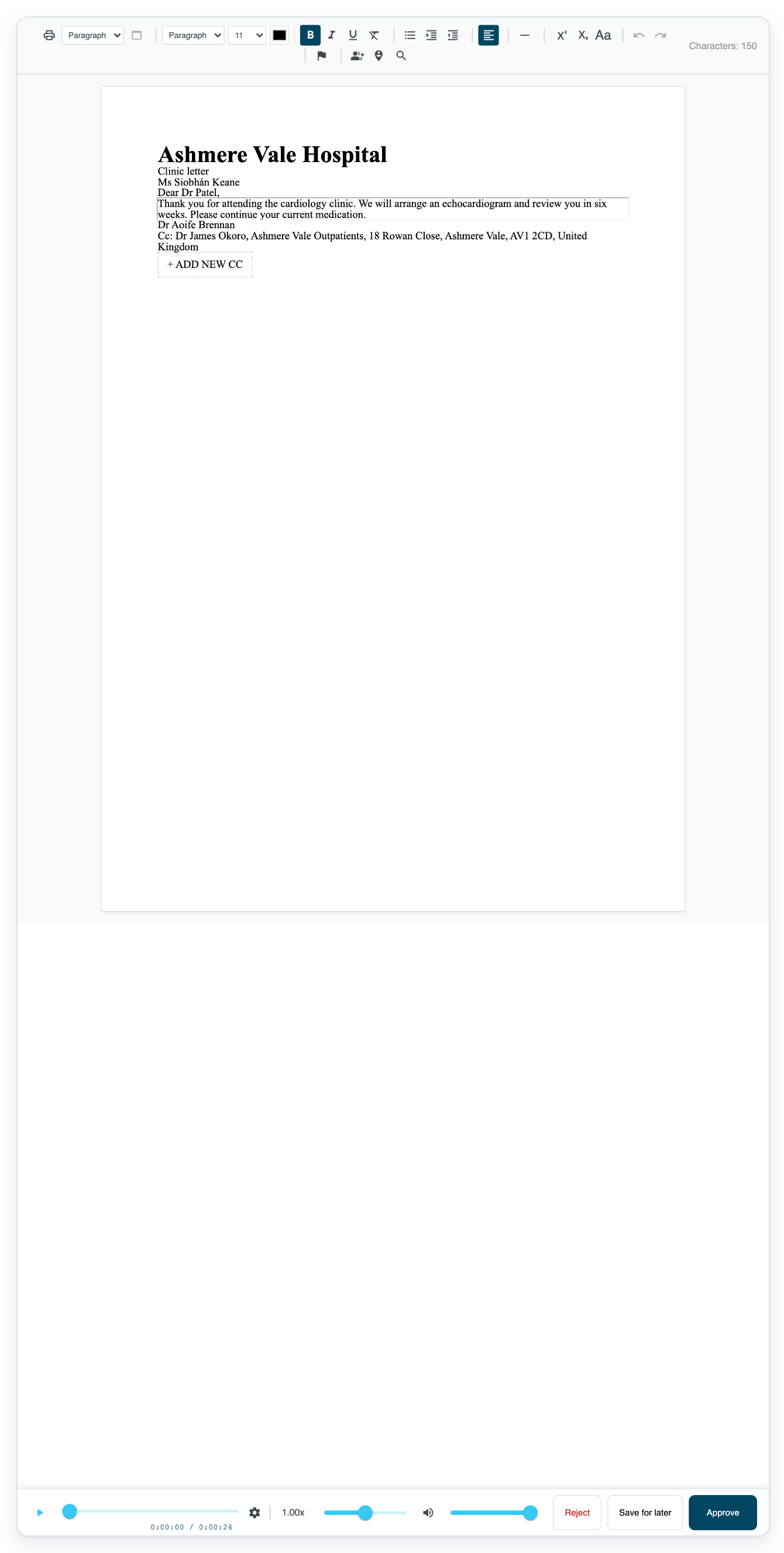
=> The letter now shows Ms Siobhán Keane as its main recipient. The recipient and CC fields come from the letter's template.
As a transcriber, editor, reviewer, processor or storer
In Live tasks, open the letter assigned to you at your stage.
This transcriber example uses task 7001 for Siobhán Keane in Pending.
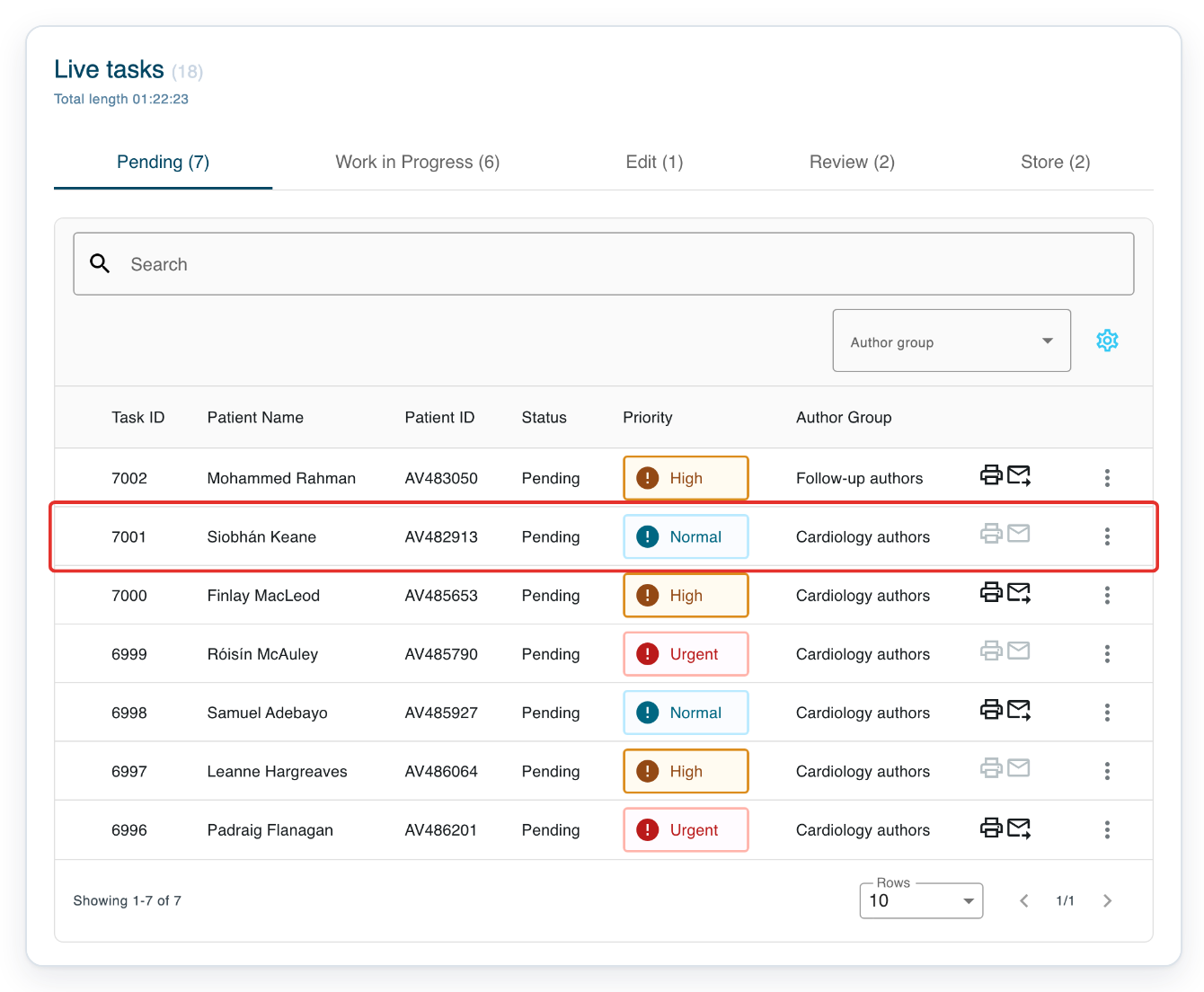
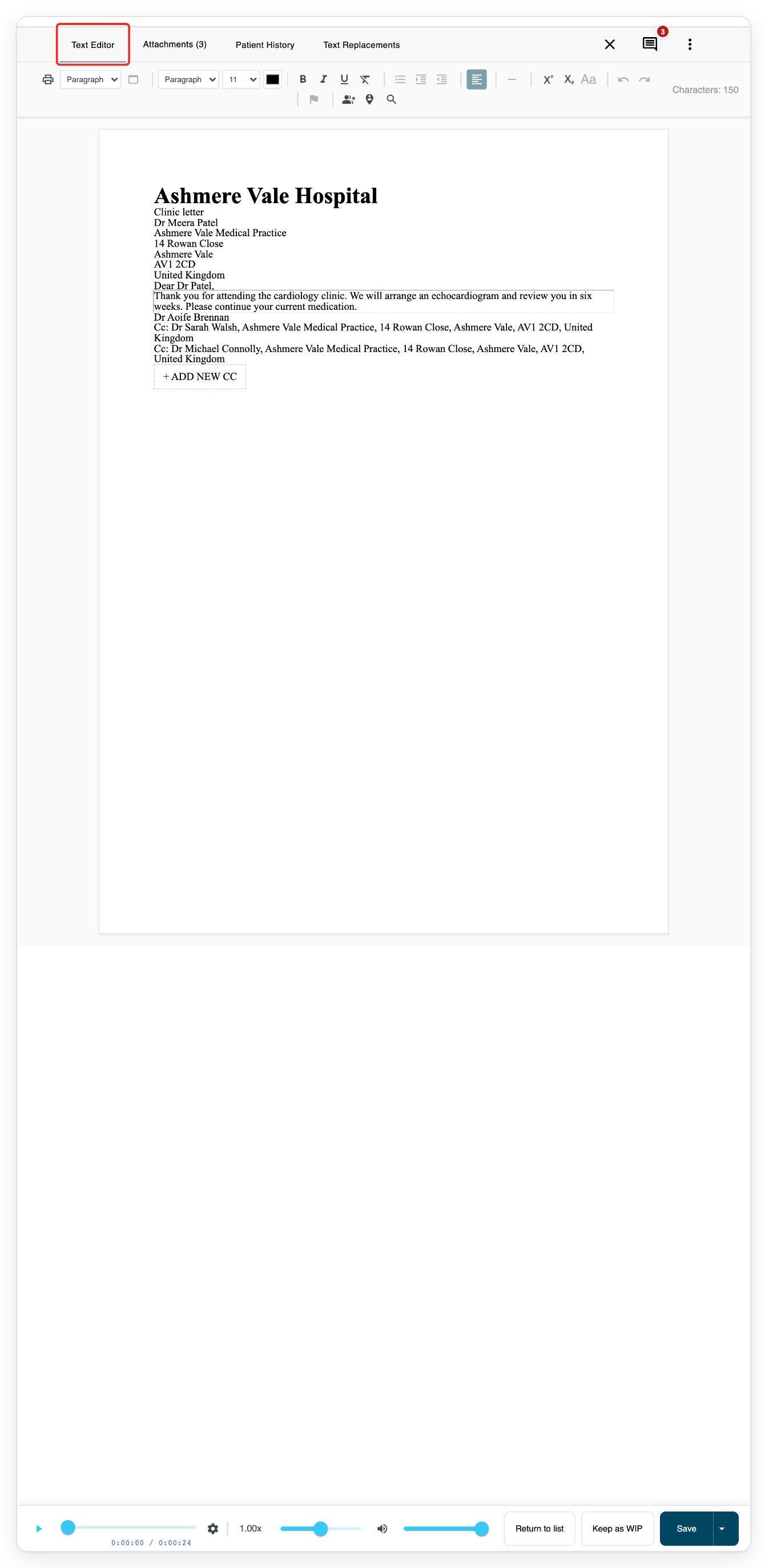
Select Text Editor to see the letter and its recipient address.
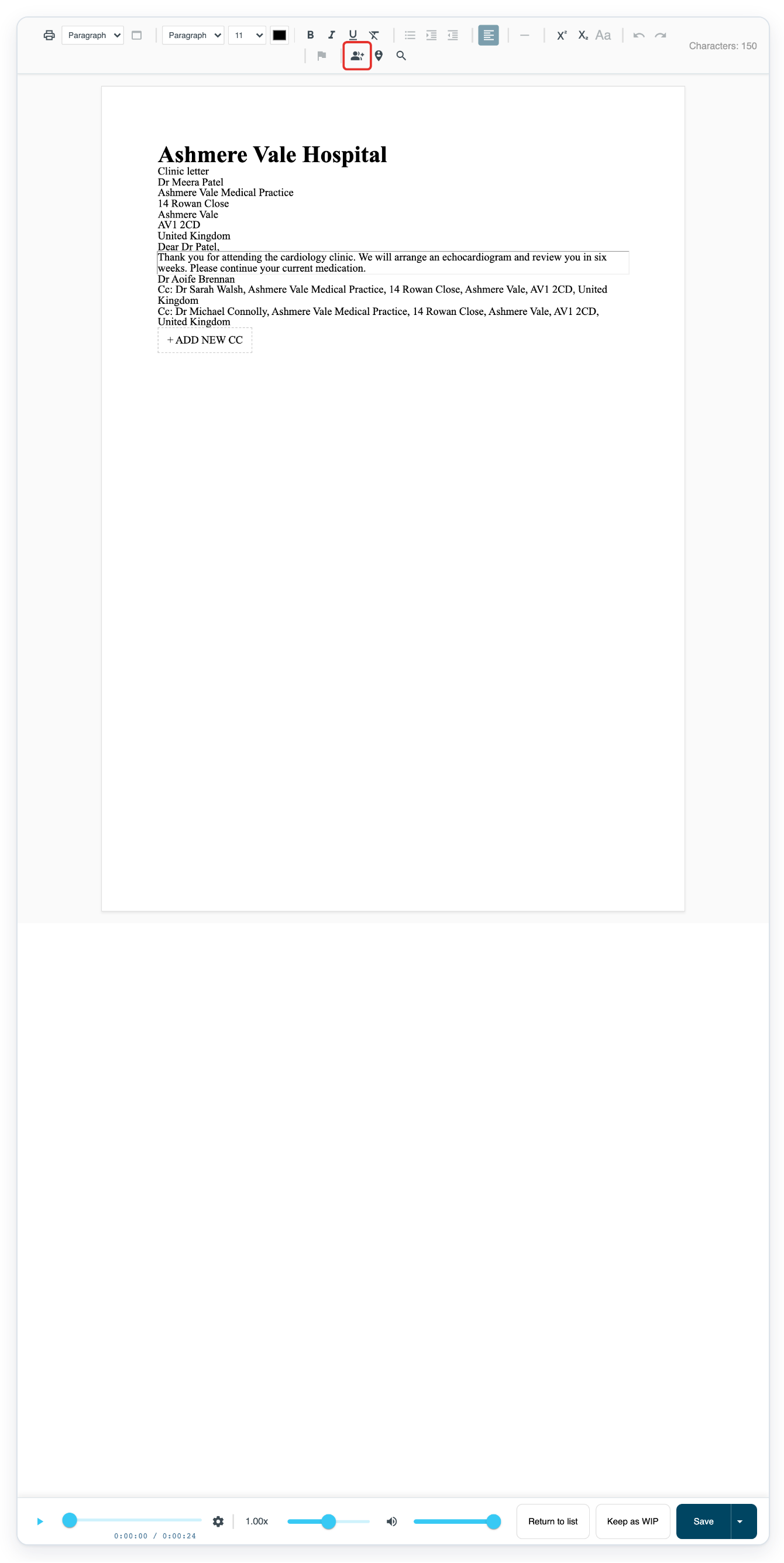
Click Configure List of CCs in the editor toolbar to add someone who will receive a copy (CC).
Hover over the icon showing a person with a plus sign to see its name.
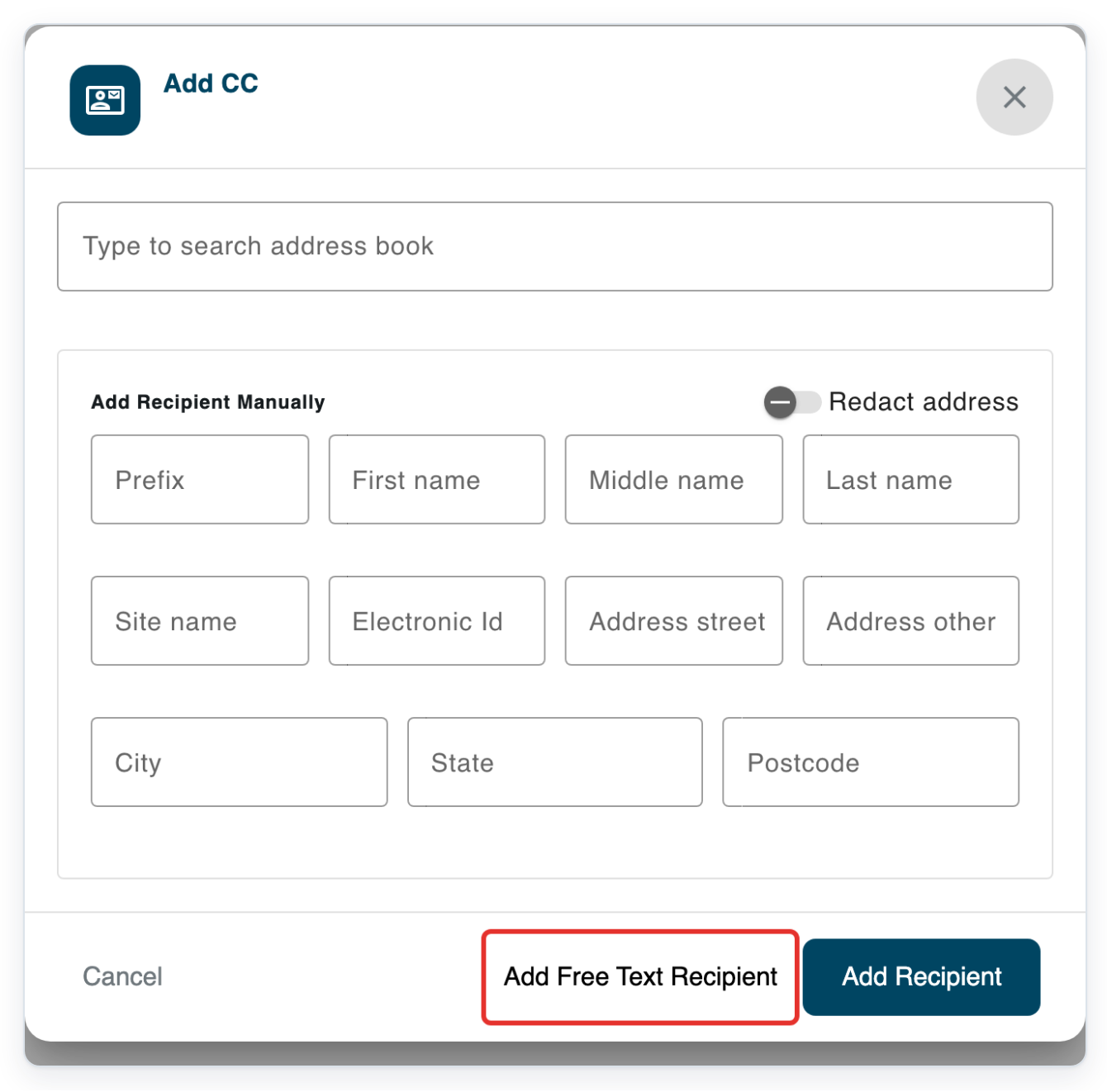
Click Add Free Text Recipient to type the copy recipient's details.
Use this option to type the name and address together in one box.
Click inside the blank address box.
The formatting toolbar above the box lets you change how the address text looks.
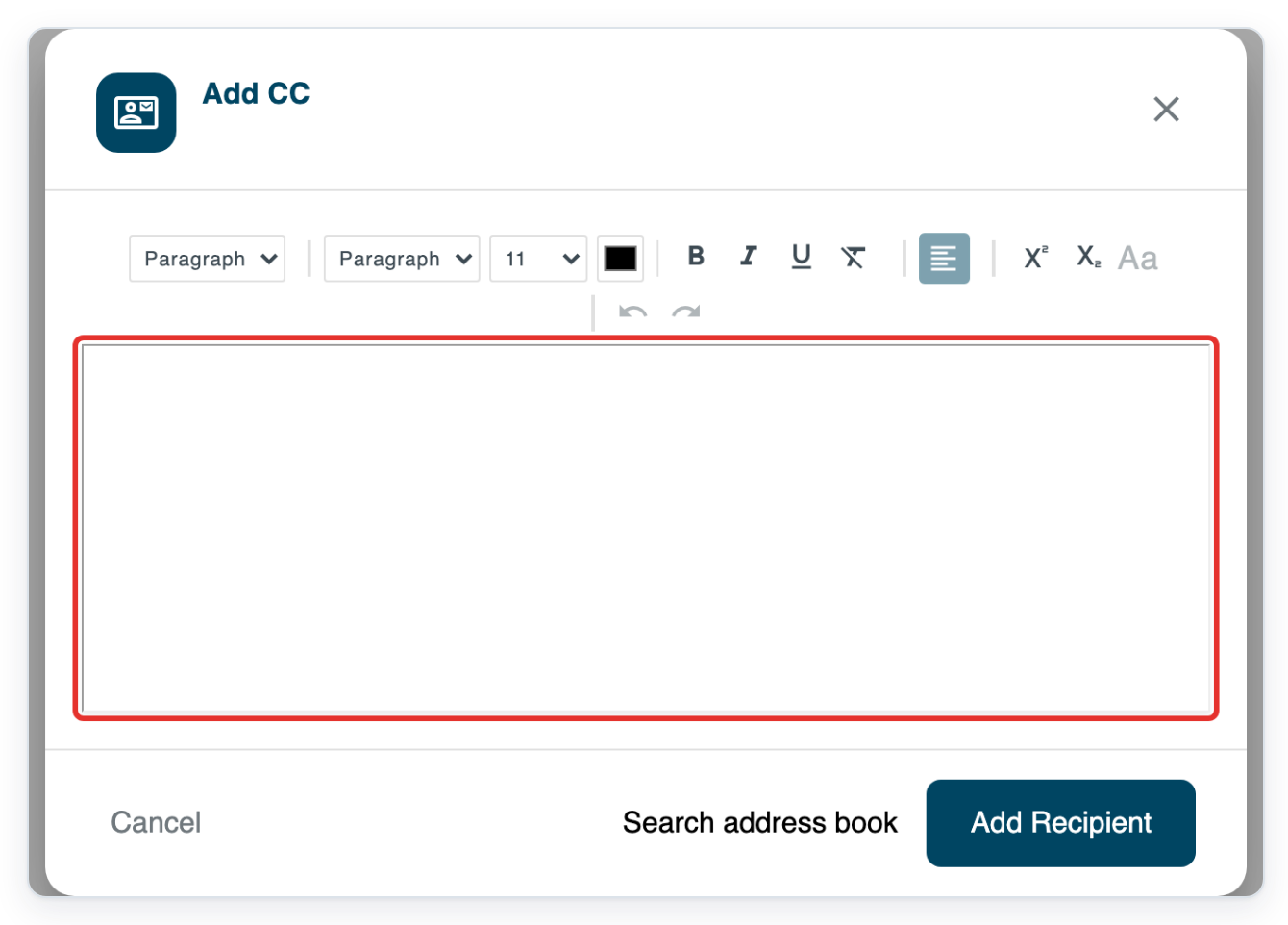
Enter the copy recipient's name and full postal address.
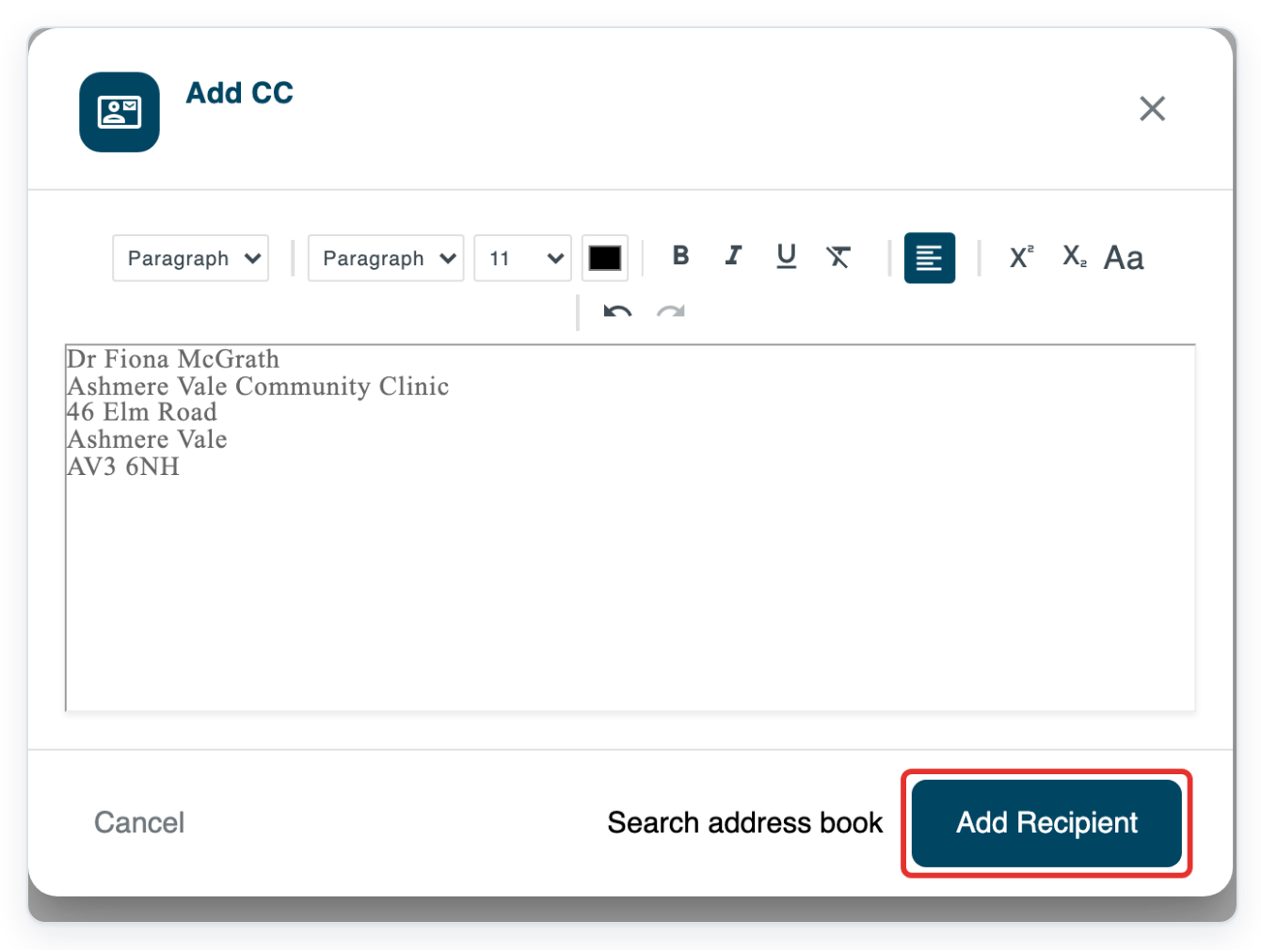
In this example, enter Dr Fiona McGrath, Ashmere Vale Community Clinic, 46 Elm Road, Ashmere Vale AV3 6NH.
Put the name, clinic, street, town and postcode on separate lines to form an address block.
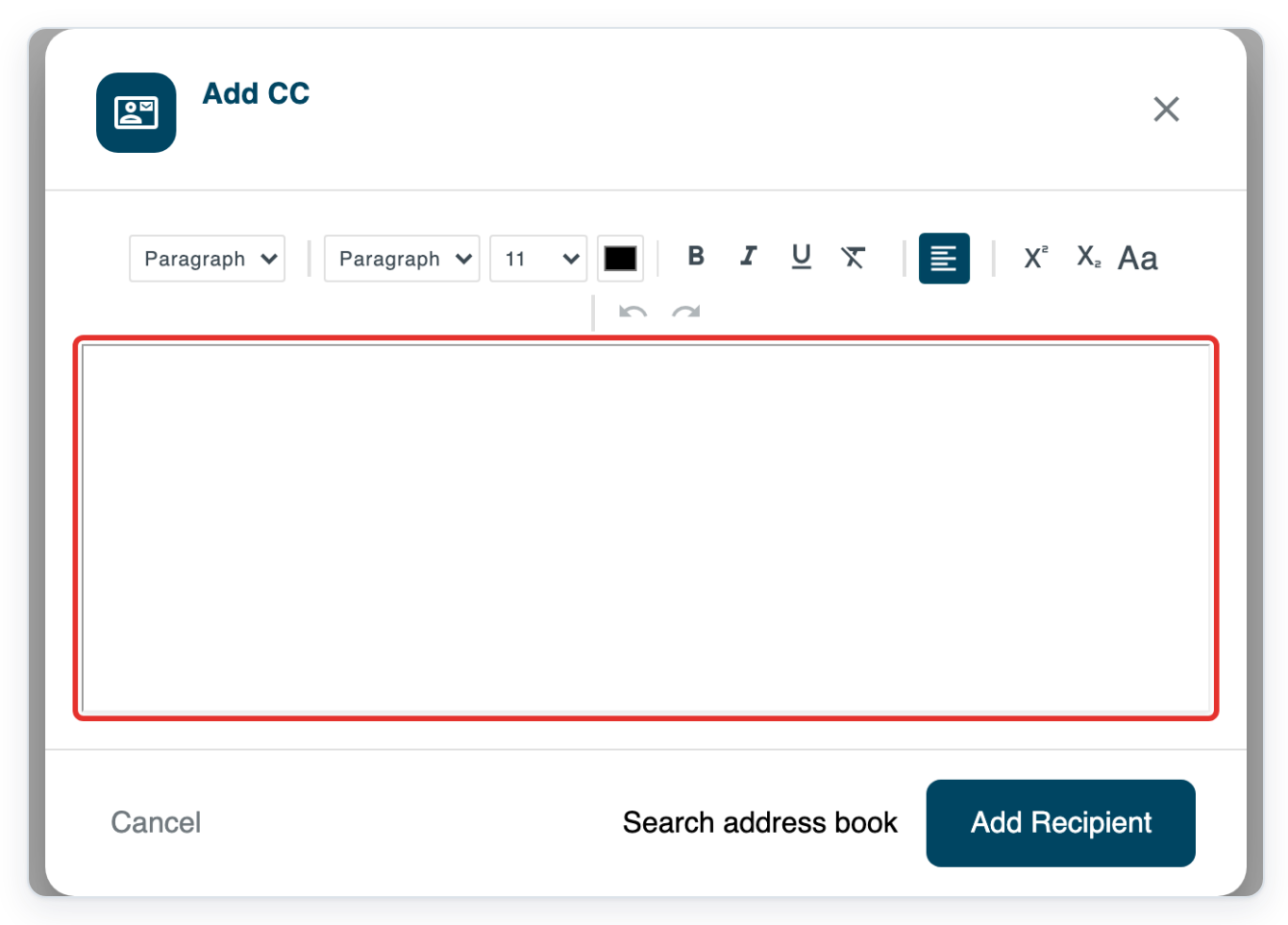
Click Add Recipient to add Dr Fiona McGrath to the CCs.
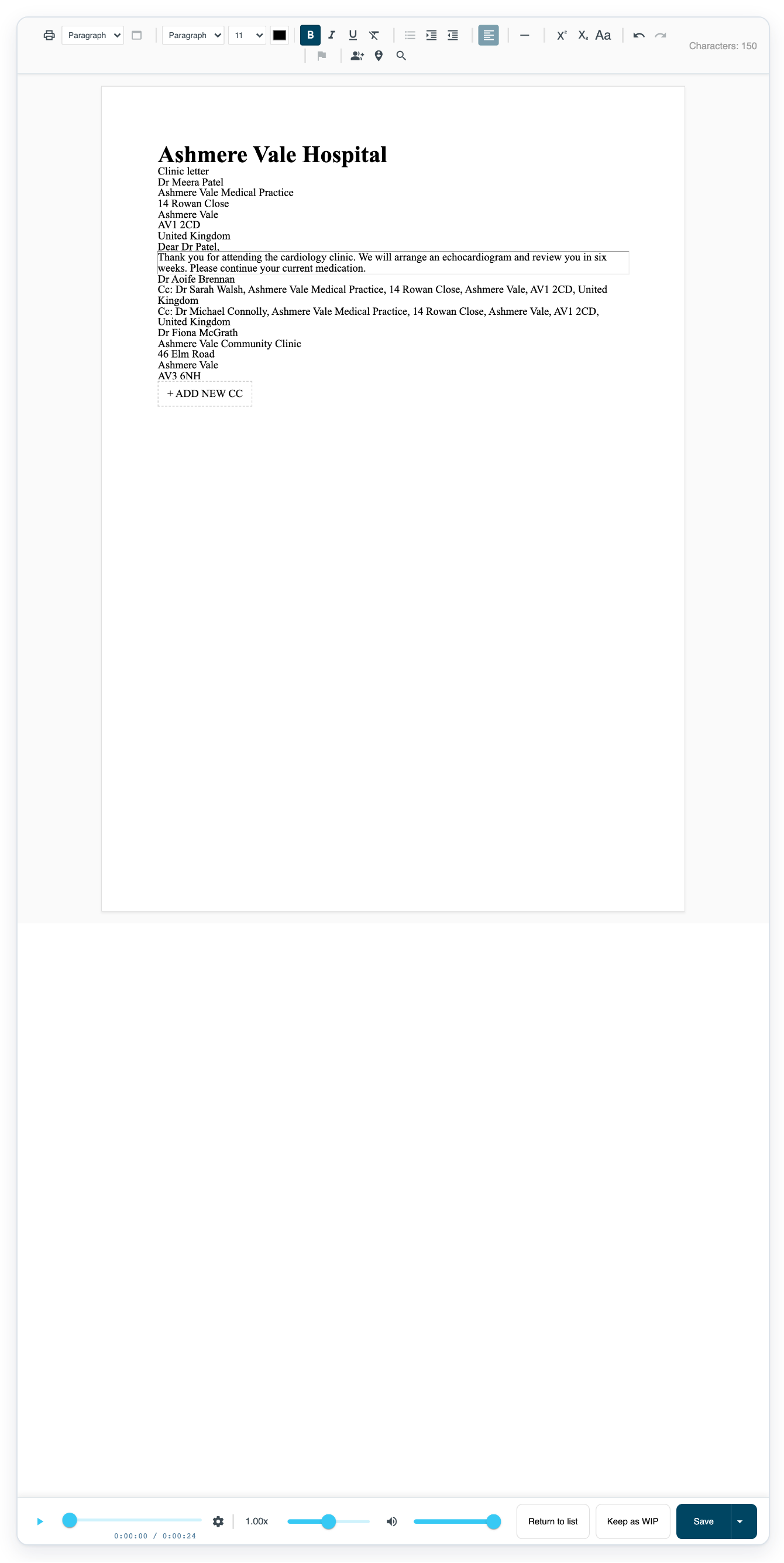
=> The letter shows Dr Meera Patel as the recipient and Dr Fiona McGrath as a CC. The add new CC control is below the CCs.
NOTE:
- T-Pro can fill in addresses automatically using patient details and template settings.
- Adding or editing an address here updates only the letter. The saved address book entry stays the same.
- Address book entries can include electronic delivery details. With free text, you enter the address without an electronic ID.
- Adding or changing a CC can reset electronic delivery selections for other CCs. Recheck every recipient after making changes.
- To save corrected electronic selections, clear Extra Copy if you do not want a printed copy. Then click Save Changes.
Ways to add an address
The contacts you see depend on the patient and visit details saved in T-Pro.
| Address source | When to use it |
|---|---|
| Patient | Address the letter or a copy to the patient, if their address is available. |
| Next of kin | Choose the next of kin's address, if available. |
| GP | Choose the patient's primary care provider address, if available. |
| Other related contacts | Choose a consultant, admitting, attending or referring doctor's address from the visit details, if available. |
| Address book | Find and select a saved address by name. |
| Manual details | Enter the name, site and postal address in separate fields. |
| Free text | Type and format the recipient's name and address together. |
Tip: Use add new CC in the letter to add another copy recipient.
Can't add recipients or CCs?
If electronic delivery selections have changed after adding or editing a CC, click Print Document in the editor toolbar.
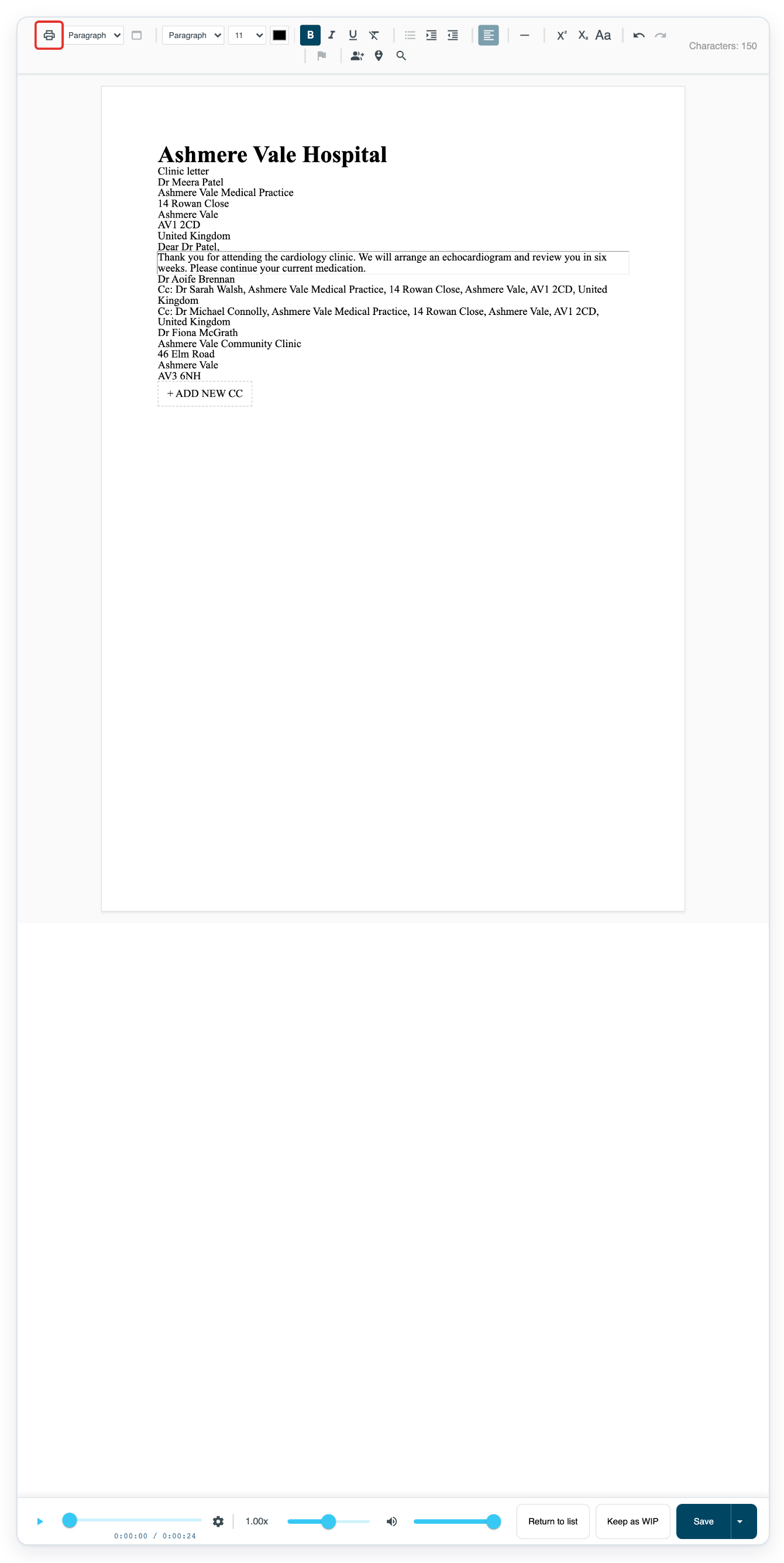
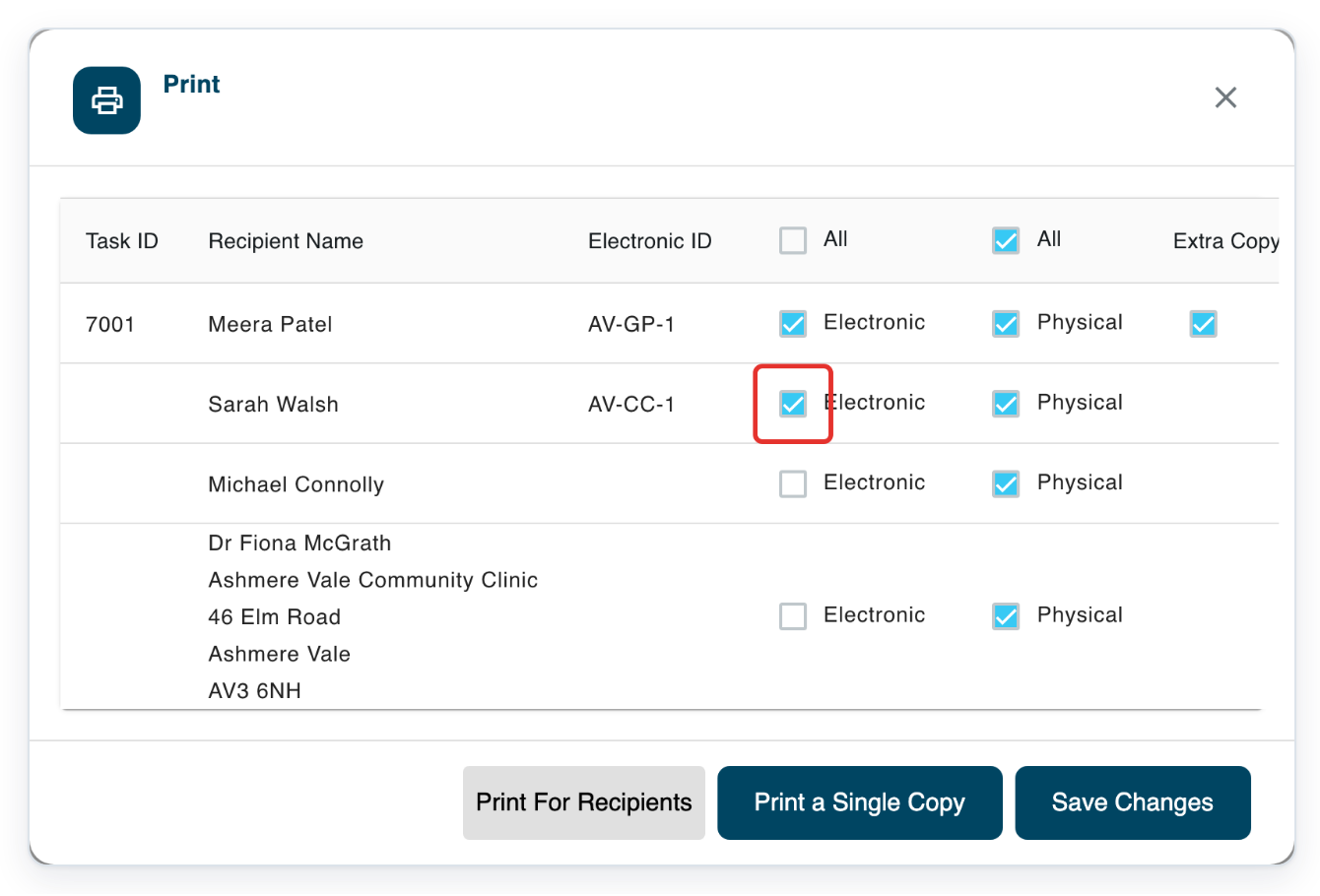
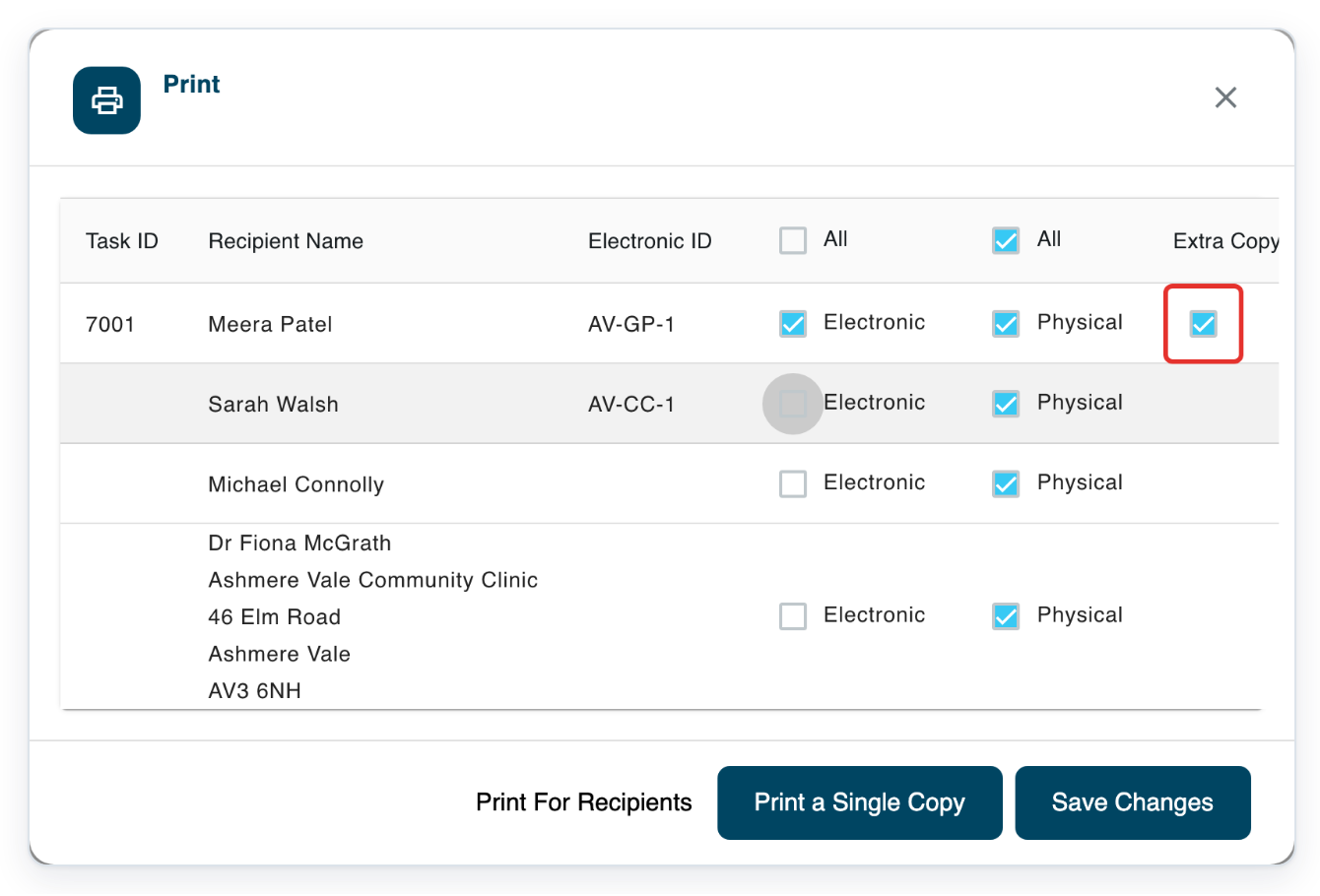
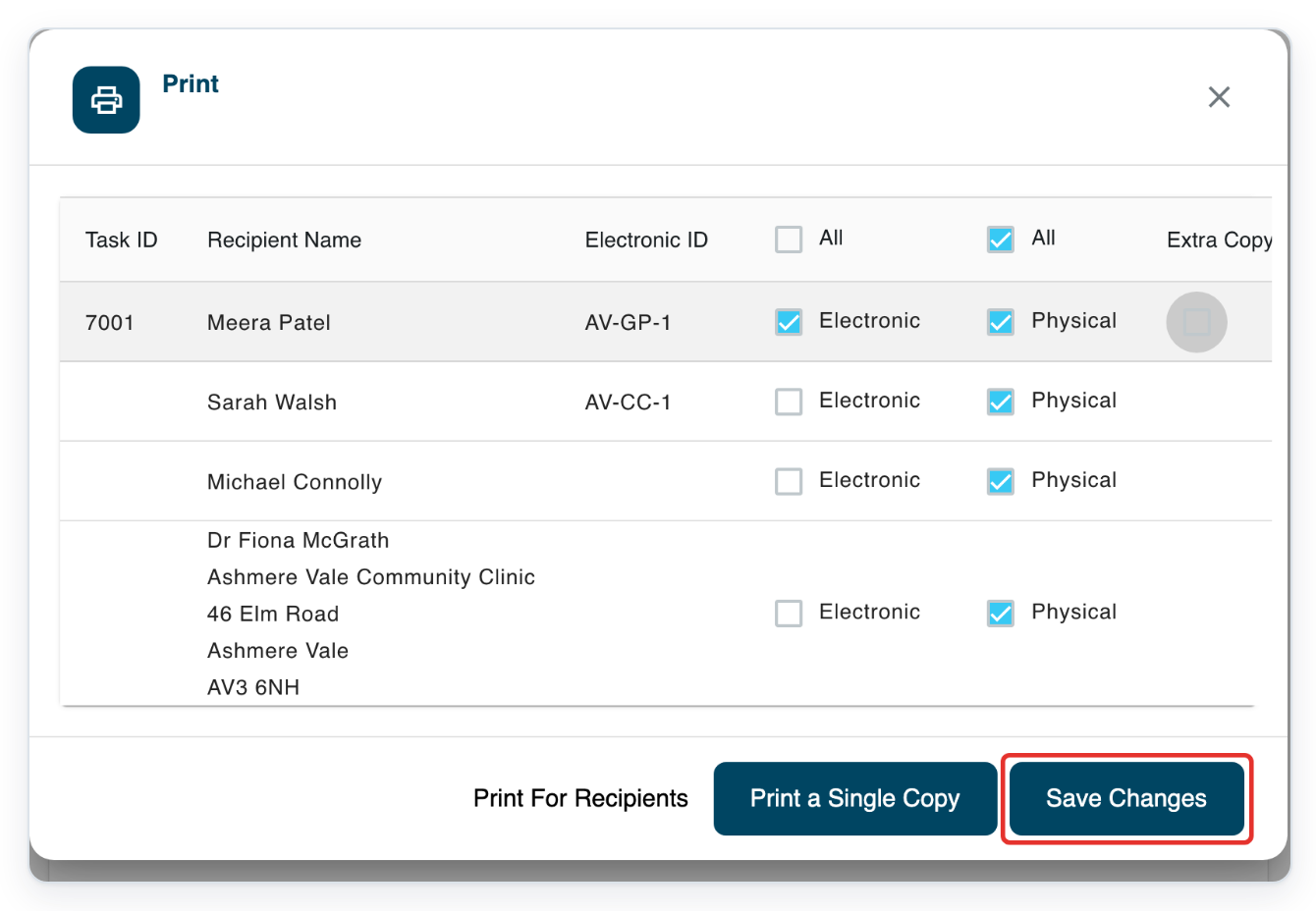
Check Electronic and Physical for the main recipient and every CC, including anyone you have not changed. In this example, clear Electronic for Sarah Walsh. Clear Extra Copy if you do not want a printed copy. Then click Save Changes to save the electronic selections and return to the letter.
If you can't find the address field, use the editor toolbar. Try Configure Recipient or Configure List of CCs.
If address fields won't open or toolbar controls are unavailable, check that you can edit the task. Ask its author or manager for help. If a control is disabled, ask your manager to check the template has the right address field.
If the search shows “No results found”, check the name you entered. You can also enter the recipient's details in the separate fields.
If Add Free Text Recipient is unavailable, enter the address in the separate fields. Your organisation can turn off free text entry.
If T-Pro shows “First and last name cannot be empty”, select an address. Or enter a first name, last name or site name. Then click Add Recipient.
Related articles
- The letter editor in V2
- How merge fields fill in patient details
- Address redaction on letters
- Free text recipients
- Use the address book
If you have any more queries, please do not hesitate to contact our Helpdesk or support@tpro.io.
© 2020 - 2026