
Before you start
You need a master account with access to the organisation you're managing.
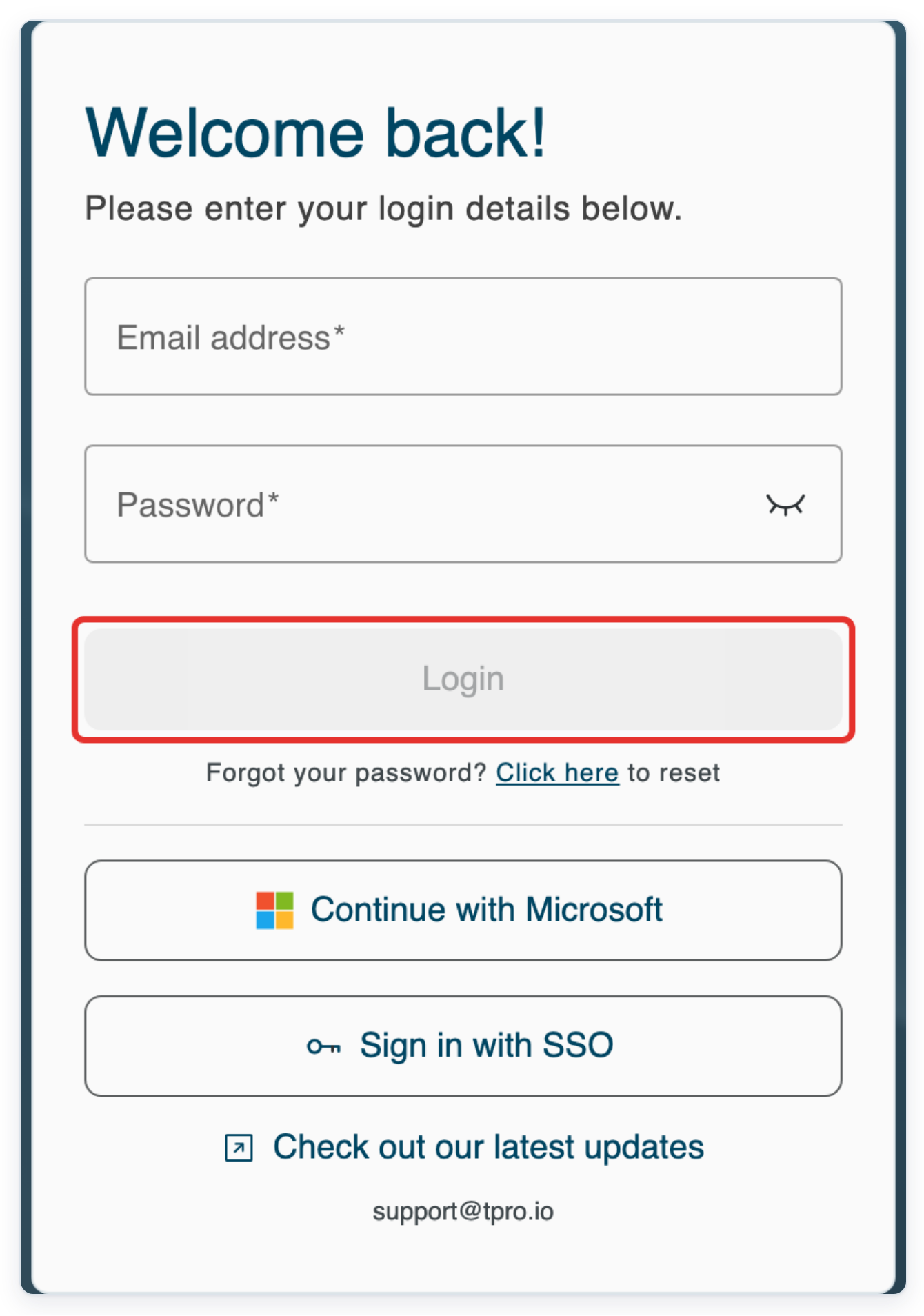
Log in to T-Pro with your master credentials.
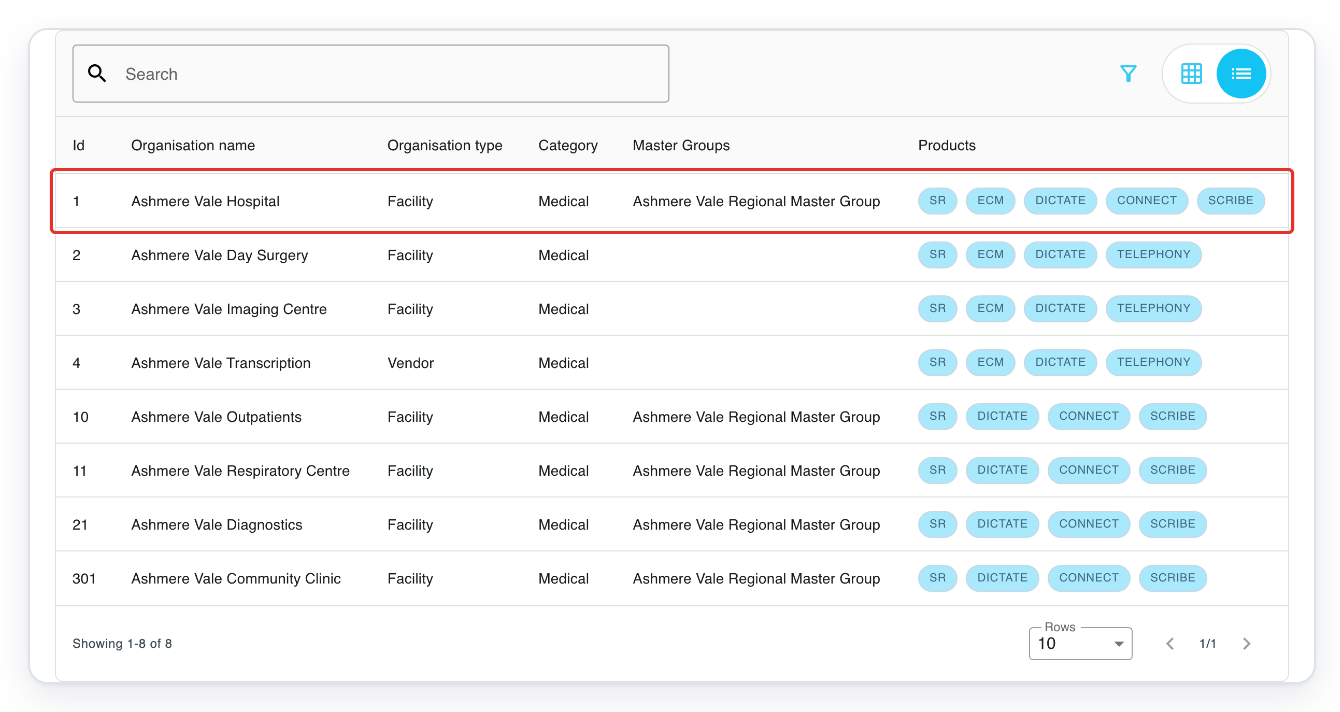
Click Organisations in the top navigation. The organisation list opens.

Find your organisation and click its row to open its tabs. In this example, select Ashmere Vale Hospital.
To narrow the list, enter the organisation's name in Search and press Enter.
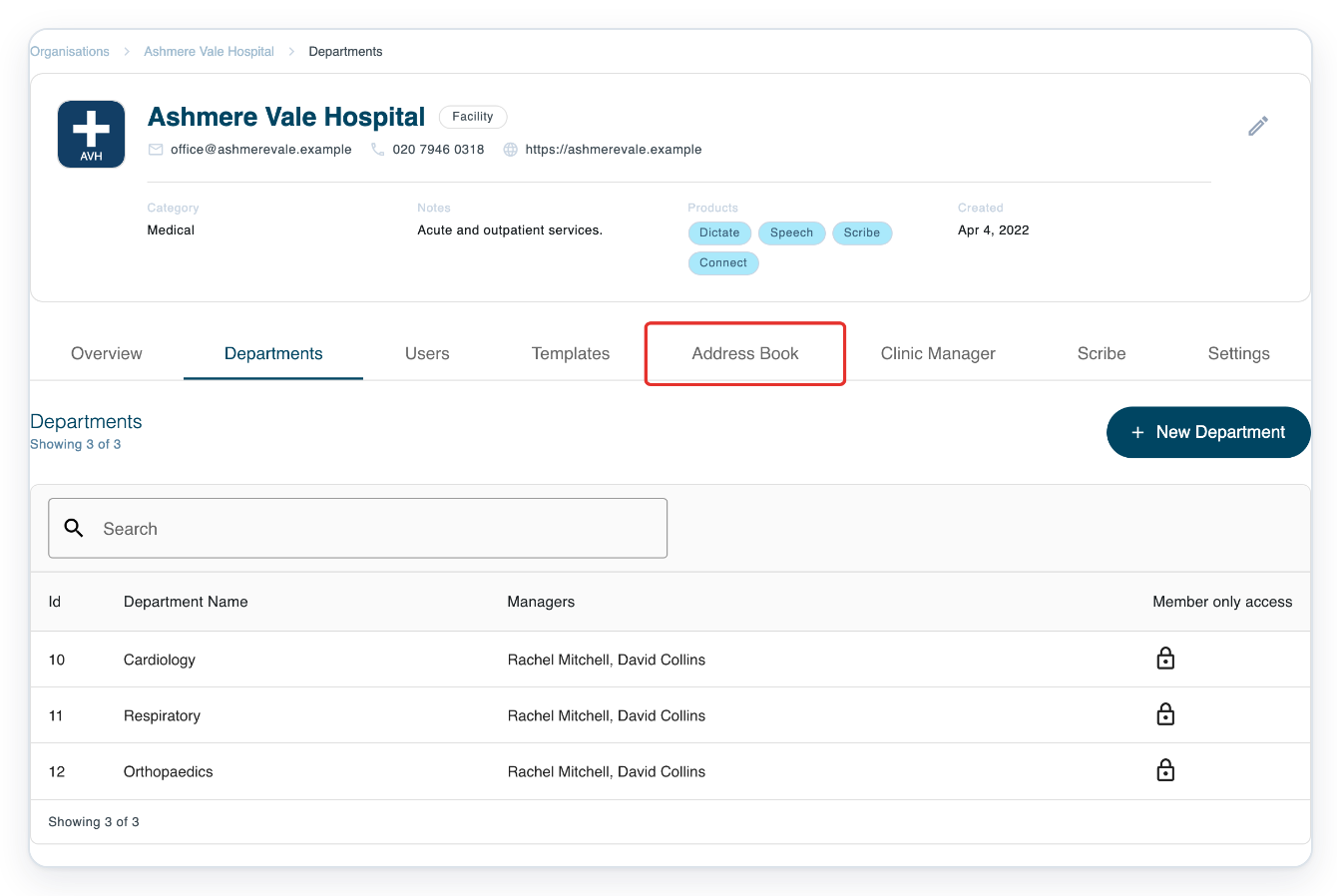
Click Address Book in the organisation's tabs to see its contacts.
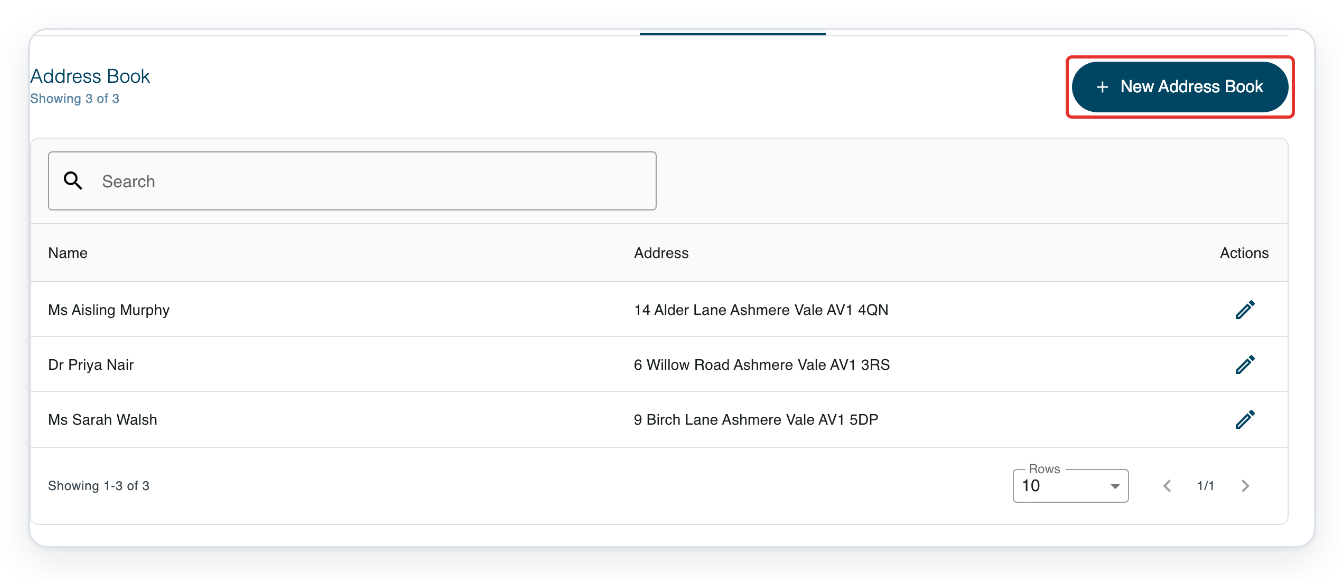
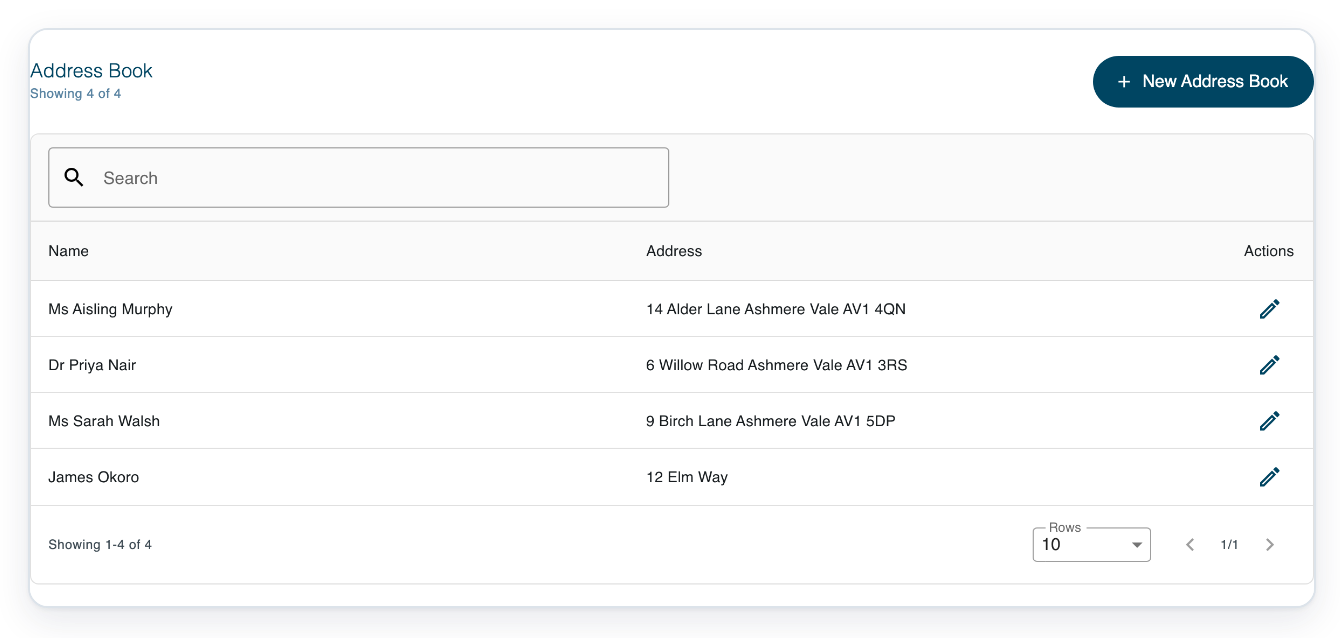
Each row shows a contact's Name and Address, with a pencil under Actions for editing.
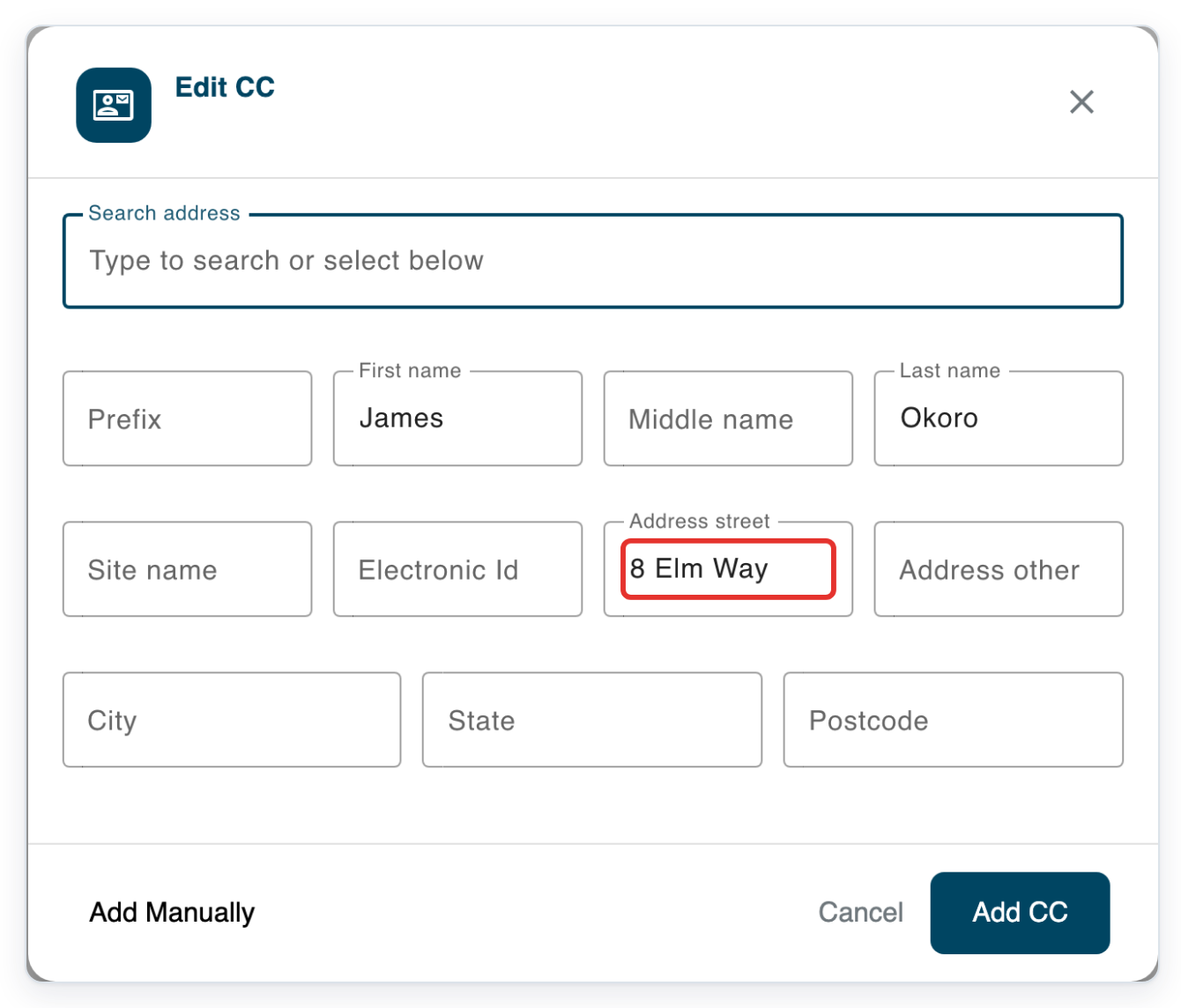
Click New Address Book to add a contact. The Add CC window opens.
Click First name and enter the contact's first name. In this example, enter James.
If the contact has a title, enter it in Prefix. You can also enter a Middle name.
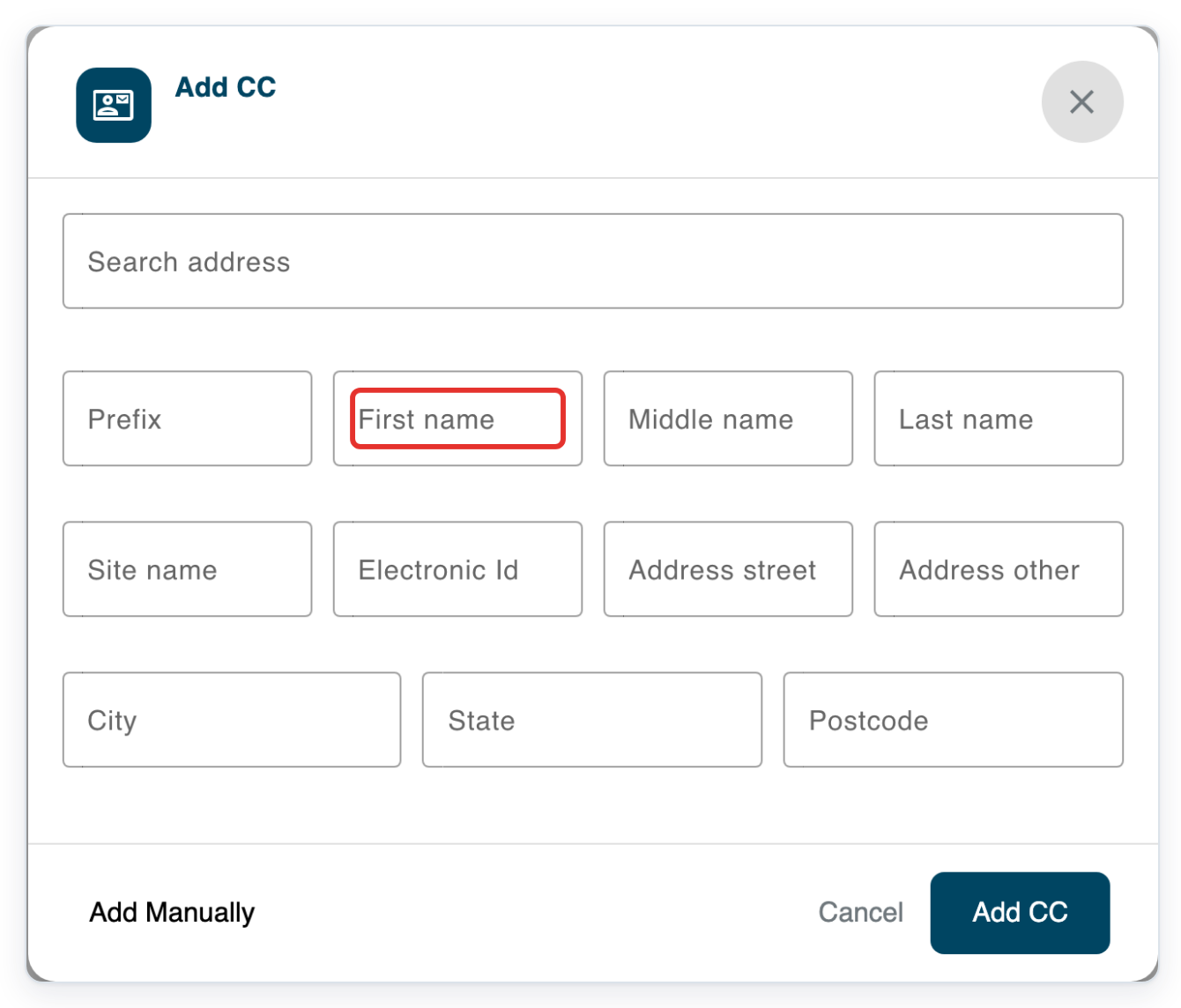
Click Last name and enter the contact's surname, Okoro.
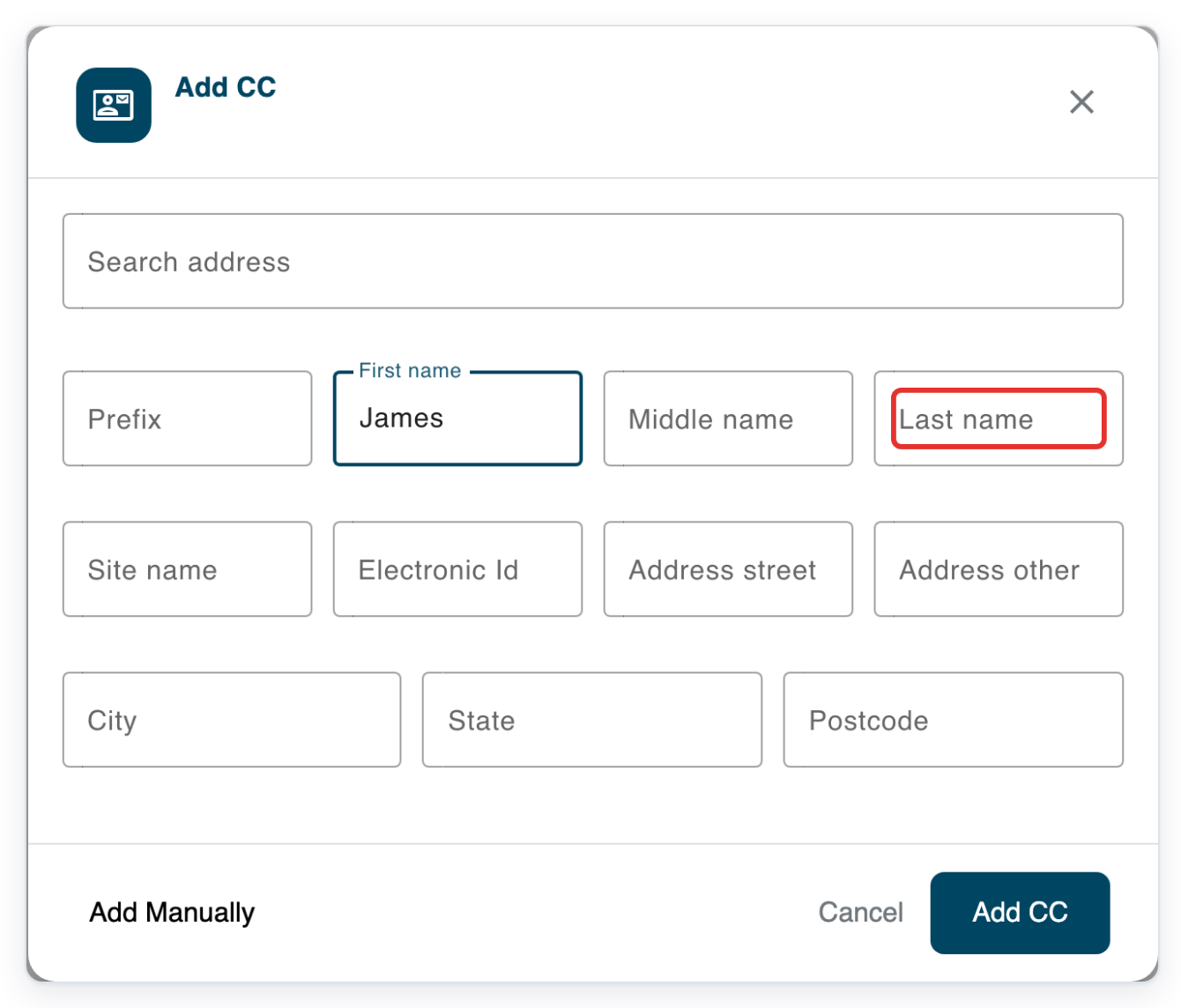
Click Address street and enter the street address, such as 8 Elm Way.
Use Address other for an extra address line. Enter the City, State and Postcode in the matching fields. If the contact belongs to a practice or other site, enter its name in Site name.
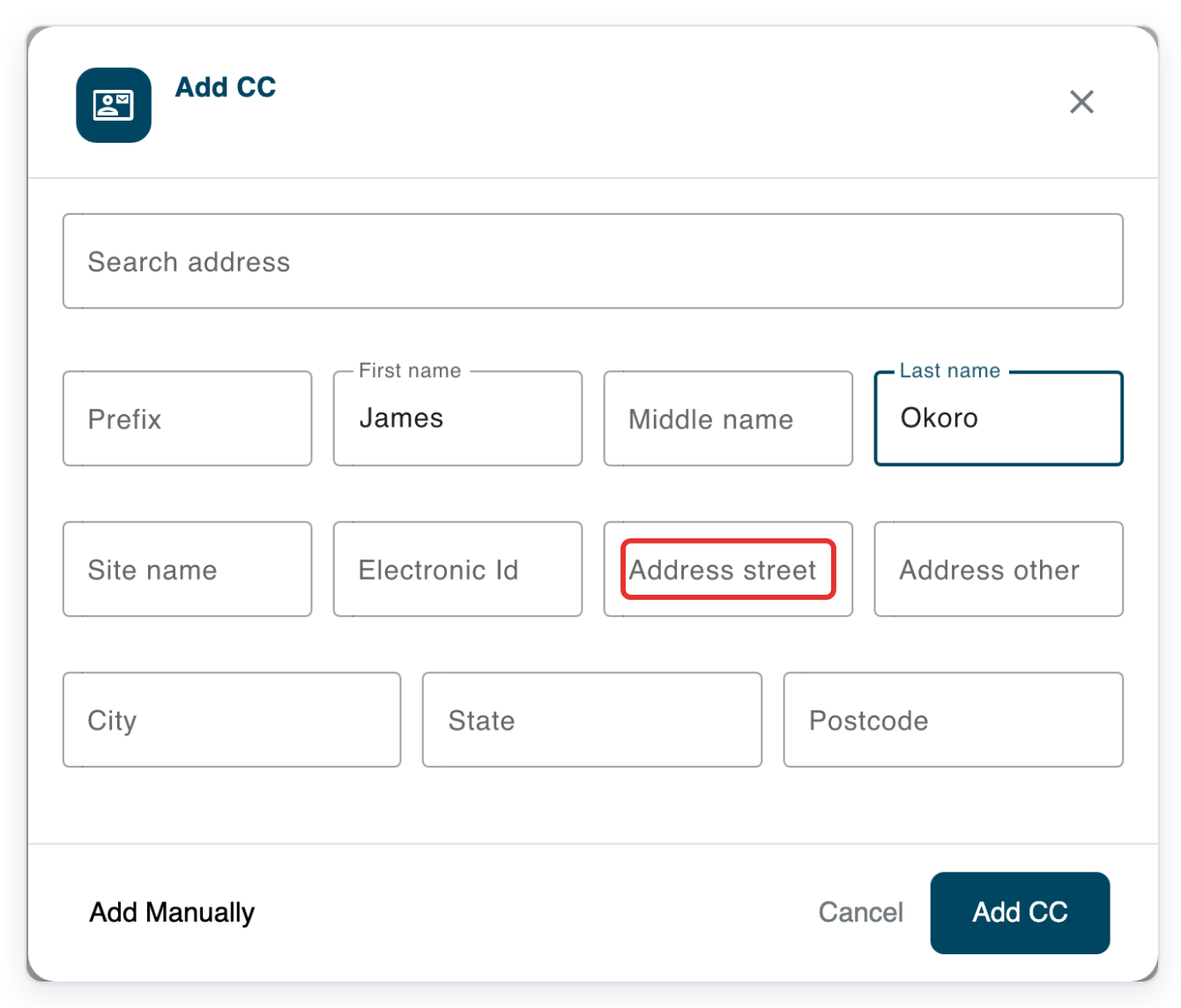
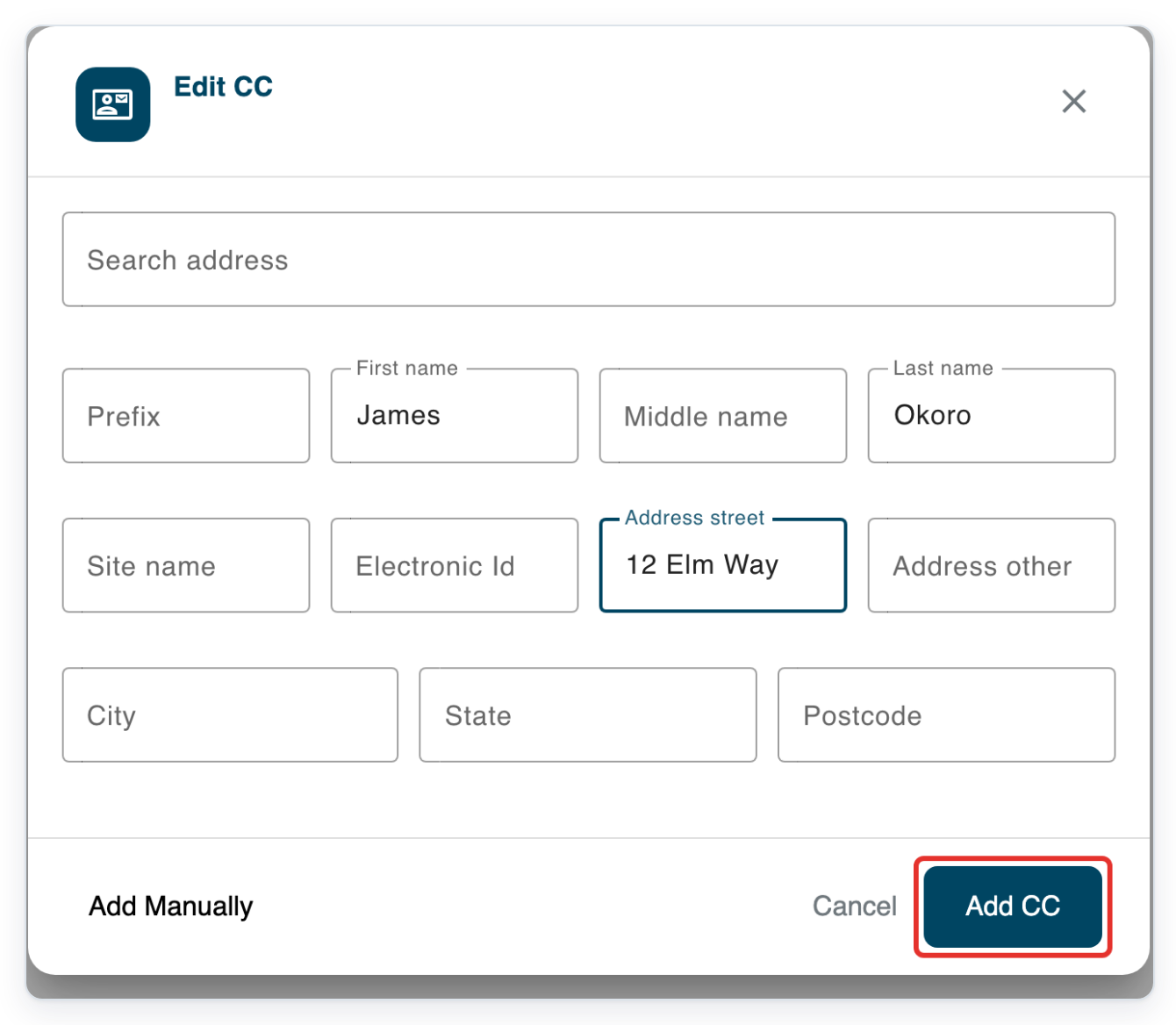
Check the contact's name and address, then click Add CC to save.
To leave without saving, click Cancel.
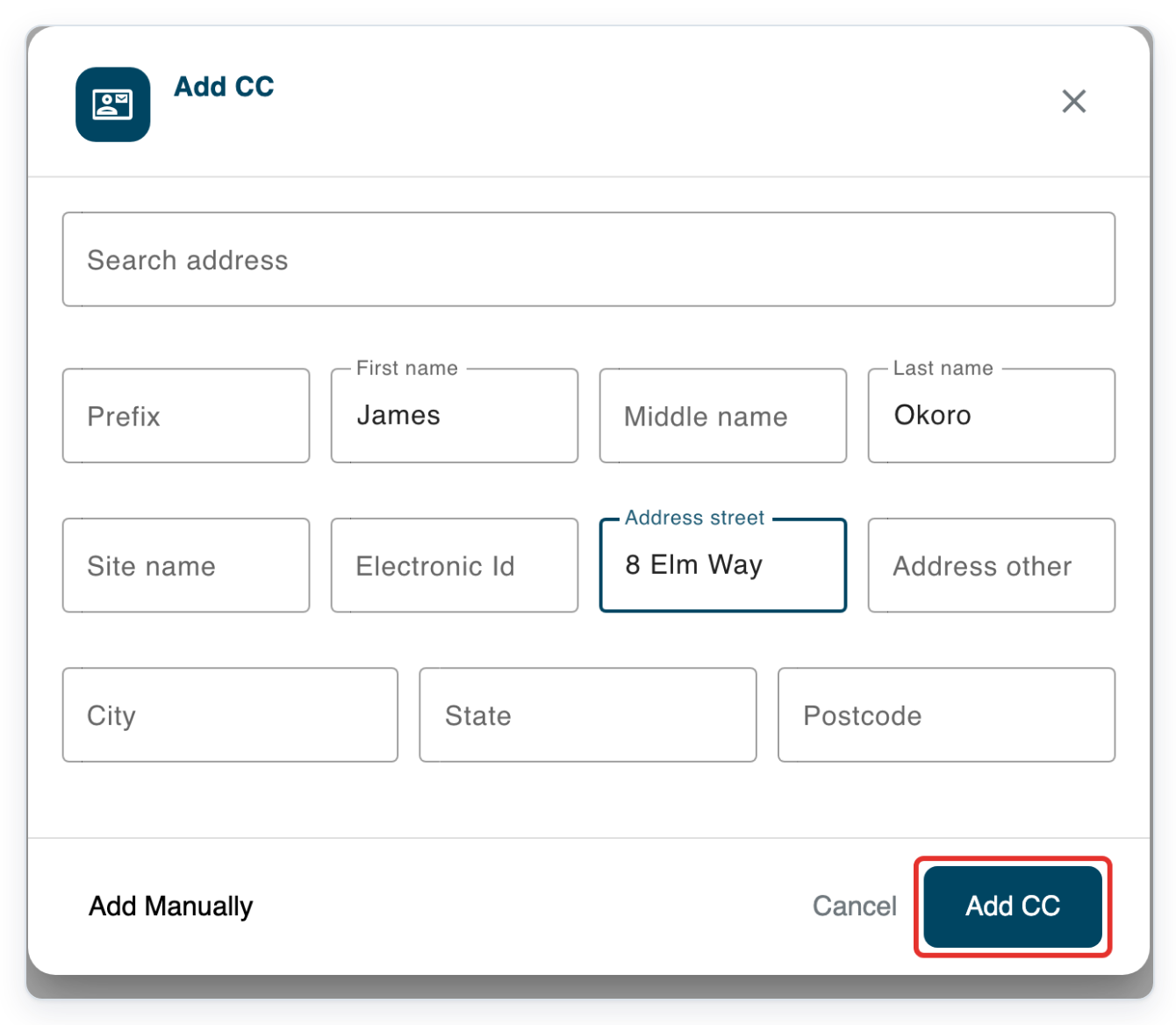
=> James Okoro appears in the address book at 8 Elm Way.
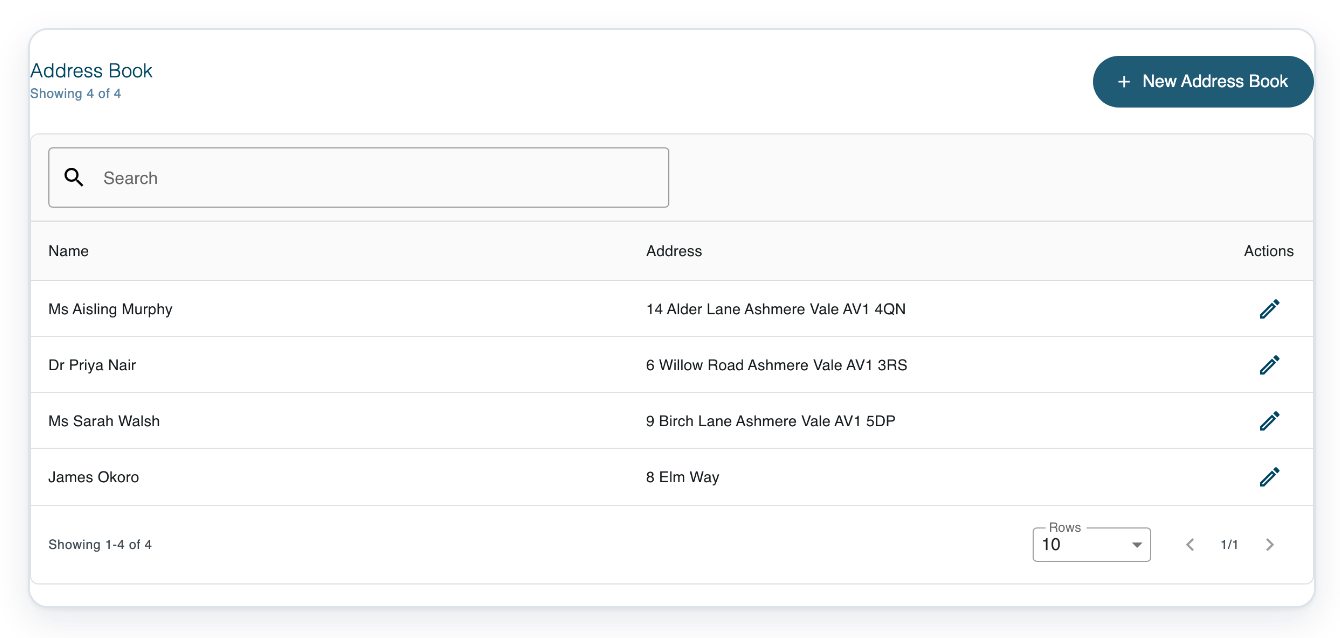
To update the contact, click the pencil in James Okoro's row. The Edit CC window opens.
The fields are blank at first. Follow the next step to find the contact and load their saved details.
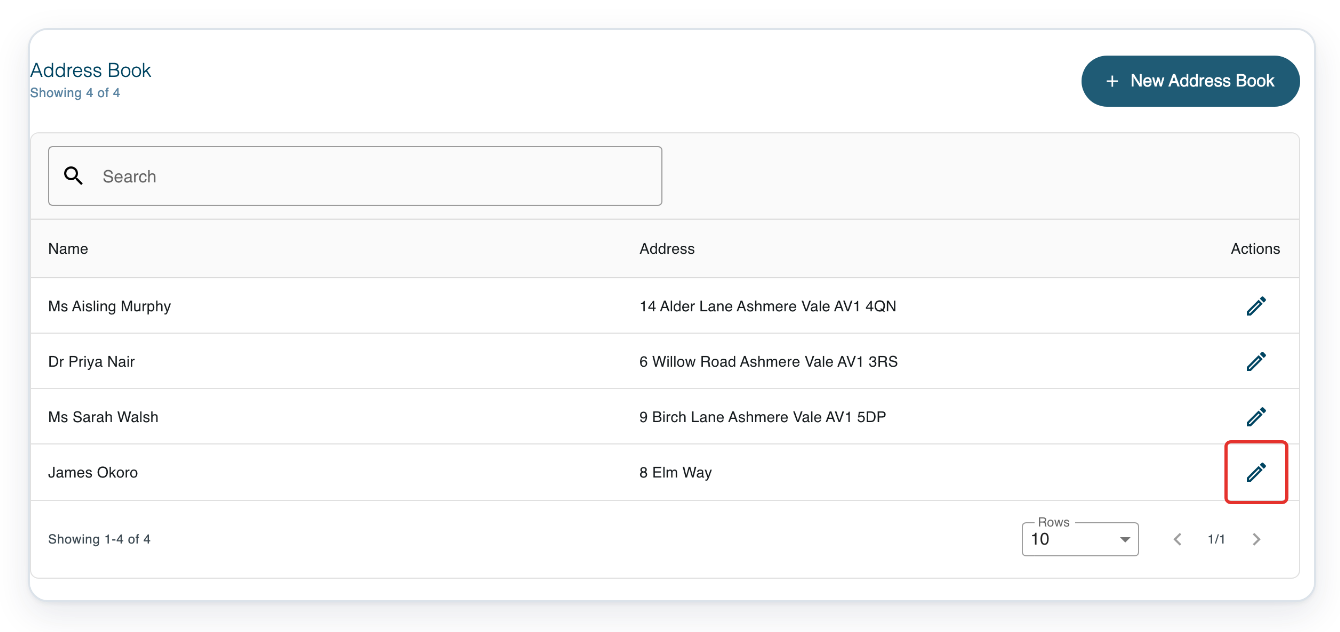
Click Search address and type Okoro to find the saved contact.
Matching contacts appear below the search field. Each result shows the surname first, then the first name and address.
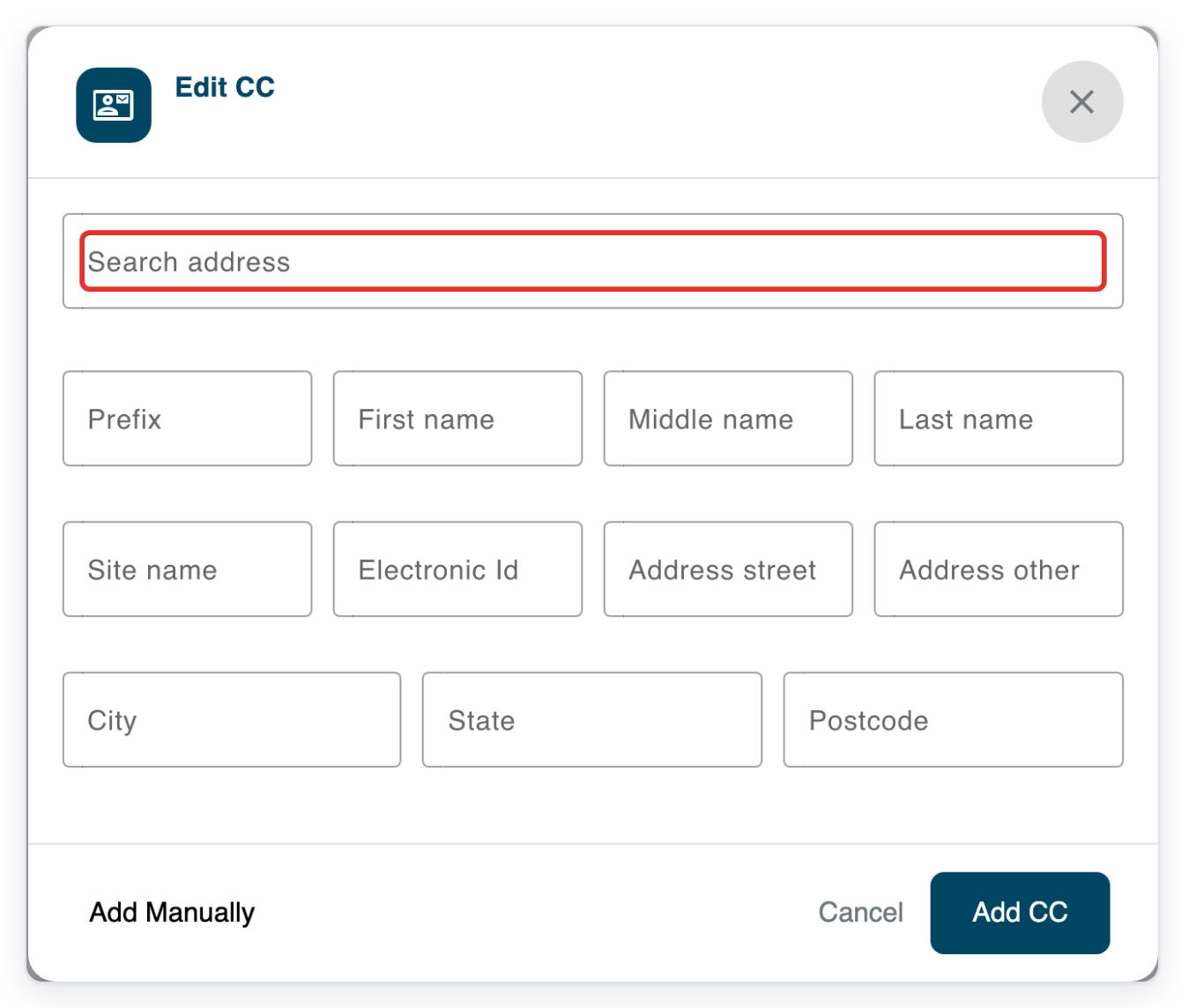
Select Okoro, James to load his saved name and address into the form.
Before you select a result, check the address beside the name. Several contacts may have the same name.
Click Address street and replace 8 Elm Way with 12 Elm Way.
You can also change the other name and address fields. Check that any details you want to keep are still there.
Click Add CC to save your changes.
=> The address book now shows James Okoro at 12 Elm Way.
NOTE:
- Contacts are saved in the organisation you selected.
- Add CC saves both new contacts and changes to existing contacts.
Tip: To find a contact, enter at least two characters in the address book's Search field and press Enter. Click the cross in the search field to clear it and return to the first page.
Can't use the address book?
- If you can't see Organisations, sign in with your master account or ask your organisation's master for help.
- If you can't find a contact, check that you've selected the right organisation. Clear the list search or try another name. Use the page arrows below the list to see more results.
- If T-Pro shows “First and last name cannot be empty”, enter the contact's name, then click Add CC again.
- If the list stops loading after you change Rows, choose 10 to reload it.
Related articles
If you have any more queries, please do not hesitate to contact our Helpdesk or support@tpro.io.
© 2020 - 2026