
Before you start
You need a manager or master account. You must have permission to manage the group and access the person's account. The group must already exist.
Log in to T-Pro with your manager credentials.
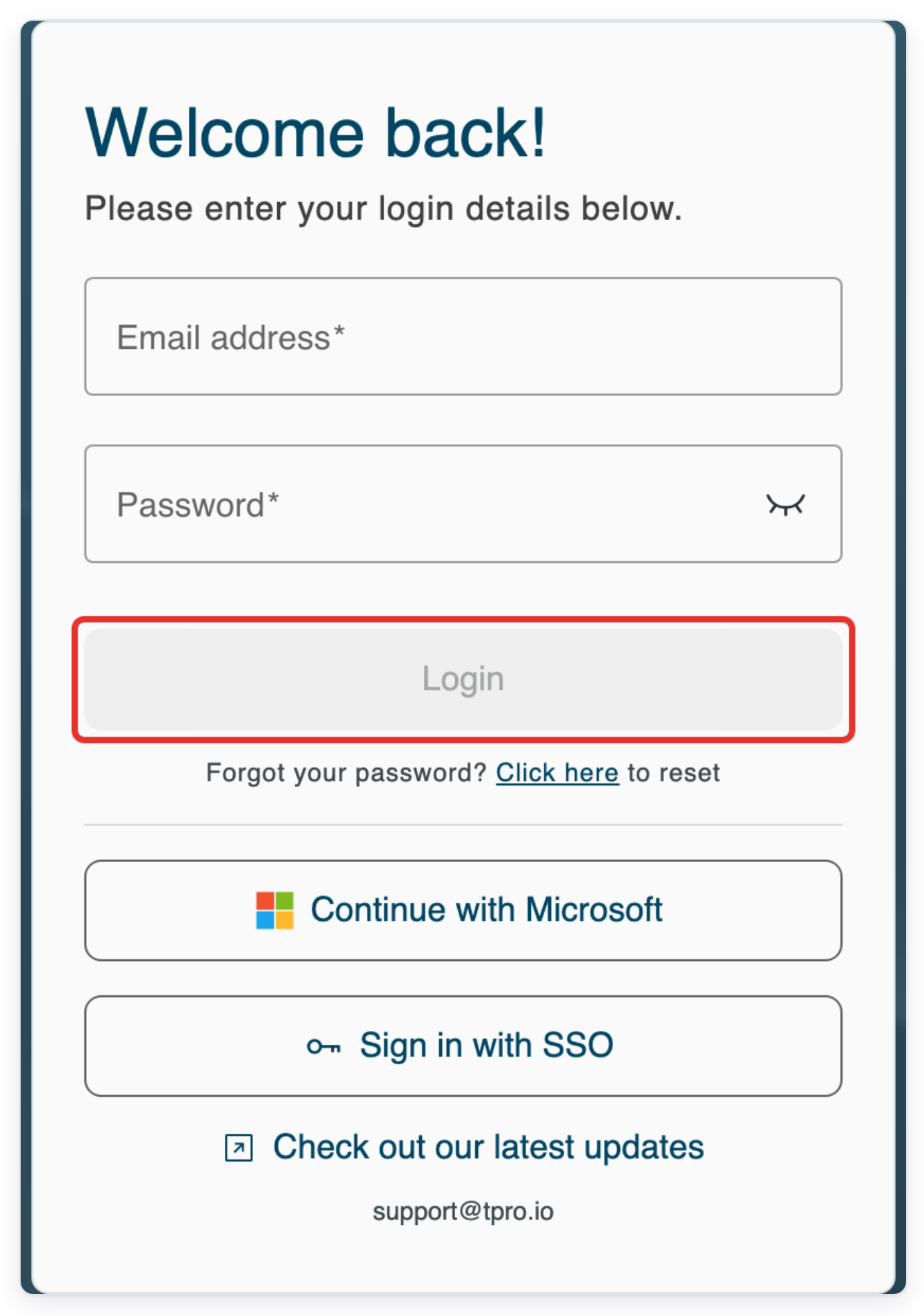
As a manager
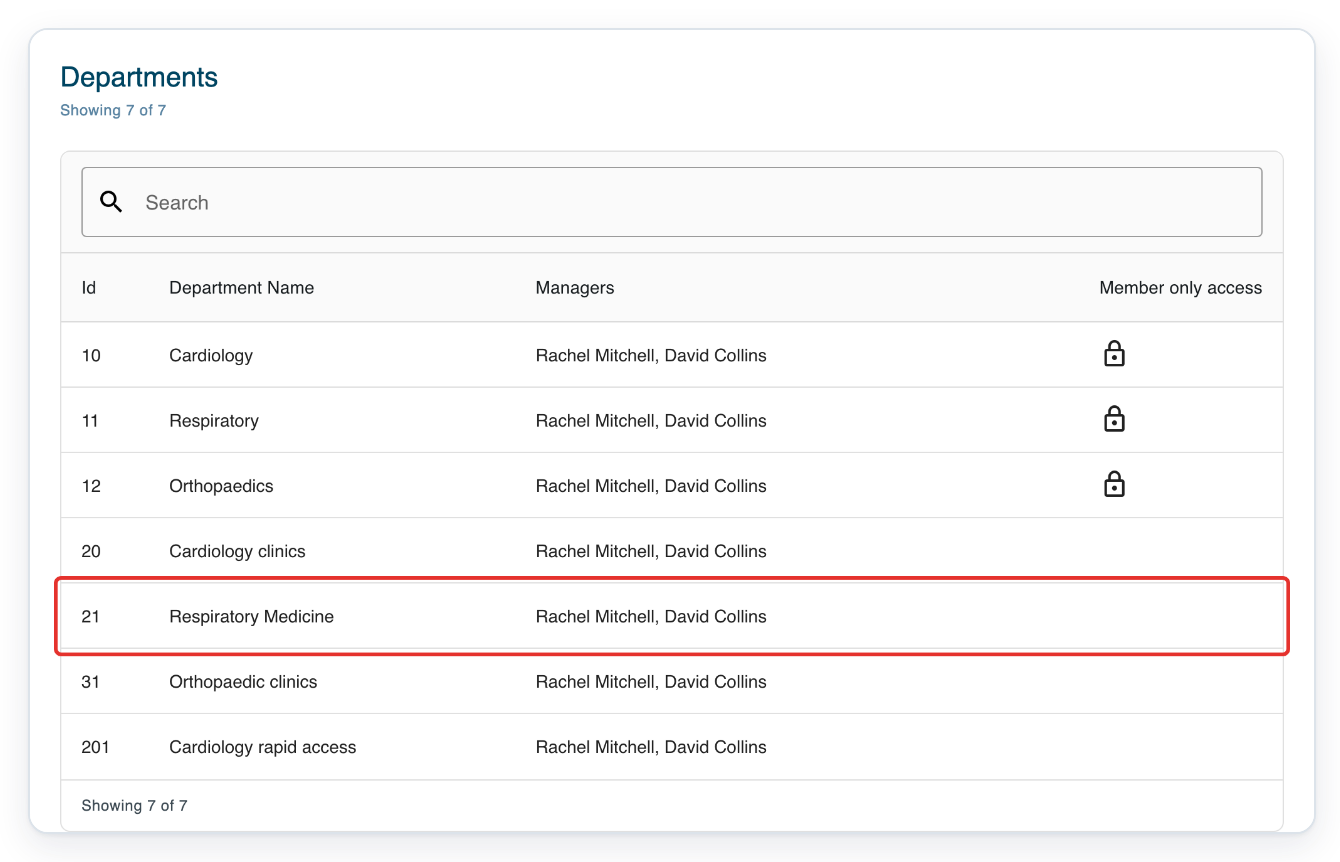
Go to Departments and click the department you need, such as Respiratory Medicine. Its Authors screen opens.
Use Search above the department list to find the department by name. This example adds an existing author to an author group.
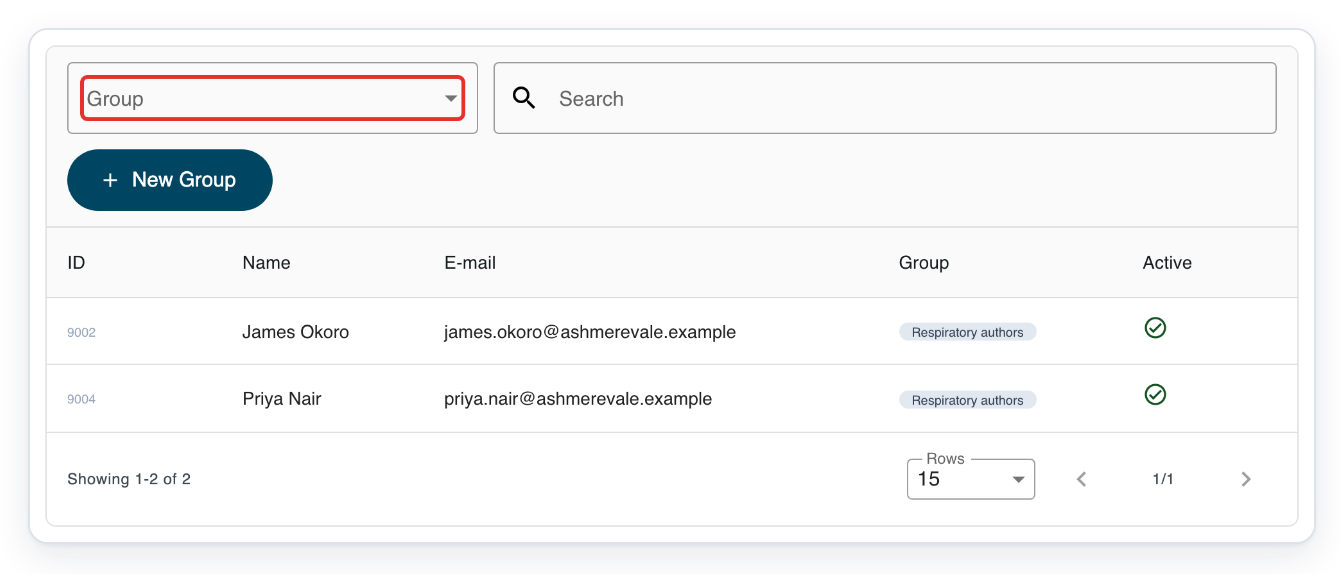
Open Group to choose the group you want to add the person to.
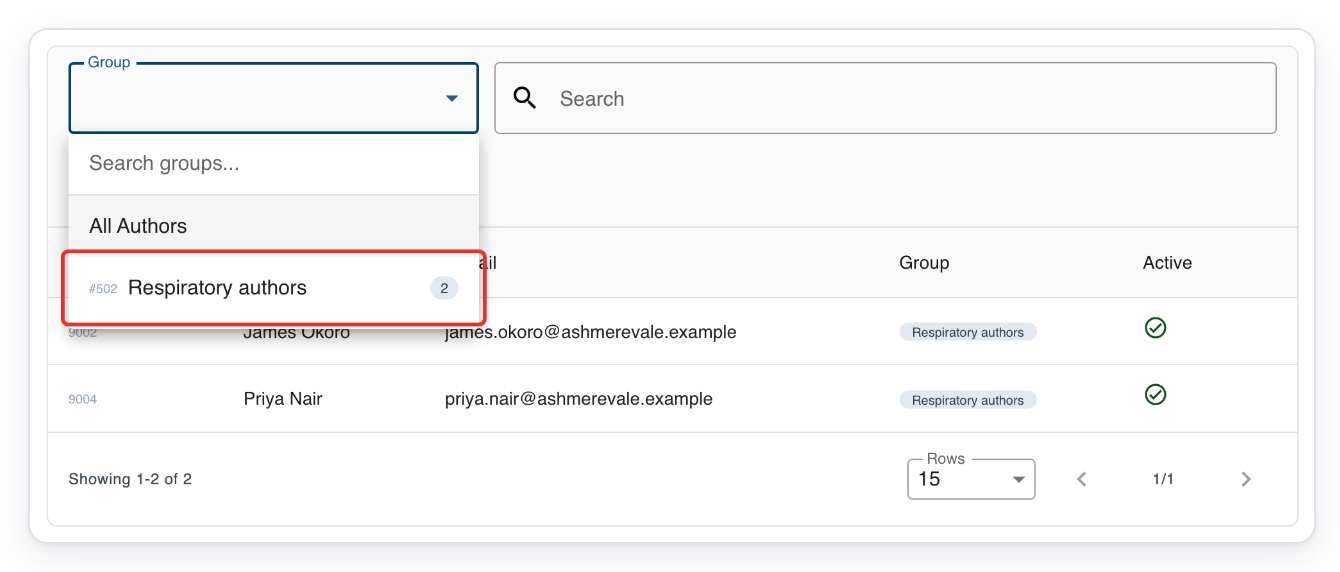
Use Search groups... in the menu to find a group by name.
Select the group, such as Respiratory authors.
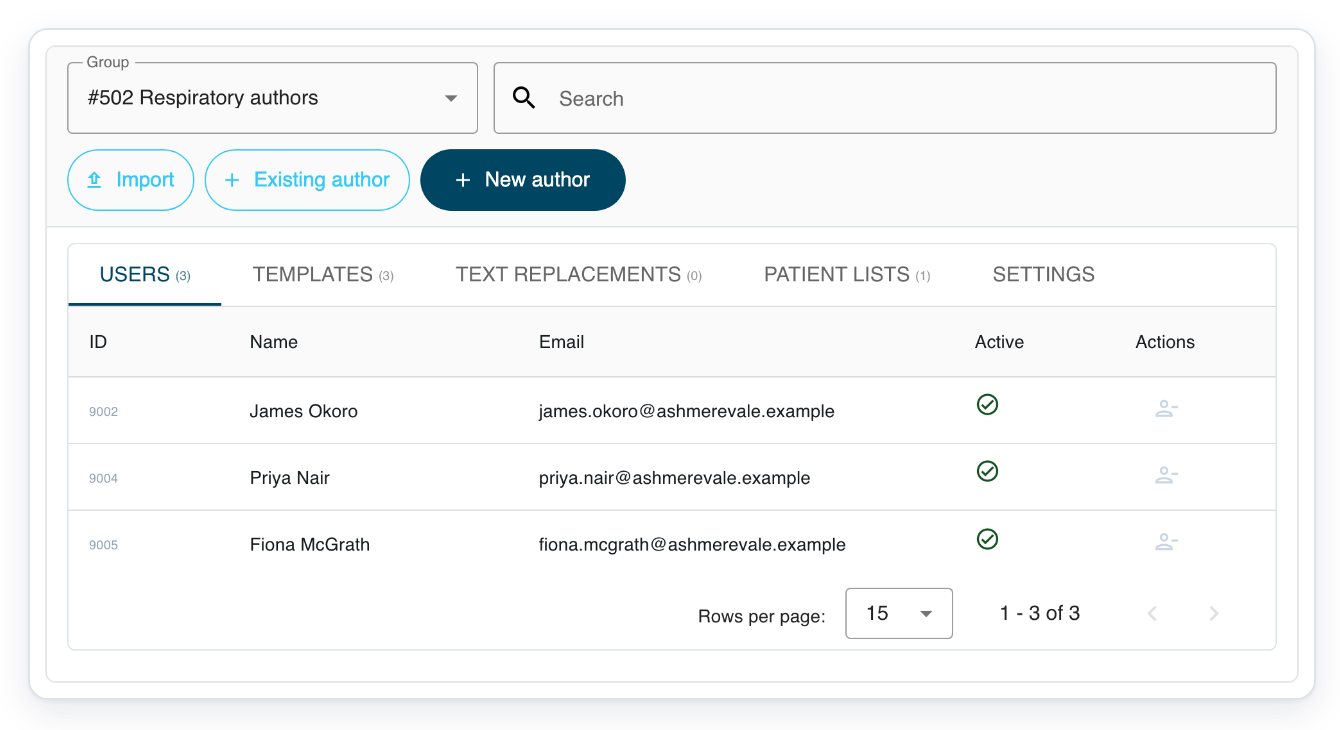
=> The Users tab shows the group's current members. Here, they are James Okoro and Priya Nair.
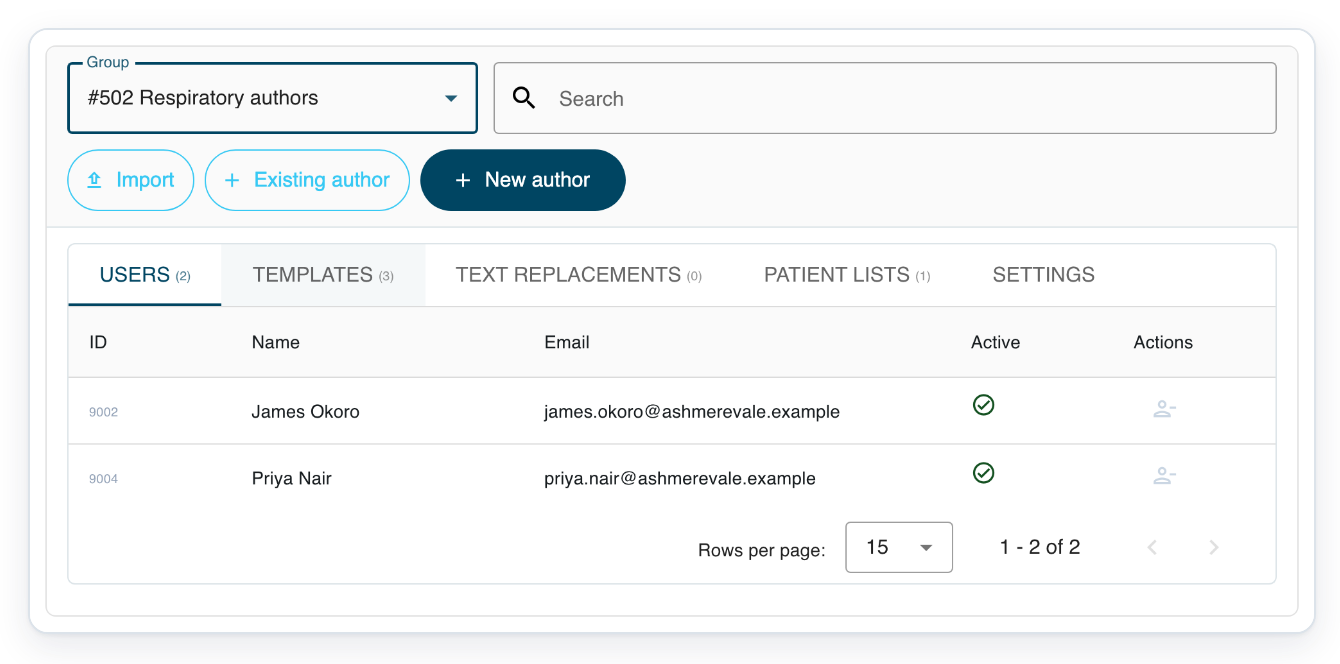
Click Existing author to open the account selection window.
Keep the Add Existing author tab selected to choose someone who already has an account.
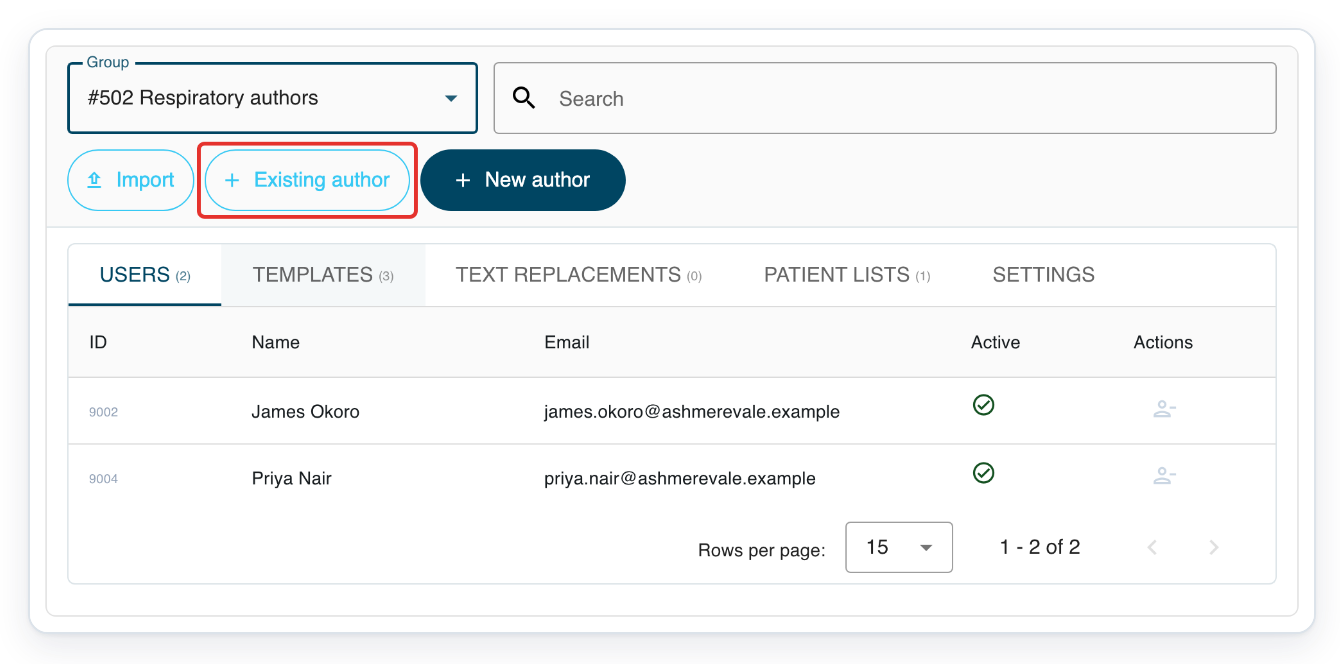
Enter the person's name in Search, for example Fiona McGrath.
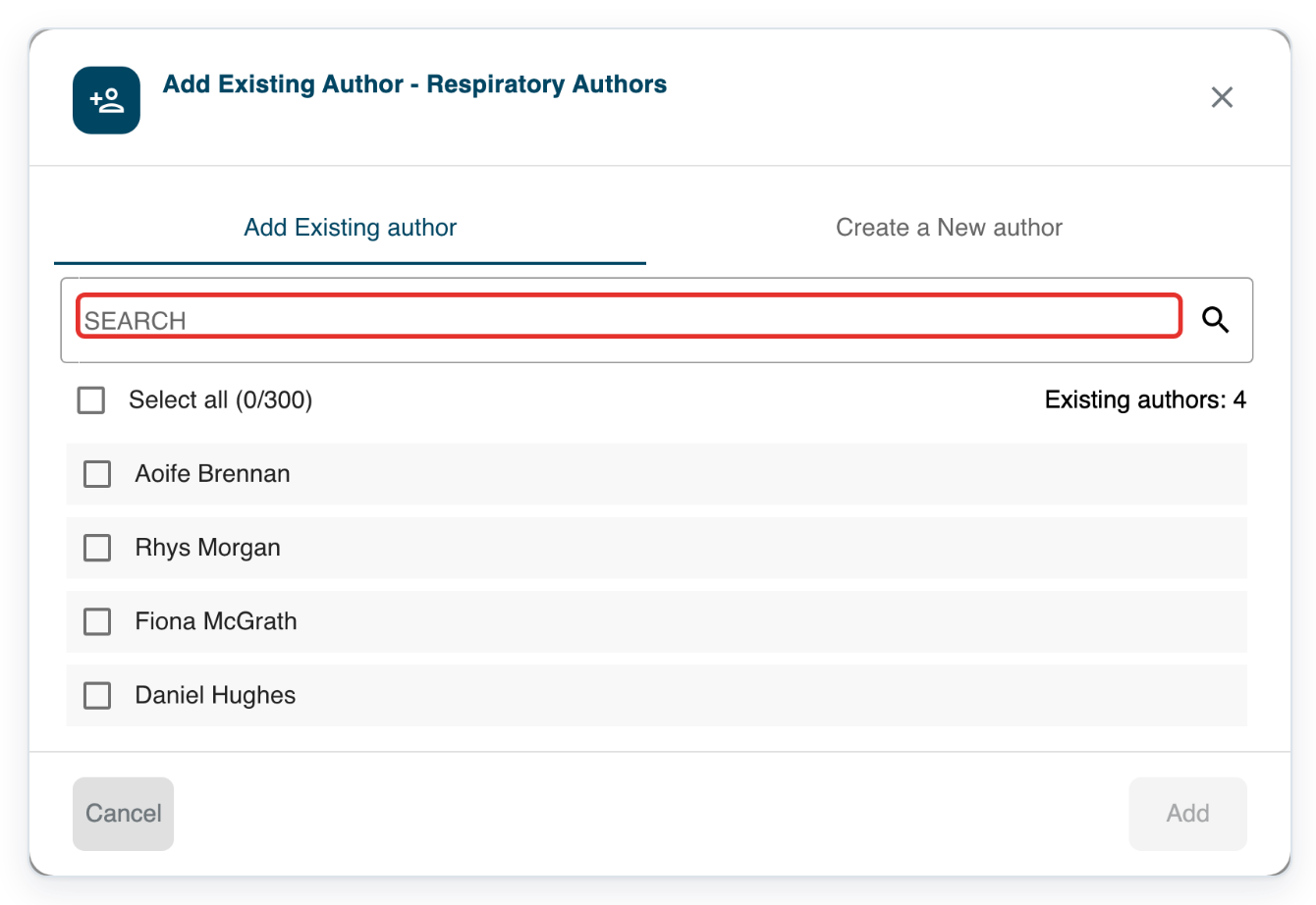
With the cursor in Search, press the End key. Wait for the matching accounts to appear.
The list updates shortly after you stop typing. It shows matching accounts in the group's organisation.
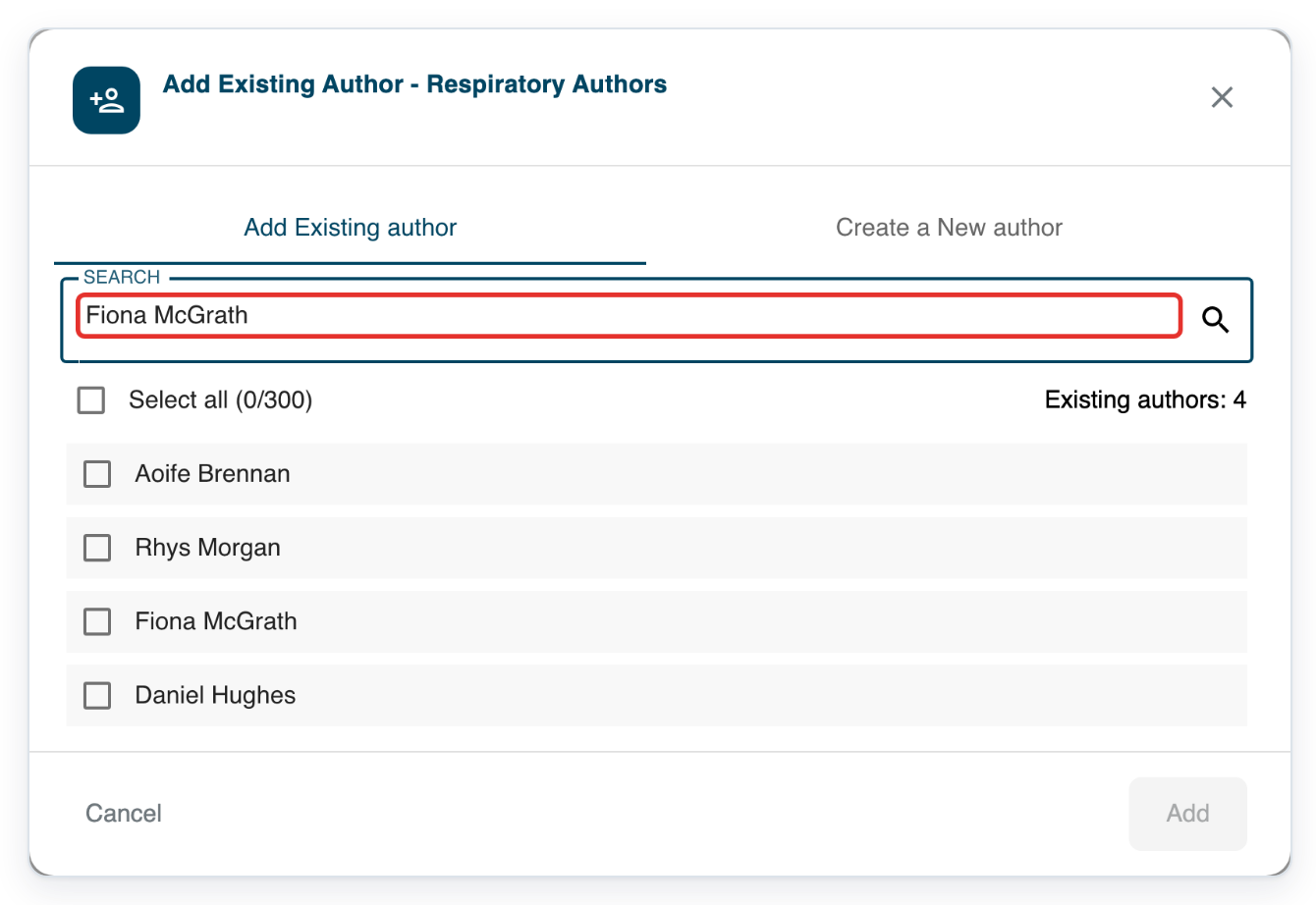
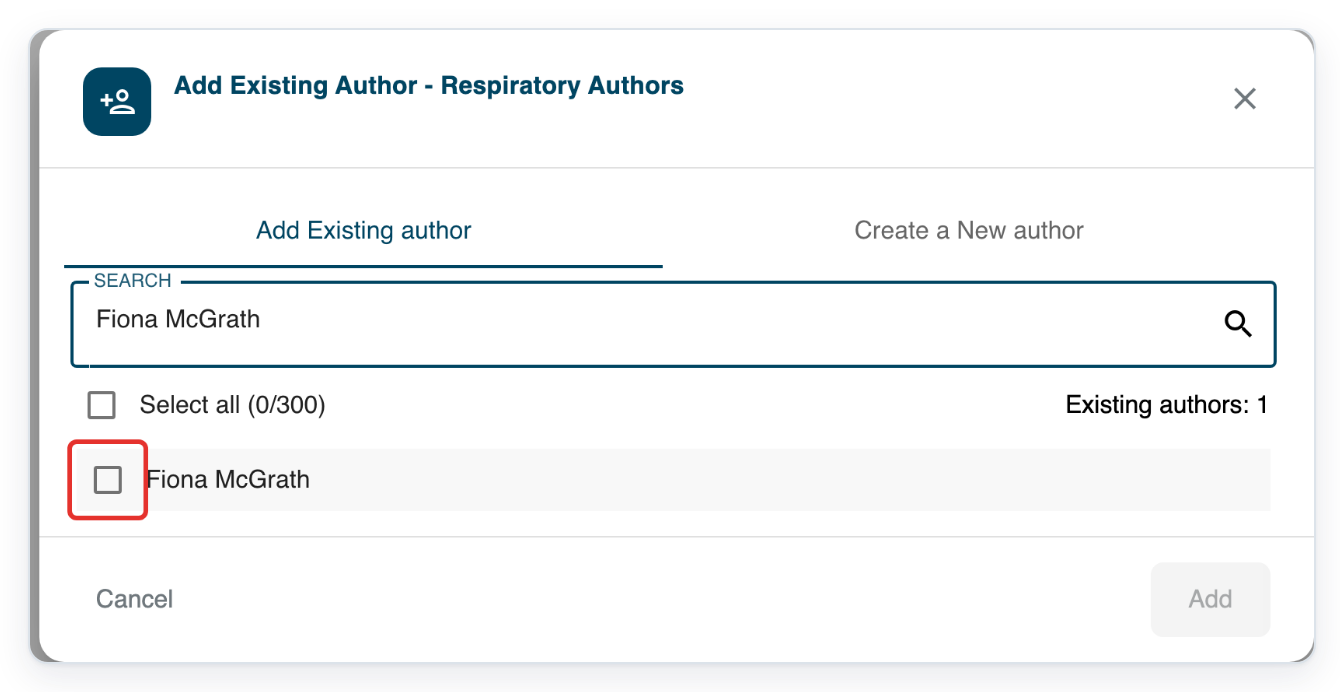
Tick the checkbox beside the person you want to add, such as Fiona McGrath.
You can select more than one person before clicking Add.
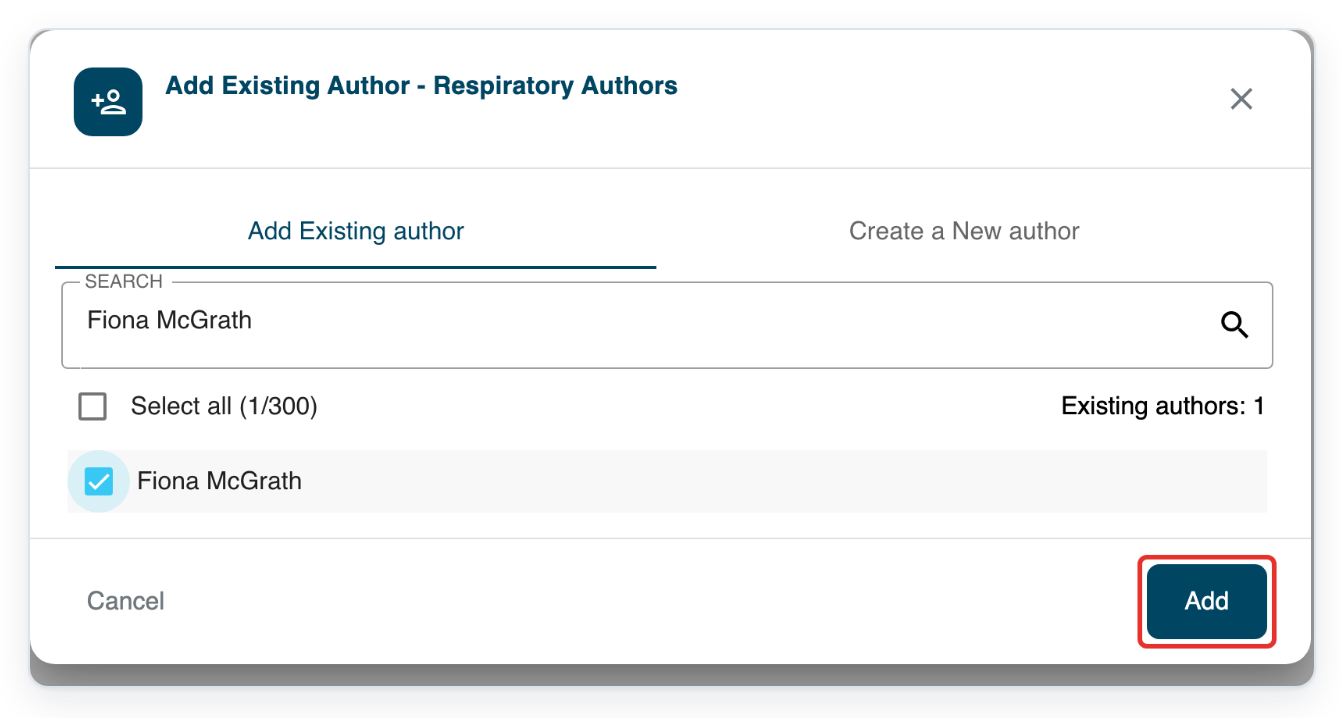
Click Add. T-Pro shows Users added and keeps the window open.
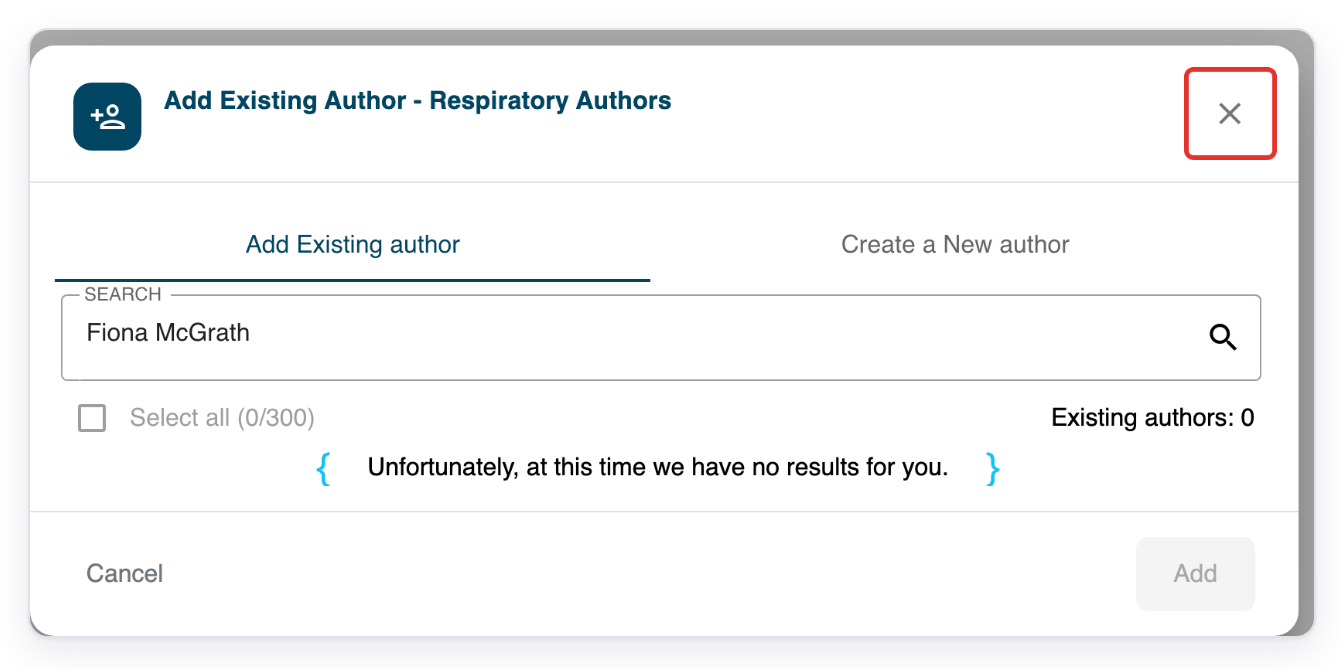
The person now belongs to the group. Their account disappears from the list of accounts you can add.
Click the cross in the window's top right corner to return to the group.
=> The Users list now includes Fiona McGrath. In this example, the group has three members.
As a master
Log in with your master credentials. In Organisations, click the facility you need, such as Ashmere Vale Hospital.
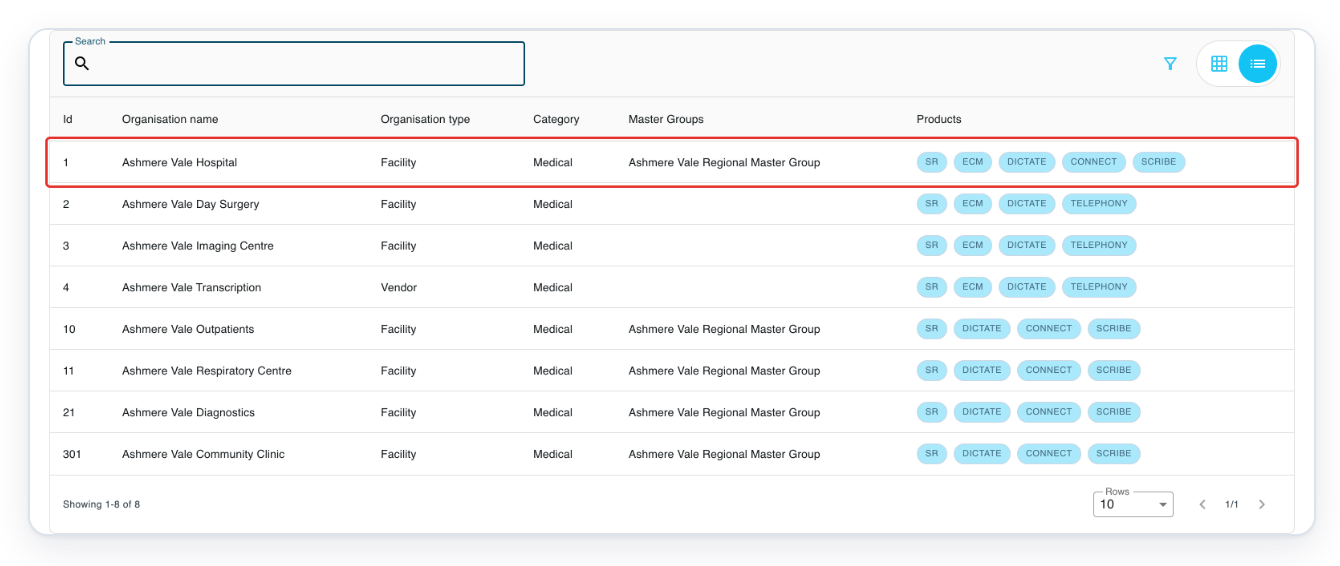
Click Departments in the facility.
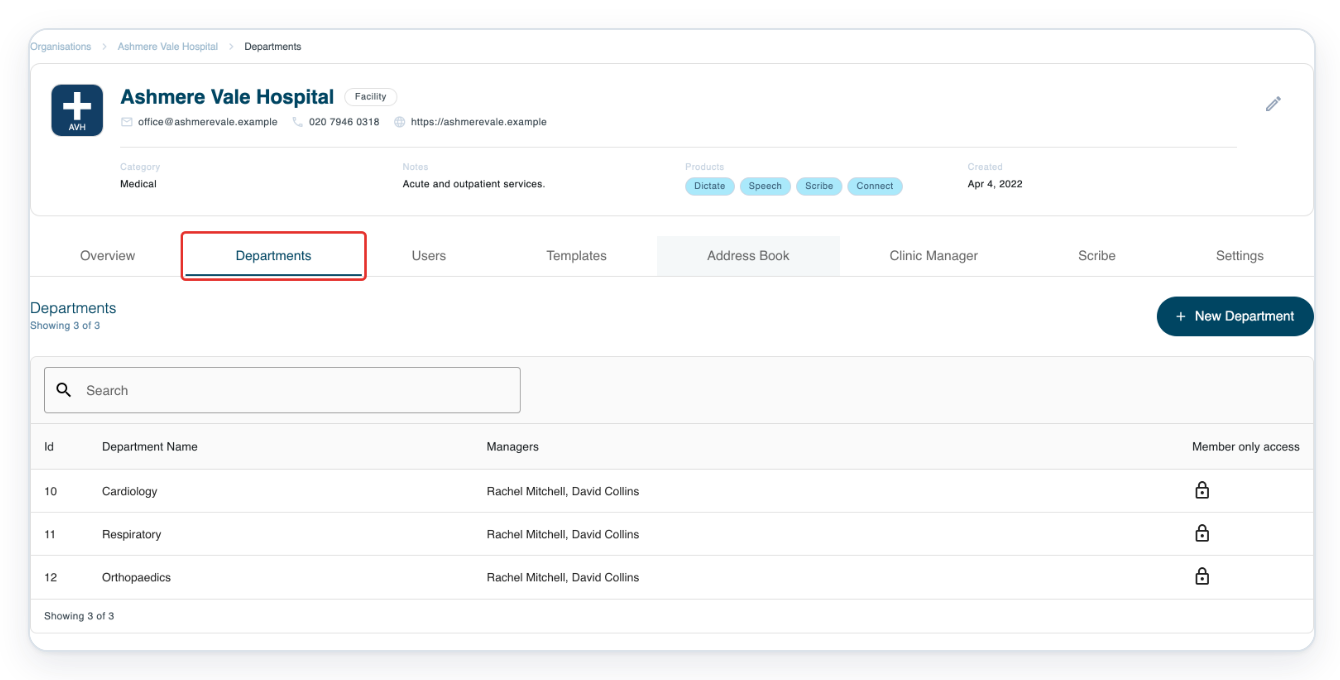
Click the department you need, such as Respiratory, to open its Authors screen.
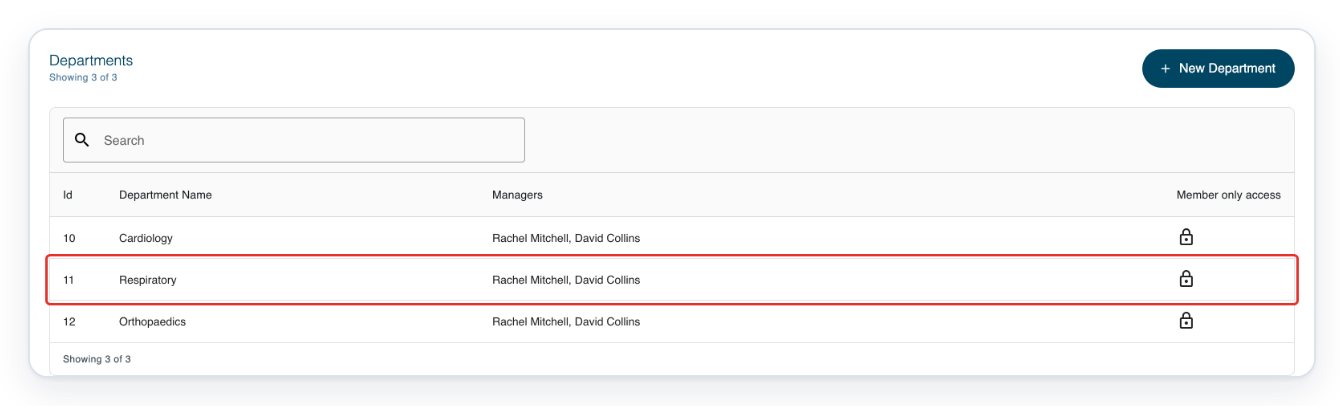
=> The department's Authors screen opens. To add an author, follow steps 3 to 10. In this example, choose Ashmere Vale Respiratory authors in Group, then click Existing author.
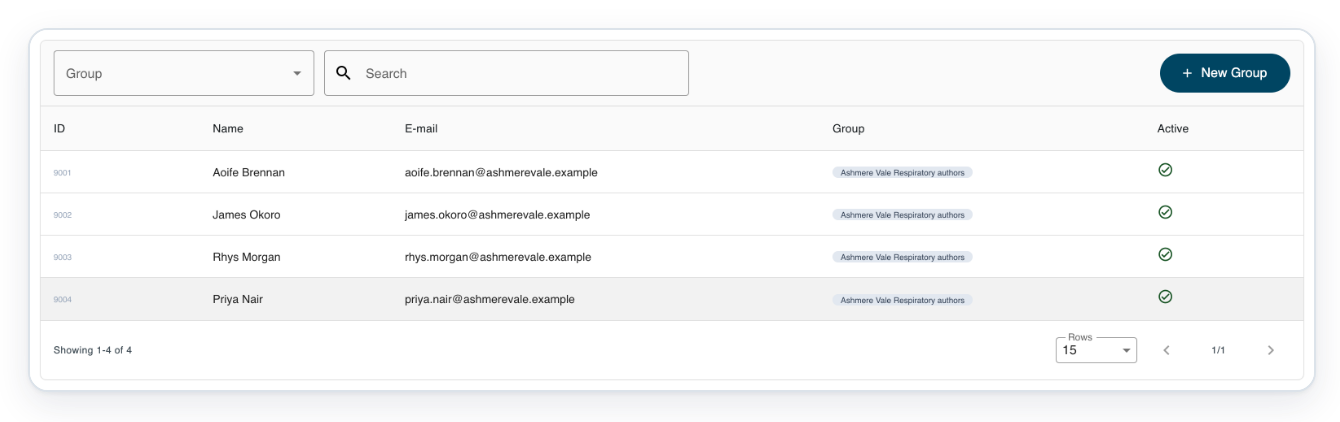
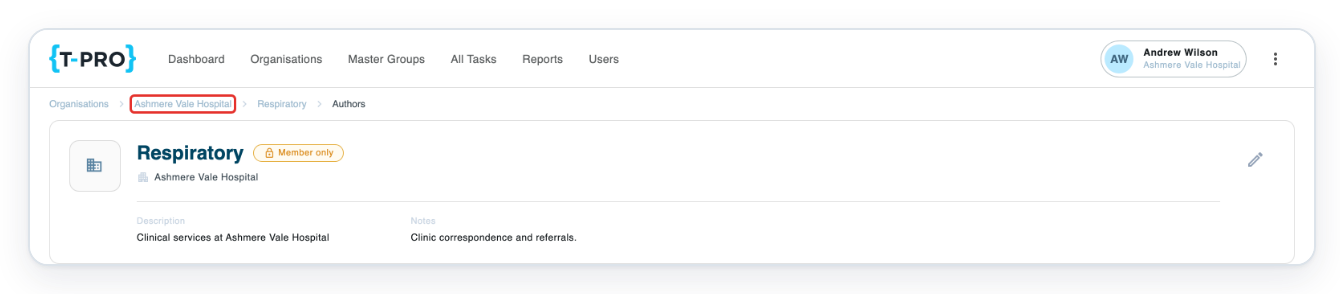
To add someone with a dedicated clerical account, click Ashmere Vale Hospital in the breadcrumb above the department.
This returns you to the facility so you can find the person's account.
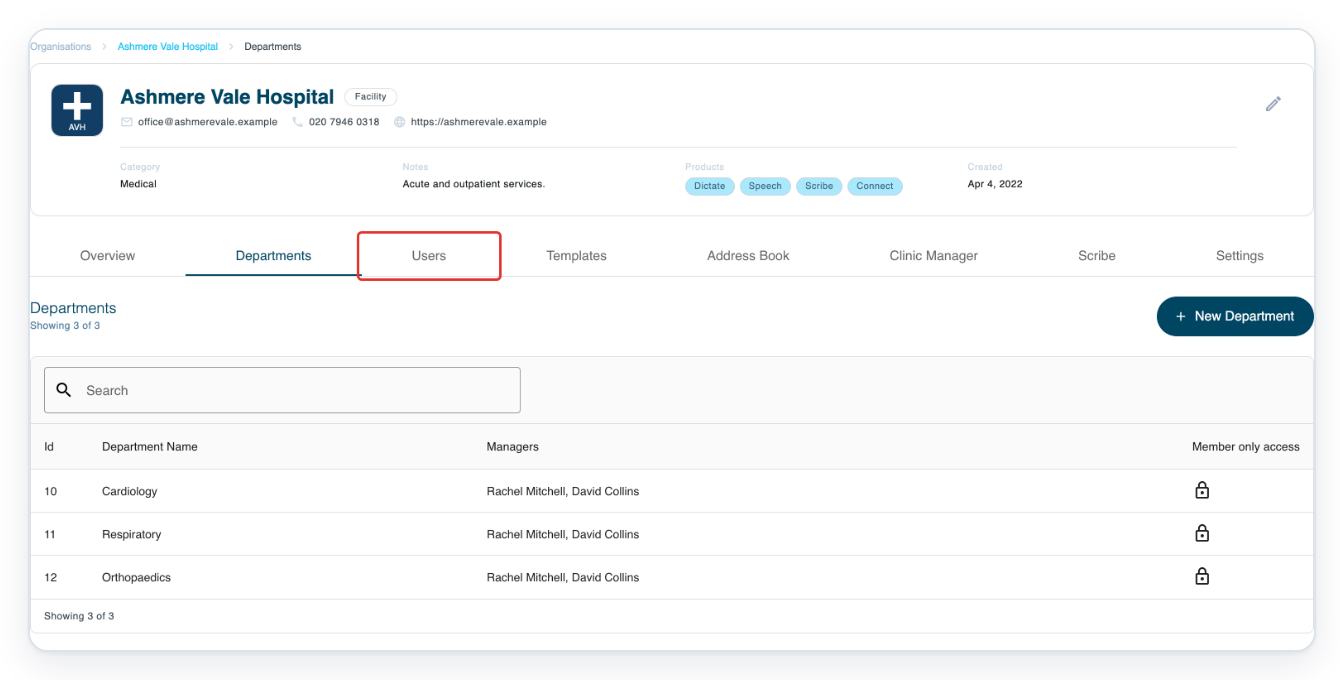
Click Users to open the facility's account list.
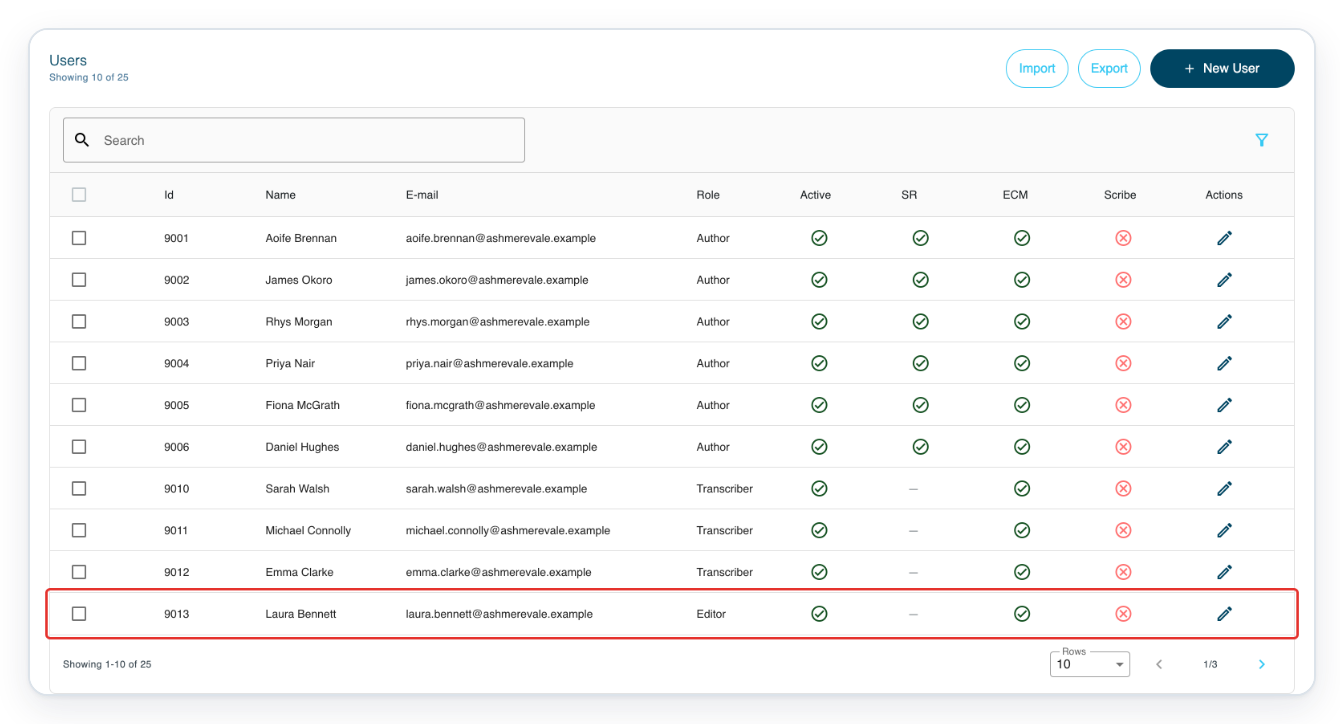
Click the person's row, such as Laura Bennett, an editor. Their account opens in a new tab.
=> The person's account shows Manage Groups. Follow the instructions under “Other places you can add users to a group” below.

NOTE:
- To add transcribers to typing, editing, review, processing or storing groups, open the matching department tab. Follow the same steps for the selected group. For accounts dedicated to editing, reviewing, processing or storing, start from the person's user screen. Follow the steps below.
- An author group shares templates and patient lists. Its text replacements are available on tasks using that group. An author's own patient list settings take priority over the group's lists.
- If an author has no valid default group, adding them sets this group as their default. It also sets their default template to the group's default template.
- To remove someone, use the Remove from group icon beside their name in Users.
Other places you can add users to a group
- From the person's user screen, open Manage Groups and choose Add Groups. Check the department shown beside the group you need. Tick the group, then click Add.
Tip: Search by email address if people have the same name. This helps you choose the right account.
Can't add users to a group?
- If Existing author is missing, select a named group in Group and open its Users tab.
- If you can't find the person, clear or correct Search. Check whether they already belong to the group. Their account must be in the group's organisation and have the right account type. For the dedicated accounts mentioned in the note, follow the steps above from the person's user screen.
- If you can't click Add, tick the checkbox beside at least one person.
- If you are a manager and cannot find a dedicated editor, reviewer, processor or storer, the department picker searches transcriber accounts. If you can open the person's account through an existing department membership, use Manage Groups there. Otherwise, ask a master to add them from their account in the facility's Users screen. Managers cannot access that facility screen.
Related articles
- Create a new user
- Remove a user from a group
- Create a new group
- Set an author's default group and template
If you have any more queries, please do not hesitate to contact our Helpdesk or support@tpro.io.
© 2020 - 2026