
Before you start
You need a manager or master account with access to the department's group and the user. Check which group the user is leaving.
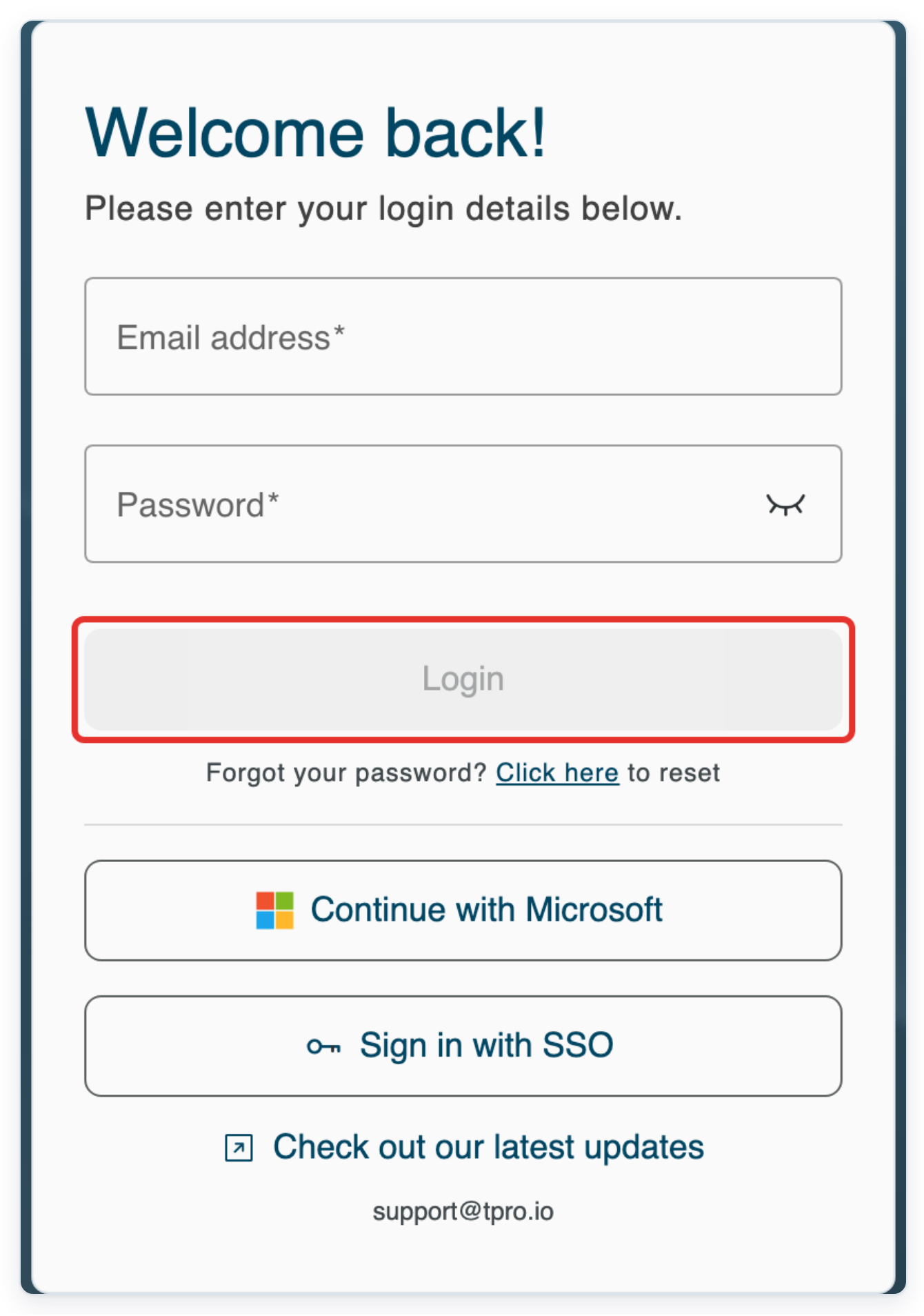
Log in to T-Pro with your manager or master credentials.
As a master, click All Tasks to find the work assigned to the user leaving the group.
This example moves Emma Clarke's typing task to Sarah Walsh before removing Emma from her group.

Find the task and open its three-dot Task options menu on the right.
Here, task 7001 is Work in Progress and shows Emma Clarke in the Assignee column.

Click Return to Pending to release the task from Emma Clarke.
The task returns to Pending so you can assign it to another transcriber.

Open Task options again for the same task.

Click Assign Task to choose a replacement transcriber.

Open USERS in the assignment dialog.
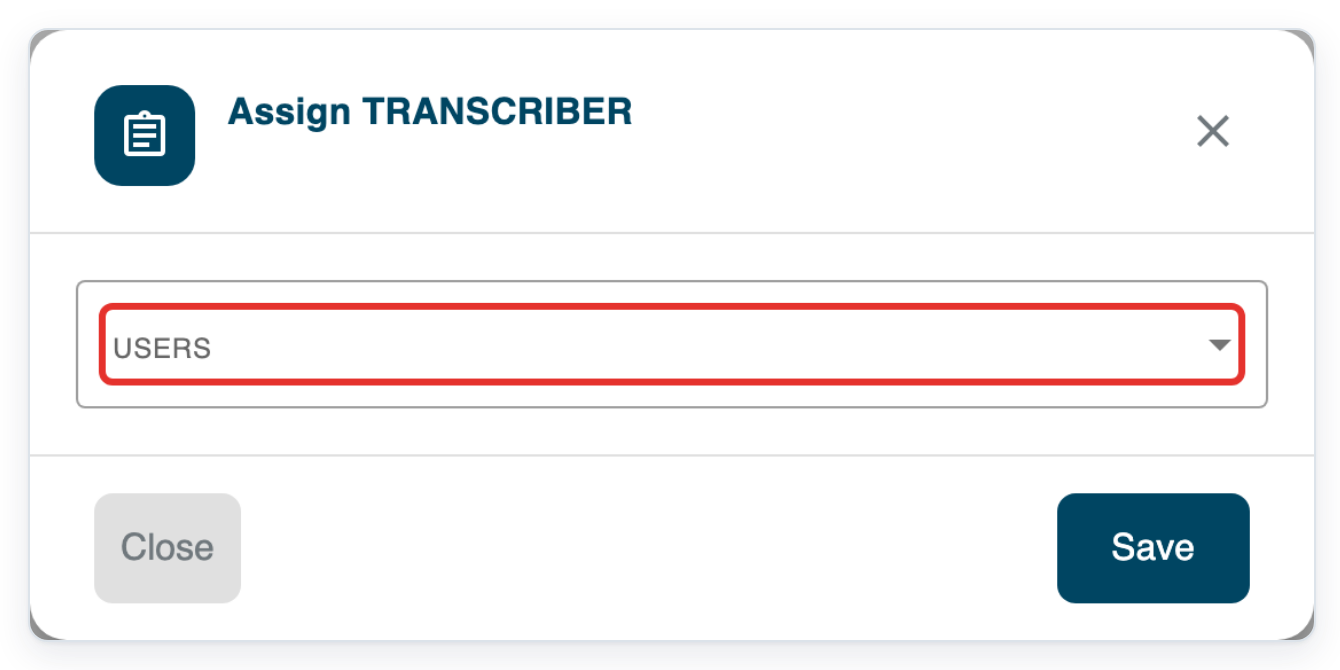
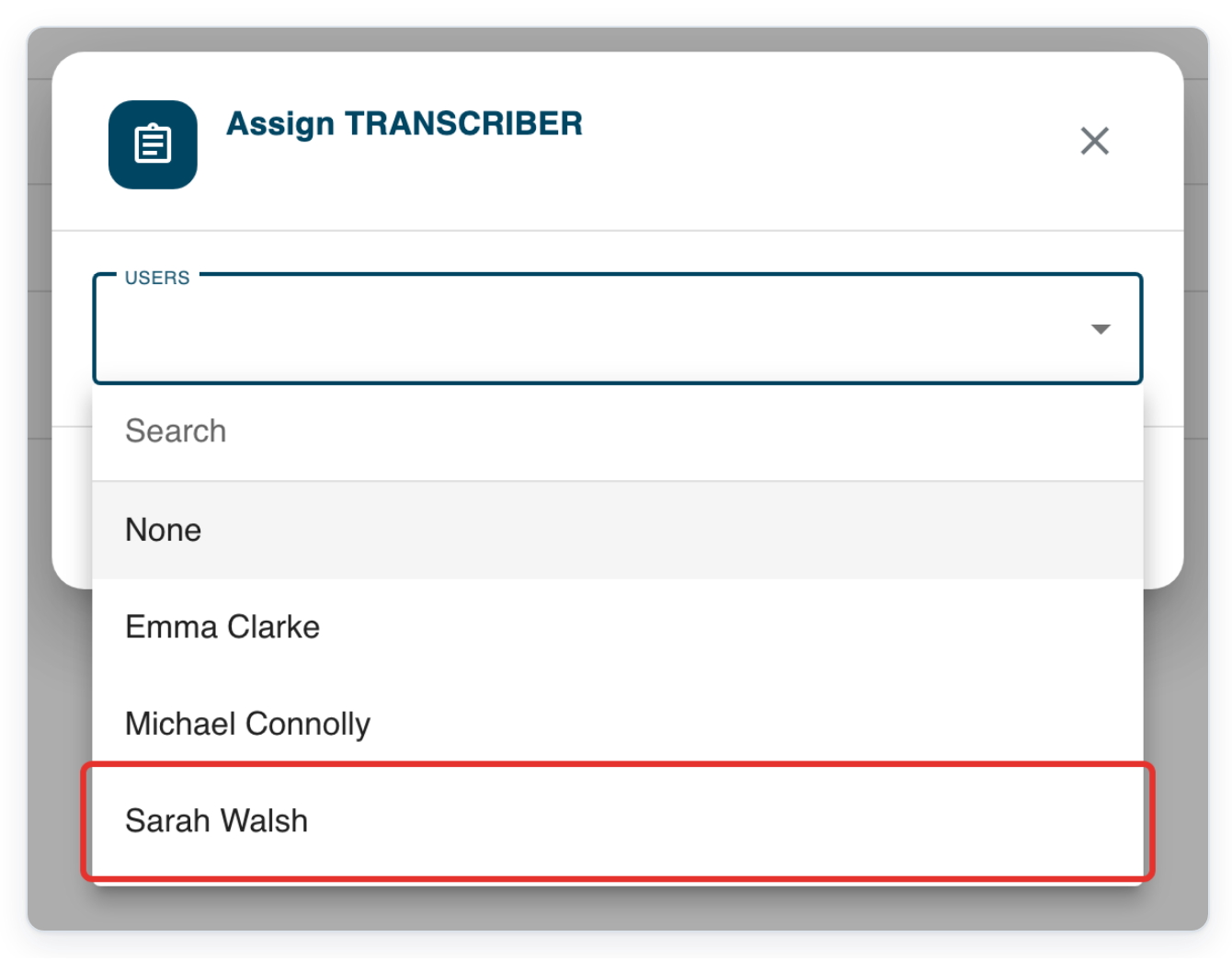
Choose the transcriber who will take over the task. In this example, choose Sarah Walsh.
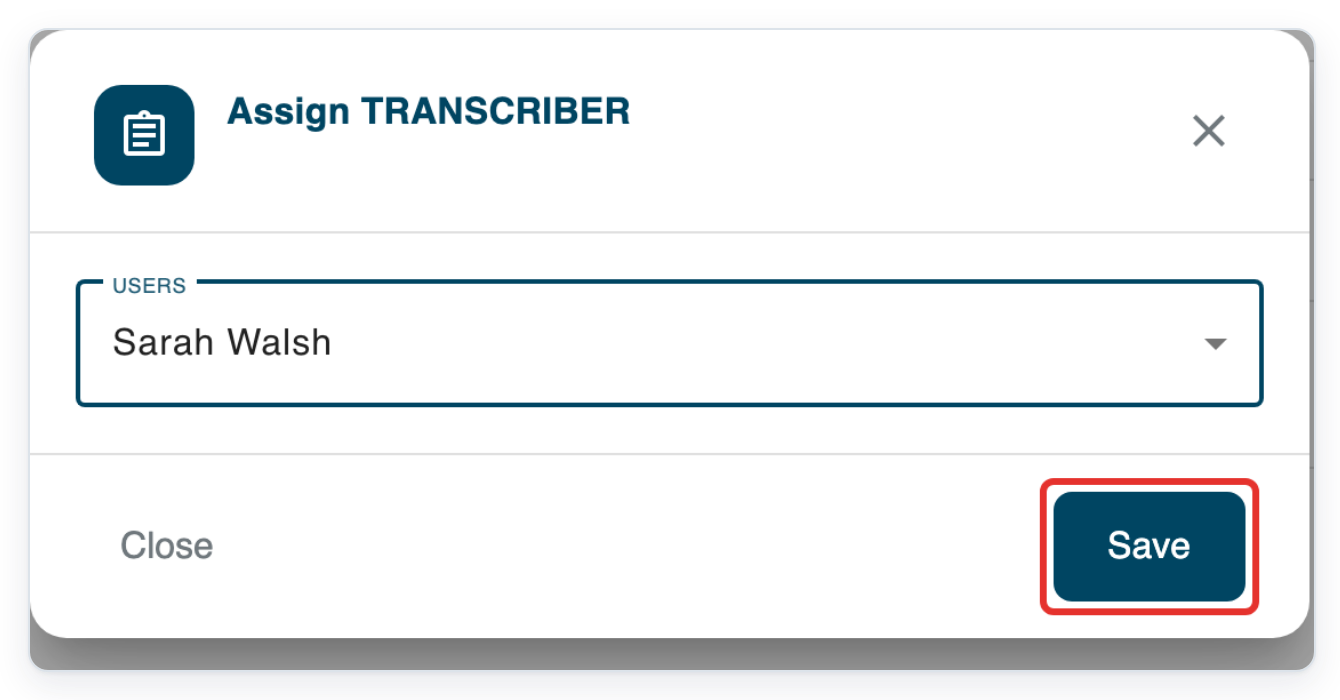
Click Save to assign the task to Sarah Walsh.
=> The task returns to Work in Progress, with Sarah Walsh shown in the Assignee column.

Click Organisations to return to the facility and remove Emma Clarke from her group.

Click the facility with the user's group. In this example, choose Ashmere Vale Hospital.

Click the facility's Departments tab.

Click the department with the user's group. In this example, choose Cardiology.
If the department list is long, use Search above it to find the department by name.

Click Transcribers to find the user's typing group.
For other groups, choose the matching tab: Authors, Editors, Reviewers, Processors or Storers.

Open Group above the user list to find the group the user is leaving.
To find the group, type its name in Search groups... in the menu.

Choose Ashmere Vale Typists. The Users tab lists the group's members.
For your own team, choose the group the user is leaving. Check the user's name and email address before removing them.

Find the user you want to remove, shown here as Emma Clarke. Click the Remove from group icon in the Actions column.
The icon looks like a person with a minus sign. Click the icon itself. Clicking the row opens the user's account details.

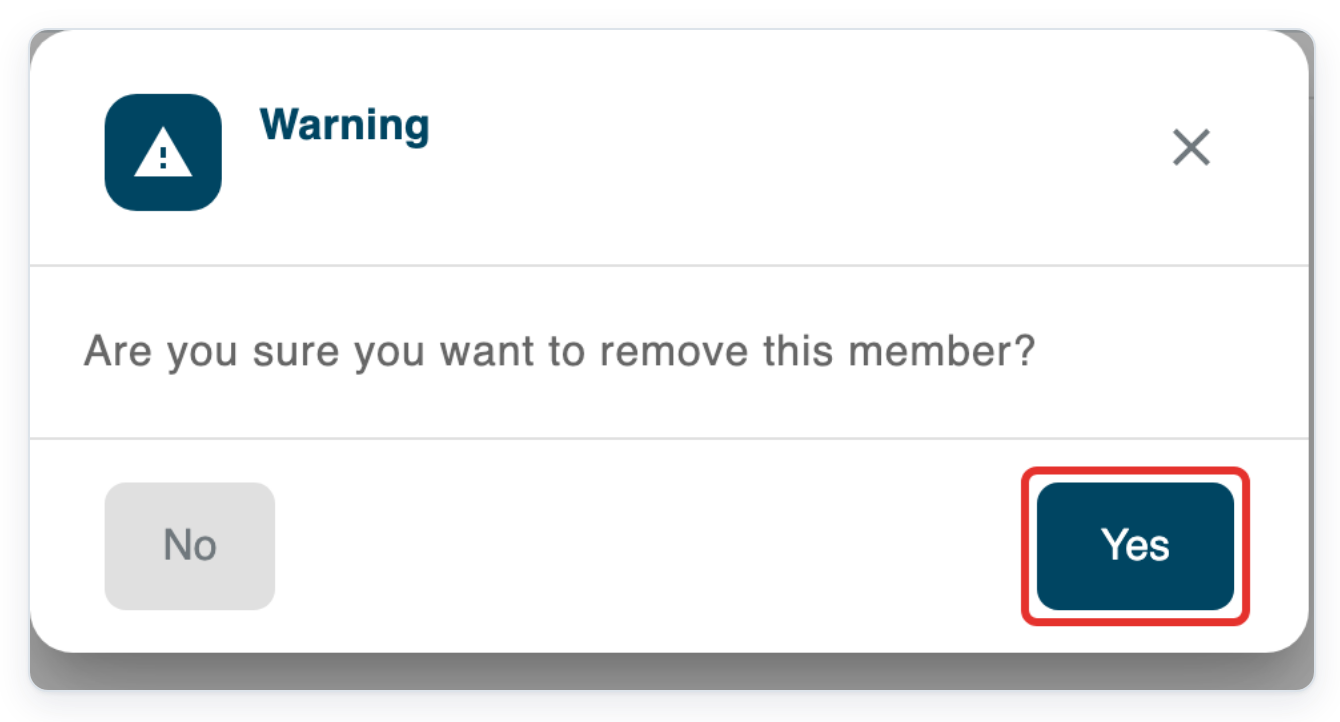
Read the warning, then click Yes to remove the user from the group.
To keep the user in the group, click No or close the warning.
=> T-Pro shows User removed and refreshes the Users list. In this example, Sarah Walsh and Michael Connolly remain in the group.

NOTE:
- You can remove both active and deactivated users from a group.
- The user keeps their account and other group memberships.
- Existing tasks keep their author and assignee. If removal is blocked, use the troubleshooting advice below before trying again.
- Removing an author can change or clear their default group and template. Check these settings with the author afterwards.
- If you are a manager, open Departments directly and select the department. Then choose the user's role tab and group.
Can't remove a user from a group?
- T-Pro shows “This user is assigned to a task”. Reassign the user's unfinished work on routes using this group. Then try removing the user again. Completed, deleted and rejected tasks do not block removal.
- T-Pro shows “This author has tasks in draft”. Ask the author to send or finish their drafts in this group. They can delete unwanted drafts instead. After they deal with these drafts, try removing the author again.
- You may also see “This author has tasks in draft” when the author must approve tasks in this group. For tasks awaiting approval, reassign the first or second approvals that involve this author. Then try removing them again. If work at an earlier stage still blocks removal, contact our Helpdesk.
- The author is a named approver on a transcription route for this group. Choose a replacement approver on each affected route, then try removing the author again. If you are a manager, ask a master or administrator to update the routes.
Related articles
- Add existing users to a group
- Assign tasks to a typist
- Delete and restore a task
- Reassign a letter for approval
- Create a transcription route
If you have any more queries, please do not hesitate to contact our Helpdesk or support@tpro.io.
© 2020 - 2026