
Before you start
You can delete your own drafts as an author. Managers need permission to edit the task. Ask an administrator to restore deleted work.
Log in to T-Pro with your author, manager or administrator credentials.
As an author: delete your own draft
Click Live Tasks in the main navigation.

Click Author in Progress to see your drafts. Keep the recorder closed so the draft opens as a document.

Click the Task ID of the draft you want to delete.

=> The draft opens, with Delete in the bottom action bar.
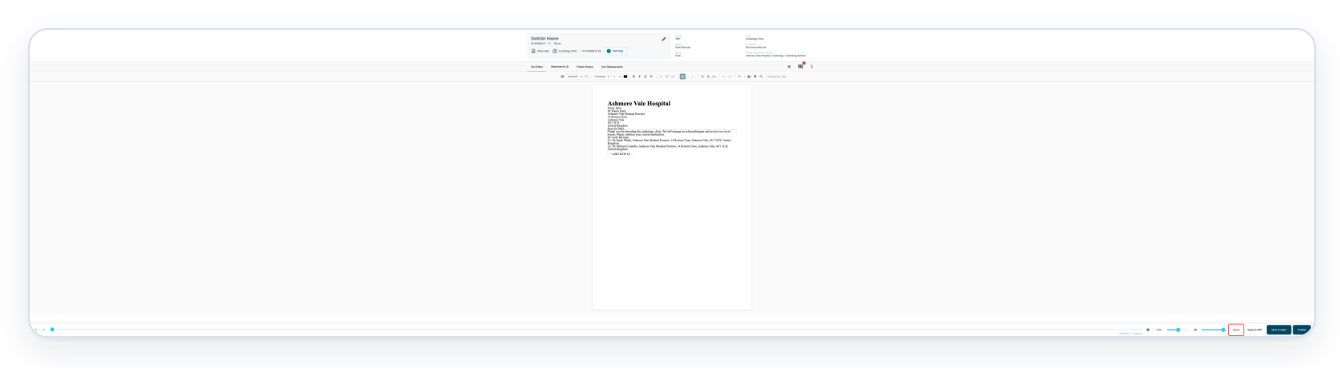
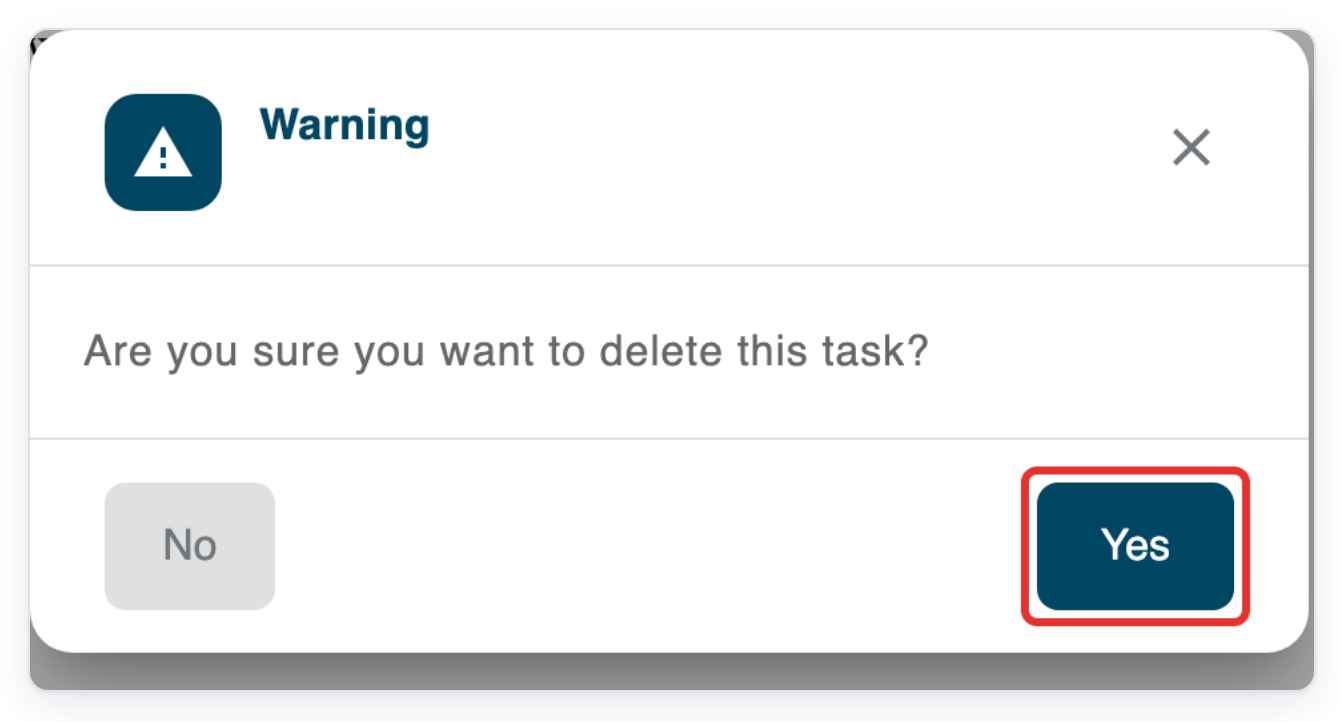
Click Delete. A message asks you to confirm.

Click Yes to delete your draft.
Click No to keep the draft.
=> T-Pro opens All tasks.

As a manager: delete a task
In All tasks, click Search.
To reach this list, click All Tasks in the main navigation.

Enter TASK:7001 in Search.
Replace 7001 with your task's ID.

Press Enter to search for the task.

Press Escape to close the search suggestions.

Click Task options, the three dots at the right of the task's row.
Check the task ID and patient name before you continue.

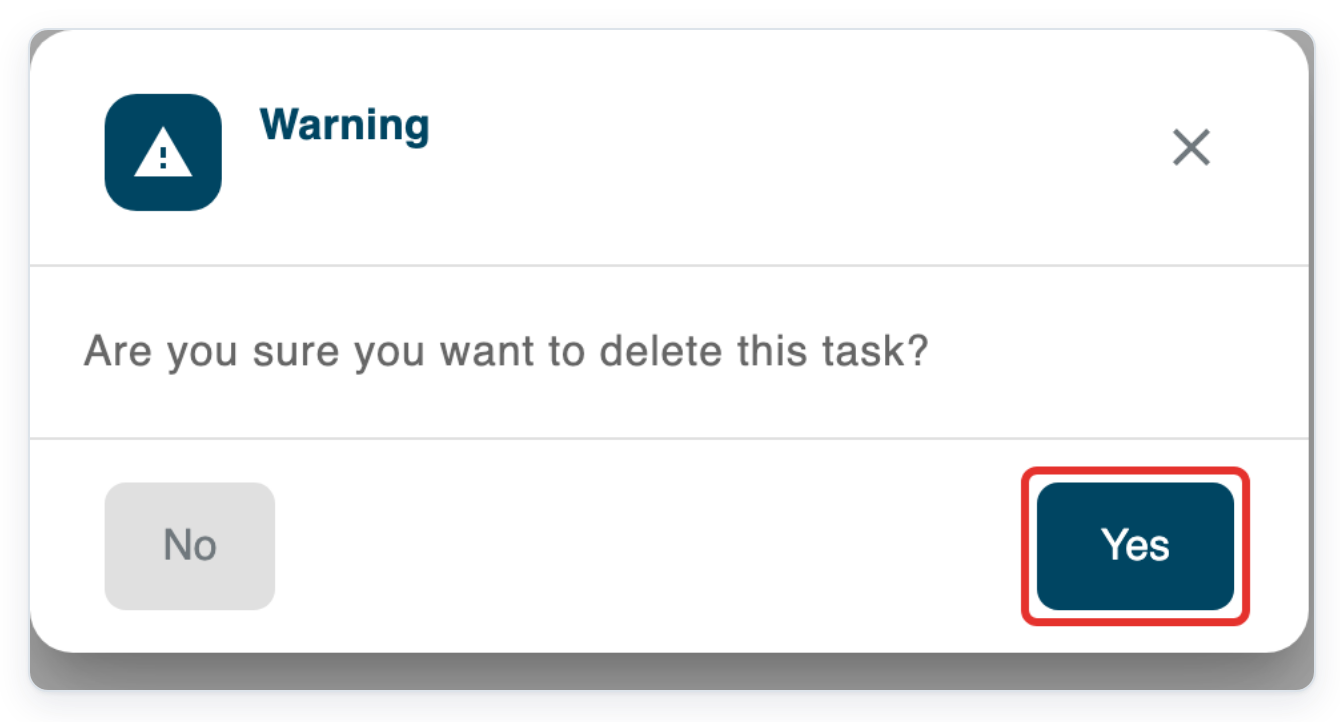
Choose Delete. A Warning asks you to confirm.

Click Yes to delete the task.
=> The task remains in All tasks. In this example, its status changes to Deleted.

As an administrator: restore a task
While signed in as an administrator, click All Tasks.
Search for the task's ID, as shown in steps 8 to 10.
Find the deleted task and click Task options at the right of its row.
Check the ID and Status before you restore it.

Choose Return to Pending.
The list refreshes when the task is restored. If it stays deleted, see the troubleshooting below.

=> The restored task shows Pending in All tasks.

NOTE:
- You can still find tasks deleted from All Tasks by searching there.
- Restored tasks start again at Pending and follow their workflow. This includes tasks deleted during approval.
Statuses after deleting from All Tasks
| Status after deletion | Stage when you deleted the task |
|---|---|
| Deleted | Draft, New, speech recognition (SR), Pending, transcription, editing or review. |
| Rejected | Processing, first or second approval, storage or Completed. |
Can't delete or restore a task?
- Cannot find the task: Check its ID. Click Clear All to clear filters that might hide it. Click the funnel above the list to check the date range and status filters. Include both Deleted and Rejected when filtering for deleted work.
- You cannot return the task to Pending: Ask an administrator to restore it.
- You cannot restore a draft deleted from its open document: Contact our Helpdesk with the task ID. It may still show as Draft, which has no Return to Pending option.
- T-Pro shows “Tasks not found” when you try to restore a task you can see. Contact our Helpdesk with its task ID.
- The task's route stops you restoring it. Ask your administrator or our Helpdesk to check the transcription route. It must include a transcriber group.
- The author or selected approver has left the author group. Ask your manager or administrator to check membership or arrange a replacement approver.
Related articles
If you have any more queries, please do not hesitate to contact our Helpdesk or support@tpro.io.
© 2020 - 2026