
Before you start
You need an author account and a letter assigned to you for approval. Open it from Live tasks.
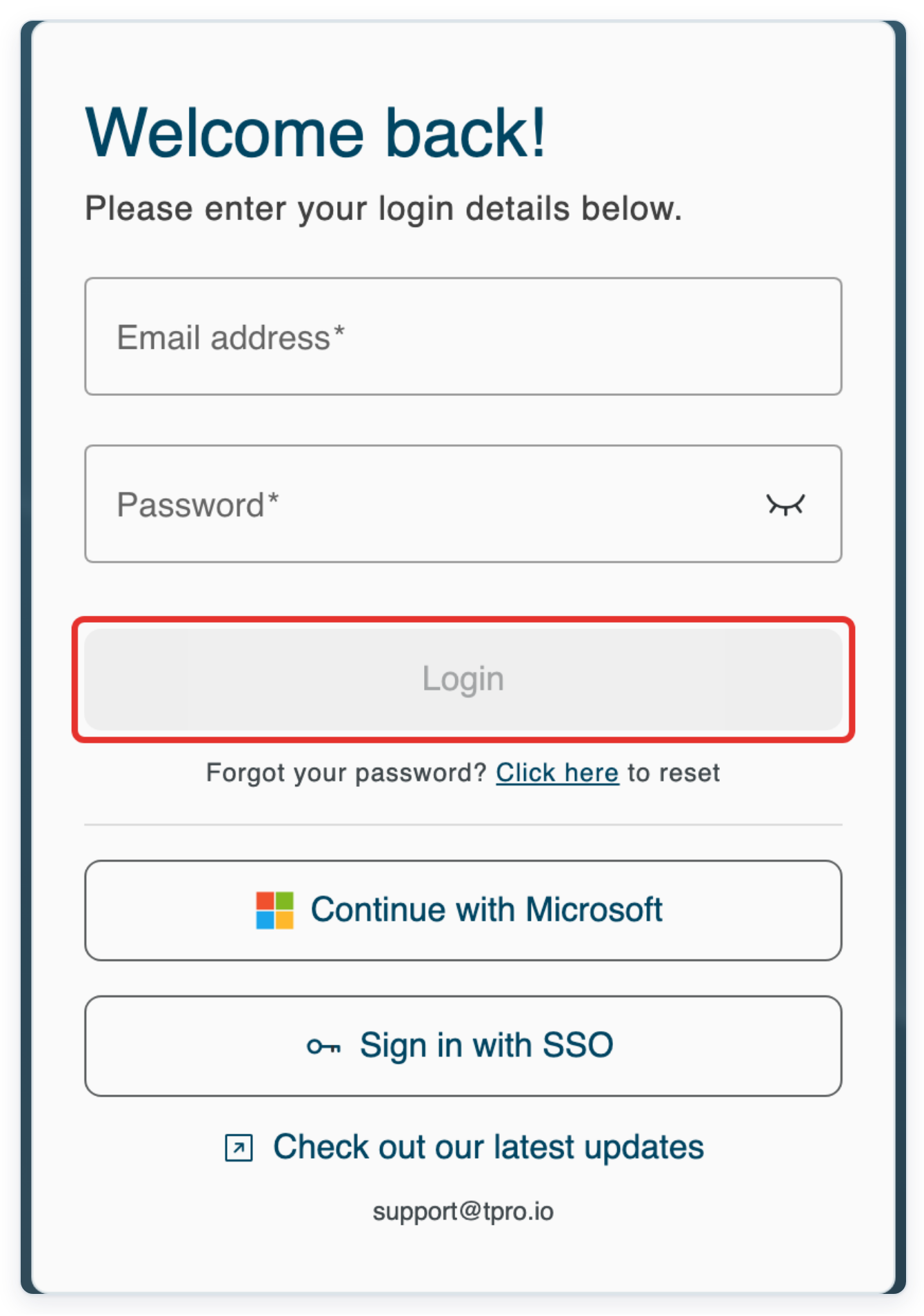
Log in to T-Pro with your author credentials.
Approve a letter
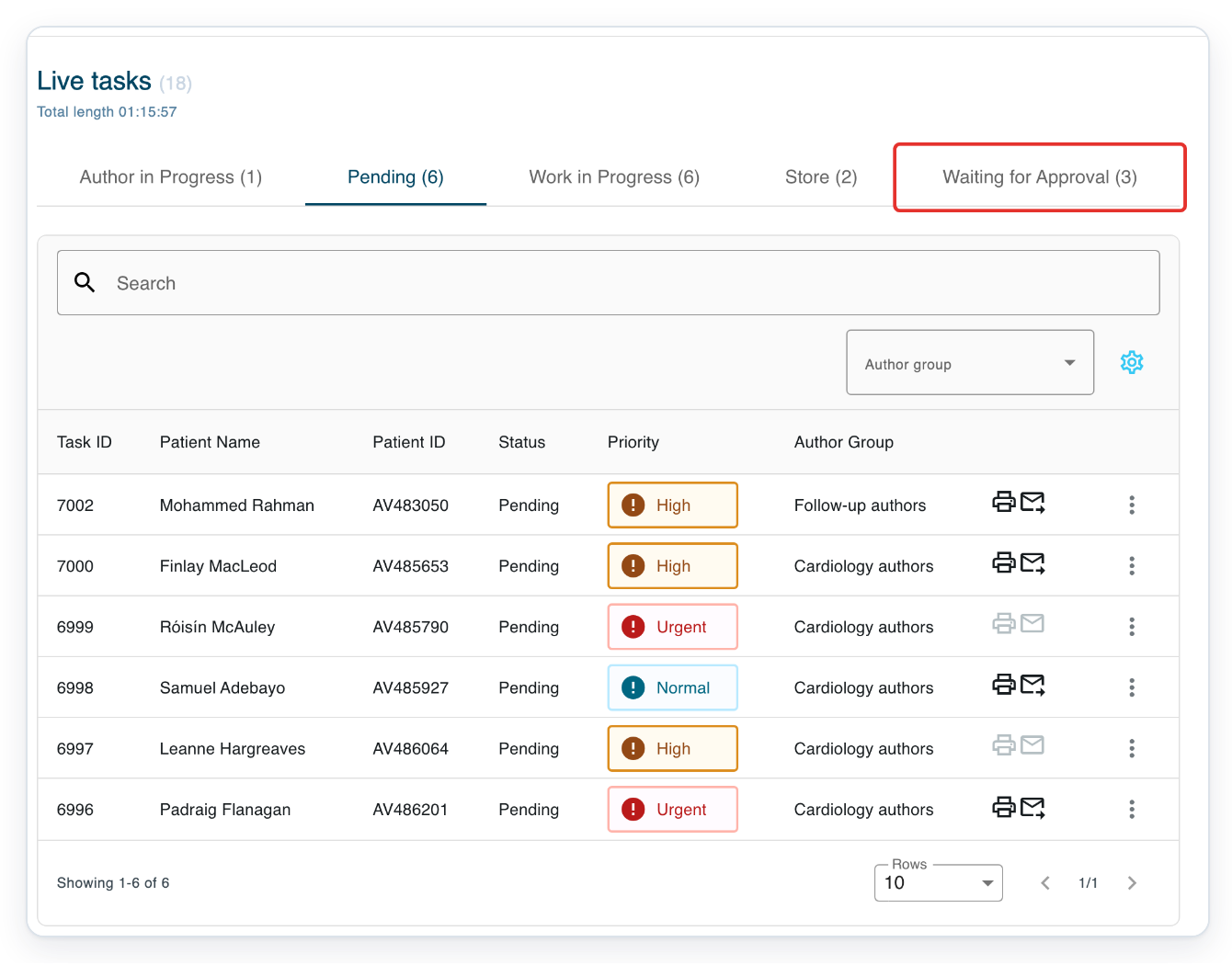
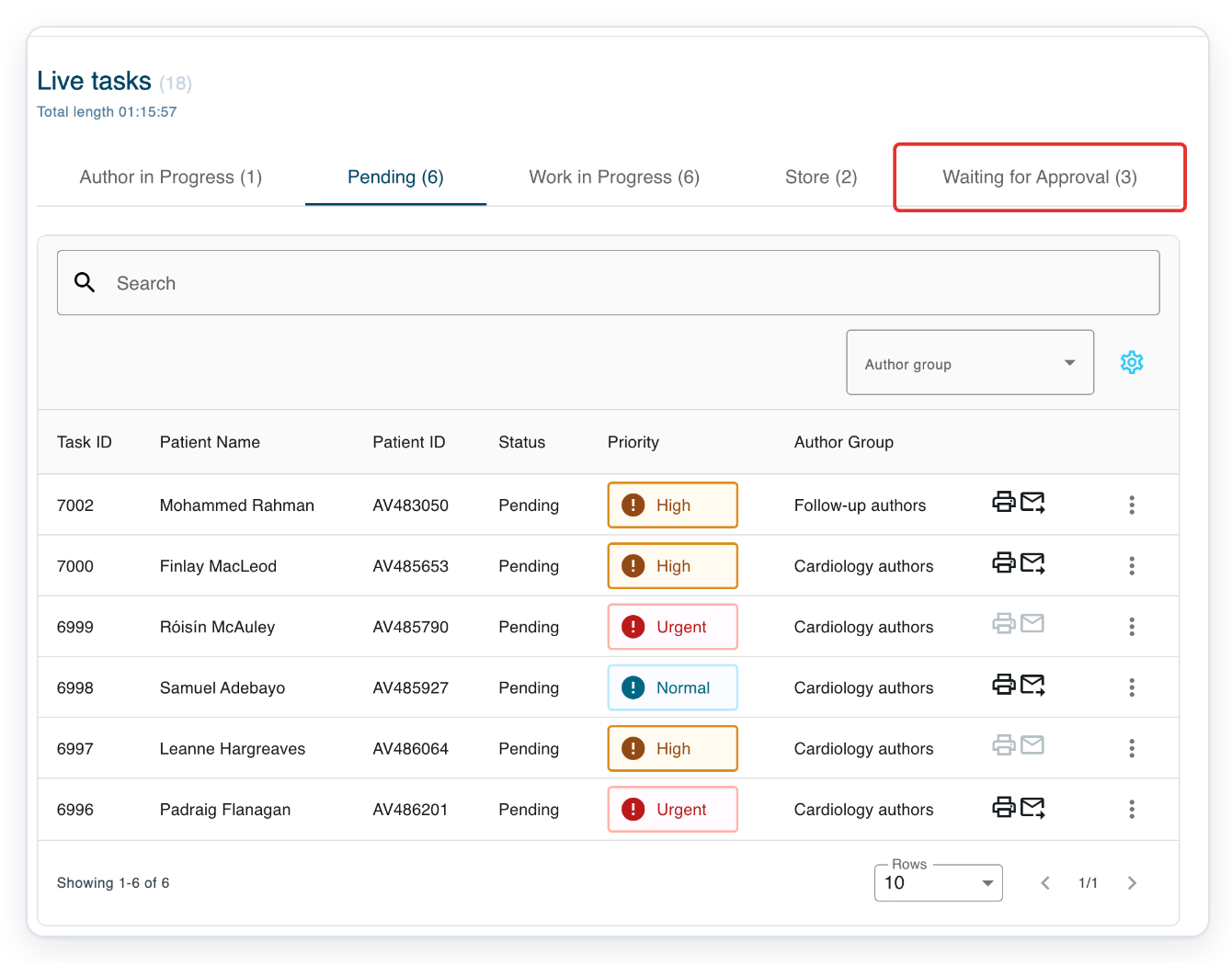
In Live tasks, click Waiting for Approval to see letters awaiting your approval.
This tab lists letters assigned to you for first approval. Enter your search in Search above the list. Press Enter to search this tab.
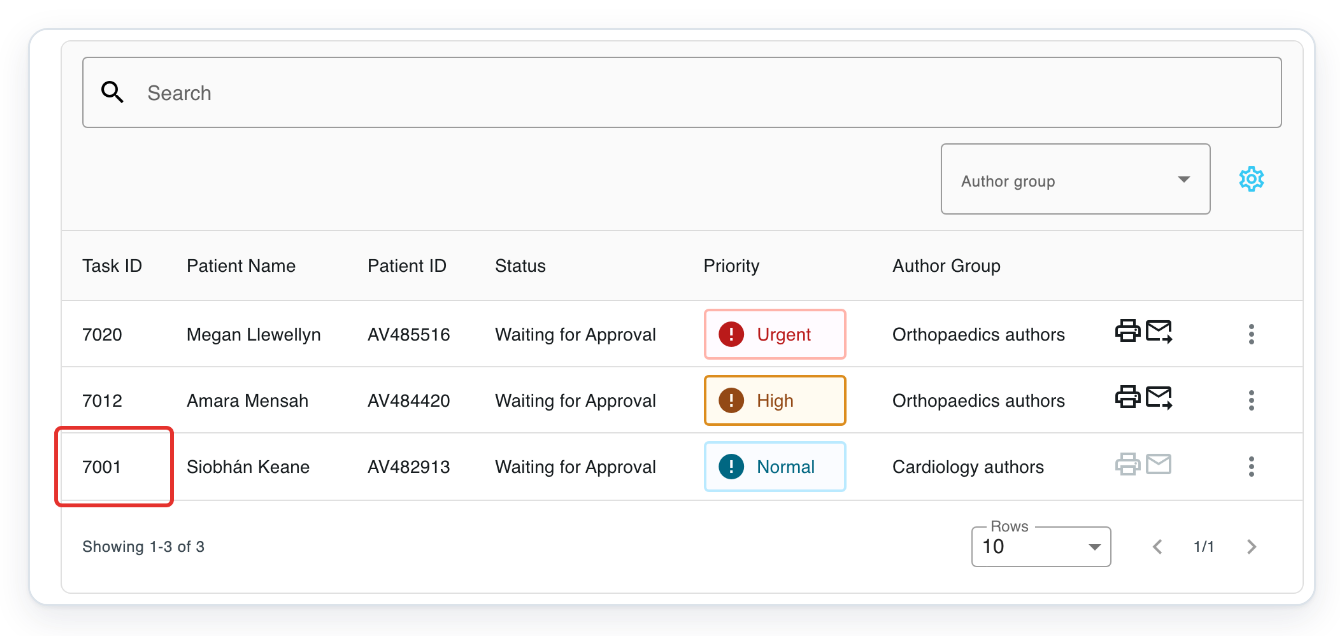
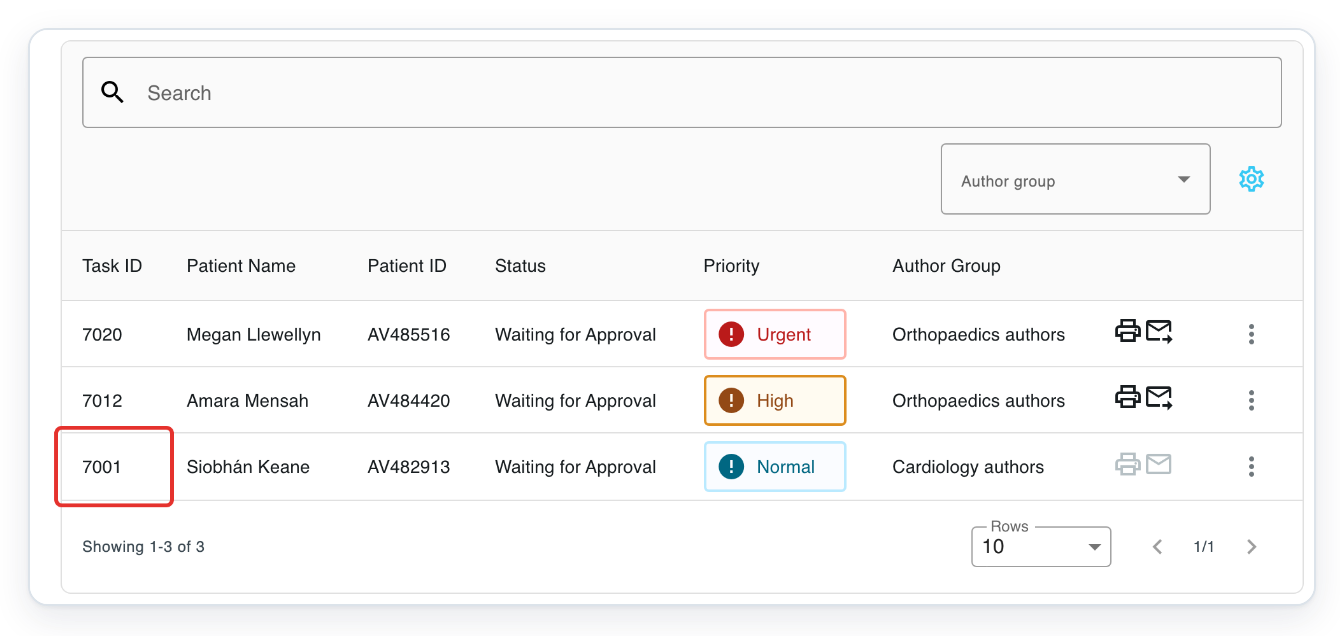
Click the letter's Task ID to open it.
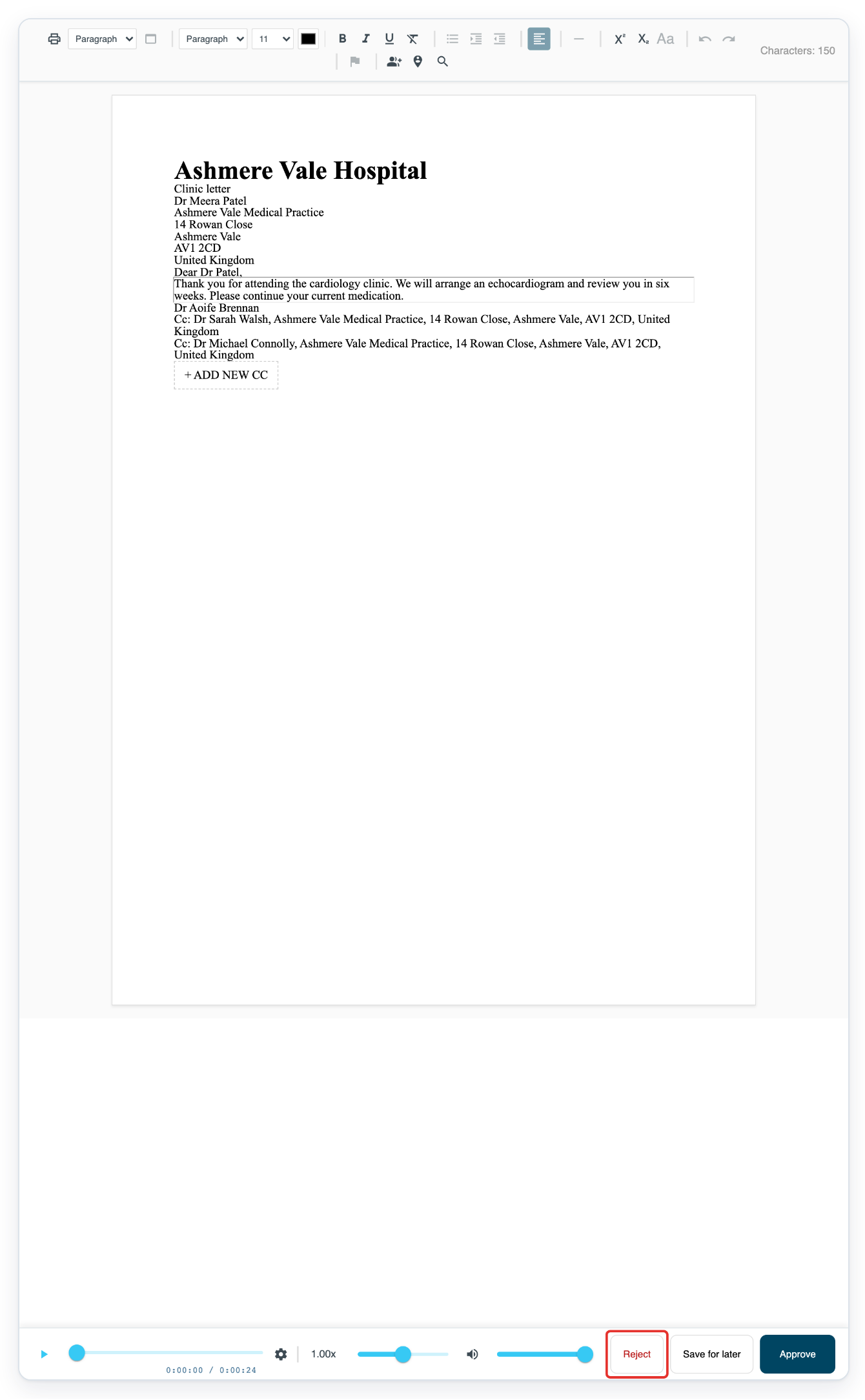
The letter opens in the editor. You'll find the approval buttons at the bottom right of the screen.
Review the letter and make any changes to the main text.
Use the audio player at the bottom of the screen to listen to the dictation. You can adjust playback speed and volume as you review.
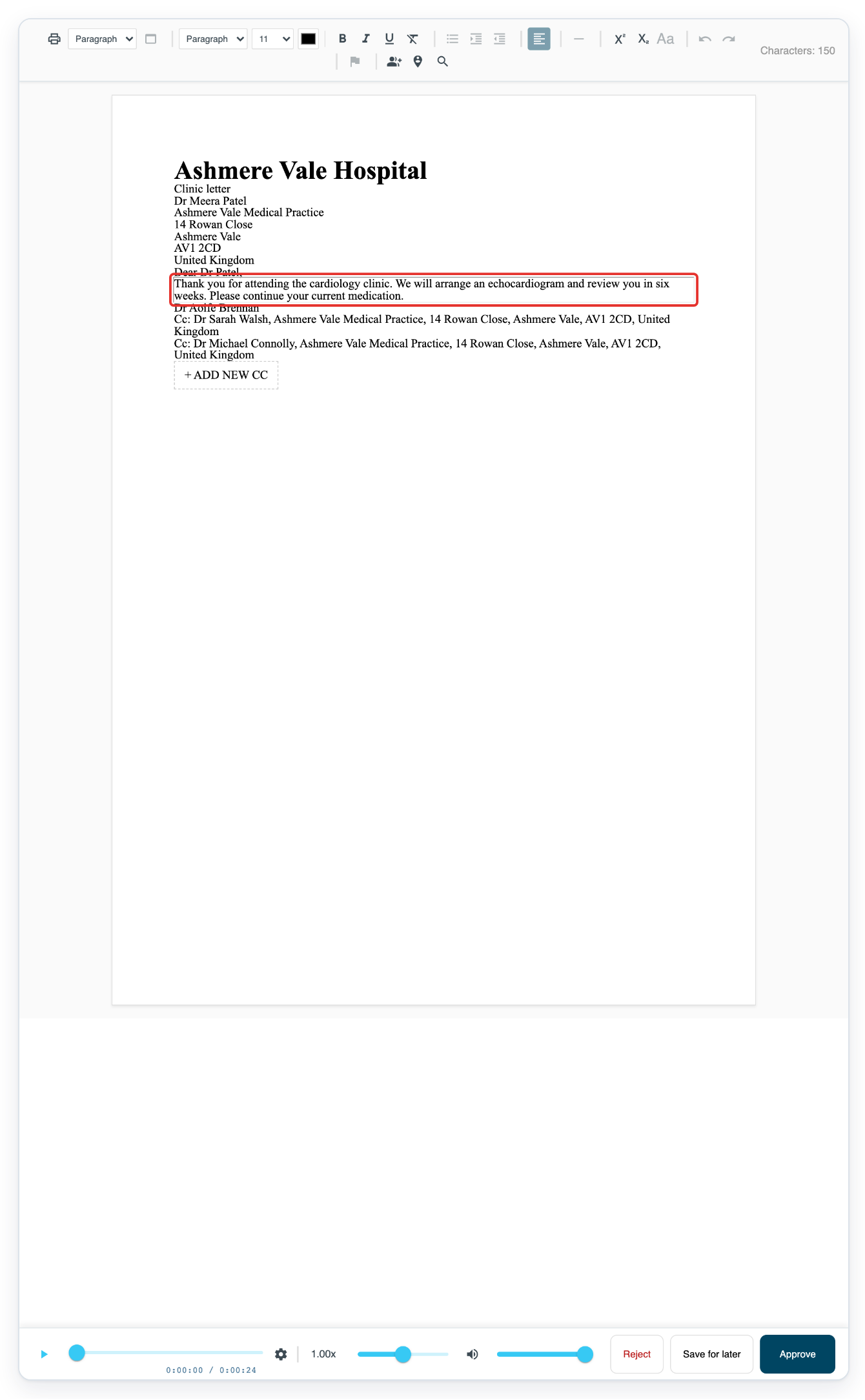
Click Approve at the bottom right to save your edits and move the letter to its next stage.
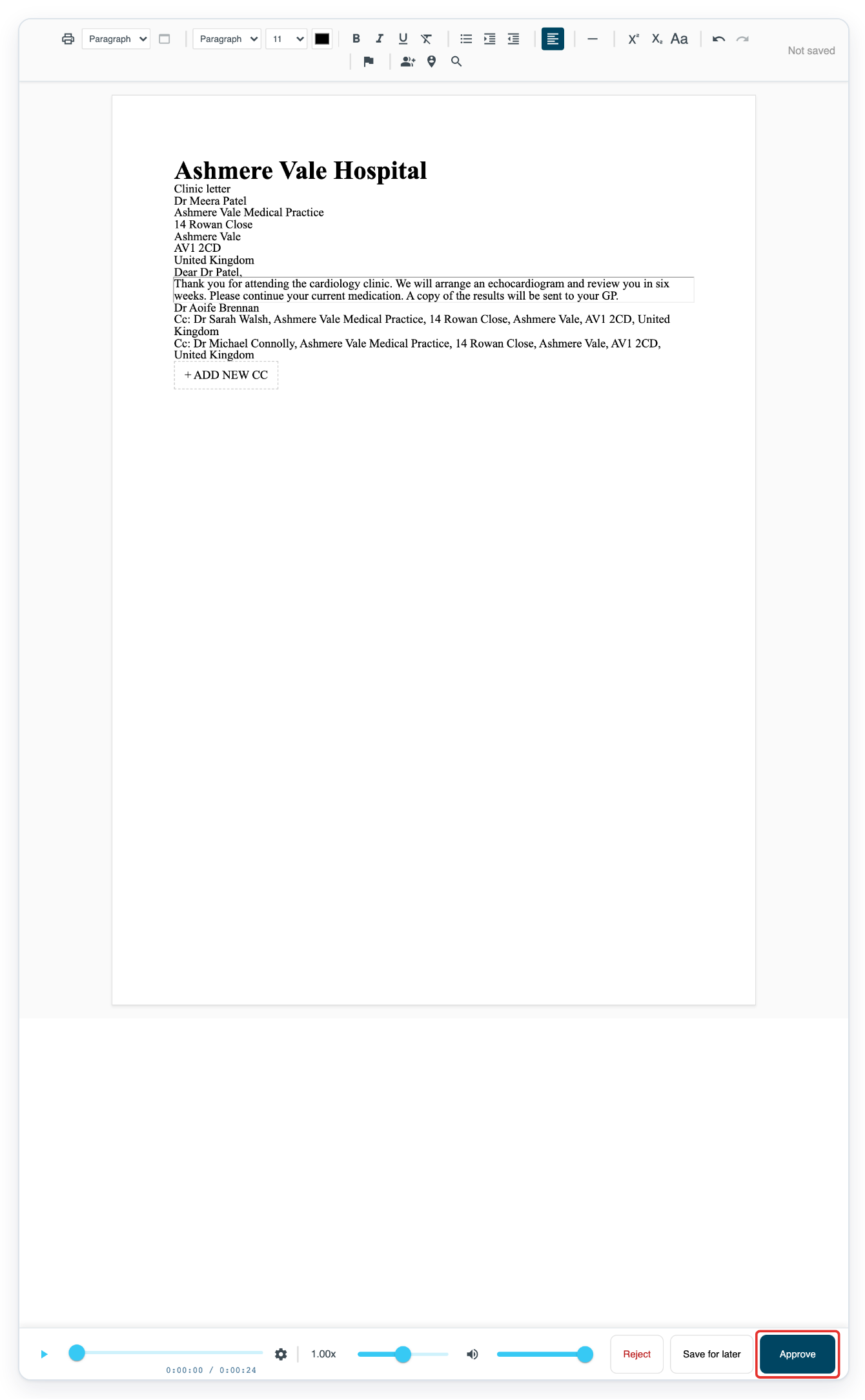
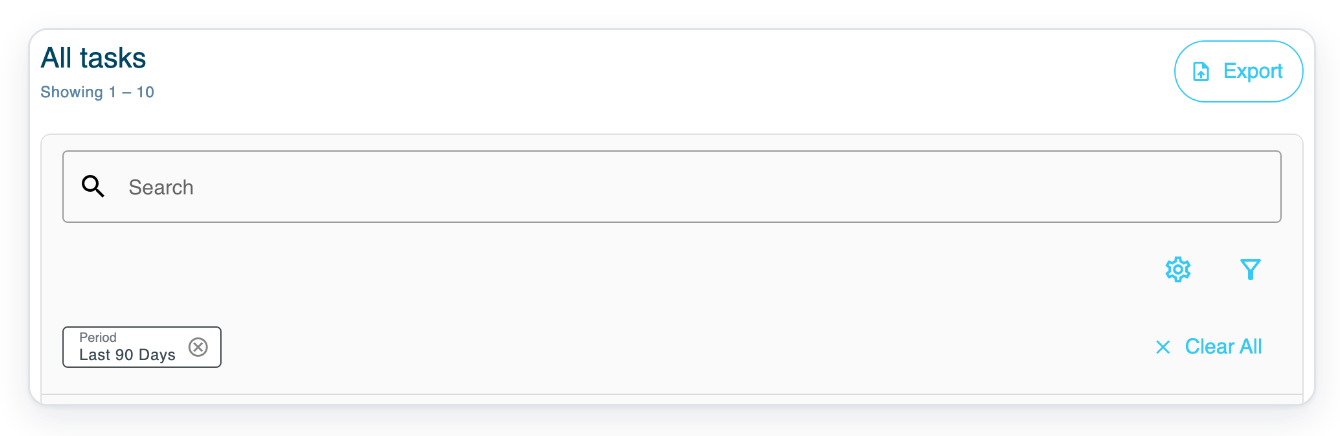
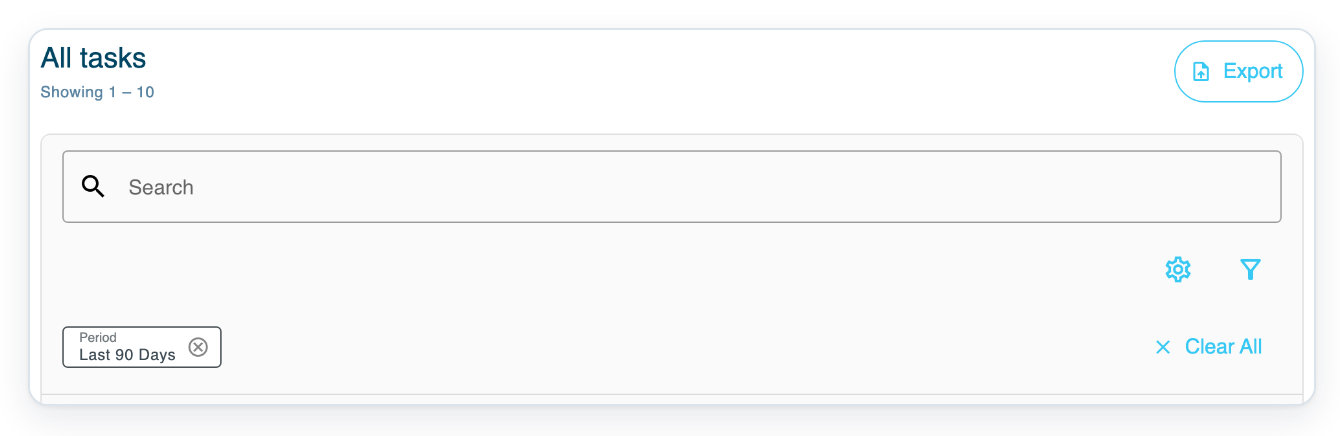
=> Your edits are saved and All tasks opens.
Send a letter back for corrections
In Live tasks, click Waiting for Approval to find the letter you want to send back.
Click the letter's Task ID to open it.
Click Reject at the bottom right. The What do you want to do? window opens.
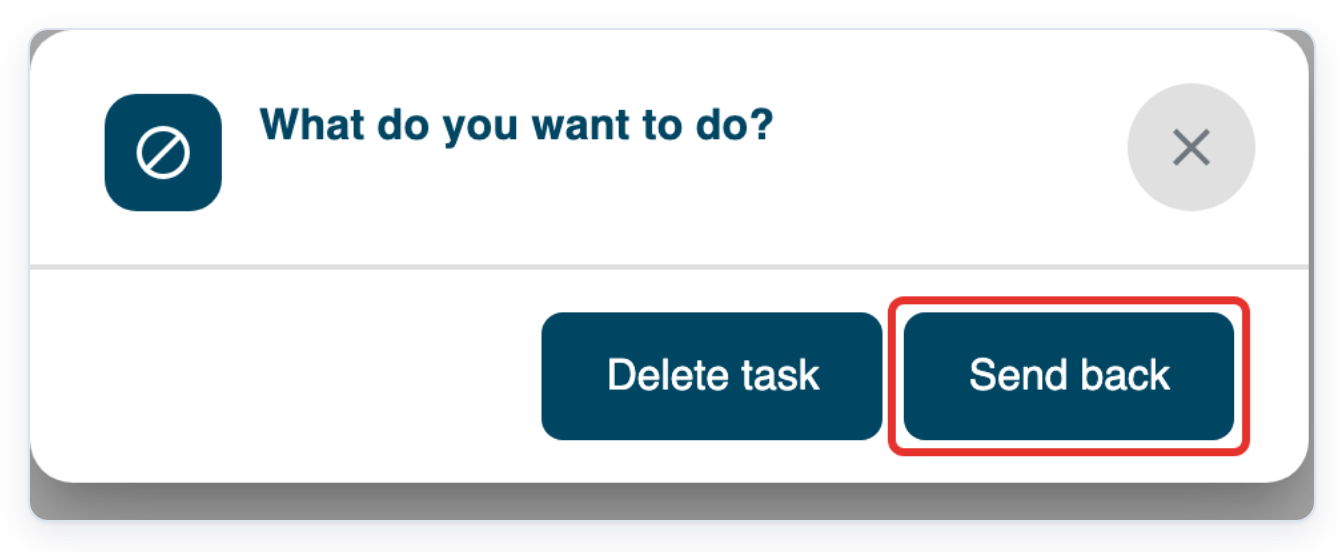
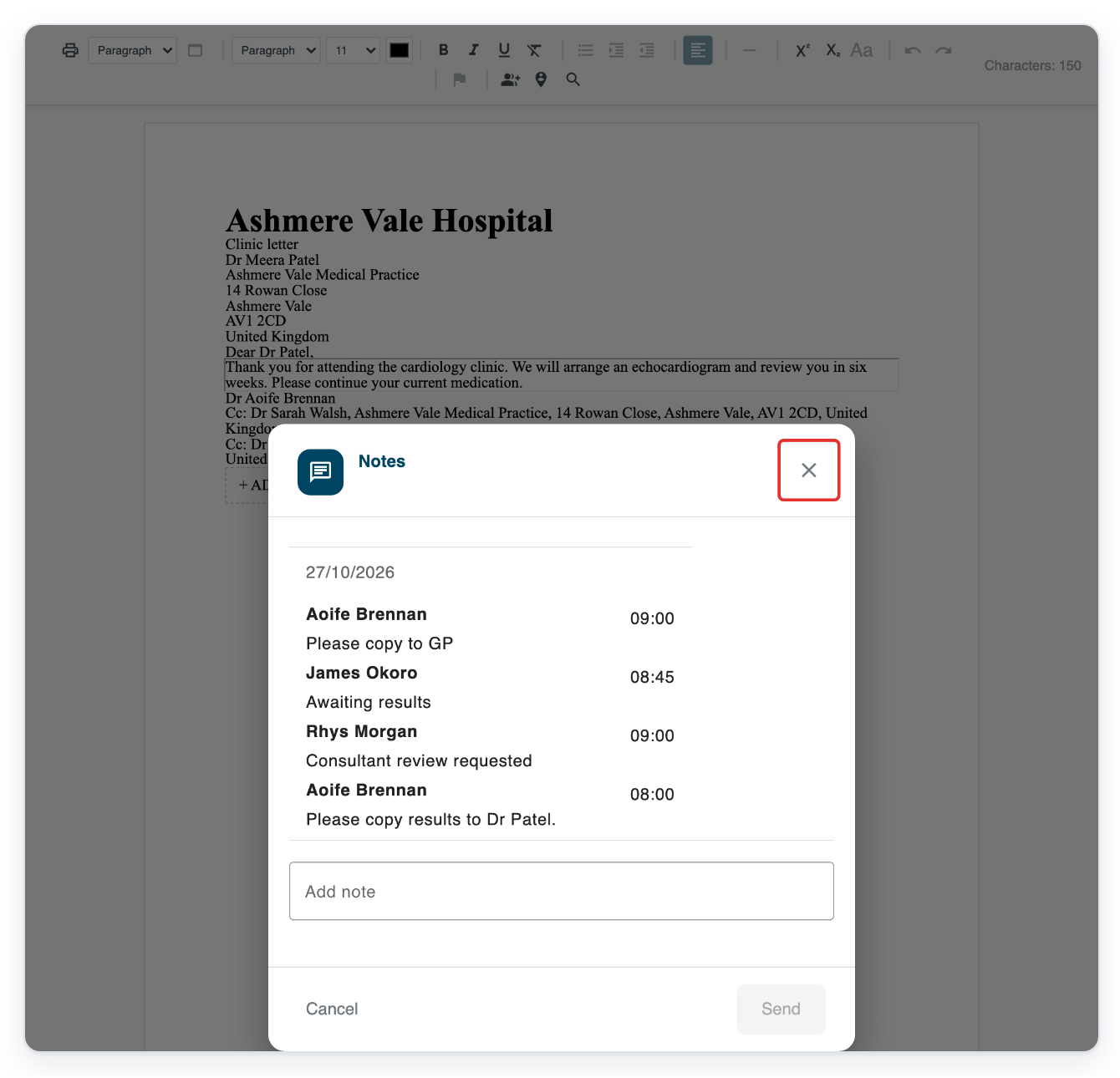
Click Send back. Notes opens with an Add note field.
Your note tells the person correcting the letter what needs to change.
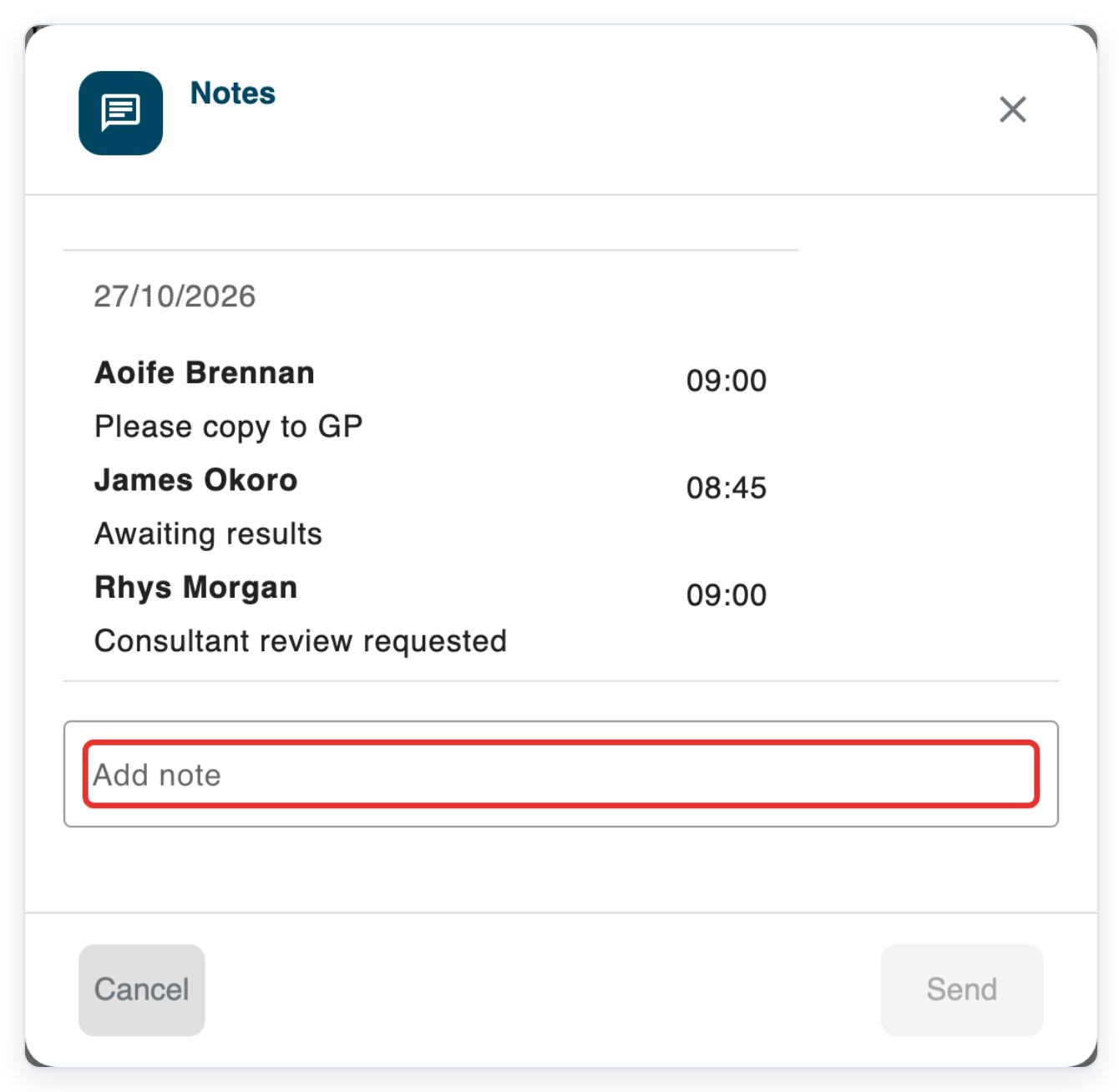
In Add note, describe the corrections needed.
Be specific about what needs to change. For example, ask for the results to be copied to the right person.
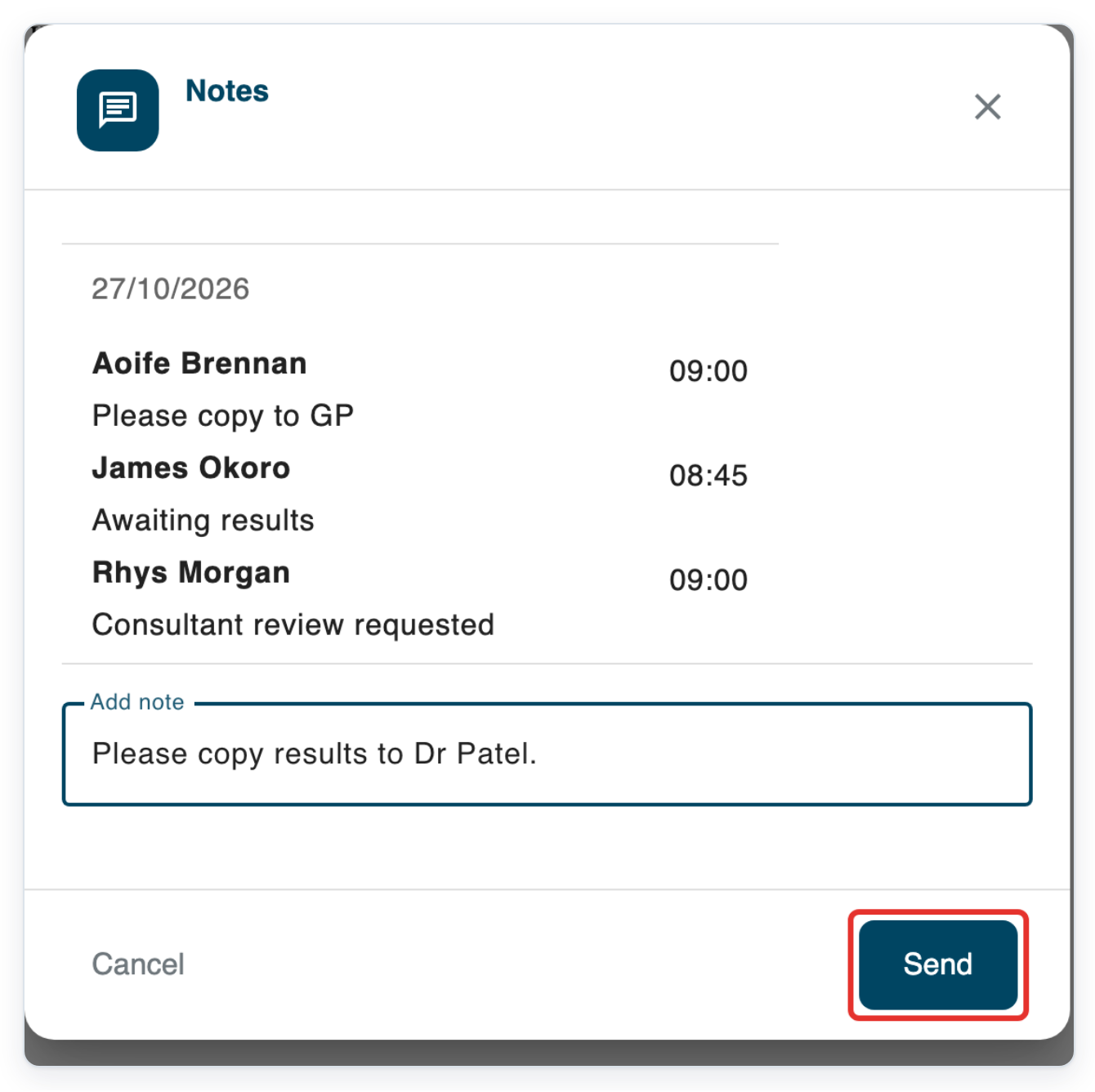
Click Send to save your note.
Your note appears with your name and the time. Notes stays open so you can check your message before sending the letter back.
Check your saved note. Then click the cross at the top right of Notes to send the letter back.
=> The letter returns to the previous stage and All tasks opens.
NOTE:
- The next stage after approval depends on your organisation's workflow. It may include second approval or storage.
- Closing Notes sends the letter back, even if you click Cancel without sending a note. Send your note before closing the window.
What the approval options do
Use these options to approve the letter, save it for later or send it back.
| Option | What happens |
|---|---|
| Approve | Saves your edits and moves the letter to its next stage. |
| Save for later | Saves your edits and keeps the letter at its current stage. All tasks opens. |
| Reject, then Send back | Opens Notes for your corrections. The letter returns to the previous stage when you close Notes. |
Can't approve a letter?
- You can only read the letter when you open it from All tasks. Return to Live tasks and open it from your approval queue to edit and approve it.
- The letter is missing from your approval queue. If you're the second approver, check Waiting for Second Approval. Otherwise, ask your manager to check who is assigned to approve it.
- Missing information blocks approval. Review the letter and fill in the missing details. Or send it back with a note explaining what's needed.
- You can't approve the letter because another author is assigned. Ask your manager to check who should approve it and reassign it if needed.
- Send back is missing. There may be no earlier stage to send the letter back to. Correct the letter yourself, or ask your manager to arrange the corrections.
Related articles
- Task statuses in V2
- The letter editor in V2
- Play the audio and use function keys
- Notes and task history
- Reassign a letter for approval
If you have any more queries, please do not hesitate to contact our Helpdesk or support@tpro.io.
© 2020 - 2026