
Before you start
You need a manager or master account with access to the tasks. The tasks you want transcribed must be Pending.
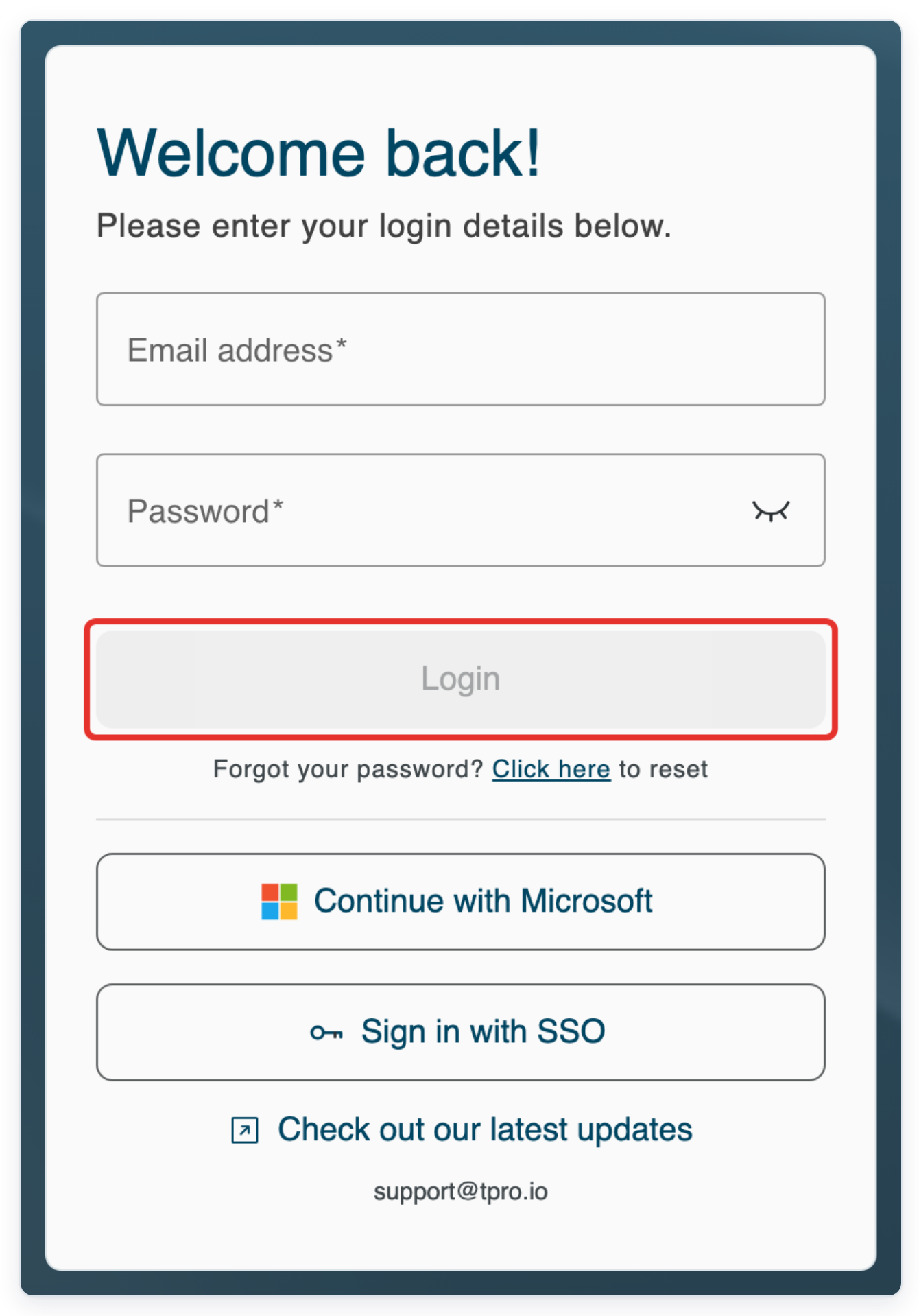
Log in to T-Pro with your manager or master credentials.
Assign one task
Go to All Tasks and find a Pending task. Click Task options, the three dots at the right of its row.
Type a patient's name in Search above the list, then press Enter. Check Patient Name, Task ID and Status before opening the task's options.

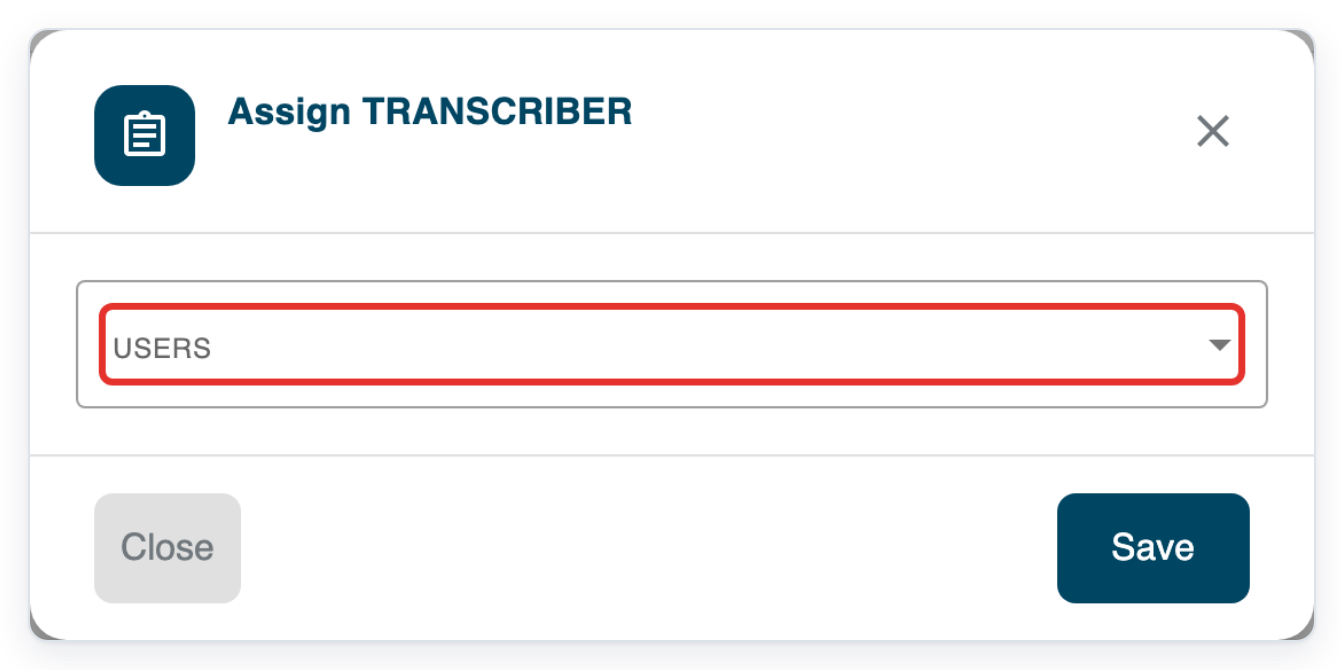
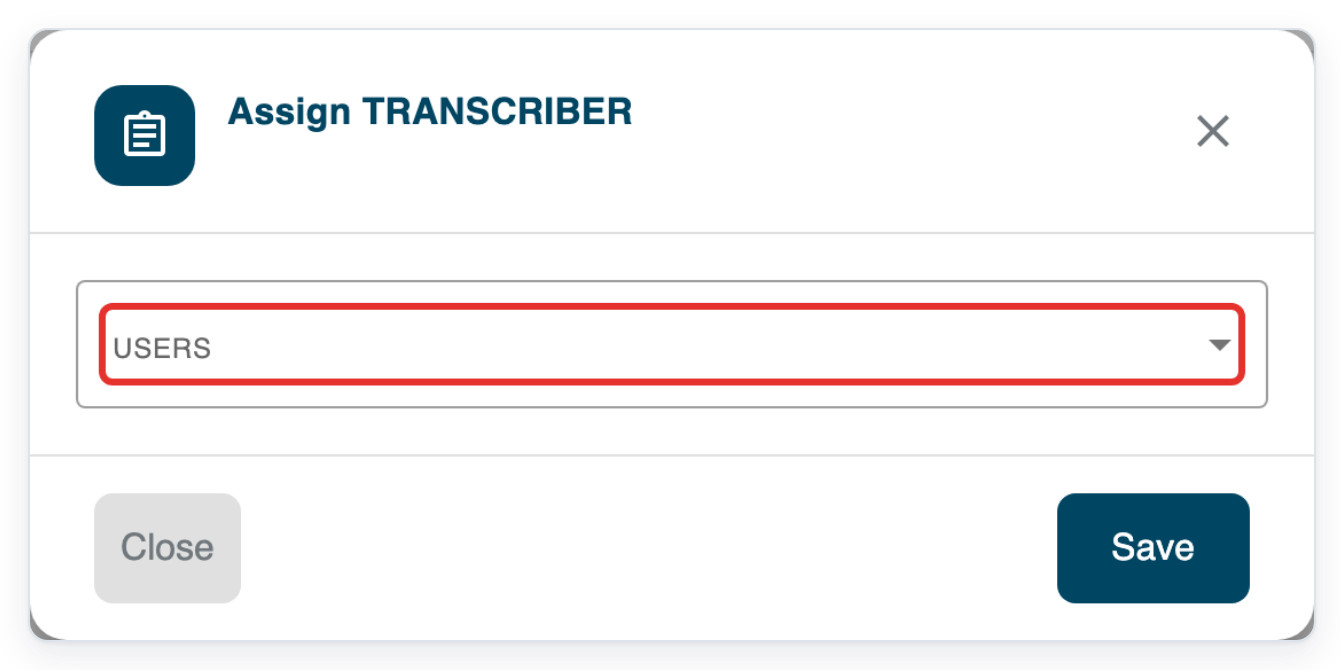
Click Assign Task. The Assign TRANSCRIBER dialog opens with a USERS list.

Open USERS to see the available typists.
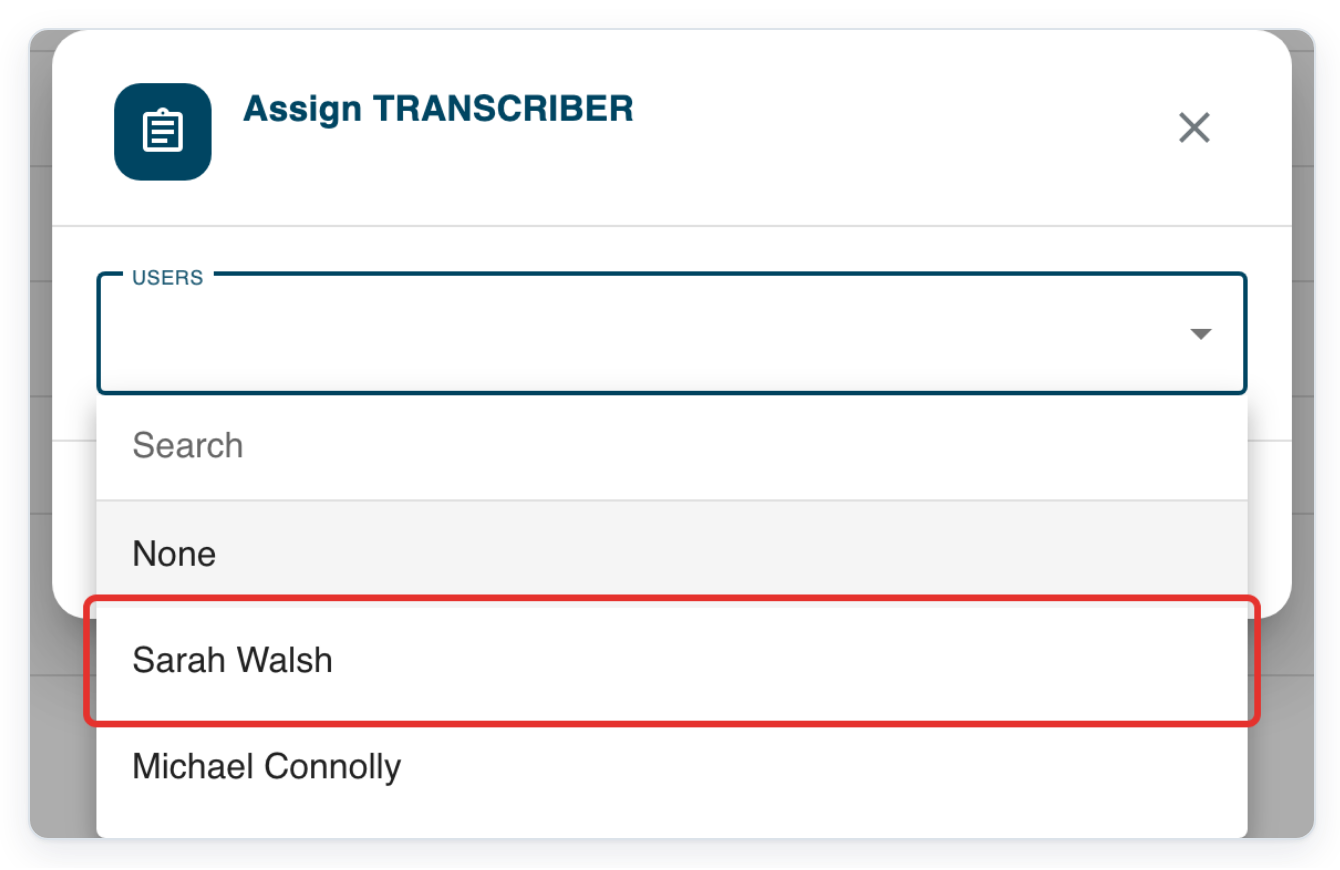
Transcription routes link the task's author group to transcriber groups. You can choose a typist from these linked groups.
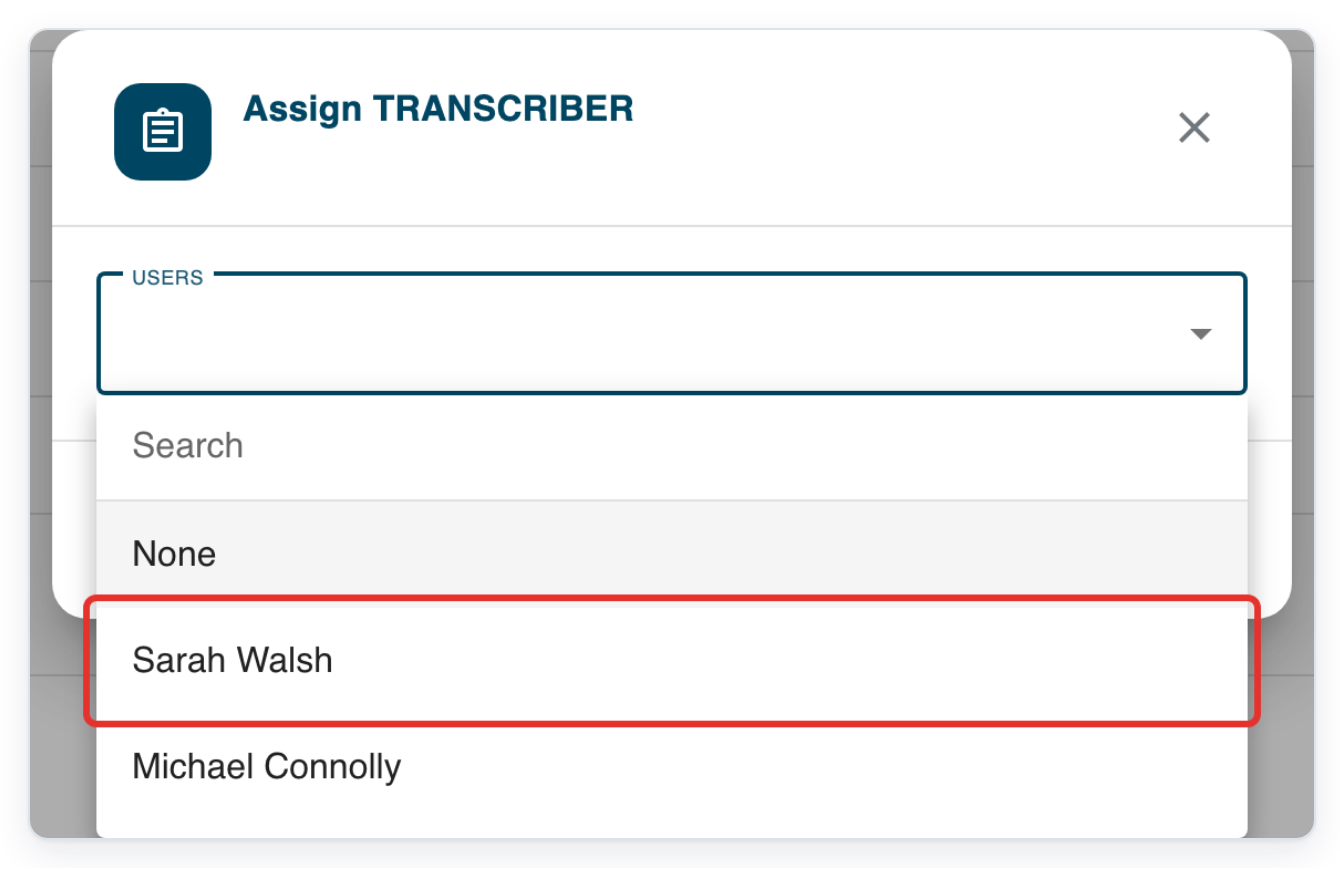
Choose the typist you want, such as Sarah Walsh in this example. Their name appears in USERS.
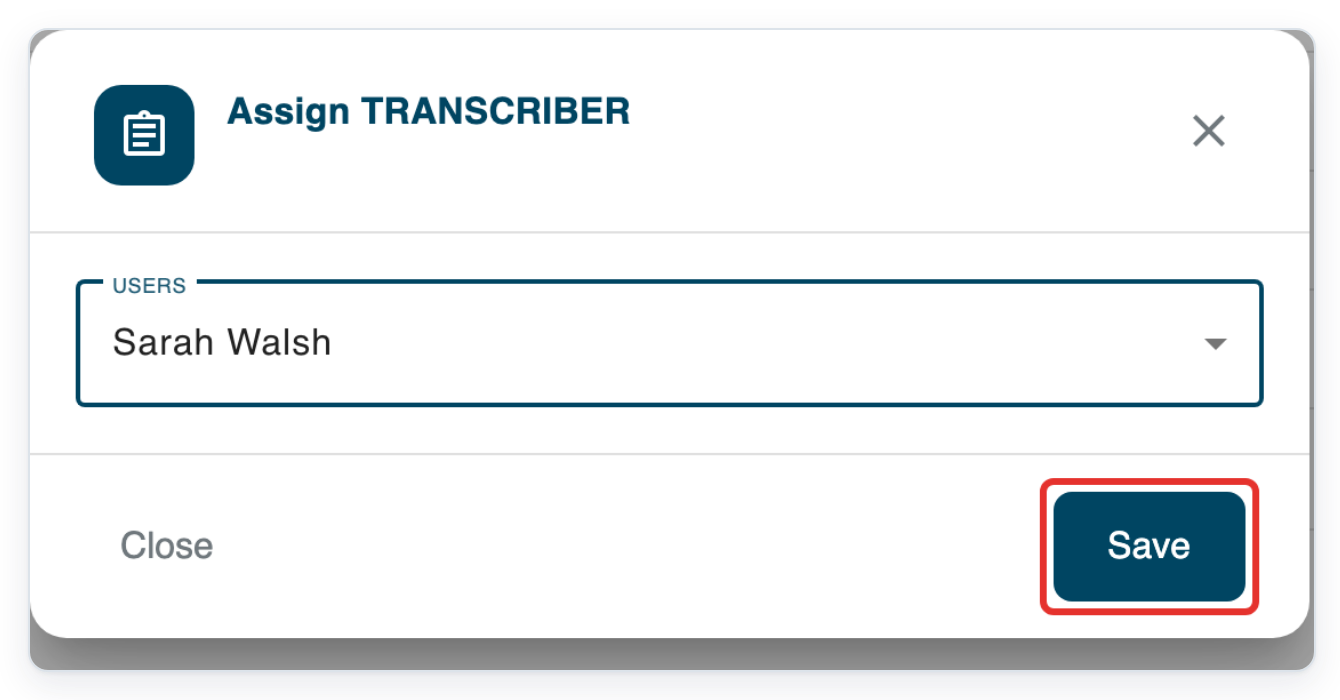
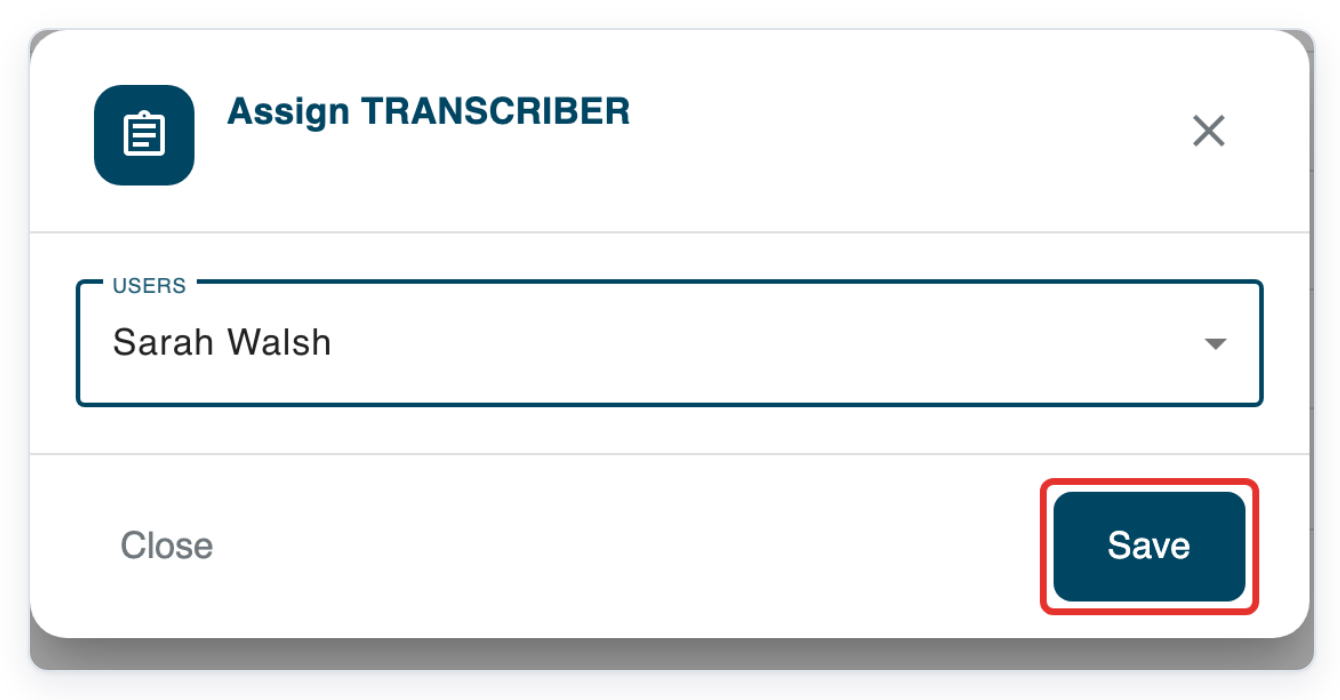
Click Save to assign the task. The dialog closes and All tasks refreshes.
The task moves to the selected typist's Work in Progress list, ready for them to transcribe.
Assign several tasks at once
In All Tasks, tick the checkbox beside the first Pending task you want to assign.
You can then select the remaining tasks without leaving the list.

Tick the checkbox beside the next Pending task. Choose tasks with the same Author Group as the first.
In this example, both tasks belong to Cardiology authors. Check the Author Group column before selecting more tasks.

Click Bulk actions at the right of the table header to open the menu for your selected tasks.

Click Assign Task. The Assign TRANSCRIBER dialog opens for the tasks you selected.

Open USERS to see the available typists for these tasks.
Choose the typist who will transcribe all the selected tasks. Here, Sarah Walsh is selected.
If the tasks need different typists, assign each set separately.
Click Save to assign the selected tasks. The dialog closes and All tasks refreshes.
=> Both tasks now show Work in Progress in Status, with Sarah Walsh in Assignee.

NOTE:
- To assign several tasks to a typist, select Pending tasks from the same author group.
- The checkbox in the table header selects only the current page. Changing pages or applying filters clears your selection.
Can't assign tasks to a typist?
- If Assign Task is missing from a task's options, check you're signed in as a manager or master. For transcription, choose a Pending task.
- If Assign Task is missing from Bulk actions, clear your selection. Select Pending tasks from the same author group, then open the menu again.
- If the typist is missing from USERS, ask your manager or master to check the typist's transcriber group membership. A transcription route must link this group to the task's author group. If the membership and route are correct, contact our Helpdesk.
- If Save does nothing, choose a typist in USERS before saving. Check that their name appears in the list. None means you haven't selected a typist.
- If the selected typist has reached their Work in Progress limit, ask them to finish a task. Or ask them to return a task to the pending list. Then try assigning the work again.
Related articles
- Search for tasks in All Tasks
- Pick up a task from the pending queue
- Task statuses in V2
- Create a transcription route
If you have any more queries, please do not hesitate to contact our Helpdesk or support@tpro.io.
© 2020 - 2026