
Before you start
You need a transcriber account and permission to edit an unfinished task in the letter editor.
Log in to T-Pro with your transcriber credentials.
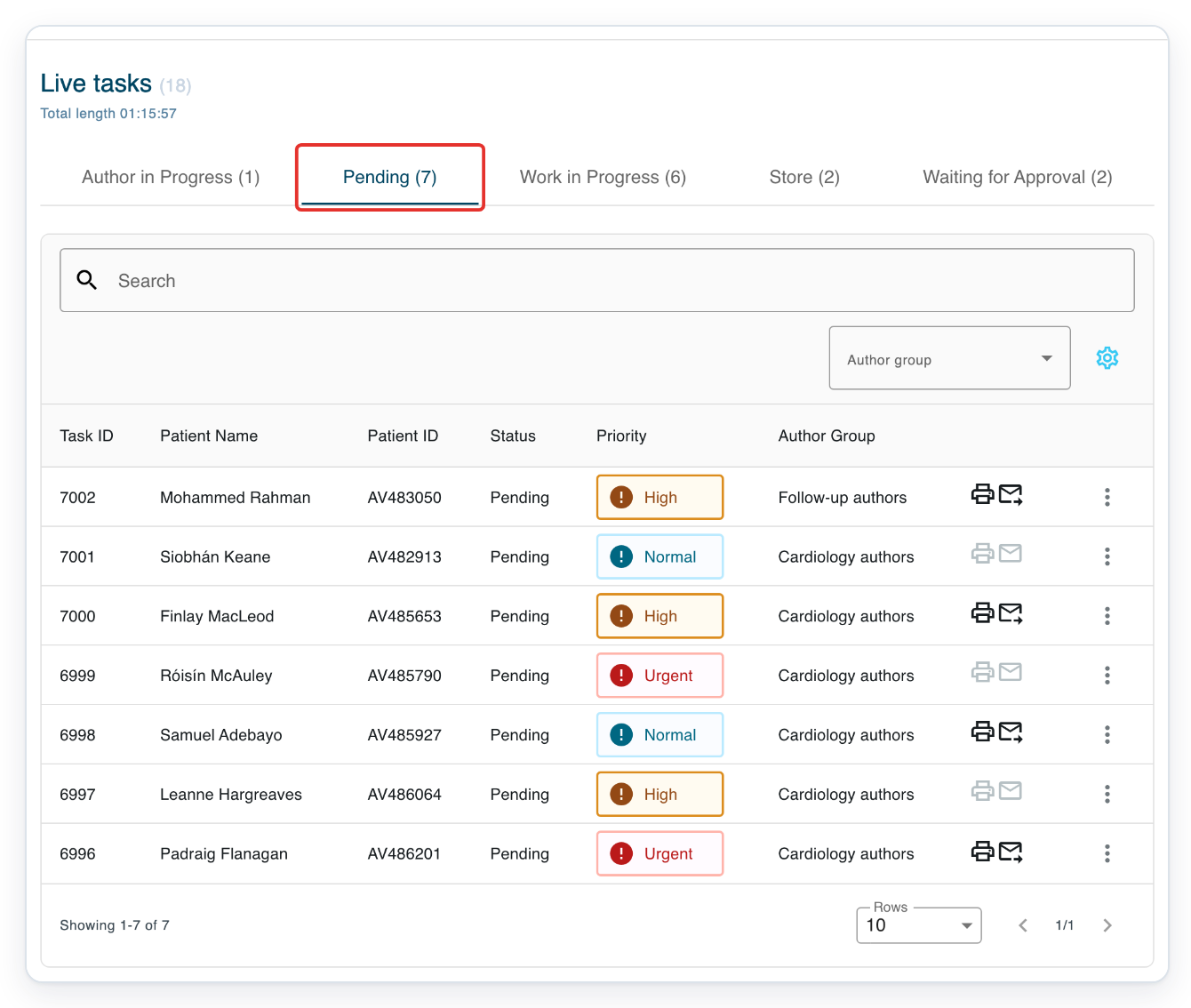
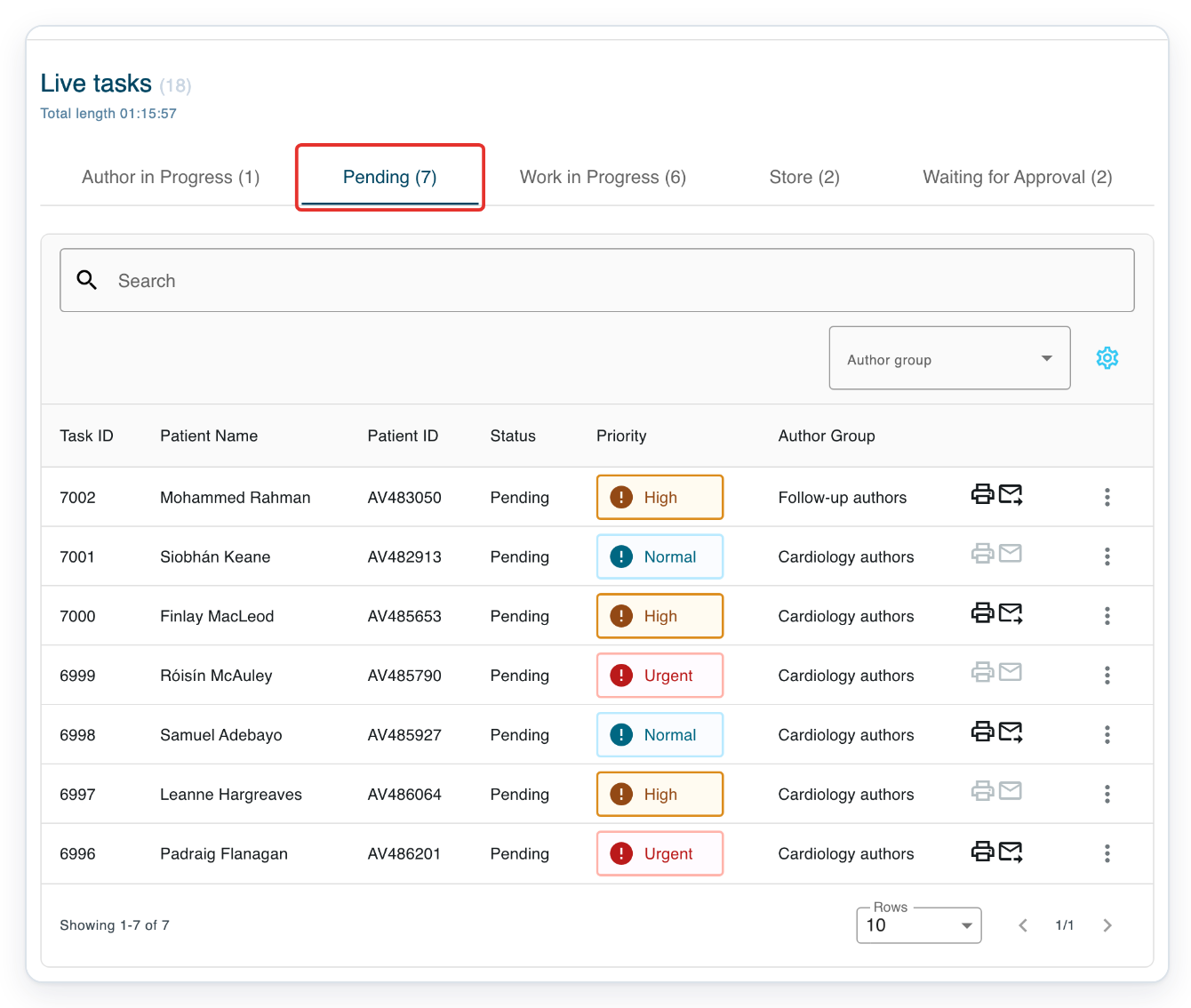
Go to Live tasks and click Pending to find the task you want to change.
Pending shows tasks waiting to be transcribed. Check the patient name and ID to find the right letter. If you've already picked up the task, look in Work in Progress.
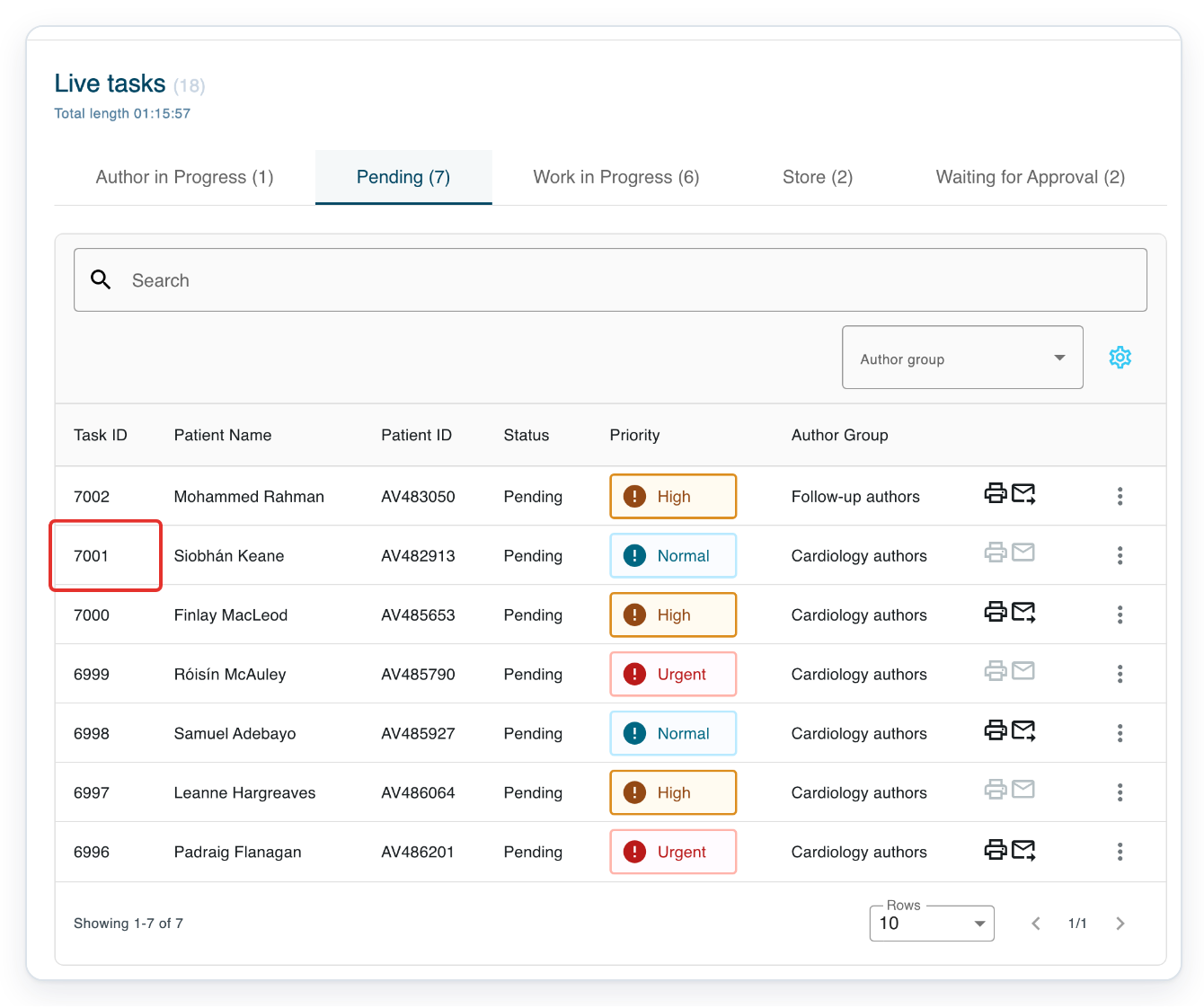
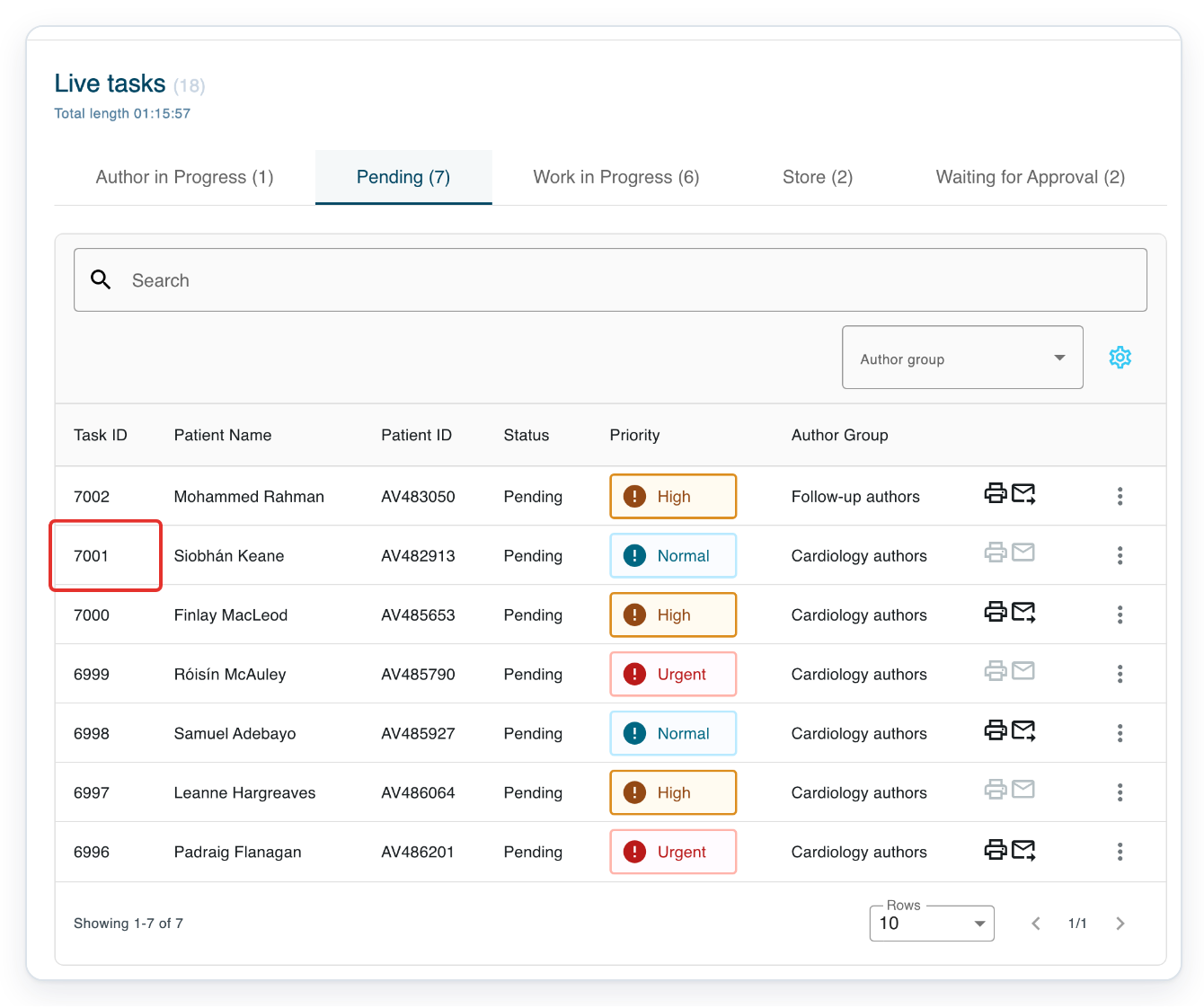
Click the task's ID to open it in the letter editor. This example uses task 7001.
Before changing the template, select and copy any typed text you need. Keep the copy until you've pasted it into the new template and checked the letter. When you open a pending task as a transcriber, it moves to Work in Progress.
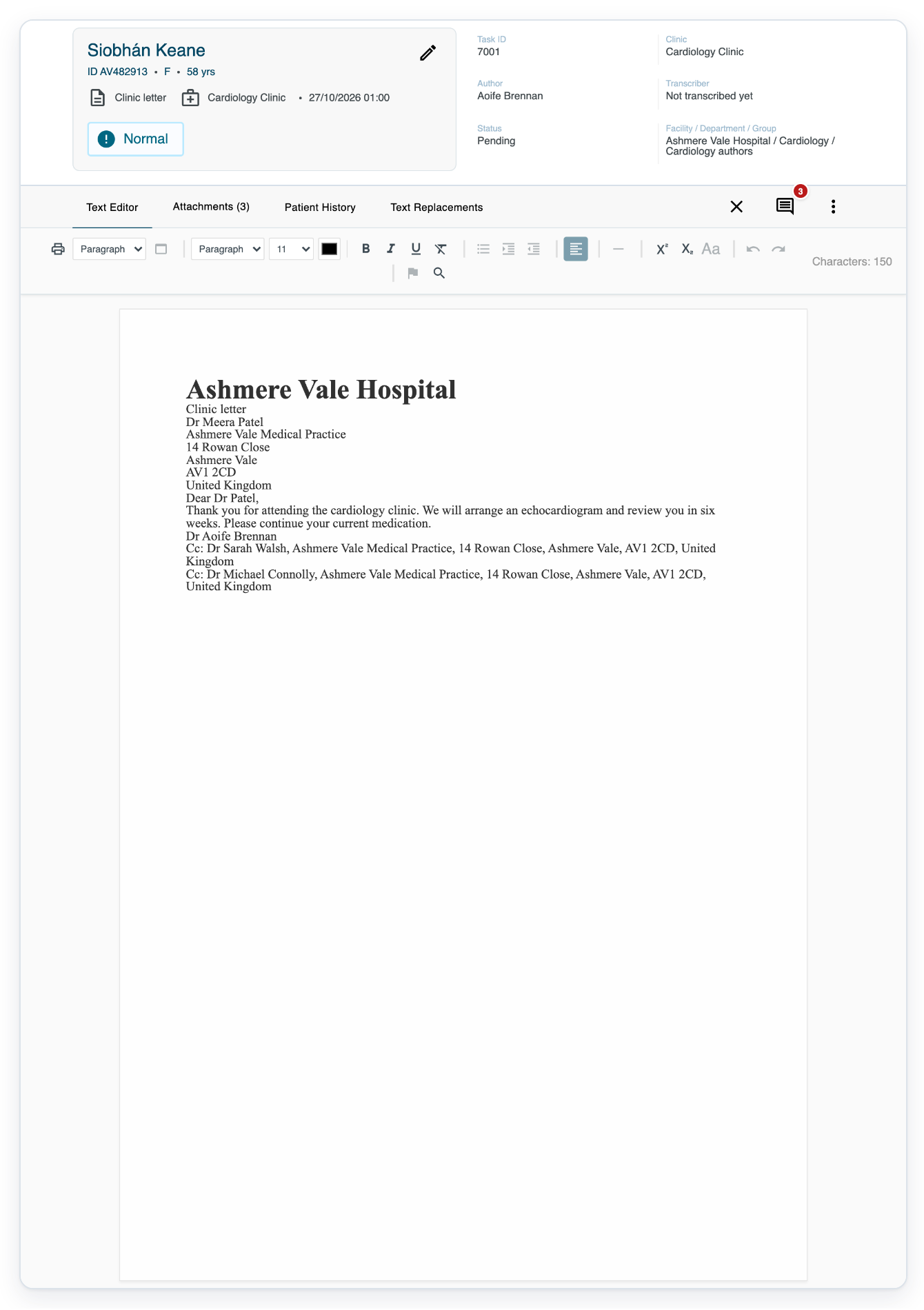
=> The Clinic letter for Siobhán Keane opens with text already typed in its body.
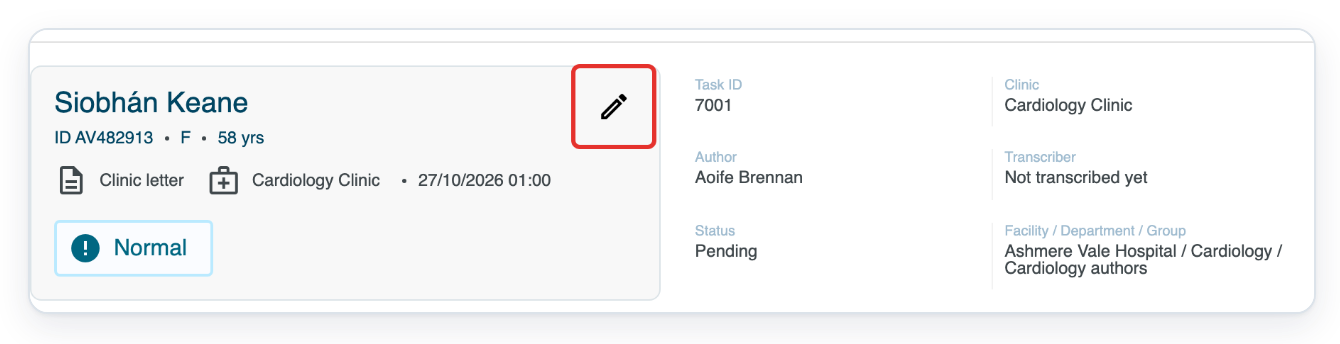
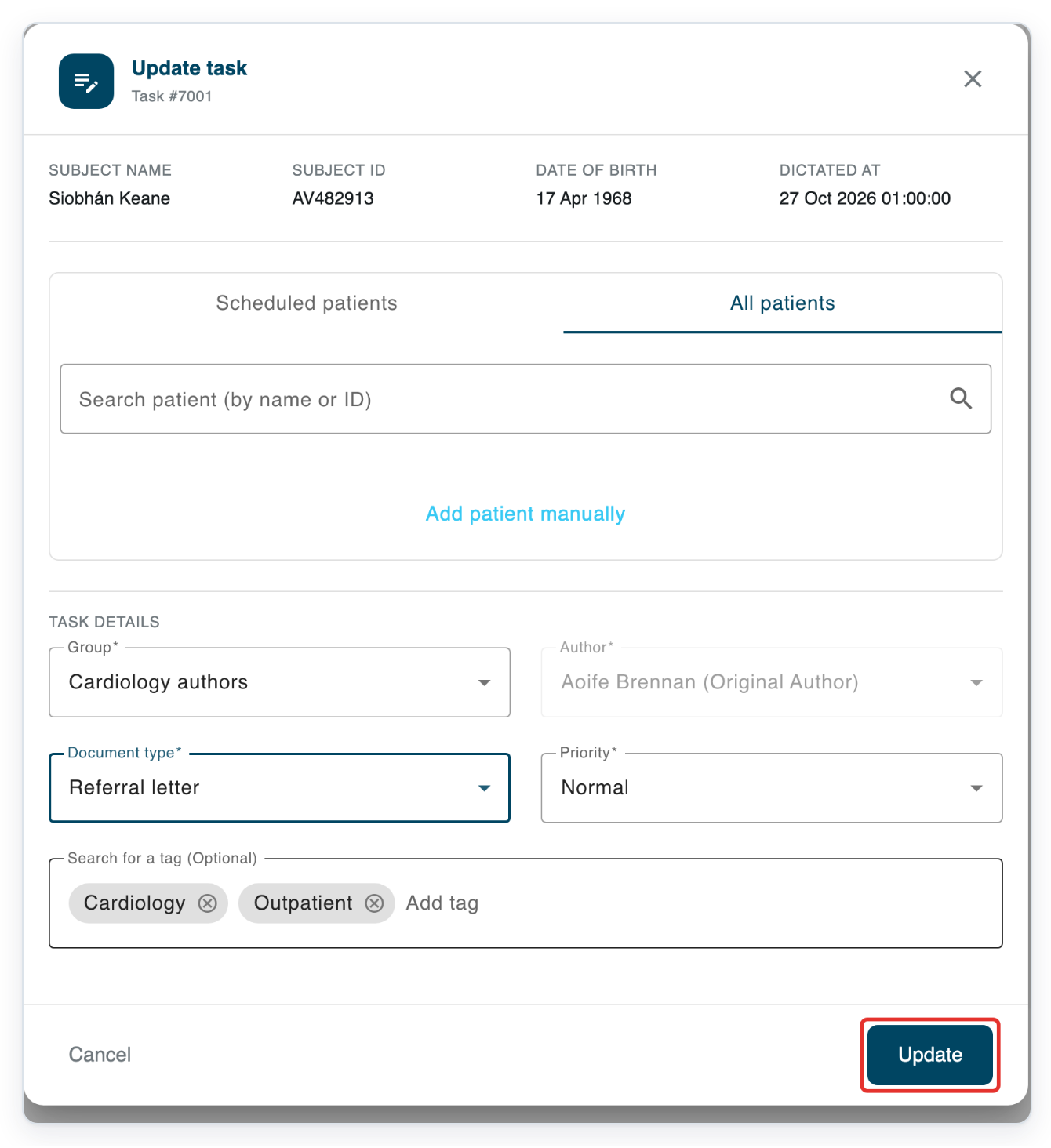
Click the pencil labelled Edit task information at the top of the patient card. This opens Update task.
The window shows the patient details at the top and the task details below the patient list.
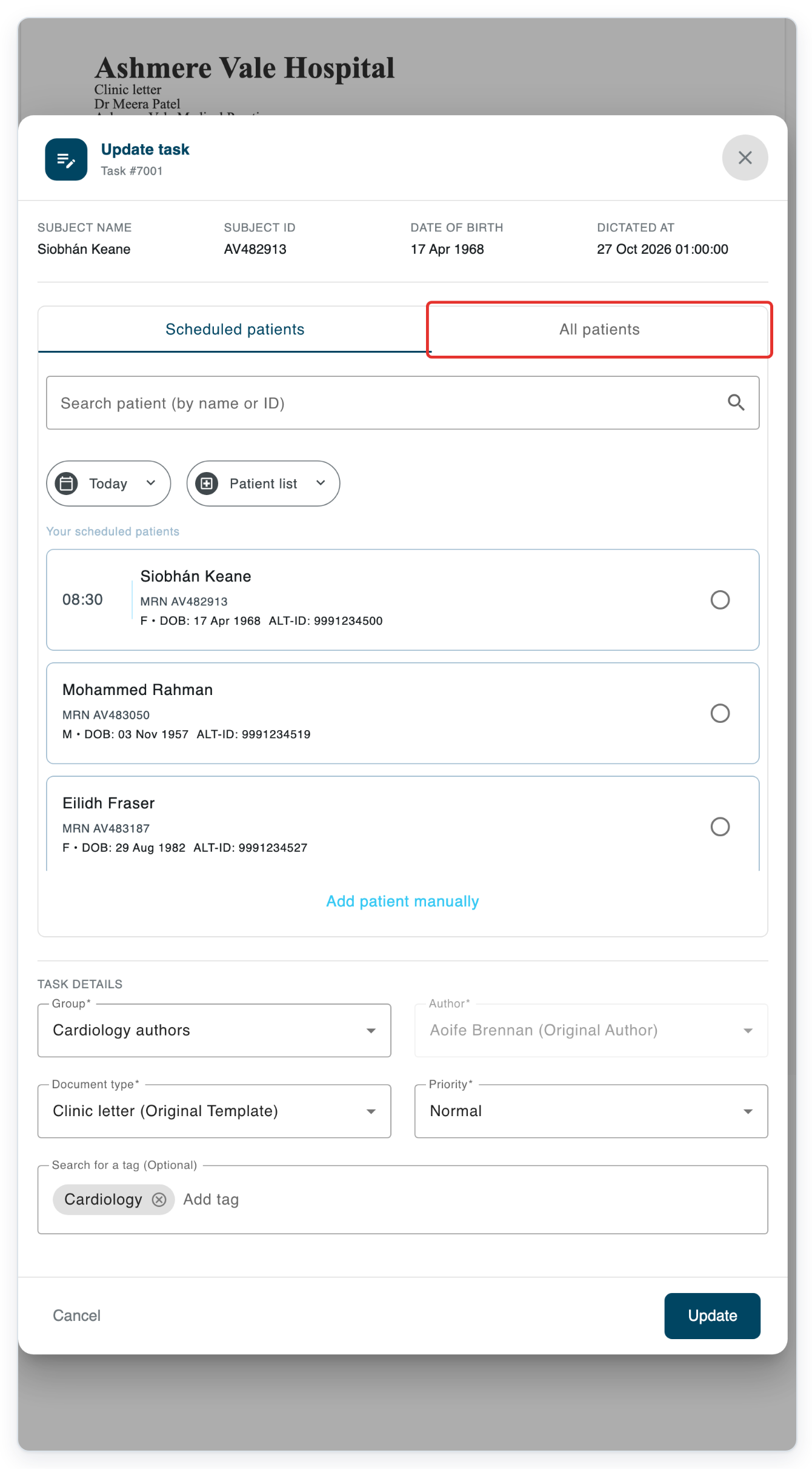
If you see patient tabs, click All patients to show the search above the task details.
This view is shorter than the scheduled patient list. If there are no patient tabs, go straight to Document type.
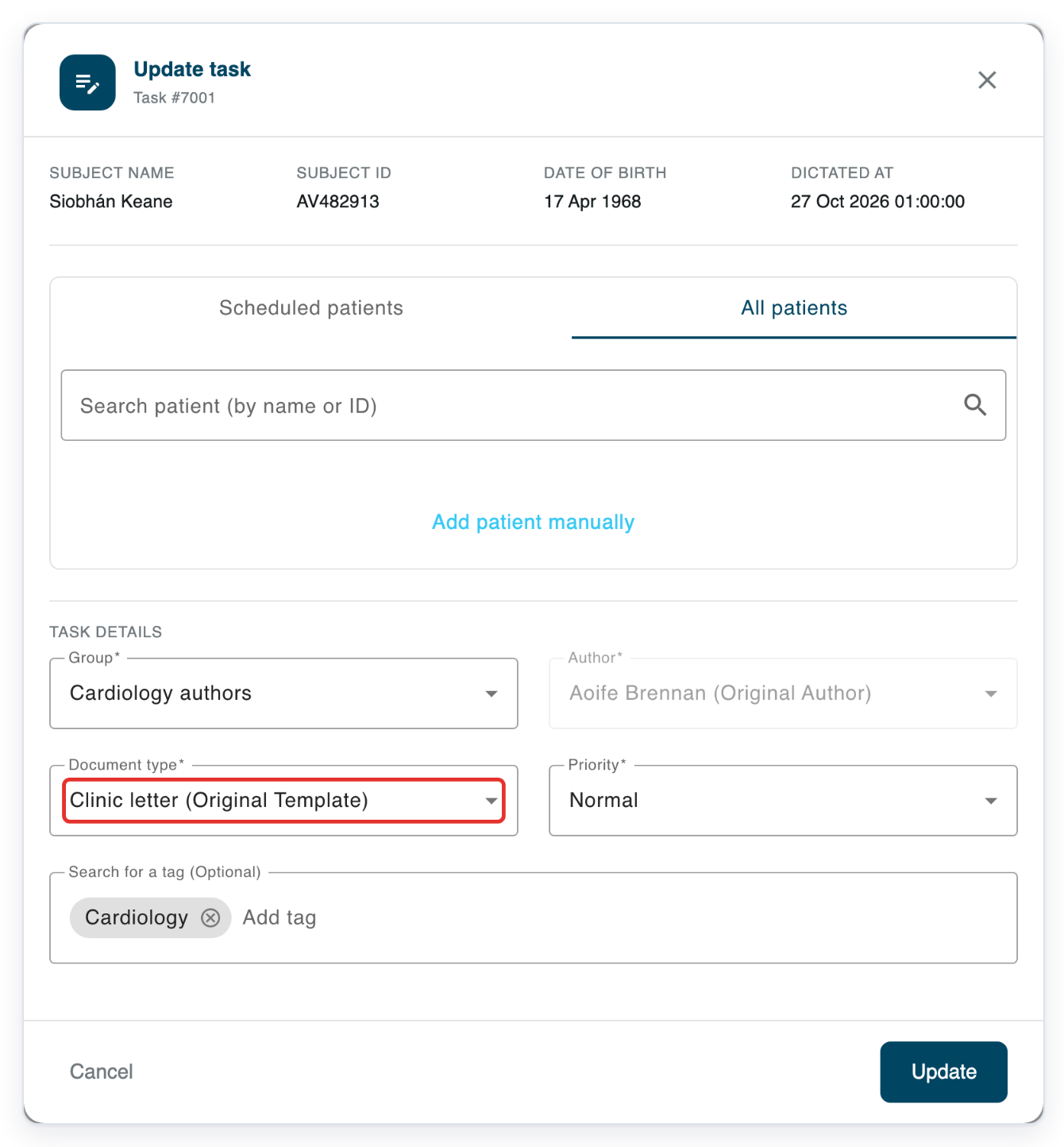
Click Document type to open the list of available templates.
The available templates depend on the task's group. Your current template is marked as the original: Clinic letter (Original Template) in this example.
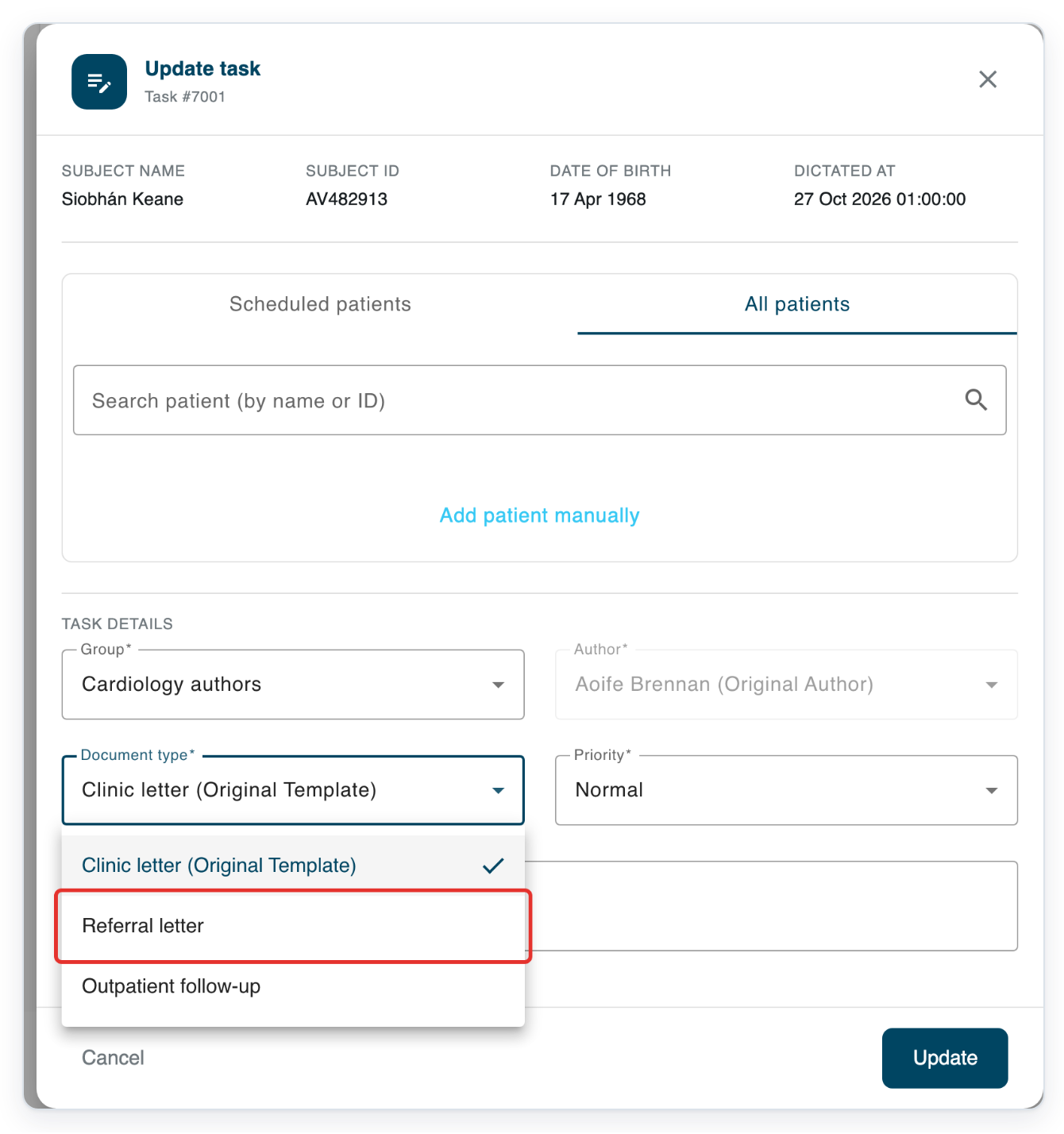
Click the template you want to use. In this example, choose Referral letter.
Your chosen template now appears in the window. It replaces the task's tags, so check the tags below it before saving.
Click Update to save the new document type and close the window.
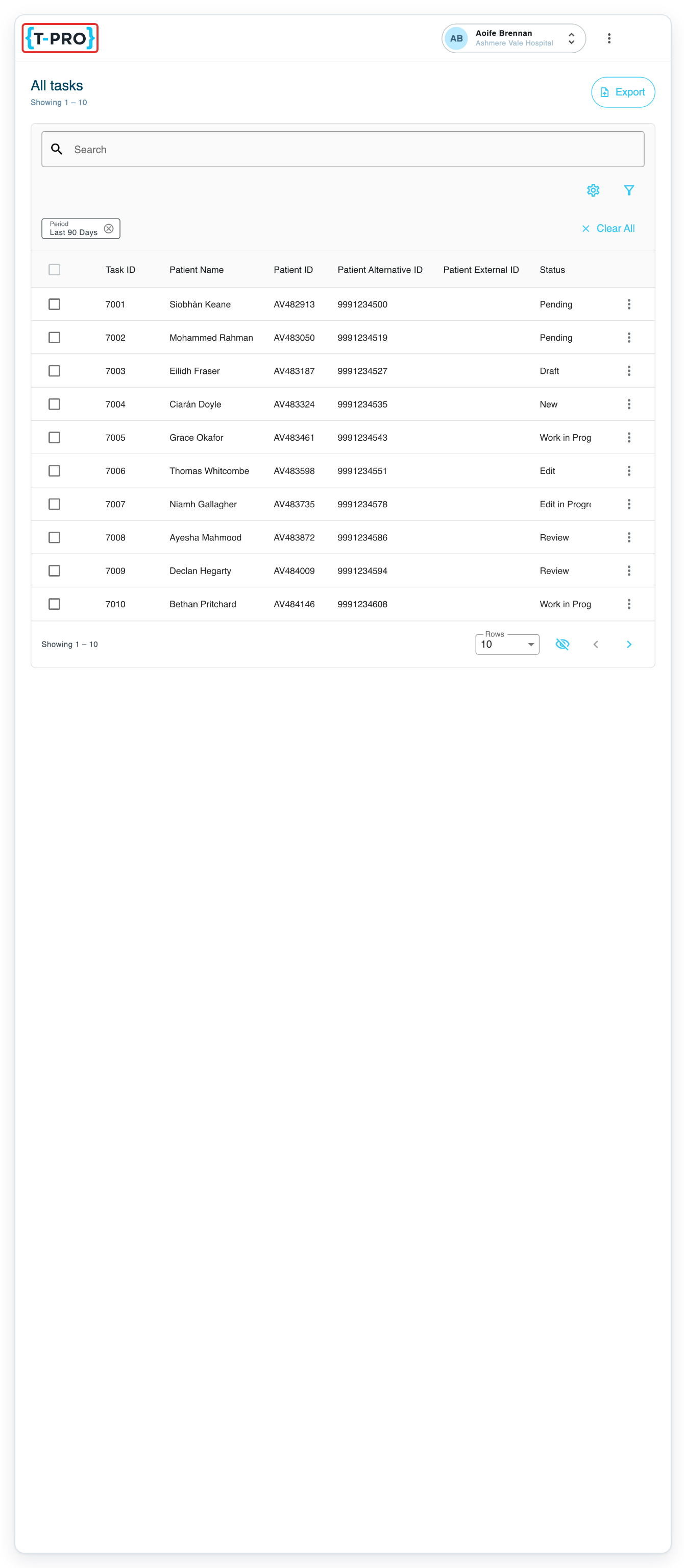
If T-Pro returns you to All tasks, reopen the task to continue working on the letter. Check the document type on the patient card. Then paste your copied text into the relevant editable fields.
NOTE:
- Changing the template clears text from fields you've typed in. Copy any text you need before switching, then paste it into the relevant editable fields.
- Choosing another document type replaces the task's tags with the new template's tags. Check them before clicking Update.
- The new template can change the recipient and CCs. Check these before continuing with the letter.
- Some templates fill selected fields from earlier completed tasks for the same patient. Check any text that appears before using it.
Can't change the template?
If your typed text is missing, reopen the task to check the template and letter. Click the T-Pro logo to return to your landing page. Open Live tasks if needed, then Pending, and click the task's ID again. If you've already picked up the task, use Work in Progress instead.
=> The patient card shows Referral letter, but the editor shows Characters: 0. The previous body text is gone. The example still shows the Clinic letter heading and the greeting to Dr Patel.
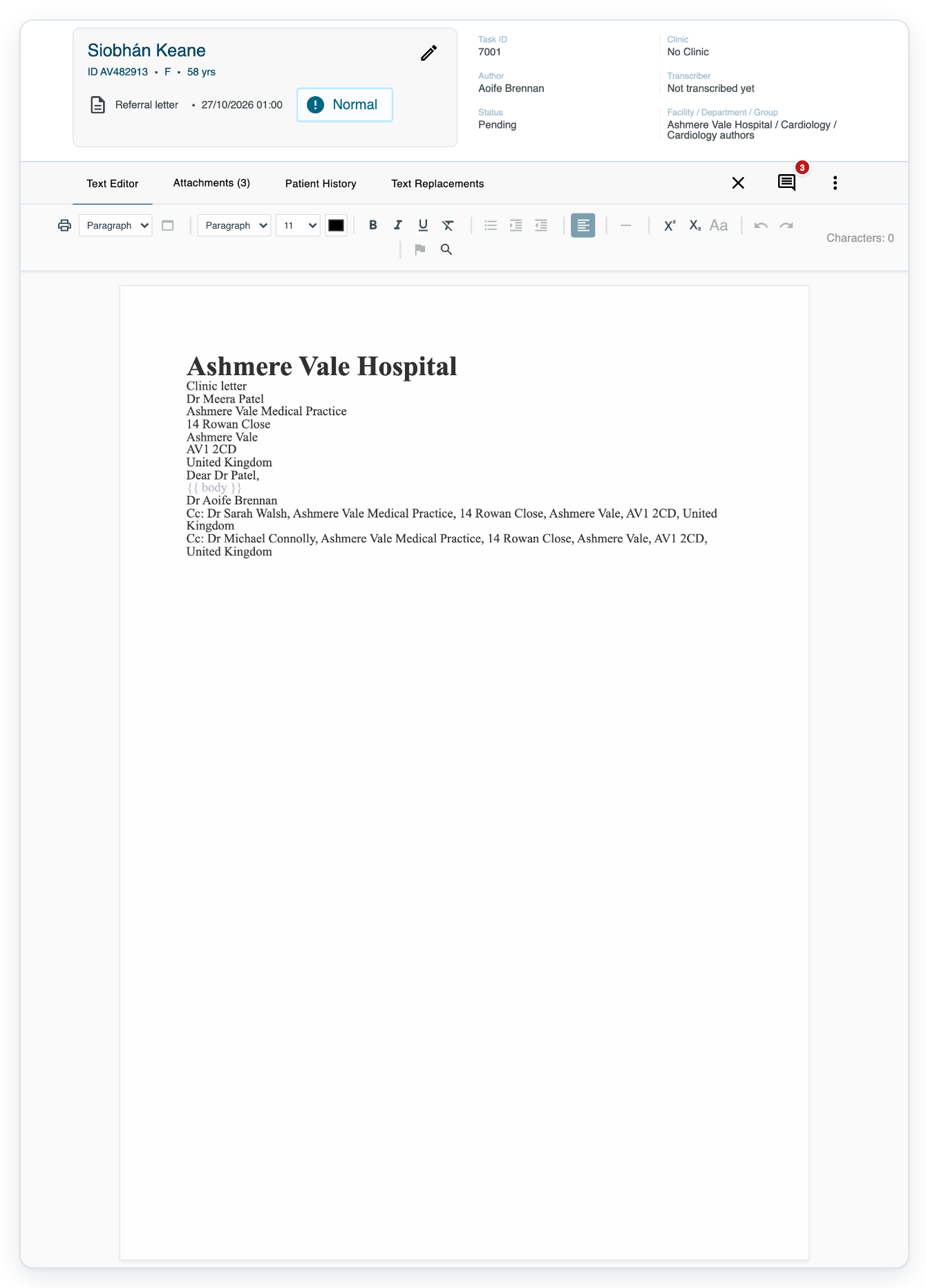
Paste the text you copied into the new template's editable fields. Changing back to the previous template clears the fields again. If you didn't keep a copy, contact our Helpdesk before typing the letter again.
If Document type is unavailable at the storing stage, ask your manager to change the template. You can't change it yourself at this stage.
If Update is unavailable, complete the required task details. Check Group and Document type, and choose any required approvers. If a patient visit is required and visits are listed, select one. Wait for the visits to finish loading before trying again.
If no patient is assigned, the patient card shows + Select patient instead of the pencil. Click + Select patient to open Update task, then continue from Document type in step 6.
Related articles
If you have any more queries, please do not hesitate to contact our Helpdesk or support@tpro.io.
© 2020 - 2026