
Before you start
You need an author account and a task you can edit. The task must have a patient ID. Your template must have copy-forward set up, with content available in a matching completed task.
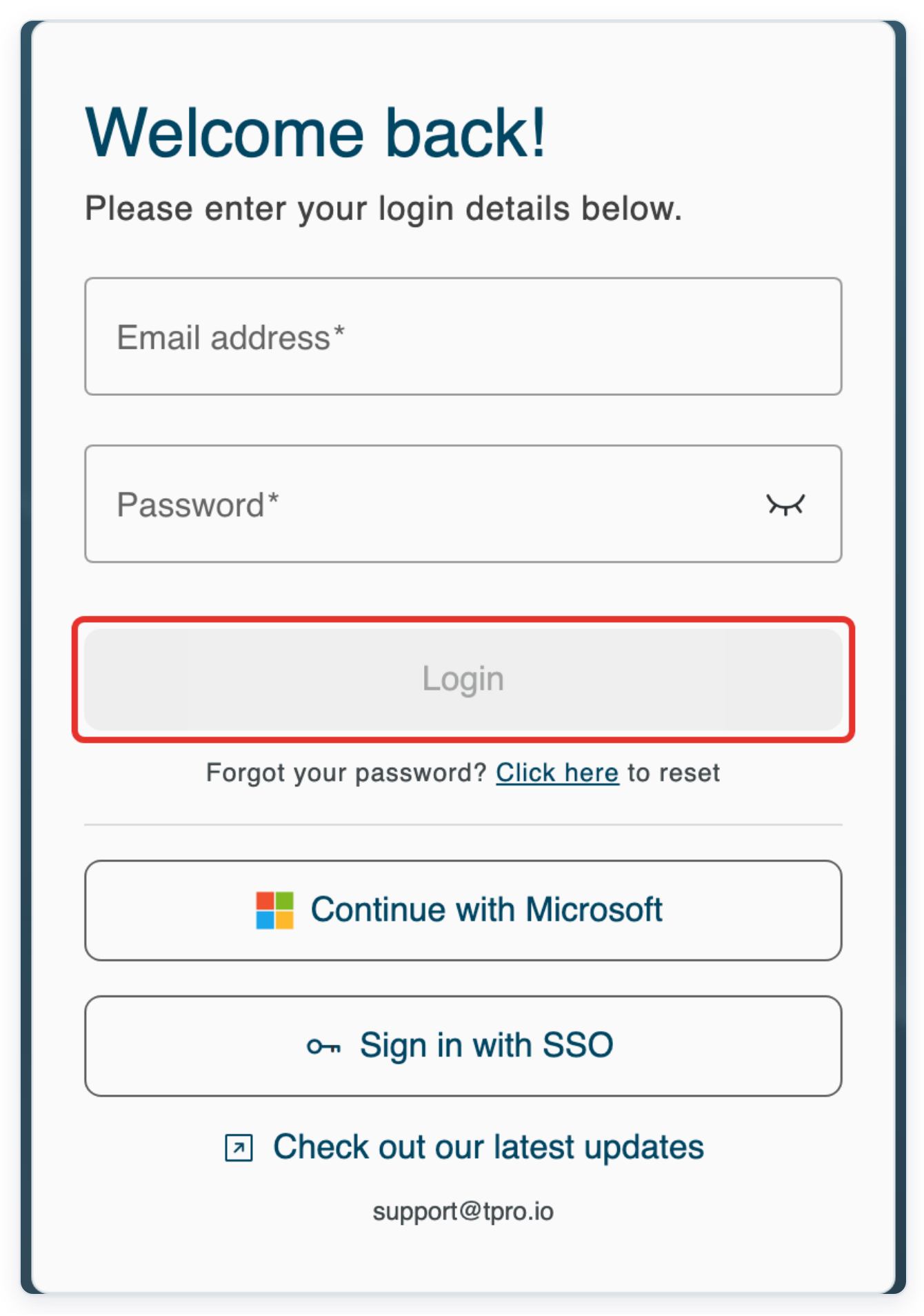
Log in to T-Pro with your author credentials.
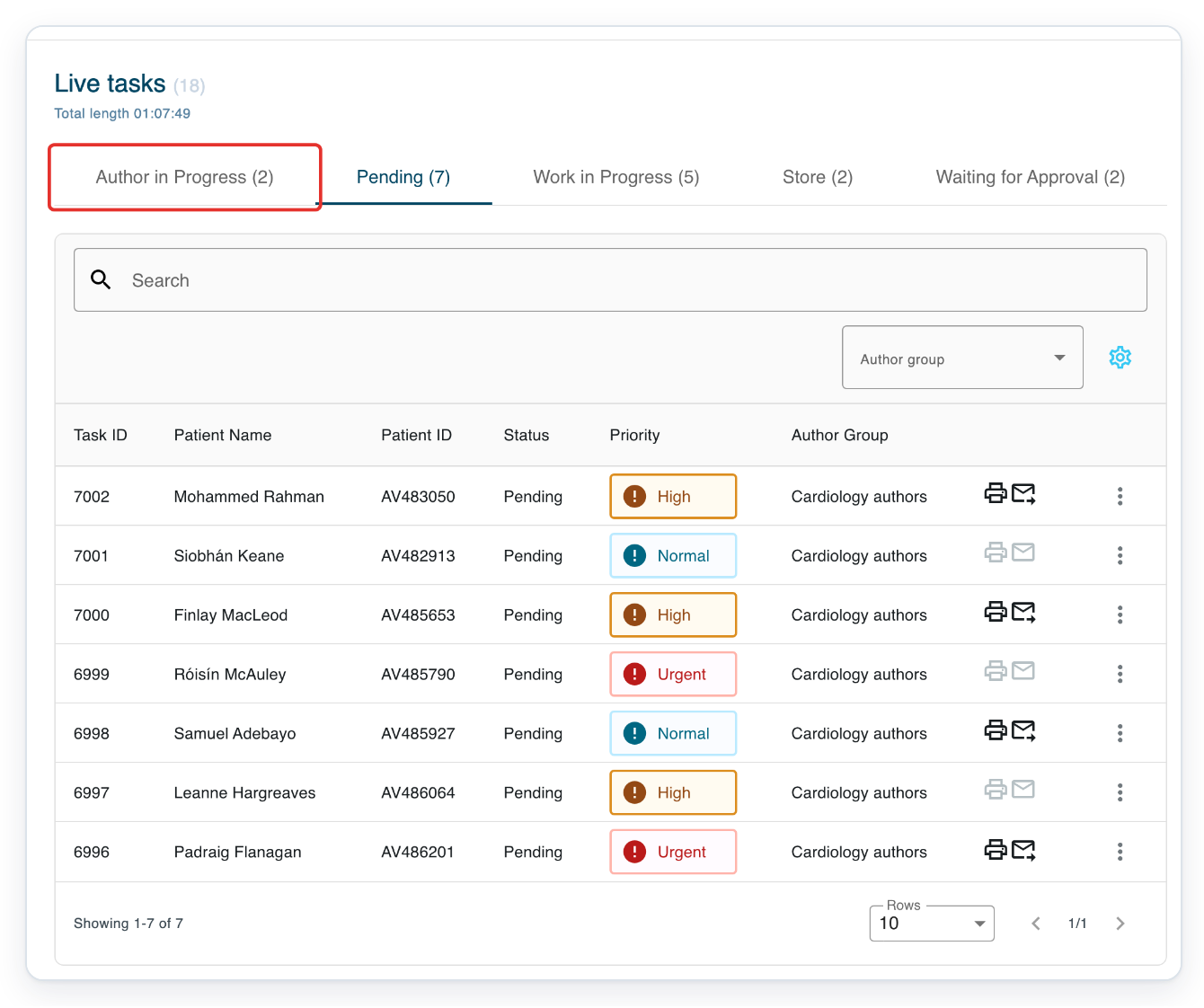
In Live tasks, click Author in Progress to find your draft task.
This tab holds tasks you are still preparing. We'll use Bethan Pritchard's follow-up task as an example.
To narrow the list, enter the patient's name in Search above the tasks and press Enter. Search looks only in the selected tab. Keep Author in Progress open while you look for your draft.
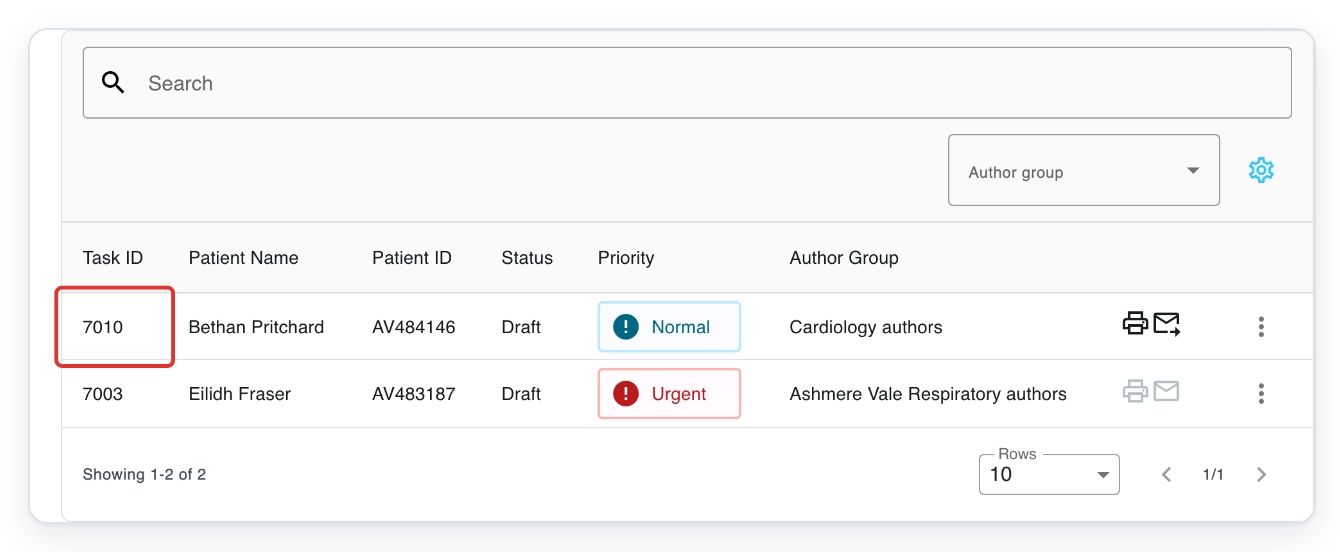
Click the task's number in the Task ID column to open it. Here, click 7010 for Bethan Pritchard.
Check Patient Name and Patient ID in the row to make sure you are opening the right patient's task.
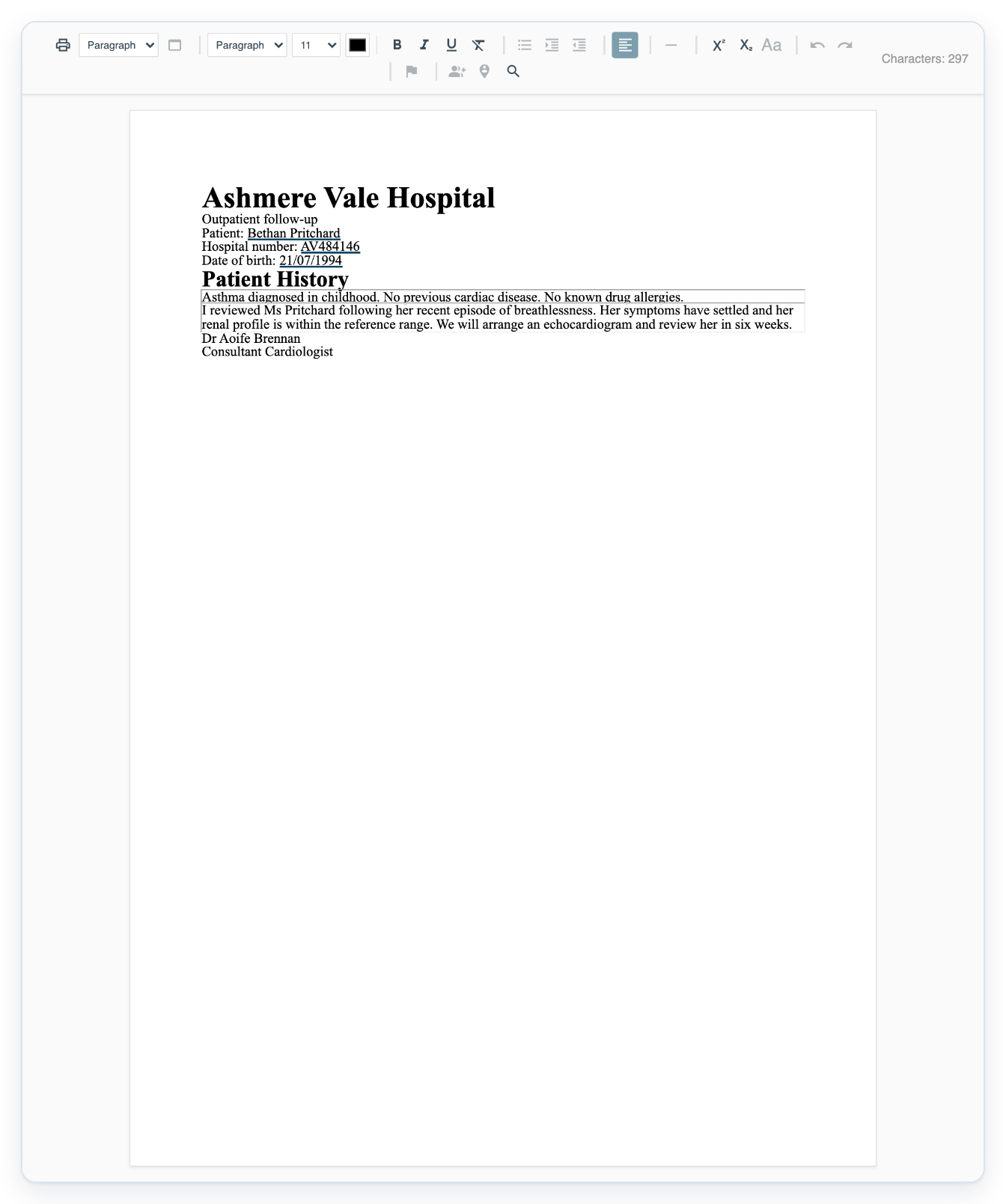
Click Text Editor to view the letter and find its Patient History field.
The example letter has this field above the current assessment. Your template determines which fields appear and which have copy-forward set up.
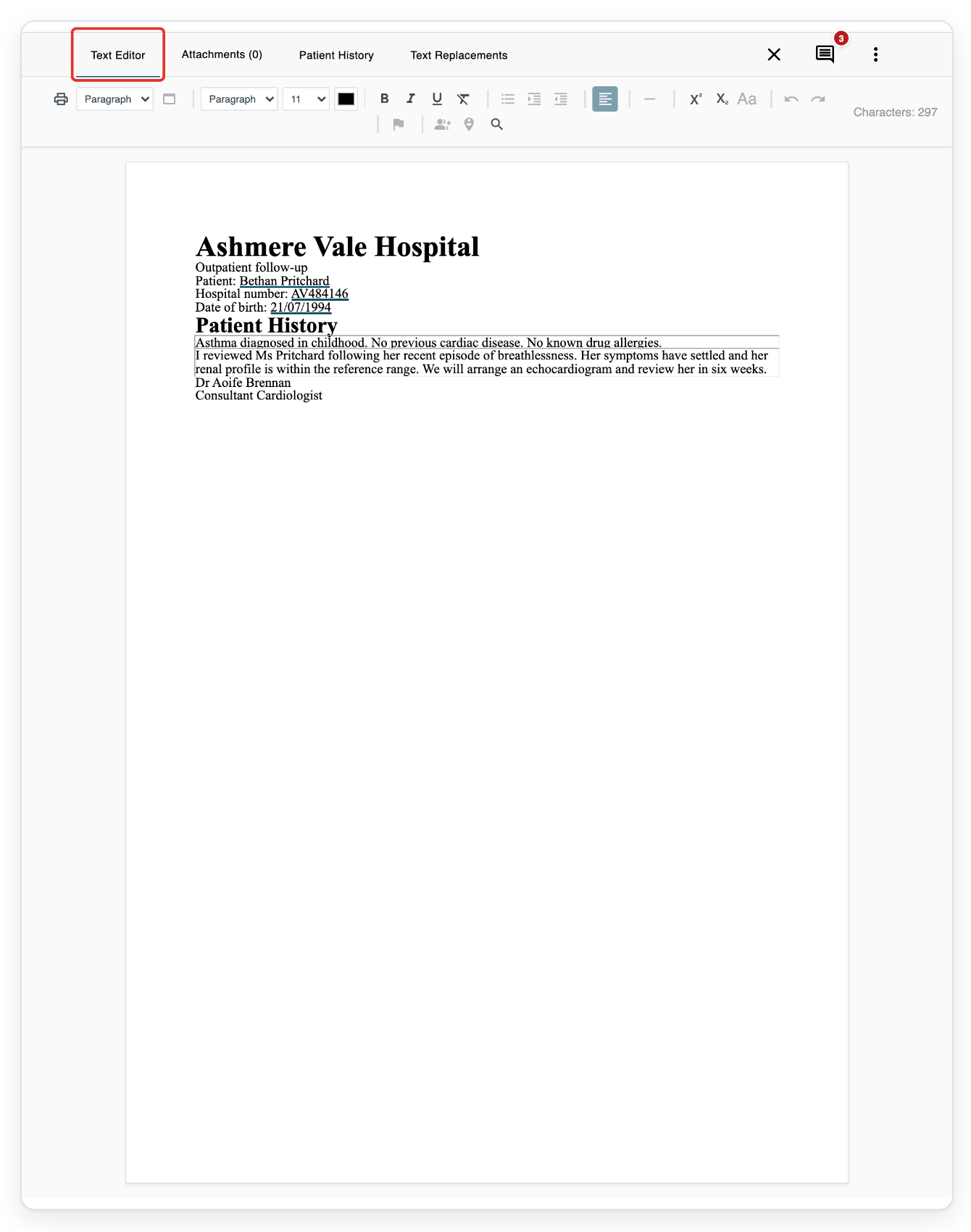
=> Patient History already contains the earlier letter's history: “Asthma diagnosed in childhood. No previous cardiac disease. No known drug allergies.” Read this history alongside the current assessment before you complete the task.
NOTE:
- T-Pro automatically fills fields set up for copy-forward when it first creates the task's document. Each template field has its own copy-forward setting. Ask your manager to set this up for the template you use.
- Copied content replaces all the text in a field. Review each copied field and update anything that has changed for the current consultation. Do this before completing the task.
- Changing the template clears the letter's existing fields and uses the new template's copy-forward settings. Check your content first, as changing templates can remove text you have already entered.
Where copied content comes from
Each field set up for copy-forward has a source setting. All three sources below use completed tasks for the same patient ID. This setting controls whose tasks T-Pro can copy from.
| Source | Which completed tasks can supply content |
|---|---|
| Author | Tasks for the same patient by the same author as the current task. |
| Author Group | Tasks for the same patient in the current task's author group. |
| Department | Tasks for the same patient in the current task's department. |
Can't see the content you expected?
- Nothing was copied into a field. Check the task's Patient ID. Ask your manager to check that copy-forward is set up for the template field. The completed task T-Pro selects must also contain that field. If the field is missing, T-Pro won't look for it in an older task. Enter the information yourself if there is no suitable task to copy from.
- A different earlier letter supplied the content. Ask your manager to check the field's source setting and template. T-Pro checks the current template first, then its previous version, then the version before that. It uses the first version with a matching completed task. If several tasks match that version, it chooses the one created most recently. The choice depends on when the task was created, rather than when it was completed.
Related articles
- The letter editor in V2
- Change the patient on a task
- Change a task's template
- Set up copy-forward for template fields
If you have any more queries, please do not hesitate to contact our Helpdesk or support@tpro.io.
© 2020 - 2026