
Before you start
You need to be signed in and know your current password to change it. For account recovery, you need a verified email address or phone number.
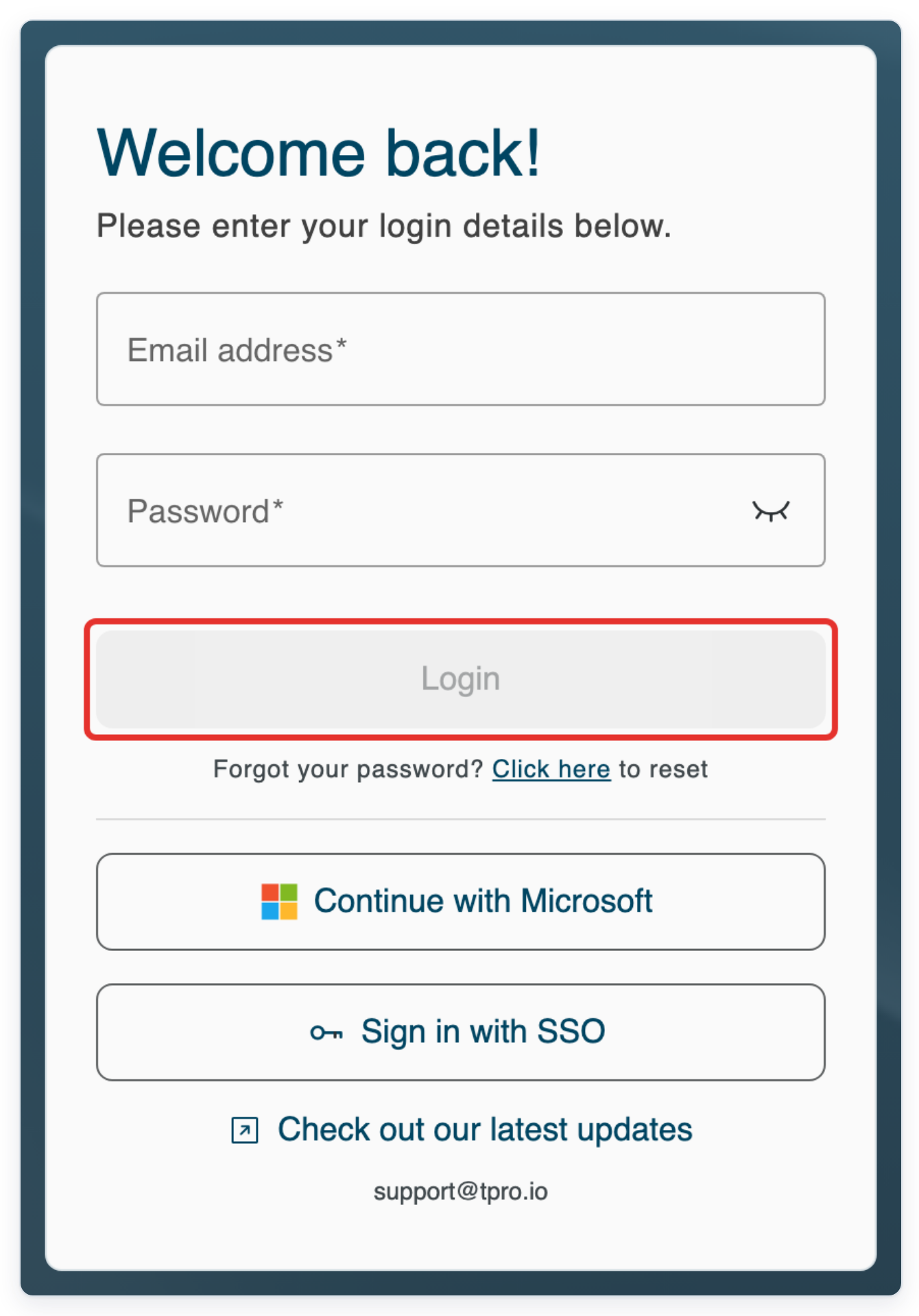
Log in to T-Pro with your account credentials.
Enter your Email address and Password, then click Login.
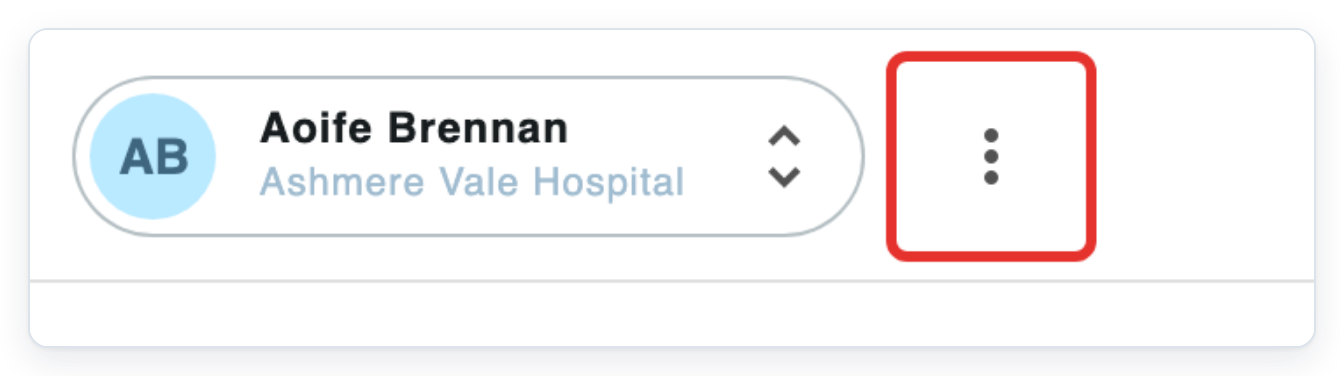
Click the three-dot menu beside your account name in the top right.
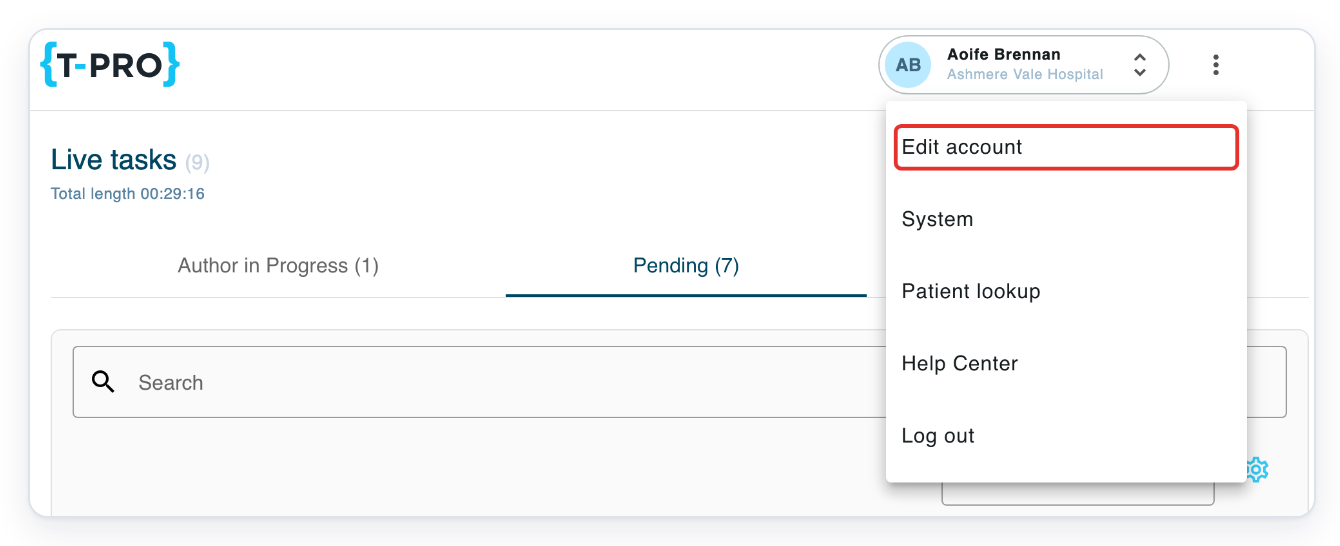
Click Edit account to open My details.
Click Security to open your password and account recovery settings.
The password fields are at the top. Account Recovery is further down the same tab.

Enter your current password in Current Password.
Fill in all three password fields to change your password.
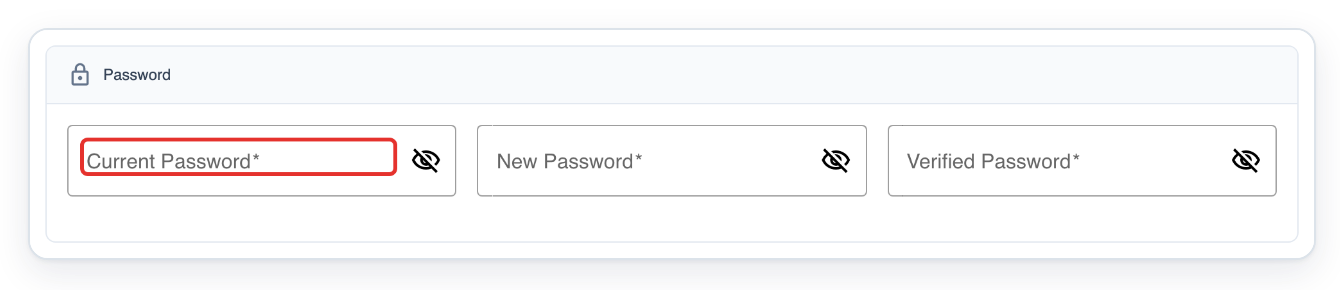
Enter your new password in New Password.
Check the password rules below when choosing your new password. A message below the field tells you if it doesn't meet a requirement.
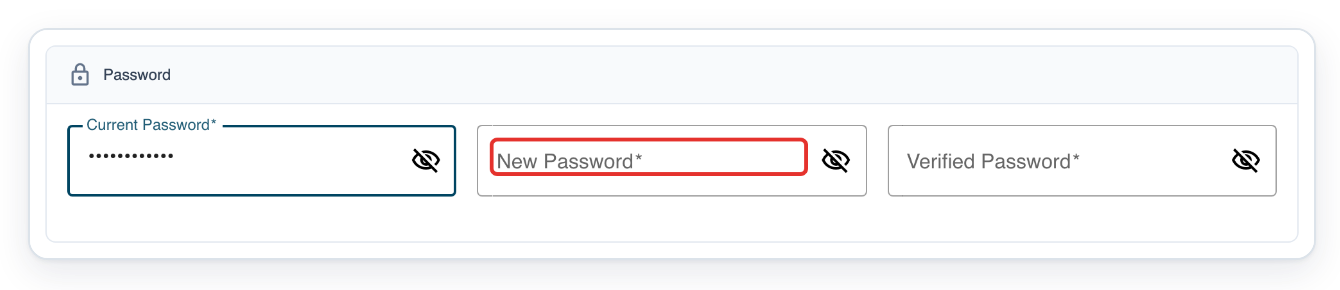
Enter the same new password in Verified Password.
The passwords in these two fields must match.
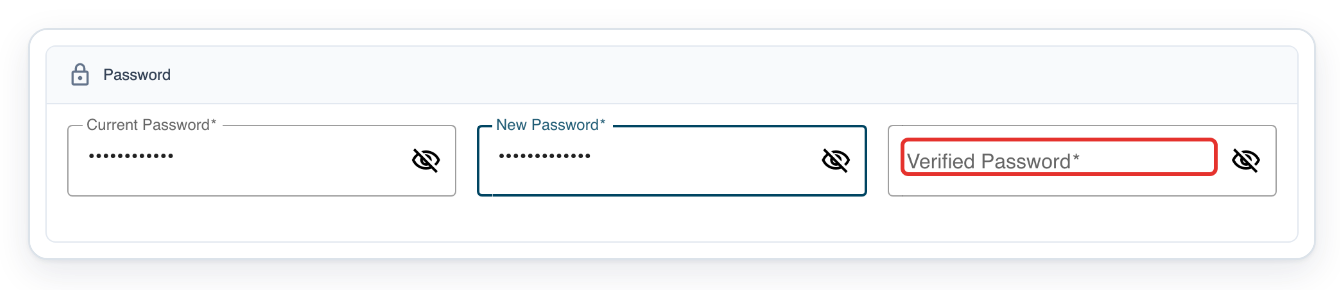
Click Save changes.
The button is at the bottom of the Security tab, below Account Recovery.
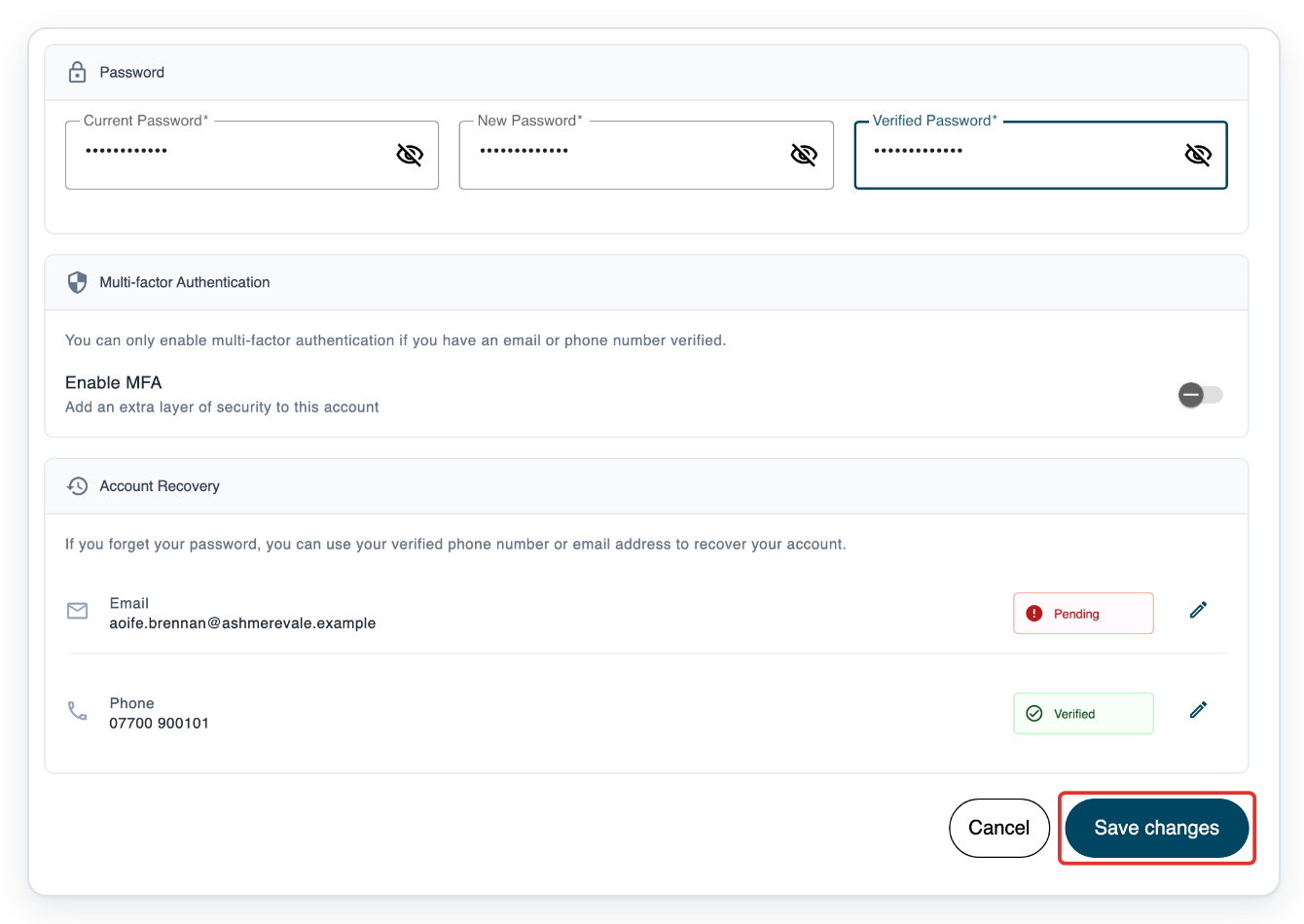
T-Pro shows Password updated successfully and clears the three password fields.
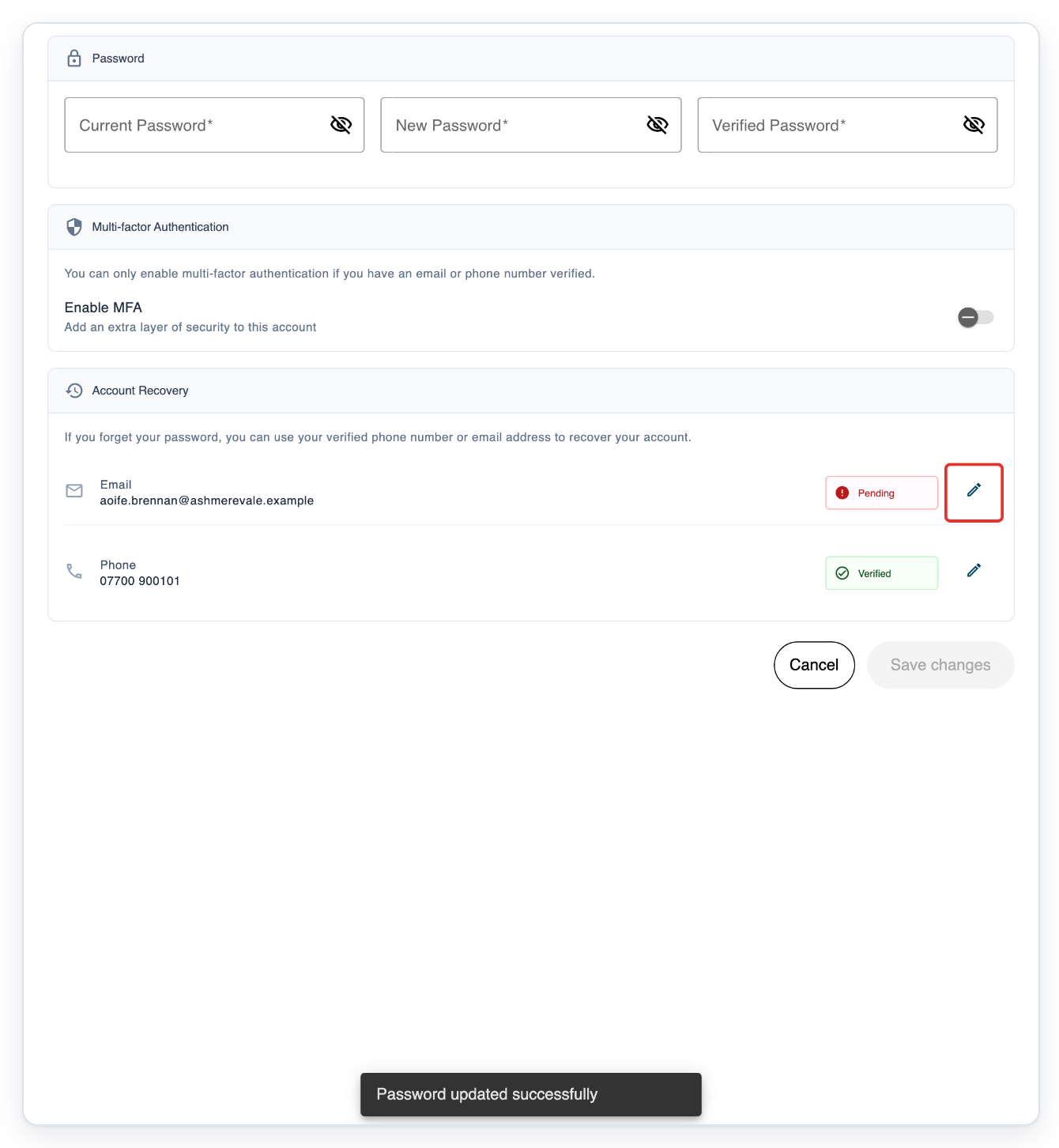
Under Account Recovery, click the pencil beside Email to add, change or verify your recovery address.
In this example, the address shows Pending, so it still needs to be verified.
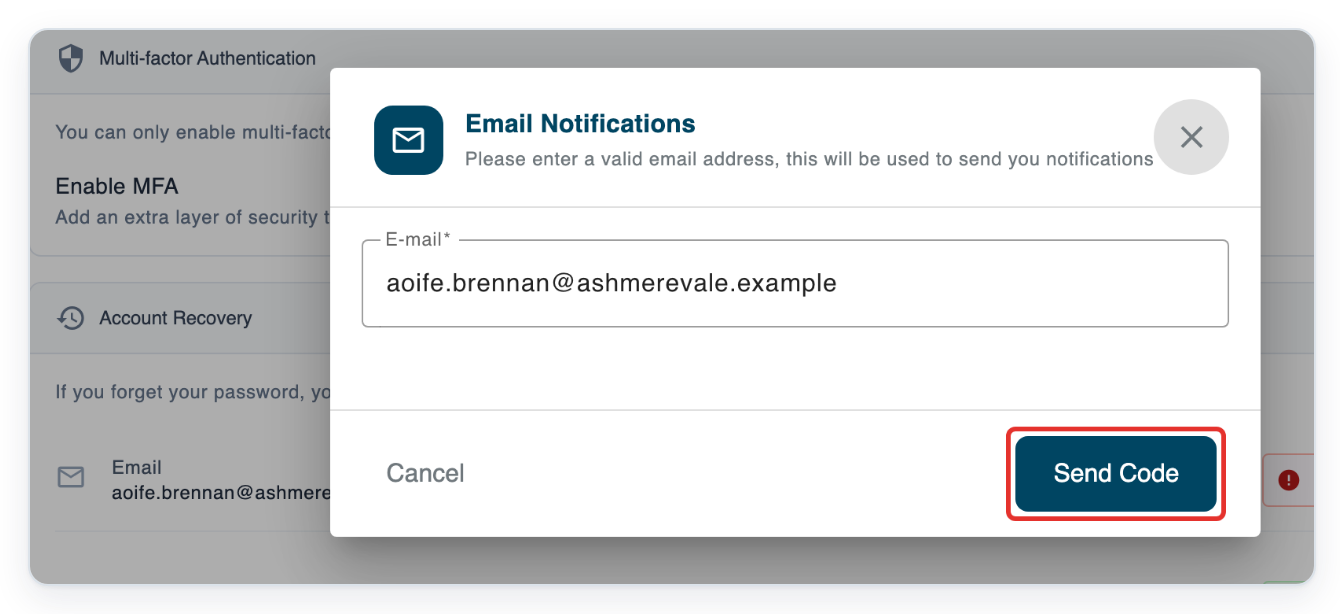
Check the address in E-mail, then click Send Code.
Keep the address shown to verify it, or enter the address you want to use for recovery. The dialog then asks for the code sent to that address.
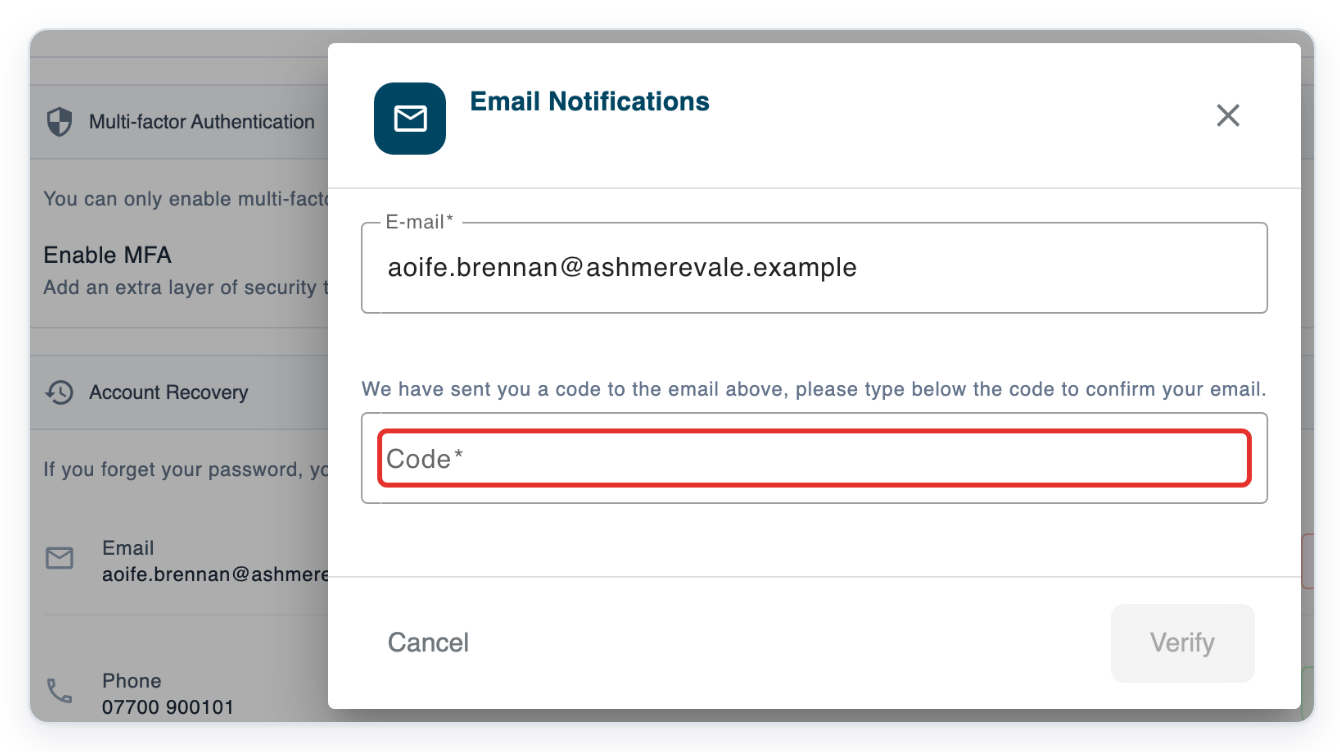
Enter the code received by email in Code.
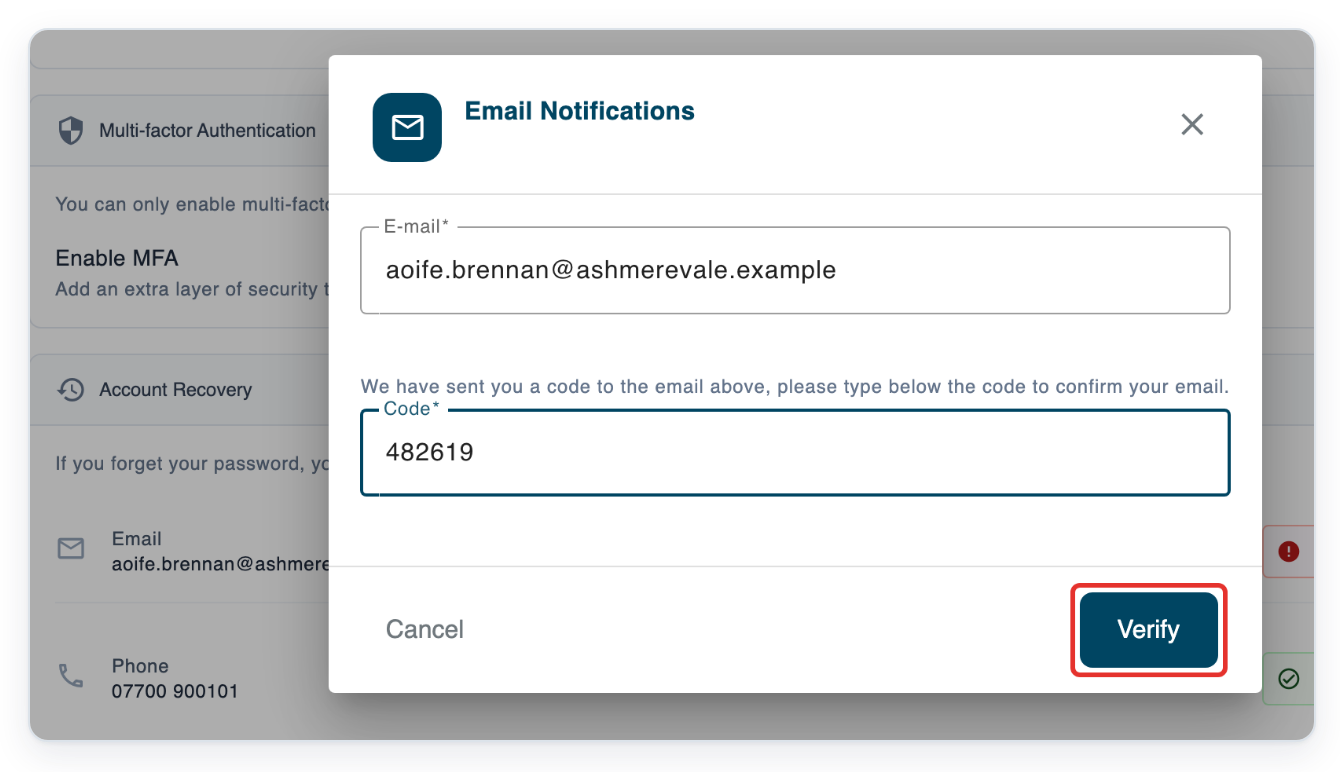
Click Verify to verify your recovery email and return to Account Recovery.
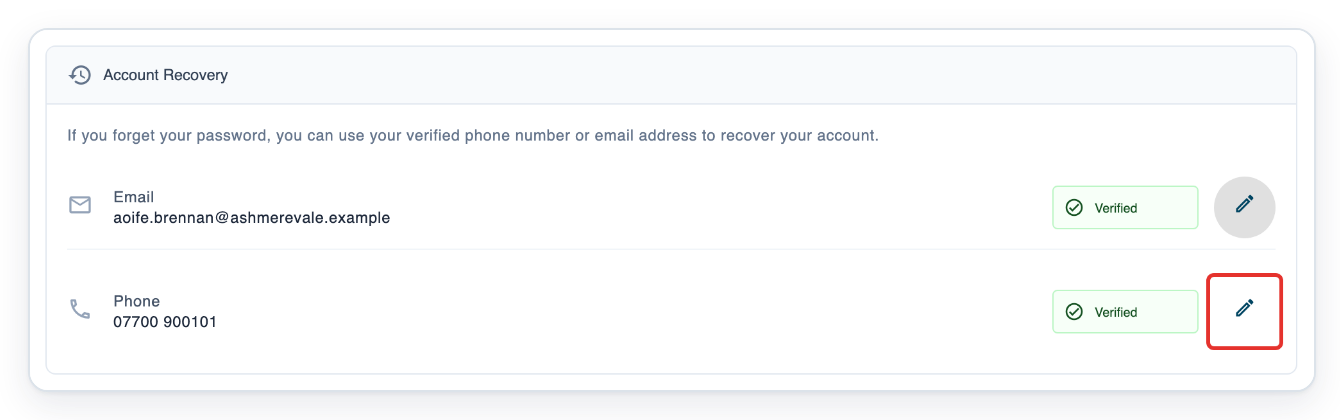
Email now shows Verified. Click the pencil beside Phone to add or change your recovery phone number.
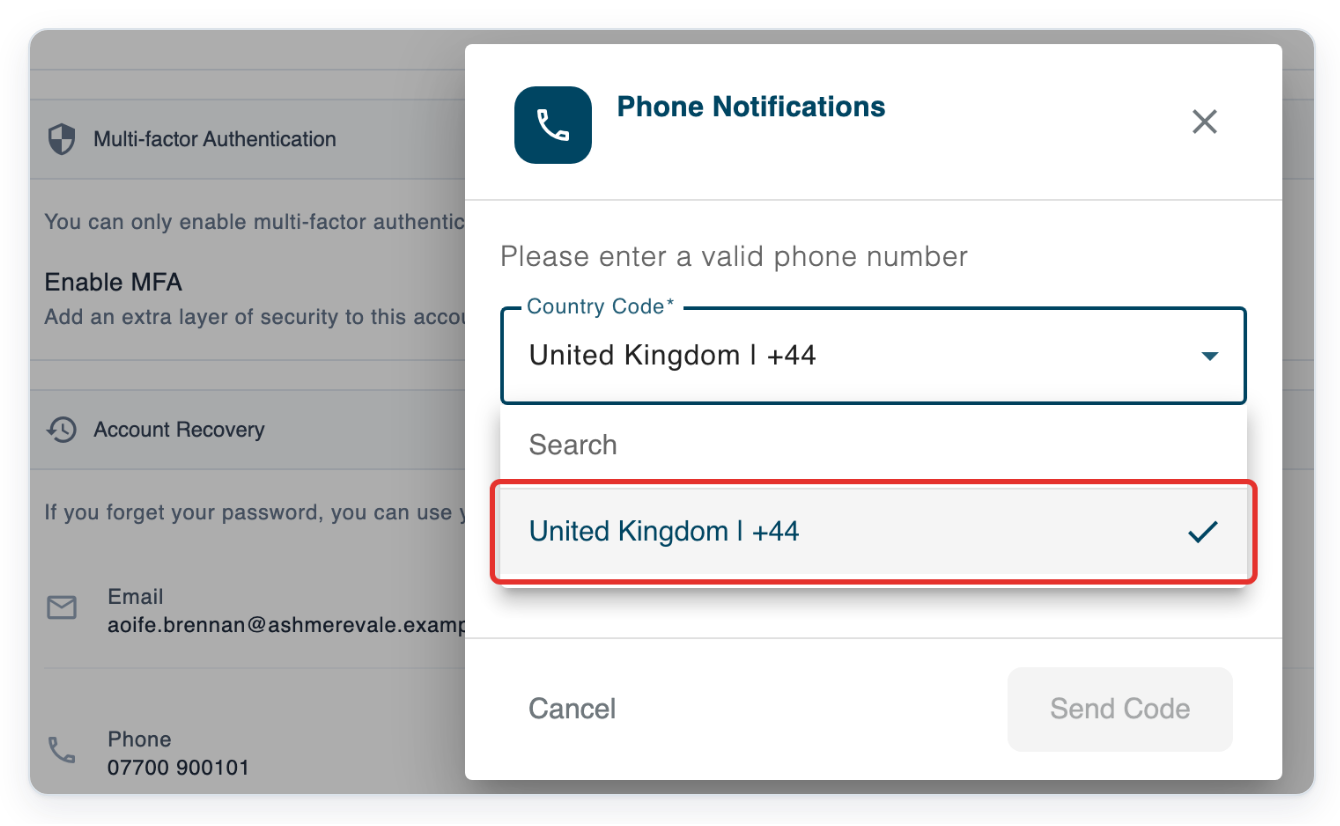
Open Country Code to choose the country calling code for your phone.
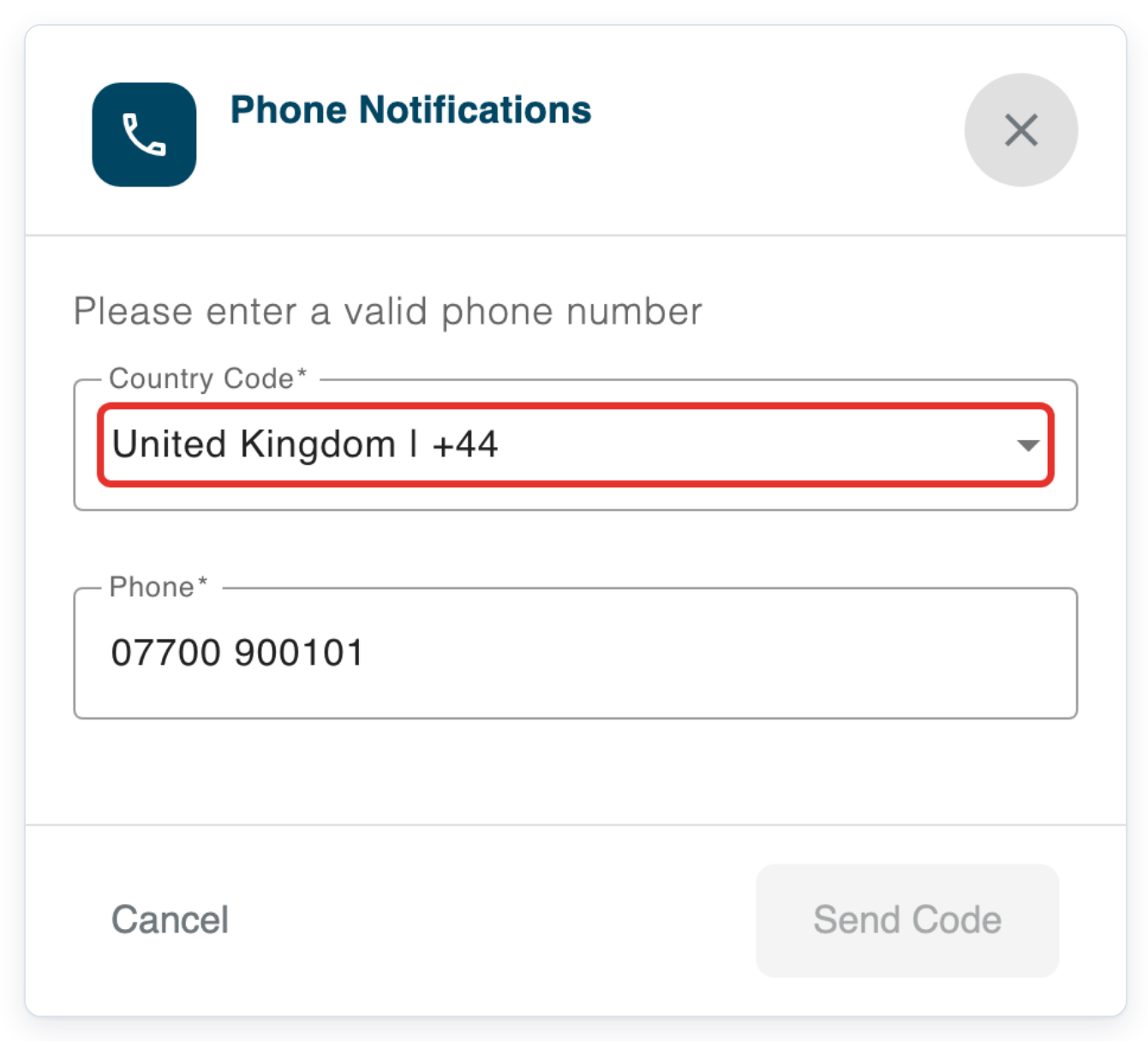
Select United Kingdom | +44 for a UK number.
Choose the country calling code for your own number if it is different.
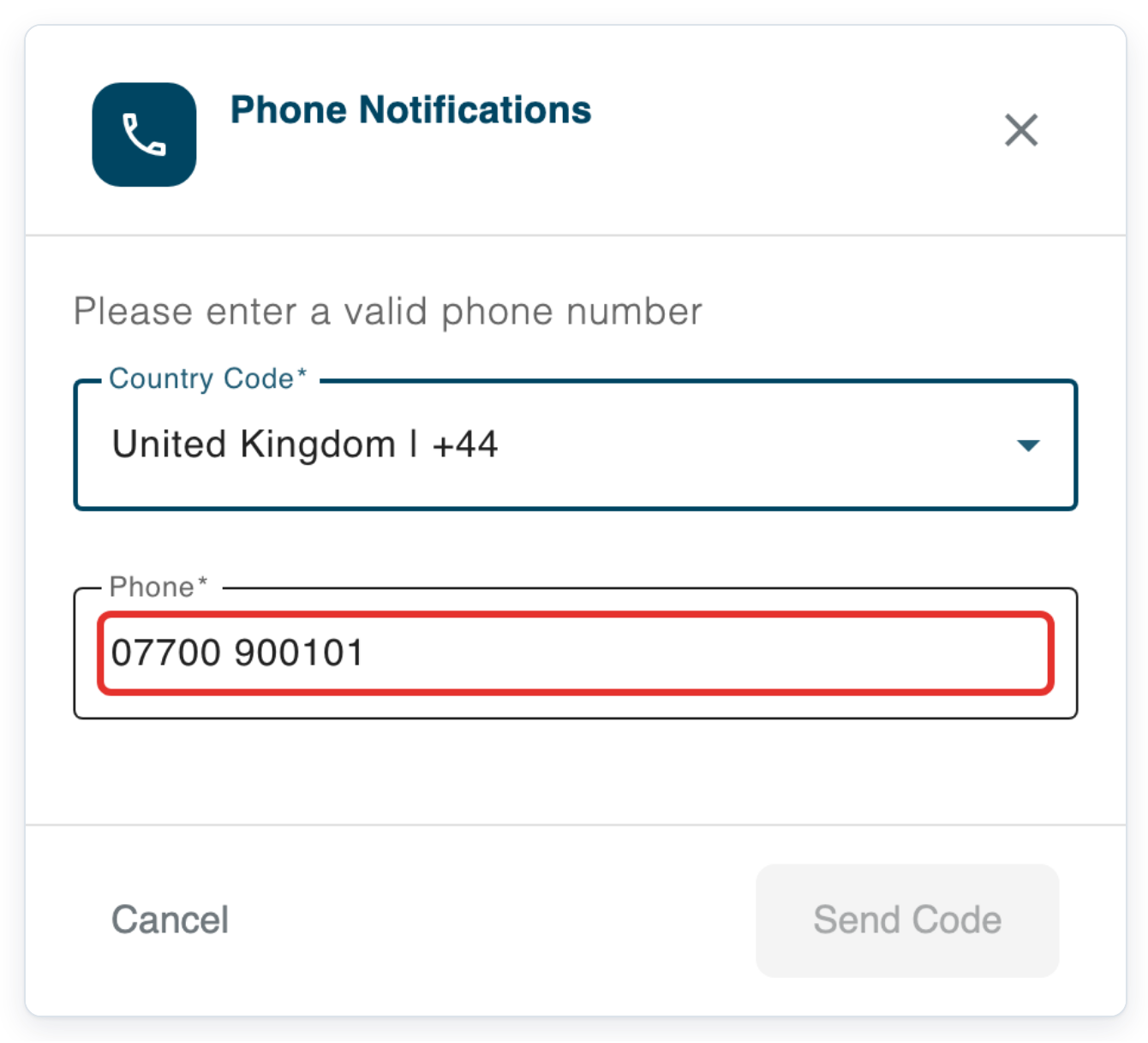
Enter your phone number without the country calling code in Phone.
Use 7 to 12 digits, with no spaces or punctuation. For the UK example shown, enter 7700900101 with +44 selected.
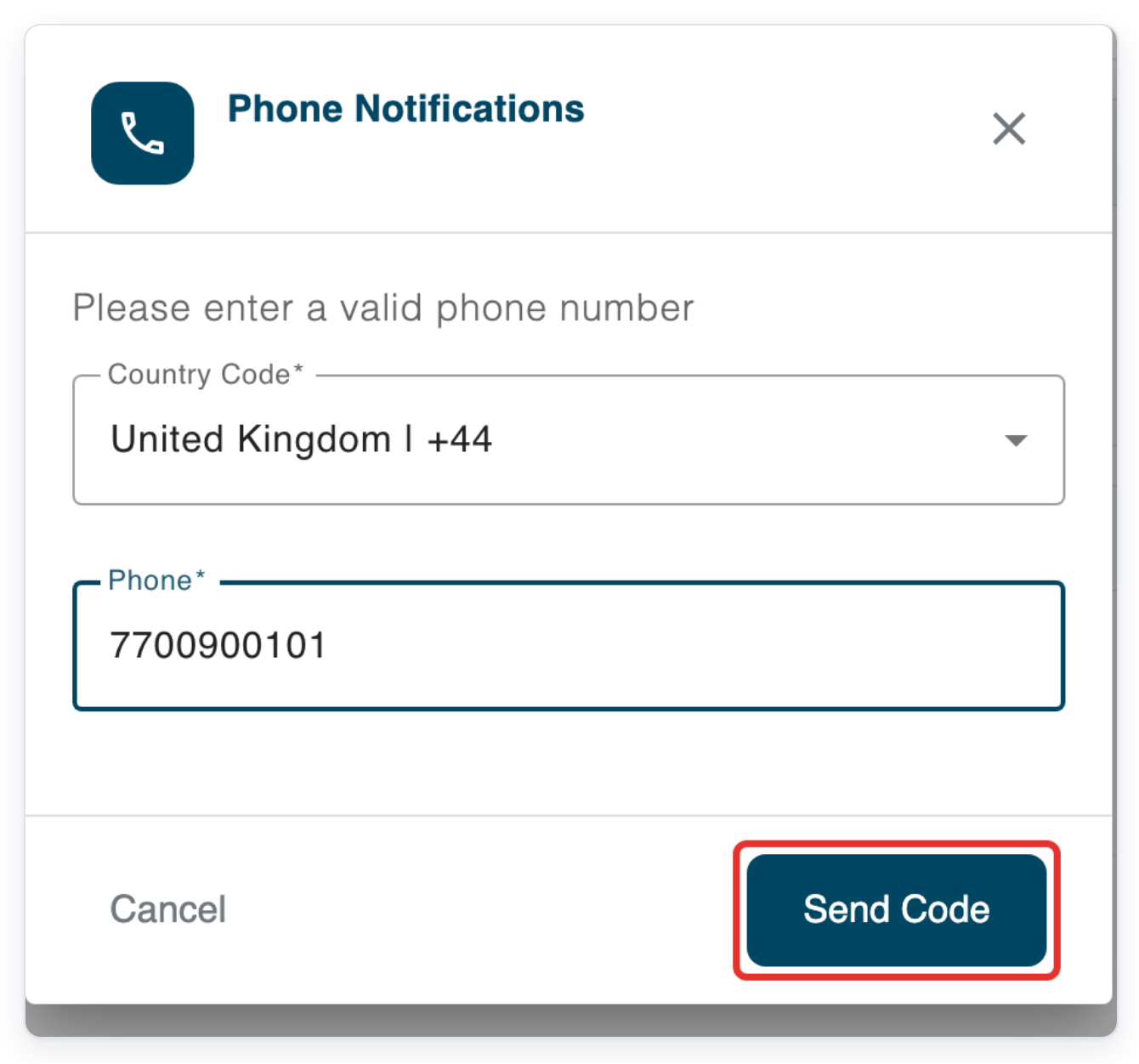
Click Send Code.
The dialog shows the phone number receiving the text message and asks for the code.
Enter the code received by text message in Code.
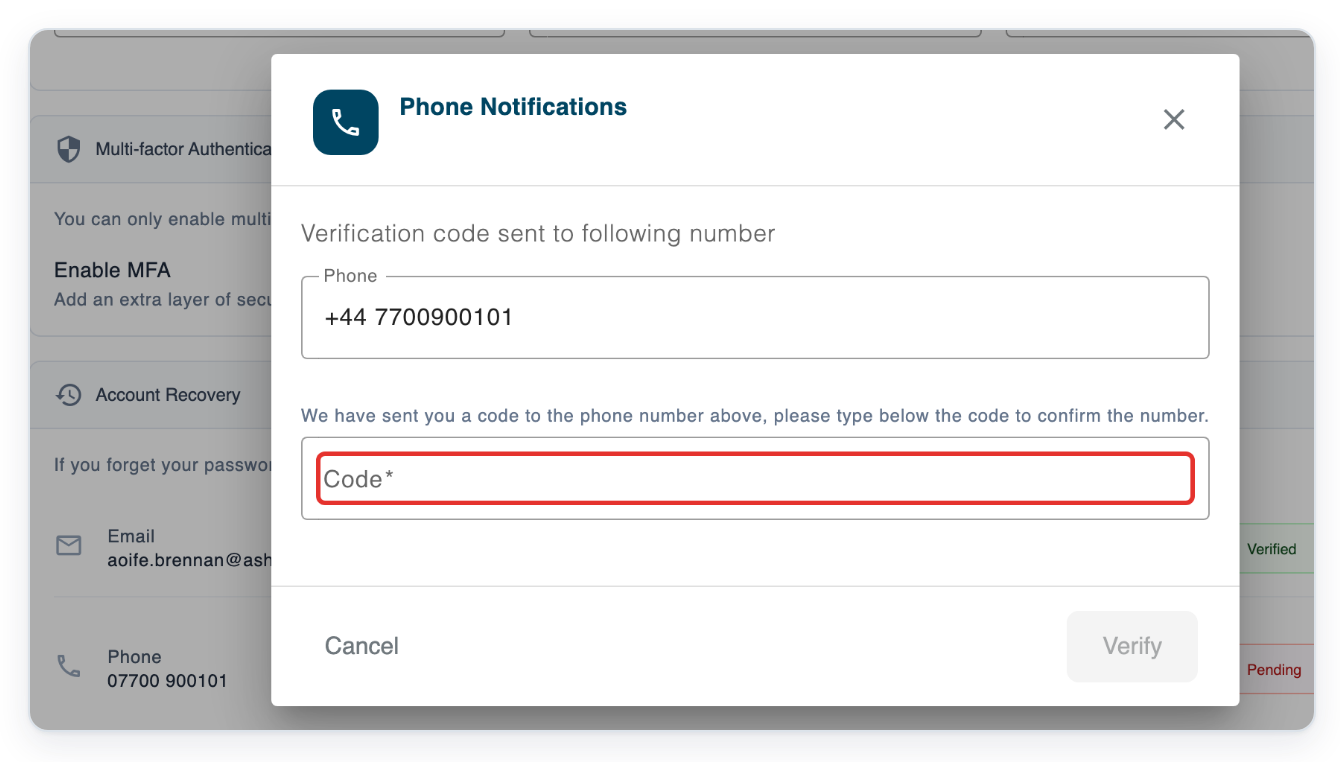
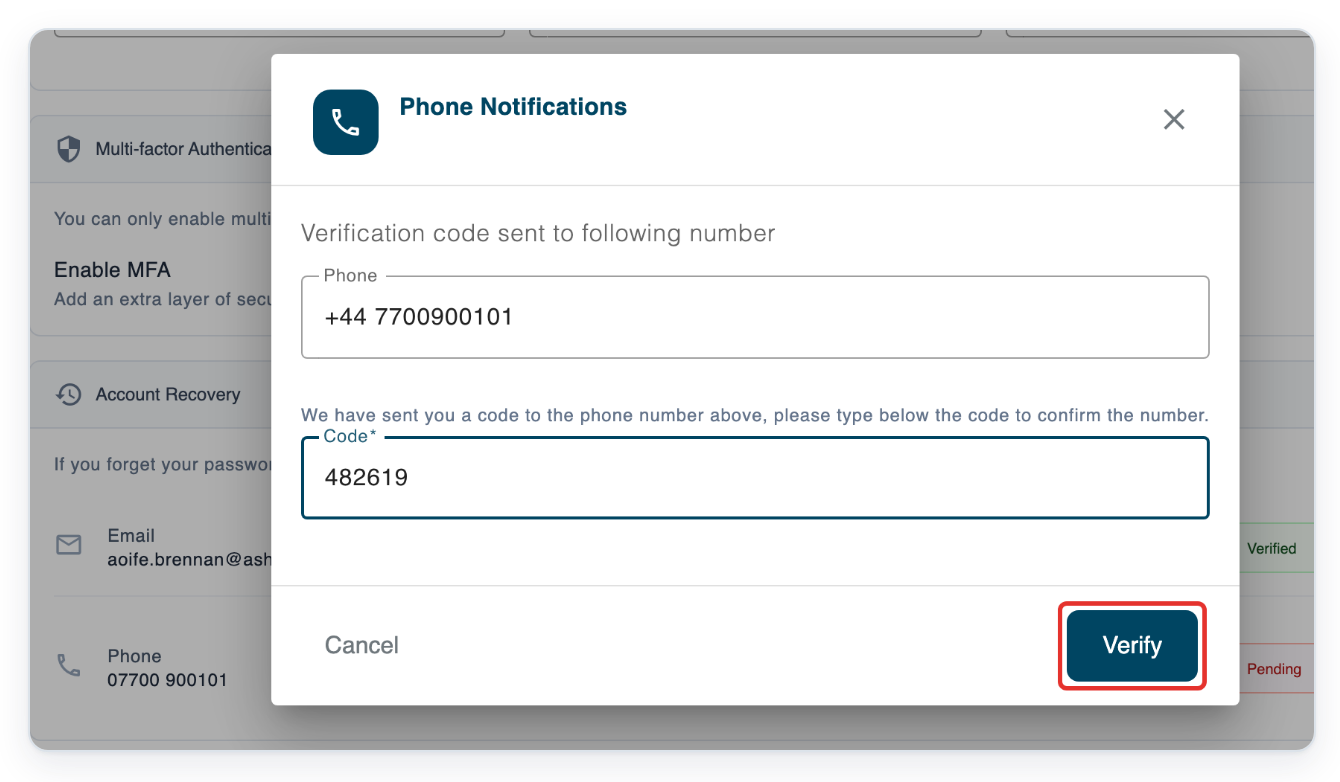
Click Verify to verify your recovery phone number and return to Account Recovery.
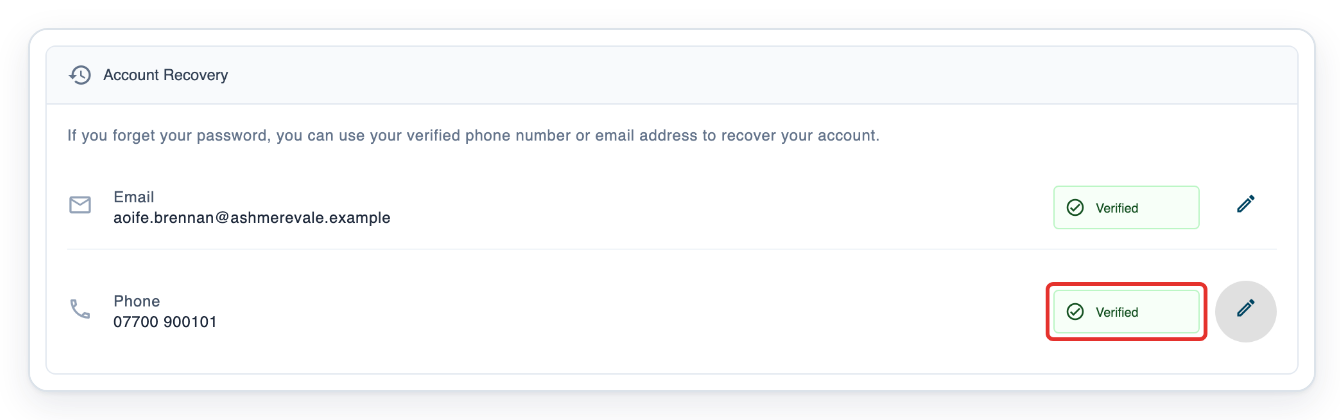
=> Account Recovery shows Verified beside both Email and Phone. You can use a verified contact to recover your account if you forget your password.
NOTE:
- Your organisation may set a minimum password length and require uppercase letters, lowercase letters, numbers or special characters. Check any messages below the password fields before saving.
- Recovery contacts must be verified before you can use them to recover your account.
Password rules on the Security tab
These rules apply when you change your password on the Security tab. Your organisation decides whether to require letters, numbers or special characters.
| Check | What your password needs |
|---|---|
| Length | Meet your organisation's minimum length. If none is set, use at least six characters. The maximum is 100 characters. |
| Uppercase letters | At least one uppercase letter from A to Z, if your organisation requires it. |
| Lowercase letters | At least one lowercase letter from a to z, if your organisation requires it. |
| Numbers | At least one number from 0 to 9, if your organisation requires it. |
| Special characters | At least one special character, such as ! or @, if your organisation requires it. |
| Spaces | Leave out spaces, including at the start or end of your password. |
Tip: Use the eye icon beside a password field to check what you've typed. Click it again to hide the password.
Can't change your password?
- Your new passwords don't match. Enter the same password in New Password and Verified Password, then save again.
- Your new password doesn't meet a requirement. Follow the message below the field, then save again.
- Your current password isn't accepted. Check what you've entered and try again. If you've forgotten it, use account recovery.
- T-Pro shows “Invalid verification code”. Check the recovery code you received and enter it again.
- You can't use account recovery for your Active Directory account. Contact your system administrator to reset your password.
Related articles
If you have any more queries, please do not hesitate to contact our Helpdesk or support@tpro.io.
© 2020 - 2026