
Before you start
You need a manager or transcriber account with access to the task. Managers can view its route when one is assigned.
Log in to T-Pro with your manager or transcriber credentials.
As a manager
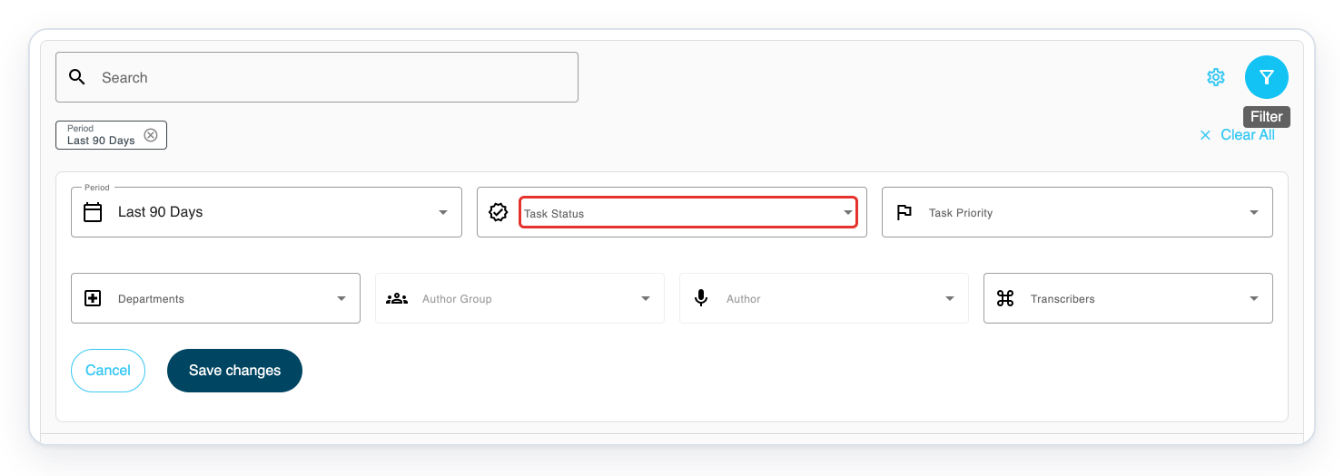
Go to All Tasks. Click Filter (the funnel) above the list to show the filters.
Check the task's current stage in the Status column.

Click Task Status to open the status choices.
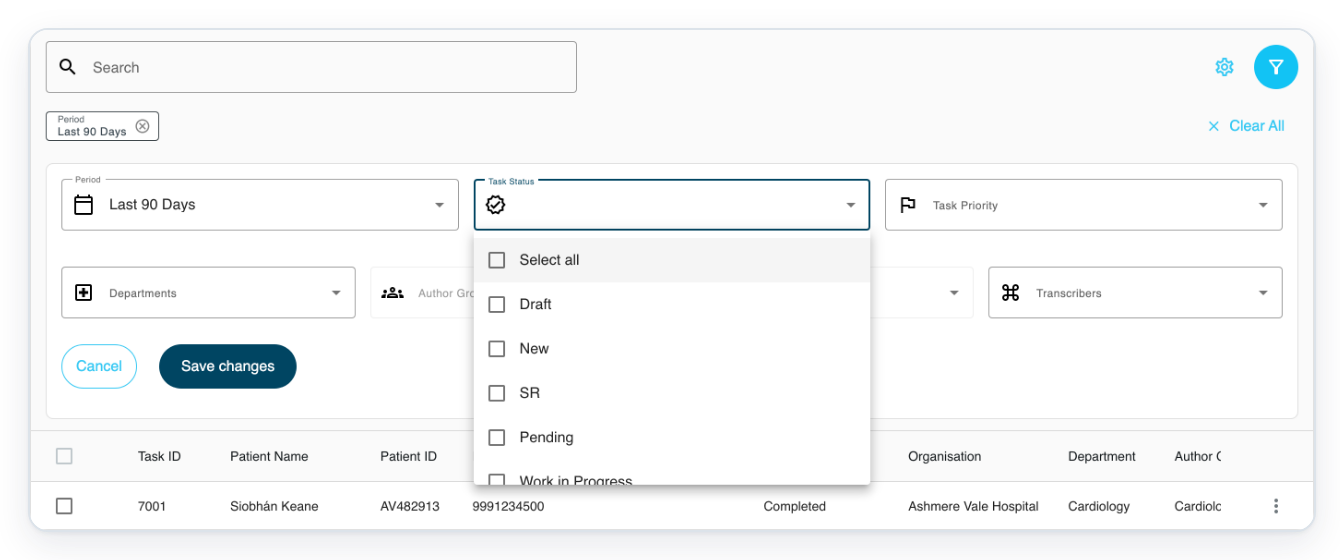
Scroll down the list to see more statuses.
=> The first choices are Draft, New, SR and Pending.
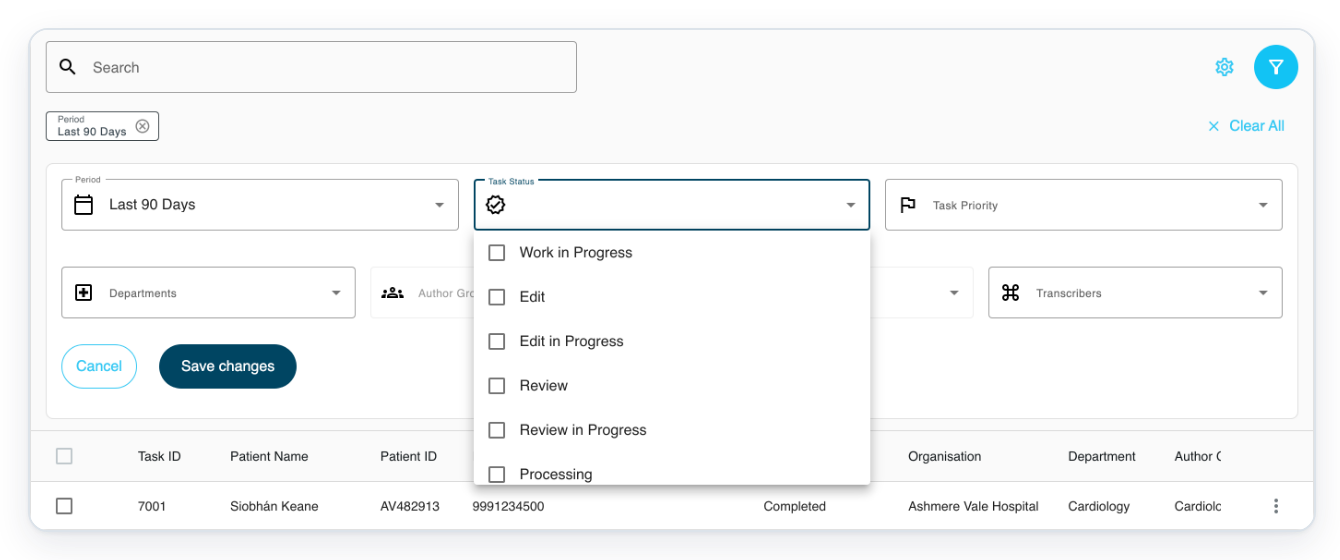
=> Further down are Work in Progress, Edit, Edit in Progress, Review and Review in Progress.
=> Next are Processing, Processing in Progress, Waiting for Approval, Waiting for Second Approval and Store.
Processing lets facility staff add information, such as test results, before sending the document for approval. Store follows approval.
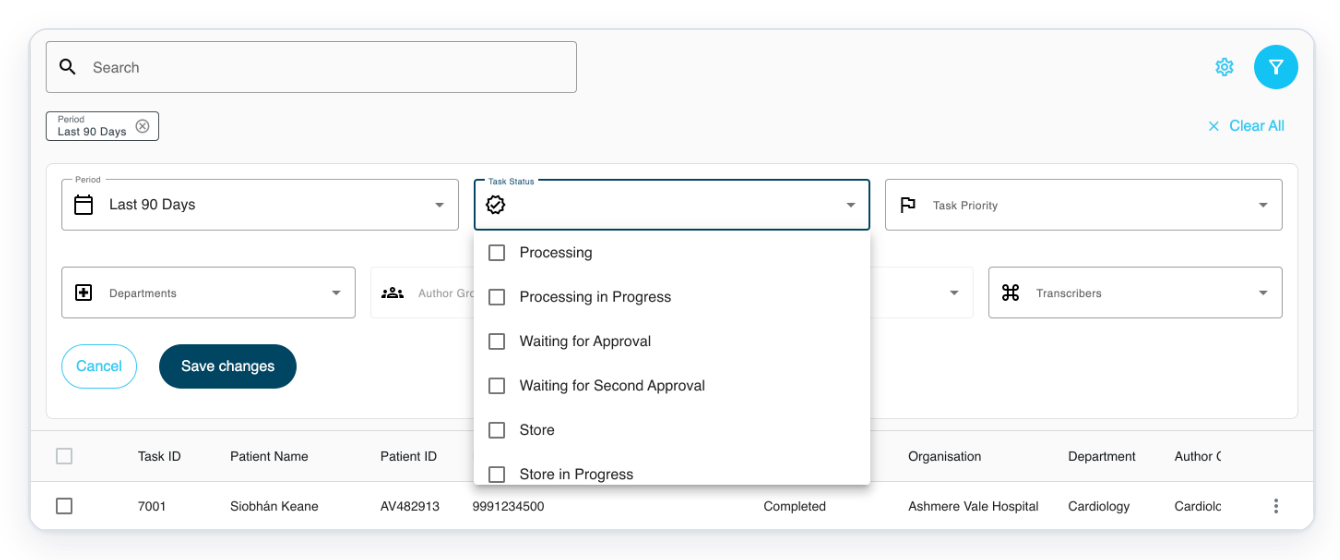
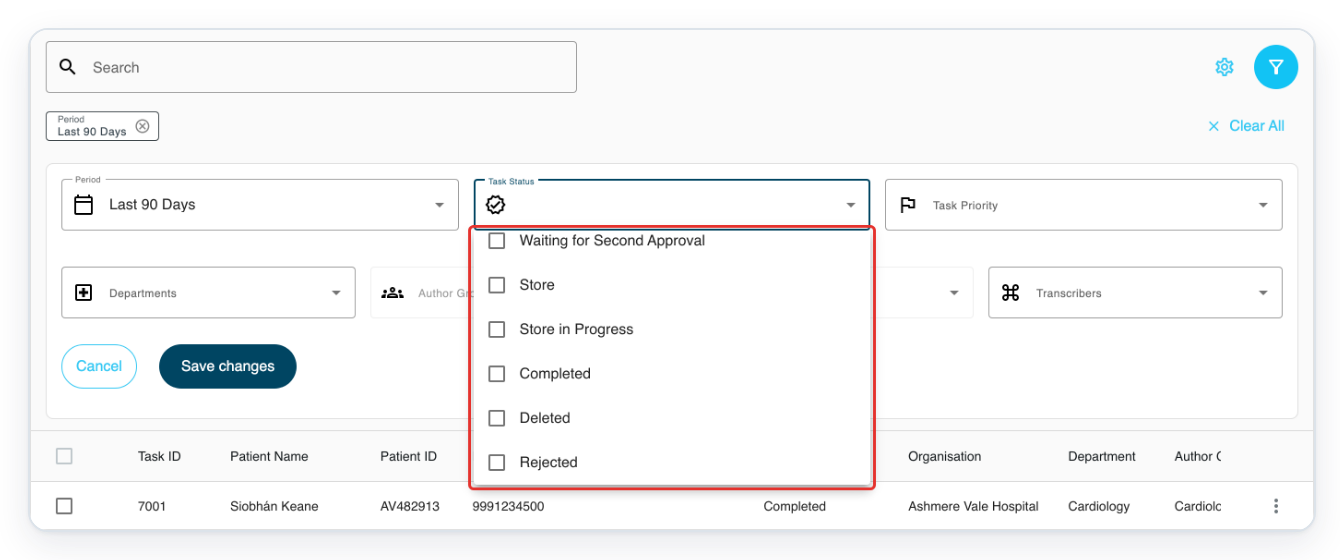
At the bottom are Store in Progress, Completed, Deleted and Rejected. Press Escape to close the choices.
Store allows downloading and printing before finalisation. Deleting early work produces Deleted. Deleting work at processing, approval, storing or completion produces Rejected. Sending work back returns it to an earlier stage for changes.
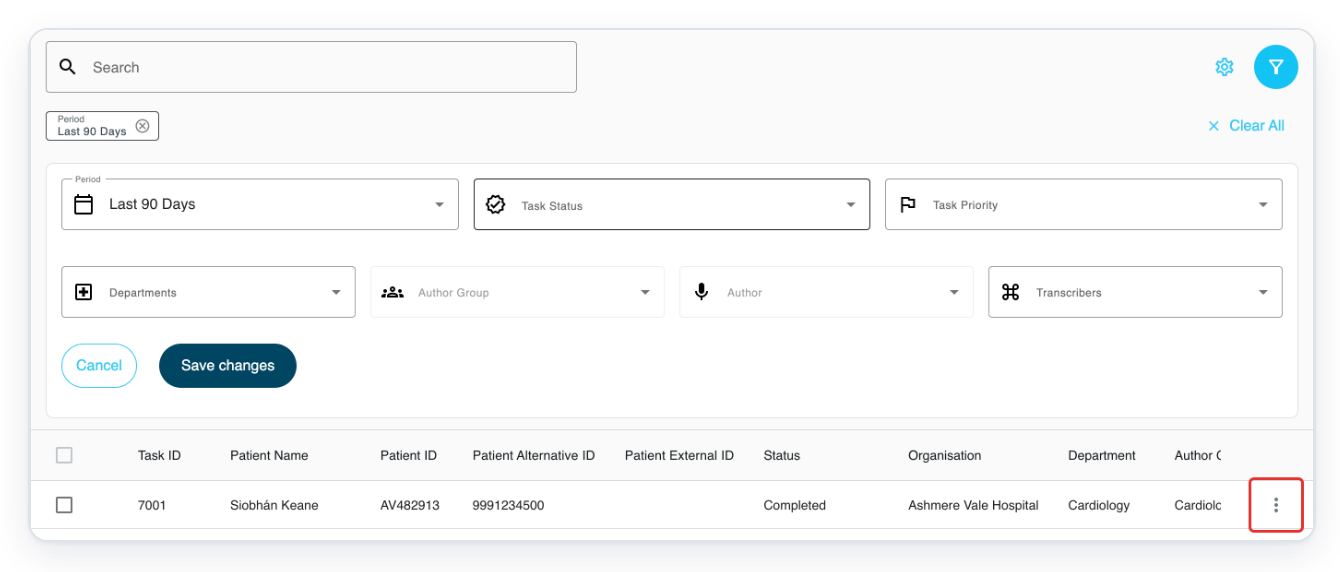
Click Task options (the three dots) beside the task you want to check.
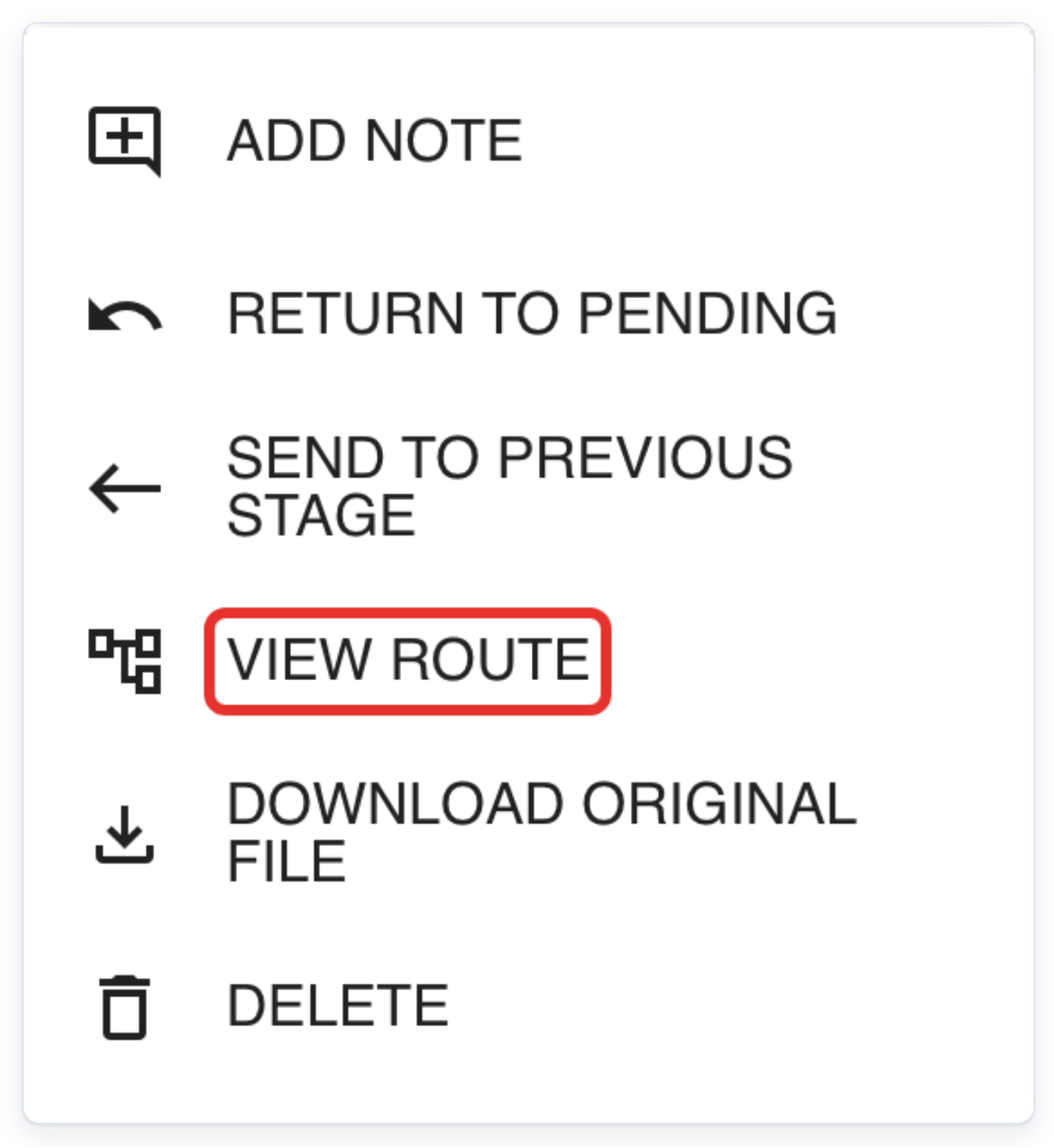
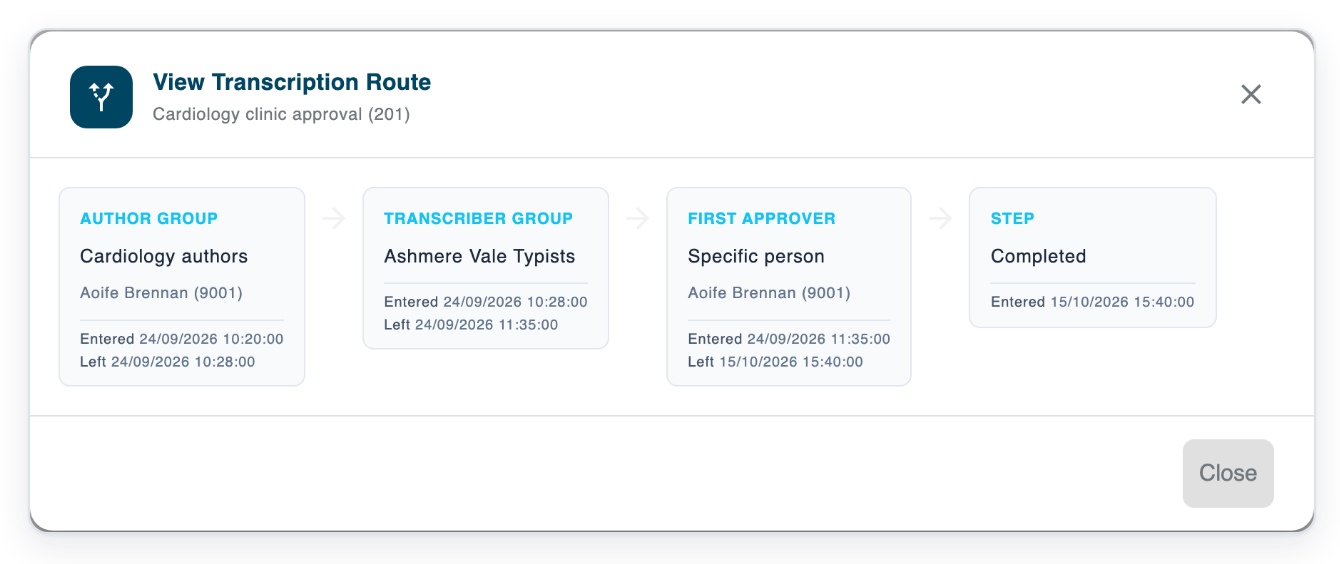
Click View Route to see the task's workflow.
=> In this example, View Transcription Route shows the author group, Transcriber Group, First Approver and Completed. Entered and Left show when the task entered and left each stage.
As a transcriber
Click Live Tasks in the main navigation to open the stage queues.

Click Pending to see tasks waiting to be typed.
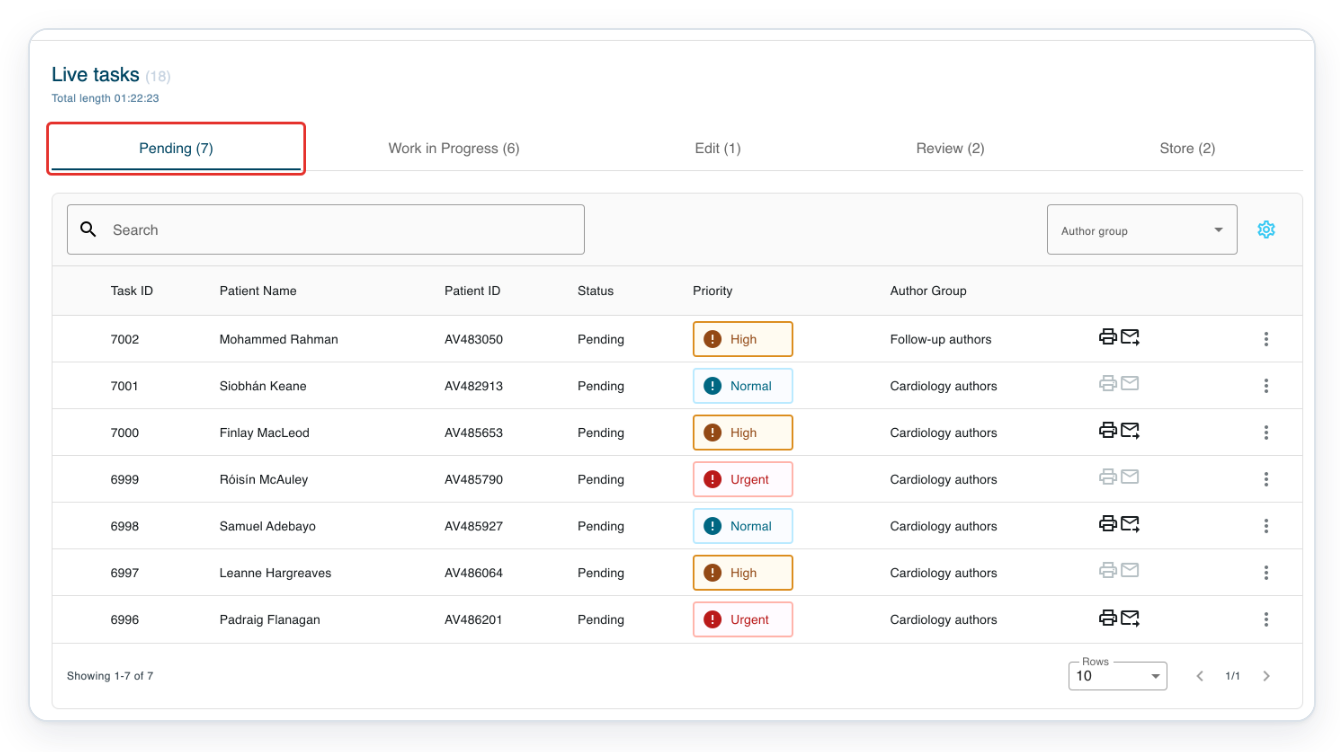
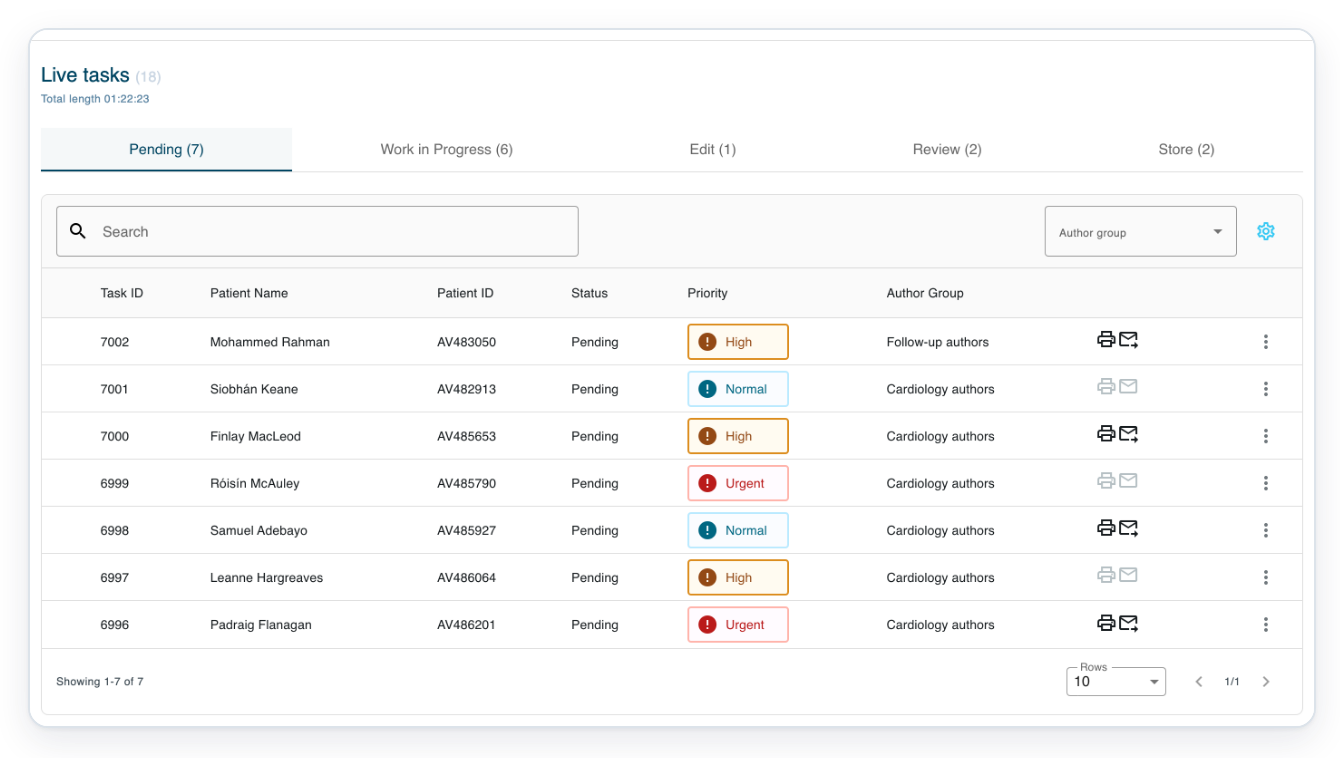
=> In Live tasks, check the queues above the list: Pending, Work in Progress, Edit, Review and Store.
As an author
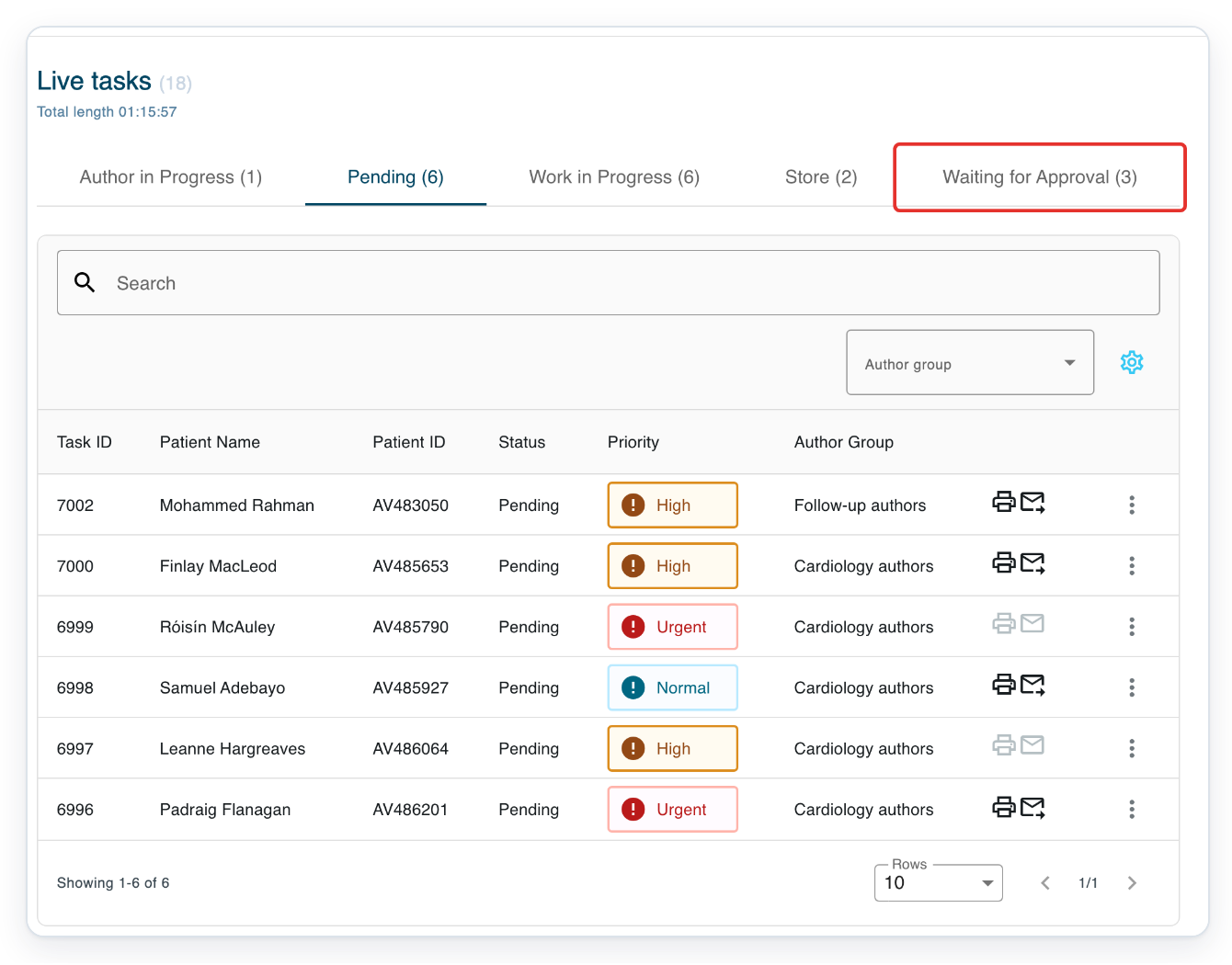
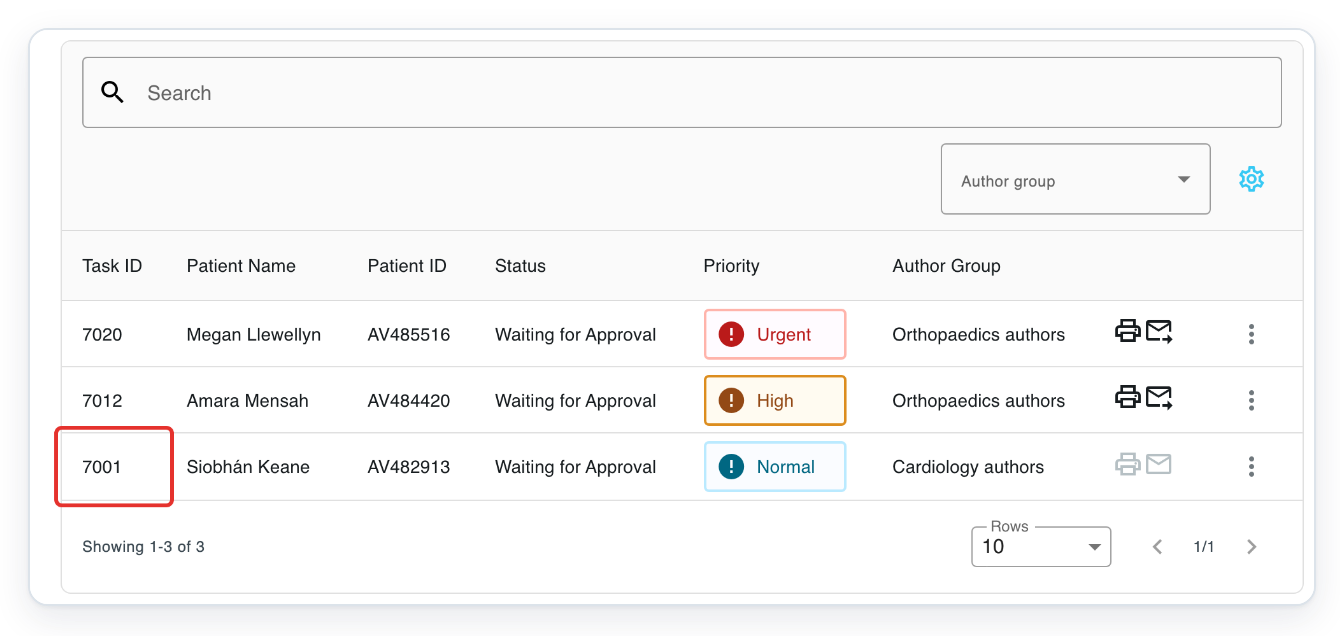
With your author account, go to Live Tasks. Click Waiting for Approval to see letters awaiting approval.
Click the task you want to open. In this example, click task 7001 for Siobhán Keane.
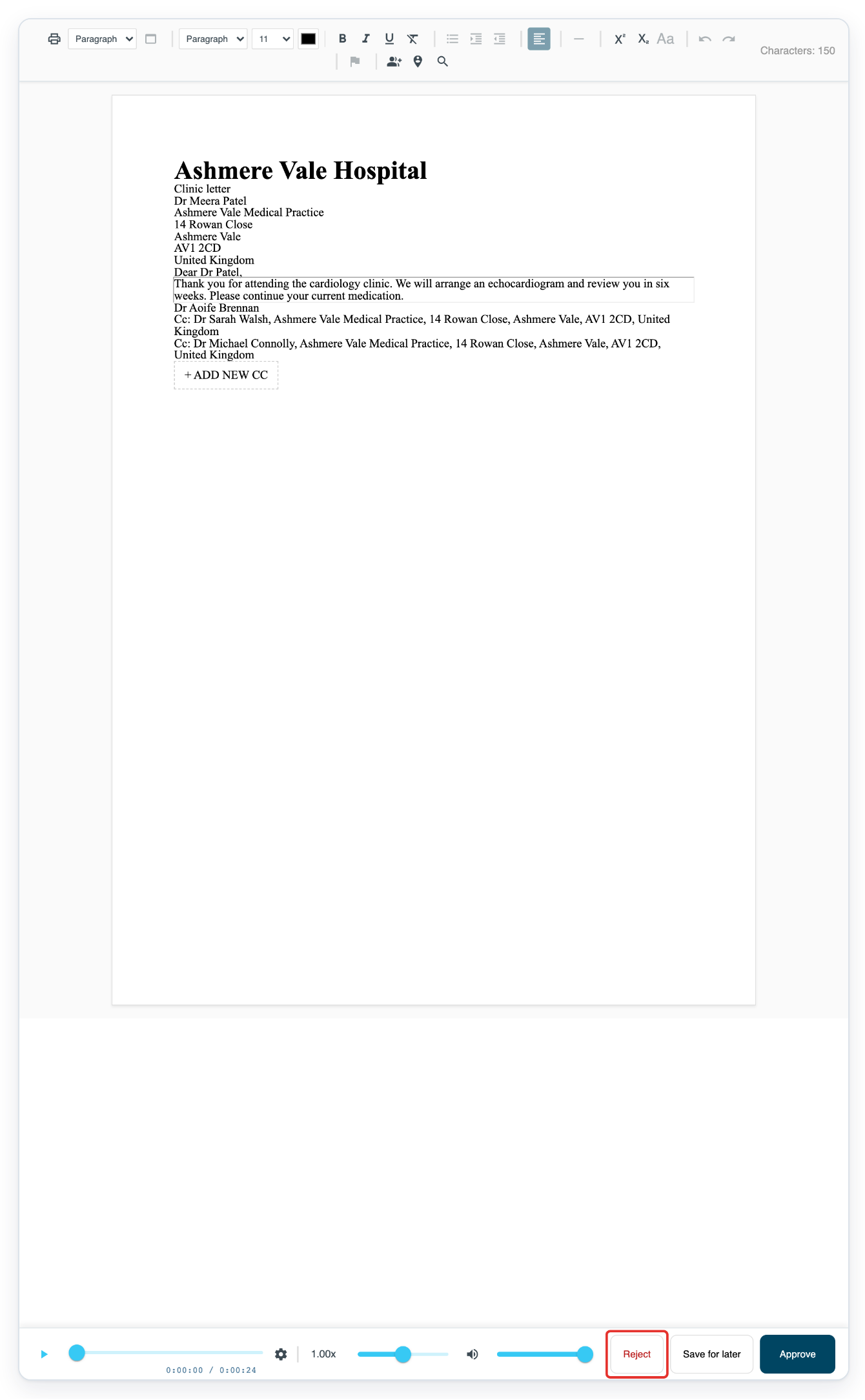
The letter opens with Reject, Save for later and Approve buttons.
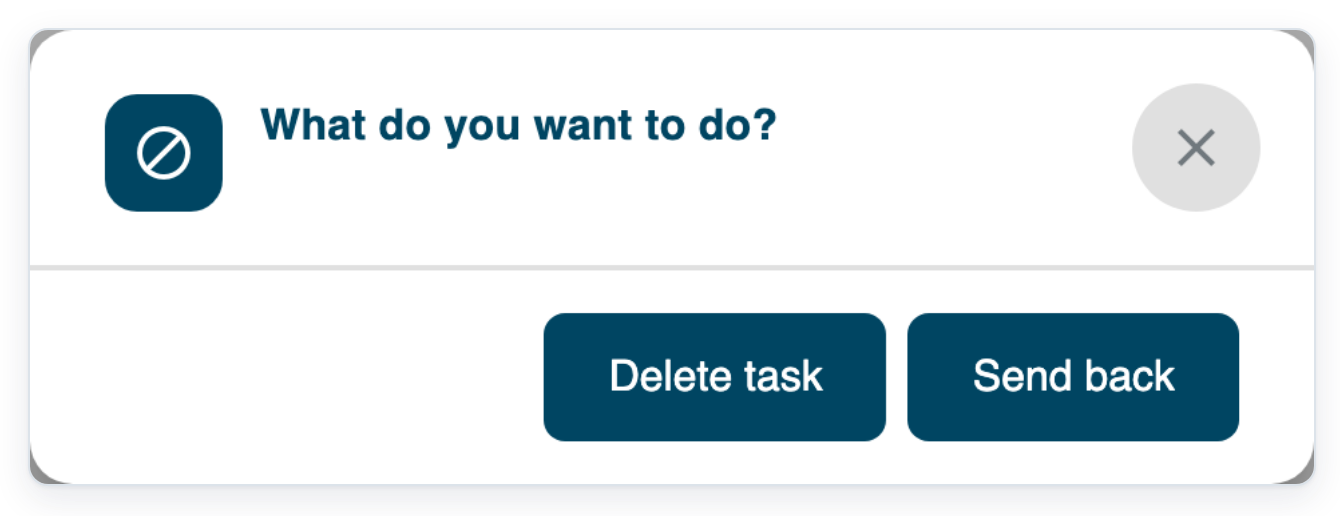
If the letter needs changes, click Reject to open What do you want to do?
=> Delete task rejects this letter awaiting approval. Send back returns it to an earlier stage for changes.
NOTE:
- A transcription route sets the stages a task follows. Author groups in the same department can use different routes.
- A queue can include several statuses. Read the task's Status to check its exact stage.
- Keep as WIP saves your work at the current stage. Save sends finished typing, editing, review or processing work to the next stage.
- Names you may recognise: Author Work in Progress → Draft; VR → SR; Edit | Pending → Edit; Edit | In progress → Edit in Progress; Review | Pending → Review; Review | In progress → Review in Progress; Processing | Pending → Processing; Processing | Progress → Processing in Progress; Store | Pending → Store; Store | In progress → Store in Progress.
What each status means
Your task's route sets the stages it needs. Finalising a draft may send it for approval or storing.
| Status | What it means and what moves it on | Name you may recognise |
|---|---|---|
| Draft | The author is preparing the task. When ready, they choose Send to editor if available, or Finalise. | Author Work in Progress |
| New | The recording is being prepared for the workflow. It moves on automatically once the audio is ready. | New |
| SR | Speech recognition is processing the recording. The task moves on automatically when this finishes. | VR |
| Pending | Waiting to be transcribed. A transcriber opens the task to begin work. | Pending |
| Work in Progress | A transcriber has taken the task for typing. They finish the document and click Save to send it to the next stage. | Work in Progress |
| Edit | Waiting for editing. An editor opens the task to begin work. | Edit | Pending |
| Edit in Progress | An editor has taken the document for editing. They click Save after editing to move the task on. | Edit | Progress |
| Review | Waiting for a quality review. A reviewer opens the task to begin work. | Review | Pending |
| Review in Progress | A reviewer has taken the document for review. They click Save after the review to move the task on. | Review | Progress |
| Processing | Waiting for processing before the next stage. Someone in the processing group opens the task to begin work. | Processing | Pending |
| Processing in Progress | Someone in the processing group has taken the document for processing. They click Save once processing is finished to move the task on. | Processing | Progress |
| Waiting for Approval | Waiting for the first approver to check the document. They click Approve to send the task to the next stage. | Waiting for Approval |
| Waiting for Second Approval | Waiting for the second approver to check the document. They click Approve to send the task to the next stage. | Waiting for Second Approval |
| Store | Waiting for a storer to finalise the task. They open it to begin work. | Store | Pending |
| Store in Progress | A storer has taken the document for final checks. When it's ready, they click Finalise to complete the task. | Store | Progress |
| Completed | The task has reached the end of its route. Find it in All Tasks. | Completed |
| Deleted | The task has been deleted and has left the active workflow. Ask your administrator if it needs more work. | Deleted |
| Rejected | The task has been rejected and has left the active workflow. Ask your administrator if it needs more work. | Rejected |
Other places you can check a status
- With a task open, read Status in the details at the top.
Tip: To find tasks at a particular stage, choose the statuses under Task Status in All Tasks. Click Save changes to apply the filter.
Can't check a task's status?
- Can't see the Status column? Clear any selected tasks, then click the cog above the list. Tick Status in the column settings. Click the cross to close the panel.
- Can't find View Route? It's available to managers in All Tasks when the task has a route. Otherwise, check Status in the list and ask your manager about the route.
Related articles
- Work from Live Tasks
- Search for tasks in All Tasks
- Move a task to another stage
- Create a transcription route
If you have any more queries, please do not hesitate to contact our Helpdesk or support@tpro.io.
© 2020 - 2026