
Before you start
You need manager or administrator access. Have the new user’s name, email address and temporary password ready. To create an account in a group, you also need access to its department and group. Follow either the administrator or manager steps below.
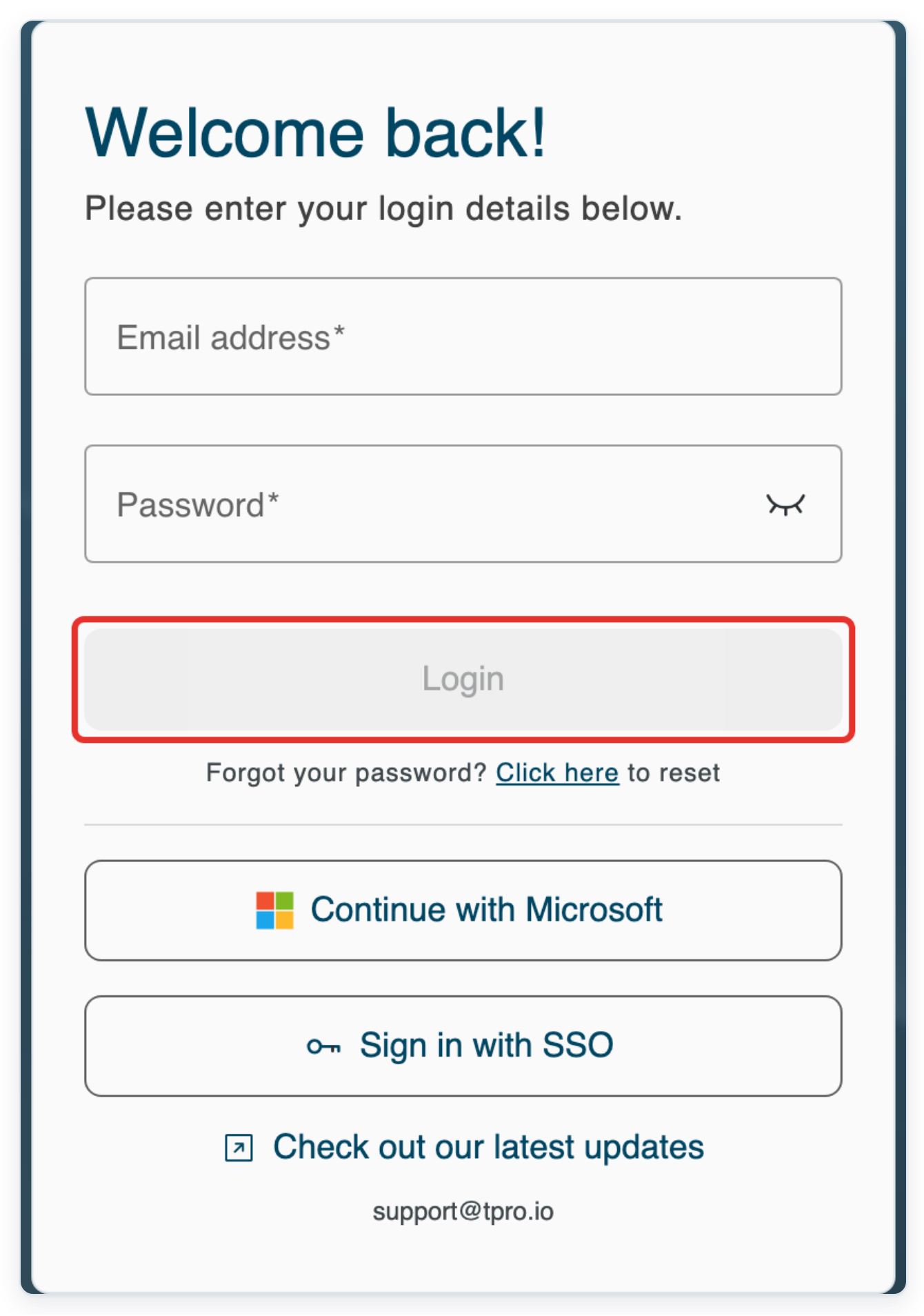
Log in to T-Pro with your manager or administrator credentials.
As an administrator
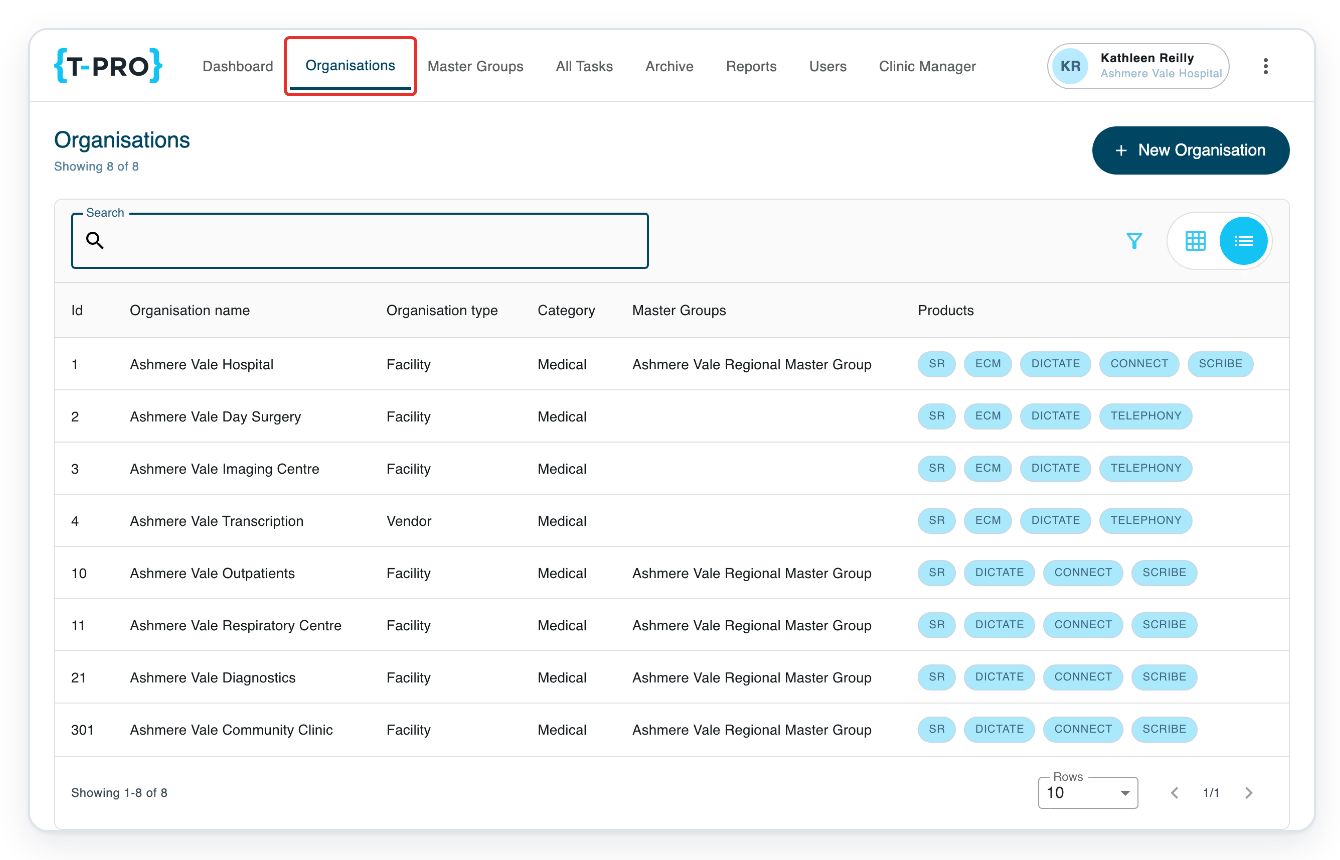
Click Organisations in the top menu to find the facility.
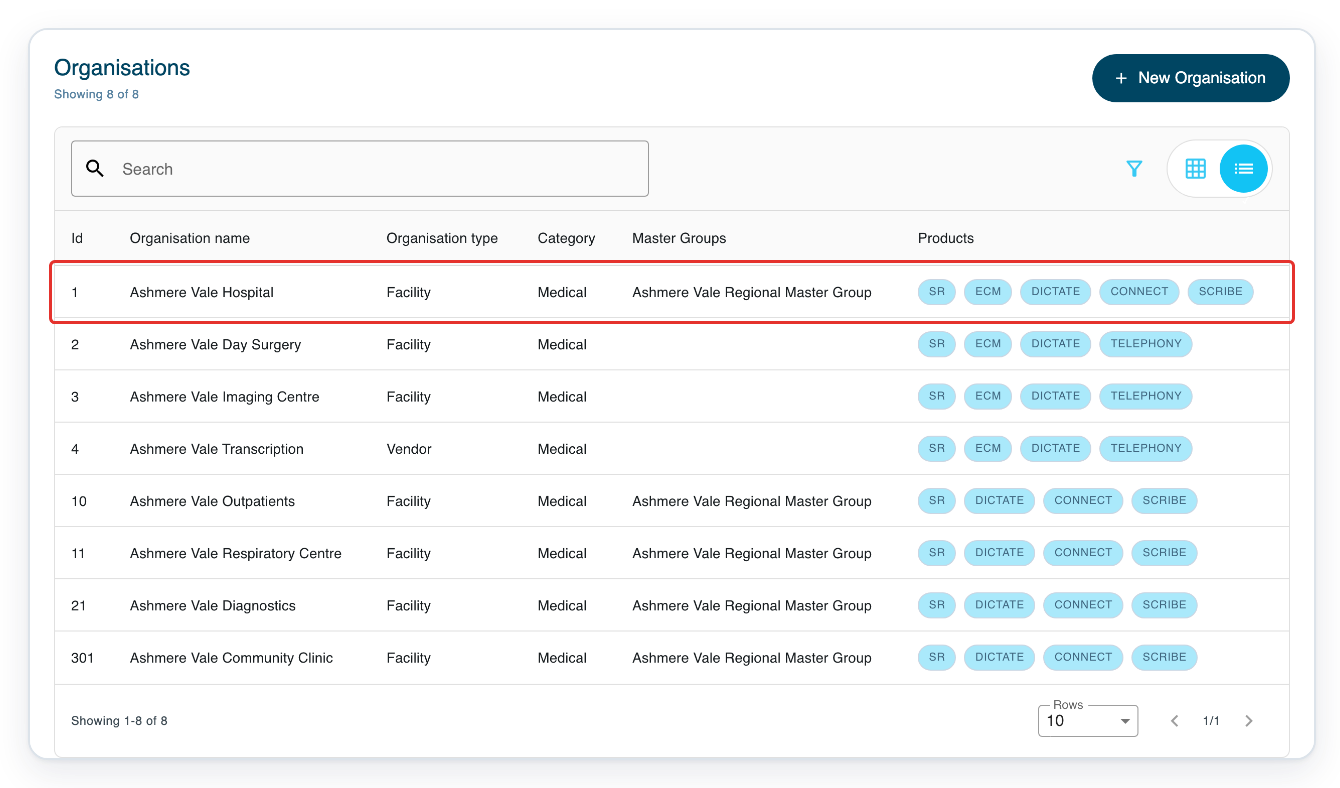
Click your facility. This example uses Ashmere Vale Hospital.
To find a facility in a longer list, enter its name in Search and press Enter.
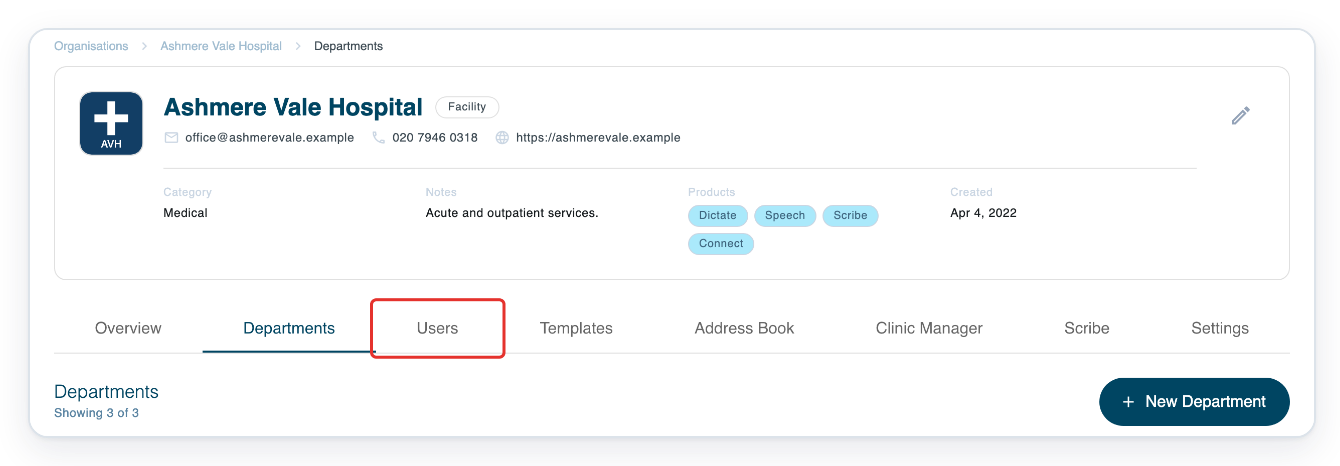
Click the facility’s Users tab to see its accounts.
Click New User to open the account form.
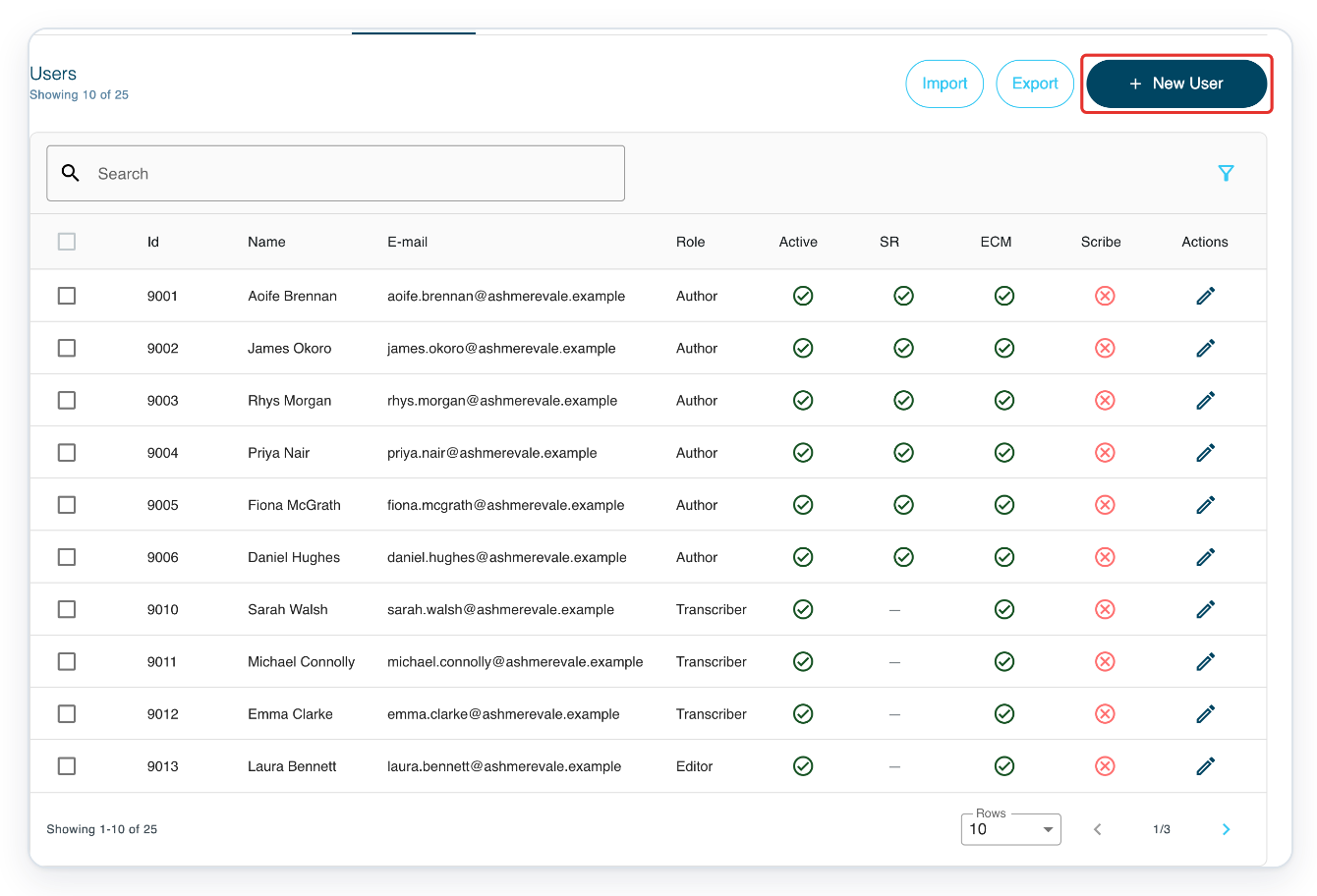
Open Role to see the options.
Choose a role that matches the new user’s work.
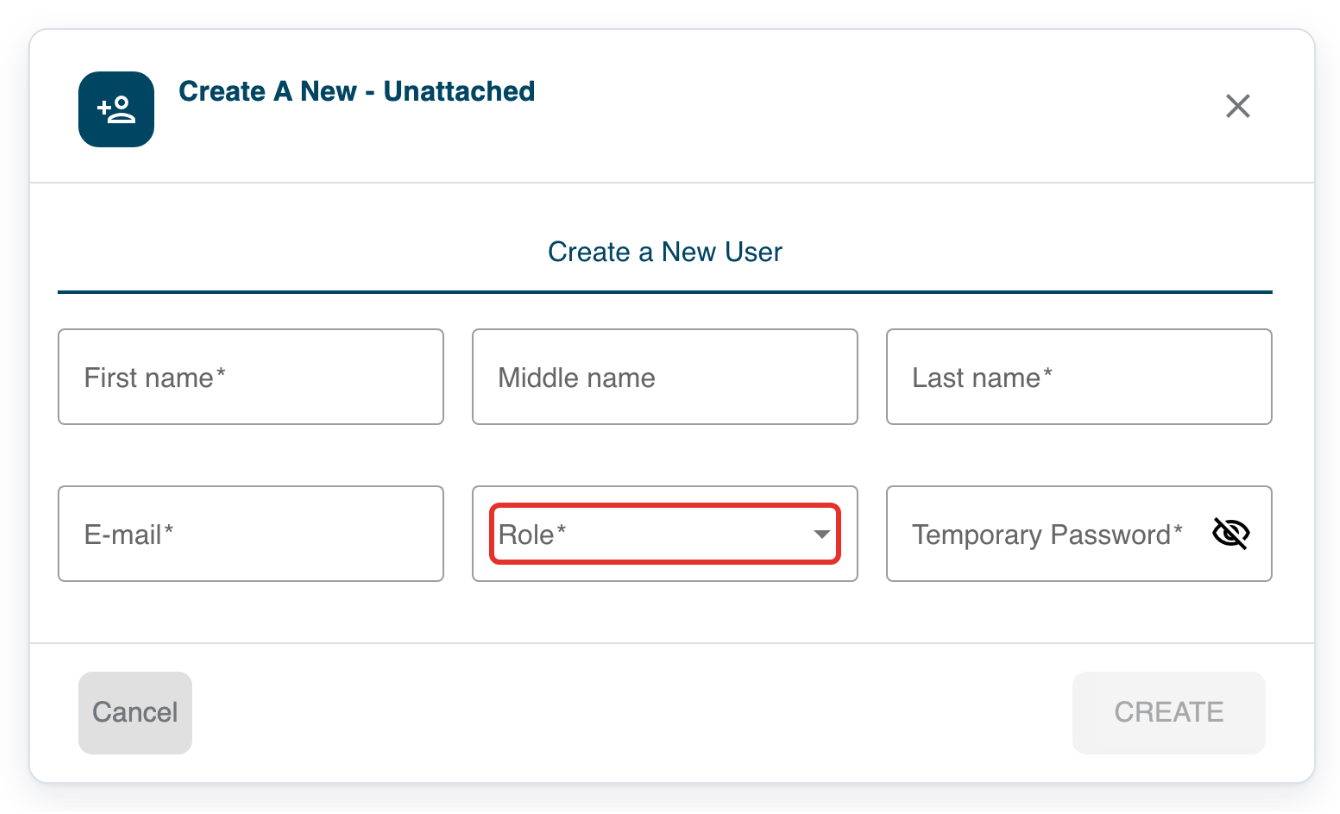
Choose Author for an author account.
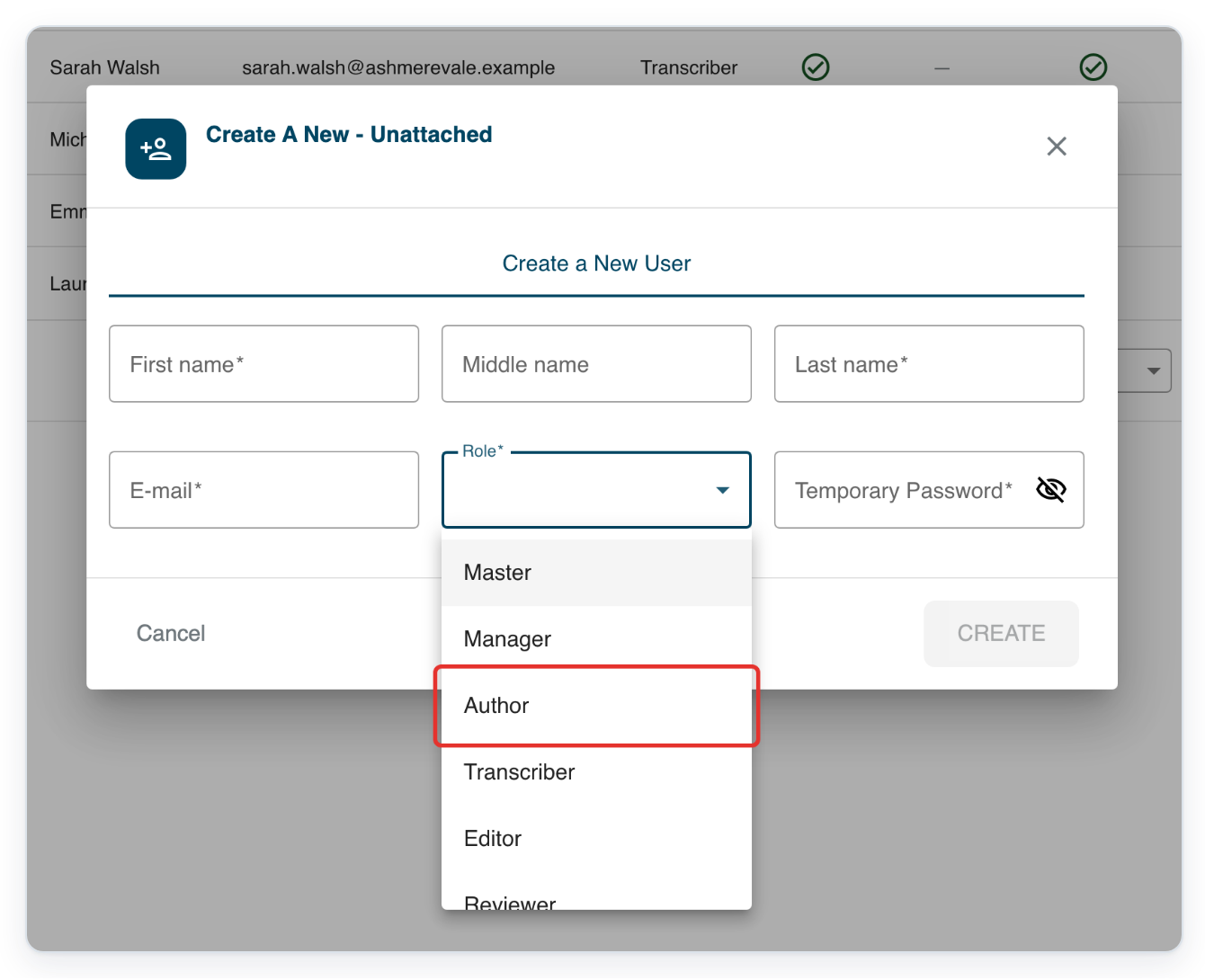
=> The form shows Author in Role, alongside the name, email and temporary password fields.
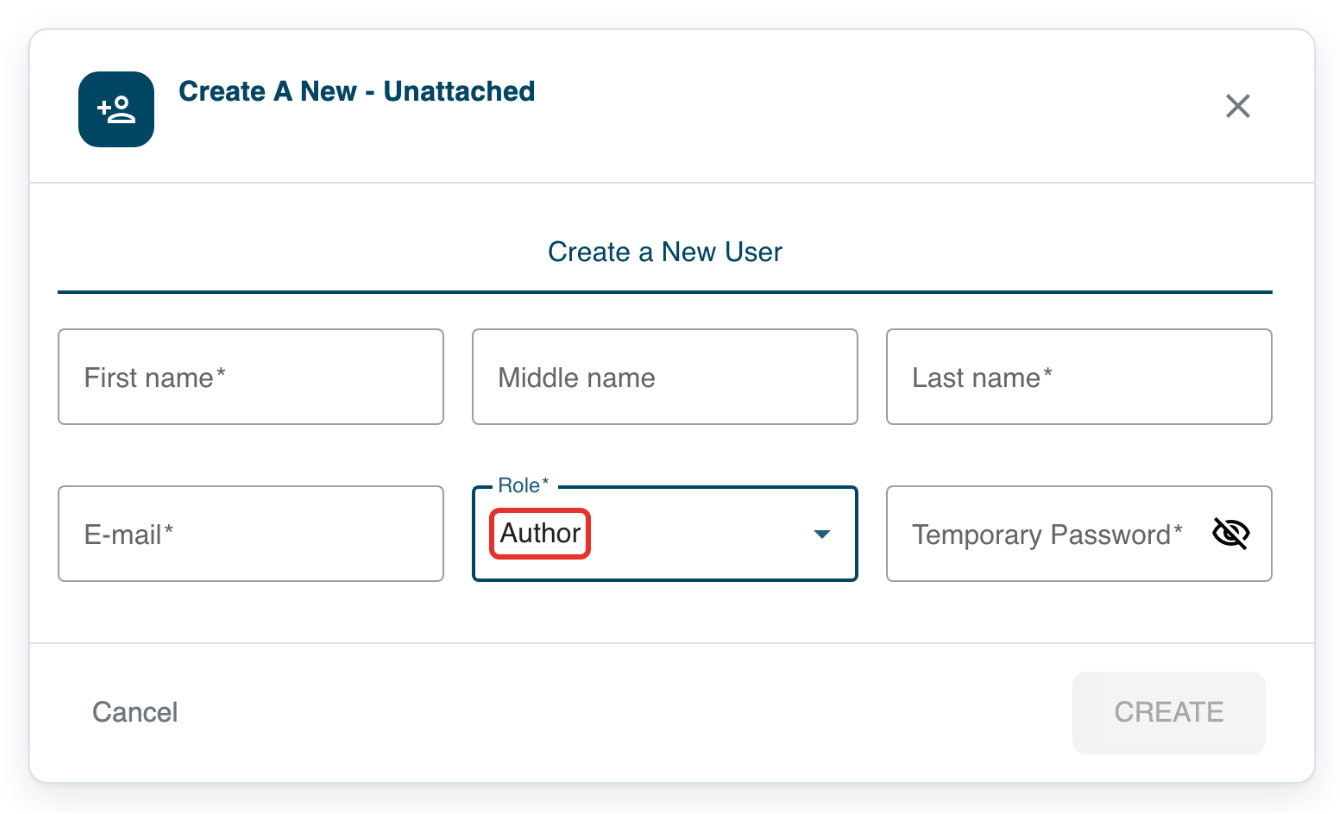
Fill in First name, Last name, E-mail and Temporary Password, then click CREATE. You can add the user to groups afterwards.
As a manager
Click Departments in the top menu to find your department.
Use Search above the list to find your department.
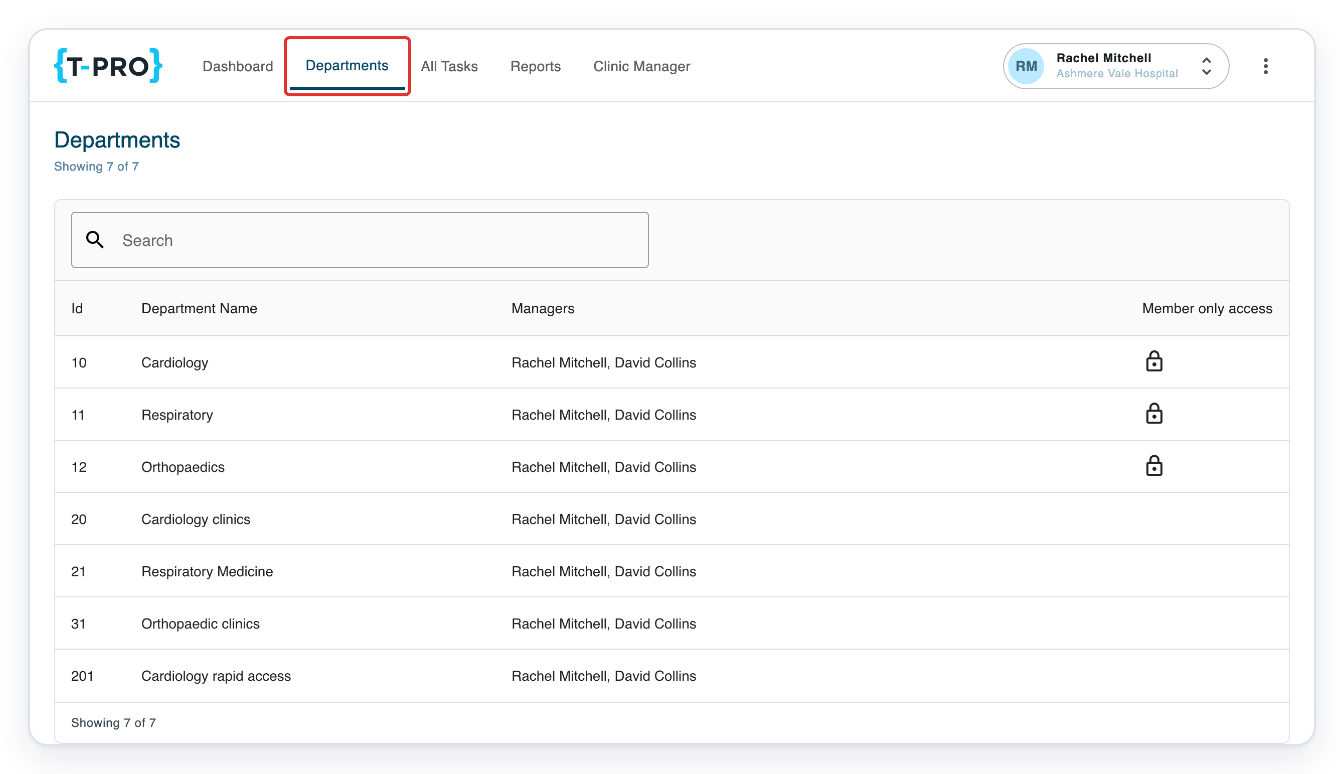
Click the department you want to open. In this example, choose Cardiology clinics.
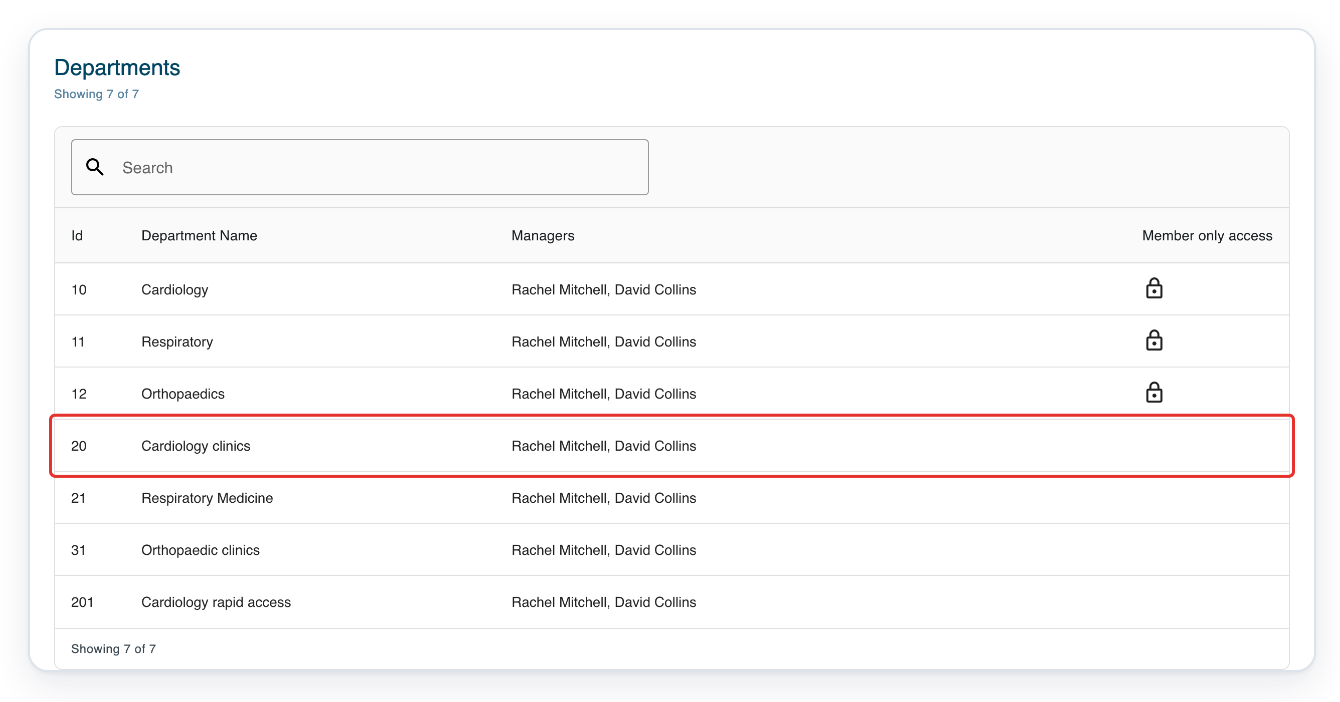
=> The department opens with Authors selected and the Group menu below.
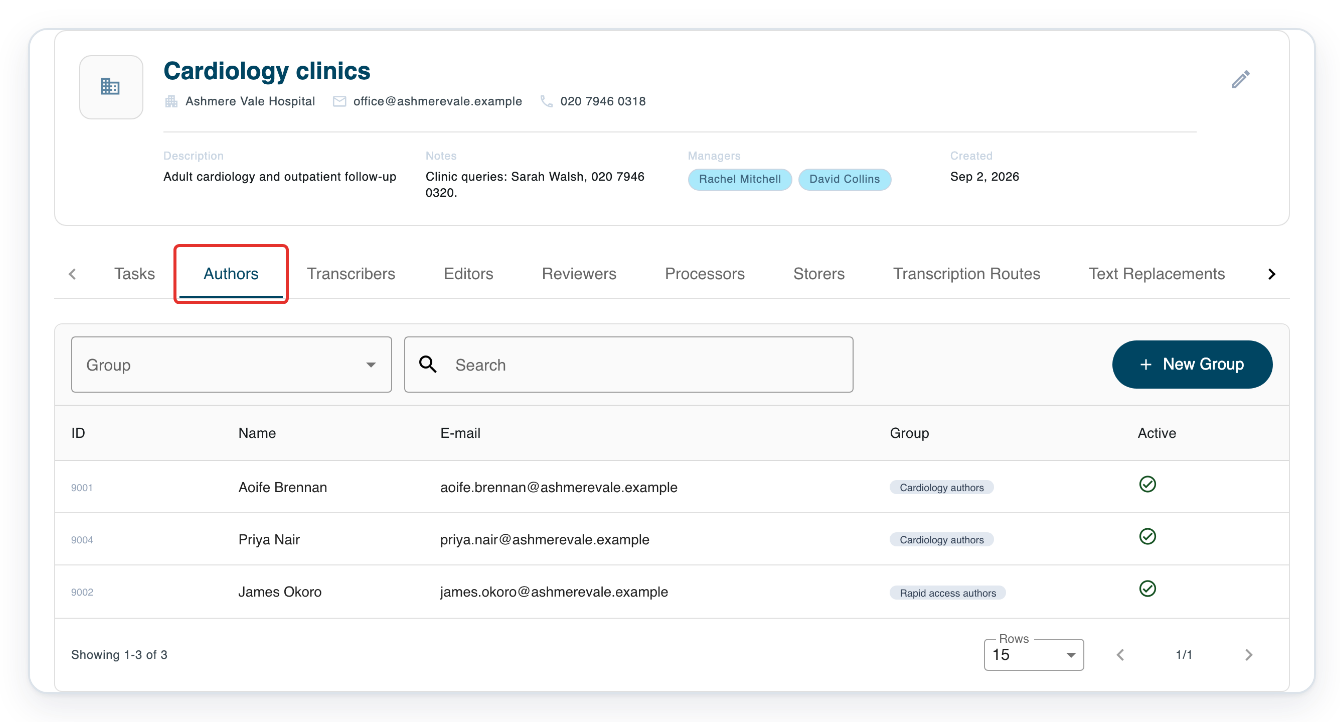
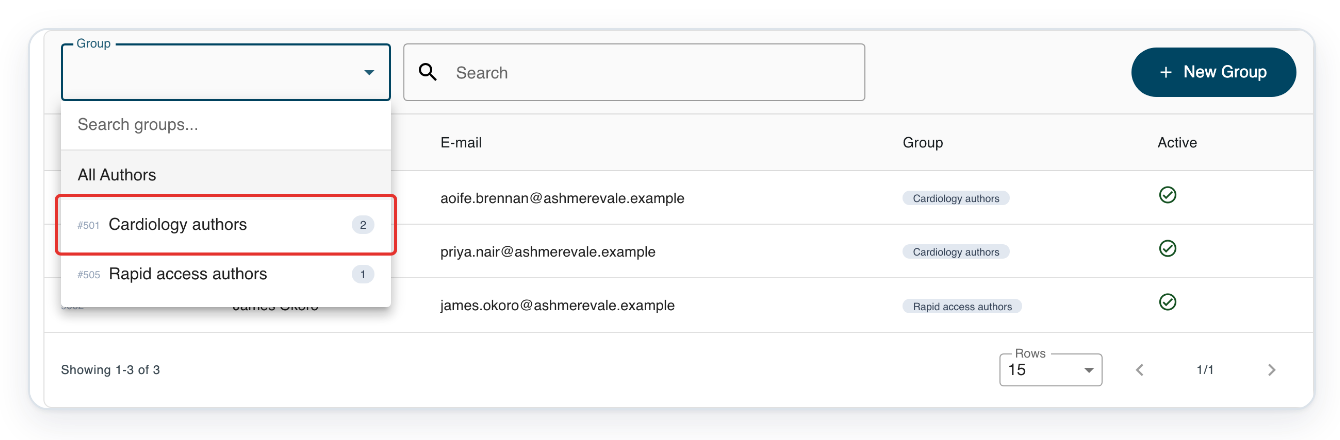
In Authors, open Group to see the available groups.
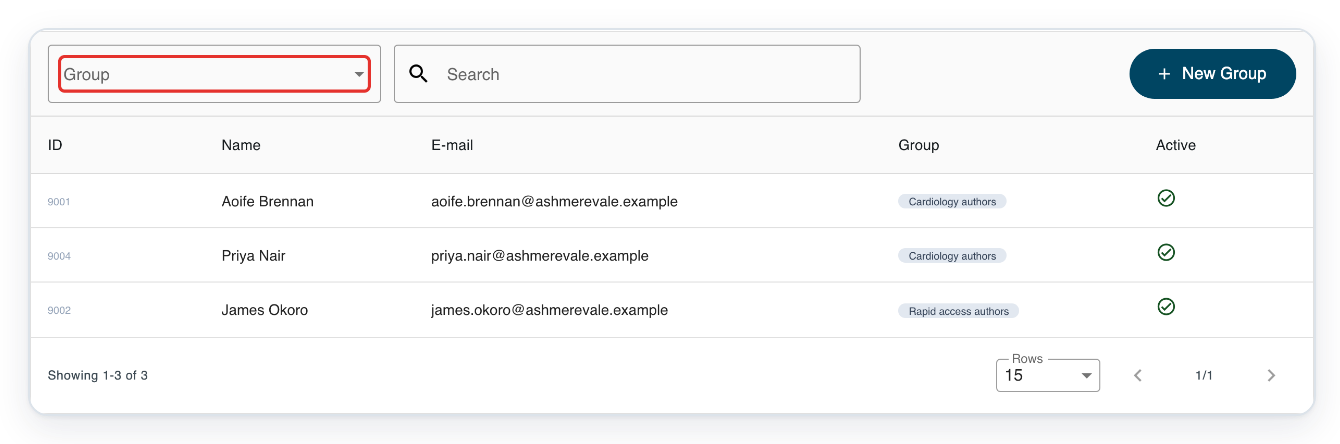
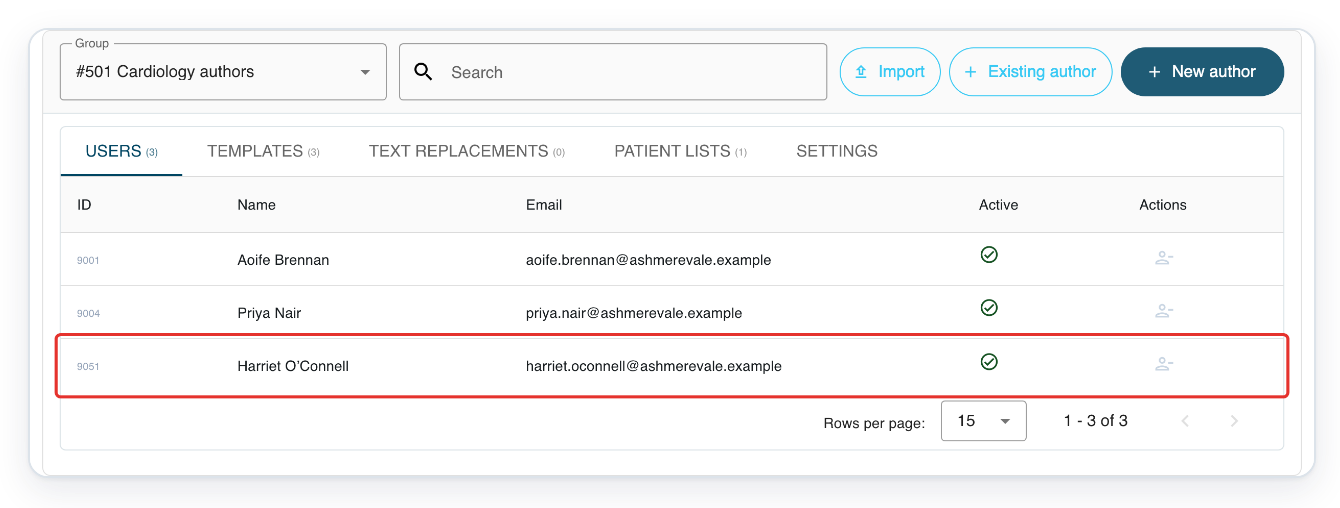
Choose Cardiology authors. The group’s USERS tab shows its current members.
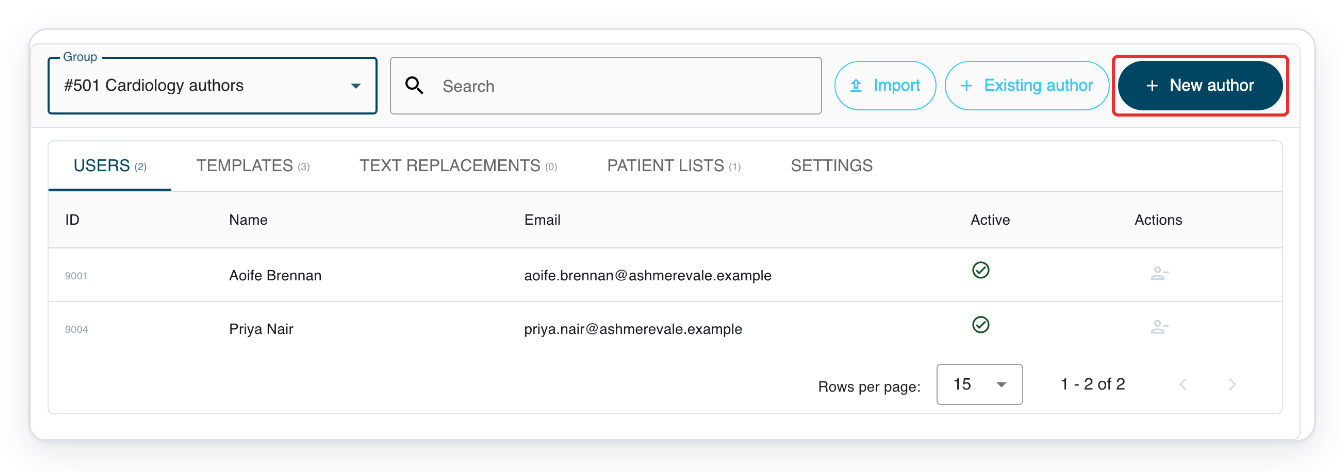
Click New author to open the account form for this group.
This creates an author account.
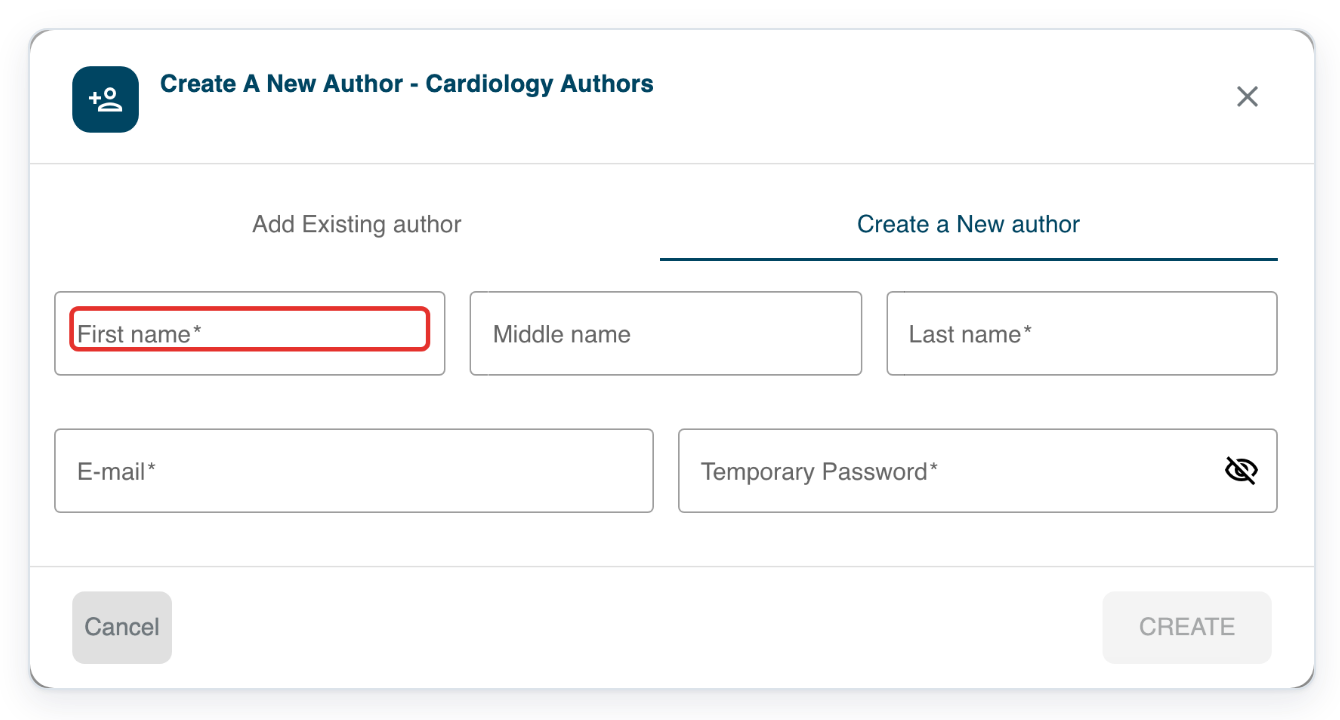
Enter the user’s first name in First name (Harriet in this example).
Middle name is optional.
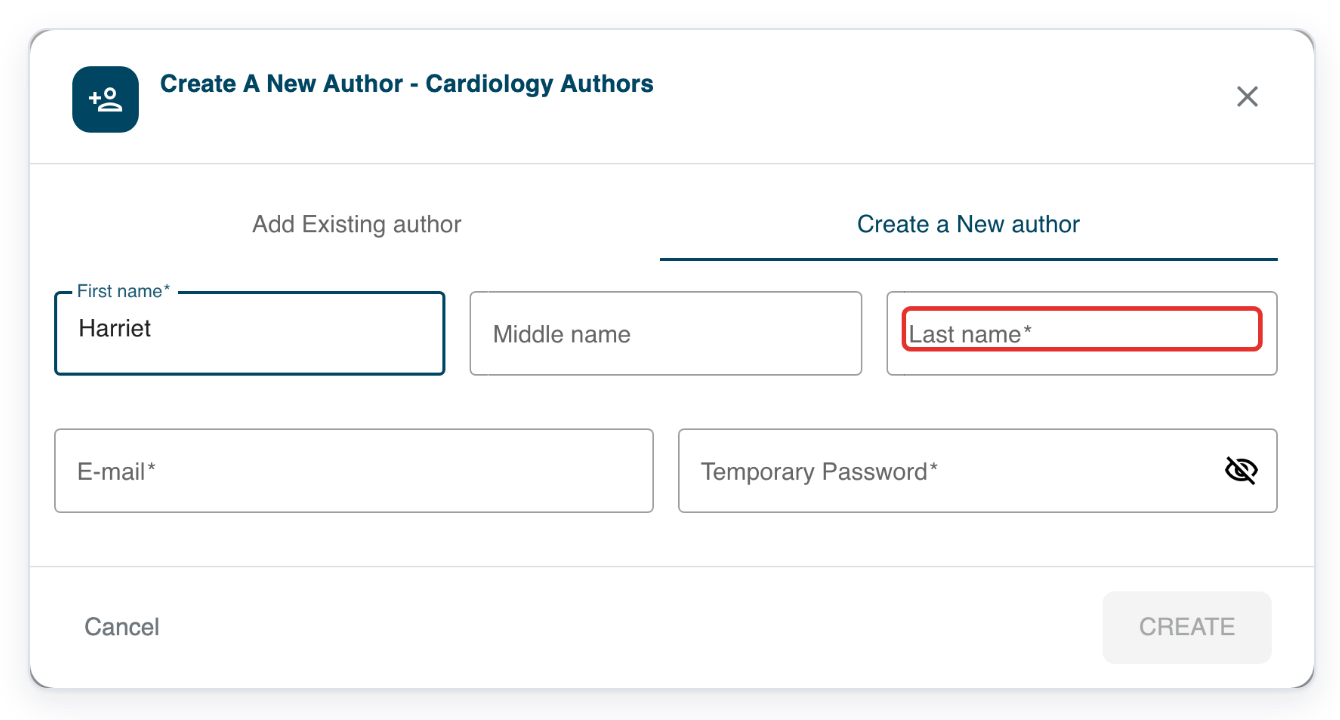
Enter their surname in Last name (O’Connell).
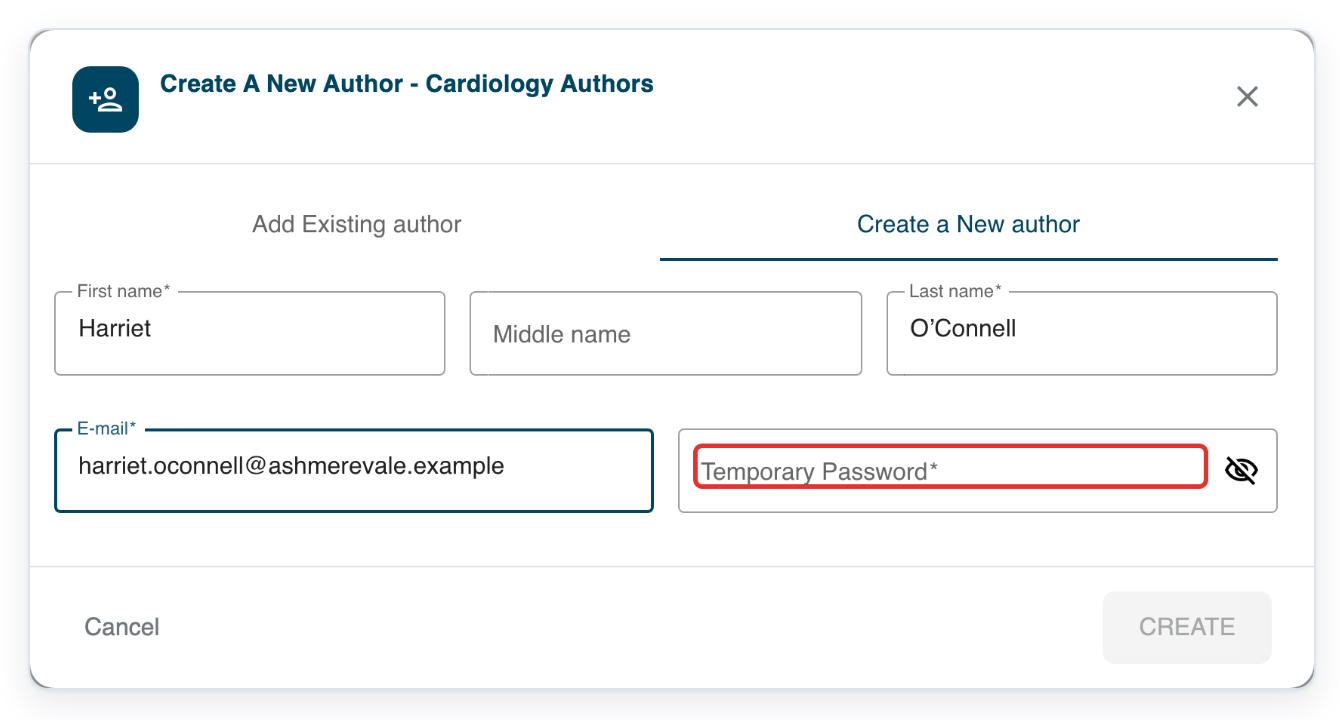
Enter their email address in E-mail (harriet.oconnell@ashmerevale.example).
T-Pro checks whether the address is already in use when you create the account.
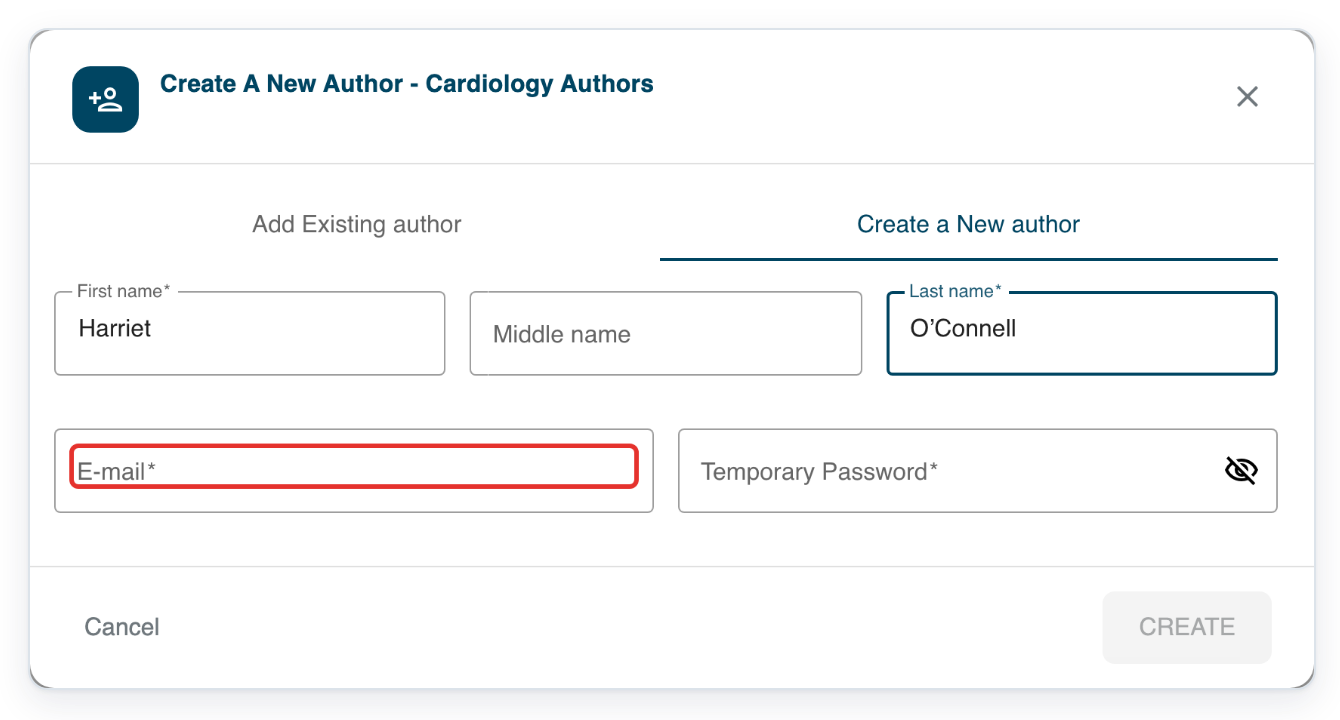
Enter a temporary password in Temporary Password. The characters stay hidden as you type.
Do not include spaces.
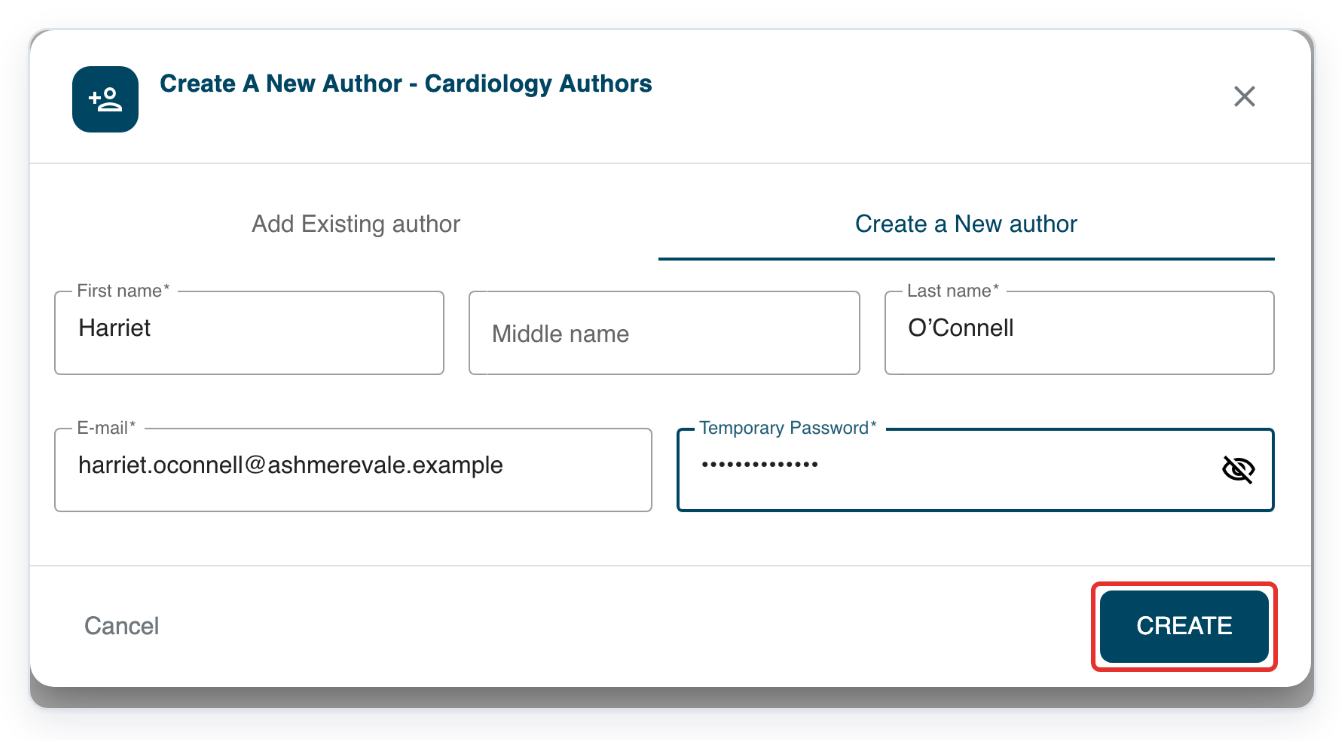
Click CREATE to create Harriet O’Connell’s account in Cardiology authors.
=> Harriet O’Connell appears in the selected group’s USERS tab.
NOTE:
- T-Pro asks the new user to change their temporary password when they first sign in on the web.
- After creating the account, you can add the user to other groups.
- For other group members, open the relevant department tab, such as Transcribers, Editors or Storers. Choose a group, then create the account.
Choose where to create the account
| Starting point | Role | Group membership |
|---|---|---|
| Facility’s Users tab | Choose the account’s Role. | Add the user to groups after creating the account. |
| A selected group in a department | The department tab sets the role. | The account joins the selected group when you create it. |
Tip: If the user already has an account in this facility, click Existing author in the selected author group. See Add existing users to a group.
Can't create a new user?
- If CREATE is unavailable, complete the required fields and choose a Role in the facility form. First and last names must be 3 to 100 characters long. The same limit applies if you enter a middle name.
- If T-Pro shows “Email address already in use!”, check the address. For someone in the same facility, add their existing account to the group. Contact our Helpdesk if their account belongs to another facility.
- If you cannot see New author, select a group, then open its USERS tab.
Related articles
- Add existing users to a group
- Import several users from a file
- Set an author's default group and template
- Sign in for the first time
If you have any more queries, please do not hesitate to contact our Helpdesk or support@tpro.io.
© 2020 - 2026