
Before you start
You need a master or administrator account and access to the user’s organisation.
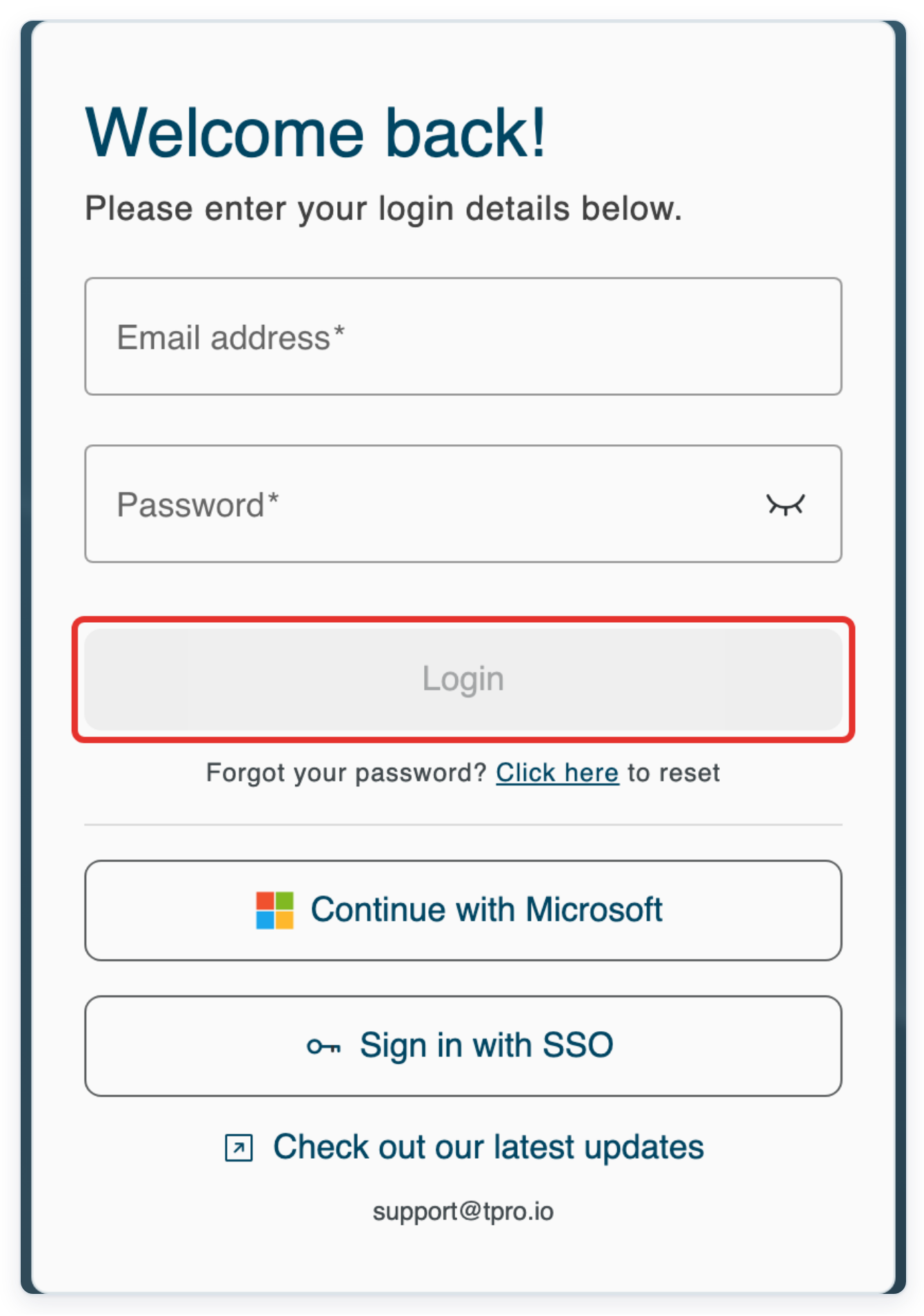
Log in to T-Pro with your master or administrator credentials.
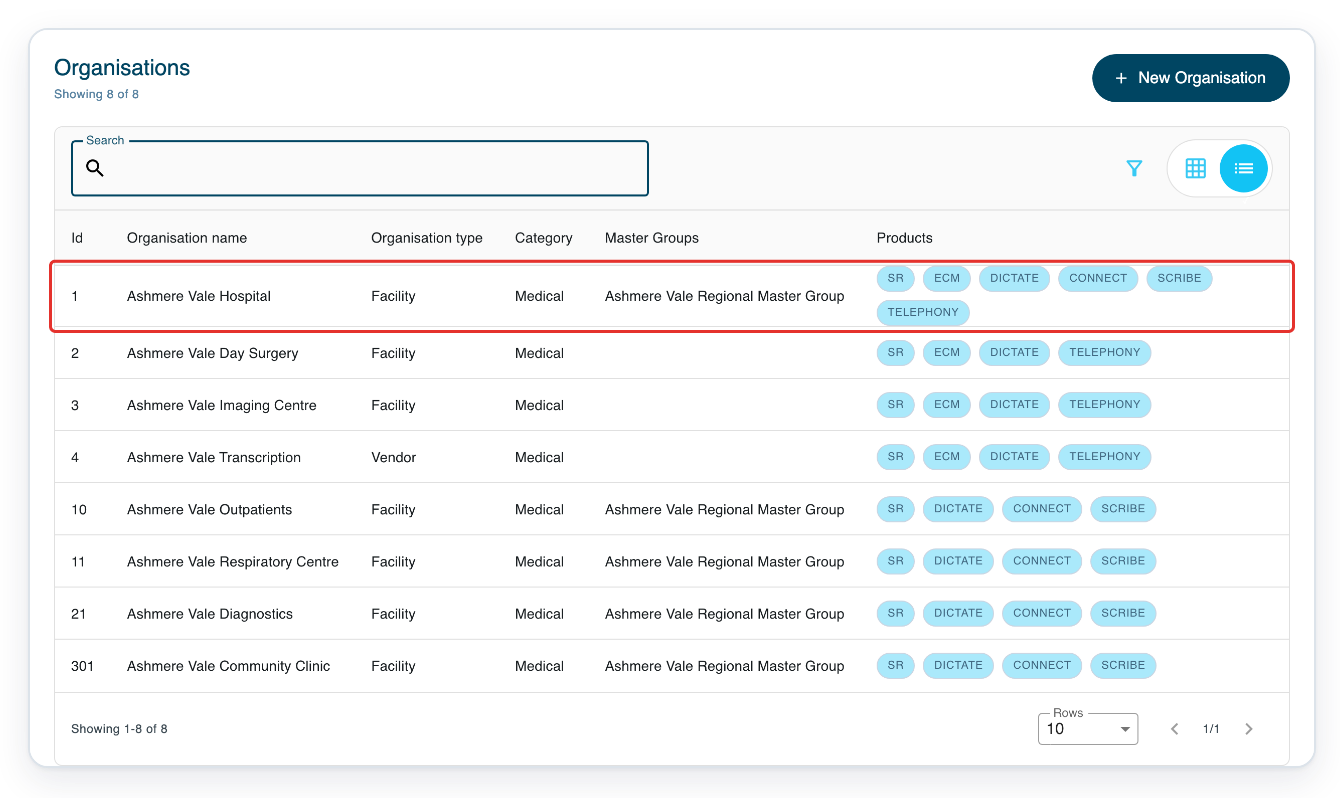
In Organisations, click your facility, such as Ashmere Vale Hospital.
Choose the organisation the user belongs to. We use Ashmere Vale Hospital in the screenshots.
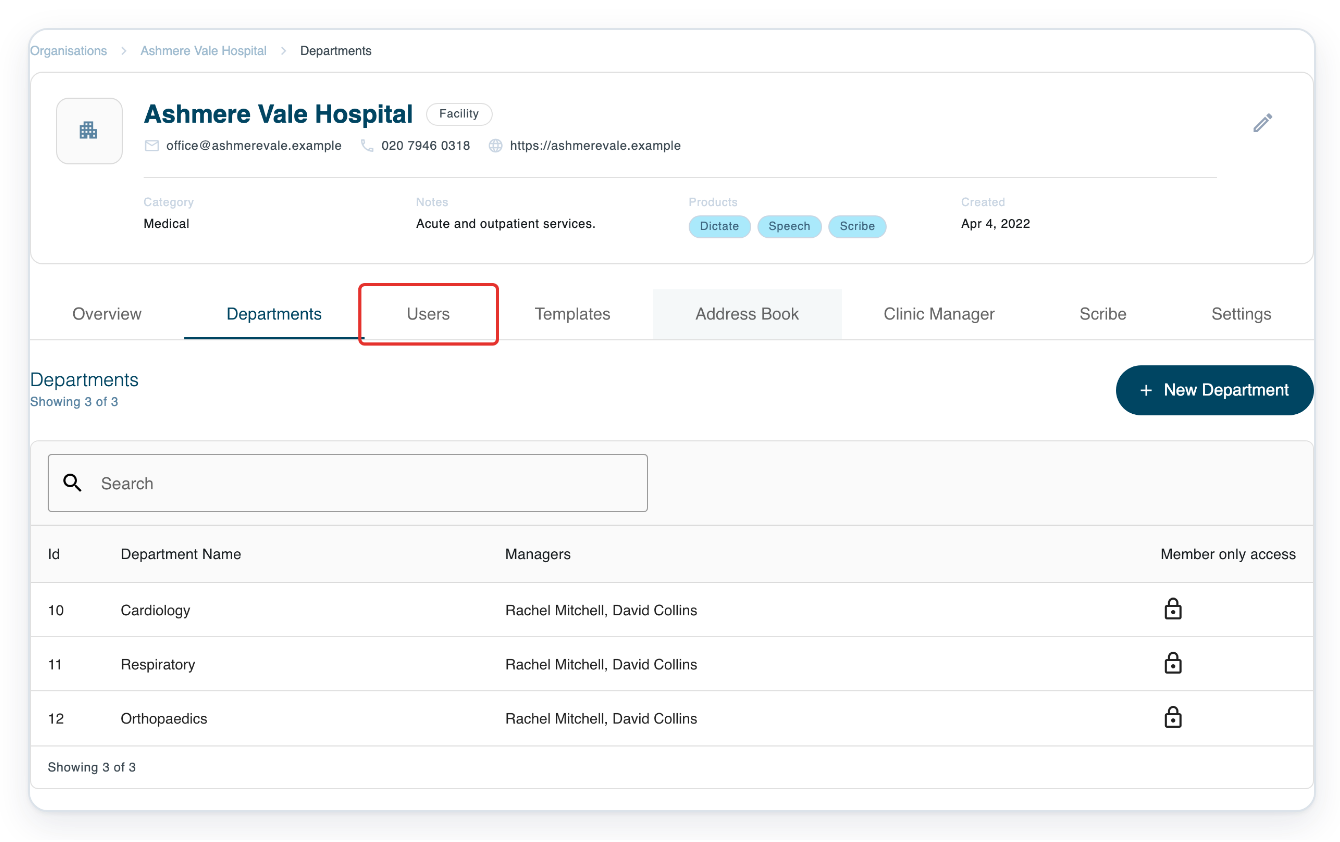
Click the facility’s Users tab to open its user list.
The tab is beneath the facility details, beside Departments. The list shows each user’s name, email address, role and account status. Check the facility name at the top to make sure you have the right organisation.
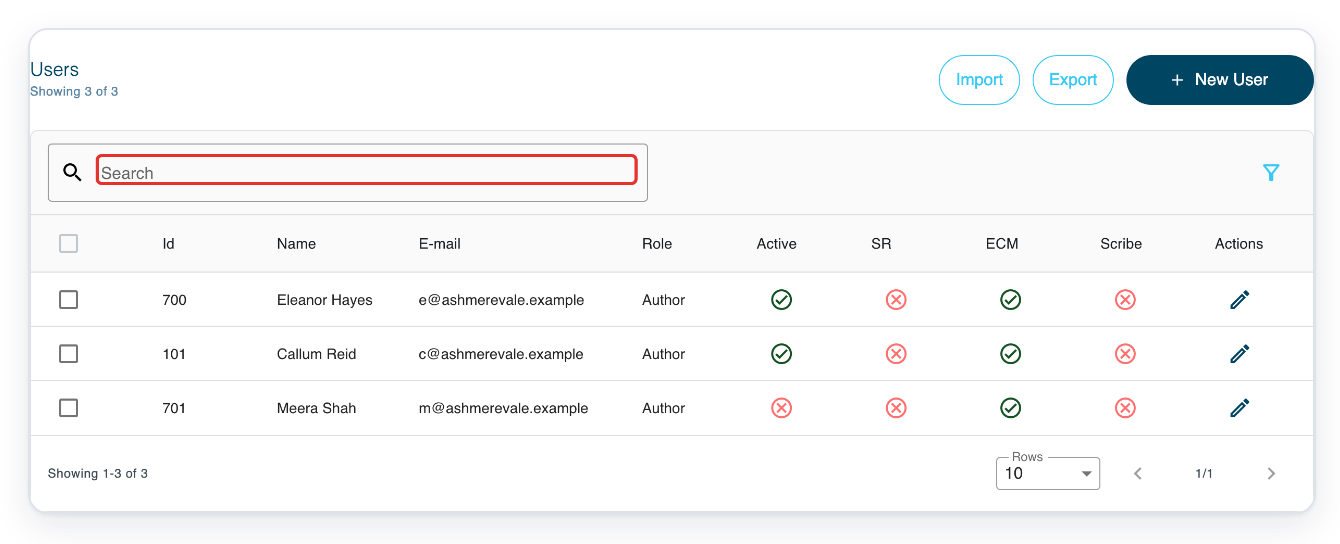
In Search, enter the user’s name, such as Eleanor Hayes.
You can also search by email address to tell apart people with similar names. The search covers users in the selected facility. To find someone at another facility, open that facility’s user list first.
Press Enter to search the facility’s user list.
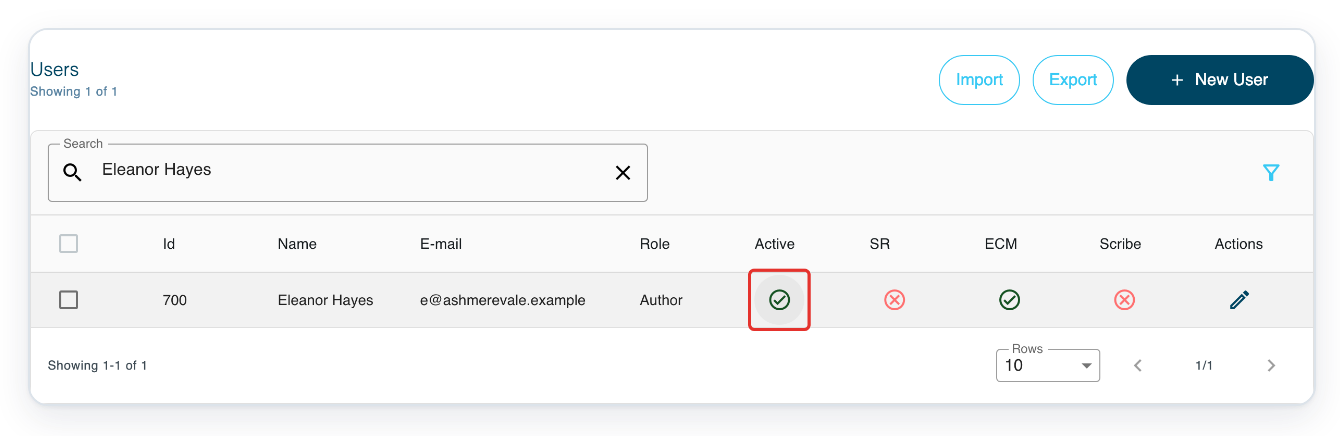
Check Name and E-mail in the results before changing an account. A tick icon in Active means the account is active. A cross icon means it is deactivated.
To try another name, click the cross at the right of Search. Enter the new name and press Enter.
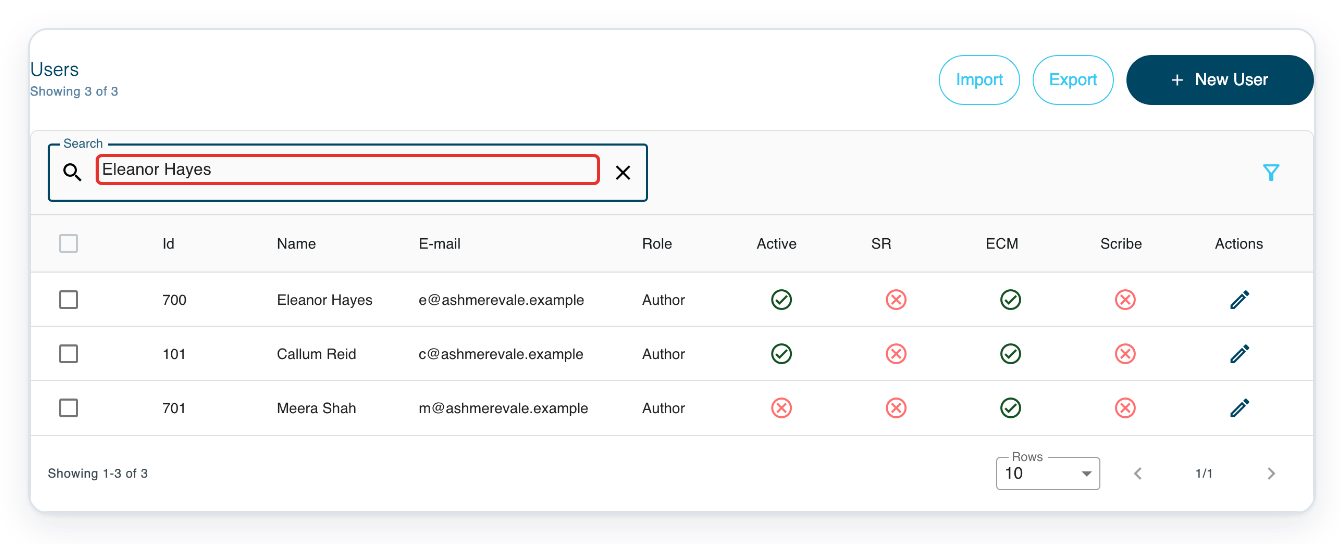
Click the tick icon in the user’s Active column to deactivate their account.
The Active column controls account access. The SR, ECM and Scribe columns control individual products. Hover over the icon in Active to check its status. An active account shows User status: Active.
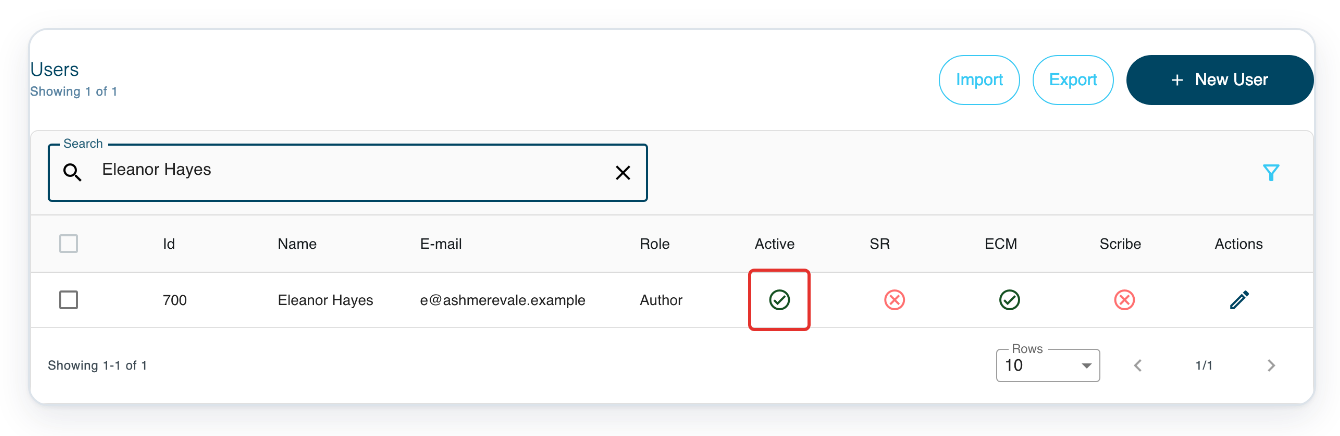
=> Eleanor Hayes remains in the list with a cross icon in Active.
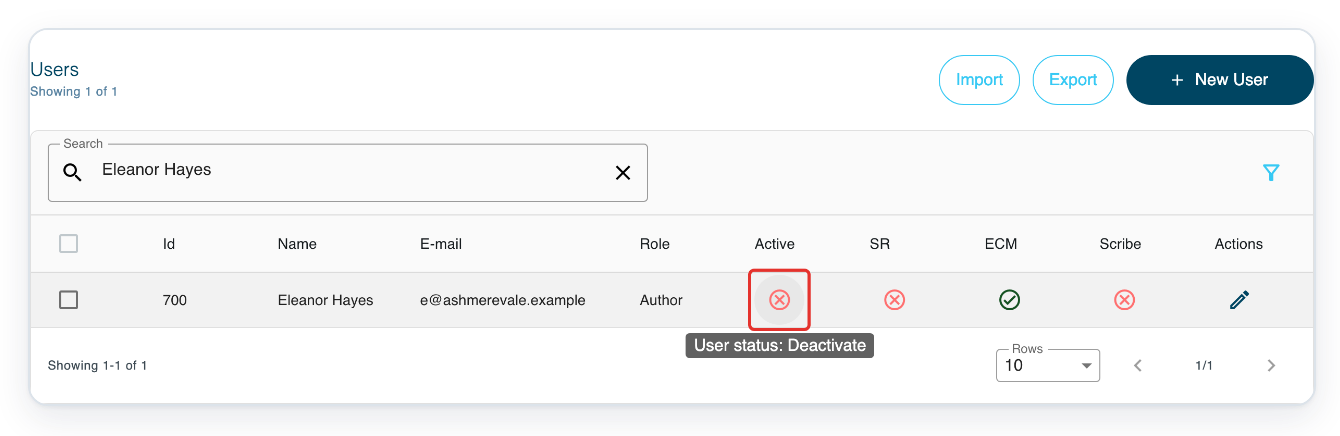
To reactivate the account, click the cross icon in the user’s Active column.
When the person needs access again, reactivate their existing account. If you return later, search for it by name or email address.
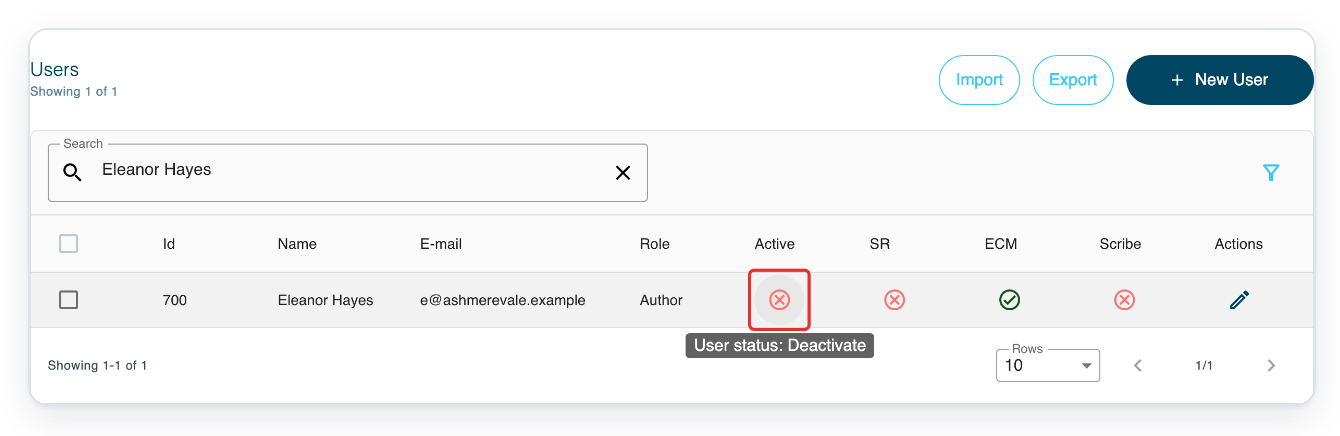
=> Eleanor Hayes now has a tick icon in Active again.
NOTE:
- Your changes save automatically when you click the status icon in the user list.
- Deactivated accounts stay in the user list. Use the same status icon to reactivate them.
- Deactivating an account stops the user signing in. Reactivate it to give them access again.
Other places you can deactivate or reactivate an account
- In the main menu, click Users and search for the account. Click its status icon in Active to deactivate or reactivate it. The organisation column helps you find the right account if you look after several facilities. Before changing the account, check its organisation, name and email address.
- If you are an administrator, click the pencil icon in Actions to open the user’s profile. In My details, find User active under Account & Permissions. Switch it off to deactivate the account, or on to reactivate it. Then click Save changes.
Can't deactivate or reactivate a user account?
- If Organisations or Users is missing from the main menu, log in with a master or administrator account. Or ask someone with that access to change the account’s status for you.
- If you cannot find the account, check that you opened the right organisation. Search by name or email address, then press Enter. To clear any filters that may be hiding the account, click the funnel icon above the list. Click Clear Filter, then Apply Filter. Enter the name or email address in Search again and press Enter.
Related articles
If you have any more queries, please do not hesitate to contact our Helpdesk or support@tpro.io.
© 2020 - 2026