
Before you start
Live speech recognition must be set up for you. You need a microphone and an existing author draft with audio.
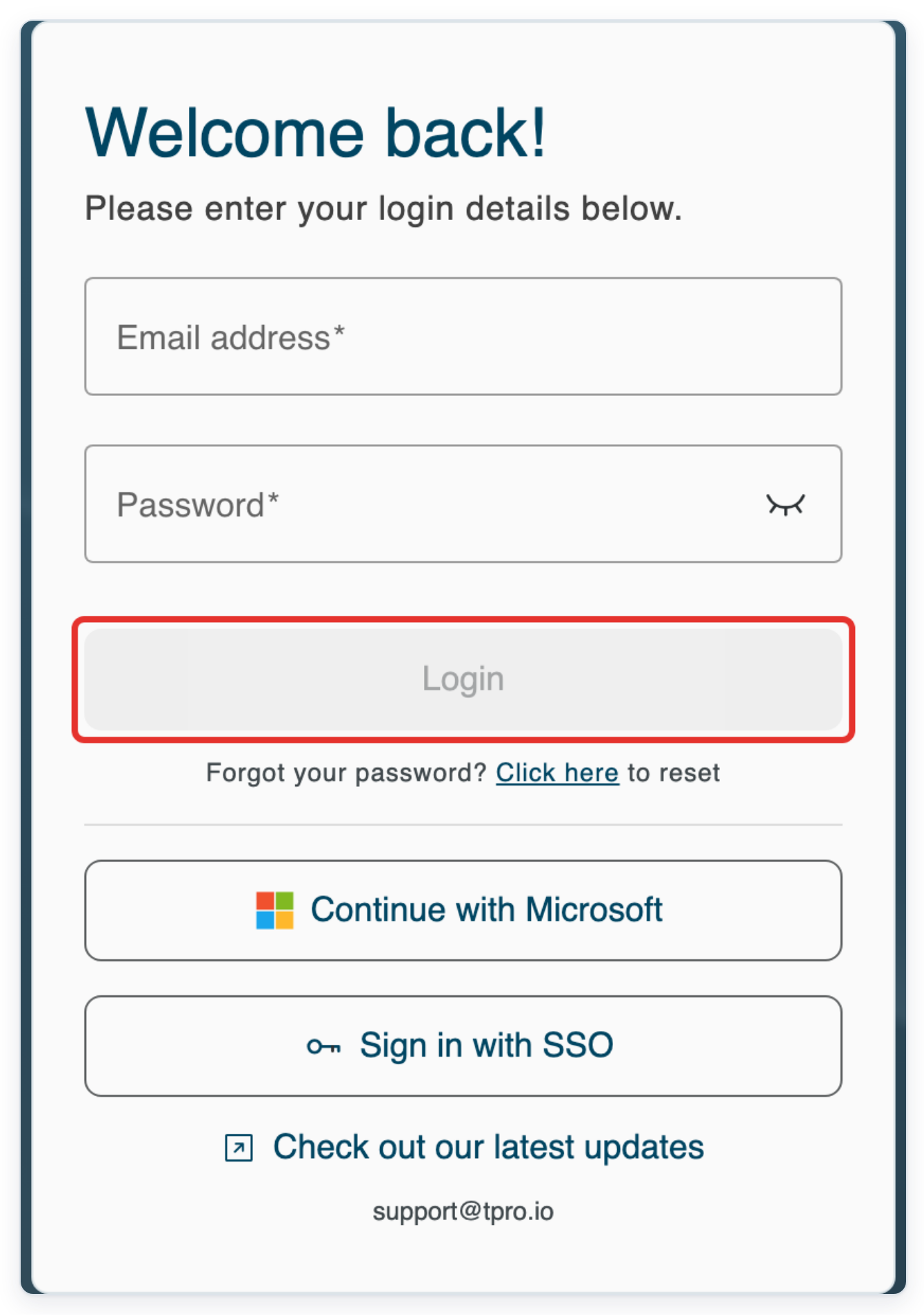
Log in to T-Pro with your author credentials.
Create a new letter
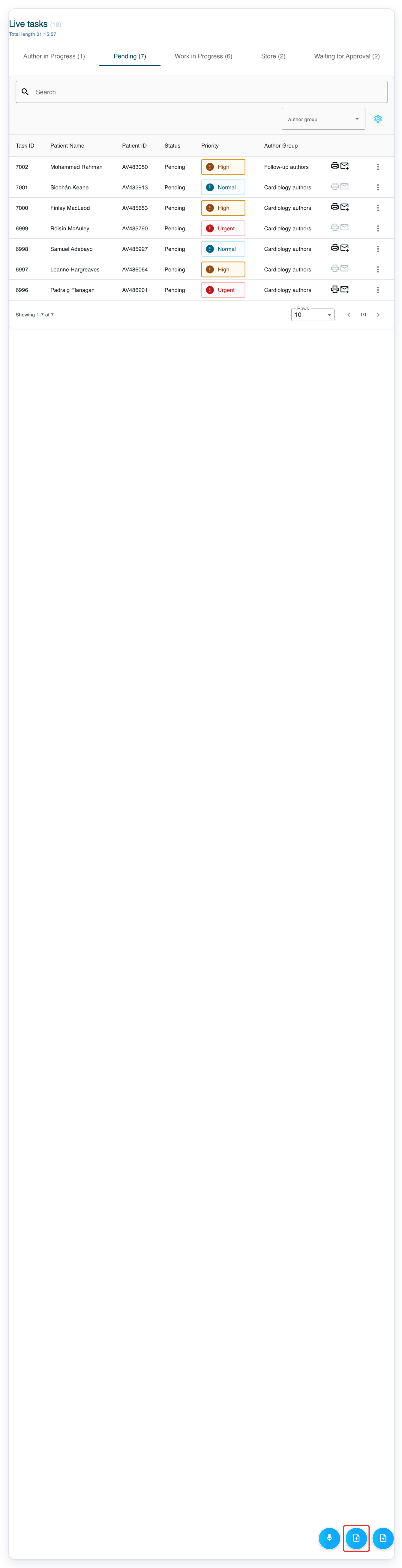
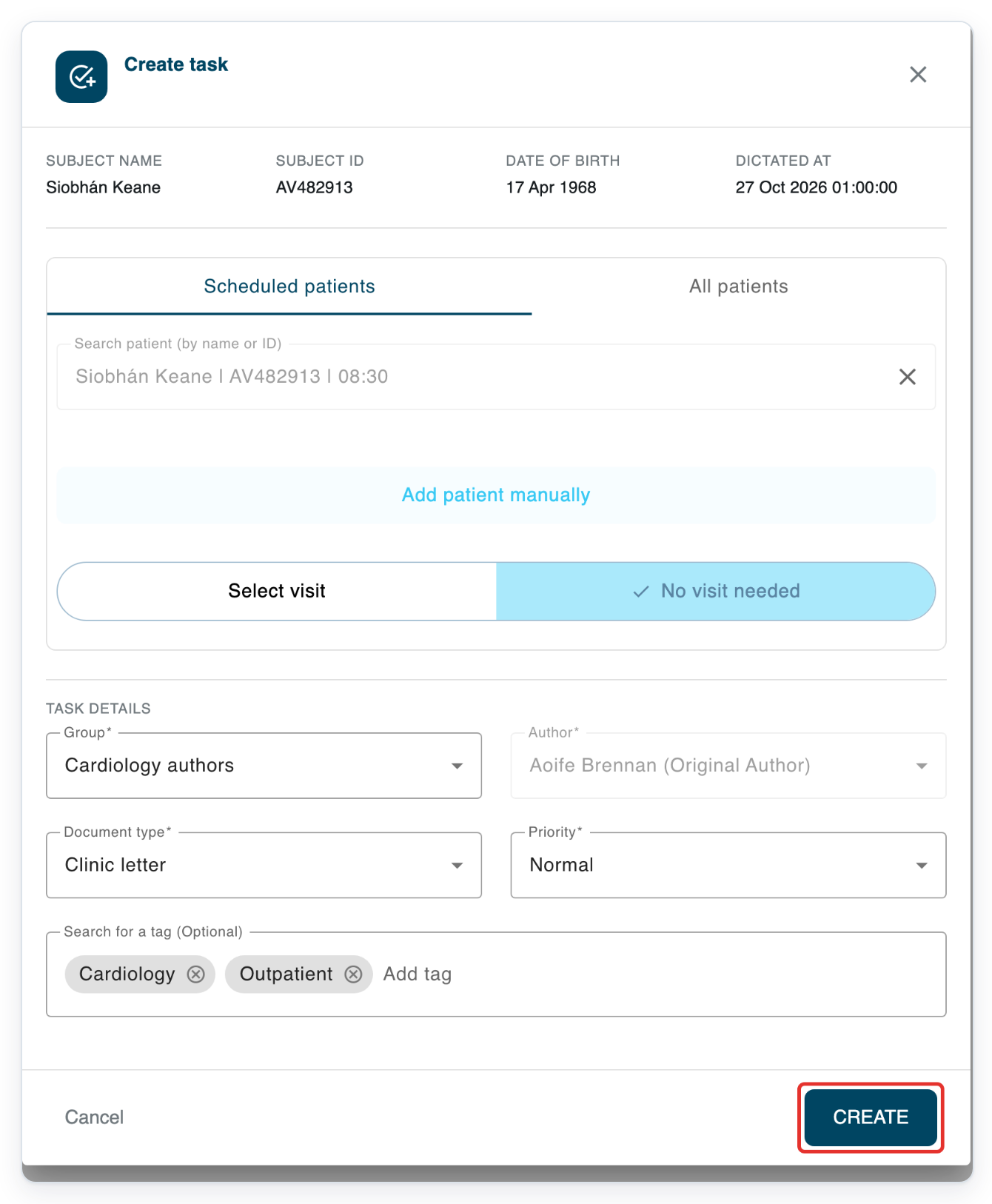
In Live tasks, click Create task at the bottom right. The Create task dialog opens.
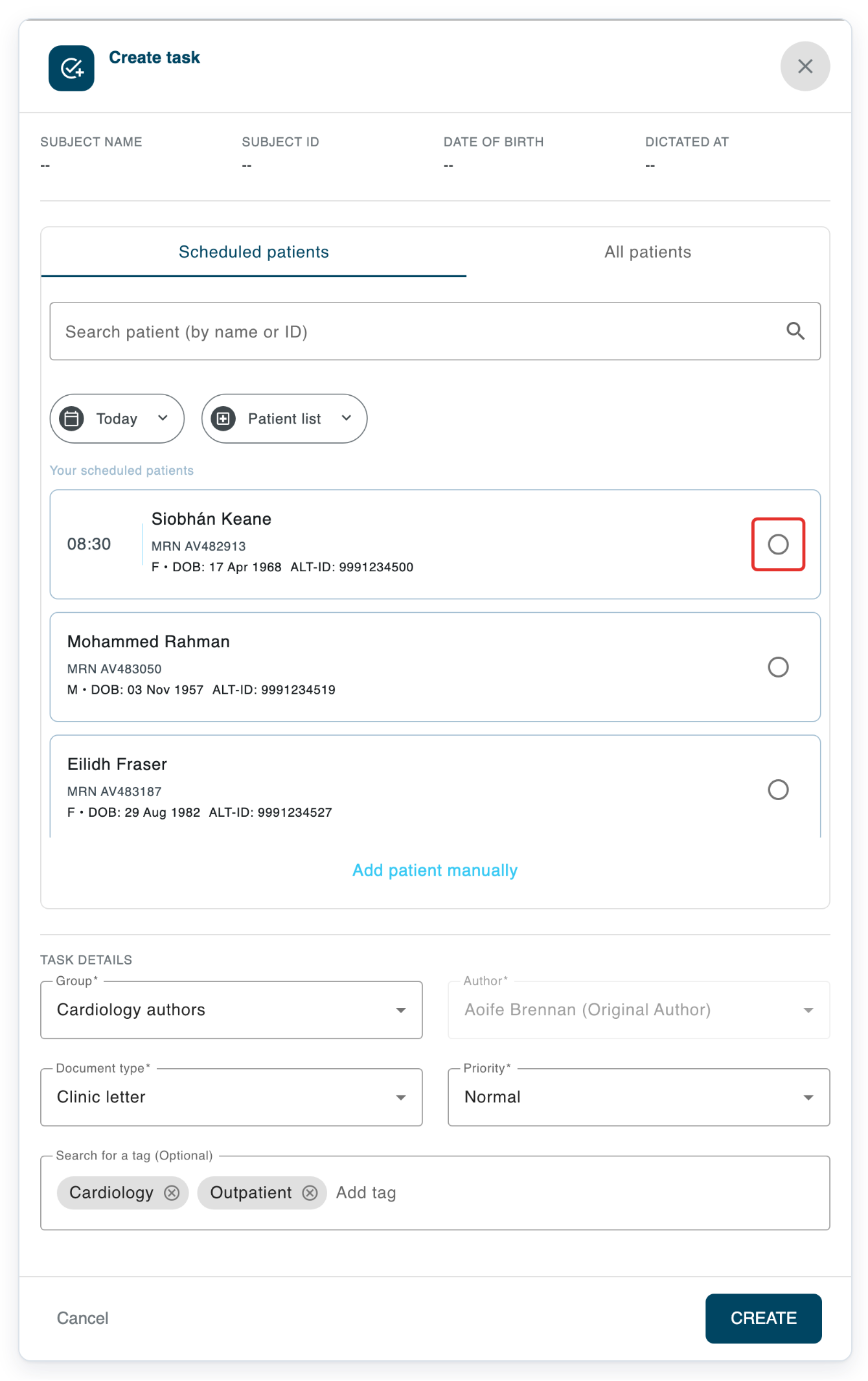
Under Scheduled patients, select the circle beside your patient's name.
Check the patient's name, hospital number and date of birth before you select them. The example shows Siobhán Keane.
To find a patient in the list, use Search patient (by name or ID). You can also look under All patients.
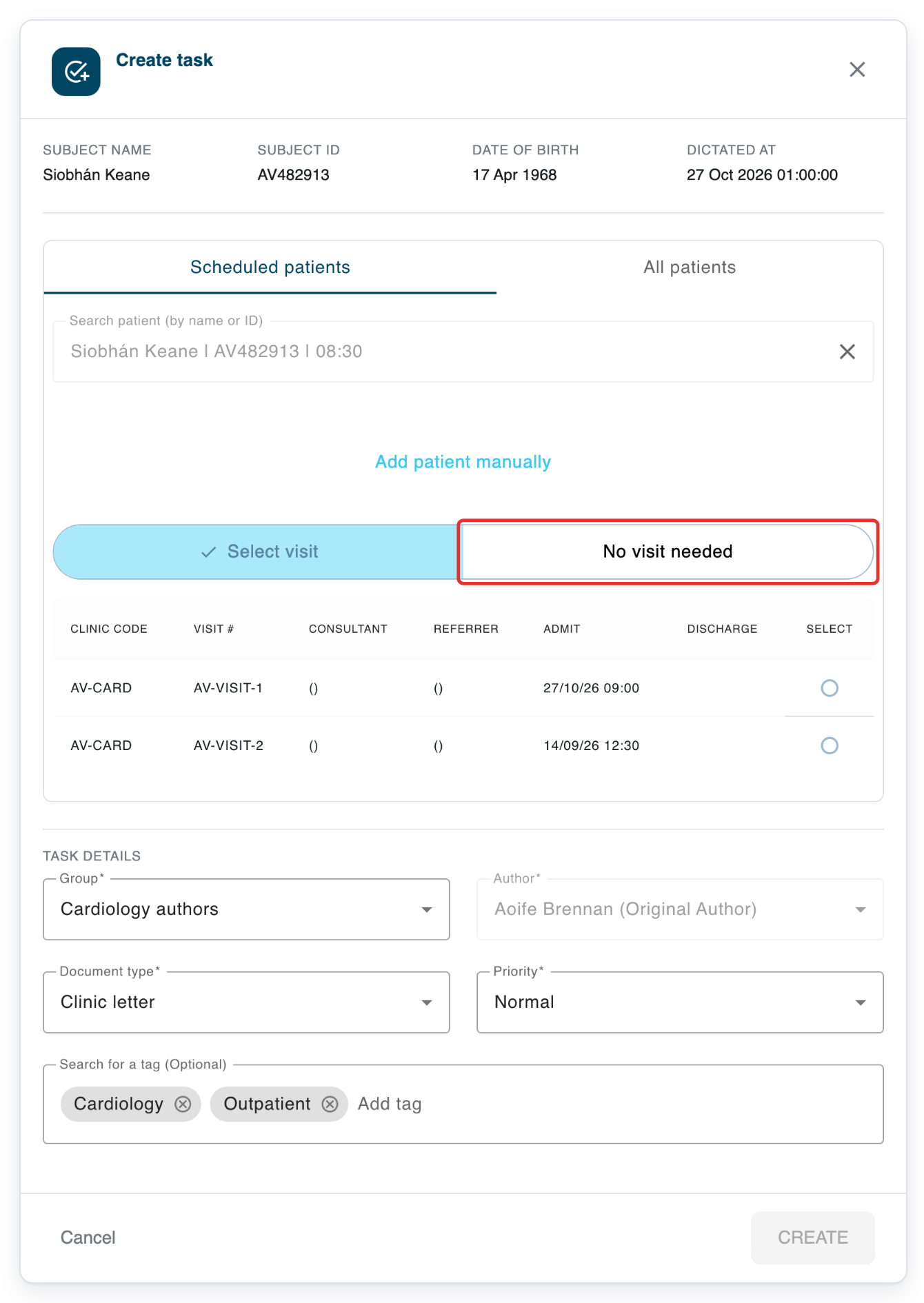
Click No visit needed if you do not need to link the letter to a visit.
To link the letter to a listed visit, click Select visit and choose the matching row.
Check Group, Document type and Priority, then click CREATE to open the new letter.
The example uses Cardiology authors, Clinic letter and Normal. You can add tags if you need them.
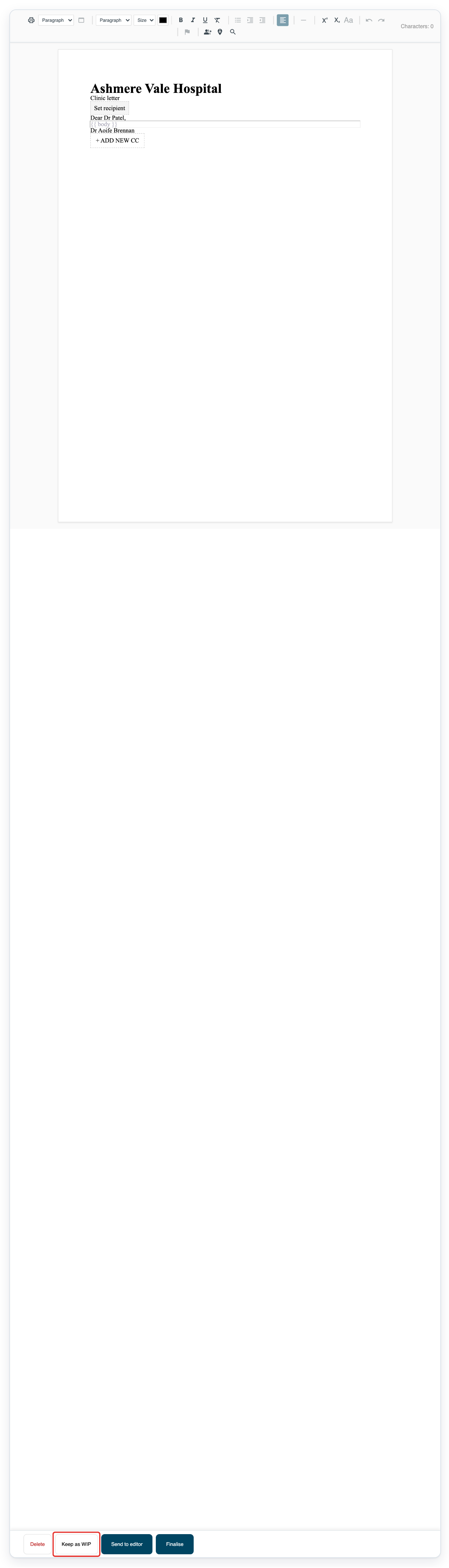
=> Your new draft opens with Keep as WIP, Send to editor and Finalise.
Dictate into an existing draft with audio
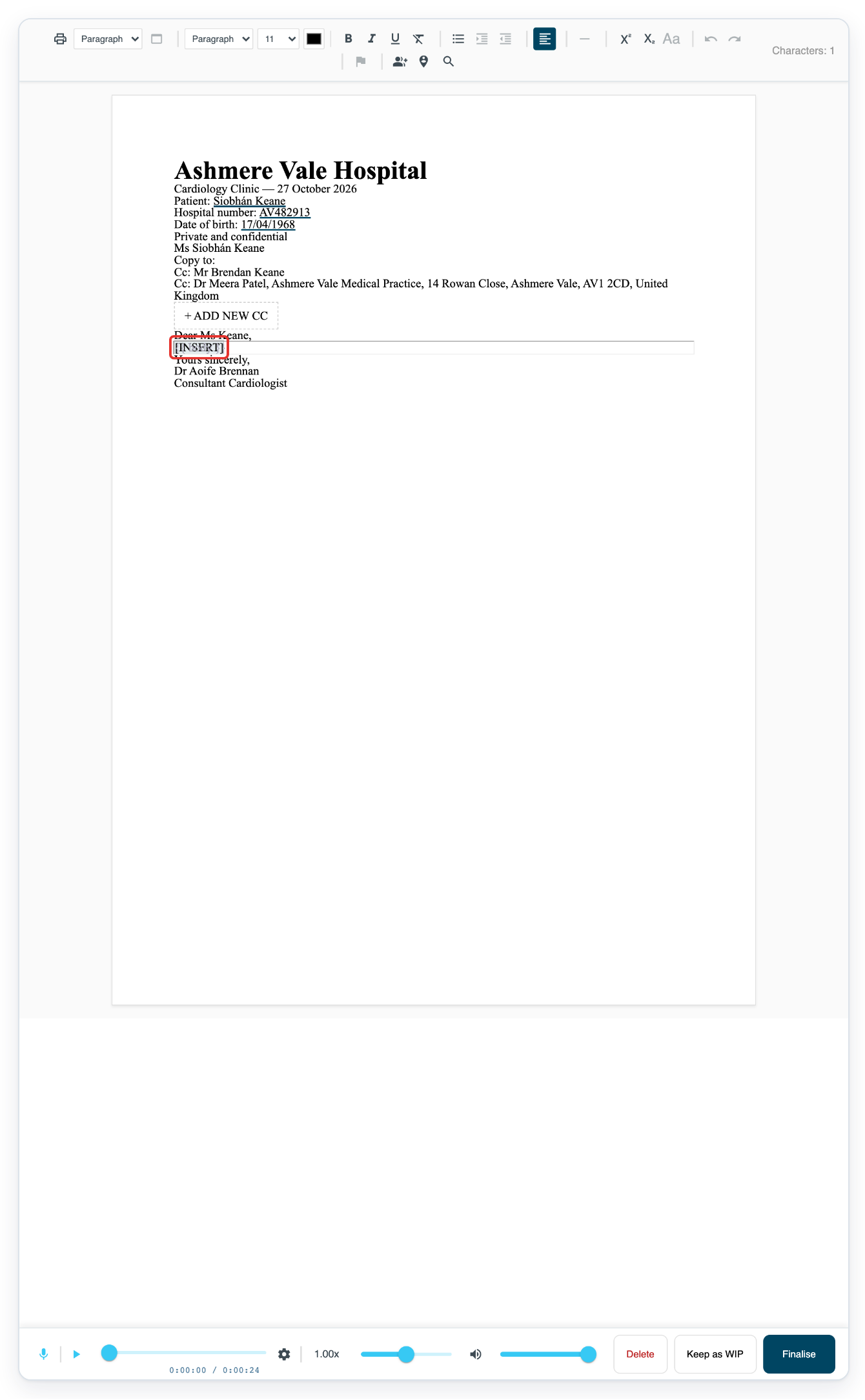
Open an existing author draft with audio. In the letter body, click the insertion point where you want your text to appear.
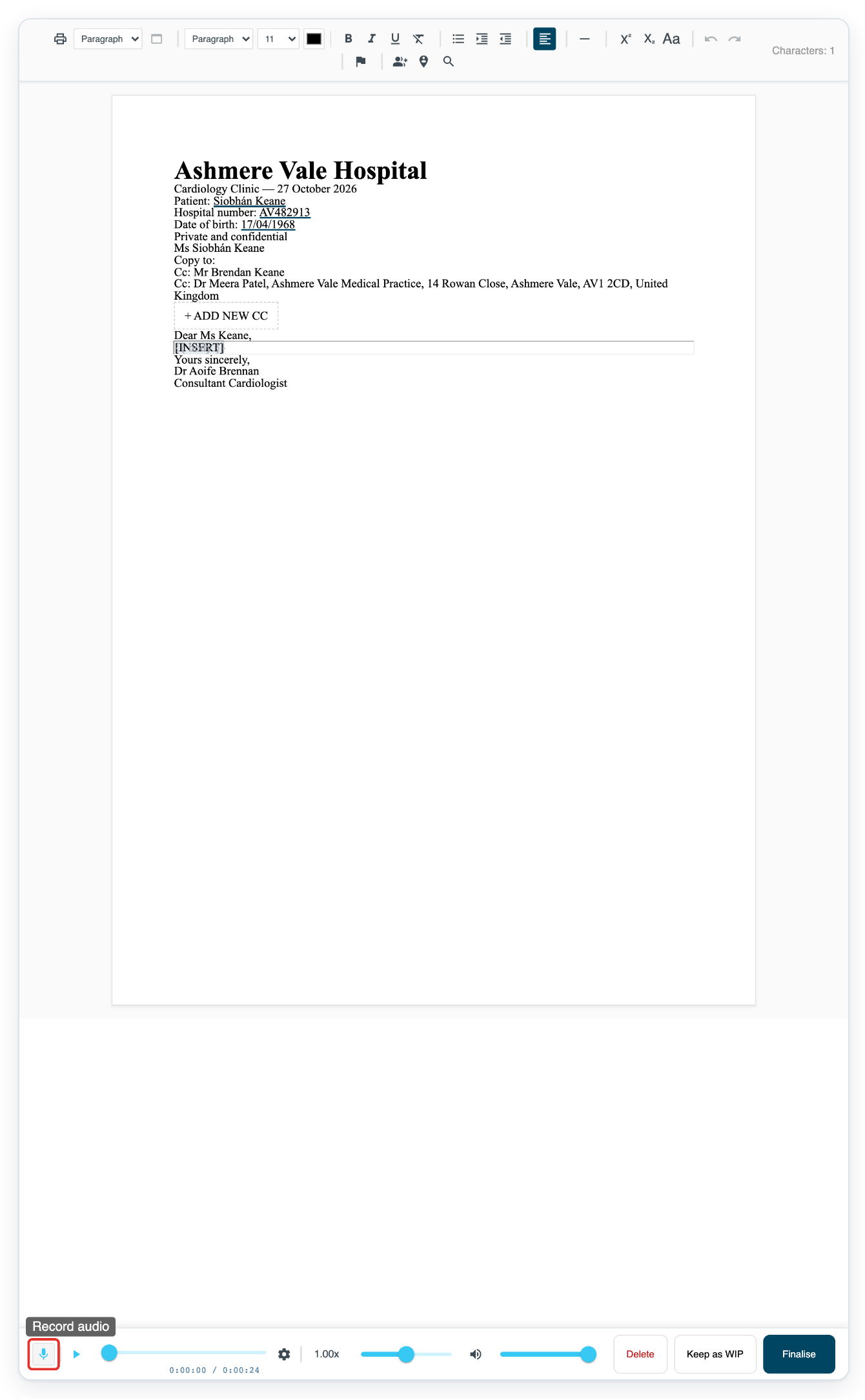
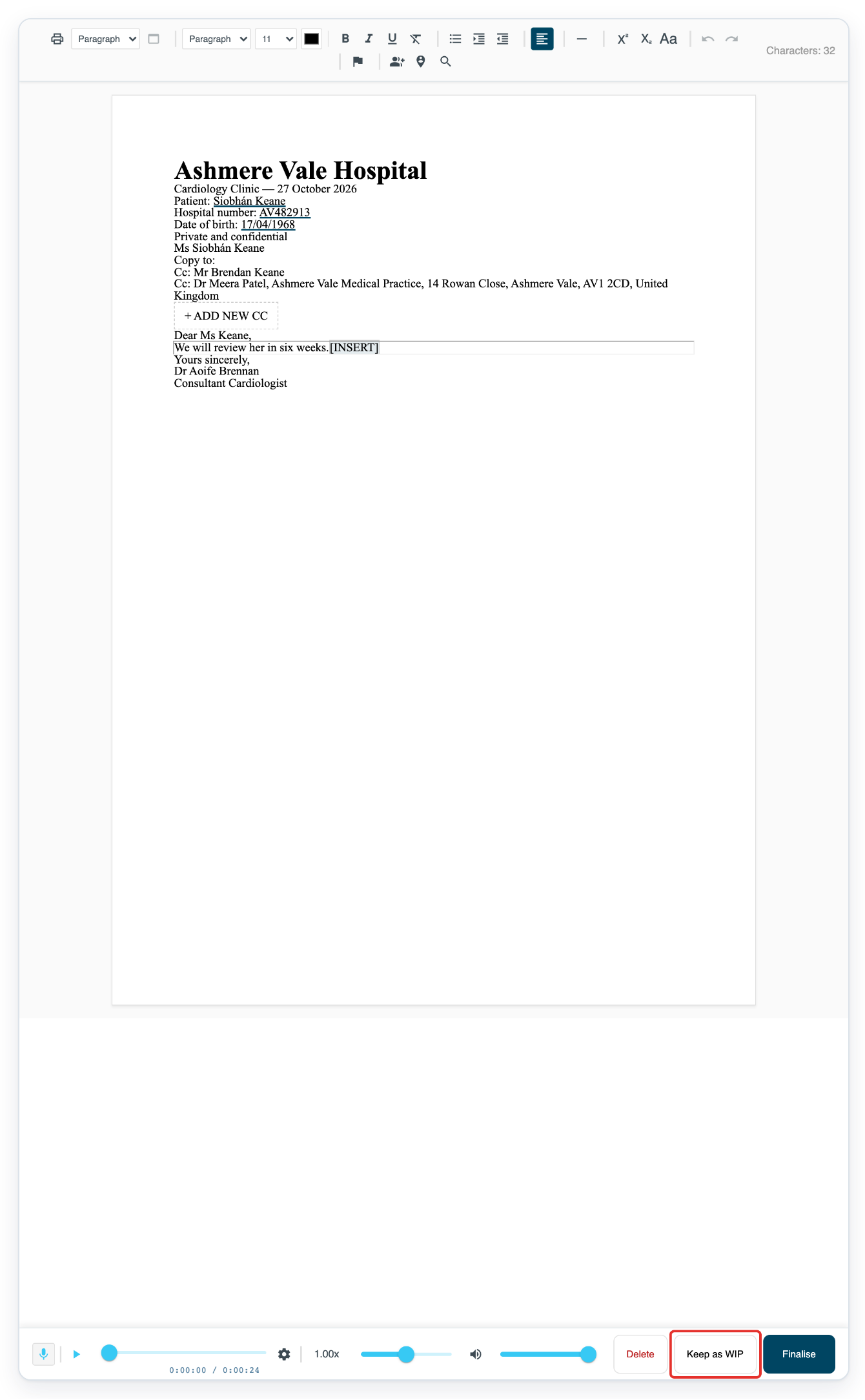
The next steps use a different letter with audio. In this example, the insertion point is the [INSERT] marker below the greeting.
Move your pointer over the microphone button at the bottom left. You'll see Record audio.
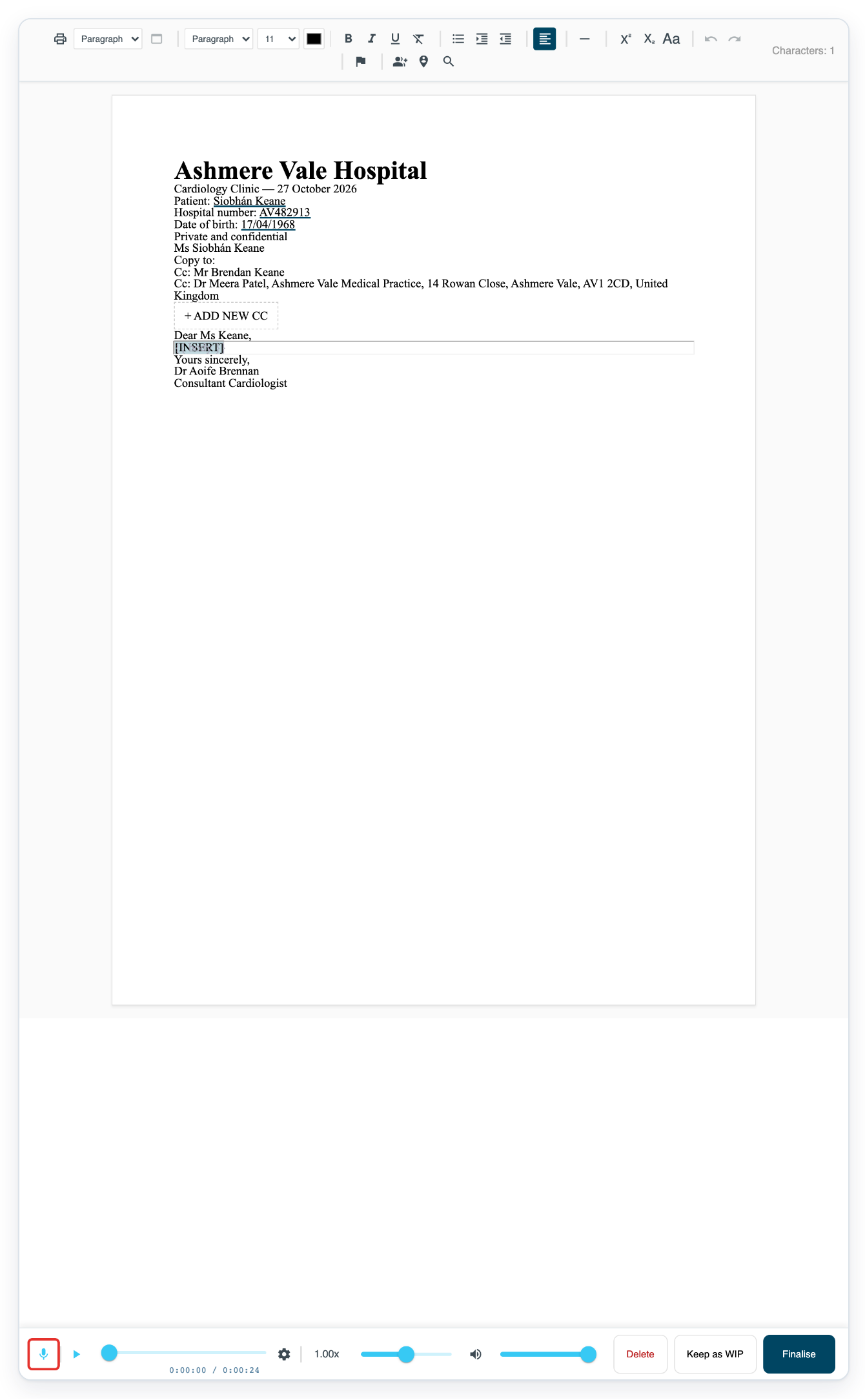
Click Record audio and start dictating into your microphone.
Say punctuation as you dictate. For example, say “We will review her in six weeks full stop”.
=> The recognised text appears in your letter as you dictate.
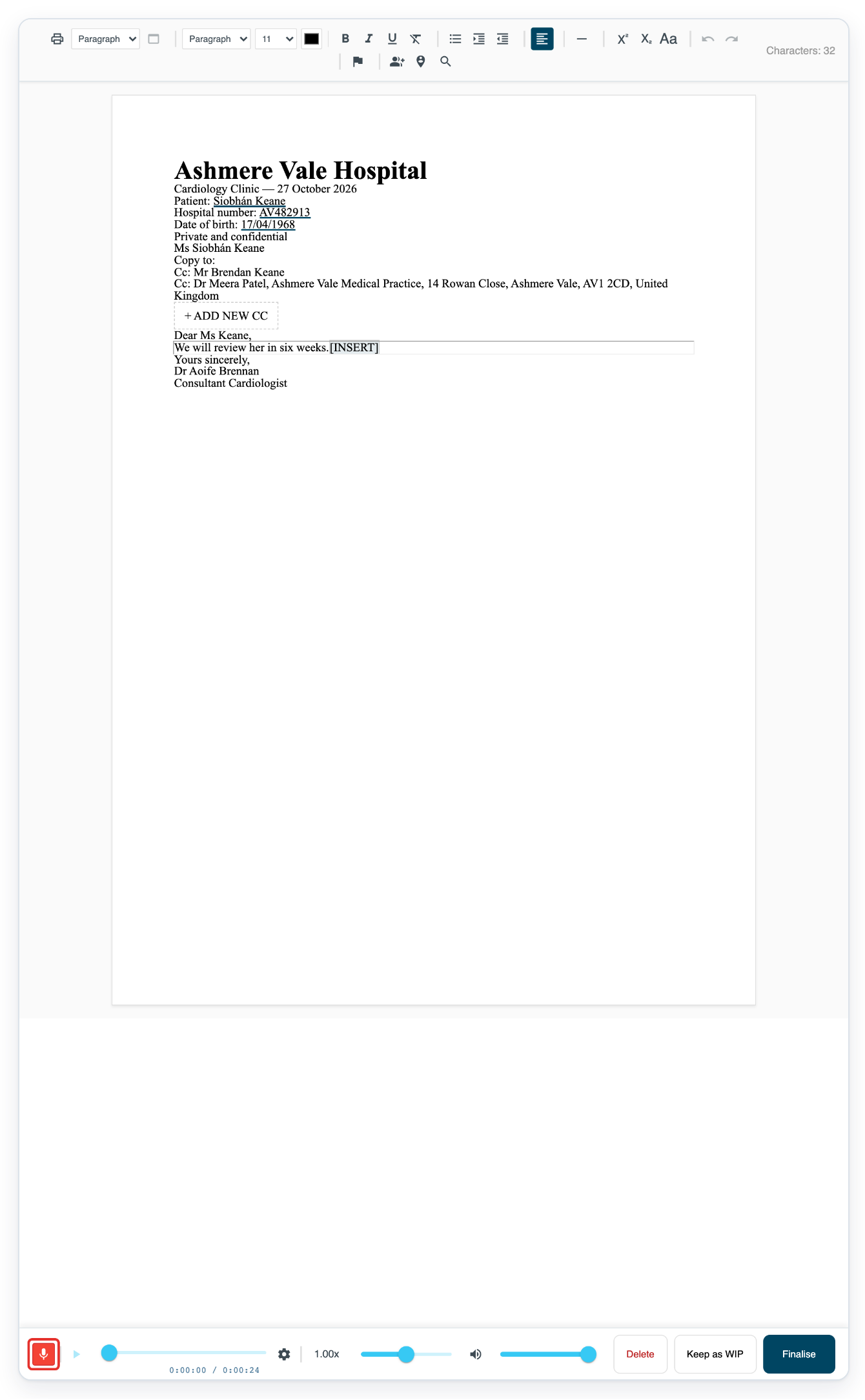
Click the active microphone button again to stop dictating.
Do this whenever you pause dictation.
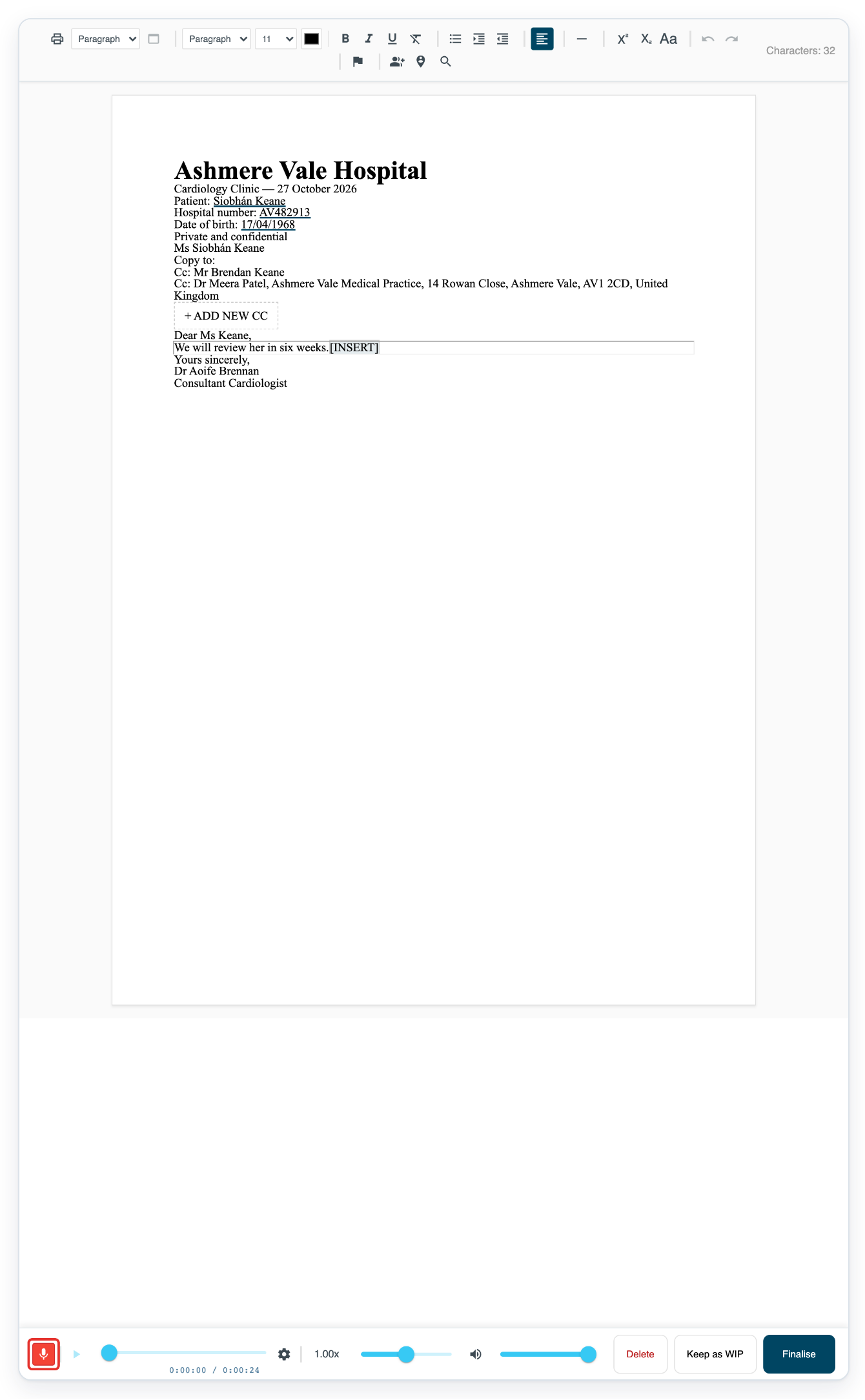
=> The microphone stops. The recognised text stays in the letter for you to review.
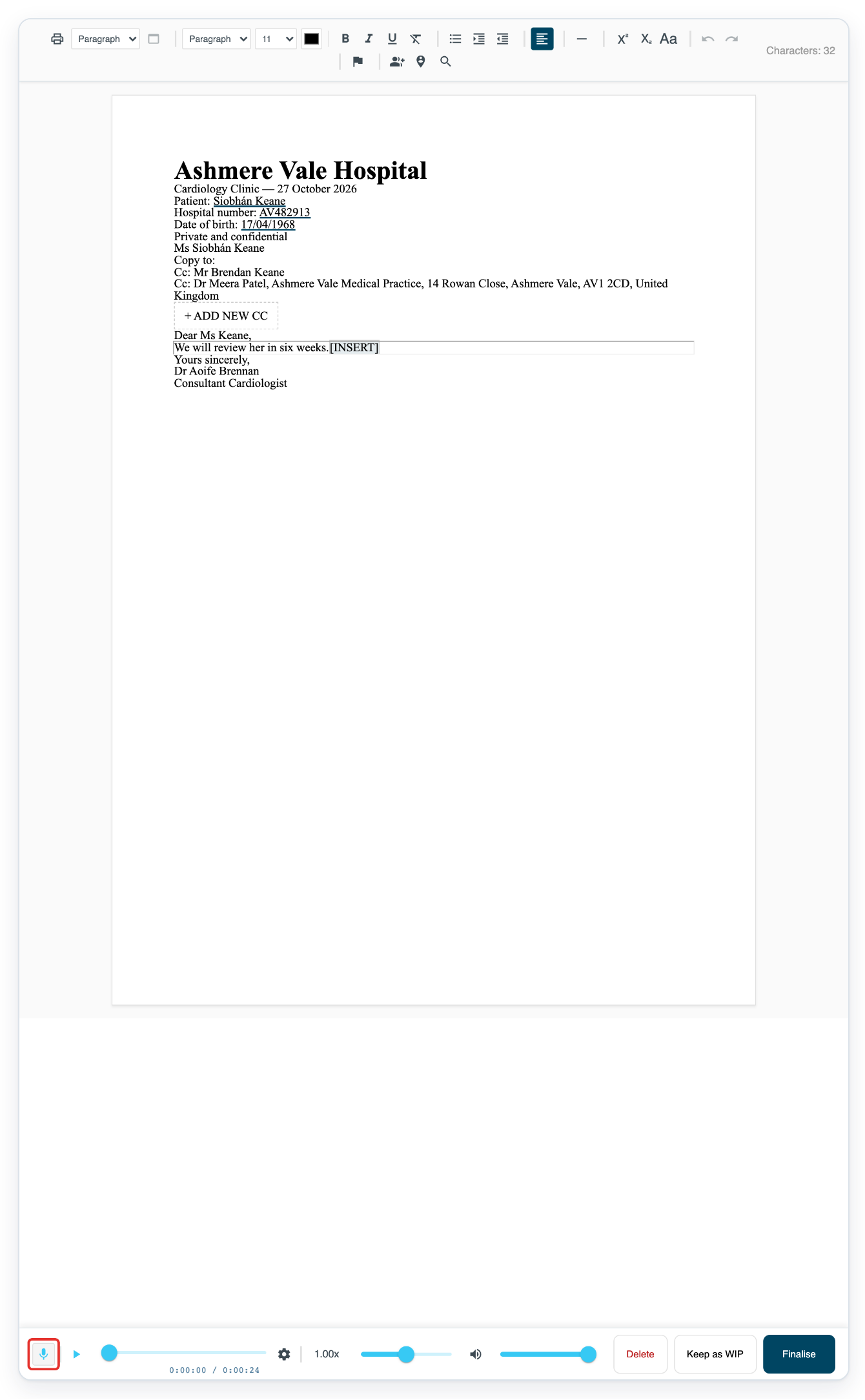
Review the text, then click Keep as WIP to save your draft. All tasks opens and shows the task as Draft.
Type any corrections before you save.
Send to editor sends your letter to the next transcription or editing stage. Finalise skips these stages and follows the task's approval route. Delete discards the task.
NOTE:
- Allow microphone access when your browser first asks.
- Stop dictating before you check the text or type corrections.
- The options depend on the stages in your transcription route. Send to editor appears if transcription or editing is included.
Useful voice commands
Use these commands as you dictate.
| Say | What happens |
|---|---|
| New line | Starts a new line. |
| New paragraph | Starts a new paragraph. |
| Go to next field | Moves to the next insertion point. |
| Full stop | Inserts a full stop (.). |
| Comma | Inserts a comma (,). |
| Question mark | Inserts a question mark (?). |
| Exclamation mark | Inserts an exclamation mark (!). |
| Open bracket | Inserts an opening bracket ((). |
| Close bracket | Inserts a closing bracket ()). |
| Open quote | Inserts an opening double quote ("). |
| Close quote | Inserts a closing double quote ("). |
| Colon | Inserts a colon (:). |
| Semicolon | Inserts a semicolon (;). |
| Forward slash | Inserts a forward slash (/). |
| Backslash | Inserts a backslash (\). |
| Hyphen | Inserts a hyphen (-). |
Can't dictate into your letter?
- There's no microphone button in a new letter. Use an existing author draft with audio for steps 6 to 10. To create a recording, follow Record a dictation with Web Recorder.
- Recording won't start. Check that your microphone is connected and your browser has permission to use it. Then try again.
- No recognised text appears. Stop dictating, save your letter with Keep as WIP and contact our Helpdesk.
- Text appears in the wrong field. Stop dictating and click the insertion point where you want the text. Click Record audio to start again.
Related articles
- Record a dictation with Web Recorder
- Correct speech recognition text
- The letter editor
- Turn on live speech recognition for an author
If you have any more queries, please do not hesitate to contact our Helpdesk or support@tpro.io.
© 2020 - 2026