
Before you start
You need a transcriber account with access to the task and its letter. To download a Word copy, the letter's template must have a Word template attached.
Log in to T-Pro with your transcriber credentials.
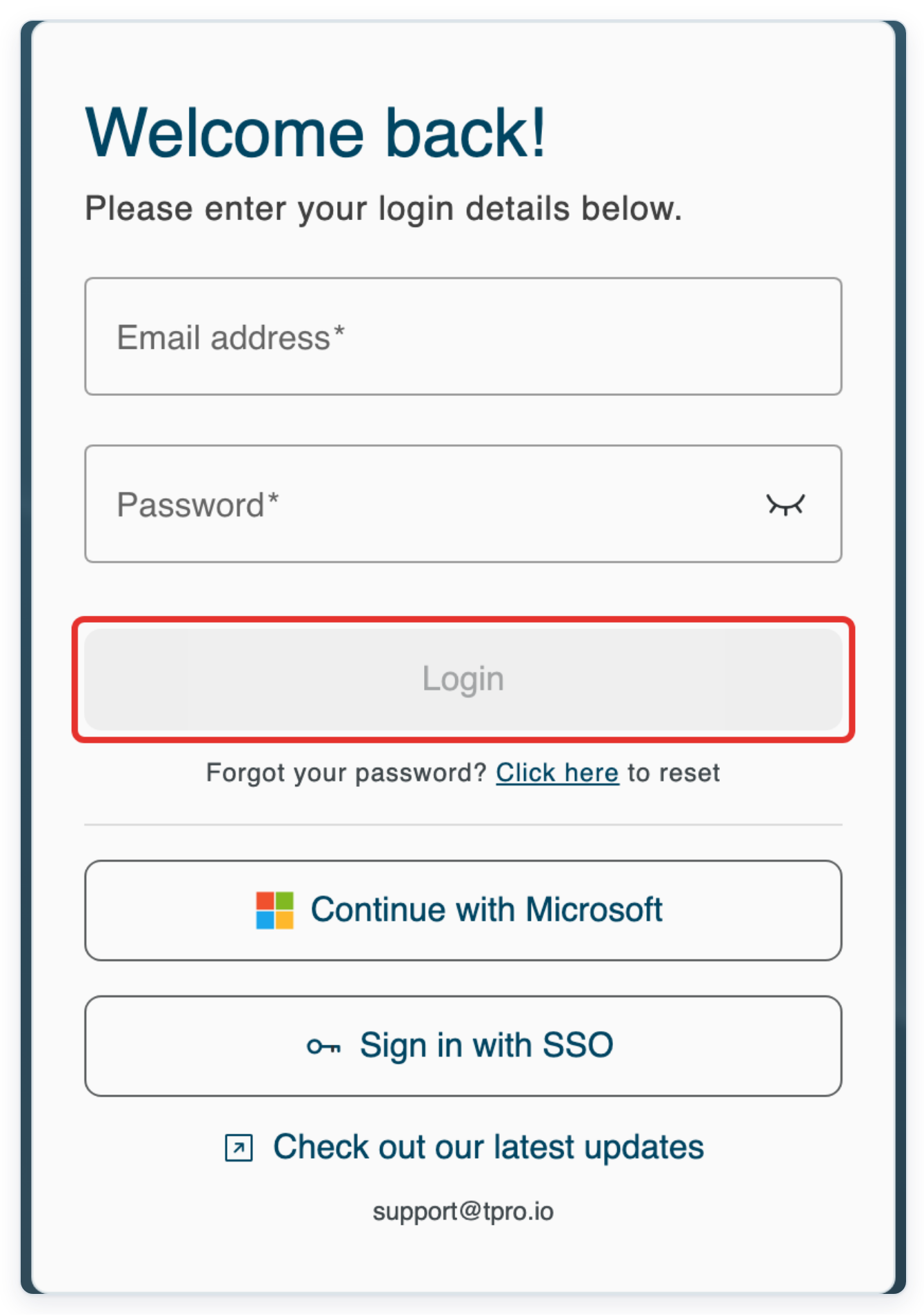
Enter your Email address and Password, then click Login.
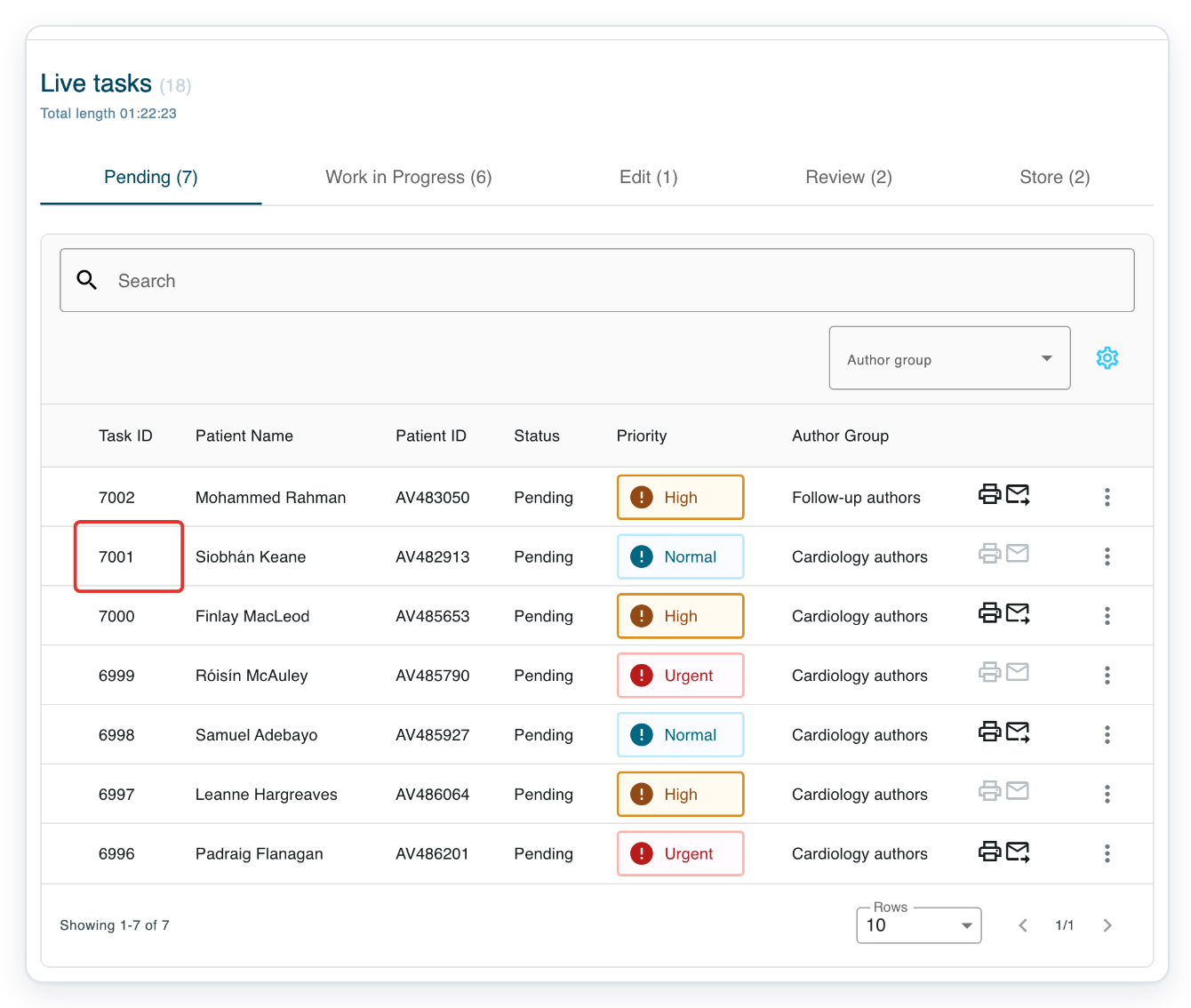
In Live tasks, find the letter you want to download. Click its Task ID to open it.
Choose the tab for the task's stage. Pending contains tasks waiting to be transcribed. Work in Progress contains tasks someone is already working on. To find a patient, enter their name in Search. Press Enter to search the selected tab.
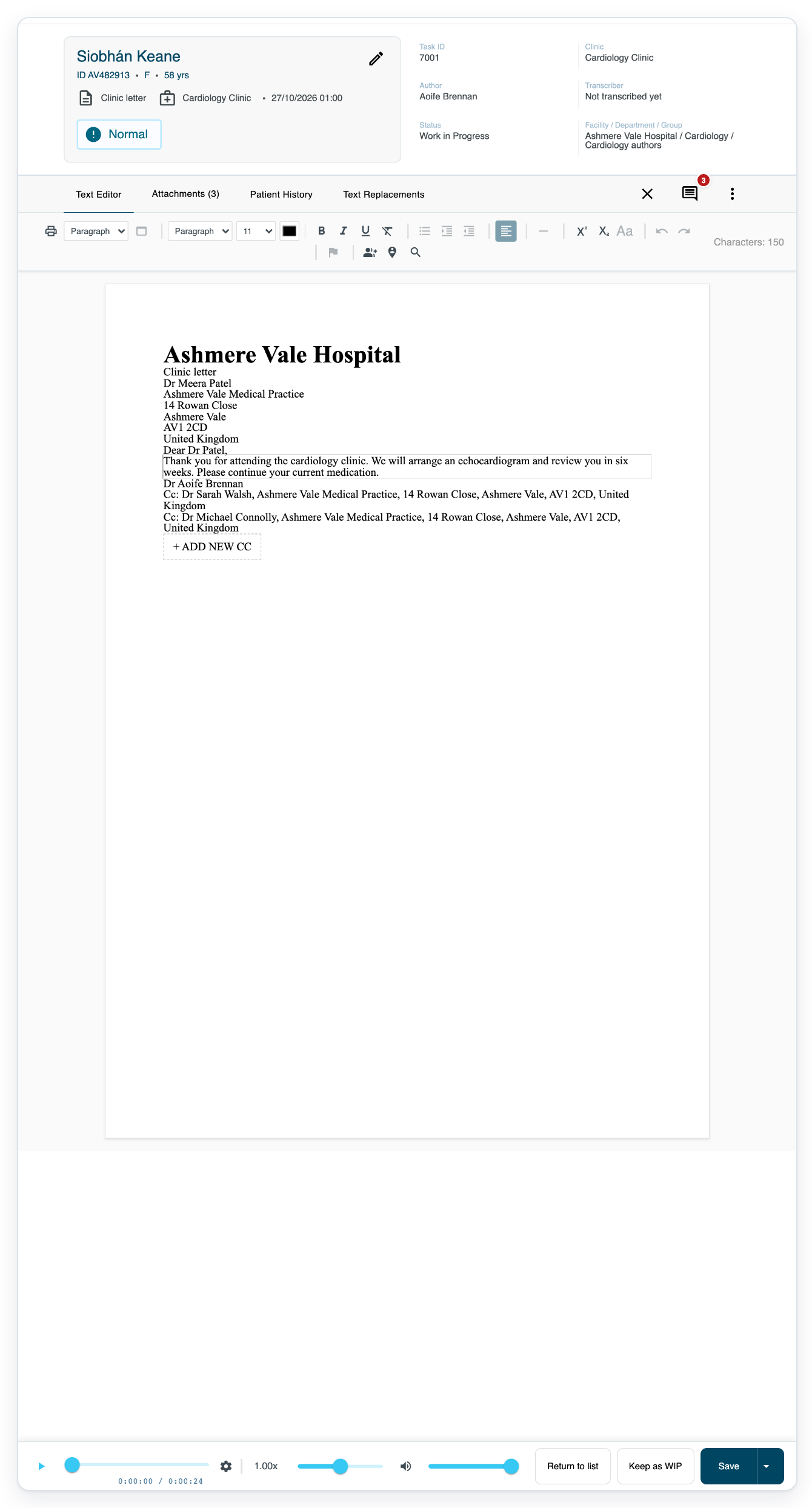
In this example, click 7001 for Siobhán Keane. When the letter opens, check the patient details at the top. Before choosing a download format, check that the task number and patient name match the letter you need.
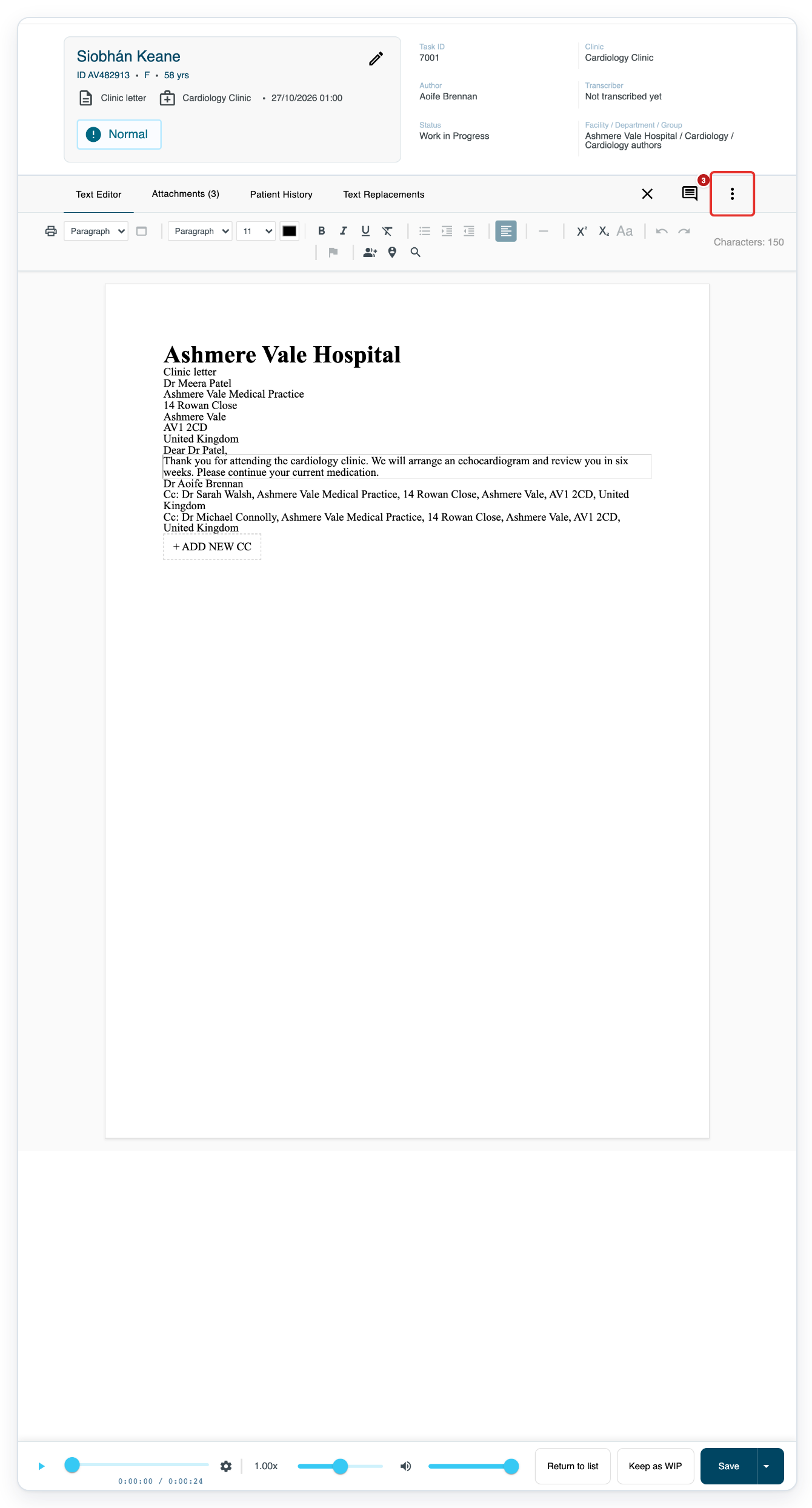
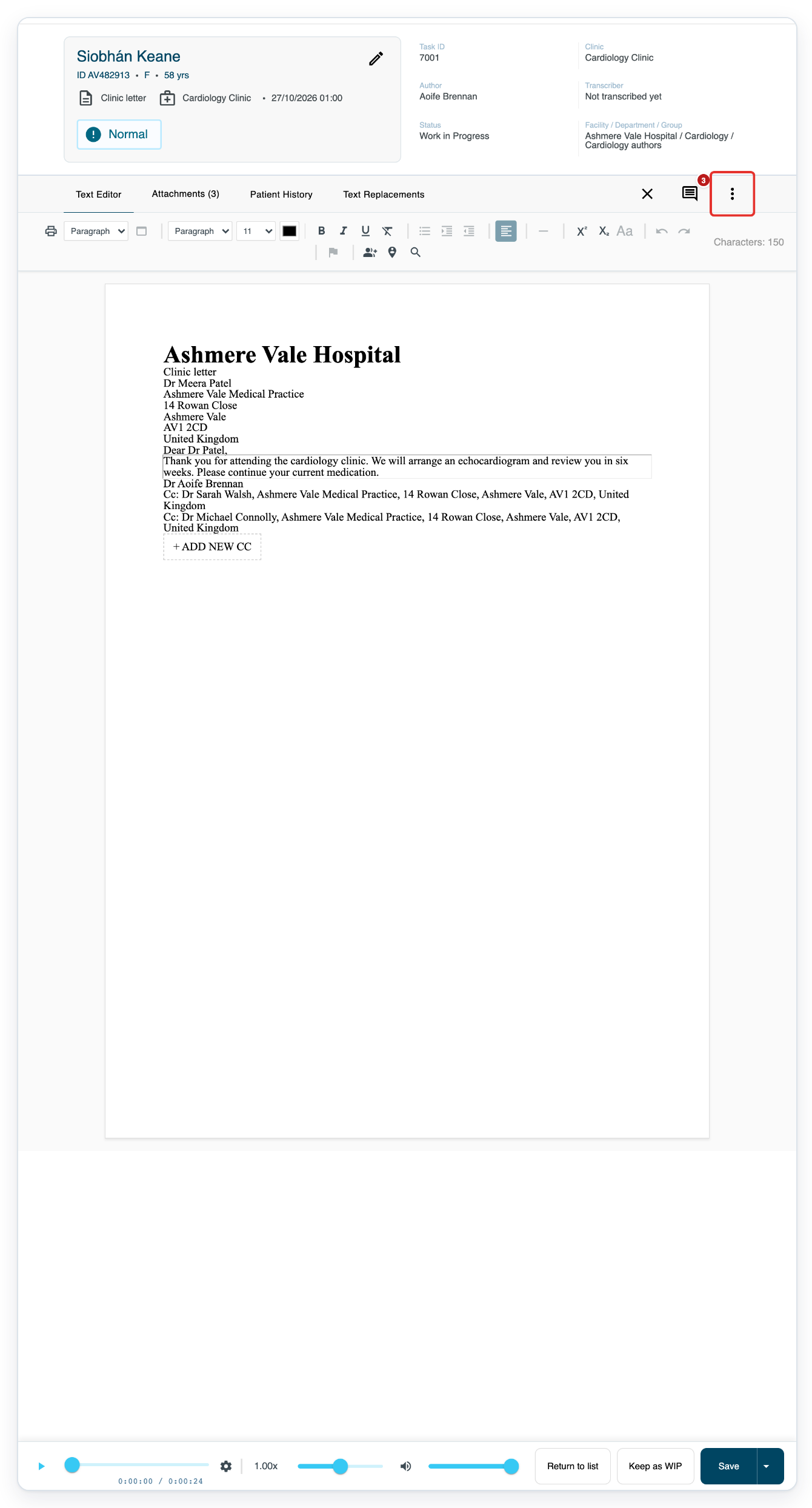
Click More, the three dots at the top right above the letter.
=> The menu shows Download PDF. This letter also has Download DOCX because its template has a Word template attached. Choose PDF for a PDF copy, or DOCX for a Word document.
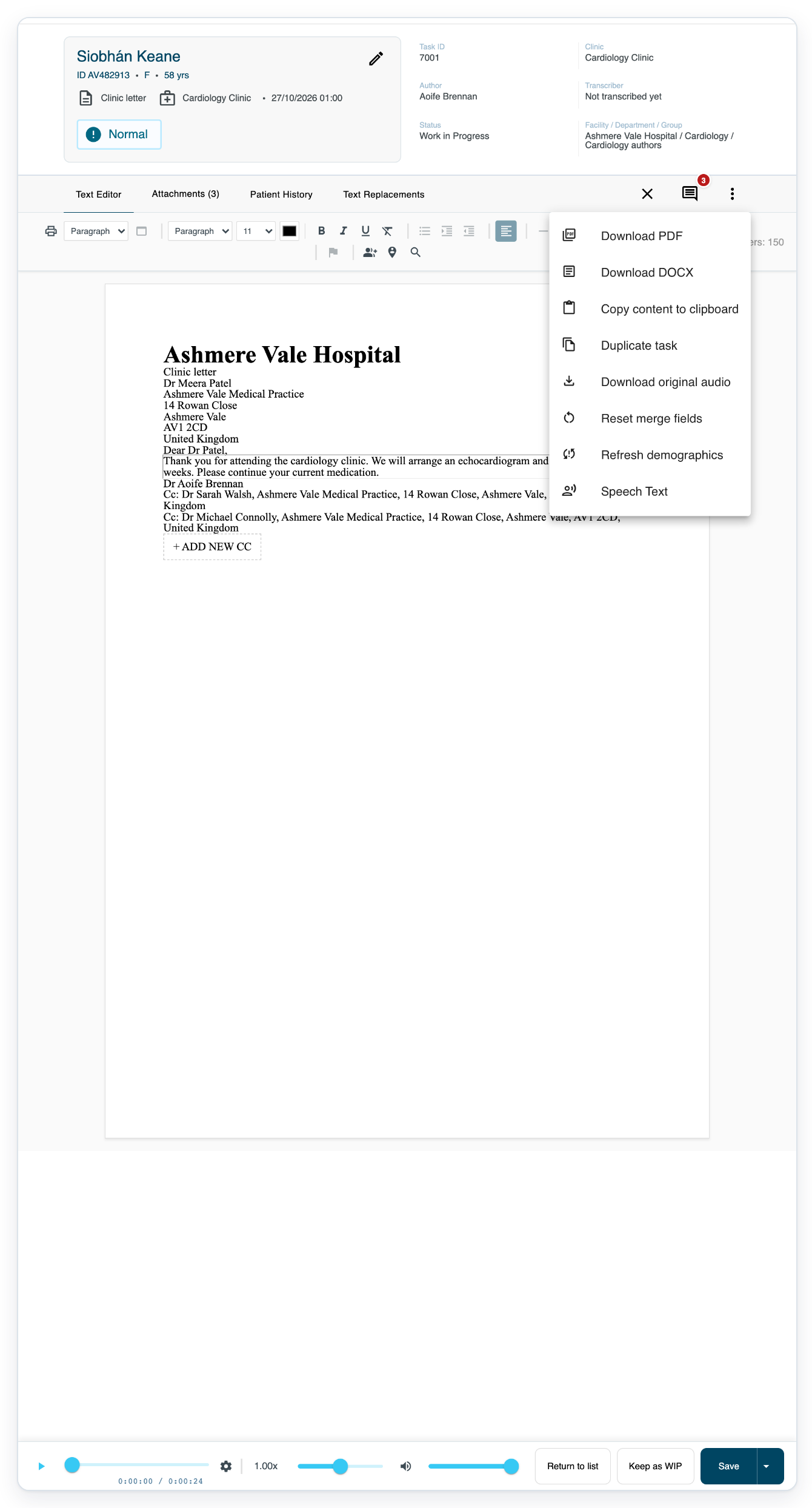
Click Download PDF to open a PDF copy of the letter.
T-Pro opens the PDF in a new browser tab. The picture below shows where to click.
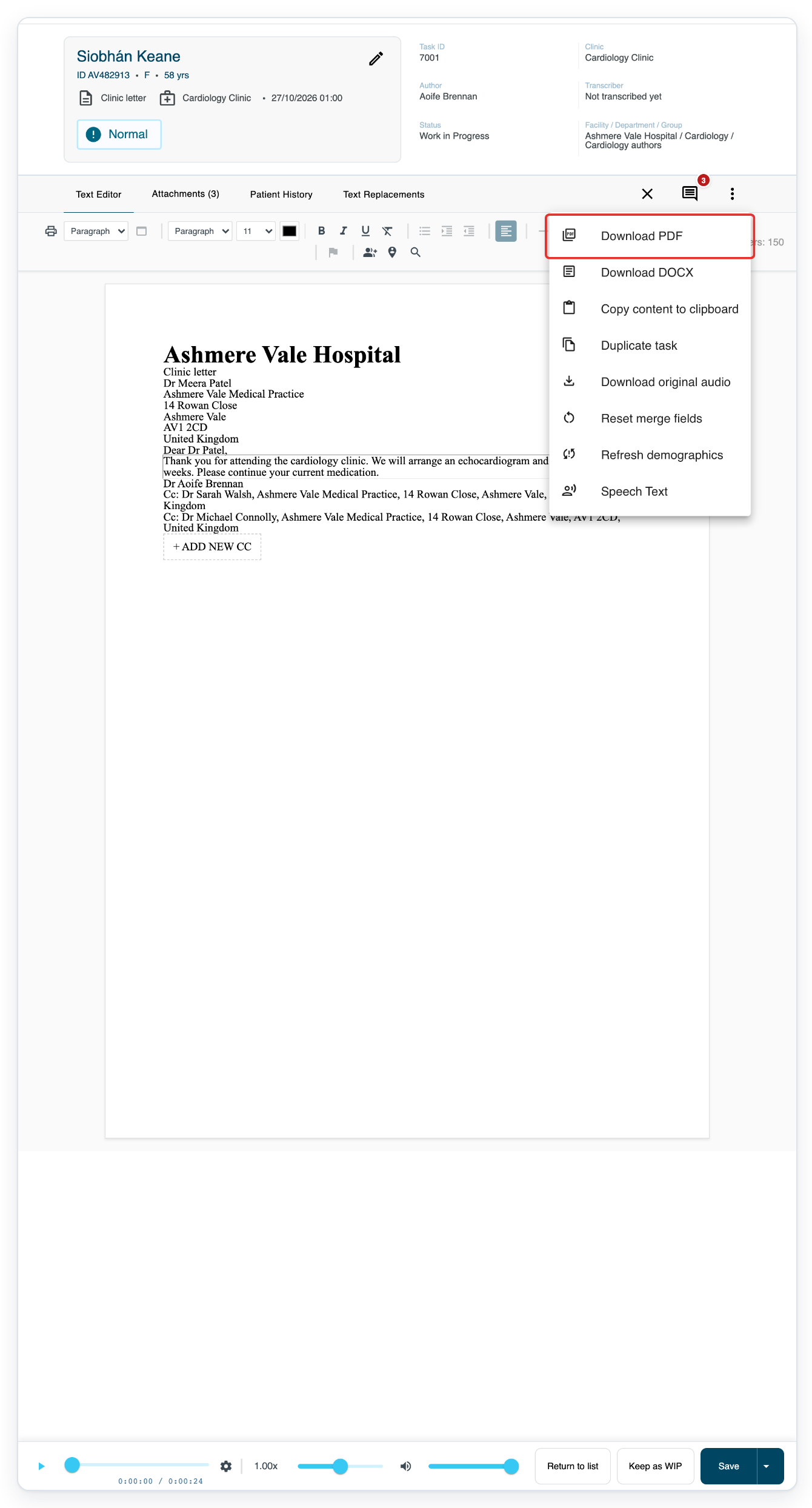
=> Your task stays open on Text Editor. Switch to the PDF tab and check the letter. Use the PDF viewer's download or save control to save a copy to your computer. If asked, choose a file name and folder, then save.
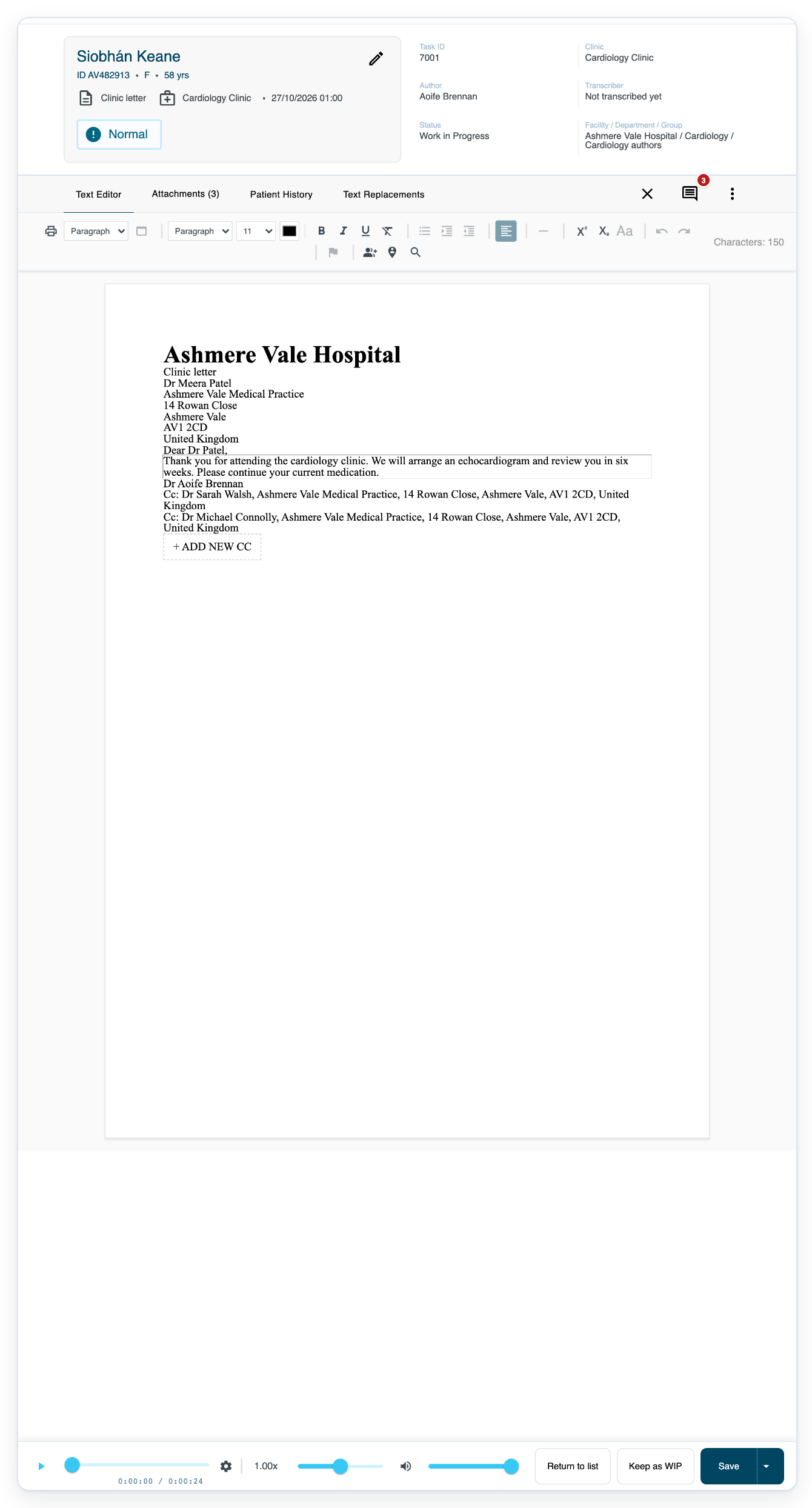
To download a Word copy as well, return to the T-Pro task tab and click More again.
Click Download DOCX to download a Word copy of the letter.
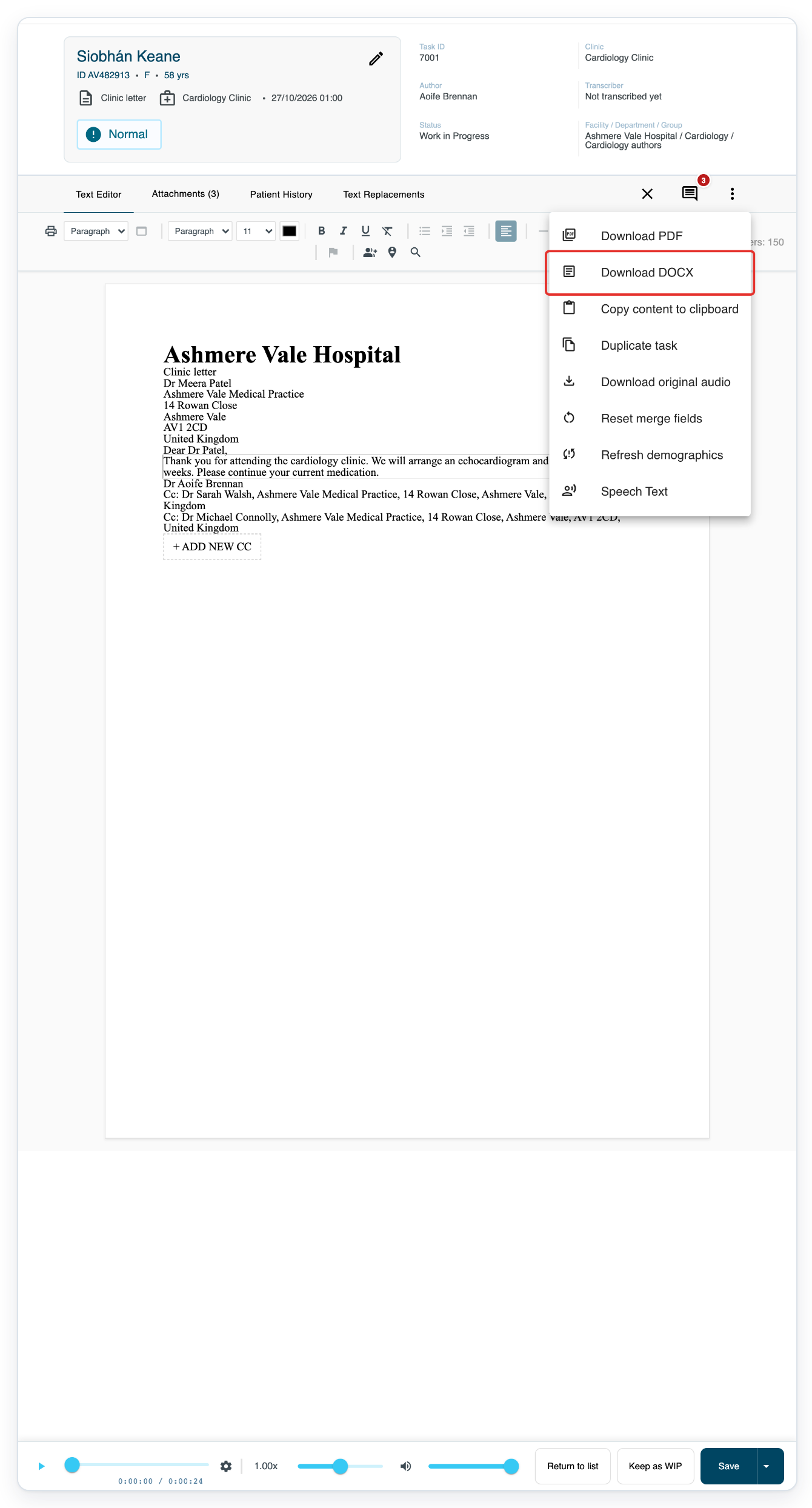
=> Your task stays open on Text Editor while your browser handles the download. If either copy is missing, follow the checks under 'Can't download a letter?' below.
NOTE:
- Downloads use the saved letter, so save any changes before downloading a copy.
Can't download a letter?
- Can't find the PDF or Word copy? Check your browser's Downloads list and the folder where it saves downloads. If you find a file, open it to check the letter before downloading another copy.
- PDF open in a tab but not saved? Check the letter in that tab, then use the viewer's download or save control. Choose a file name and folder if asked.
- No PDF tab or Word download appeared? Check whether your browser blocked pop-ups or downloads for T-Pro. Allow whichever it blocked, then try More > Download PDF or Download DOCX again.
- Download DOCX is missing? The letter's template needs an attached Word template. Use Download PDF, or ask the person who manages your templates to check it.
Related articles
If you have any more queries, please do not hesitate to contact our Helpdesk or support@tpro.io.
© 2020 - 2026