
Before you start
You need permission to edit a task that already has a document. Use a manager or master account to change its department or author.
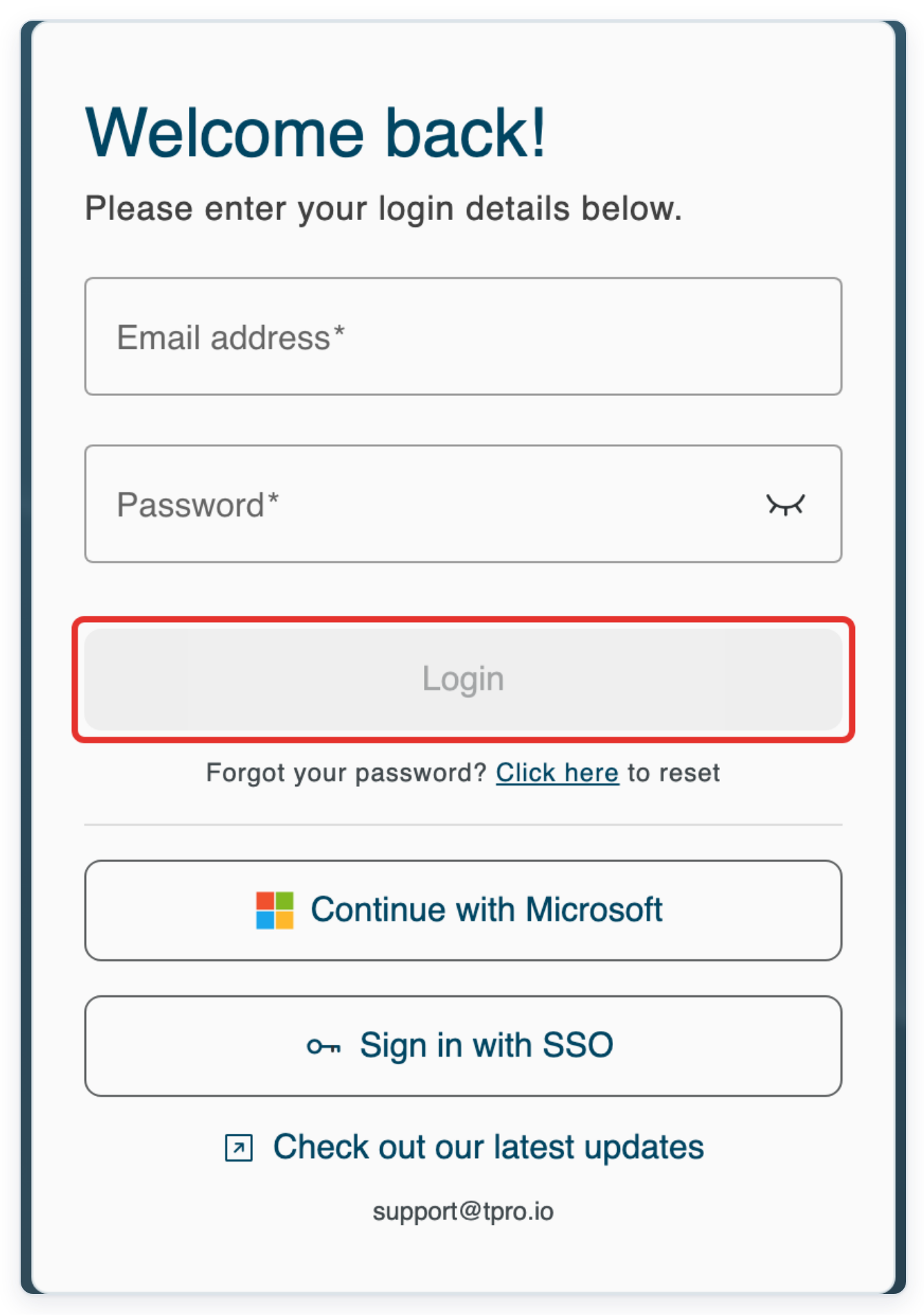
Log in to T-Pro with your manager or master credentials.
As a manager
In All Tasks, click the task you want to update. In this example, open task 7001 for Siobhán Keane.
The task is Waiting for Approval.

Open the task, then click the Edit task information pencil beside the patient details. Update task opens.
Check the task ID and patient details at the top before making changes.

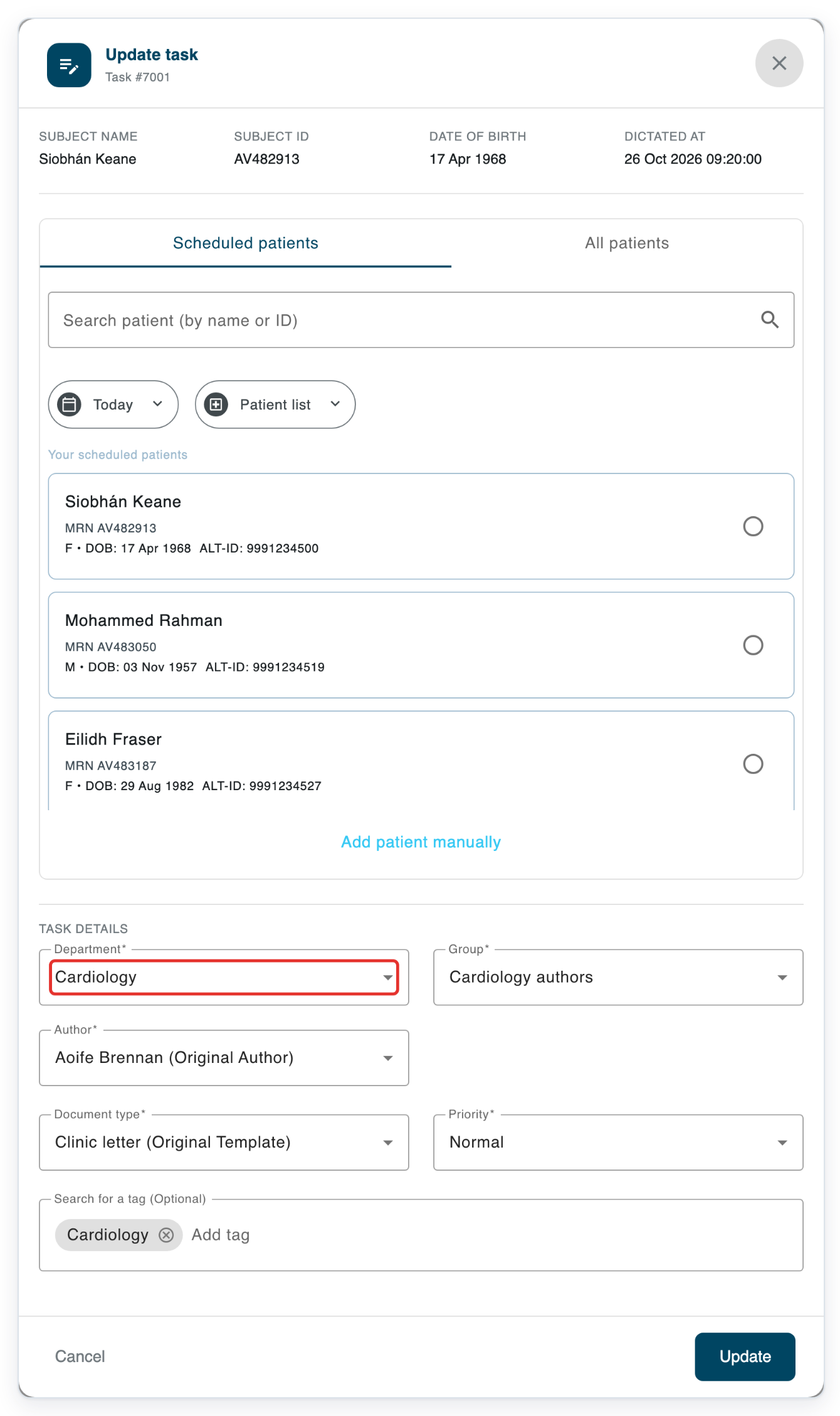
Click Department to see the available departments.
The list shows departments in the task's organisation.
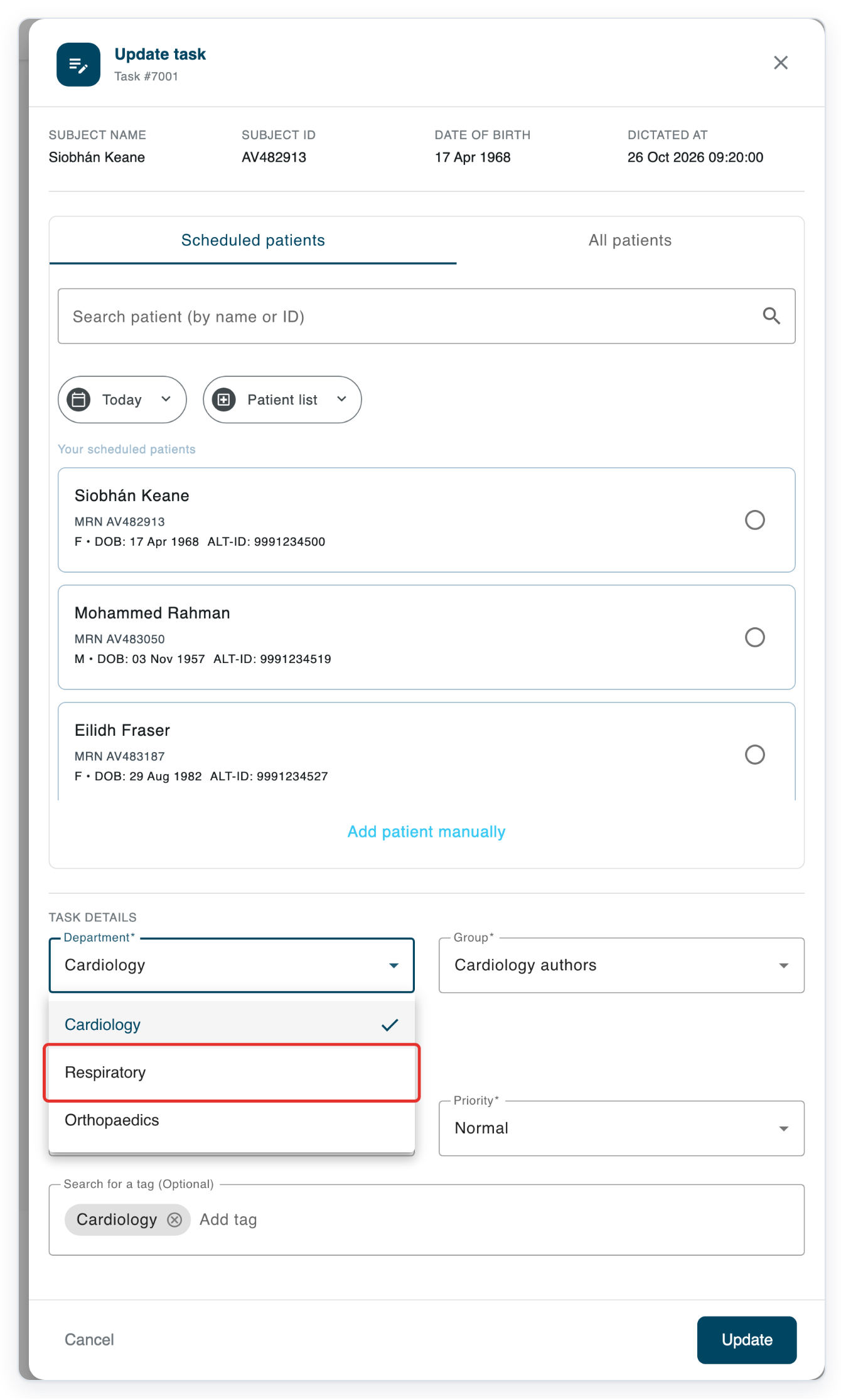
Select the department you need, such as Respiratory.
If you only need to change the group or author, keep the current department.
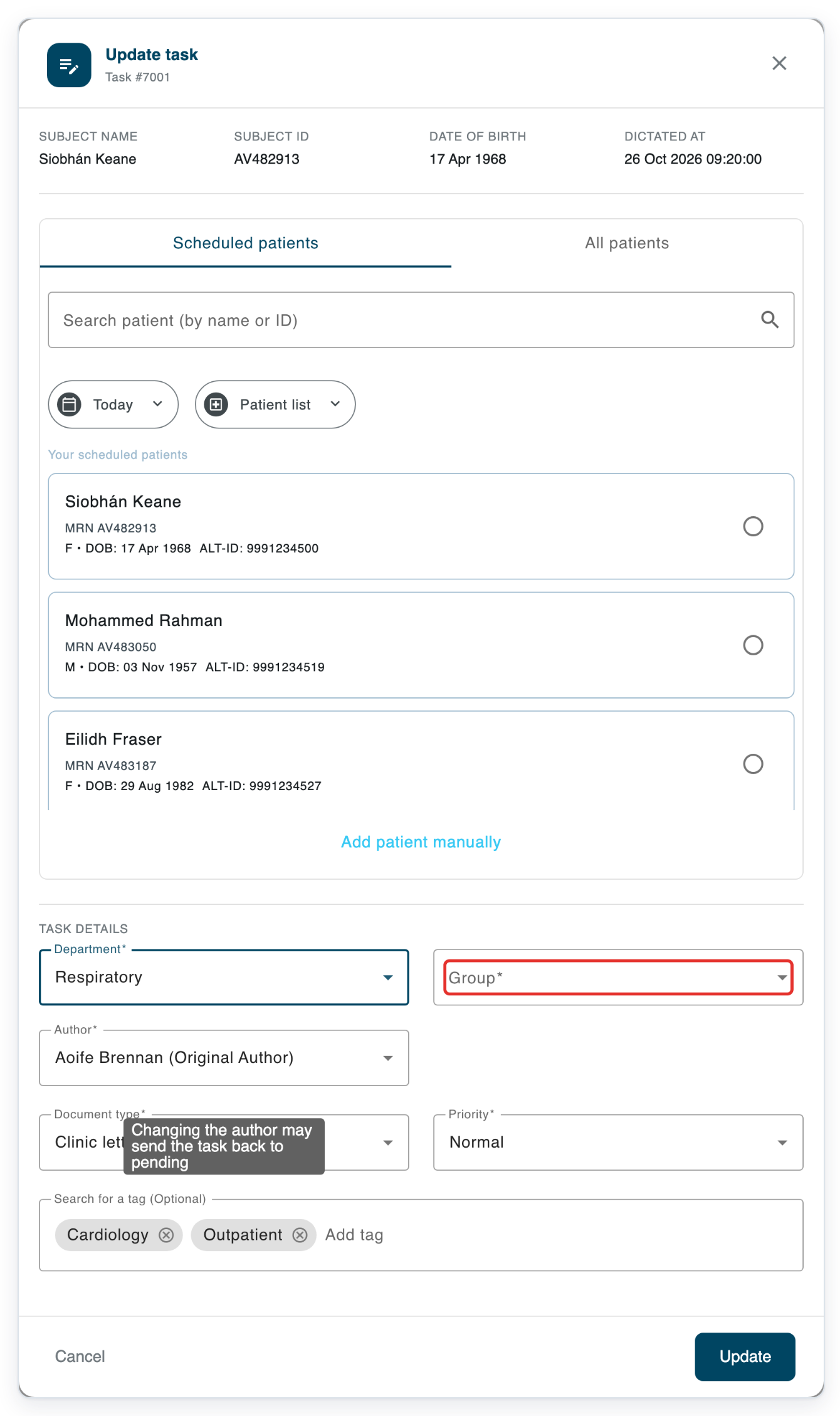
Click Group to see the available author groups.
After changing the department, choose a group from that department.
Select the correct author group. In this example, choose Ashmere Vale Respiratory authors.
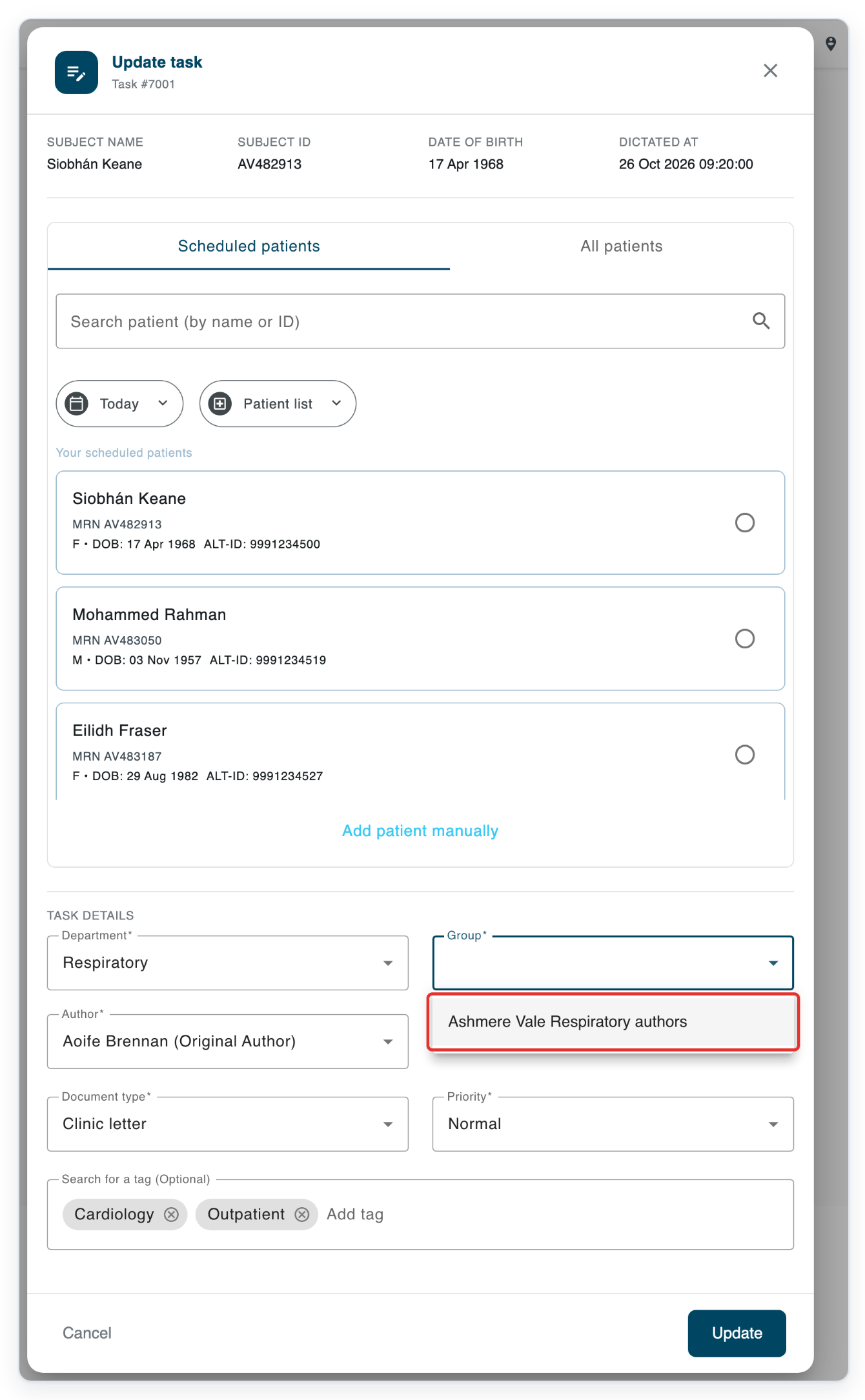
Click Author to see the available authors.
The list shows authors in the selected group.
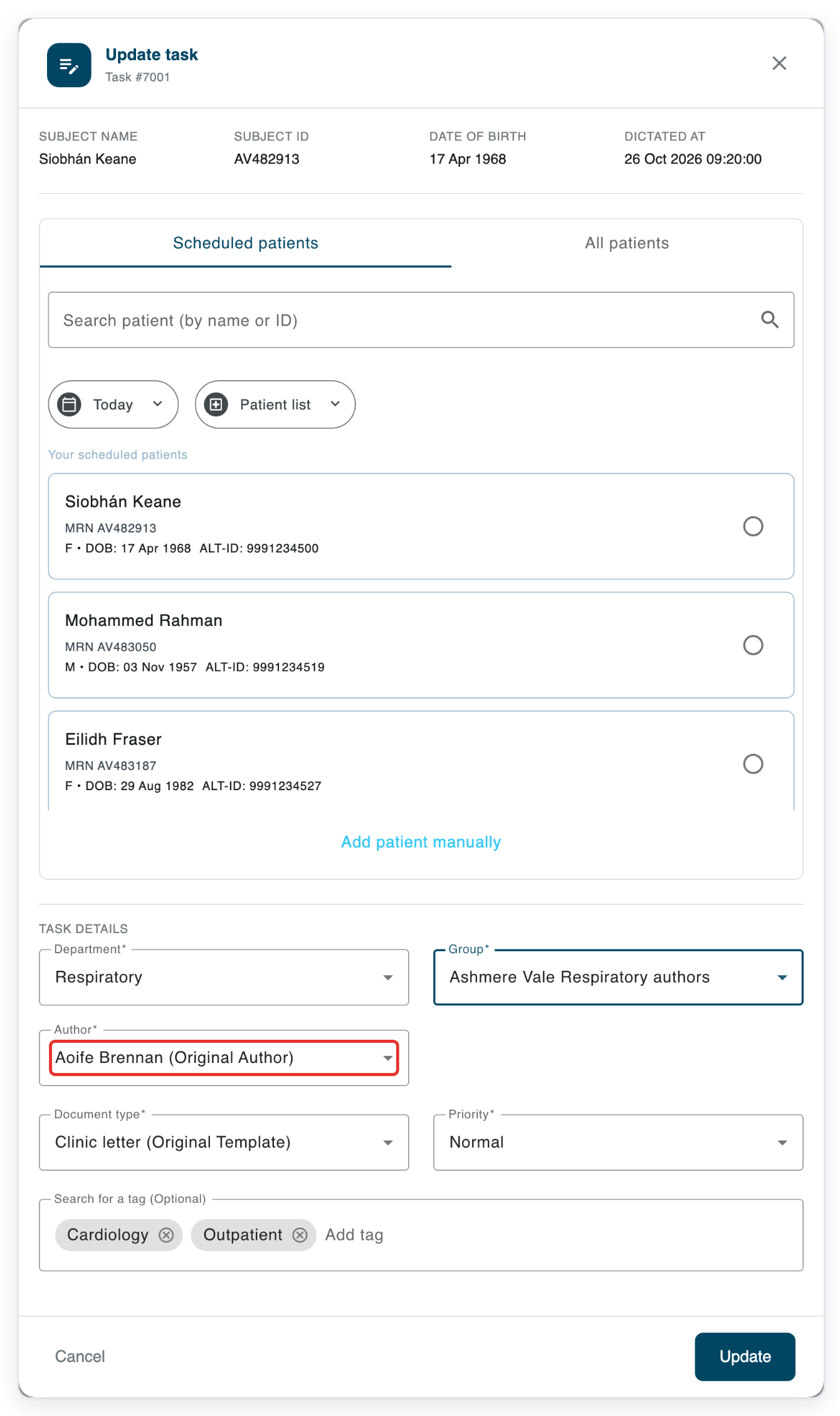
Select the task's author, such as James Okoro.
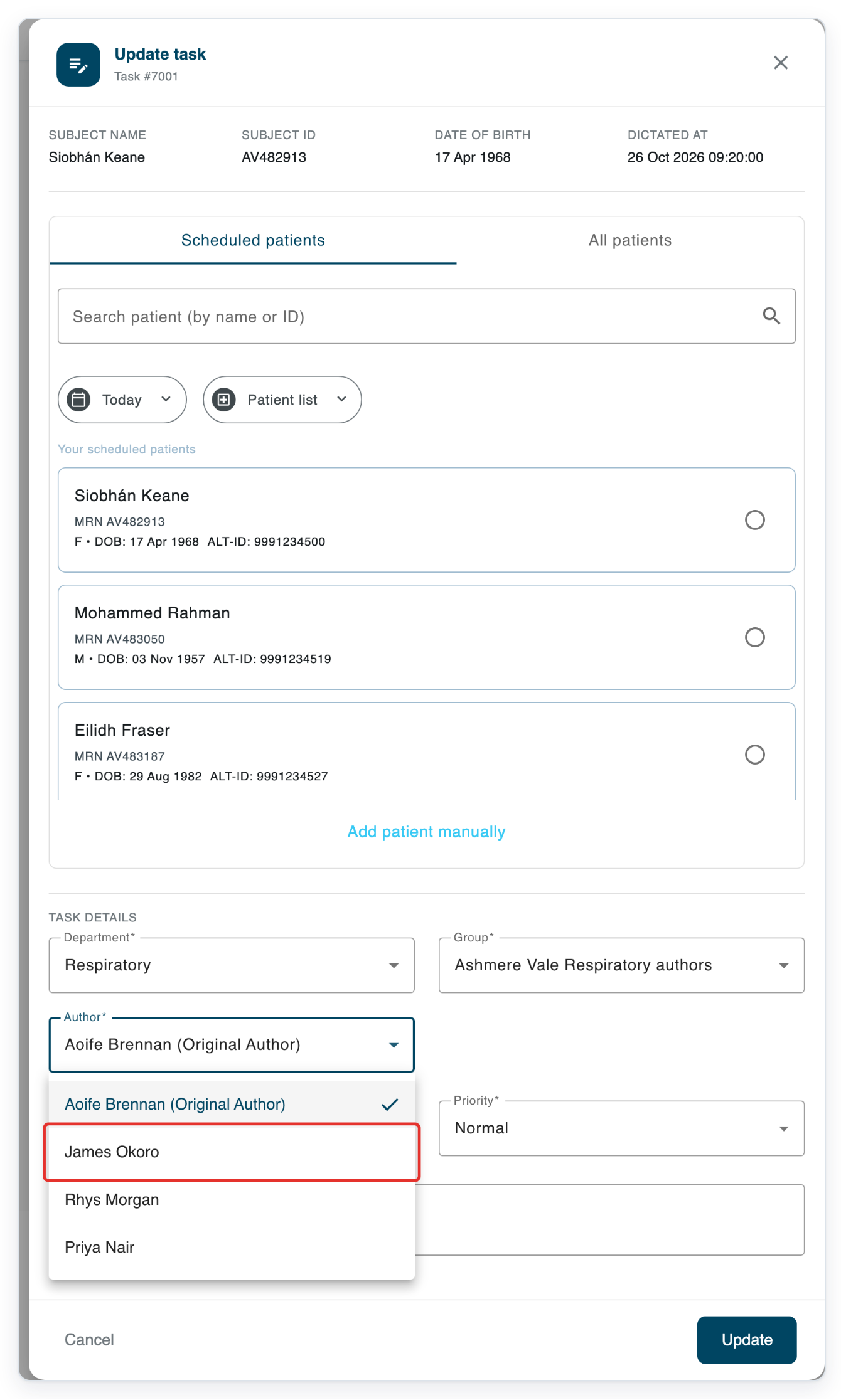
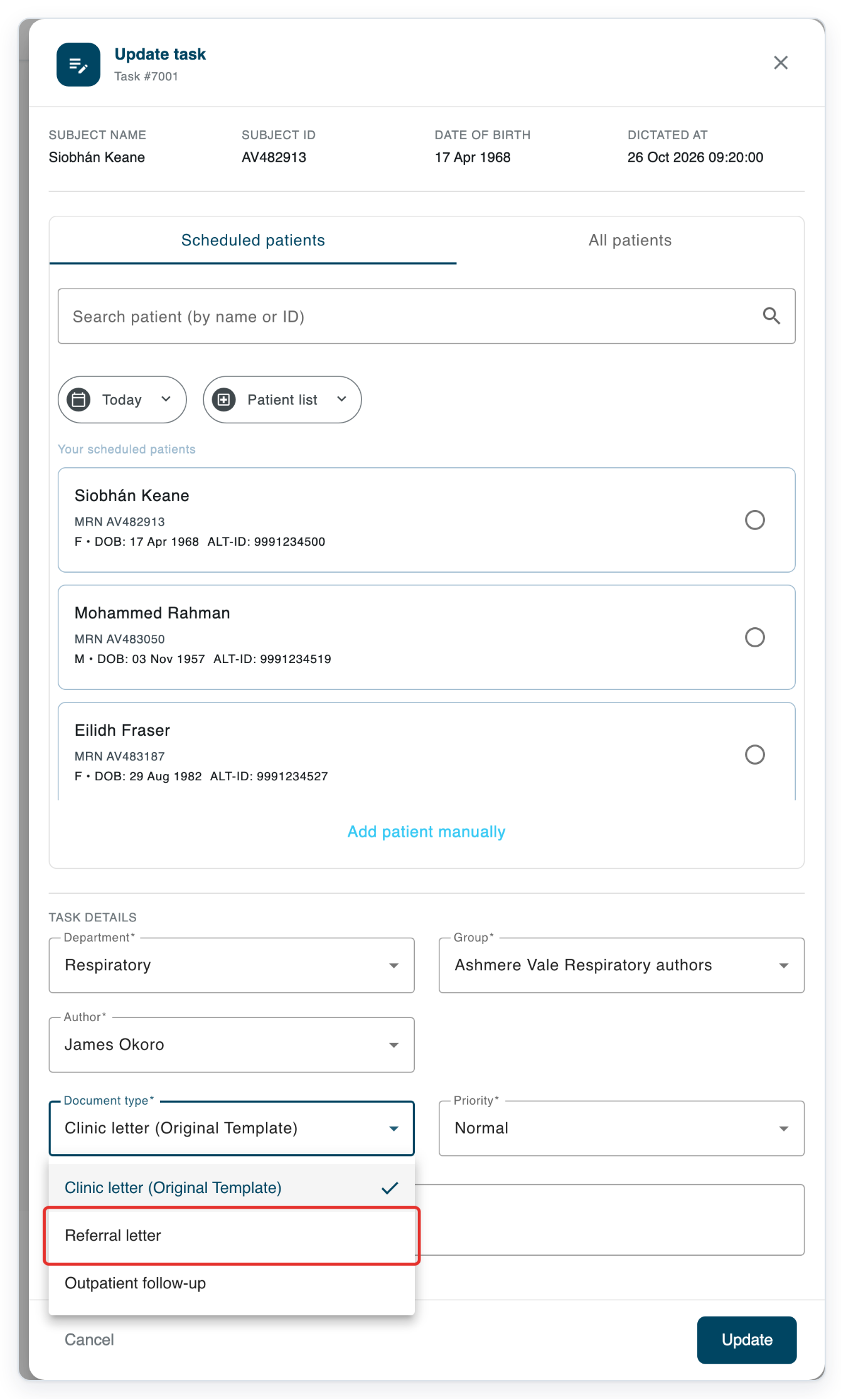
Click Document type to see the available templates.
Check this field even if you're only changing the group. Read the notes below before saving a different template.
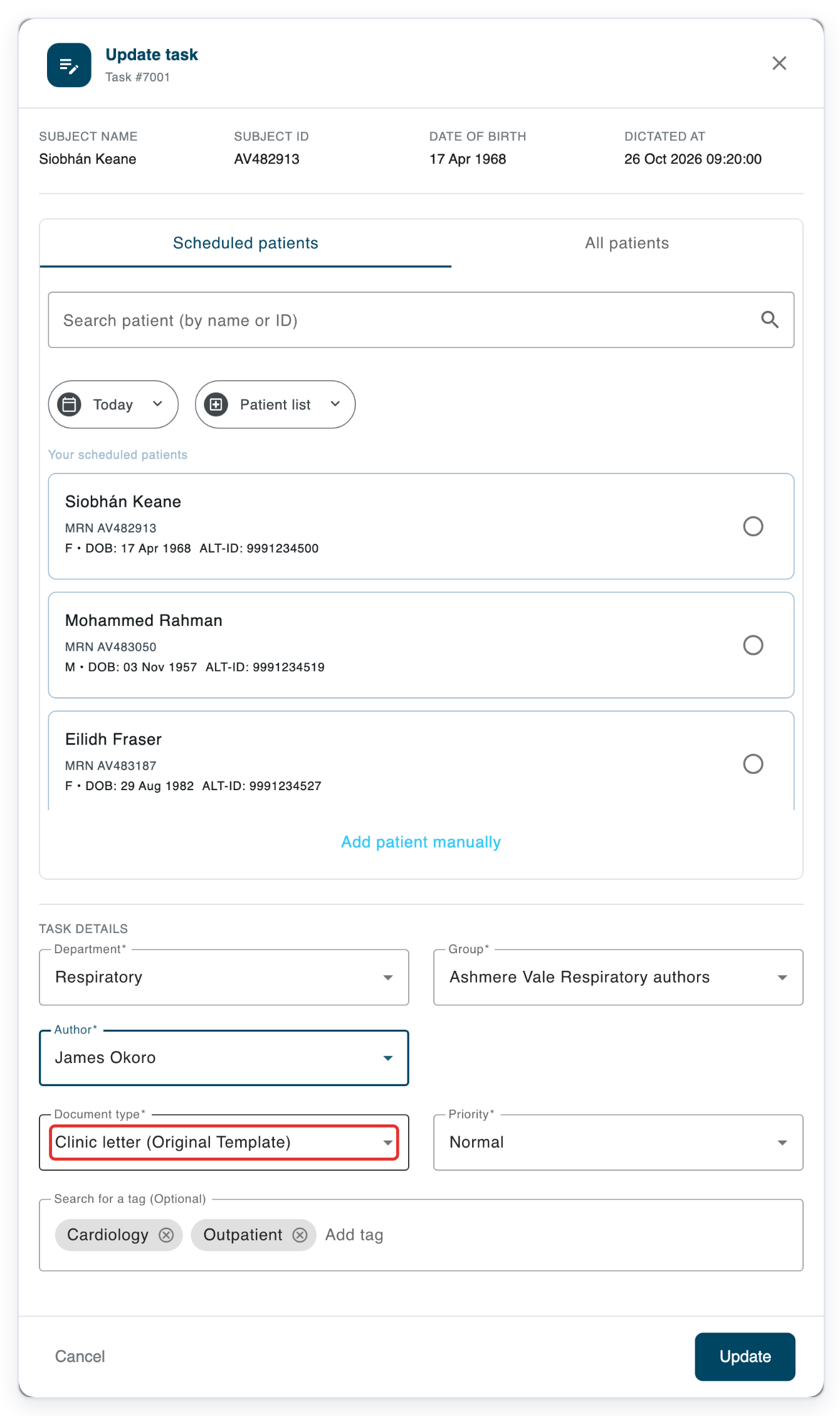
Select the template you need, such as Referral letter.
Check any approver fields shown, then click Update to save the task details.
Check Respiratory, Ashmere Vale Respiratory authors, James Okoro and Referral letter before saving.
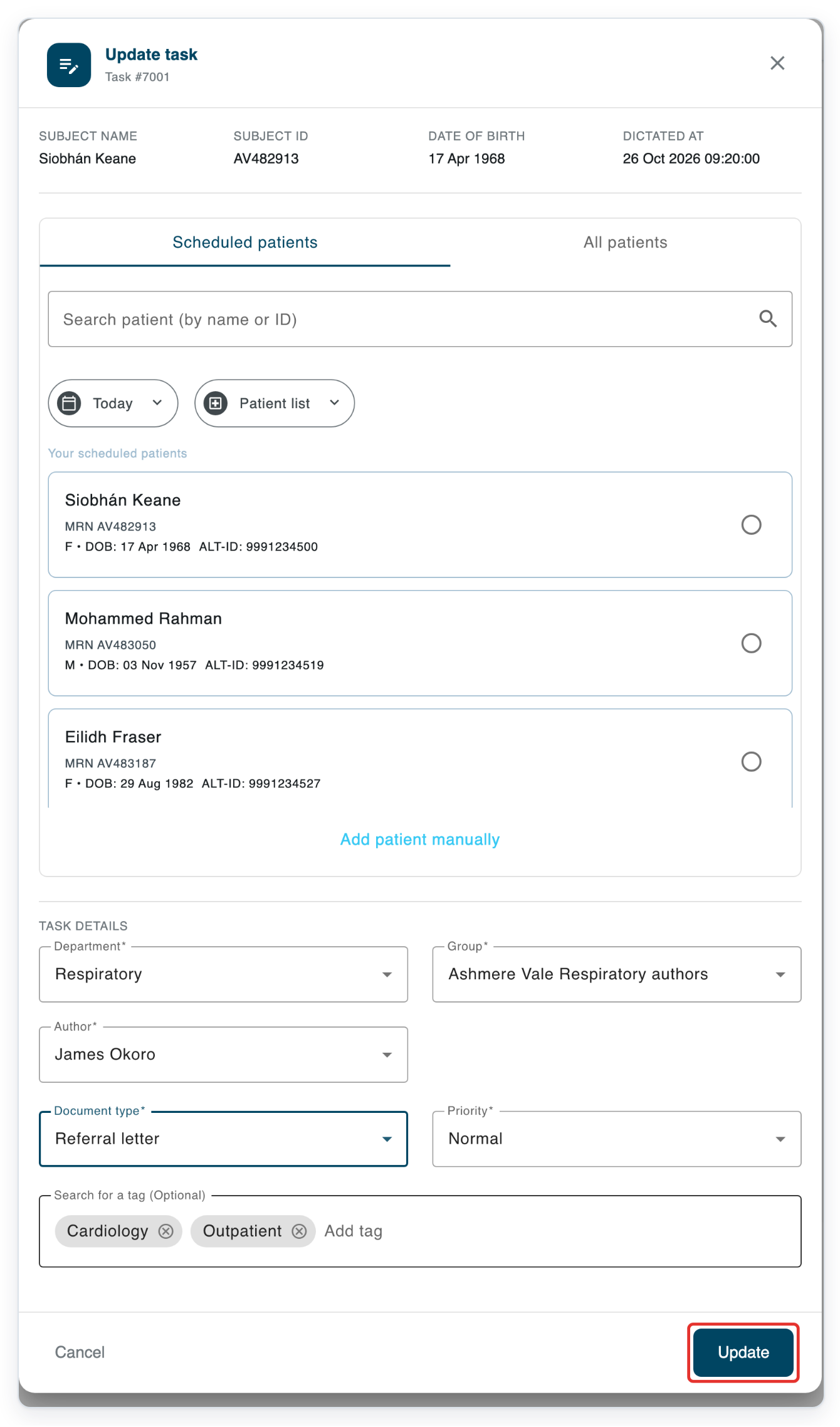
=> Your changes are saved and Update task closes.
All Tasks is shown again. Task 7001 lists Ashmere Vale Respiratory authors, James Okoro and Referral letter.

As a transcriber
Log in to T-Pro with your transcriber credentials. In Live tasks, click Work in Progress.
Use this route to update a task you are already working on.
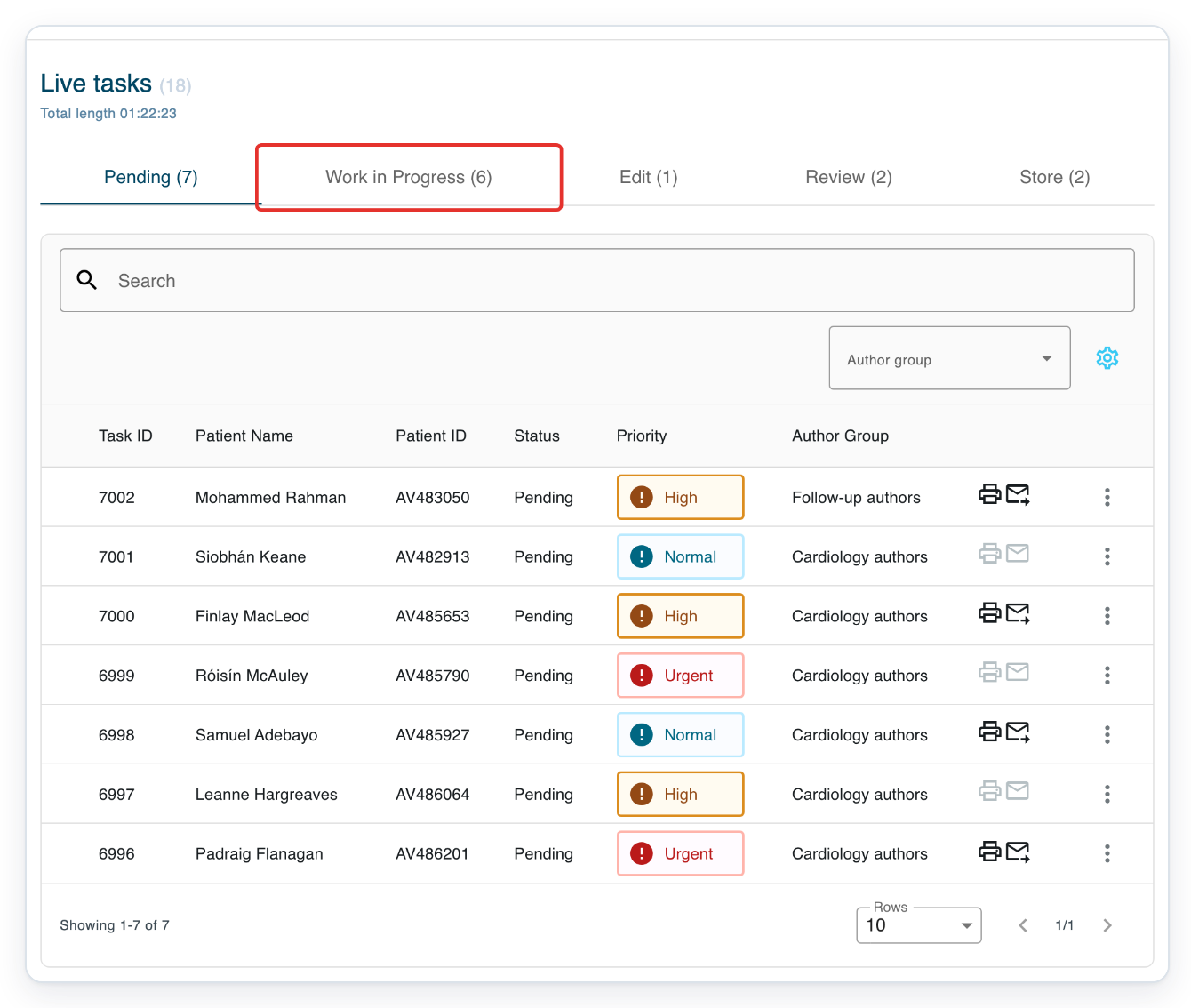
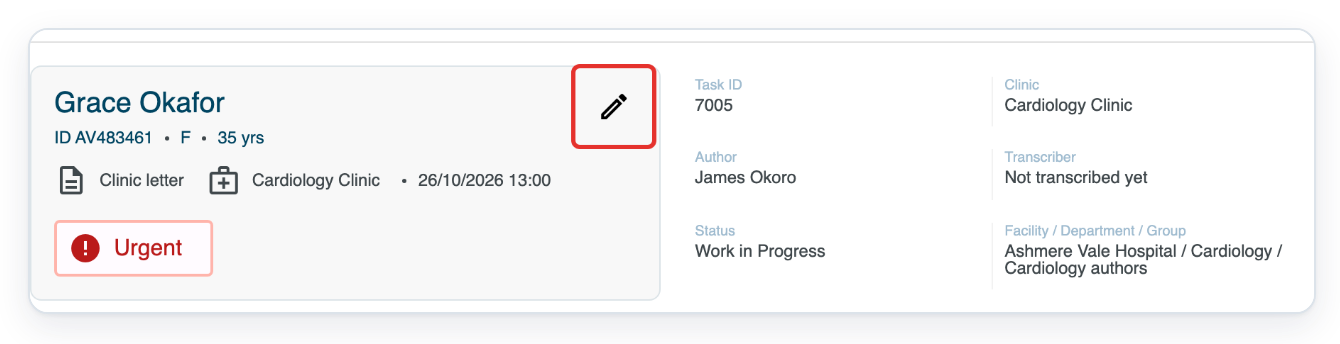
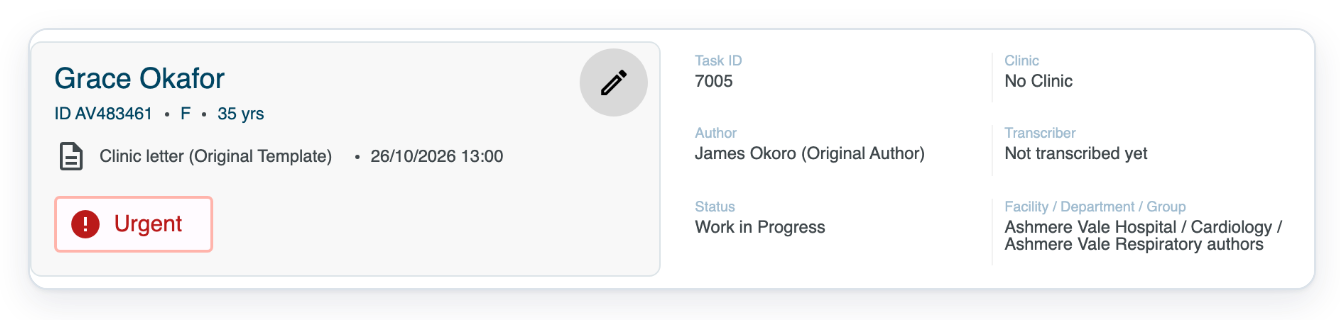
Click your assigned task to open it. In this example, open task 7005 for Grace Okafor.
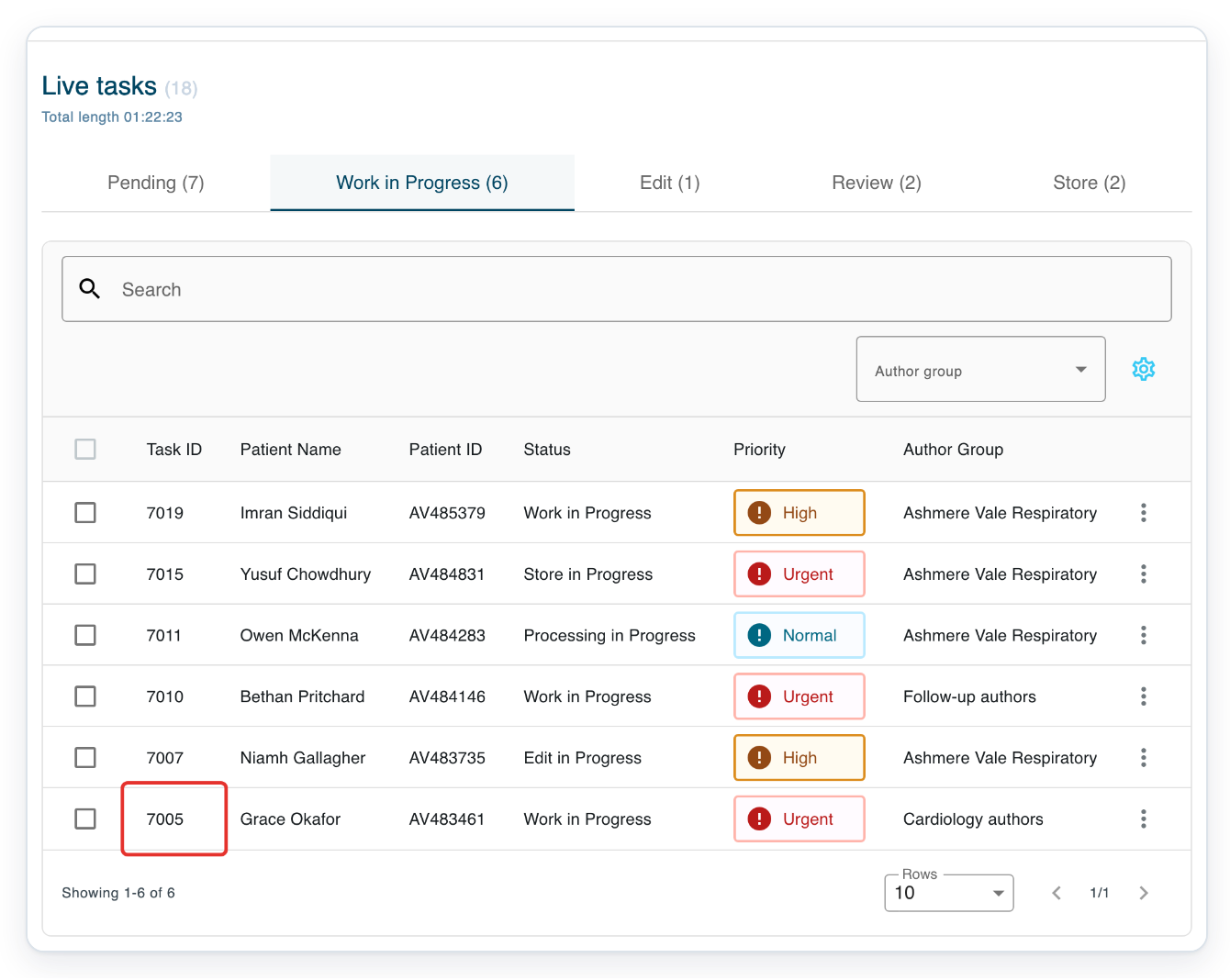
Click the Edit task information pencil beside the patient details. Update task opens.
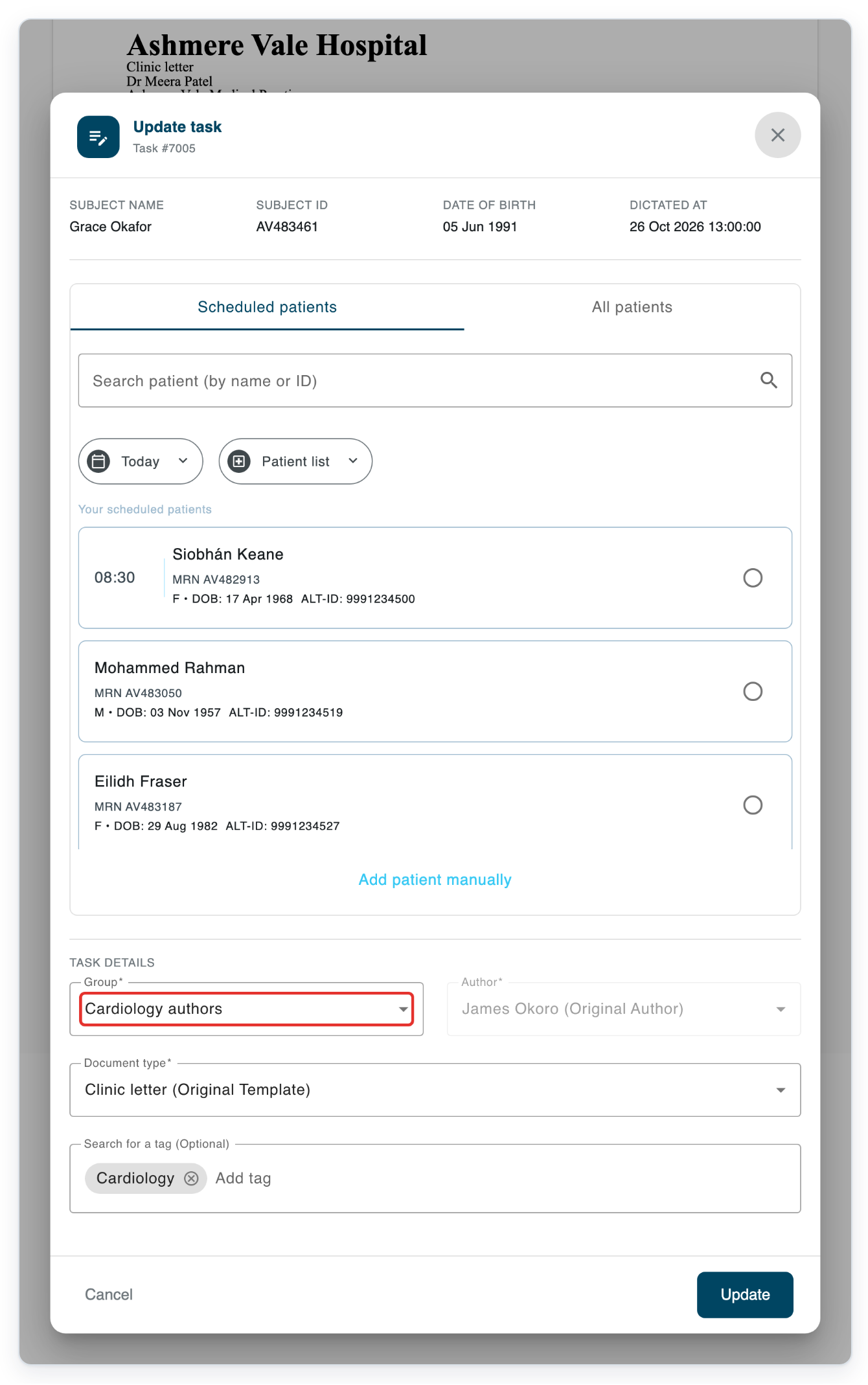
Click Group to see the available author groups.
For your transcriber account, Department is hidden and Author is disabled.
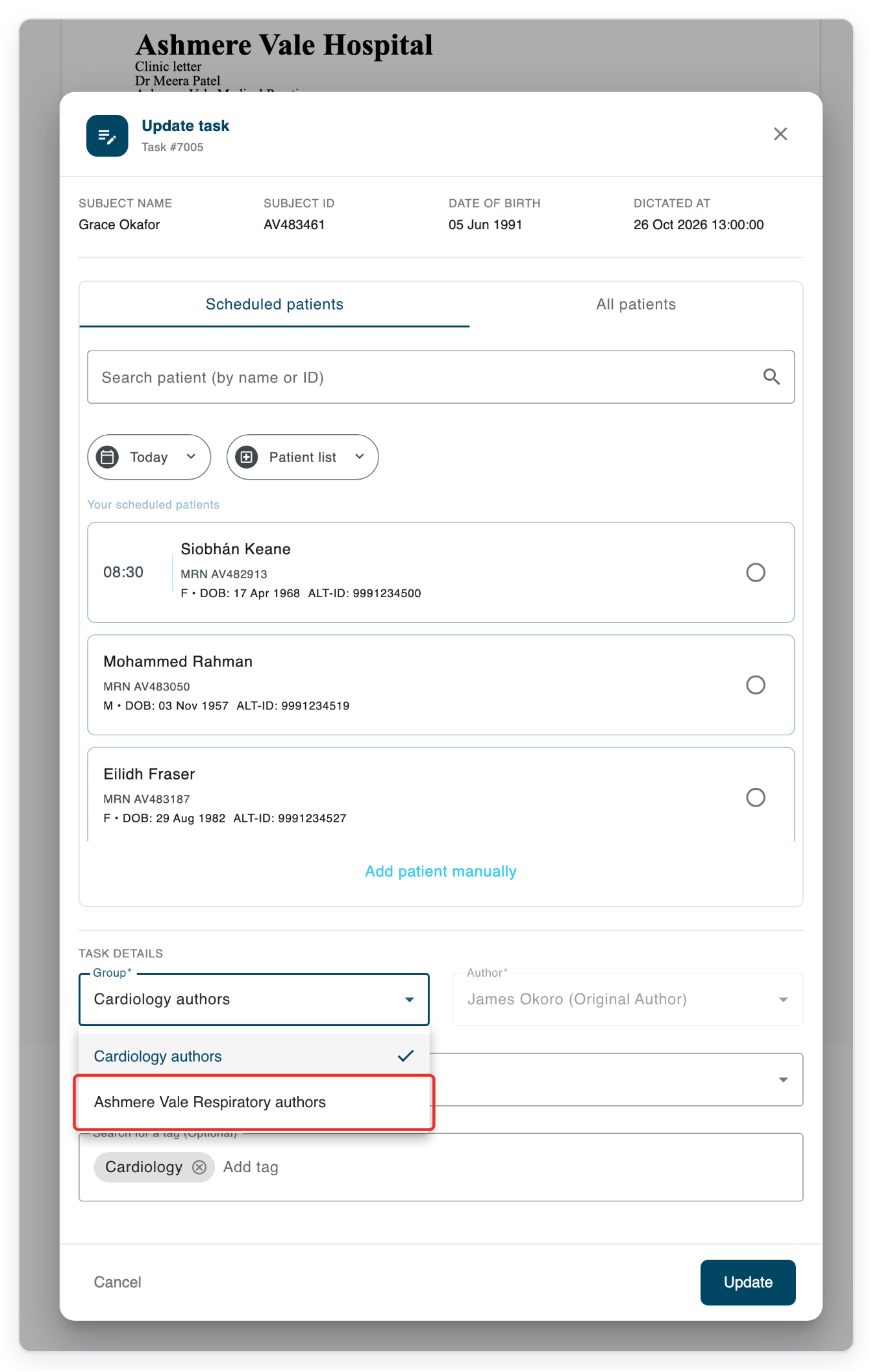
Select the correct author group. In this example, choose Ashmere Vale Respiratory authors.
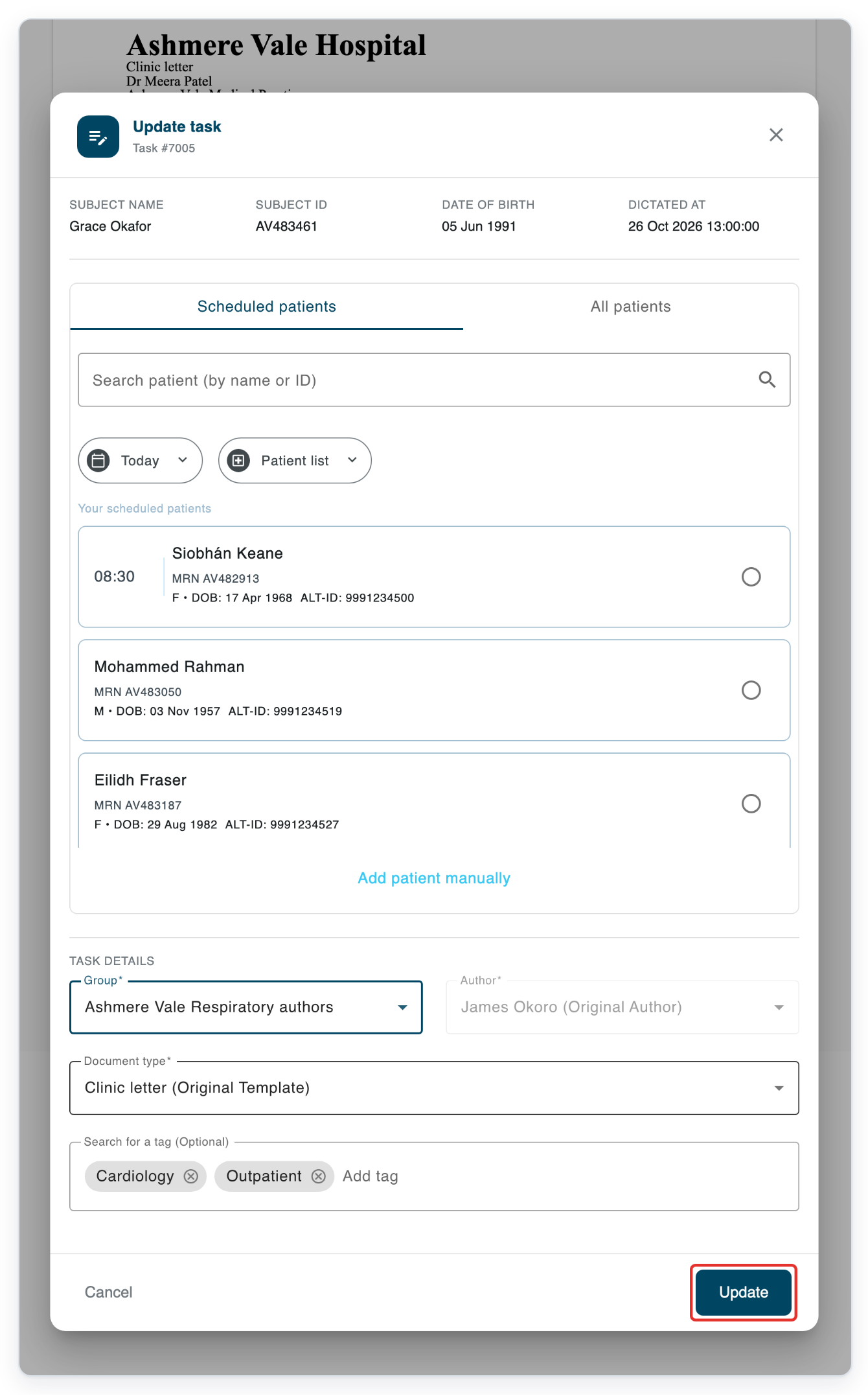
Check Group and Document type, then click Update.
If the move needs a different template, select it under Document type before saving.
=> Update task closes and the task is shown with the selected group.
NOTE:
- Changing only the department or author returns tasks at later stages to Pending. Tasks in Draft, New, SR or Pending keep their status.
- Changing the author group may return the task to Pending or send it through speech recognition. At the storing stage, some tasks follow the new group's approval route instead.
- Changing the group can automatically select a different document type. Changing the document type can clear typed text. Copy any text you need before saving.
- After changing the document type, check the letter, recipient and copied recipients before sending.
- When the move needs a different template, open Document type and select the required template before clicking Update. Changing Group reloads the available templates.
- For the transcriber route, sign in with your transcriber credentials and open your assigned task from Work in Progress in Live tasks. You can change an available Group, but Department is hidden and Author is disabled.
- Selecting a group in another department also moves the task into that group's department when you click Update. This applies even when you cannot edit Department directly.
What each field changes
| Field | What it changes |
|---|---|
| Department | The department the task belongs to. |
| Group | The author group that determines the task's workflow. |
| Author | The person recorded as the task's author. |
| Document type | The template used for the document. |
Other places you can update task details
- While typing or reviewing, open the task from Live tasks and click Edit task information. Choose an available author group under Group, then check Document type before clicking Update. You need permission to edit the task.
Can't update the task?
- You can only view the task. If you're typing or reviewing, open it from Live tasks instead of All tasks.
- Department or Author is unavailable. Ask a manager or master with access to the task to change it. If you're an author and can't change Group after the early stages, ask your manager.
- The group you want is missing. Ask a manager or master with access to move the task. If the group is still missing, ask your administrator to check its setup.
- The group stays the same on a draft task. Ask the author to use Send to editor, if available, then try again. Otherwise, ask your manager to check the task.
- Update is unavailable. Complete any required group, author, document type and approver fields you can edit. Wait for visits to load, then select a visit if required.
- T-Pro shows “Cannot change the author group because the new route has no transcriber group.” Ask your administrator to check the new group's transcription route before you try again.
- T-Pro shows “Selected group does not have a valid transcription route”. Ask your administrator to check the new group's approval route.
- The task is completed. Ask your manager to reopen it before changing these details.
Related articles
If you have any more queries, please do not hesitate to contact our Helpdesk or support@tpro.io.
© 2020 - 2026