
Before you start
You need a T-Pro transcriber or manager account and your sign-in details. For the Recorder walkthrough, use your author account.
Log in to T-Pro with your transcriber or manager credentials.
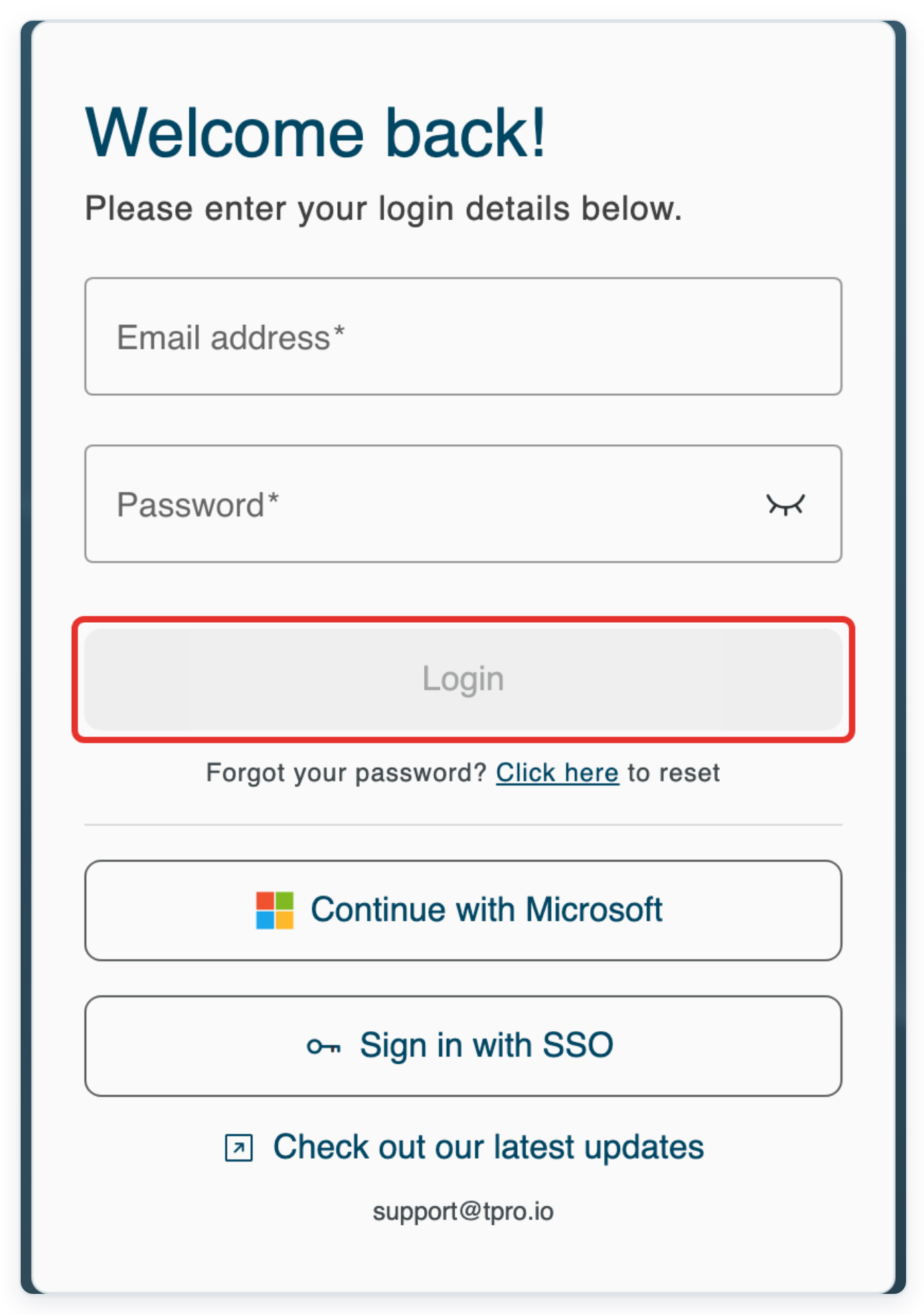
Enter your Email address and Password, then click Login.
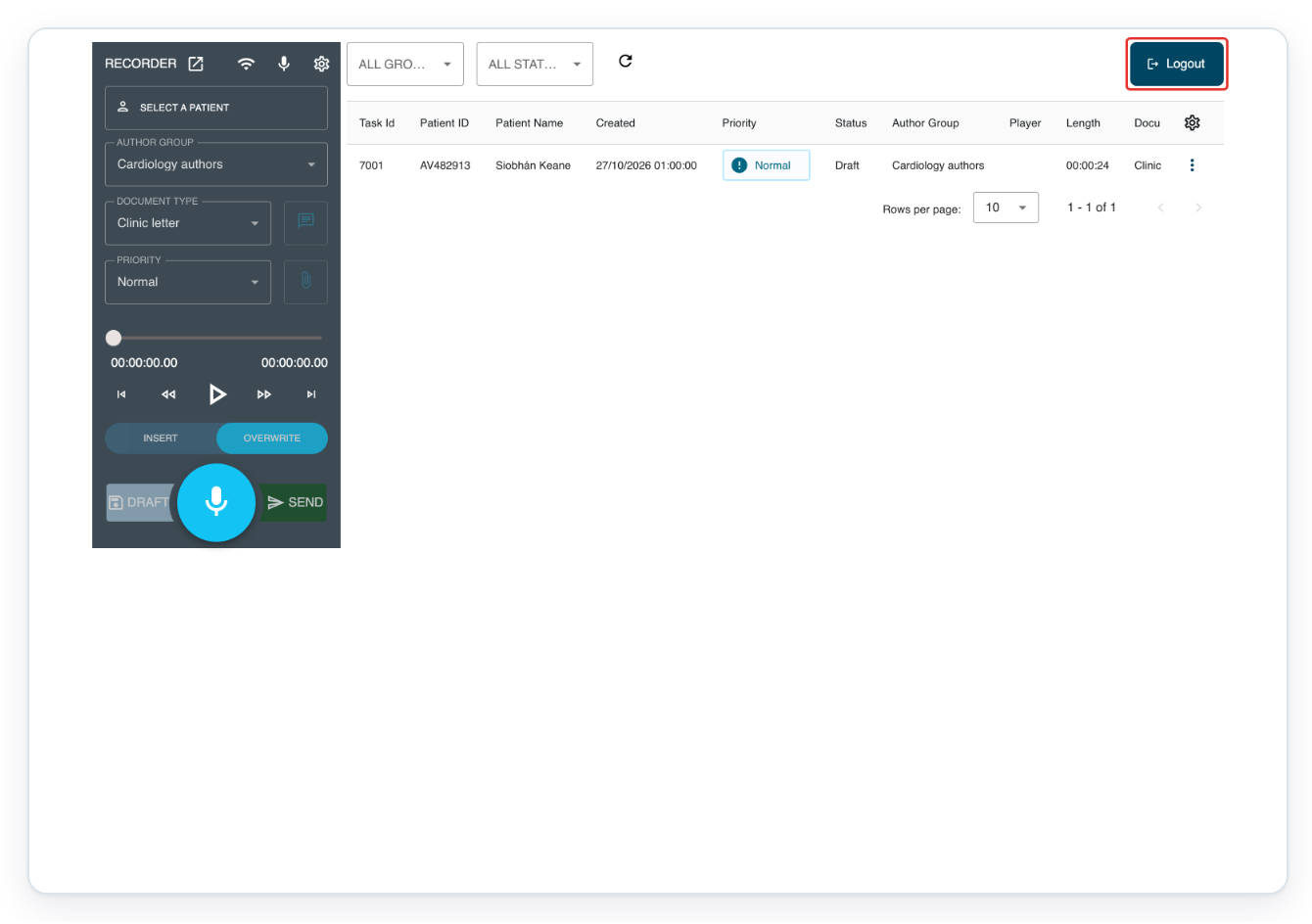
As an author in Recorder
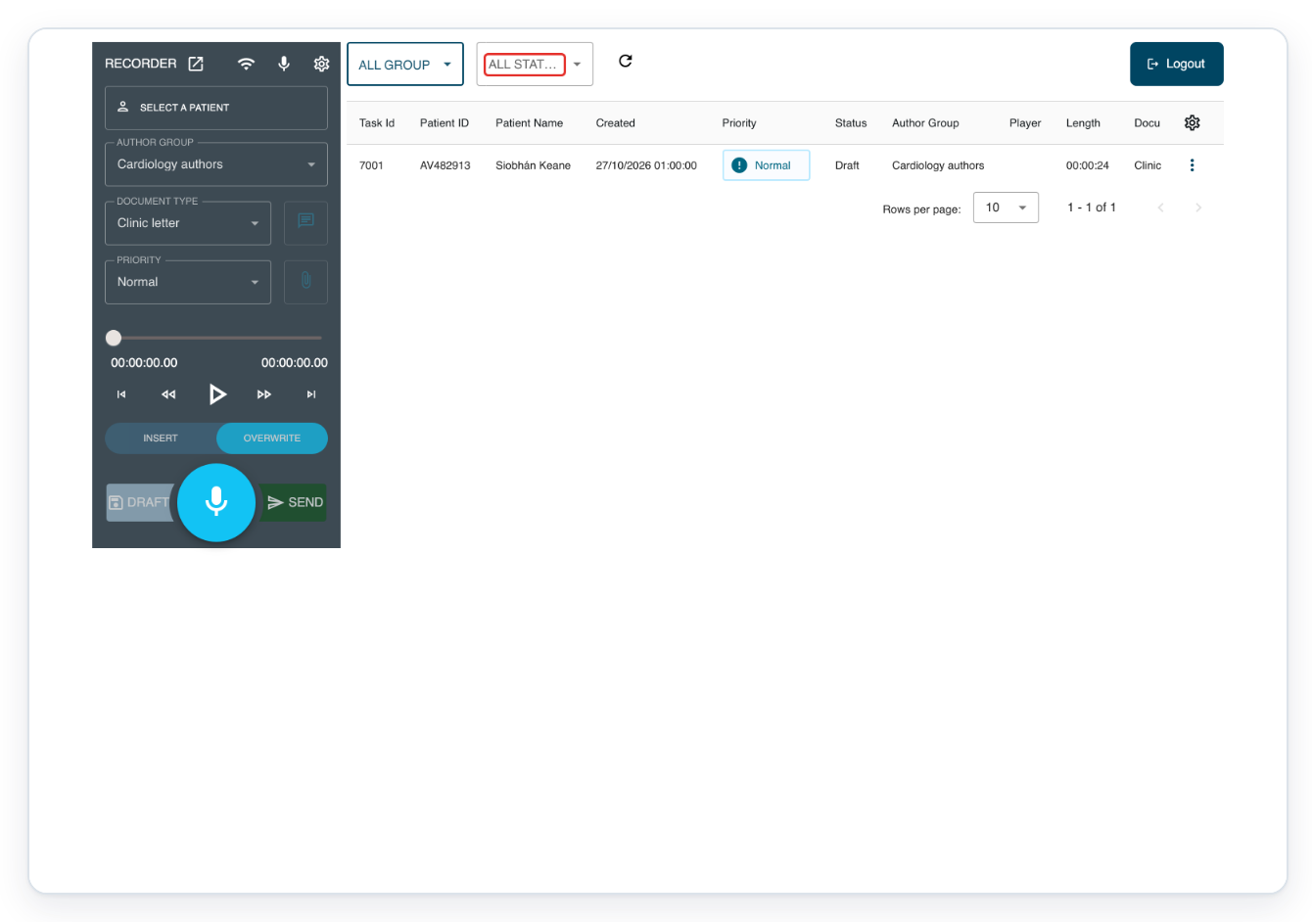
=> If you start in Recorder, your recording controls appear beside your task list and filters. Click Logout to sign out.
The main navigation and account menu are hidden here. Follow the manager or transcriber navigation instructions below only when your screen has the top bar.
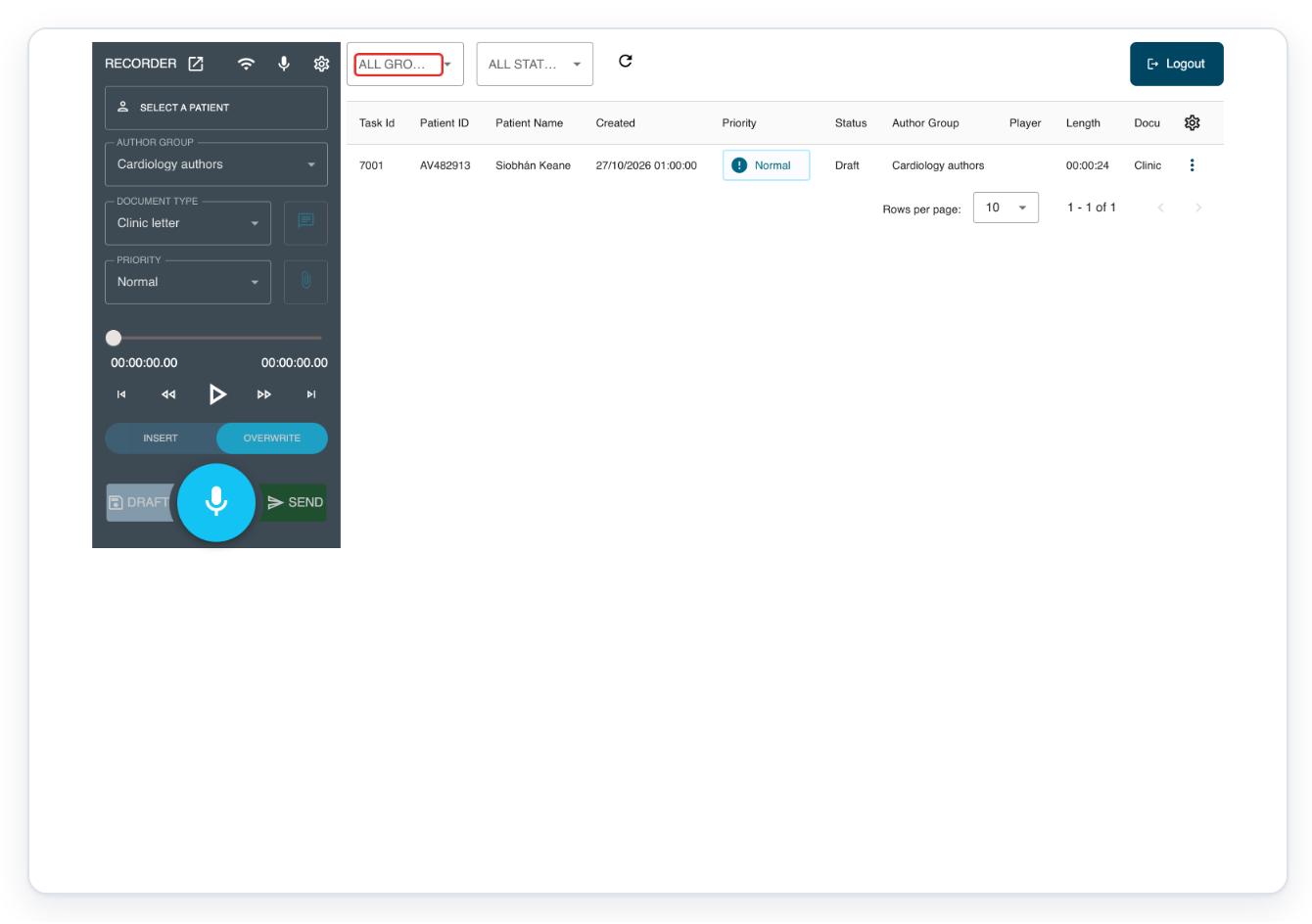
Click All Groups above the task list to see the available author groups.
Use this filter to narrow the task list to one author group.
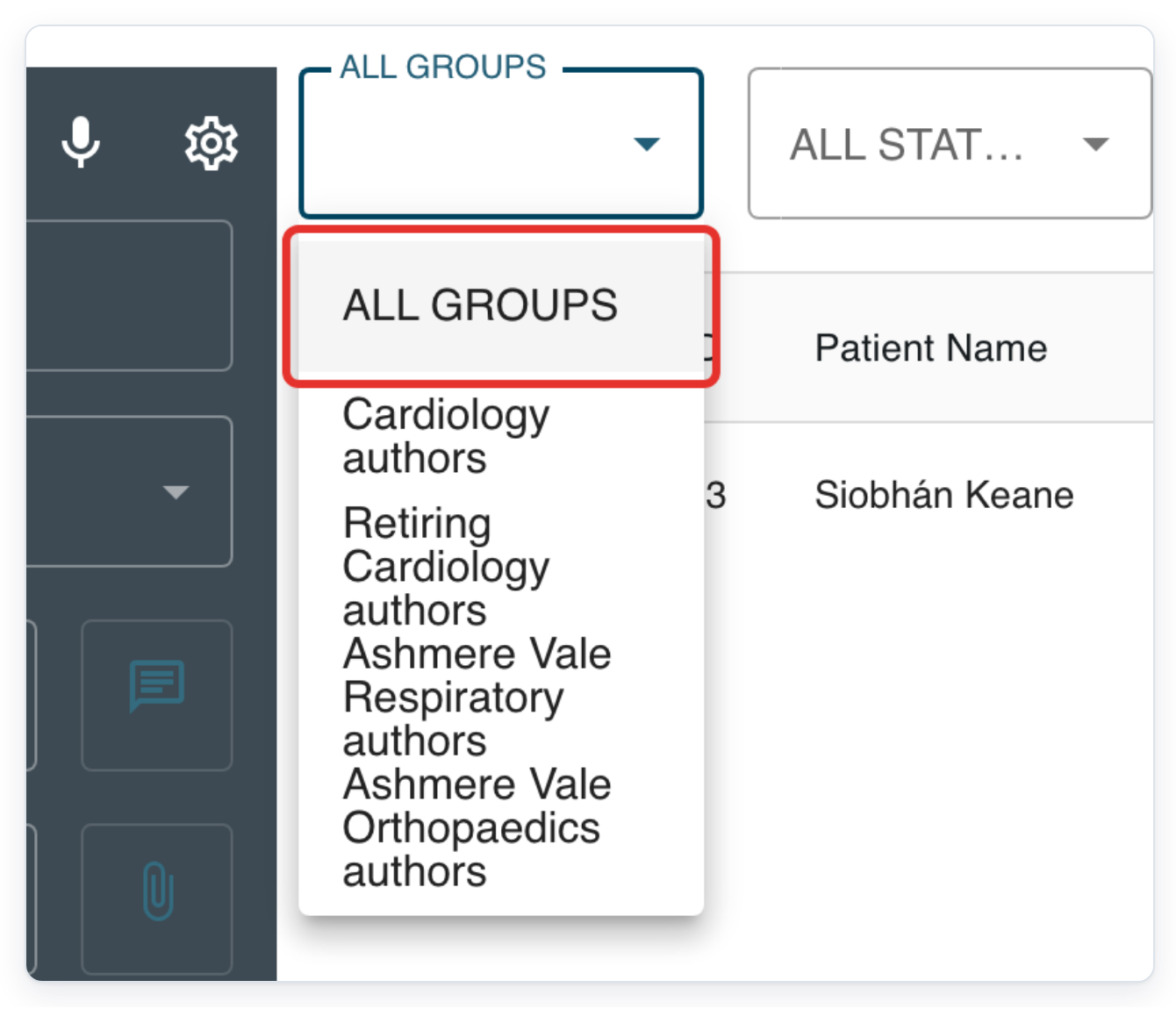
Find ALL GROUPS at the top of the list. Close the list without choosing a different option to keep your current filter.
ALL GROUPS shows tasks across your available author groups.
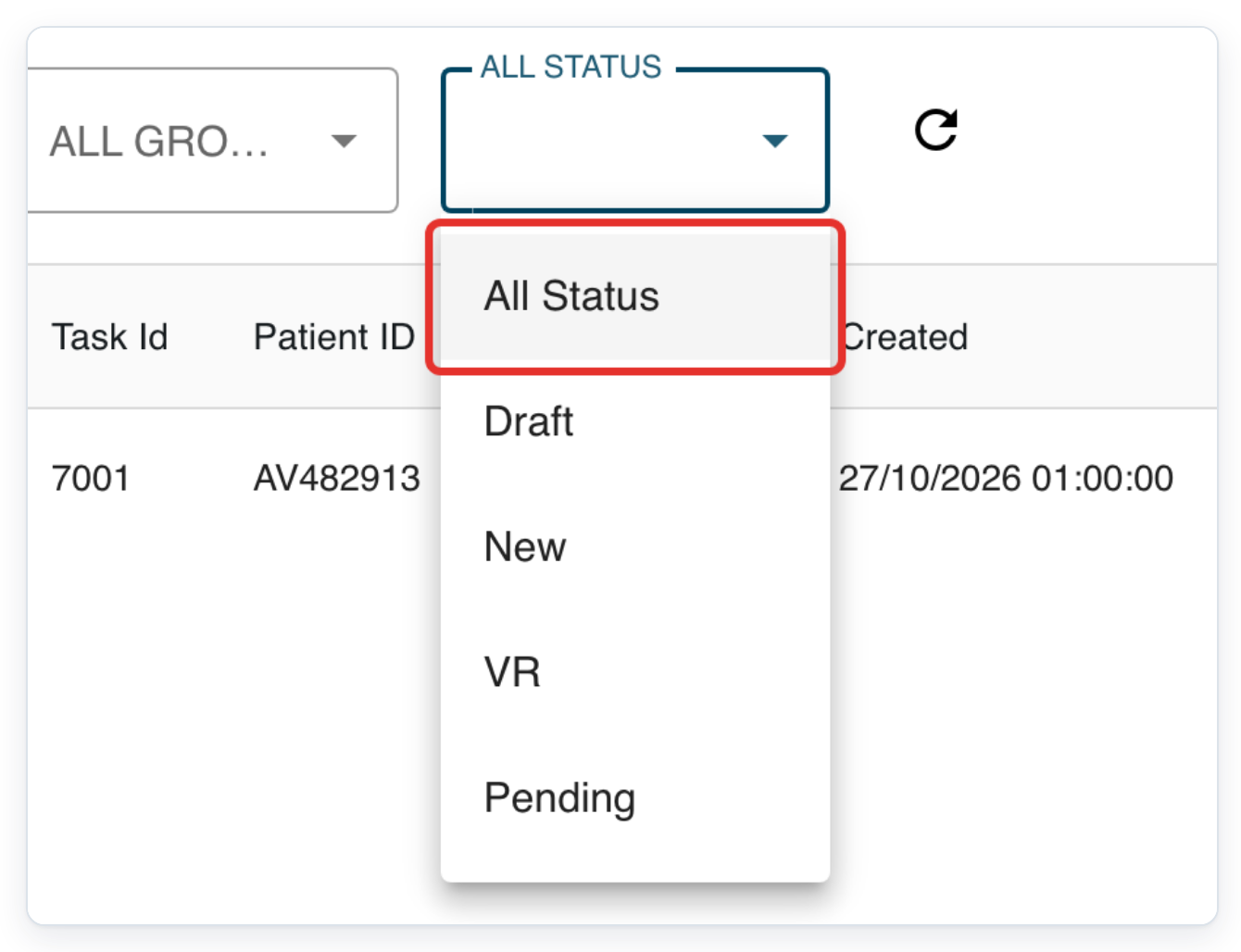
Click All Status above the task list to see the available statuses.
Use this filter to narrow the list to a task stage.
Find All Status at the top of the list. Close the list without choosing a different option to keep your current filter.
The choices are All Status, Draft, New, VR and Pending.
As a manager
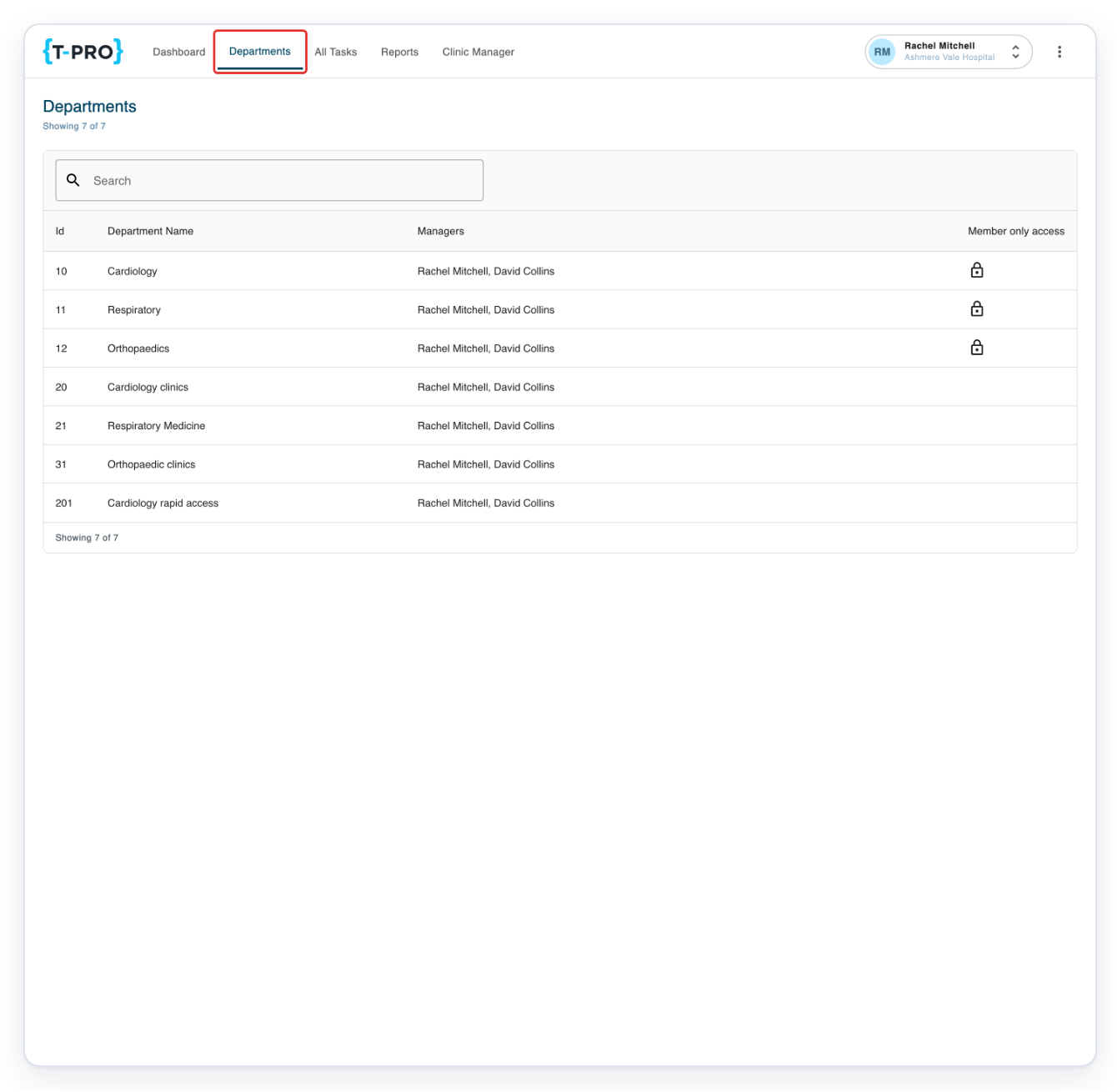
You start in Departments. Click Departments in the navigation across the top to return to this list.
The main navigation includes Dashboard, Departments, All Tasks, Reports and Clinic Manager.
Use Search above the table to narrow the department list.
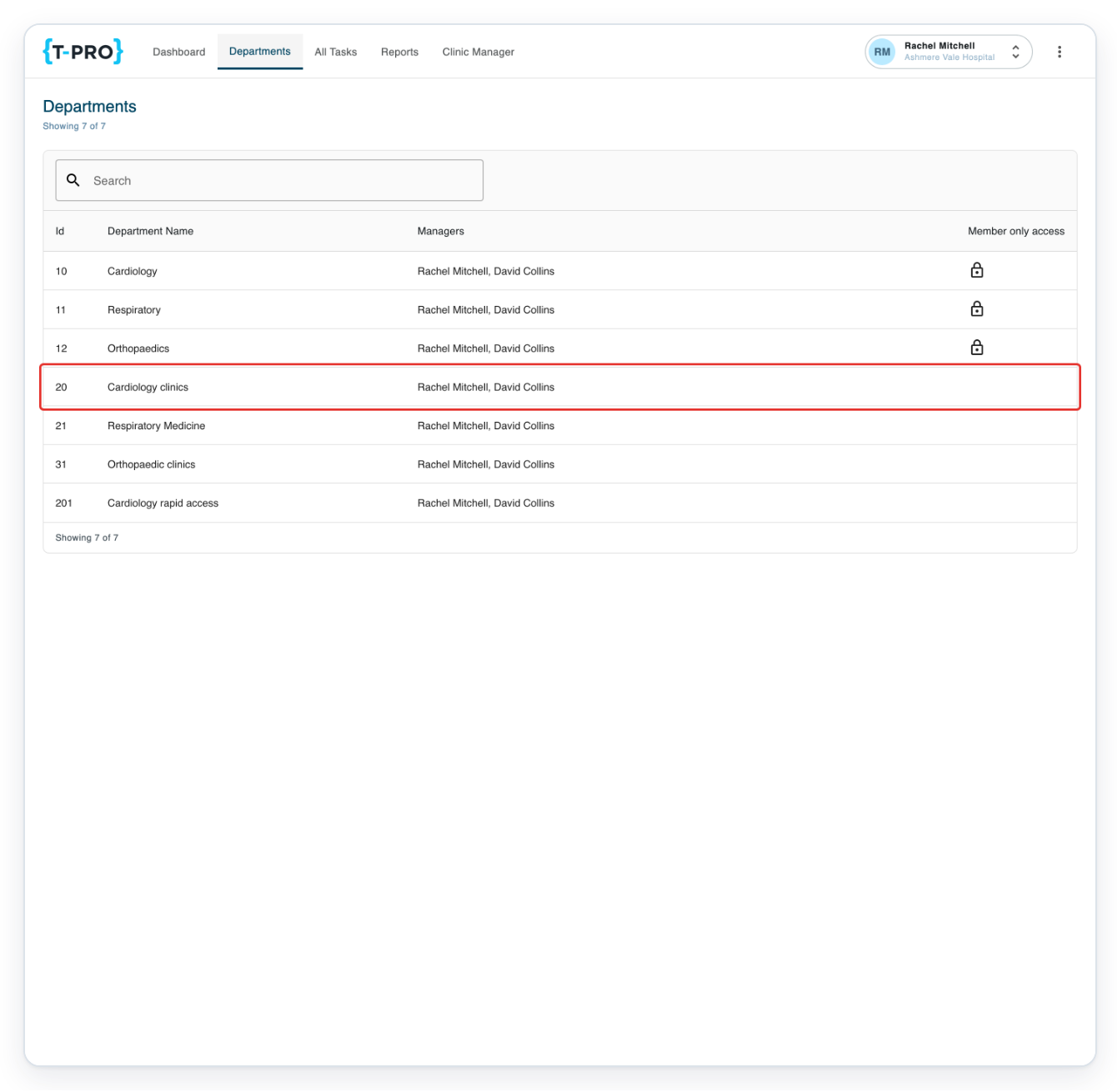
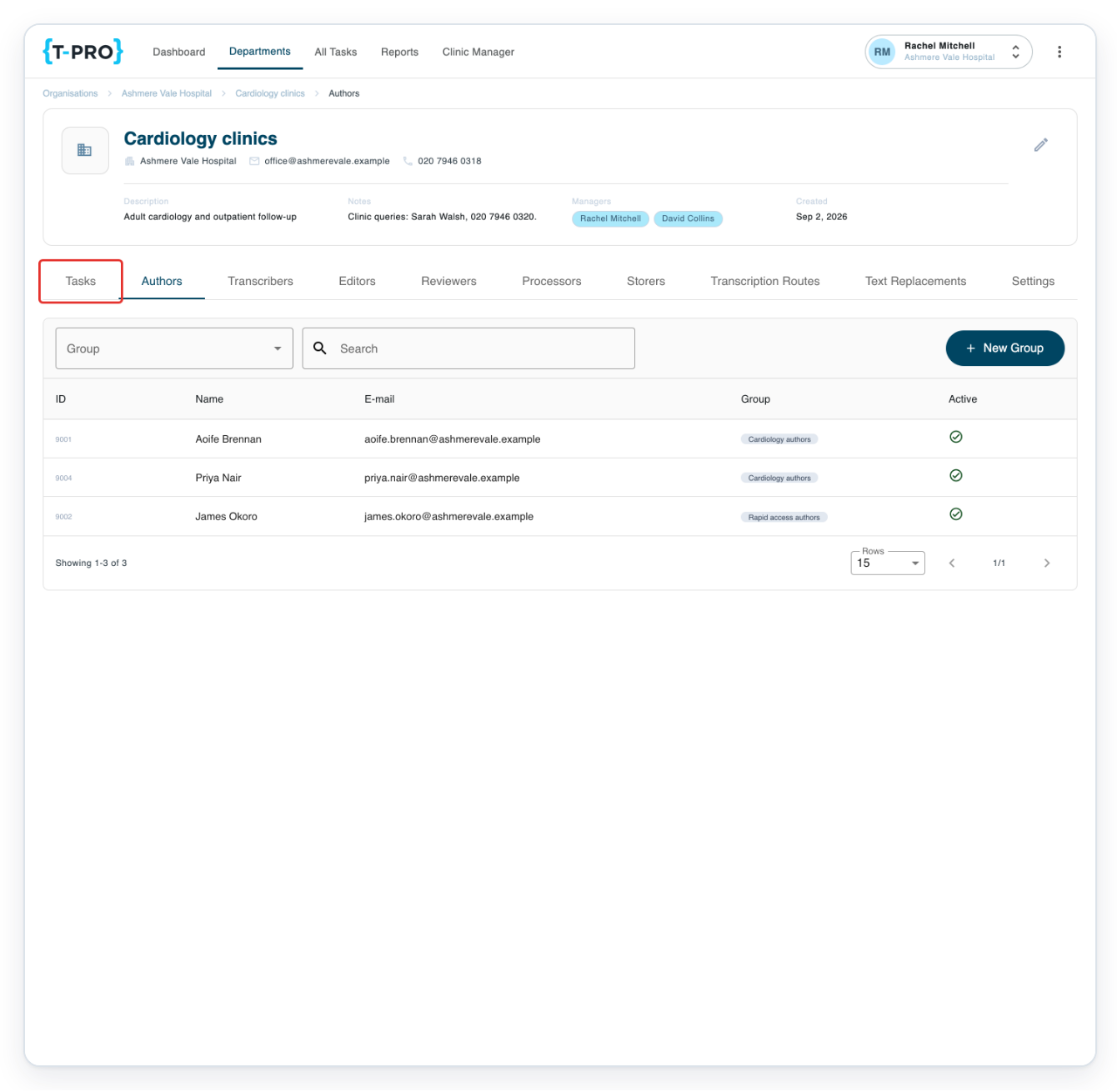
Click your department in the list. In this example, choose Cardiology clinics.
The table shows department names and managers.
Click Tasks in the department navigation to see its Live tasks.
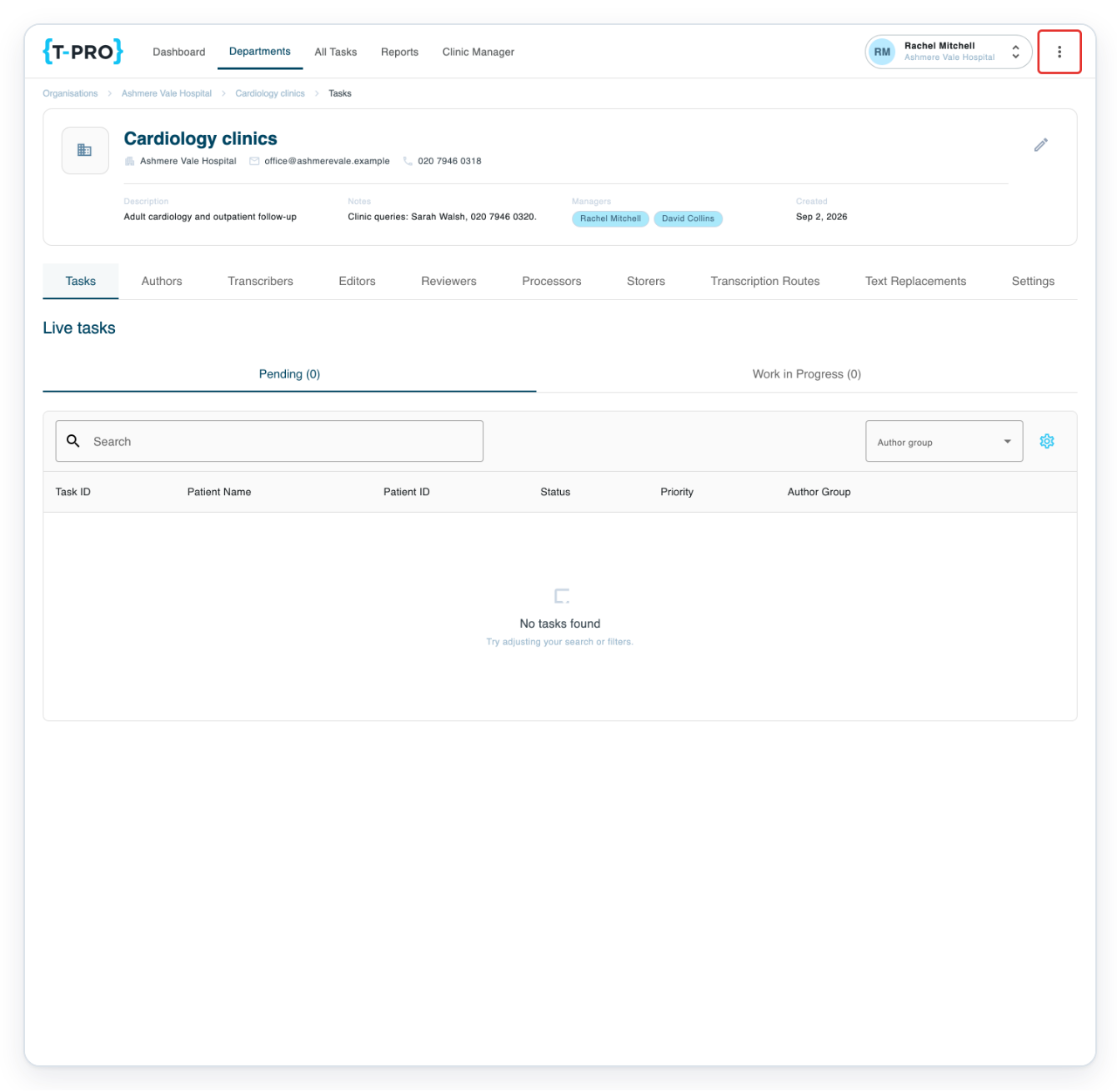
Click the three-dot account menu beside your name to find System and your account options.
Your name and organisation appear together in the top bar. The account menu is just to their right.
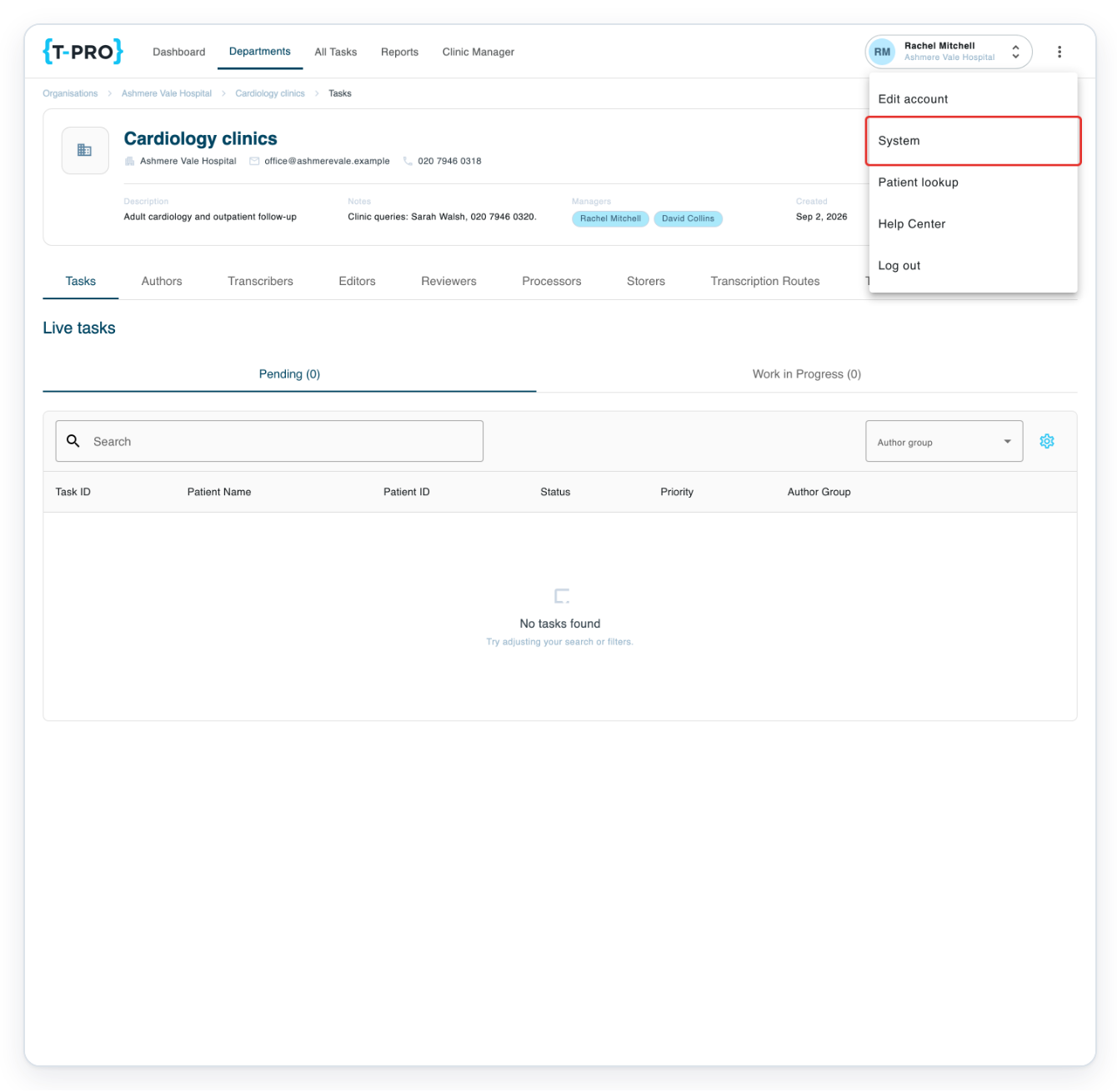
In this example, the menu includes Edit account, System, Patient lookup, Help Center and Log out.
Click System to open Resources.
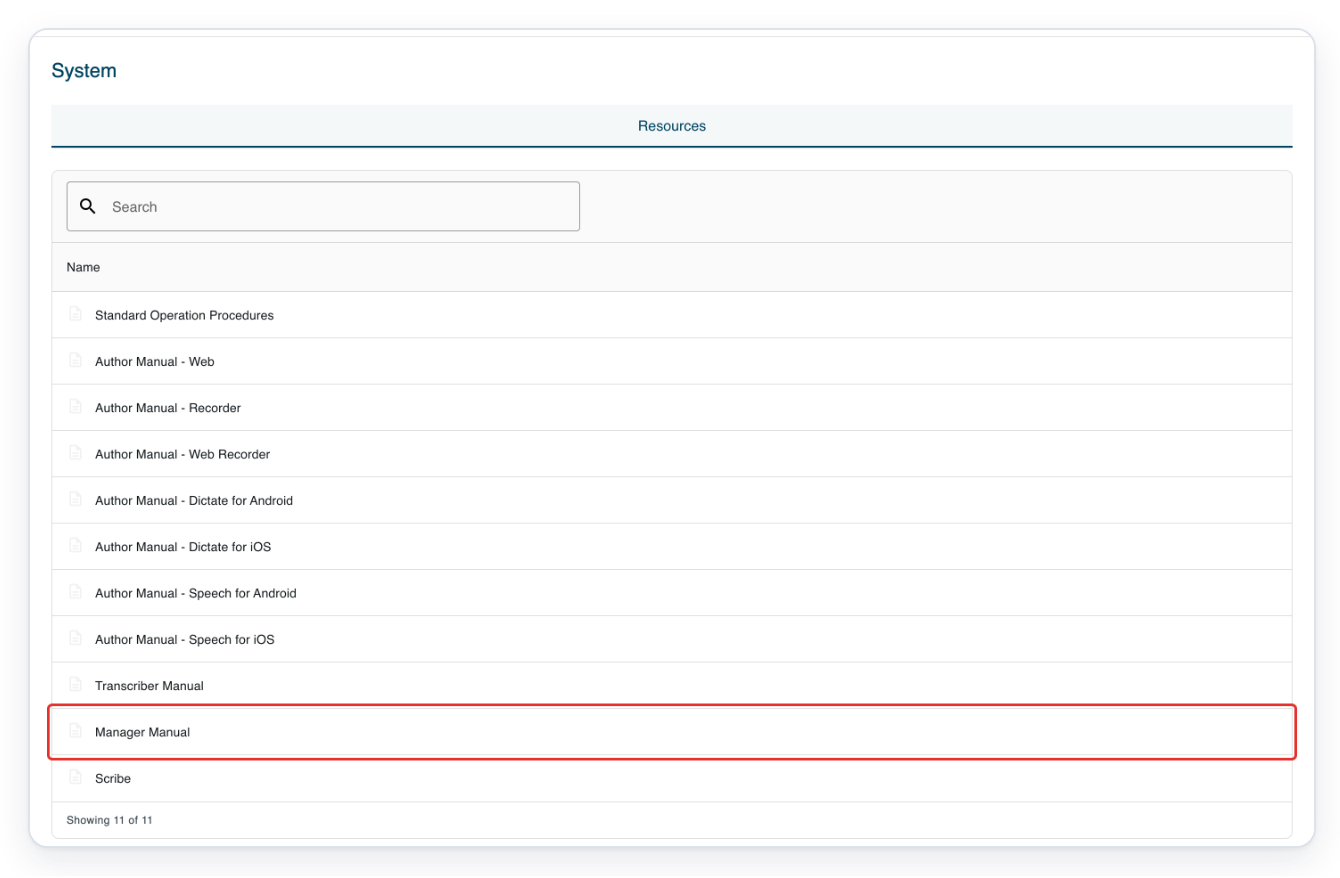
You can also find the author and transcriber manuals here.
In Resources, click Manager Manual to open it in a new browser tab.
As a transcriber
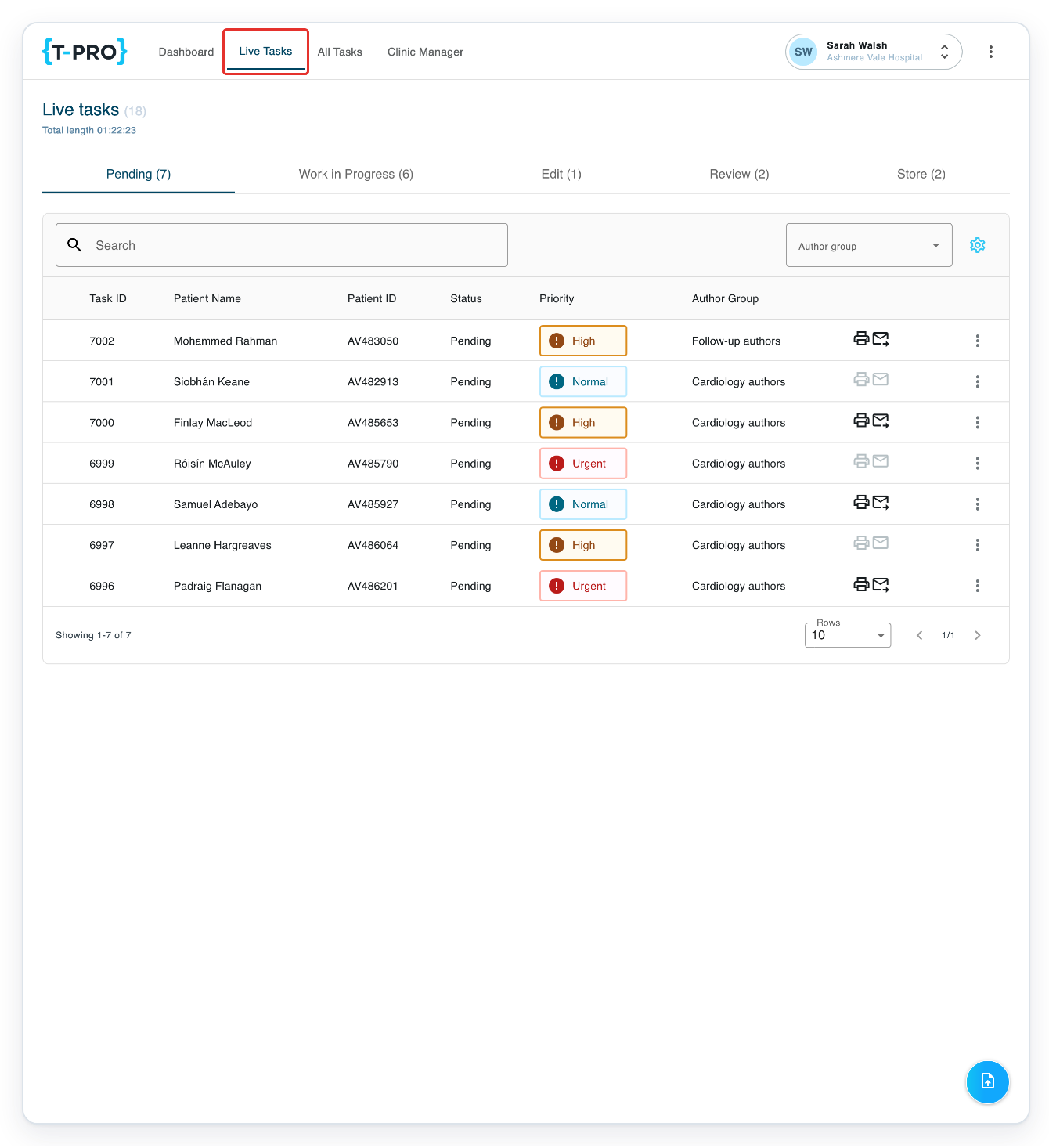
Click Live Tasks in the navigation across the top to see your work queues.
The main navigation includes Dashboard, Live Tasks, All Tasks and Clinic Manager.
Choose a tab to see tasks at that stage. Work in Progress shows tasks being transcribed, edited, reviewed, processed or stored. Use Search and the Author group list to narrow your results. Your search applies to the selected tab. Choose another tab to search a different stage.
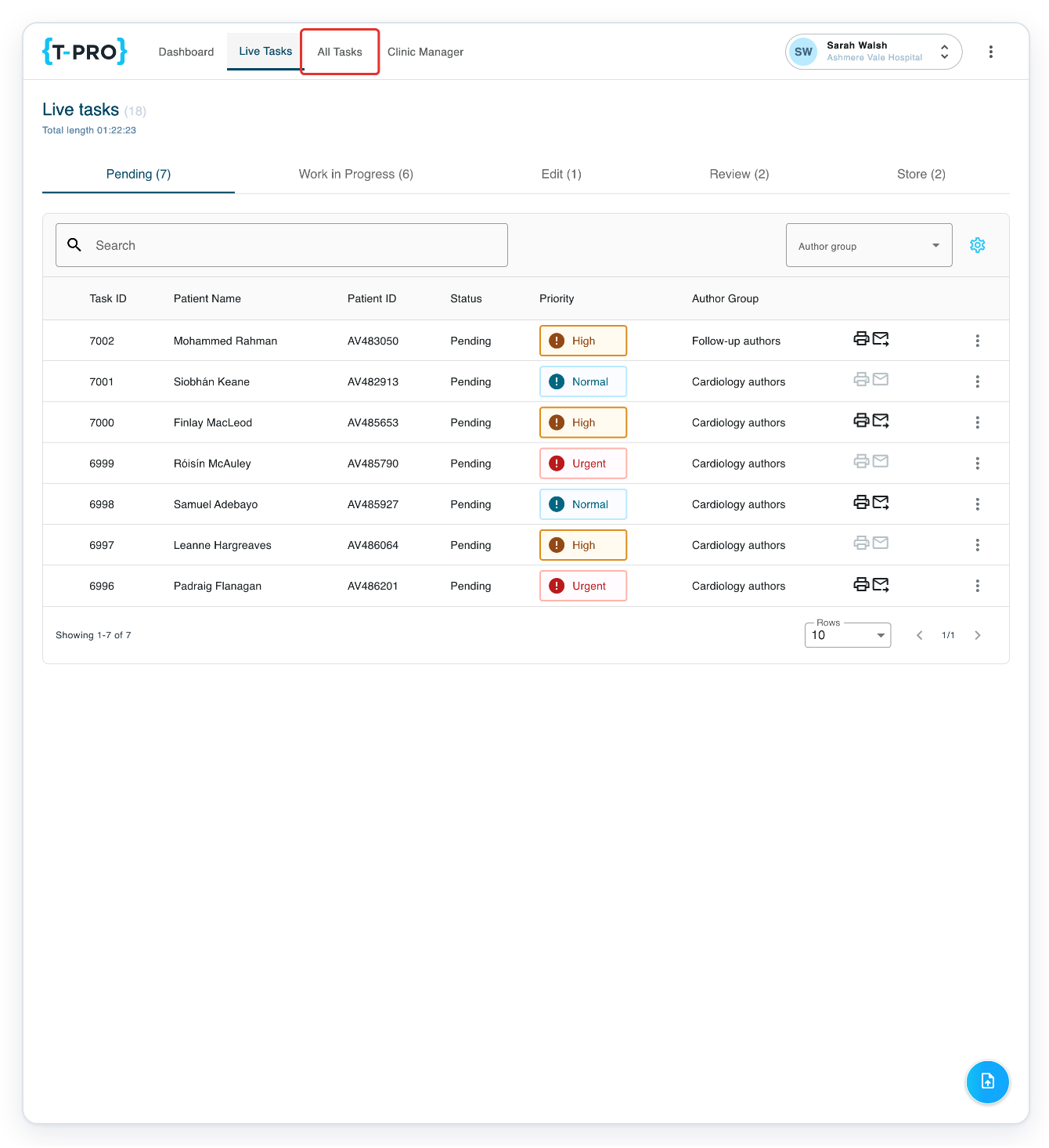
Click All Tasks in the navigation across the top to open the task search page.
In this example, Live tasks has Pending, Work in Progress, Edit, Review and Store tabs.
All tasks lets you find tasks at different stages.
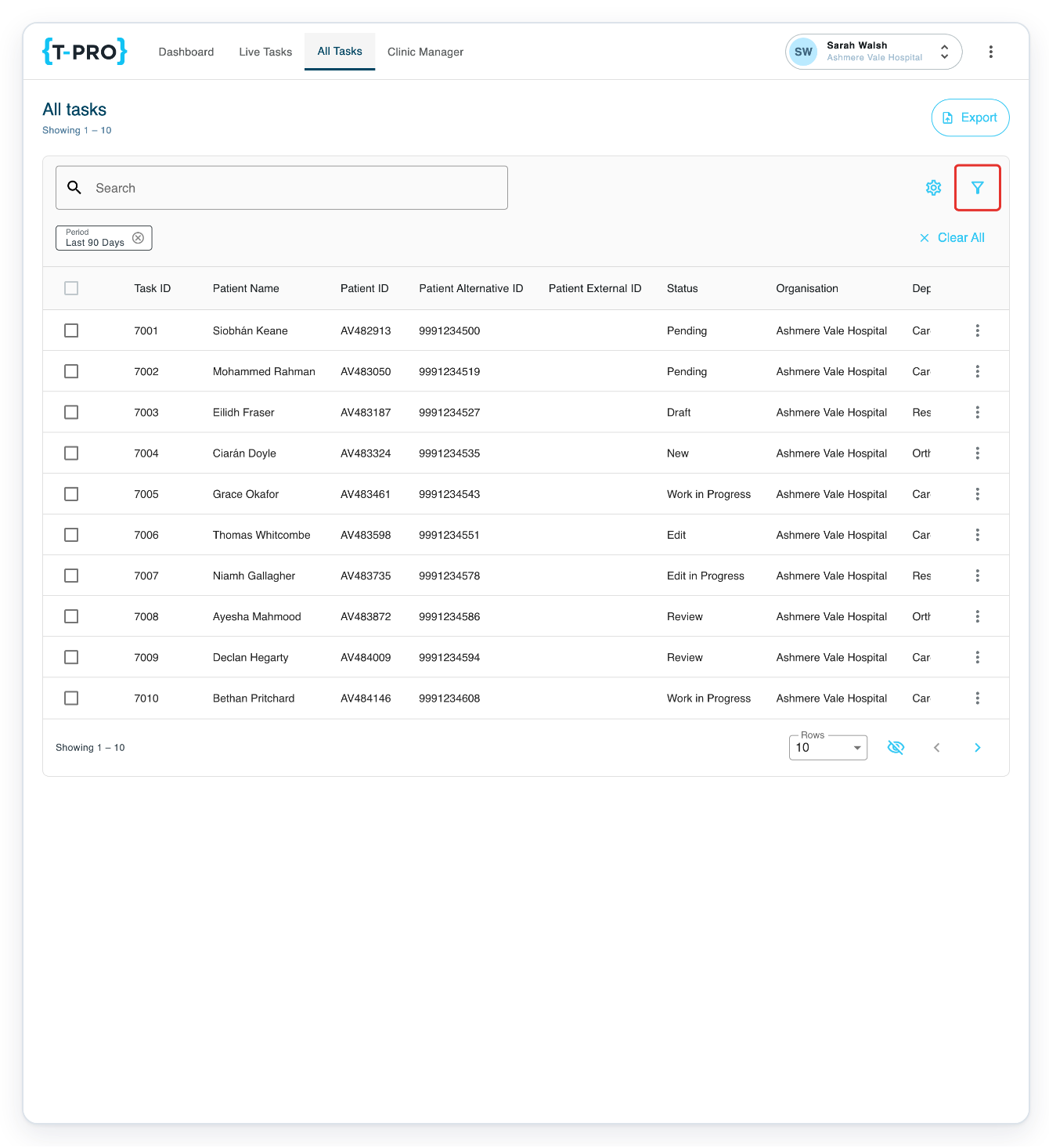
Each row shows a task. Use Task ID, Patient Name and Status to find the one you need.
Period shows the date range for the list. In this example, it is Last 90 Days. Check this range if you're looking for an older task.
Click the Filter icon above the task list to show the task filters.
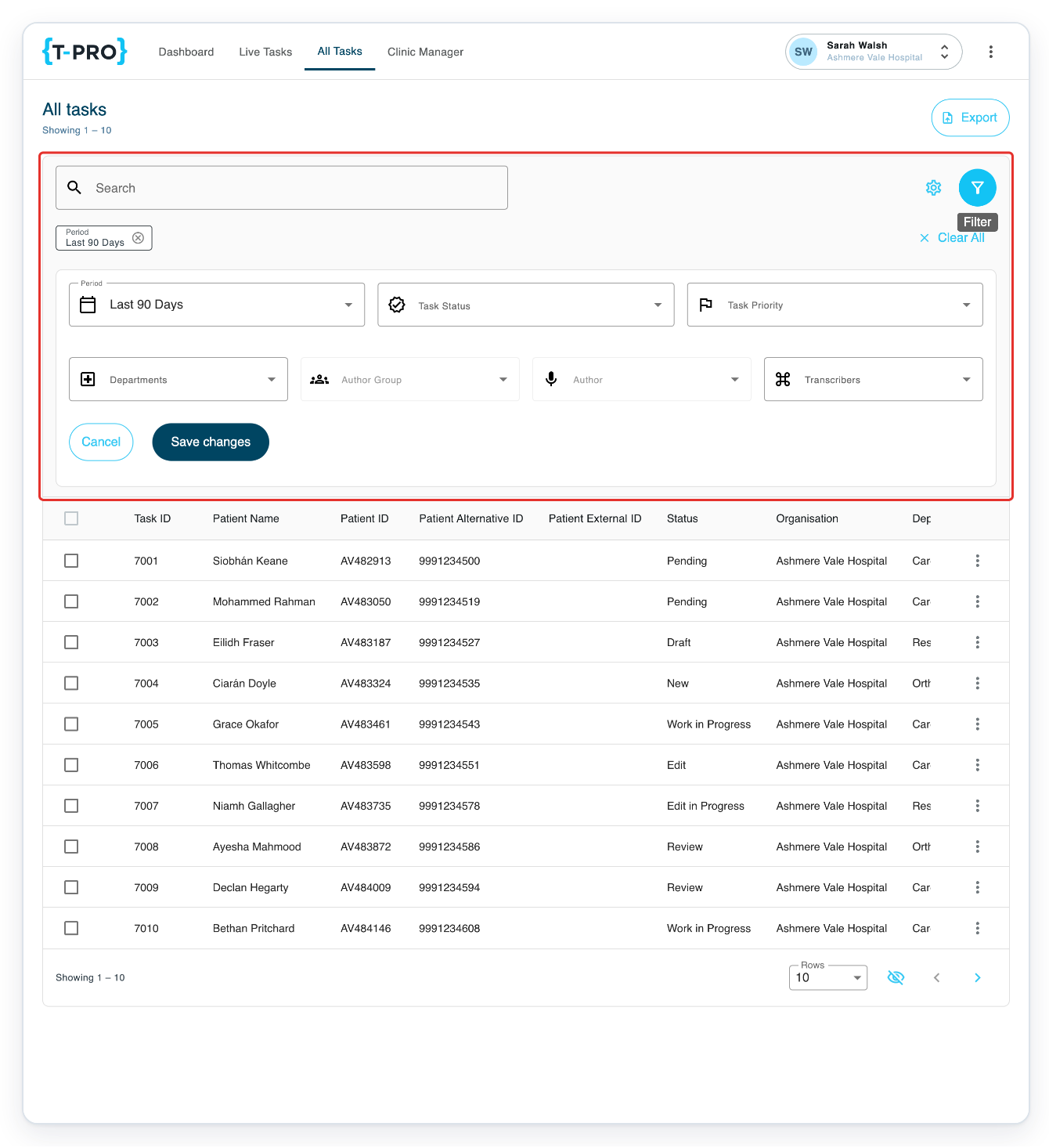
=> All tasks has Search above the expanded filters, including Period and Task Status.
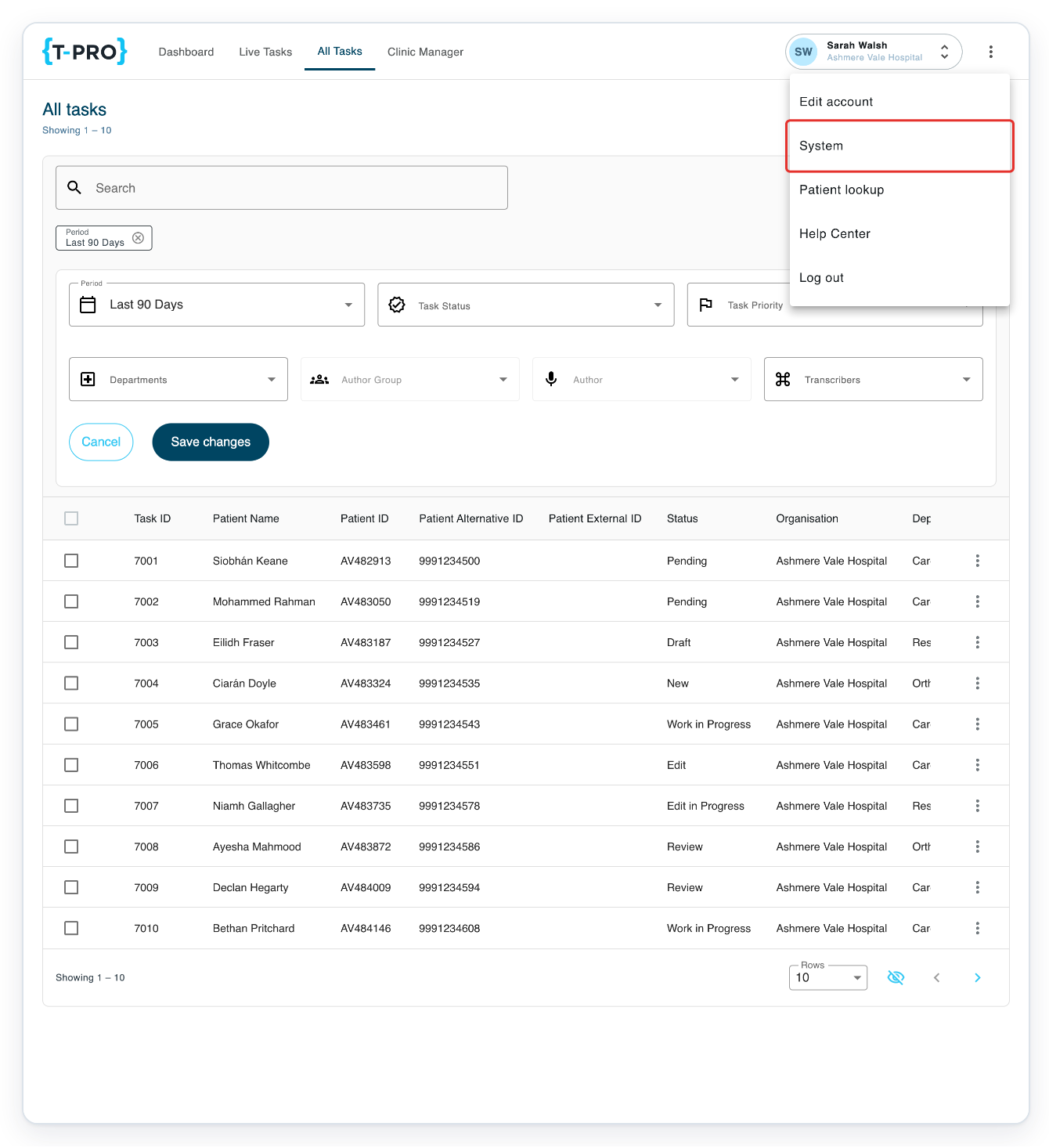
Click the three-dot account menu beside your name. It includes Edit account, System, Help Center and Log out.
Edit account opens your profile. Help Center opens help articles in a new browser tab.
In this example, Patient lookup is also available.
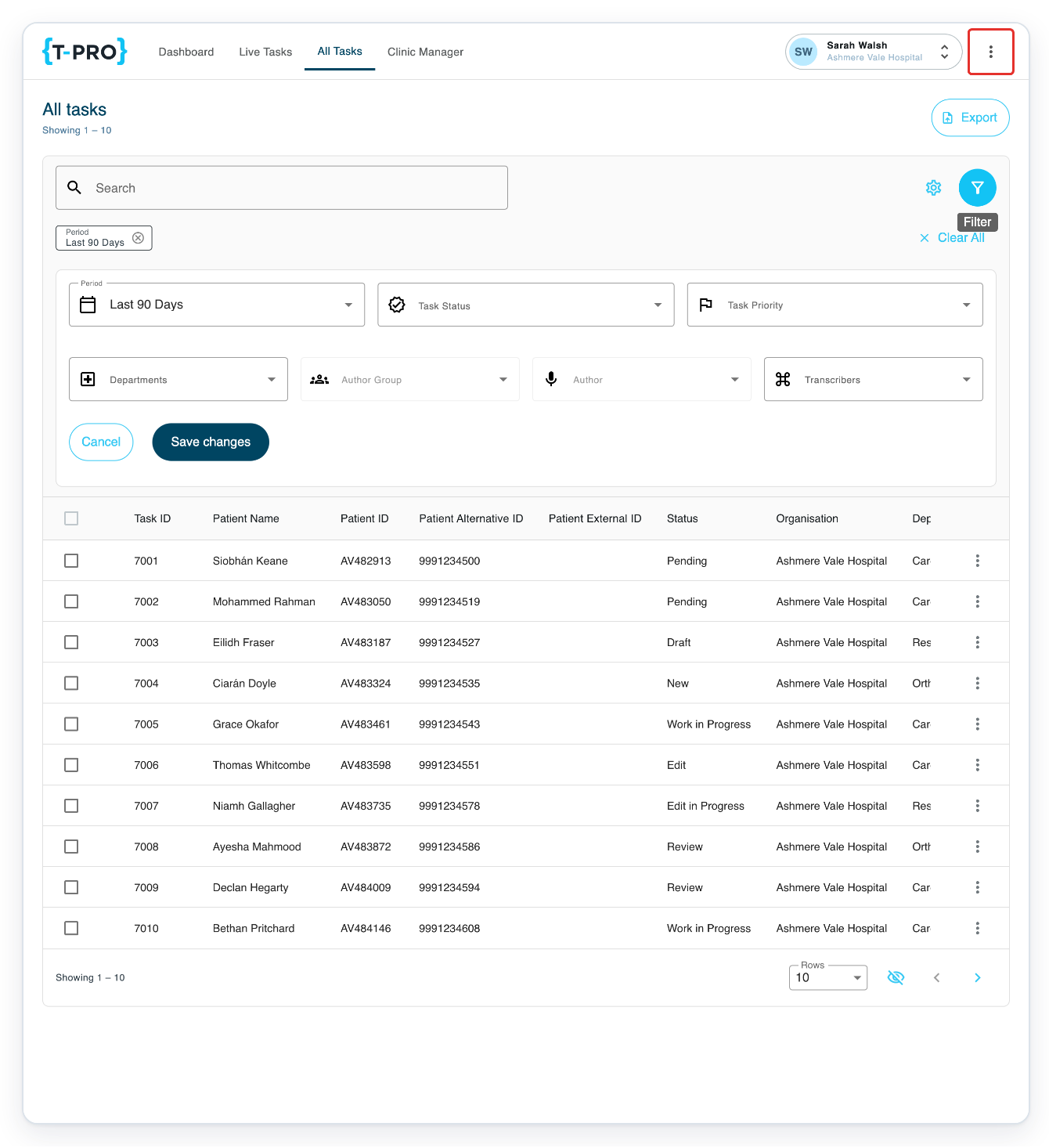
Click System to open Resources.
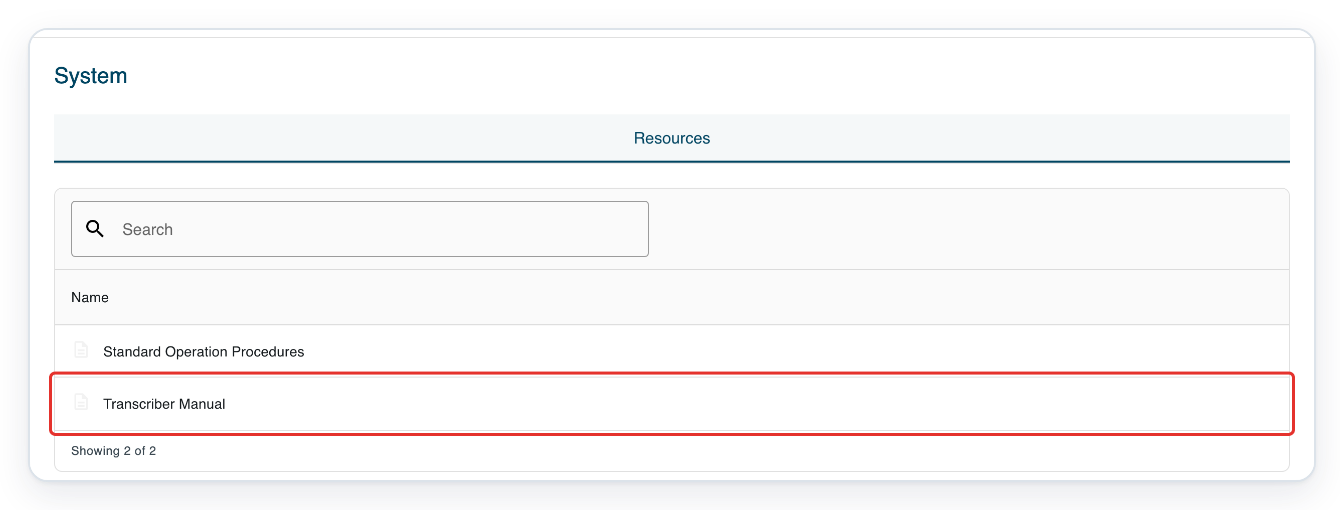
You can find the manuals available to your account here.
In Resources, click Transcriber Manual to open it in a new browser tab.
NOTE:
- Your menu options and available manuals depend on your role.
- If you're a transcriber, your starting page depends on the landing page setting in your account.
- User manuals open in a new browser tab.
- Authors in Ireland and Australia start in Recorder.
- Recorder hides the main navigation and account menu, including System. Use All Groups and All Status to find tasks and Logout to sign out. The navigation and account-menu instructions above apply to screens with the top bar.
Which task list should you use?
| Task list | When to use it |
|---|---|
| Live tasks | Work through tasks at each stage using the tabs. |
| All tasks | Find tasks at different stages and use filters to narrow your results. |
Tip: Use Search in Resources to find a manual by name.
Can't find your way around V2?
- If you can't see Menu on a wider screen, use the navigation links across the top.
- If no manuals match your search, clear Search in Resources to see the available manuals again.
Related articles
- Work from Live Tasks
- Search for tasks in All Tasks
- Update your profile details
- Contact T-Pro support
If you have any more queries, please do not hesitate to contact our Helpdesk or support@tpro.io.
© 2020 - 2026