
Before you start
You need an admin account and an existing department to update.
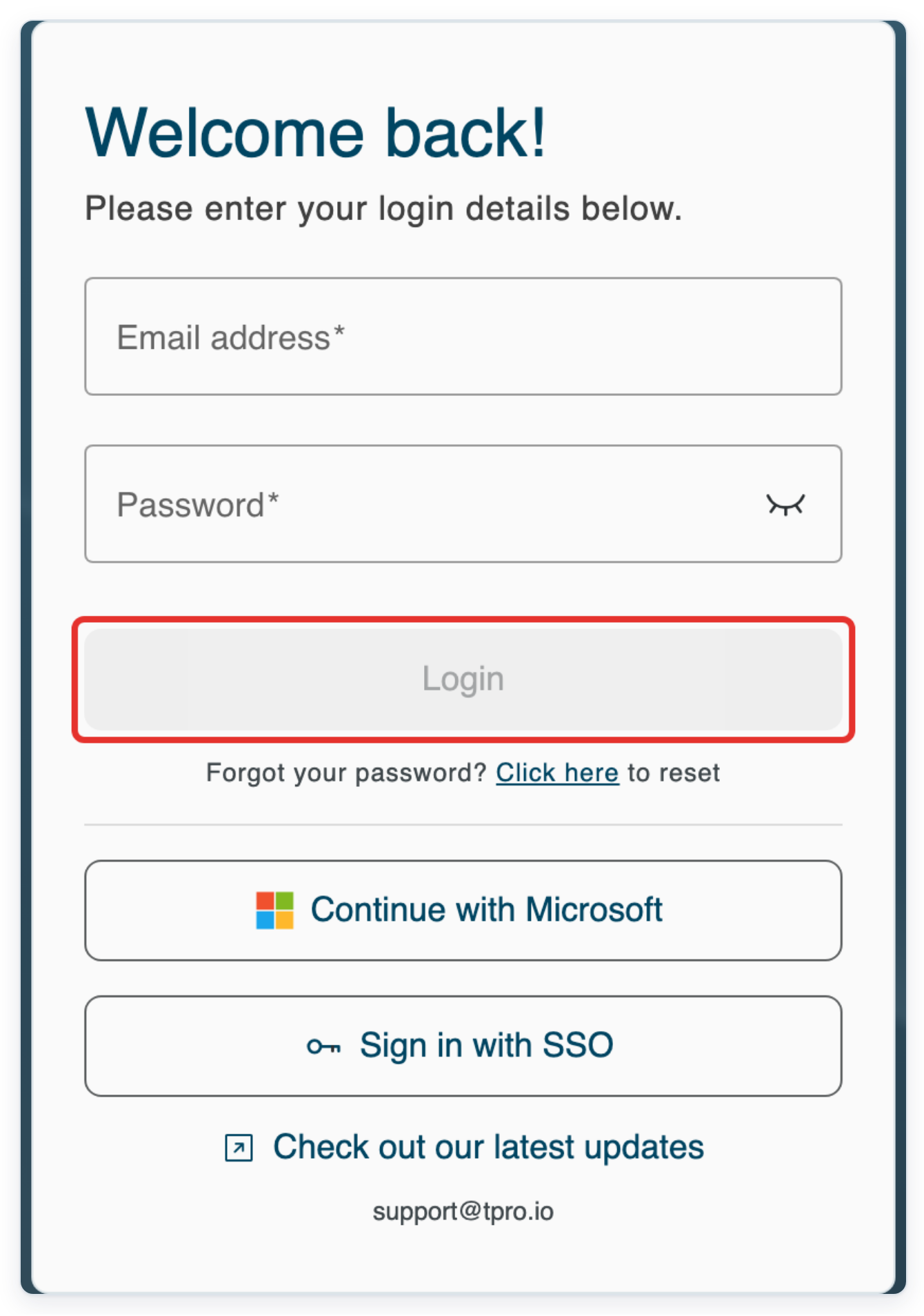
Log in to T-Pro with your admin credentials.
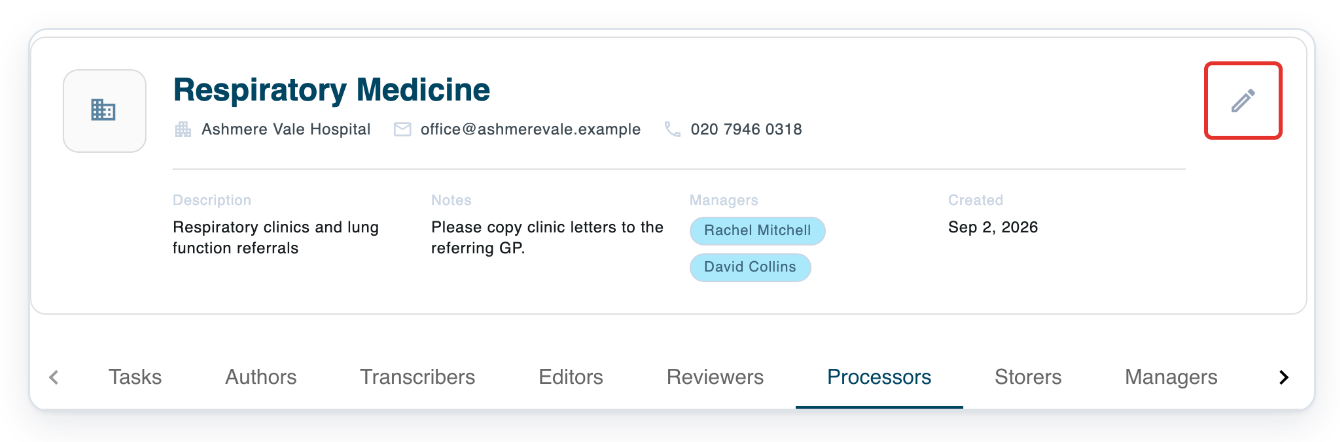
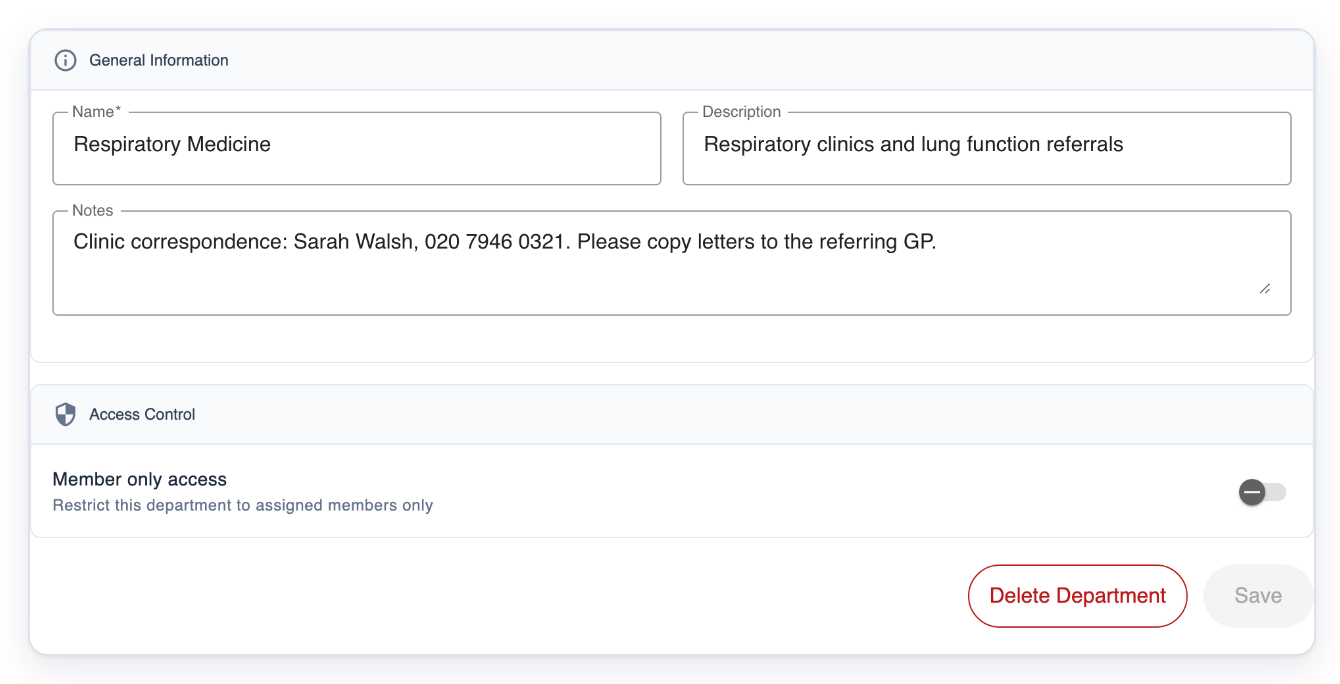
Open your department, then click the Edit Settings pencil in the header. General Information and Access Control appear.
The pictures use Respiratory Medicine as an example. You can also open this page from the department's Settings tab.
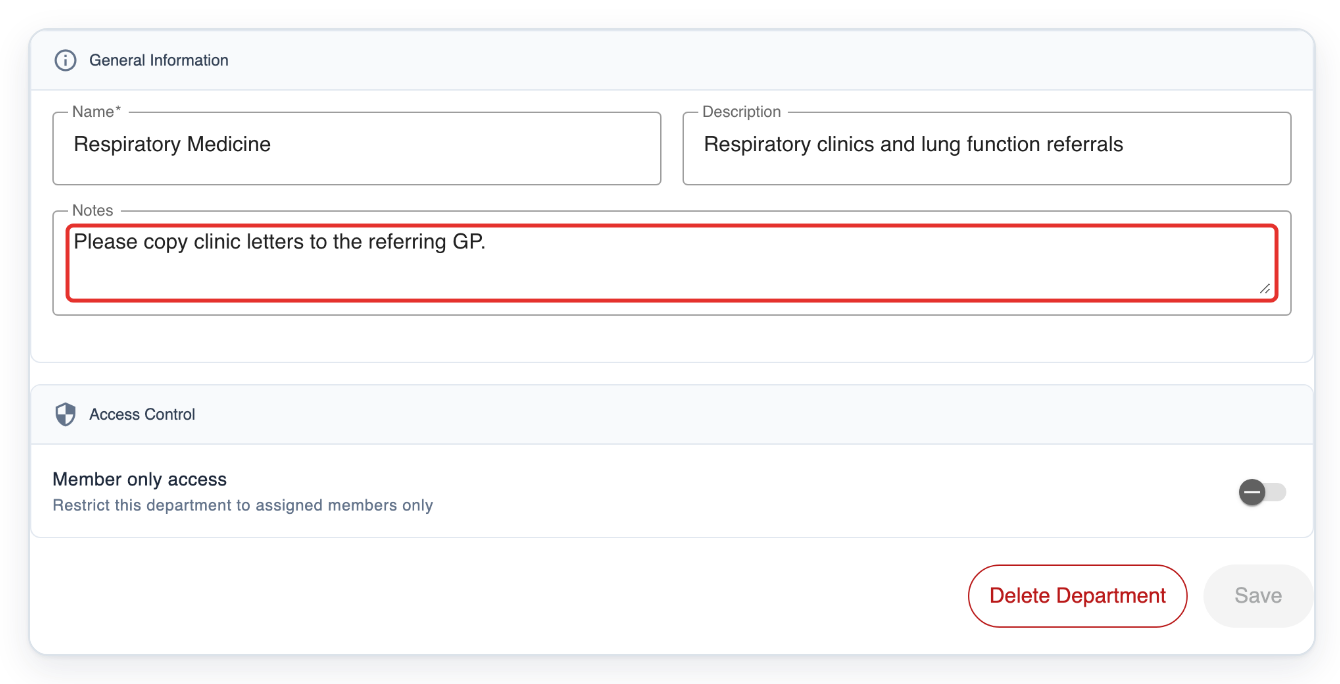
Enter the department's contact details and correspondence instructions in Notes.
For example: Clinic correspondence: Sarah Walsh, 020 7946 0321. Please copy letters to the referring GP.
Keep the contact details and instructions together so staff can find them in the department header.
Click Save to update the department notes.
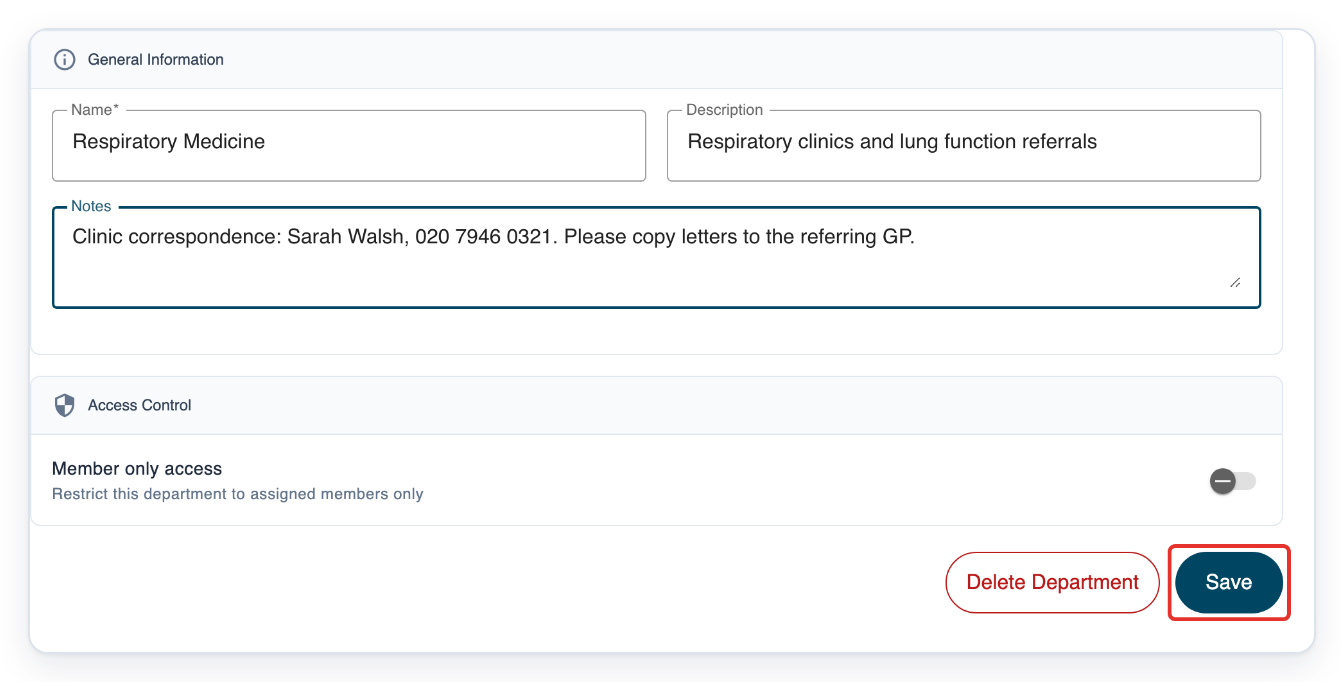
=> Your saved Notes remain in General Information, above Access Control. Save is unavailable until you make another change.
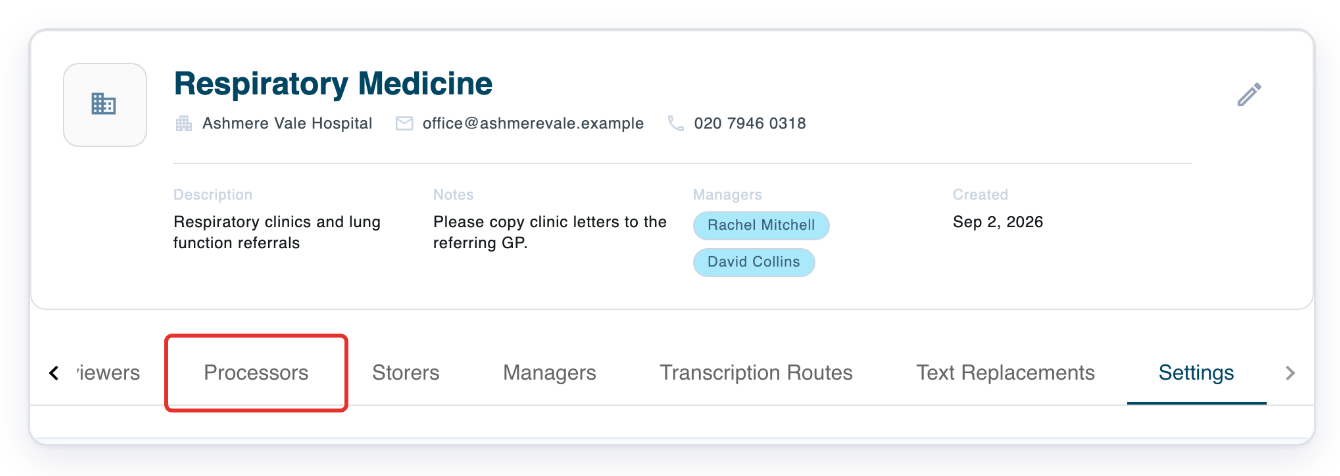
Click Processors to view the department's processing team.
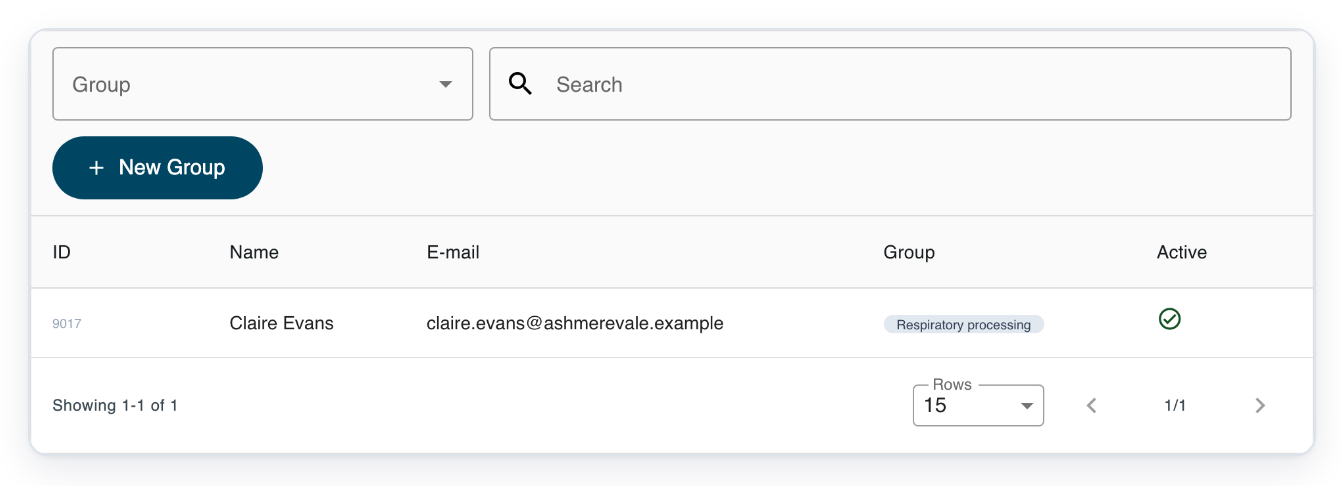
The table lists the team's names, email addresses, groups and whether each person is active.
=> In this example, the table shows Claire Evans in Respiratory processing. Use Group to choose which processing group to view.
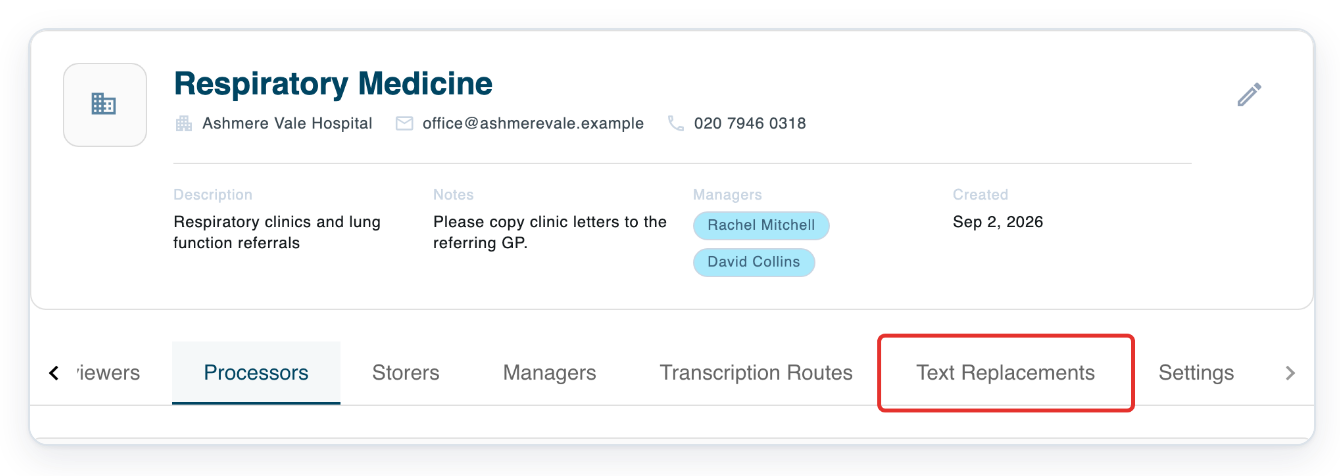
Click Text Replacements to view the department's shared replacements.
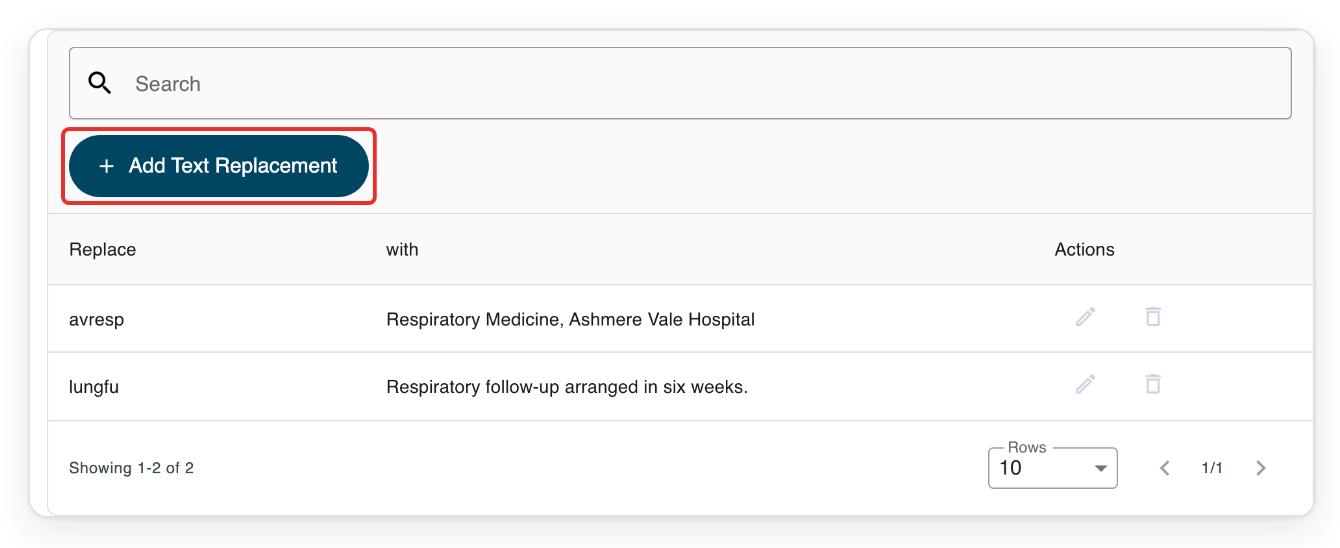
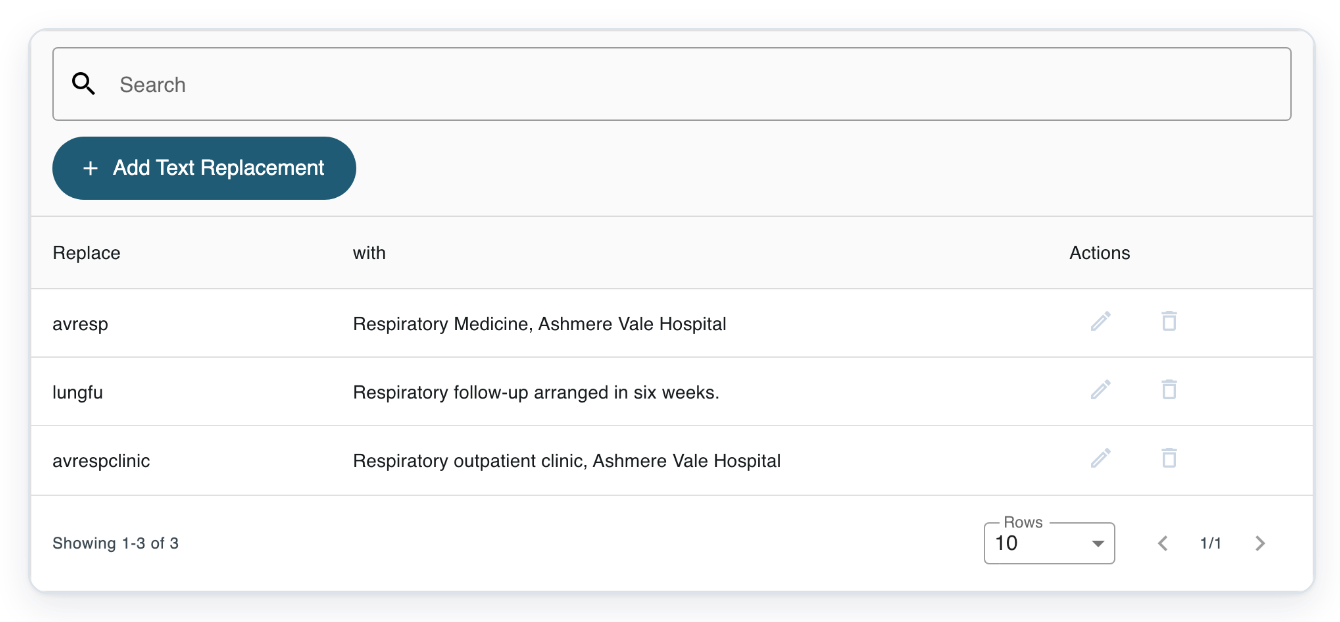
Each row shows a shortcut under Replace and the text it inserts under with. Check for existing shortcuts before adding one.
Click Add Text Replacement. A window opens with Replace and with fields.
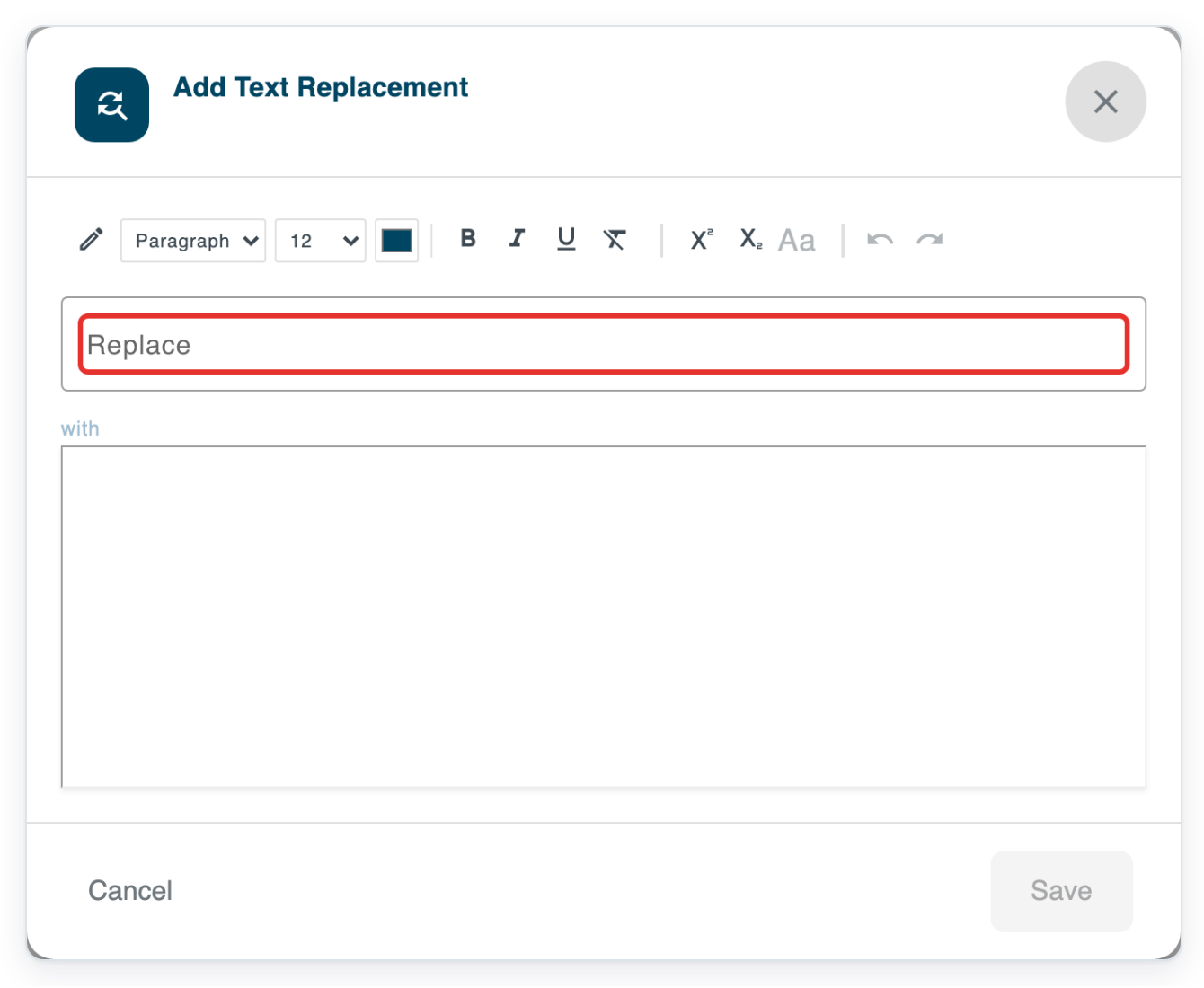
The shortcut inserts the text you enter here. Use the toolbar to format the replacement text.
Enter avrespclinic in Replace.
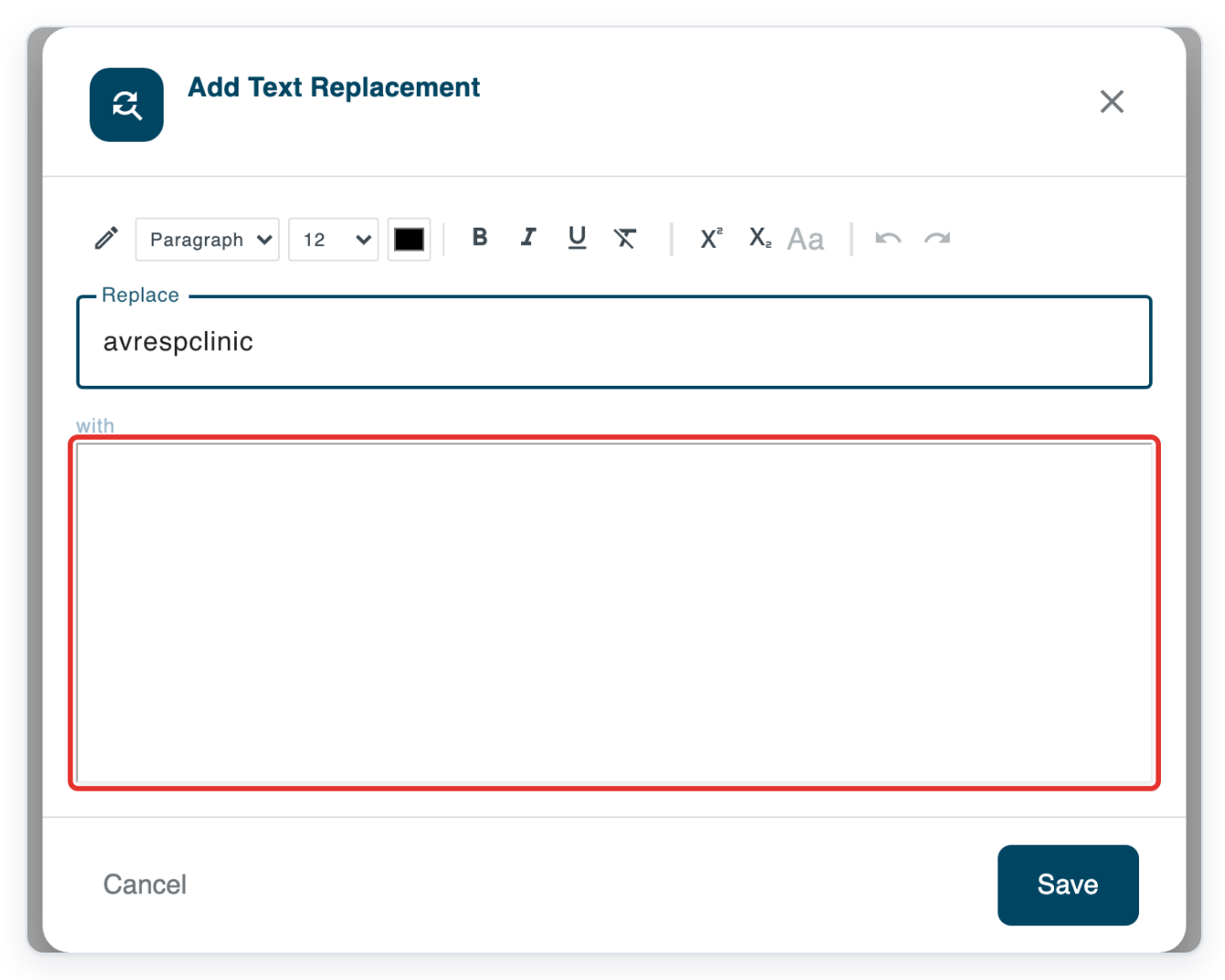
Use avrespclinic for this example, or choose an unused shortcut for your department.
Enter Respiratory outpatient clinic, Ashmere Vale Hospital in with.
For your own shortcut, enter the text you want staff to insert instead of the example above.
Click Save to add the department text replacement.
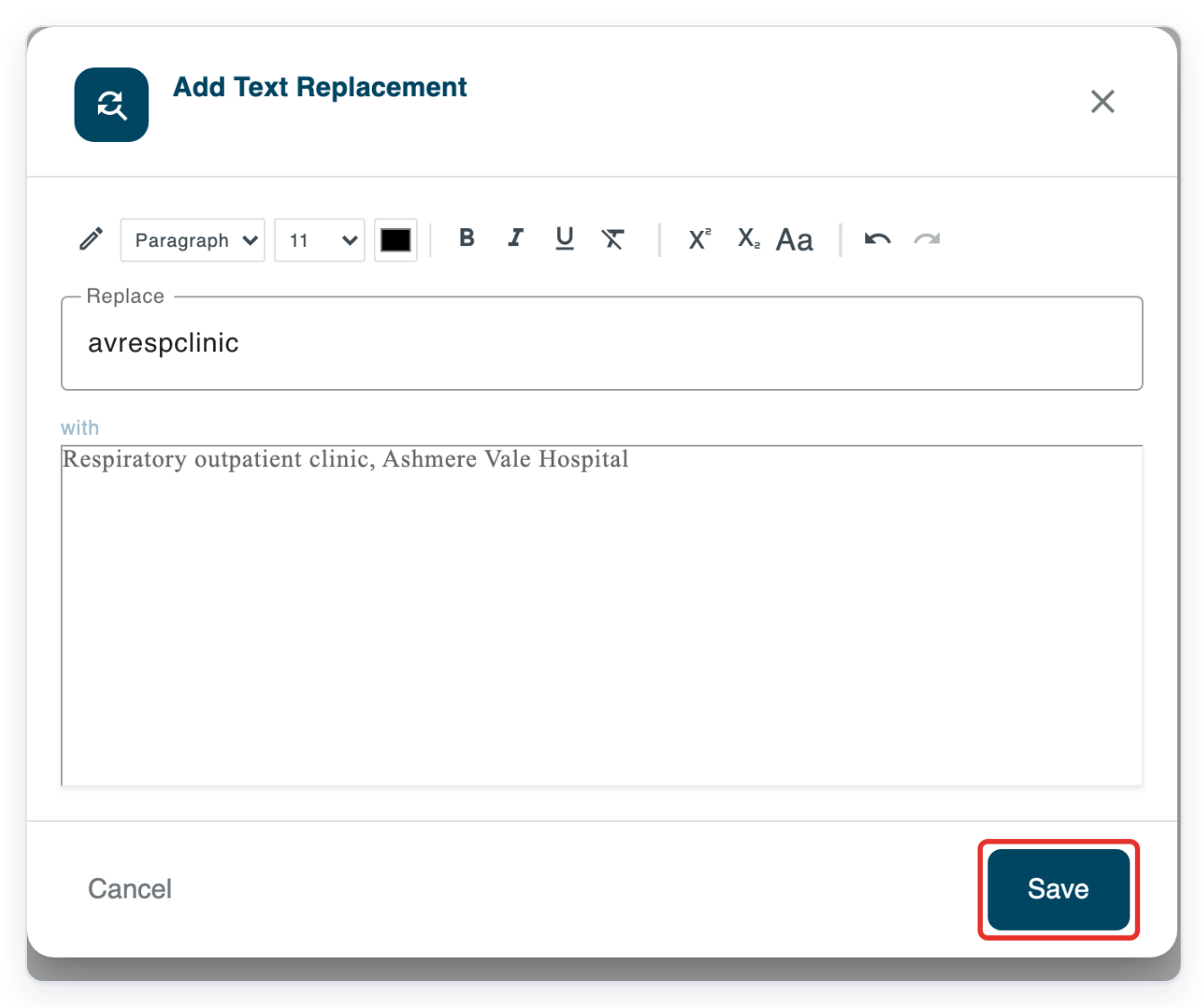
=> The Text Replacements table now shows avrespclinic and its replacement text.
NOTE:
- Saved notes appear in the department header. Refresh the page if the header still shows the old notes.
- Department text replacements are available on tasks in that department.
What you can change in Settings
Use General Information to update the department's name, description and notes. You'll find the access switch under Access Control.
| Setting | What it is for |
|---|---|
| Name | The department's name, shown at the top of its page. |
| Description | A short description shown in the department header. |
| Notes | Contact details and correspondence instructions shown in the department header. |
| Member only access | Restrict access to the department. See Member only access for a department before changing it. |
Can't update your department?
- Save is unavailable in Settings. Check that you've made a change and that Name has 3 to 100 characters. After saving, the button is unavailable until you make another change.
- Can't find a processor? Check the selected Group, then click the cross in Search to clear it.
- Can't save a text replacement? Fill in Replace and with, using a shortcut this department does not already use. If the window has closed, click Add Text Replacement and enter both again.
- Can't find a text replacement? Click the cross to clear Search. Use the arrows below the table to check other pages. Rows sets how many replacements appear on each page.
Related articles
If you have any more queries, please do not hesitate to contact our Helpdesk or support@tpro.io.
© 2020 - 2026