
Before you start
You need an author account with eClinic Manager enabled for you and your organisation. Phone appointments must be enabled. The appointment must be unfinished and have a valid patient phone number.
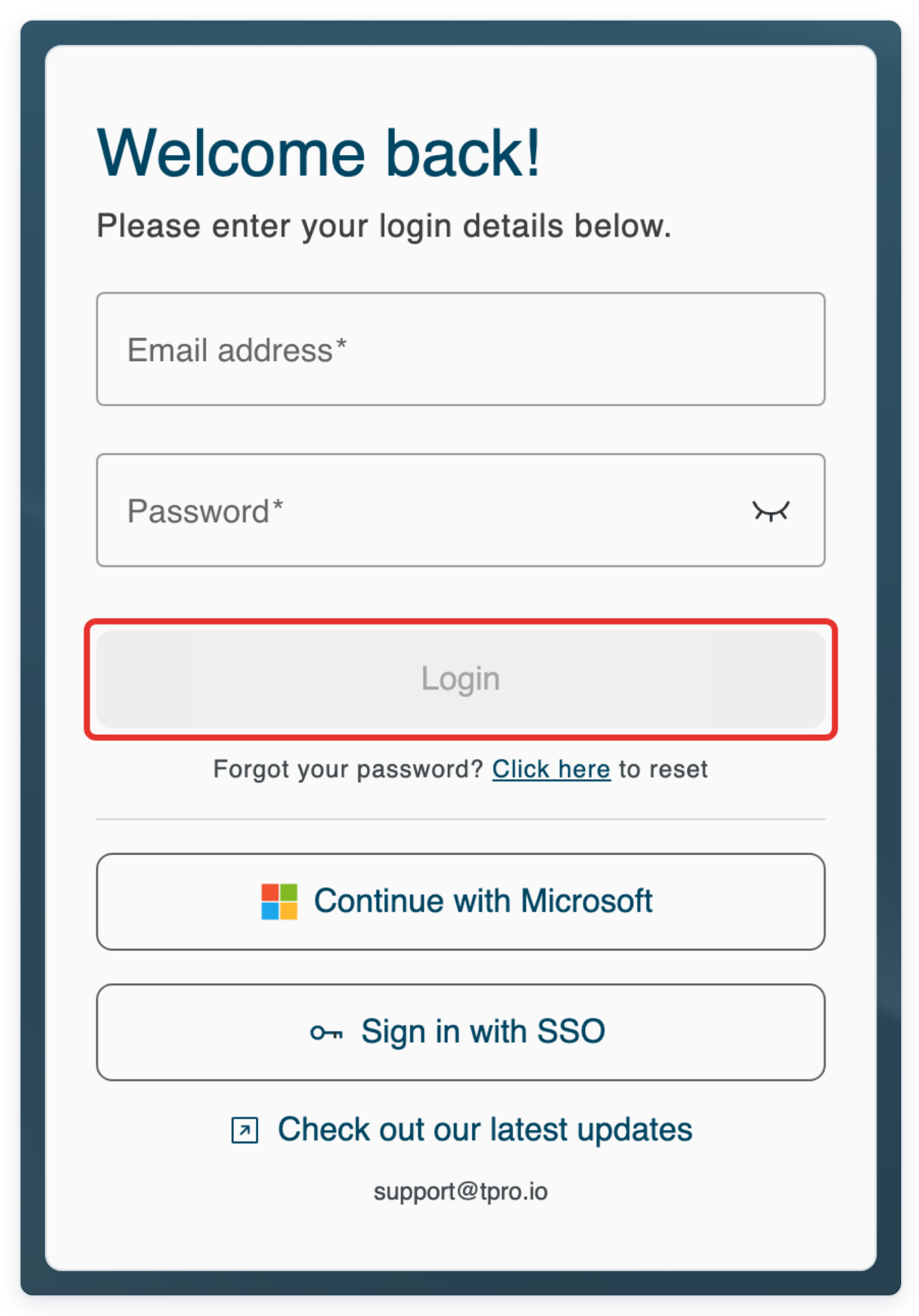
Log in to T-Pro with your author credentials.
Run a phone appointment
Click Clinic Manager to open Clinic Schedule.
Find the patient’s name and appointment time in the schedule. In this example, you’ll call Mohammed Rahman after checking two appointment statuses.

First, hover over the handset in Status for Eilidh Fraser’s appointment to check for an invitation.
A handset in this column identifies a phone appointment.
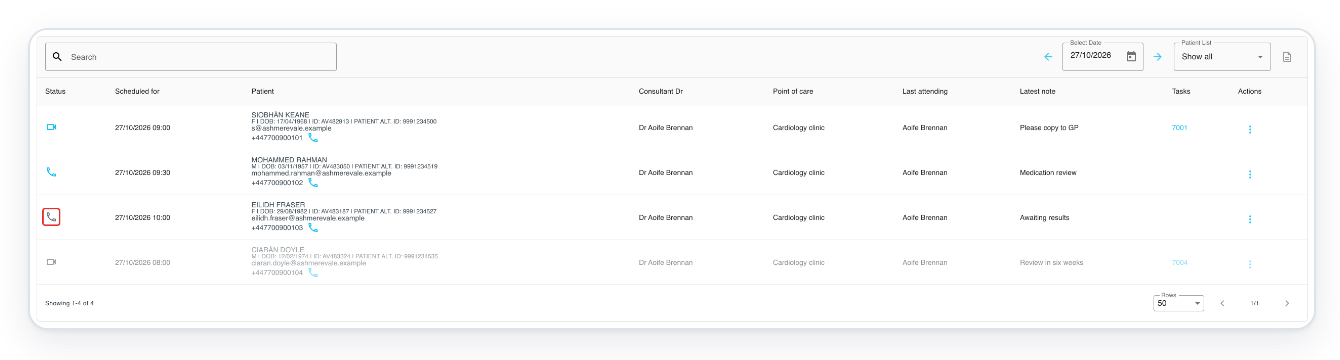
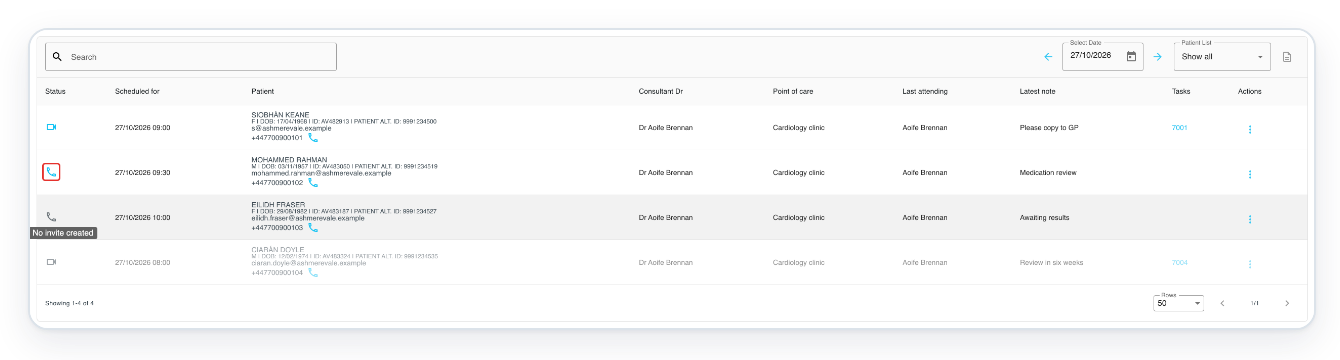
The tooltip says No invite created. Hover over Mohammed Rahman’s handset in Status to check his appointment.
His tooltip says Phone - Scheduled.
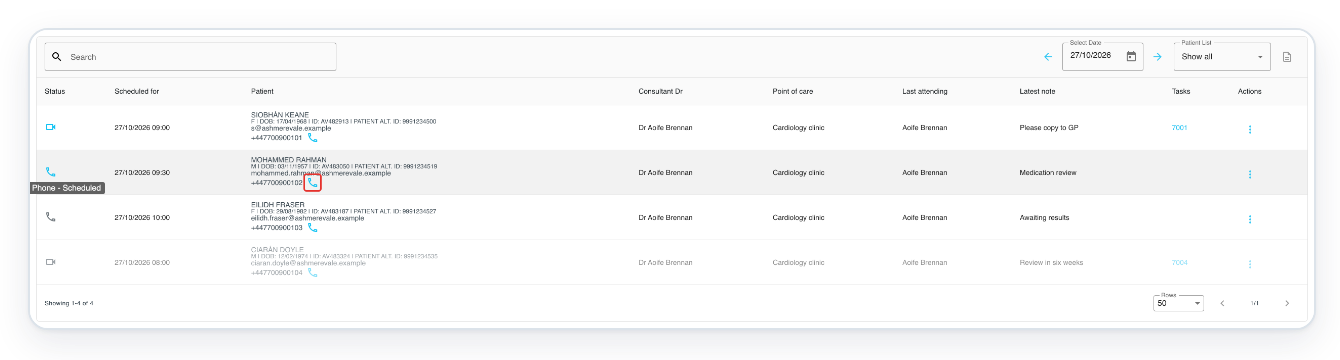
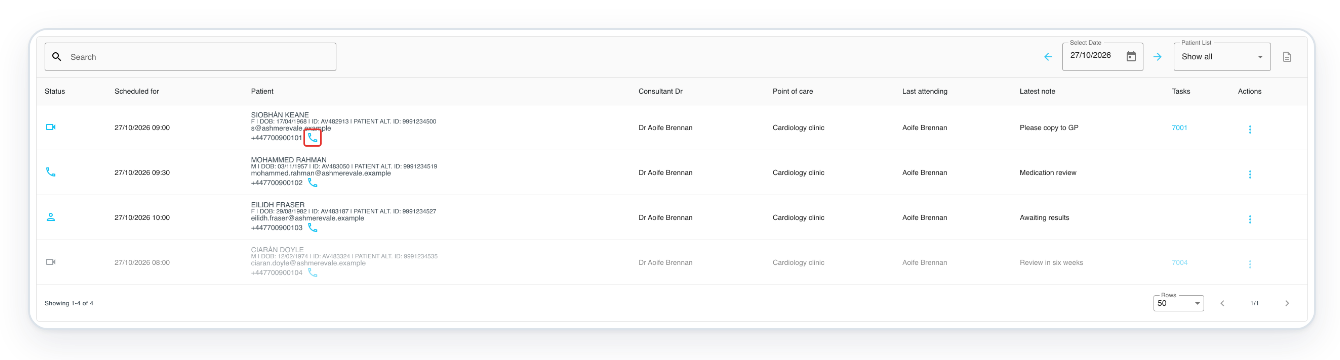
Click the Call user icon beside Mohammed Rahman’s phone number to open Phone Session.
This is a separate handset beside the number, in the patient’s details.
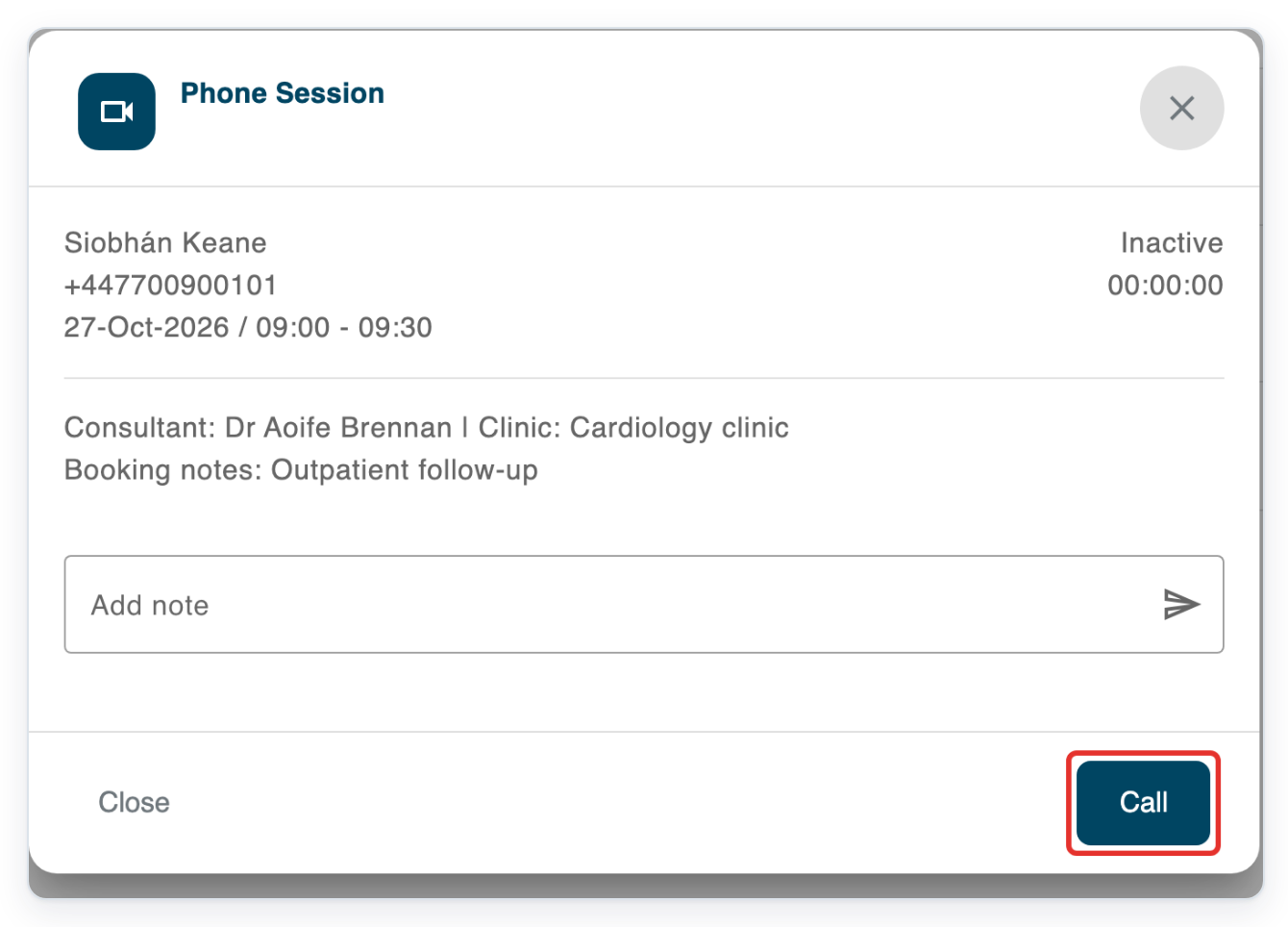
Phone Session shows the patient’s details, Inactive status and a duration of 00:00:00. Click Call to ring Mohammed Rahman and wait for him to answer.
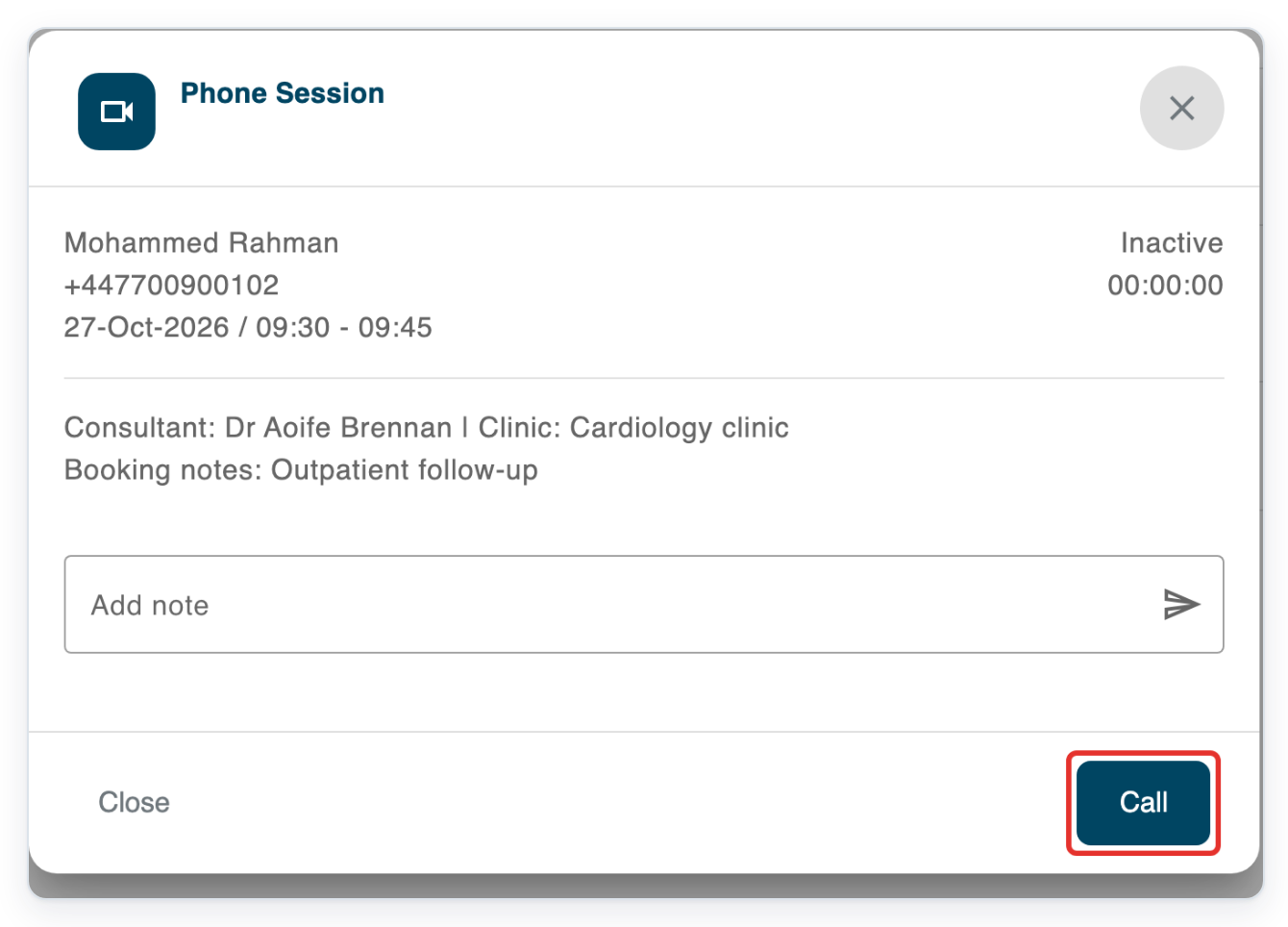
=> The status changes to in progress when the call connects. The timer shows the call length in hours, minutes and seconds. Mute and Hangup are available.
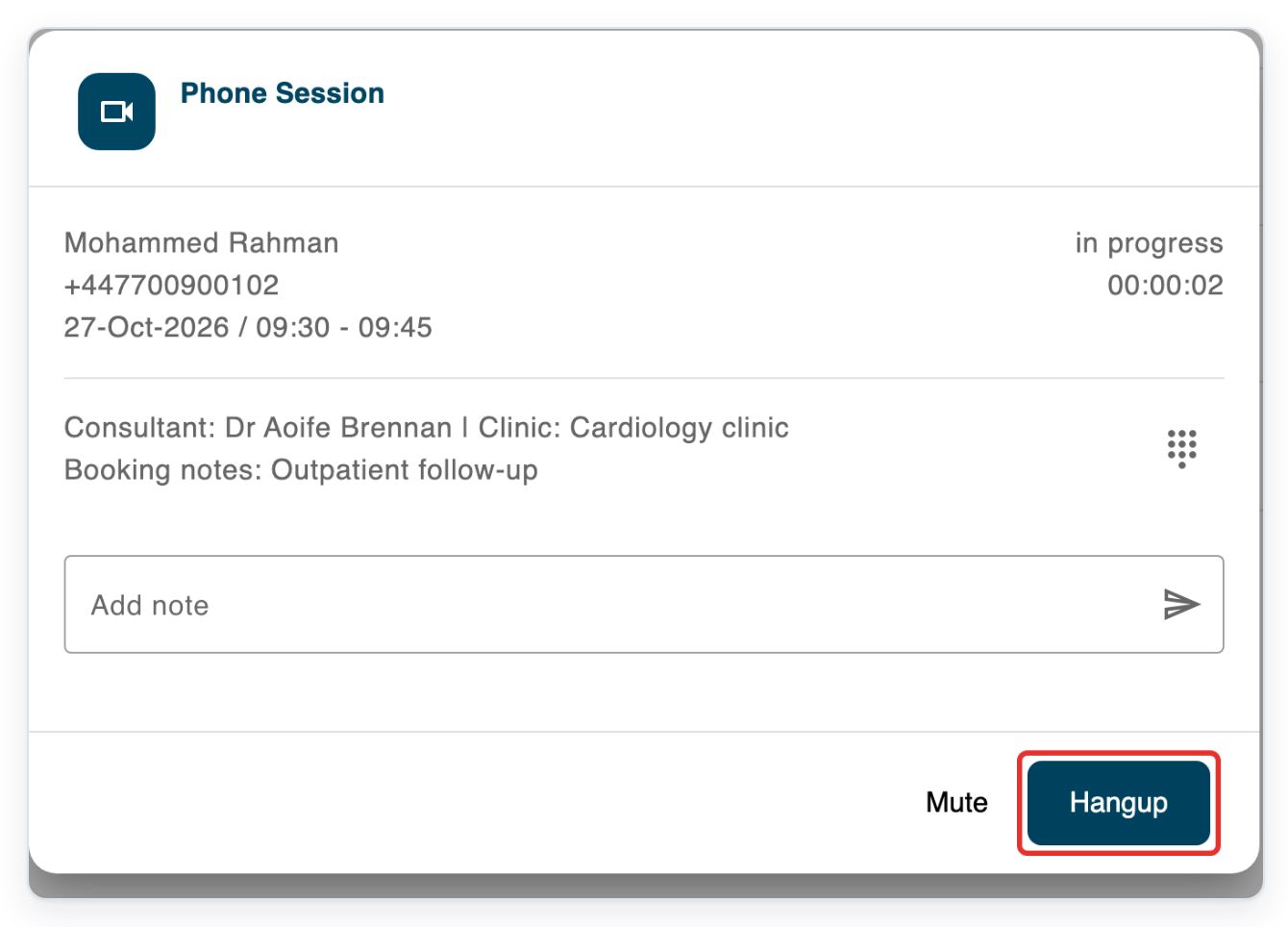
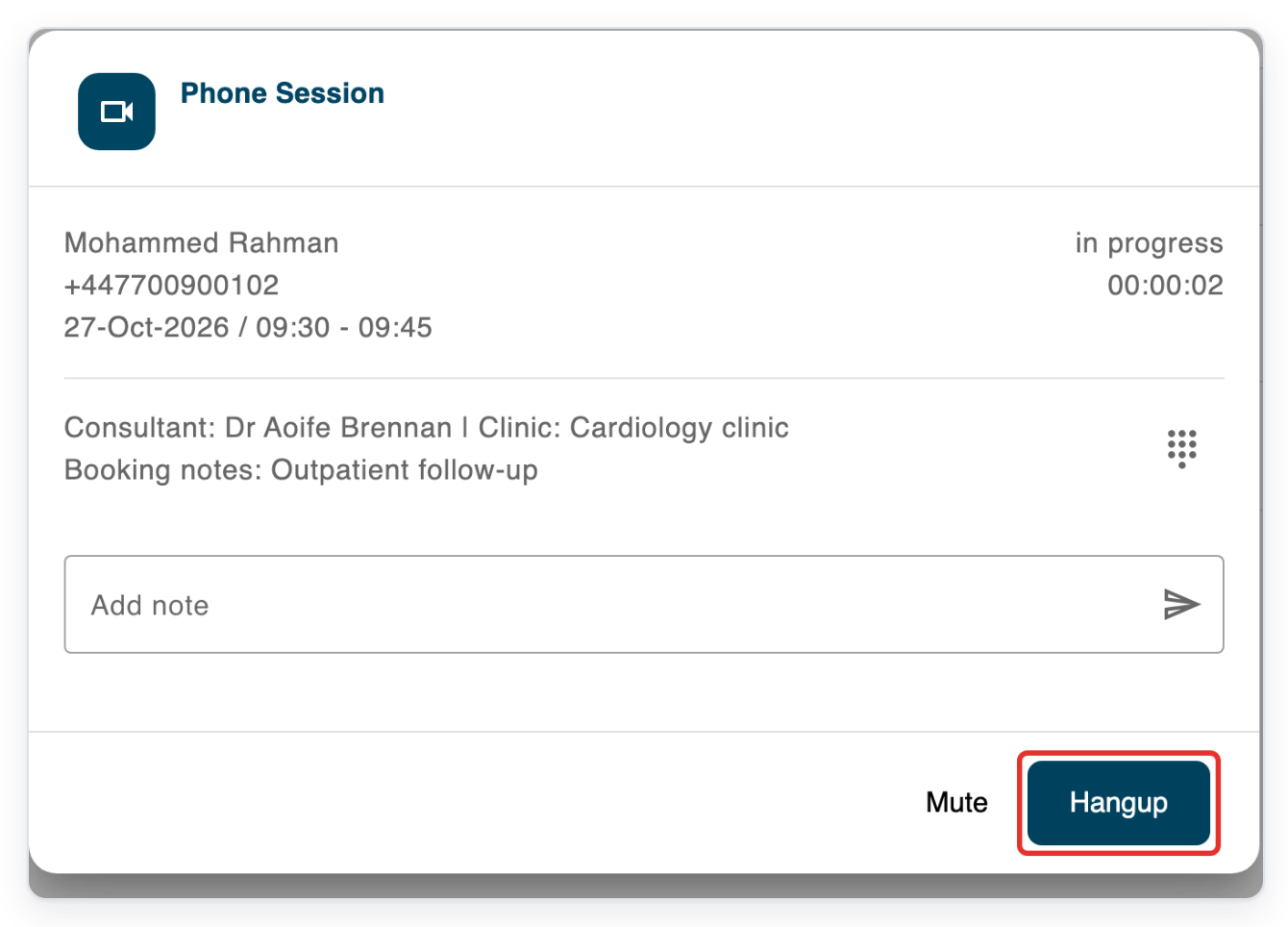
Click Hangup to end the call.
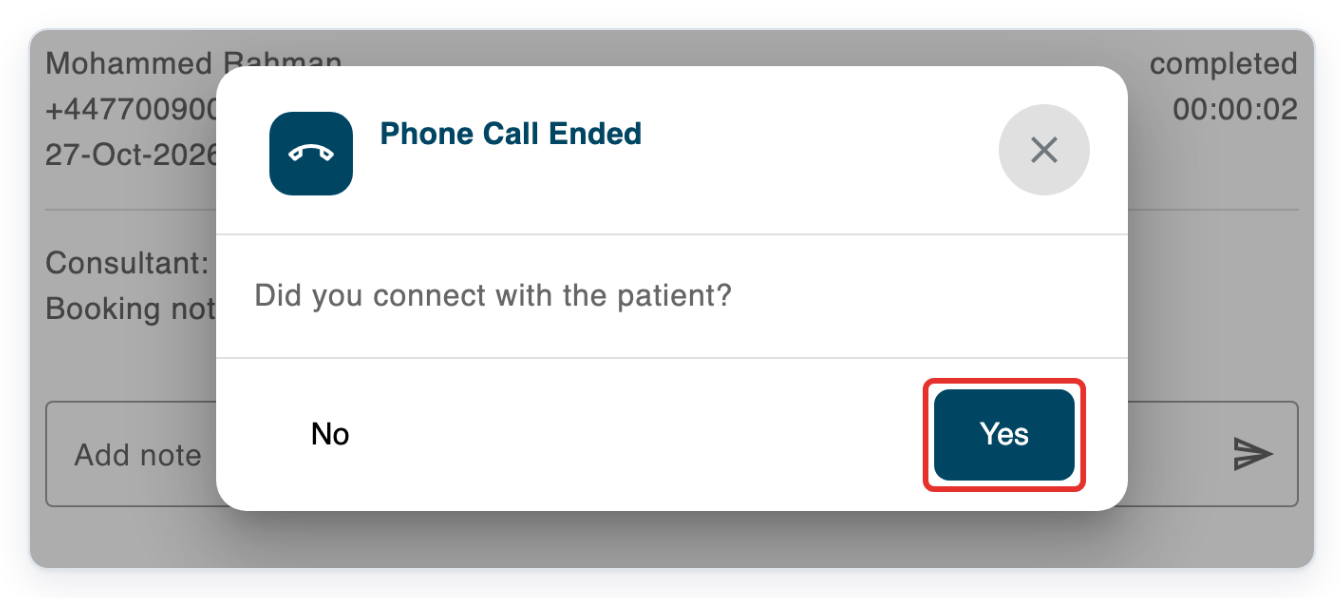
=> In Phone Call Ended, answer Did you connect with the patient? with Yes or No.
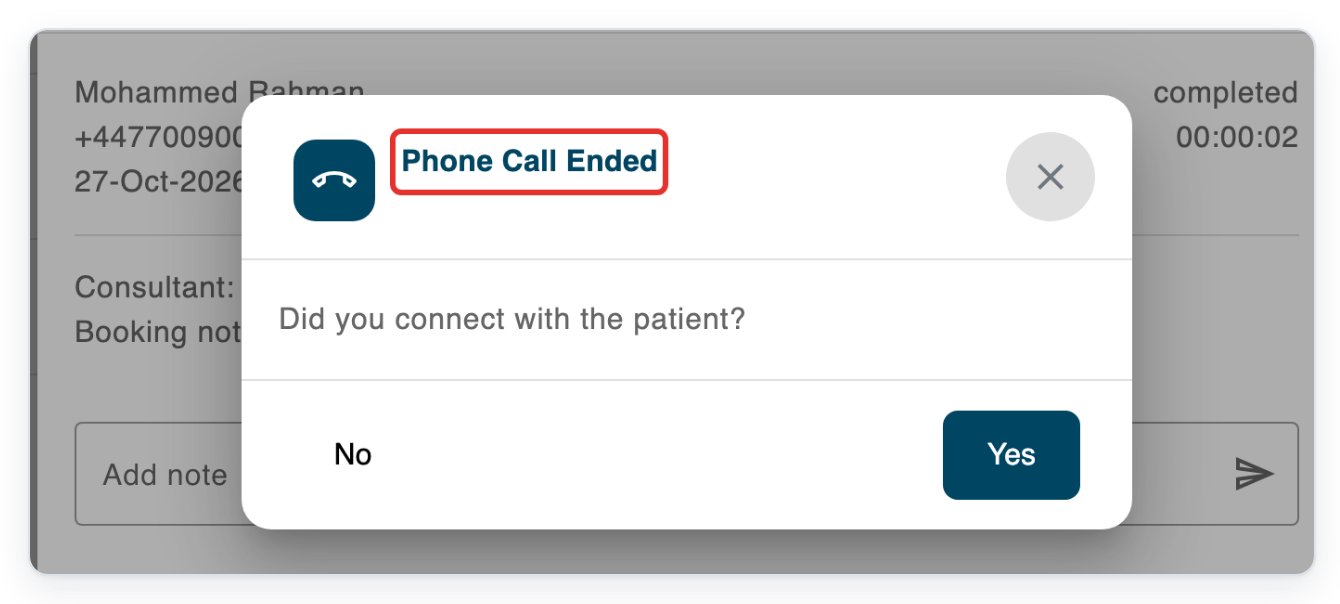
Click Yes to confirm that you connected with the patient.
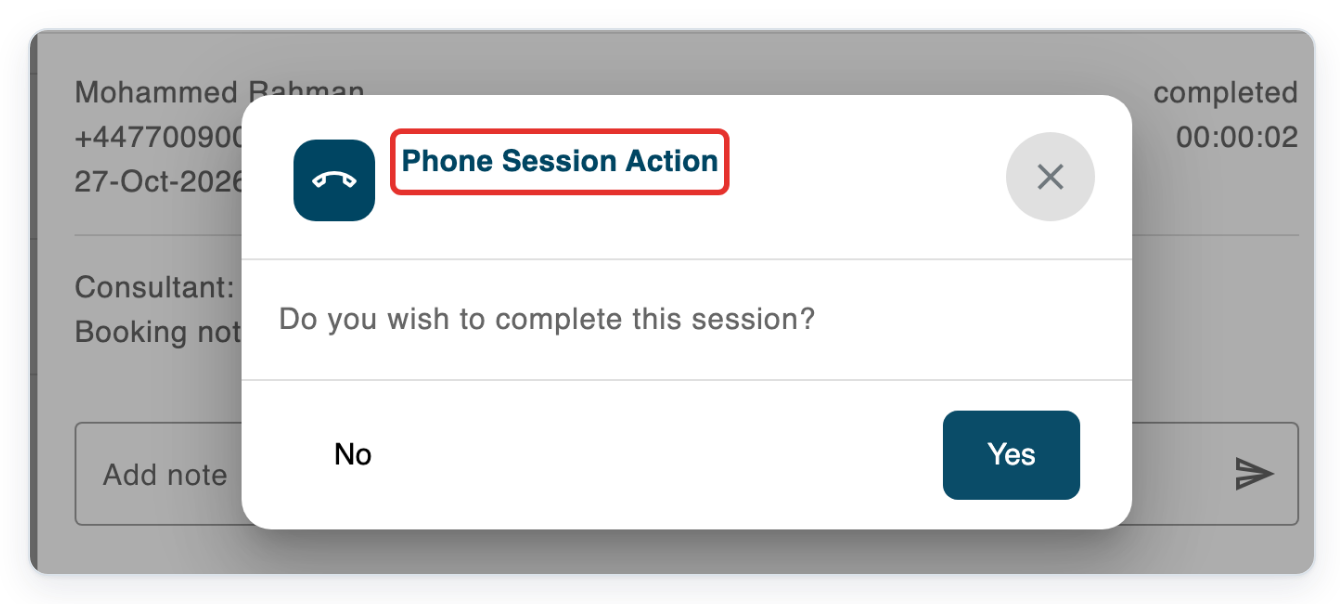
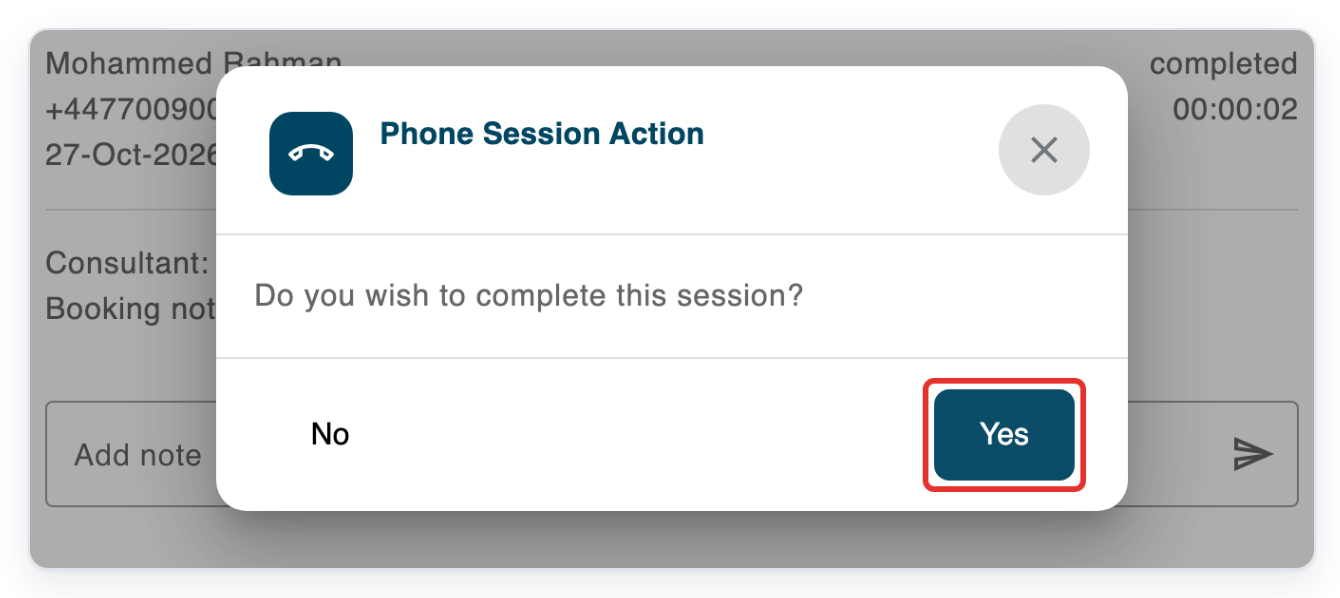
=> The Phone Session Action window then asks Do you wish to complete this session? Choose Yes or No.
Click Yes to complete the phone session.
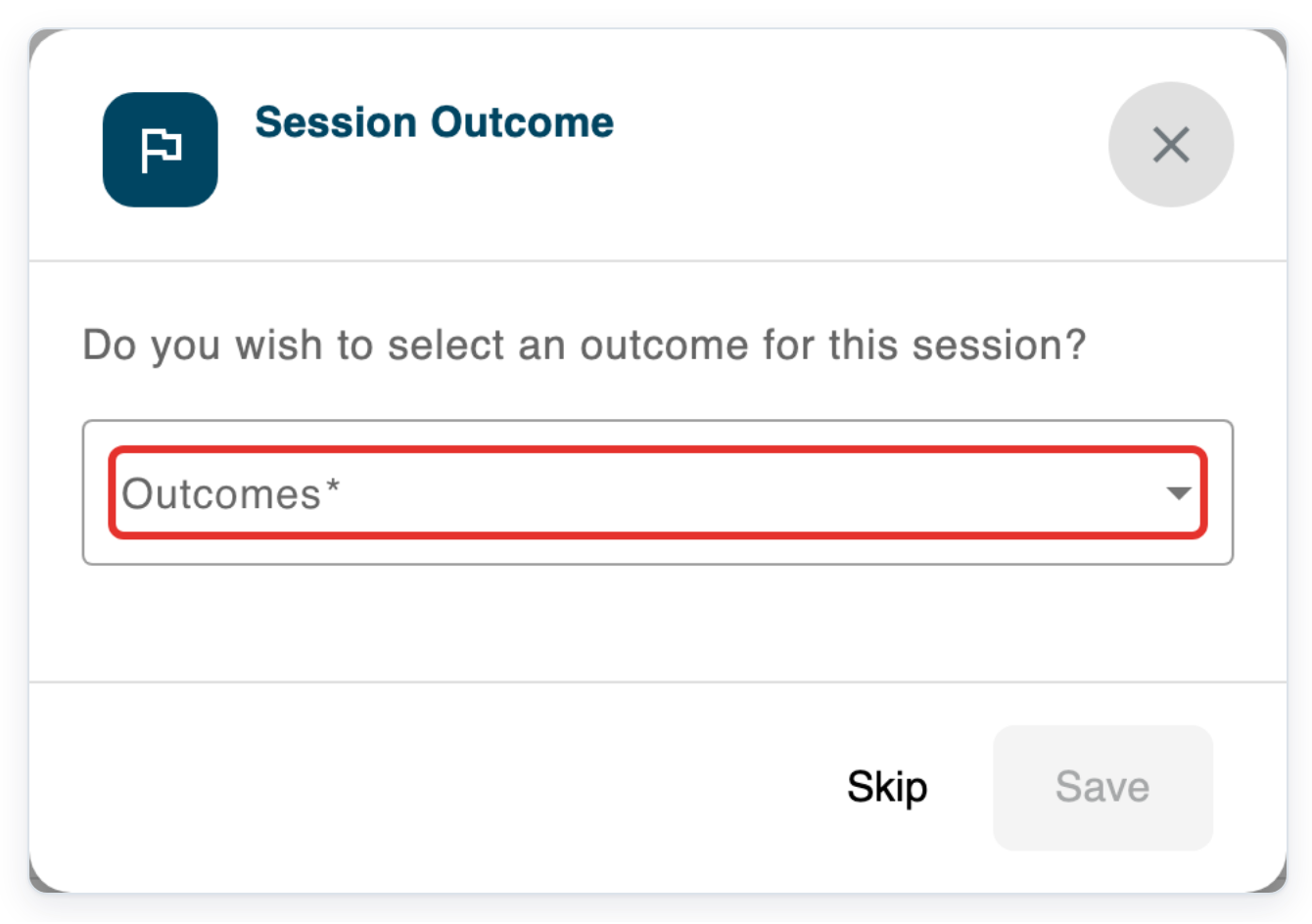
=> If your organisation has appointment outcomes, Session Outcome opens with Outcomes, Save and Skip. Otherwise, go to step 13.
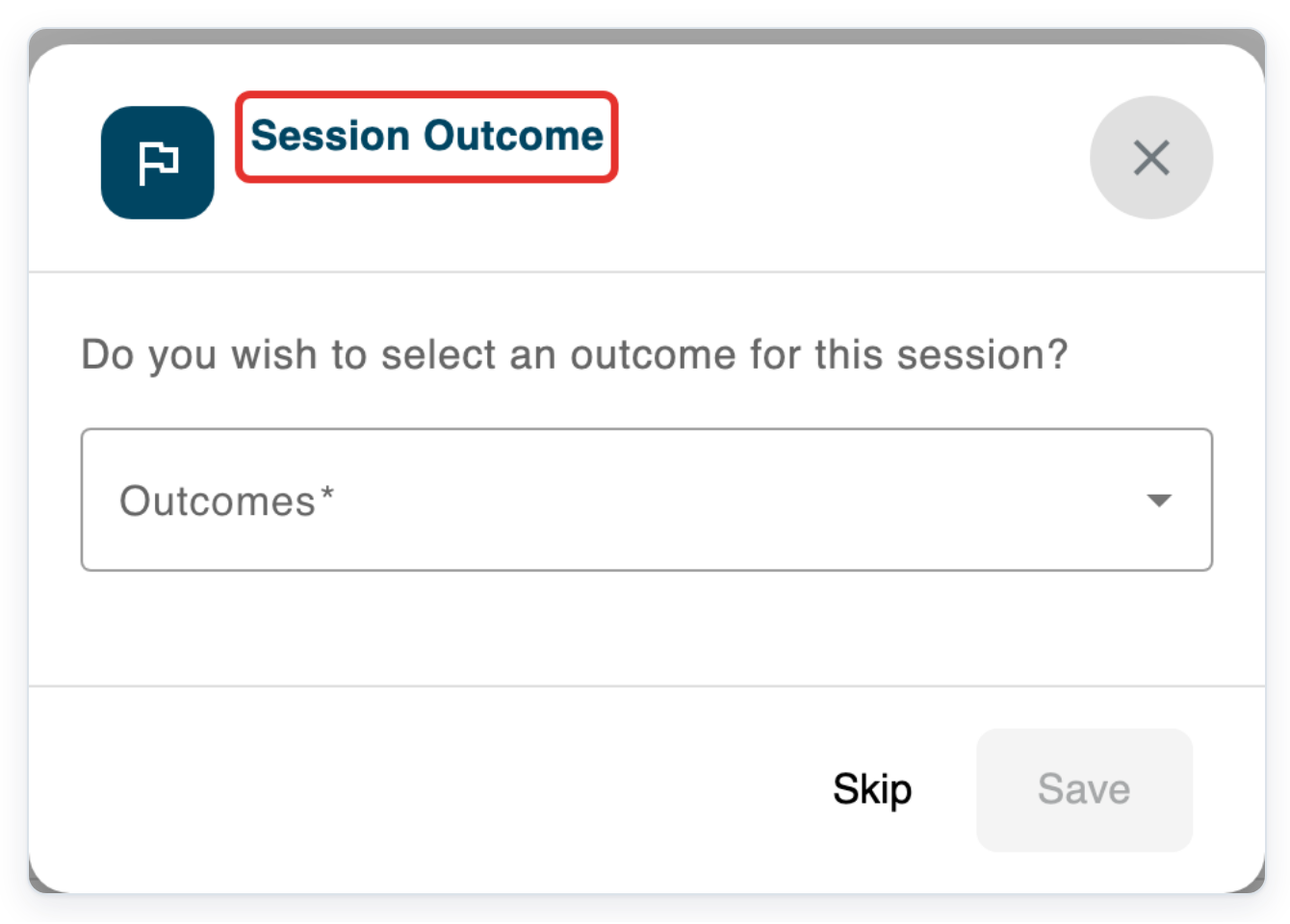
Open Outcomes to choose the result of the appointment.
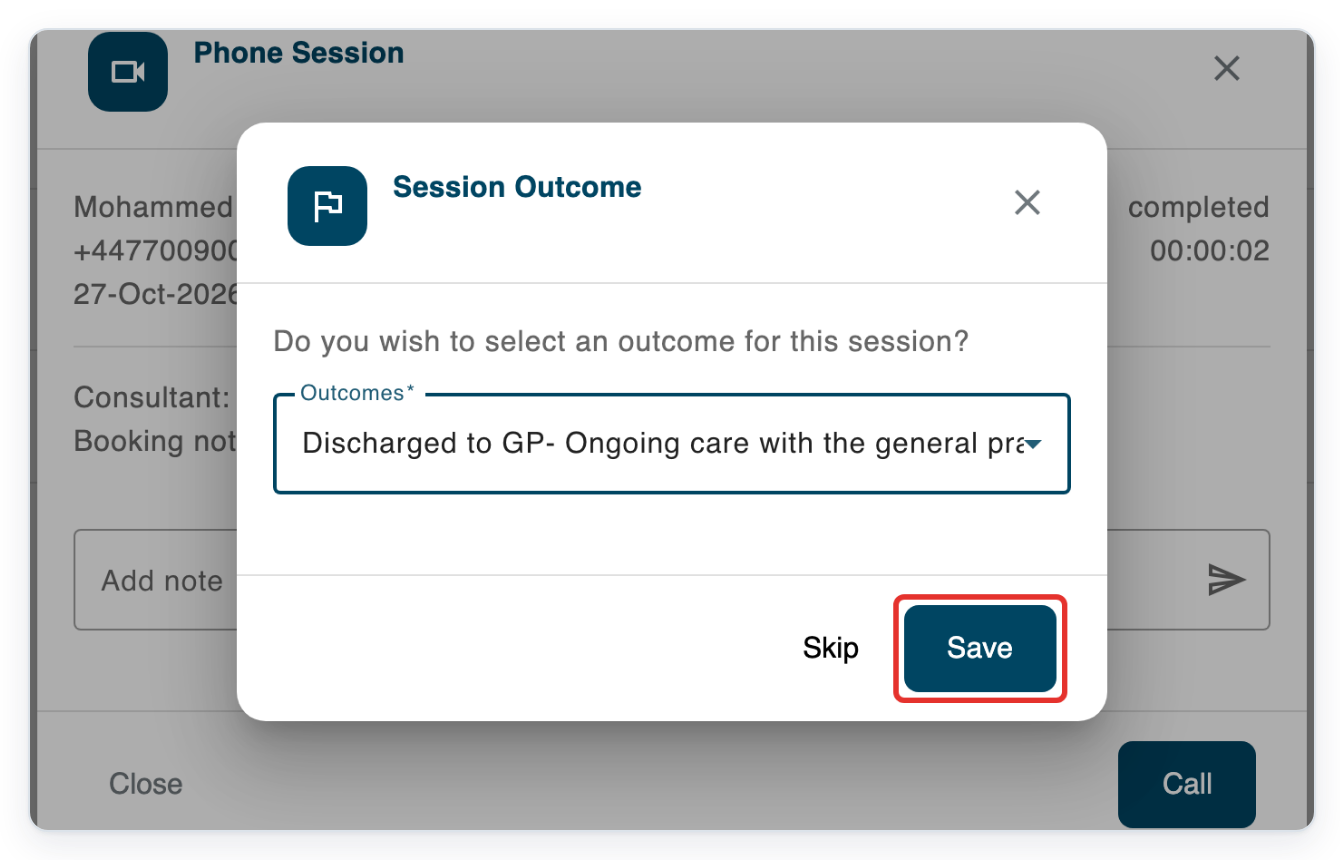
Save becomes available once you select an outcome.
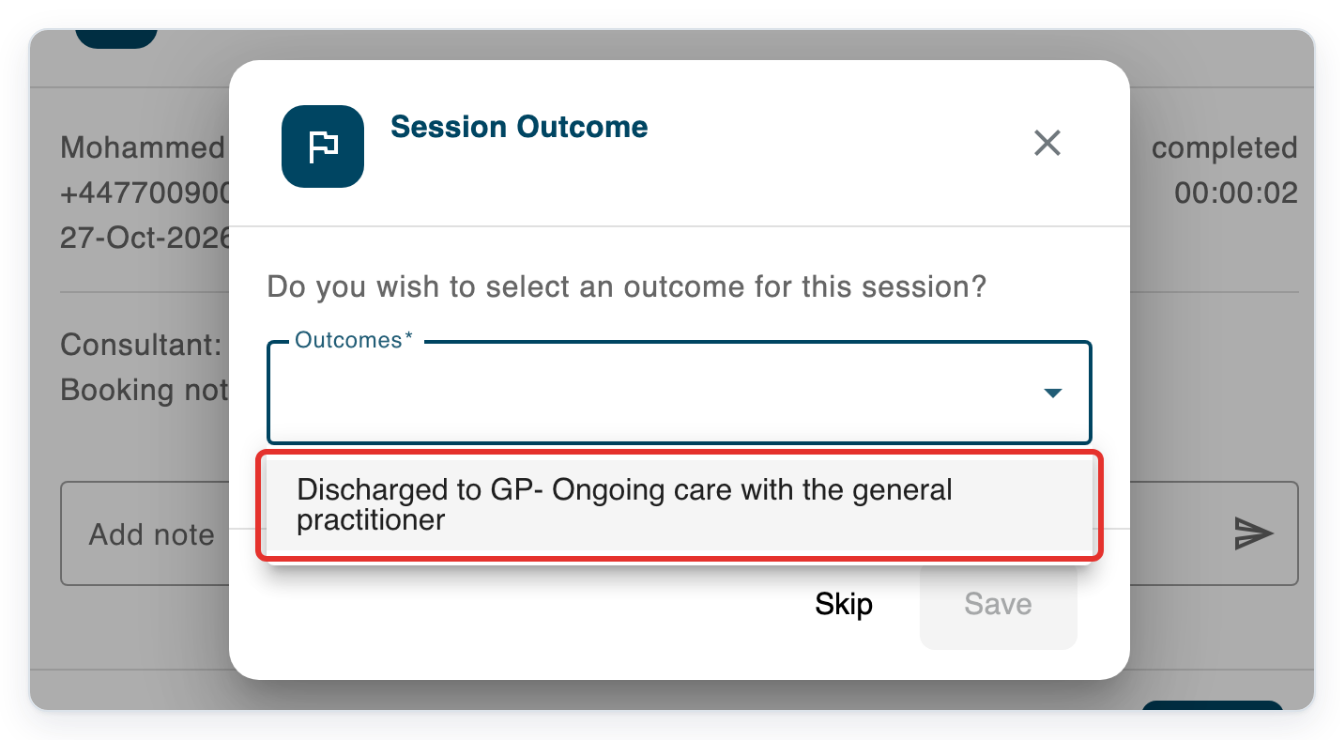
Choose the outcome that matches the appointment. In this example, select Discharged to GP- Ongoing care with the general practitioner.
Click Save to record the outcome and return to Clinic Schedule.
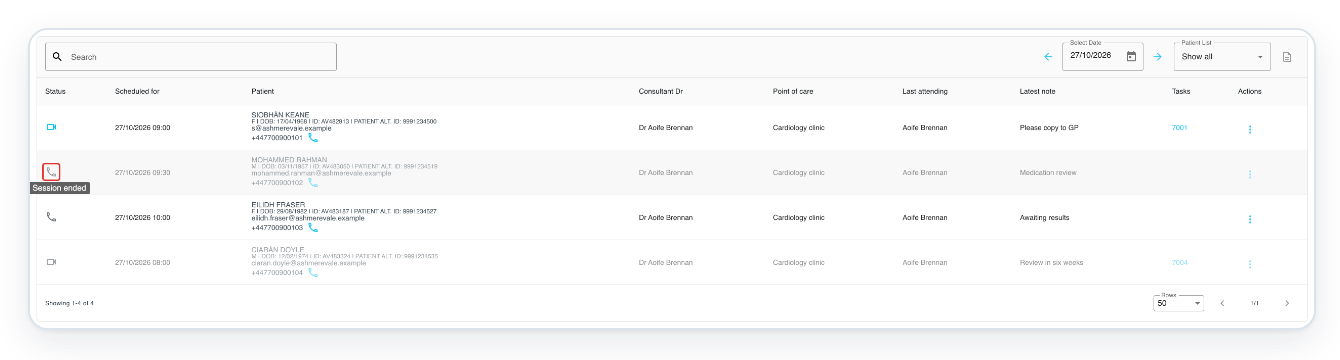
Hover over the handset in Status for Mohammed Rahman’s completed appointment.
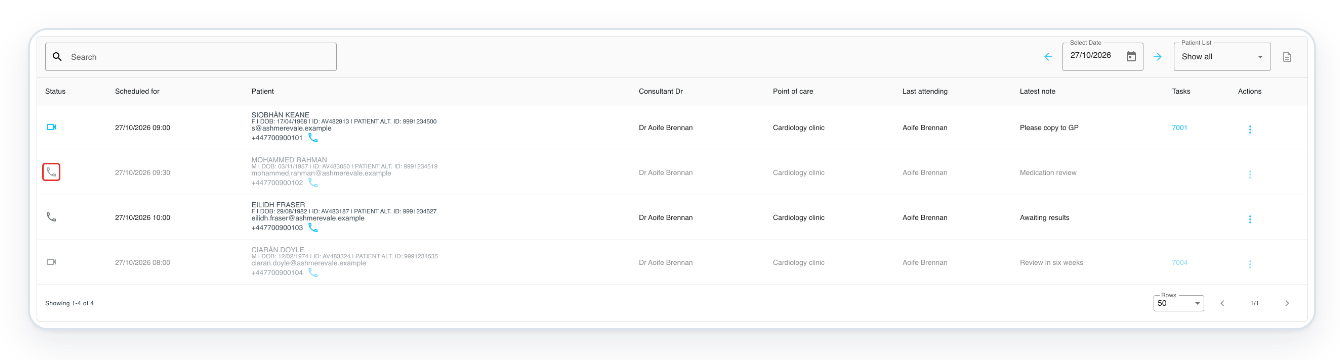
=> The tooltip shows Session ended, and the appointment row is faded.
Phone a patient booked for a video appointment
For Siobhán Keane’s video appointment, click the Call user icon beside her phone number. This opens Phone Session.
Follow steps 6 to 13 to call her and complete the appointment.
=> Phone Session shows Siobhán Keane’s details and the Call button.
NOTE:
- Phone appointments can come from your clinic’s internal appointment system.
- Session Outcome appears only when outcomes are available for the appointment’s organisation. Click Skip to return to the schedule without saving an outcome. The session stays complete.
What the end-of-call questions mean
The first question records whether you connected with the patient. The second lets you complete the appointment.
| Question | If you choose Yes | If you choose No |
|---|---|---|
| Did you connect with the patient? | Records you as the last author to attend the patient and opens the completion question. | Closes the phone window and leaves the appointment unfinished. |
| Do you wish to complete this session? | Completes the appointment, then offers outcomes if any are available. | Closes the phone window and leaves the appointment unfinished. |
Other places you can start a phone call
- Click the handset in Status for an unfinished phone appointment to open Phone Session. It also shows the appointment’s status. The Call user icon beside the phone number opens the same window.
Tip: You can take notes before or during the call. Type in Add note, then click the send icon to save your note.
Can't run a phone appointment?
- If you cannot open Clinic Manager, contact your administrator. Ask them to check eClinic Manager is enabled for your organisation and account.
- If you see “Phone feature must be enabled in entity settings”, contact your administrator. Ask them to enable phone appointments for your organisation.
- If you see “Phone number is formatted incorrectly. Please update before using phone session”, correct the country code and phone number for the appointment. If you cannot edit these, ask your clinic team to correct them. Start the full number with +, followed only by digits.
- If you cannot find the appointment, check Select Date, clear Search and choose Show all under Patient List.
Related articles
- eClinic Manager: an introduction
- The clinic schedule
- Run a video appointment
- eClinic Manager settings, rules and notifications
If you have any more queries, please do not hesitate to contact our Helpdesk or support@tpro.io.
© 2020 - 2026