
Before you start
You can change your own notification settings. You need access to the inbox you want to use.
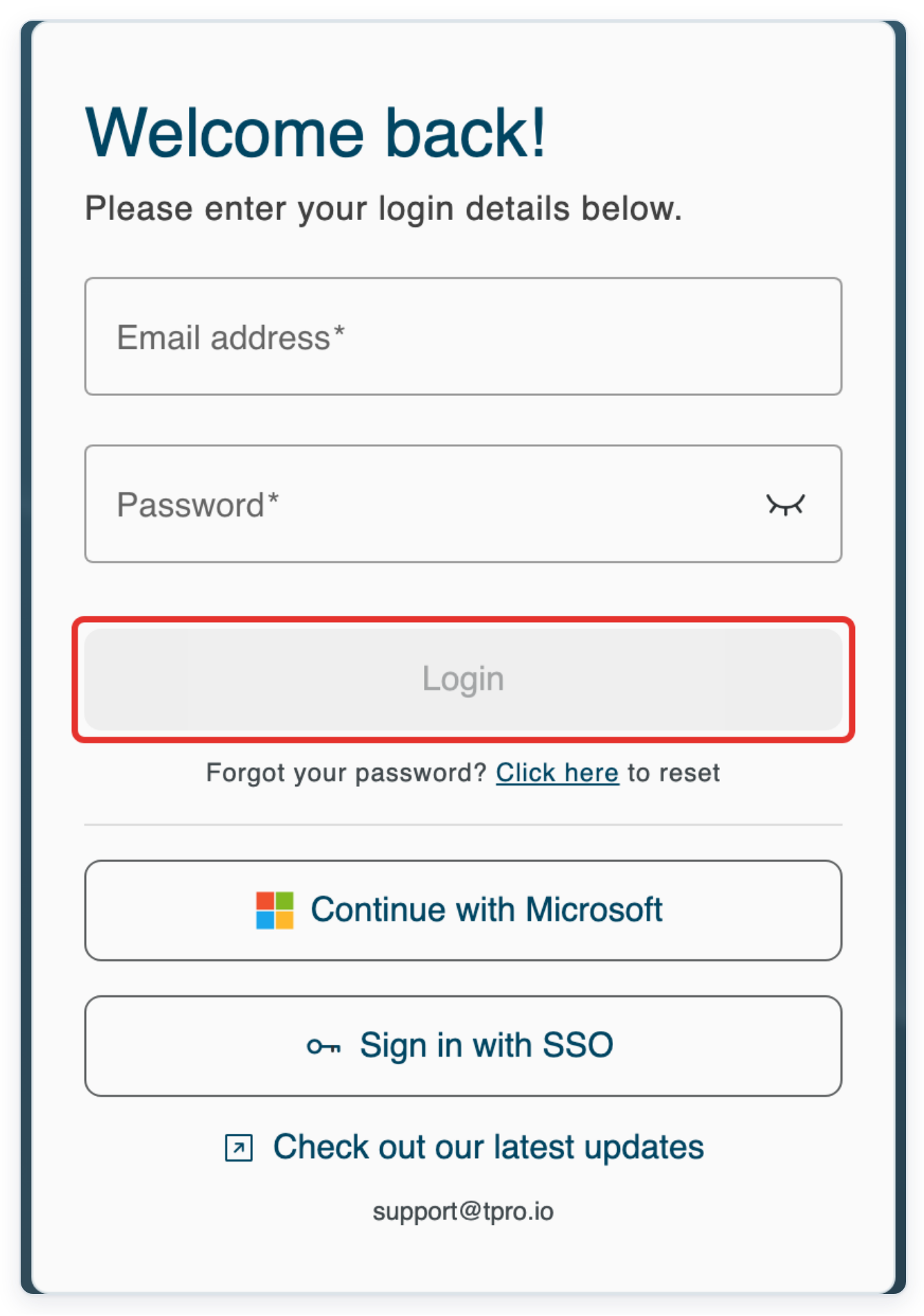
Log in to T-Pro with your transcriber or author credentials.
Verify your contact email
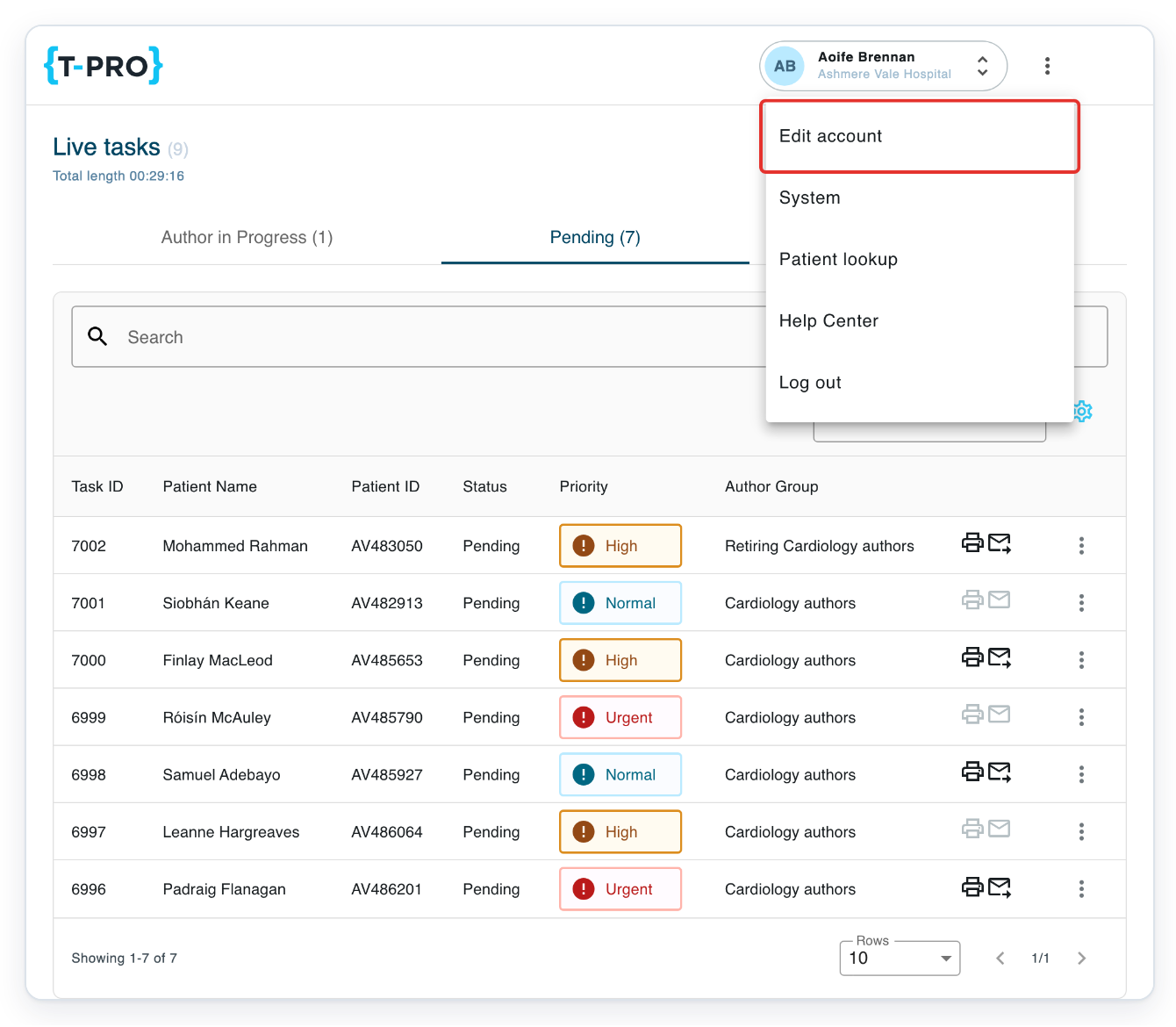
Click the three-dot menu beside your name at the top right.

Choose Edit account. Your profile opens on My details, which includes your contact information and notification settings.
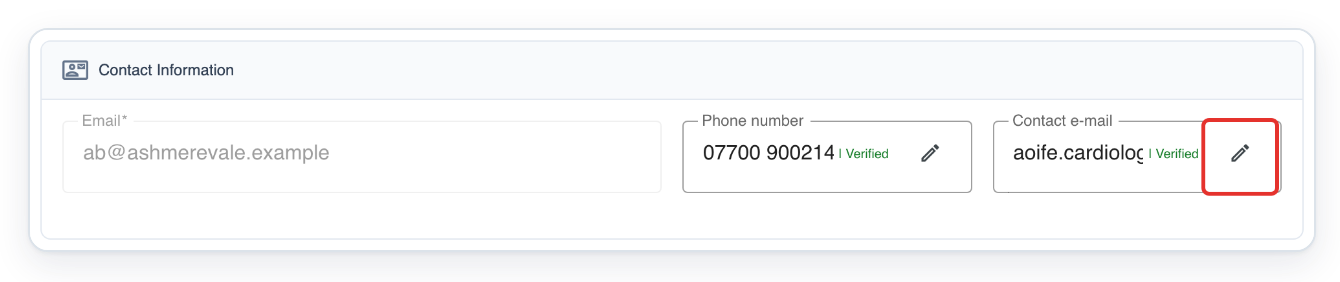
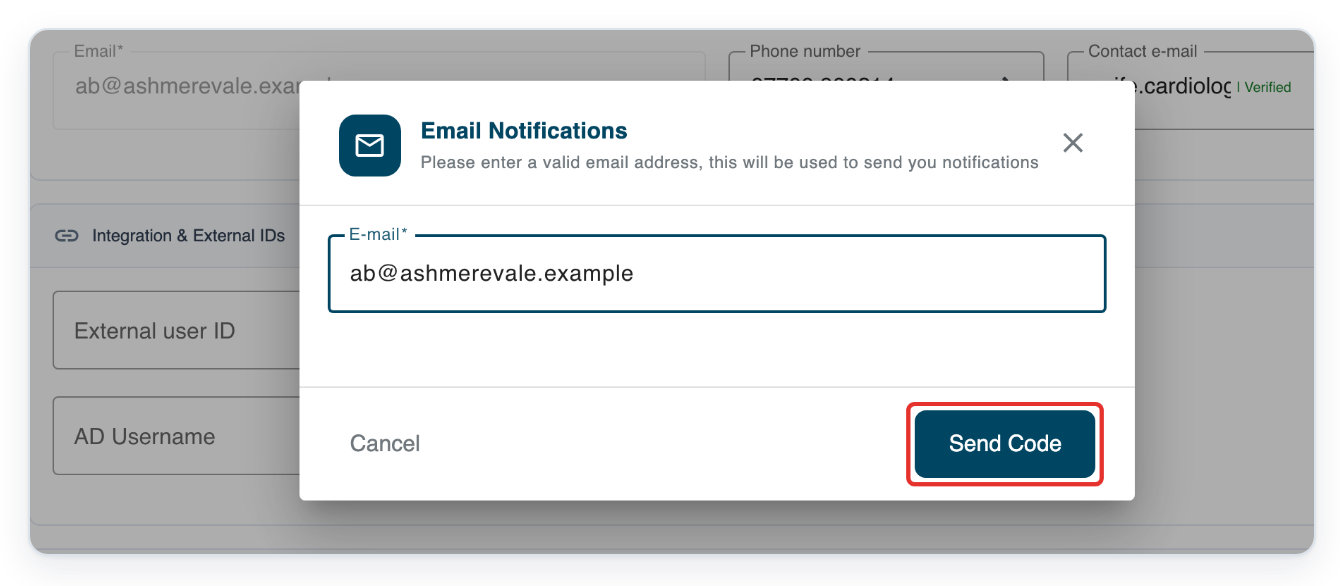
In Contact Information, click the pencil beside Contact e-mail. The Email Notifications window opens.
If your chosen address already shows | Verified, skip this step and go to step 9.
In E-mail, enter the address where you want to receive task notifications.
The field shows your current contact address. If you haven't set one, it shows your sign-in address.
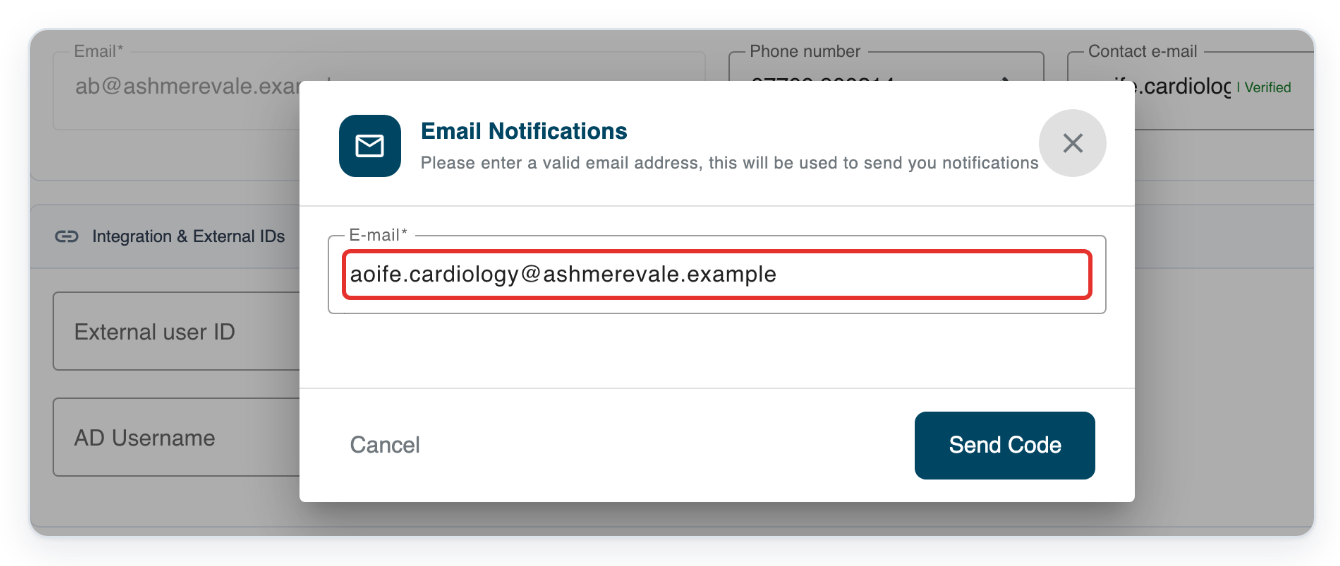
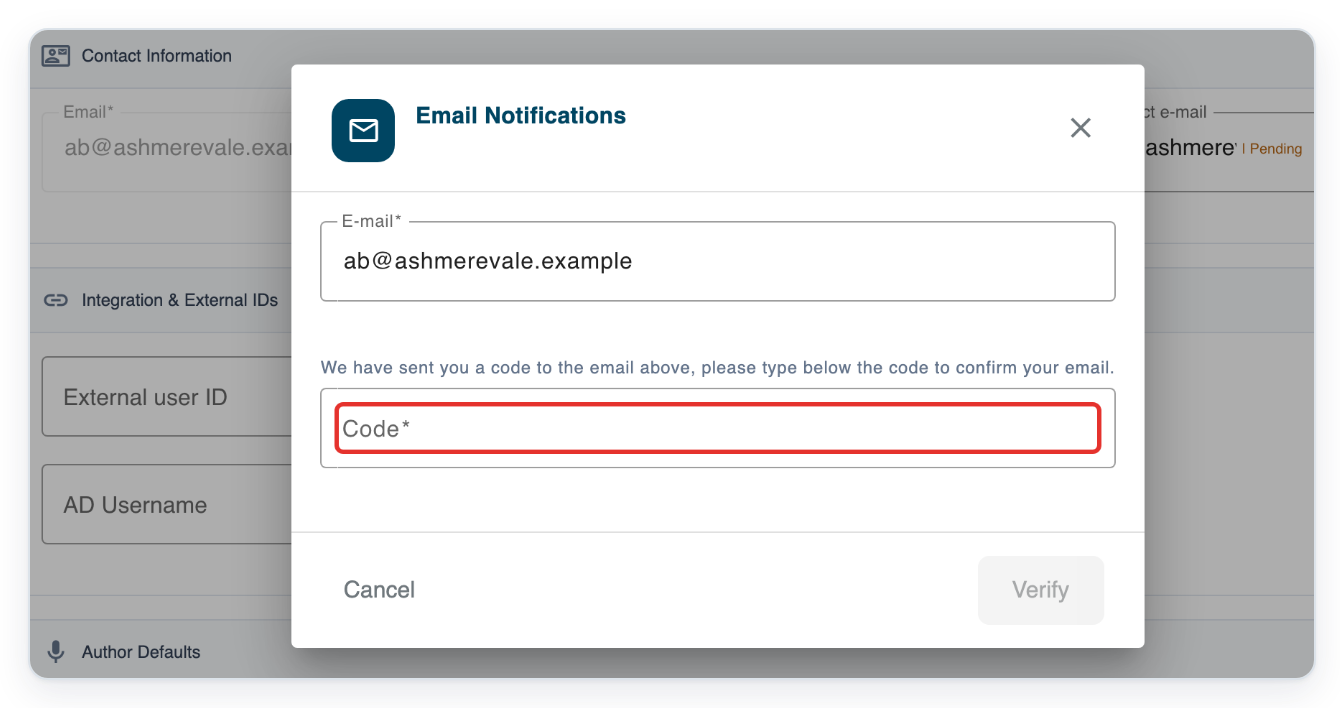
Click Send Code. T-Pro emails a code to the address you entered. The window then asks for this code.
Open the email from T-Pro and enter its code in Code.
Click Verify to confirm your contact email and close the window.
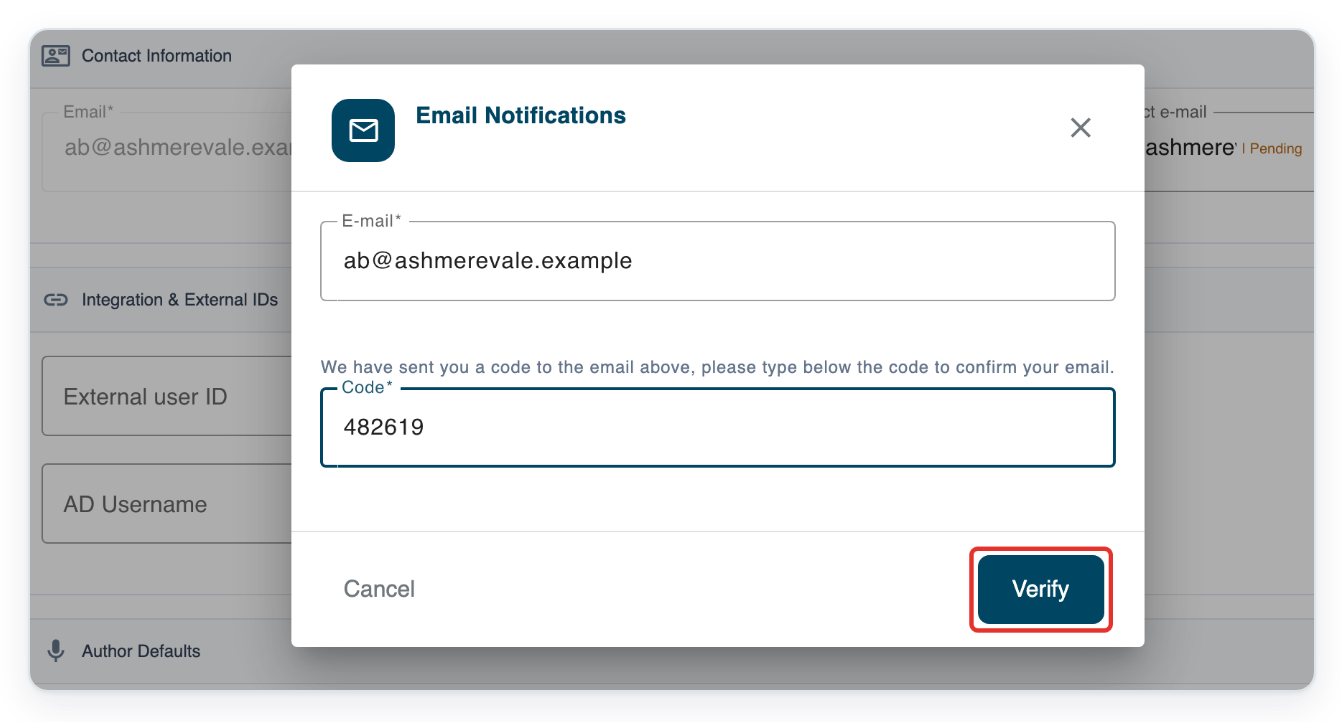
=> Contact e-mail shows your chosen address and | Verified.

As a master
To change another user's settings, log in with your master credentials and click Organisations in the navigation.
If you're changing your own settings, stay in your profile and continue at step 15.

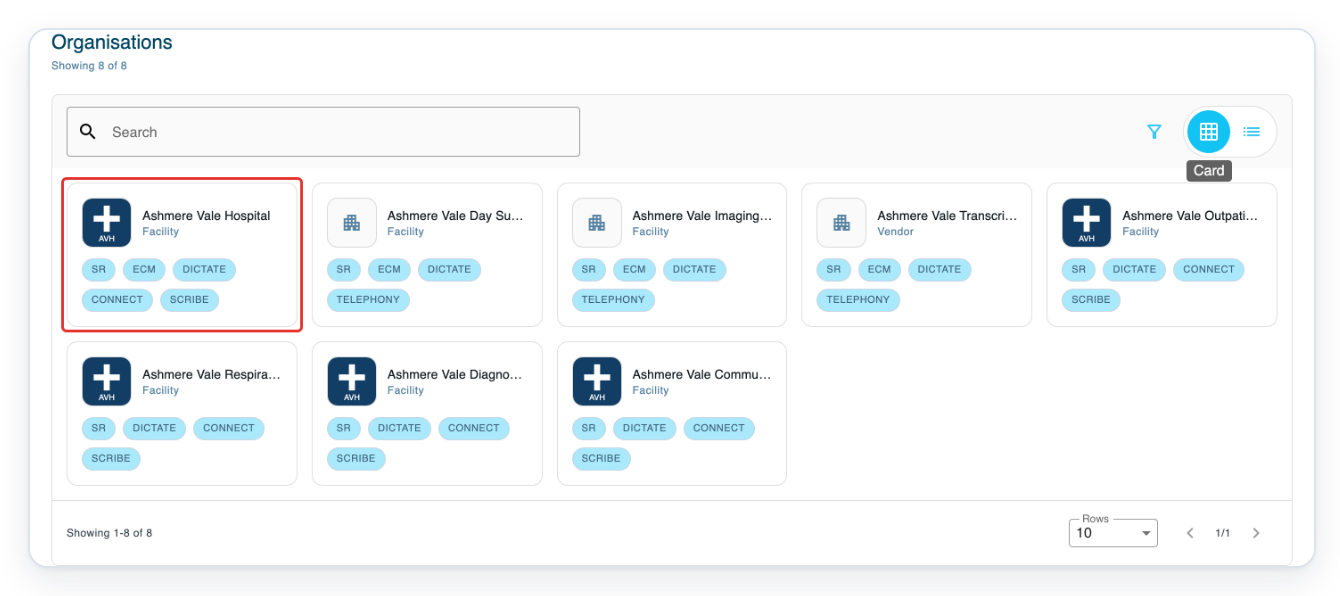
Click the card view button above the organisation list. The organisations appear as cards.
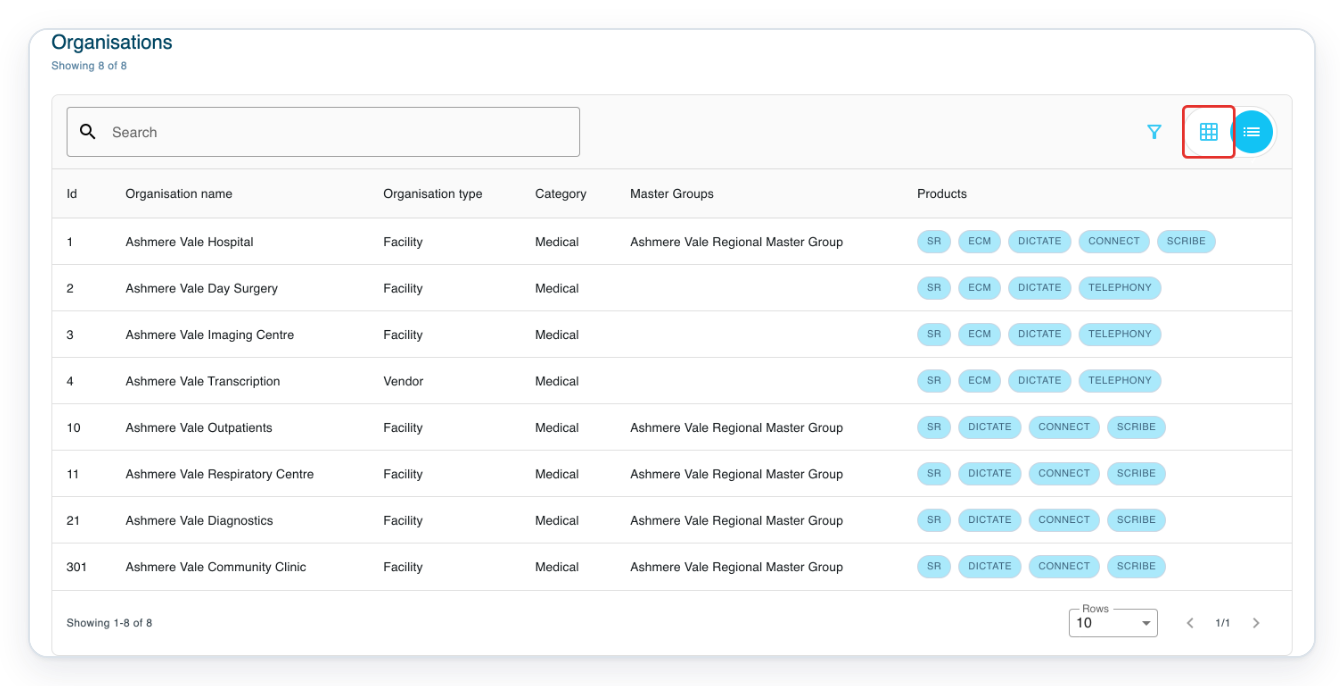
Click the card for the organisation you want to open. This example uses Ashmere Vale Hospital.
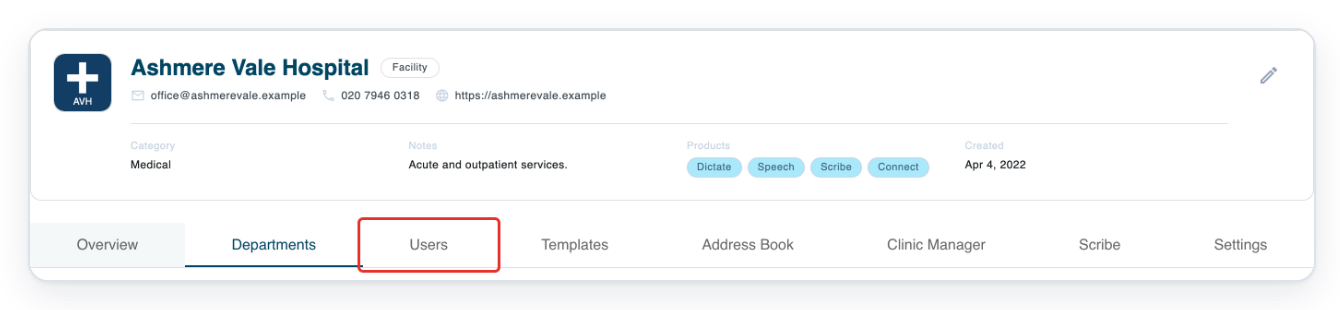
On the organisation page, click Users to find the person whose notification settings you want to change.
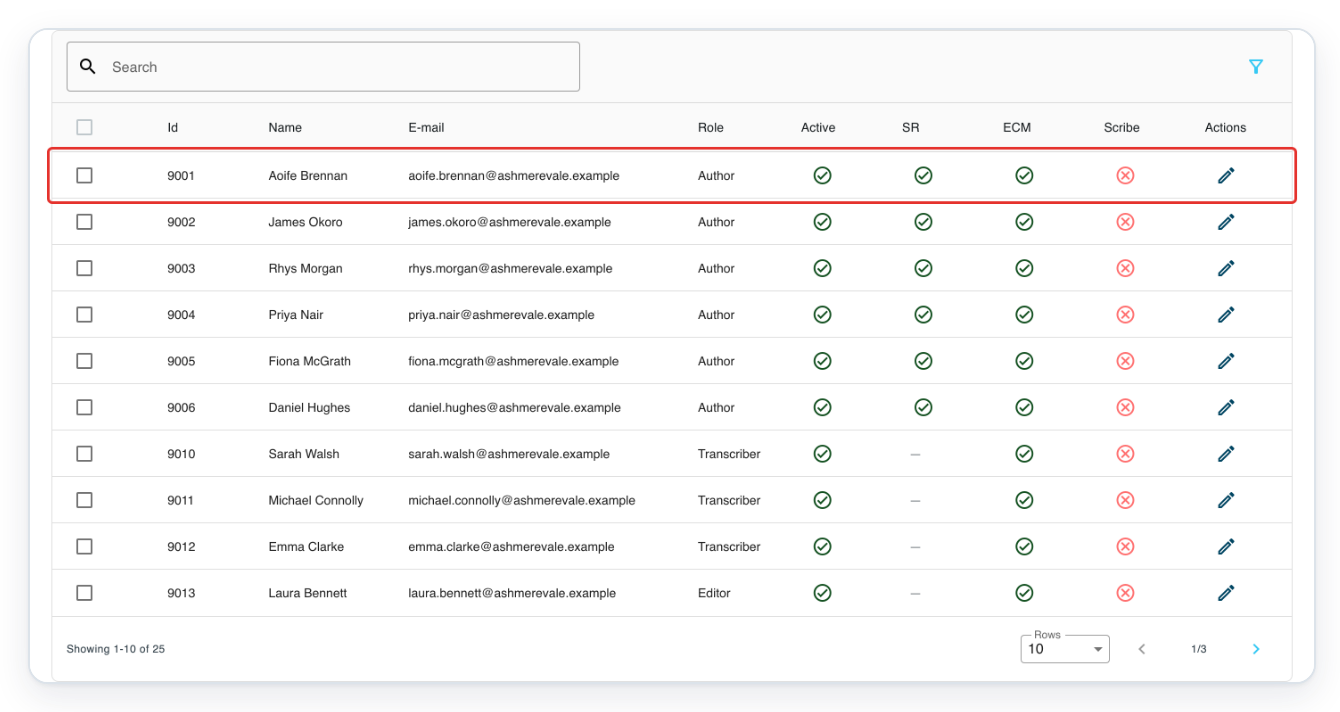
Click the user's row to open their profile in a new tab. This example uses Aoife Brennan.
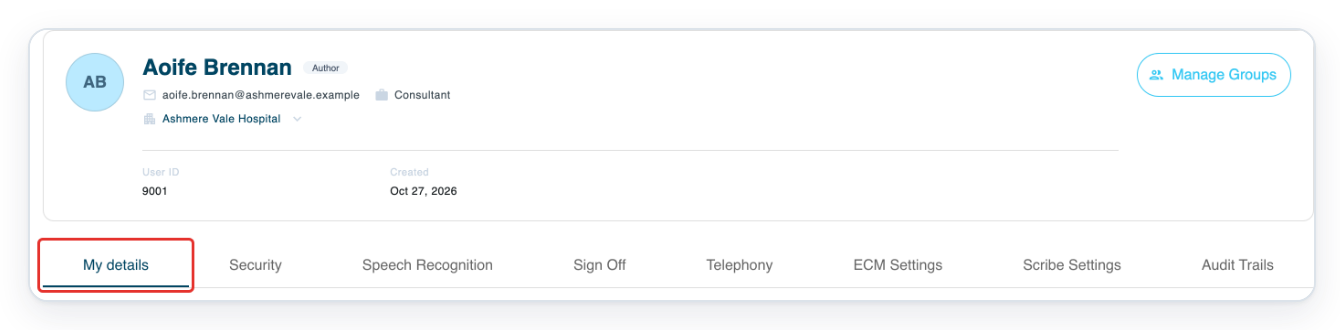
In the user's profile, click My details. This page contains their contact information and notification settings.
Scroll to Notifications and turn on Email notifications. The Frequency and Priority choices appear.

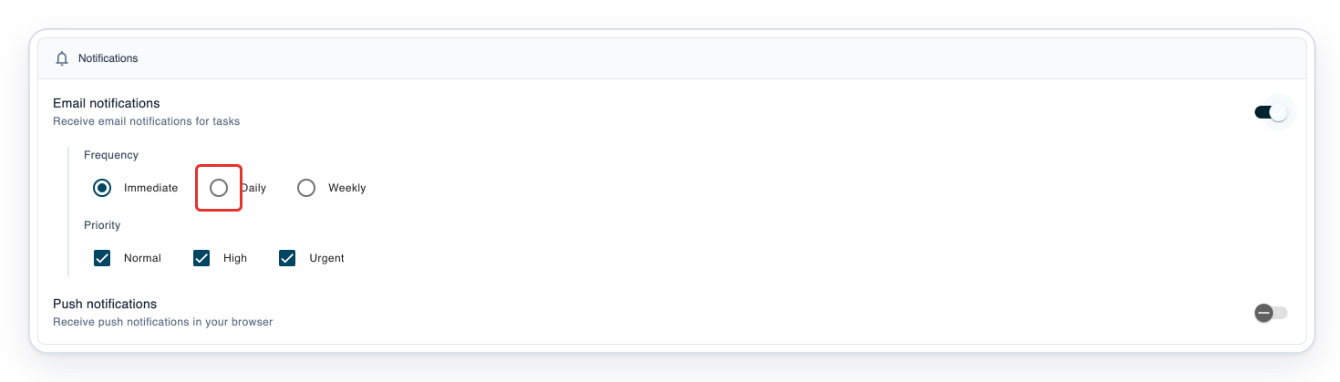
Under Frequency, choose Daily for an author digest. The other options are Immediate and Weekly.
Check the delivery options below. If you're a transcriber, choose Immediate to receive task alerts.
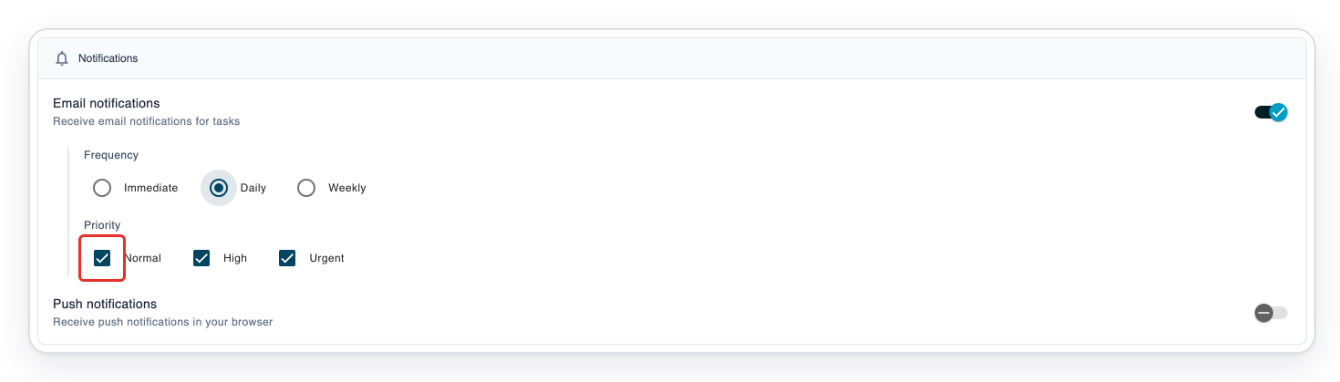
Under Priority, clear Normal to keep High and Urgent selected.
Tick the priorities you want to receive emails about. This example leaves out routine tasks.
Click Save changes at the bottom of the page. T-Pro shows User updated to confirm your changes.

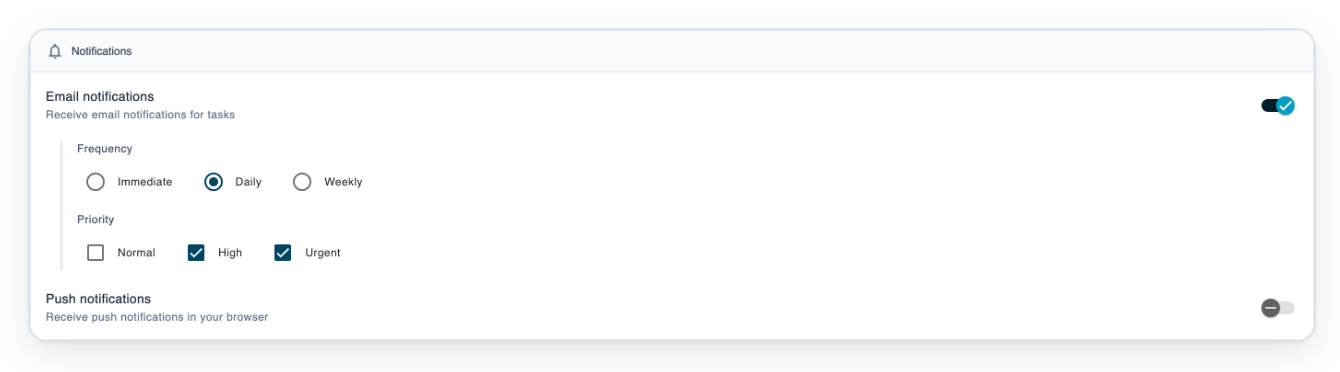
=> In this example, Email notifications is on, Daily is selected, and High and Urgent are ticked.
NOTE:
- Your notification address can be different from your sign-in address. Changing Contact e-mail keeps your username the same.
- You can change notification settings in other profiles you have permission to manage.
- If you're an author, you can receive alerts for tasks sent to you for first or second approval.
- Transcription alerts go to everyone in the transcription group receiving the task. Storing alerts go to everyone in the group receiving the task for storing.
Choose a delivery option
If you're an author, your digest lists tasks waiting for your approval at your selected priorities. First and second approval have separate summaries. You'll only receive a digest if there are matching tasks.
| Frequency | What it means |
|---|---|
| Immediate | Separate emails for task alerts. Choose this if you're a transcriber. |
| Daily | For authors, a summary of tasks still waiting for your first or second approval. |
| Weekly | For authors, digests can currently arrive only on the first day of each month. Choose Daily for more frequent summaries. |
Can't receive task emails?
- If Contact e-mail shows | Pending, follow steps 4 to 8 to verify the address. Then turn on Email notifications and click Save changes.
- If you can't click Send Code, enter a valid email address in E-mail.
- If immediate emails continue after you untick every priority, tick the priorities you want. With none ticked, immediate alerts cover all priorities. To stop task alerts, turn off Email notifications and click Save changes.
- If no email arrives when a task is completed, check its status in All Tasks. T-Pro doesn't currently send emails when tasks are completed.
Related articles
- Update your profile details
- Task notifications for typists
- Change a task's priority
- Contact T-Pro support
If you have any more queries, please do not hesitate to contact our Helpdesk or support@tpro.io.
© 2020 - 2026