
Before you start
You need one of the accounts listed in step 1. Your group must give you access to the notification's department.
Log in to T-Pro with your transcriber, editor or reviewer credentials.
Read and solve task notifications
Click Dashboard in the navigation to find your task notifications.
Read the Error column to see what needs attention. Use Task ID and Patient Name to identify the task.

=> In this example, task 7016 is for Orla Kavanagh. Its Error says “Export validation: recipient postcode missing.”

Click Export to download the notification list as a CSV file.
Use the file to keep track of notifications you need to follow up.

Click the three dots under Options for the notification you want to read.
The menu includes Open task and Mark Solved.

Click Open task to read the task in a new browser tab.

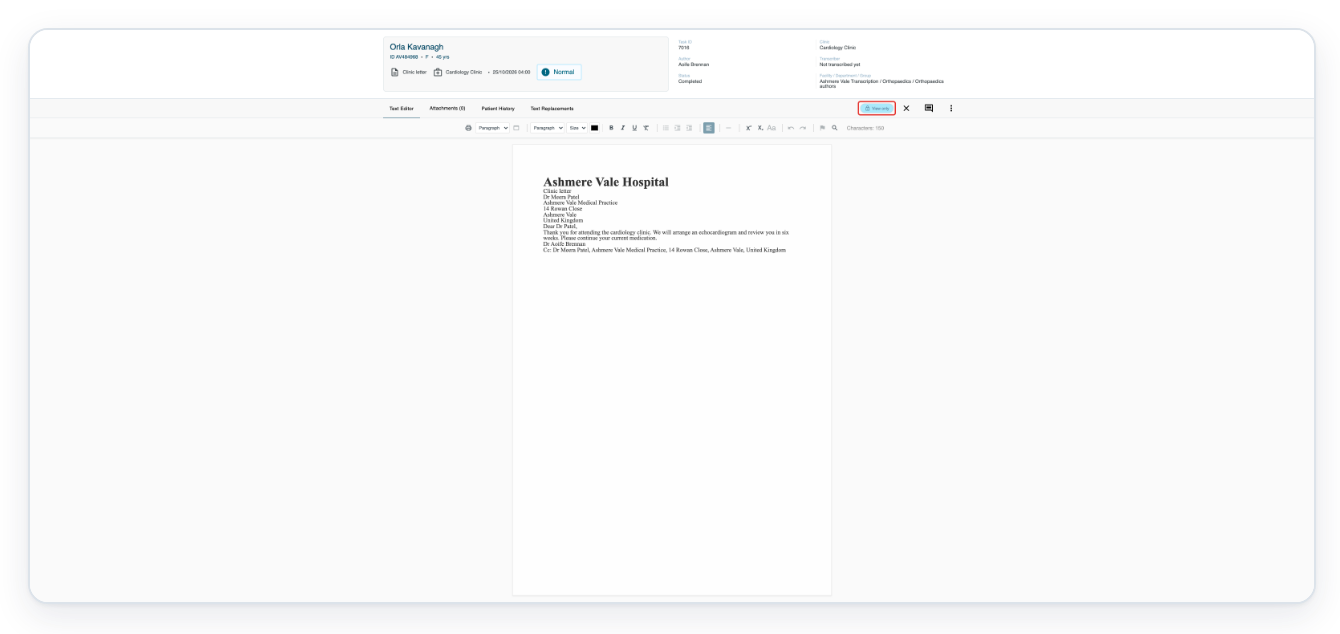
=> The task and its saved document open in View only mode. Read the document to understand the issue.
Click Dashboard to return to the task notifications.

Once the issue is fixed, click the three dots under Options for that notification.

Click Mark Solved to clear the notification.
T-Pro shows “Notification(s) marked as solved” and refreshes the list.

=> The notification for task 7016 is removed. Tasks 7004 and 7013 remain in this example.

To clear several notifications together, check that each issue is fixed. Tick the checkbox beside the first notification.
In this example, select task 7004.

Tick the checkbox beside the next notification. In this example, select task 7013.
The button above the table now shows Mark Solved (2). The number shows how many notifications you've selected.

Click Mark Solved (2) to clear both selected notifications.

=> The table refreshes. In this example, all notifications are now cleared.

Print the document
To print from a notification still in your list, click its three dots under Options.

Click Open task to open the task in a new browser tab.

Click the Print Document printer icon on the left of the document toolbar.
If the document has no recipient or CC addresses, your browser's print window opens directly. Finish printing there and skip step 15.

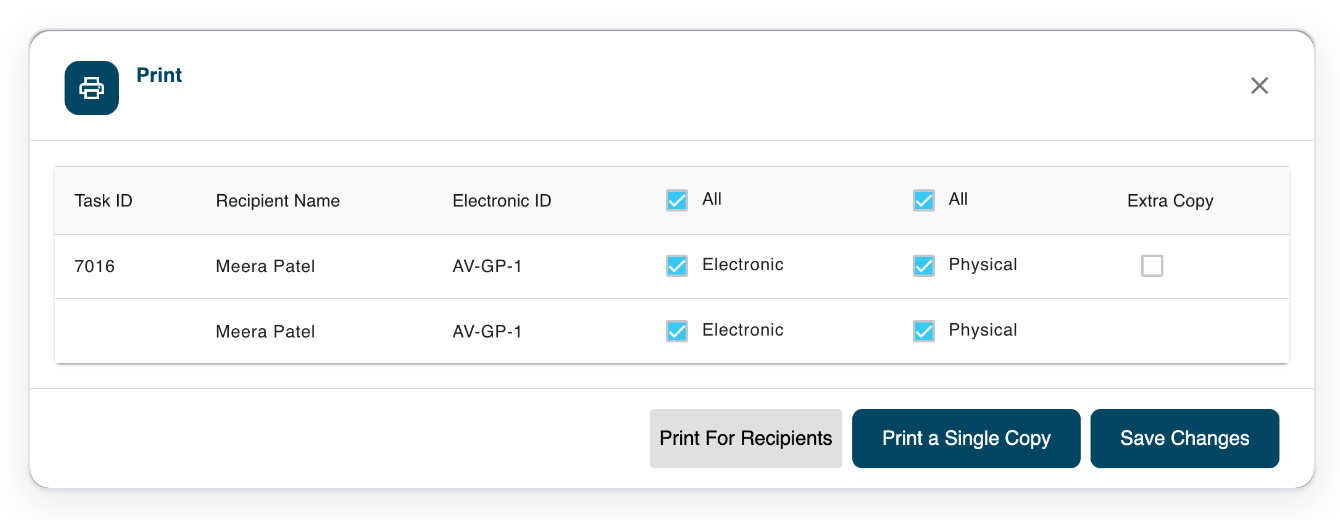
=> If there are recipient or CC addresses, the Print dialog lists the document's recipients. It offers Print For Recipients and Print a Single Copy.
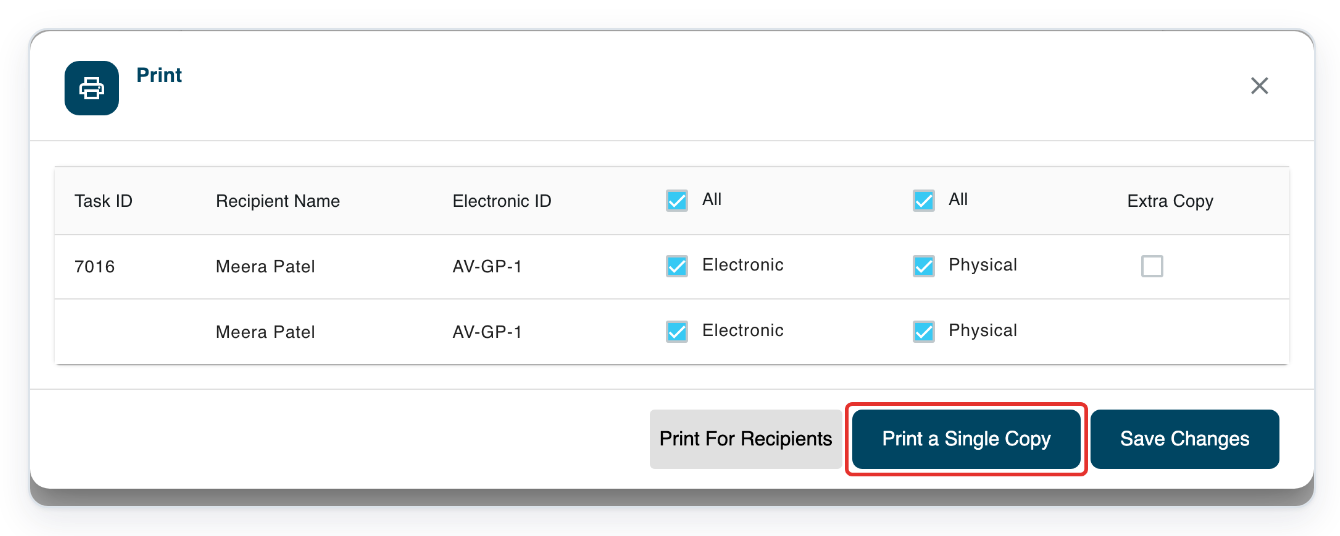
Click Print a Single Copy to print one copy of the document.
Finish printing in your browser's print window.
NOTE:
- You can follow both parts with your editor or reviewer account.
- Fix the reported issue before using Mark Solved to clear the notification. The task and its status stay the same.
- Your selection covers the current page. Searching or changing pages clears your selection.
- The CSV file includes all notifications that match your search, across every page. Clear Search to export the full list.
- The browser's print window opens after T-Pro prepares the document.
- The Print dialog opens when the document has recipient or CC addresses.
Tip: Click a notification row to open its task directly in a new browser tab.
Can't clear a task notification?
- The task needs fixing. Give your manager the Task ID and Error message before clearing the notification. Ask them to retry the electronic export if needed.
- Mark Solved is missing above the table. Select at least one notification, or use Mark Solved in that notification's Options menu.
- T-Pro shows “Access denied”. Refresh Dashboard and try again if the notification is still there. If you see the message again, ask your manager to check your department access.
- T-Pro shows “Failed to mark notification as solved”. Try again. If you see the message again, contact our Helpdesk with the task number and error message.
Related articles
If you have any more queries, please do not hesitate to contact our Helpdesk or support@tpro.io.
© 2020 - 2026