
Before you start
You need a manager or admin account and access to the author's profile. Live speech recognition must be set up for your organisation. After logging in, follow the section for your account below.
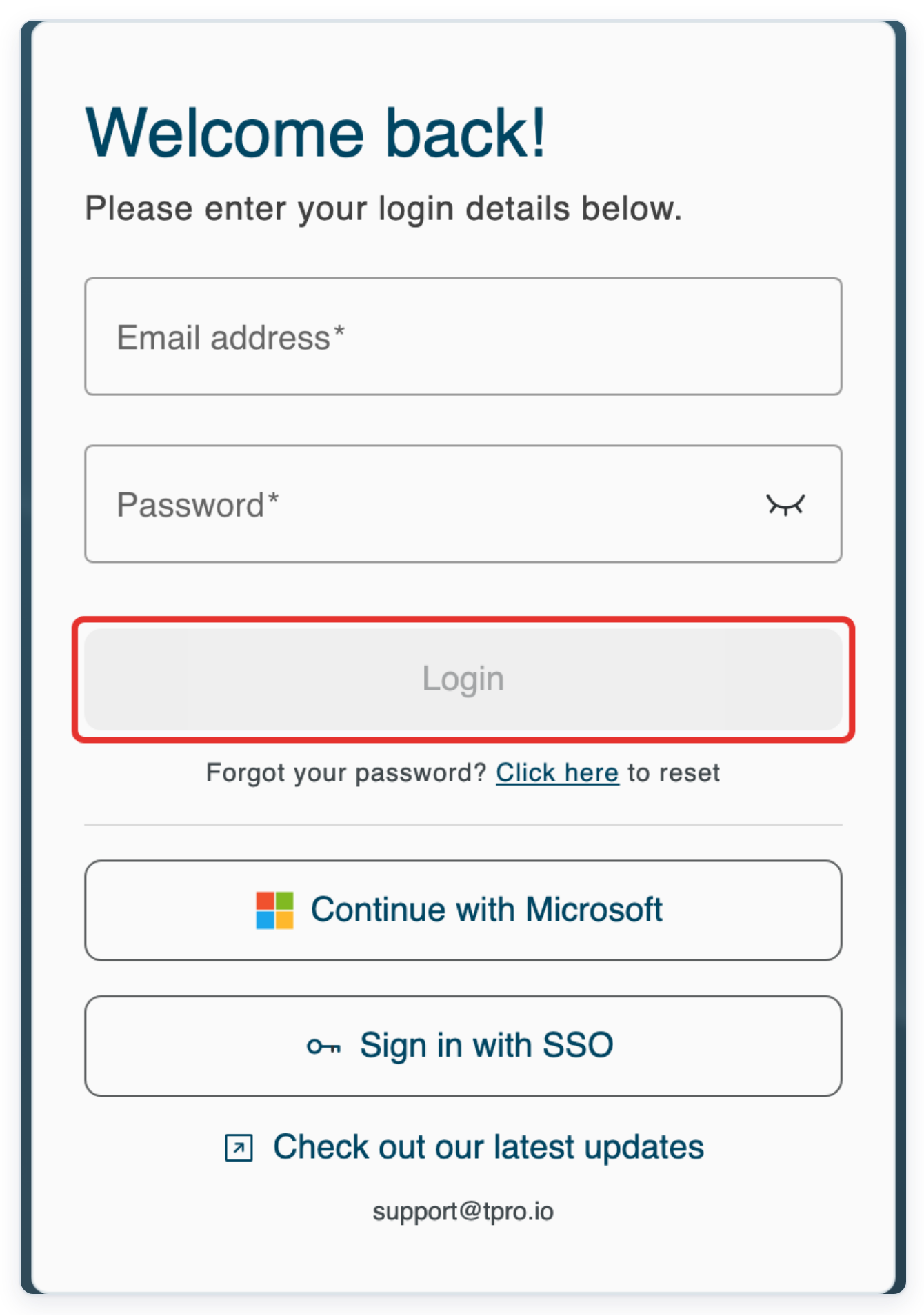
Log in to T-Pro with your admin or manager credentials.
Enter your Email address and Password, then click Login.
As an admin
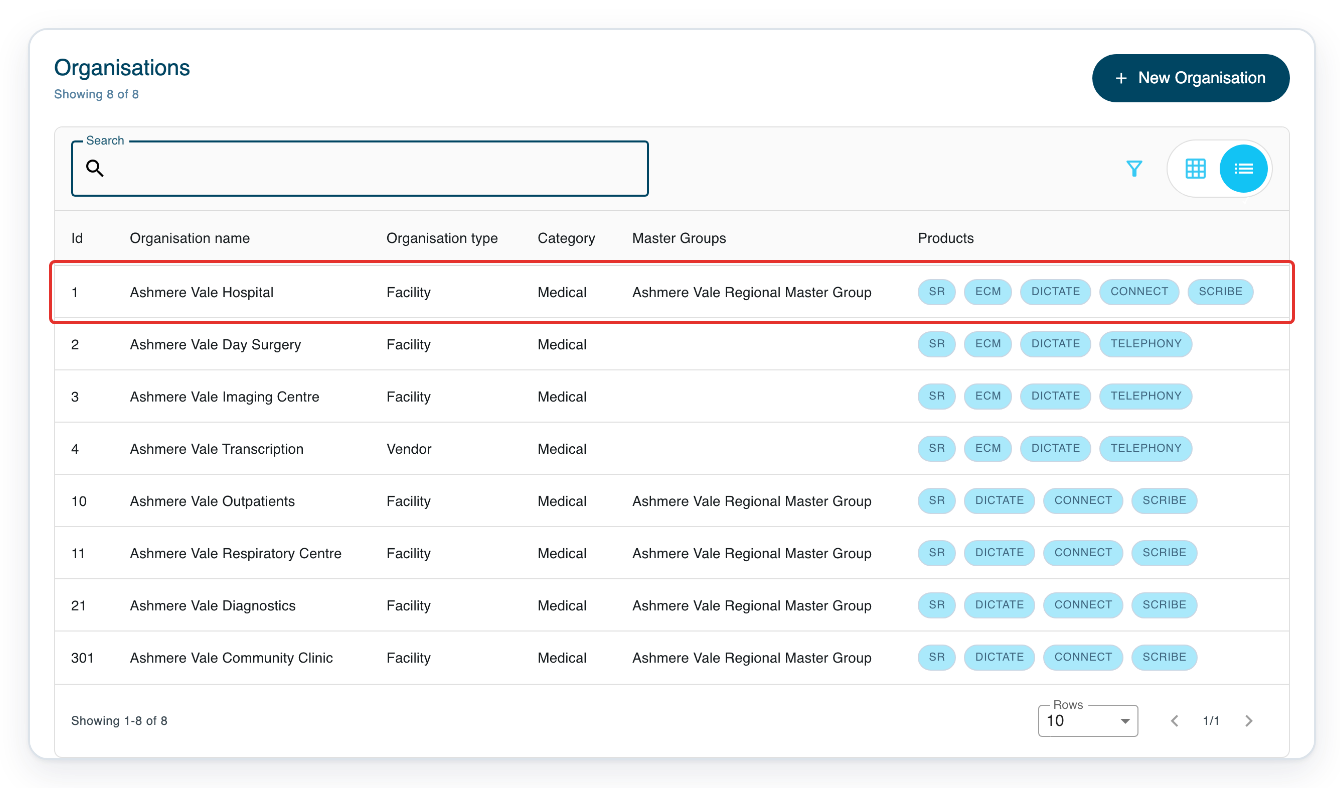
Go to Organisations and click your facility. This example uses Ashmere Vale Hospital.
To find the facility, enter its name in Search above the list and press Enter.
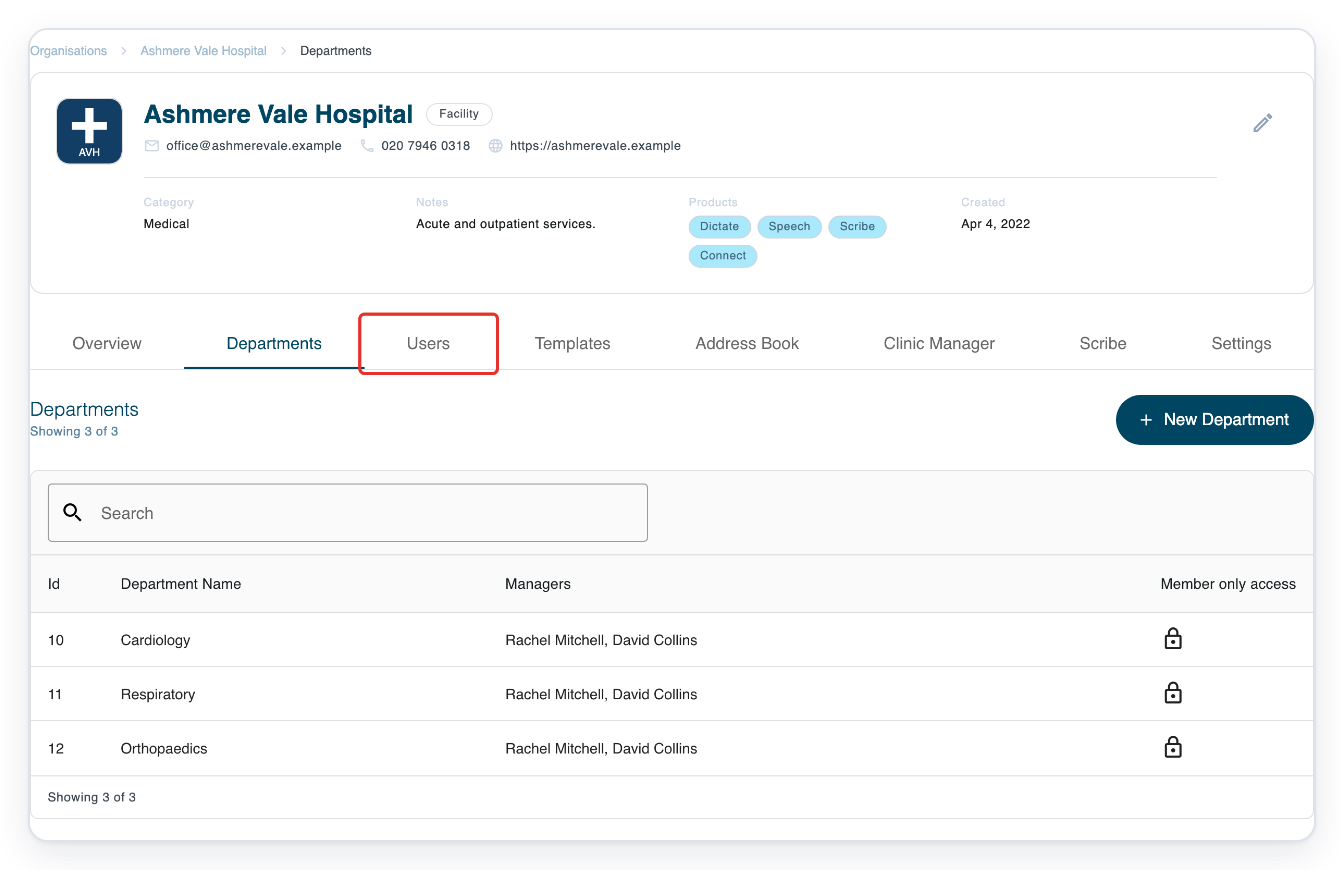
Click the facility's Users tab to open its user list.
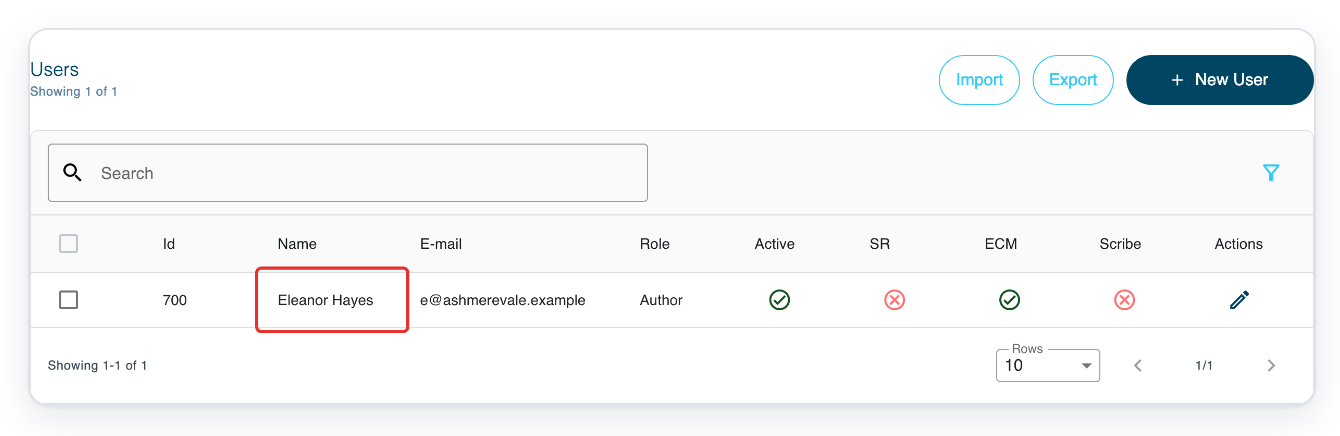
Click the author's name, Eleanor Hayes in this example. Their profile opens in a new tab.
To find the author, enter their name or email address in Search above the list, then press Enter.
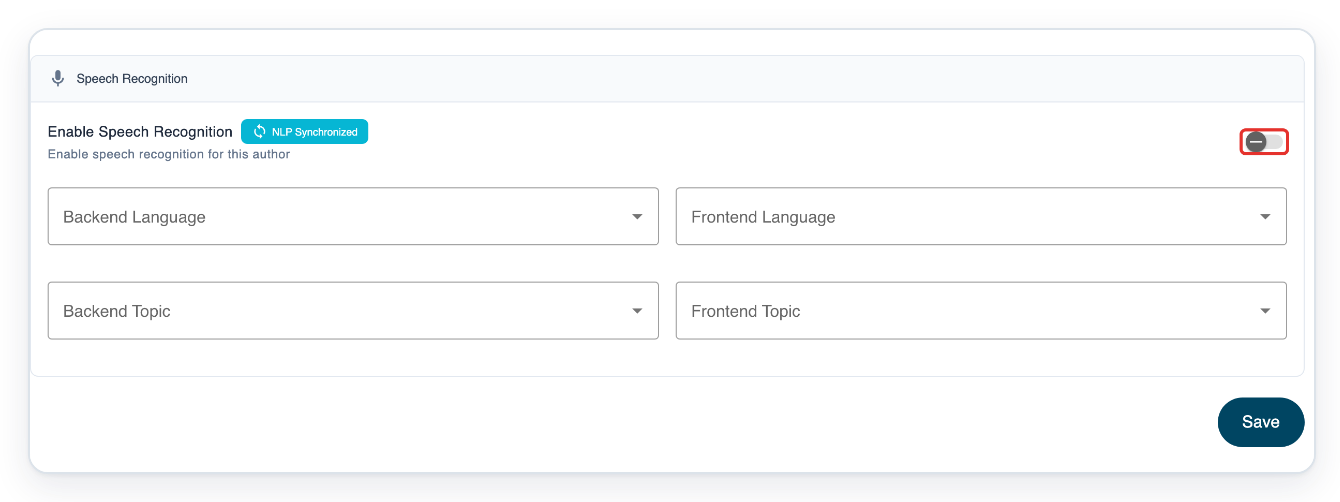
Click Speech Recognition. The Settings page opens with the speech recognition switch and fields for the language and topic.

Turn on Enable Speech Recognition for this author.
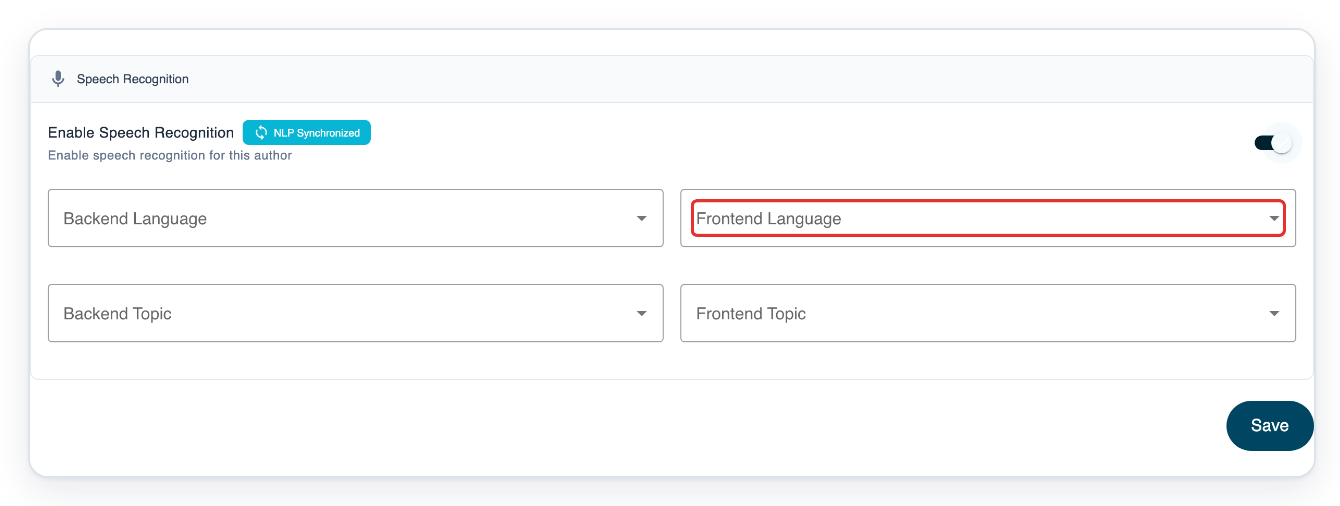
Open Frontend Language to choose the language for live speech recognition.
The available languages depend on your organisation's speech recognition settings.
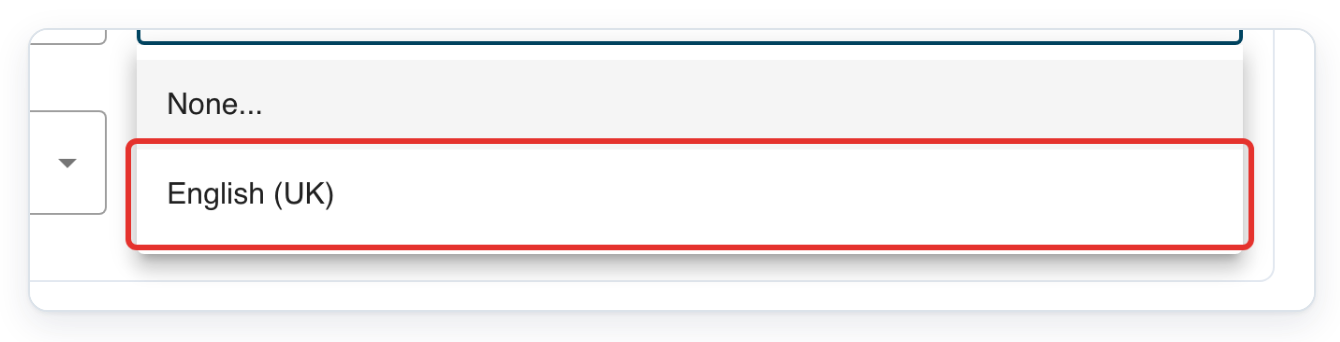
Select the language the author will dictate in. This example uses English (UK).
Open Frontend Topic to see the topics available for the selected language.
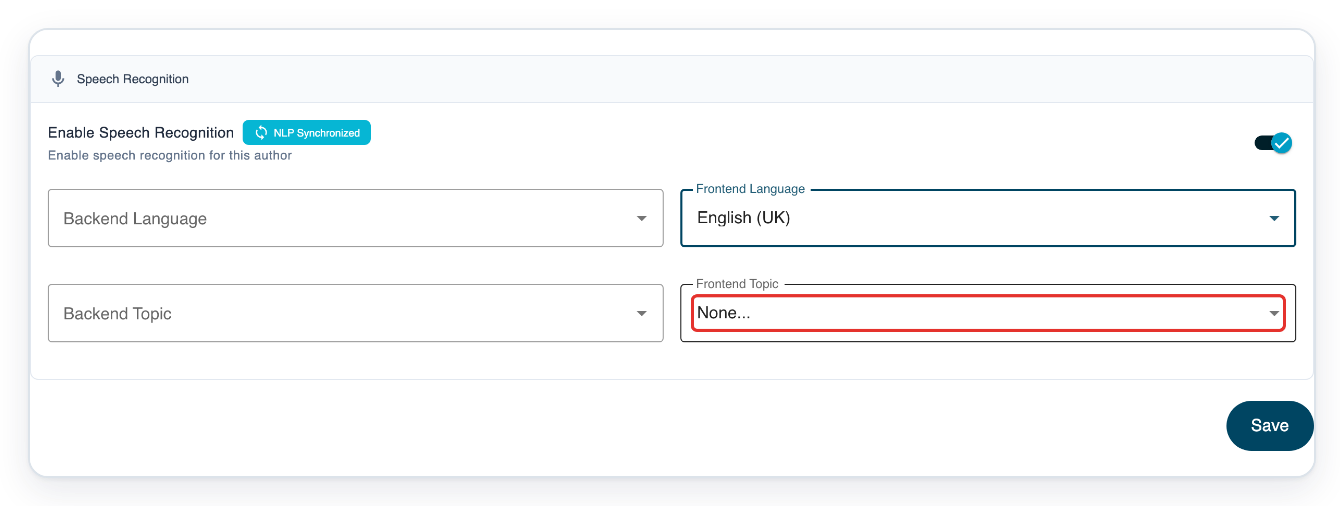
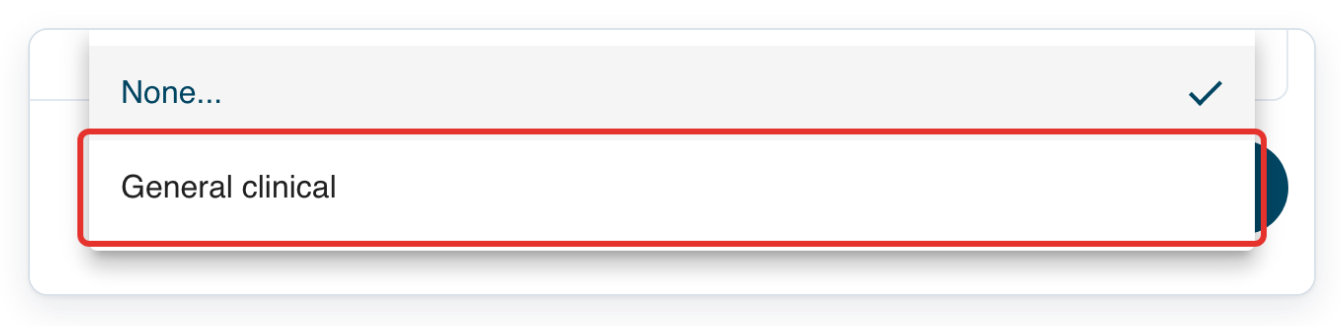
Select the topic the author needs. This example uses General clinical.
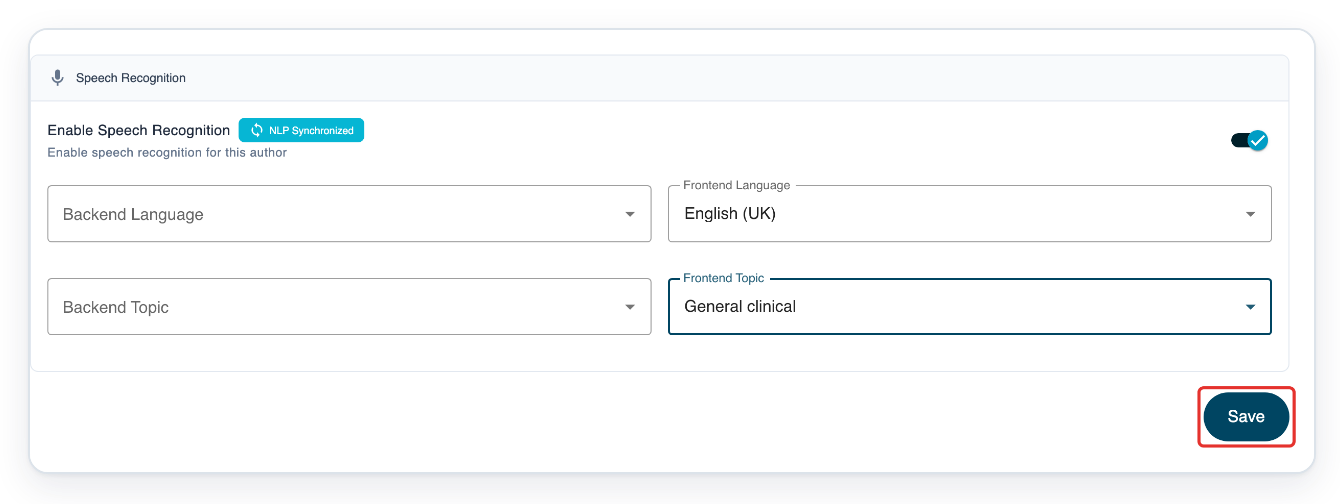
Click Save to keep your changes. T-Pro shows “User updated” to confirm.
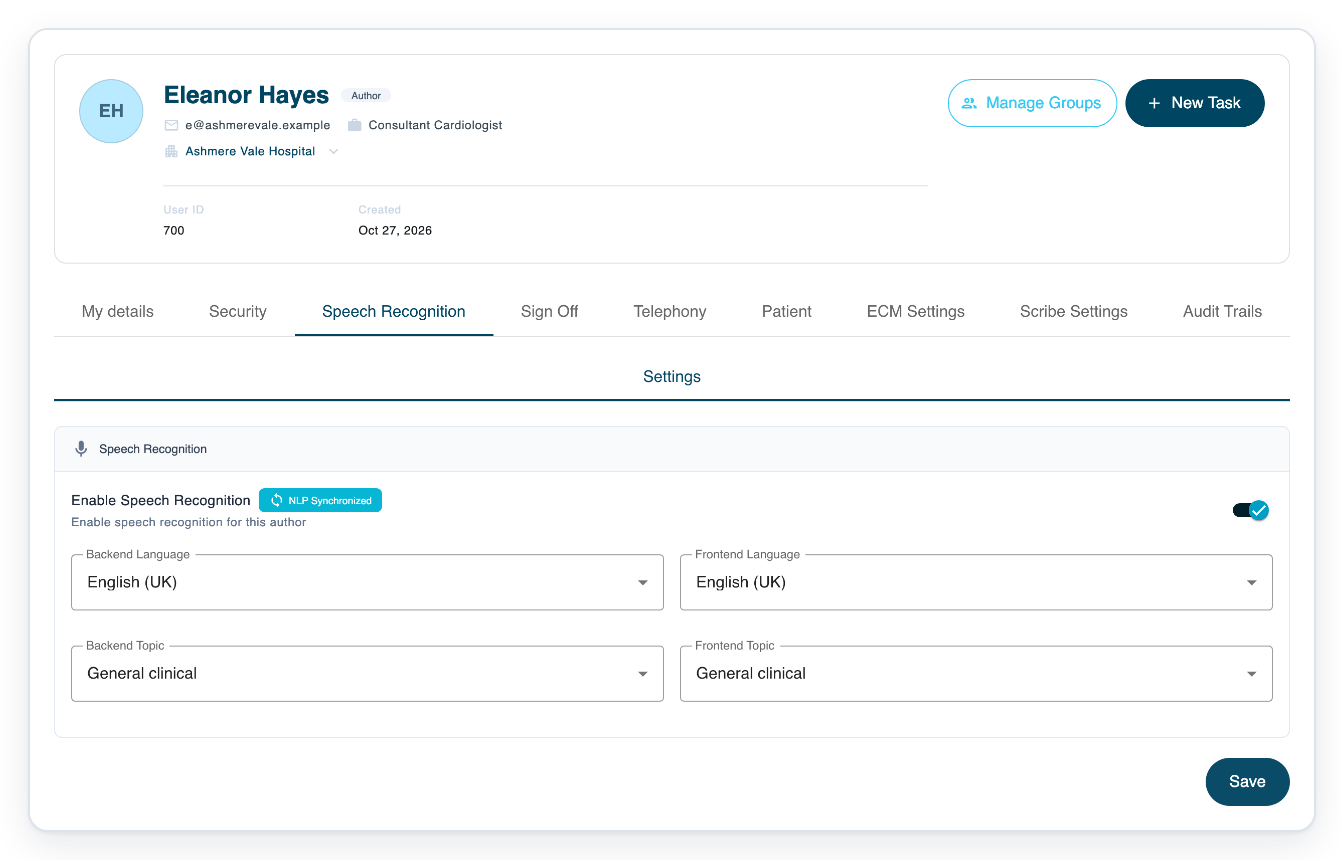
=> Speech recognition is on. The saved language is English (UK) and the topic is General clinical.
As a manager
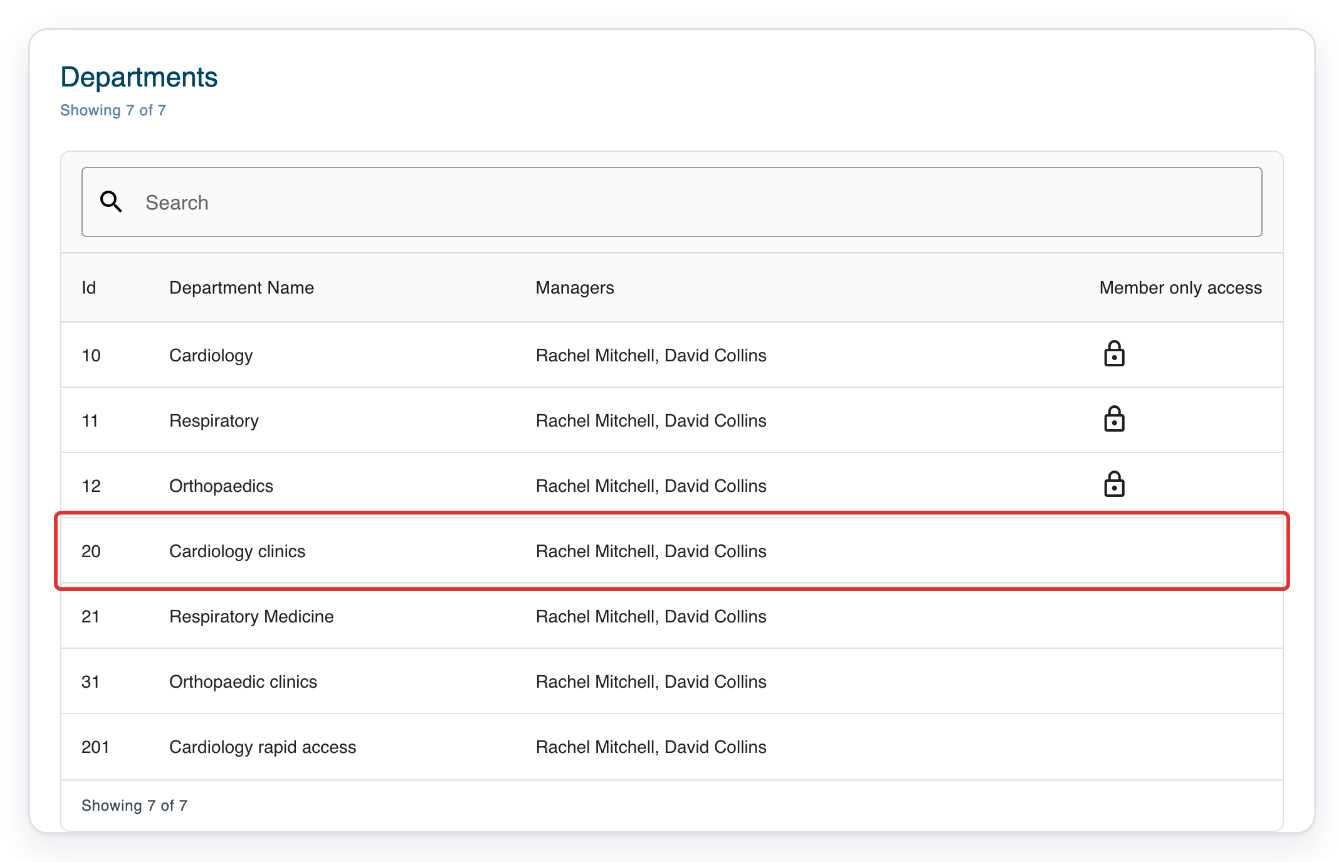
Go to Departments and click the author's department. This example uses Cardiology clinics.
Use Search above the list to find the department by name.
Click Authors to view the department's authors.
Use Search above the author list to find the person you need.
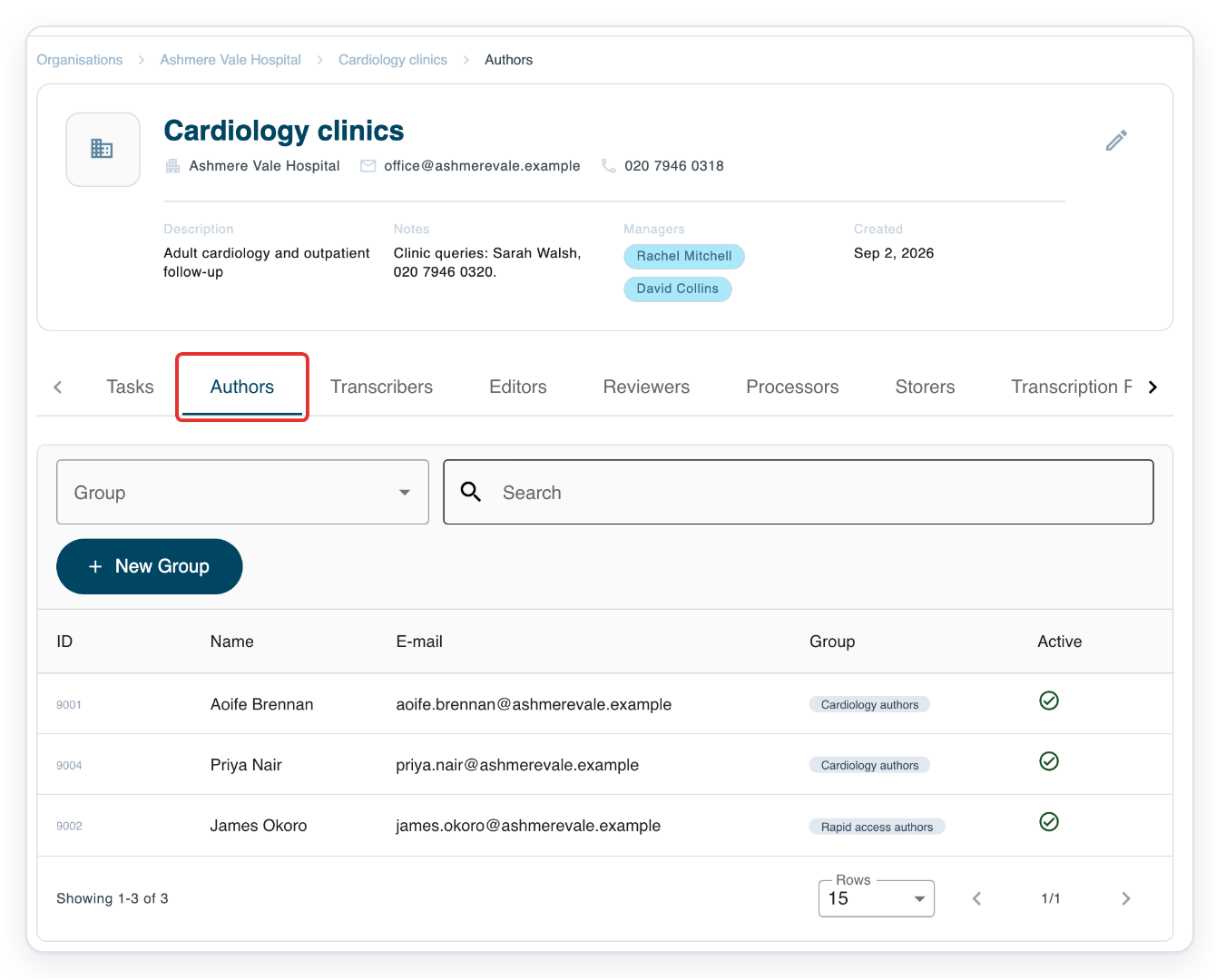
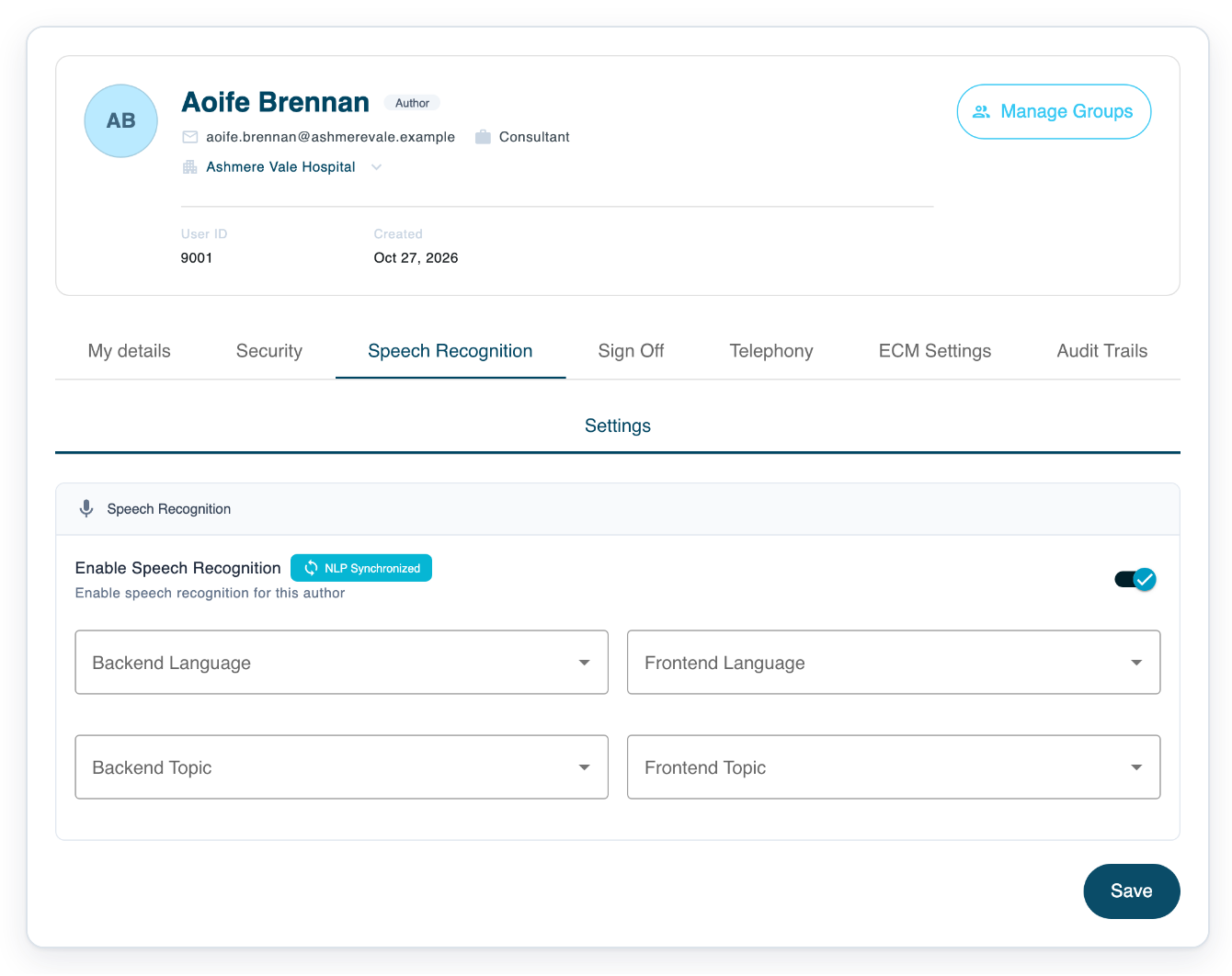
Click the author's row to open their profile. This example uses Aoife Brennan.
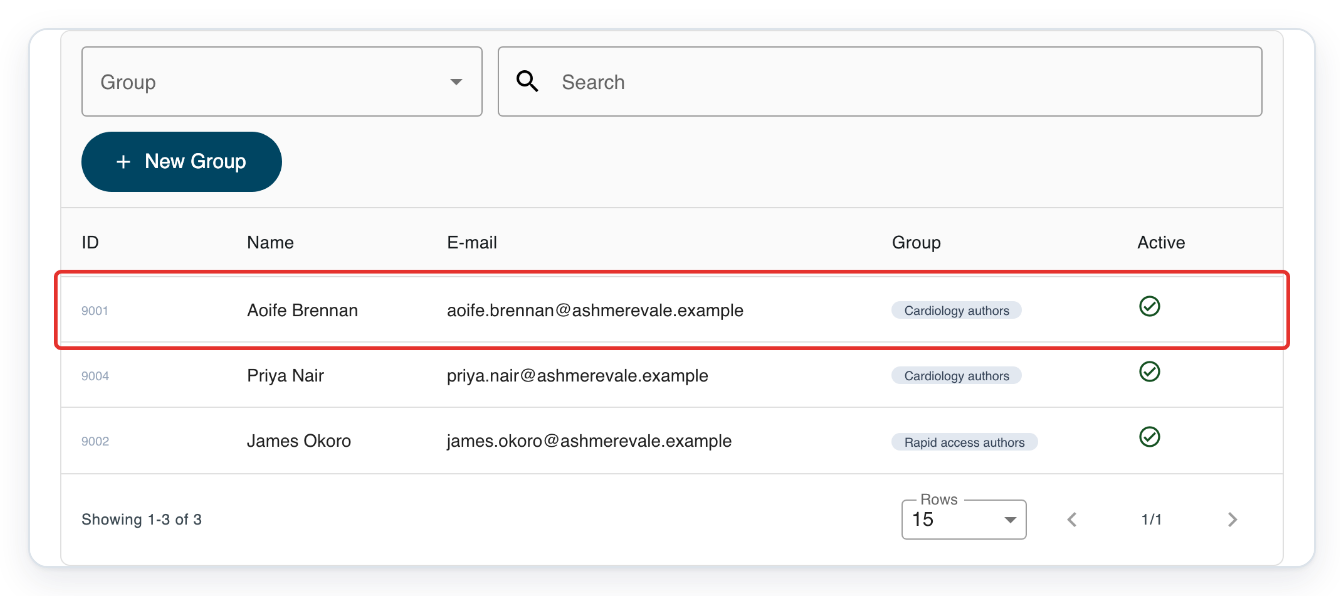
Click Speech Recognition to see the available tabs.

Click Settings to view Enable Speech Recognition, Frontend Language and Frontend Topic.
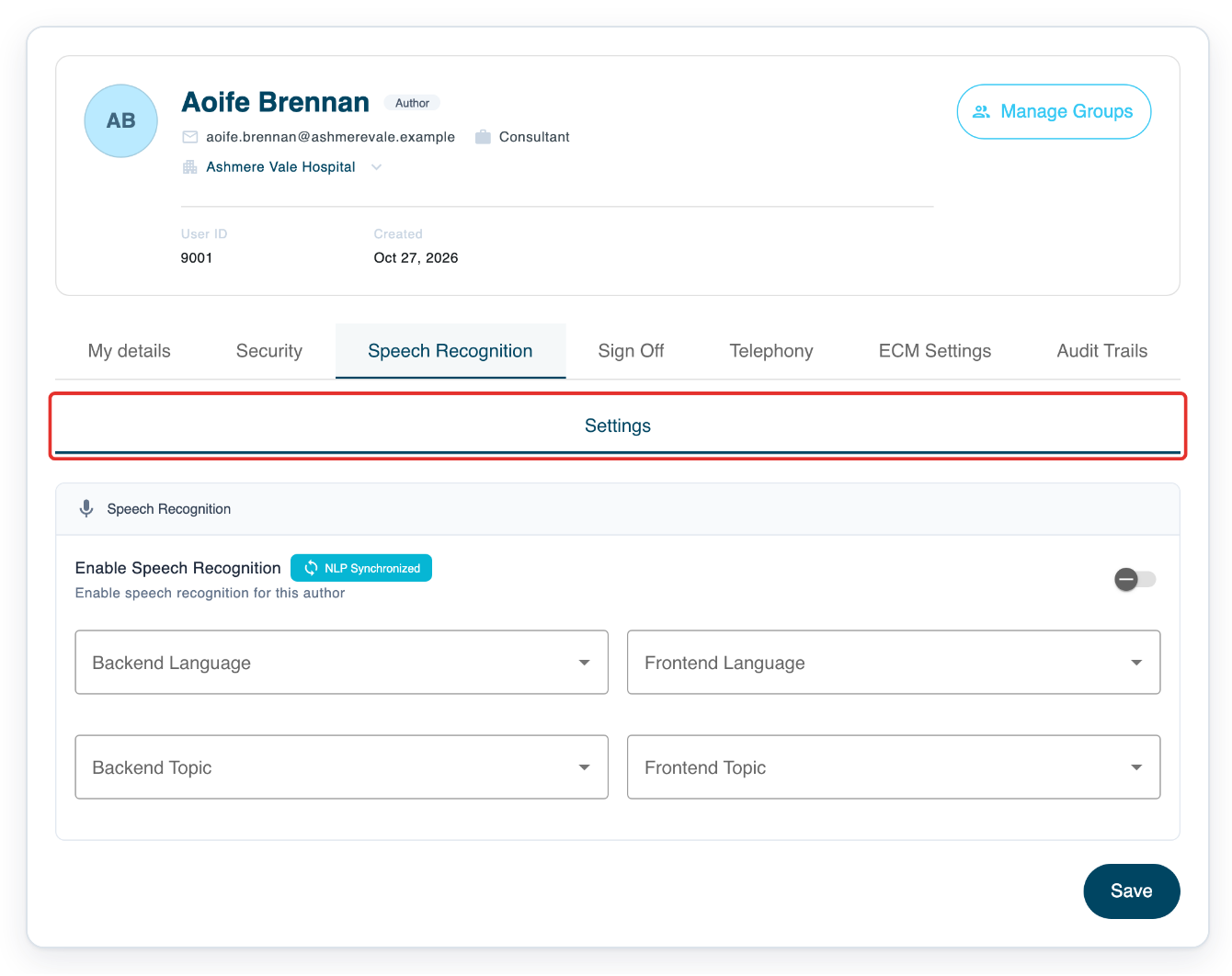
Turn on Enable Speech Recognition for this author.
This example leaves the language and topic unset. Live speech recognition uses your organisation's default language and topic if they're set up.
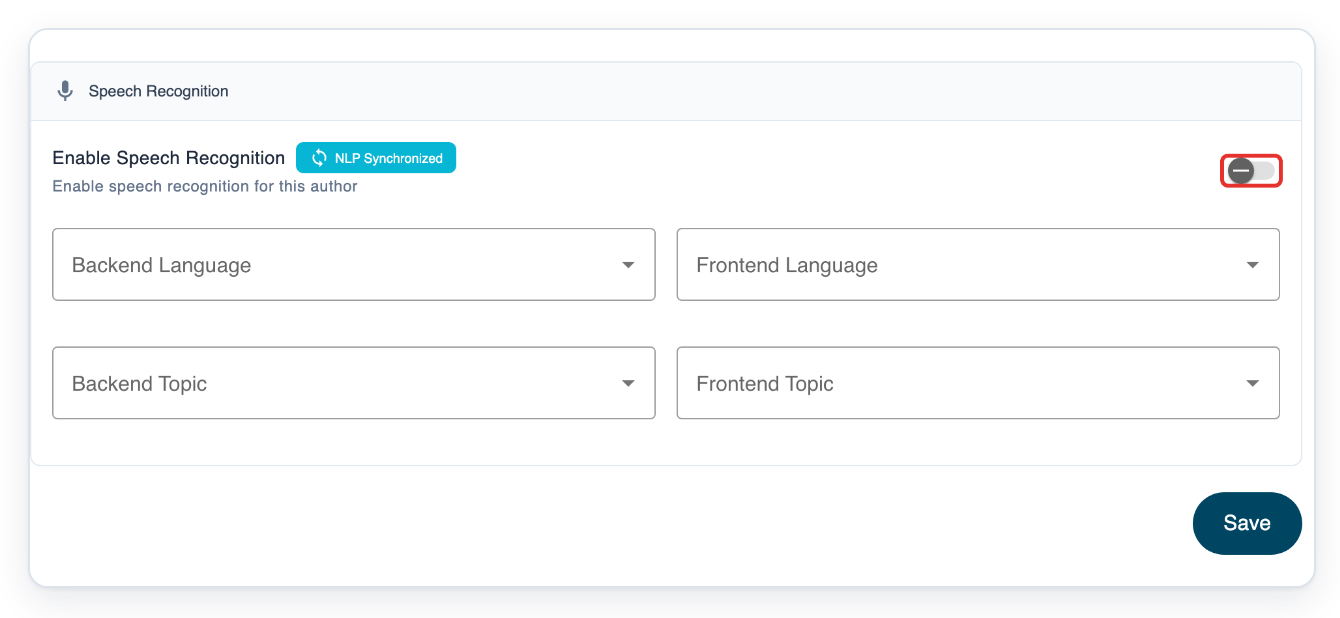
Click Save to keep your changes. T-Pro shows “User updated” to confirm.
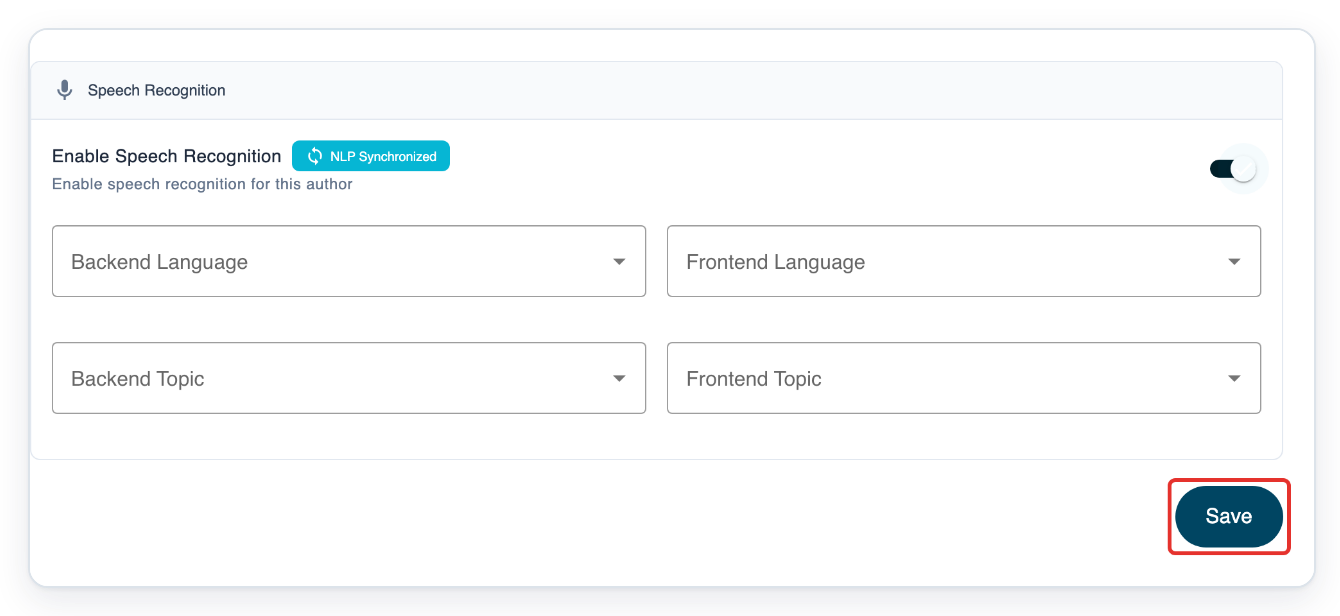
=> Speech recognition is now on for Aoife Brennan.
NOTE:
- Leave Frontend Language and Frontend Topic set to None... to use your organisation's defaults, if they're set up.
- Changing Frontend Language clears Frontend Topic on screen. Choose the topic again before saving.
- To turn speech recognition off again, switch off Enable Speech Recognition, then click Save.
Can't turn on live speech recognition?
- If Speech Recognition or Settings is missing, check that you're signed in as a manager or admin. Make sure you've opened an author's profile.
- If the language and topic fields are missing, turn on Enable Speech Recognition and click Save. Then refresh the profile. Contact our Helpdesk if the fields are still missing.
- If you can't find a topic, select a language first. If your language or topic is still missing, ask your administrator to check your organisation's live speech recognition settings.
Related articles
If you have any more queries, please do not hesitate to contact our Helpdesk or support@tpro.io.
© 2020 - 2026