
Before you start
You need a transcriber account and permission to edit the task. The task's document type must use Text Editor.
Log in to T-Pro with your transcriber credentials.
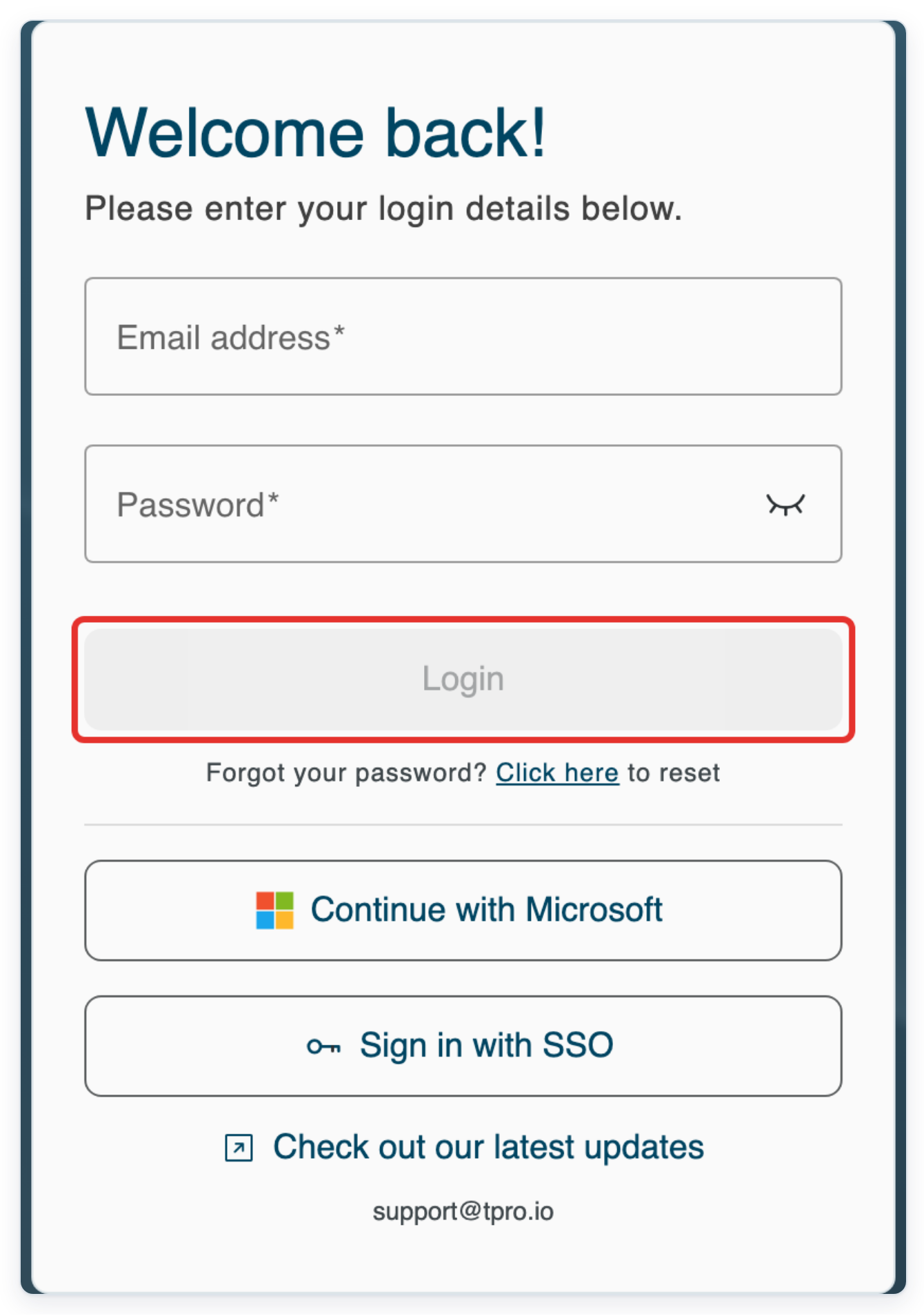
Enter your Email address and Password, then click Login.
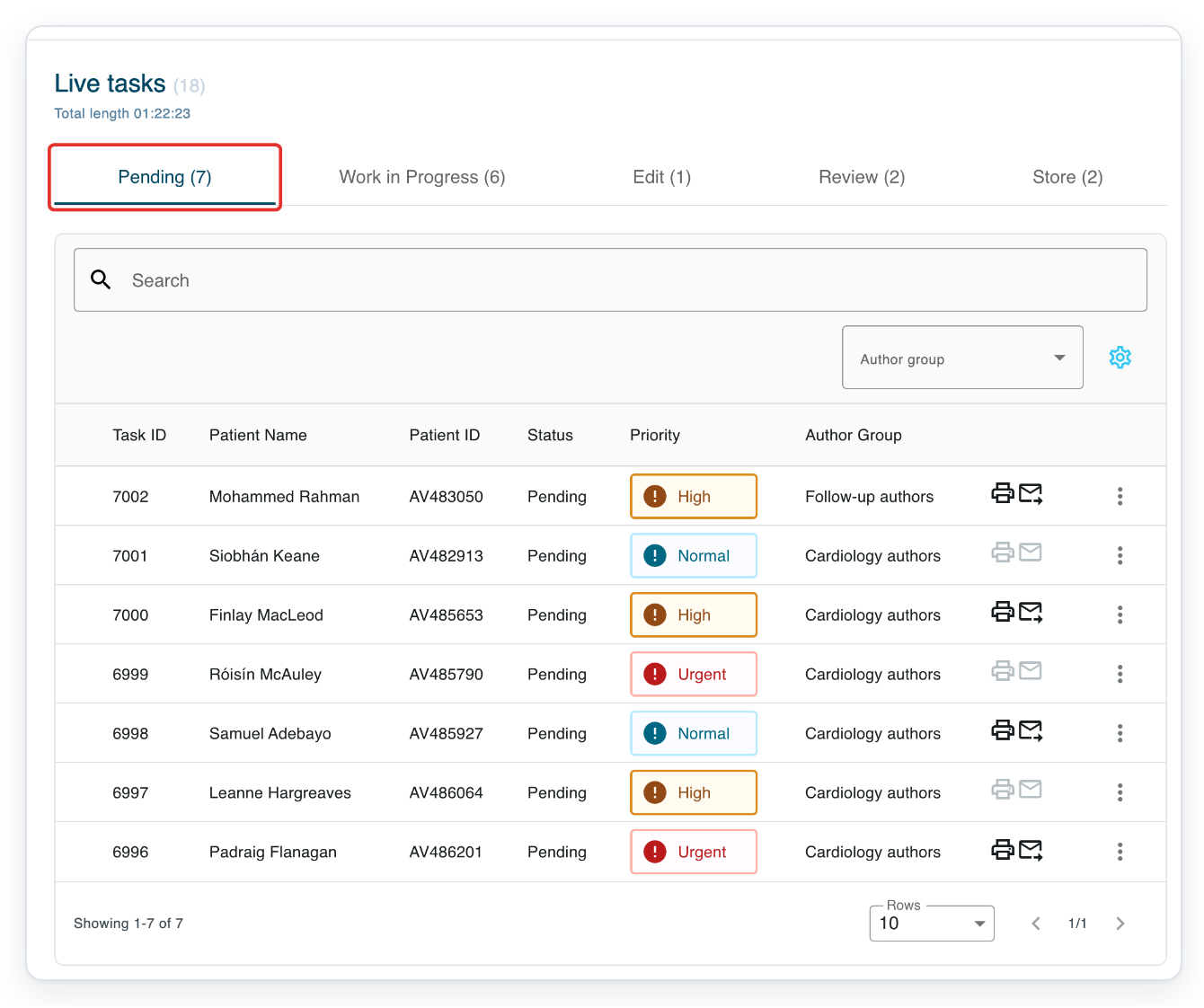
In Live tasks, click Pending to find the dictation.
Pending shows tasks waiting to be typed. If you have already started the original task, look in Work in Progress.
Use Patient Name, Patient ID and Task ID to find the right task in the list. If Search is available, enter a patient name and press Enter to narrow the list.
To find a task by its number, type # before the number in Search, then press Enter. The search applies to the tab you have selected.
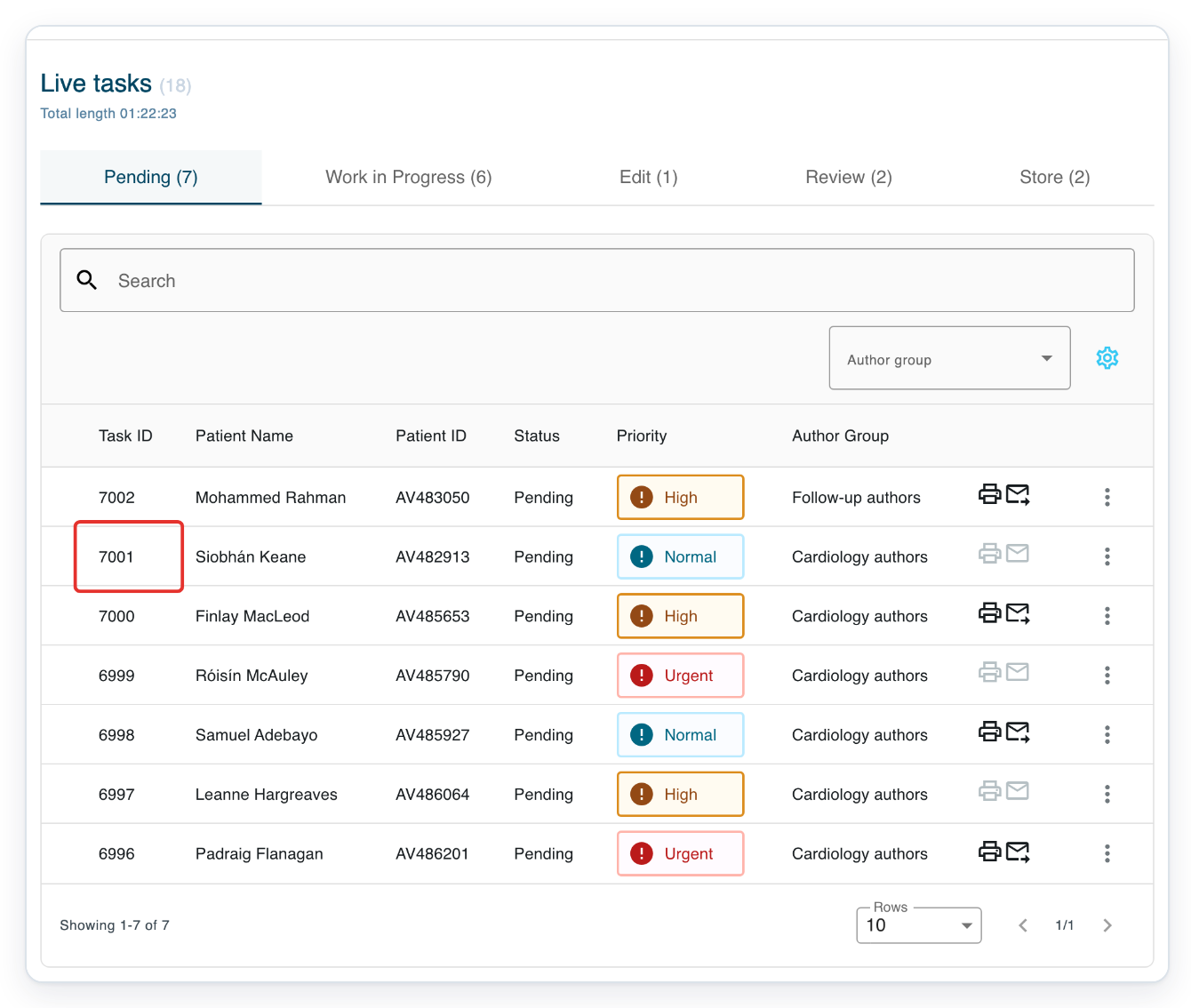
Click the task's row to open Text Editor. In this example, click 7001 for Siobhán Keane.
The patient name and ID appear at the top, with the document type beneath them. Use these details to check which letter you have opened. Opening a Pending task changes its status to Work in Progress.
The author, clinic and task ID are also shown above the letter. These help you identify a dictation when the patient has several tasks.
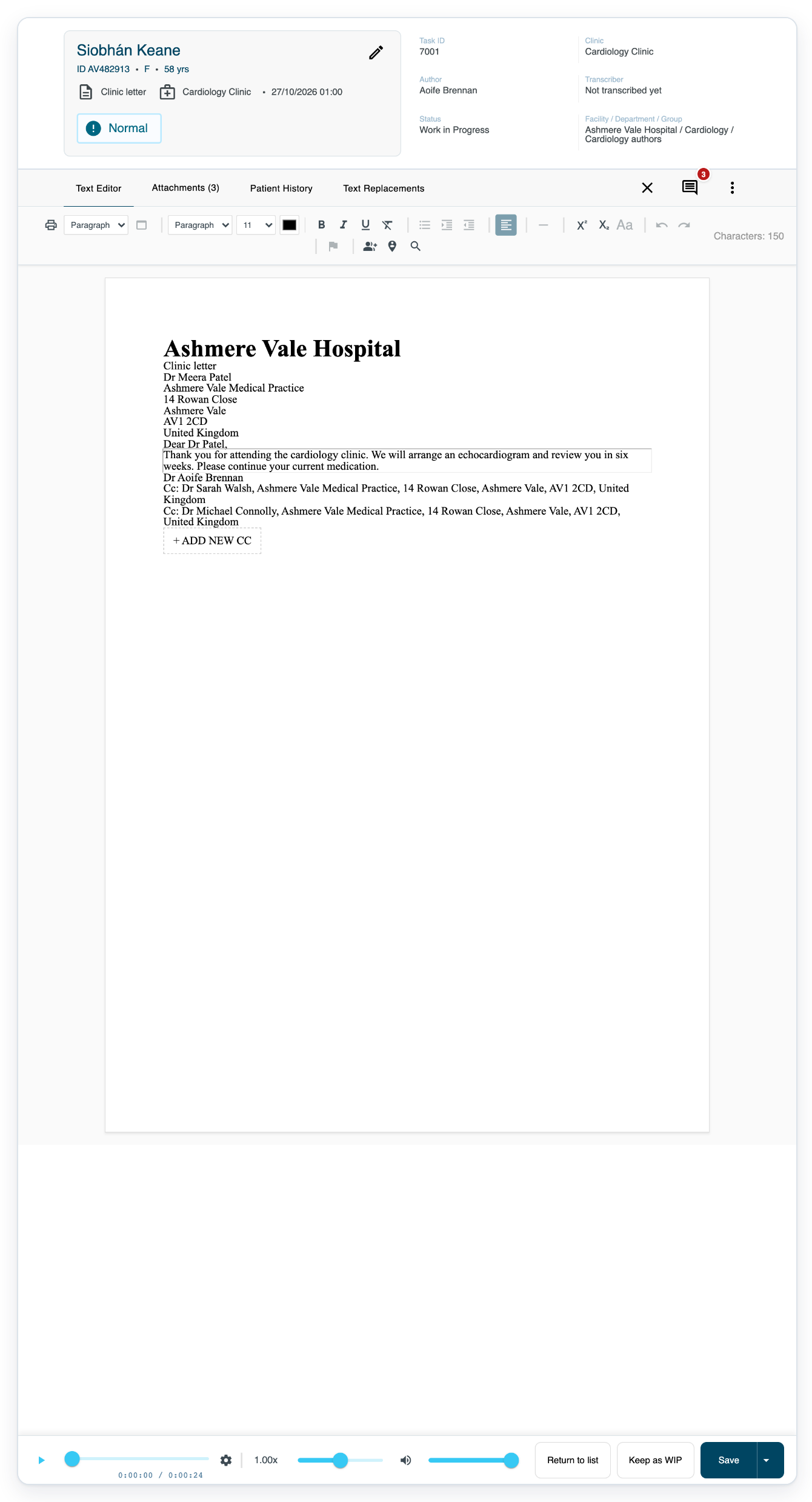
=> The original letter opens in Text Editor, with its audio controls along the bottom.
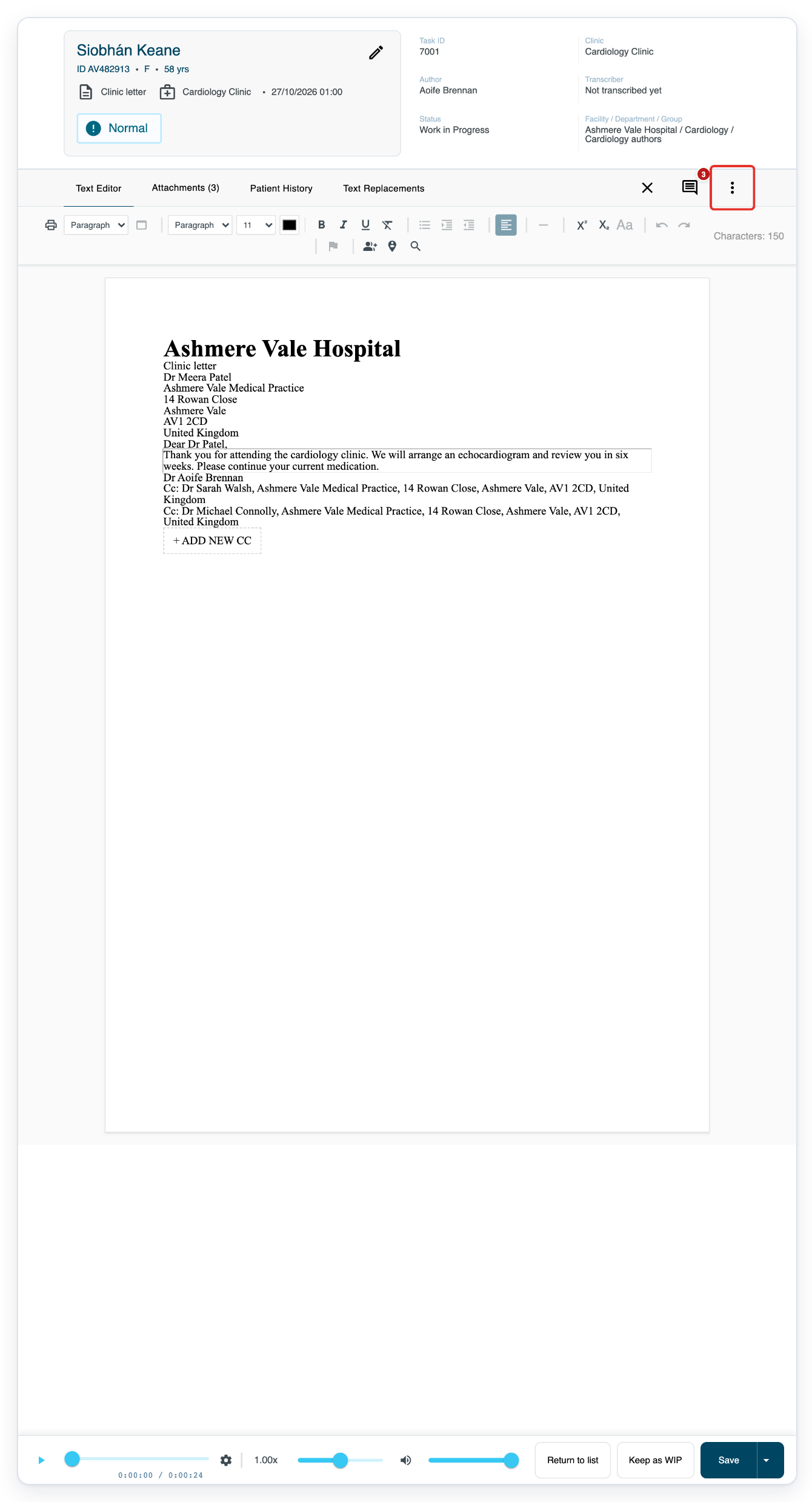
Click More, the three-dot button at the top right of the task.
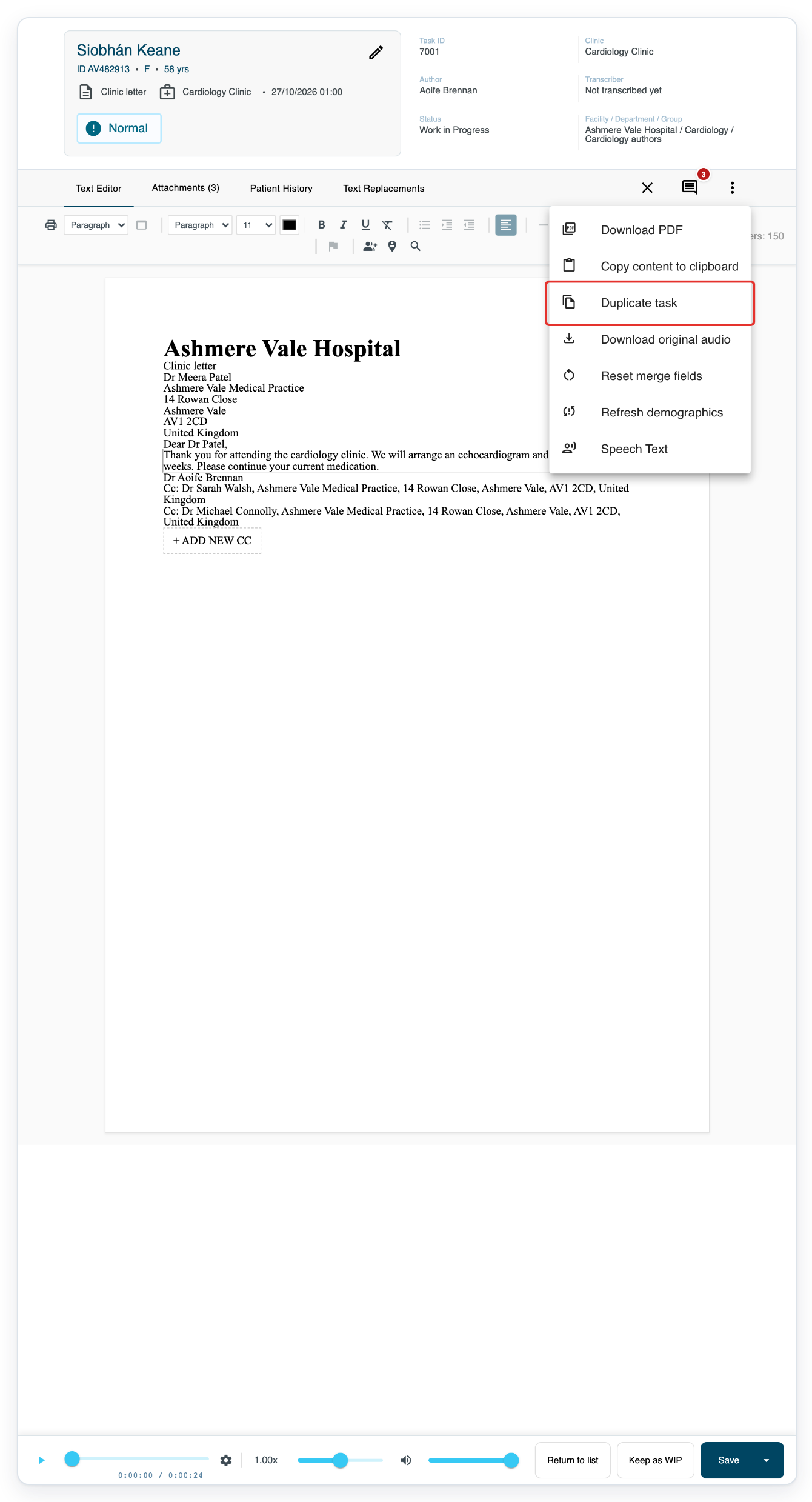
It sits on the same row as the Text Editor tab, beside the notes icon. The menu includes Duplicate task alongside the document and audio options.
Click Duplicate task. A separate task opens in a new browser tab.
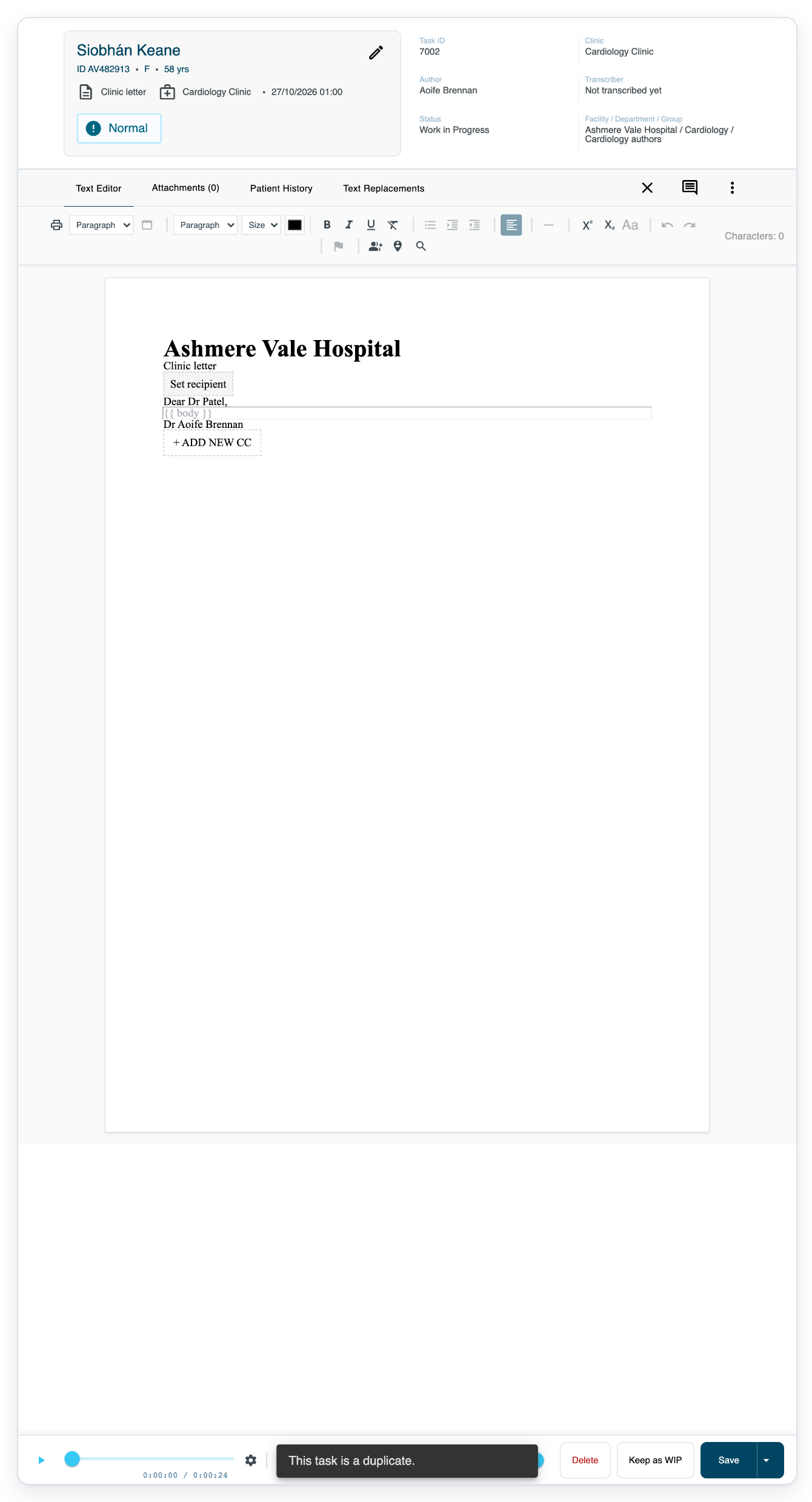
Use the same recording to type the next case in the new task. The new letter uses the original template, with empty text fields to fill in. Each letter has its own task ID. The original letter stays open in its browser tab. You can return to it while typing the new letter.
=> The new letter is empty, with audio controls below. Check the copied patient details and document type before typing the next case. To change the patient or document type, follow the related articles below.
NOTE:
- Repeat More > Duplicate task for each additional letter. When you finish typing a letter, click Save. This saves the text and moves the letter to the next stage. Choose Keep as WIP to leave a letter unfinished and return to it later.
- Playback starts from the beginning in the new tab. Use the audio bar at the bottom to find where the next letter starts. Drag the position slider beside the play button to move through the recording. The time below the slider helps you check your place before typing.
Can't duplicate a task?
- T-Pro shows “You currently have too many tasks in WIP status. Save or return to list to access other tasks.” Open Work in Progress, finish typing one of your existing tasks, then click Save. This moves the task to the next stage and makes room for another letter. Return to the original task and try More > Duplicate task again.
Related articles
If you have any more queries, please do not hesitate to contact our Helpdesk or support@tpro.io.
© 2020 - 2026