
Before you start
You need an author account with speech recognition set up and enabled.
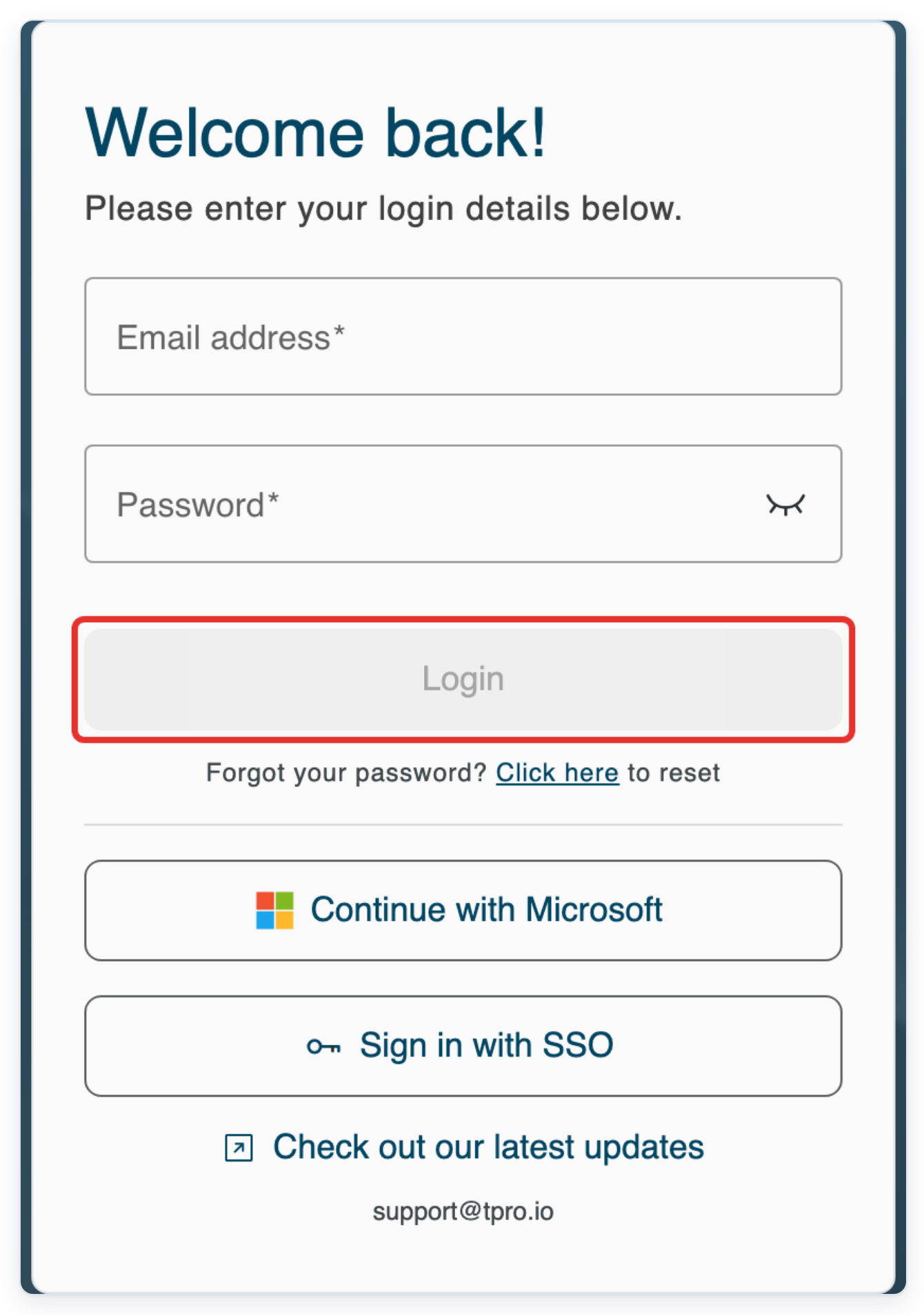
Log in to T-Pro with your author credentials.
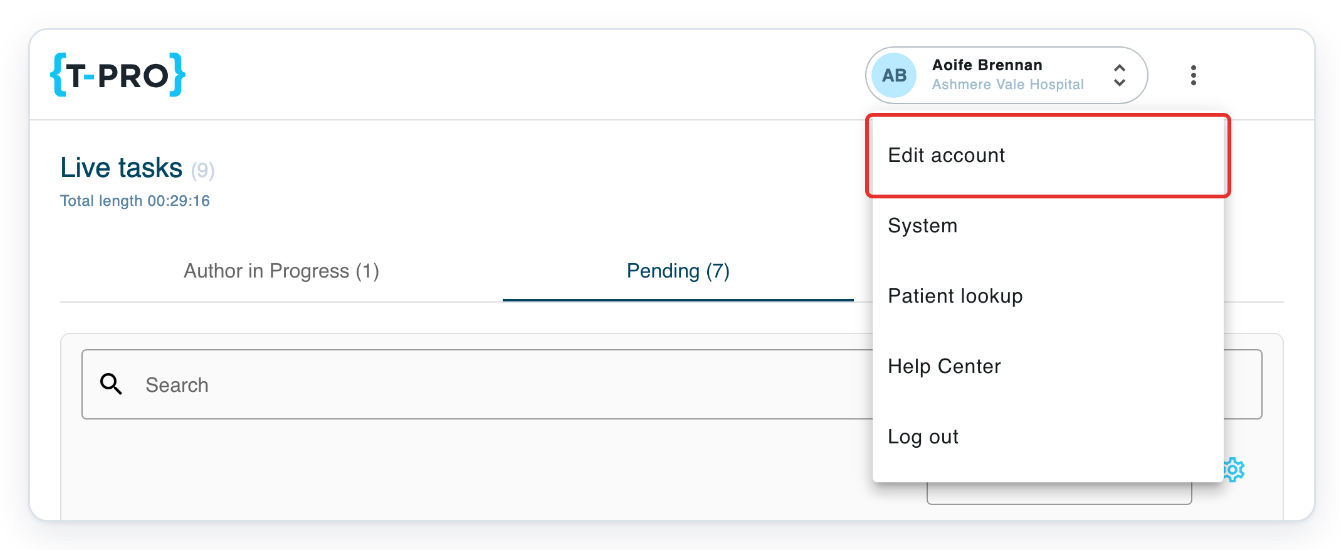
Open the three-dot account menu beside your name to find Edit account.

Click Edit account to open your account page.
Choose Speech Recognition. Auto-Text opens with your personal rules and any rules from your organisation.
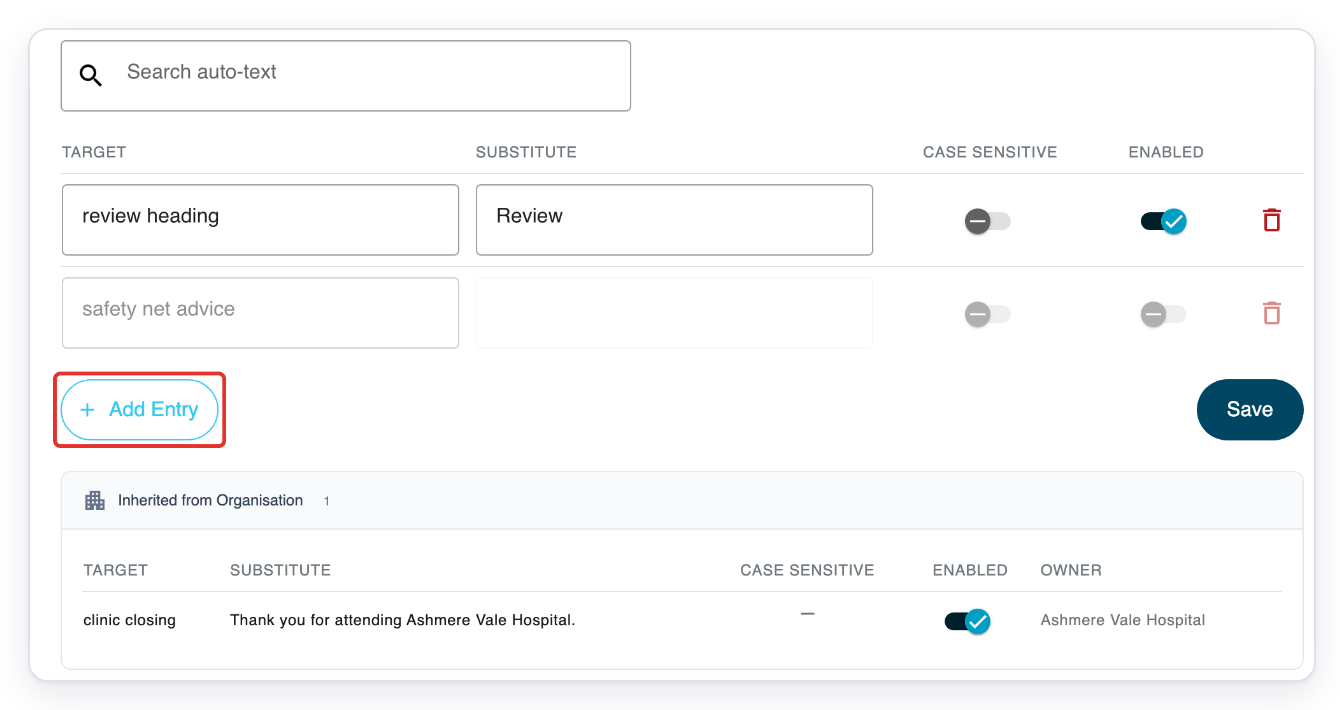
Your personal rules are in the editable list at the top. Look under Inherited from Organisation for organisation rules.

Click Add Entry to add a personal auto-text rule.
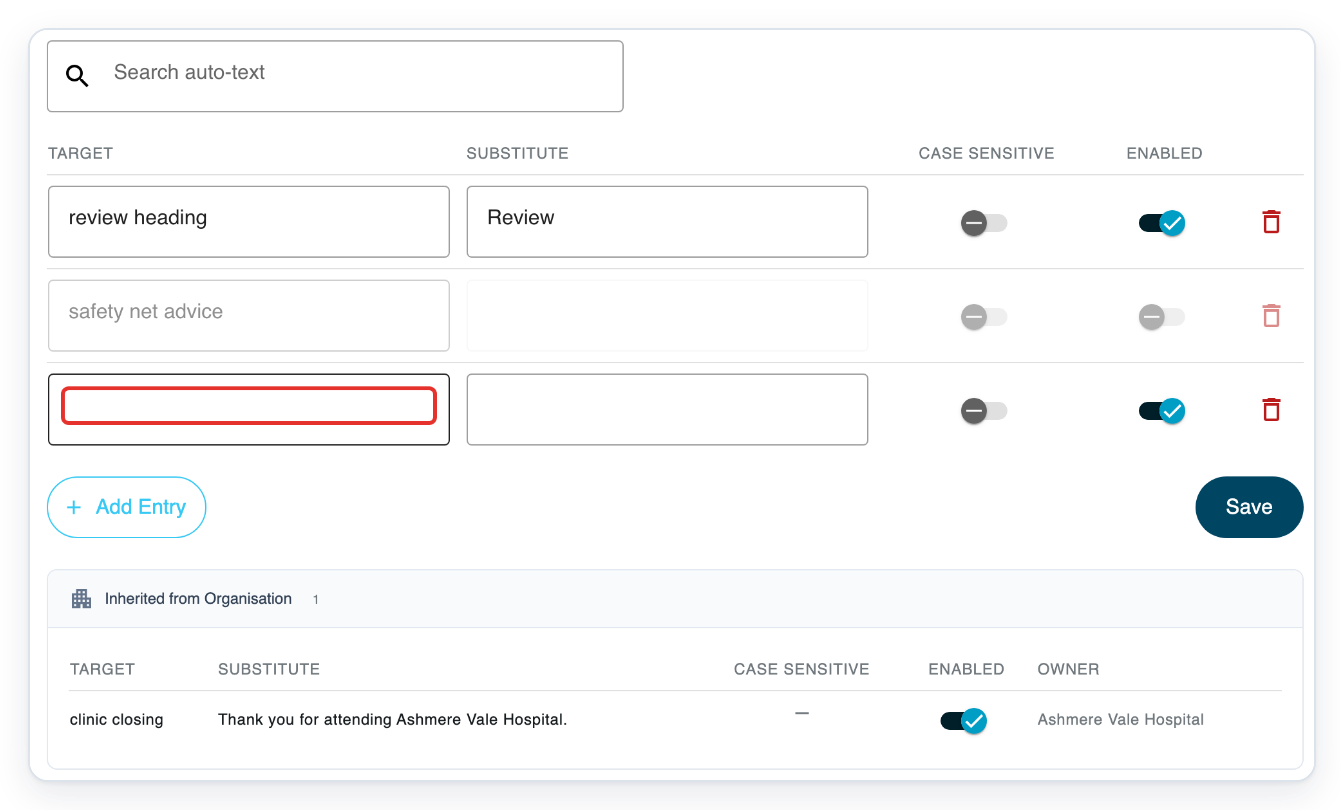
A blank row appears with Enabled on and Case sensitive off.
Under Target, enter the phrase you want to say, for example cardiology closing.
Choose the word, abbreviation or short phrase that speech recognition should replace. Enter at least two characters.
Under Substitute, enter the wording you want in your document, for example Review in six weeks.
This wording replaces your target phrase, so include any punctuation you need.
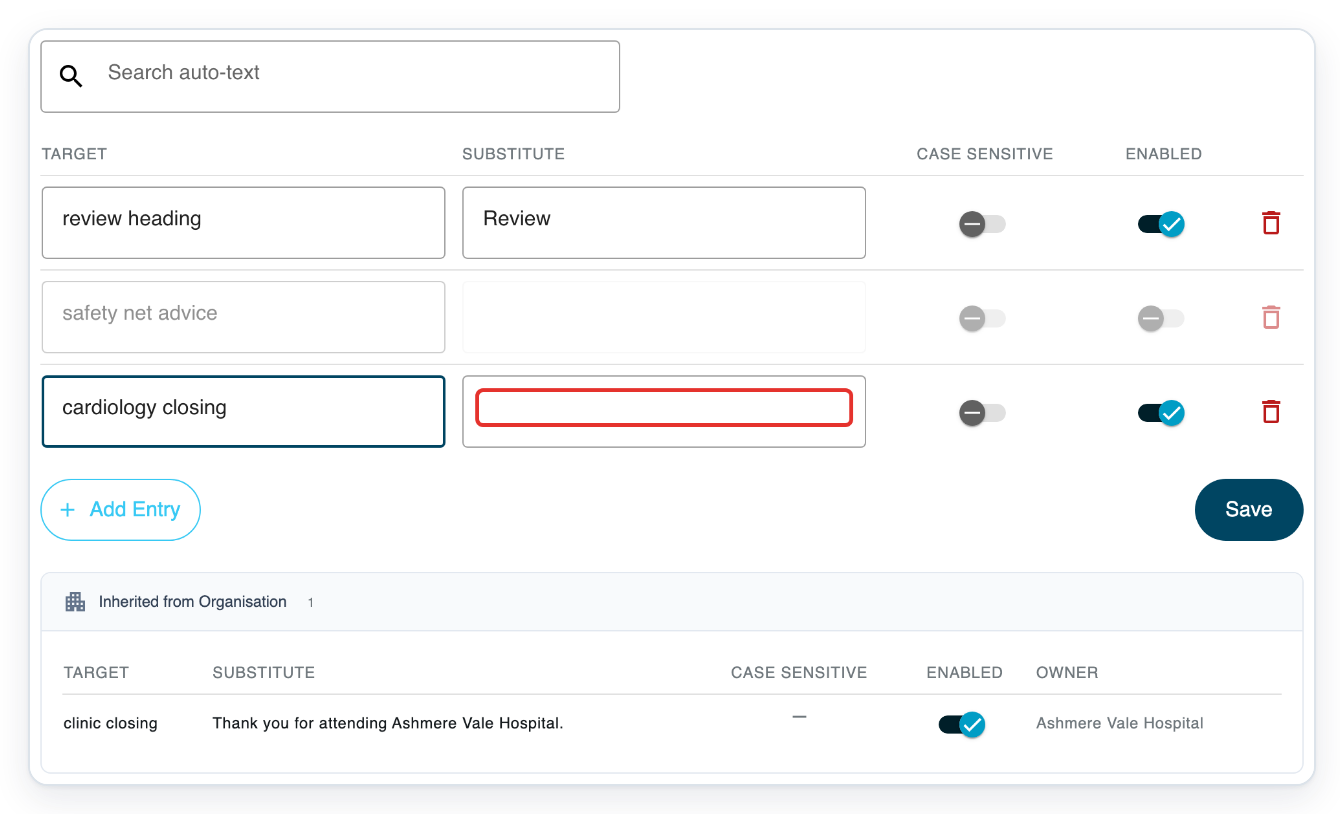
Click Save to save the new rule.
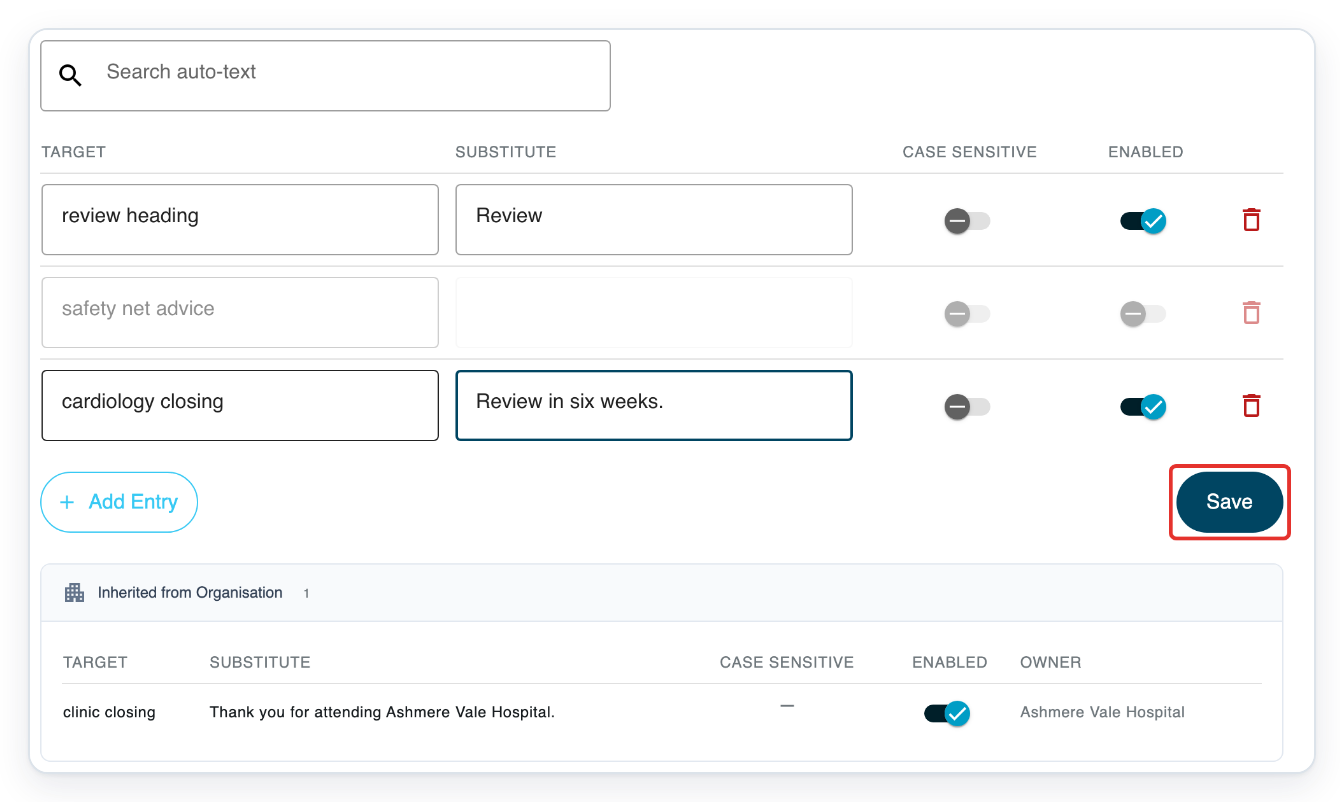
=> The saved cardiology closing rule has Enabled on, with Review in six weeks. as its substitute.
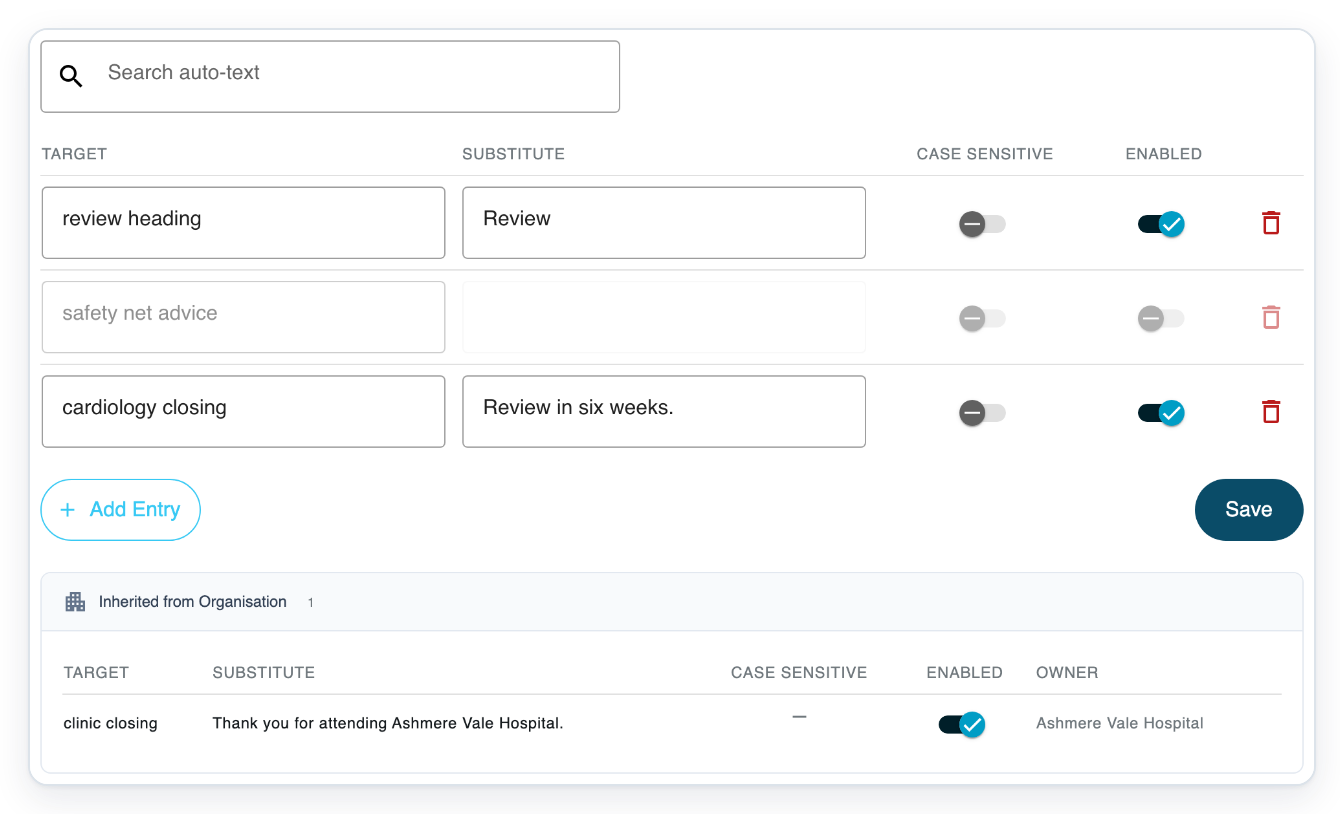
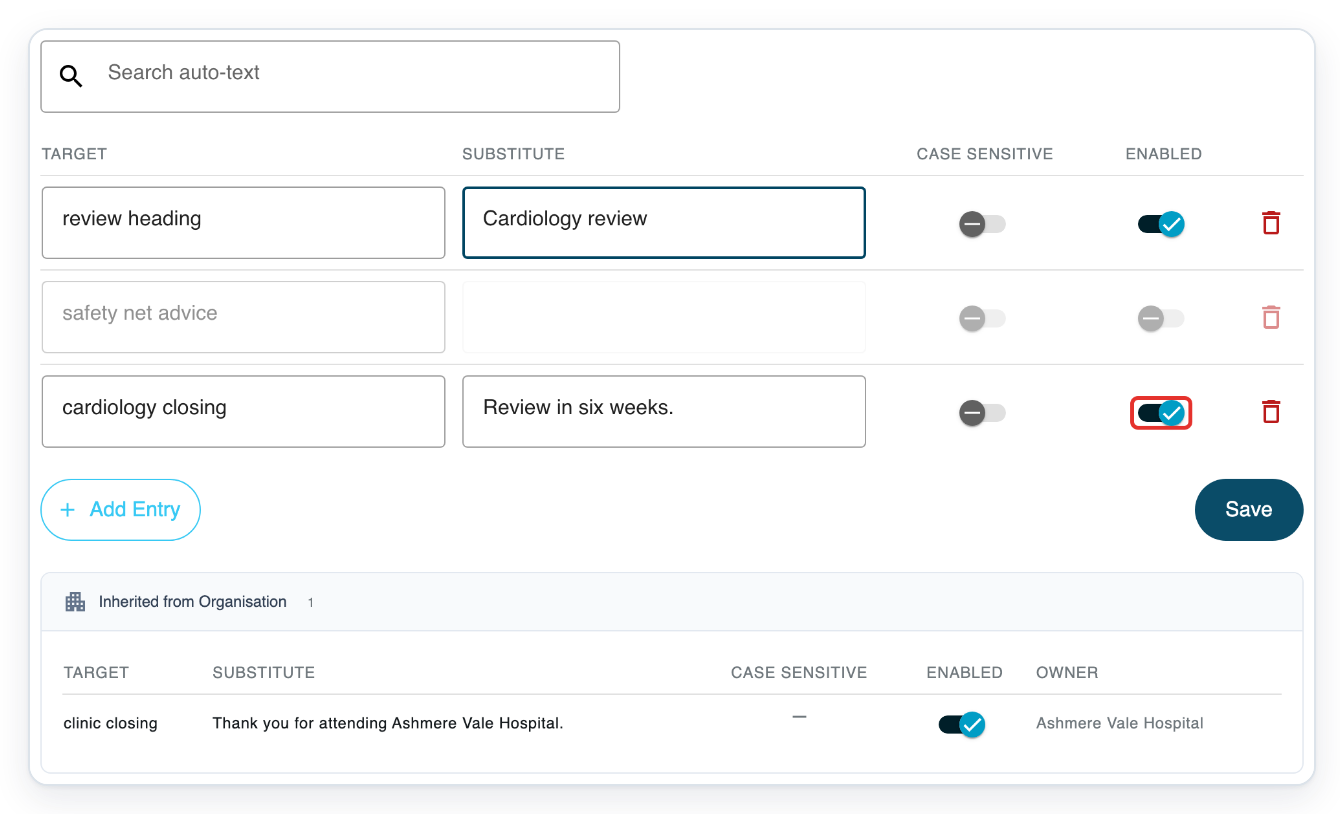
To change an existing rule, edit its Substitute. In this example, change Review to Cardiology review beside review heading.
You can also edit a personal rule's Target in the same row.
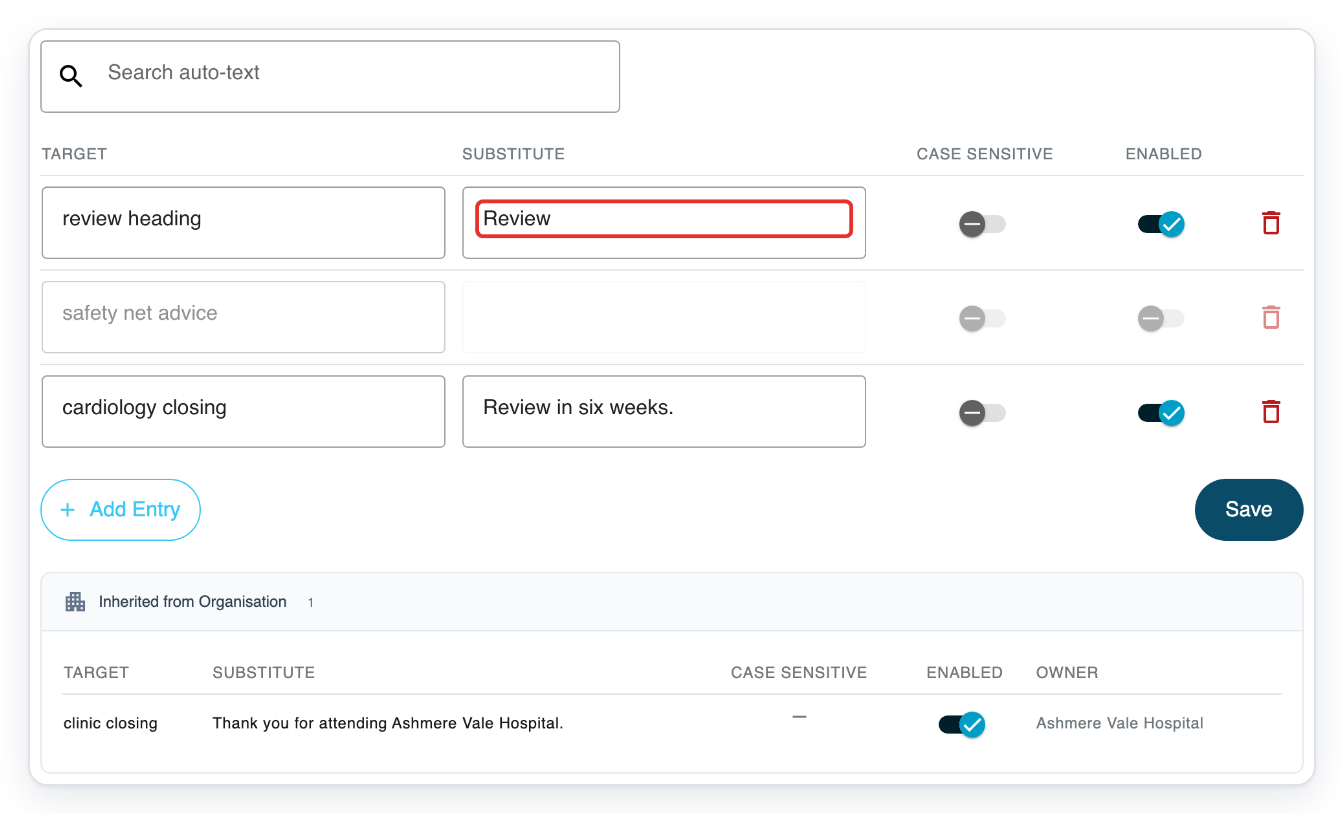
Turn off Enabled beside cardiology closing. You can no longer edit its Substitute field.
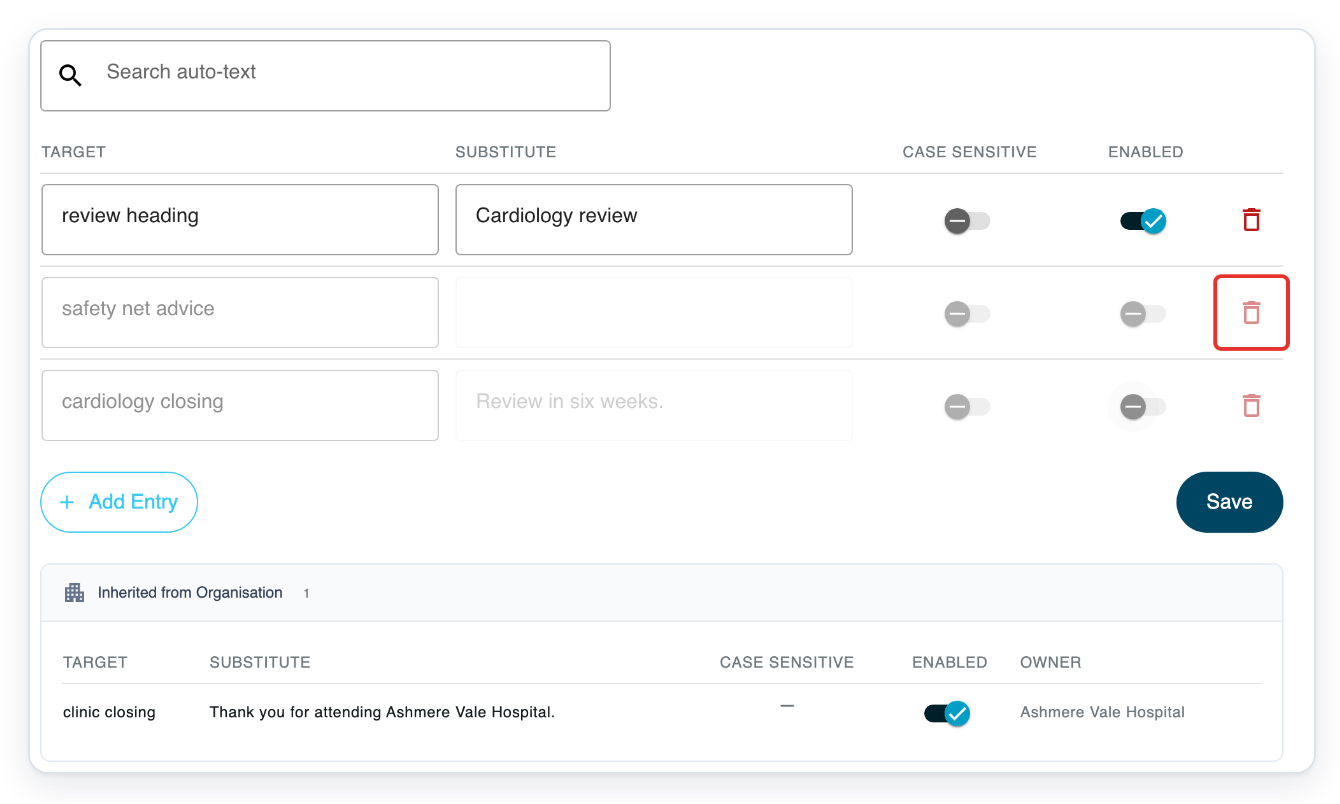
To delete a rule, click its bin icon. In this example, remove the disabled safety net advice rule.
The row disappears from your list.
Click Save to keep these changes.
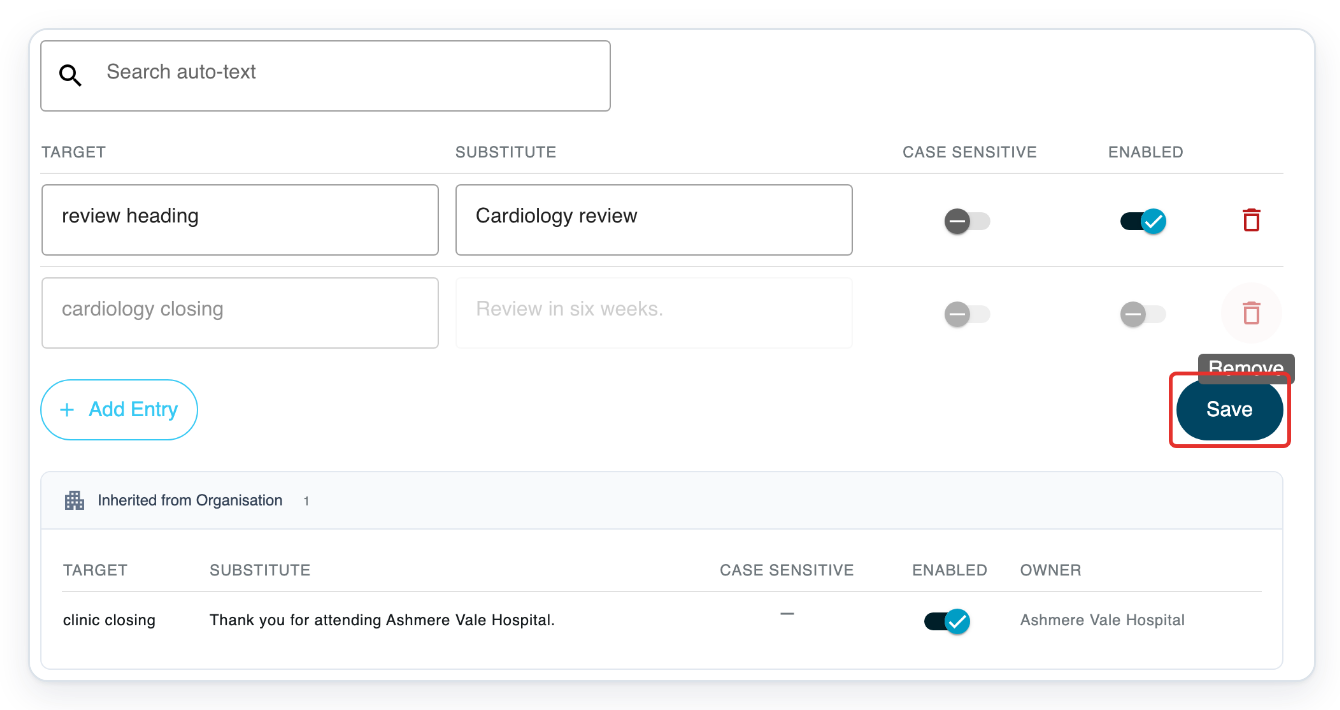
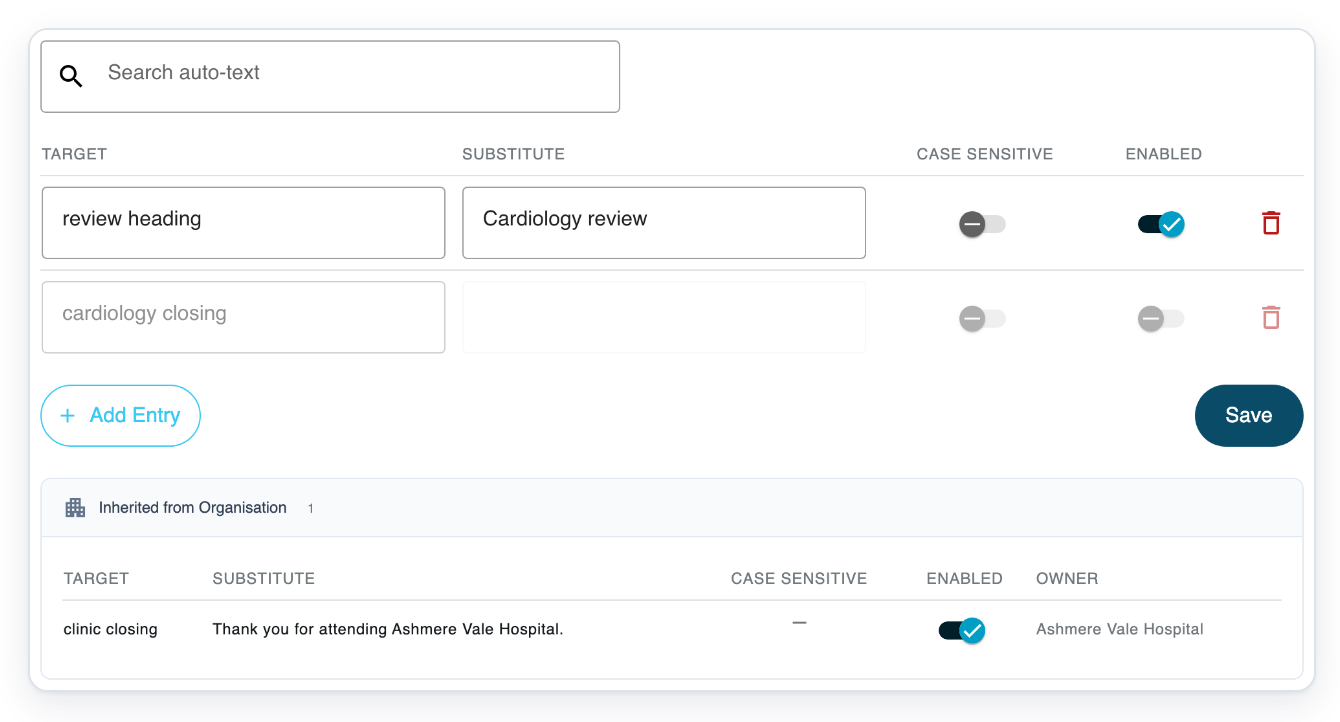
=> The list now shows Cardiology review for review heading. cardiology closing is off and its substitute is blank. safety net advice has been removed.
NOTE:
- Personal rules apply to your account. You can change or delete saved rules.
- Use Substitute for a full term or longer wording you use regularly. It replaces the Target phrase when you say it during speech recognition.
- Your auto-text rules also work in Speech Direct if you use the same speech account. You only need to add each rule once.
- Saving a personal rule with Enabled off clears its Substitute. Copy the wording before saving, then enter it again when you turn the rule back on.
- Rules under Inherited from Organisation come from your organisation. Choose whether to use each rule by turning Enabled on or off. Then click Save.
How Case sensitive affects matching
| Case sensitive | When recognised text matches |
|---|---|
| Off: capitalisation is ignored. | The target “review heading” matches both “review heading” and “Review heading”. Leave the switch off to accept either. |
| On: recognised text must match the target's capitals. | The target “review heading” matches “review heading”, but not “Review heading”. Turn the switch on when capitals must match. |
Can't use auto text?
- If Speech Recognition or Auto-Text is missing, ask your administrator for help. They can check that speech recognition is set up and enabled for your author account.
- If T-Pro shows “Target must be at least 2 characters”, enter at least two characters. Spaces at the start or end do not count.
- If T-Pro shows “Duplicate auto-text targets are not allowed”, use a different target phrase for each personal rule. Then click Save.
- If you can't find a rule, clear Search auto-text to show the full list. Search checks both target and substitute text.
Related articles
- Dictate into a letter with live speech recognition
- Change how speech recognition formats your text
- Dictionary terms and auto text: which to use
If you have any more queries, please do not hesitate to contact our Helpdesk or support@tpro.io.
© 2020 - 2026