
Before you start
You need an unfinished task with a letter you can edit. To refresh details, your organisation needs connected patient records. The task also needs a patient or visit reference.
Log in to T-Pro with your transcriber credentials.
If you're an author, editor, reviewer, storer or manager, use your own credentials and follow the section for your role below.
As an author
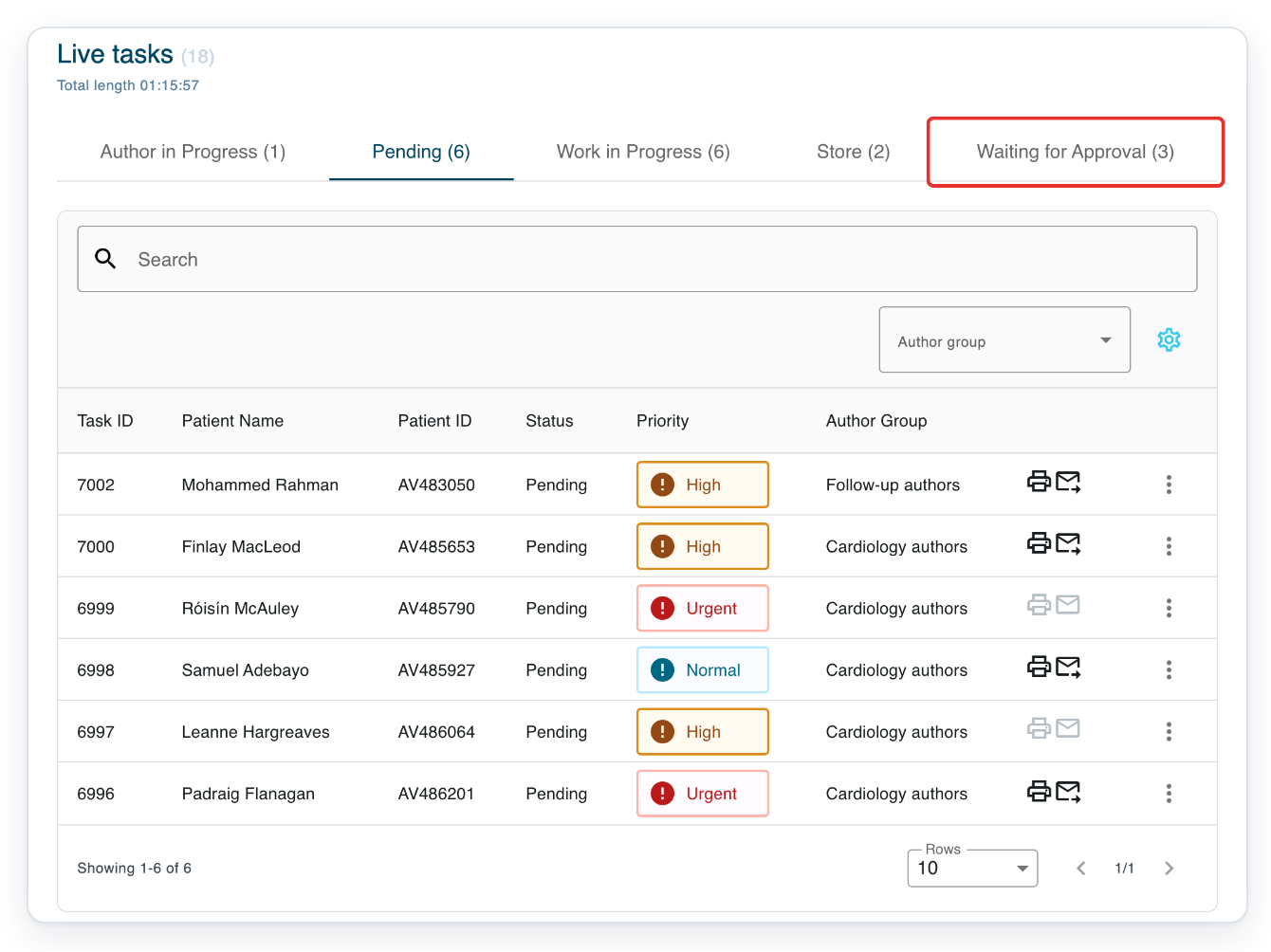
In Live tasks, click Waiting for Approval to find a letter awaiting your approval.
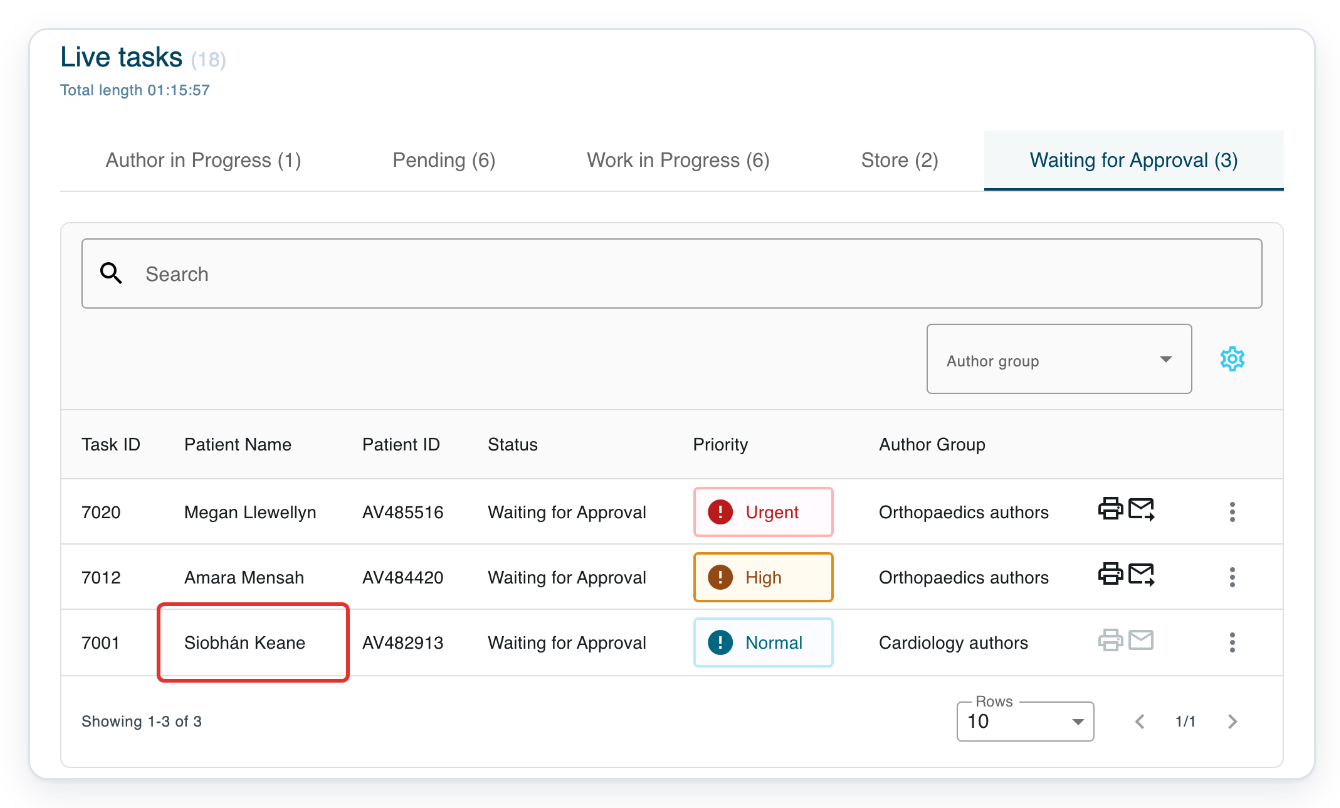
Click the patient's name to open the task.
Before you open the letter, check Patient Name and Patient ID in the list.
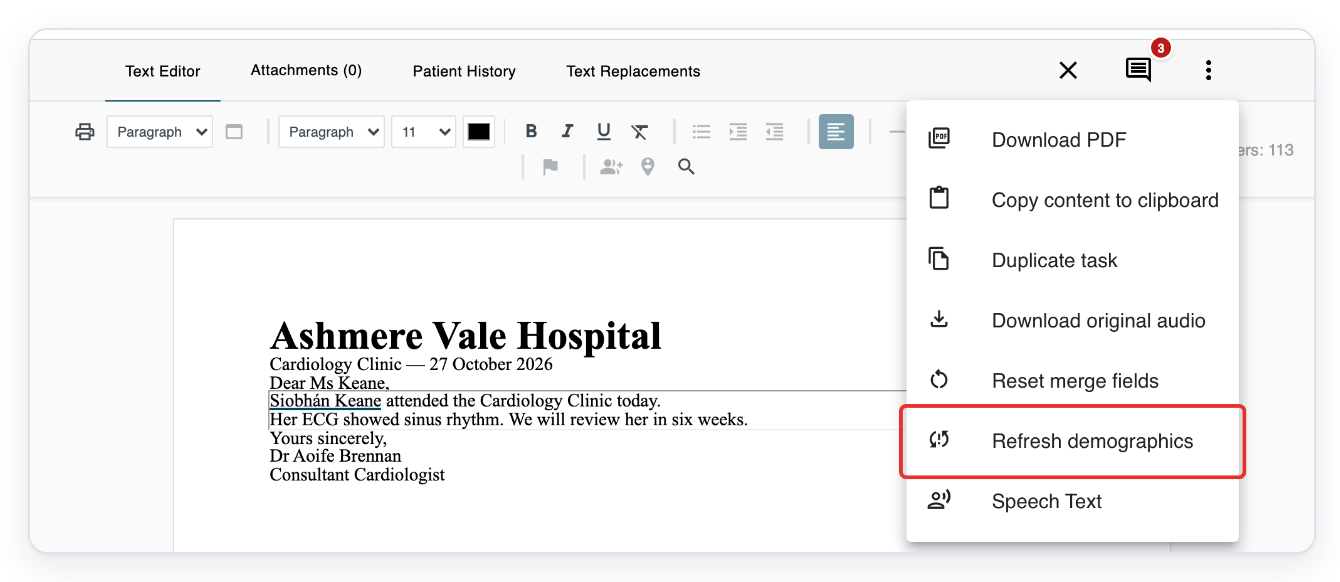
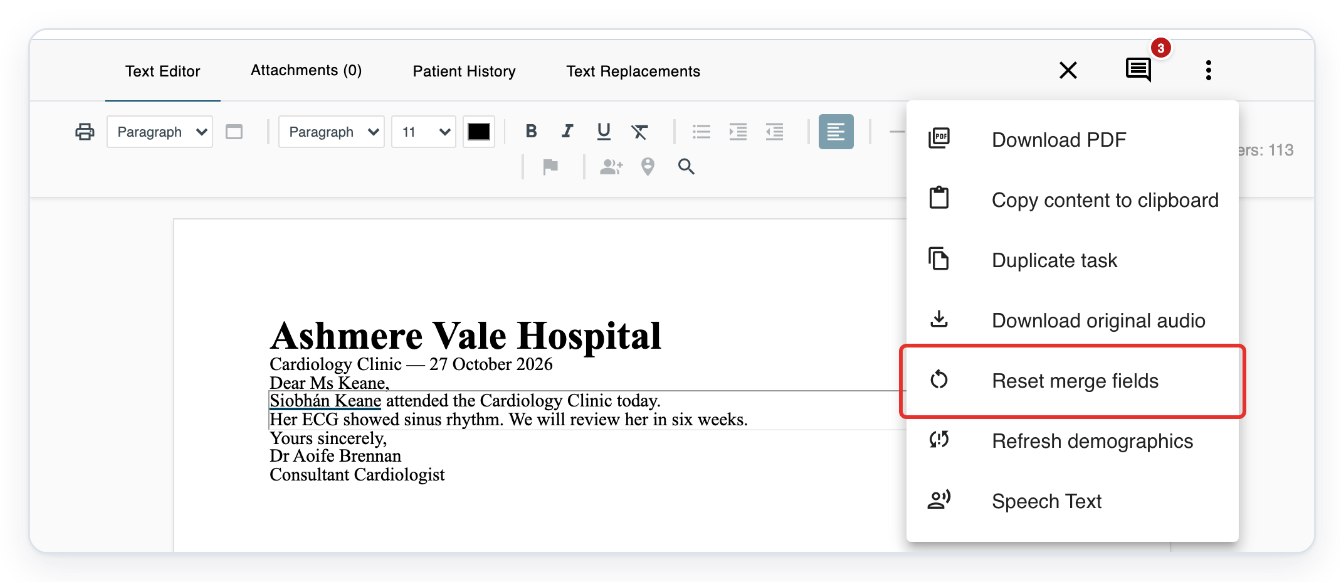
Click the three dots on the right of the task toolbar, labelled More.
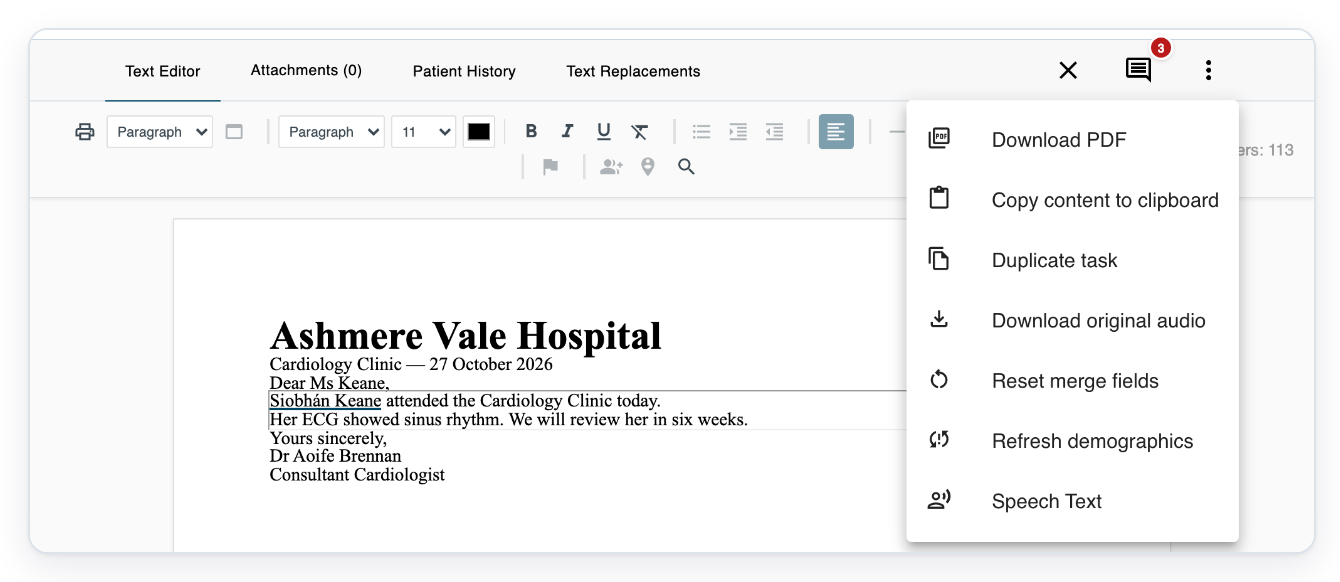
The menu includes Refresh demographics and Reset merge fields.

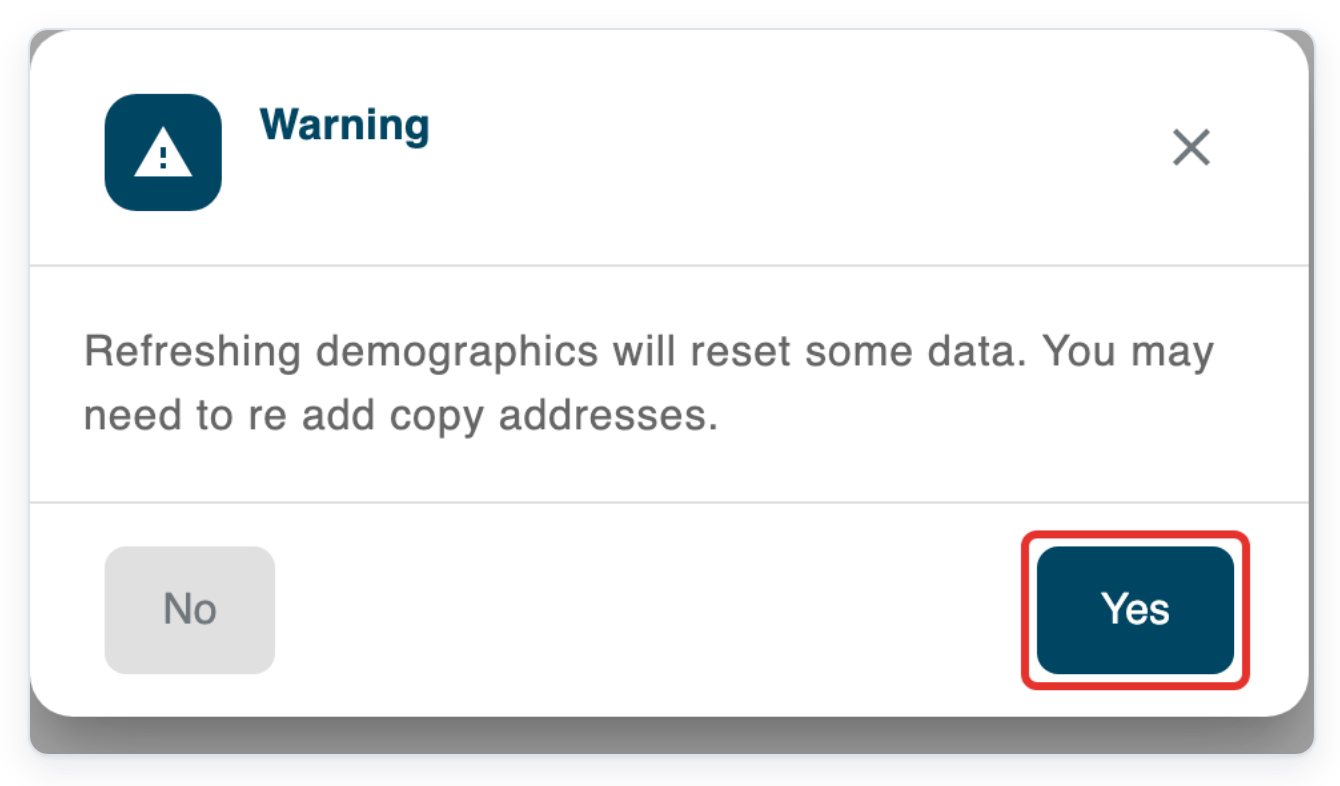
Click Refresh demographics to see the confirmation message.
The warning explains that refreshing demographics will reset some data. You may need to add copy addresses again.
Click Yes to load the patient details available for this task.
Click No to cancel the refresh.
To reset the letter's merge fields, click More again.

Click Reset merge fields to refill the letter's remaining text merge fields with the task's current details.
Use this if you've changed or cleared text in a merge field by mistake. Check any edits you want to keep before resetting.
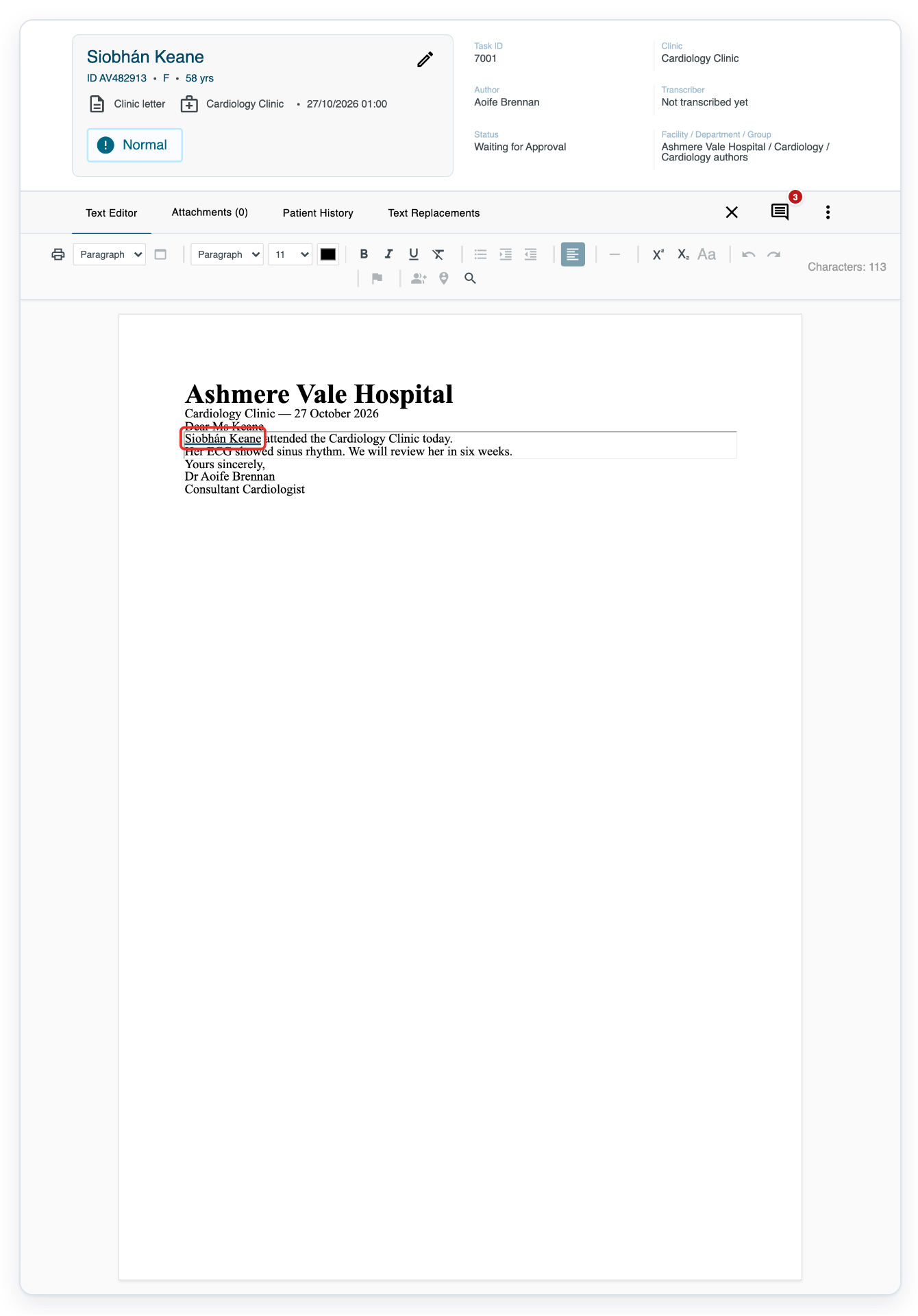
=> The patient-name merge field uses the task's current patient details. Review the restored text in the letter.
As a transcriber, editor, reviewer or storer
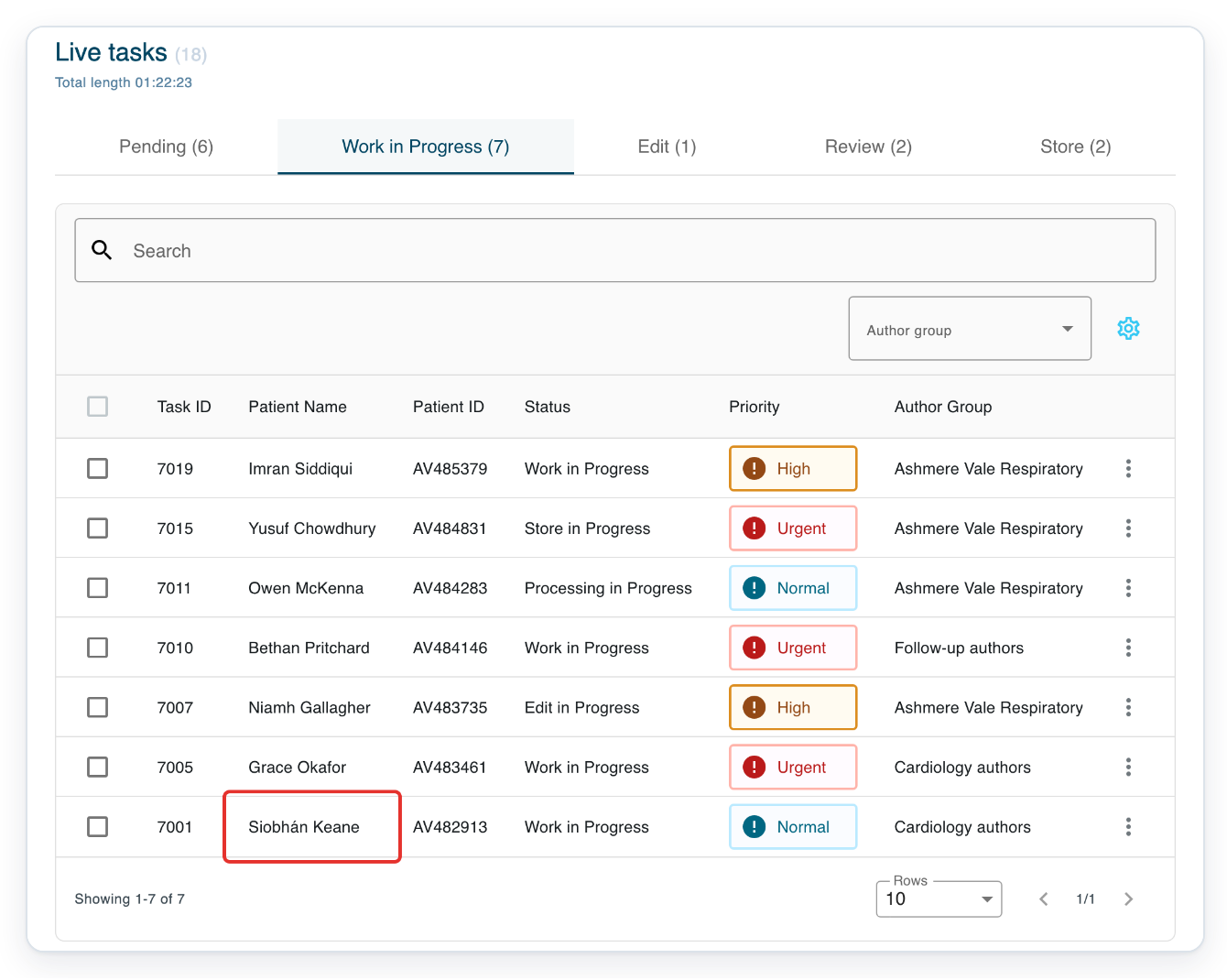
In Live tasks, click Work in Progress to find the letter you're working on.
This tab includes tasks being transcribed, edited, reviewed, processed or stored.
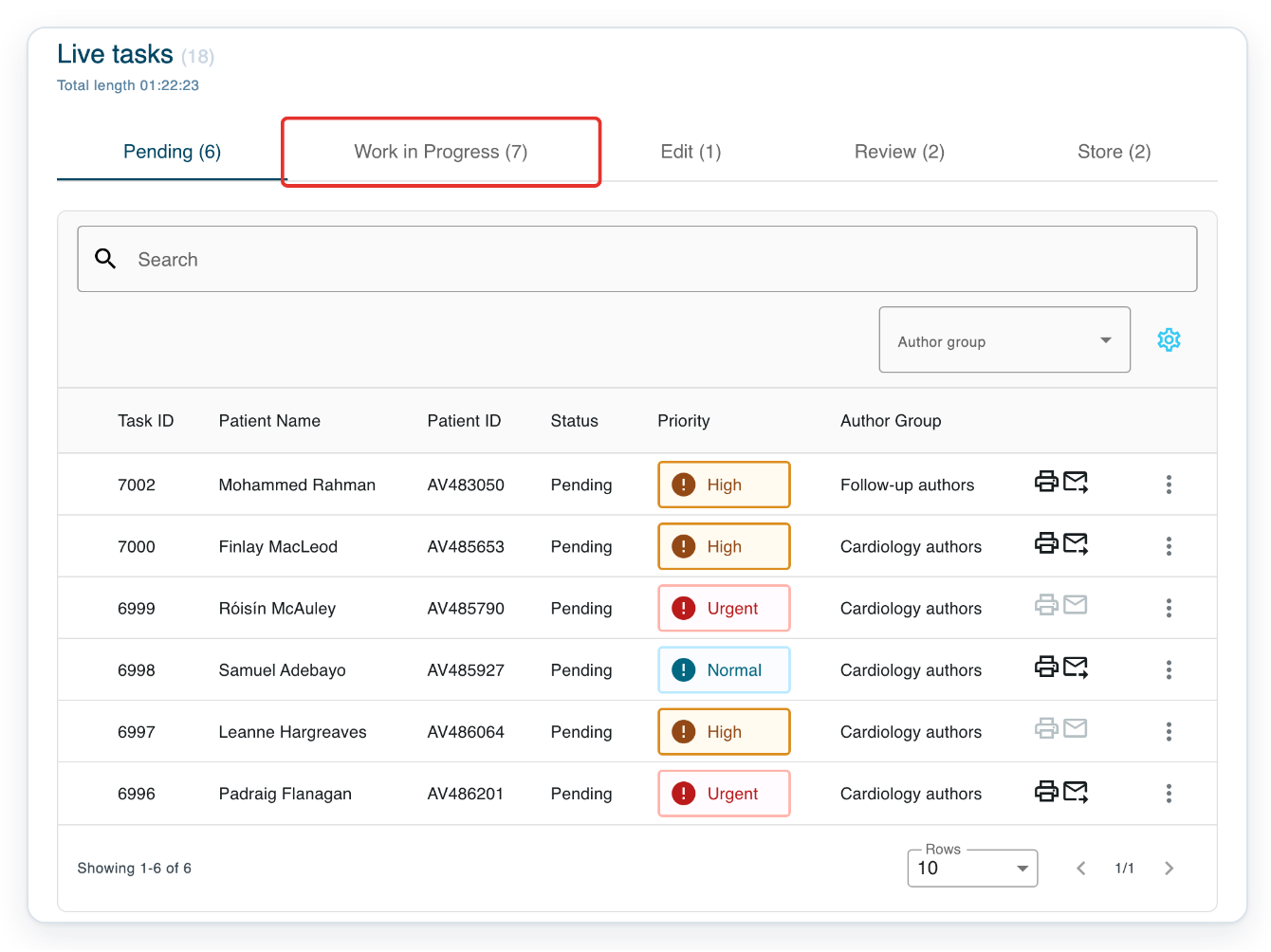
Click the patient's name to open the task.
Before you open the letter, check Patient Name and Patient ID in the list.
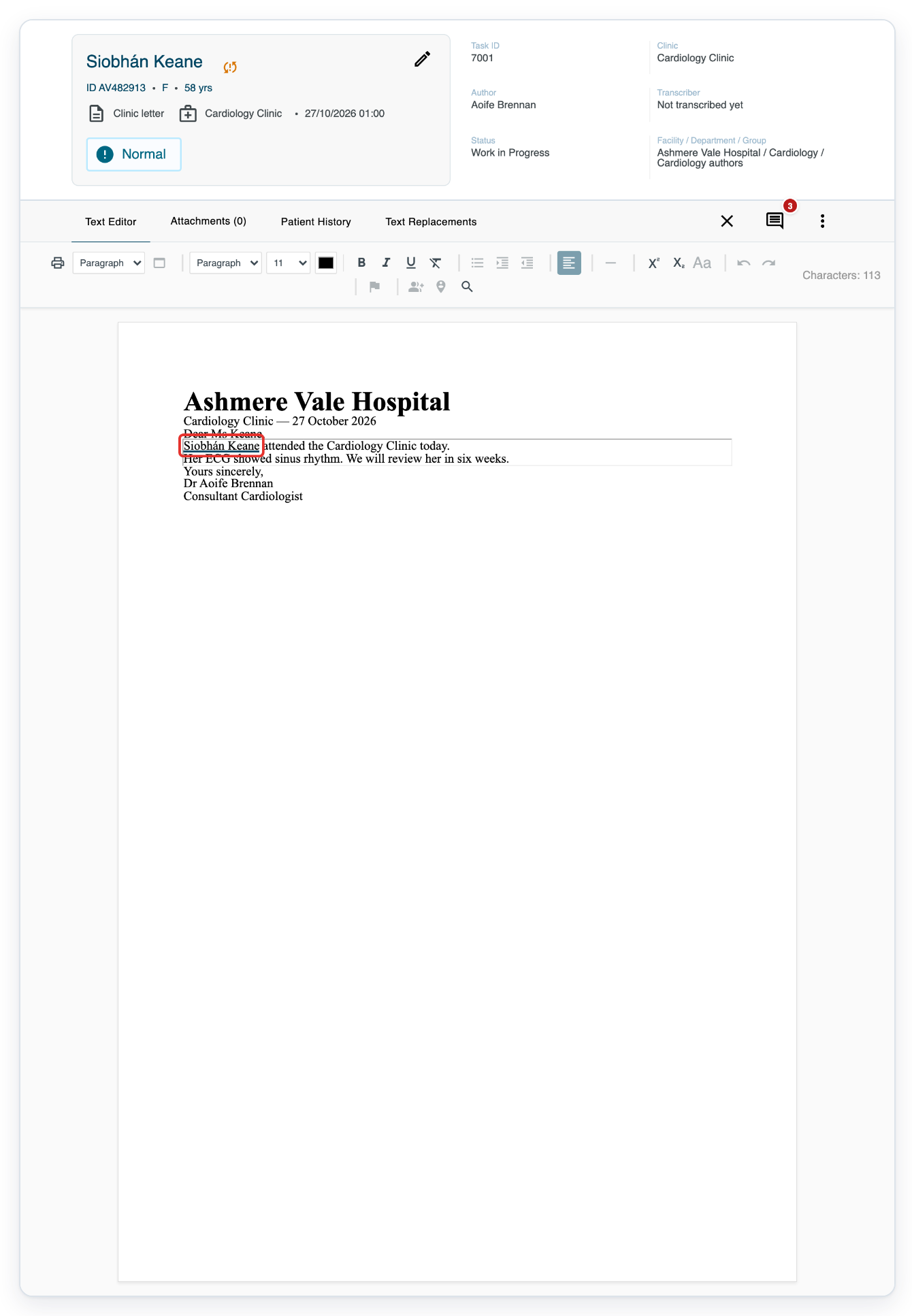
=> The task opens in Text Editor, with patient details above the letter. A merge field fills in the patient's name.
Click the three dots on the right of the task toolbar, labelled More.

=> The menu includes Refresh demographics and Reset merge fields. Follow steps 5 to 8 to refresh the details and reset the letter's merge fields.
As a manager
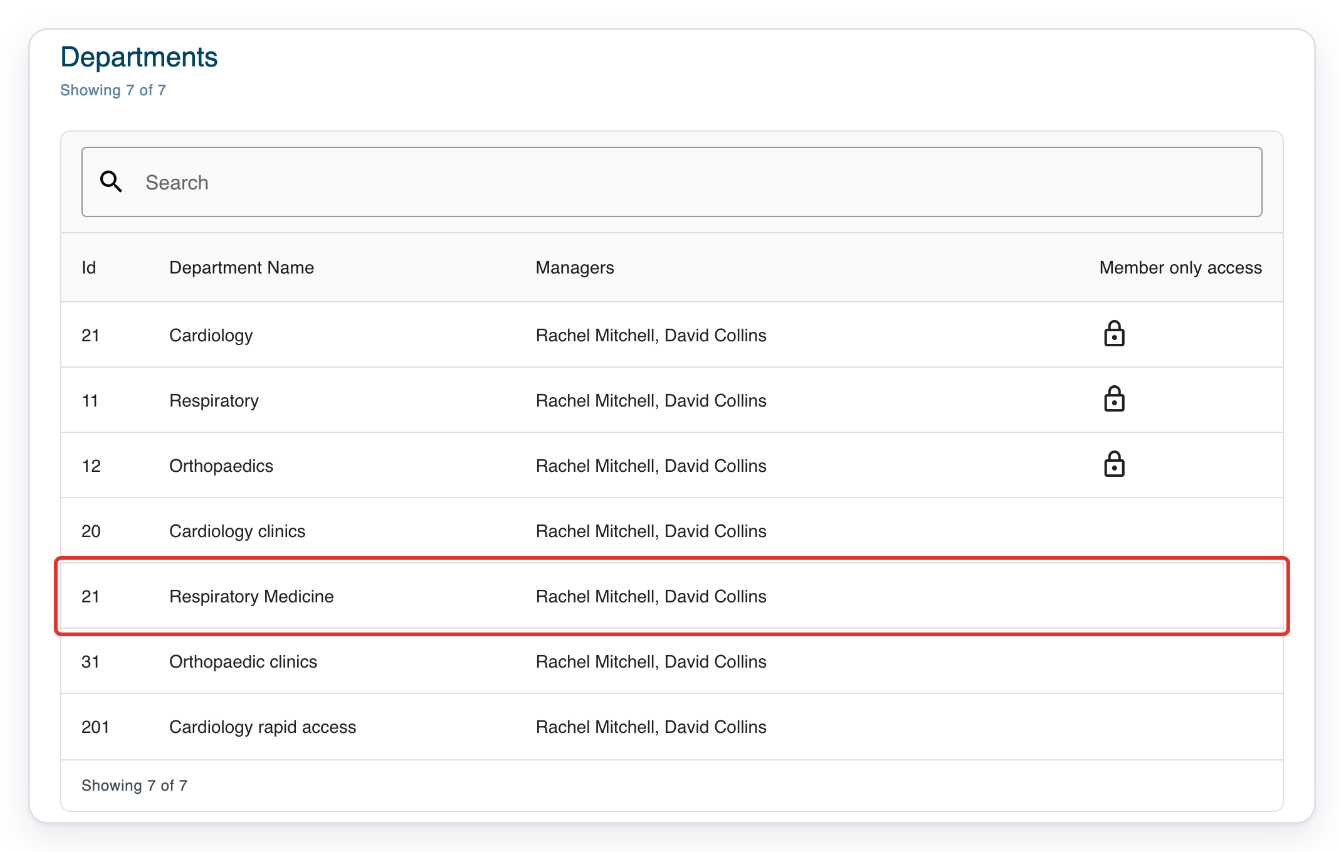
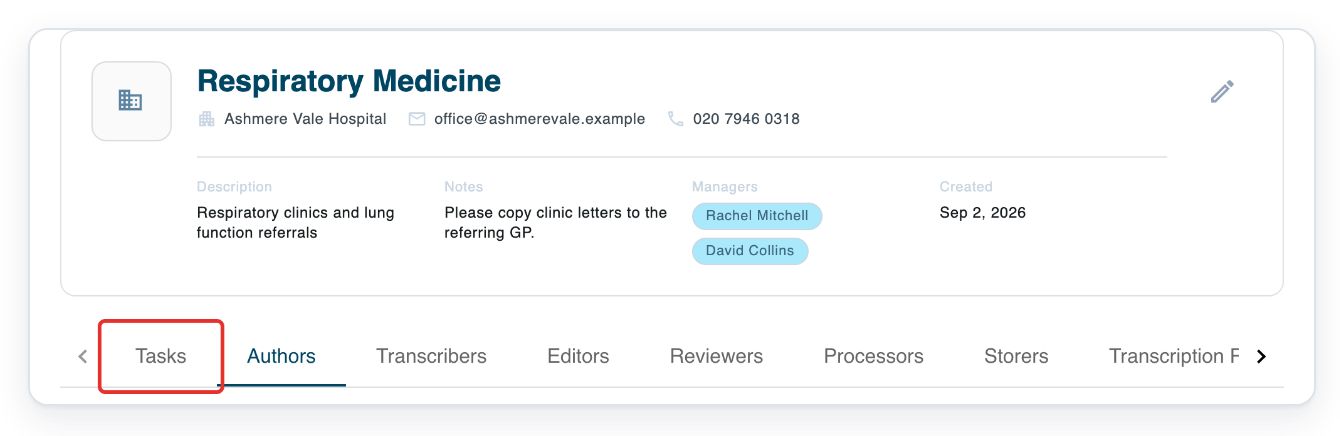
Go to Departments and click your department's row.
The example shows Respiratory Medicine. Choose the department that contains your task.
Click Tasks to see the department's task queues.
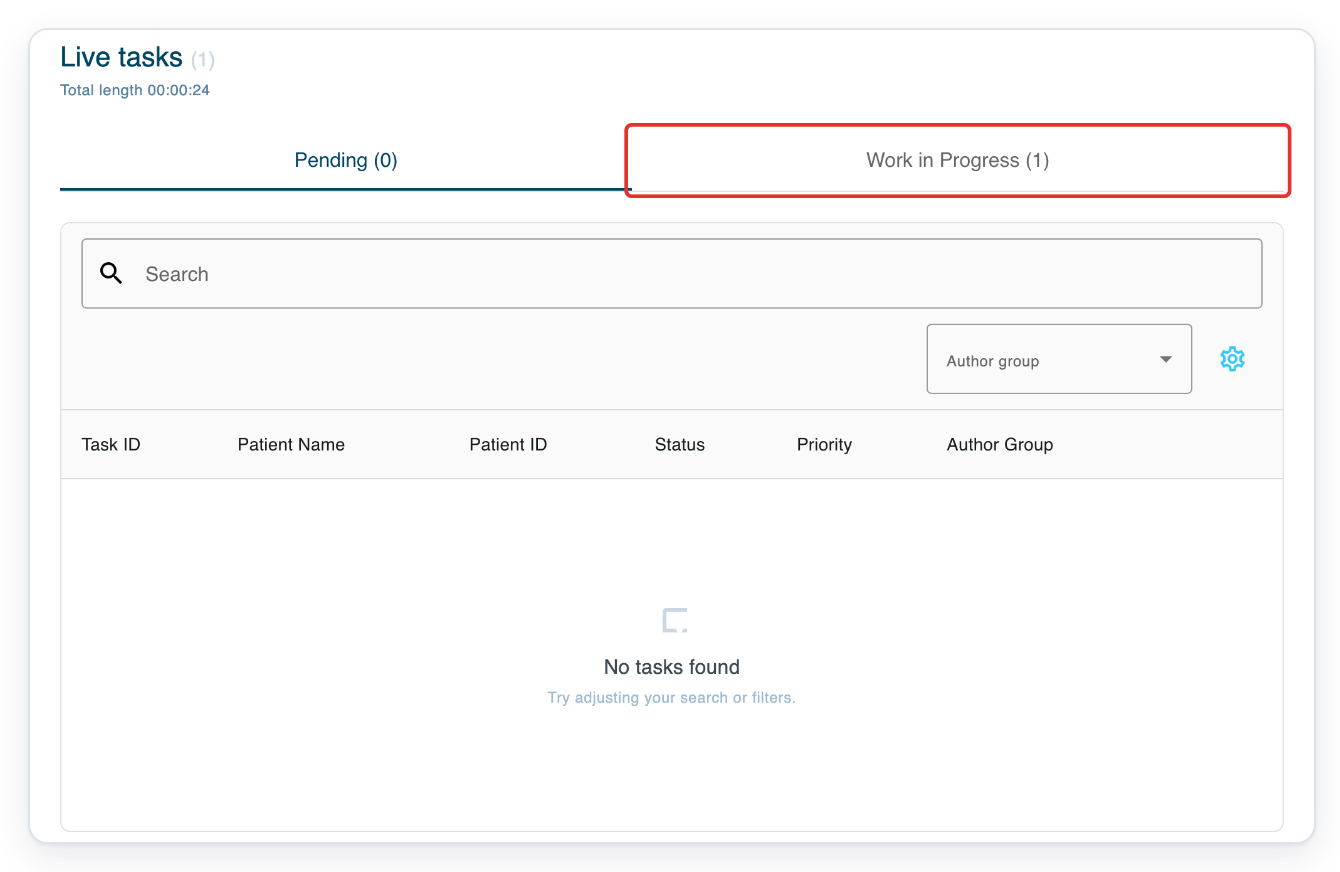
Click Work in Progress to find an unfinished letter.
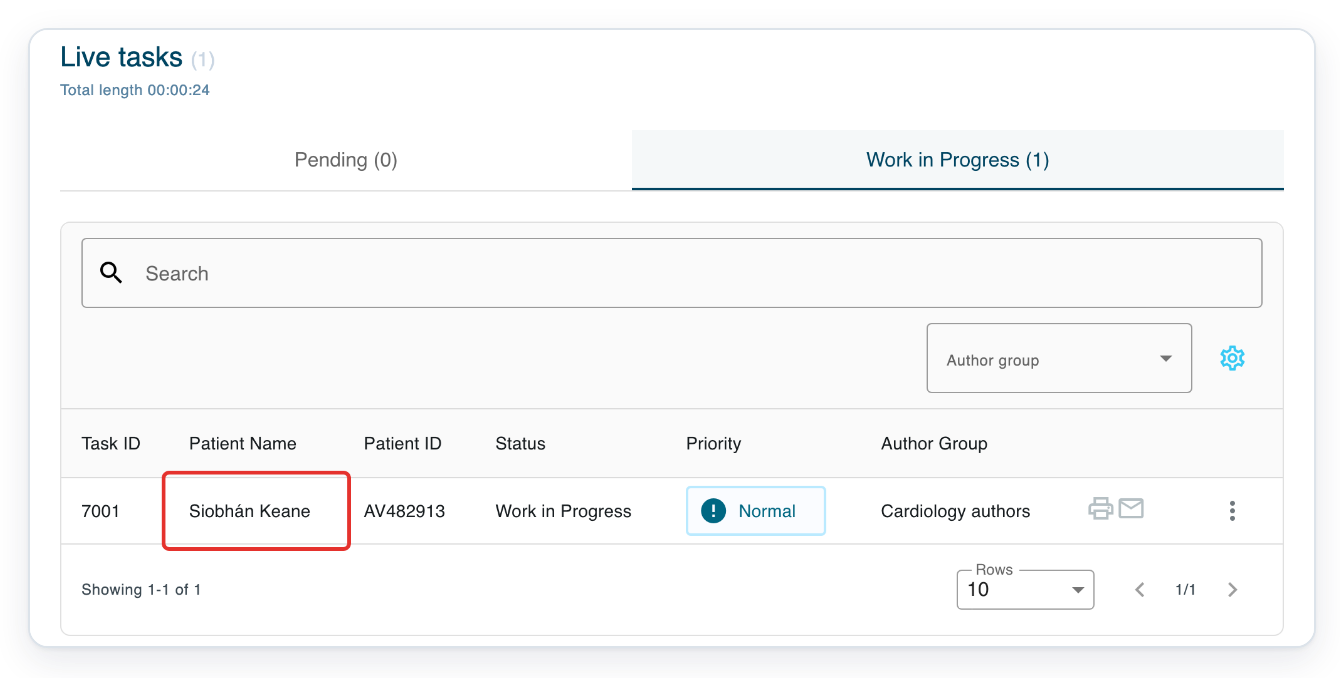
Click the patient's name to open the task.
Before you open the letter, check Patient Name and Patient ID in the list.
Follow steps 4 to 8 to refresh the patient details and reset the letter's merge fields.
NOTE:
- Editing text in a merge field changes this letter only. The hospital's patient record stays the same.
- To remove an unused merge field, delete its text, then delete any empty placeholder left behind.
- Resetting replaces your edits in all remaining text merge fields. This includes fields you've cleared.
- After refreshing demographics, check the recipient and copy addresses. You may need to correct the recipient or add copy addresses again.
Which option should I use?
Merge fields fill parts of your letter with task details, such as the patient's name. Text merge fields are underlined in the editor.
| Option | When to use it | What it changes |
|---|---|---|
| Refresh demographics | Patient or visit details have changed in your organisation's connected patient records. | Loads available patient and visit details into the task. The recipient may also change. |
| Reset merge fields | You've changed or cleared text in a merge field, or need to refill it with the task's current details. | Replaces text in the remaining text merge fields with the task's current details. |
Another way to refresh patient details
- Click the update icon beside the patient's name, labelled New demographics data available, to open the same refresh confirmation.
Can't update patient details?
- If the letter opens as view only from All Tasks, open the unfinished task from Live tasks. Check that you have permission to edit it.
- Refreshing demographics fails: check the patient details at the top of the task. Ask your manager or our Helpdesk to check the patient or visit reference and connected patient records. They should also check the task stage.
- Copy addresses are still out of date: refreshing demographics keeps the existing copy addresses. Check and update each address.
- Resetting does not restore a deleted merge field. If you've just deleted the whole field by mistake, use the editor's undo arrow.
Related articles
- The letter editor in V2
- Change the patient on a task
- Add recipients and CCs to a letter
- Work from Live Tasks
If you have any more queries, please do not hesitate to contact our Helpdesk or support@tpro.io.
© 2020 - 2026