
Before you start
You need a transcriber or manager account. The cards and charts depend on your role and organisation.
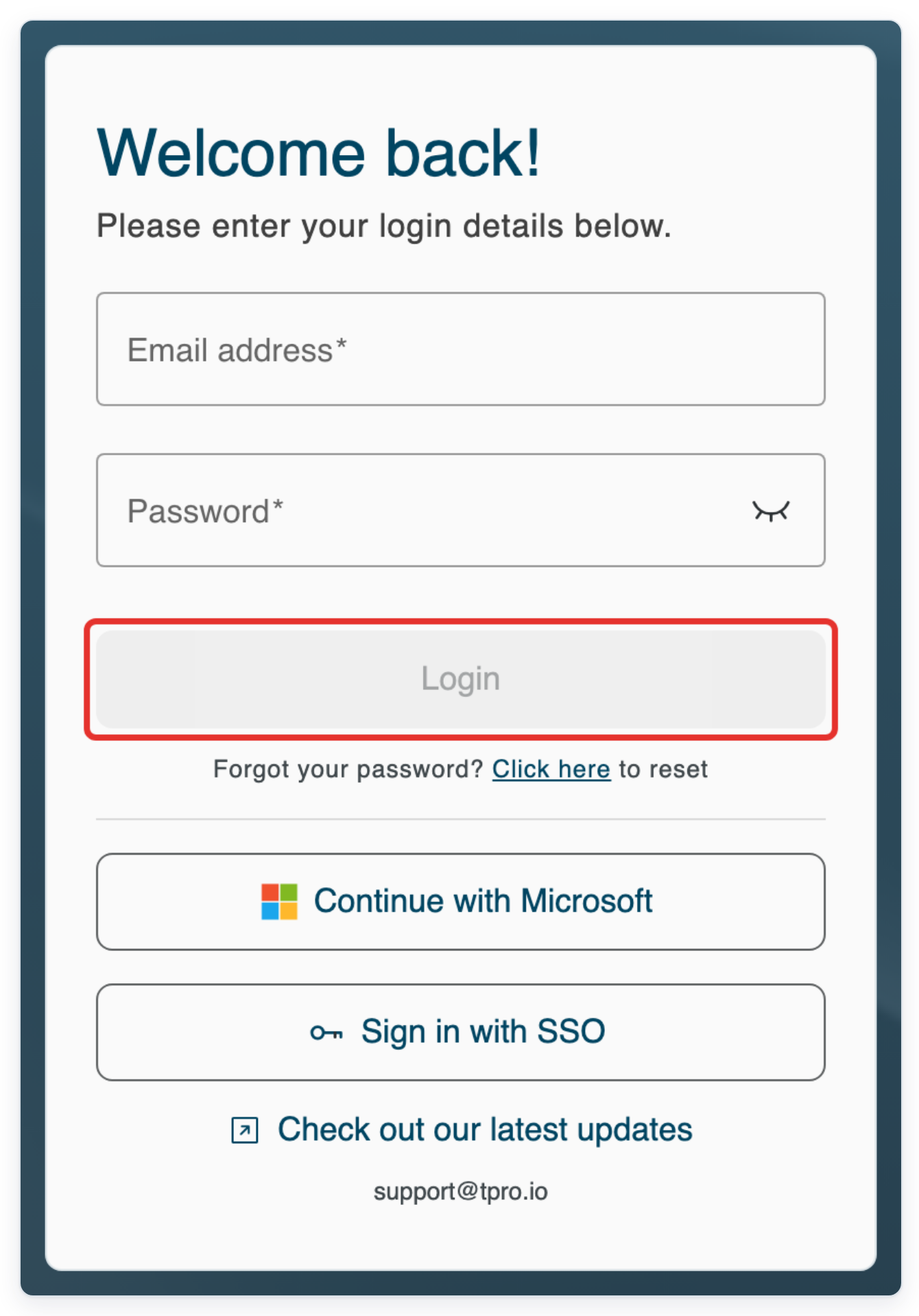
Log in to T-Pro with your transcriber or manager credentials.
As a transcriber
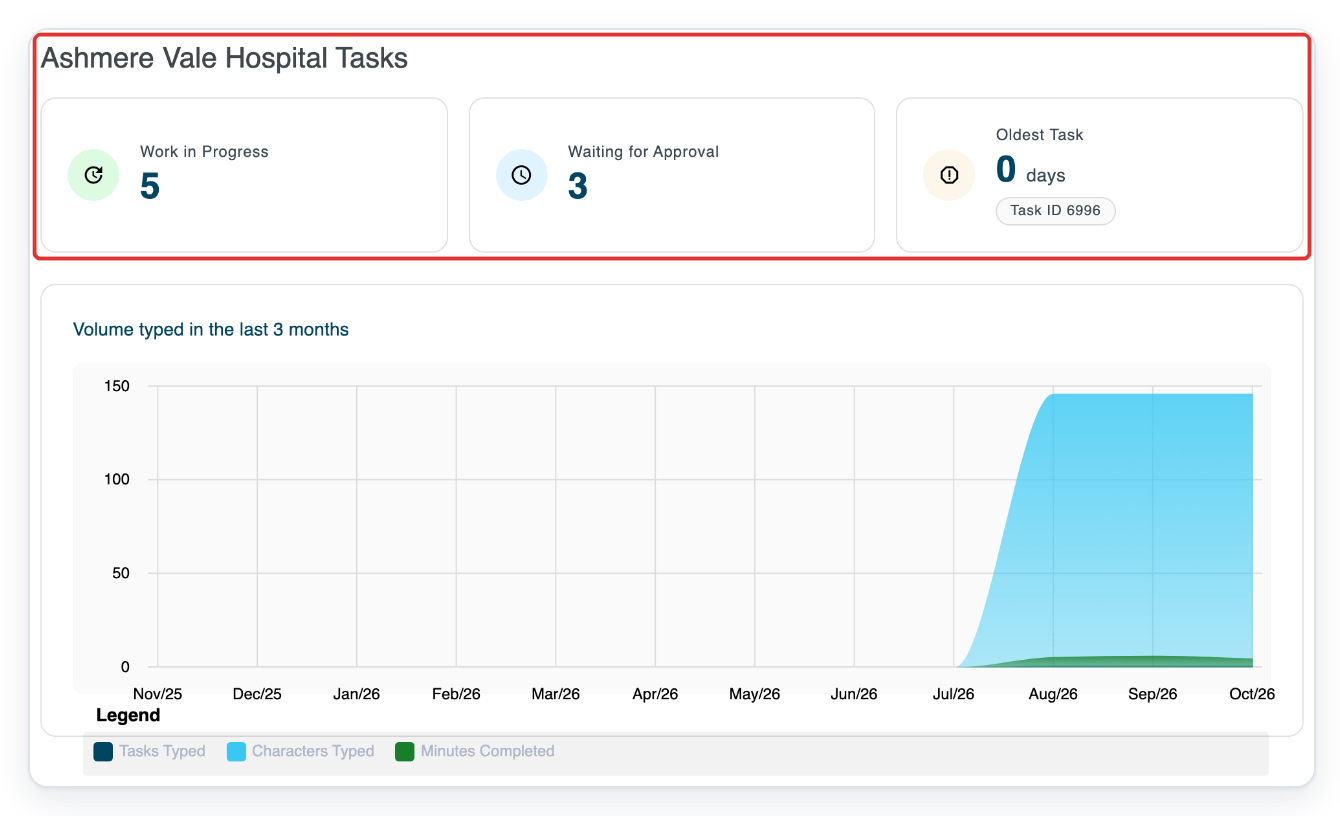
=> At a facility, check Work in Progress, Waiting for Approval and Oldest Task. The oldest task shows its age in days and task ID. Find your personal typing activity under Volume typed in the last 3 months.
As a vendor transcriber, editor or reviewer
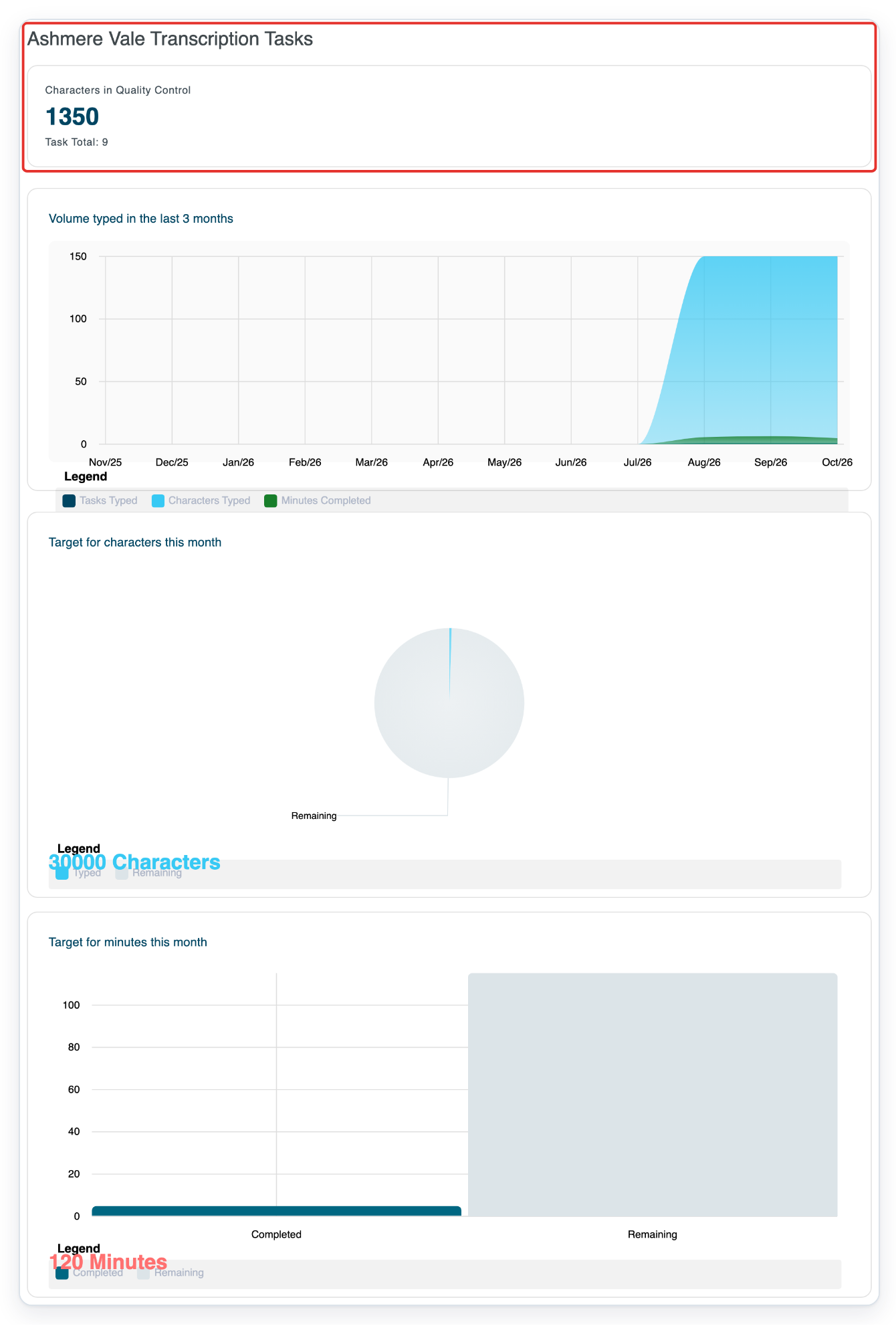
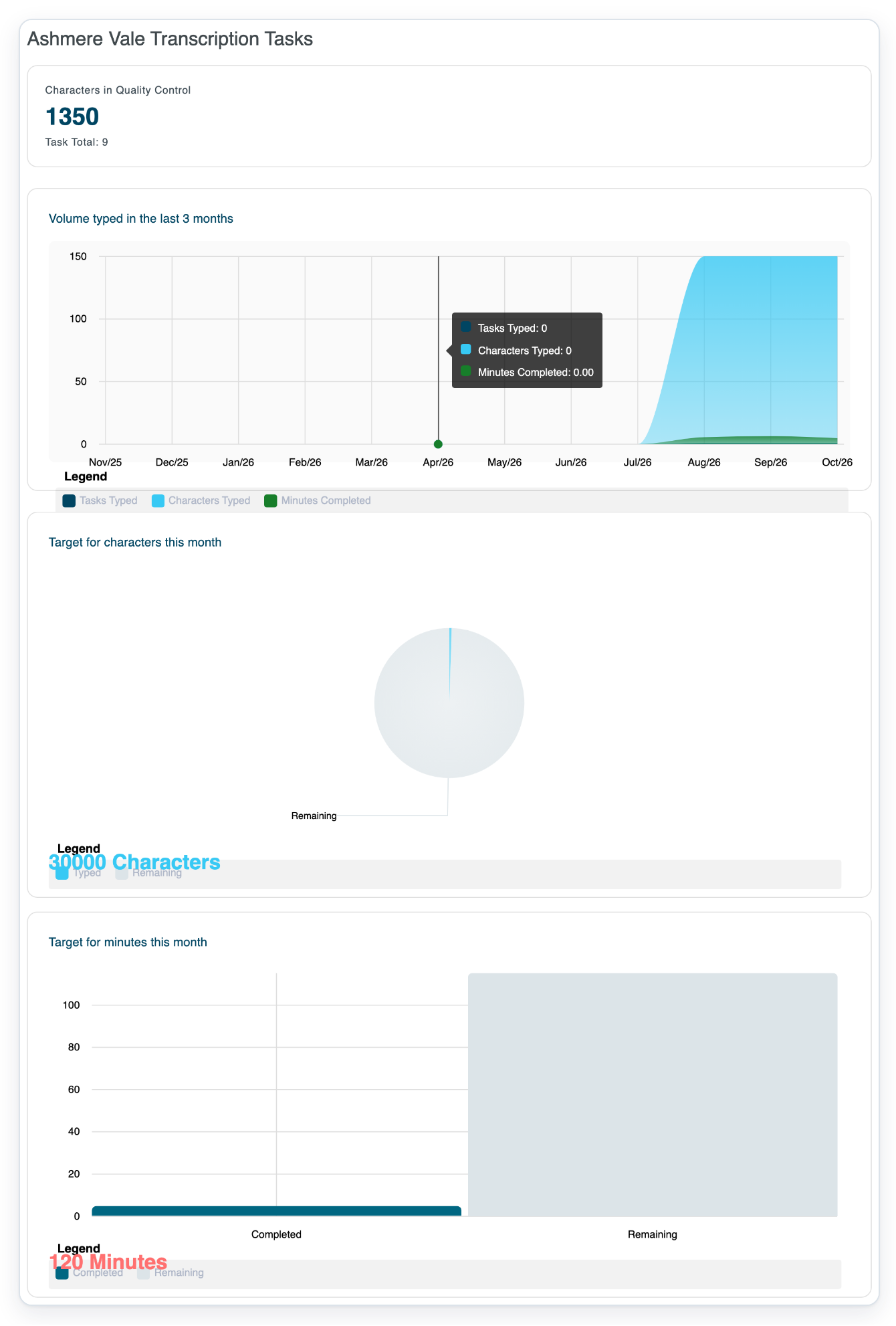
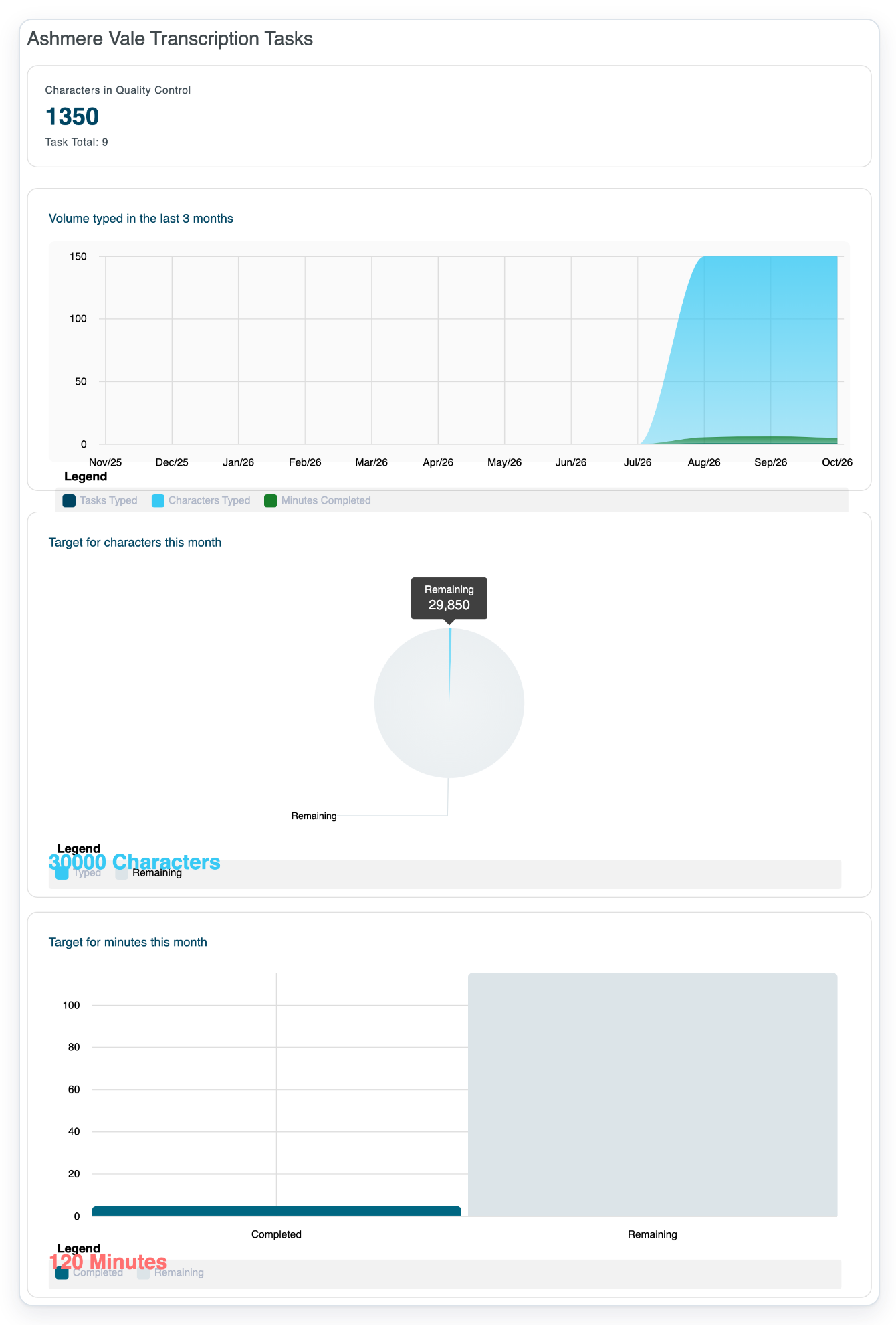
=> If you work at a transcription vendor, check Characters in Quality Control. This counts characters in your tasks waiting for quality control or being checked. Task Total: shows how many tasks this covers.
Your typing activity appears below. Target for characters this month compares Typed characters with Remaining characters. Your monthly character target appears below the chart.
Scroll down to Target for minutes this month. It compares Completed audio minutes with Remaining minutes. Your monthly minute target appears below the chart.
Hover over a month in Volume typed in the last 3 months.
The chart shows Tasks Typed, Characters Typed and Minutes Completed for each month.
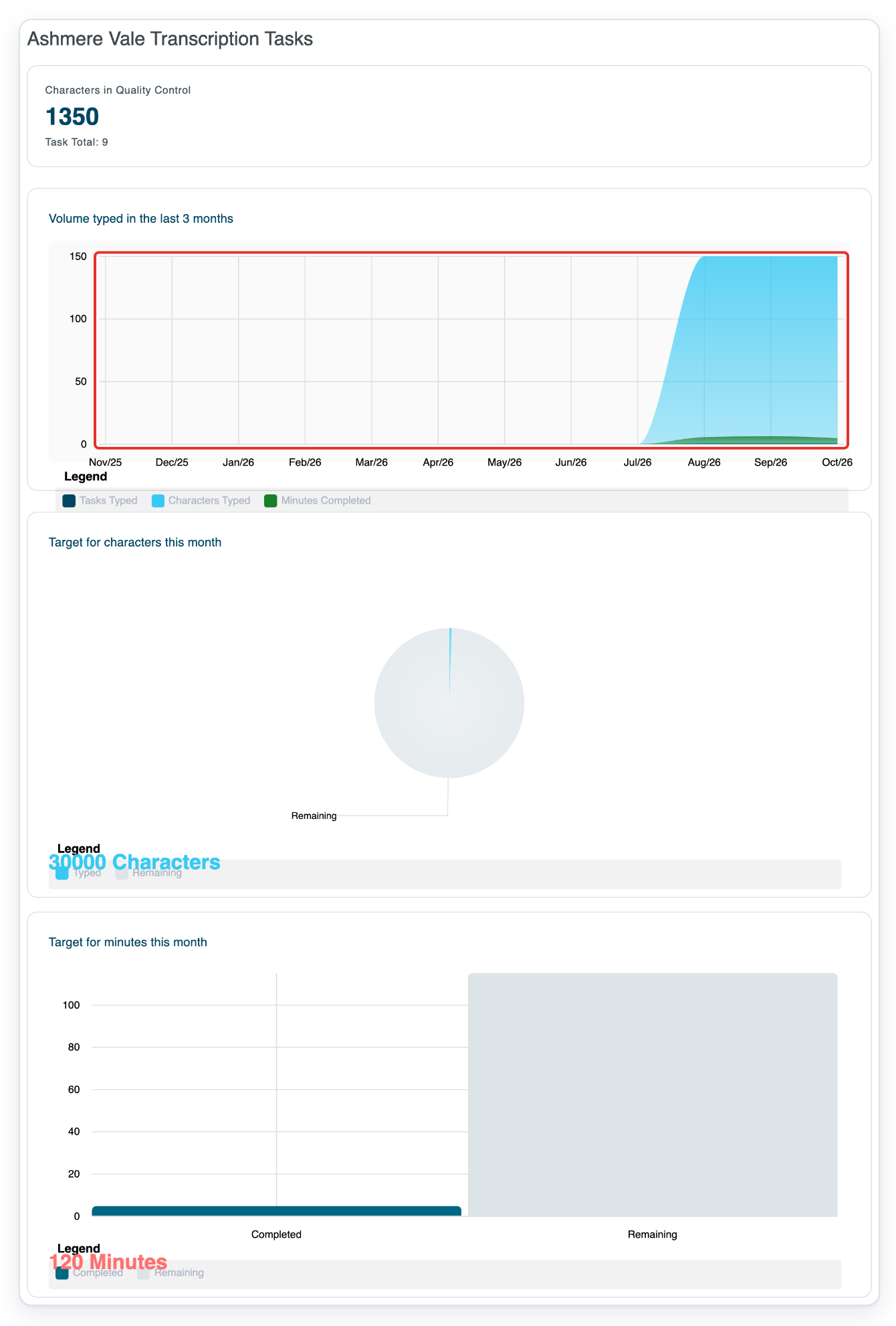
=> A tooltip shows the month's task count, character count and completed audio minutes.
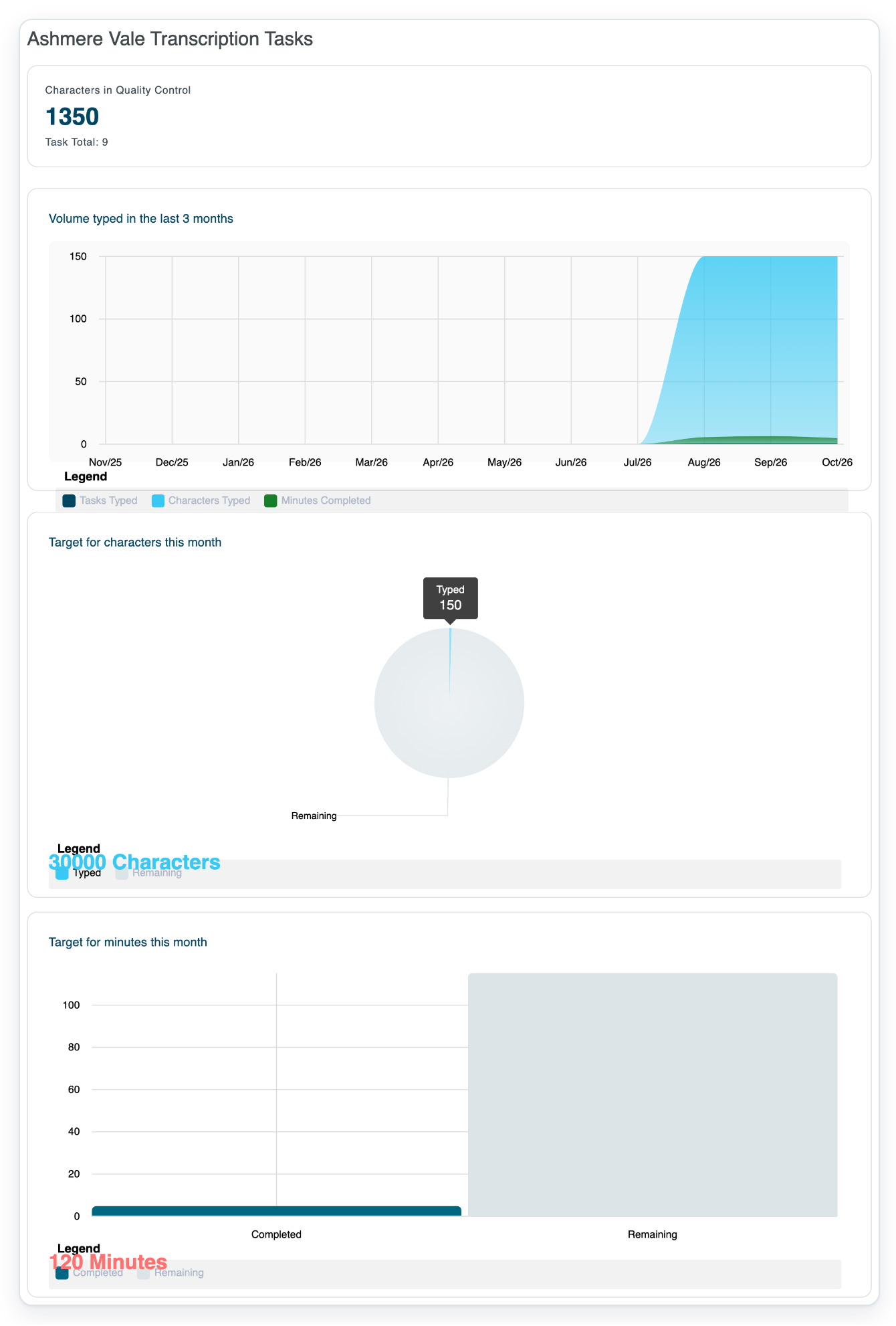
Hover over the Typed segment in Target for characters this month.
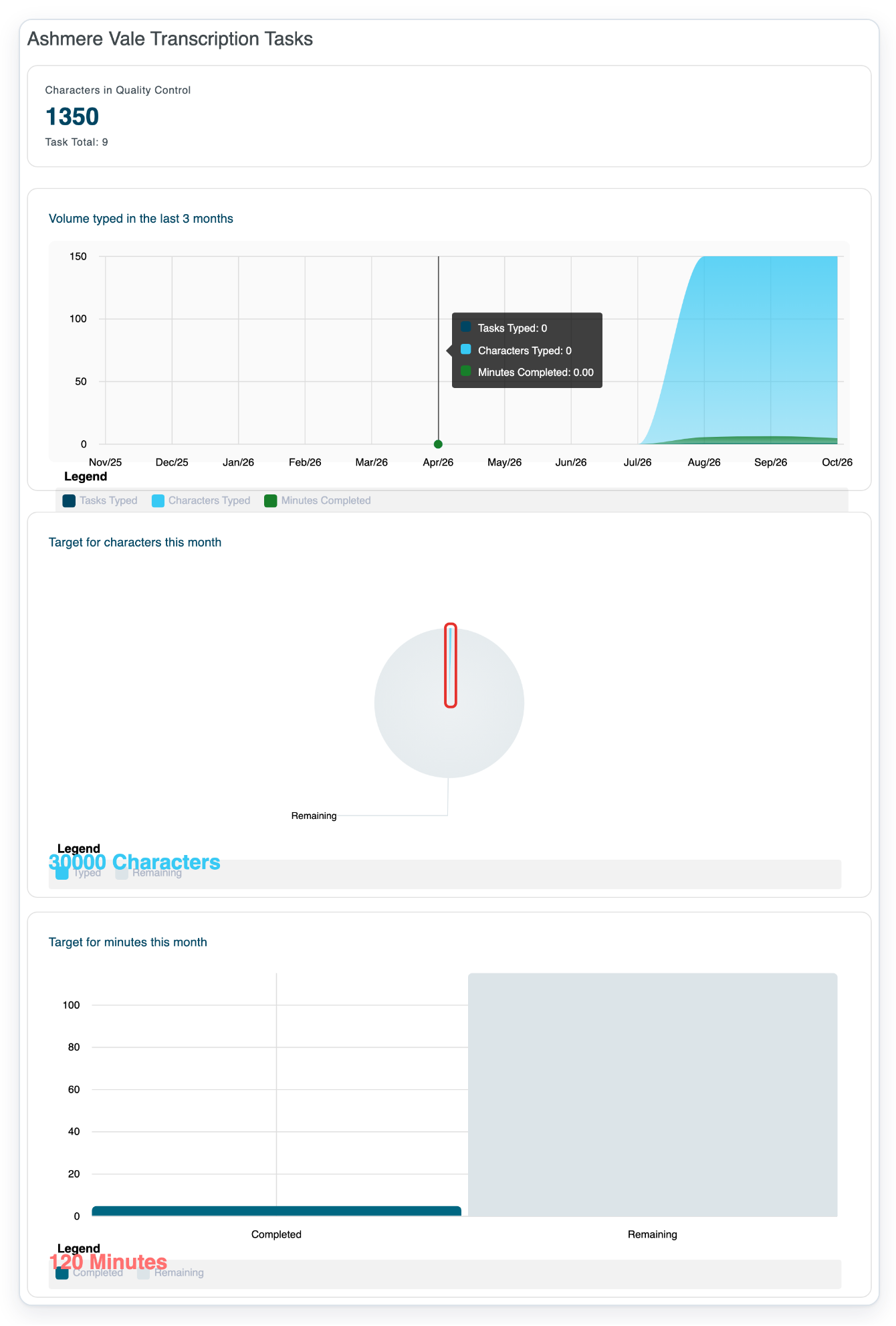
=> The tooltip shows your exact Typed character count.
Hover over the Remaining segment in Target for characters this month.
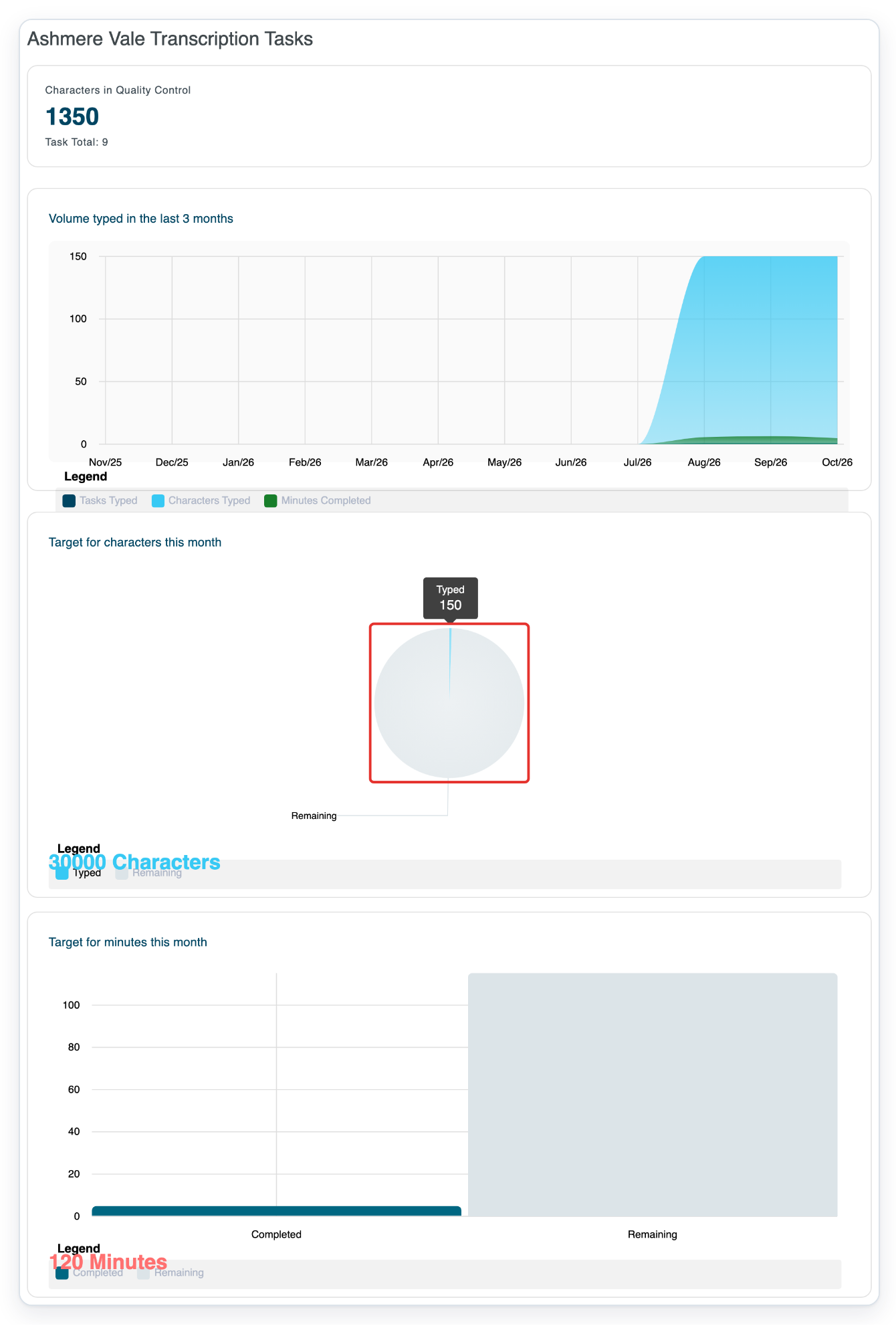
=> The tooltip shows the exact Remaining character count needed to reach your monthly target.
As a manager
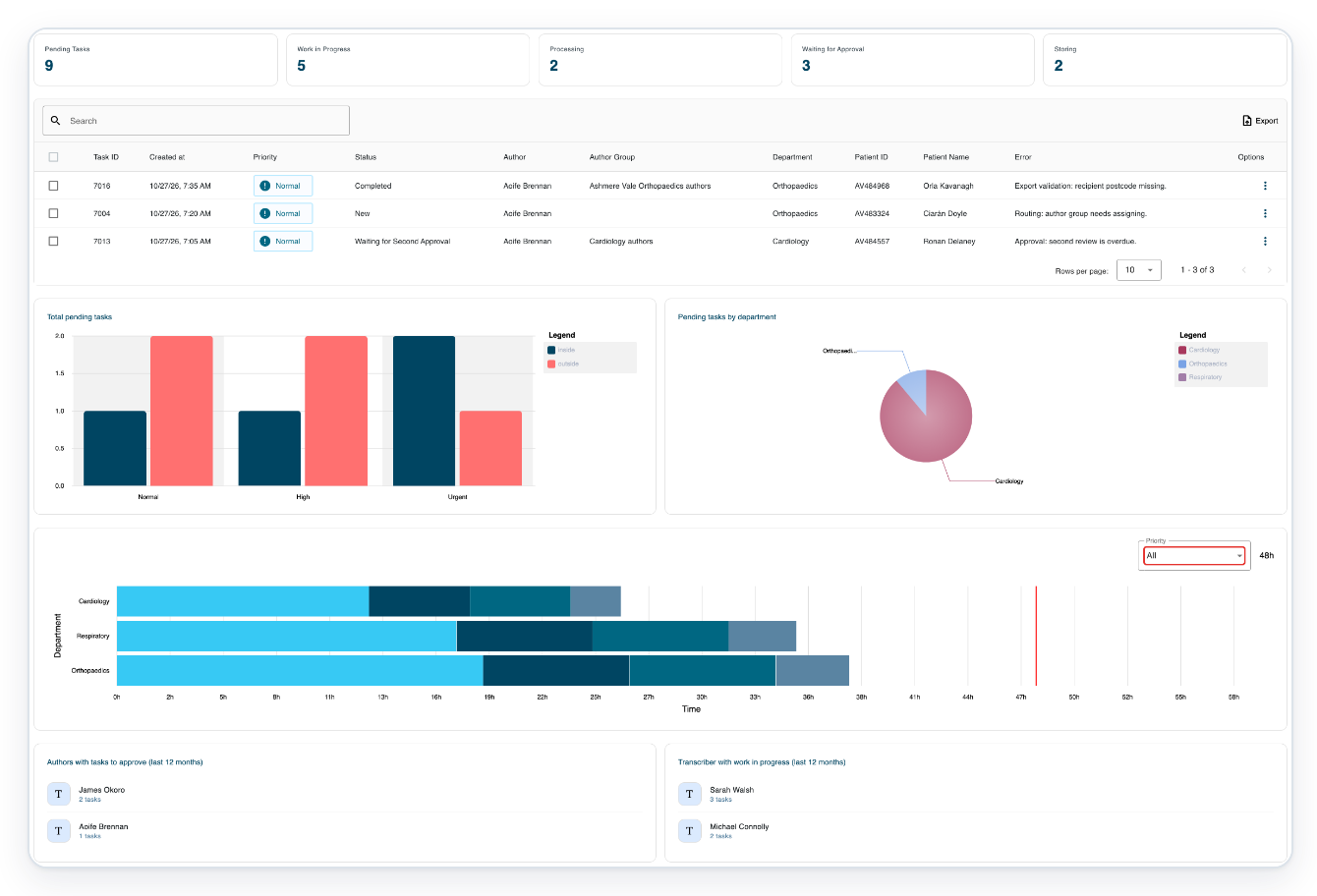
On your Dashboard, check the workload cards and pending-work charts. Open Priority above the department turnaround bars.
Your workload cards show Pending Tasks, Work in Progress, Processing, Waiting for Approval and Storing.
Pending tasks include work waiting for speech recognition, transcription or editing. Work in progress covers typing, editing, review, processing and storing. Approval includes first and second approval. Processing and storing counts include tasks waiting for each stage and tasks already at that stage.
Total pending tasks groups tasks waiting for transcription by priority. inside means tasks are within the turnaround target; outside means they have passed it. Pending tasks by department shows which departments have this work.
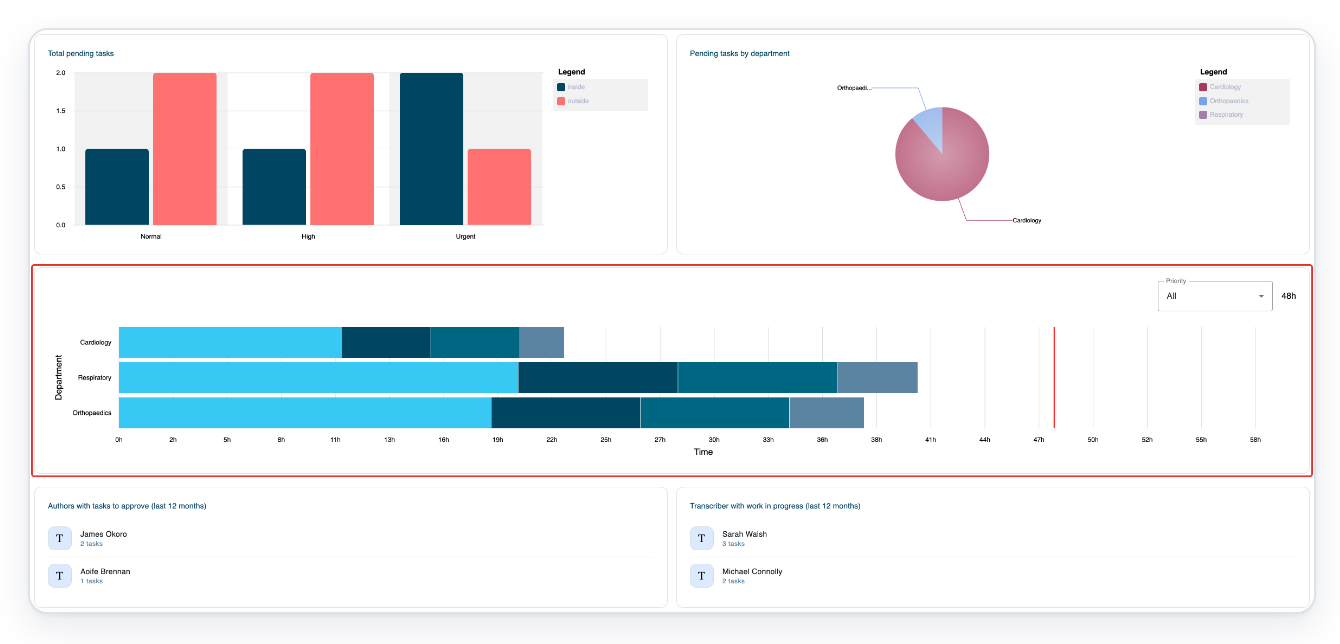
The bars show average time spent in transcription, processing, approval and storing. With All selected, the target marker uses the normal-priority target.
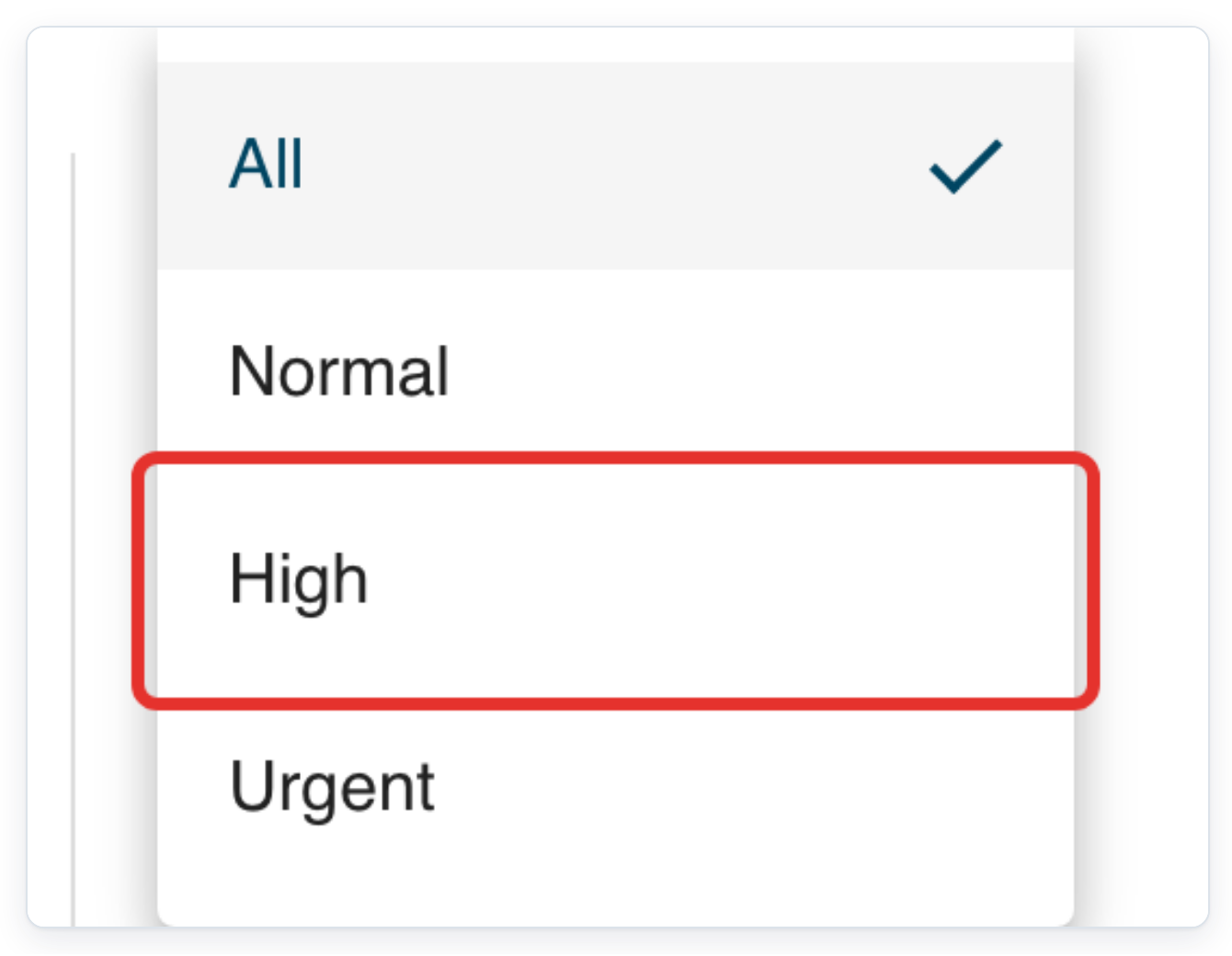
Choose High. The turnaround chart reloads.
The choices are All, Normal, High and Urgent. The turnaround target appears beside the selector.
=> After the chart reloads, Priority shows All again. In this example, 48h appears beside it.
Scroll down to Authors with tasks to approve (last 12 months). Then find Transcriber with work in progress (last 12 months). Each list shows staff names and how many outstanding tasks they have.
As a master
Log in to T-Pro with your master credentials, then click Menu in the header.

Choose Dashboard from the navigation menu.
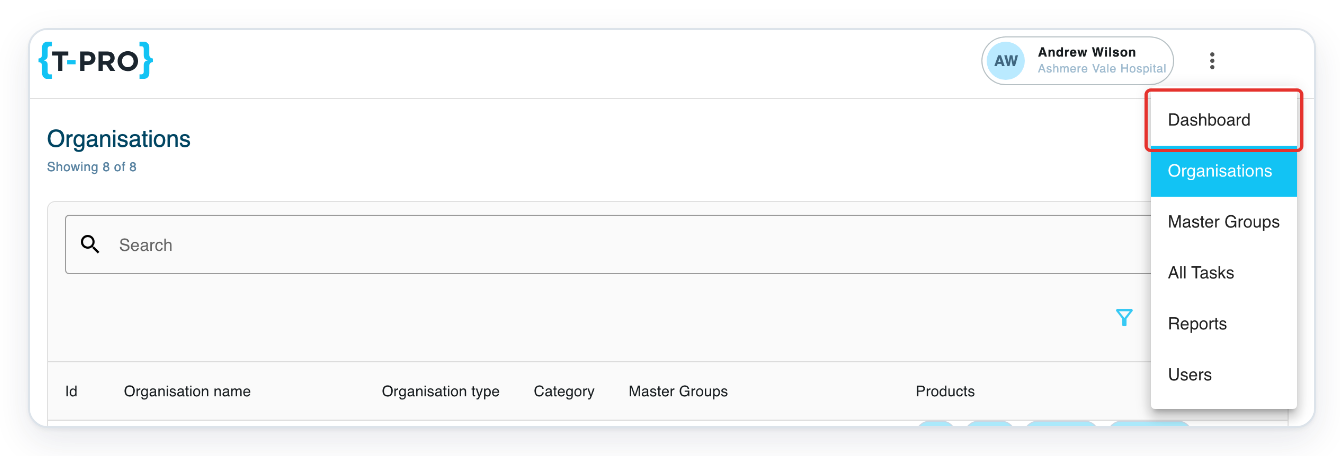
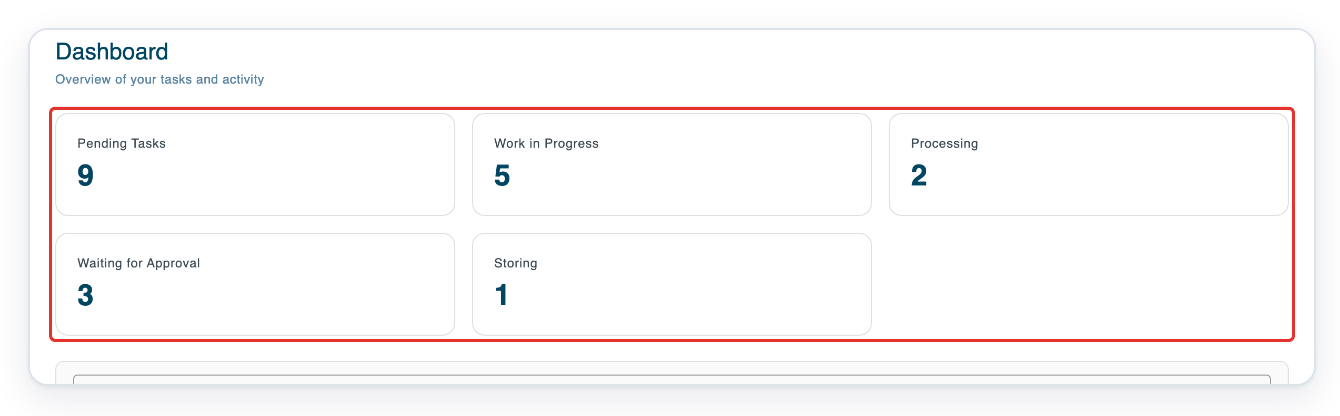
=> Your workload cards show Pending Tasks, Work in Progress, Processing, Waiting for Approval and Storing for organisations you can access.
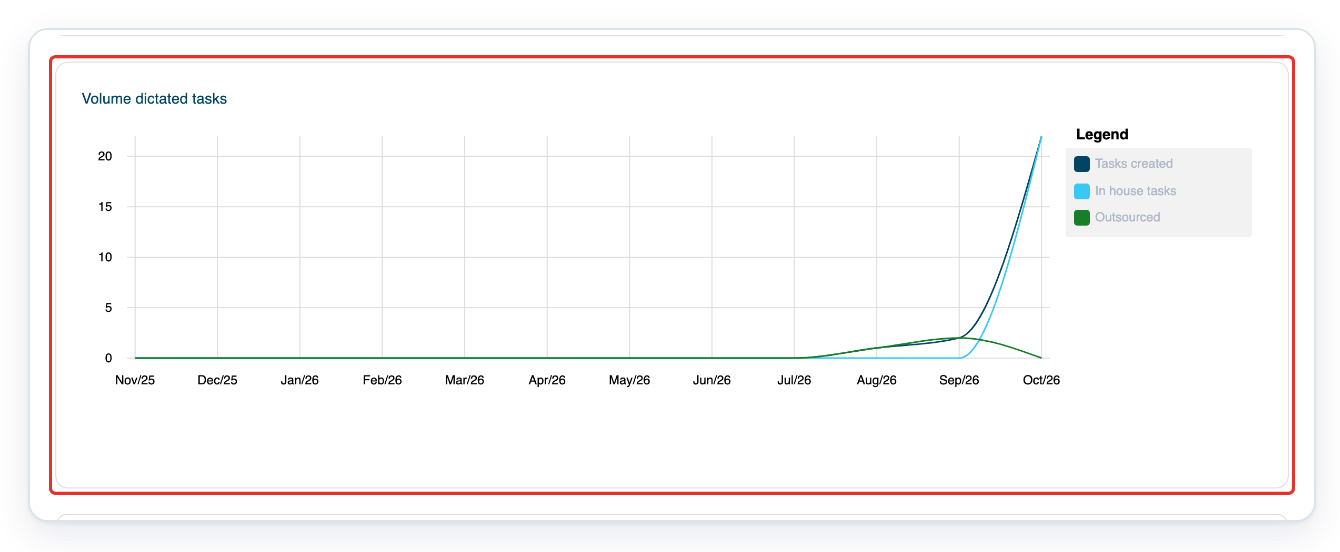
=> Scroll to Volume dictated tasks. The chart shows monthly Tasks created, In house tasks and Outsourced work.
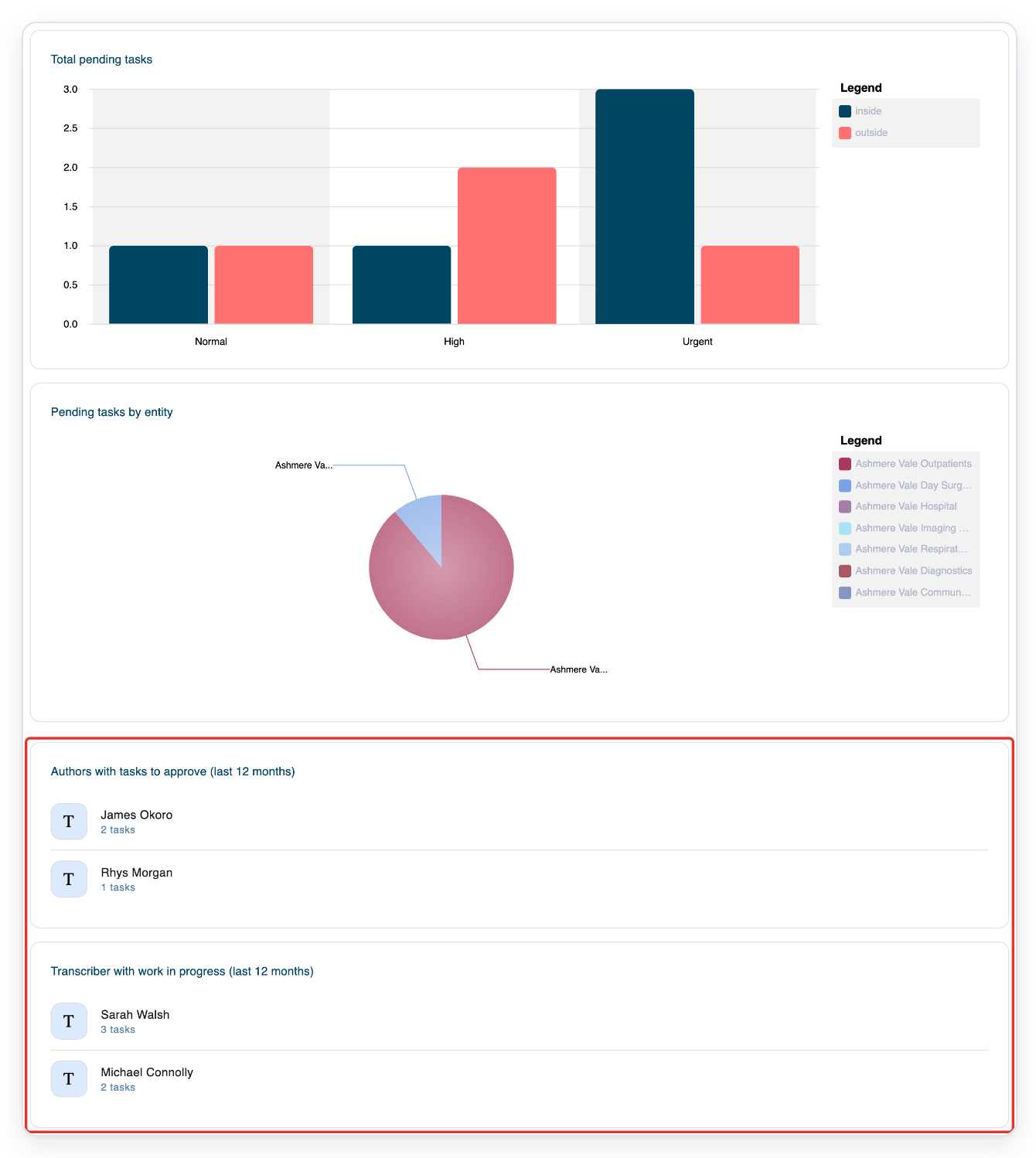
=> Check Total pending tasks by priority and Pending tasks by entity by organisation. Below them, check Authors with tasks to approve (last 12 months) and Transcriber with work in progress (last 12 months) for staff names and outstanding task counts.
As an admin
Log in to T-Pro with your admin credentials, then click Dashboard in the navigation bar.

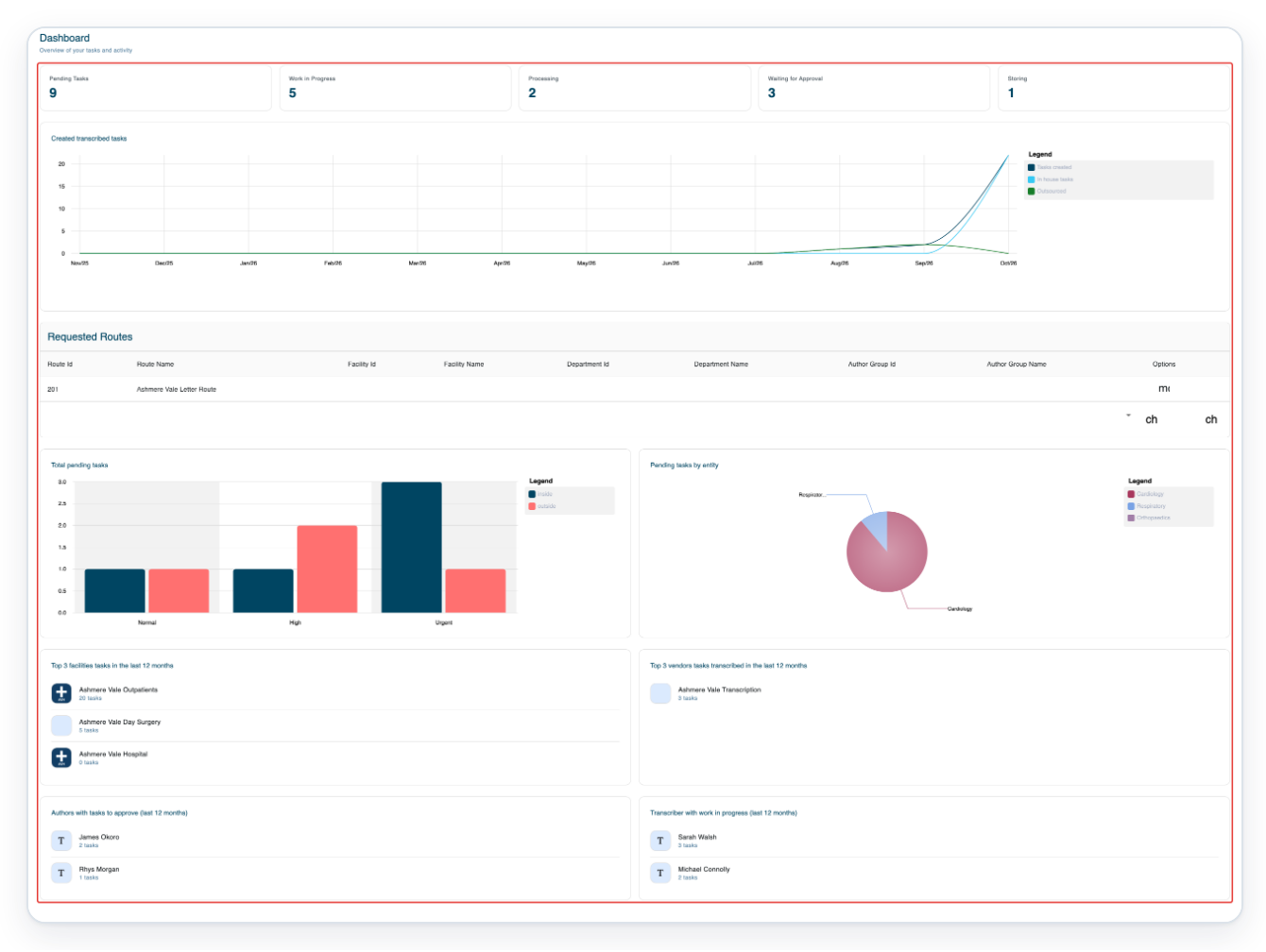
=> Check the workload cards, then Created transcribed tasks for monthly Tasks created, In house tasks and Outsourced work.
Requested Routes lists transcription route requests. Total pending tasks groups pending work by priority. Pending tasks by entity groups it by organisation.
Top 3 facilities tasks in the last 12 months and Top 3 vendors tasks transcribed in the last 12 months show organisation rankings and task counts. The lists below show authors awaiting approval and transcribers with work in progress.
NOTE:
- Some tasks count towards more than one workload card. Tasks being processed or stored also count towards Work in Progress.
- Monthly character and minute targets measure typing activity. Turnaround targets measure time for each priority.
- Facility editors and reviewers can follow the facility transcriber instructions. Vendor editors and reviewers can follow the vendor instructions. Both layouts share the typing chart and monthly-figure hover steps.
- Check Priority after the turnaround chart reloads. All uses the normal-priority target, so choosing High does not confirm that the displayed target is the high-priority target.
What you see on each dashboard
| Your account | Cards and charts |
|---|---|
| Transcriber at a facility | Workload for your work groups, the oldest task and your personal typing activity. Editors and reviewers share this layout. |
| Transcriber at a transcription vendor | Your character count and task total in quality control, plus your typing activity. Monthly character and minute targets, if set. |
| Manager | Workload cards, task notifications, pending-work charts, department turnaround figures and staff with outstanding work. |
| Master | Workload cards, task notifications, dictation volume over time, pending work by organisation and staff with outstanding work. |
| Admin | Workload cards, activity for tasks created and transcribed, and route requests. Pending work by organisation, facility and vendor rankings, and staff with outstanding work. |
Other places you can check workload
- If you are a master or admin, open Organisations, select a facility, then choose Overview. You can check its workload, pending-work charts and turnaround figures there.
- For a vendor, open its Overview. Workload comparisons labelled “from last week” show the percentage change. Positive percentages mean an increase; negative percentages mean a decrease.
Tip: Hover over the typing chart or a segment of the character-target chart to see exact figures.
Can't find what you need on the dashboard?
- A workload card is missing. Work in Progress and Waiting for Approval appear only when their totals are above zero. If you are a transcriber, ask your manager for pending or storing totals.
- A monthly typing target is missing. If you transcribe for a vendor, ask your manager, master or admin to check your performance targets. A target of zero hides its chart.
- Priority returns to All after you choose Normal, or the turnaround chart is blank. Contact our Helpdesk if you need figures for a particular priority or cannot see the chart.
- You cannot find Edit Targets as a manager. Ask a master or admin to change your facility's turnaround targets through its Overview.
- A vendor Overview comparison shows --%. Use the current total. The percentage may be unavailable if the earlier count was zero.
Related articles
If you have any more queries, please do not hesitate to contact our Helpdesk or support@tpro.io.
© 2020 - 2026