
Before you start
You need a T-Pro account with access to the task. Open the letter at a stage where you can edit it.
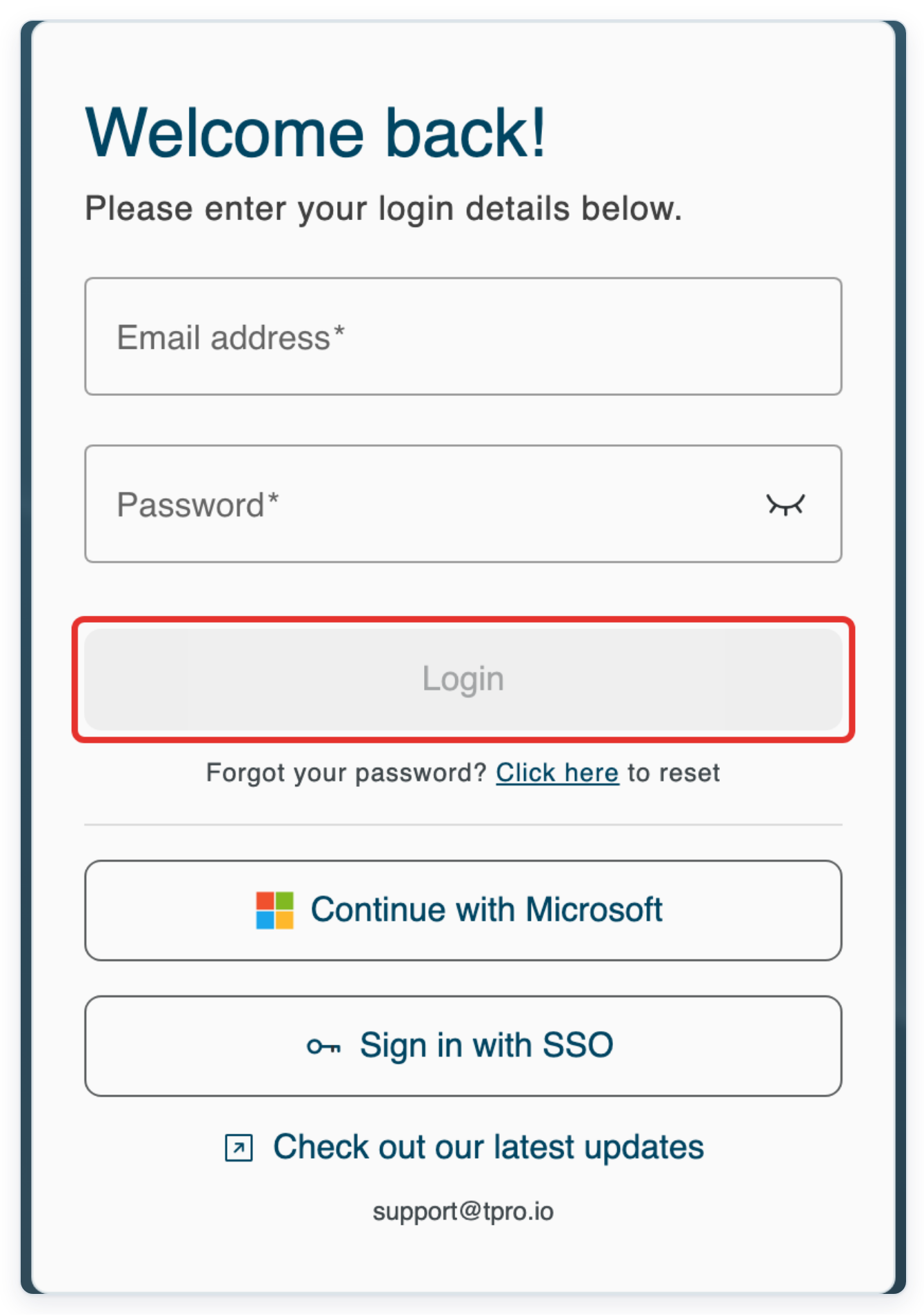
Log in to T-Pro with your transcriber credentials.
As a transcriber
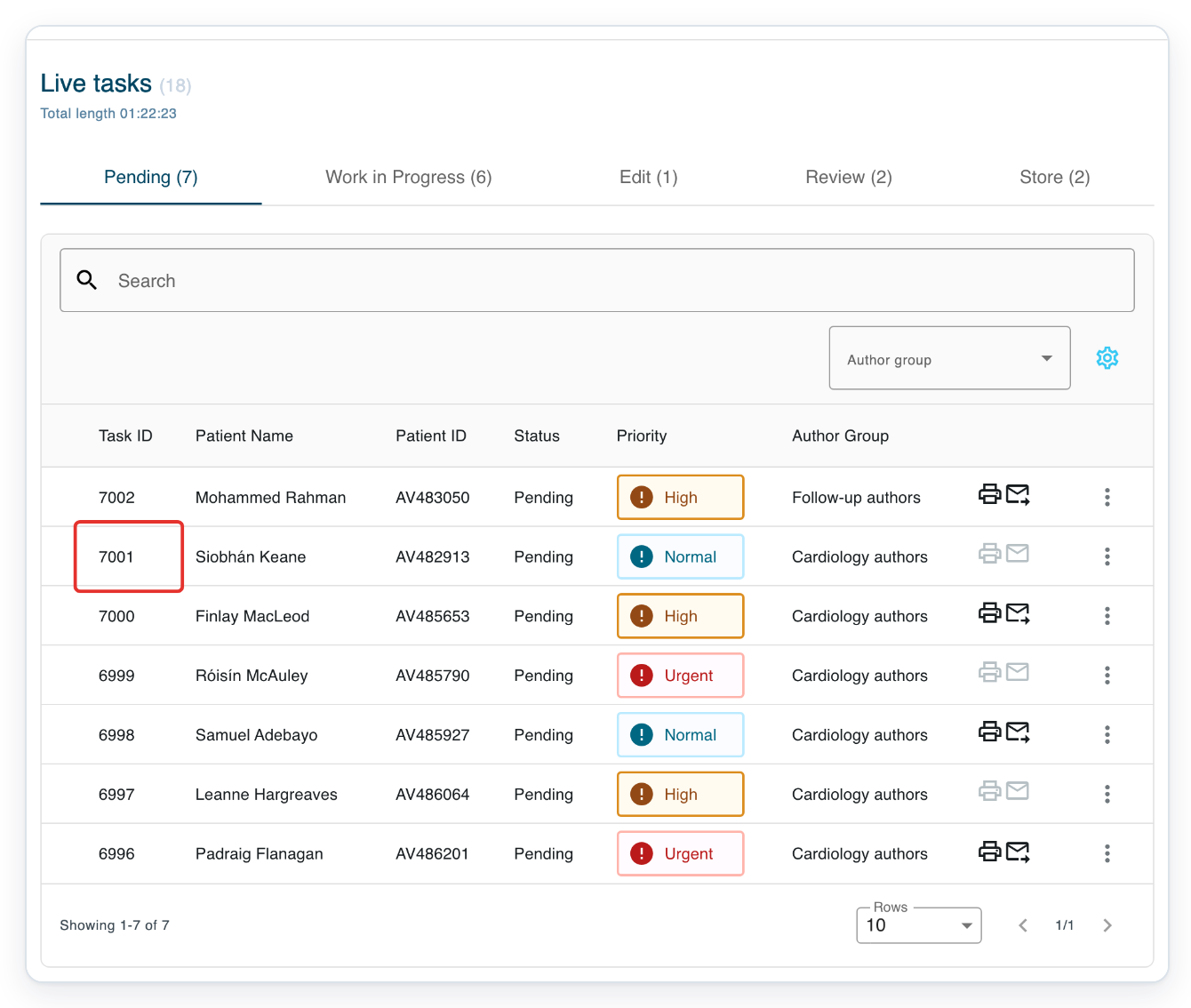
In Live tasks, open Pending, then click the task ID to open its letter. In this example, click 7001 for Siobhán Keane.
Check the patient’s name and ID before you begin. Opening a pending task for transcription moves it to Work in Progress.
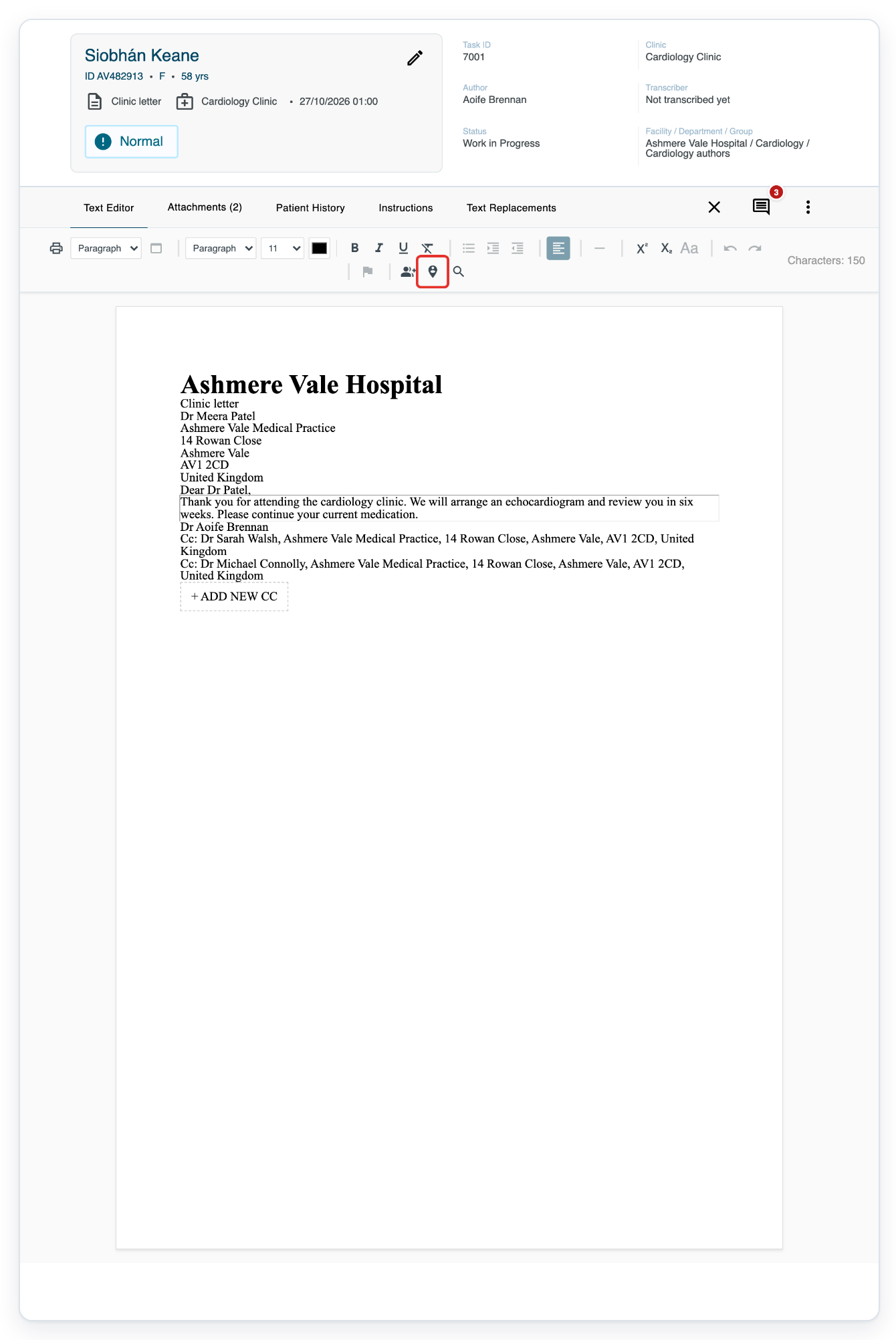
The header shows the patient, template, priority and task details. A deceased patient has a deceased indicator.
Click Configure Recipient, the location pin in the toolbar, to choose the main recipient.
Open Patient History to see earlier letters, or Text Replacements to find typing shortcuts. Instructions appears when the template has instructions.
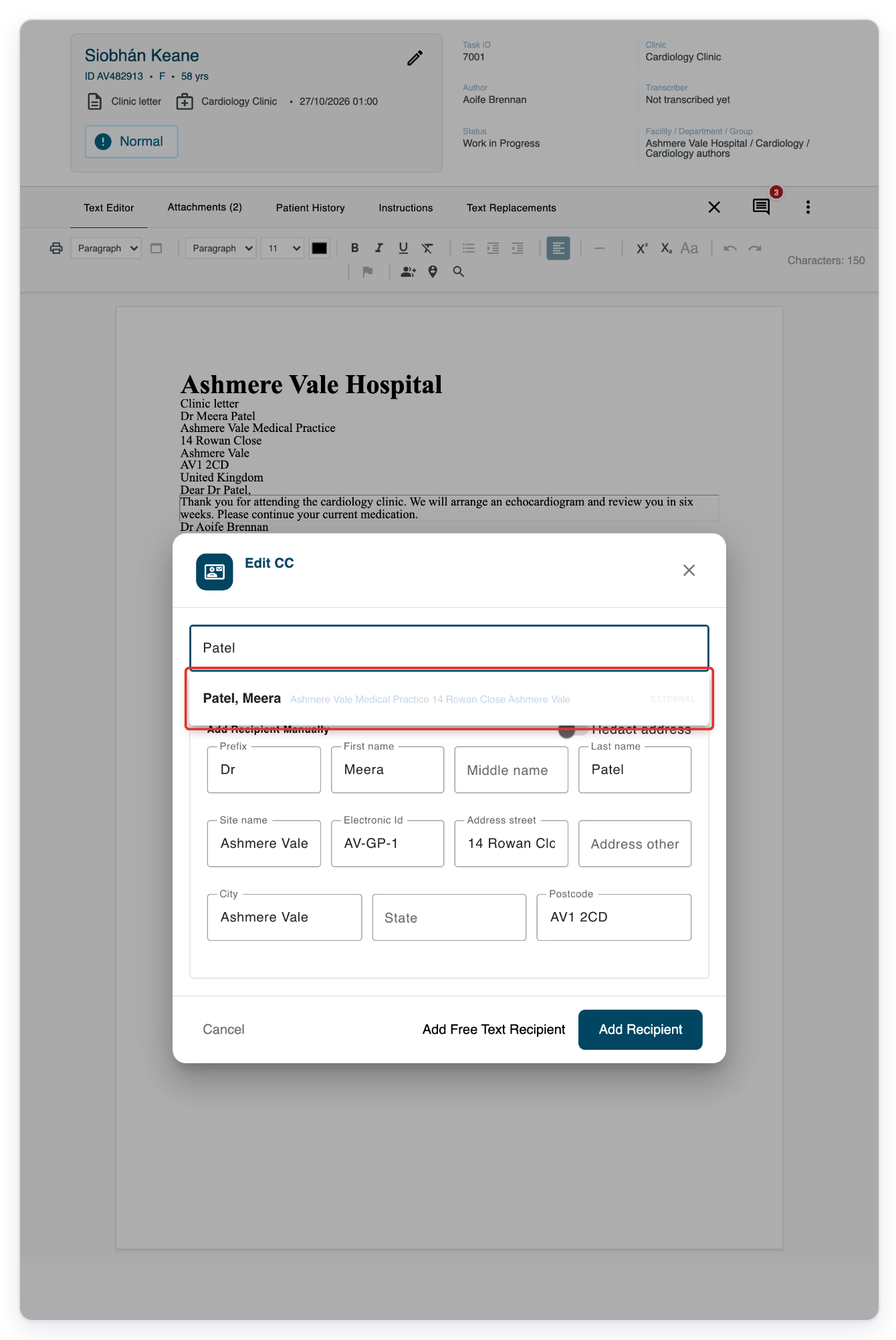
Click Type to search address book and type Patel.
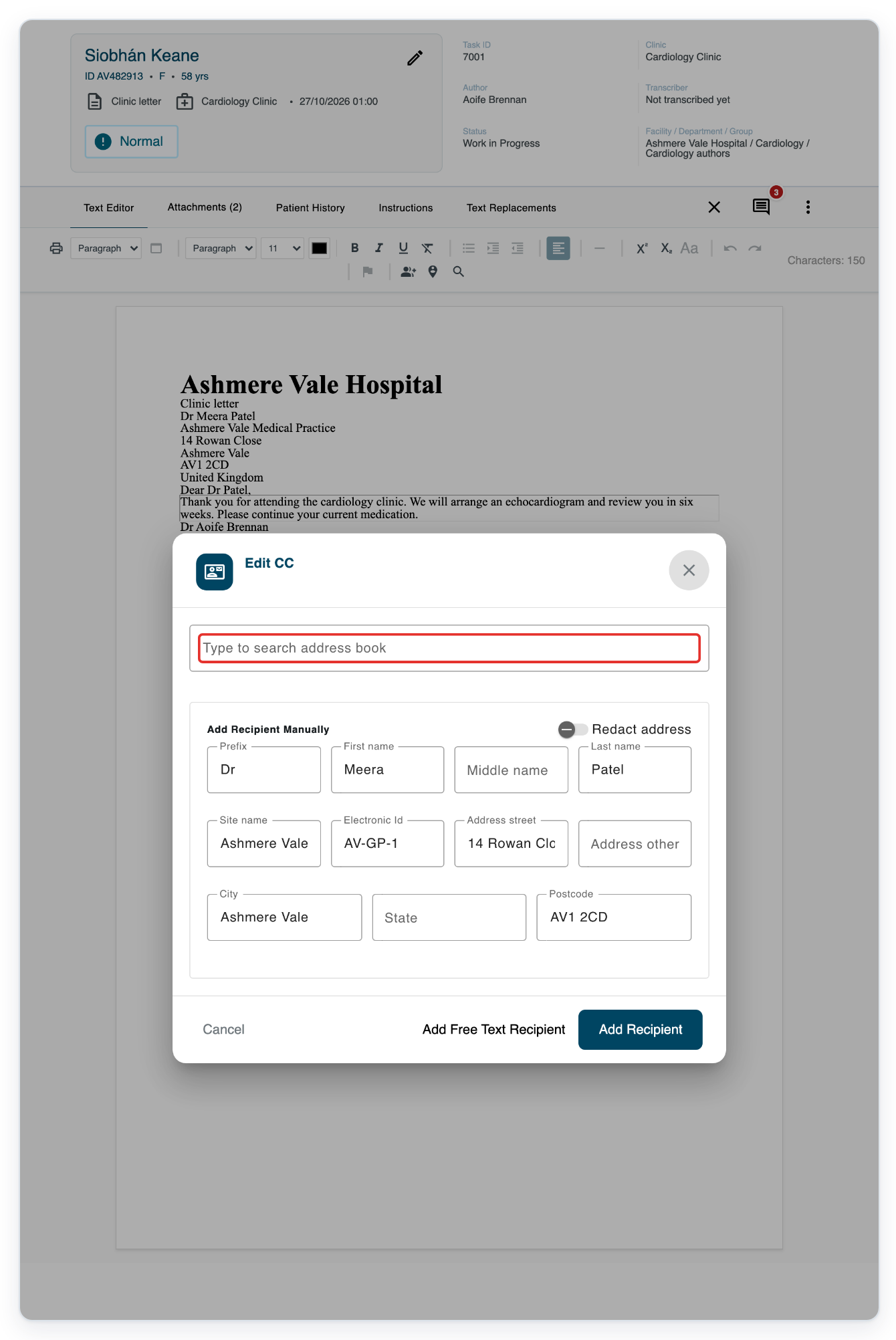
Select Meera Patel from the address suggestions.
Check the practice and address beside the name before selecting.
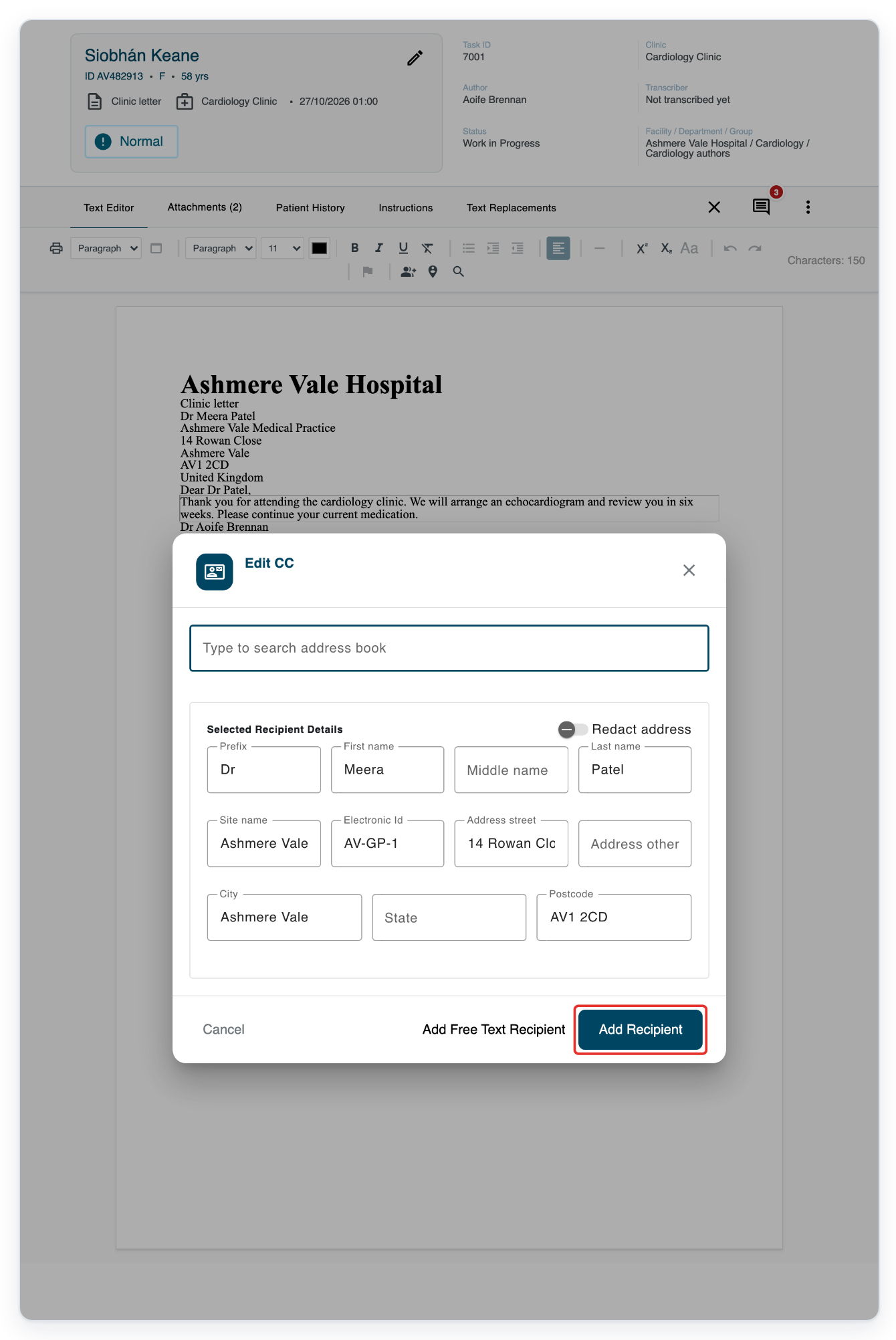
Click Add Recipient to apply the selected GP address to the letter.
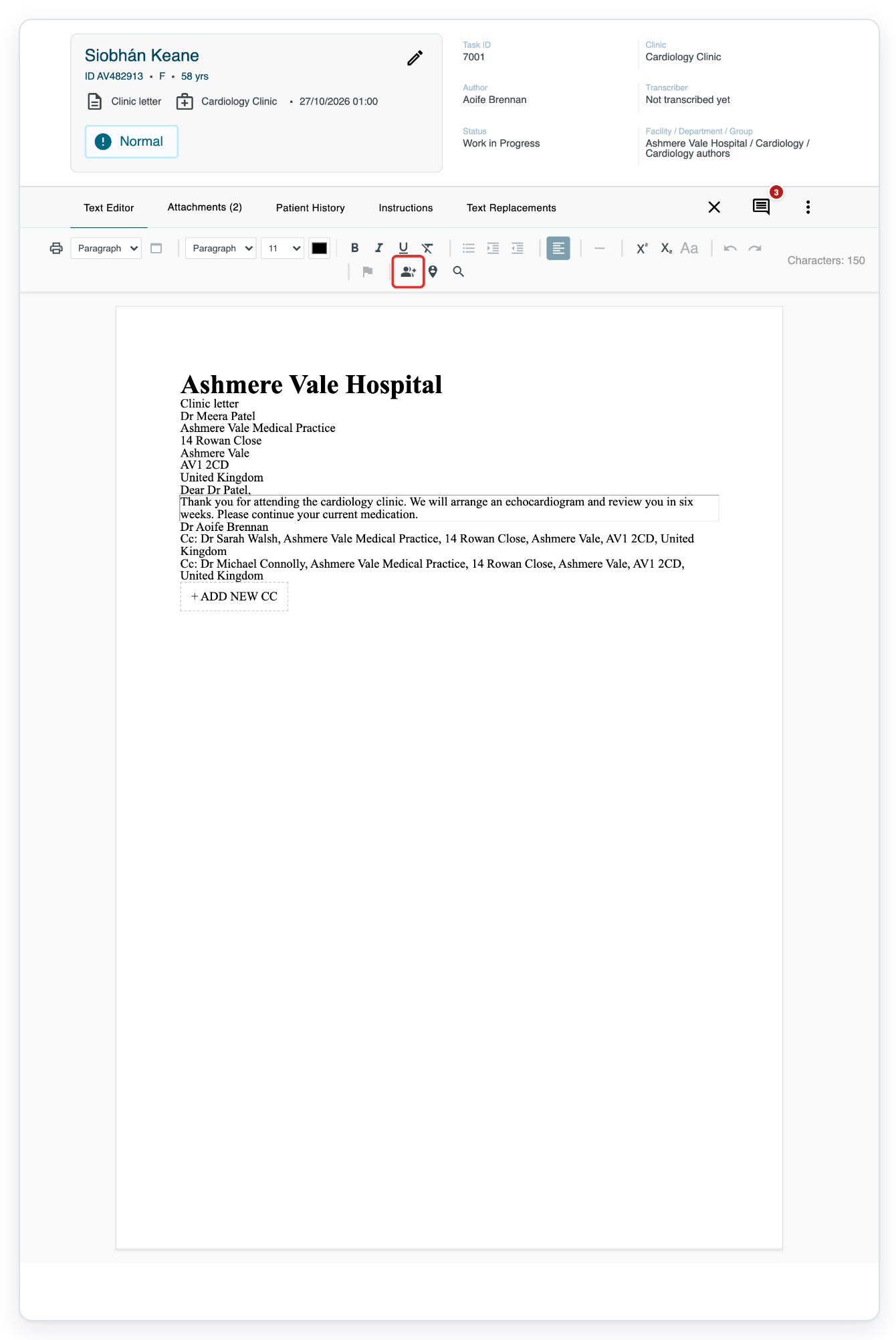
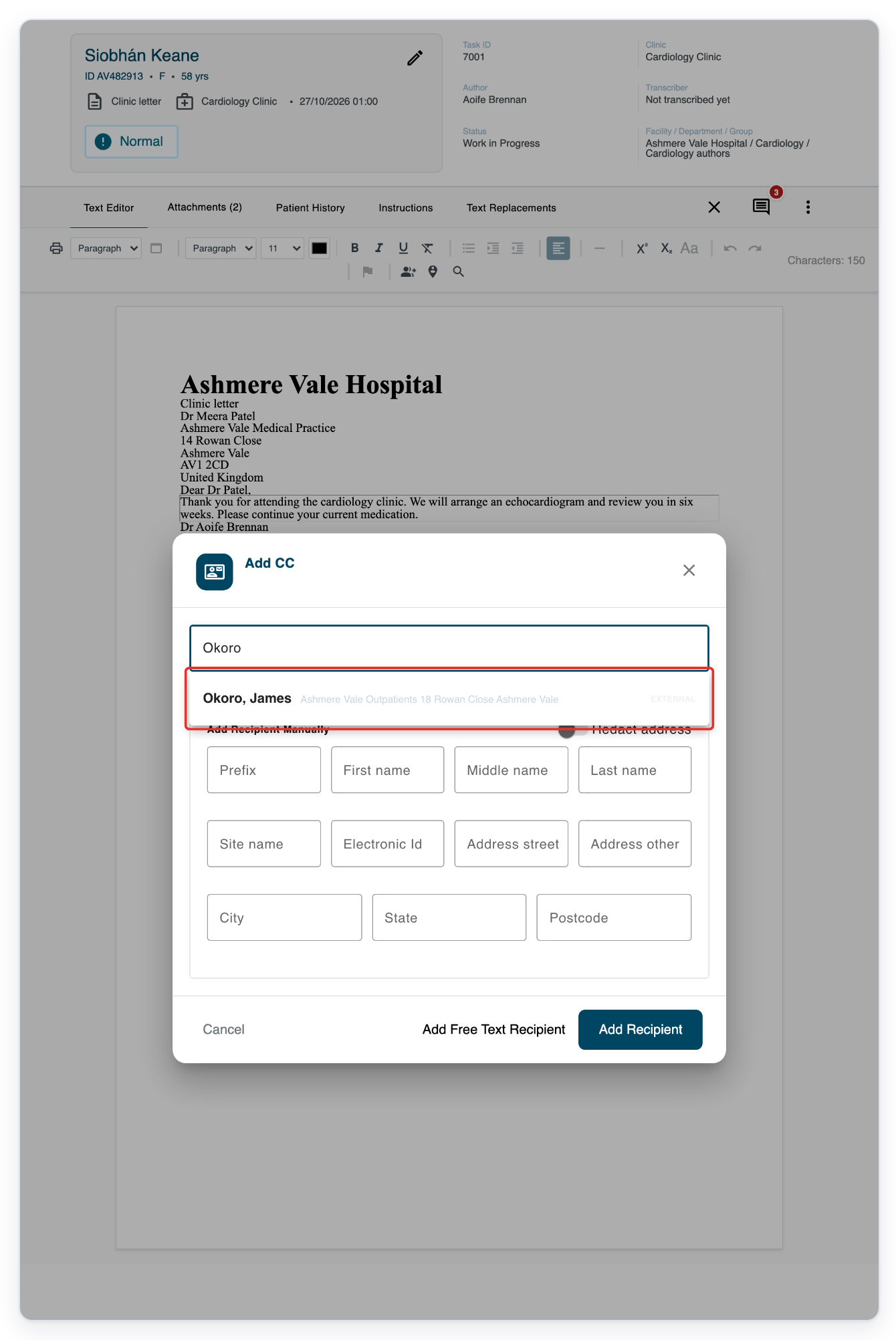
Click Configure List of CCs, the person with a plus in the toolbar, to add a copy recipient.
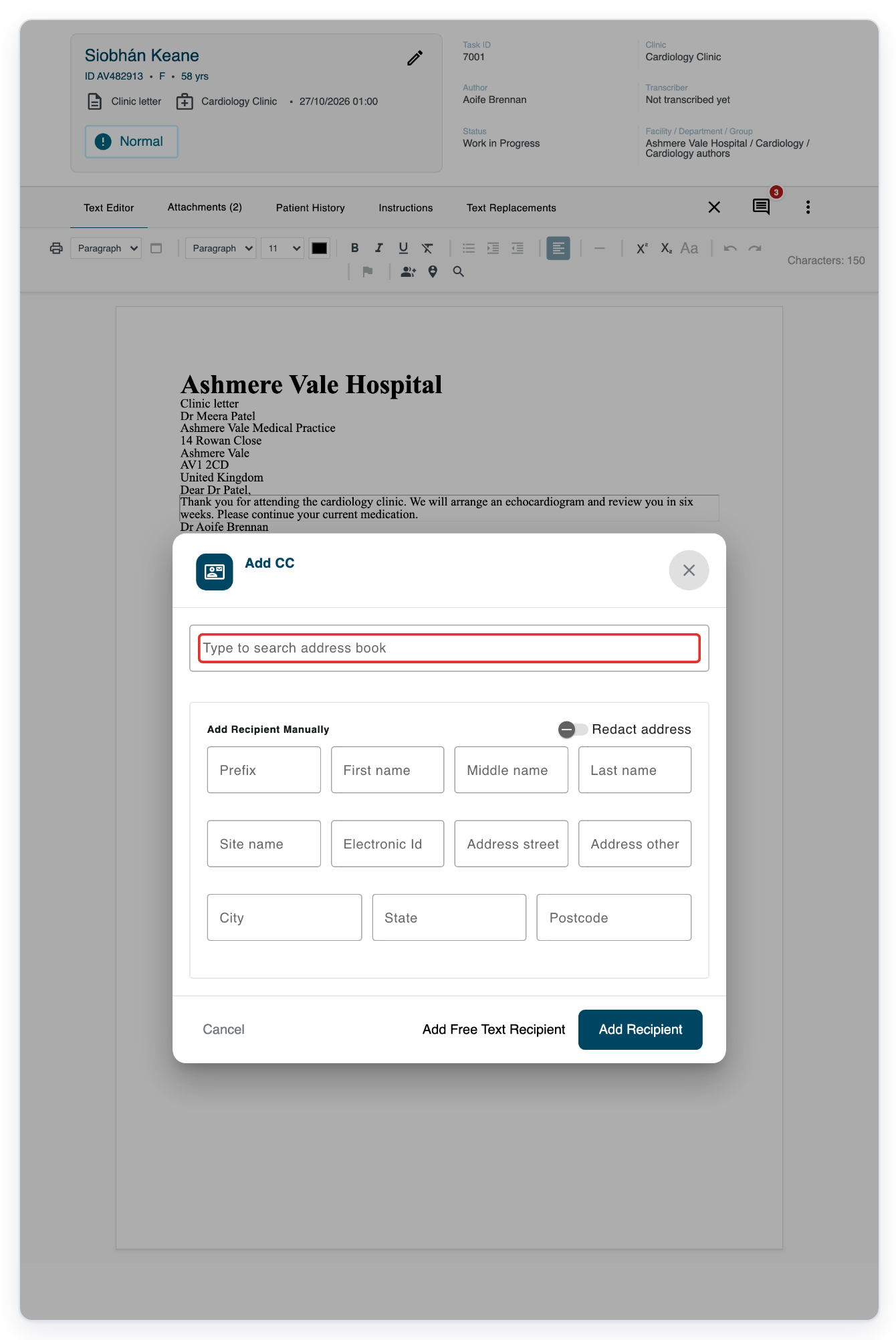
Click Type to search address book and type Okoro to find Dr James Okoro.
Select James Okoro from the suggestions. The dialog offers Add Recipient to apply your selection.
As an author
Using your author account, open Live tasks. Click Author in Progress to find your drafts.
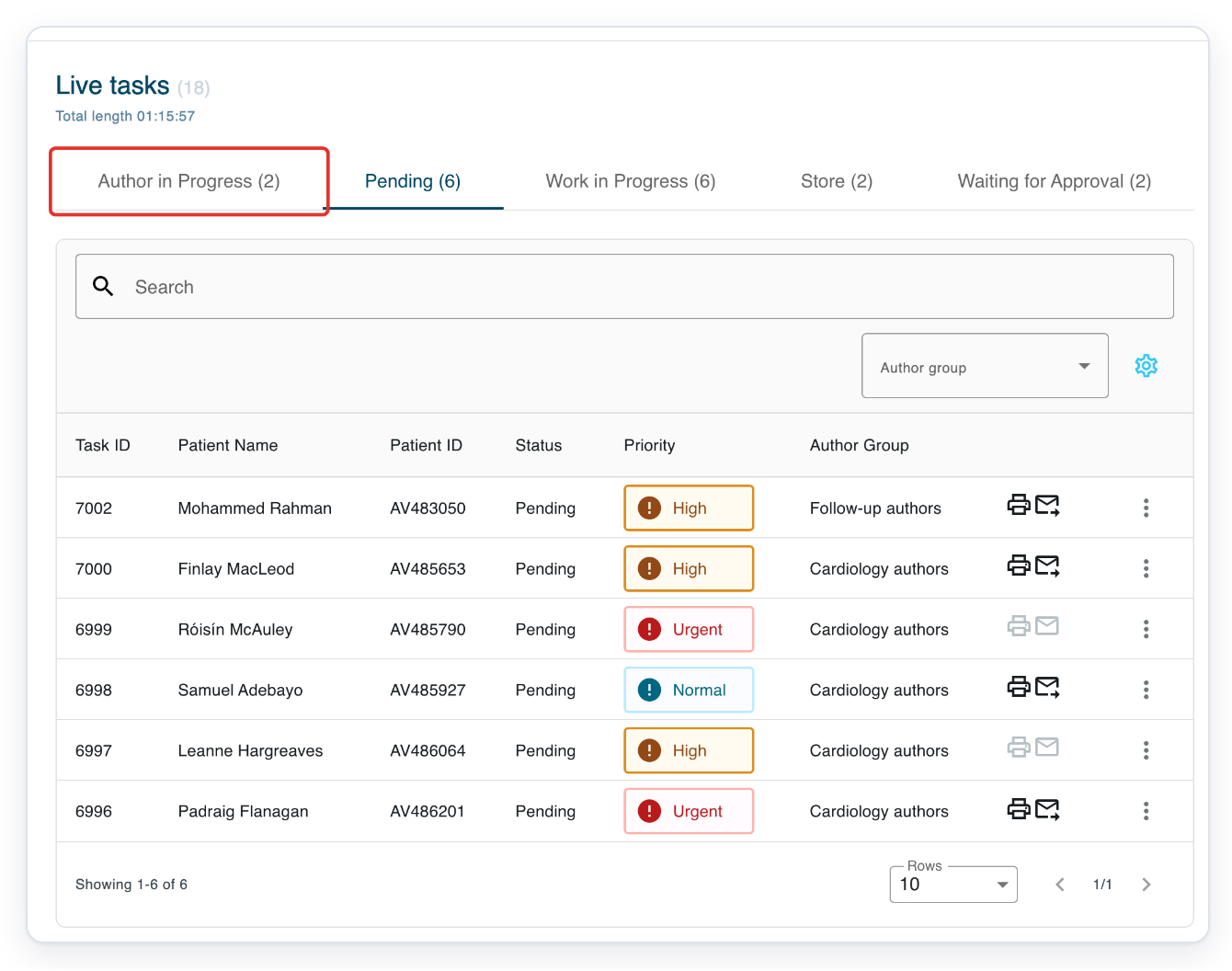
Click the task ID to open your draft in Text Editor. In this example, click 7001 for Siobhán Keane.
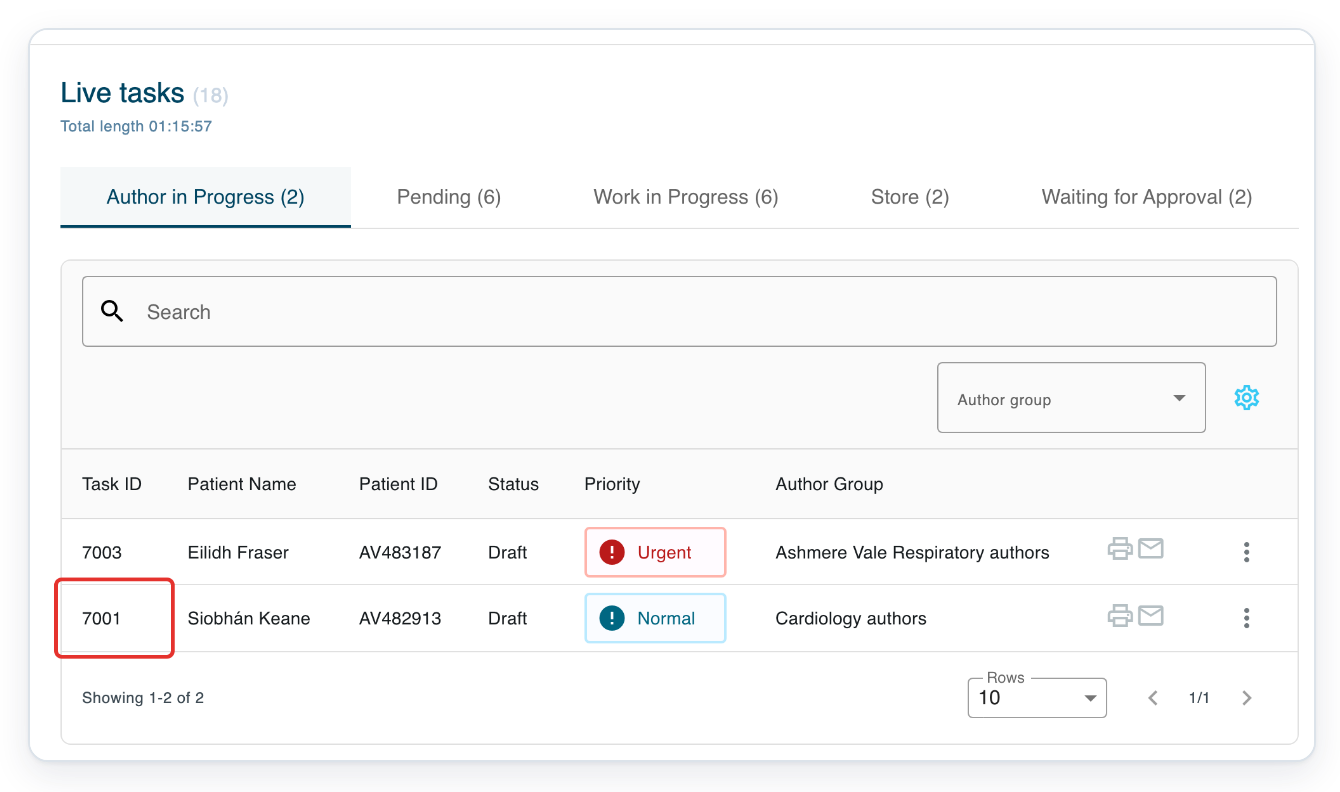
Click in the part of the letter you can edit and start typing. To try the example shortcut, finish with avclinic followed by one space.
Use the toolbar above the letter to format your text.
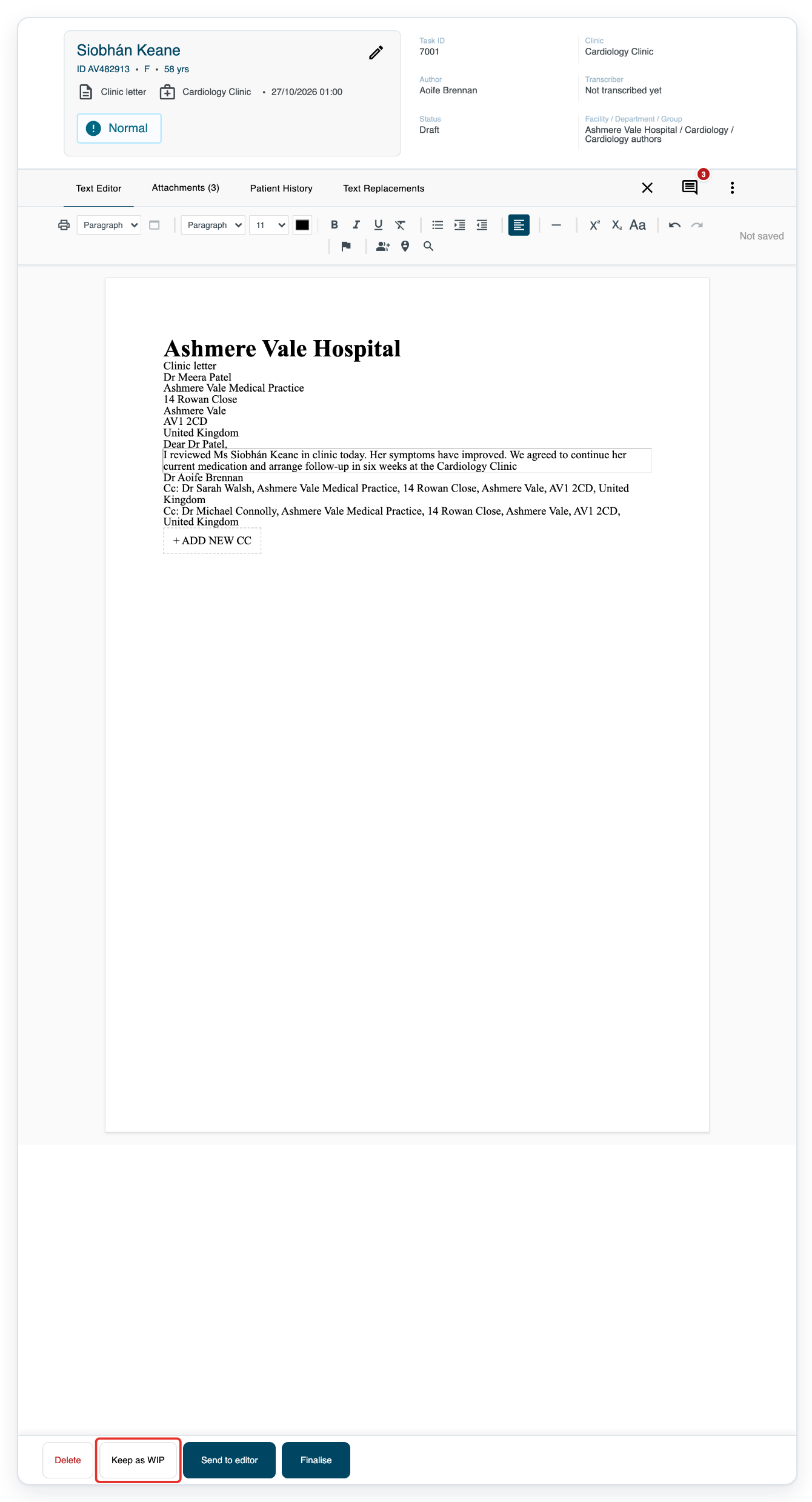
Below the letter, Keep as WIP saves your draft. Send to editor sends it for transcription or editing. Finalise skips those stages.
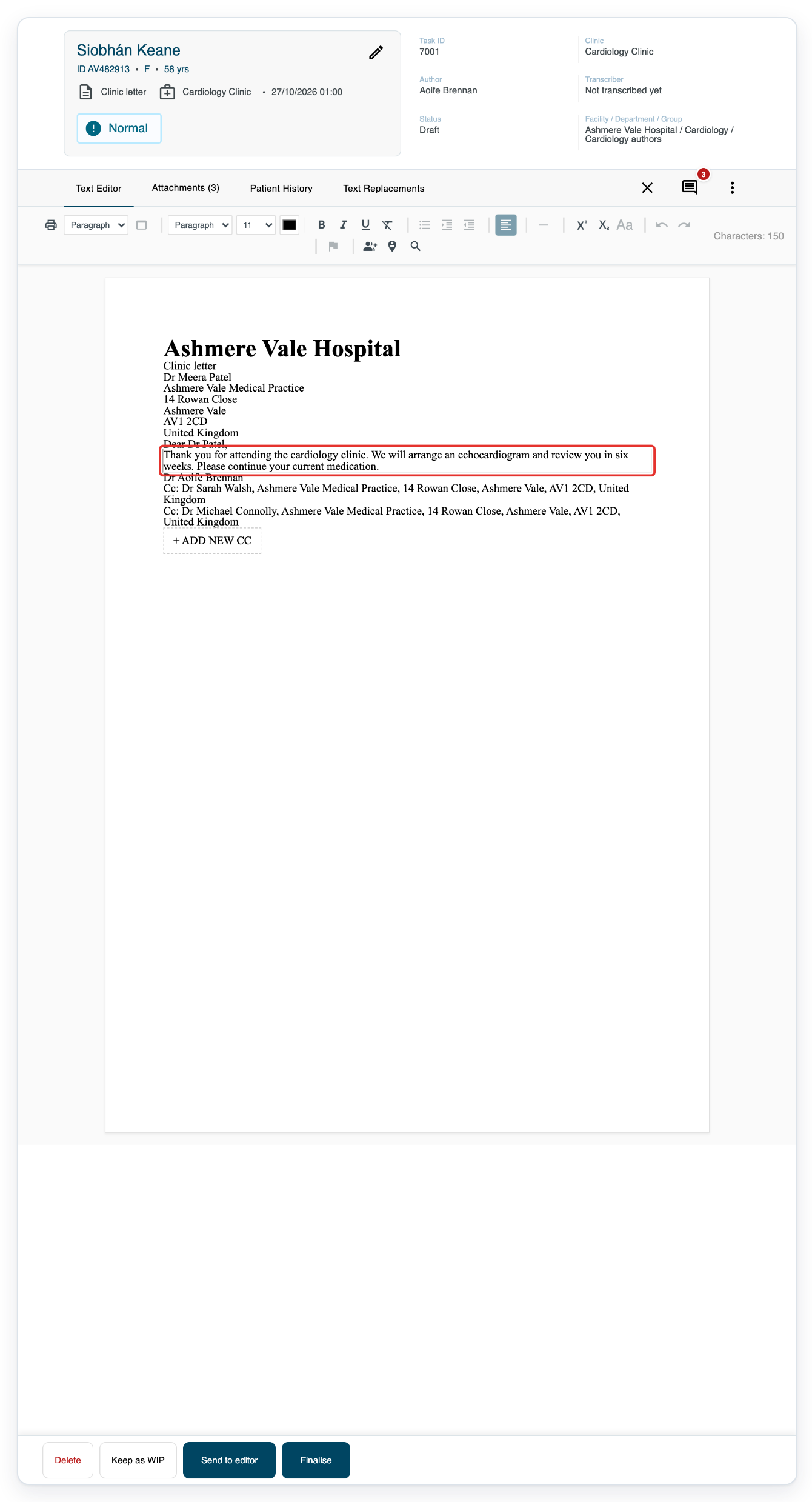
Press a second space after avclinic to insert Cardiology Clinic.
This example uses a shortcut already set up for the author.
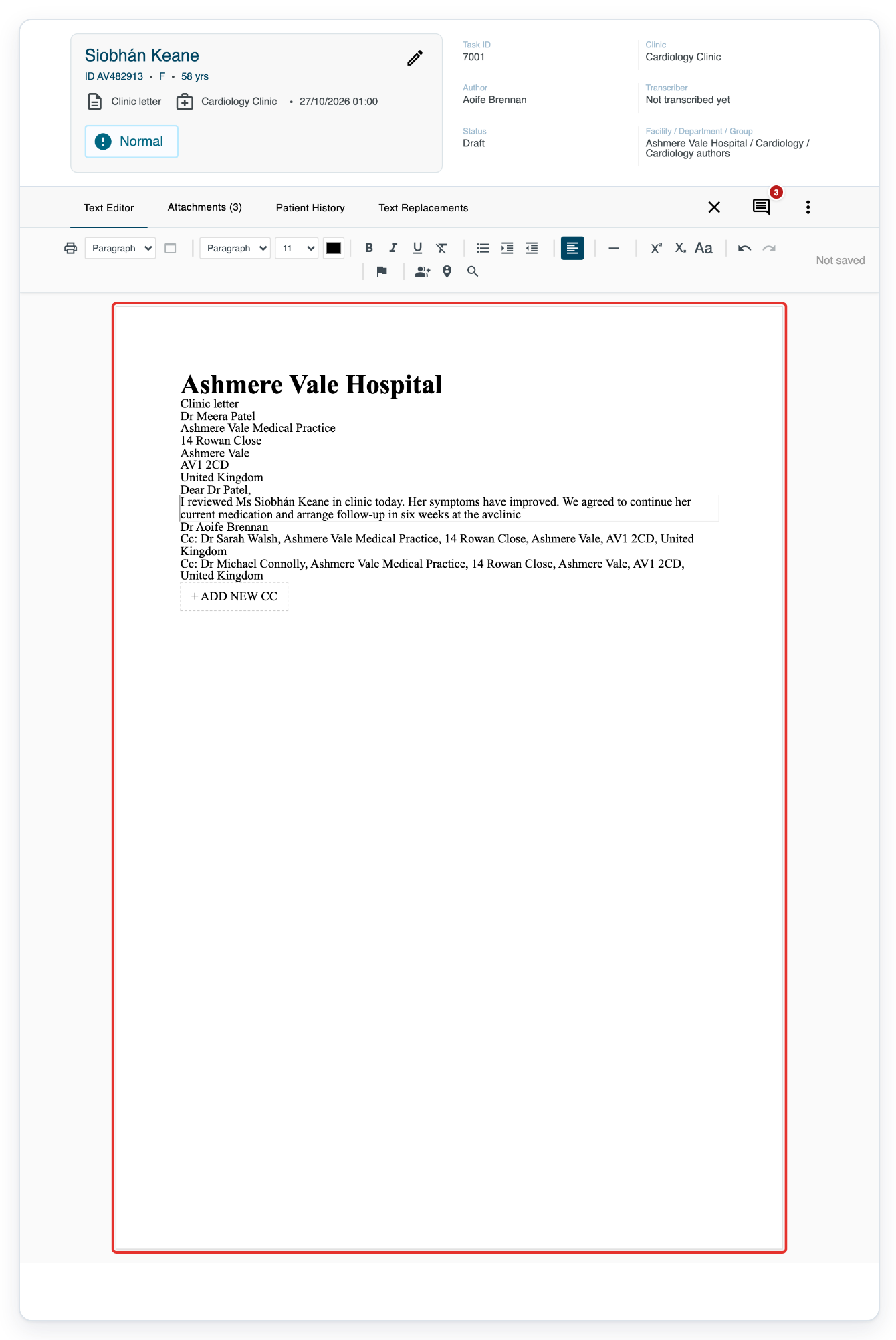
The shortcut has expanded to Cardiology Clinic. Click Keep as WIP to save your draft and return to the task list.
Your draft stays in Author in Progress.
As a storer
Using your storer account, open Live tasks. Click Store to find letters ready for storing.
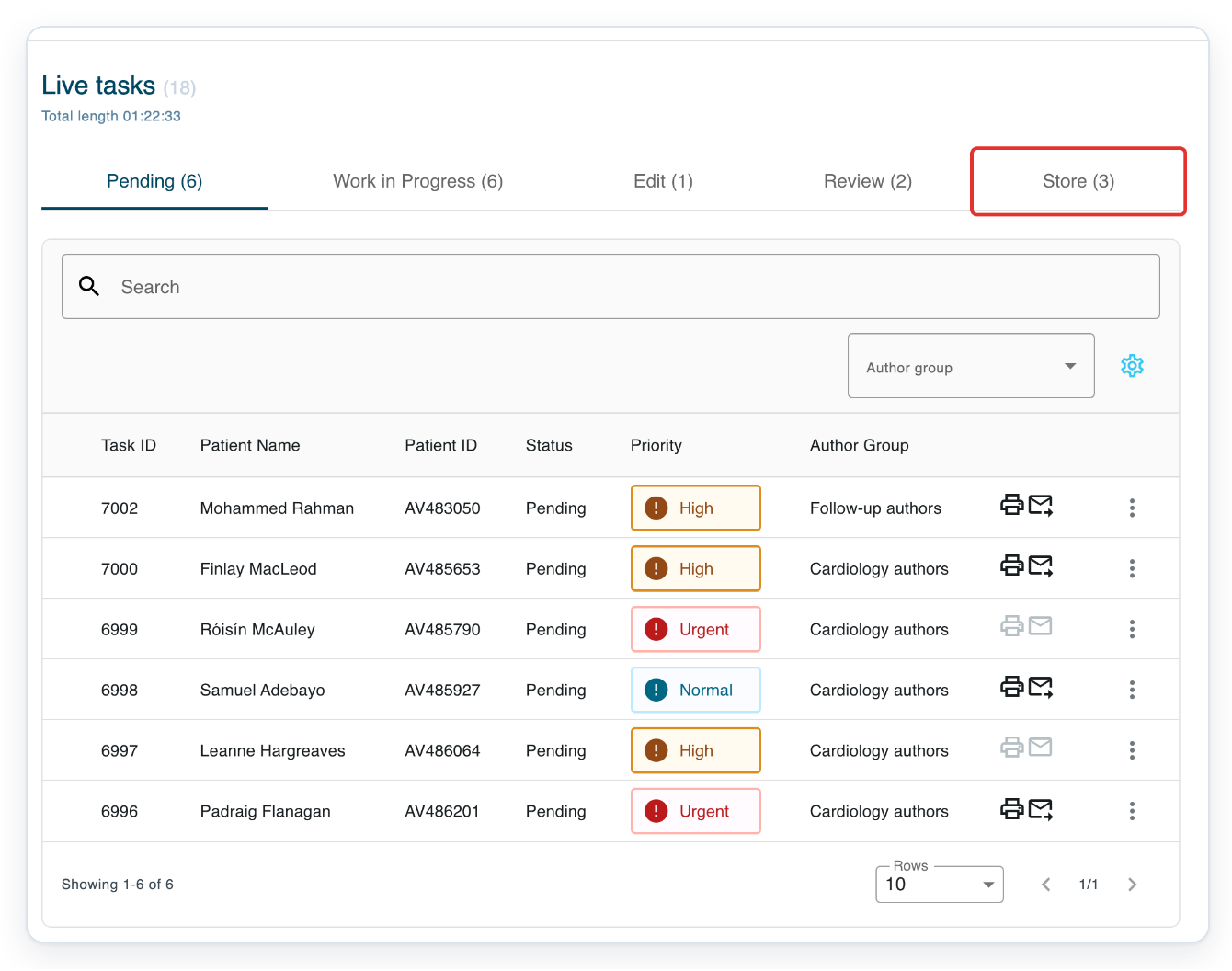
Click the task ID to open the letter. In this example, click 7001 for Siobhán Keane.
This letter uses a template with a Word document.
Open the arrow beside Finalise in the action bar below the letter.
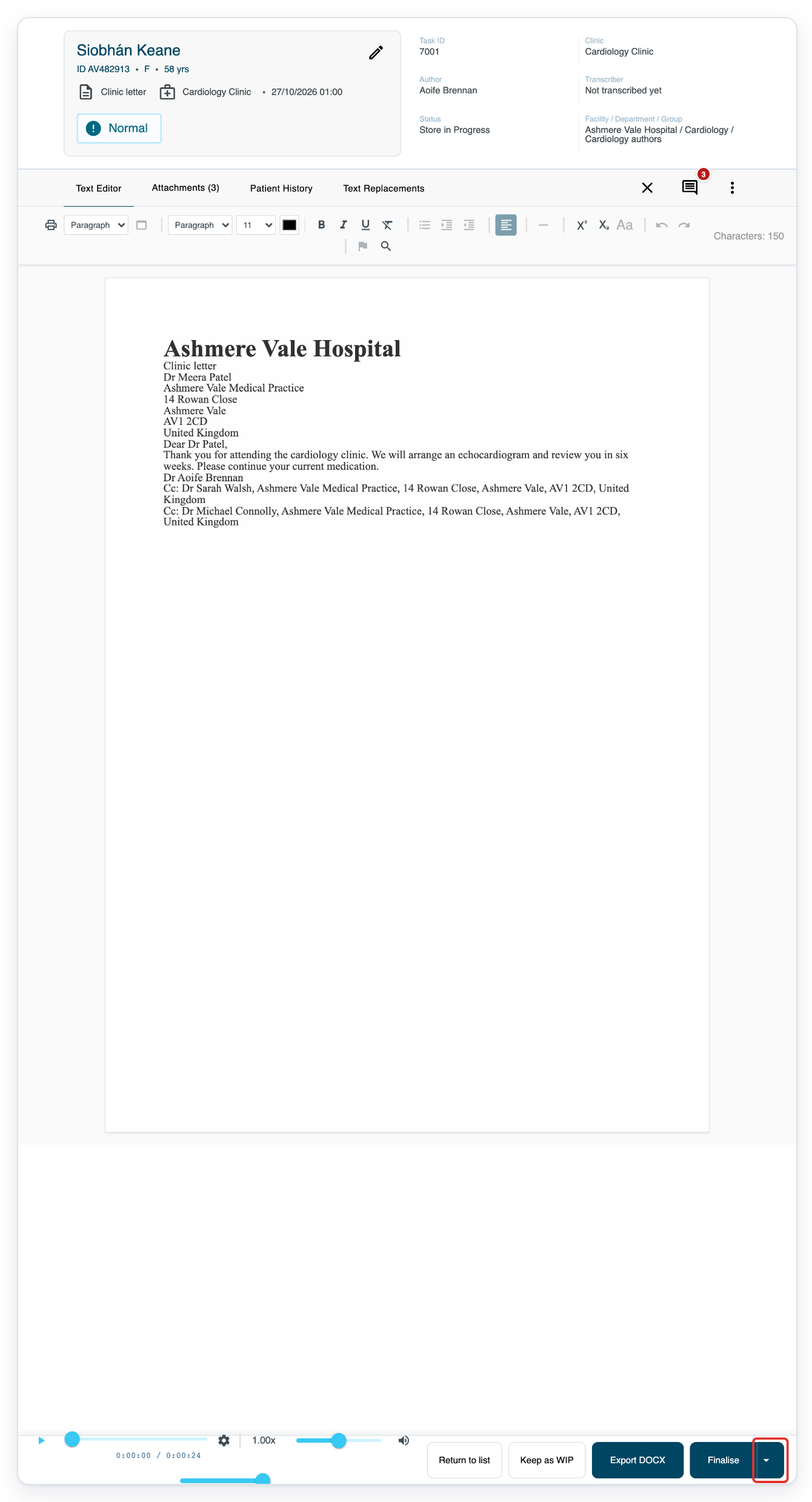
=> The menu offers Finalise and open next. Export DOCX also appears because this letter’s template has a Word document.

As a manager
Using your manager account, open All tasks. Click 7001 to open Siobhán Keane’s unfinished letter, awaiting first approval.
You can also click the author, facility or department name at the top to see its details.
Click Task History to see how the task has moved through its stages.
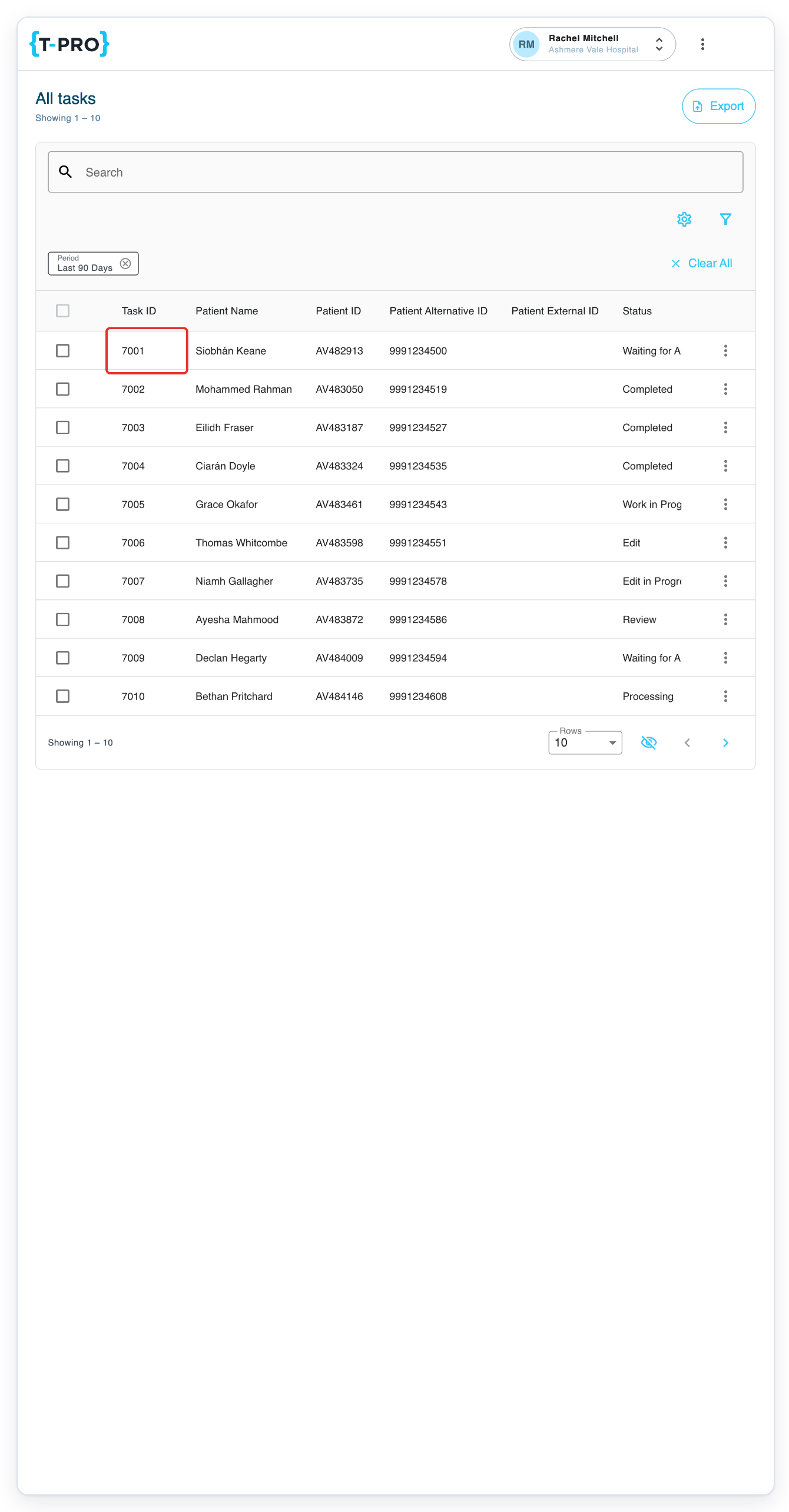
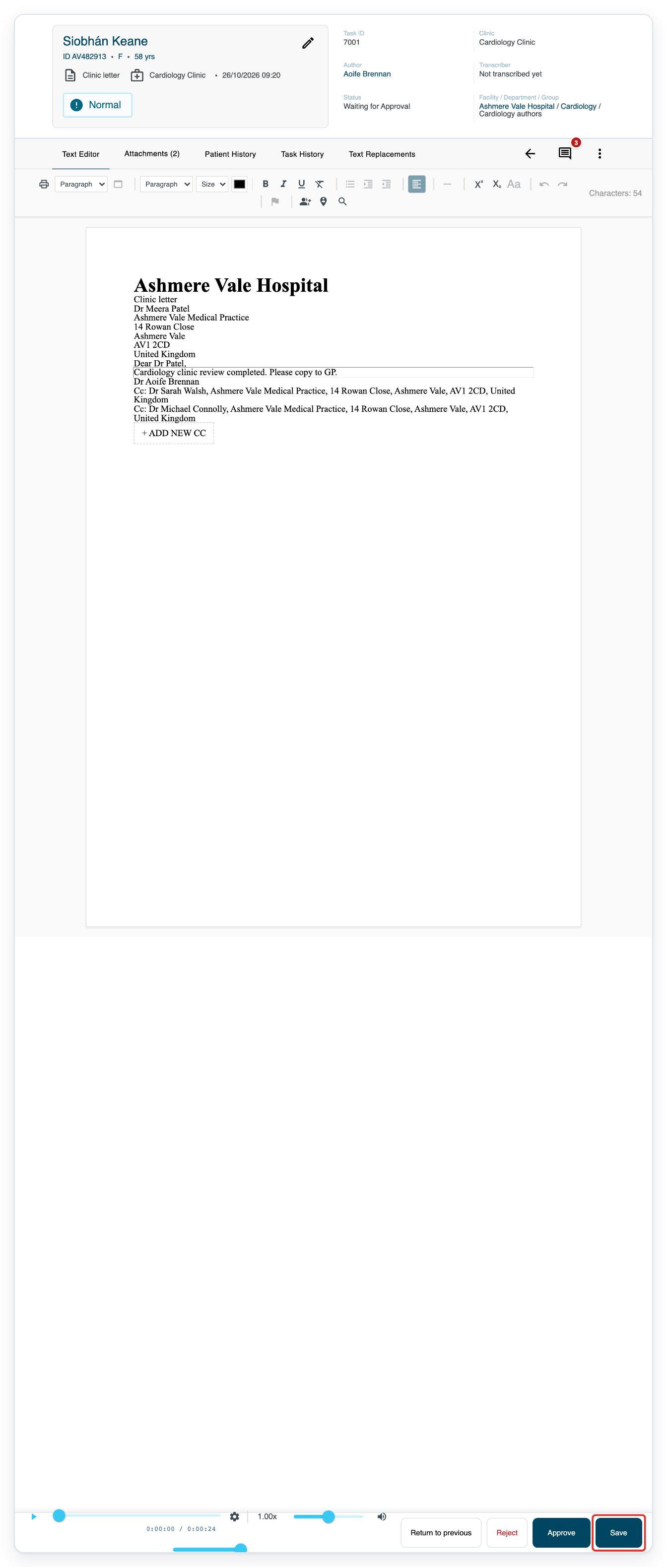
Edit the letter, then click Save to keep your changes and return to the task list at the same approval stage.
Return to previous moves it back a stage. Approve moves it forward. Reject opens the rejection options.
NOTE:
- Auto-save saves your edits and keeps the task at its current stage.
- Wait for Auto-saved before printing or downloading the letter.
- To share a tab, select it and copy the address from your browser. The person opening the link needs access to the task.
- To use a text replacement, type its Replace entry in the letter followed by two spaces.
- Keep as WIP, Save for later and management Save save your edits and return you to the task list without changing its stage.
Choose the right task button
Task buttons appear on editable tasks and depend on your role and the task’s stage.
| Button | When it appears | What it does |
|---|---|---|
| Keep as WIP | While transcribing, editing, reviewing, processing or storing. Also on an author’s draft. | Saves your edits and returns you to the task list. The task keeps its stage and assignment. |
| Save for later | For authors on unfinished tasks other than drafts. | Saves your edits and returns you to the task list at the same stage. |
| Save while transcribing, editing, reviewing or processing | While working at one of these stages. | Saves your edits and moves the task to its next stage. |
| Finalise while storing | While storing. | Completes the task once the letter has saved. |
| Return to list | During transcription, editing, review, processing or storage, except when transcribing a duplicate task. | Saves your edits and releases the task back to its queue. |
| Save with task management permissions | On editable tasks. | Saves your edits and returns you to the task list at the same stage. |
| Return to previous | With task management permissions, during work or approval. | Saves your edits and moves the task back one stage. |
| Approve | At an approval stage, as an author or with task management permissions. | Saves the letter and moves it on through the workflow. |
| Reject | As an author, at either approval stage. With task management permissions, at first approval. | Lets you reject the task or send it back if that option is available. |
| Send to editor on an author’s draft | When the workflow includes transcription or editing. | Saves the draft and sends it for transcription or editing. |
| Finalise on an author’s draft | On an author’s draft. | Saves the letter and skips transcription, editing, review and processing. Approval or storage may still follow. |
| Delete for authors early in the workflow | On drafts, new tasks, tasks in speech recognition or Pending tasks. | Asks you to confirm, then deletes the task. |
| Export DOCX while storing with a Word template | While storing, when the template has a Word file. | Downloads a Word copy of the saved letter. |
Other places you can open the letter editor
- All Tasks: Open a task row. The letter opens for viewing unless your account allows editing here.
- Patient History: Open a previous task in a new browser tab. The letter opens for viewing unless your account allows editing here.
Tip: Click the arrow beside Save and choose Save and open next to continue through your queue. While storing, choose Finalise and open next.
Can't use the letter editor?
- “Access Required” appears. Enter the editor access password and click Continue. Contact our Helpdesk if you do not have it.
- You see View only. For unfinished work, reopen the task through Live tasks. For completed work, ask your manager about returning it to an earlier stage.
- You cannot type in the letter. Ask your manager to check the task’s stage and who it is assigned to.
- “Auto-save failed” appears. Keep the task open. Contact our Helpdesk if saving continues to fail.
- A separate audio player opens. Ask your manager to check whether the template allows editing in T-Pro.
Related articles
- Work from Live Tasks
- Play the audio and use function keys
- Add, download and delete attachments
- Notes and task history
- Approve a letter
If you have any more queries, please do not hesitate to contact our Helpdesk or support@tpro.io.
© 2020 - 2026