
Before you start
You need an author or transcriber account. The tabs and actions you can use depend on your role.
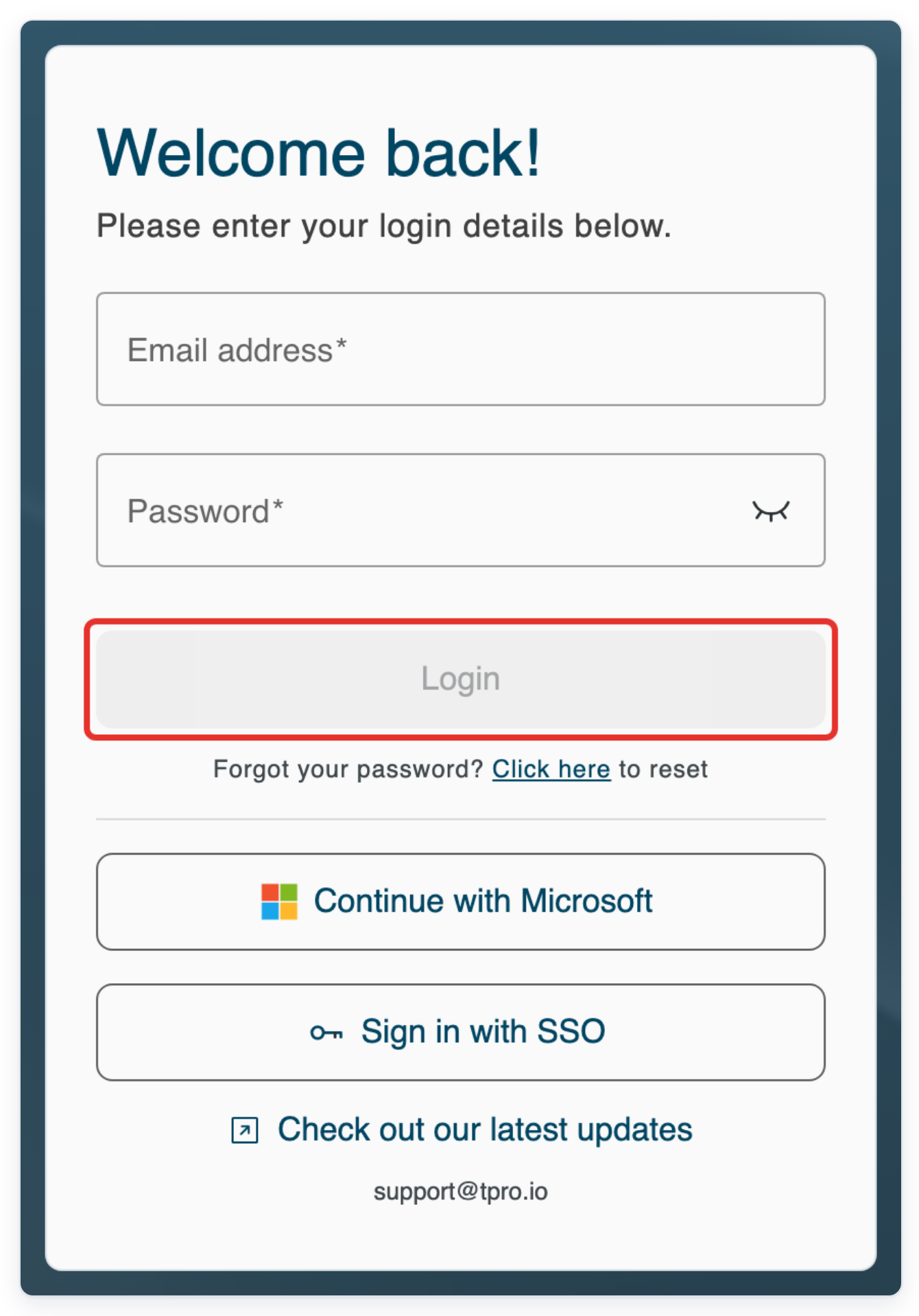
Log in to T-Pro with your author or transcriber credentials.
As an author
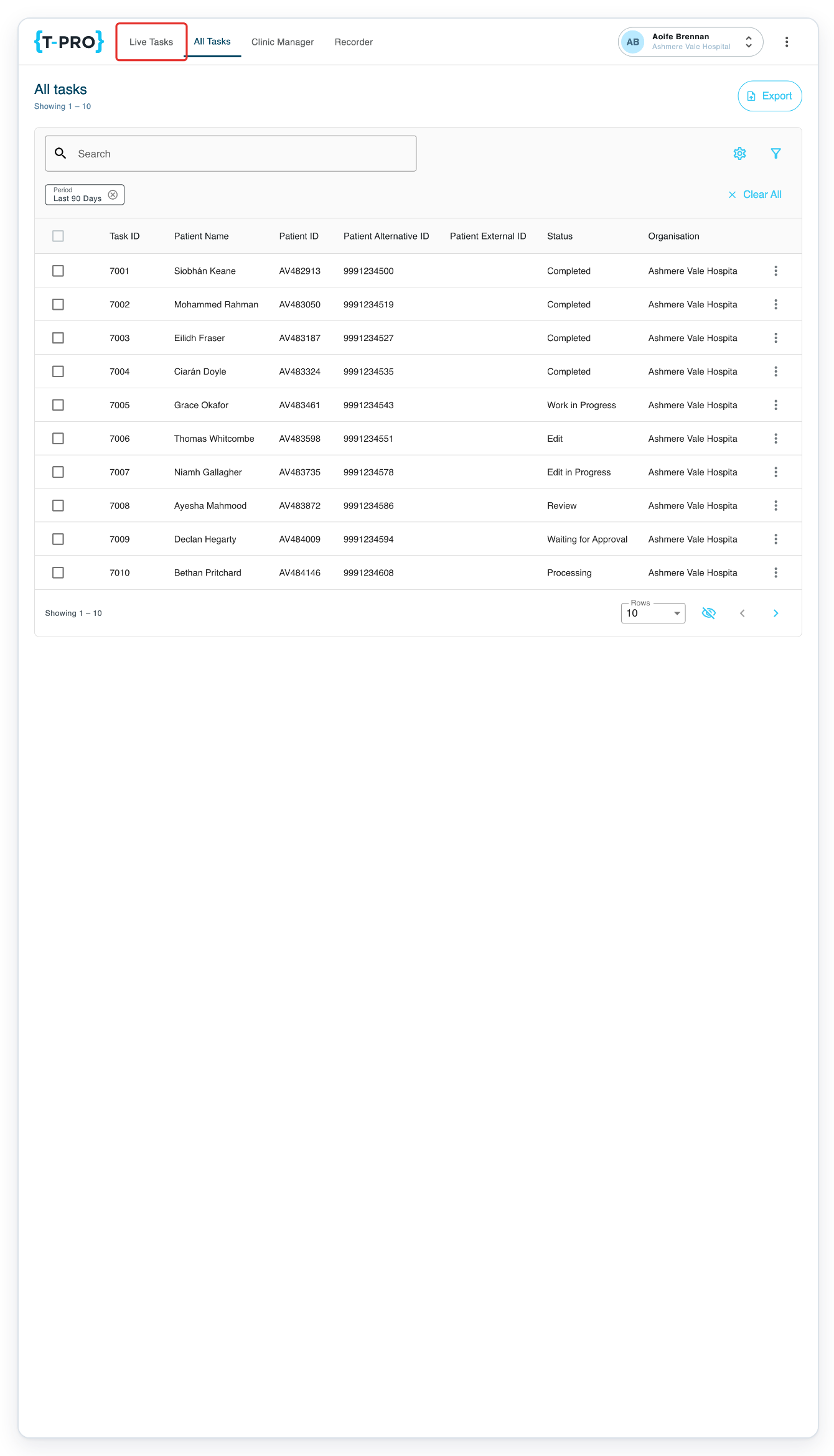
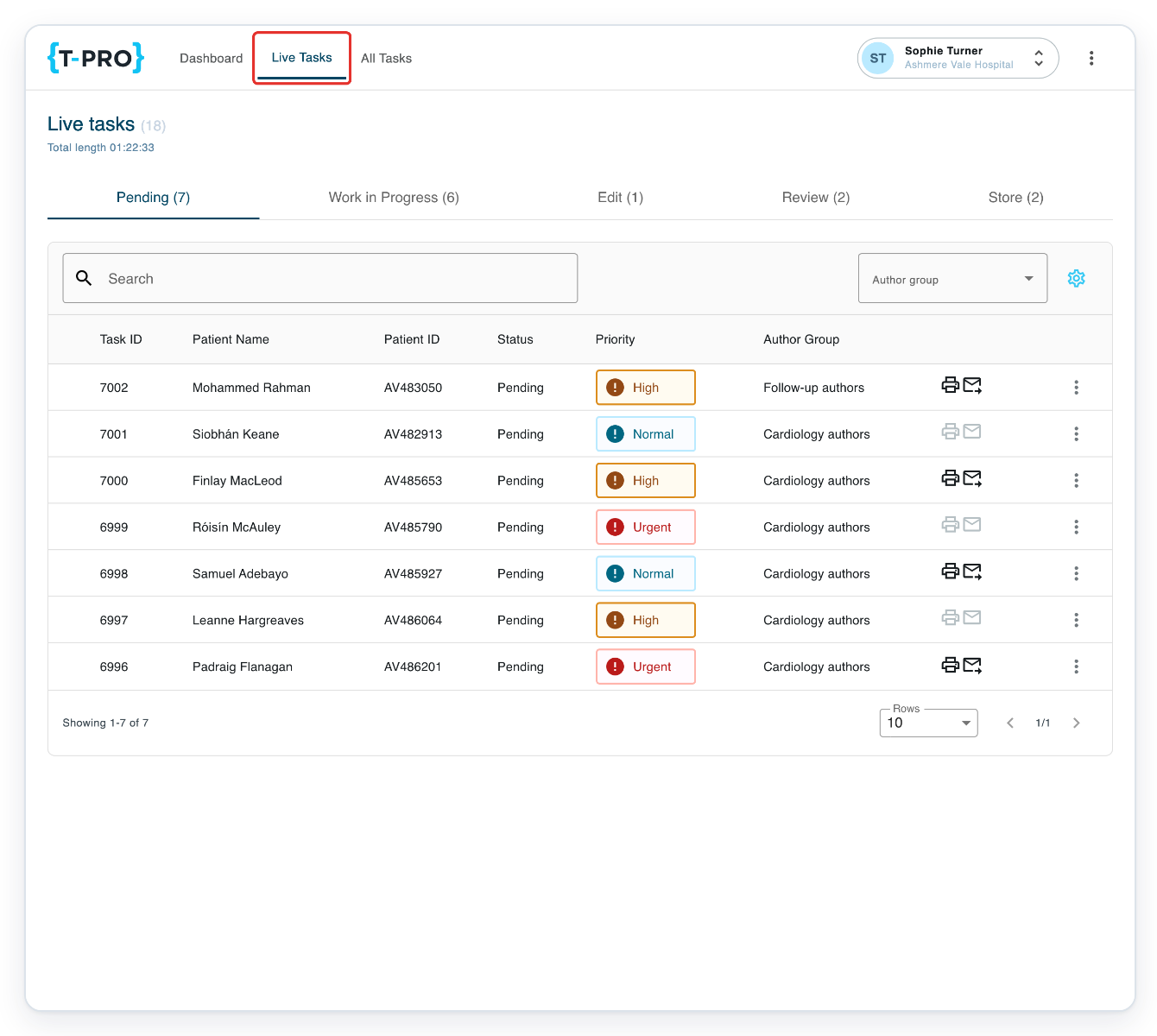
From All Tasks, click Live Tasks in the main navigation.
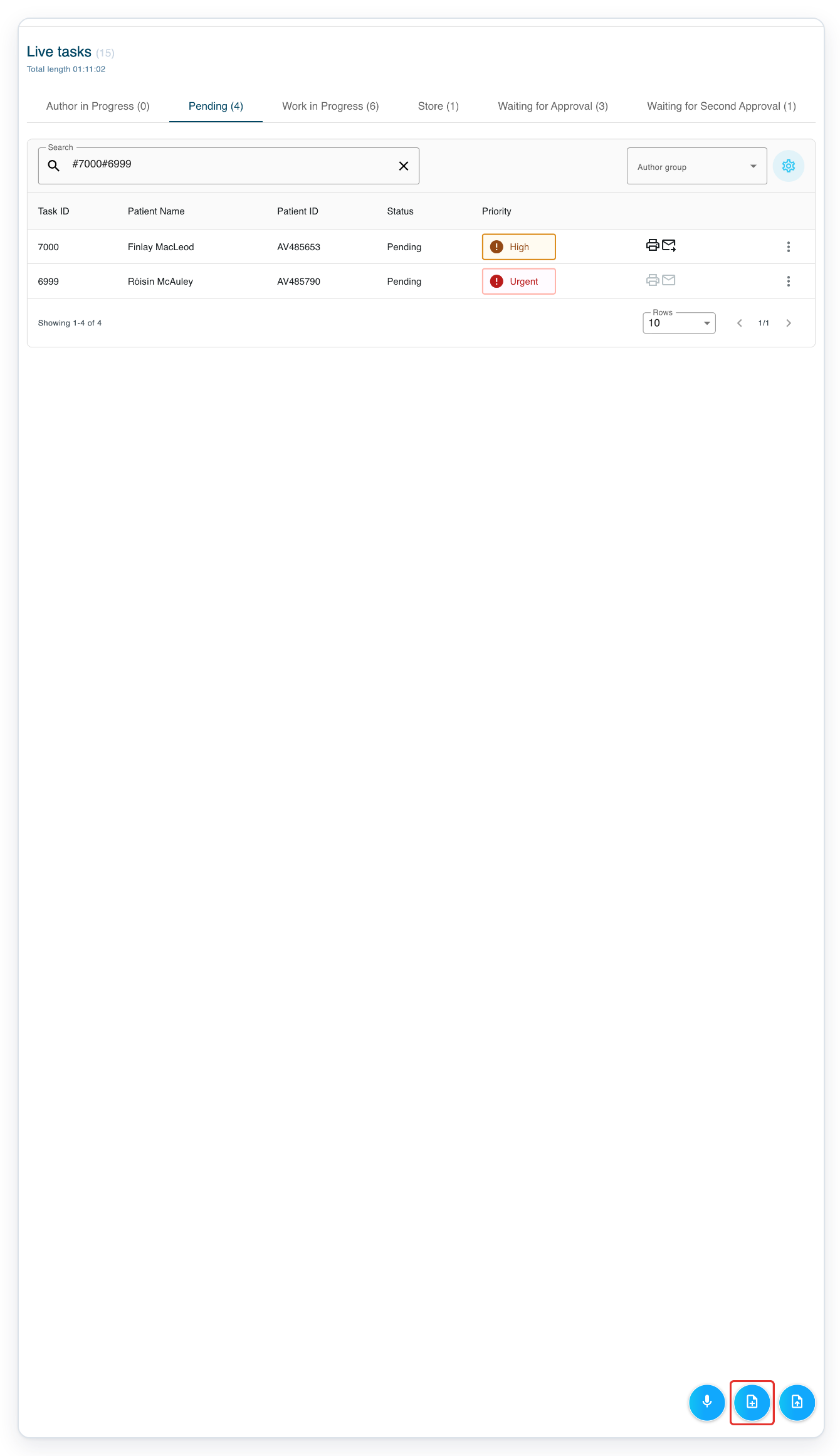
Live tasks shows your task count, Total length, status tabs and Search. The Create task button is at the bottom right.
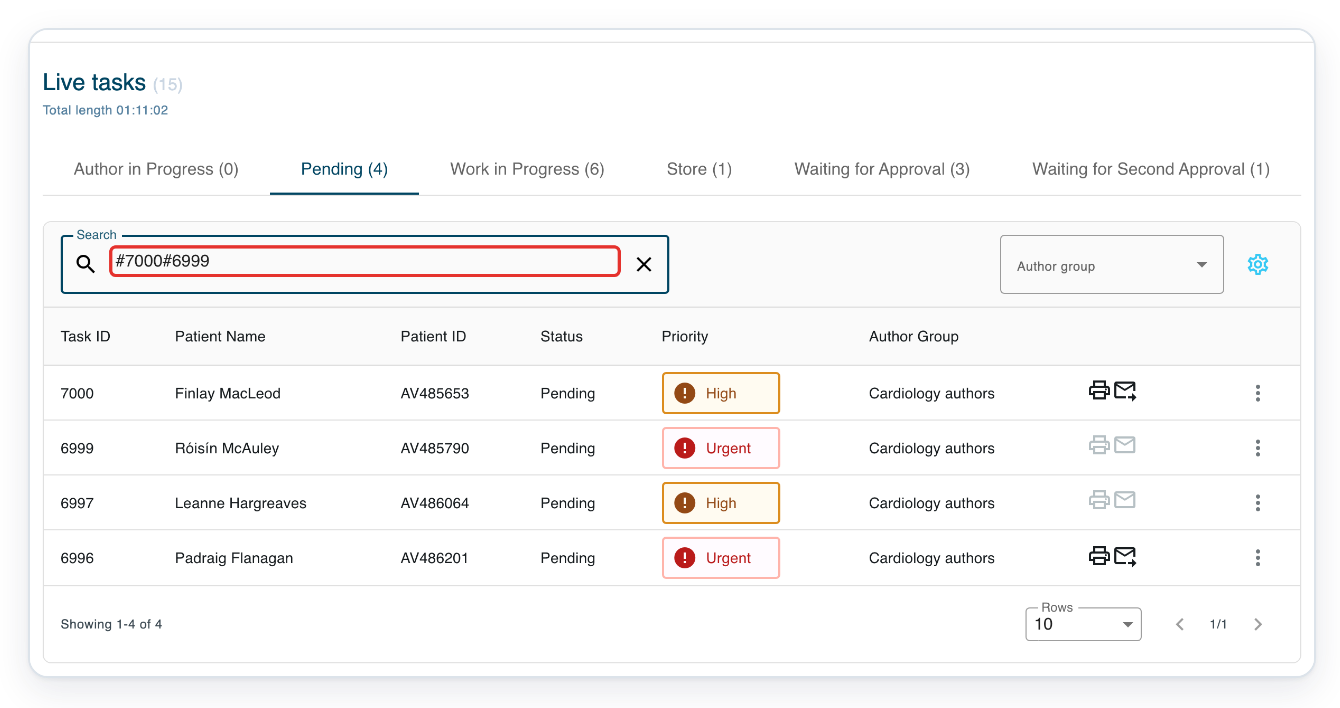
Click Search and enter your search text. To find several task numbers, type # before each number, for example #7000#6999.
To search by task number, type # before the number, for example #7001. Enter patient names or patient IDs as plain text.
Choose Pending for tasks waiting to be transcribed. You'll find your drafts in Author in Progress.
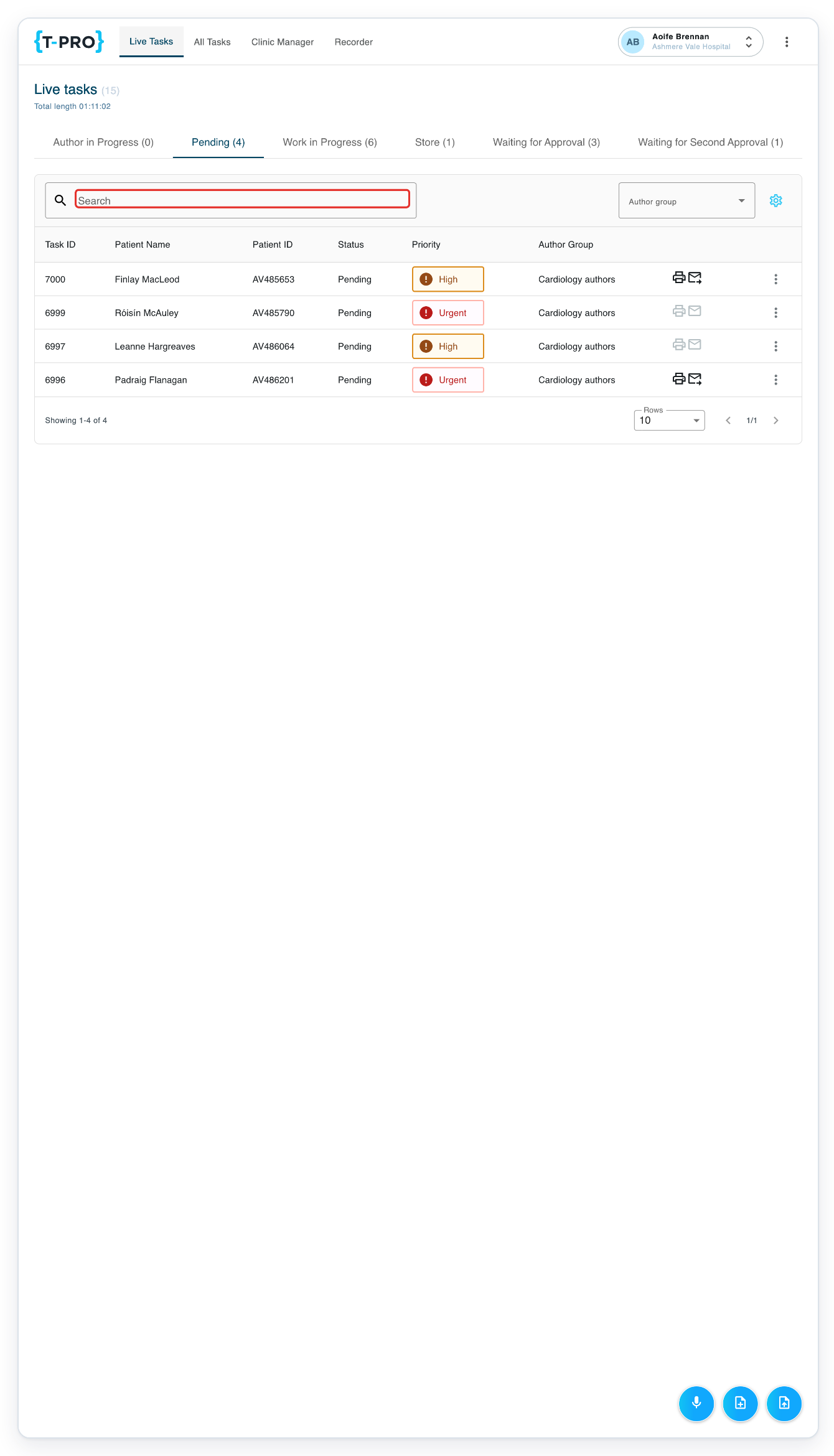
Press Enter to search within the selected tab.
The search starts from the first page of that tab.
Click Column settings, the cog to the right of Author group, to choose your table columns.
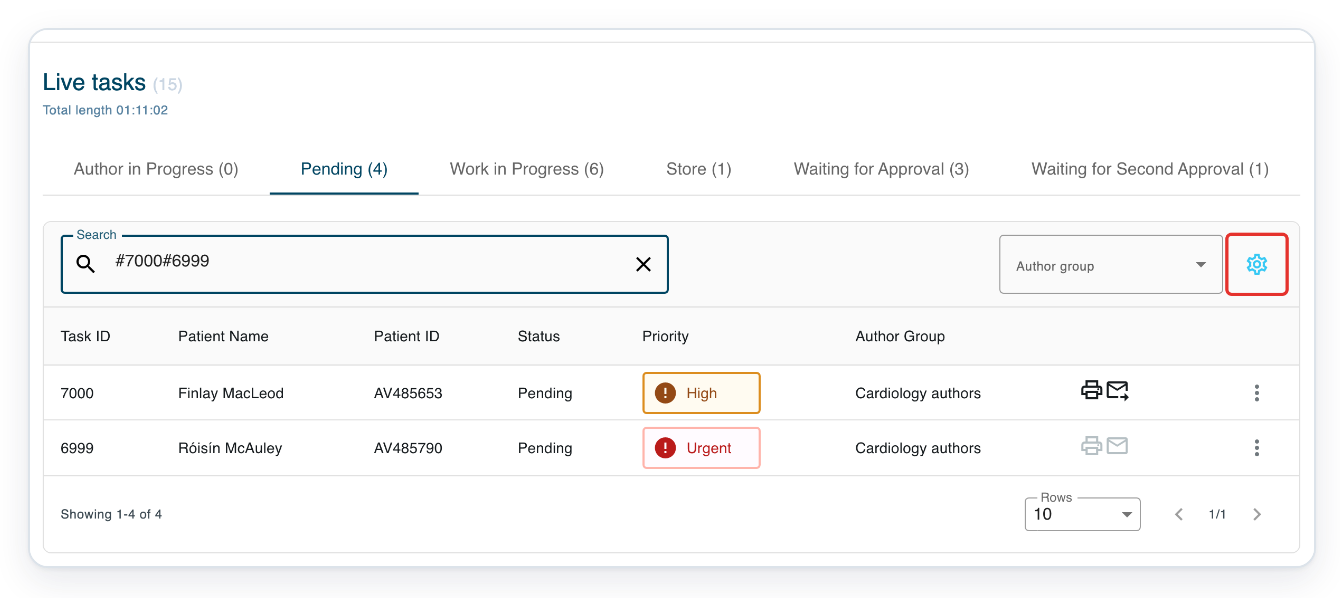
Untick Author Group to hide that column.
Tick the boxes for columns you want to see. Untick those you want to hide.
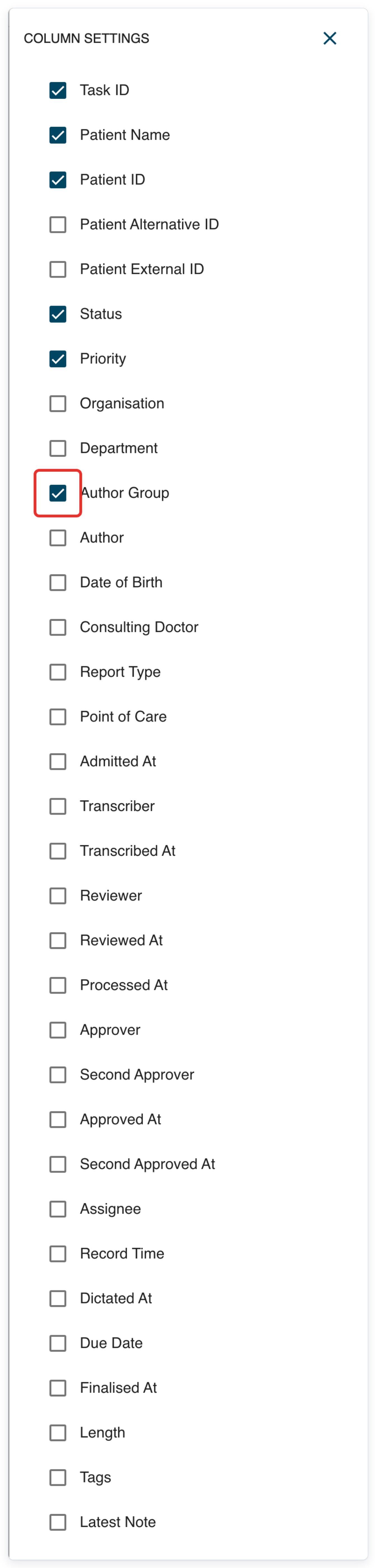
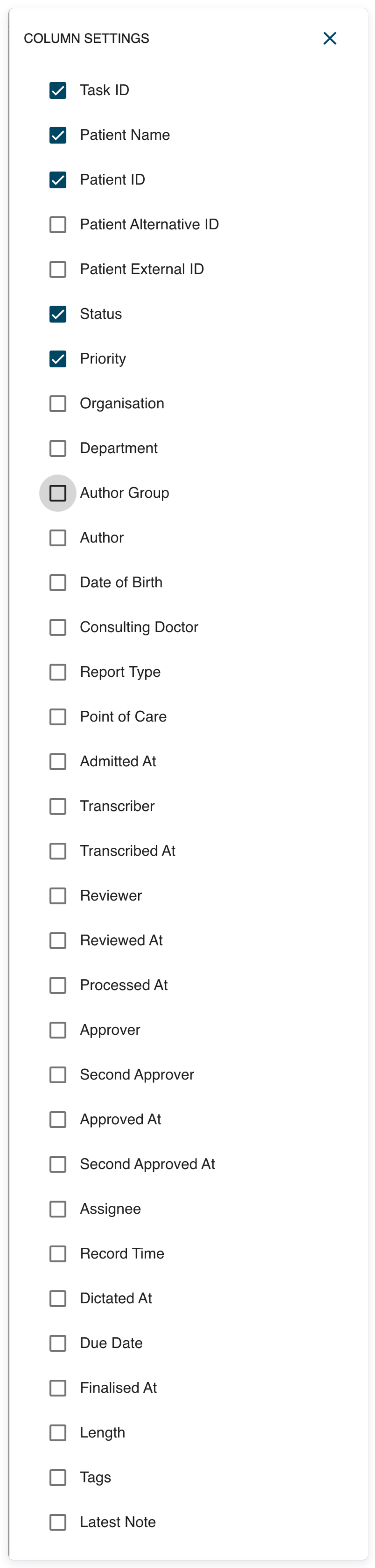
=> Author Group is now unticked.
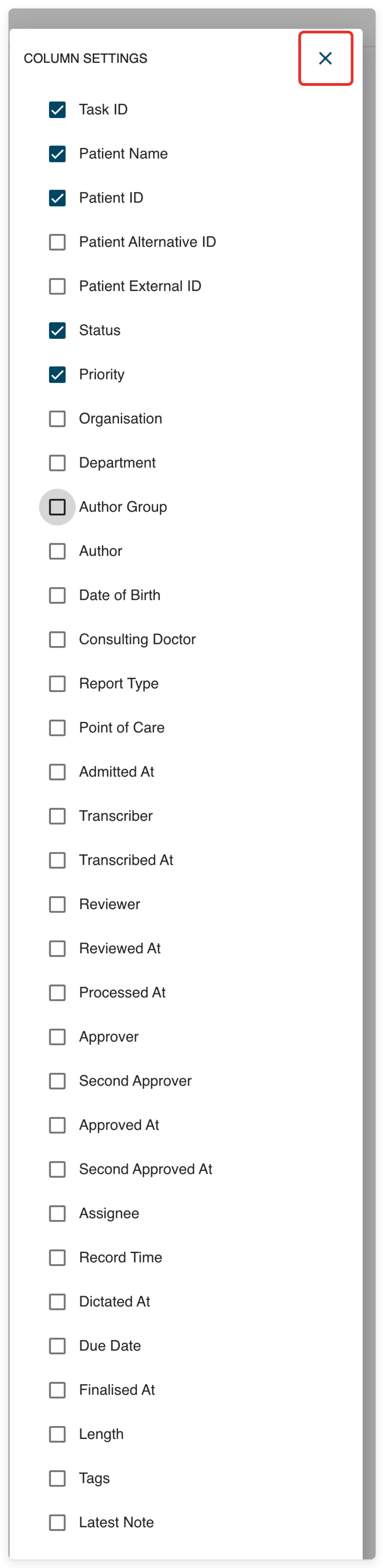
Click the cross at the top right to close the panel and see your chosen columns.
You can still filter by Author group when the Author Group column is hidden.
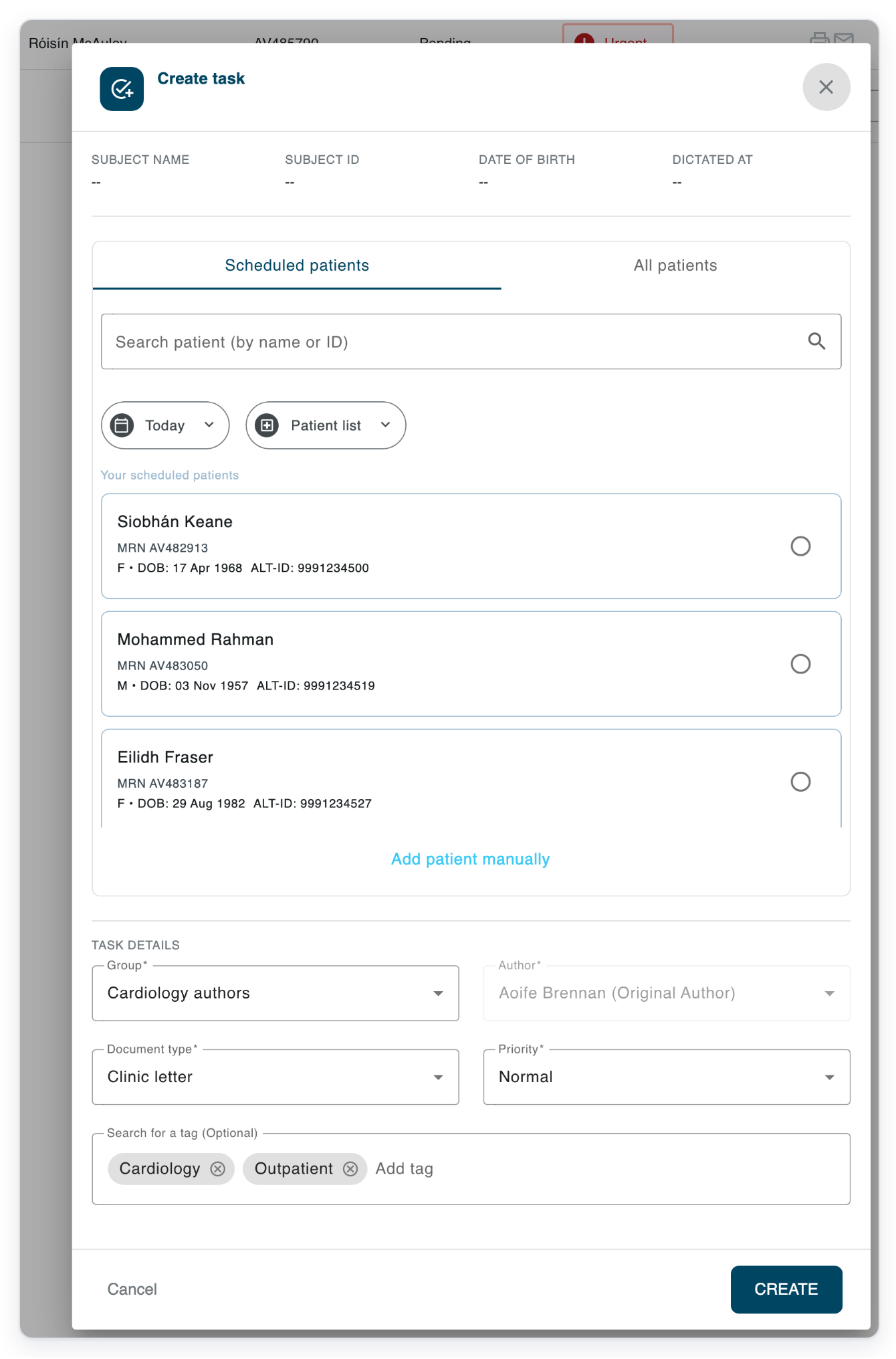
Click Create task to open the task creation window. Look for the document button with a plus at the bottom right.
=> The Create task window has Scheduled patients, All patients and a patient search. Cancel and CREATE are at the bottom.
As a transcriber
Click Live Tasks in the main navigation.
The example below uses a storer account.
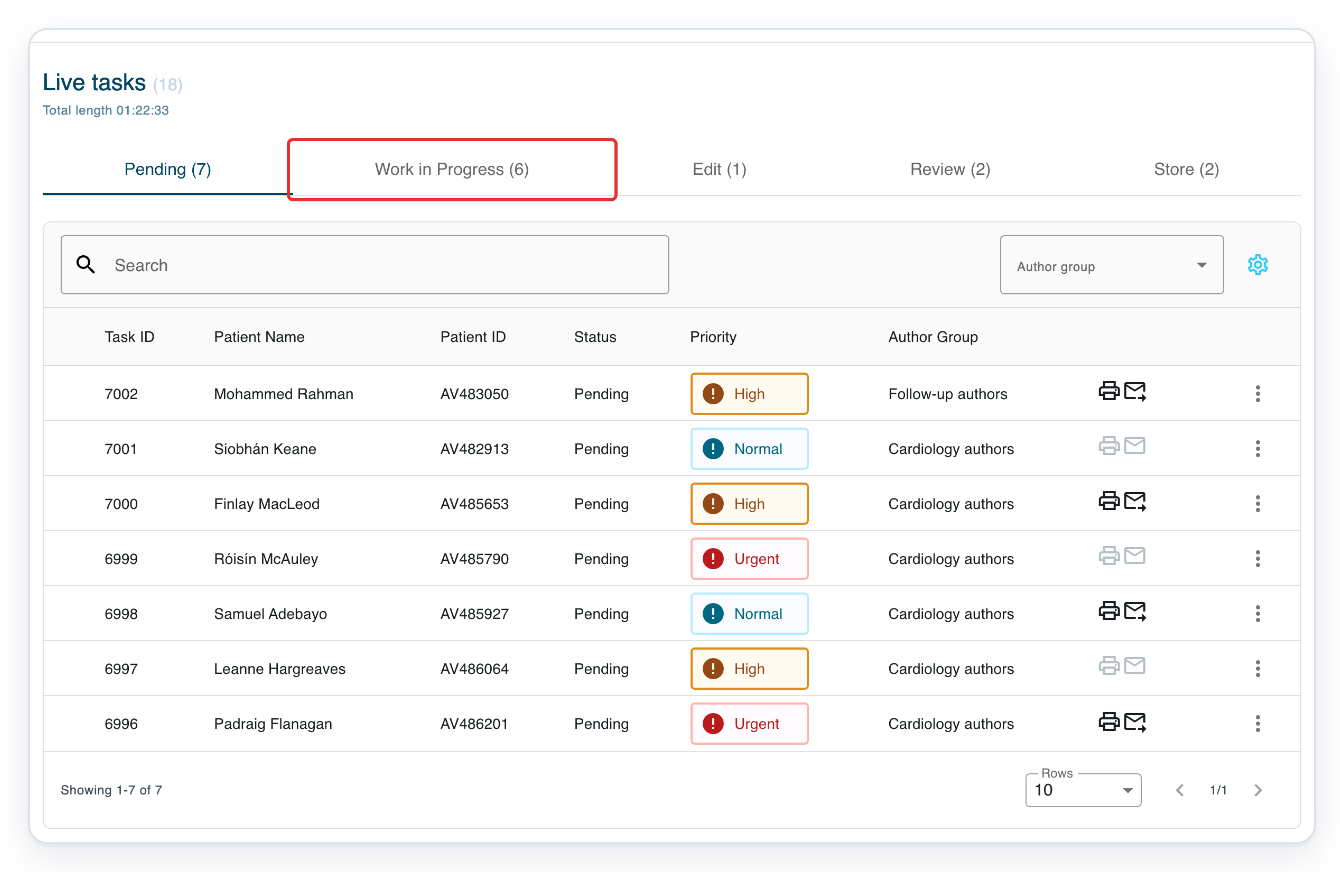
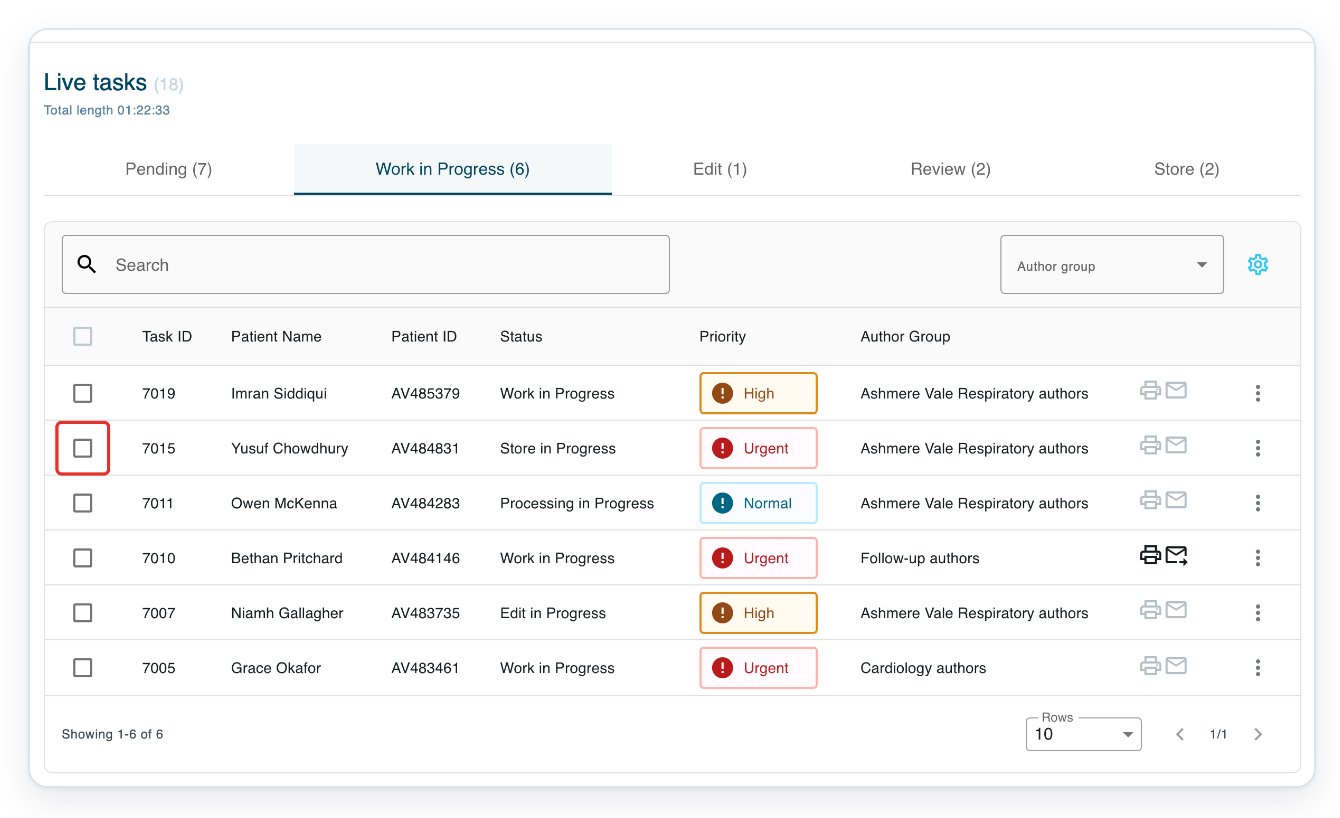
Click Work in Progress to see tasks assigned to you where work has already started.
The Status column shows each task's stage, including transcription, editing, processing and storing.
Tick the checkbox beside a task to make Bulk actions available. This example uses task 7015, which shows Store in Progress.
You can select more than one task. Bulk actions apply to all selected tasks.
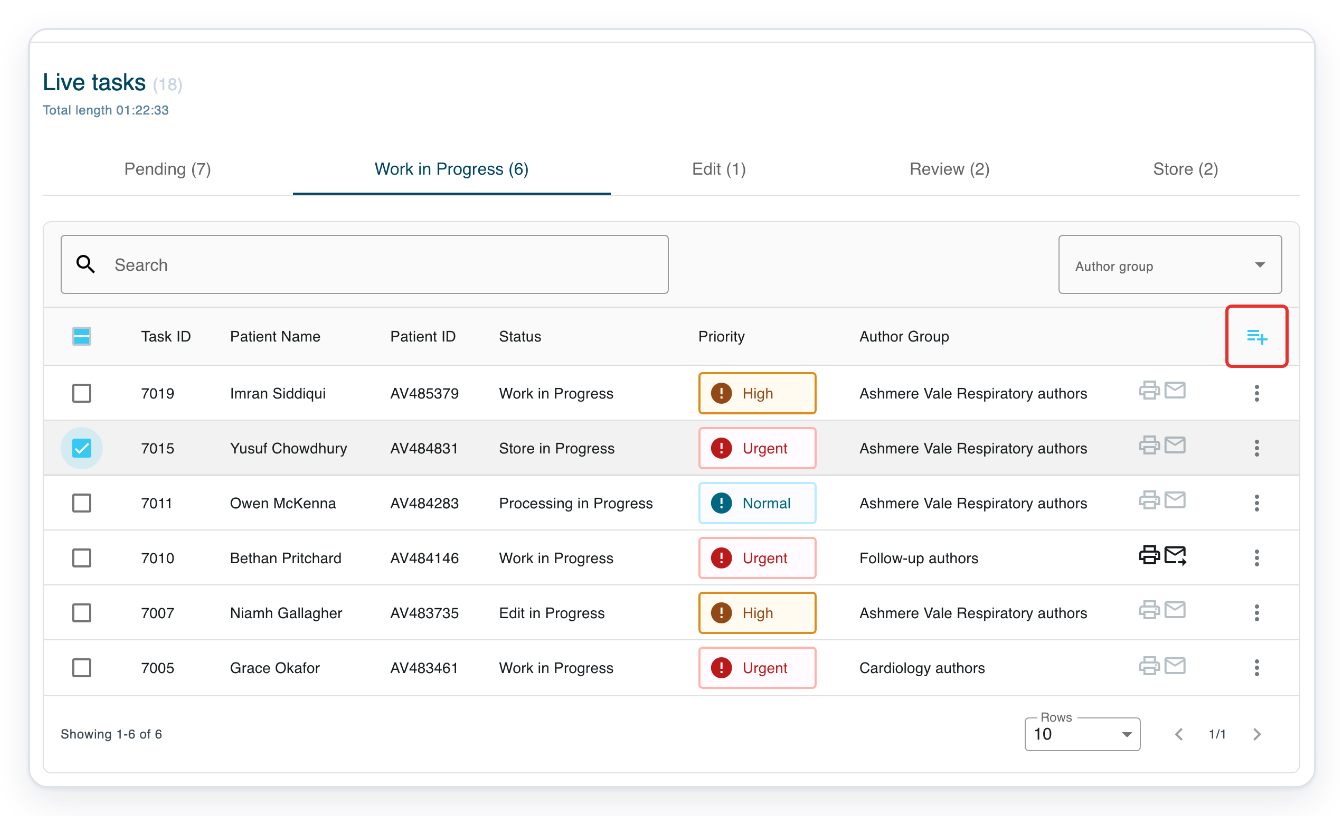
Click Bulk actions at the right of the table heading to see the available actions.
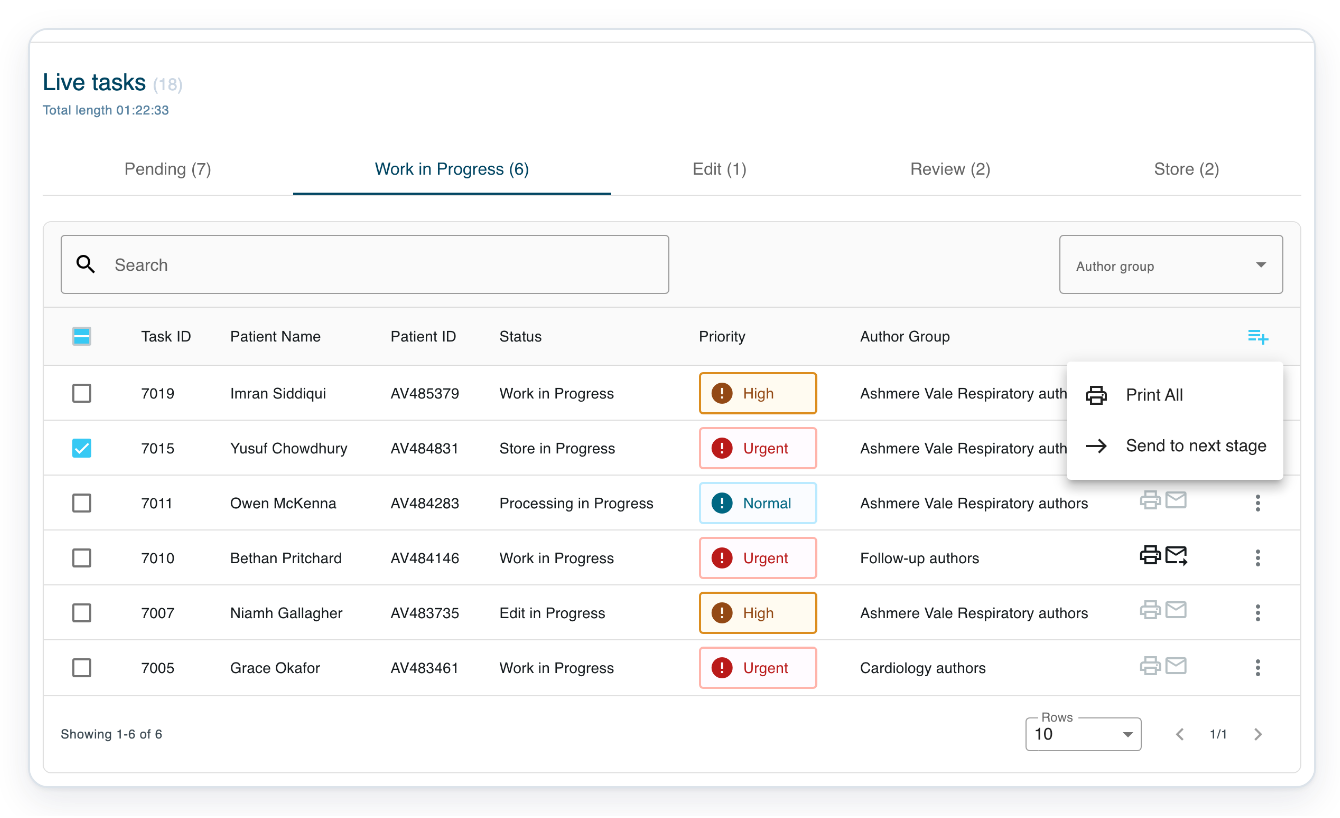
The choices depend on your role and the stages of the selected tasks.
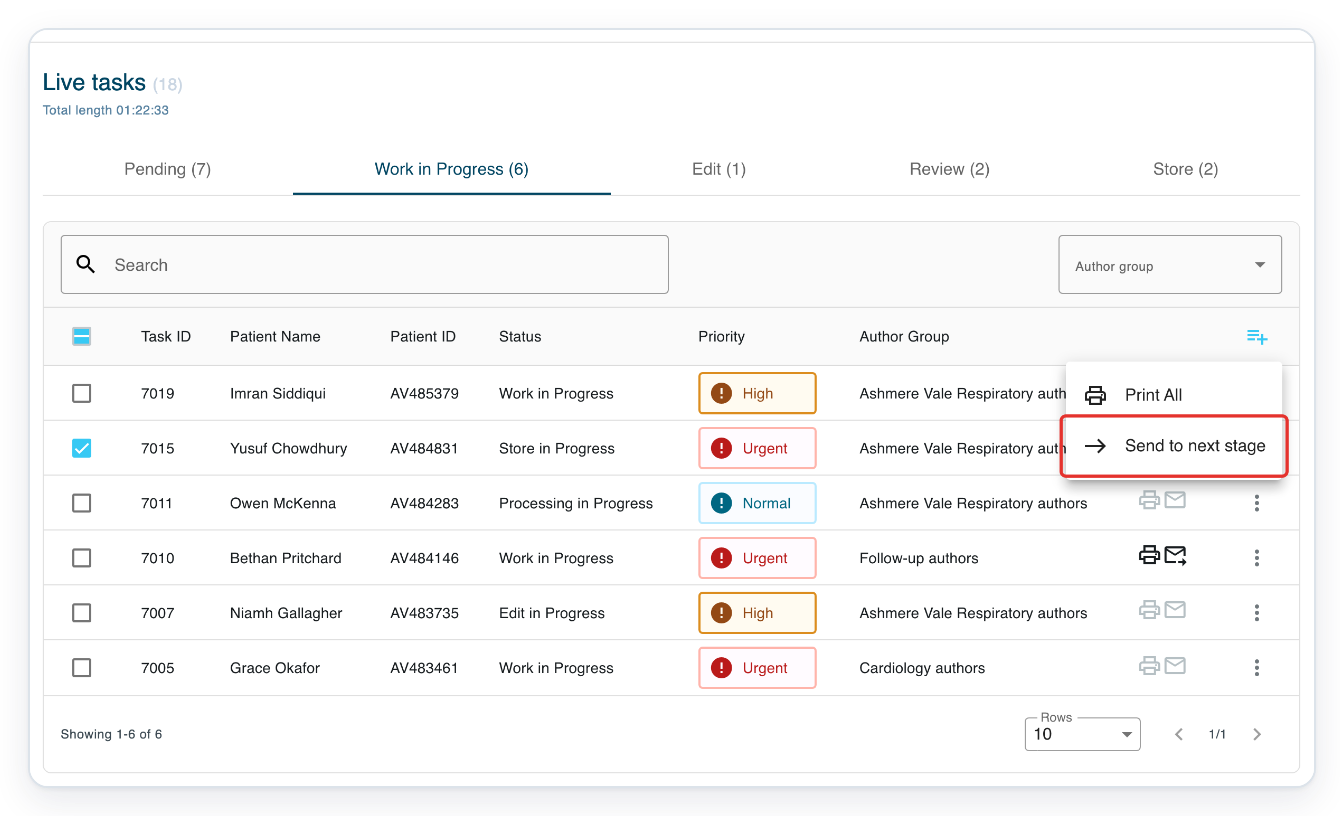
=> For this selection, the menu offers Print All and Send to next stage.
Press Escape to close the menu before switching tabs.
Click Store to see tasks waiting to be finalised.
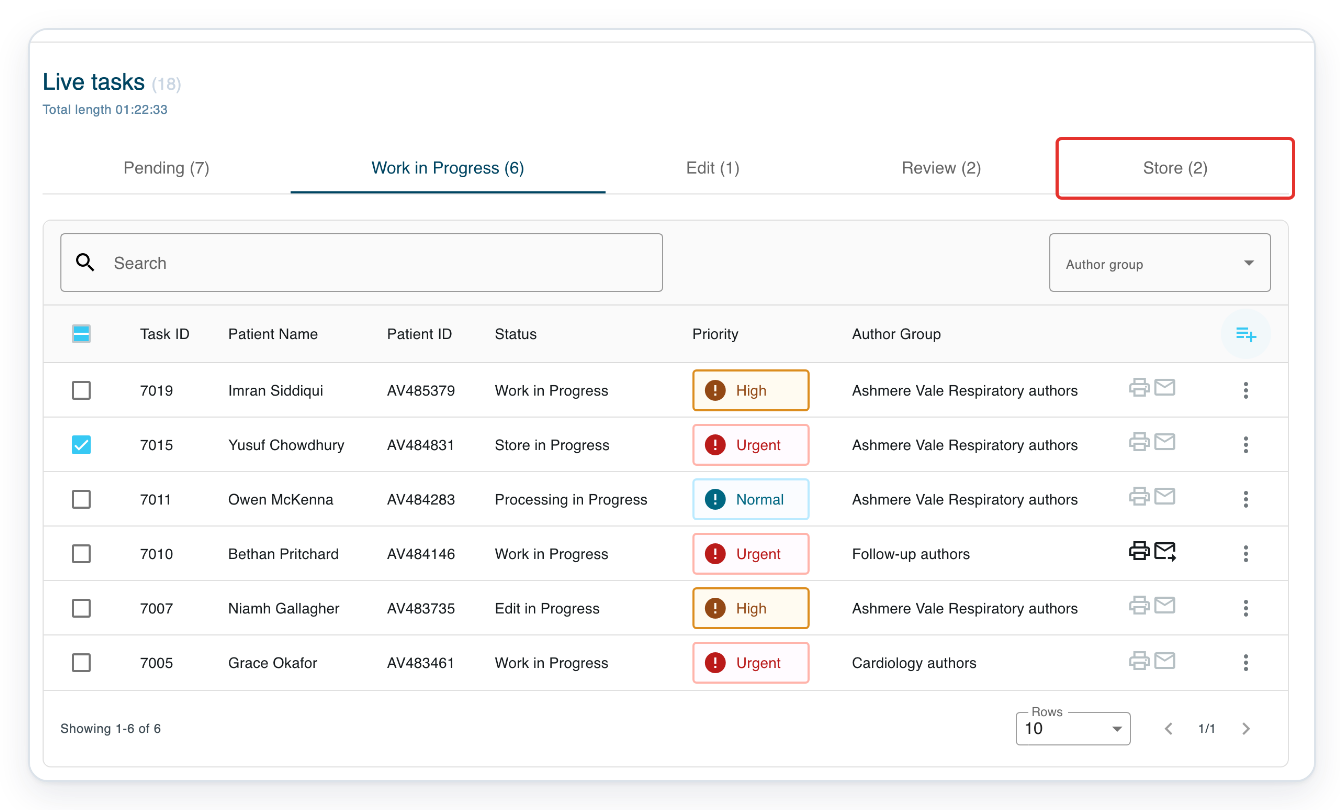
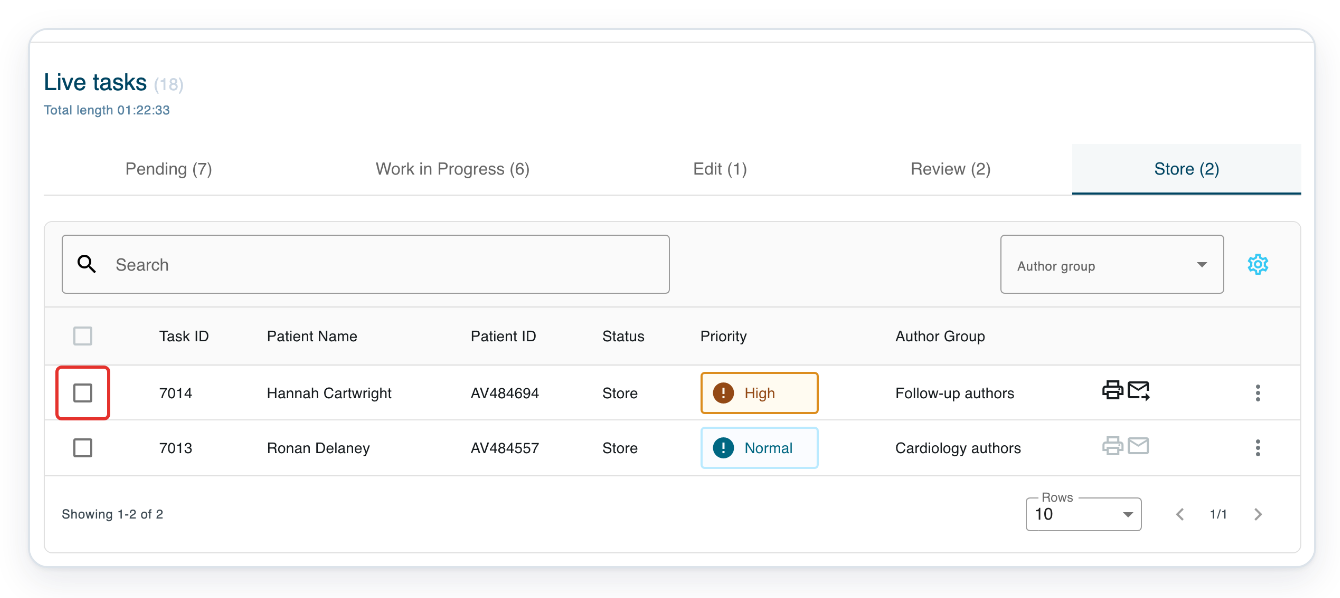
Tick the checkbox beside a task to make Bulk actions available. This example uses task 7014.
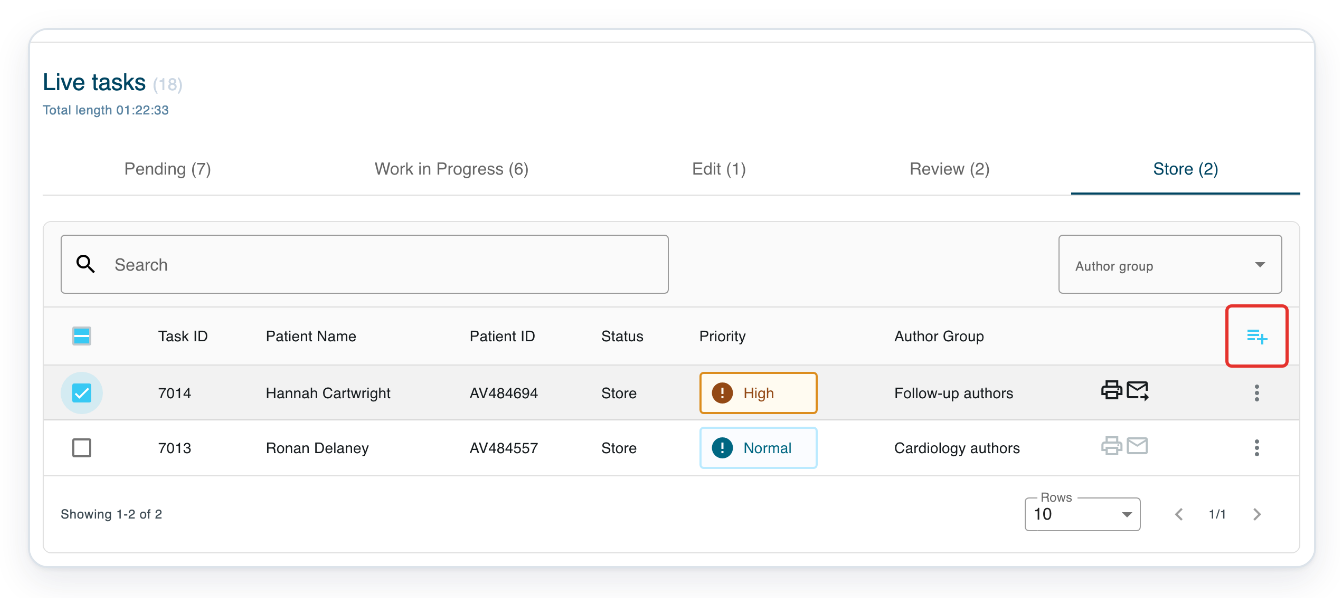
Click Bulk actions at the right of the table heading to see the available actions.
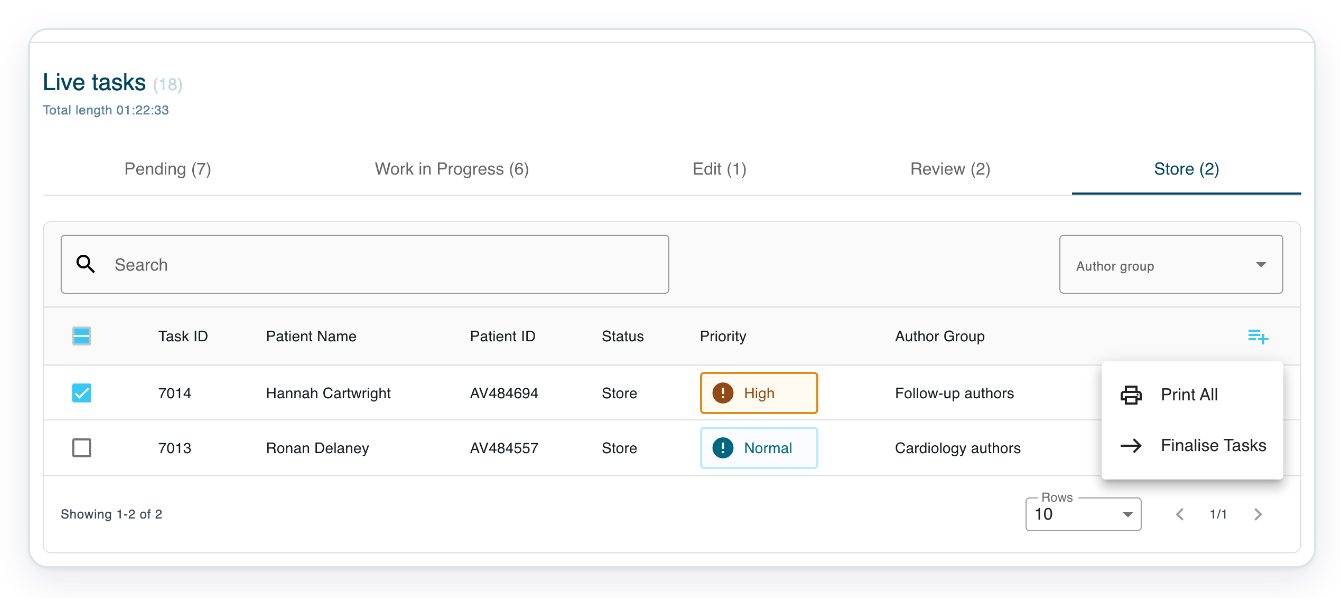
=> For this selection, the menu offers Print All and Finalise Tasks.
NOTE:
- T-Pro remembers your column choices for your account in this browser.
- Search narrows the task list. The header and tab totals stay the same.
- If you are a storer, click Live Tasks in the main navigation to reach your queues.
- Storers can use Print All and Send to next stage for assigned storing work in Work in Progress. In Store, the options are Print All and Finalise Tasks.
What the totals mean
If you select an Author group, the totals reflect that group.
| On screen | What it tells you |
|---|---|
| Count beside Live tasks | The total number of tasks across your tabs. |
| Total length | The combined audio length across your tabs, shown as hours, minutes and seconds. |
| Count beside a status tab | The number of tasks in that tab. |
Tip: When task checkboxes are available, use the checkbox in the table heading. This selects every task on the current page.
Can't work from Live Tasks?
- If you see “No tasks found”, click the cross in Search to clear your search. Check your selected status tab and Author group.
- If TASK:7001 or id:7001 finds no match, try #7001 to search by task number. Enter patient names and patient IDs as plain text, without patient:.
- If you see “Invalid search”, enter a task number after #, for example #7001.
- If Search is disabled, ask our Helpdesk to check your account's Pending Limit setting.
- If you can't see Column settings, untick the selected tasks to show the cog again.
- If Bulk actions is missing, open Work in Progress as a transcriber and tick a task checkbox.
Related articles
- Pick up a task from the pending queue
- Search for tasks in All Tasks
- Task statuses
- Create a task and finish it yourself
If you have any more queries, please do not hesitate to contact our Helpdesk or support@tpro.io.
© 2020 - 2026