
Before you start
To manage your own dictionary, you need an author account with speech recognition set up and enabled. Transcribers and medical secretaries can request terms through support.
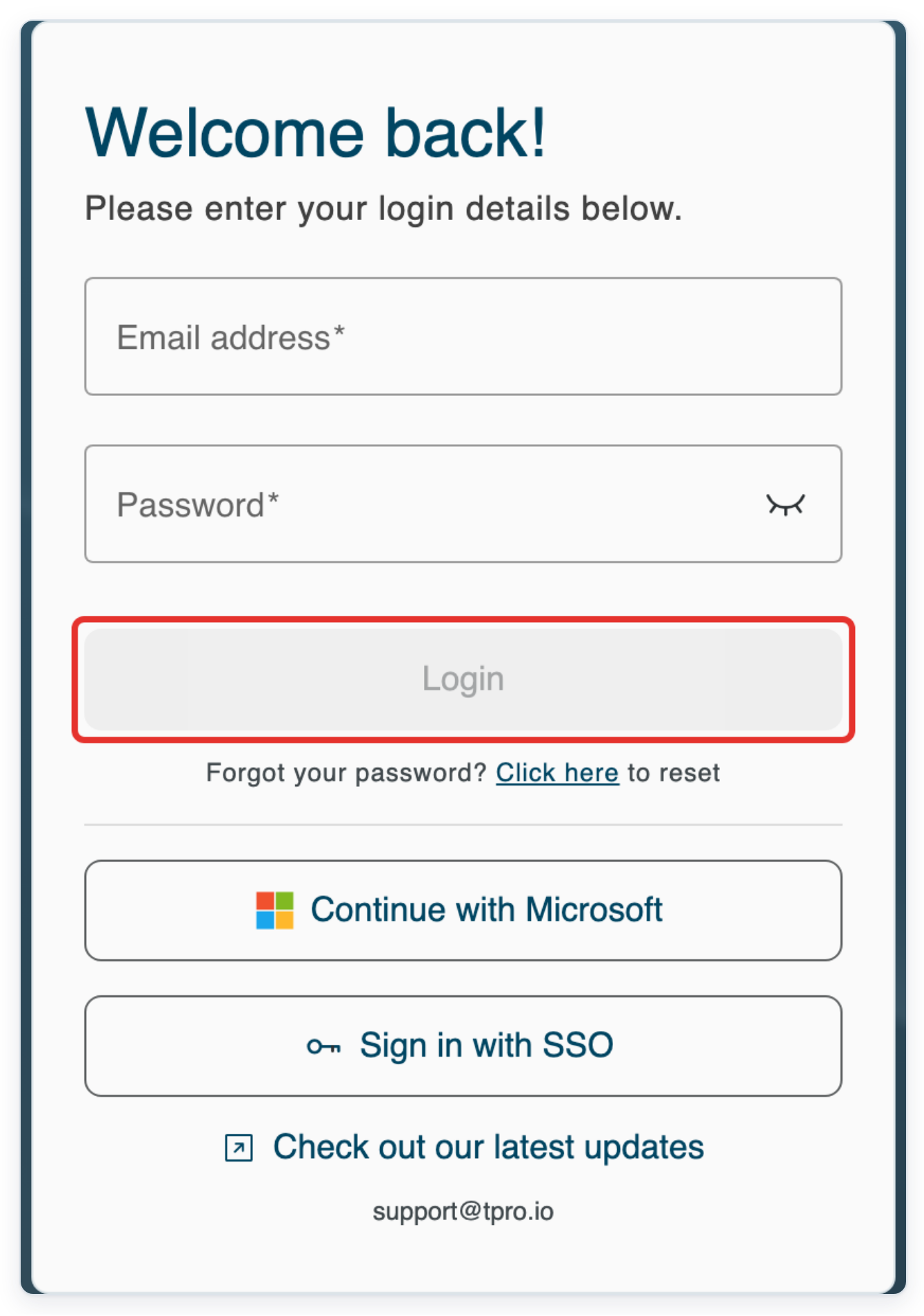
Log in to T-Pro with your author or transcriber credentials.
As an author
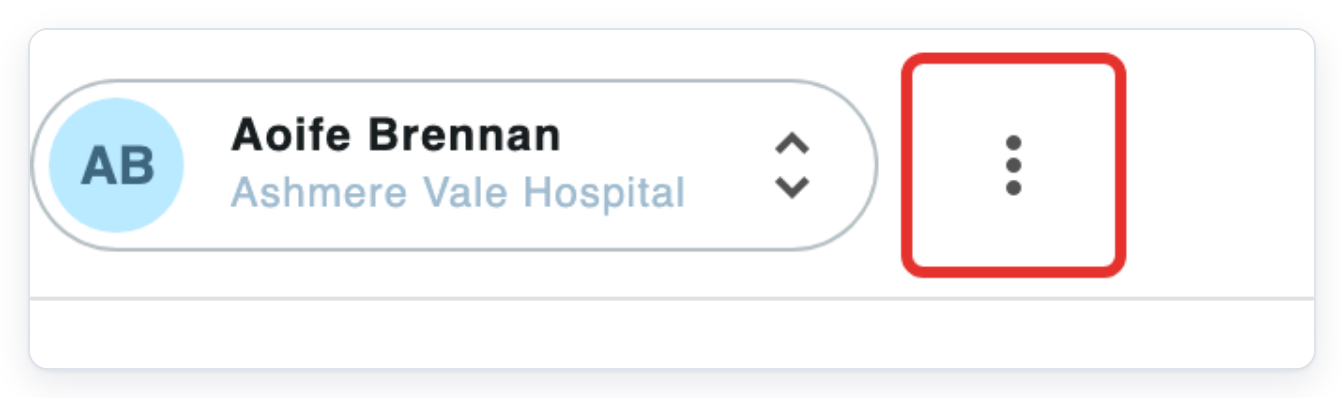
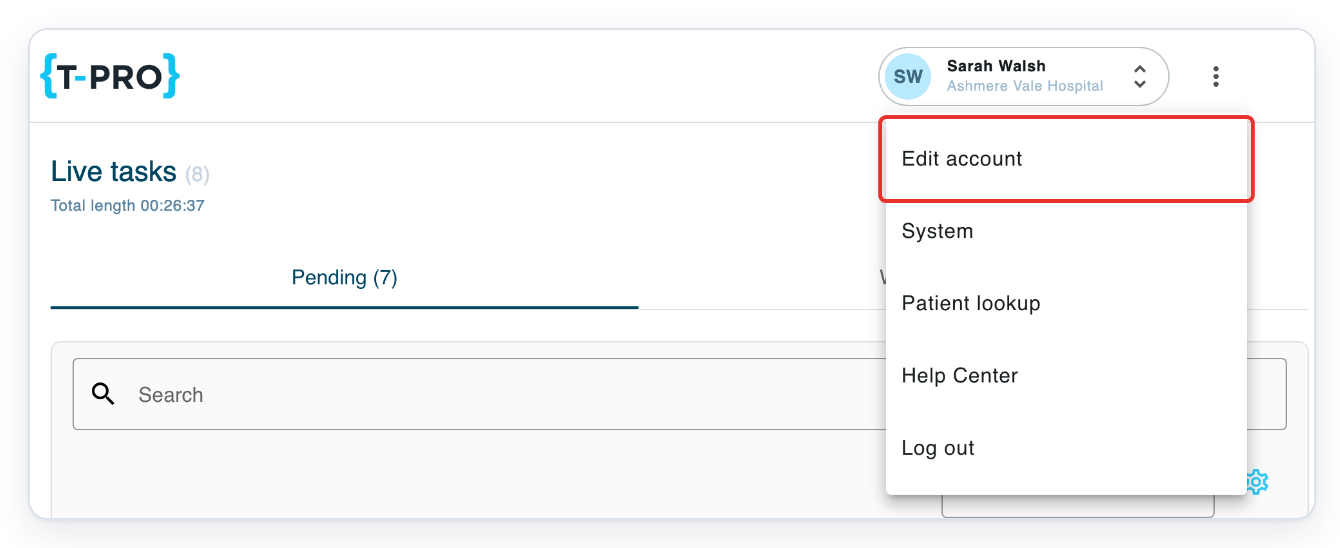
From your task list, click the three vertical dots beside your name at the top right. The account menu opens.
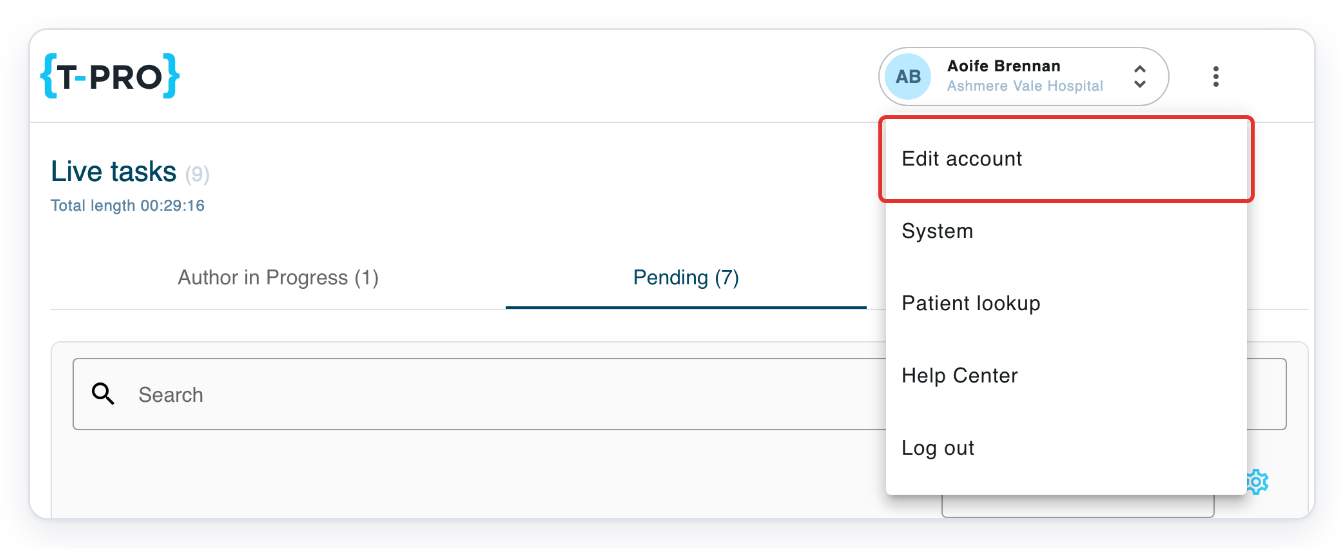
Click Edit account to open My details.
Click Speech Recognition. Your speech settings open, with Auto-Text, Formatting and Dictionary tabs.

Click Dictionary to see your own words and any words shared by your organisation.
Use Search dictionary or the Category filter to find a word.

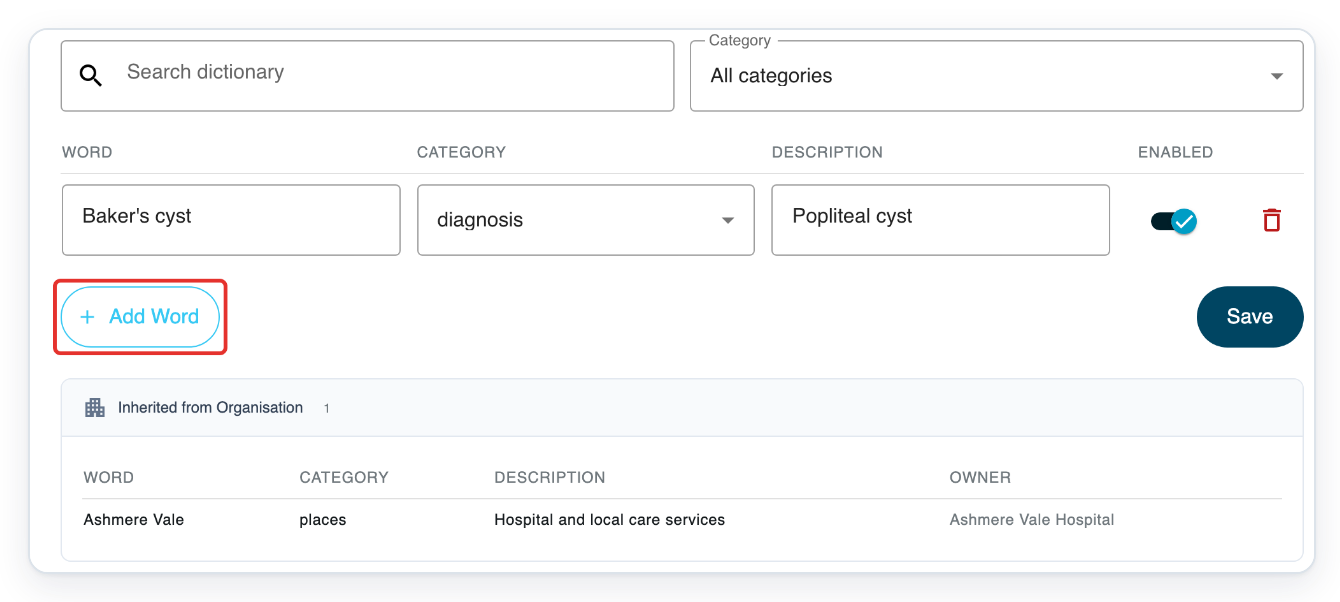
Click Add Word. A blank row appears in your personal dictionary.
For this example, enter spondylolisthesis in the new Word field.
Use the spelling you want speech recognition to favour.
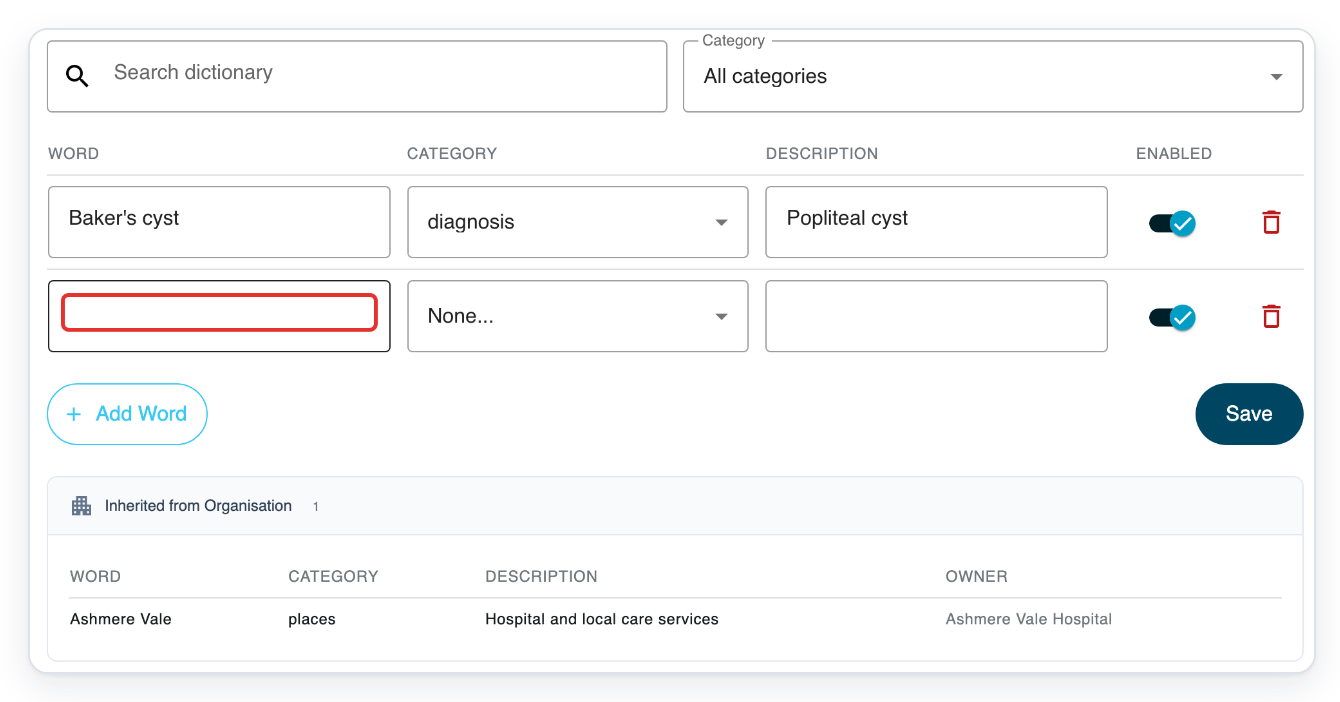
Open Category in the new row to see the choices.
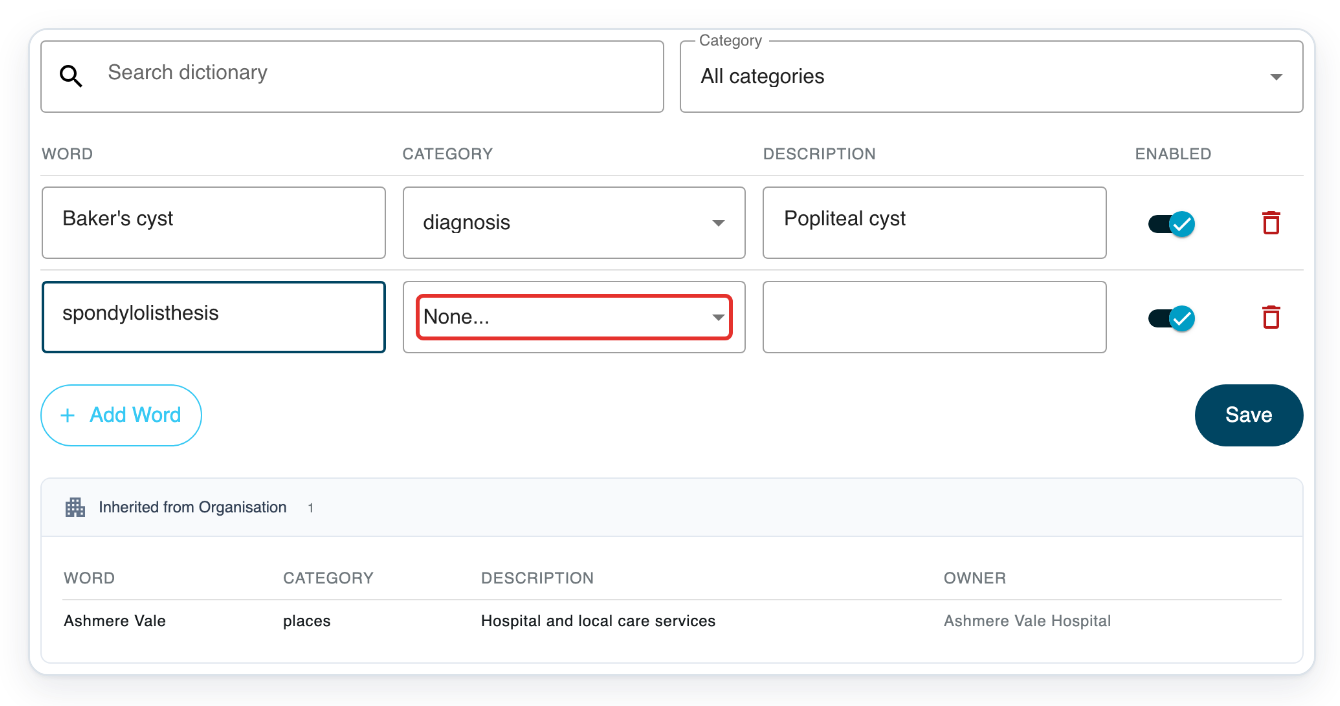
Choose diagnosis for spondylolisthesis.
Leave Description blank or add a short reminder to help you recognise the entry later.
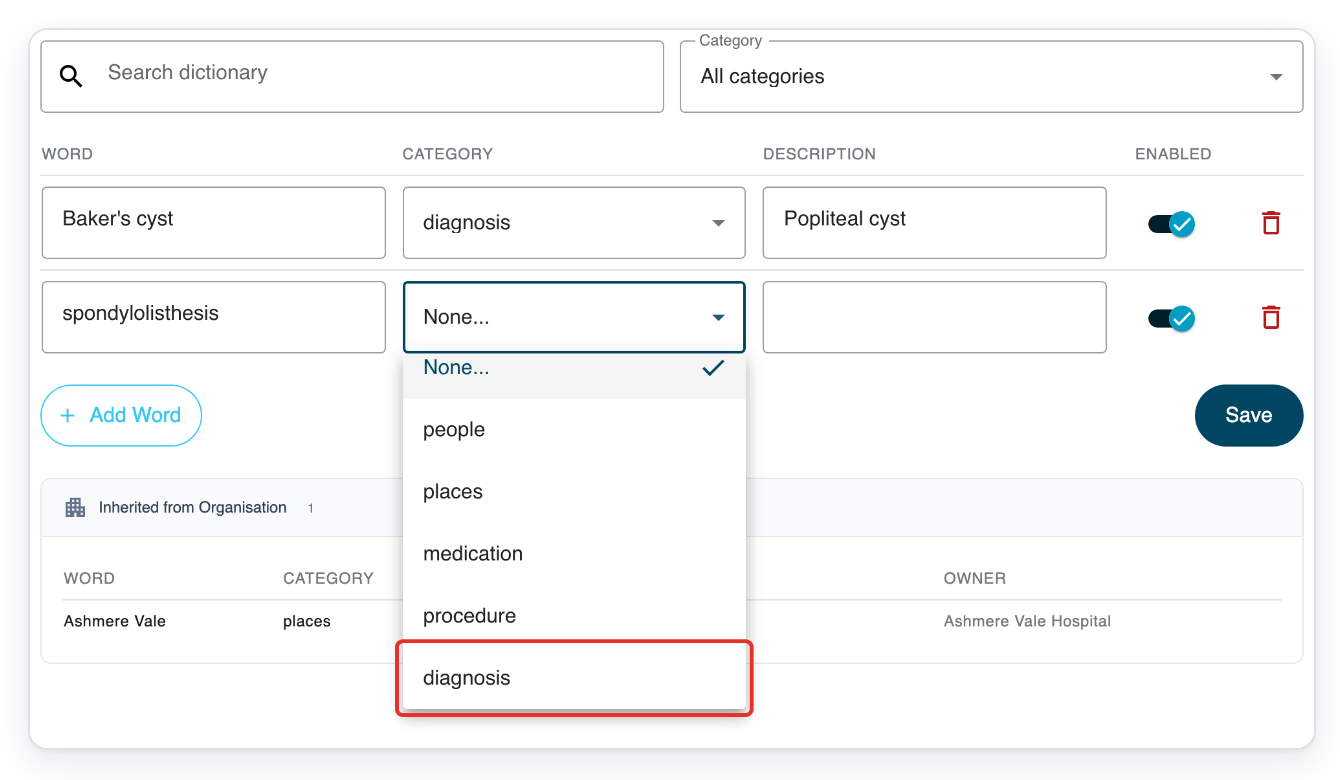
Click Add Word again to add a phrase you want speech recognition to avoid.
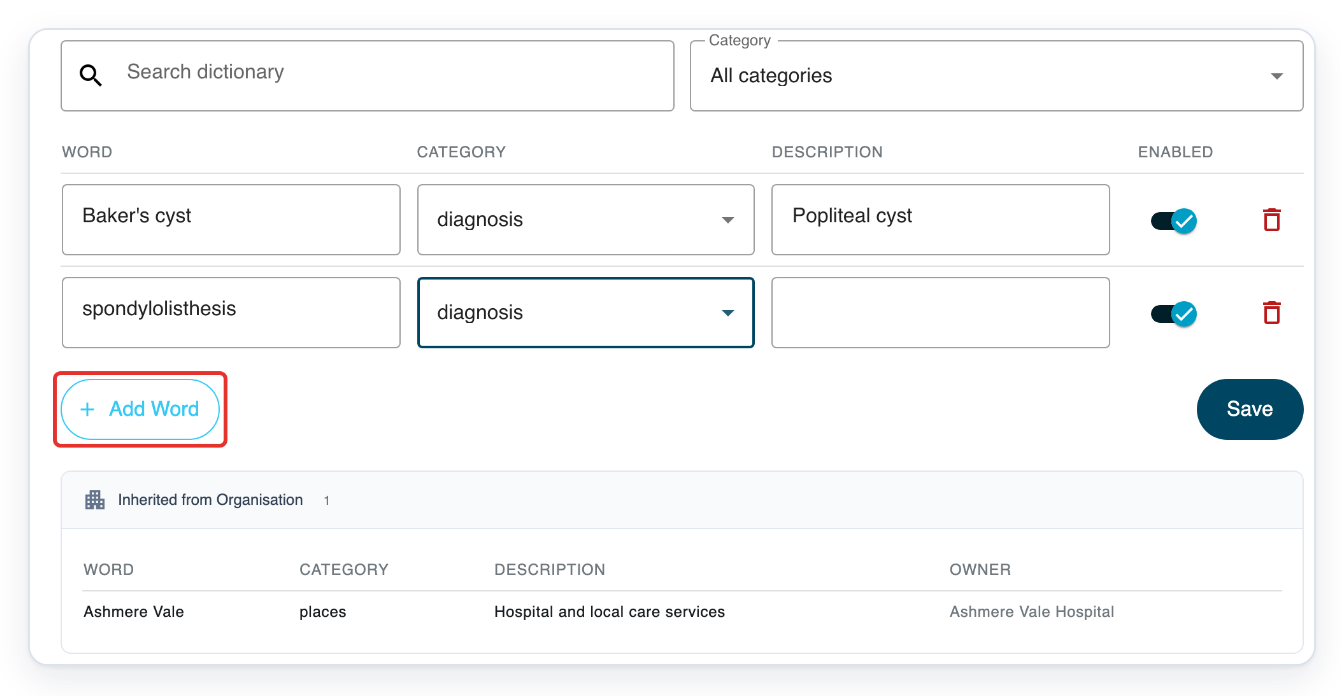
Enter Worcester share in the new Word field.
In this example, speech recognition has written Worcester share instead of Worcestershire. Enter the phrase you want to avoid.
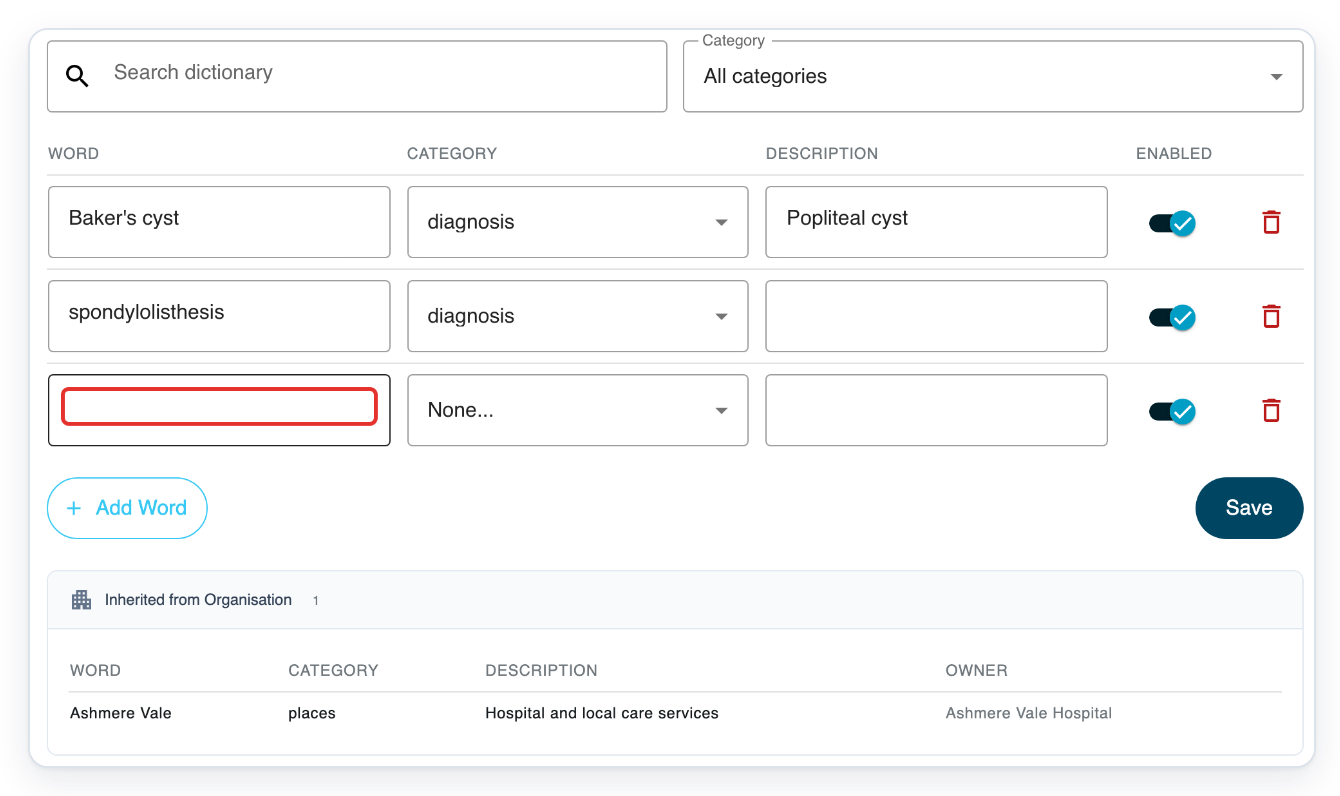
Open Category for Worcester share.
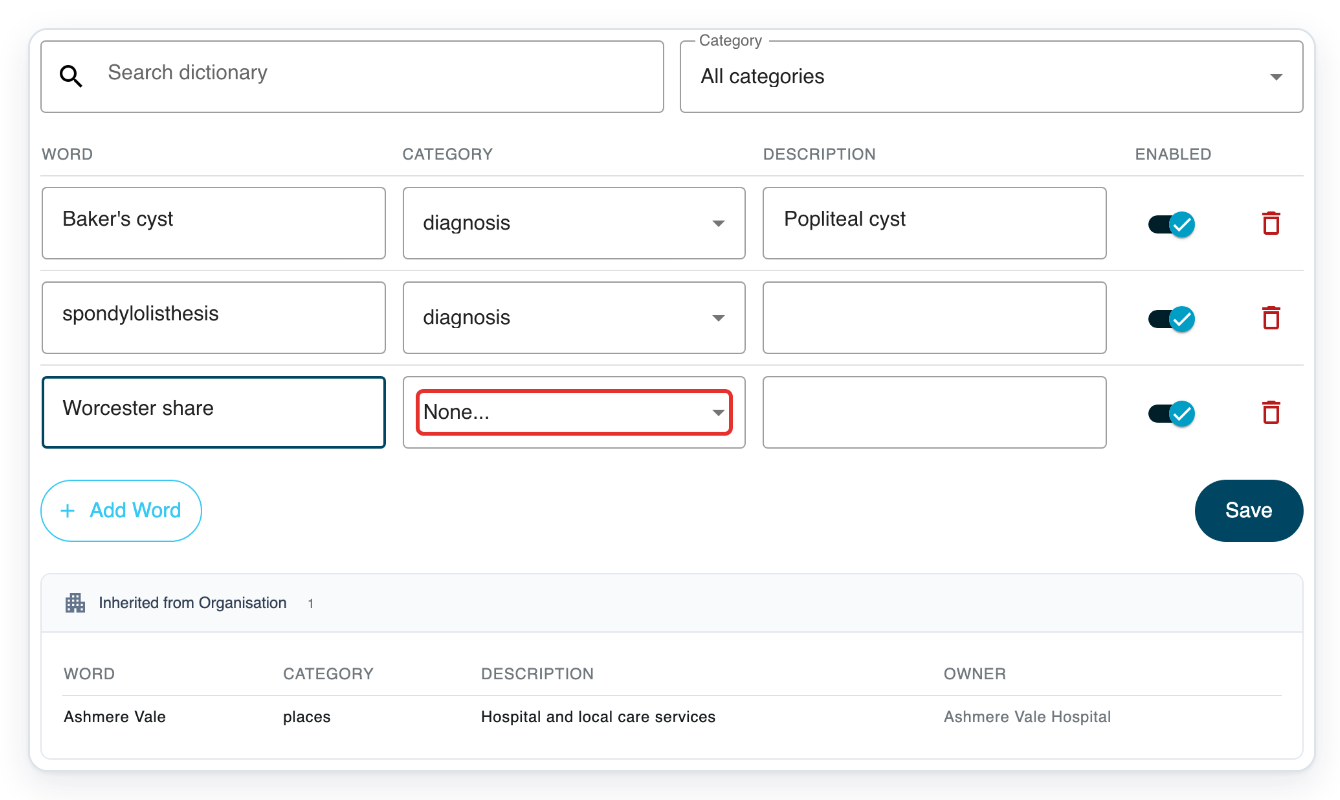
Choose excluded. This asks speech recognition to avoid the unwanted phrase.
Scroll down the category list if needed.
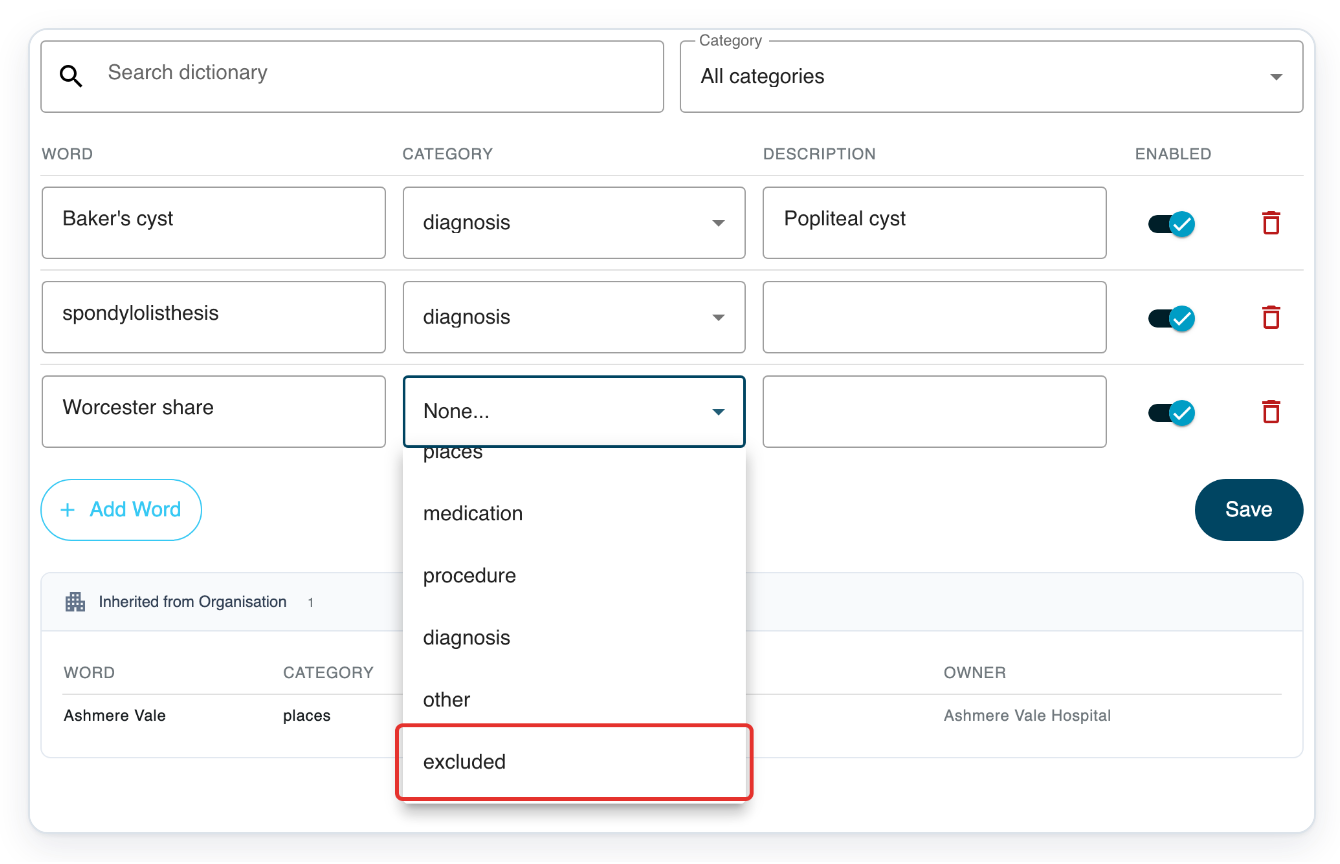
Click Save to save both new entries.
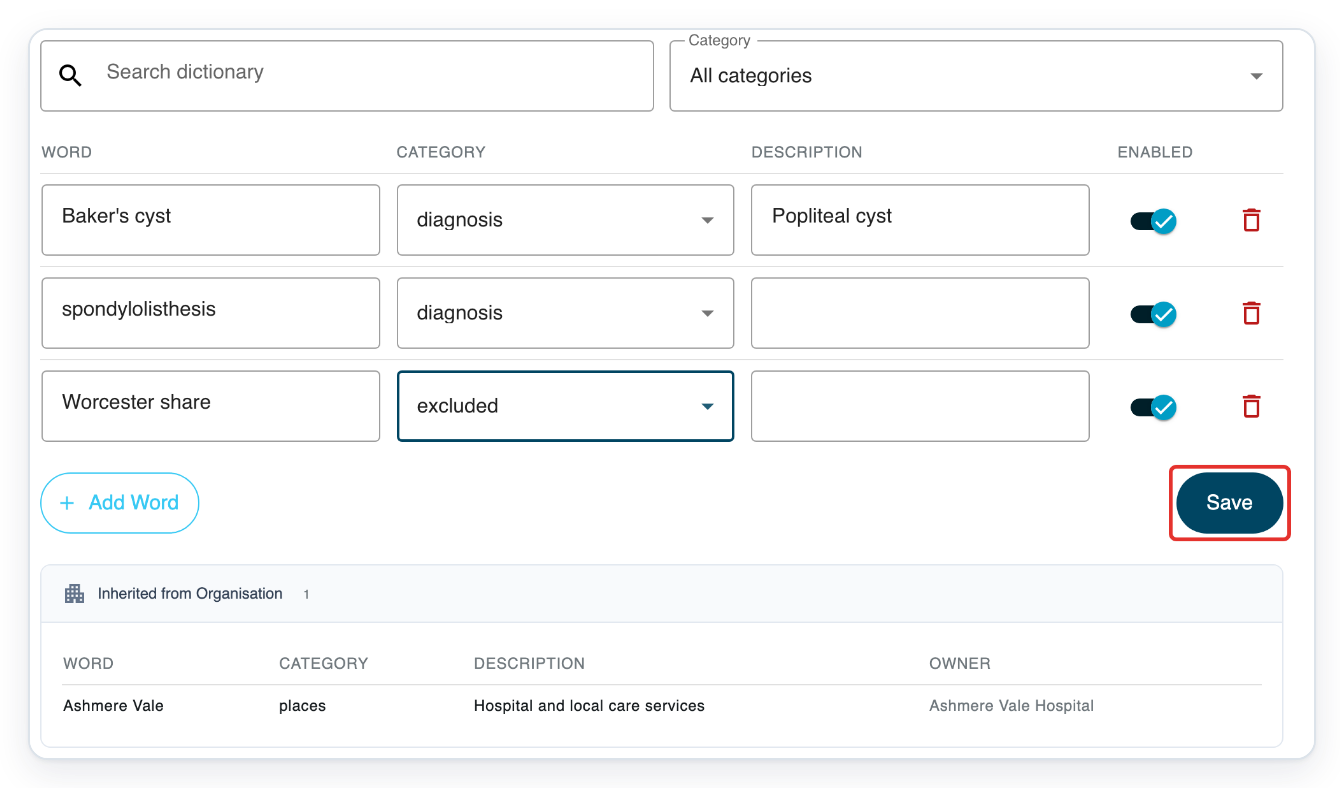
To remove an existing preference, such as Baker's cyst, click its bin icon (Remove).
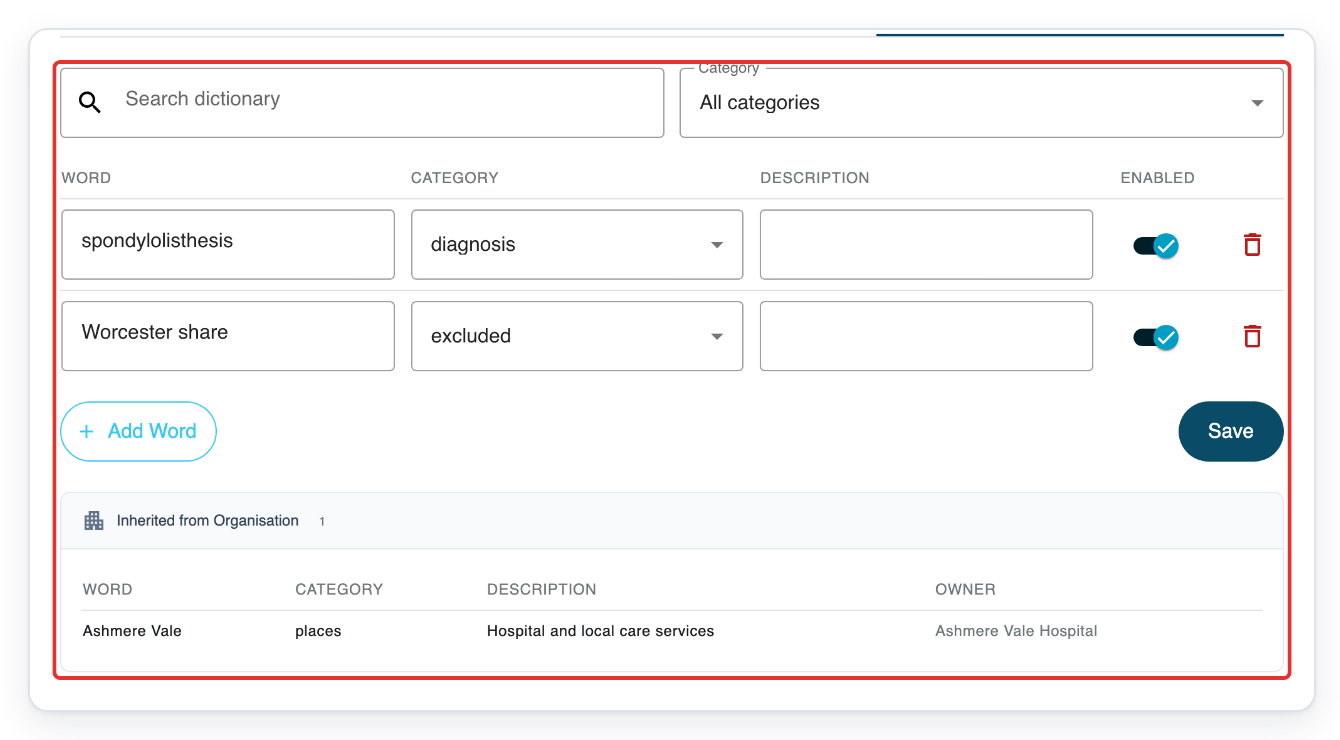
Your saved entries are spondylolisthesis (diagnosis) and Worcester share (excluded), both with Enabled on. Ashmere Vale appears under Inherited from Organisation. Its owner is Ashmere Vale Hospital.
Speech recognition still uses your preference when Enabled is off.
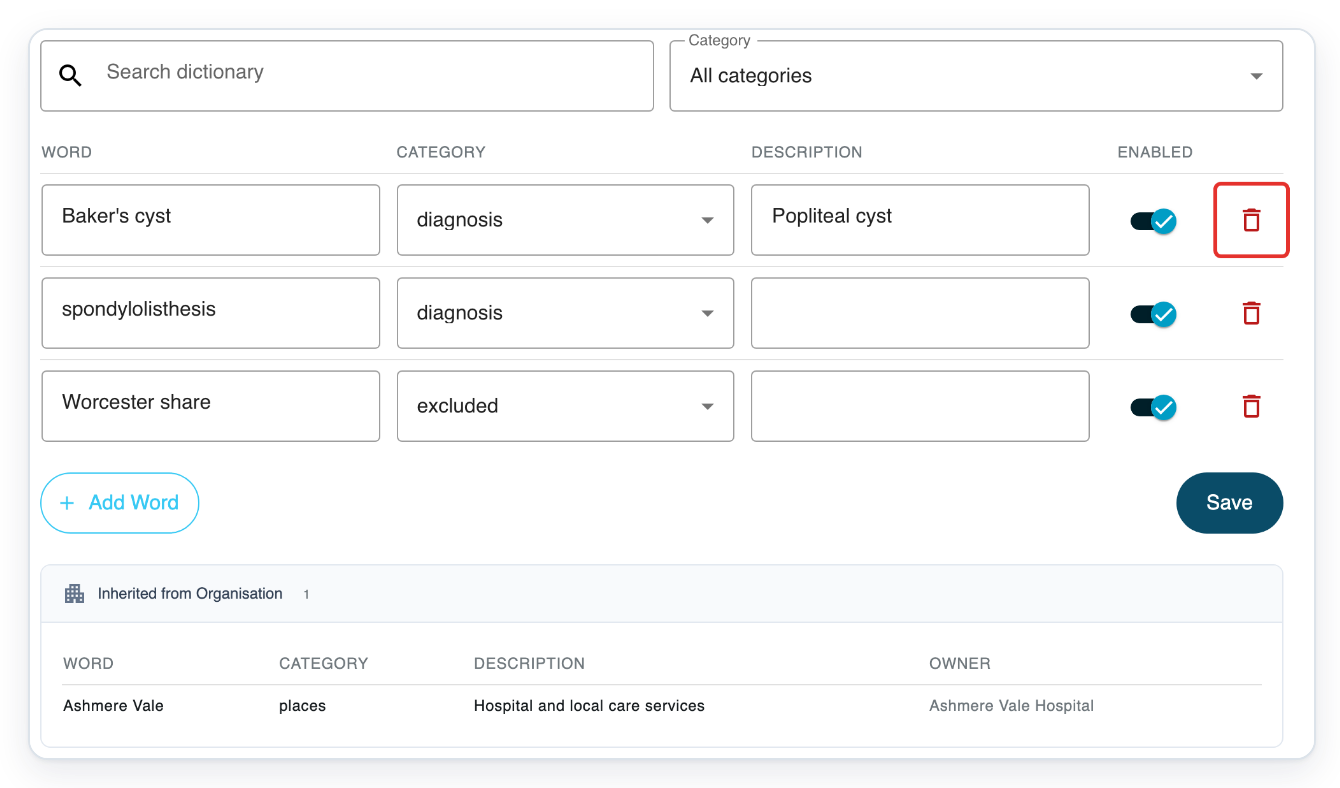
Click Save to finish removing the Baker's cyst preference.
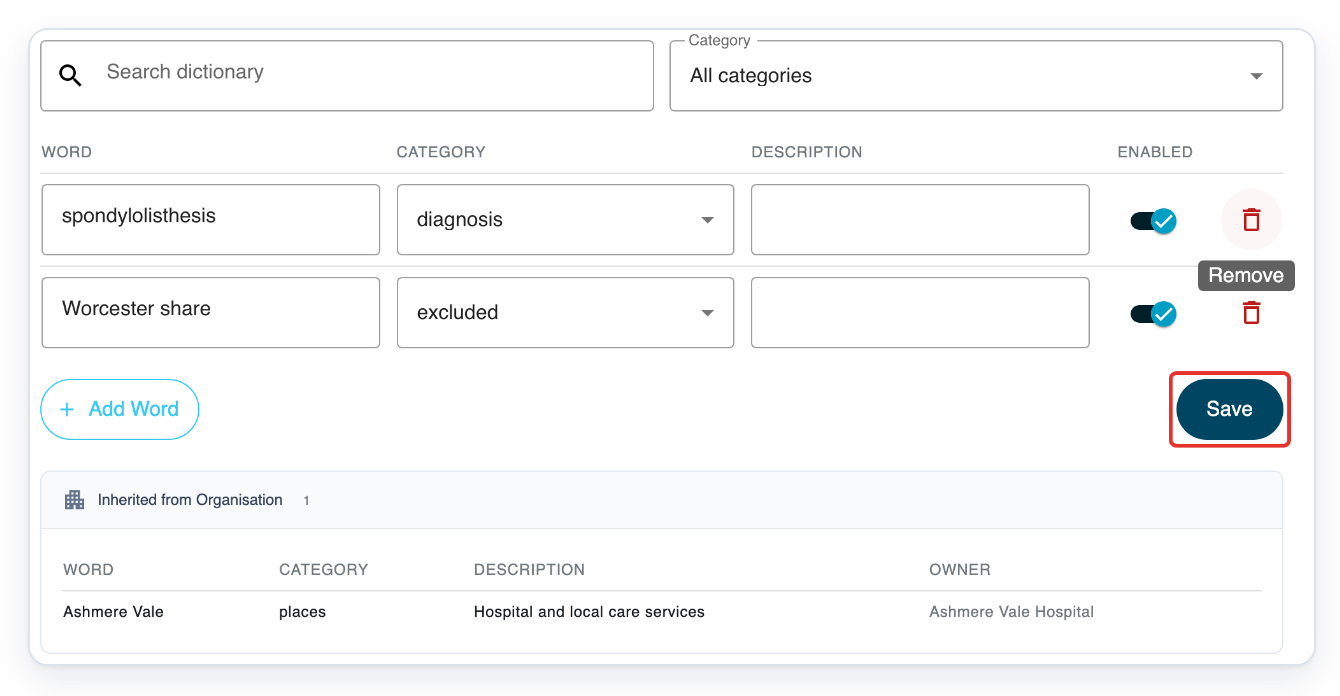
=> Your saved personal dictionary now contains spondylolisthesis and Worcester share. The shared word remains under Inherited from Organisation.
Request a term as a transcriber or medical secretary
From your task list, click the three vertical dots beside your name at the top right. The account menu opens.
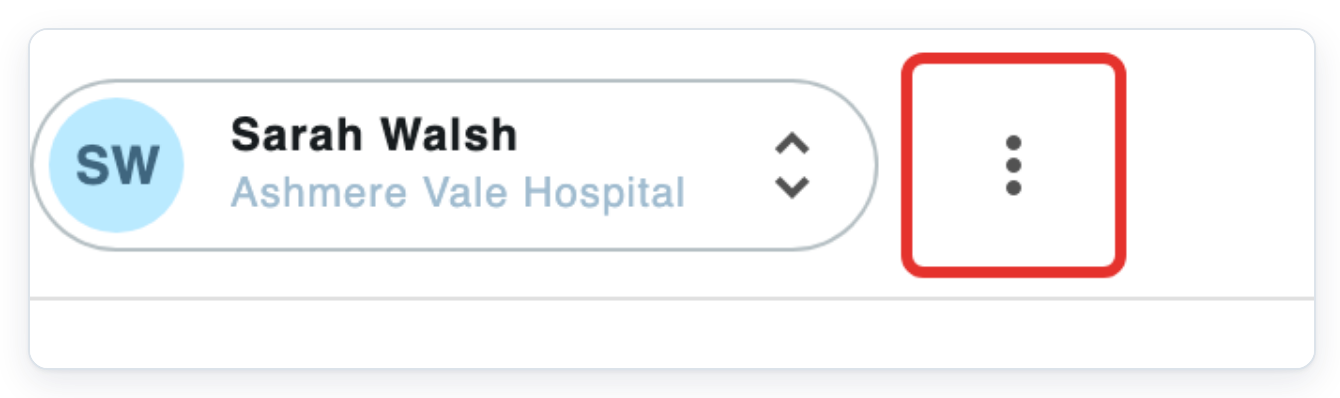
Click Edit account to open My details.
=> You'll see My details and Security, but no Speech Recognition tab. You can't edit an author's dictionary from this account.
Email support@tpro.io to request a term. Include the exact spelling, specialty or workflow, and an example sentence if possible. Add the category and say how the term should be capitalised within a sentence.
For example: spondylolisthesis; Orthopaedics; “Imaging confirms spondylolisthesis at L4–L5.”; diagnosis; lowercase within a sentence.

NOTE:
- New personal entries have Enabled switched on.
- After changing a personal word, category or optional description, click Save.
- Switching Enabled off saves that setting, but speech recognition still uses the word preference. To remove it, click Remove, then Save.
- Save includes personal entries hidden by filters. It skips rows with an empty Word field.
Choose a category
Choose the category that describes your term. Use excluded for an unwanted word or phrase you want speech recognition to avoid.
| Category | Choose it for |
|---|---|
| people | People's names. |
| places | Place names. |
| medication | Medication names. |
| procedure | Procedures. |
| diagnosis | Diagnoses. |
| other | Specialist terms outside the other categories. |
| excluded | Unwanted words or phrases for speech recognition to avoid. |
Tip: Clear Search dictionary and choose All categories before adding a word. This keeps the new blank row visible.
Can't add or change a word?
- If you're an author and can't see Speech Recognition or Dictionary, ask your administrator to check your account. Speech recognition needs to be set up and enabled.
- If T-Pro shows “Category is required for each word”, choose a Category for every word you've entered. Then click Save. Clear any filters to check hidden entries.
- If T-Pro shows “Duplicate dictionary words are not allowed”, edit or remove the repeated personal entries. Then click Save. Words with different capital letters still count as duplicates. Clear any filters to find hidden duplicates.
- To change or remove a shared word, check Owner under Inherited from Organisation. Ask your administrator to arrange the change for that organisation.
Related articles
- Dictionary terms and auto text: which to use
- Correct speech recognition text
- Change how speech recognition formats your text
- Contact T-Pro support
If you have any more queries, please do not hesitate to contact our Helpdesk or support@tpro.io.
© 2020 - 2026