
Before you start
You need speech recognition set up and enabled on your account. For organisation changes, use an administrator account. Speech recognition must also be enabled for the organisation.
Log in to T-Pro with your author credentials.
As an author
Click your name at the top right. Your account page opens.

Click Speech Recognition to open your speech recognition tools.
The tabs include Auto-Text, Formatting and Dictionary.

Click Formatting. Your number settings open, with categories on the left.
Under Post processing settings, find Integer numbers in the text. Choose whether whole numbers in your dictation appear as digits.

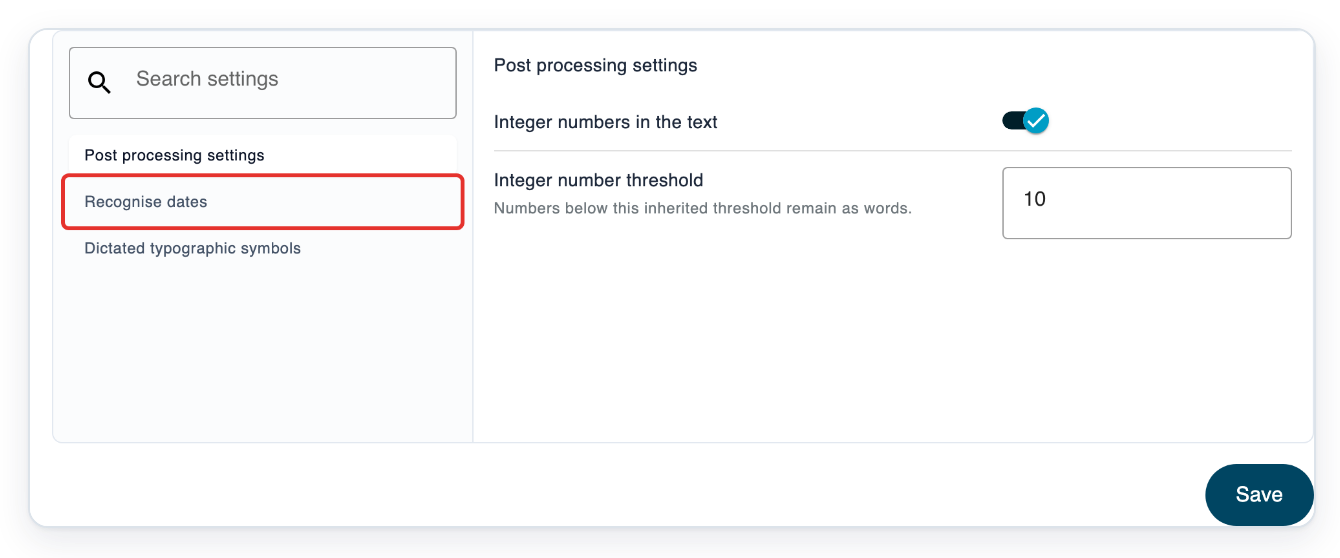
Click Recognise dates on the left to open the date settings.
The date recognition choices and Date format appear on the right.
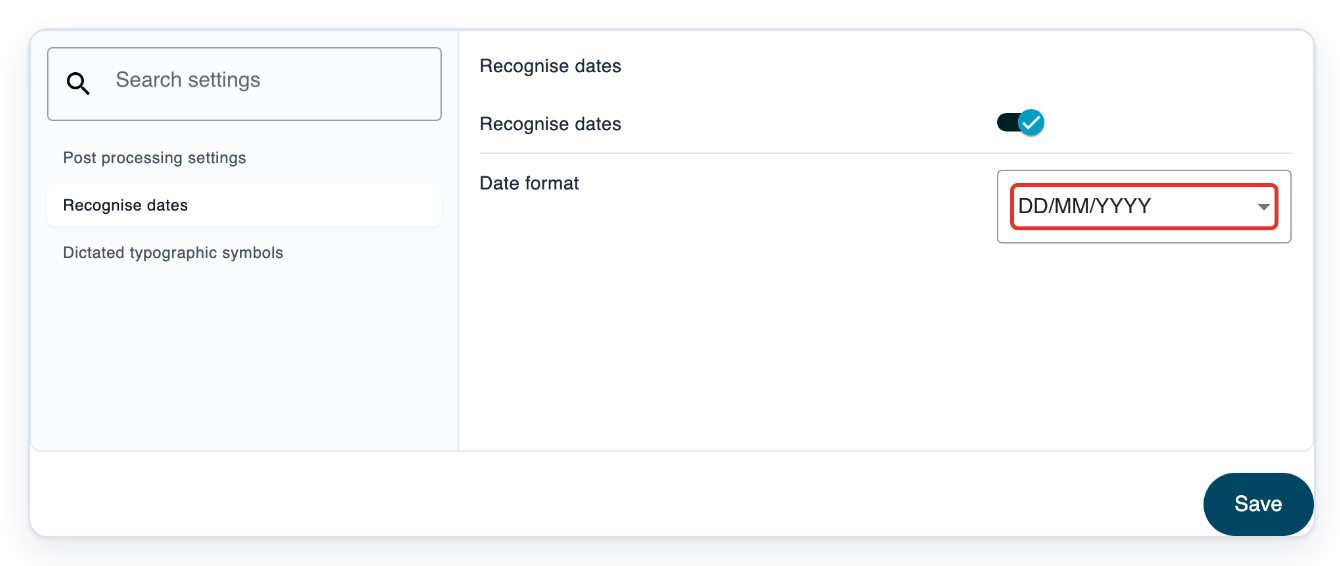
Open Date format to see the available formats.
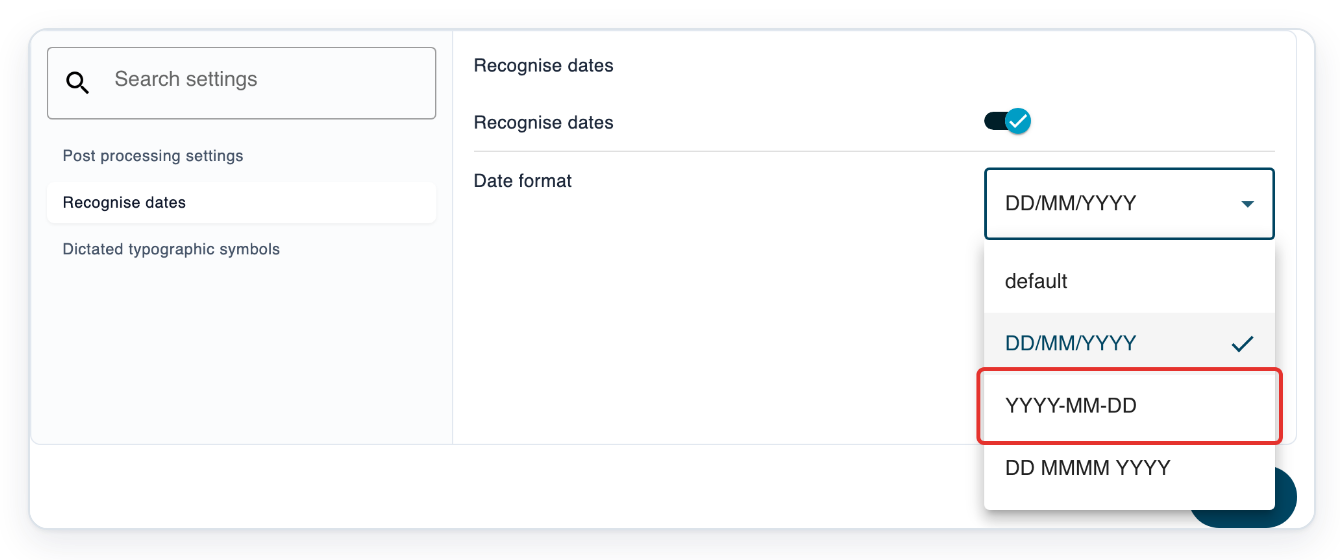
The list includes DD/MM/YYYY, YYYY-MM-DD and DD MMMM YYYY.
Select YYYY-MM-DD.
This writes the year, month and day in that order, separated by hyphens.
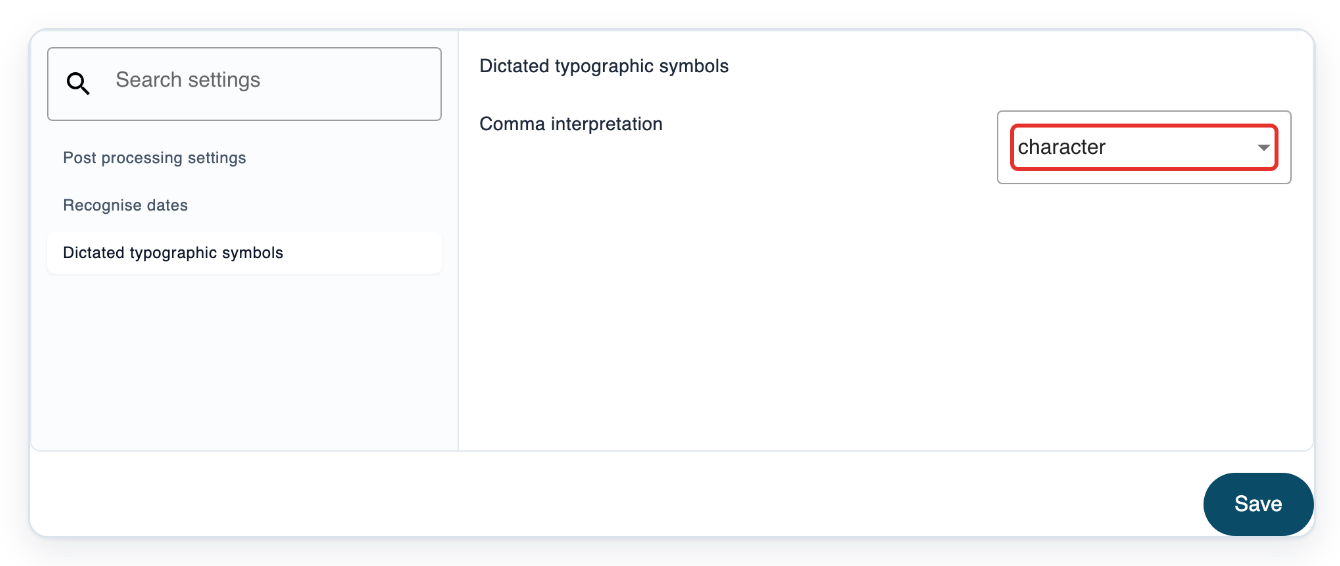
Click Dictated typographic symbols to open the spoken punctuation settings.
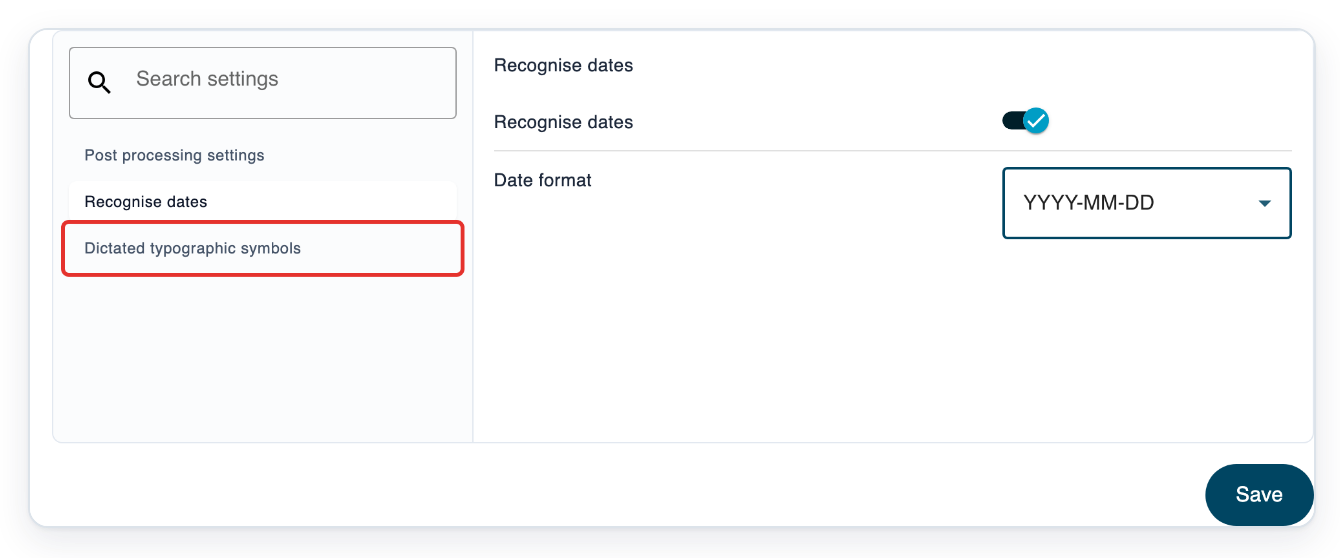
Open Comma interpretation to see its choices.
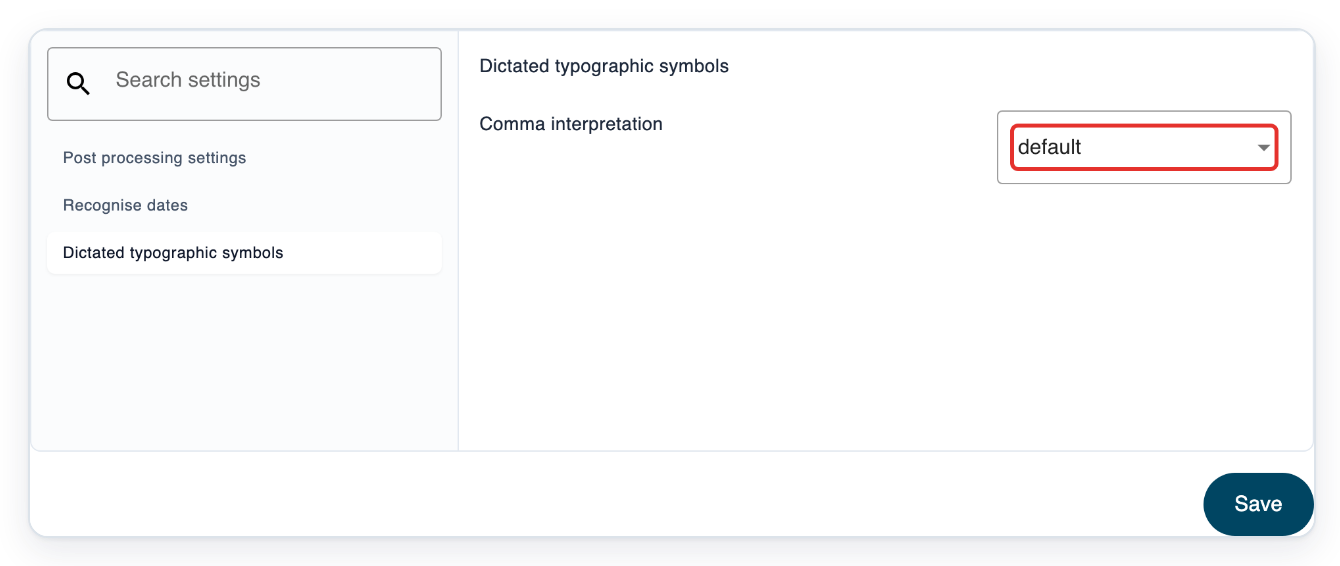
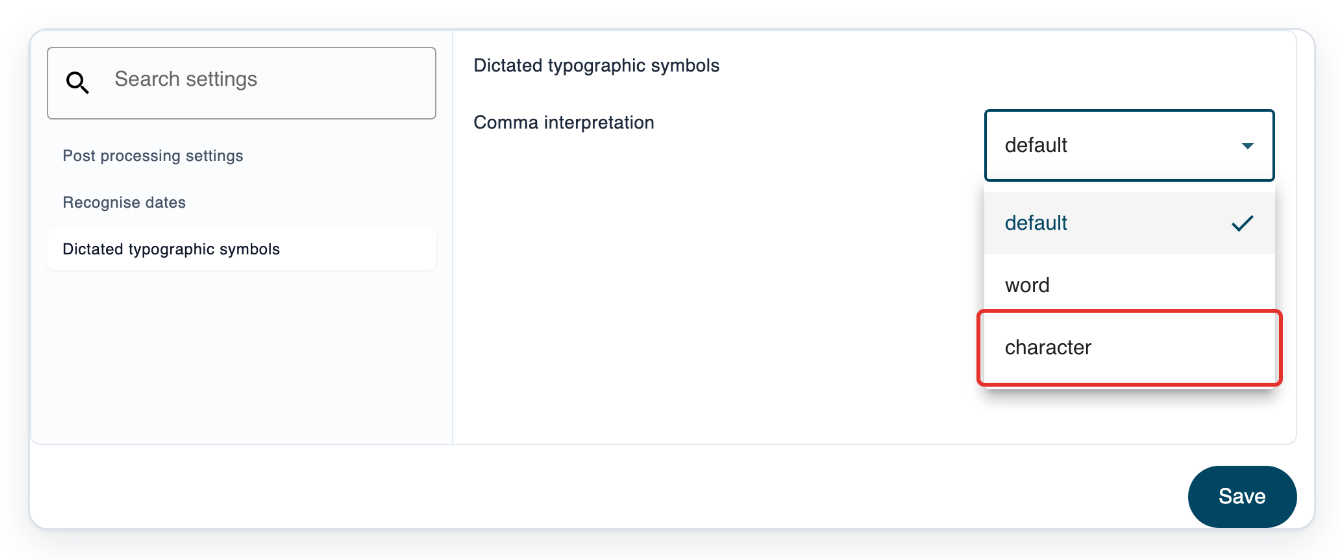
Select character to use a punctuation mark for a spoken comma.
Choose word to keep the word, or default to let T-Pro choose from the context.
Click Save.
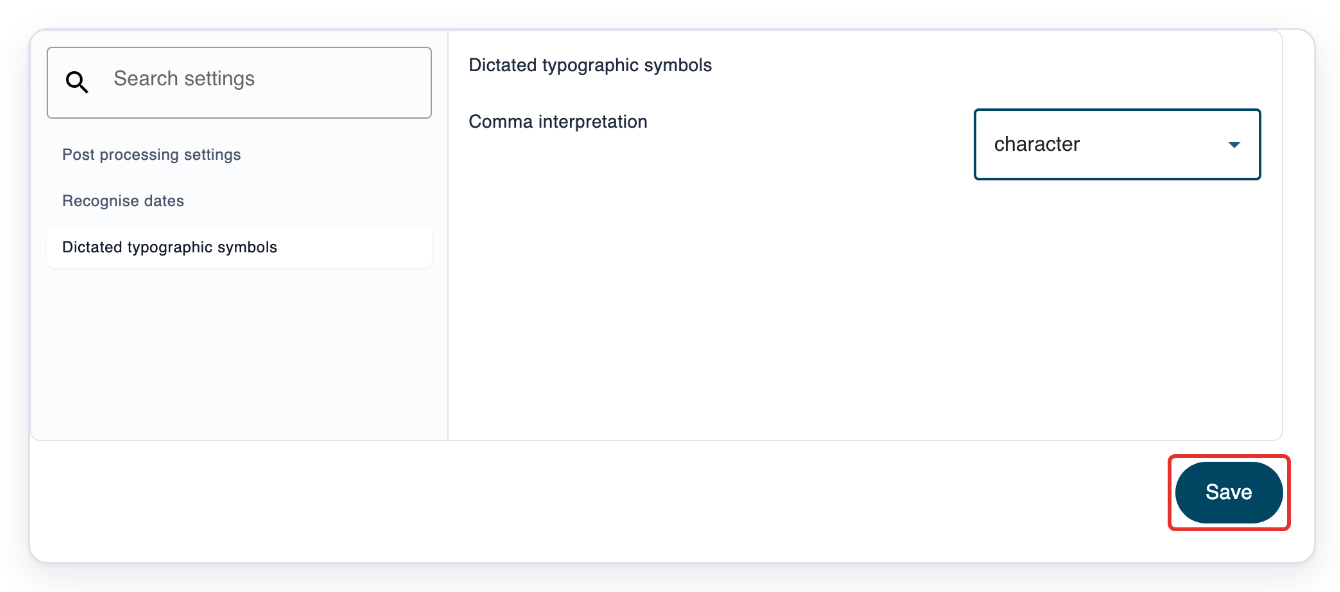
=> Your Formatting page shows character as your saved comma choice.
As an administrator
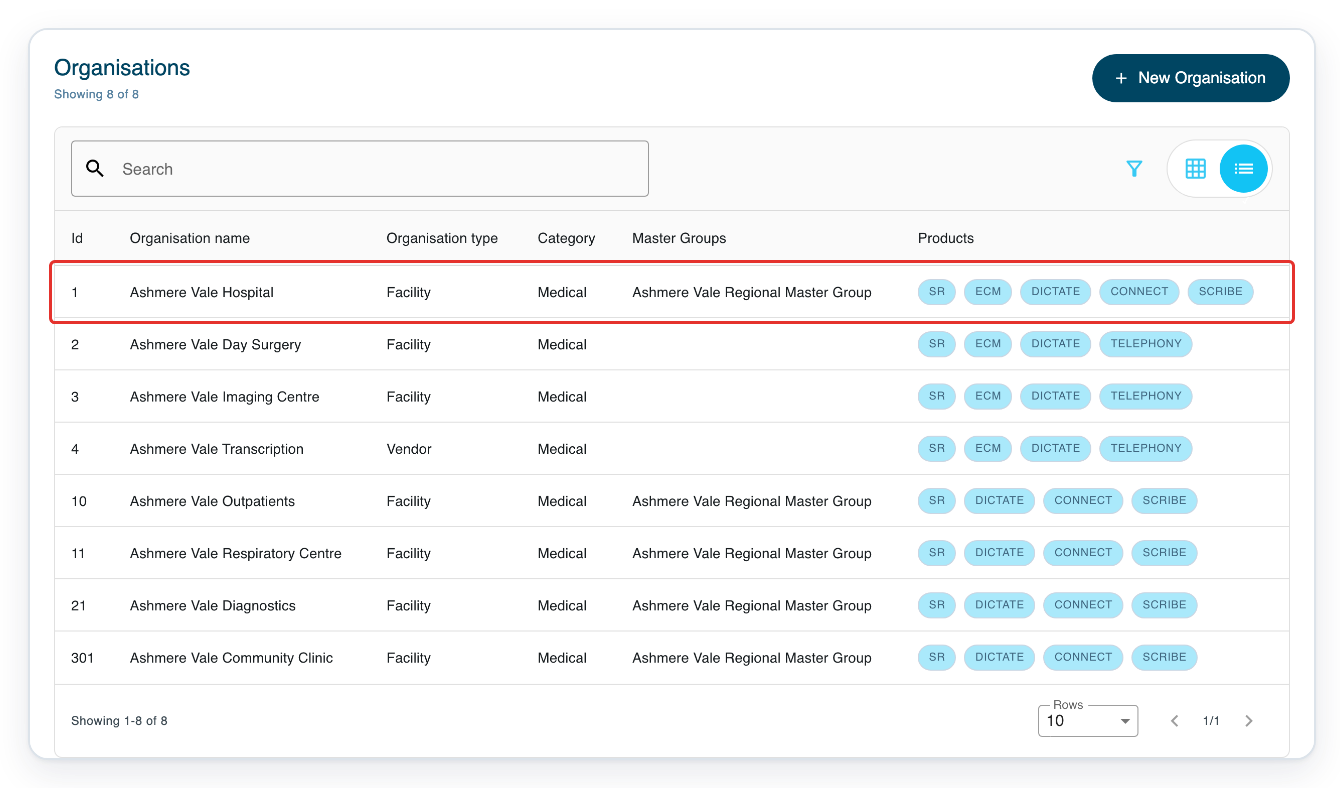
Log in with your administrator credentials. Click Organisations to open the organisation list.

Select your organisation. In this example, choose Ashmere Vale Hospital.
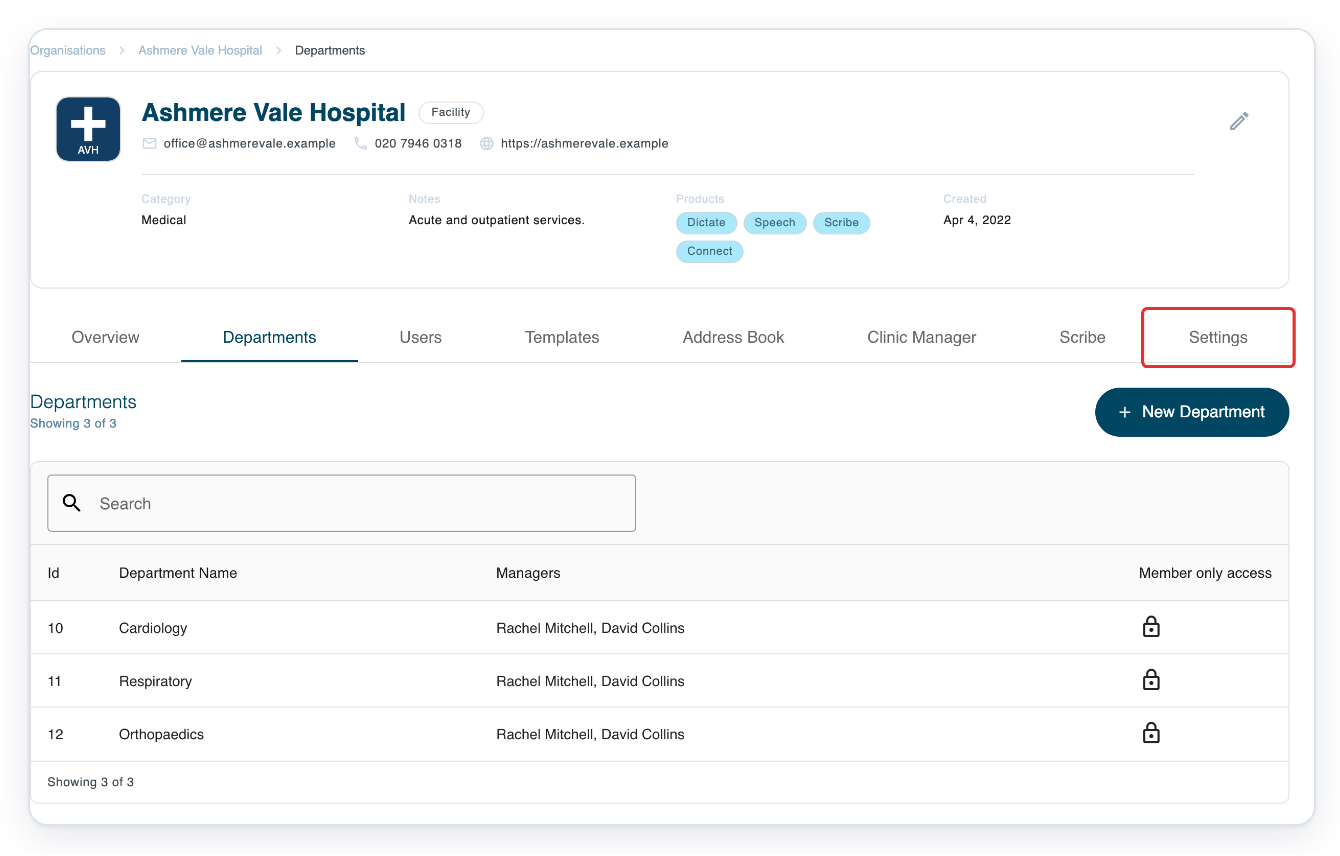
Click Settings in the organisation tabs.
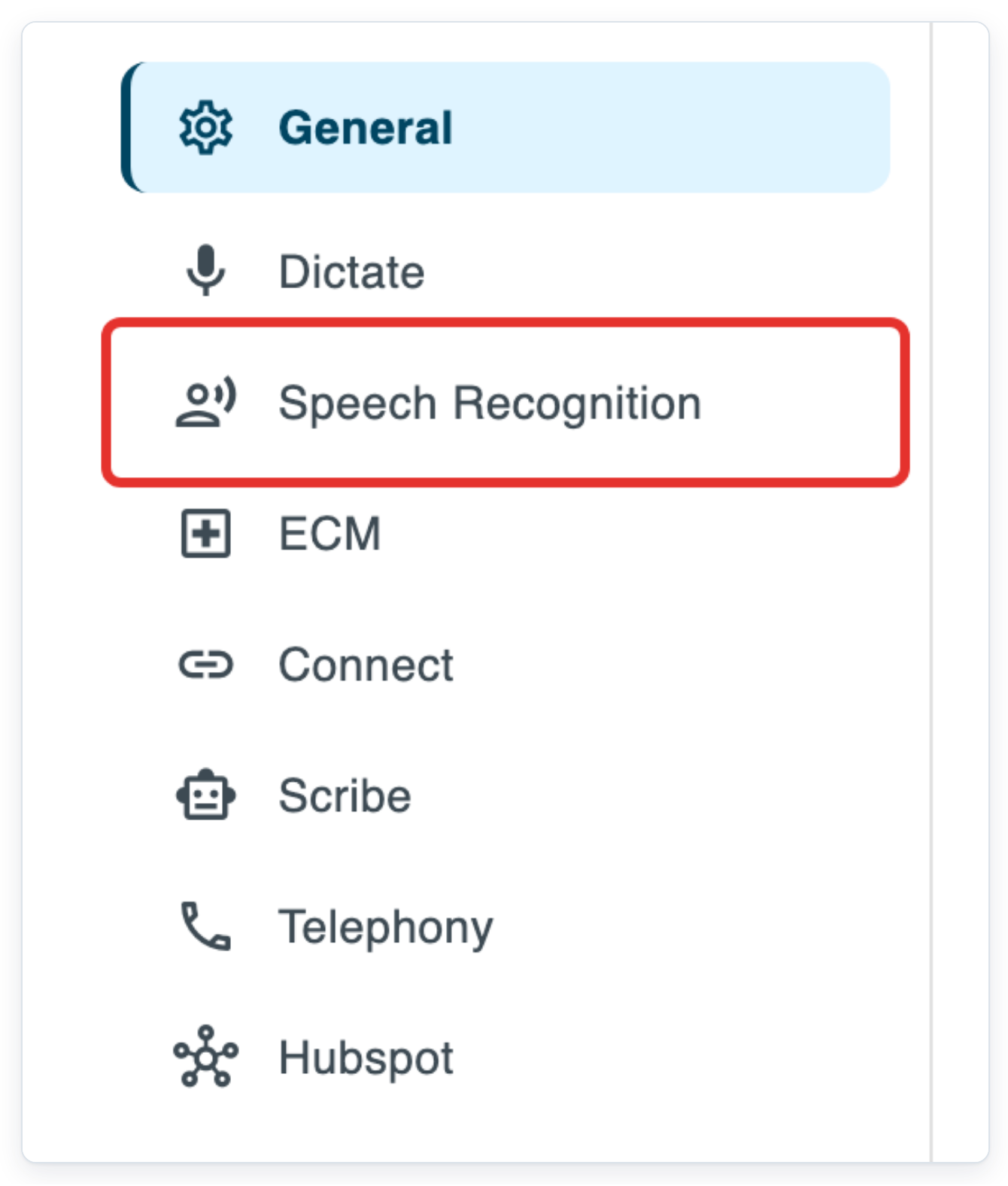
Click Speech Recognition in the settings navigation.
Click Formatting under Speech Recognition Tools.

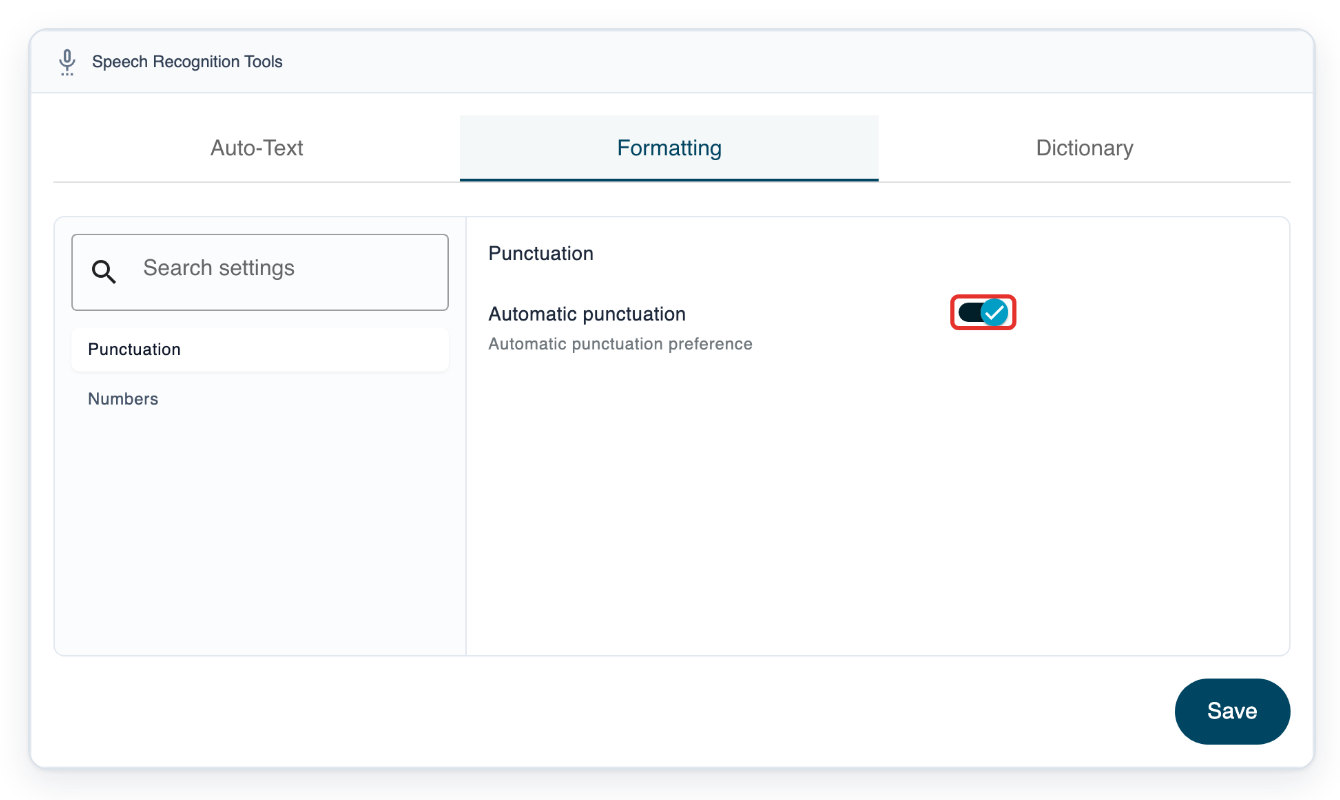
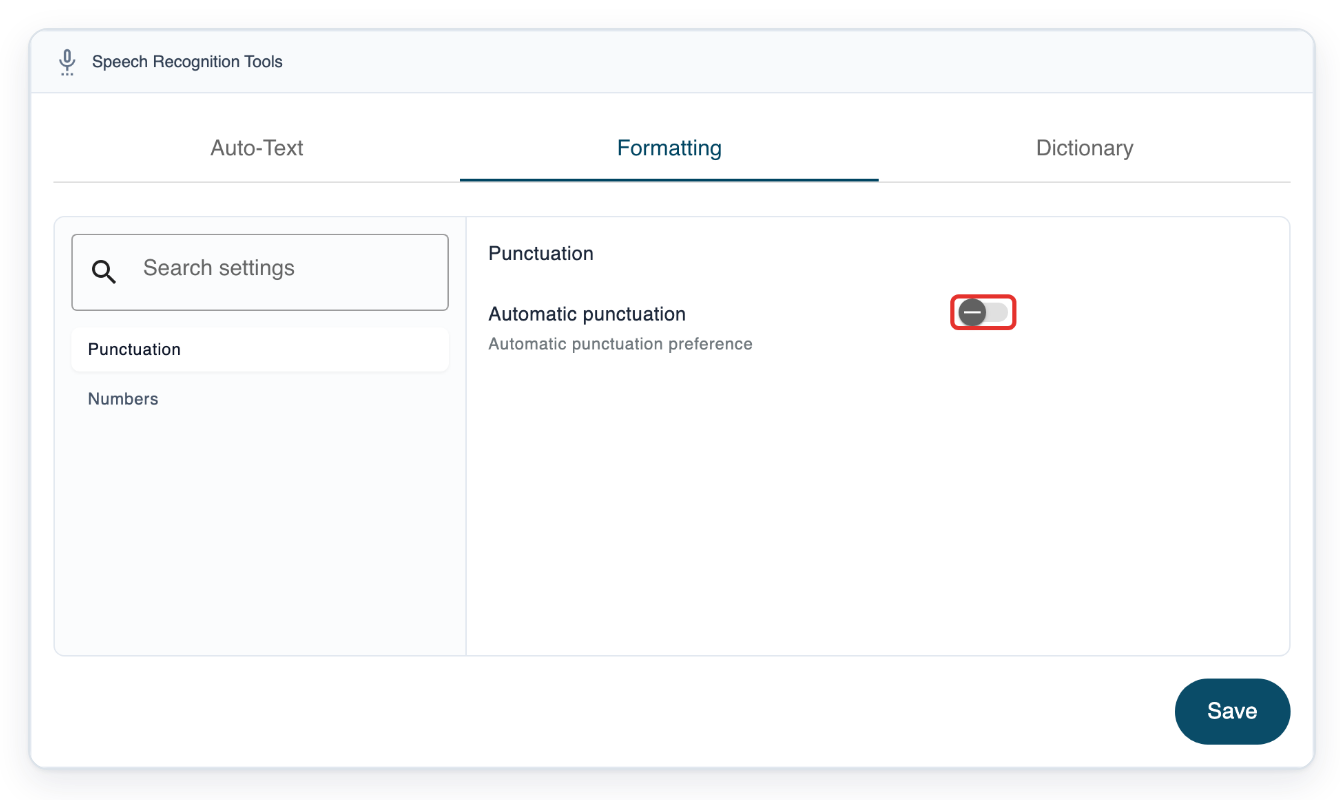
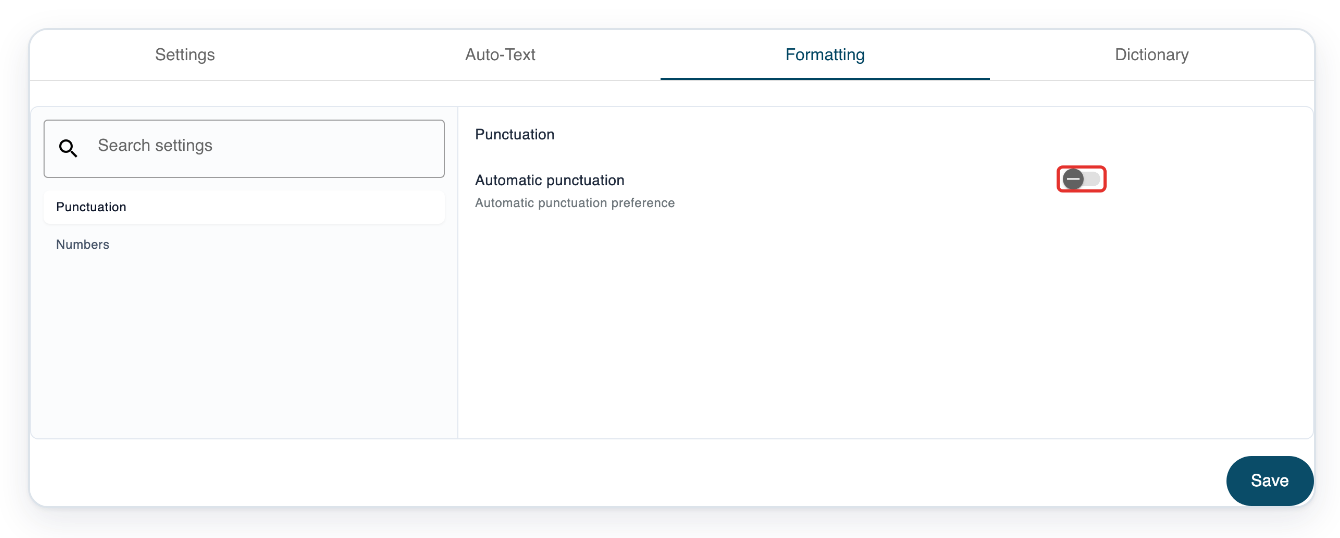
Use the switch beside the setting you want to turn off.
Choose a category on the left to see the settings you can change.
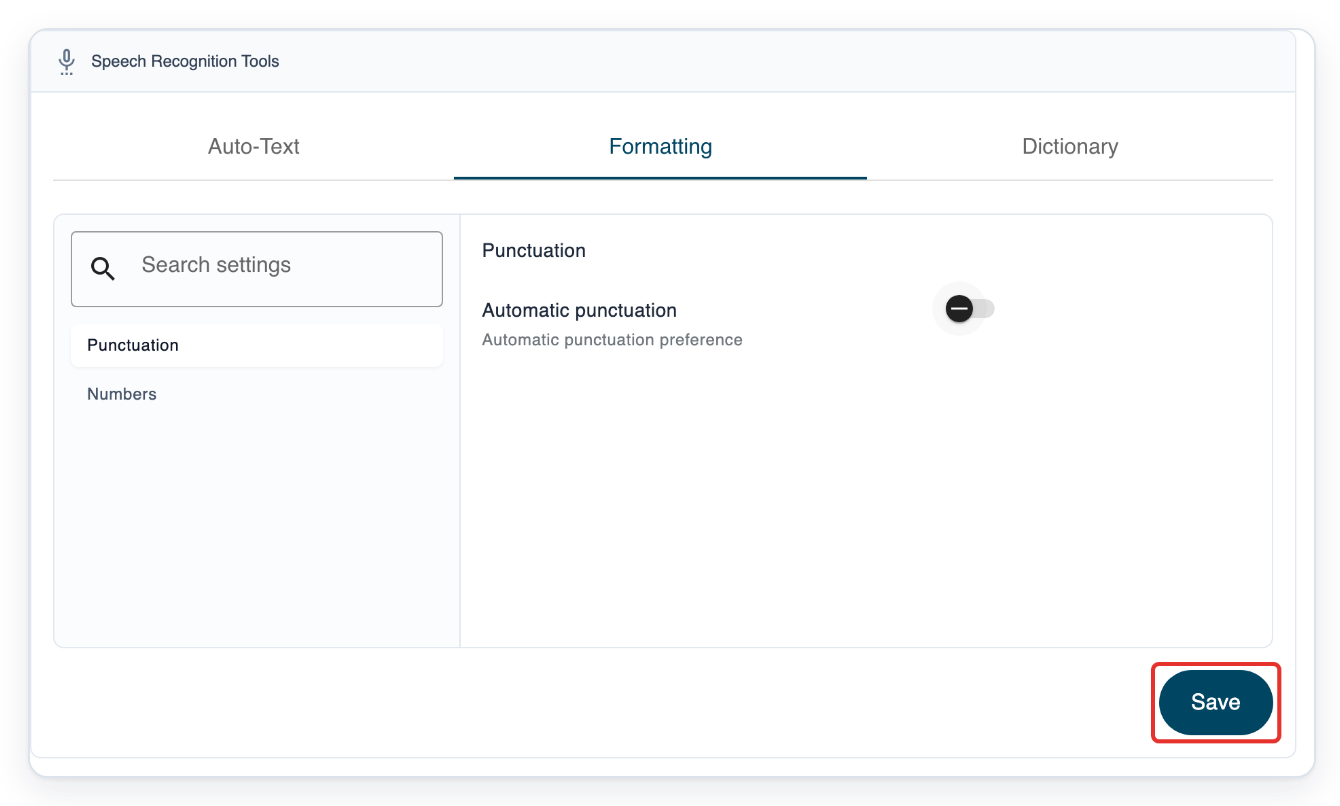
Click Save beneath the formatting settings. Formatting saved appears.
=> The organisation's Formatting page shows the saved settings.
As a manager
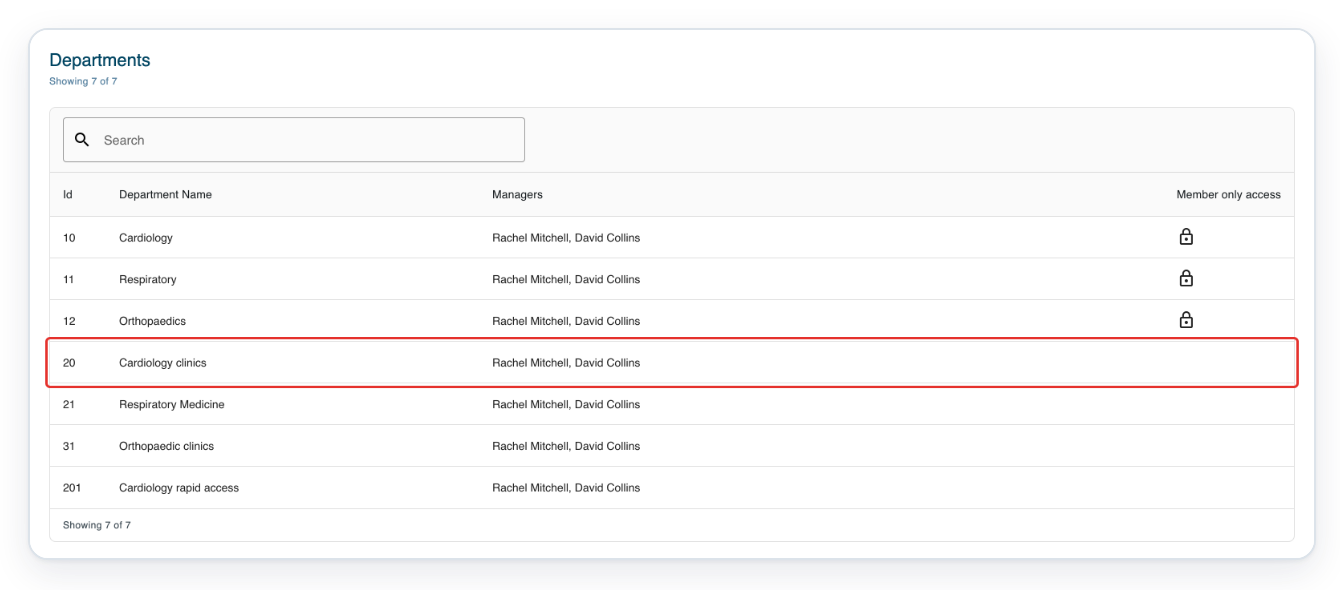
Log in with your manager credentials. Click Departments to see the departments you manage.

Select your department. In this example, choose Cardiology clinics.
Its Authors tab opens.
Click Authors to see the department's authors.
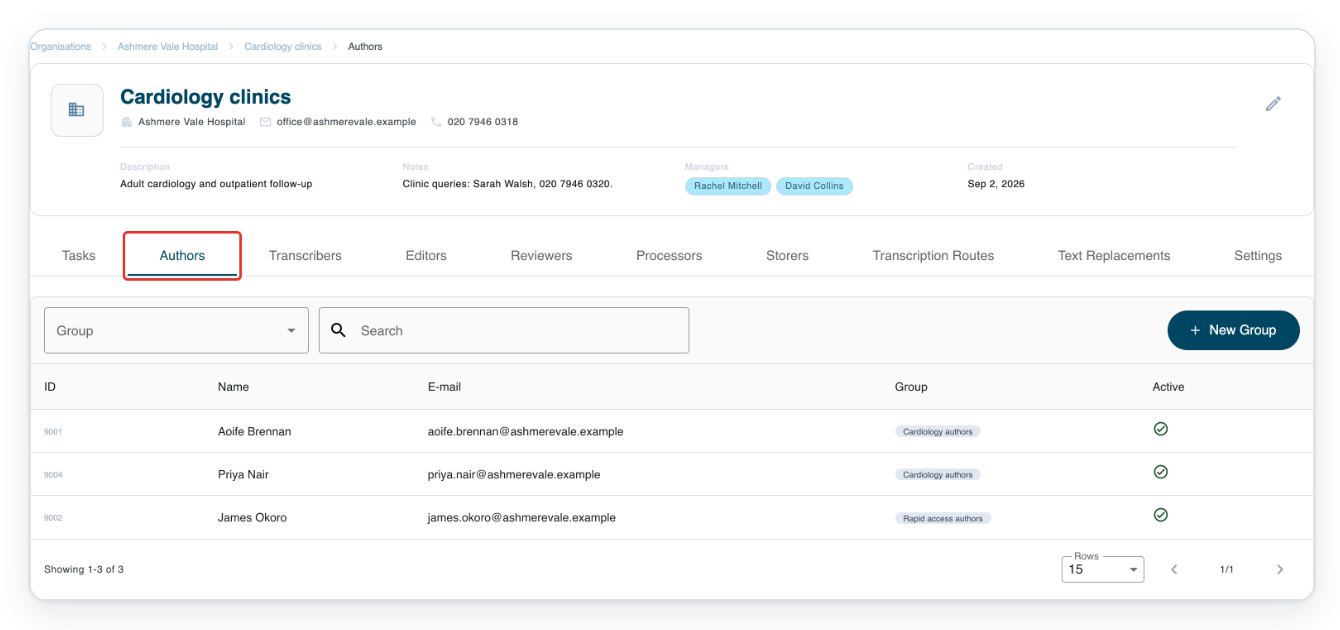
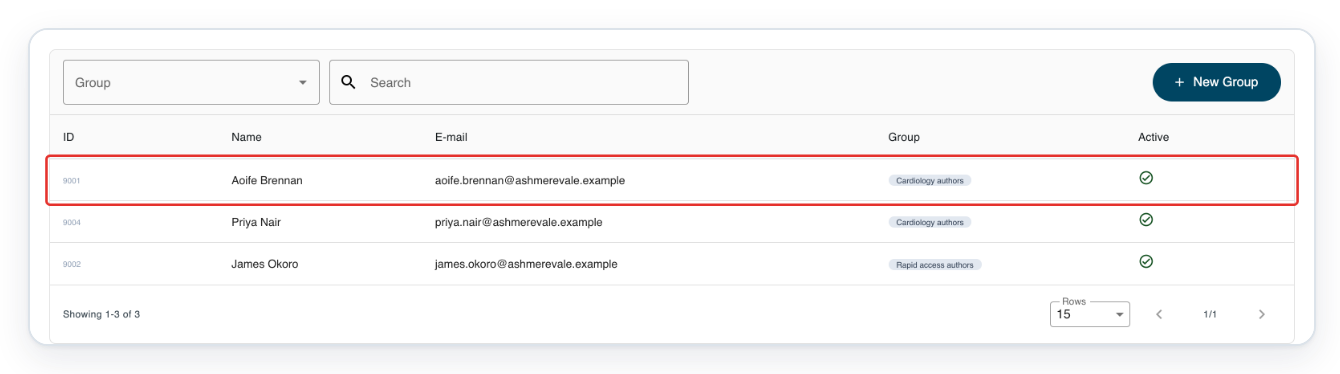
Click the author's row to open their profile. In this example, choose Aoife Brennan.
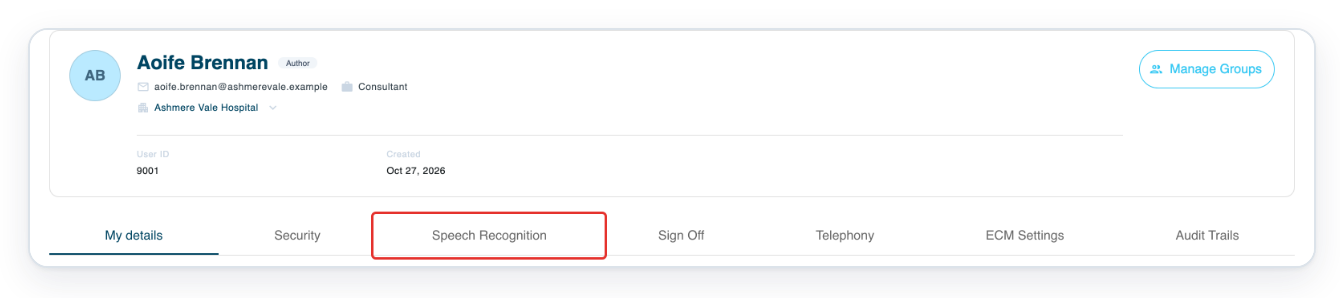
Click Speech Recognition. The Settings tab opens.
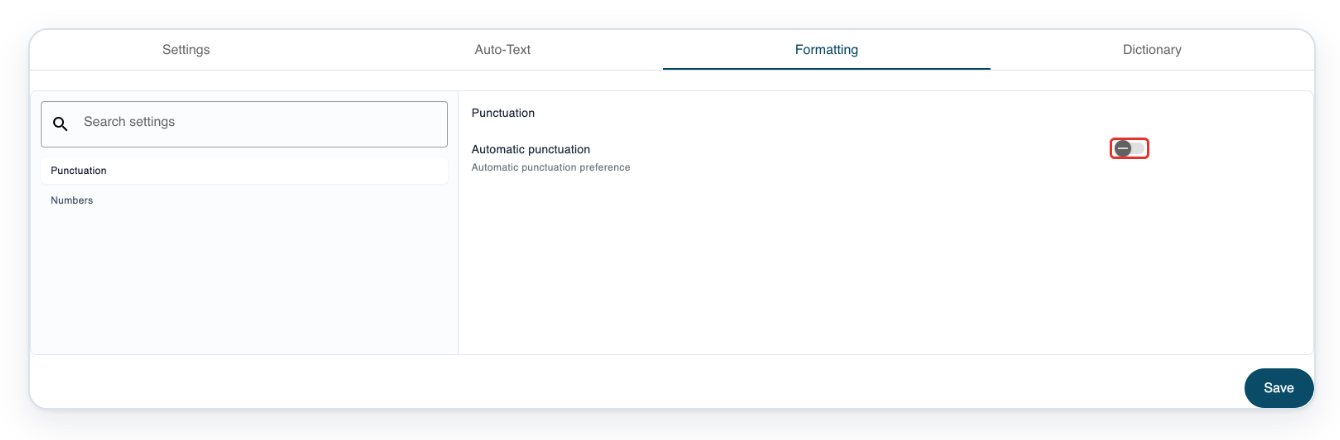
Click Formatting to open the author's speech formatting choices.
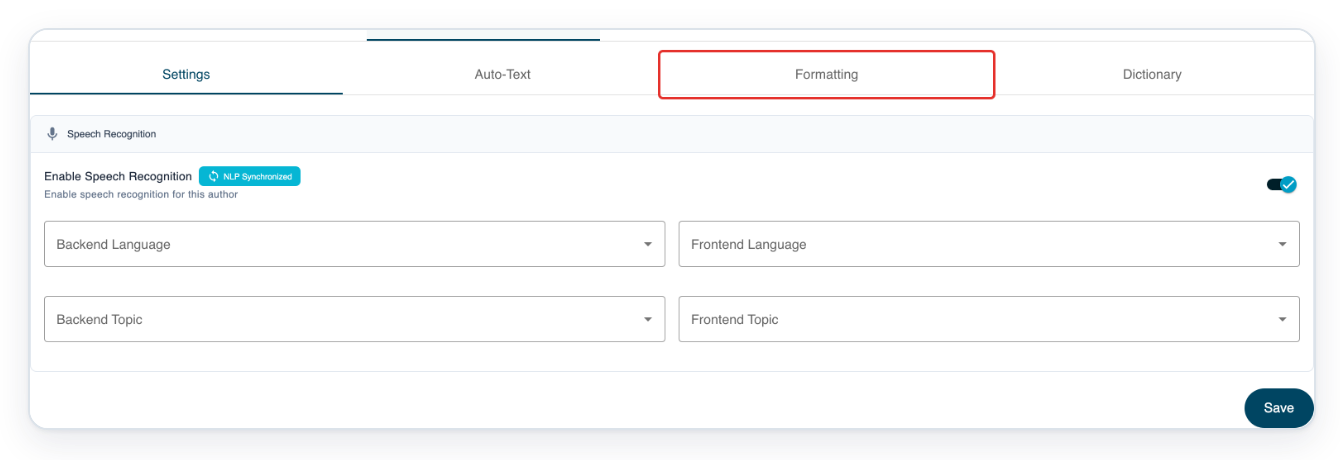
Use the switch beside the setting you want to turn off for this author.
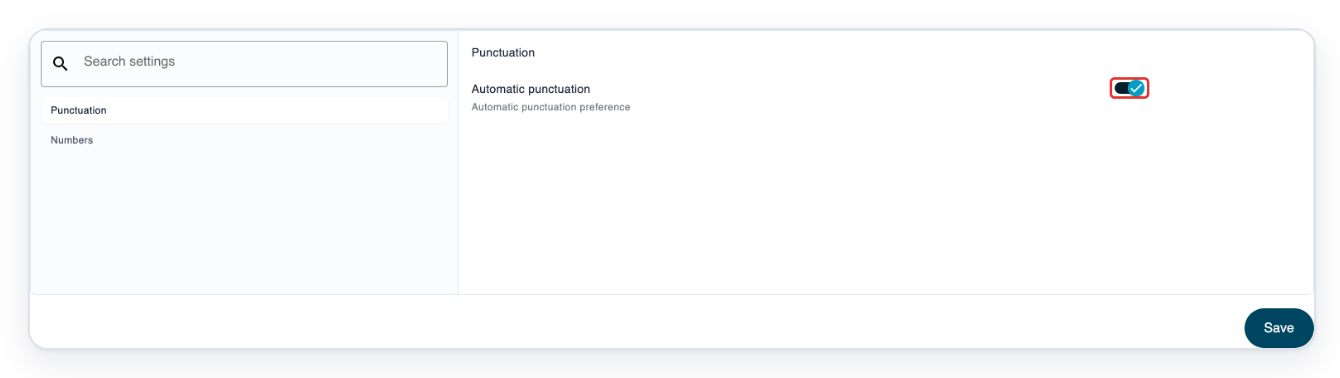
Click Save to save the author's formatting choices.
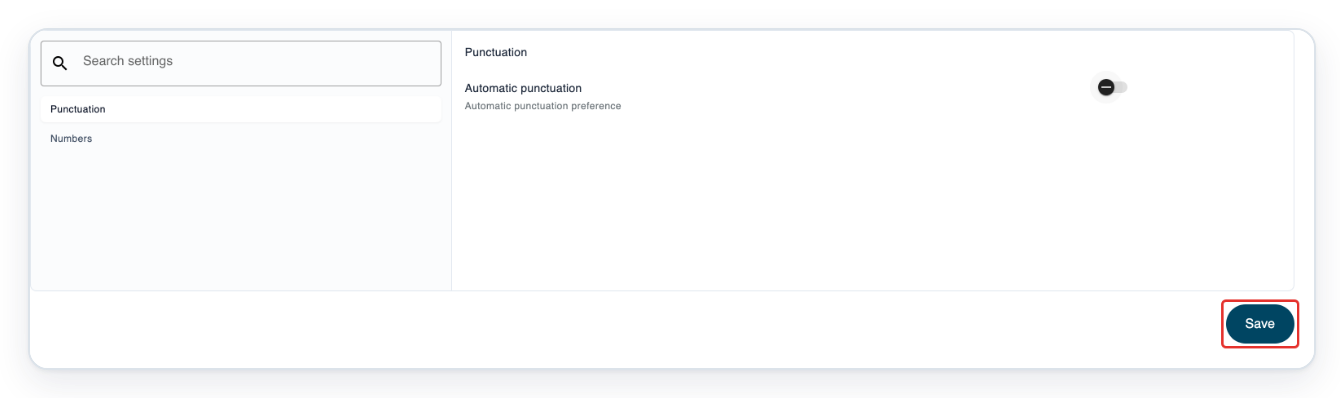
=> The author's Formatting page shows the saved settings.
As a master
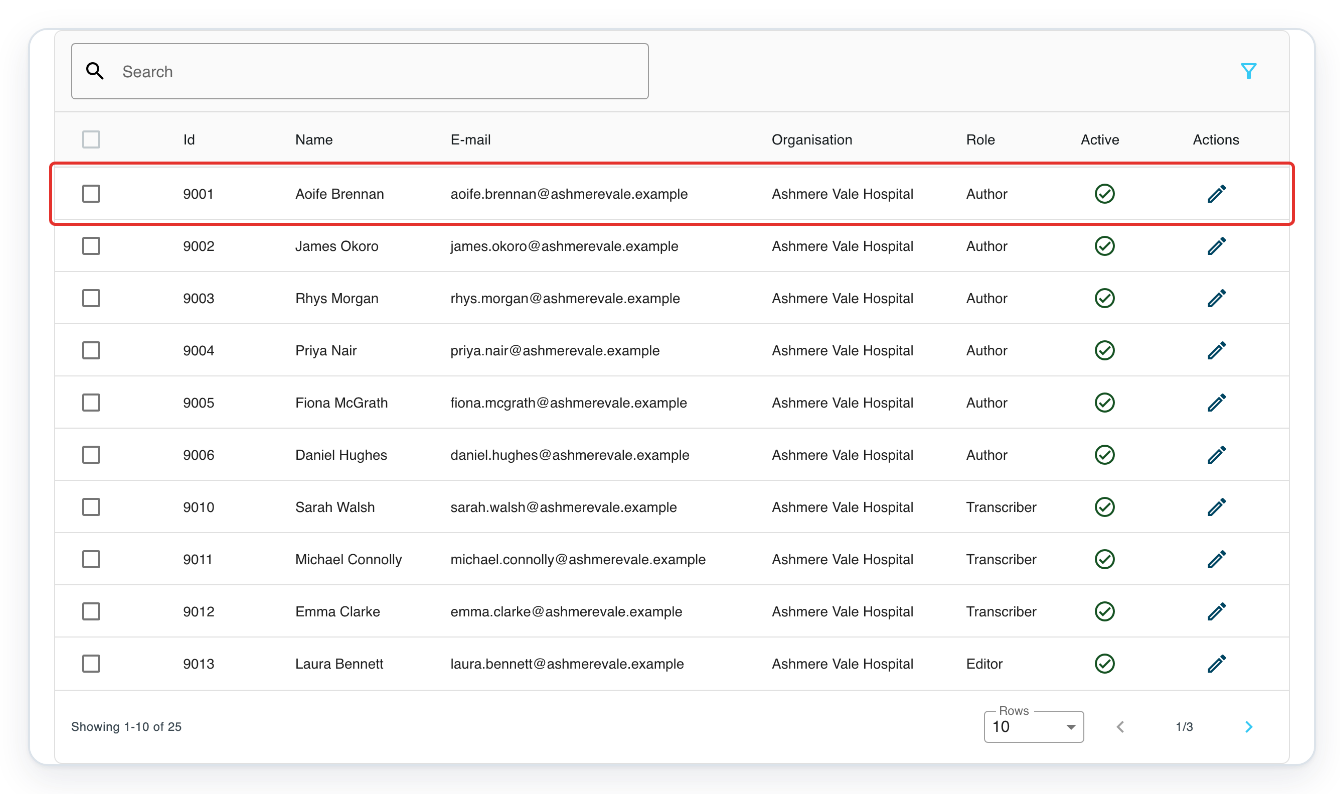
Log in with your master credentials. Click Users to open the user list.

Click the author's row. Their profile opens in a new tab.
In this example, choose Aoife Brennan.
Click Speech Recognition. The Settings tab opens.
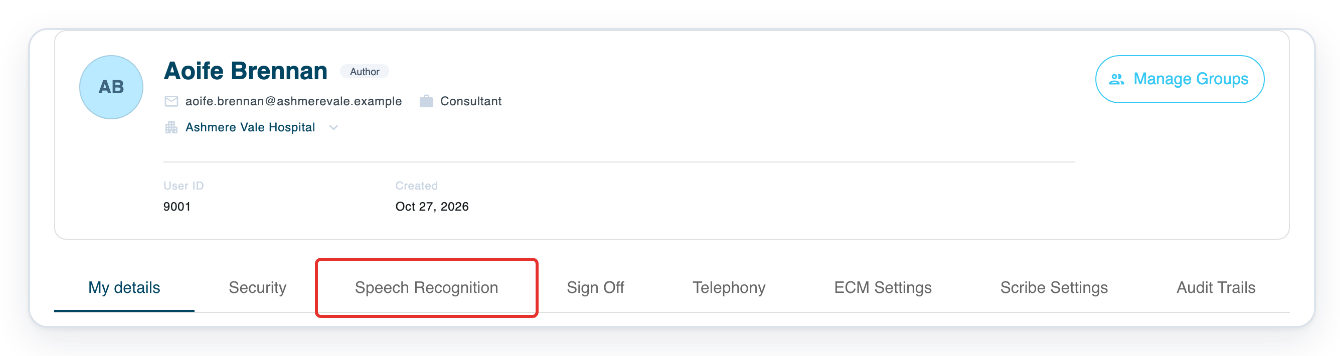
Click Formatting to open the author's speech formatting choices.
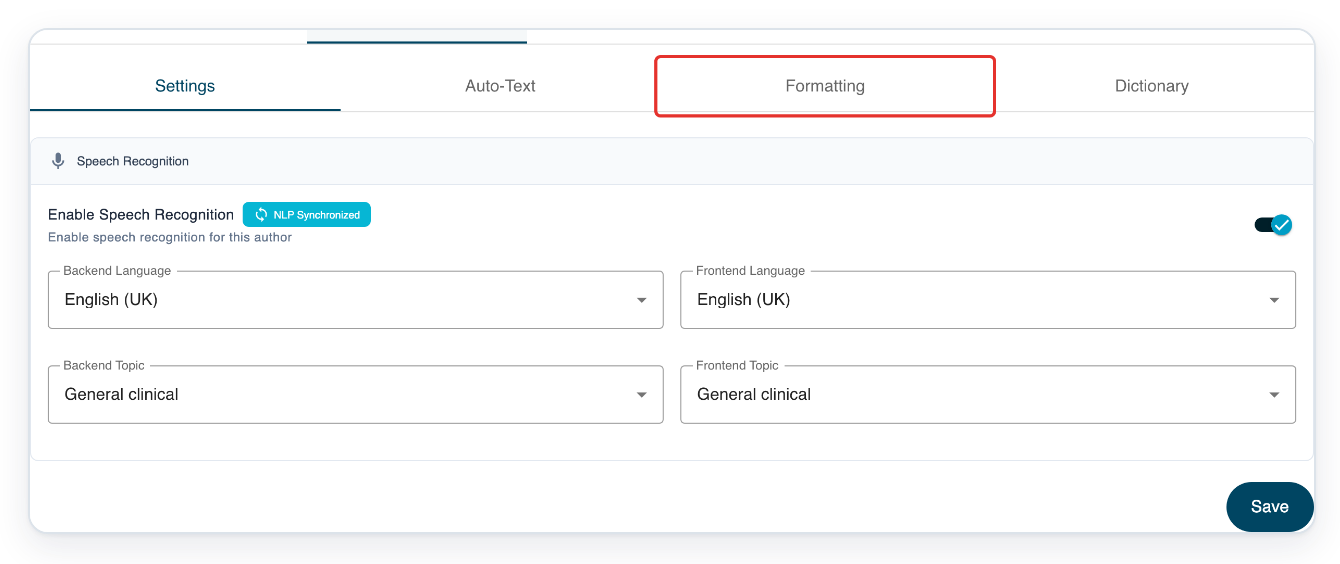
Use the switch beside the setting you want to turn off for this author.
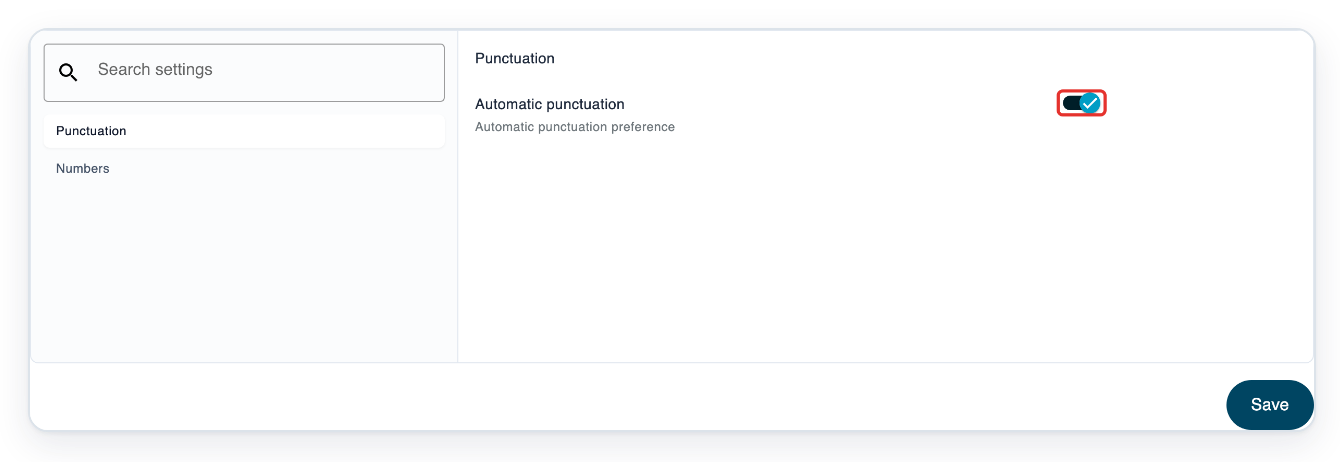
Click Save to save the author's formatting choices.
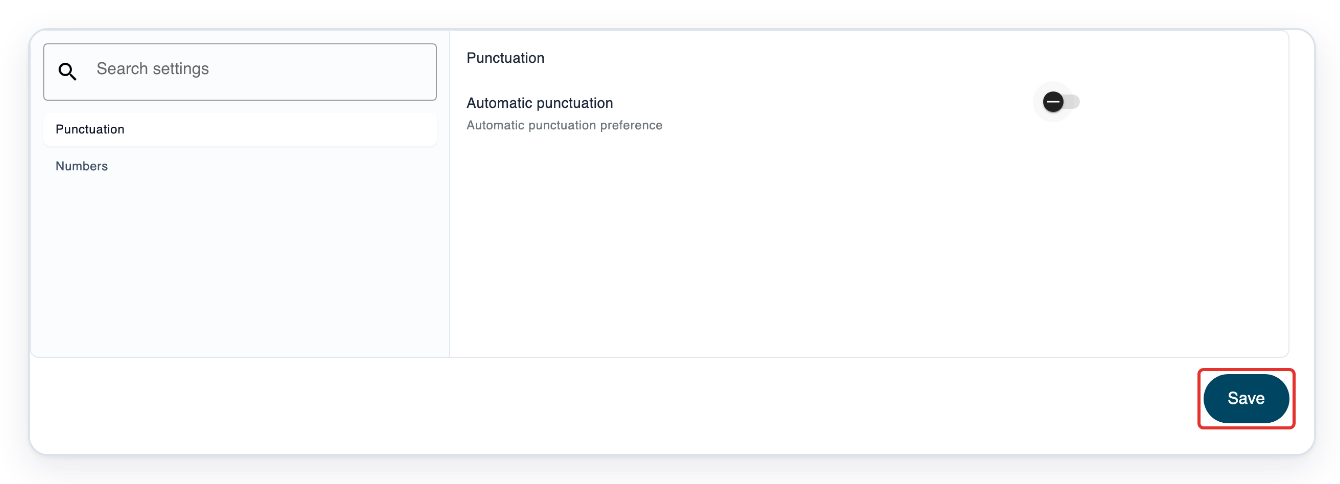
=> The author's Formatting page shows the saved settings.
NOTE:
- Your personal choices take priority over the same organisation settings. Organisation settings apply when you haven't saved a personal choice.
- Clicking Save also saves the organisation's choices as your own, even if you leave them unchanged. Later organisation changes may not apply to those settings.
- For the manager and master sections, log in with your manager or master credentials.
- When changing another author's formatting, Speech Recognition opens Settings. Choose Formatting.
- Administrators can also change an author's formatting through Users by following the master section.
What you can change
The page shows the settings you can change. Use the categories to find what you need.
| Settings | What you can change |
|---|---|
| Numbers | Choose whether whole numbers and ordinals, such as first and second, appear as digits in your dictation. Set a threshold from 1 to 100 for whole numbers, and from 1 to 10 for ordinals. |
| Dates | Choose which spoken date patterns T-Pro recognises and how it writes complete dates. |
| Spoken punctuation | Choose how T-Pro handles spoken punctuation, such as comma and colon. Keep the word, use the punctuation mark, or let T-Pro choose from the context. Look under Dictated typographic symbols. |
Tip: Use Search settings to find settings across all categories. It searches setting names, descriptions and category information.
Can't change speech recognition formatting?
- If Speech Recognition or Formatting is missing, ask your administrator to check your account. Speech recognition must be set up and enabled.
- If you see “No matching settings”, clear Search settings, then choose a category on the left.
- If a setting is still missing, ask T-Pro support whether it's available. This page only shows supported settings you can change.
- If organisation changes don't appear in your personal settings, check your saved personal choices. Change the matching setting if needed, then click Save.
- If you see “Failed to save Formatting. Please try again.” when saving organisation formatting, click Save again. Contact T-Pro support if the message keeps appearing.
Related articles
- Dictate into a letter with live speech recognition
- Correct speech recognition text
- Organisation settings
If you have any more queries, please do not hesitate to contact our Helpdesk or support@tpro.io.
© 2020 - 2026