
Before you start
You need an admin account and a template with editable fields. On app.tpro.io, you may also need the feature access password.
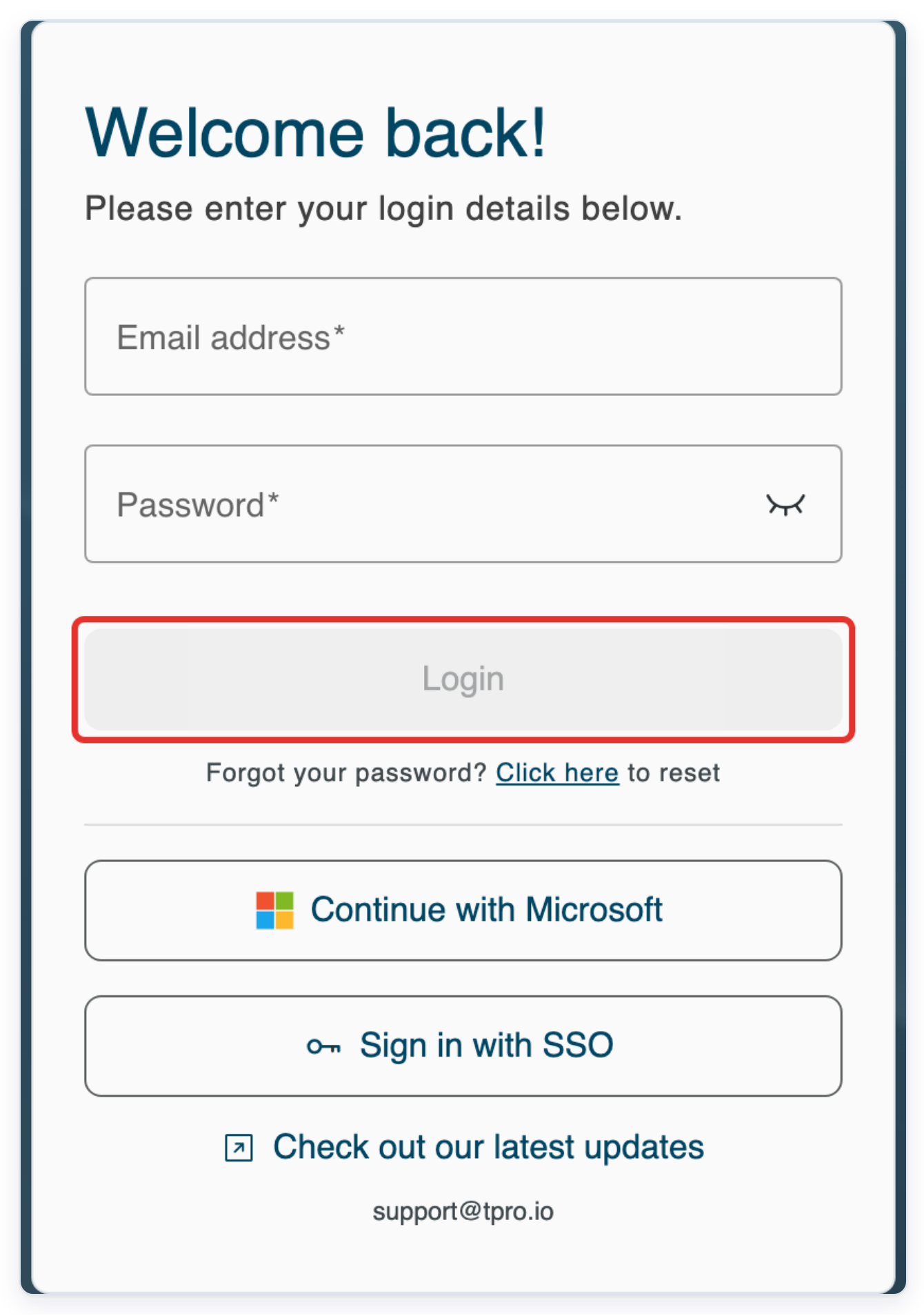
Log in to T-Pro with your admin credentials.
Click Organisations in the breadcrumb to open the organisations list.

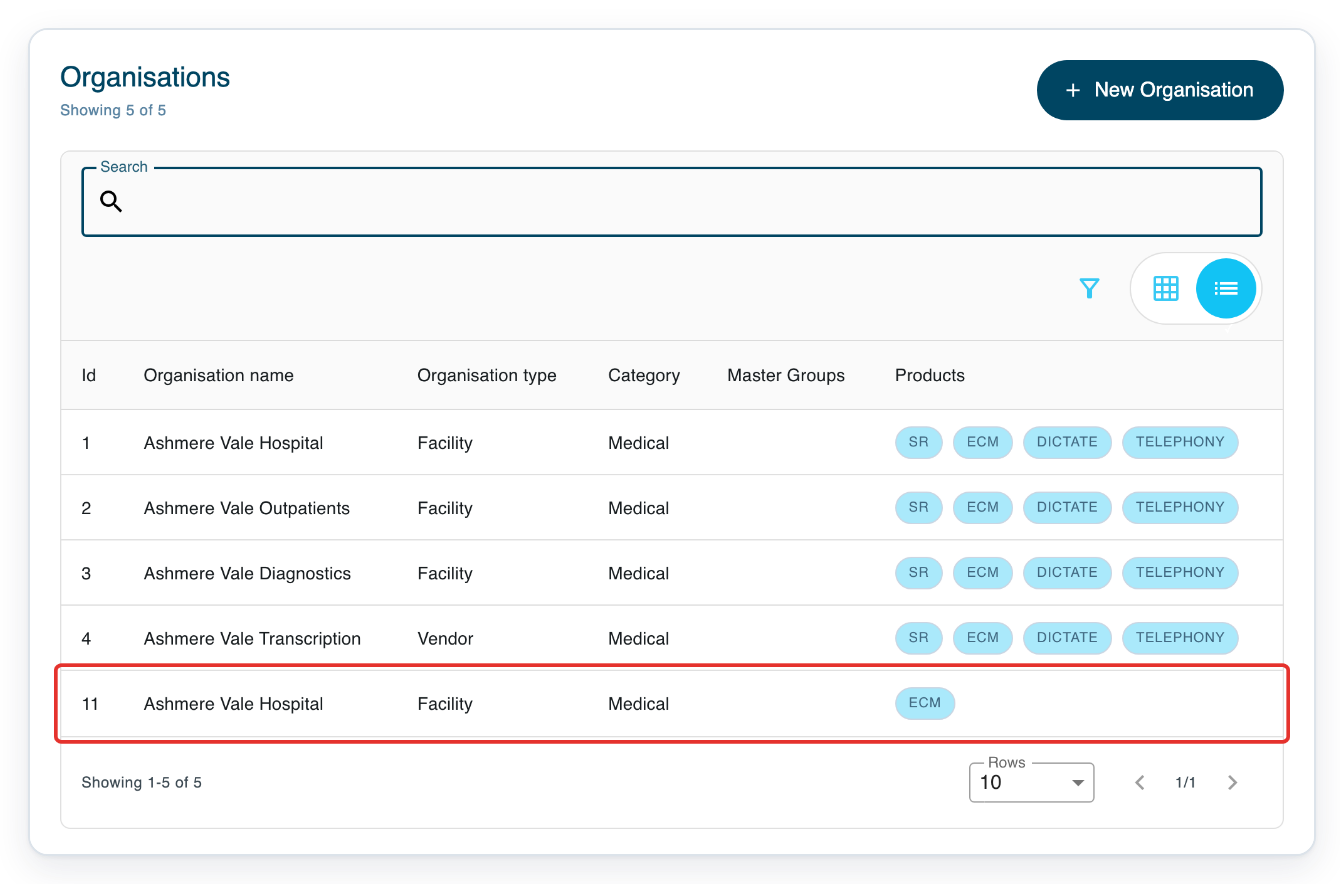
Click your facility to open its details.
In this example, choose Ashmere Vale Hospital in the row with Id 11.
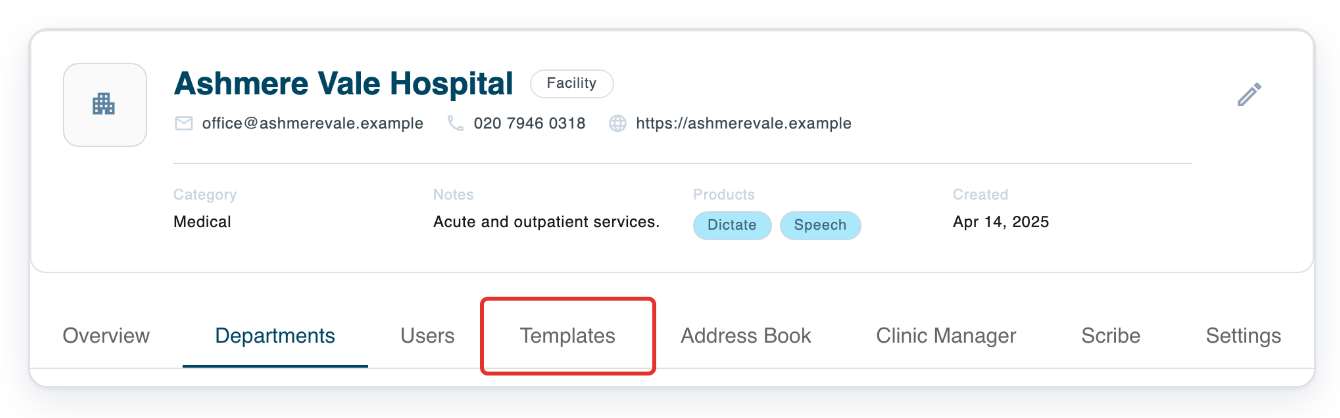
Click Templates on the facility screen to see its templates.
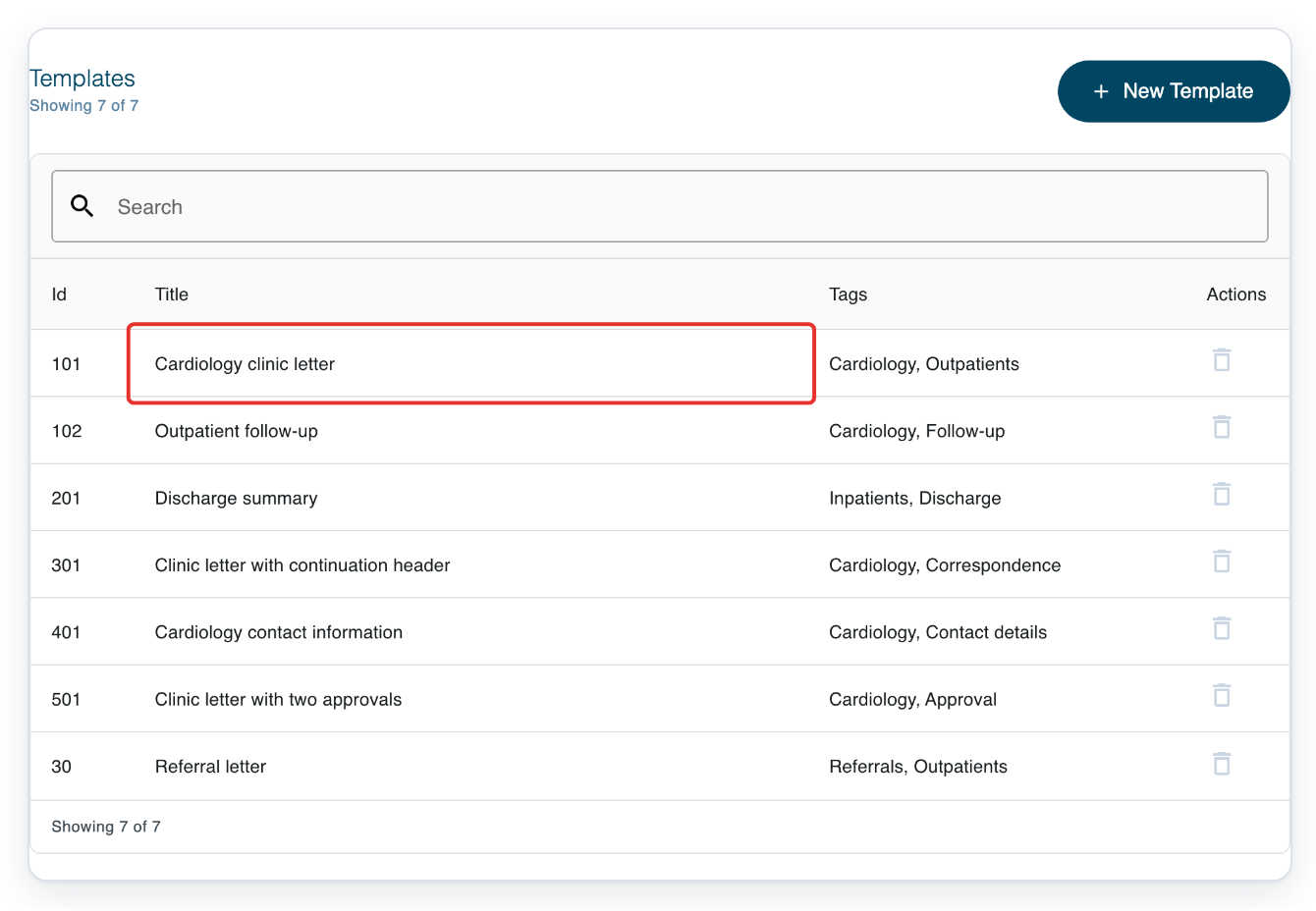
Click the template you want to set up.
This example uses Cardiology clinic letter. To find your template, type its title in Search above the list.
Click the up arrow beside Save to hide the template settings and see Builder.

Click inside the letter to use the formatting and template tools in Builder.
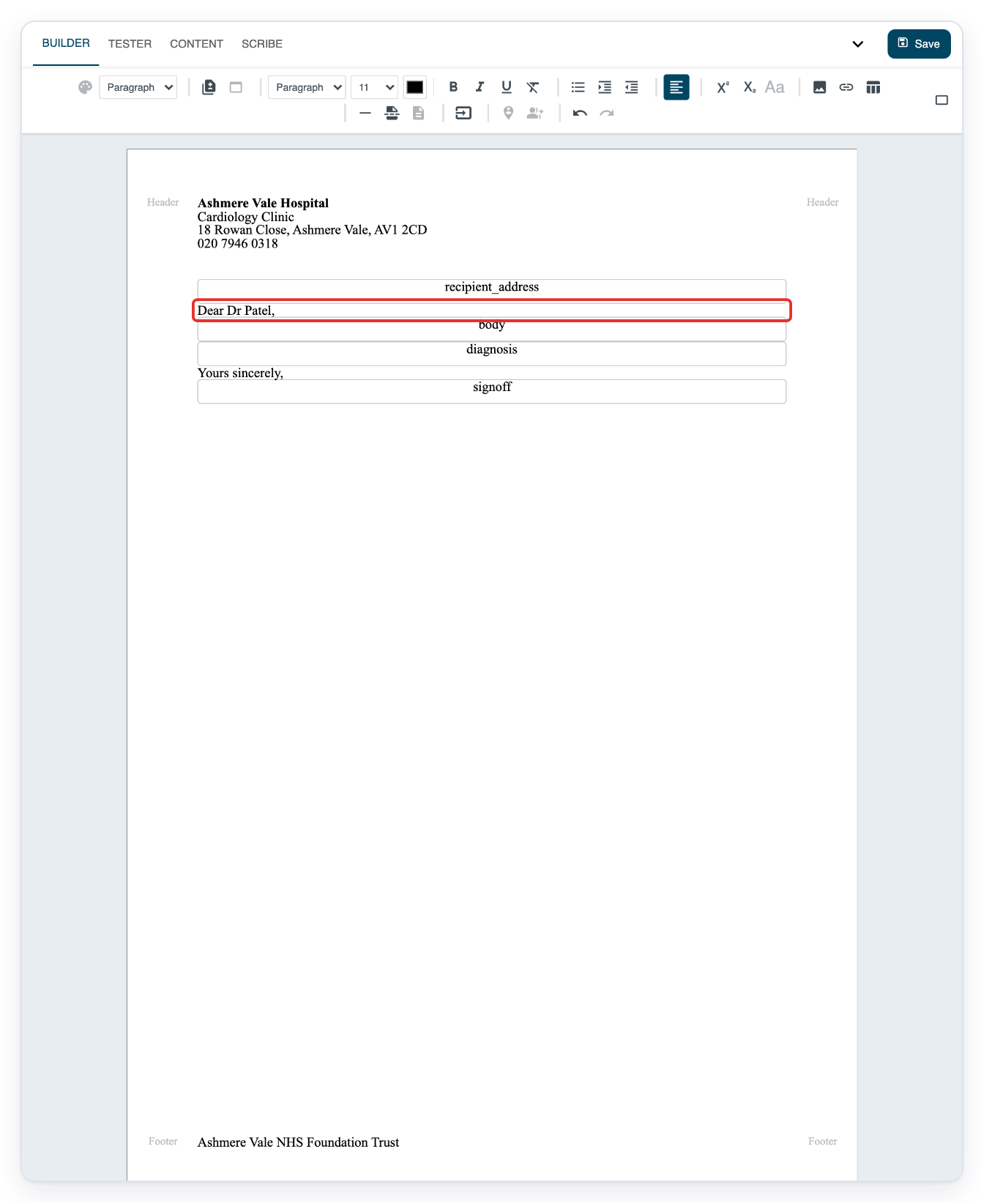
Click Content to see the field settings.

Click Copy-Forward Fields to choose a source for each field.
The dialog lists fields that can use copy-forward. The fields you see depend on your template.

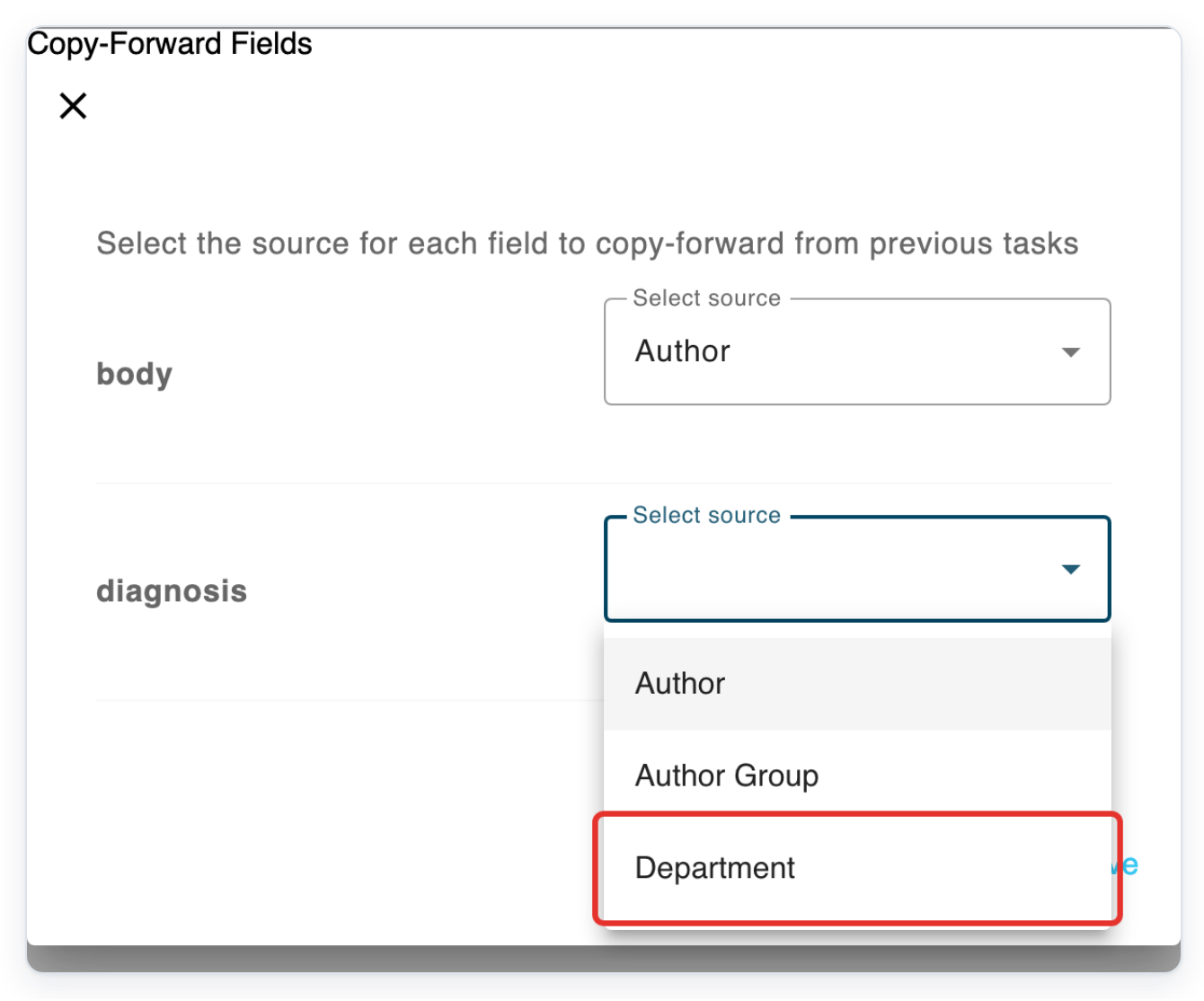
Open Select source beside body to see the available sources.
You can choose Author, Author Group or Department. Each field can use a different source.
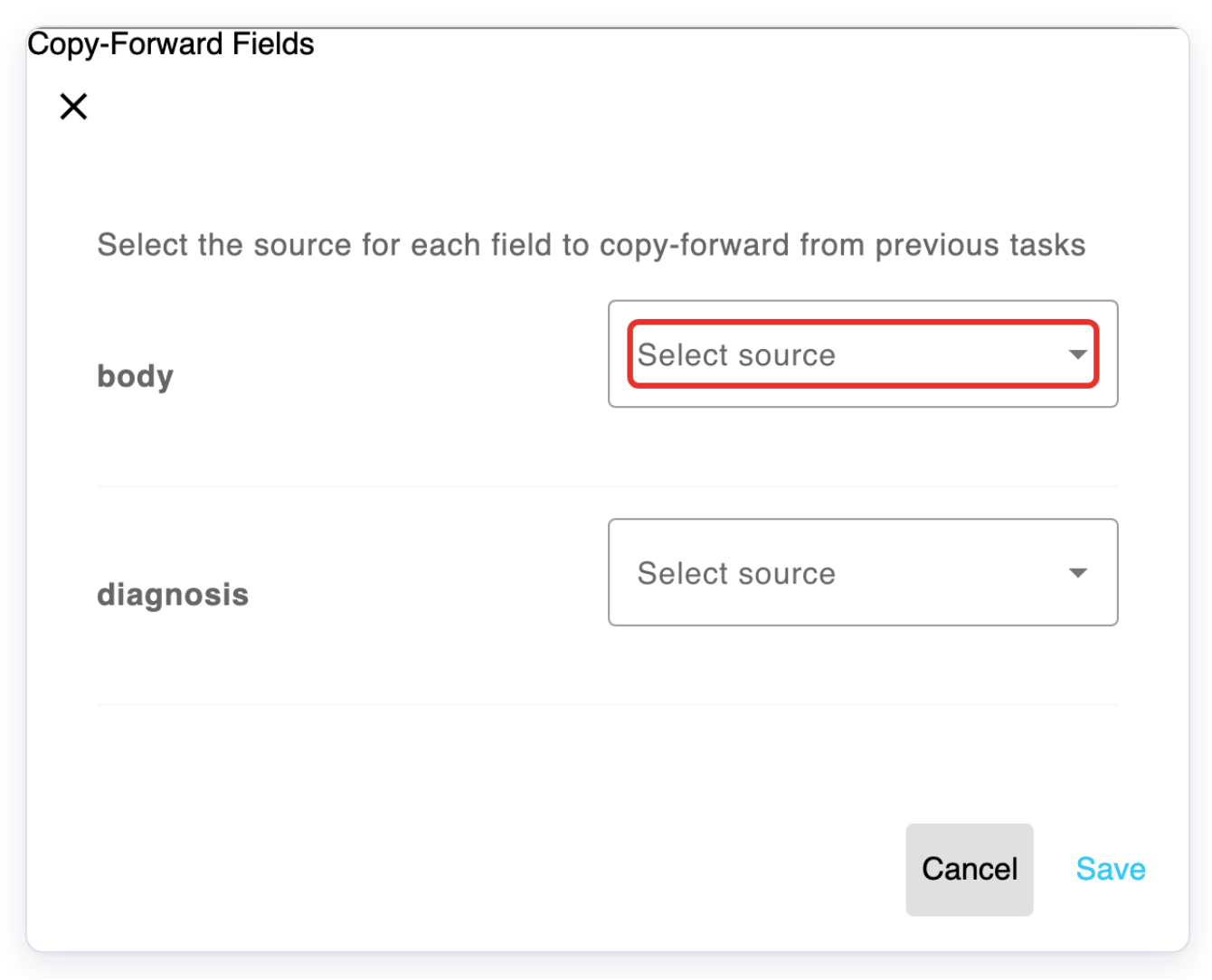
Choose Author for body.
This uses content from a completed task by the same author for the same patient.
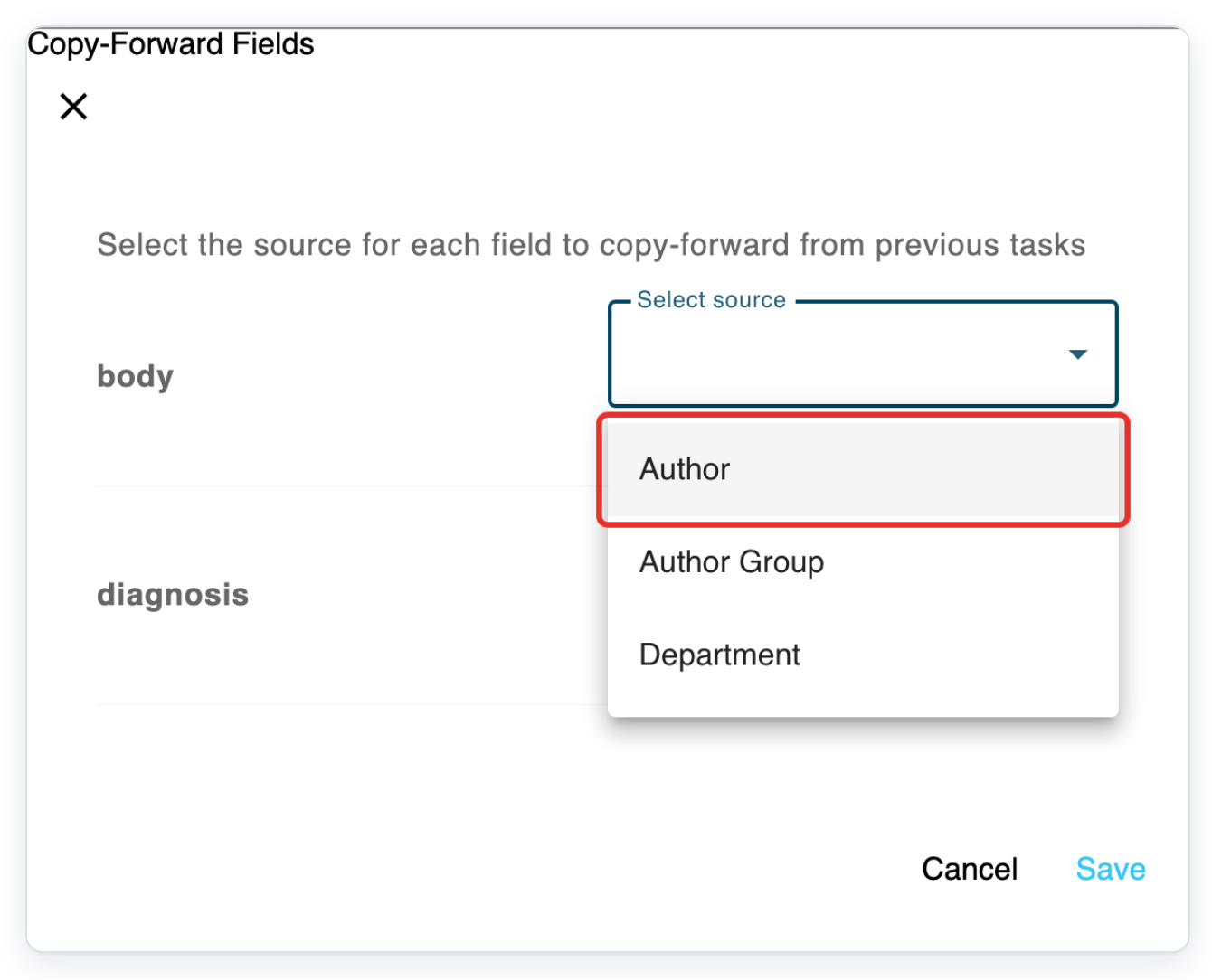
Open Select source beside diagnosis.
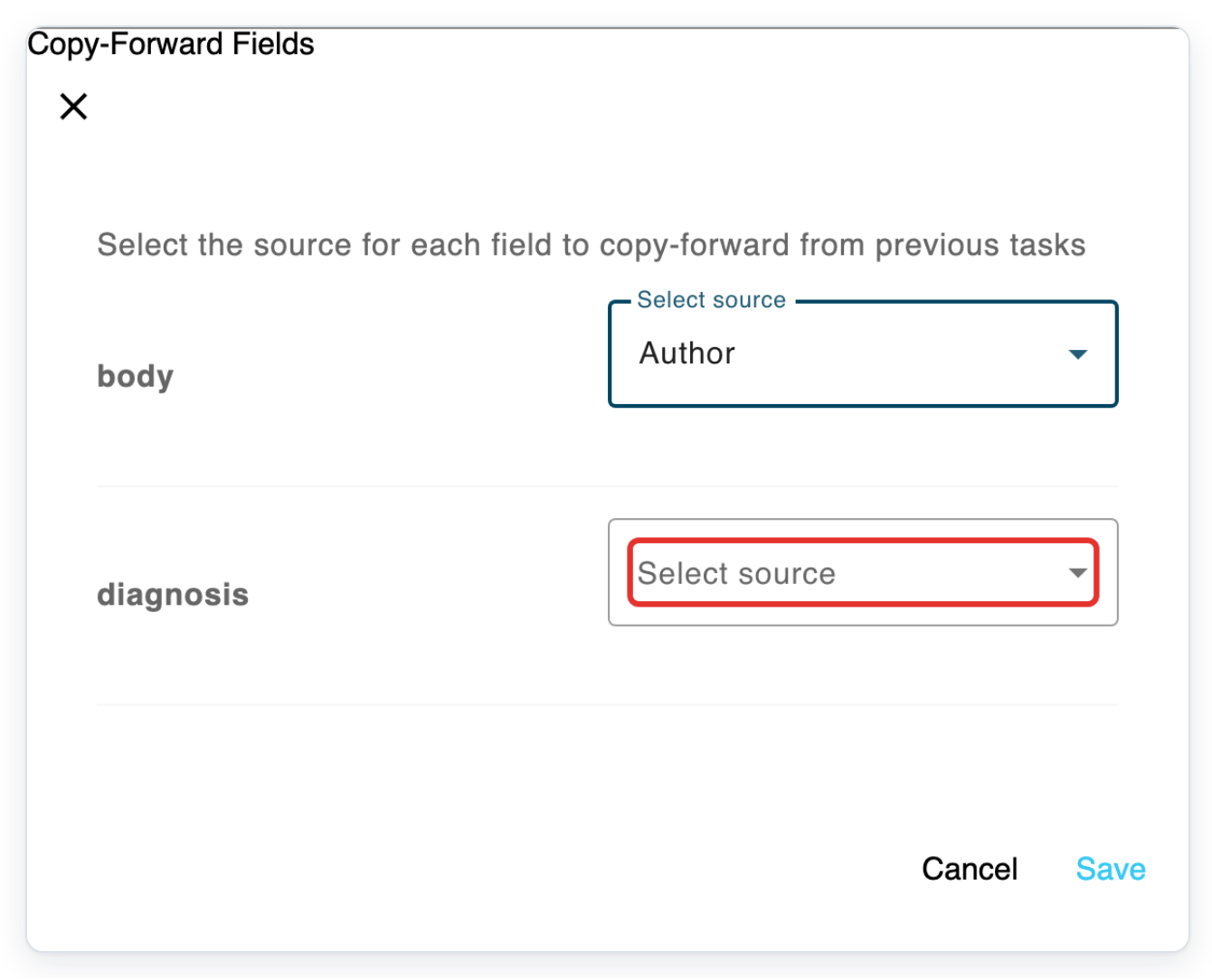
Choose Department for diagnosis.
This uses diagnosis content from a completed task in the same department for the same patient.
=> The dialog now shows body set to Author and diagnosis set to Department.
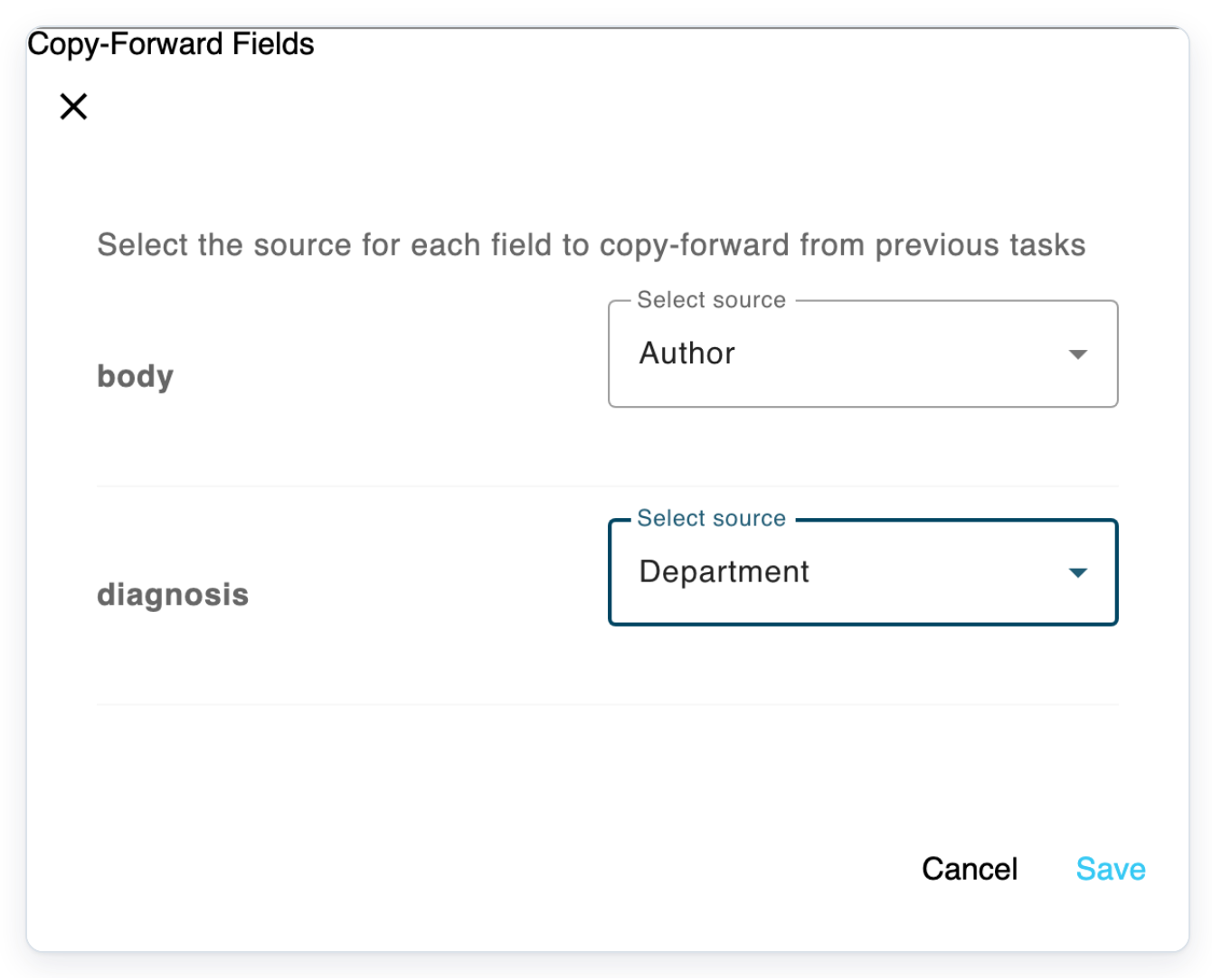
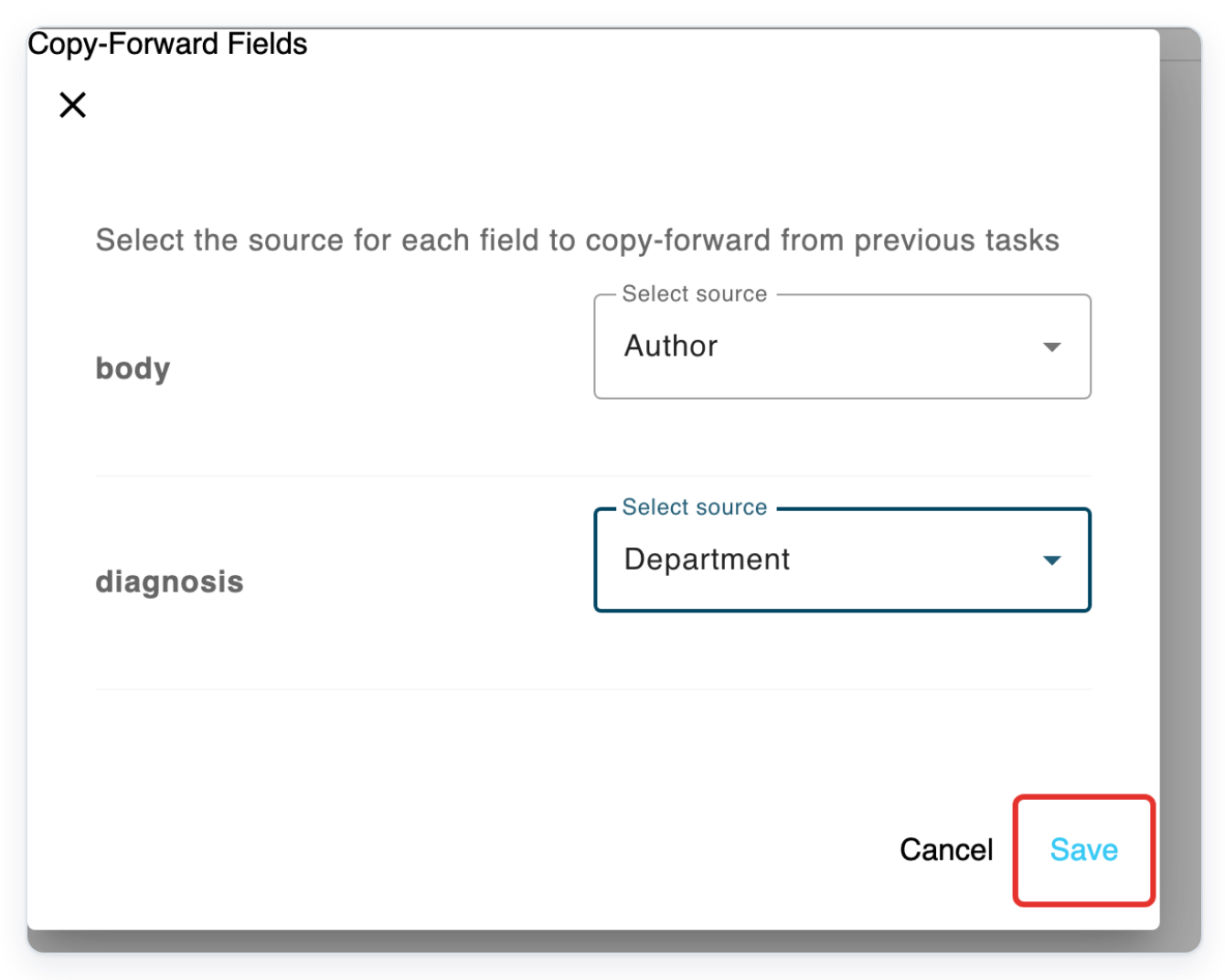
Click Save in the dialog to apply your choices to the template settings.
Click Save at the top of the template to save your settings and return to Templates.

NOTE:
- Copy-forward replaces all existing content in the field with the earlier value.
- All sources need the same patient ID. Your task must also have an author, author group and department set.
- T-Pro checks the current template first, then up to two earlier versions. Within each version, the most recently created matching completed task takes priority.
- Copy-forward runs when a new task is created, unless it is already completed. It also runs when an existing task changes to this template.
- Changing a task's template clears its document fields before applying the new template's copy-forward settings.
What each copy-forward source means
| Source | Which completed tasks can supply content |
|---|---|
| Author | Tasks by the same author. |
| Author Group | Tasks from the same author group. |
| Department | Tasks from the same department. |
Can't configure copy-forward?
- “Access Required” appears before the template opens. Enter the feature access password in Password, then click Continue. If “Incorrect password” appears, check the password and try again.
- The Content tab is missing. Log in with an admin account.
- You can't choose a source for a field. The field is marked Static. Choose an editable template field instead.
- A signature, sign-off, recipient or CC address field is missing. Choose another field. These fields can't use copy-forward.
- Your choices were not saved. Click Save in the dialog, then Save on the template. Closing with Cancel or the cross can clear your choices when you next save the template. Reopen the dialog and choose your sources again before saving.
- A field stays empty. Check its saved source and the matching completed task's content. For a new field, first complete a matching task that contains the content you want to copy. Then use copy-forward on later tasks.
Related articles
- Use copy-forward on a task
- Template settings in V2
- Create or duplicate a template
- Change a task's template
If you have any more queries, please do not hesitate to contact our Helpdesk or support@tpro.io.
© 2020 - 2026