
Before you start
An admin must set up eCM for the facility. You need an admin, master or manager account to change user access. Follow the section for your account below.
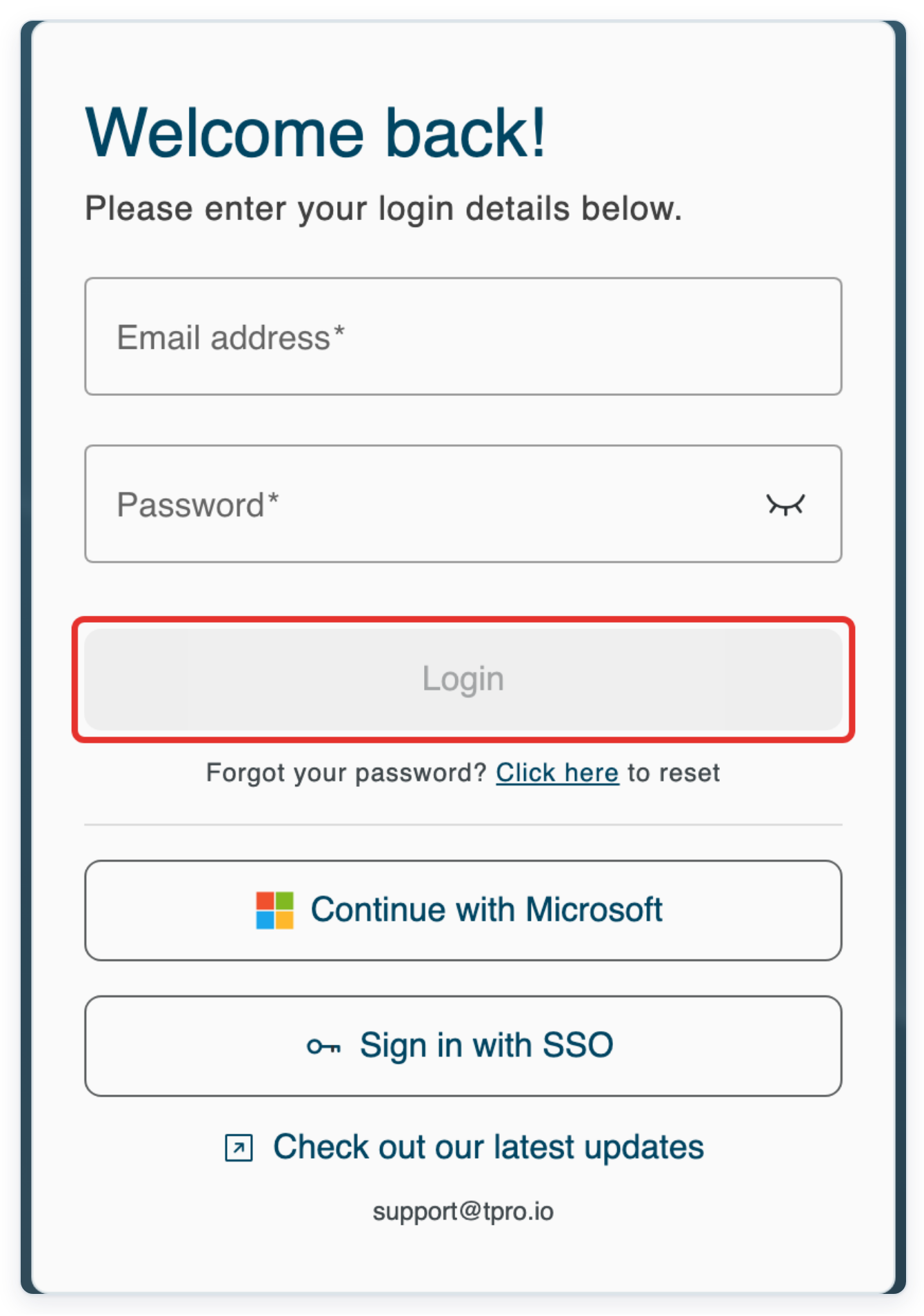
Log in to T-Pro with your admin, master or manager credentials.
As an admin
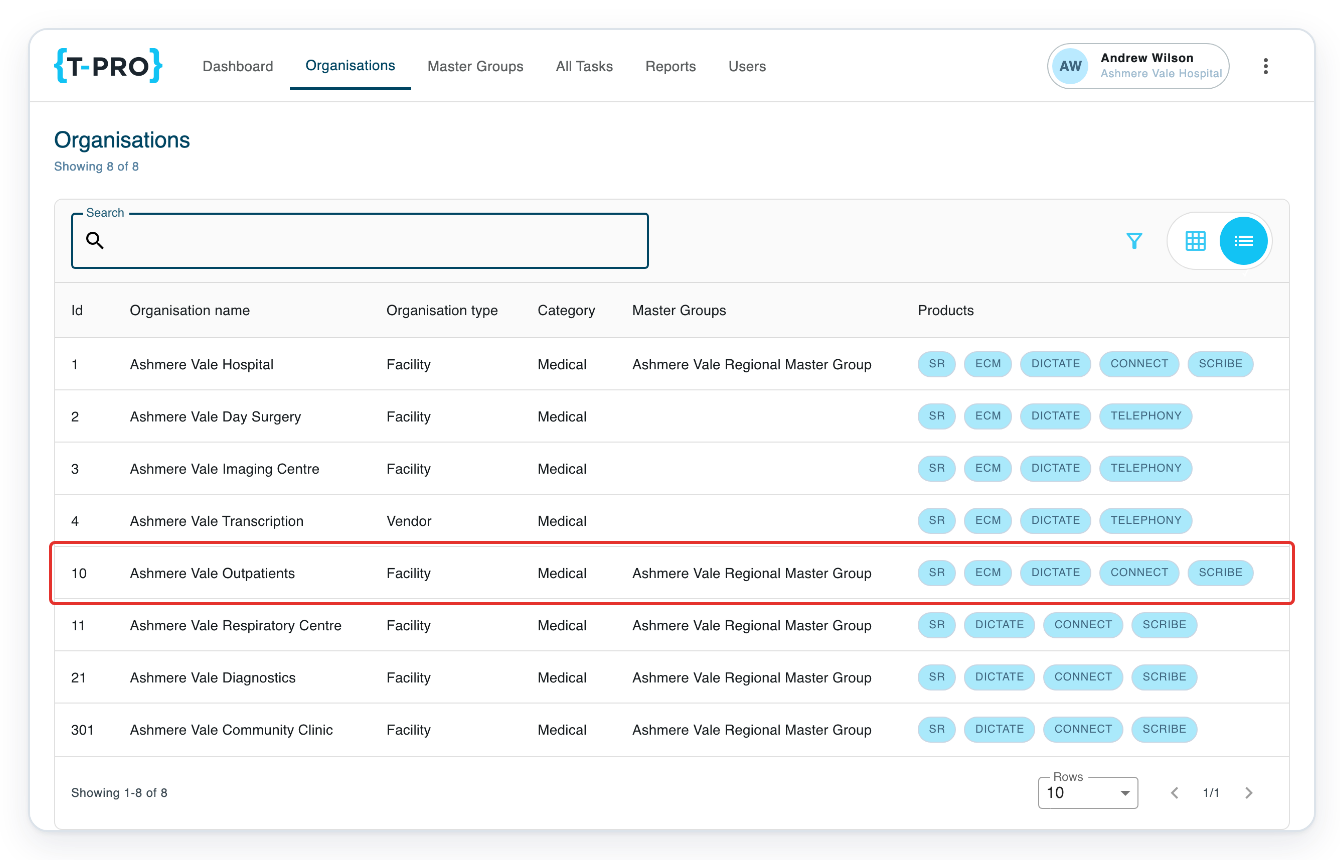
Click Organisations in the top menu to open the organisation list.
If needed, enter the facility name in Search, then press Enter.
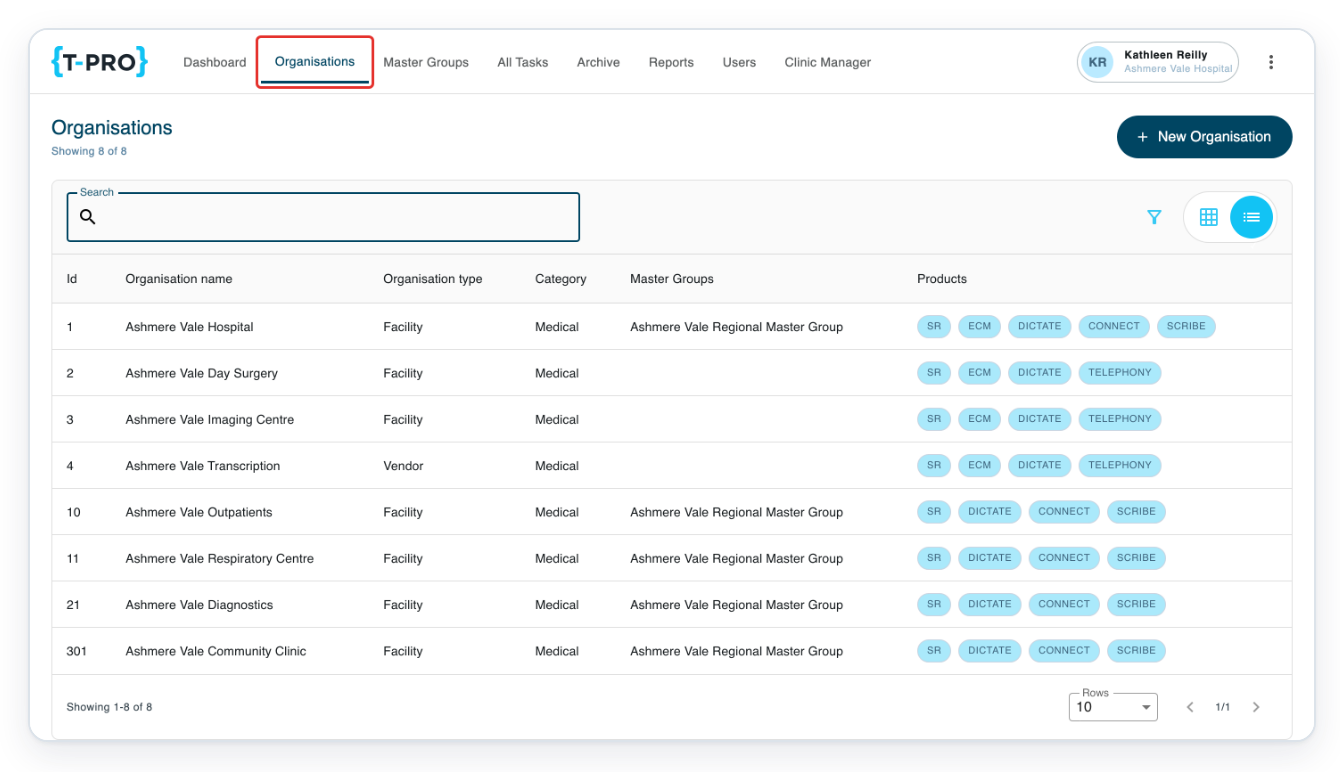
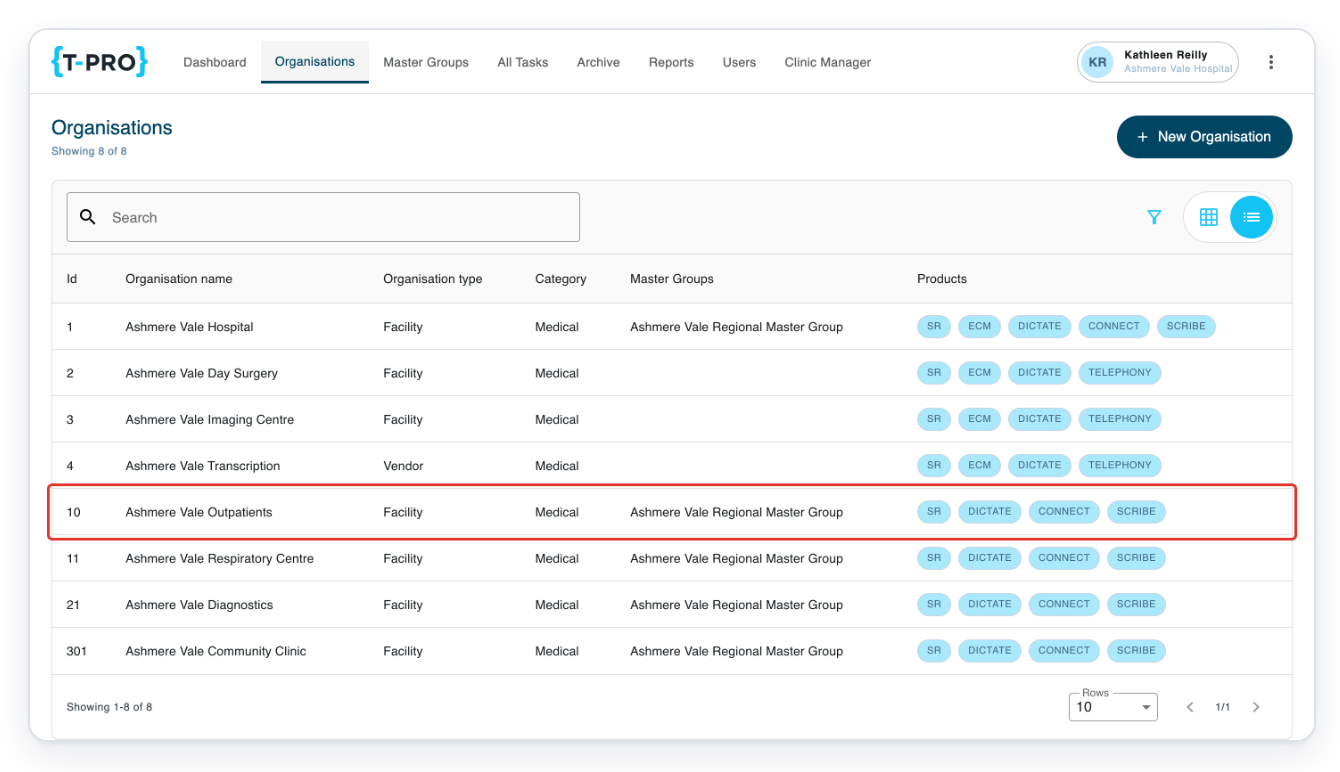
Click the facility you want to set up. In this example, click Ashmere Vale Outpatients.
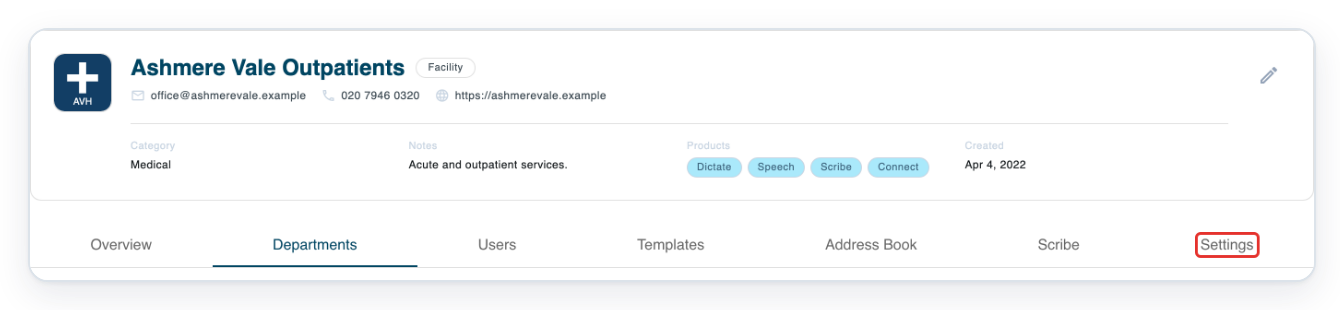
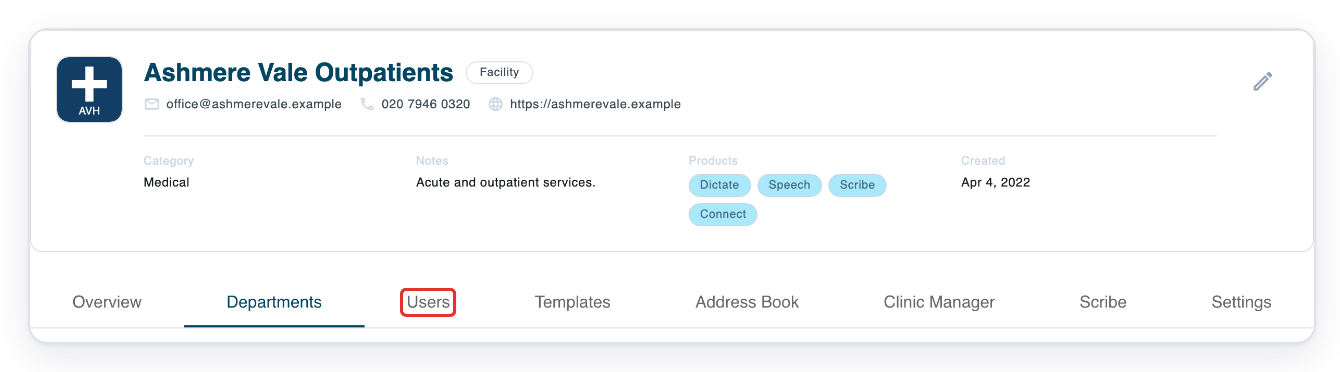
On the facility page, click Settings.
Click ECM in the settings menu.
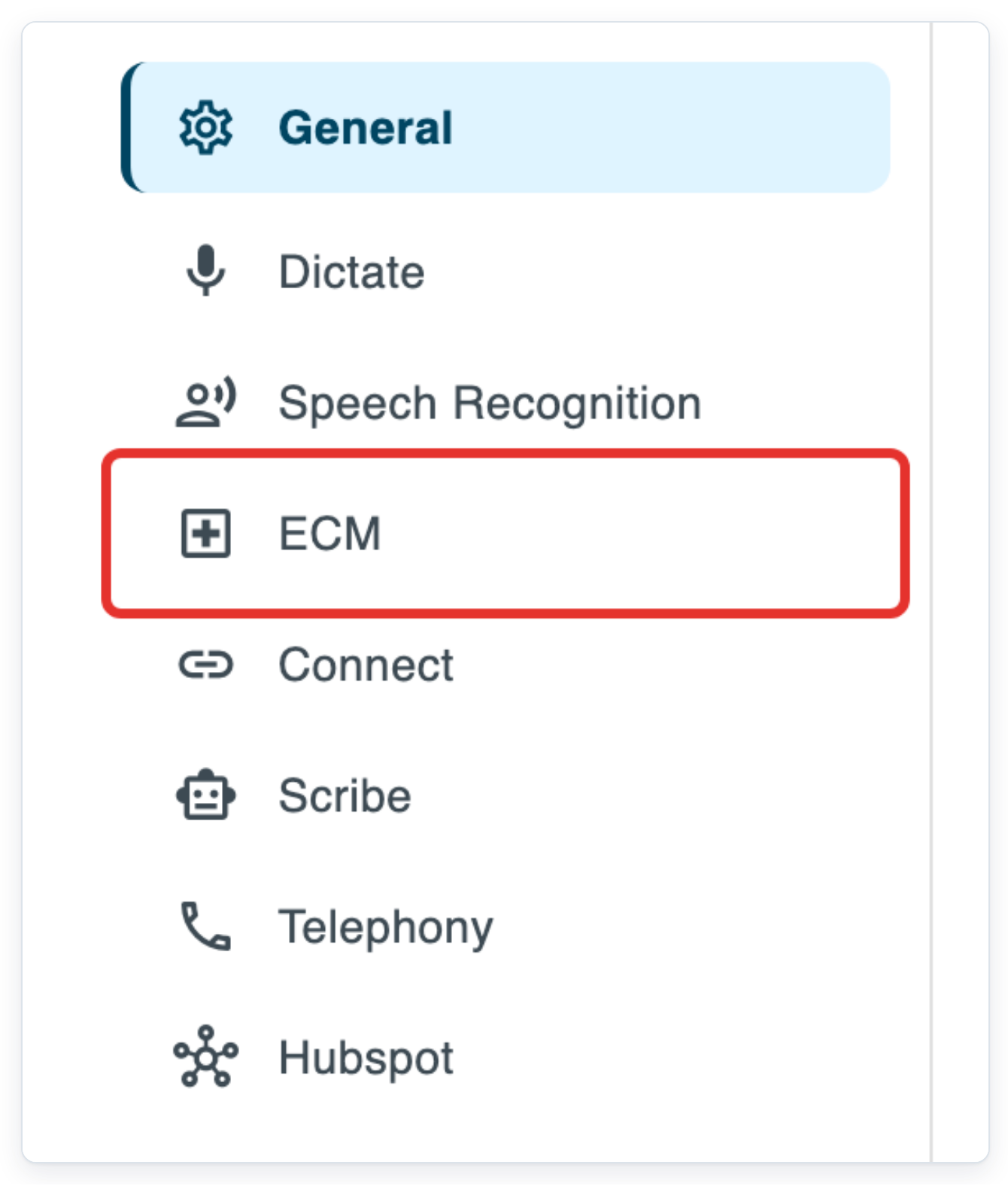
Turn on the ECM switch at the top of the page.

=> You can now fill in Billing Settings. Complete Vendor, Cost per SMS and Cost per Call (minute). Then complete Cost per seat, Cost per site and Base date before saving. In this example, the facility's billing details are already filled in.
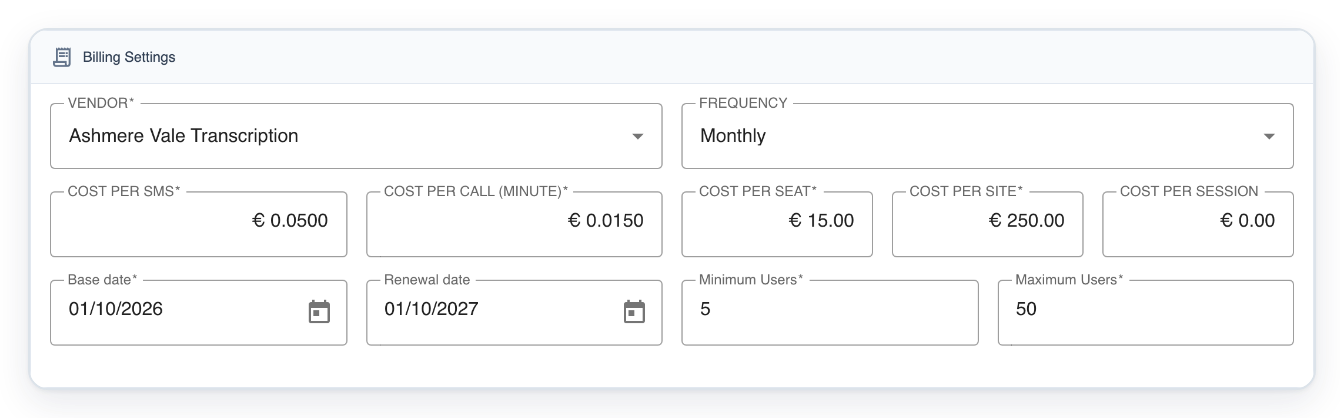
Click Save.

As a master
Open Organisations, then click your facility. Here, select Ashmere Vale Outpatients. An admin must first turn on eCM for the facility.
Click Users on the facility page to see its users and their ECM status.
Enter the user's name or email address in Search, then press Enter.
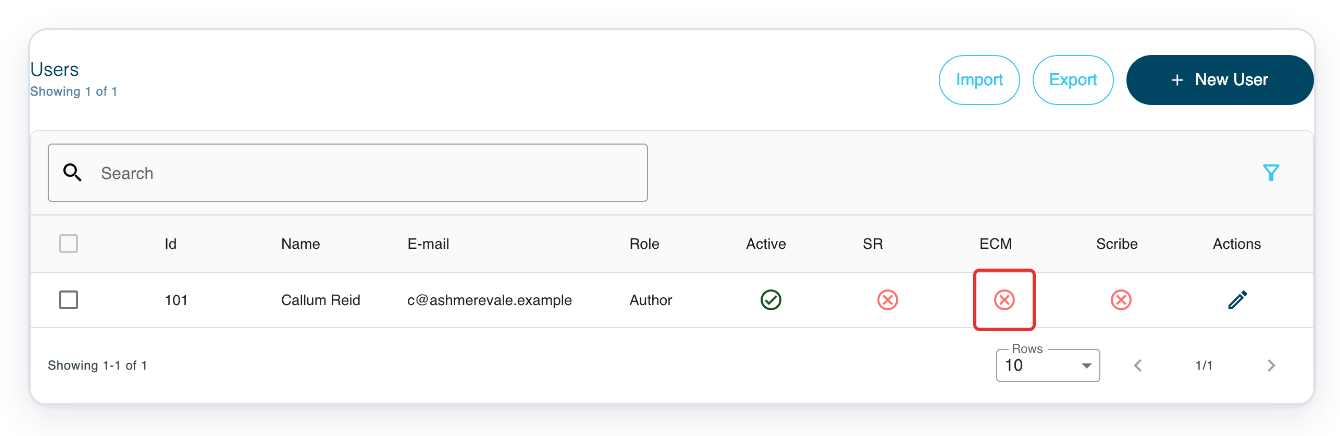
Find the user's row, such as Callum Reid. Click the cross icon in the ECM column to turn on eCM.
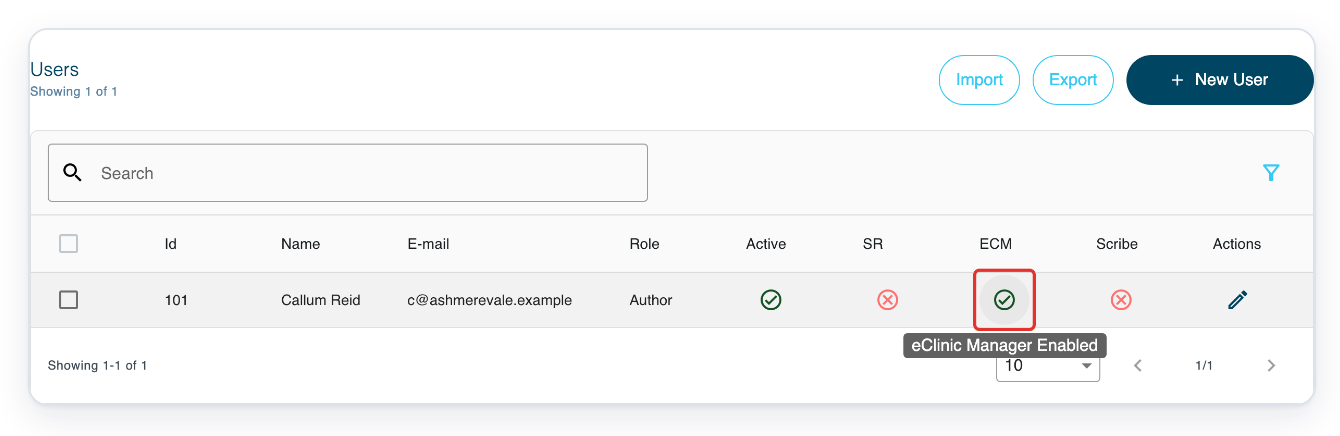
=> The icon changes to a tick. Hover over it to see eClinic Manager Enabled.
As a manager
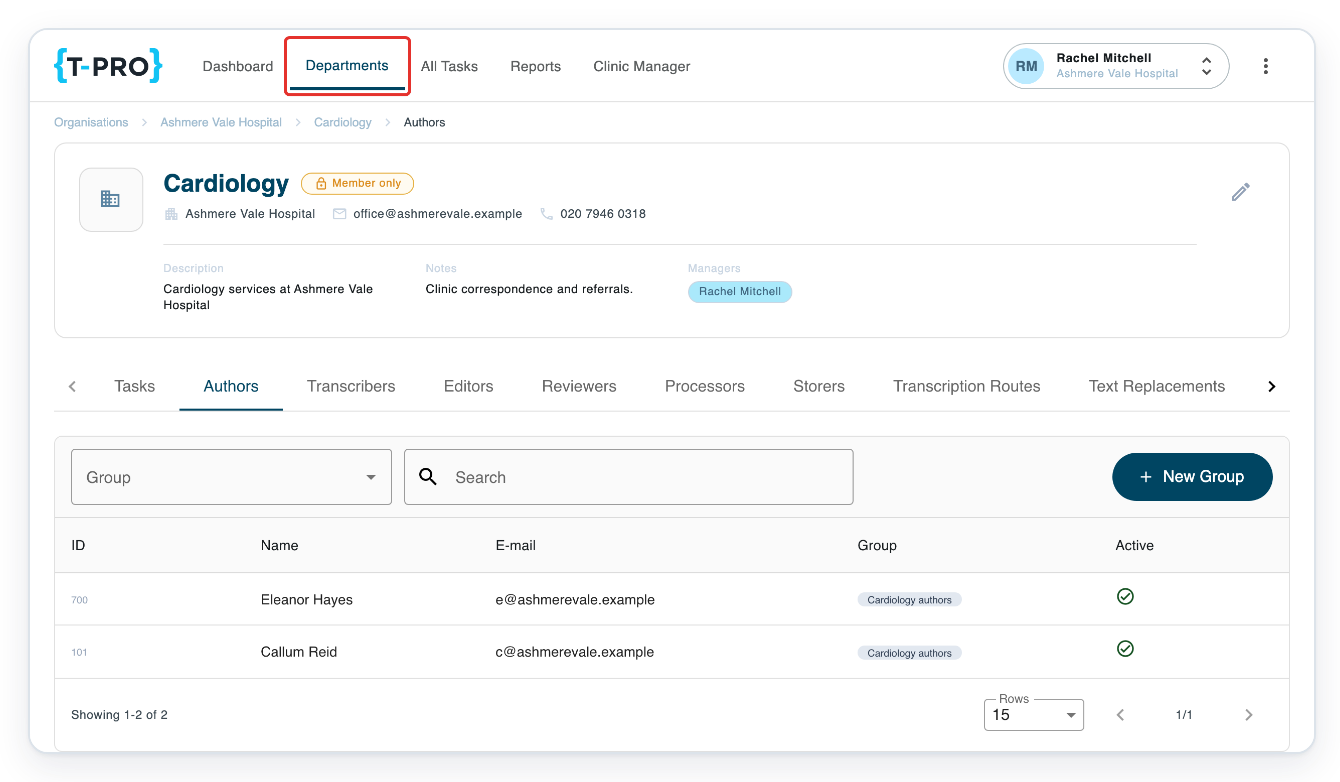
Click Departments in the top menu to open your department list.
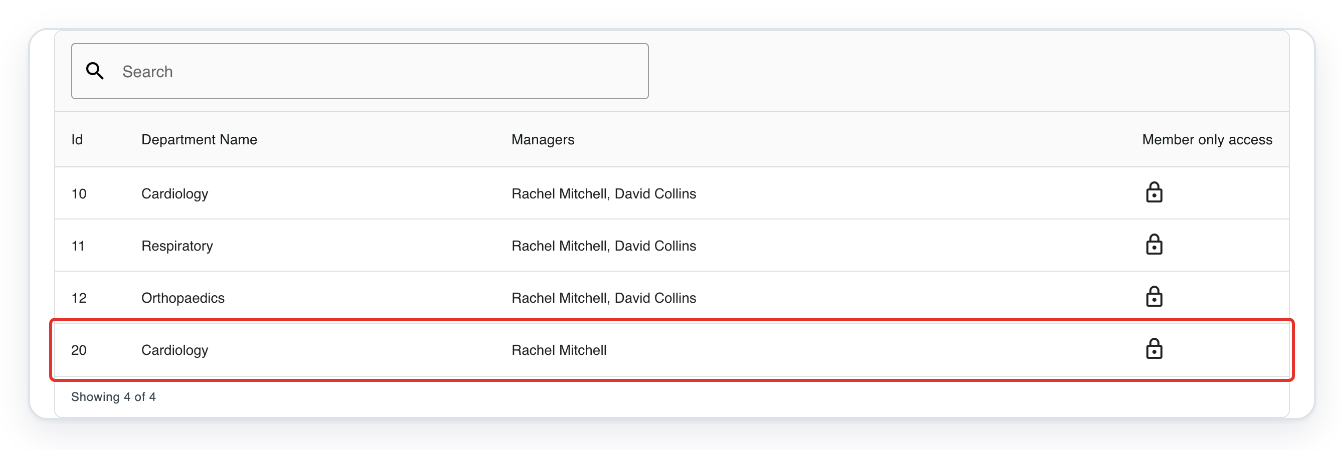
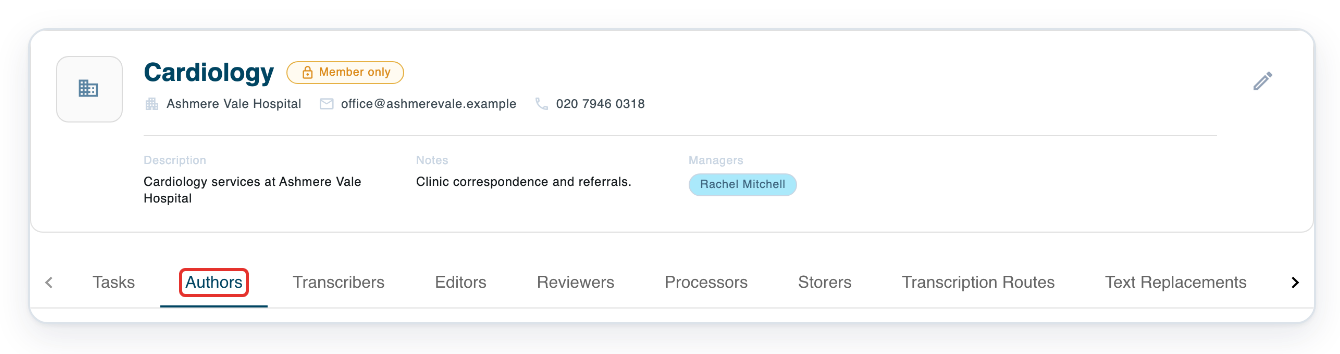
Click the department you need. Here, select Cardiology with Id 20. This opens its Authors tab.
Choose the tab that lists the user. For Eleanor Hayes, choose Authors.
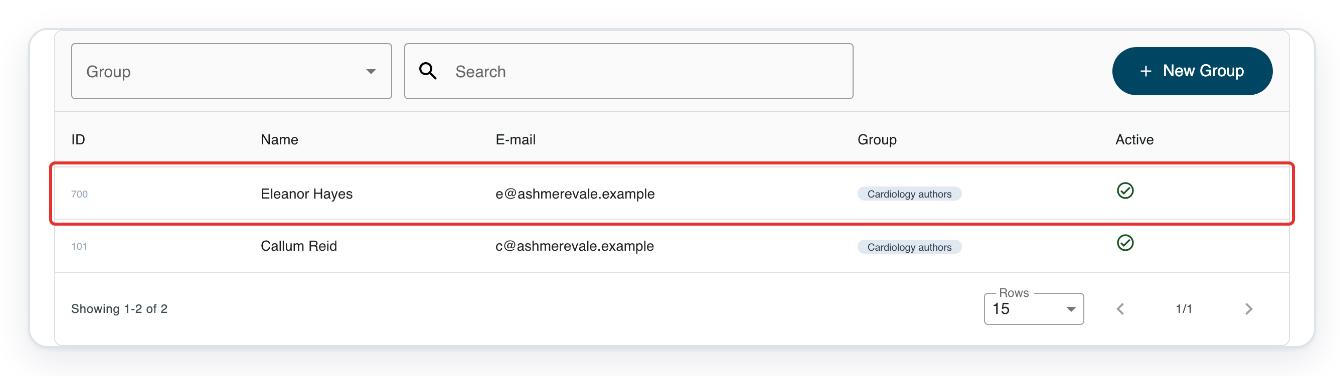
Click the user's row to open their profile. Here, select Eleanor Hayes.
If needed, use Search above the table to narrow the list.
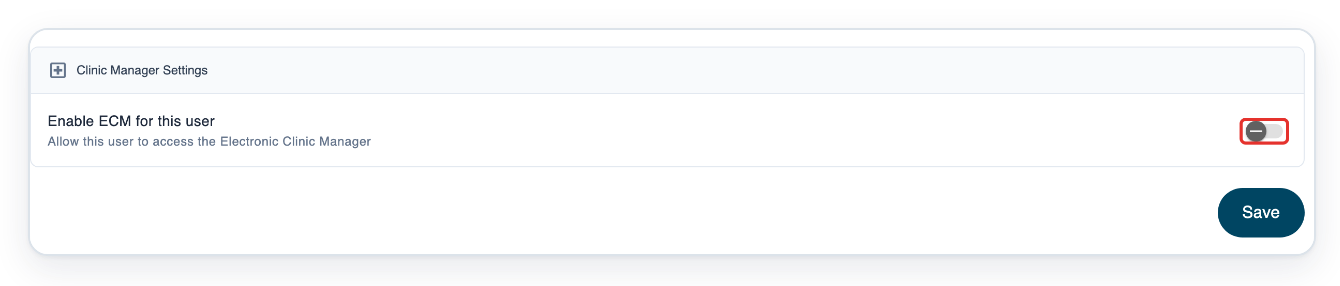
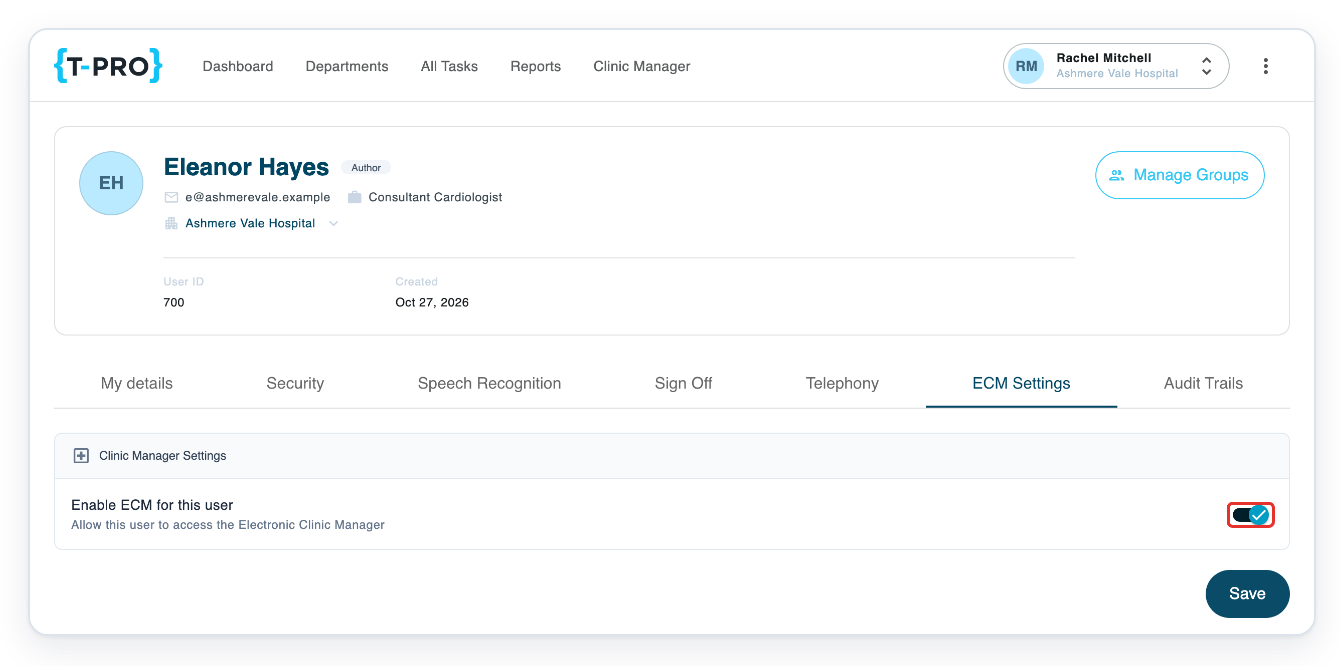
Click ECM Settings on the user's profile.

Turn on Enable ECM for this user.
Click Save.
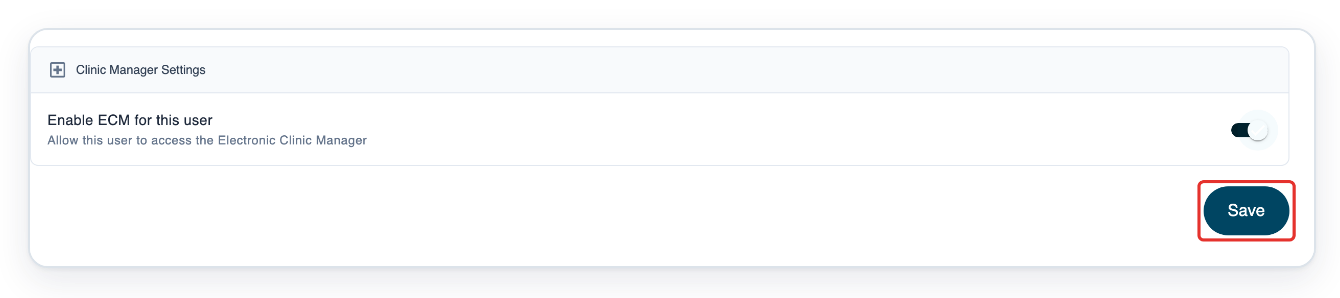
=> The saved ECM Settings show Enable ECM for this user switched on. eCM must be on for both the facility and the user's account. Authors and transcribers can then open Clinic Manager from the top menu.
NOTE:
- Create a new user's account first. Then use the same eCM controls as for an existing user.
- To check access, open ECM Settings on the user's profile. You can also check the ECM column in the facility's Users table. Leave the switch and status icon as they are.
- To see department or group details, open the user's profile and click the arrow beside the organisation name.
- To turn access off, use the same switch or status icon. Click Save after changing the profile setting. The facility's Users table saves each change immediately.
Other places you can enable eCM for a user
- Admins and masters can also open Users from the top menu. Enter the user's name or email address in Search and press Enter. Click their row to open the profile in a new tab. Open ECM Settings, change the switch, then click Save.
Can't enable eCM for a user?
- ECM is missing from the facility's Settings: ask an admin to open the facility and finish setting up eCM.
- ECM Settings is missing from a facility user's profile: ask an admin to check the facility's eCM setting.
- The facility setting will not save: check Billing Settings. Complete Vendor, Cost per SMS and Cost per Call (minute). Then complete Cost per seat, Cost per site and Base date. Click Save.
- An author, transcriber or manager cannot open Clinic Manager from the top menu, even with eCM access. Check that eCM is switched on and saved for both their facility and their account.
Related articles
- Organisation settings in V2
- Create a new user
- eClinic Manager: an introduction
- The clinic schedule
- eClinic Manager settings, rules and notifications
If you have any more queries, please do not hesitate to contact our Helpdesk or support@tpro.io.
© 2020 - 2026