
Before you start
You need an author account and must belong to an author group. Your template must be available to that group.
Log in to T-Pro with your author credentials.
Enter your Email address and Password, then click Login.
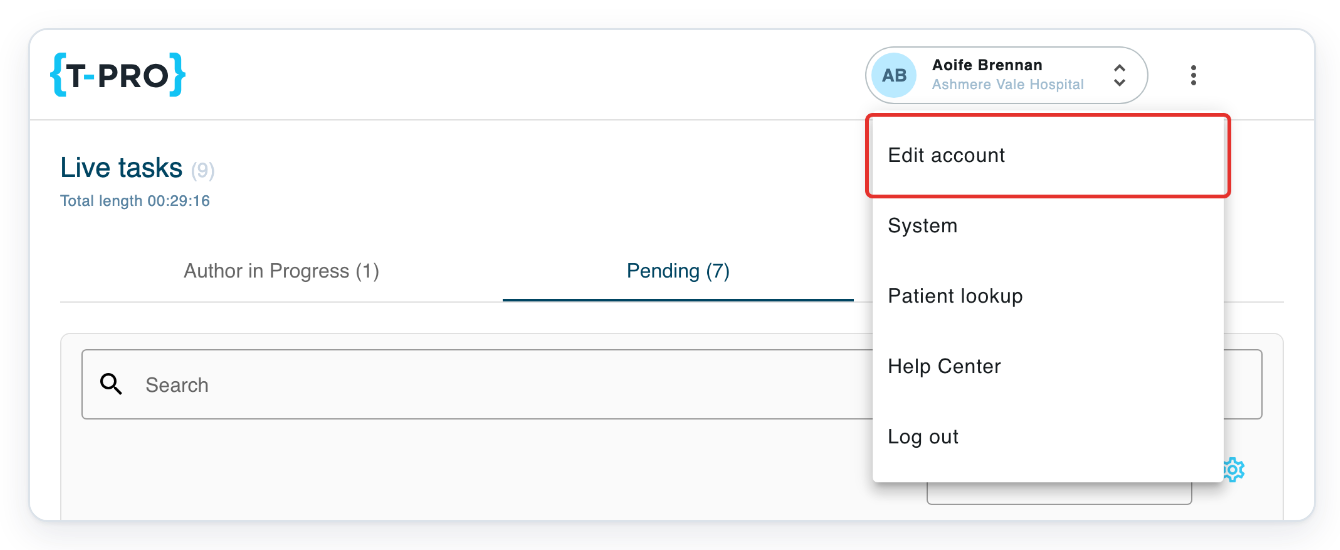
Click the three-dot account menu beside your name at the top right.
The menu opens with Edit account at the top.

Click Edit account to open My details.
Your profile page contains your personal details, contact information and task defaults. Stay on My details for these steps.
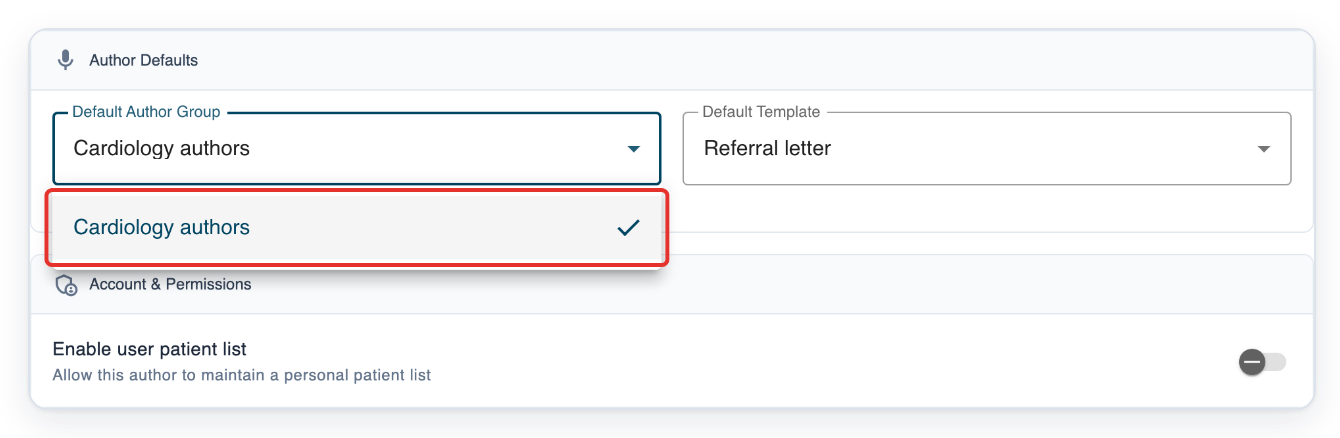
Scroll to Author Defaults, then click Default Author Group.
The field shows your current choice. The list contains the author groups you belong to.

Choose the author group you want to use for new tasks, such as Cardiology authors.
If you belong to more than one author group, choose the one you use most often.
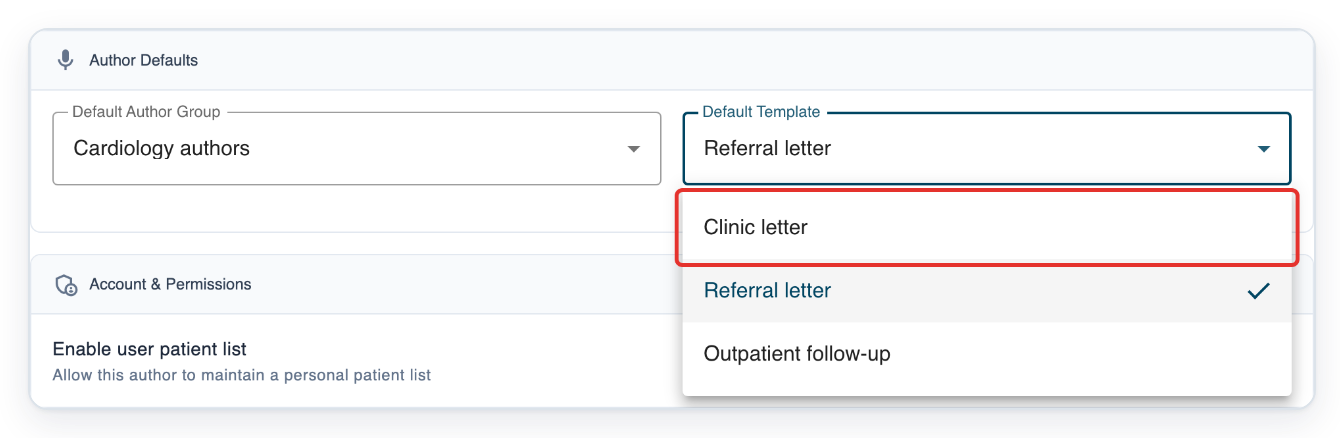
Click Default Template to see the templates available to your selected group.
Choose your group before choosing a template. If you change the group, check the template again before saving. You can use a template across groups if it is available to each one.

Choose the template you want, such as Clinic letter.
In this example, the template changes from Referral letter to Clinic letter. Your list may contain different document types.
=> Author Defaults now shows Cardiology authors and Clinic letter. Check both choices before saving.

Click Save changes at the bottom of the page.
This also saves any other changes you've made on this page. Check those details before saving.
Wait for the User updated message. To leave without saving your changes, click Cancel instead.

=> In this example, your saved Default Author Group is Cardiology authors. Your Default Template is Clinic letter.

NOTE:
- Your defaults set the starting group and template for new tasks. You can change either for an individual task.
What your defaults control
Choose the group you usually dictate for and the document type you use most often.
| Setting | What it controls |
|---|---|
| Default Author Group | The author group T-Pro selects when you start a new task. You can choose from the groups you belong to. |
| Default Template | The document type T-Pro selects for a new task, such as a clinic letter or referral letter. You can choose from the selected group's templates. |
Other places you can set your defaults
- In Recorder, click the settings cog to open Recorder Settings. Choose your default author group and template, then click Save. You can also set your default priority here. This saves your choices as your account's task defaults.
Can't set your default group or template?
- Your group is missing. Ask your manager to check that you belong to the author group you need.
- Your template is missing. Check Default Author Group first. Choose the group you need, then open Default Template again. If your template is still missing, ask your manager to make it available to that group.
- Save changes is unavailable. Change a detail on the form and correct any errors shown. Check any other profile details you've edited, then try again.
Related articles
- Update your profile details
- Change your Web Recorder settings
- Change a task's department, author group or author
- Change a task's template
If you have any more queries, please do not hesitate to contact our Helpdesk or support@tpro.io.
© 2020 - 2026