
Before you start
An admin must make smart dictation available at your facility. To change a route, you need a master or admin account with access to the department. Back-end speech recognition must already be set up.
Log in to T-Pro with your master or admin credentials.
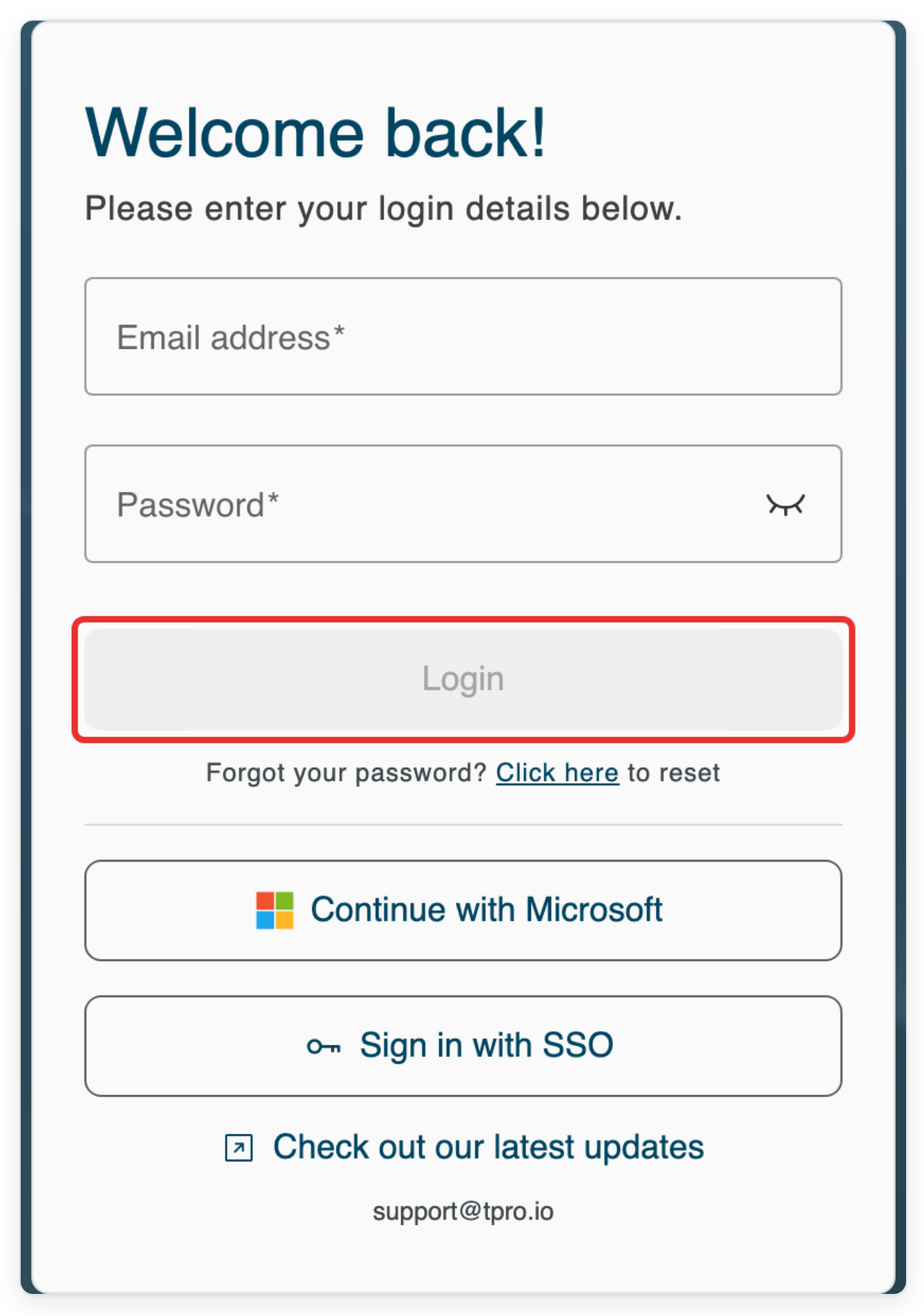
As an admin
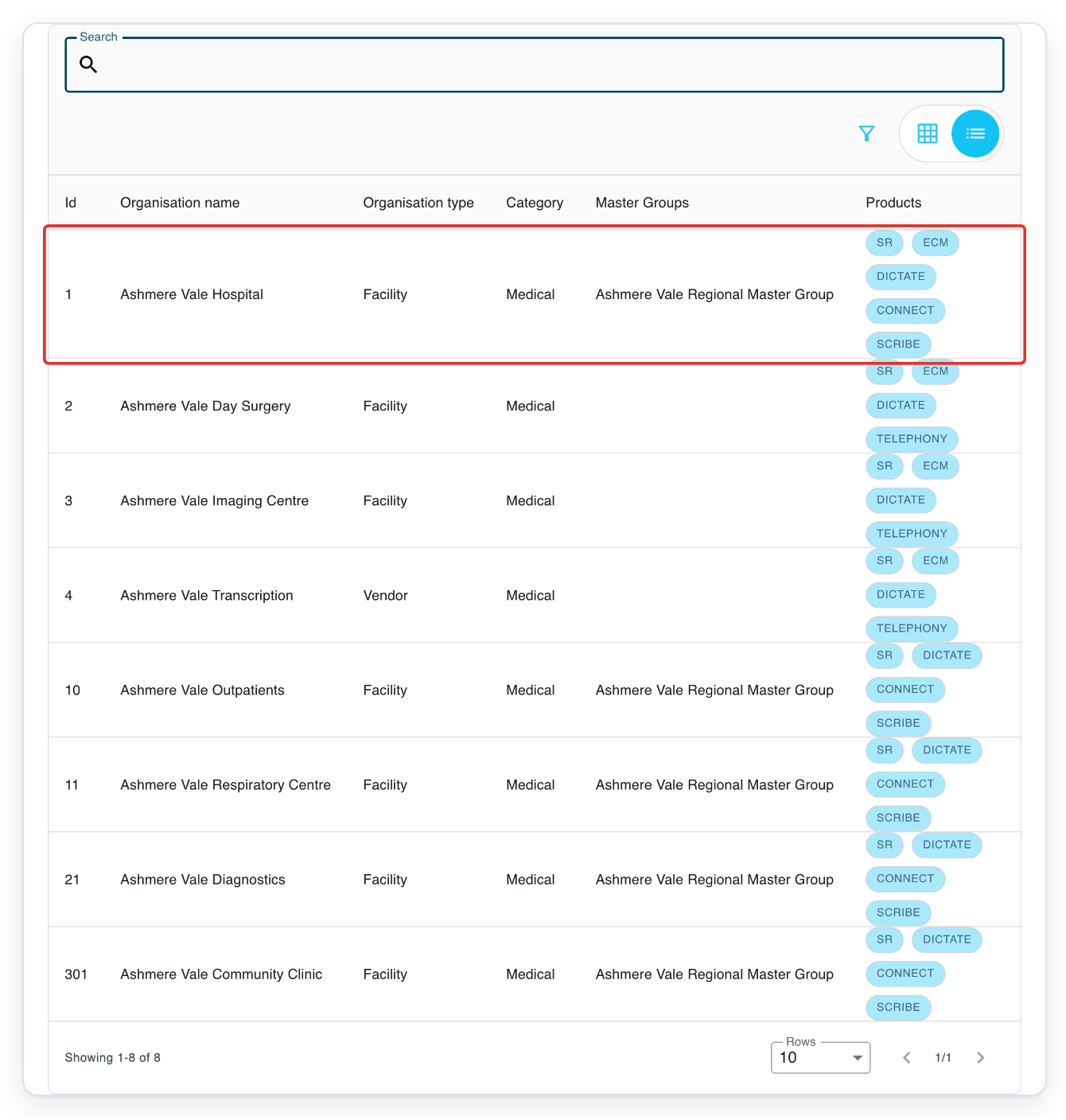
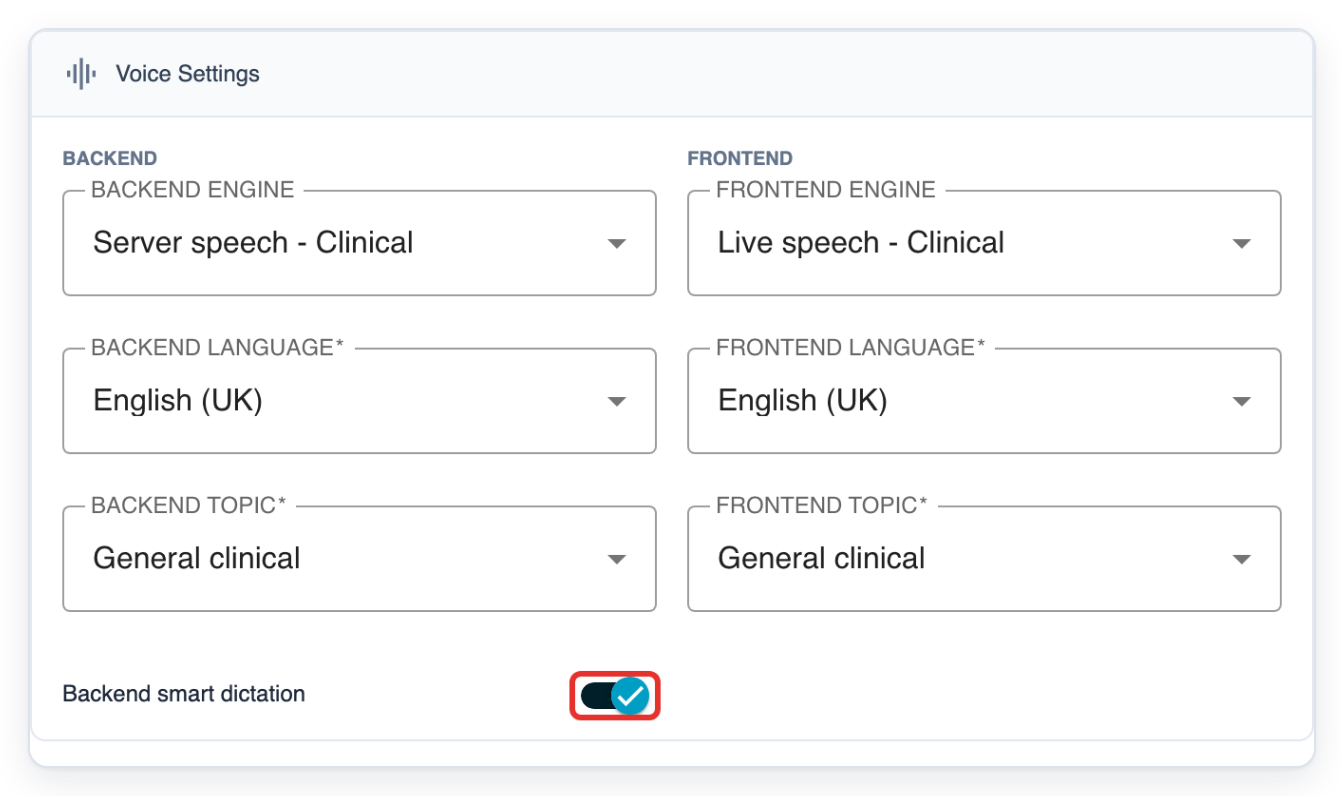
Go to Organisations and select your facility.
In this example, select Ashmere Vale Hospital.
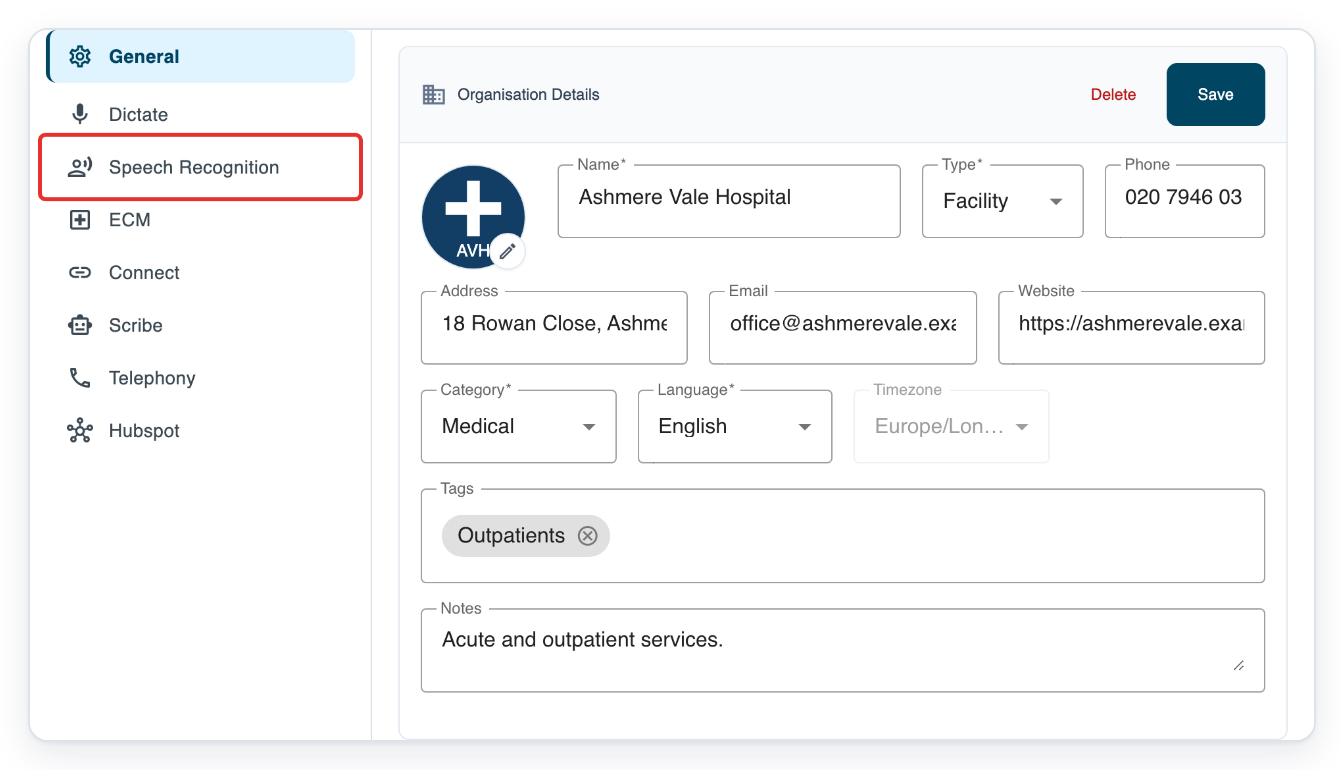
Click Settings in your facility.

Click Speech Recognition. The Speech and Voice Settings cards open.
Under Voice Settings, turn on Backend smart dictation.
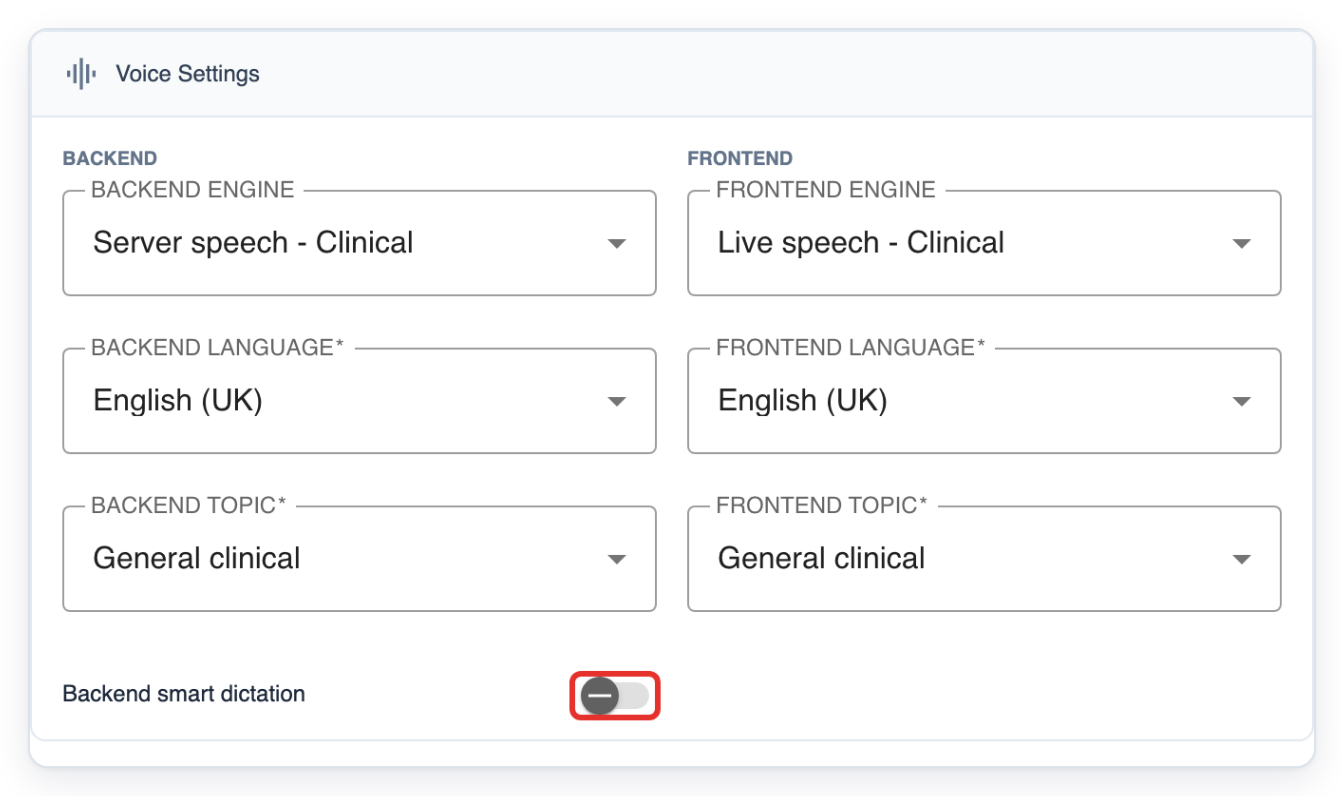
Click Save in the Speech card. T-Pro shows the message “Entity updated”.
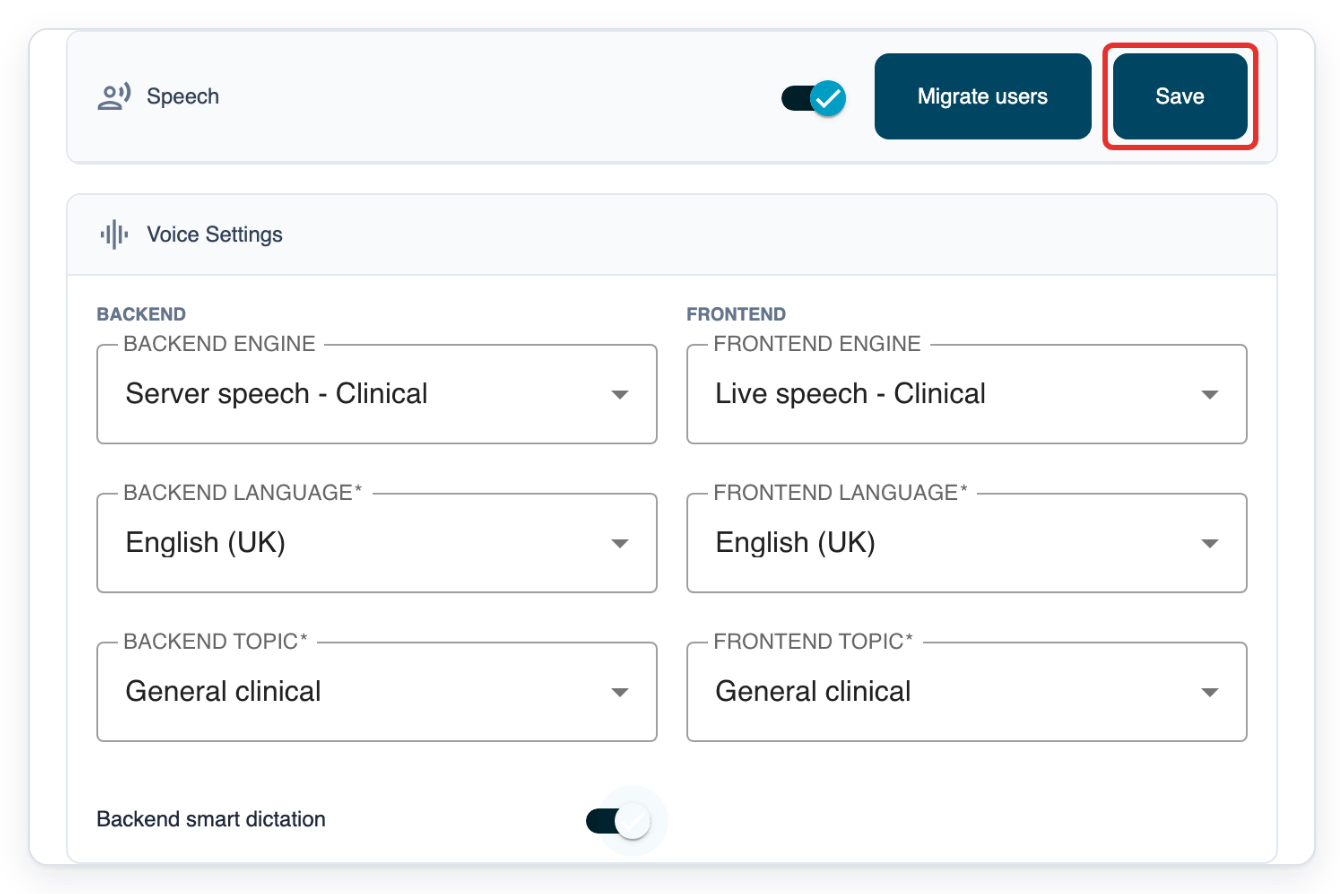
=> Backend smart dictation is now on in Voice Settings, alongside your facility's back-end speech settings.
A route also needs Speech Recognition and its own Backend smart dictation switch on. Turning the facility switch off stops smart dictation from running. Saved route switches and Smart dictation badges can remain.
As a master
Go to Organisations and select your facility.
In this example, select Ashmere Vale Hospital. An admin must first enable Backend smart dictation in the facility's Speech Recognition settings.
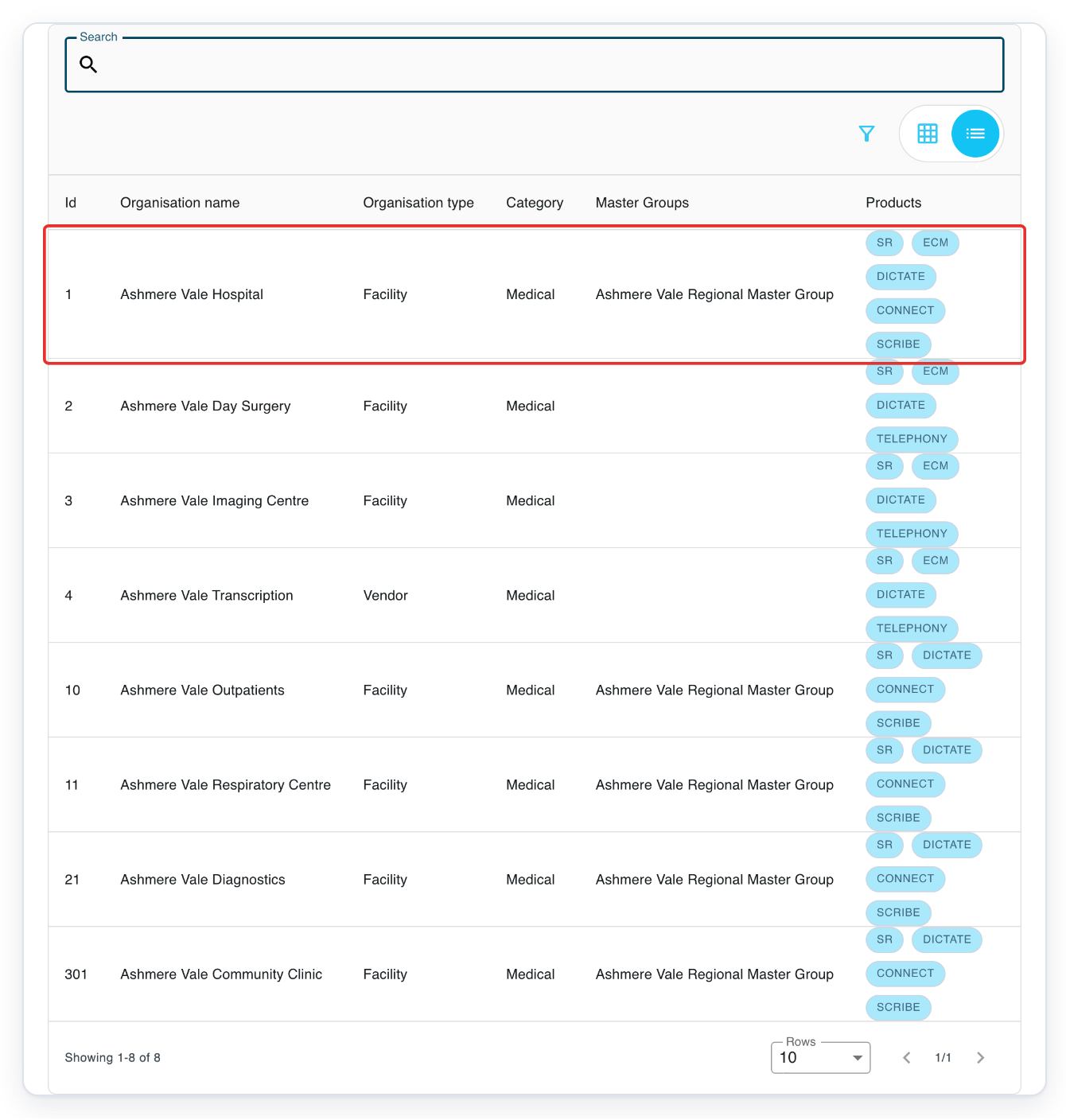
In Departments, select the department whose route you want to change.
In this example, select Orthopaedics, ID 31.
Focus Transcription Routes and press Enter to open the route list.
Find the route under its dictation group. In this example, Orthopaedics follow-up letters already shows Smart dictation beneath SR. Orthopaedics clinic letters has an SR step without the badge.

Click the route's Edit pencil. This opens Edit Transcription Route.
Choose Orthopaedics clinic letters under Orthopaedics authors.
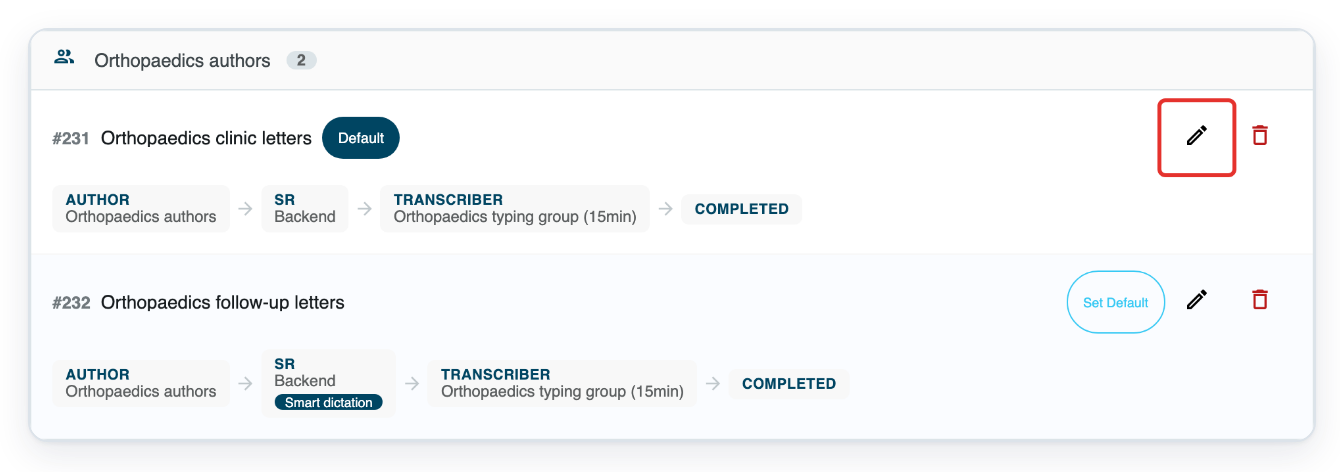
With Speech Recognition already on, turn on Backend smart dictation for this route.
Turning Backend smart dictation off leaves ordinary speech recognition on for the route.
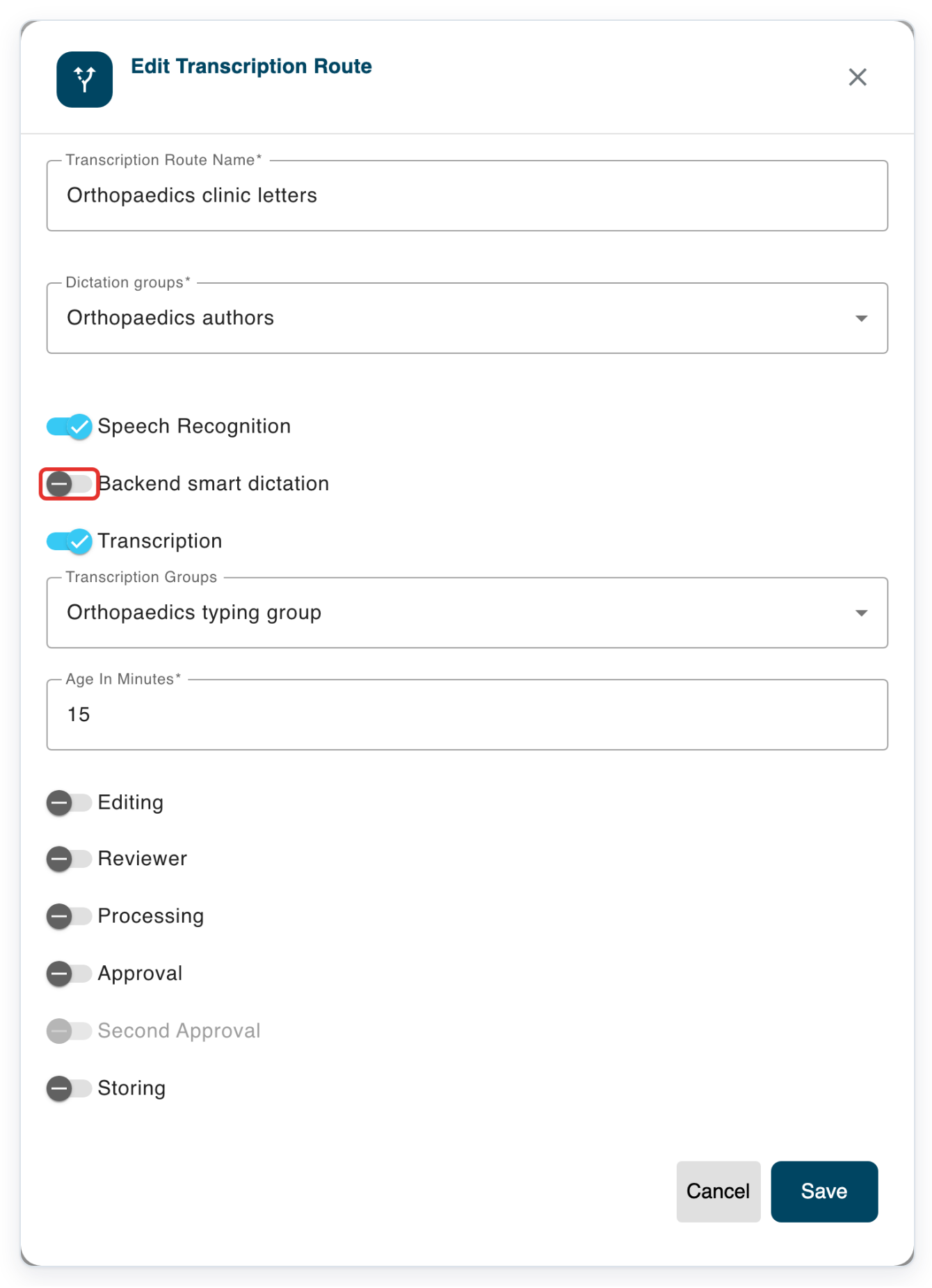
Click Save to save the route and return to the route list.
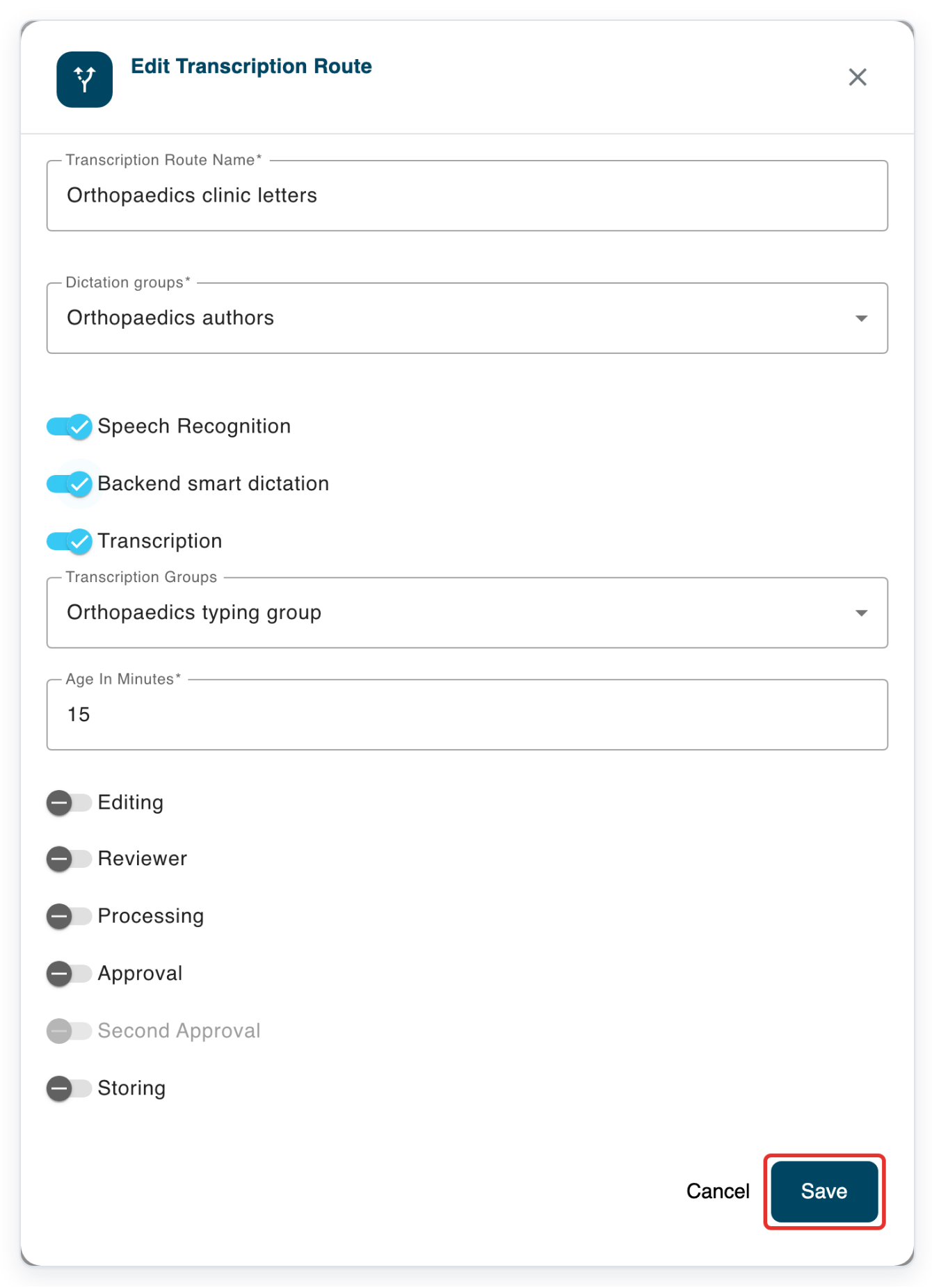
=> Orthopaedics clinic letters now shows Smart dictation on its SR step.
The badge appears beneath Backend. It identifies a route configured to prepare a letter from back-end speech-recognition text.
As a manager
Signed in as a manager, click All Tasks from Departments.
Find the task whose prepared letter you want to review. This example uses task 7001.

Click the task's number in the Task ID column to open it in a separate window.
In this example, click 7001.

Click the Notes icon beside the task tabs to read the AI note.
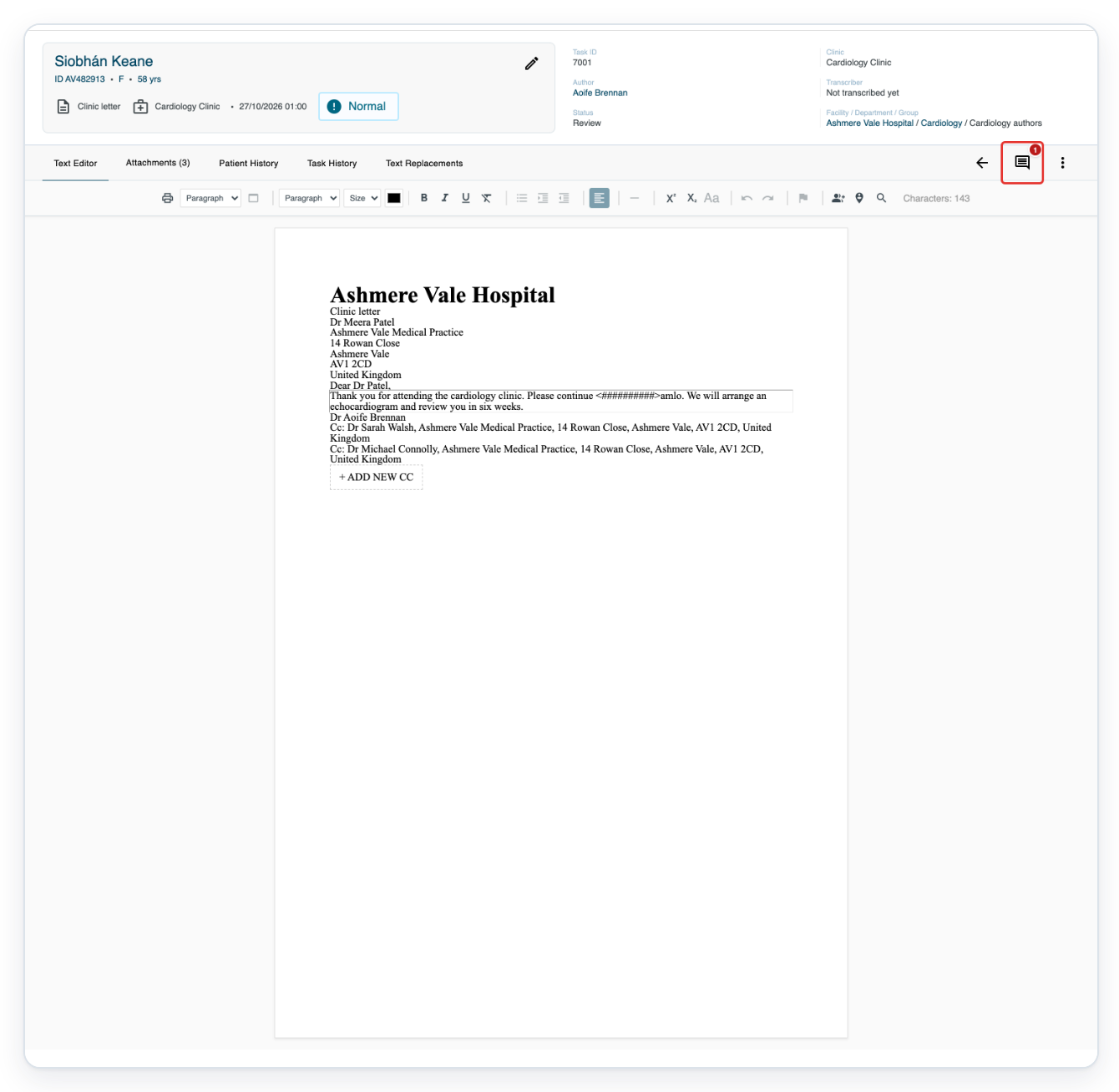
=> The note contains “Copy to the patient.” and asks you to check “amlo”, the unclear medicine name.
Read the note alongside the prepared letter. In this example,
amlofollows the<##########>marker in the letter. Check the dictation before correcting the word.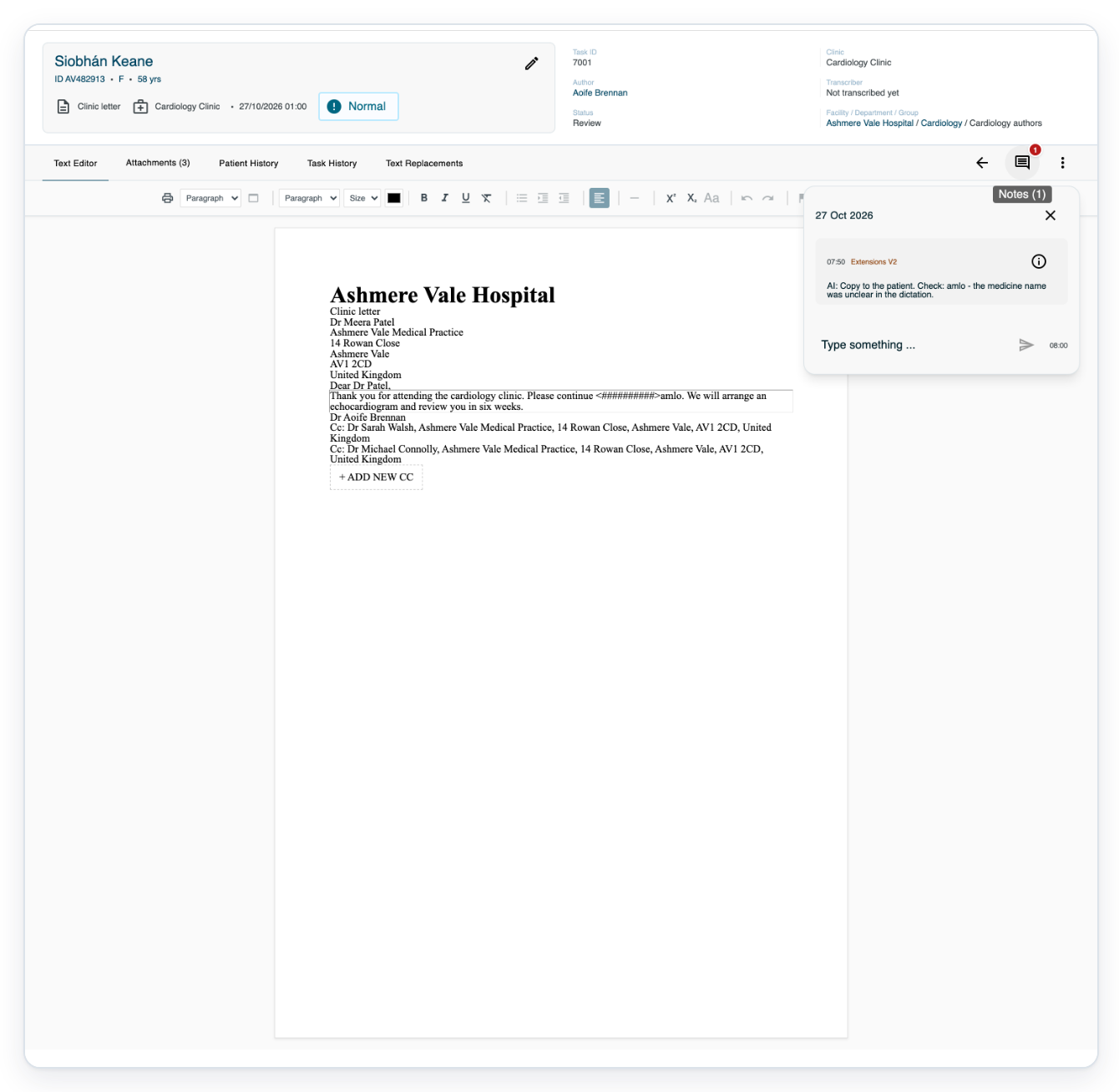
NOTE:
- On routes with a transcription group, the prepared letter appears when a transcriber first picks up the task. It goes into the document where the speech-recognised text would normally appear.
- For these routes, the author usually needs speech recognition turned on. There is an exception for transcription groups in another organisation. Their speech settings must allow them to process all authors.
- A task comment starting with AI: may contain instructions for the typist or questions about unclear clinical words. Read these comments alongside the letter when you check the dictation.
- An admin must first enable Backend smart dictation in the facility's Speech Recognition settings before a master can turn it on for individual routes.
How smart dictation works
Smart dictation uses AI after speech recognition to prepare the letter from the dictated text. It can tidy punctuation and paragraph breaks, remove filler words and apply spoken corrections such as “scratch that”. It aims to keep the clinician's wording and make the dictation ready for you to work on.
Both smart dictation switches must be on. The Smart dictation badge shows the route's setting, so check the facility switch too.
| Switch | What it changes |
|---|---|
| Facility: Backend smart dictation | Makes smart dictation available to the facility's routes. Each route must also have it switched on. |
| Route: Backend smart dictation | Sets this route to use smart dictation. The facility switch must also stay on. |
| Route: Speech Recognition | Must be on to use smart dictation. Turning it off also turns off the route's Backend smart dictation. |
Can't use smart dictation?
- If Backend smart dictation is missing from the route, turn on Speech Recognition. If it still doesn't appear, ask an admin to check the facility's Backend smart dictation switch.
- If Speech Recognition is missing from the route, ask an admin to check the facility's back-end speech recognition settings. They must select a back-end speech engine for this switch to appear.
- If the letter hasn't been tidied, open the task and click Task History. Look in the Info column for “Backend smart dictation failed, raw VR text used”. This means the task continued with the original speech-recognised text. Contact our Helpdesk with the task ID if you need help.
Related articles
- Create a transcription route
- Organisation settings in V2
- Correct speech recognition text
- Notes and task history
If you have any more queries, please do not hesitate to contact our Helpdesk or support@tpro.io.
© 2020 - 2026