
Before you start
You need a manager or admin account with access to the task. The letter must be waiting for first or second approval.
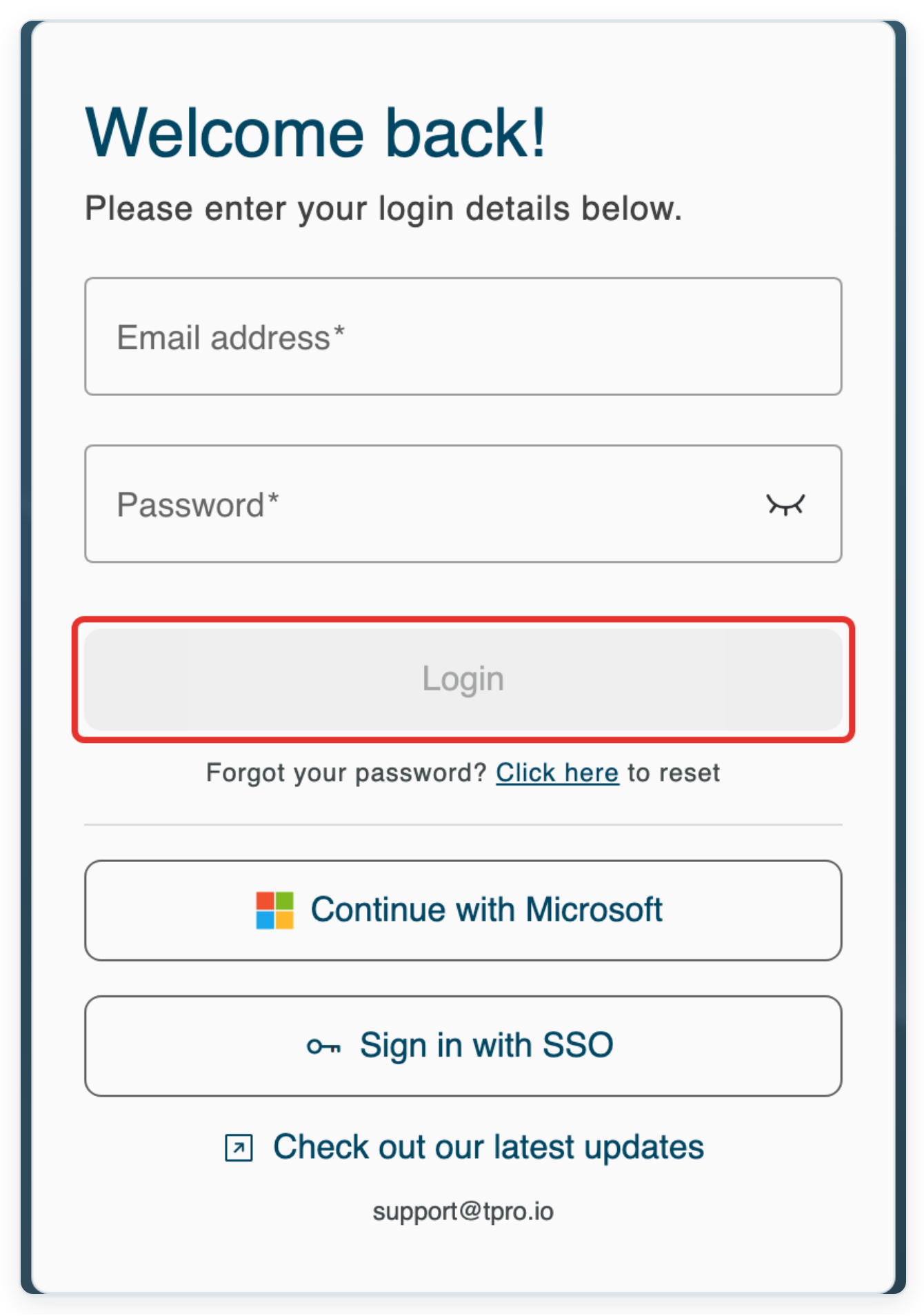
Log in to T-Pro with your manager or admin credentials.
Enter your Email address and Password, then click Login.
As a manager or admin
Go to All Tasks, then click Search above the task list.
Find the letter you need in this list.

Enter TASK: followed by the letter's task ID in Search. For example, enter TASK:7001.
Replace 7001 with the ID of the letter you need.

Press Enter to search.

Press Escape to close the search suggestions. Check the letter's Status is Waiting for Approval or Waiting for Second Approval.
Task 7001 in this example is waiting for first approval.

Click the letter's Task ID to open it.
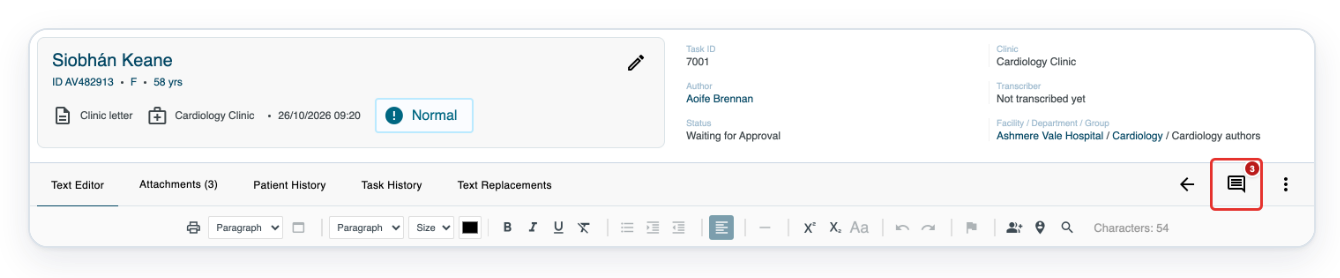
In this example, click 7001 for Siobhán Keane. The letter opens in a new tab with Reject and Approve buttons.

Click the Notes (3) icon at the top right to add an approval note.
The number shows how many notes the task already has, so yours may be different.
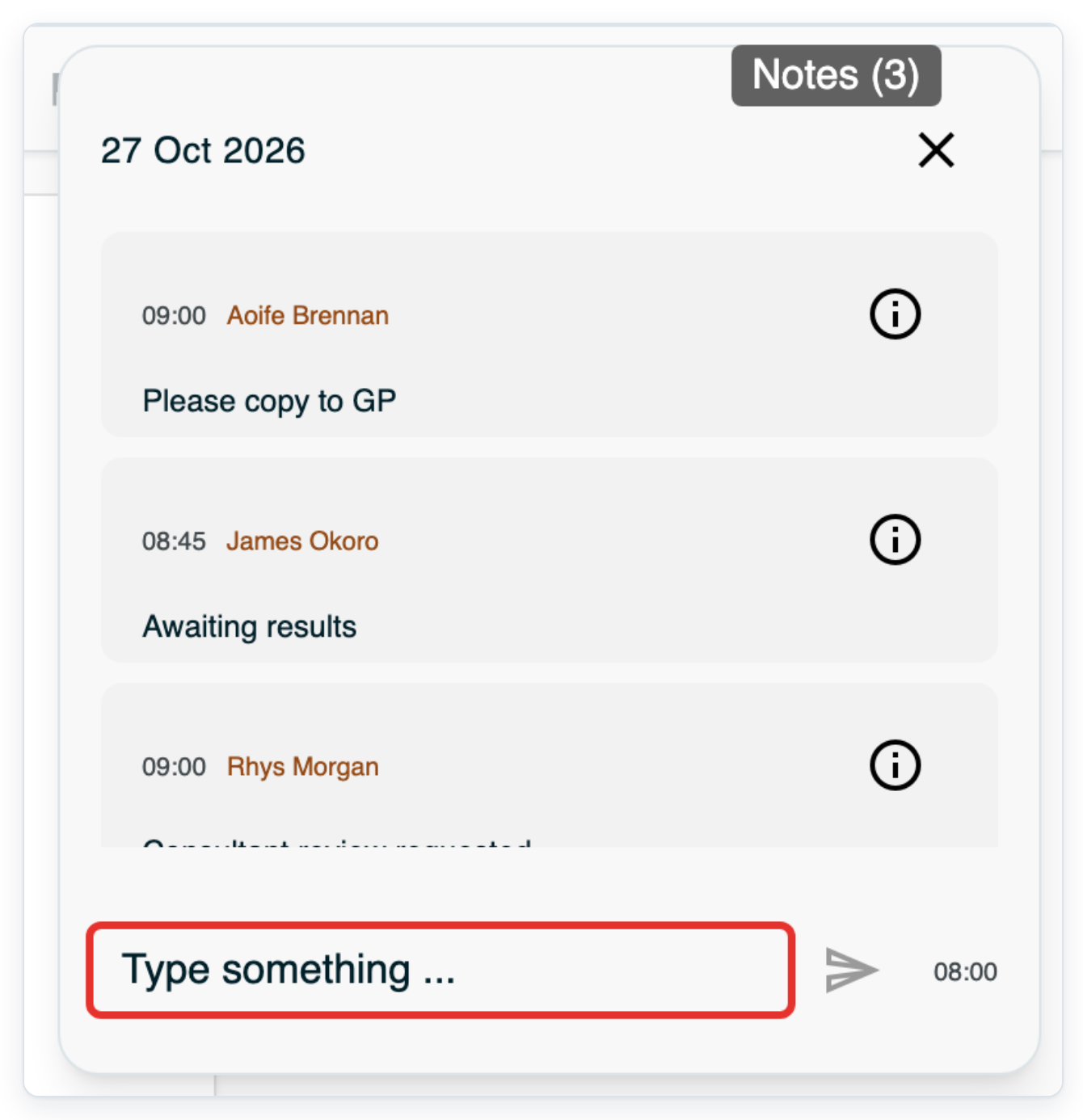
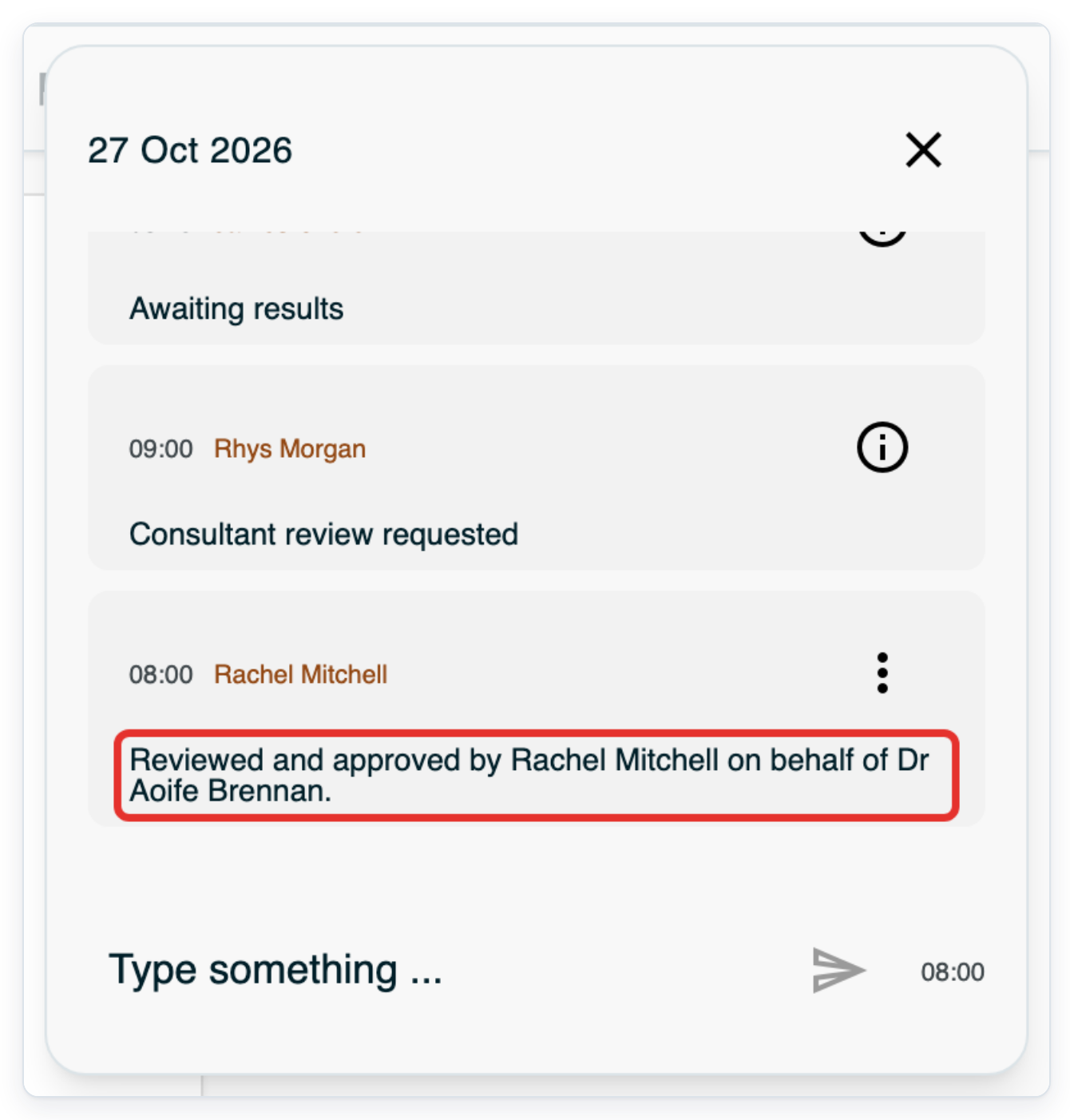
Click Type something ... and enter who reviewed and approved the letter. Say which author they approved it for.
For example: Reviewed and approved by Rachel Mitchell on behalf of Dr Aoife Brennan.
Use your name and the name of the author you're approving for.
Click the Send arrow to save your note.
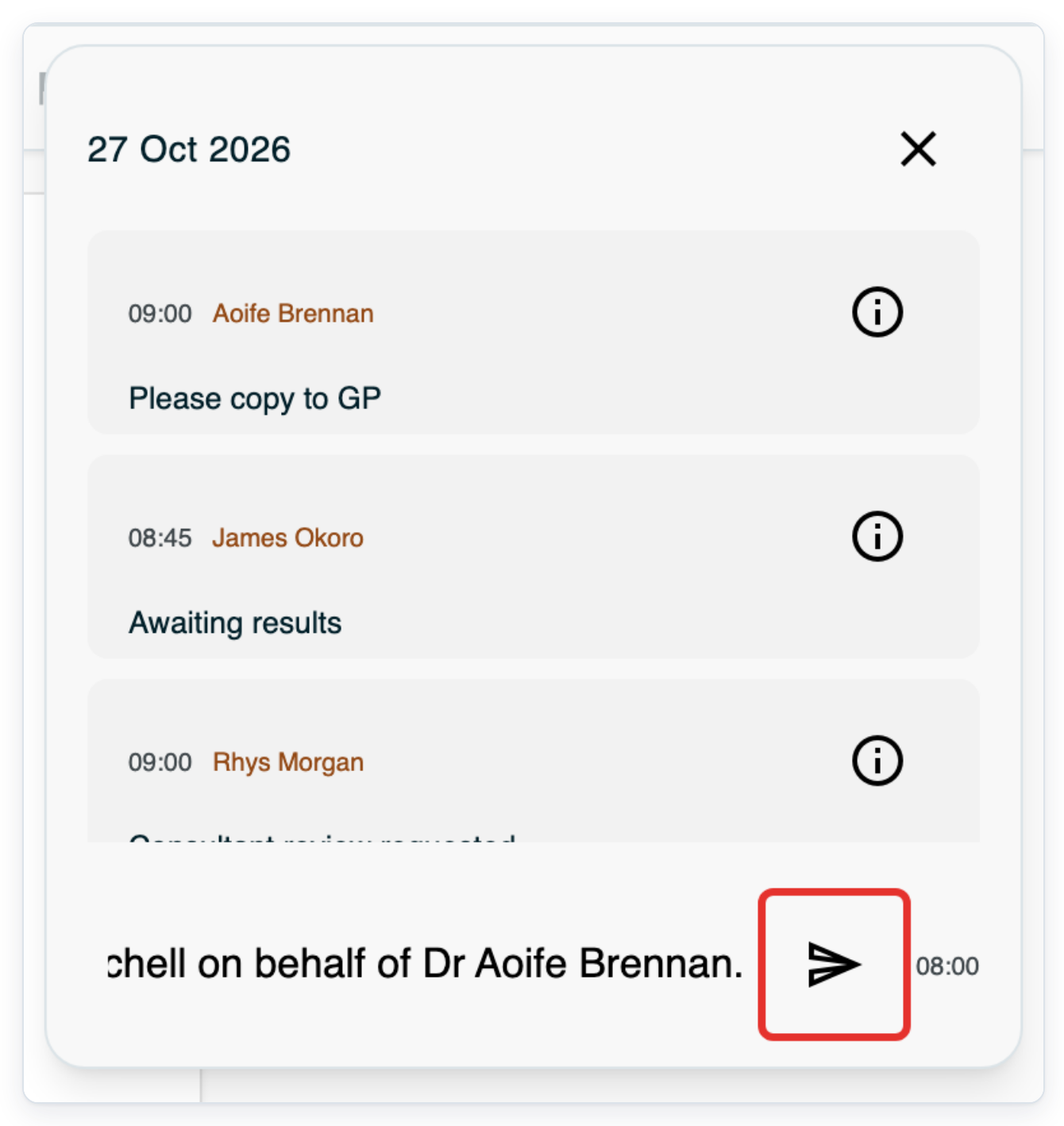
=> Your note appears in the list with your name and the time you added it.
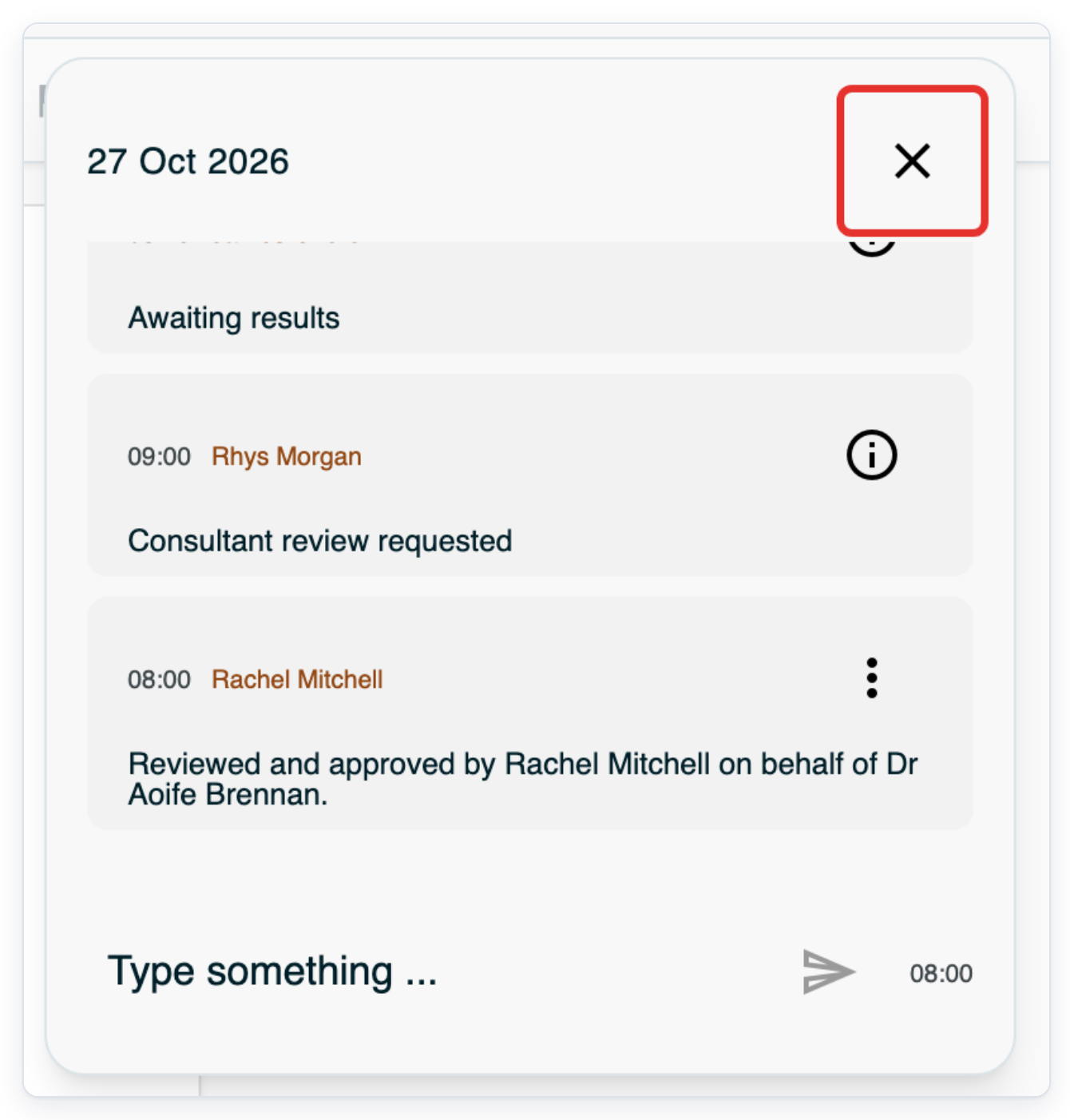
Click the cross at the top right of the notes panel to return to the letter.
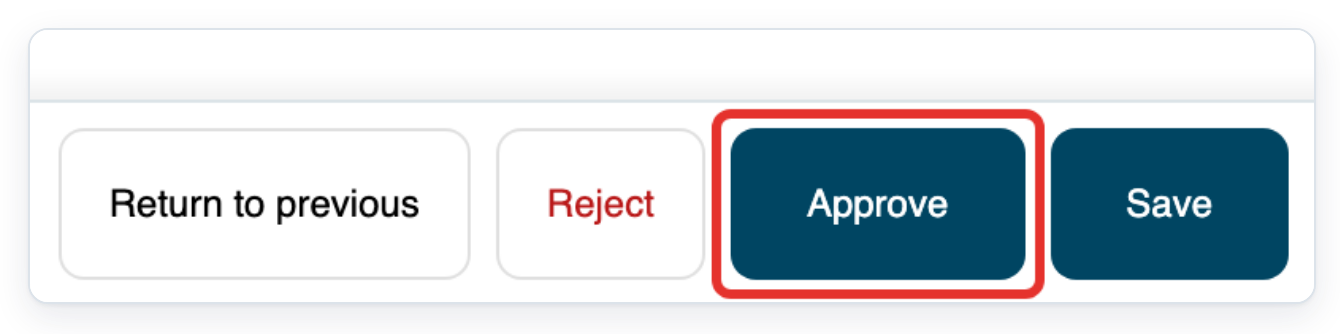
Review the letter, then click Approve at the bottom right.
=> You return to All tasks. In this example, the letter's status is Completed.

NOTE:
- For second approval, look for Waiting for Second Approval in step 5. Then follow the remaining steps.
- Unsigned approval on someone else's behalf does not add the author's signature image or replace it with your own.
- Clicking Approve sends the letter to its next stage: second approval, storing or completion. You then return to All tasks.
- Your settings, the author group's settings or your organisation's settings can change the unsigned sign-off wording. The table shows the default wording.
How the sign-off reads
The wording and sign-off details appear where the letter template includes them.
| Approval stage | Default unsigned wording | Sign-off details |
|---|---|---|
| First approval | Dictated but not signed by | The first approver's sign-off details. The example shows Dr Aoife Brennan and Consultant Cardiologist. |
| Second approval | On behalf of | The second approver's sign-off details, where the template includes them. |
Can't approve a letter on someone else's behalf?
The saved letter says Dictated but not signed by.
=> Here, Dictated but not signed by is followed by Dr Aoife Brennan and Consultant Cardiologist.

This is the usual wording for unsigned approval. Check that your approval note names you and the author you approved for.
Can't find or open the letter? Check you're using the right account. Managers need access to the task's department. Ask your administrator for access if needed.
Can't see Approve? Open the letter from All Tasks using your manager or admin account. Check its status is Waiting for Approval or Waiting for Second Approval.
Is missing information blocking approval? Review the letter and fill in the missing document details. Then click Approve again.
Related articles
- Search for tasks in All Tasks
- Notes and task history
- Approve a letter
- Reassign a letter for approval
- Set up electronic sign-off with merge fields
If you have any more queries, please do not hesitate to contact our Helpdesk or support@tpro.io.
© 2020 - 2026