
Before you start
You need an admin account with access to the facility you want to configure.
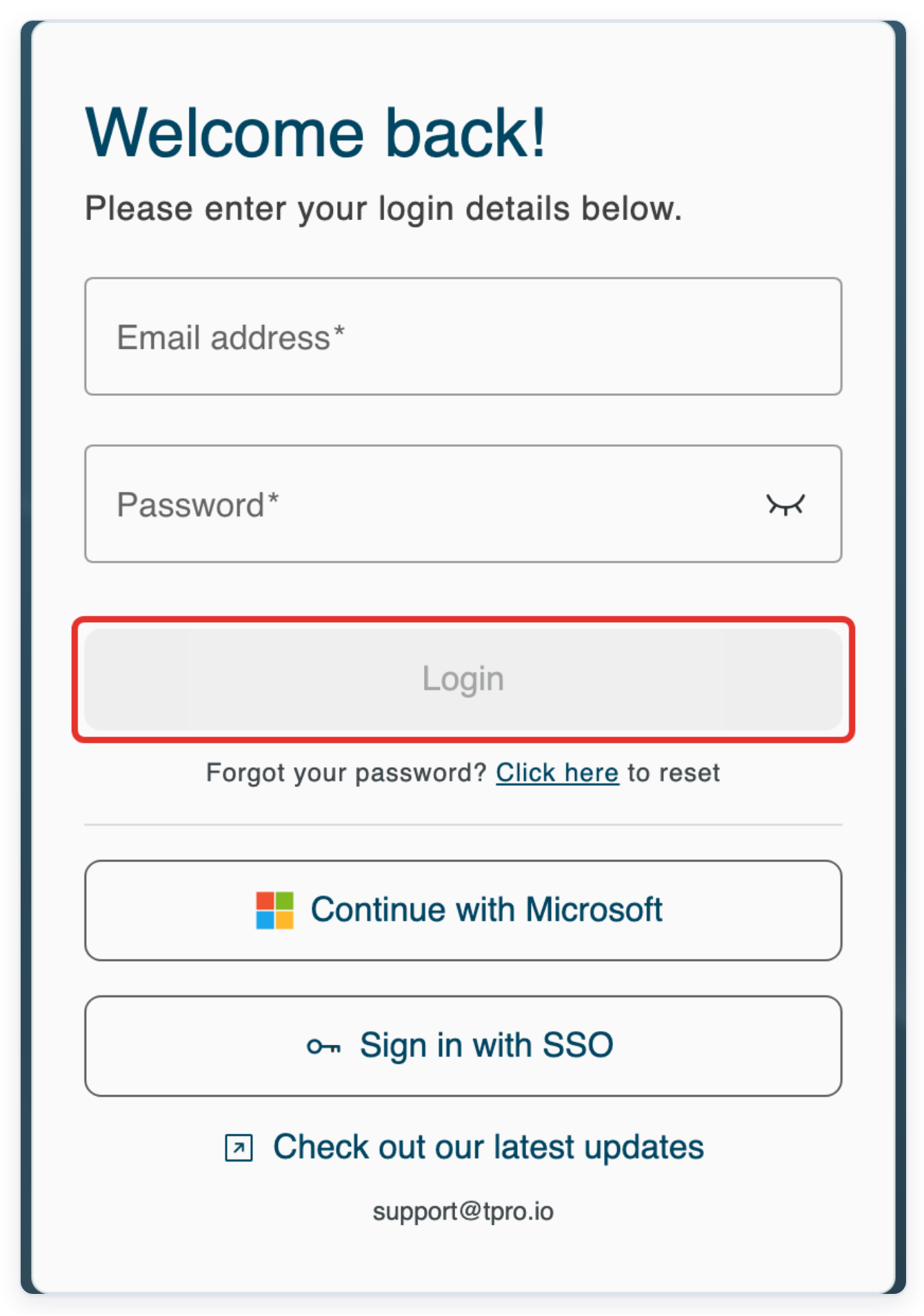
Log in to T-Pro with your admin credentials.
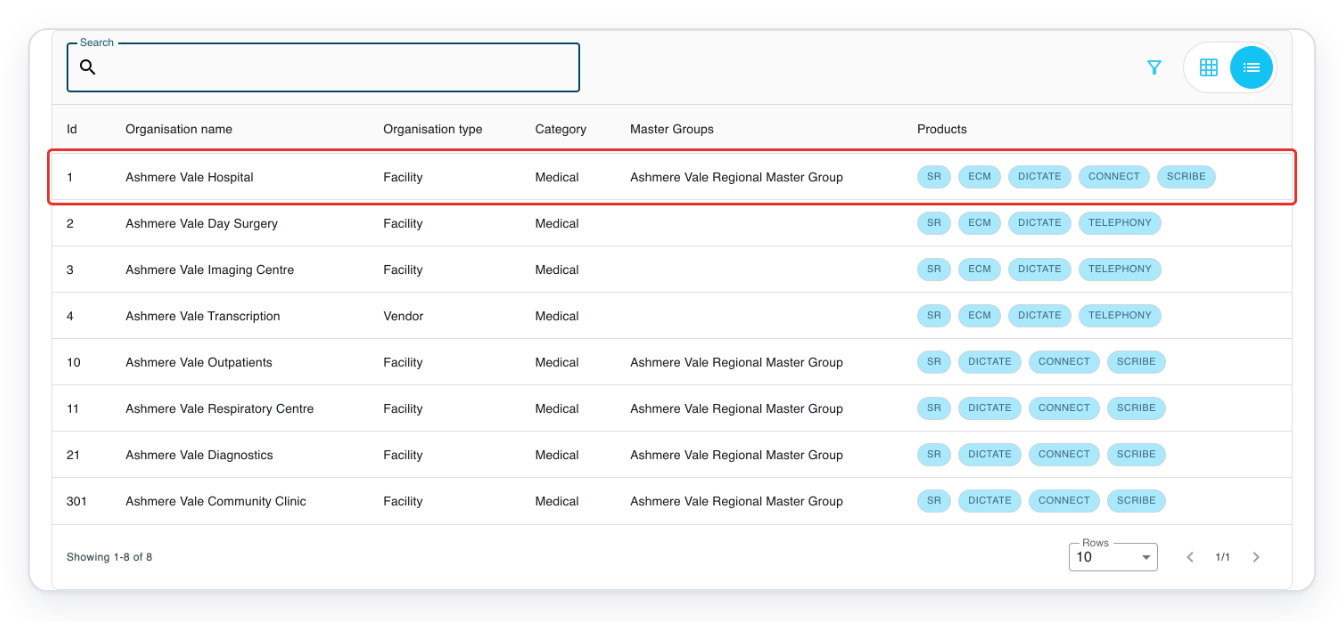
Go to Organisations and click your facility's row.
If you have several facilities, use Search above the list. Type the facility's name and press Enter.
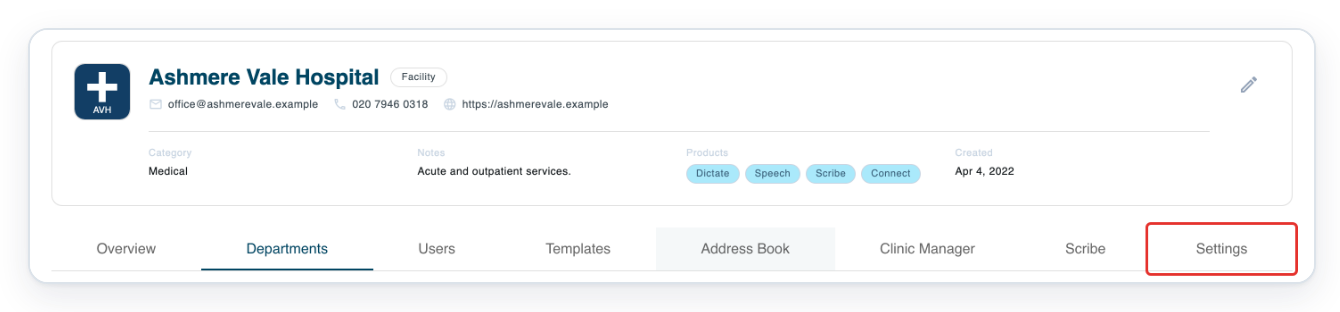
Click Settings for the facility. The General settings page opens.
Scroll down to Advanced Settings to find the address redaction controls.
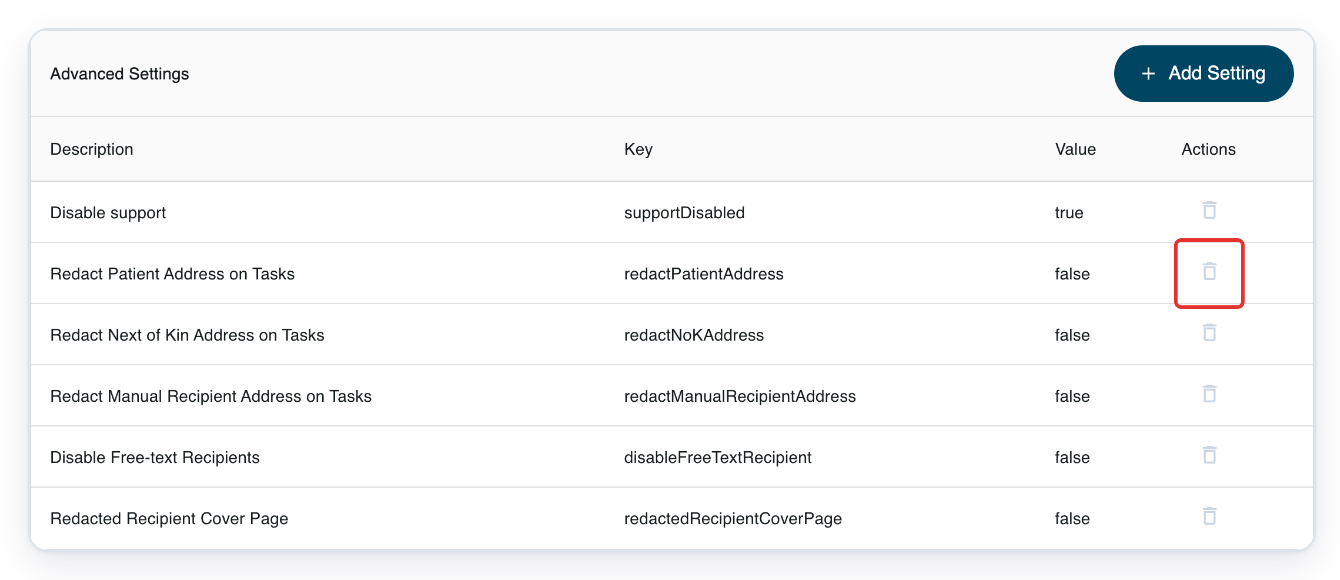
In Advanced Settings, click the bin beside the existing Redact Patient Address on Tasks entry.
In this example, its Value is false. Remove the entry, then add it again with redaction switched on. If the setting isn't listed, go to step 5.
Click Add Setting in Advanced Settings.
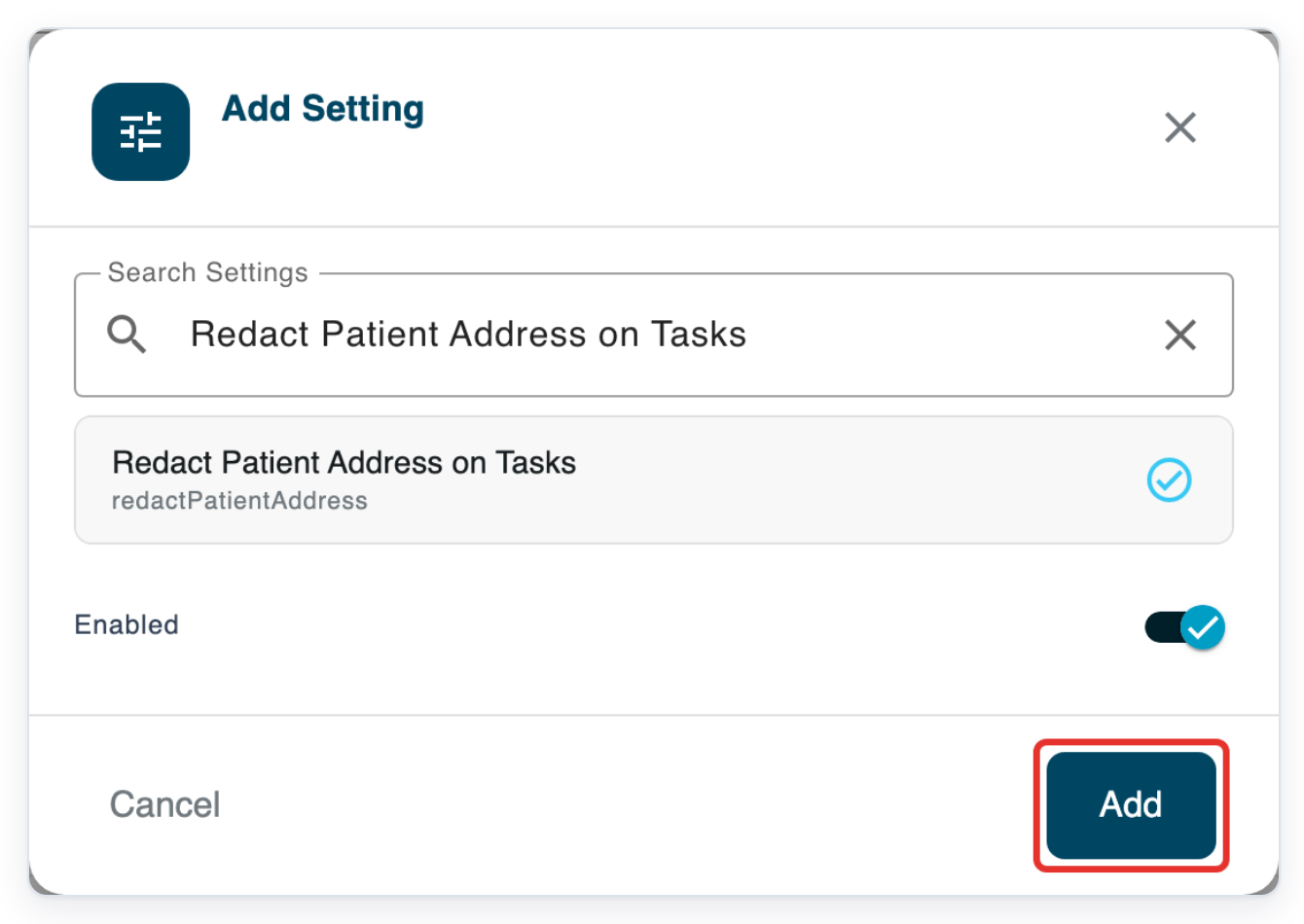
The dialog lists the settings available to add to your facility.
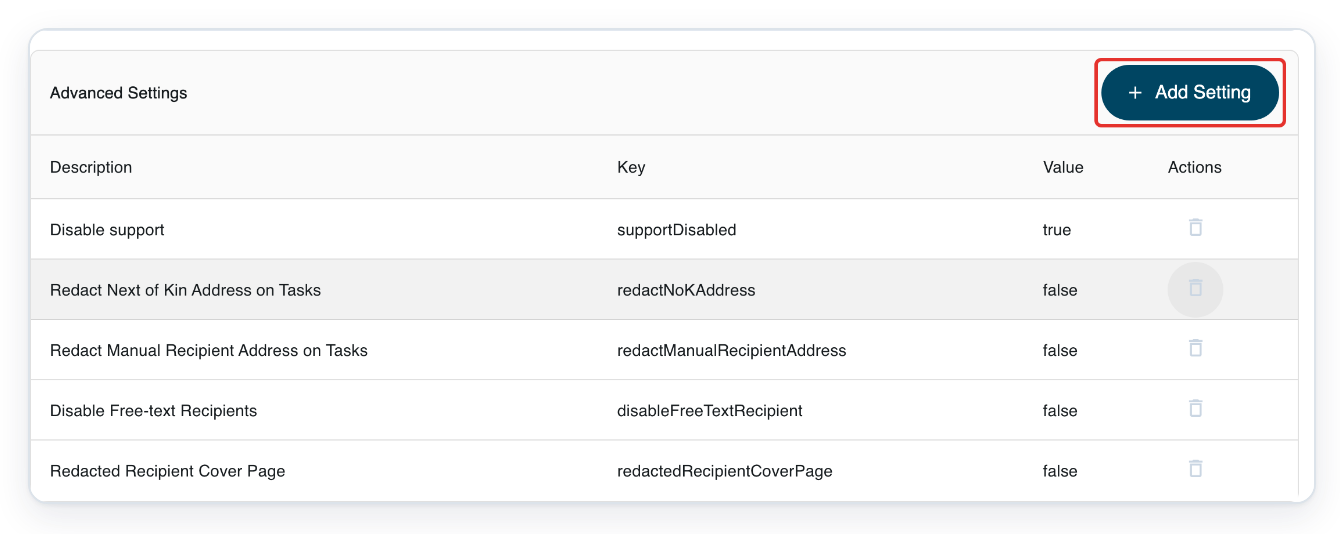
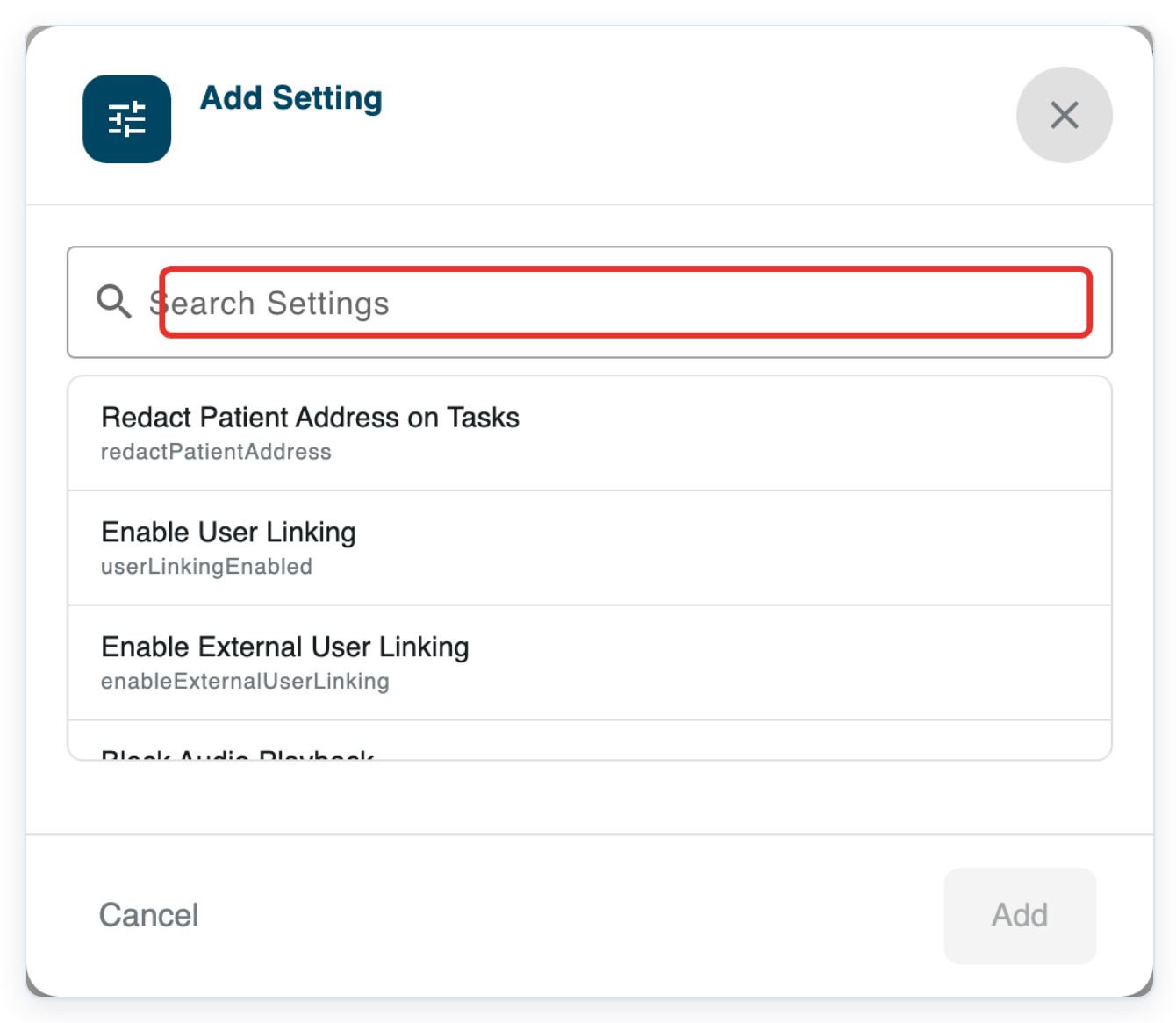
In Search Settings, type Redact Patient Address on Tasks.
You can search using all or part of the setting's name.
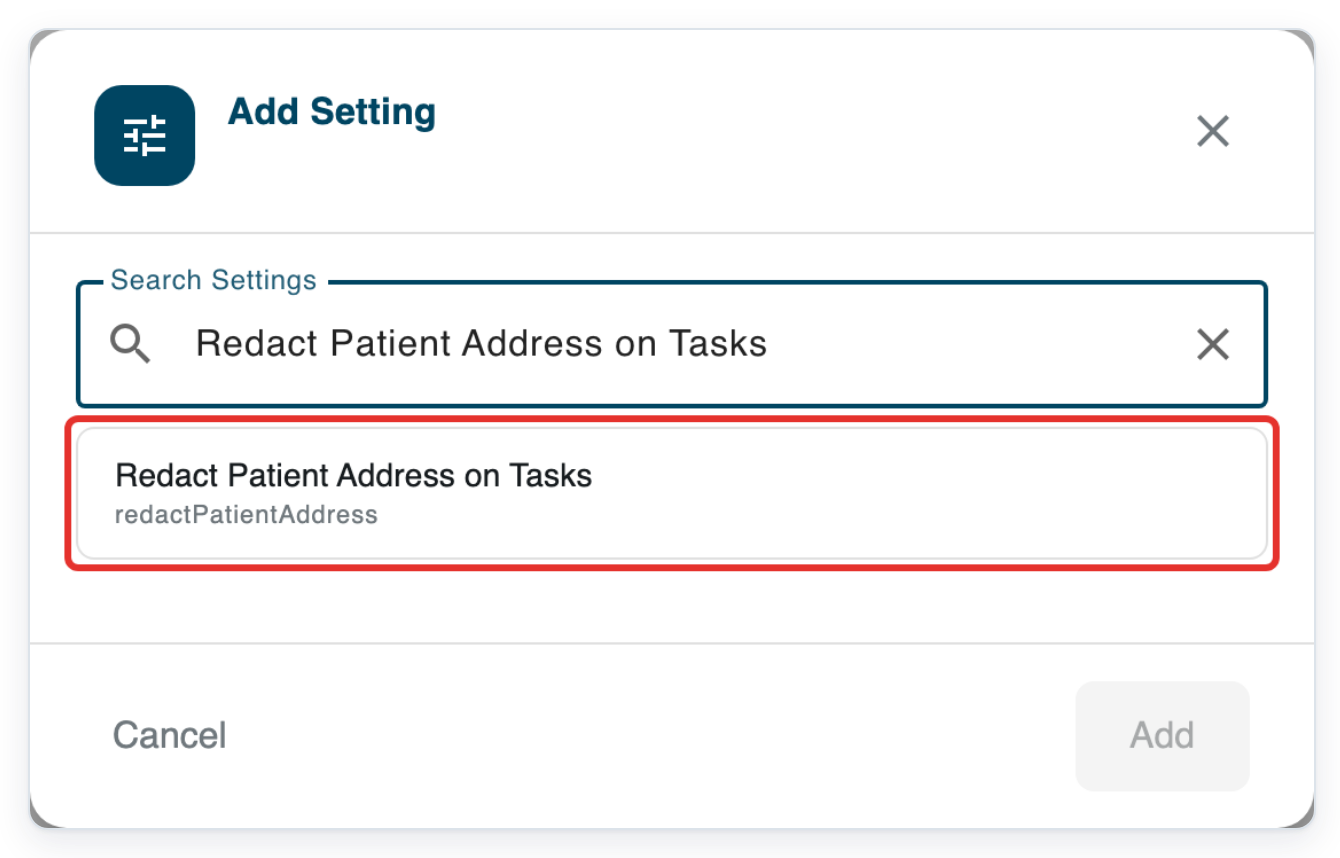
Click Redact Patient Address on Tasks in the results.
The Enabled switch appears below the selected setting.
Leave Enabled switched on to hide patient addresses.
To keep patient addresses visible, switch Enabled off.
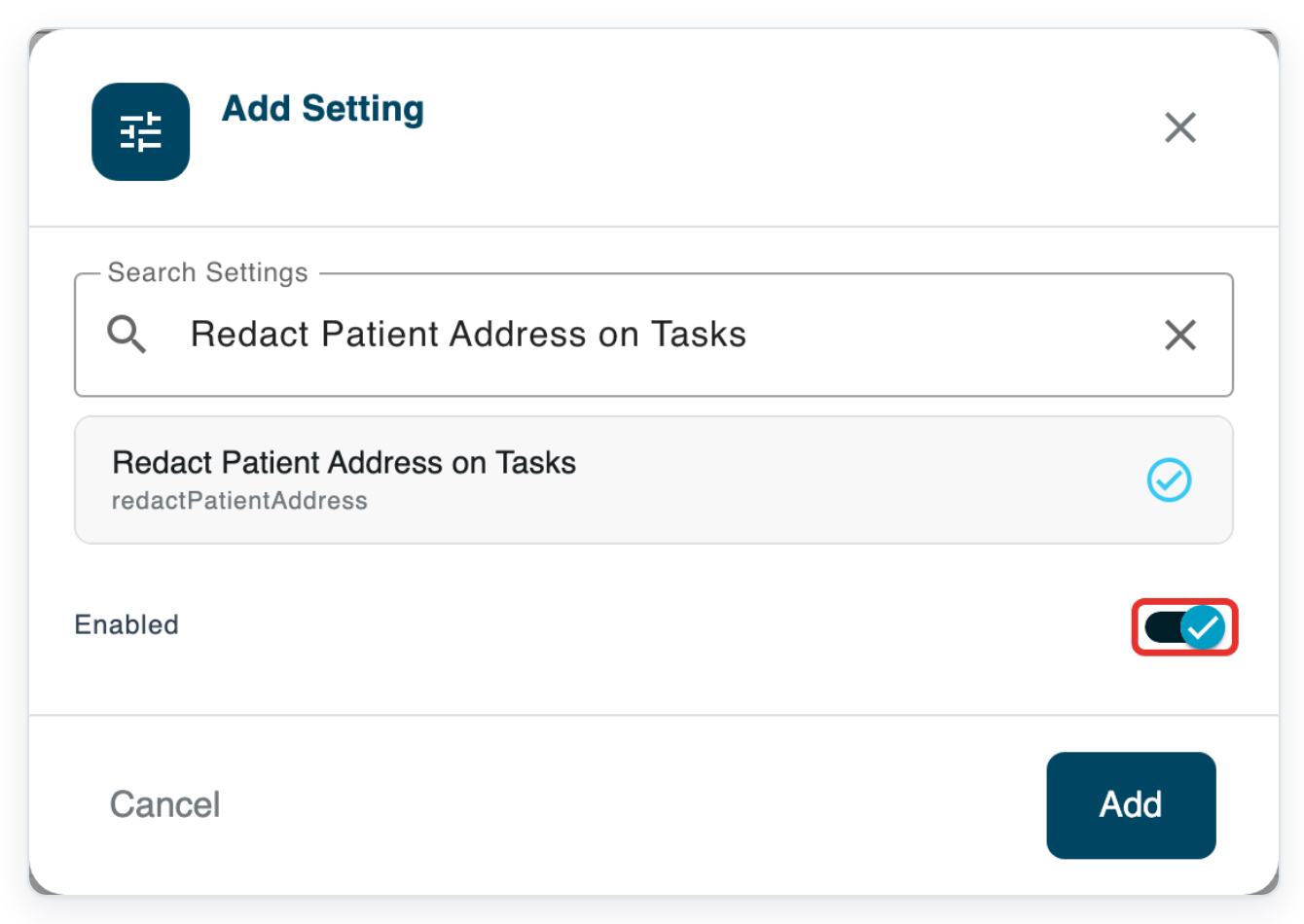
Click Add to add the setting to your facility.
The dialog closes and you return to the facility settings.
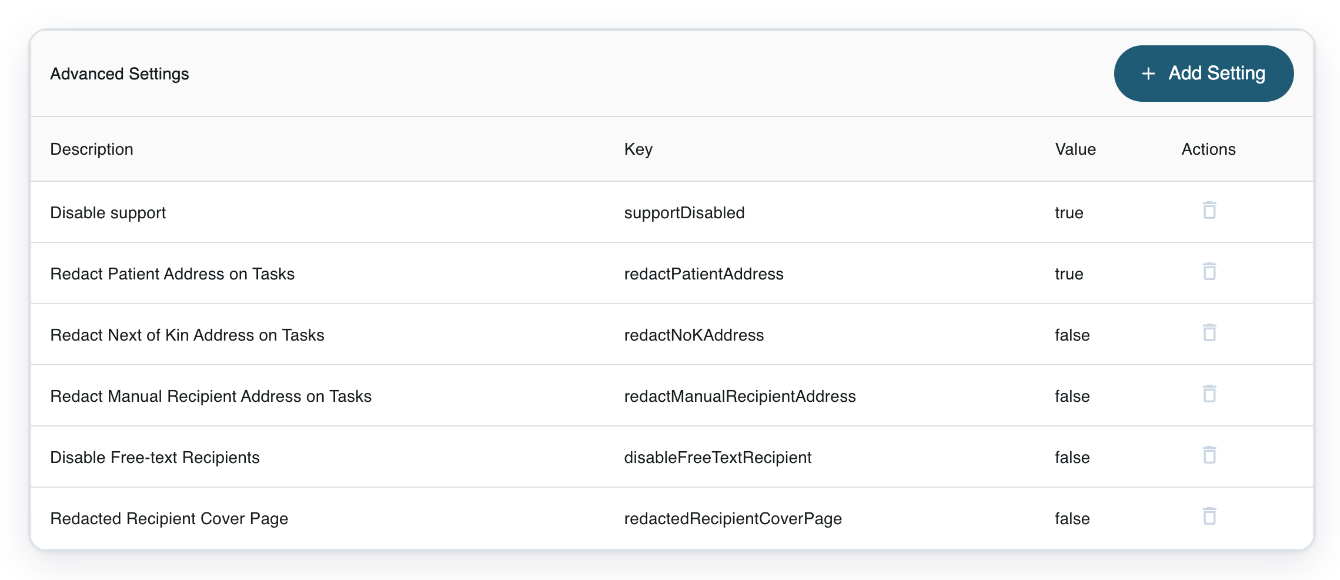
=> If you left the switch on, Redact Patient Address on Tasks shows true in Advanced Settings.
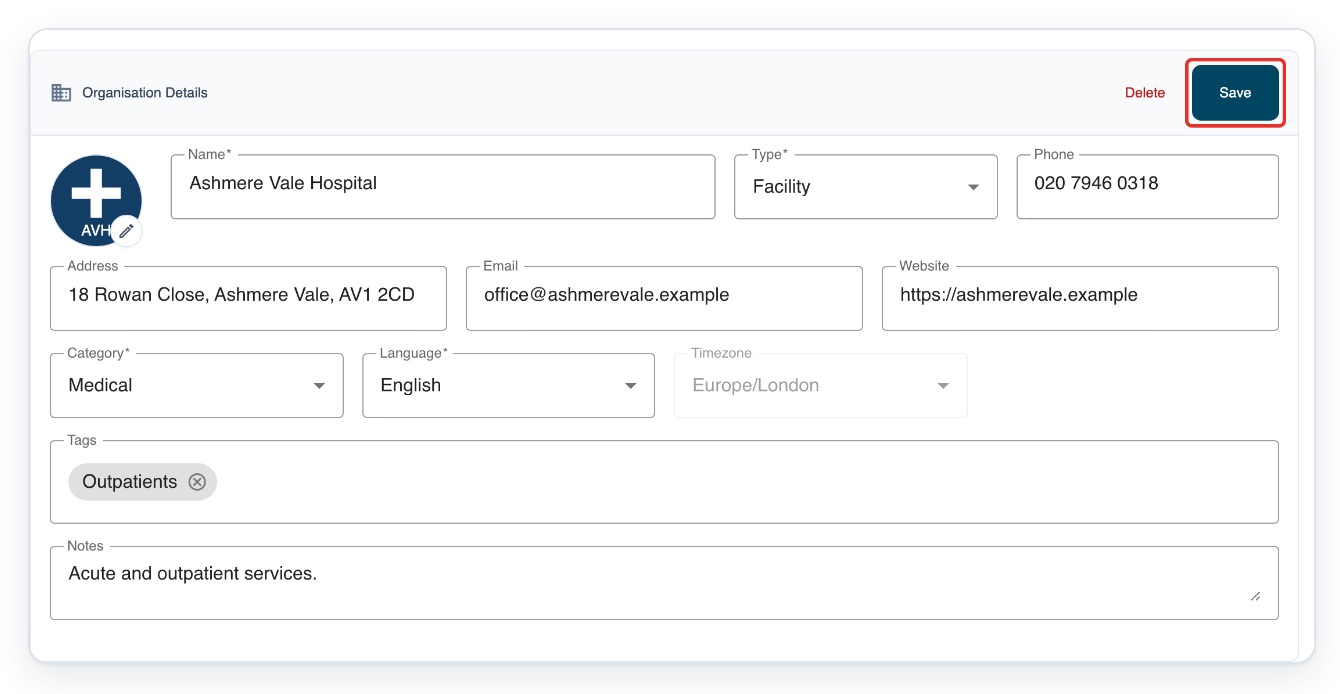
Return to Organisation Details at the top of the page and click Save.
Wait for the Entity updated message before you leave the settings page.
NOTE:
- You can switch patient and next of kin address redaction on separately.
- After you add, change or delete a setting, click Save under Organisation Details.
- Using both cover page settings adds one cover page per printed recipient copy. These are Redacted Recipient Cover Page and the template's Print CC with cover page setting.
- Cover pages keep the full postal address so you can use them for posting.
- Letters keep the address redaction applied when they were completed. Later changes to your facility's settings leave this redaction unchanged.
What each address redaction setting does
These controls apply across your facility. To add another setting, search for it and follow the same steps.
| Setting | What it does |
|---|---|
| Redact Patient Address on Tasks | Hides the patient's postal address in the letter's main and Cc recipient areas. The patient's name stays visible. |
| Redact Next of Kin Address on Tasks | Hides the next of kin's postal address in the letter's main and Cc recipient areas. Their name stays visible. |
| Redact Manual Recipient Address on Tasks | Hides addresses entered in separate name and address fields. Locks the address redaction switch on for these recipients. |
| Disable Free-text Recipients | Removes the option to add a new free text recipient. Choose from the address book or enter a name and address in separate fields. You can still edit existing free text entries. |
| Redacted Recipient Cover Page | Adds a cover page for each recipient whose address is hidden when you print their copy on paper. The cover page shows their full address for posting. |
Can't configure address redaction settings?
Check the saved values. After saving, scroll back to Advanced Settings and check the Value column.
=> In this example, Redact Patient Address on Tasks shows true. The other address controls show false.
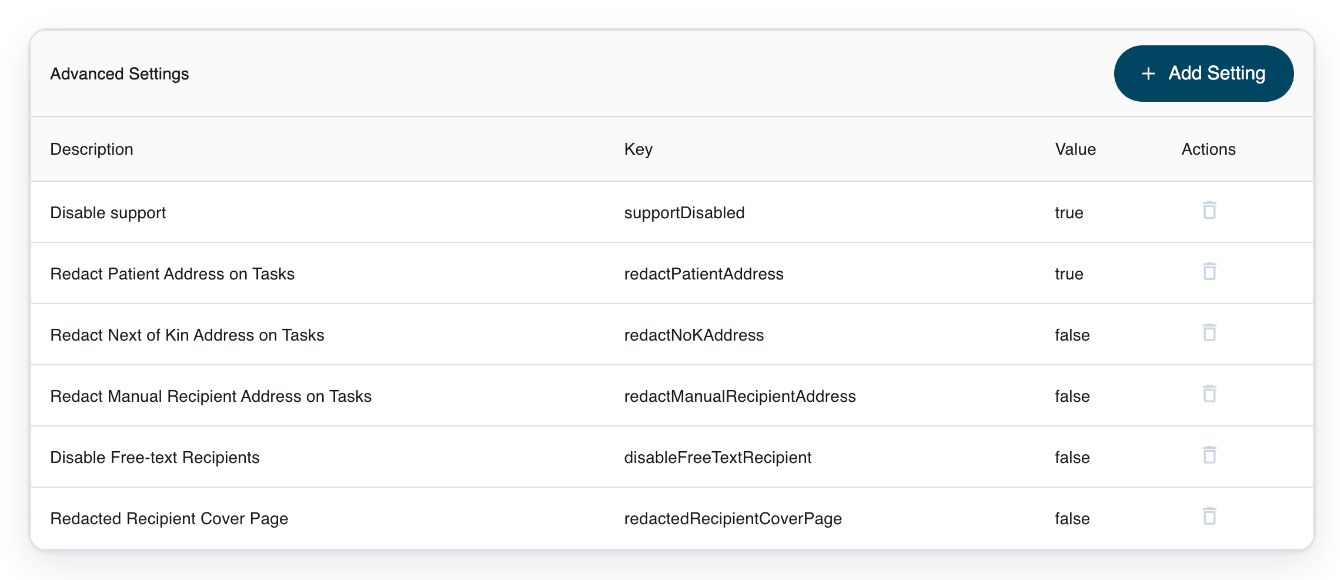
true means the setting is on. false means it is off. Check that each value matches the settings you want.
If a setting is missing from the search, look for it in Advanced Settings. Click its row to switch Enabled on or off. Save your change, then click Save under Organisation Details.
You cannot see Advanced Settings. Sign in with your admin credentials, or ask your administrator to change the settings.
Related articles
- Address redaction on letters
- Free text recipients
- Print letters
- Template settings in V2
- Organisation settings in V2
If you have any more queries, please do not hesitate to contact our Helpdesk or support@tpro.io.
© 2020 - 2026