
Before you start
You need a transcriber account and a task with recorded audio that you can open for typing.
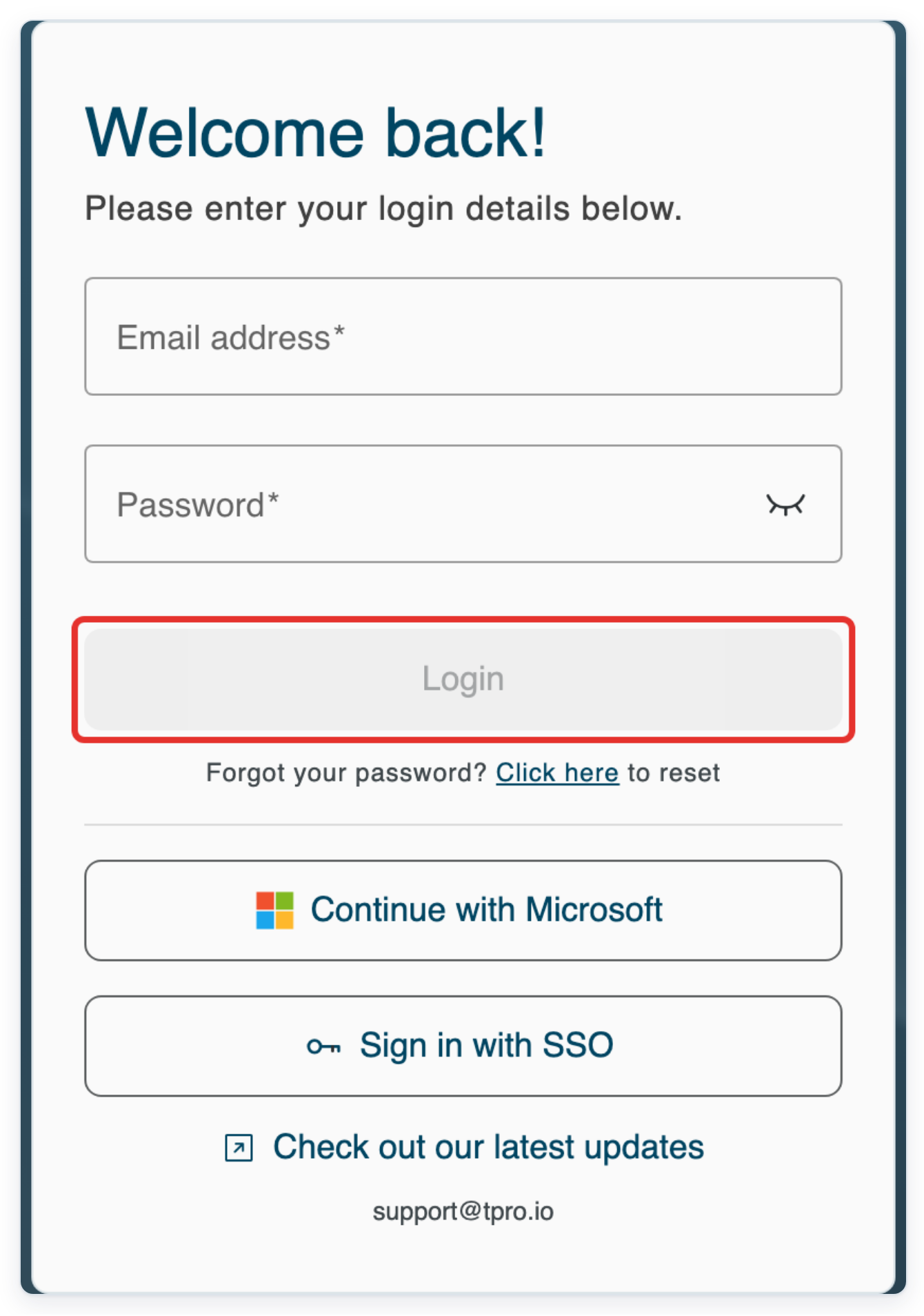
Log in to T-Pro with your transcriber credentials.
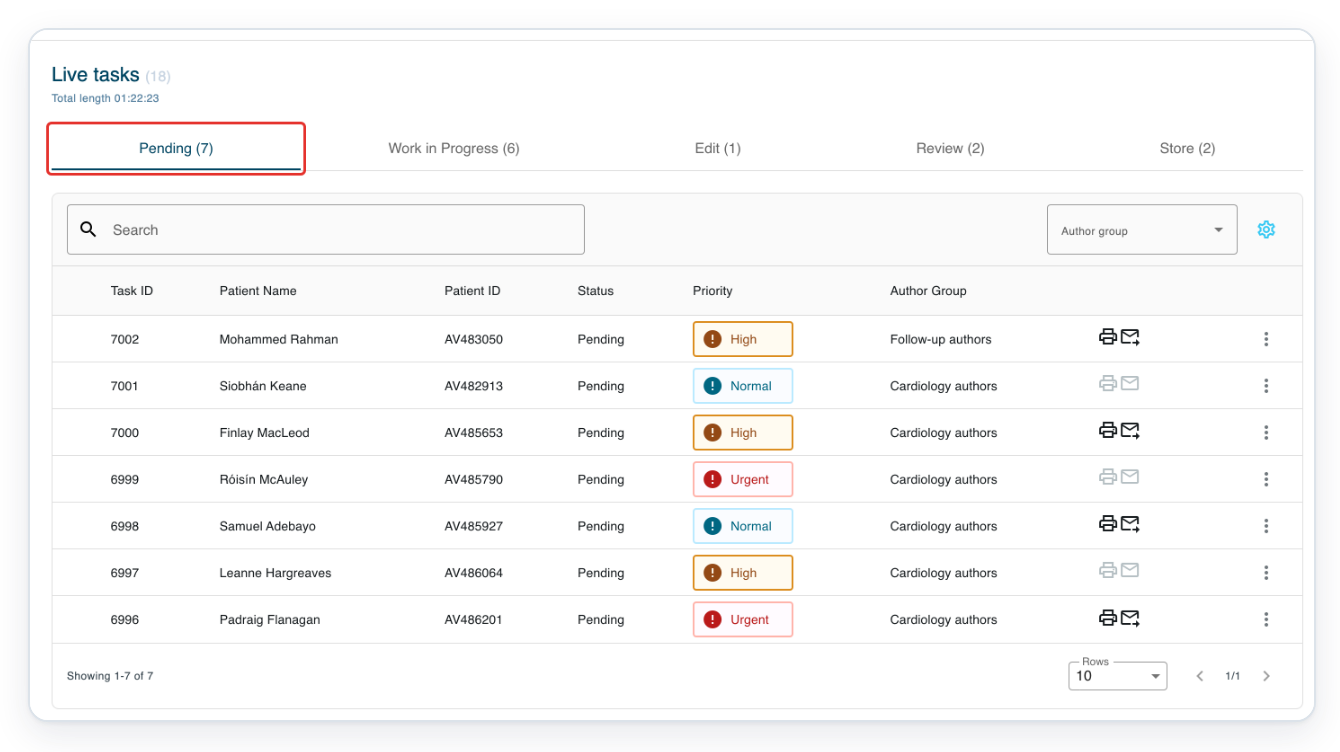
In Live tasks, click Pending to find a dictation waiting to be typed.
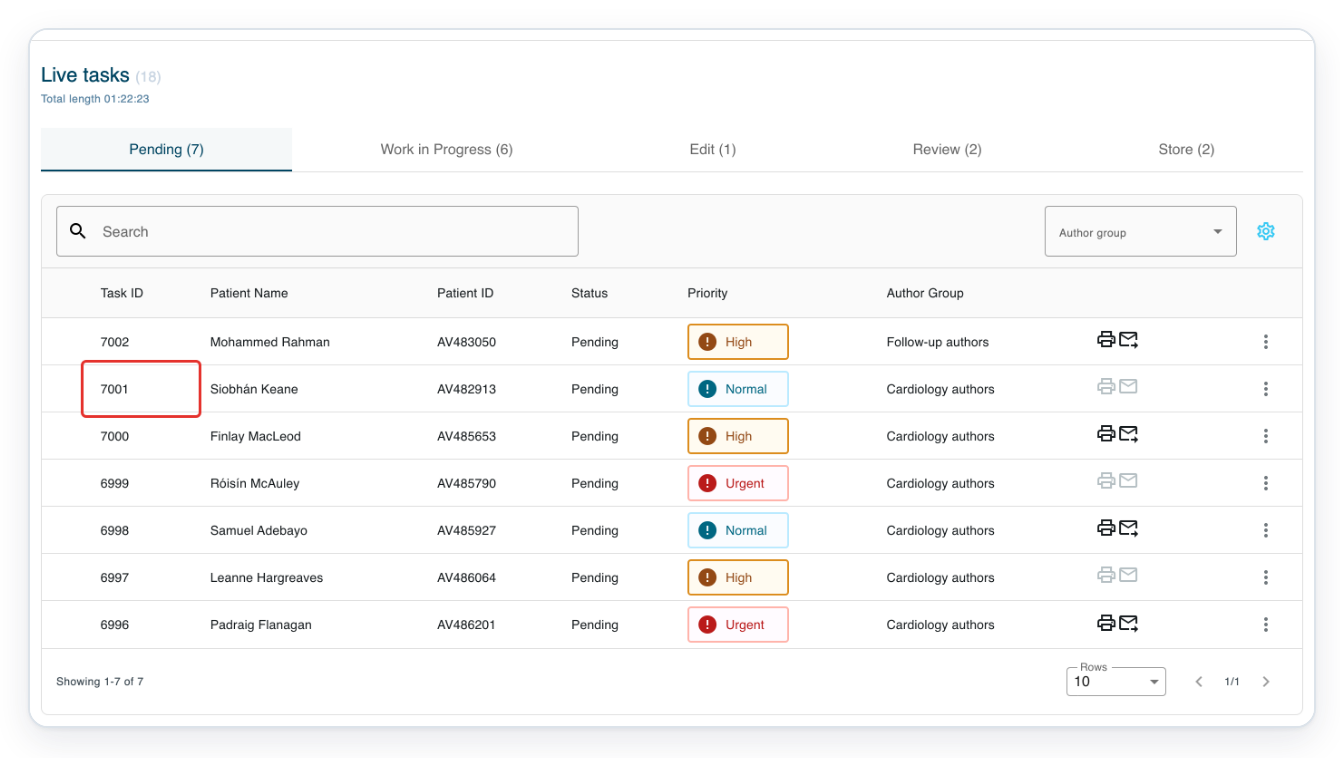
Click the dictation's Task ID to open Text Editor.
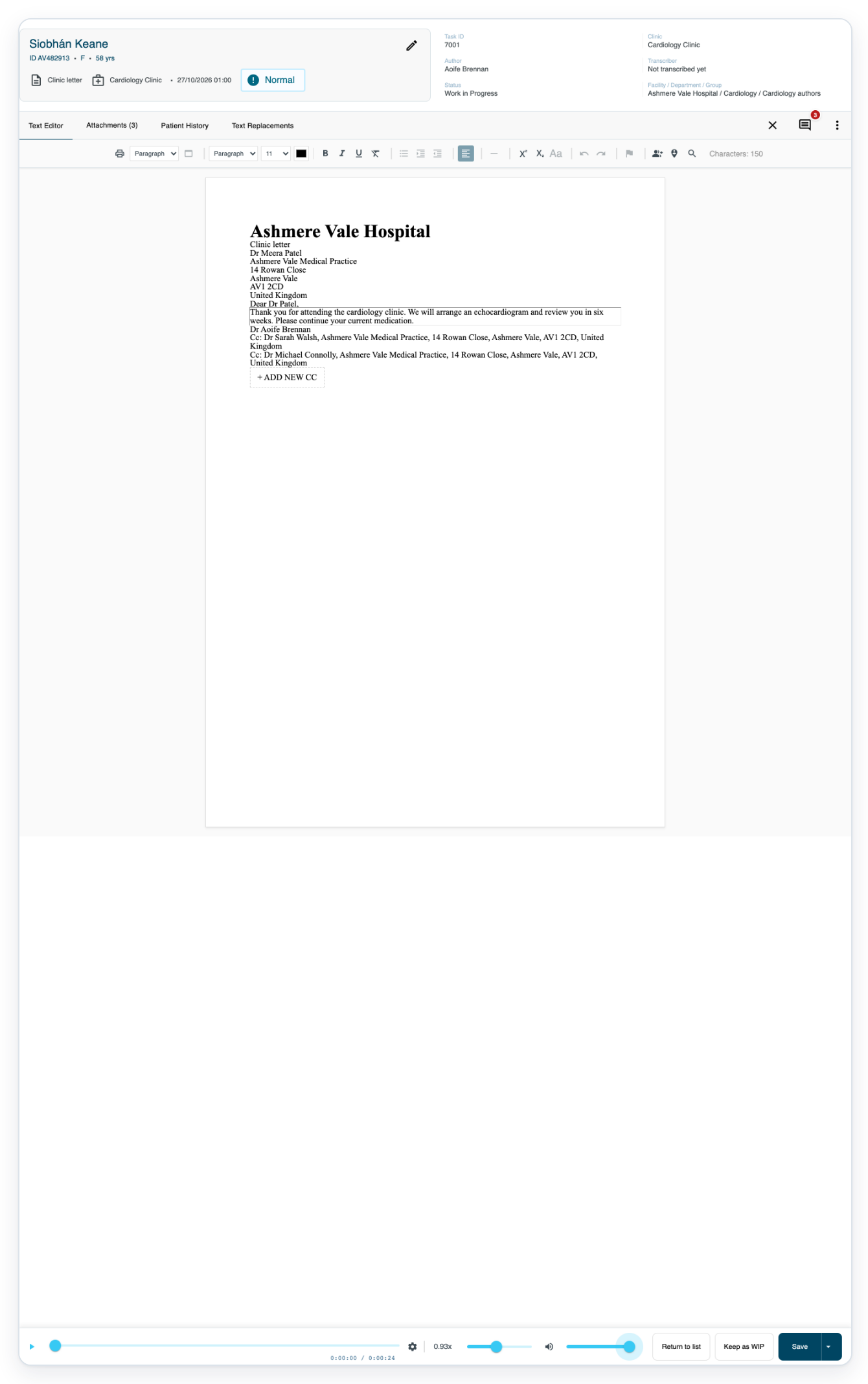
Click the triangular Play/Pause audio button at the bottom to listen to the dictation.

Click Play/Pause audio again to pause before changing playback speed.

Drag the position slider right to move to a later part of the dictation.
Drag it left to return to an earlier part.

With playback paused, select the speed slider and press the left arrow key once to slow the audio.

Select the volume slider and press End. This moves it fully right and turns the player volume up.

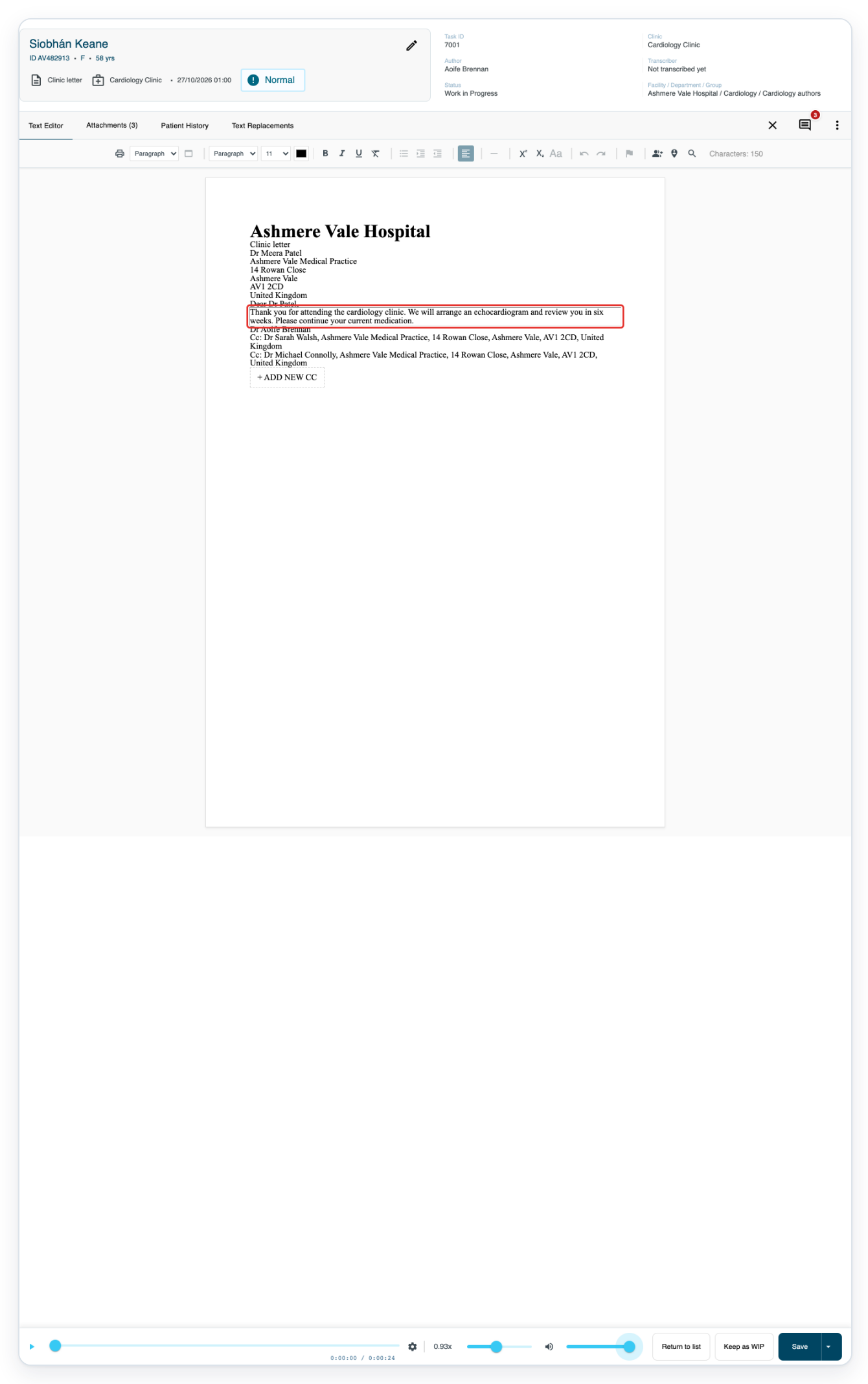
=> The letter stays open, with position, speed and volume controls along the bottom.
Click the Audio player settings cog to see the playback and foot pedal options.

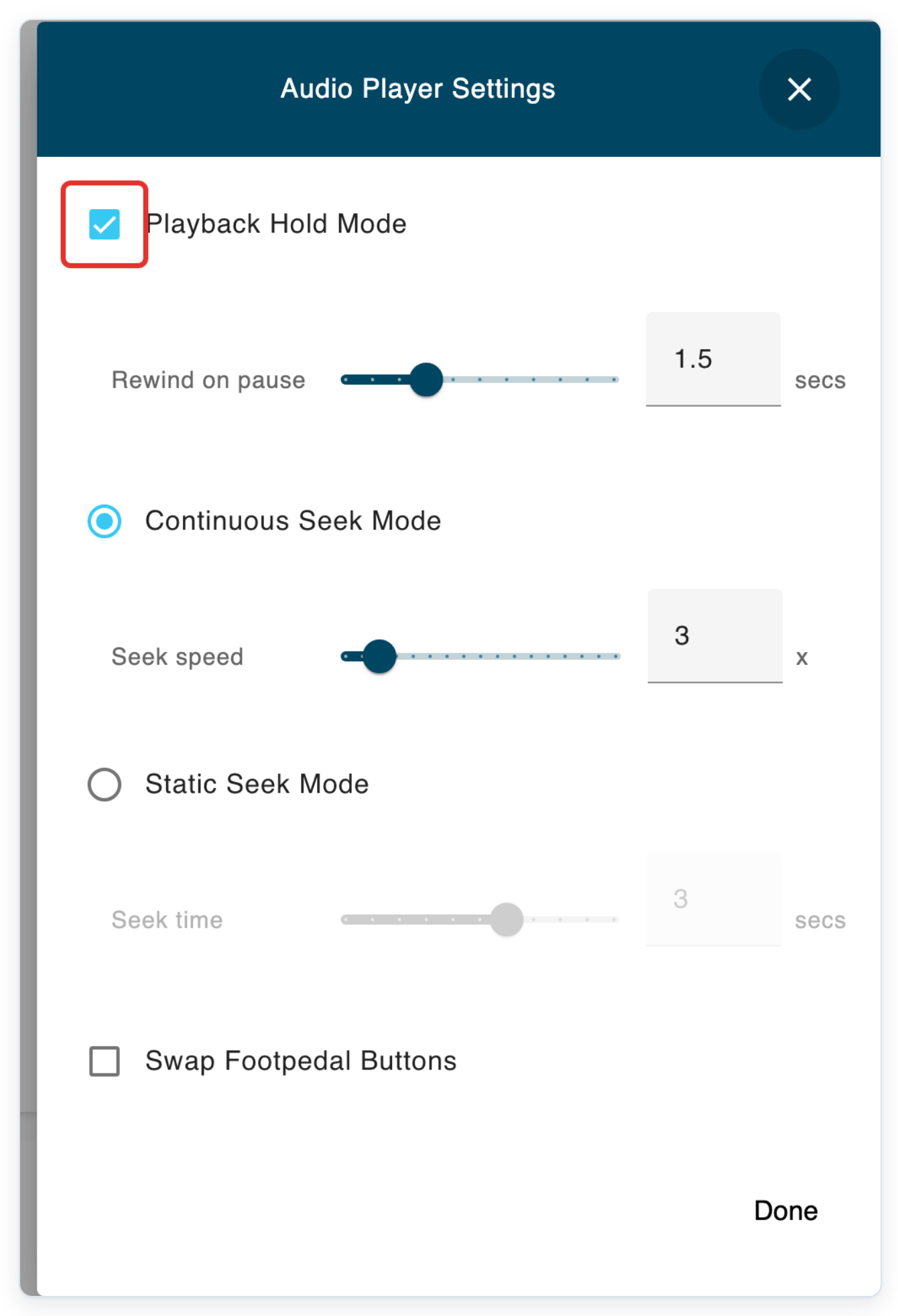
Select Playback Hold Mode in Audio Player Settings.
Hold the play pedal to listen. The audio pauses and rewinds when you release it.
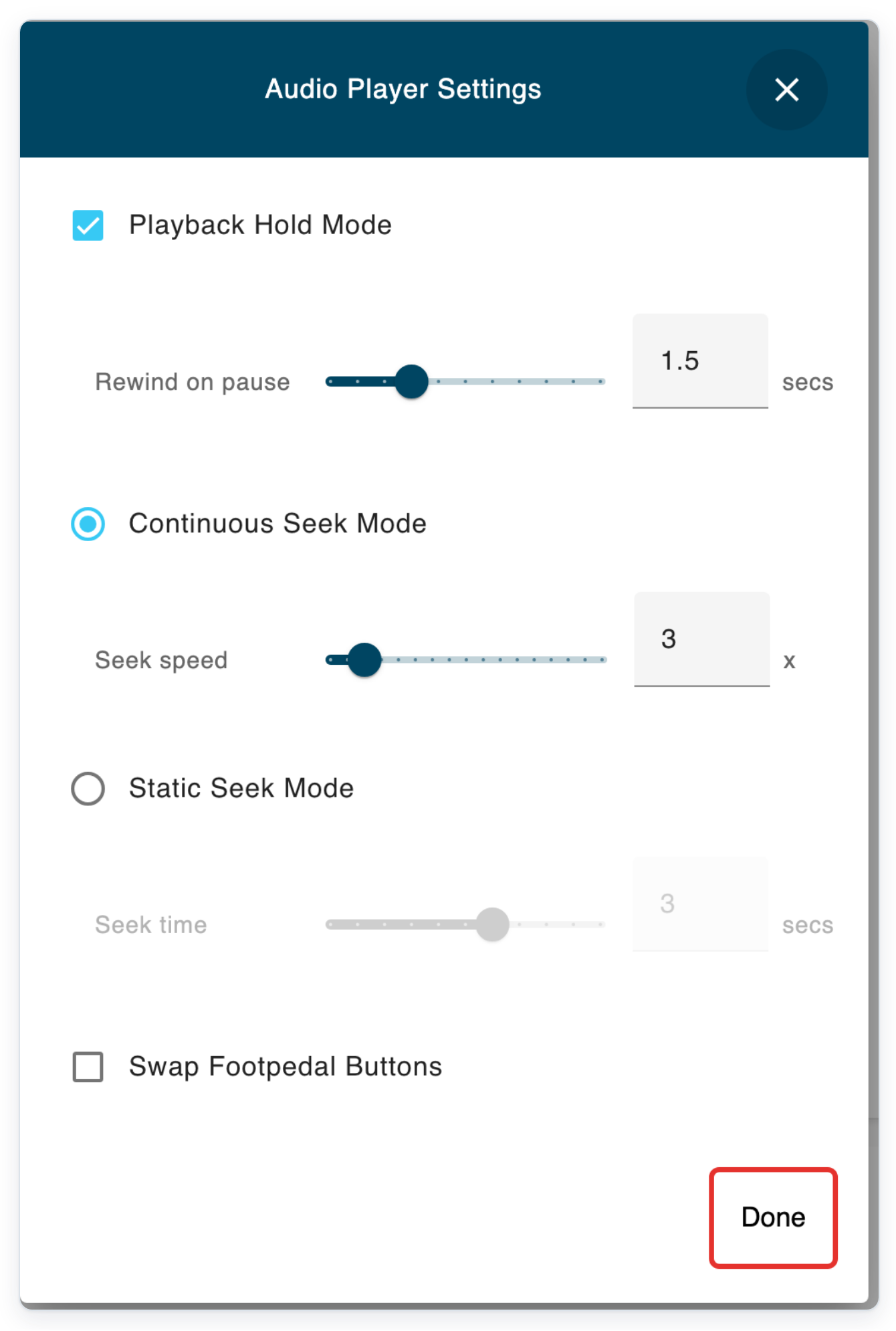
Click Done to save your playback settings and return to the letter.
When you've finished typing, press F7. T-Pro asks you to confirm saving the task and sending it onwards.
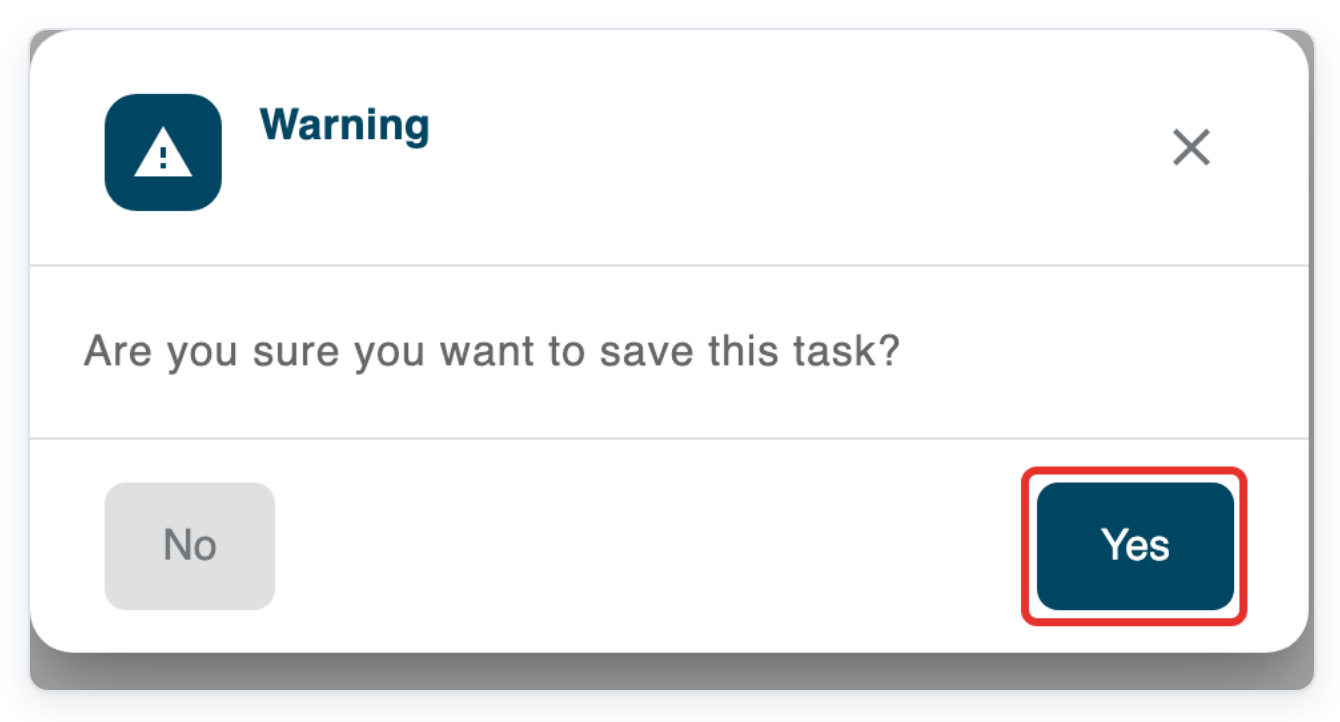
=> T-Pro asks whether to save the task. Click Yes to save and send it to the next stage. Click No to keep it open.
NOTE:
- Your playback settings are saved in the browser you use.
- On a Mac, use Command instead of Ctrl for the editing shortcuts below.
Playback settings and keyboard shortcuts
Use the editing shortcuts with your cursor in a part of the letter you can edit.
| Setting or shortcut | What it does |
|---|---|
| Playback Hold Mode | Hold the play pedal to listen. Release it to pause and rewind. |
| Rewind on pause | Sets how many seconds the audio rewinds when you pause it with the play pedal. |
| Continuous Seek Mode and Seek speed | Move through the audio until you release the rewind or forward control. Seek speed sets how quickly you move. |
| Static Seek Mode and Seek time | Move backwards or forwards by a fixed number of seconds each time you press the control. |
| Swap Footpedal Buttons | Swaps the play and forward controls. |
| F1 or F7 | Asks you to confirm saving the task and sending it to the next stage. You must be able to edit the task. |
| F2, F3 or F4 | Moves the cursor between the parts of the letter set up for typing dictation. |
| F5 | Opens the address book to add a copy recipient while you type. You must be able to edit the letter, and its template must allow copy recipients. |
| F6 and Shift + F6 | Insert a marker at the cursor for audio you cannot hear clearly. F6 includes a time when audio is available. Shift + F6 leaves it out. |
| F8 | Asks you to confirm making a copy of the task. You must be able to edit it. |
| F11 | Asks you to confirm sending a task in progress back to its previous stage. You must be able to edit it. See the troubleshooting below for duplicated tasks. |
| Alt + Shift + Q/W or Alt + Ctrl + Q/W | Q presses the play control; W releases it. This applies when the pedal buttons are not swapped. |
| Alt + Shift + R/T or Alt + Ctrl + R/T | R presses the rewind control; T releases it. |
| Alt + Shift + U/I or Alt + Ctrl + U/I | U presses the forward control; I releases it. This applies when the pedal buttons are not swapped. |
| Ctrl + B | Apply or remove bold formatting. |
| Ctrl + I | Apply or remove italic formatting. |
| Ctrl + U | Apply or remove underlining. |
| Ctrl + full stop | Apply or remove superscript. |
| Ctrl + comma | Apply or remove subscript. |
| Ctrl + M | Increase indentation. |
| Ctrl + Shift + M | Decrease indentation. |
| Ctrl + Enter | Insert a page break where the field allows it. |
| Ctrl + Z | Undo an edit. |
| Ctrl + Y or Ctrl + Shift + Z | Redo an edit. |
| Tab | Insert a tab space while typing. |
Other places you can play audio
- If your template opens the floating player for typing outside T-Pro, use its play, position, speed and volume controls.
Tip: While paused, click the playback speed number to cycle through speeds. Hold Shift and click to cycle backwards.
Can't play the audio or use a shortcut?
- If you cannot hear the recording, check that the speaker button is unmuted. Then raise the player volume.
- If it is still too quiet at full volume, contact our Helpdesk for help with your playback device.
- If the speed slider won't move, pause playback before changing speed.
- If F2, F3 or F4 moves the cursor, use the play button and position slider to control the audio.
- If F5 doesn't open the address book, check that you can edit the letter. Its template must allow copy recipients. Ask your manager for help.
- If F9 does nothing while typing, click Keep as WIP. This saves unfinished work and returns you to the task list.
- If F10 hides the letter, press F10 again or click Text Editor. To add a note, click the notes speech-bubble button.
- For a duplicated task still being typed, F11 may not offer to send it back. Use Keep as WIP to save it for later.
- If your foot pedal does not respond, use the player controls. Ask your administrator to check its playback shortcut settings.
Related articles
- Pick up a task from the pending queue
- Type several letters from one dictation
- The letter editor in V2
- Type outside T-Pro with the floating player
- Notes and task history
If you have any more queries, please do not hesitate to contact our Helpdesk or support@tpro.io.
© 2020 - 2026