
Before you start
You need an admin account and access to your hospital's organisation settings.
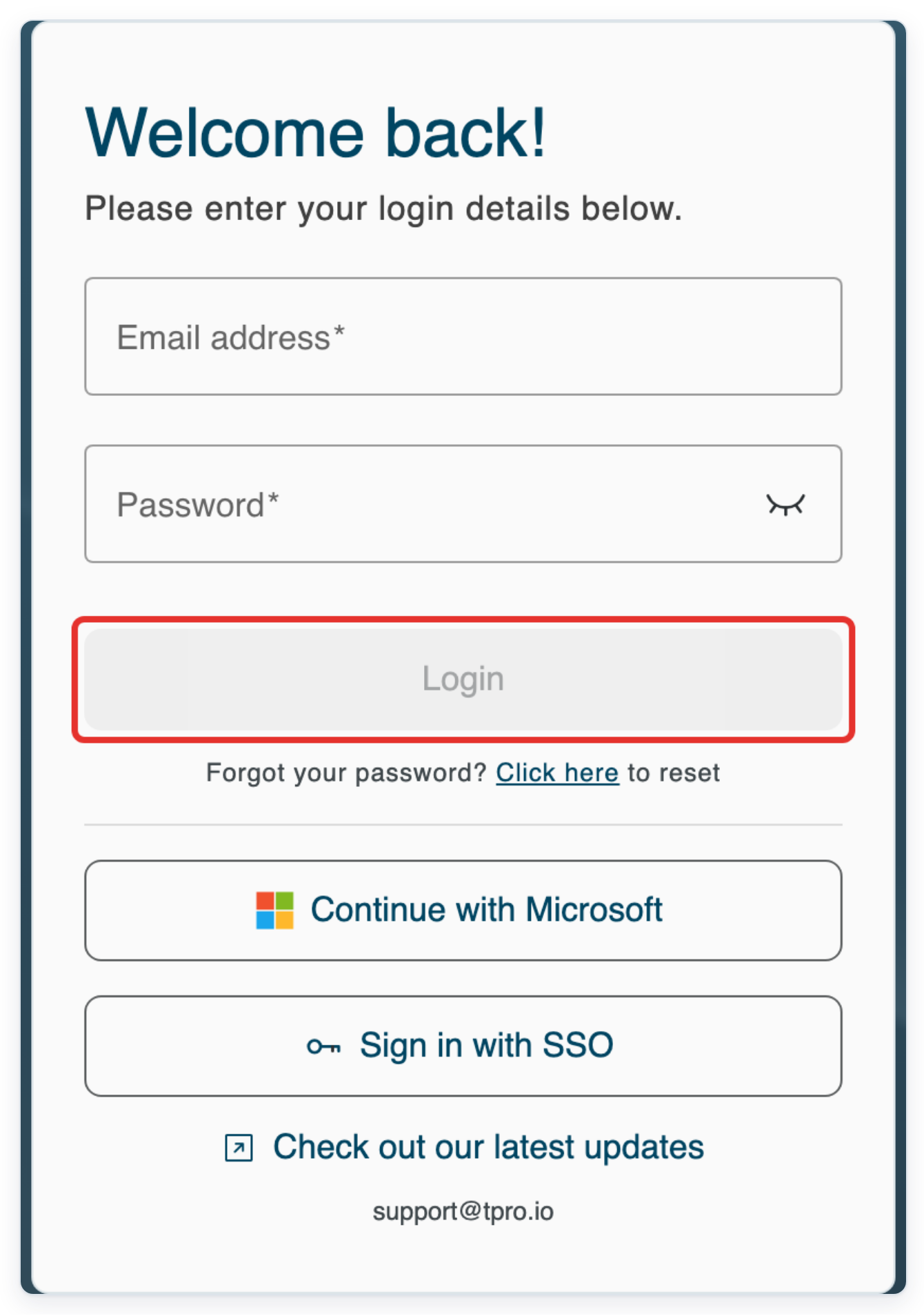
Log in to T-Pro with your admin credentials.
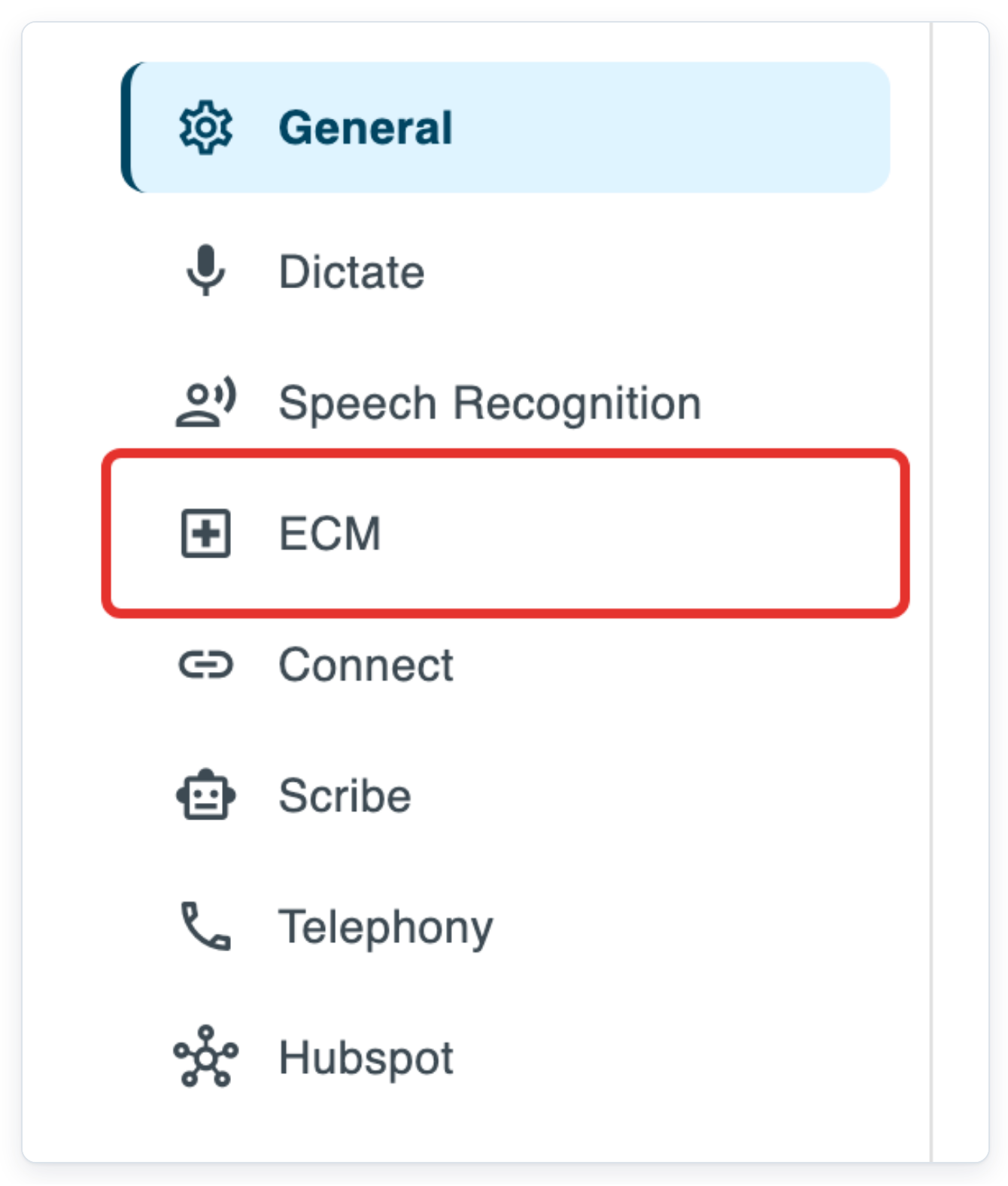
In your hospital's Settings, click ECM.
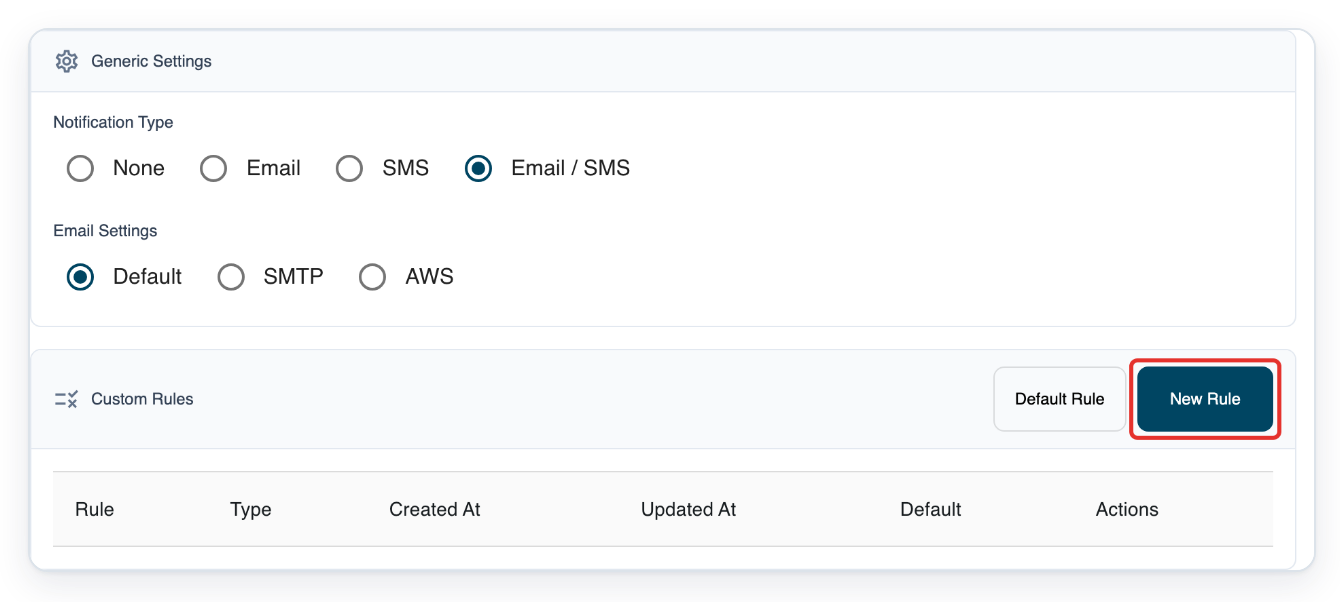
With Notification Type set to Email / SMS, click New Rule under Custom Rules.
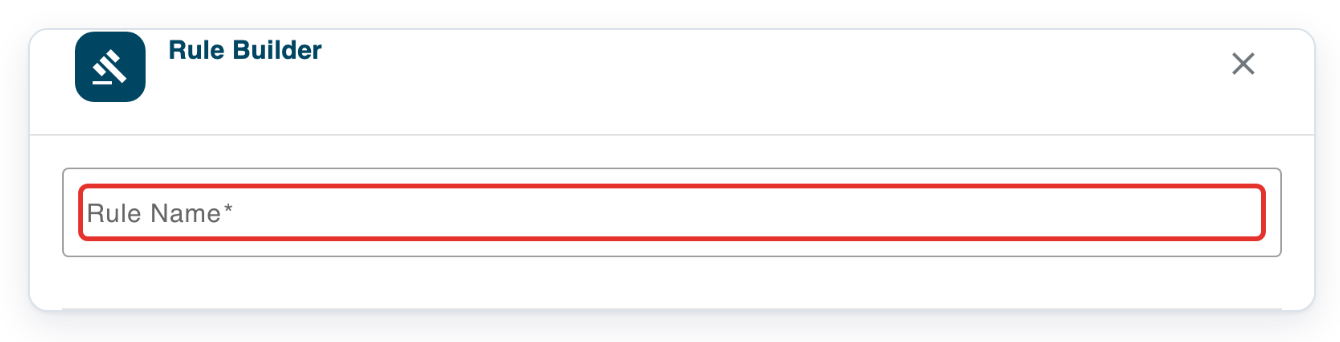
The Rule Builder opens. Use it to write your messages and choose which appointments use them.
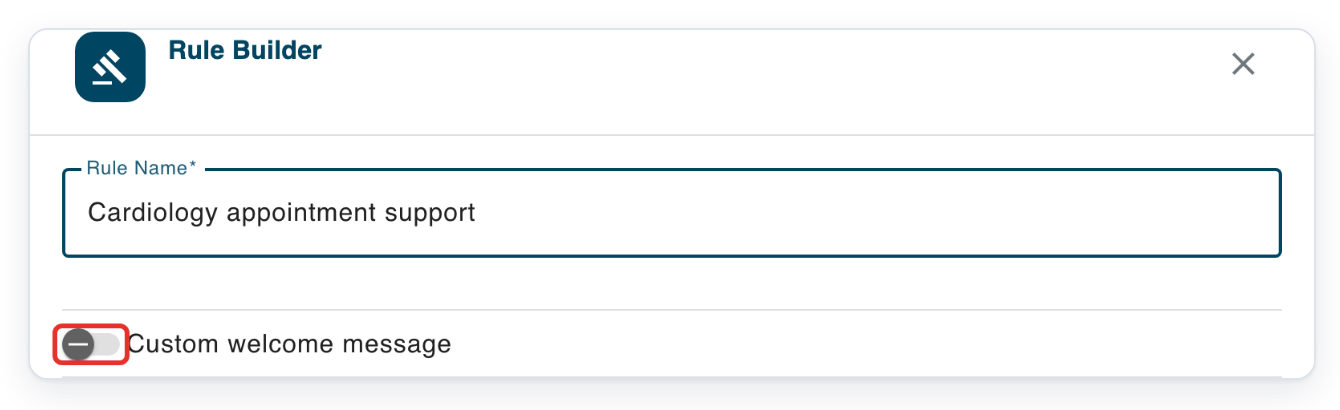
Enter Cardiology appointment support in Rule Name.
Choose a name that helps you recognise the rule in the list.
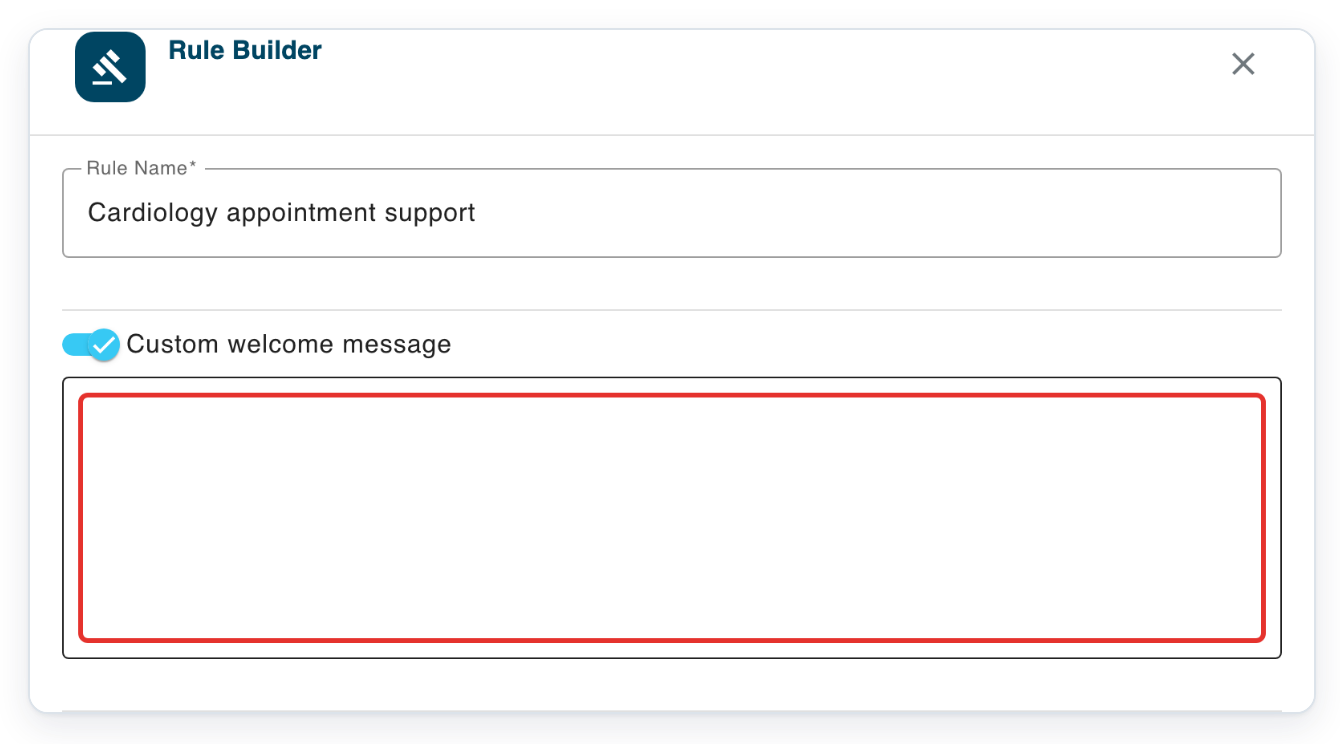
Turn on Custom welcome message.
Enter the message patients will see while waiting to join the clinic.
For example: “Welcome to Ashmere Vale Hospital Cardiology clinic. Please keep your appointment letter nearby. Your clinician will admit you shortly.”
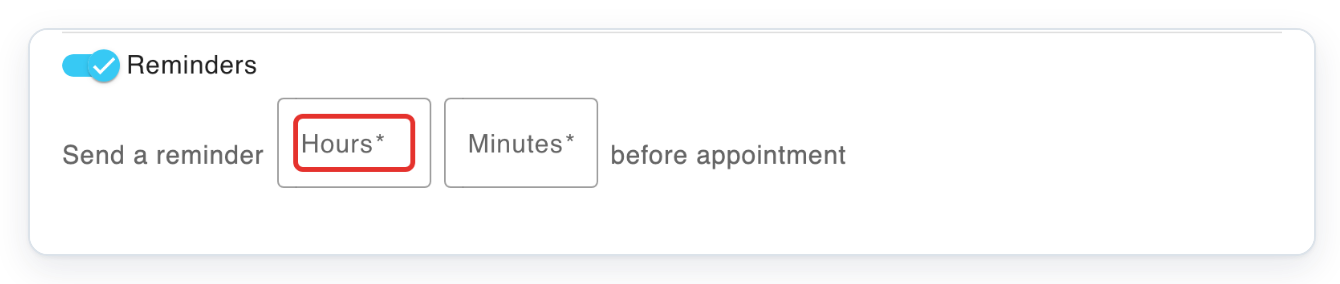
Turn on Reminders to show the hours and minutes fields.
Set how long before the appointment the reminder should be sent.

Enter 24 in Hours.
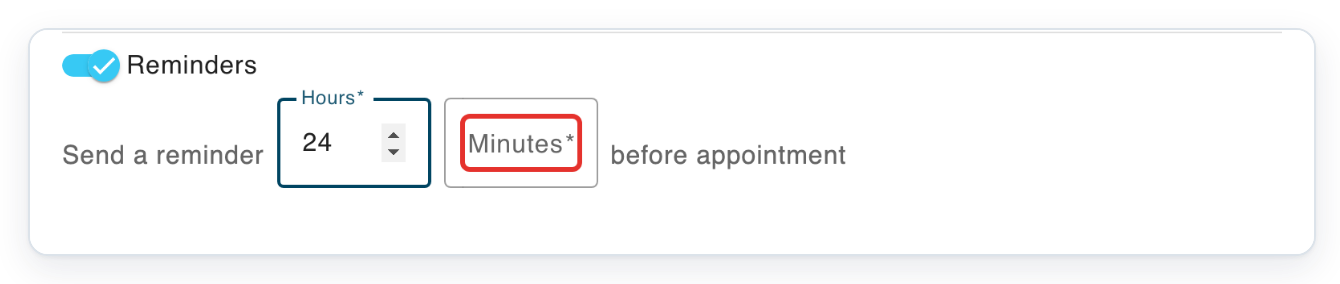
Enter 0 in Minutes.
These values set the reminder for one day before the appointment.
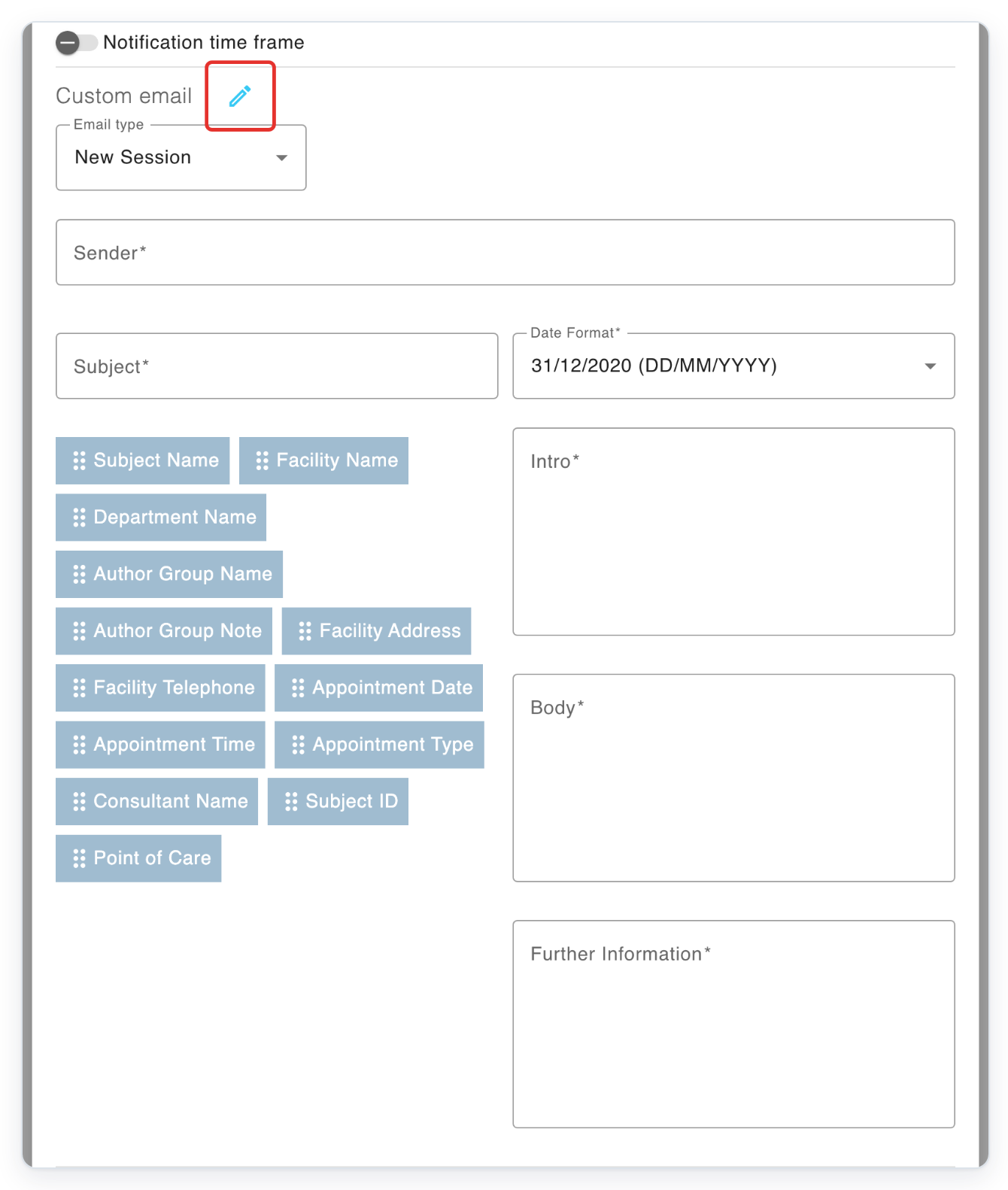
Under Custom email, click the pencil button labelled Auto fill email template.
This fills in all five email templates. Use Email type to review messages for new appointments, changes, cancellations, reminders and follow-ups.
You can edit Sender, Subject, Intro, Body, Further Information and Date Format before saving.
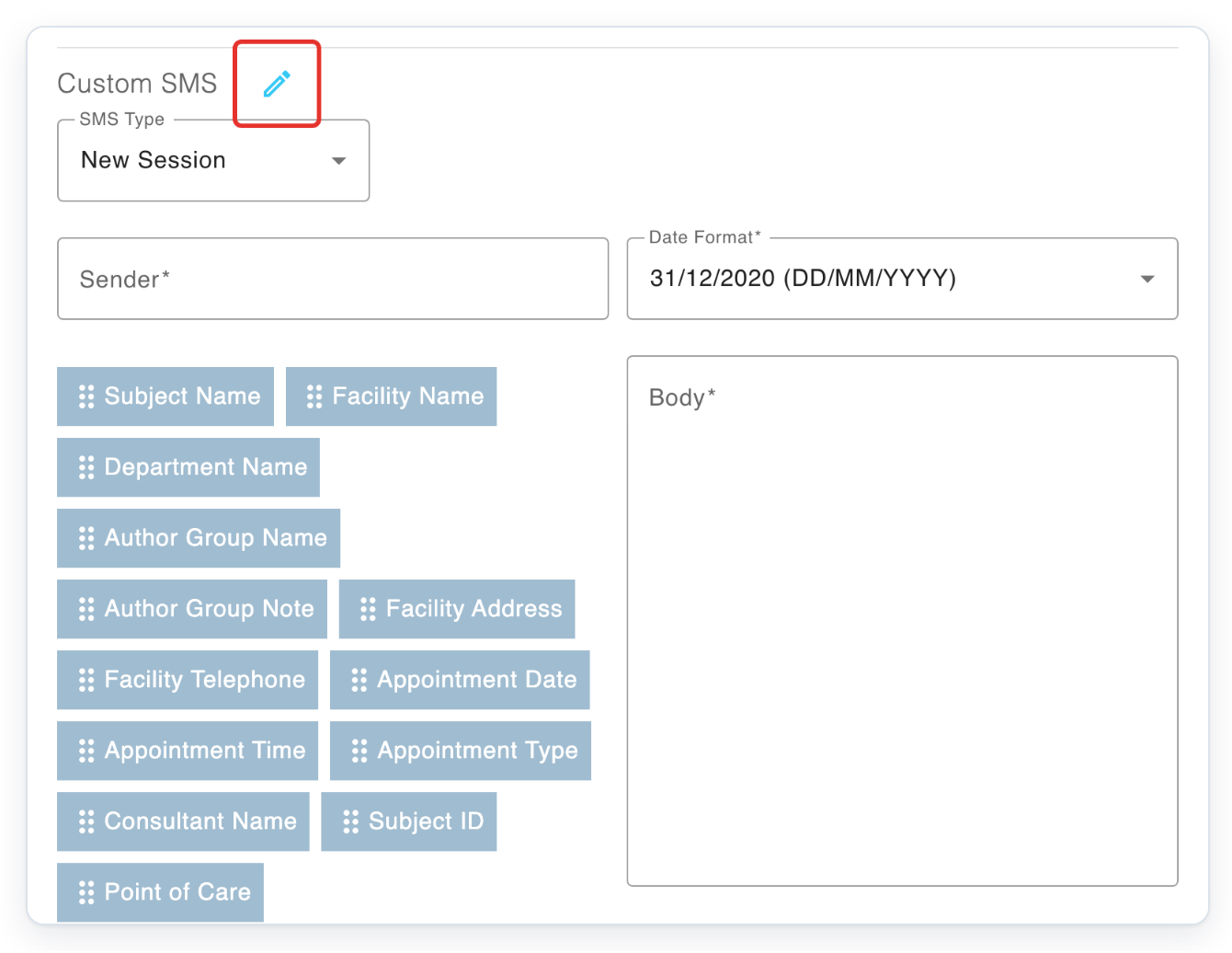
Under Custom SMS, click the pencil button labelled Auto fill sms template.
This fills in all five SMS templates. Use SMS Type to review each message. Edit Sender, Body and Date Format as needed.
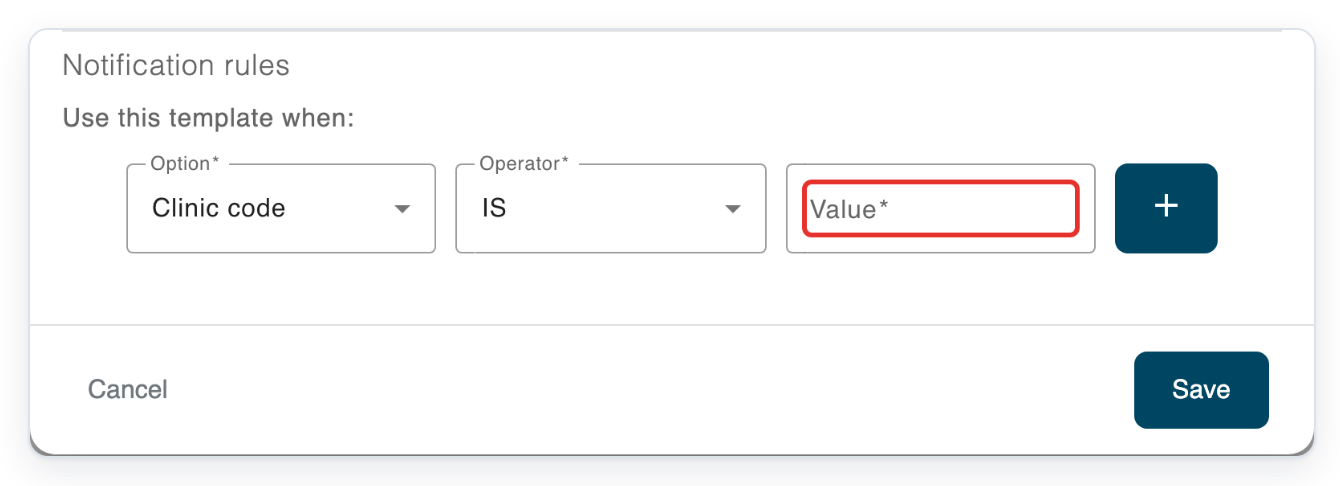
Under Notification rules, enter CARD in Value, with Clinic code and IS selected.
Use your clinic's code when setting up your rule. This example matches appointments with clinic code CARD.
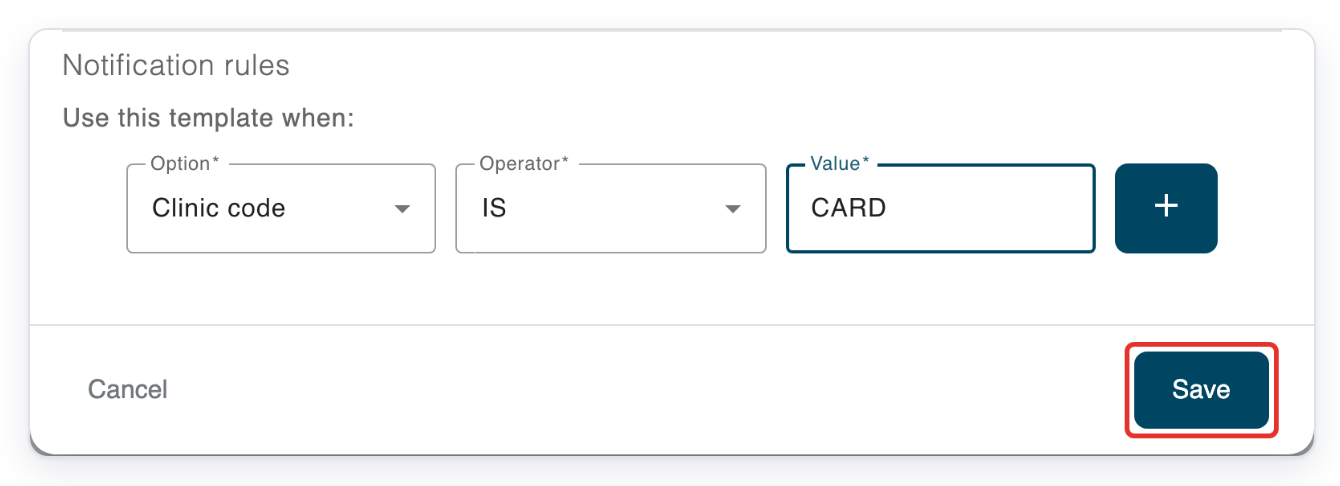
Click Save to create the Cardiology appointment support rule.
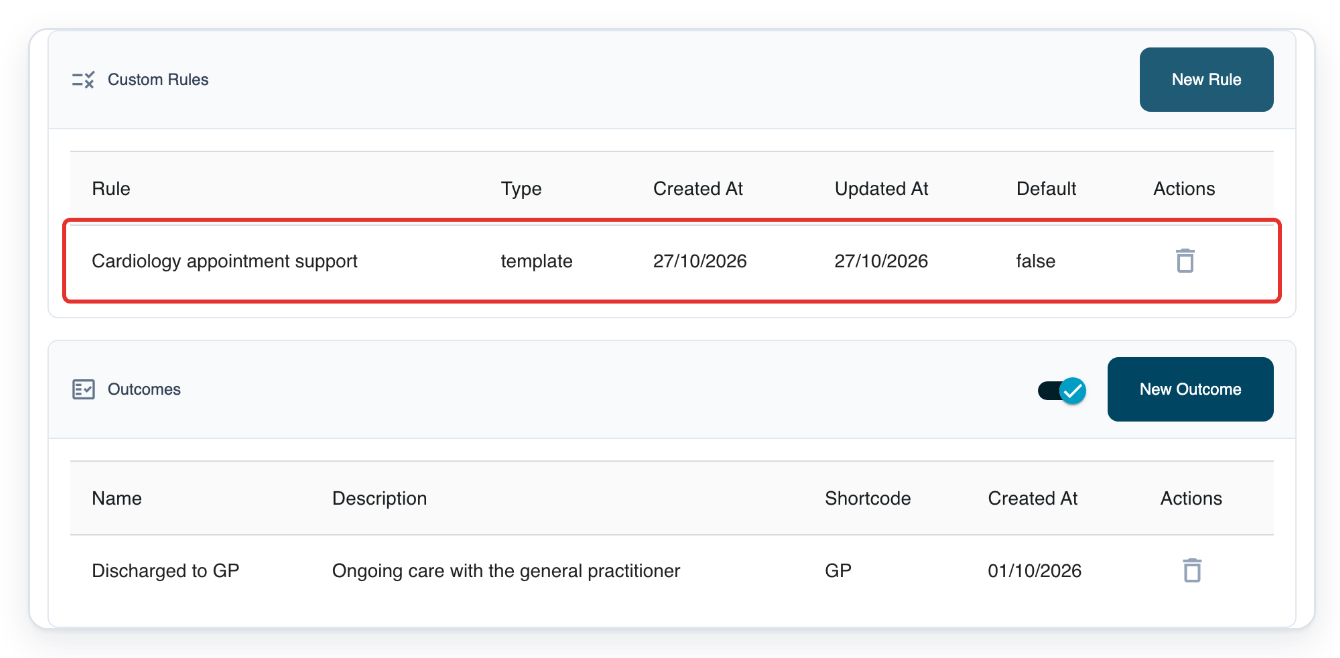
=> The rule appears under Custom Rules. In this example, Outcomes is also turned on. It lists Discharged to GP, its shortcode GP and its description. New Outcome is above the outcomes table.
NOTE:
- If you turn on the welcome message, enter 3 to 1,000 characters.
- Click Save at the top of ECM to save your organisation settings. Save each rule in Rule Builder.
- The default rule applies when no custom rule matches the appointment.
- Manage outcomes separately from notification rules. Click New Outcome to add one, or click an existing outcome's row to edit it.
How notification rules match appointments
A rule's conditions decide which appointments use its messages.
| Condition | What it matches |
|---|---|
| Clinic code | The appointment's clinic code. In this example, the code must be CARD. |
| Direct invite author group | The author group selected when a direct invitation is created. |
| Session type | Whether the appointment is video, face to face or phone. |
Tip: Drag a merge field into your email or SMS text. For example, use Subject Name or Appointment Date. T-Pro fills in the patient's or appointment's details when it sends the message.
Can't set up your eCM notifications?
- ECM is missing from Settings. Sign in with an admin account and open your hospital's organisation settings.
- The email or SMS template section is missing. Under Notification Type, choose Email, SMS or Email / SMS to match the messages you need. Save the organisation settings, then reopen the rule.
- The rule won't save. Complete all five template types for email, SMS or both, depending on what you've turned on. Check Rule Name and your conditions. If you've turned on a welcome message or reminders, check those values too. Reminder hours must be between 0 and 300. Minutes must be between 0 and 59.
- The SMS template has an error. Use 3 to 11 characters for Sender. Start and end with a letter or number; use only letters, numbers or hyphens between them. Keep Body between 3 and 300 characters.
- T-Pro shows “Rule already exists with this combination of conditions”. Click the existing rule's row to edit it, or use different conditions for your new rule.
Related articles
- Organisation settings in V2
- eClinic Manager: an introduction
- The clinic schedule
- How patients join an online appointment
If you have any more queries, please do not hesitate to contact our Helpdesk or support@tpro.io.
© 2020 - 2026