
Before you start
For the letter example, use a transcriber account and an editable letter. The letter's template must include CCs. Use a master account for routes and reports.
Log in to T-Pro with your transcriber or master credentials.
As a transcriber
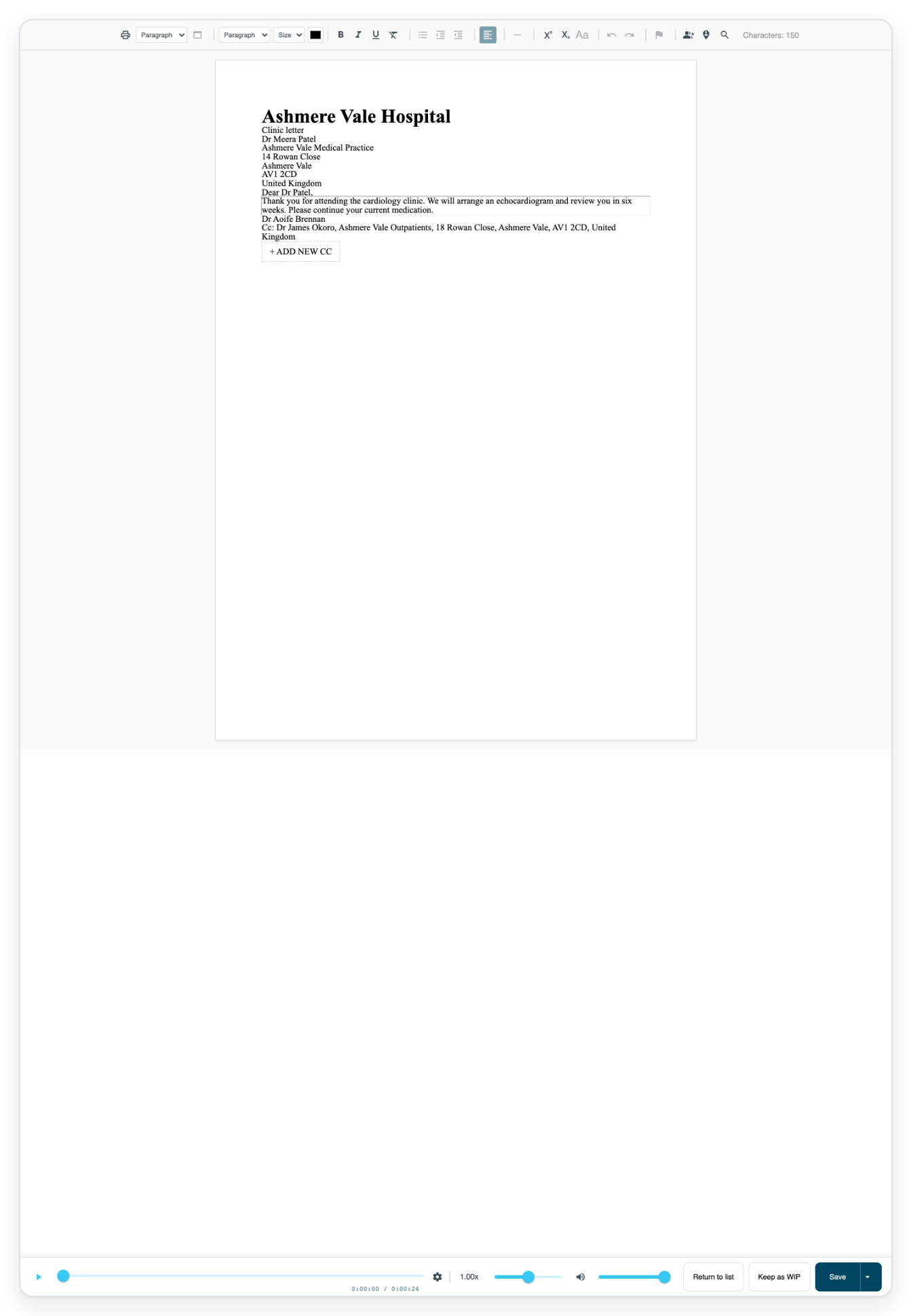
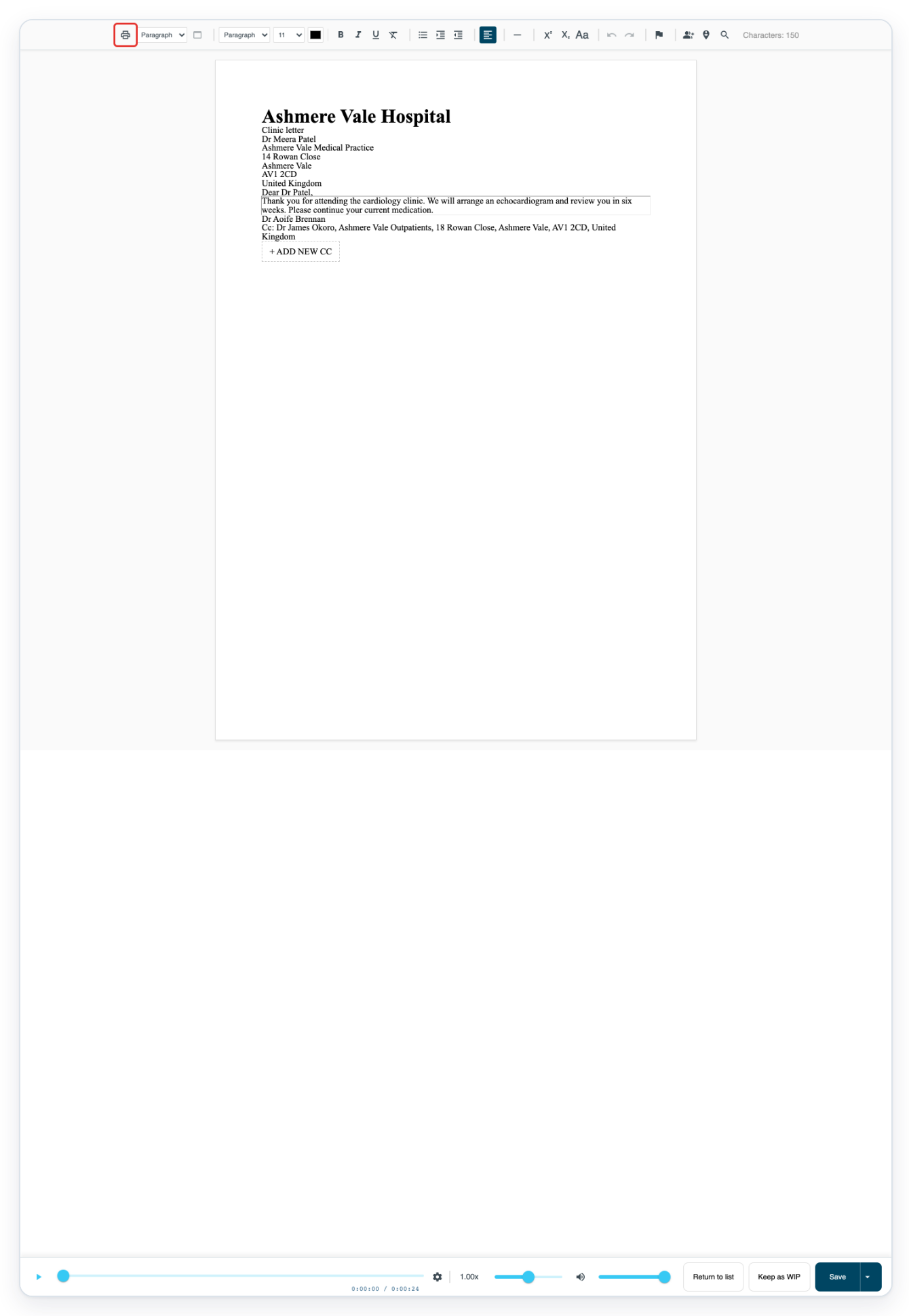
=> Open your editable letter. The editing toolbar is above the page. Return to list, Keep as WIP and Save are beneath the page.
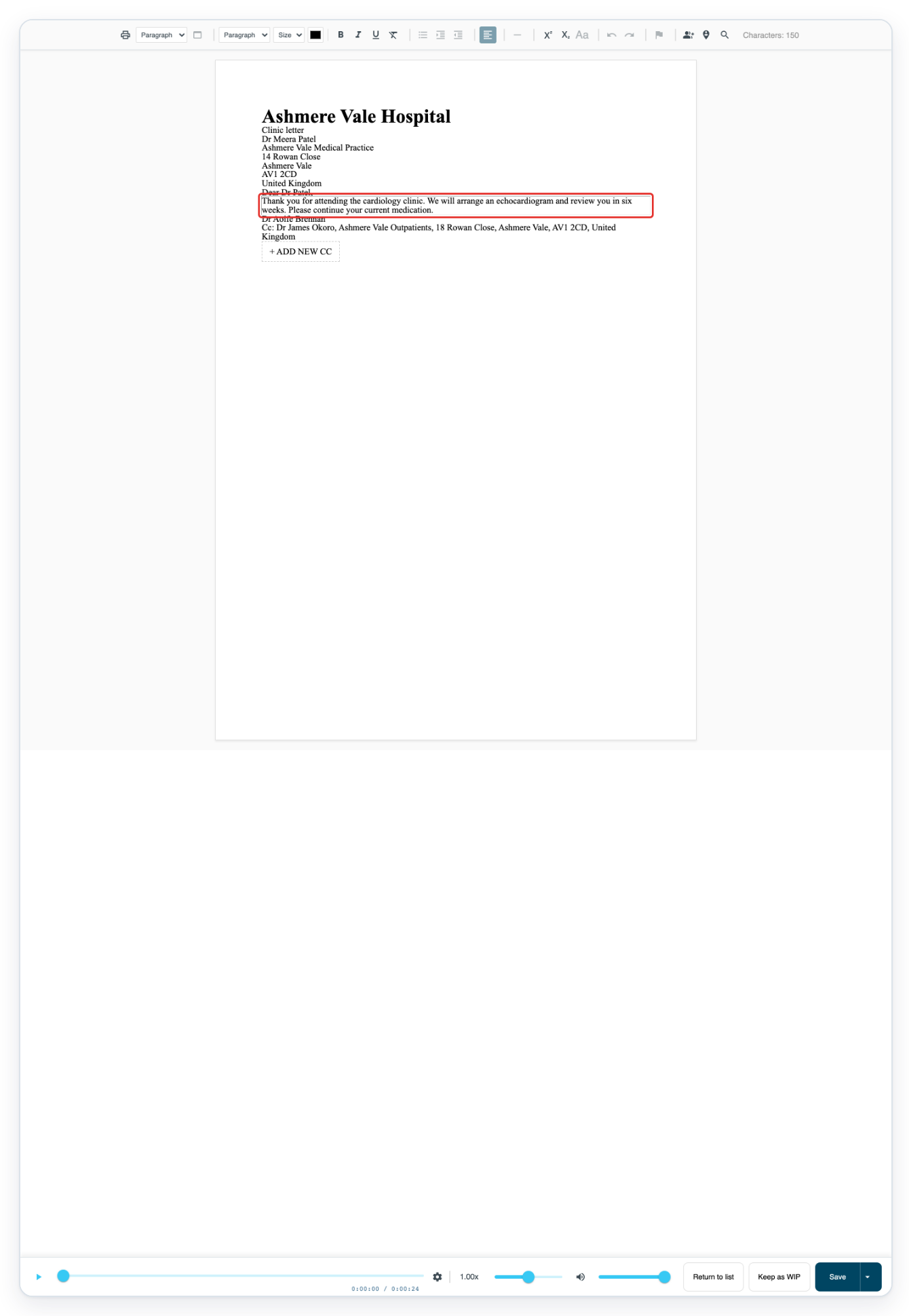
Press F5 in the editable letter to open Add CC.
In this window, you can search the address book, fill in recipient fields or choose Redact address. The letter shown here is in Work in Progress.
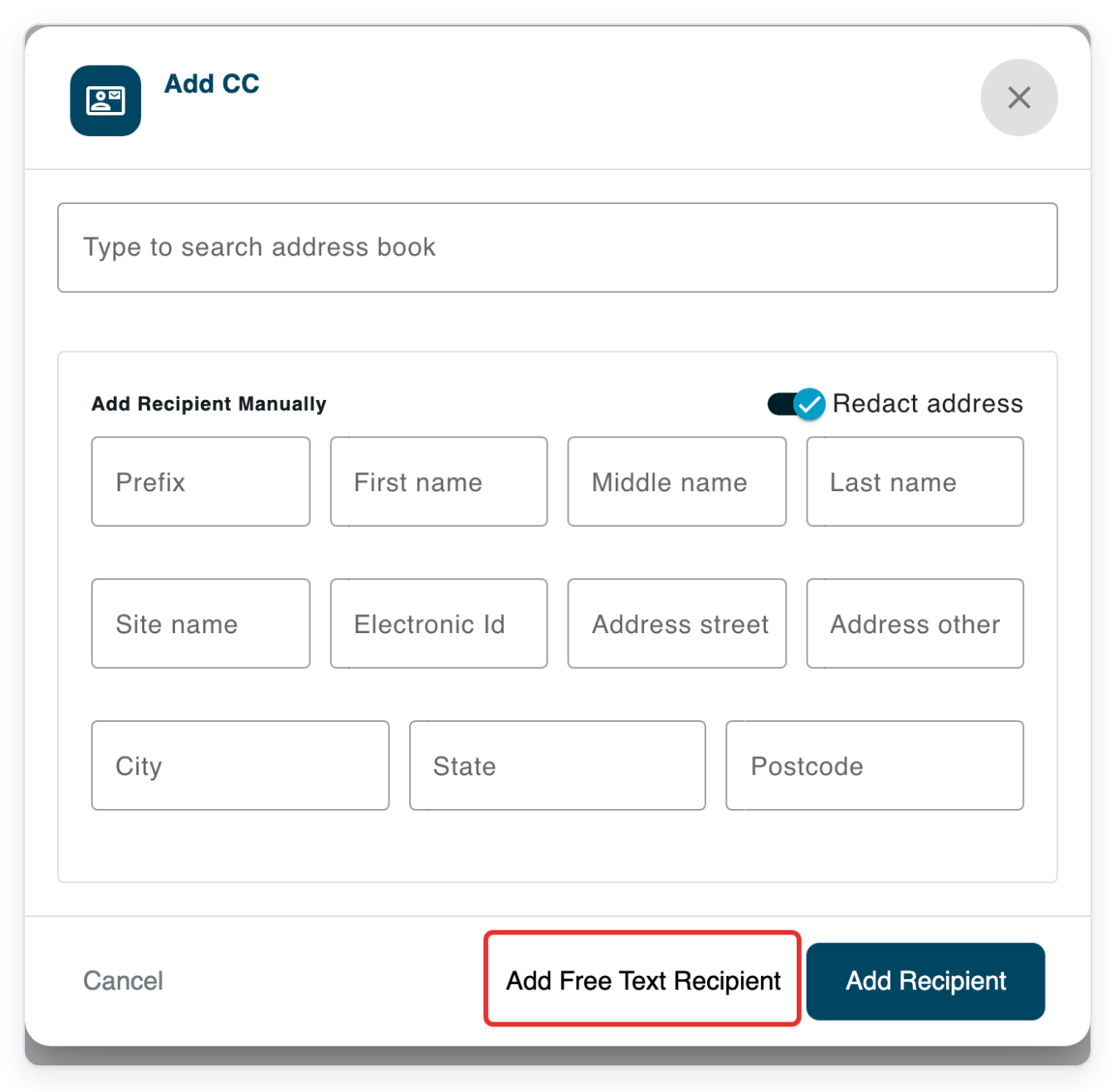
Click Add Free Text Recipient to open the recipient text editor.
Enter and format the recipient's details here instead of filling in separate fields.
=> You can return to the address book search with Search address book.
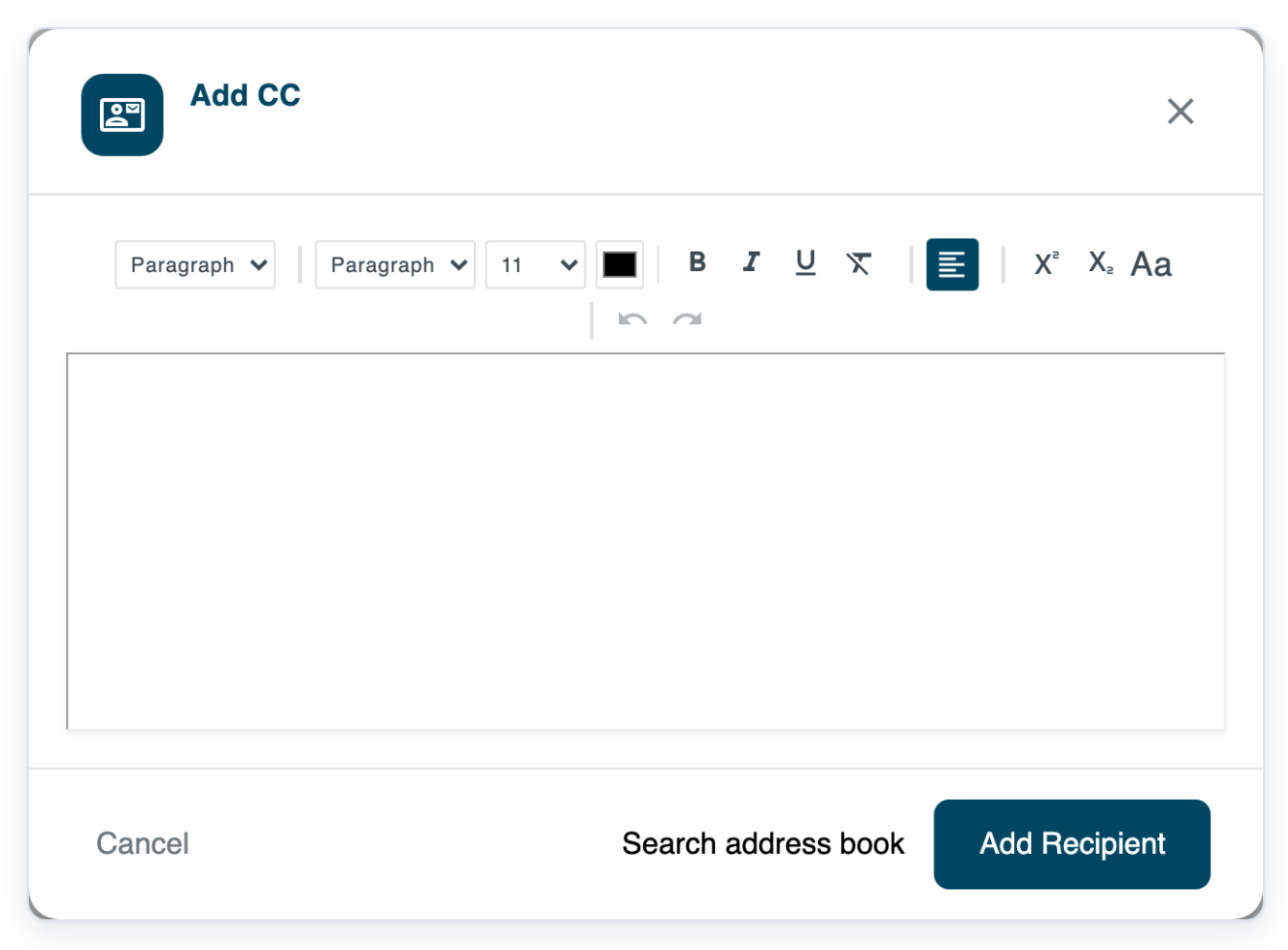
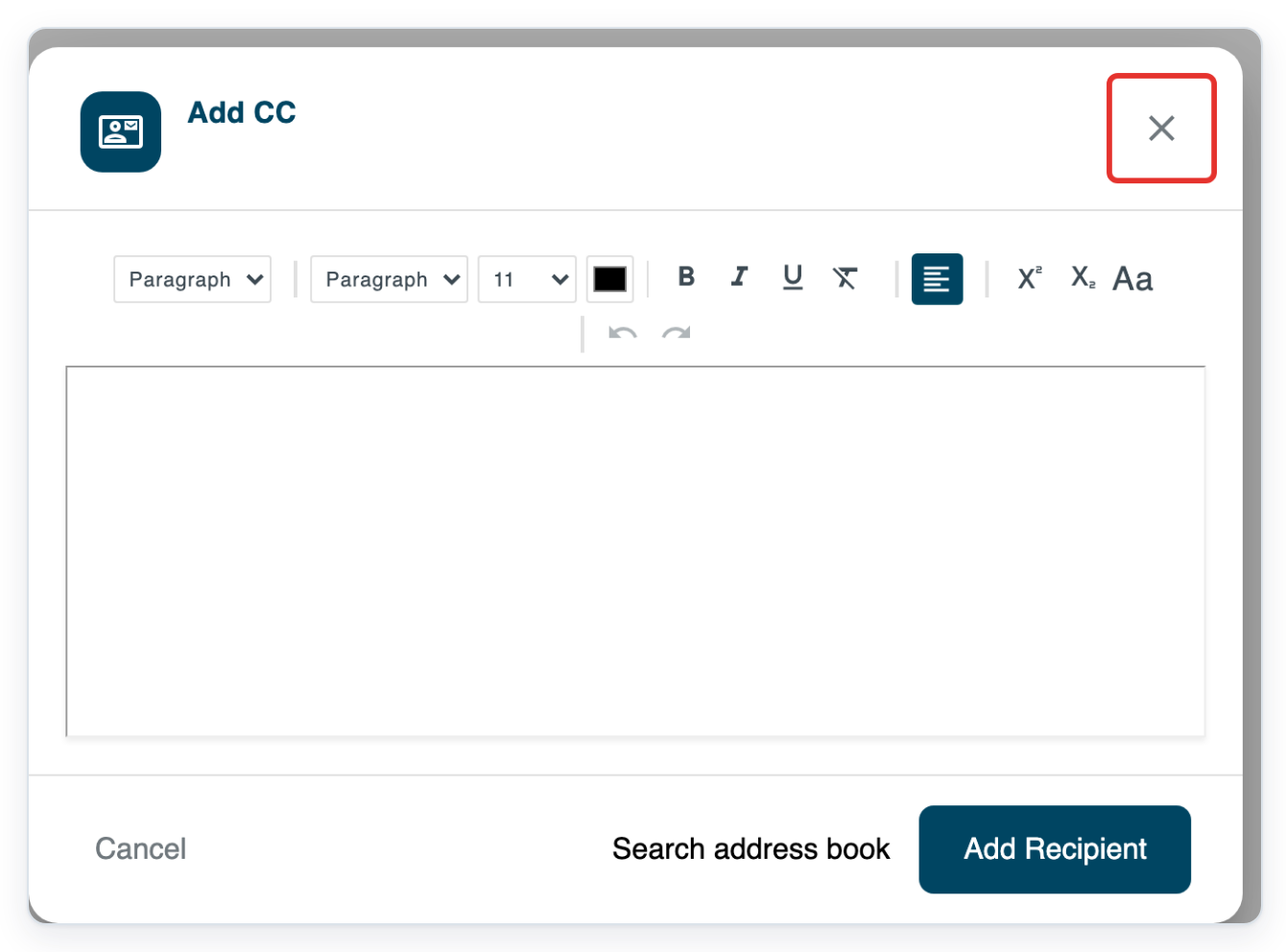
Click the cross at the top right to close the window and return to the letter.
If you close without clicking Add Recipient, the recipient stays unchanged.
Click the printer icon in the letter toolbar to open Print.
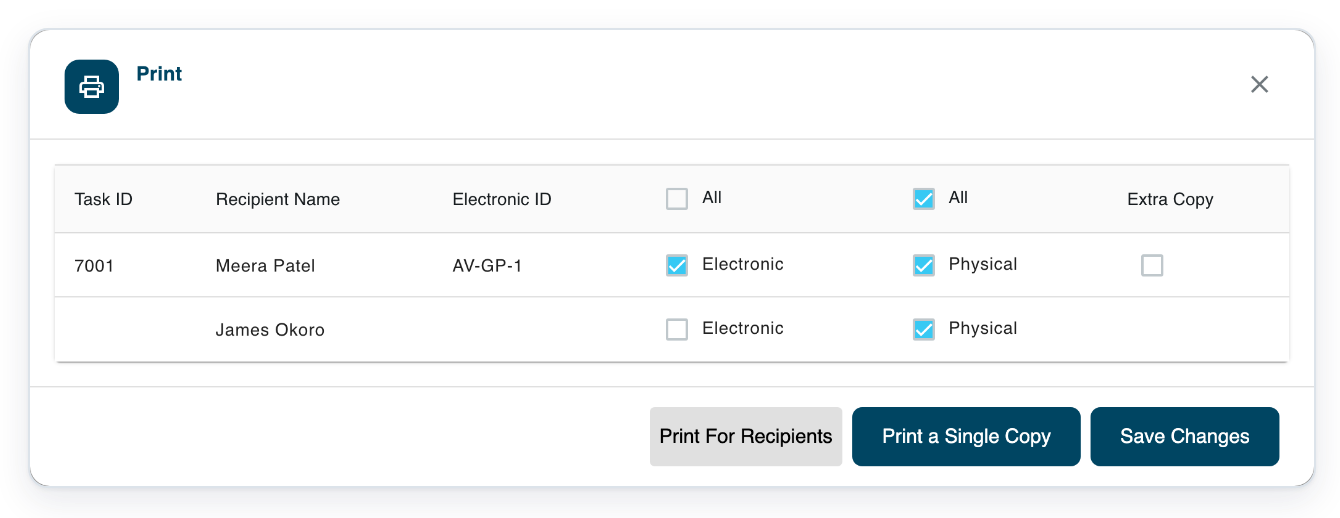
=> The window shows Recipient Name, Electronic ID and the Electronic and Physical delivery choices. It also offers Print For Recipients, Print a Single Copy and Save Changes.
As a master
=> With your master account, open Transcription Routes. Both example routes show SR and Backend. The Orthopaedics follow-up letters route also shows Smart dictation.
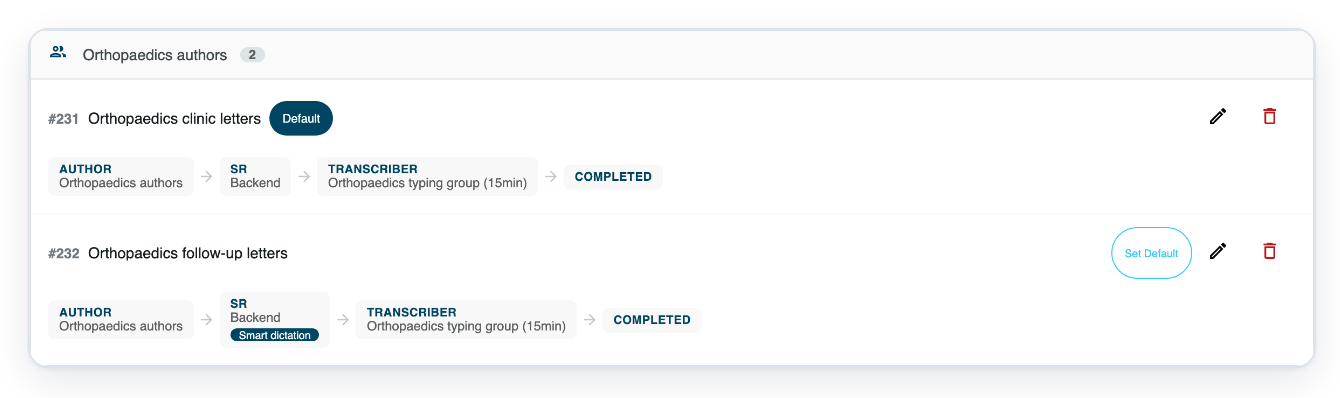
Click the pencil beside Orthopaedics clinic letters to open Edit Transcription Route.
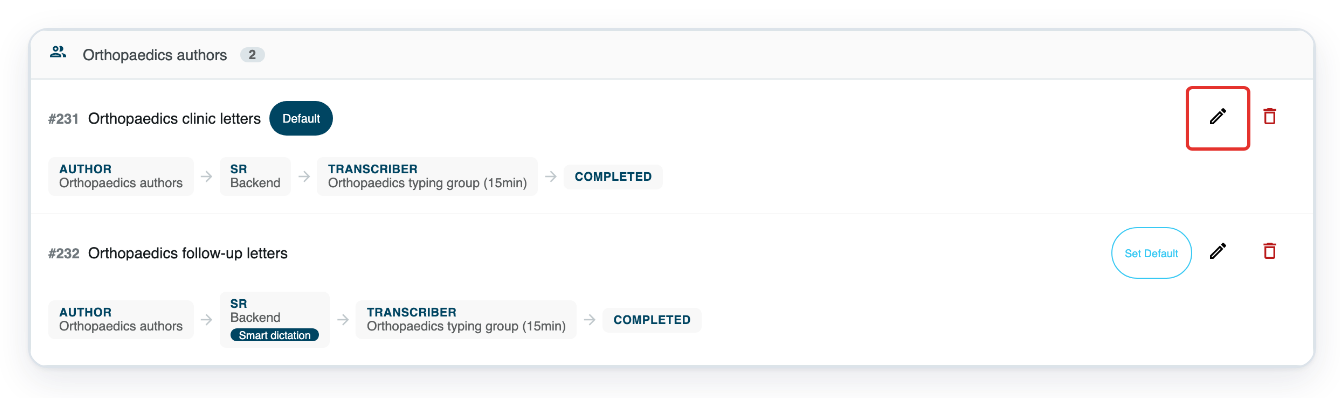
=> Speech Recognition and Backend smart dictation have separate switches. Here, speech recognition is on and smart dictation is off.
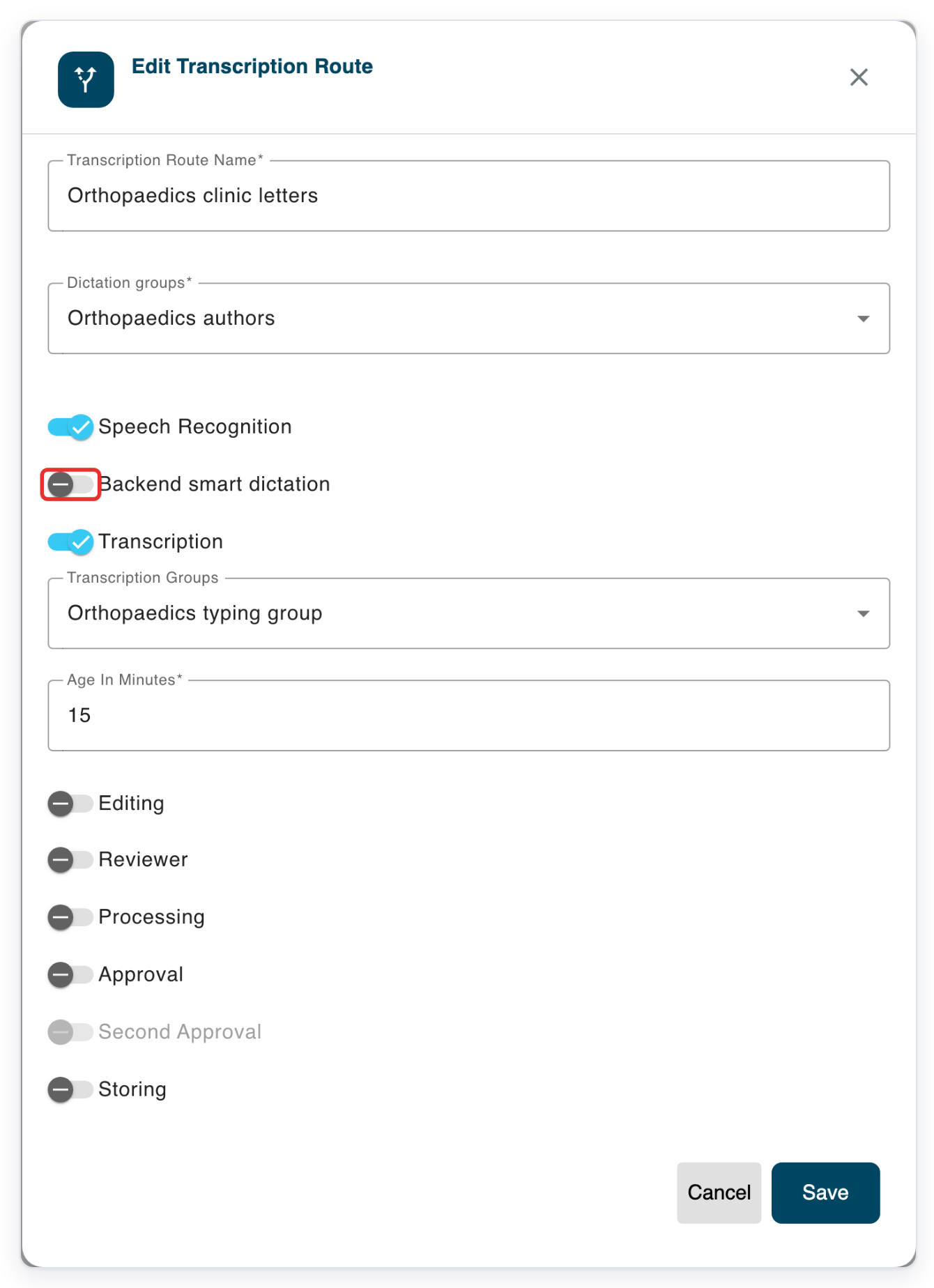
Click the cross at the top right to close the route window.
If you're only checking the settings, close the window without clicking Save.
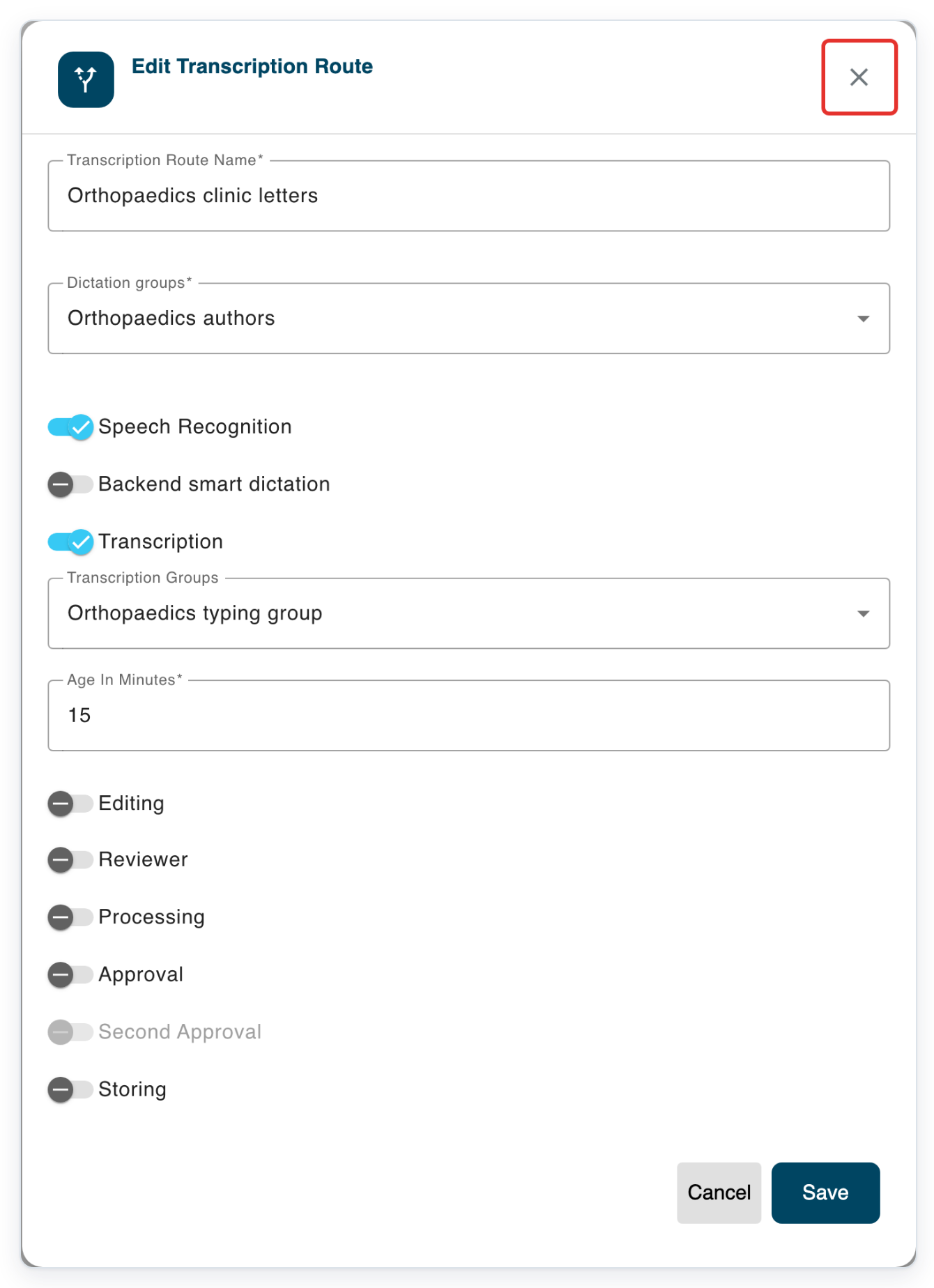
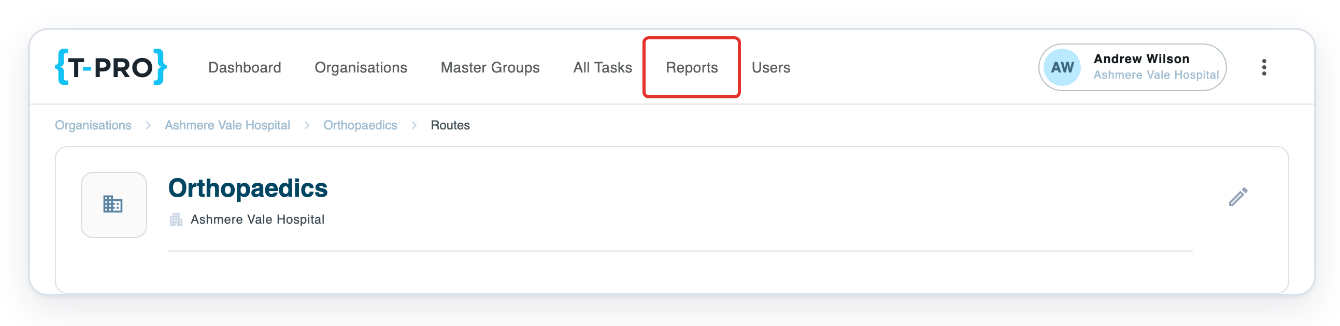
Click Reports in the main navigation to view the reports.
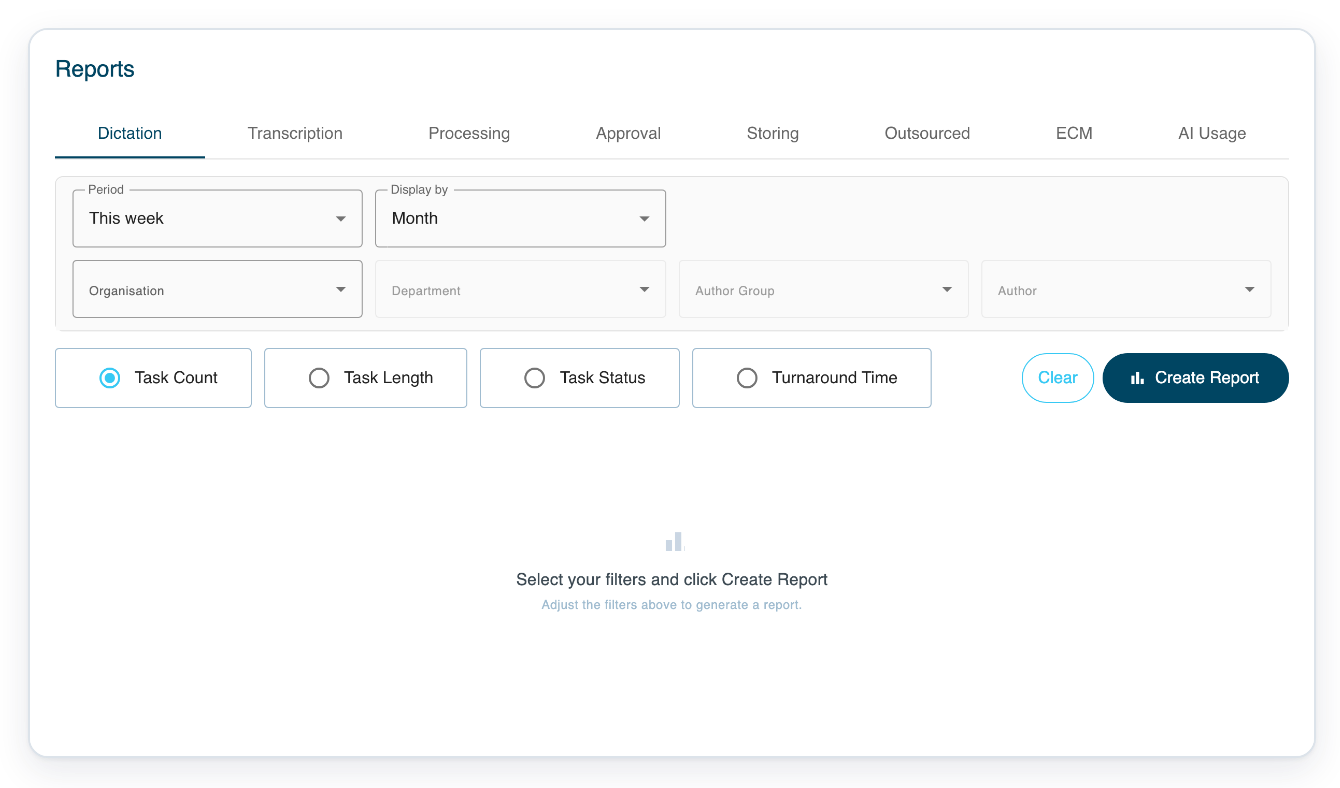
=> Report types appear in tabs. Dictation offers Task Count, Task Length, Task Status and Turnaround Time.
The filters include Period, Display by, Organisation, Department, Author Group and Author. Click Create Report to run the report with your chosen filters.
NOTE:
- Available options depend on your account and organisation settings.
The main changes at a glance
Find your area below, then follow the links for full instructions.
| Area | What changes in V2 | Read the guide |
|---|---|---|
| Tasks | All Tasks loads automatically. Managers can assign selected tasks together if the tasks are eligible. | Search for tasks · Assign tasks to a typist |
| Letter editor | The letter has a formatting toolbar and saves automatically. Task actions are beneath the page. | Use the letter editor |
| Recording | Keyboard controls let you move through audio and stop a recording. | Record with Web Recorder · Web Recorder settings |
| Approval | You can change the first and second approvers in a separate window while a letter awaits approval. | Reassign for approval |
| Printing and recipients | Electronic ID appears beside recipient names and delivery choices in the print window. | Print letters · Send letters electronically |
| Address redaction | Recipient addresses can be hidden on letters. Organisation rules cover patient, next of kin and manually entered addresses. | Address redaction · Address redaction settings |
| Free text recipients | Enter recipient details in a text editor or return to address book search. Your organisation controls whether you can use free text entry. | Free text recipients · Recipients and CCs |
| Templates | Builder and Tester views include tools for formatting, headers, pages and merge fields. | Template settings · Headers and page breaks |
| Users and security | Account details and group management appear beside separate sections for passwords, multi-factor authentication and account recovery. | Update your profile · Add users to a group · Multi-factor authentication |
| Organisation settings | Settings are grouped by product. Departments have pages for processors, text replacements and department settings. | Organisation settings · Department settings |
| Transcription routes | Speech recognition routes can show Smart dictation. The route settings have a separate Backend smart dictation switch. | Smart dictation · Transcription routes |
| Reports | Choose a report type from the tabs, then filter by period and organisation. Each task report has measures you can select. | Create reports |
| eCM | The clinic schedule shows patient details, appointment status and waiting time together. | Use the clinic schedule |
Can't find a feature?
- If Add Free Text Recipient is missing, your organisation may have disabled free text entry. Use address book search or the separate recipient fields. See Free text recipients.
- If you can't switch off Redact address, your organisation requires the address to stay hidden for that recipient. Leave this setting on. If the address needs checking, contact T-Pro support. See Address redaction.
- If Backend smart dictation is missing, check that Speech Recognition is on for the route. Ask your administrator to check the organisation's smart dictation setting. See Transcription routes and Organisation settings.
Related articles
- Find your way around V2
- The letter editor in V2
- Smart dictation
- Add recipients and CCs to a letter
- Create reports
If you have any more queries, please do not hesitate to contact our Helpdesk or support@tpro.io.
© 2020 - 2026